UI controls in
Android
Divya K.S
1
UI controls
• Input controls are the interactive components in your app's user
interface.
• Android provides a wide variety of controls you can use in
your UI, such as buttons, text fields, seek bars, check box,
zoom buttons, toggle buttons, and many more.
2
3
4
5
TextView
• A TextView displays text to the user and optionally allows
them to edit it.
• A TextView is a complete text editor, however the basic class
is configured to not allow editing.
6
7
8
9
10
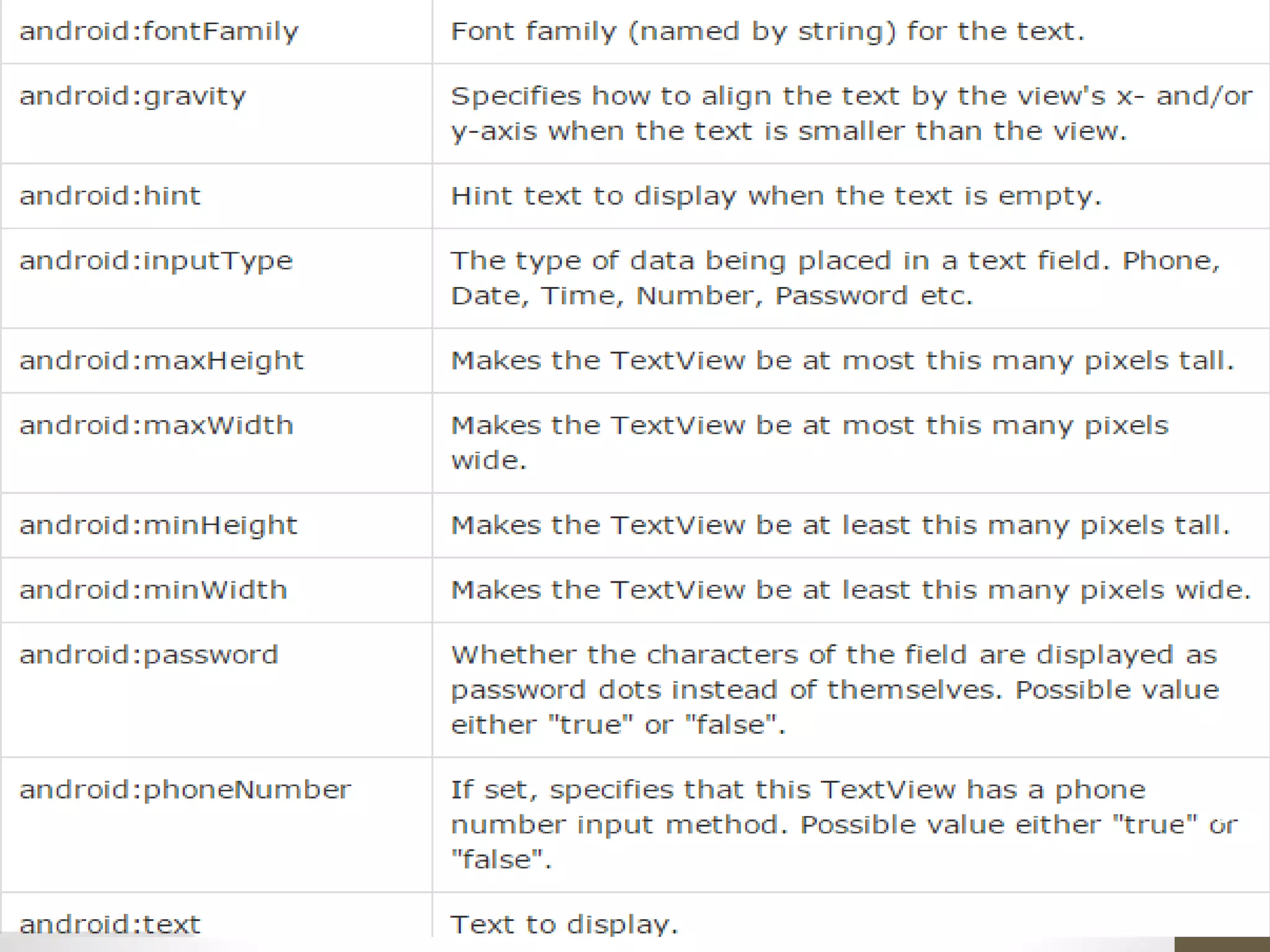
android:autoText If set, specifies that this Text View has
a textual input method and
automatically corrects some common
spelling errors.
android:text This is the Text to display.
android:editable If set, specifies that this Text View has
an input method.
android:visibility This controls the initial visibility of the
view.
11
12
13
14
15
16
17
18
19
• v
20
Toggle button attributes
21
button
22
23
24
Image button
25
26
Check box
27
28
Radio button
29
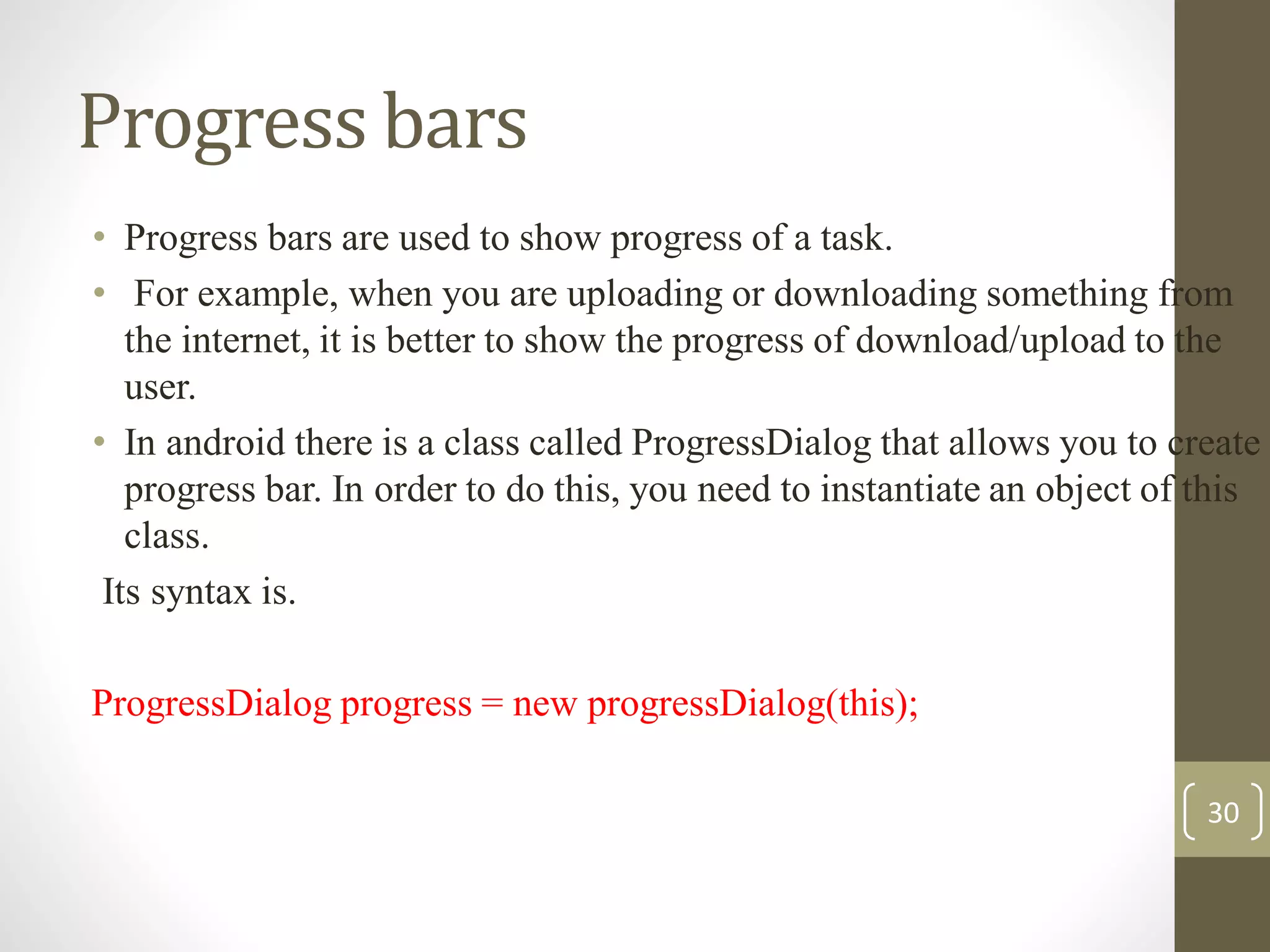
Progress bars
• Progress bars are used to show progress of a task.
• For example, when you are uploading or downloading something from
the internet, it is better to show the progress of download/upload to the
user.
• In android there is a class called ProgressDialog that allows you to create
progress bar. In order to do this, you need to instantiate an object of this
class.
Its syntax is.
ProgressDialog progress = new progressDialog(this);
30
31
32
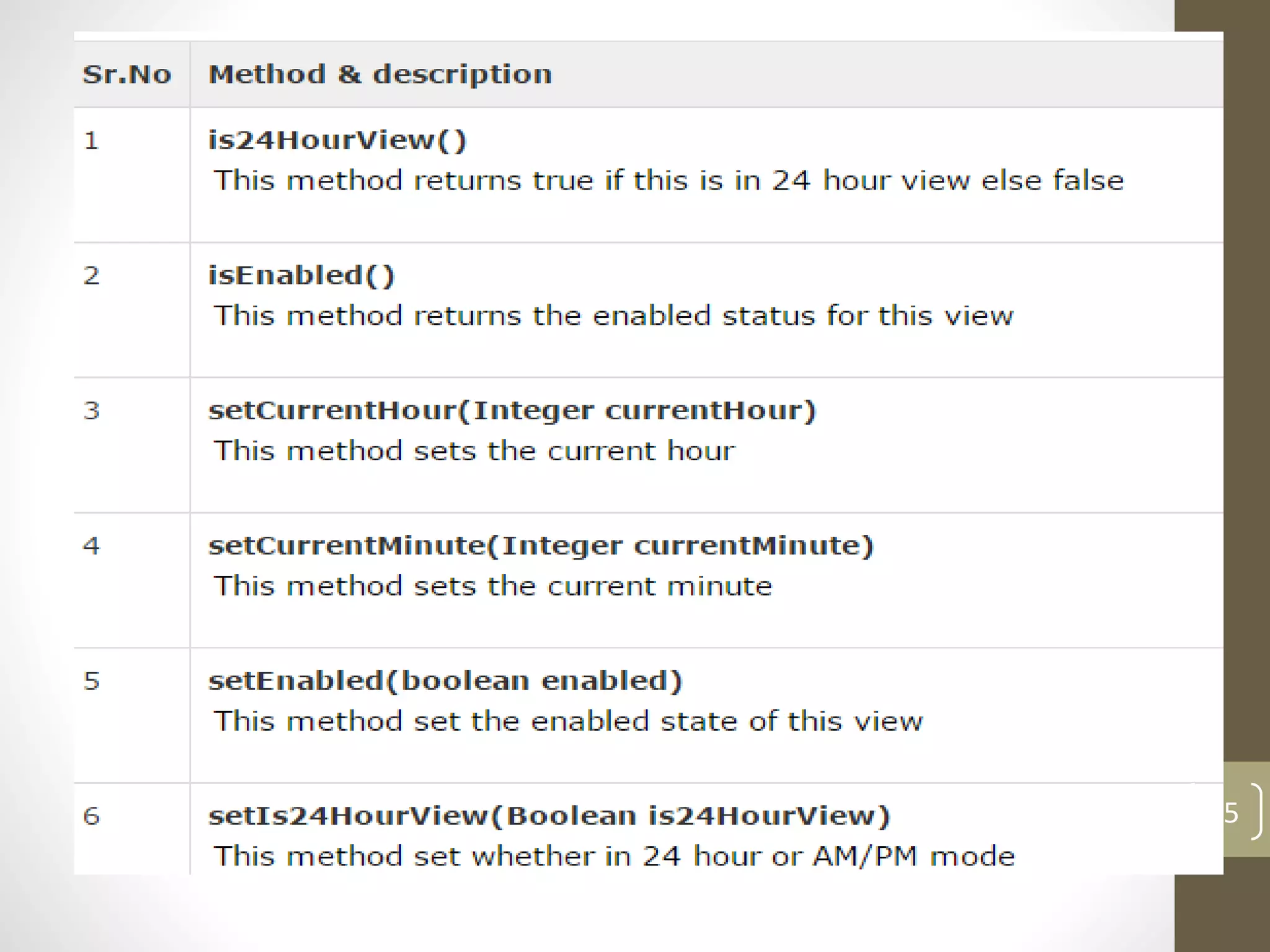
Time Picker
• Android Time Picker allows you to select the time of day in
either 24 hour or AM/PM mode.
• The time consists of hours, minutes and clock format.
33
• In order to use TimePicker class, you have to first define the
TimePicker component in your activity.xml. It is define as below −
34
35
Datetime picker
• Android Date Picker allows you to select the date consisting of
day, month and year in your custom user interface.
• For this functionality android provides DatePicker and
DatePickerDialog components.
36
• On calling this showDialog method, another method called
onCreateDialog gets automatically called. So we have to override
that method too. Its syntax is given below
In the last step, you have to register the DatePickerDialog listener and override
its onDateSet method. This onDateSet method contains the updated day, month
and year. Its syntax is given below
37
private DatePickerDialog.OnDateSetListener myDateListener = new
DatePickerDialog.OnDateSetListener()
{
@Override
public void onDateSet(DatePicker arg0, int arg1, int arg2, int arg3) { // arg1 = year
// arg2 = month // arg3 = day
}
};
38
39
40
41
INTENT
• An intent is an abstract description of an operation to be
performed.
• It can be used with startActivity to launch an Activity.
42
Calling built-in applications
• One of the key aspects of android is using intents to call
activities from other applications.
• Eg: In your applications needs to load a web browser we use
intent to invoke a built-in web page instead of building our
own page.
43
44
45
Intent Objects
• An Intent object can contain the following components based
on what it is going to perform −
• Action
• Data
46
Action & data
• This is mandatory part of the Intent object and is a string
naming the action to be performed .
• Adds a data specification to an intent filter. The specification
can be just a data type just a URI, or both a data type and a
URI.
47
48
49
50
51
THANK YOU
52

UI controls in Android

  • 1.
  • 2.
    UI controls • Inputcontrols are the interactive components in your app's user interface. • Android provides a wide variety of controls you can use in your UI, such as buttons, text fields, seek bars, check box, zoom buttons, toggle buttons, and many more. 2
  • 3.
  • 4.
  • 5.
  • 6.
    TextView • A TextViewdisplays text to the user and optionally allows them to edit it. • A TextView is a complete text editor, however the basic class is configured to not allow editing. 6
  • 7.
  • 8.
  • 9.
  • 10.
  • 11.
    android:autoText If set,specifies that this Text View has a textual input method and automatically corrects some common spelling errors. android:text This is the Text to display. android:editable If set, specifies that this Text View has an input method. android:visibility This controls the initial visibility of the view. 11
  • 12.
  • 13.
  • 14.
  • 15.
  • 16.
  • 17.
  • 18.
  • 19.
  • 20.
  • 21.
  • 22.
  • 23.
  • 24.
  • 25.
  • 26.
  • 27.
  • 28.
  • 29.
  • 30.
    Progress bars • Progressbars are used to show progress of a task. • For example, when you are uploading or downloading something from the internet, it is better to show the progress of download/upload to the user. • In android there is a class called ProgressDialog that allows you to create progress bar. In order to do this, you need to instantiate an object of this class. Its syntax is. ProgressDialog progress = new progressDialog(this); 30
  • 31.
  • 32.
  • 33.
    Time Picker • AndroidTime Picker allows you to select the time of day in either 24 hour or AM/PM mode. • The time consists of hours, minutes and clock format. 33
  • 34.
    • In orderto use TimePicker class, you have to first define the TimePicker component in your activity.xml. It is define as below − 34
  • 35.
  • 36.
    Datetime picker • AndroidDate Picker allows you to select the date consisting of day, month and year in your custom user interface. • For this functionality android provides DatePicker and DatePickerDialog components. 36
  • 37.
    • On callingthis showDialog method, another method called onCreateDialog gets automatically called. So we have to override that method too. Its syntax is given below In the last step, you have to register the DatePickerDialog listener and override its onDateSet method. This onDateSet method contains the updated day, month and year. Its syntax is given below 37
  • 38.
    private DatePickerDialog.OnDateSetListener myDateListener= new DatePickerDialog.OnDateSetListener() { @Override public void onDateSet(DatePicker arg0, int arg1, int arg2, int arg3) { // arg1 = year // arg2 = month // arg3 = day } }; 38
  • 39.
  • 40.
  • 41.
  • 42.
    INTENT • An intentis an abstract description of an operation to be performed. • It can be used with startActivity to launch an Activity. 42
  • 43.
    Calling built-in applications •One of the key aspects of android is using intents to call activities from other applications. • Eg: In your applications needs to load a web browser we use intent to invoke a built-in web page instead of building our own page. 43
  • 44.
  • 45.
  • 46.
    Intent Objects • AnIntent object can contain the following components based on what it is going to perform − • Action • Data 46
  • 47.
    Action & data •This is mandatory part of the Intent object and is a string naming the action to be performed . • Adds a data specification to an intent filter. The specification can be just a data type just a URI, or both a data type and a URI. 47
  • 48.
  • 49.
  • 50.
  • 51.
  • 52.