Mobile Application Development
with ANDROID
K.D.V.Vara Prasad
11505988
2
Contents
 History of android
 Introduction of android
 Android versions
 Features of android
 Components in android
 Android life cycle
 Going from one activity to another activity
 Advantages of android
 Disadvantages of android
 Conclusion
3
HISTORY OF ANDROID
The word "Android" originated from the
Alchemical Literature in 1727.
Android Inc. founded in Palo Alto,california,
United States in october 2003 by Andy Rubin
[C0-founder of Danger], Rich Miner[Co-founder of
Wildfire Communication Inc.], Nick Sears[Once VP
at T- mobile] and Chris White[Headed design and
interface development at web TV] to develop.
4
WHAT IS ANDROID?
• It is a open source software platform and operating system for mobile devices
based on Linux Kernel.
• Developed by google and later the Open Handset Alliance(OHA)
• Allows writing managed code in Java Programming Language.
• Android has its own virtual machine i.e. DVM(Dalvik Virtual Machine),which is
used for executing android applications.
• Google purchased the initial developer of the software, android incorporated in
2005.
5
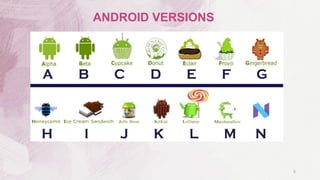
ANDROID VERSIONS
 Background Wi-Fi location still runs even when Wi-Fi is turned off.
 Developer logging and analysing enhancements.
 It is optimised for mobile devices.
 It enables reuse and replacement of components.
 Java support ,media support, multi touch, video calling, multi tasking,
Voice based features, screen capture, camera, Bluetooth, GPS, compass, accelometer and 3G.
6
FEATURES OF ANDROID
• LinearLayout - LinearLayout is a view group that align all the children in a
single direction, vertically or horizontally. You can specify the layout direction
with the android : orientation attribute all the children of the linear layout are
stack after one other. so a vertical list will only have one child per row, no
matter how wide they are, and a horizontal list will only be one row.
• ScrollView - A Scroll View is an public Scroll View that extends Frame
Layout. Scroll View have only one child direct child placed within it. To add a
Multiple Views within the scroll view, make the direct child you add a view
group.
7
COMPONENTS IN ANDROID
• ListView - ListView is a view group that displays a list of scrollable items.
The list items are automatically inserted to the list using an adapter that
pulls content from a source such as an array or database query and
converts each item result into a view that's placed into the list.
• GridView - GridView is an View Group that displays items in a two-
dimensional, scrollable grid. The grid items are automatically inserted to the
layout using a List Adapter.it is a public class that extends the AbsListView.
8
COMPONENTS IN ANDROID
• Text View - A Text View is a display attribute to the user and optionally allow
them to edit it. A TextView is a complete text editor however the basic class
is configured to now allow editing. You can initialize and declare the text like
for eg- TextView tt=(TextView) findViewById(R.id.tt)
• Button - A button consists of text or an icon (or both text and an icon) that
communicates what action occurs when the user touches it. You can initialize
and declare the button in the java like for eg - Button bt1=(Button)
findViewById(R.id.bt1). You can register the button for the click listner in this
way which mentioned as - bt1.setOnClickListener(MainActivity.this)
9
COMPONENTS IN ANDROID
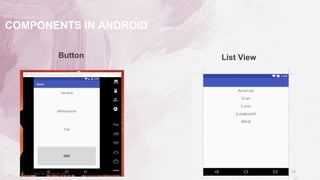
Button List View
10
COMPONENTS IN ANDROID
 CheckBox :-It is a public class, it extends the Compoud Button. Checkboxes allow
the user to select one or more options from a set. Typically, you should present each
checkbox option in a vertical list.
 You can declare it inside the java code like for eg - CheckBox c1=(CheckBox)
findViewById(R.id.c1).
 A checkbox is a specific type of two-states button that can be either checked or
unchecked. A example usage of a checkbox inside your activity would be the
following -
 Public class Activity extends Activity{
If(CheckBox.isChecked())
{
checkBox.setChecked(false)
}}
11
 OnCreate()You must implement this callback, which fires when the
system first creates the activity. On activity creation, the activity enters
the Created state. In the onCreate() method, you perform basic
application startup logic that should happen only once for the entire life of
the activity.
 For example, your implementation of onCreate() might bind data to lists,
initialize background threads, and instantiate some class-scope variables
12
ANDROID LIFECYCLE
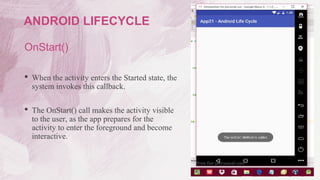
OnStart()
 When the activity enters the Started state, the
system invokes this callback.
 The OnStart() call makes the activity visible
to the user, as the app prepares for the
activity to enter the foreground and become
interactive.
13
ANDROID LIFECYCLE
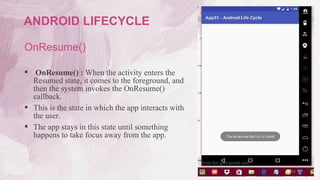
OnResume()
 OnResume() : When the activity enters the
Resumed state, it comes to the foreground, and
then the system invokes the OnResume()
callback.
 This is the state in which the app interacts with
the user.
 The app stays in this state until something
happens to take focus away from the app.
14
ANDROID LIFECYCLE
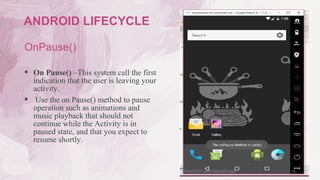
OnPause()
 On Pause() –This system call the first
indication that the user is leaving your
activity.
 Use the on Pause() method to pause
operation such as animations and
music playback that should not
continue while the Activity is in
paused state, and that you expect to
resume shortly.
15
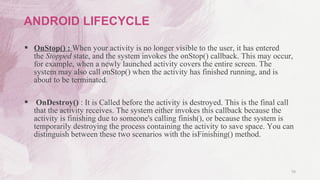
ANDROID LIFECYCLE
 OnStop() : When your activity is no longer visible to the user, it has entered
the Stopped state, and the system invokes the onStop() callback. This may occur,
for example, when a newly launched activity covers the entire screen. The
system may also call onStop() when the activity has finished running, and is
about to be terminated.
 OnDestroy() : It is Called before the activity is destroyed. This is the final call
that the activity receives. The system either invokes this callback because the
activity is finishing due to someone's calling finish(), or because the system is
temporarily destroying the process containing the activity to save space. You can
distinguish between these two scenarios with the isFinishing() method.
16
ANDROID LIFECYCLE
17
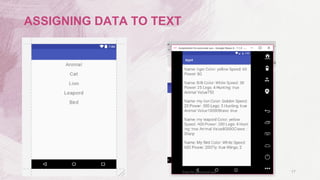
ASSIGNING DATA TO TEXT
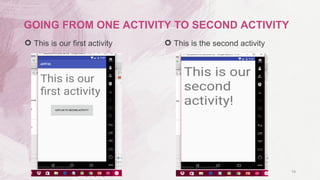
 This is our first activity  This is the second activity
18
GOING FROM ONE ACTIVITY TO SECOND ACTIVITY
 The ability for anyone to customize the Google Android Platform.
 It gives you better notification.
 It lets you choose your hardware.
 It has better app market(180000+ applications)
 With the support of many applications, the user can change the screen
display.
 A more mature platform.
 Supports all google services: Android OS supports all of Google Services
from Gmail to Google reader, all the Google Services you can have with
one OS, namely Android.
19
ADVANTAGES OF ANDROID
 Android market is less control of the manager, sometimes they are
malware.
 Waste of batteries, This is because the OS is a lot of “process” in the
background causing the battery quickly drains.
 Sometimes slow device company issued an official version of android of
your own.
 Extremely inconsistence in design among apps.
 Very unstable often hang or crash.
20
DISADVANTAGES OF ANDROID
 Android is open to all : Industry, Developers and User.
 Google android is stepping into the next level of Mobile Internet.
 We hope that the next versions of Android have overcome the actual
limitations and may this OS is also developed to use in PC’s also.
21
CONCLUSION
22
Thank You!

Android app development

  • 1.
    Mobile Application Development withANDROID K.D.V.Vara Prasad 11505988
  • 2.
    2 Contents  History ofandroid  Introduction of android  Android versions  Features of android  Components in android  Android life cycle  Going from one activity to another activity  Advantages of android  Disadvantages of android  Conclusion
  • 3.
    3 HISTORY OF ANDROID Theword "Android" originated from the Alchemical Literature in 1727. Android Inc. founded in Palo Alto,california, United States in october 2003 by Andy Rubin [C0-founder of Danger], Rich Miner[Co-founder of Wildfire Communication Inc.], Nick Sears[Once VP at T- mobile] and Chris White[Headed design and interface development at web TV] to develop.
  • 4.
    4 WHAT IS ANDROID? •It is a open source software platform and operating system for mobile devices based on Linux Kernel. • Developed by google and later the Open Handset Alliance(OHA) • Allows writing managed code in Java Programming Language. • Android has its own virtual machine i.e. DVM(Dalvik Virtual Machine),which is used for executing android applications. • Google purchased the initial developer of the software, android incorporated in 2005.
  • 5.
  • 6.
     Background Wi-Filocation still runs even when Wi-Fi is turned off.  Developer logging and analysing enhancements.  It is optimised for mobile devices.  It enables reuse and replacement of components.  Java support ,media support, multi touch, video calling, multi tasking, Voice based features, screen capture, camera, Bluetooth, GPS, compass, accelometer and 3G. 6 FEATURES OF ANDROID
  • 7.
    • LinearLayout -LinearLayout is a view group that align all the children in a single direction, vertically or horizontally. You can specify the layout direction with the android : orientation attribute all the children of the linear layout are stack after one other. so a vertical list will only have one child per row, no matter how wide they are, and a horizontal list will only be one row. • ScrollView - A Scroll View is an public Scroll View that extends Frame Layout. Scroll View have only one child direct child placed within it. To add a Multiple Views within the scroll view, make the direct child you add a view group. 7 COMPONENTS IN ANDROID
  • 8.
    • ListView -ListView is a view group that displays a list of scrollable items. The list items are automatically inserted to the list using an adapter that pulls content from a source such as an array or database query and converts each item result into a view that's placed into the list. • GridView - GridView is an View Group that displays items in a two- dimensional, scrollable grid. The grid items are automatically inserted to the layout using a List Adapter.it is a public class that extends the AbsListView. 8 COMPONENTS IN ANDROID
  • 9.
    • Text View- A Text View is a display attribute to the user and optionally allow them to edit it. A TextView is a complete text editor however the basic class is configured to now allow editing. You can initialize and declare the text like for eg- TextView tt=(TextView) findViewById(R.id.tt) • Button - A button consists of text or an icon (or both text and an icon) that communicates what action occurs when the user touches it. You can initialize and declare the button in the java like for eg - Button bt1=(Button) findViewById(R.id.bt1). You can register the button for the click listner in this way which mentioned as - bt1.setOnClickListener(MainActivity.this) 9 COMPONENTS IN ANDROID
  • 10.
  • 11.
    COMPONENTS IN ANDROID CheckBox :-It is a public class, it extends the Compoud Button. Checkboxes allow the user to select one or more options from a set. Typically, you should present each checkbox option in a vertical list.  You can declare it inside the java code like for eg - CheckBox c1=(CheckBox) findViewById(R.id.c1).  A checkbox is a specific type of two-states button that can be either checked or unchecked. A example usage of a checkbox inside your activity would be the following -  Public class Activity extends Activity{ If(CheckBox.isChecked()) { checkBox.setChecked(false) }} 11
  • 12.
     OnCreate()You mustimplement this callback, which fires when the system first creates the activity. On activity creation, the activity enters the Created state. In the onCreate() method, you perform basic application startup logic that should happen only once for the entire life of the activity.  For example, your implementation of onCreate() might bind data to lists, initialize background threads, and instantiate some class-scope variables 12 ANDROID LIFECYCLE
  • 13.
    OnStart()  When theactivity enters the Started state, the system invokes this callback.  The OnStart() call makes the activity visible to the user, as the app prepares for the activity to enter the foreground and become interactive. 13 ANDROID LIFECYCLE
  • 14.
    OnResume()  OnResume() :When the activity enters the Resumed state, it comes to the foreground, and then the system invokes the OnResume() callback.  This is the state in which the app interacts with the user.  The app stays in this state until something happens to take focus away from the app. 14 ANDROID LIFECYCLE
  • 15.
    OnPause()  On Pause()–This system call the first indication that the user is leaving your activity.  Use the on Pause() method to pause operation such as animations and music playback that should not continue while the Activity is in paused state, and that you expect to resume shortly. 15 ANDROID LIFECYCLE
  • 16.
     OnStop() :When your activity is no longer visible to the user, it has entered the Stopped state, and the system invokes the onStop() callback. This may occur, for example, when a newly launched activity covers the entire screen. The system may also call onStop() when the activity has finished running, and is about to be terminated.  OnDestroy() : It is Called before the activity is destroyed. This is the final call that the activity receives. The system either invokes this callback because the activity is finishing due to someone's calling finish(), or because the system is temporarily destroying the process containing the activity to save space. You can distinguish between these two scenarios with the isFinishing() method. 16 ANDROID LIFECYCLE
  • 17.
  • 18.
     This isour first activity  This is the second activity 18 GOING FROM ONE ACTIVITY TO SECOND ACTIVITY
  • 19.
     The abilityfor anyone to customize the Google Android Platform.  It gives you better notification.  It lets you choose your hardware.  It has better app market(180000+ applications)  With the support of many applications, the user can change the screen display.  A more mature platform.  Supports all google services: Android OS supports all of Google Services from Gmail to Google reader, all the Google Services you can have with one OS, namely Android. 19 ADVANTAGES OF ANDROID
  • 20.
     Android marketis less control of the manager, sometimes they are malware.  Waste of batteries, This is because the OS is a lot of “process” in the background causing the battery quickly drains.  Sometimes slow device company issued an official version of android of your own.  Extremely inconsistence in design among apps.  Very unstable often hang or crash. 20 DISADVANTAGES OF ANDROID
  • 21.
     Android isopen to all : Industry, Developers and User.  Google android is stepping into the next level of Mobile Internet.  We hope that the next versions of Android have overcome the actual limitations and may this OS is also developed to use in PC’s also. 21 CONCLUSION
  • 22.