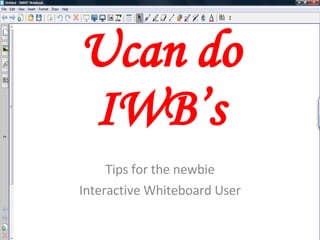
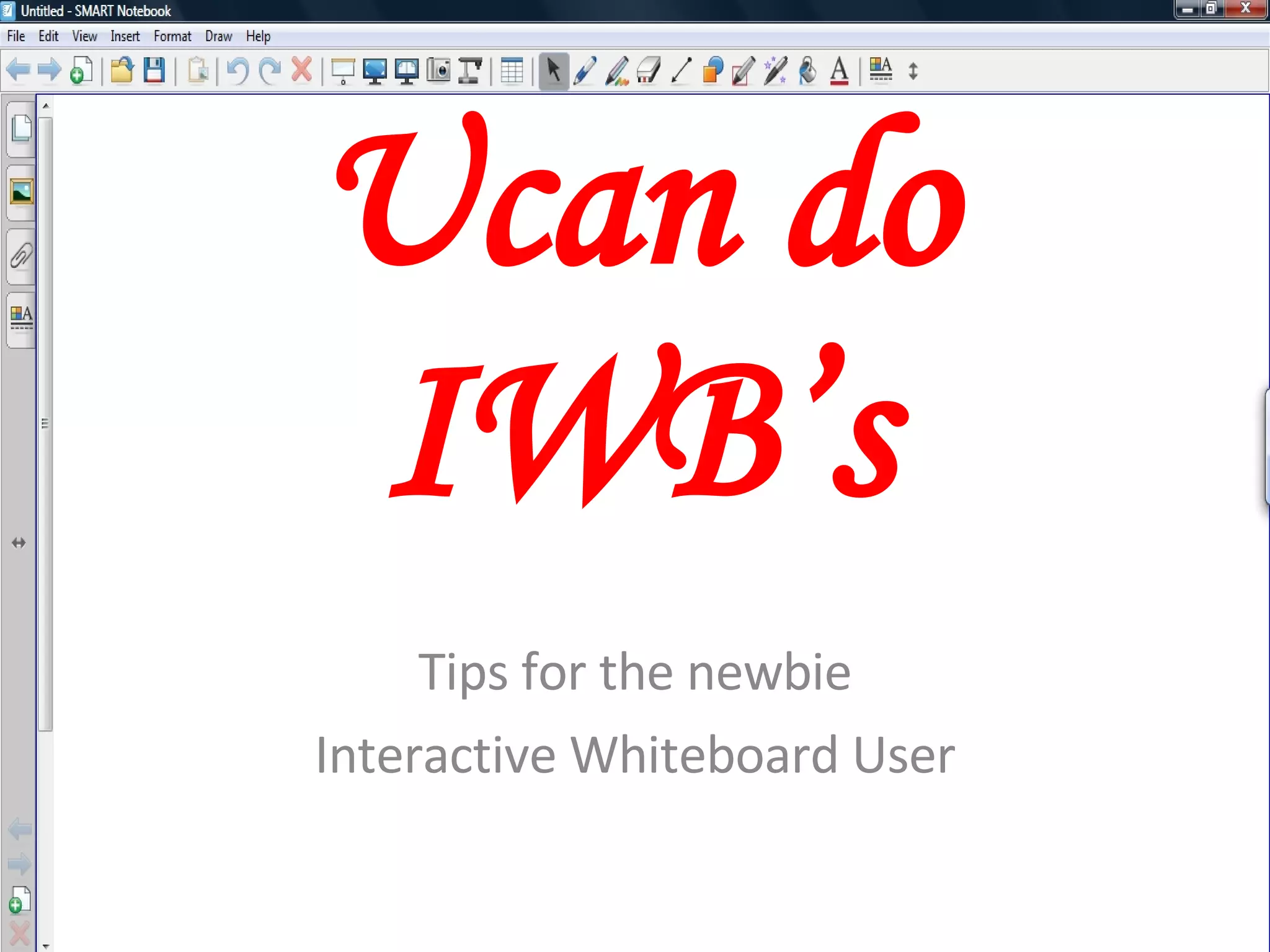
Ucan do IWB’s Tips for the newbie Interactive Whiteboard User
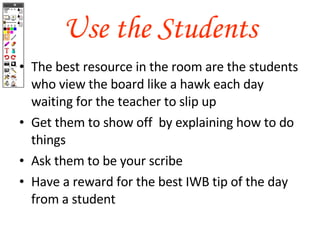
Use the Students The best resource in the room are the students who view the board like a hawk each day waiting for the teacher to slip up Get them to show off  by explaining how to do things Ask them to be your scribe Have a reward for the best IWB tip of the day from a student
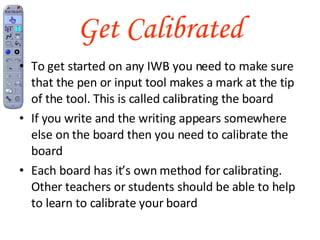
Get Calibrated To get started on any IWB you need to make sure that the pen or input tool makes a mark at the tip of the tool. This is called calibrating the board If you write and the writing appears somewhere else on the board then you need to calibrate the board Each board has it’s own method for calibrating. Other teachers or students should be able to help to learn to calibrate your board
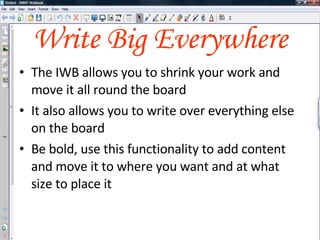
Write Big Everywhere The IWB allows you to shrink your work and move it all round the board It also allows you to write over everything else on the board Be bold, use this functionality to add content and move it to where you want and at what size to place it
It’s All About Layers Everything you put on the IWB is on a layer Using these layers you can annotate or paste things over the top of other objects Everything can can be moved forwards or backwards between the layers You can use the layers to hide or reveal objects
Use The Pages Unlike traditional whiteboards you don’t need to erase the work on the board to fit more on Dependent on the IWB, you just need to add a page or flipchart for that next bit of work You can also remove redundant pages Don’t forget that you can just as quickly flip back and forth between the pages/flipcharts to remind the little darlings what you have really covered
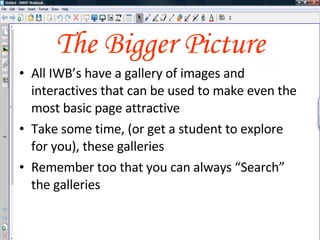
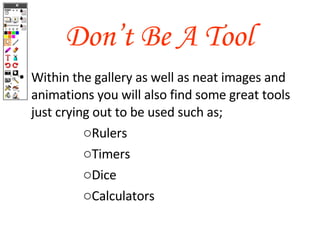
The Bigger Picture All IWB’s have a gallery of images and interactives that can be used to make even the most basic page attractive Within the gallery you’ll also find some great tools just crying out to be used Remember too that you can always “Search” the galleries Take some time, (or get a student to explore for you), the galleries
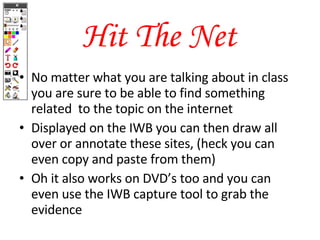
Hit The Net No matter what you are talking about in class you are sure to be able to find something related  to the topic on the internet Displayed on the IWB you can then draw all over or annotate these sites, (heck you can even copy and paste from them) Oh it also works on DVD’s too and you can even use the IWB capture tool to grab the evidence
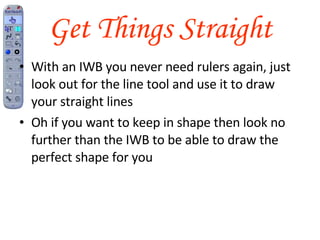
Get Things Straight With an IWB you never need rulers again, just look out for the line tool and use it to draw your straight lines Oh if you want to keep in shape then look no further than the IWB to be able to draw the perfect shape for you Most IWB’s also enable you to add a grid to the page to aid in laying things out
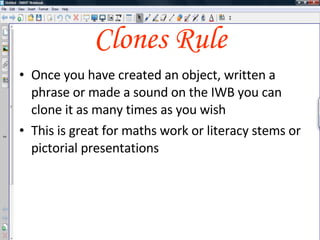
Clones Rule Once you have created an object, written a phrase or created a sound on the IWB you can clone it as many times as you wish Once you’ve created a page you can clone these as templates as well This is great for maths work or literacy stems or pictorial presentations
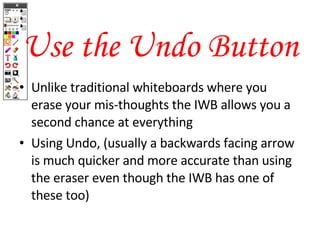
Use the Undo Button Unlike traditional whiteboards where you erase your mis-thoughts the IWB allows you a second chance at everything Using Undo, (usually a backwards facing arrow is much quicker and more accurate than using the eraser even though the IWB has one of these too)
Don’t Get Flustered Every novice IWB user has those moments when it would definitely have been much easier to have just told the students what to do Be re-assured that the time you take to come to grips with these infernal devices is time well spent Use the age old adage and just count to ten, some dear little student will have figured it out by then

Ucan Do Iwb’s 2

  • 1.
    Ucan do IWB’sTips for the newbie Interactive Whiteboard User
  • 2.
    Use the StudentsThe best resource in the room are the students who view the board like a hawk each day waiting for the teacher to slip up Get them to show off by explaining how to do things Ask them to be your scribe Have a reward for the best IWB tip of the day from a student
  • 3.
    Get Calibrated Toget started on any IWB you need to make sure that the pen or input tool makes a mark at the tip of the tool. This is called calibrating the board If you write and the writing appears somewhere else on the board then you need to calibrate the board Each board has it’s own method for calibrating. Other teachers or students should be able to help to learn to calibrate your board
  • 4.
    Write Big EverywhereThe IWB allows you to shrink your work and move it all round the board It also allows you to write over everything else on the board Be bold, use this functionality to add content and move it to where you want and at what size to place it
  • 5.
    It’s All AboutLayers Everything you put on the IWB is on a layer Using these layers you can annotate or paste things over the top of other objects Everything can can be moved forwards or backwards between the layers You can use the layers to hide or reveal objects
  • 6.
    Use The PagesUnlike traditional whiteboards you don’t need to erase the work on the board to fit more on Dependent on the IWB, you just need to add a page or flipchart for that next bit of work You can also remove redundant pages Don’t forget that you can just as quickly flip back and forth between the pages/flipcharts to remind the little darlings what you have really covered
  • 7.
    The Bigger PictureAll IWB’s have a gallery of images and interactives that can be used to make even the most basic page attractive Within the gallery you’ll also find some great tools just crying out to be used Remember too that you can always “Search” the galleries Take some time, (or get a student to explore for you), the galleries
  • 8.
    Hit The NetNo matter what you are talking about in class you are sure to be able to find something related to the topic on the internet Displayed on the IWB you can then draw all over or annotate these sites, (heck you can even copy and paste from them) Oh it also works on DVD’s too and you can even use the IWB capture tool to grab the evidence
  • 9.
    Get Things StraightWith an IWB you never need rulers again, just look out for the line tool and use it to draw your straight lines Oh if you want to keep in shape then look no further than the IWB to be able to draw the perfect shape for you Most IWB’s also enable you to add a grid to the page to aid in laying things out
  • 10.
    Clones Rule Onceyou have created an object, written a phrase or created a sound on the IWB you can clone it as many times as you wish Once you’ve created a page you can clone these as templates as well This is great for maths work or literacy stems or pictorial presentations
  • 11.
    Use the UndoButton Unlike traditional whiteboards where you erase your mis-thoughts the IWB allows you a second chance at everything Using Undo, (usually a backwards facing arrow is much quicker and more accurate than using the eraser even though the IWB has one of these too)
  • 12.
    Don’t Get FlusteredEvery novice IWB user has those moments when it would definitely have been much easier to have just told the students what to do Be re-assured that the time you take to come to grips with these infernal devices is time well spent Use the age old adage and just count to ten, some dear little student will have figured it out by then