How to use
HOOTSUITE
What is Hootsuite?
Hootsuite is a social media
management tool or system
in the form of a dashboard
that helps in tracking and
managing your social media
channels
such as Twitter, Facebook,
LinkedIn, Google+,
Foursquare, MySpace,
WordPress, TrendSpottr and
Mixi.
How to access
Hootsuite
Open up a browser.
For this presentation, we
will use Mozilla Firefox
browser.
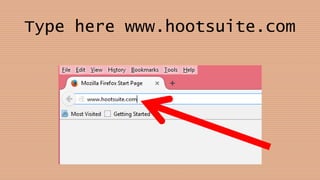
Type here www.hootsuite.com
Press Enter key
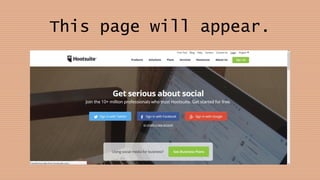
This page will appear.
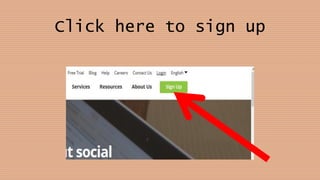
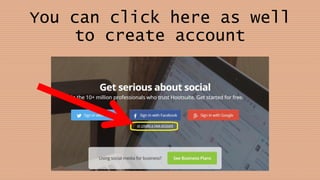
Click here to sign up
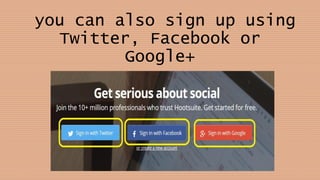
you can also sign up using
Twitter, Facebook or
Google+
You can click here as well
to create account
For this presentation, we
will sign up using Facebook
account.
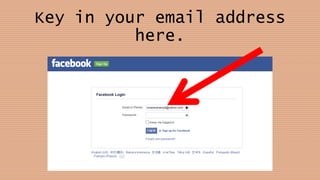
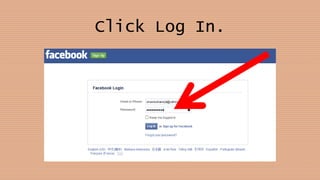
Key in your email address
here.
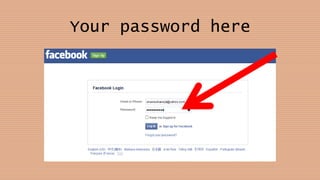
Your password here
Click Log In.
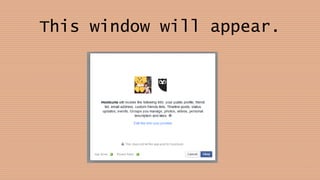
This window will appear.
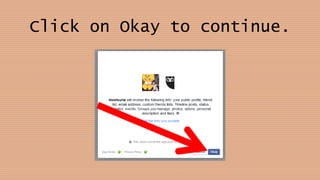
Click on Okay to continue.
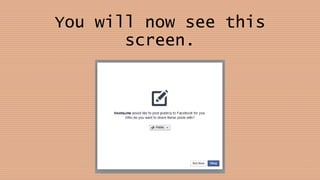
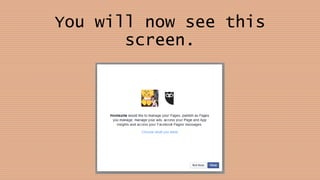
You will now see this
screen.
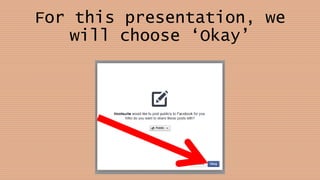
For this presentation, we
will choose ‘Okay’
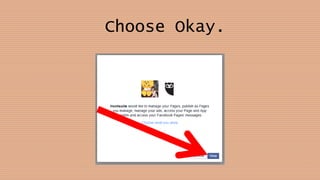
You will now see this
screen.
Choose Okay.
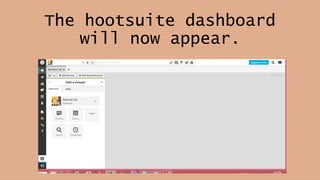
The hootsuite dashboard
will now appear.
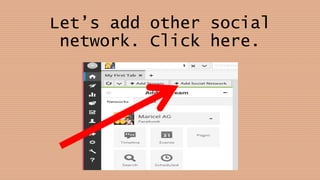
Let’s add other social
network. Click here.
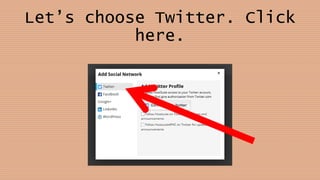
Let’s choose Twitter. Click
here.
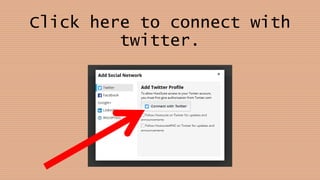
Click here to connect with
twitter.
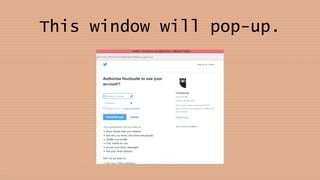
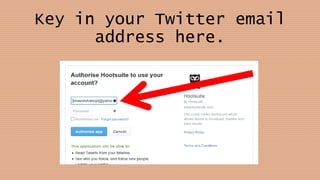
This window will pop-up.
Key in your Twitter email
address here.
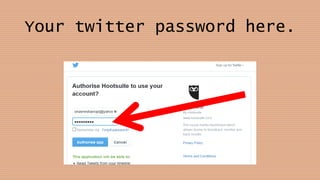
Your twitter password here.
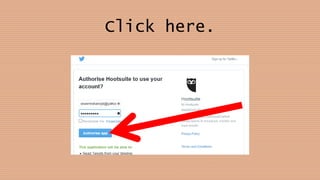
Click here.
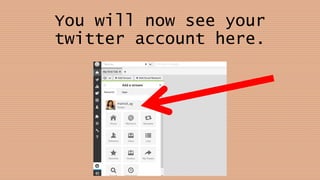
You will now see your
twitter account here.
Let’s edit the name of
the first tab
as ‘Personal Twitter’
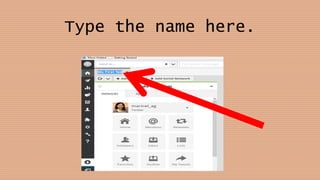
Type the name here.
Now, let’s try to add a
stream.
What are streams?
Streams are parts of your
Social media account
that help further break
down each tab in your
hootsuite account
according to social
networks, apps,
functionality, keyword
searches, etc.
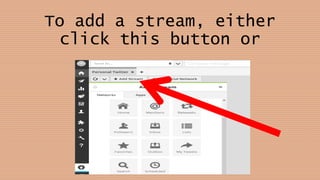
To add a stream, either
click this button or
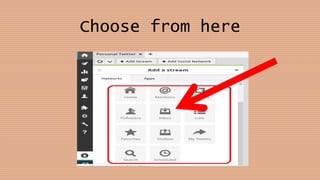
Choose from here
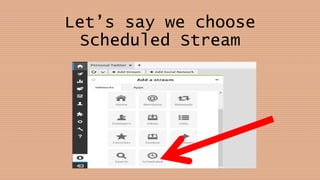
Let’s say we choose
Scheduled Stream
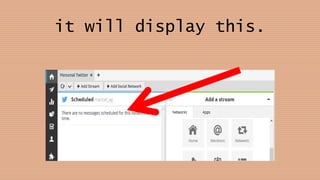
Since there is no scheduled
message yet,
it will display this.
Before we create a message,
let’s install a hootlet
first.
What is a Hootlet?
A Hootlet is a hootsuite
extension that
automatically takes content
you want to share and pops
it into a message,
ready to go.
No need to leave the web
page.
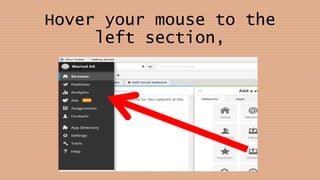
Hover your mouse to the
left section,
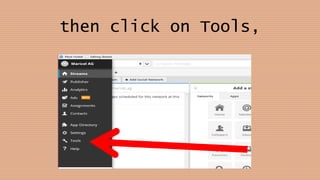
then click on Tools,
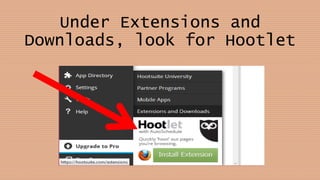
Under Extensions and
Downloads, look for Hootlet
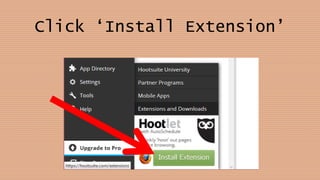
Click ‘Install Extension’
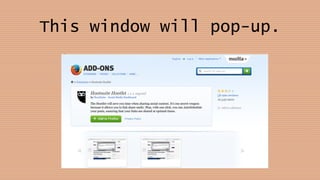
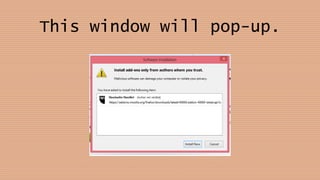
This window will pop-up.
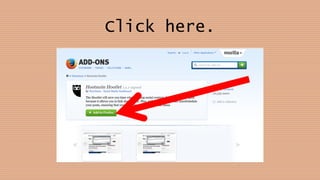
Click here.
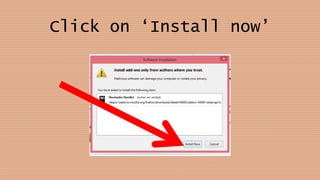
This window will pop-up.
Click on ‘Install now’
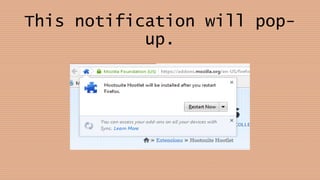
This notification will pop-
up.
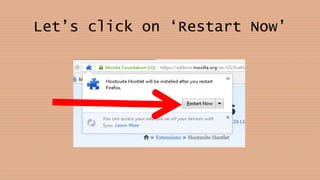
Let’s click on ‘Restart Now’
Once Mozilla
Firefox is reopened,
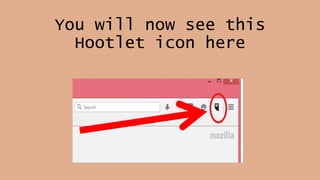
You will now see this
Hootlet icon here
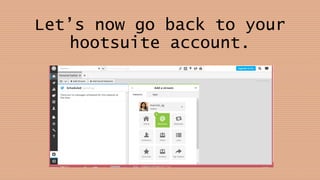
Let’s now go back to your
hootsuite account.
Before we proceed to
schedule a message,
let’s add a tab for your
facebook first.
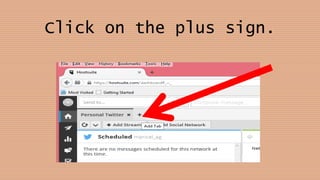
Click on the plus sign.
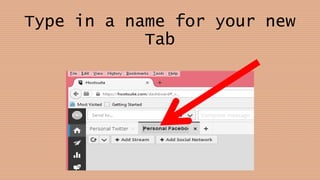
Type in a name for your new
Tab
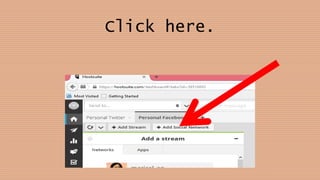
Click here.
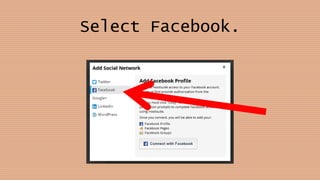
Select Facebook.
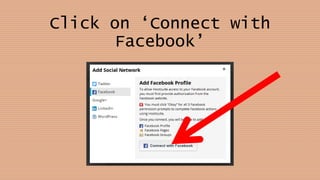
Click on ‘Connect with
Facebook’
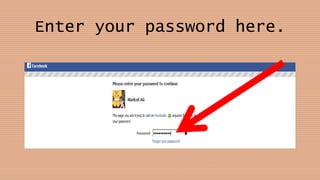
Enter your password here.
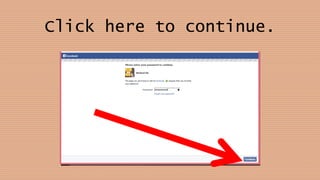
Click here to continue.
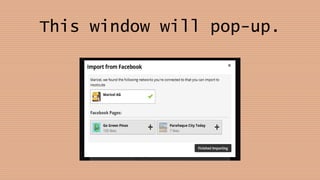
This window will pop-up.
Choose the facebook pages
that you want to import.
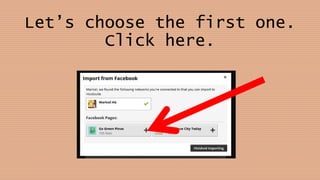
Let’s choose the first one.
Click here.
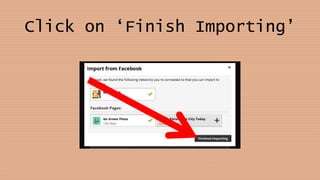
Click on ‘Finish Importing’
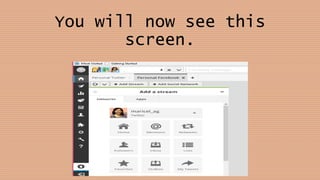
You will now see this
screen.
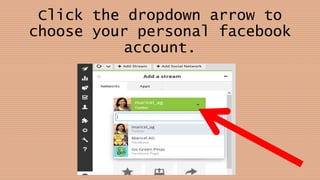
Click the dropdown arrow to
choose your personal facebook
account.
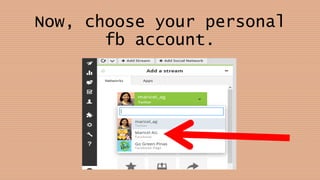
Now, choose your personal
fb account.
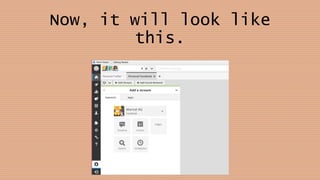
Now, it will look like
this.
Let’s add 2 streams for
facebook personal account.
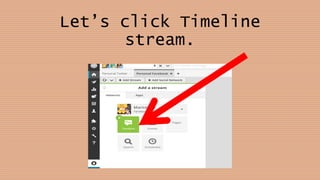
Let’s click Timeline
stream.
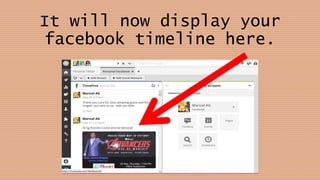
It will now display your
facebook timeline here.
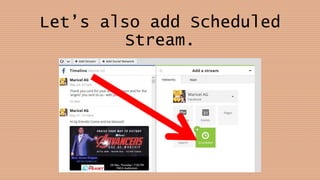
Let’s also add Scheduled
Stream.
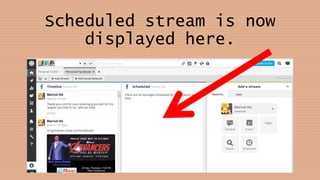
Scheduled stream is now
displayed here.
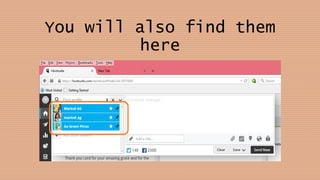
Remember that when you add
social network accounts,
You will also find them
here
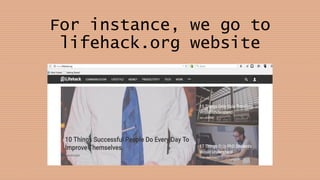
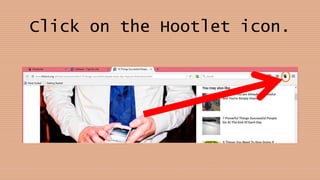
Now, let’s use the Hootlet.
For instance, we go to
lifehack.org website
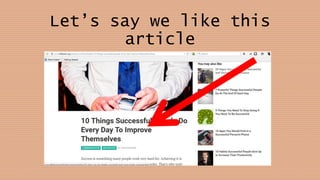
Let’s say we like this
article
Click on the Hootlet icon.
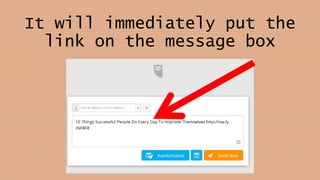
It will immediately put the
link on the message box
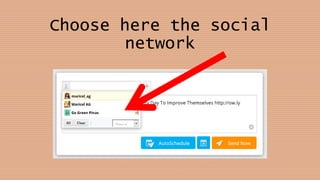
Choose here the social
network
where you want to send the
message to.
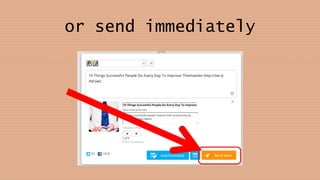
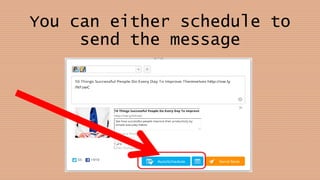
You can either schedule to
send the message
or send immediately
For this presentation, we
will schedule the message
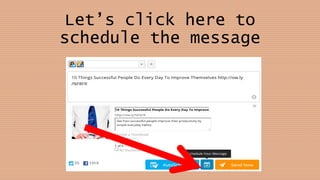
Let’s click here to
schedule the message
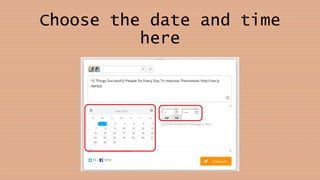
Choose the date and time
here
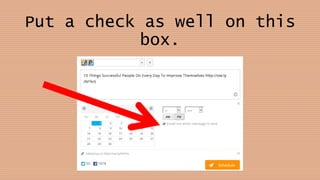
Put a check as well on this
box.
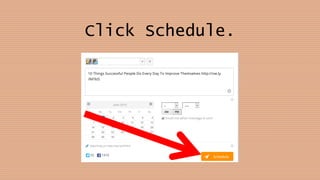
Click Schedule.
You will now see the post
in your scheduled streams.
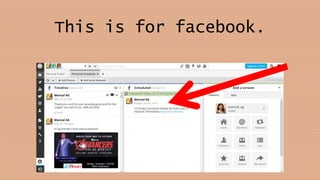
This is for facebook.
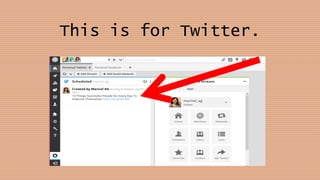
This is for Twitter.
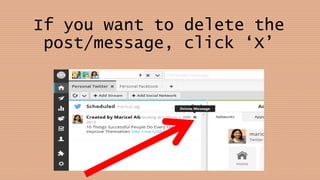
If you want to delete the
post/message, click ‘X’
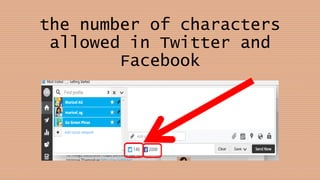
When composing messages,
note that you will see
the number of characters
allowed in Twitter and
Facebook
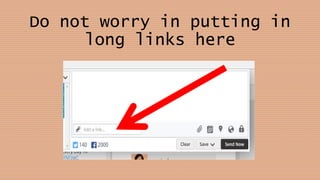
Do not worry in putting in
long links here
As there is a default
option to shrink it
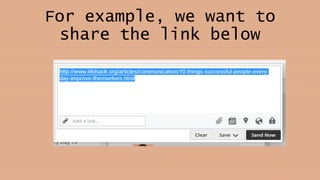
For example, we want to
share the link below
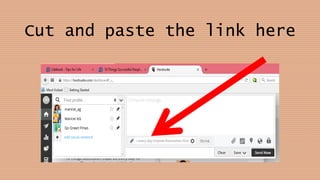
Cut and paste the link here
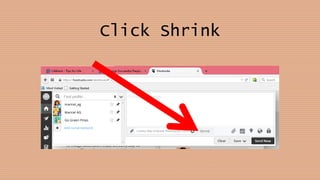
Click Shrink
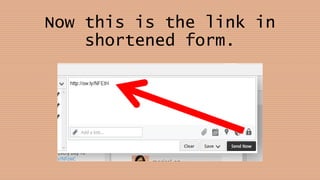
Now this is the link in
shortened form.
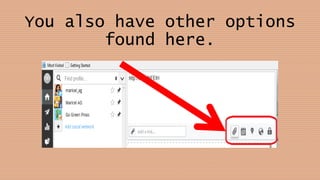
You also have other options
found here.
It lets you attach a file,
schedule the message
add location, select
targeting options, and
select privacy.
THE END

Basics of Hootsuite