/AutoCAD Adda
BASIC AUTOCAD
TRAINING
TUTORIAL#9
BY AUTOCAD ADDA
1
/AutoCAD Adda
Align 2
 Used to align one object with another.
 Can be accessed by 2 different methods:
o Align tool from Modify pallet in ribbon panel.
/AutoCAD Adda
Align 3
o Type AL in the command window and press enter.
 Once the command is activated need to select the object to align and press enter.
 Select the 4 points which needs to be matched and press enter.
 For scaling the object press Y for Yes or N for No and press enter.
/AutoCAD Adda
Explode 4
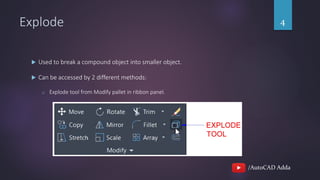
 Used to break a compound object into smaller object.
 Can be accessed by 2 different methods:
o Explode tool from Modify pallet in ribbon panel.
/AutoCAD Adda
Explode 5
o Type X in the command window and press enter.
 Once the command is activated select the object and press enter.
 We can also select multiple objects at once.
/AutoCAD Adda
Fillet 6
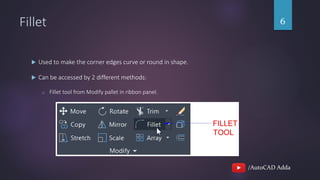
 Used to make the corner edges curve or round in shape.
 Can be accessed by 2 different methods:
o Fillet tool from Modify pallet in ribbon panel.
/AutoCAD Adda
Fillet 7
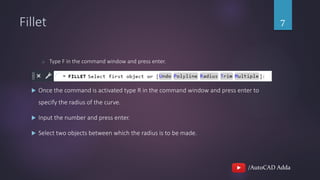
o Type F in the command window and press enter.
 Once the command is activated type R in the command window and press enter to
specify the radius of the curve.
 Input the number and press enter.
 Select two objects between which the radius is to be made.
/AutoCAD Adda
THANKS FOR WATCHING.
8

Tutorial 9 - Align, Explode, and Fillet command in AutoCAD.

  • 1.
  • 2.
    /AutoCAD Adda Align 2 Used to align one object with another.  Can be accessed by 2 different methods: o Align tool from Modify pallet in ribbon panel.
  • 3.
    /AutoCAD Adda Align 3 oType AL in the command window and press enter.  Once the command is activated need to select the object to align and press enter.  Select the 4 points which needs to be matched and press enter.  For scaling the object press Y for Yes or N for No and press enter.
  • 4.
    /AutoCAD Adda Explode 4 Used to break a compound object into smaller object.  Can be accessed by 2 different methods: o Explode tool from Modify pallet in ribbon panel.
  • 5.
    /AutoCAD Adda Explode 5 oType X in the command window and press enter.  Once the command is activated select the object and press enter.  We can also select multiple objects at once.
  • 6.
    /AutoCAD Adda Fillet 6 Used to make the corner edges curve or round in shape.  Can be accessed by 2 different methods: o Fillet tool from Modify pallet in ribbon panel.
  • 7.
    /AutoCAD Adda Fillet 7 oType F in the command window and press enter.  Once the command is activated type R in the command window and press enter to specify the radius of the curve.  Input the number and press enter.  Select two objects between which the radius is to be made.
  • 8.