/AutoCAD Adda
BASIC AUTOCAD
TRAINING
TUTORIAL#3
BY AUTOCAD ADDA
1
/AutoCAD Adda
Pan 2
 Used to move around the drawing area and explore the drawing without
magnification or changing the direction.
 Easiest way to access the Pan command is to press and hold the scroll wheel on the
mouse.
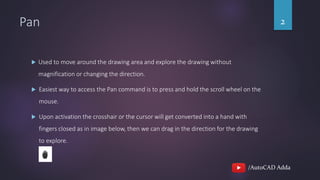
 Upon activation the crosshair or the cursor will get converted into a hand with
fingers closed as in image below, then we can drag in the direction for the drawing
to explore.
/AutoCAD Adda
Pan 3
 We see a bar displayed on the hand cursor when we reach the edge of the drawing
space.
/AutoCAD Adda
Zoom 4
 Used to zoom in and out in the drawing space.
 Easiest way to access it is by using the scroll wheel.
 Consider the crosshair or cursor as a magnifying glass.
o Scroll up – zoom in.
o Scroll down – zoom out.
/AutoCAD Adda
Access file from remote location 5
 It happens many a times that we may need to access files from remote locations
such as client place, at job site, etc.
 AutoCAD has provided Autodesk drive where we can store files to access it from
remote locations.
o Desktop or Laptop at office.
o Remote locations by using web app on a browser.
o On smartphone or on tablet using free AutoCAD mobile app.
/AutoCAD Adda
Access file from remote location 6
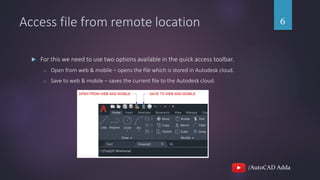
 For this we need to use two options available in the quick access toolbar.
o Open from web & mobile – opens the file which is stored in Autodesk cloud.
o Save to web & mobile – saves the current file to the Autodesk cloud.
/AutoCAD Adda
Access file from remote location 7
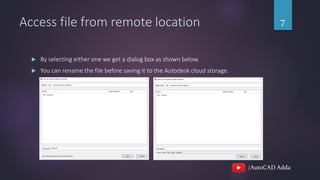
 By selecting either one we get a dialog box as shown below.
 You can rename the file before saving it to the Autodesk cloud storage.
/AutoCAD Adda
Access file from remote location 8
 Autodesk drive provides 25 GB storage for storing the files.
 We can also integrate with the cloud storage service provider.
o Google Drive
o Box
o Drop Box
o One Drive
/AutoCAD Adda
Access file from remote location 9
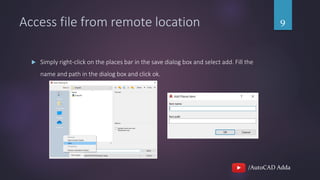
 Simply right-click on the places bar in the save dialog box and select add. Fill the
name and path in the dialog box and click ok.
/AutoCAD Adda
THANKS FOR WATCHING.
10

Tutorial 3 - Pan command, Zoom command and how to access AutoCAD files remotely.

  • 1.
  • 2.
    /AutoCAD Adda Pan 2 Used to move around the drawing area and explore the drawing without magnification or changing the direction.  Easiest way to access the Pan command is to press and hold the scroll wheel on the mouse.  Upon activation the crosshair or the cursor will get converted into a hand with fingers closed as in image below, then we can drag in the direction for the drawing to explore.
  • 3.
    /AutoCAD Adda Pan 3 We see a bar displayed on the hand cursor when we reach the edge of the drawing space.
  • 4.
    /AutoCAD Adda Zoom 4 Used to zoom in and out in the drawing space.  Easiest way to access it is by using the scroll wheel.  Consider the crosshair or cursor as a magnifying glass. o Scroll up – zoom in. o Scroll down – zoom out.
  • 5.
    /AutoCAD Adda Access filefrom remote location 5  It happens many a times that we may need to access files from remote locations such as client place, at job site, etc.  AutoCAD has provided Autodesk drive where we can store files to access it from remote locations. o Desktop or Laptop at office. o Remote locations by using web app on a browser. o On smartphone or on tablet using free AutoCAD mobile app.
  • 6.
    /AutoCAD Adda Access filefrom remote location 6  For this we need to use two options available in the quick access toolbar. o Open from web & mobile – opens the file which is stored in Autodesk cloud. o Save to web & mobile – saves the current file to the Autodesk cloud.
  • 7.
    /AutoCAD Adda Access filefrom remote location 7  By selecting either one we get a dialog box as shown below.  You can rename the file before saving it to the Autodesk cloud storage.
  • 8.
    /AutoCAD Adda Access filefrom remote location 8  Autodesk drive provides 25 GB storage for storing the files.  We can also integrate with the cloud storage service provider. o Google Drive o Box o Drop Box o One Drive
  • 9.
    /AutoCAD Adda Access filefrom remote location 9  Simply right-click on the places bar in the save dialog box and select add. Fill the name and path in the dialog box and click ok.
  • 10.