/AutoCAD Adda
BASIC AUTOCAD
TRAINING
TUTORIAL#5
BY AUTOCAD ADDA
1
/AutoCAD Adda
Rectangle 2
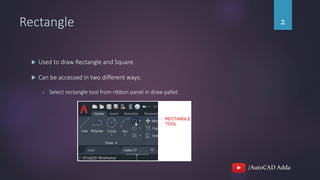
 Used to draw Rectangle and Square.
 Can be accessed in two different ways:
o Select rectangle tool from ribbon panel in draw pallet.
/AutoCAD Adda
Rectangle 3
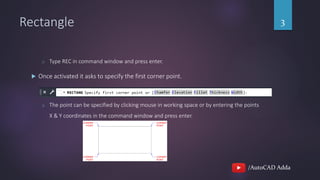
o Type REC in command window and press enter.
 Once activated it asks to specify the first corner point.
o The point can be specified by clicking mouse in working space or by entering the points
X & Y coordinates in the command window and press enter.
/AutoCAD Adda
Rectangle 4
 After entering the first point we need to provide the other corner point which will
be opposite to the first corner point.
 Once entered the Rectangle is drawn.
/AutoCAD Adda
Circle 5
 Used to draw Circle.
 Can be accessed in two different ways:
o Select circle tool from ribbon panel in draw pallet.
/AutoCAD Adda
Circle 6
o Type C in command window and press enter.
 Once activated it asks to specify the center point of the circle.
o The point can be specified by clicking mouse in working space or by entering the points
X & Y coordinates in the command window and press enter.
/AutoCAD Adda
Circle 7
 After entering the center point we need to provide the radius of the circle. We can
specify radius by clicking mouse in the working space or by entering the number for
radius in command window and press enter.
 Once entered the Circle is drawn.
/AutoCAD Adda
THANKS FOR WATCHING.
8

Tutorial 5 - Rectangle and Circle command in AutoCAD.

  • 1.
  • 2.
    /AutoCAD Adda Rectangle 2 Used to draw Rectangle and Square.  Can be accessed in two different ways: o Select rectangle tool from ribbon panel in draw pallet.
  • 3.
    /AutoCAD Adda Rectangle 3 oType REC in command window and press enter.  Once activated it asks to specify the first corner point. o The point can be specified by clicking mouse in working space or by entering the points X & Y coordinates in the command window and press enter.
  • 4.
    /AutoCAD Adda Rectangle 4 After entering the first point we need to provide the other corner point which will be opposite to the first corner point.  Once entered the Rectangle is drawn.
  • 5.
    /AutoCAD Adda Circle 5 Used to draw Circle.  Can be accessed in two different ways: o Select circle tool from ribbon panel in draw pallet.
  • 6.
    /AutoCAD Adda Circle 6 oType C in command window and press enter.  Once activated it asks to specify the center point of the circle. o The point can be specified by clicking mouse in working space or by entering the points X & Y coordinates in the command window and press enter.
  • 7.
    /AutoCAD Adda Circle 7 After entering the center point we need to provide the radius of the circle. We can specify radius by clicking mouse in the working space or by entering the number for radius in command window and press enter.  Once entered the Circle is drawn.
  • 8.