Transition to College
 with the MITS Freedom Stick
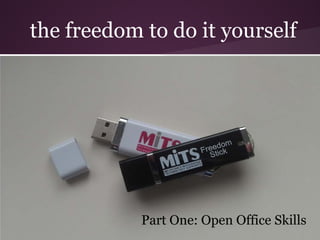
the freedom to do it yourself


            Part One: Open Office Skills
Open Office Skills
1. Organization
2. Taking Notes
3. Saving in Various Formats
4. Using Auto-Correct
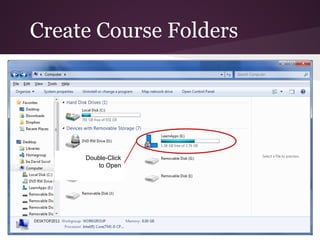
Create Course Folders


     Double-Click
         to Open
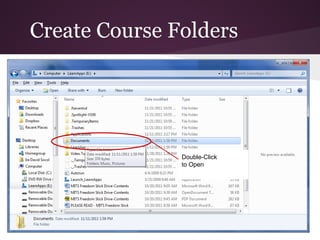
Create Course Folders


               Double-Click
               to Open
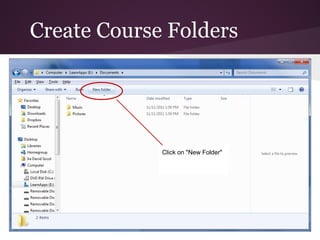
Create Course Folders


             Click on "New Folder"
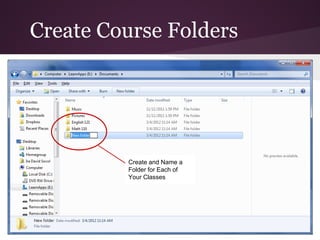
Create Course Folders


         Create and Name a
         Folder for Each of
         Your Classes
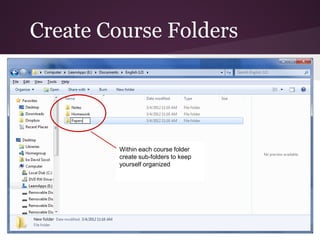
Create Course Folders


         Within each course folder
         create sub-folders to keep
         yourself organized
Back Up
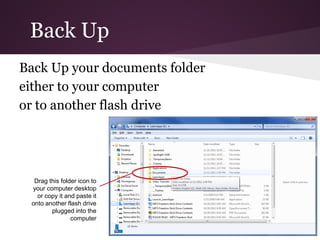
Back Up your documents folder
either to your computer
or to another flash drive


  Drag this folder icon to
 your computer desktop
   or copy it and paste it
 onto another flash drive
        plugged into the
                computer
Notetaker
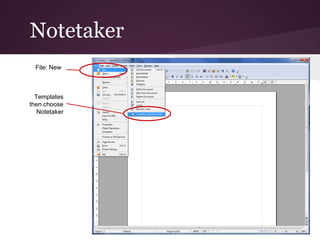
  File: New


  Templates
then choose
   Notetaker
Notetaker


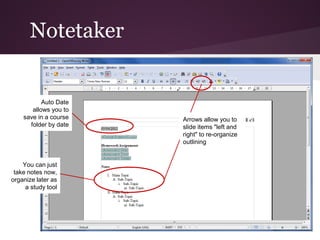
           Auto Date
       allows you to
    save in a course   Arrows allow you to
      folder by date   slide items "left and
                       right" to re-organize
                       outlining


    You can just
 take notes now,
organize later as
     a study tool
Notetaker


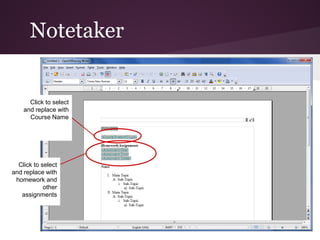
      Click to select
    and replace with
      Course Name


  Click to select
and replace with
 homework and
            other
   assignments
Notetaker


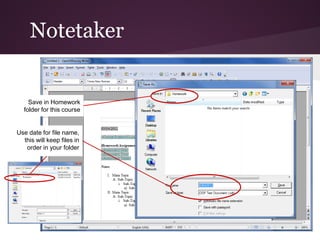
    Save in Homework
  folder for this course


Use date for file name,
  this will keep files in
   order in your folder
Saving in Formats
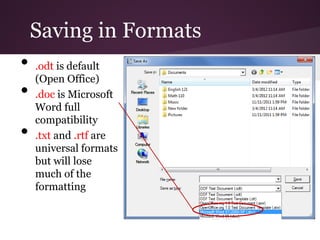
•   .odt is default
    (Open Office)
•   .doc is Microsoft
    Word full
    compatibility
•   .txt and .rtf are
    universal formats
    but will lose
    much of the
    formatting
Auto-Correct


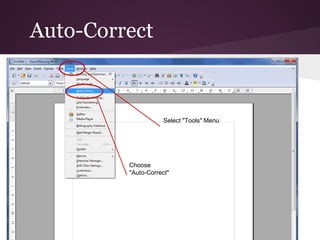
                     Select "Tools" Menu


         Choose
         "Auto-Correct"
Auto-Correct

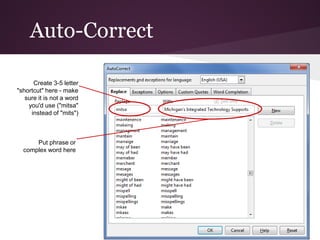
      Create 3-5 letter
"shortcut" here - make
   sure it is not a word
    you'd use ("mitsa"
     instead of "mits")


      Put phrase or
  complex word here
Auto-Correct
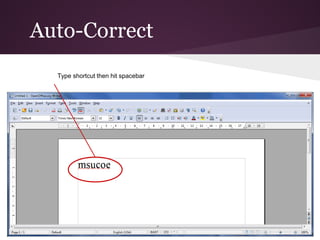
  Type shortcut then hit spacebar
Auto-Correct
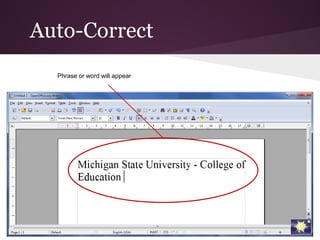
  Phrase or word will appear
Open Office    Auto-Correct
Freedom Stick
                   Tutorial     and Spell-Check
Getting Started

Transition to College- Open Office

  • 1.
    Transition to College with the MITS Freedom Stick
  • 2.
    the freedom todo it yourself Part One: Open Office Skills
  • 3.
    Open Office Skills 1.Organization 2. Taking Notes 3. Saving in Various Formats 4. Using Auto-Correct
  • 4.
    Create Course Folders Double-Click to Open
  • 5.
    Create Course Folders Double-Click to Open
  • 6.
    Create Course Folders Click on "New Folder"
  • 7.
    Create Course Folders Create and Name a Folder for Each of Your Classes
  • 8.
    Create Course Folders Within each course folder create sub-folders to keep yourself organized
  • 9.
    Back Up Back Upyour documents folder either to your computer or to another flash drive Drag this folder icon to your computer desktop or copy it and paste it onto another flash drive plugged into the computer
  • 10.
    Notetaker File:New Templates then choose Notetaker
  • 11.
    Notetaker Auto Date allows you to save in a course Arrows allow you to folder by date slide items "left and right" to re-organize outlining You can just take notes now, organize later as a study tool
  • 12.
    Notetaker Click to select and replace with Course Name Click to select and replace with homework and other assignments
  • 13.
    Notetaker Save in Homework folder for this course Use date for file name, this will keep files in order in your folder
  • 14.
    Saving in Formats • .odt is default (Open Office) • .doc is Microsoft Word full compatibility • .txt and .rtf are universal formats but will lose much of the formatting
  • 15.
    Auto-Correct Select "Tools" Menu Choose "Auto-Correct"
  • 16.
    Auto-Correct Create 3-5 letter "shortcut" here - make sure it is not a word you'd use ("mitsa" instead of "mits") Put phrase or complex word here
  • 17.
    Auto-Correct Typeshortcut then hit spacebar
  • 18.
    Auto-Correct Phraseor word will appear
  • 19.
    Open Office Auto-Correct Freedom Stick Tutorial and Spell-Check Getting Started