Web
Development
Tools
Choosing Development Tools
Depends upon:
•Operating System
•Language(s) supported
•Specific Features
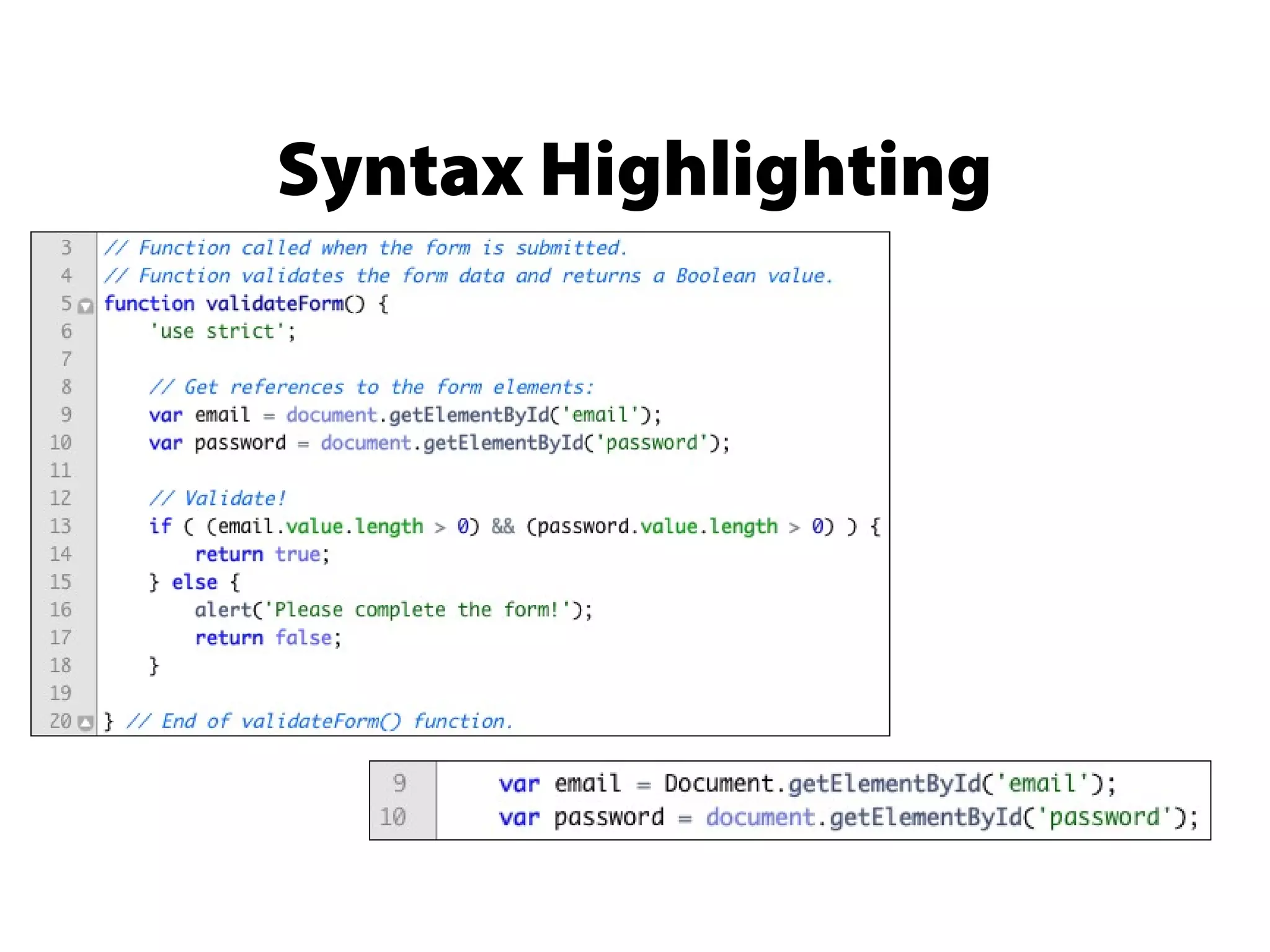
Syntax Highlighting
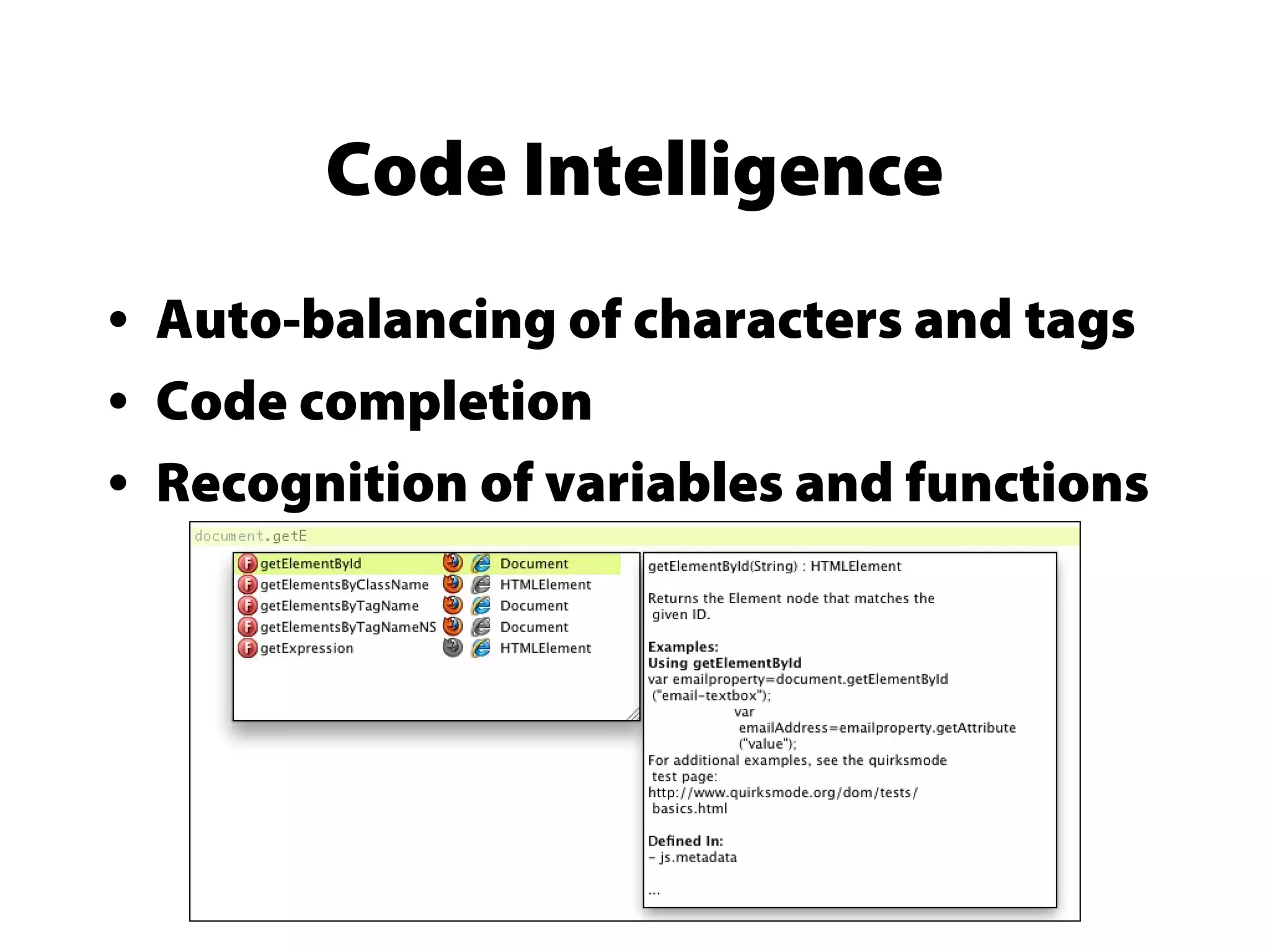
Code Intelligence
• Auto-balancing of characters and tags
• Code completion
• Recognition of variables and functions
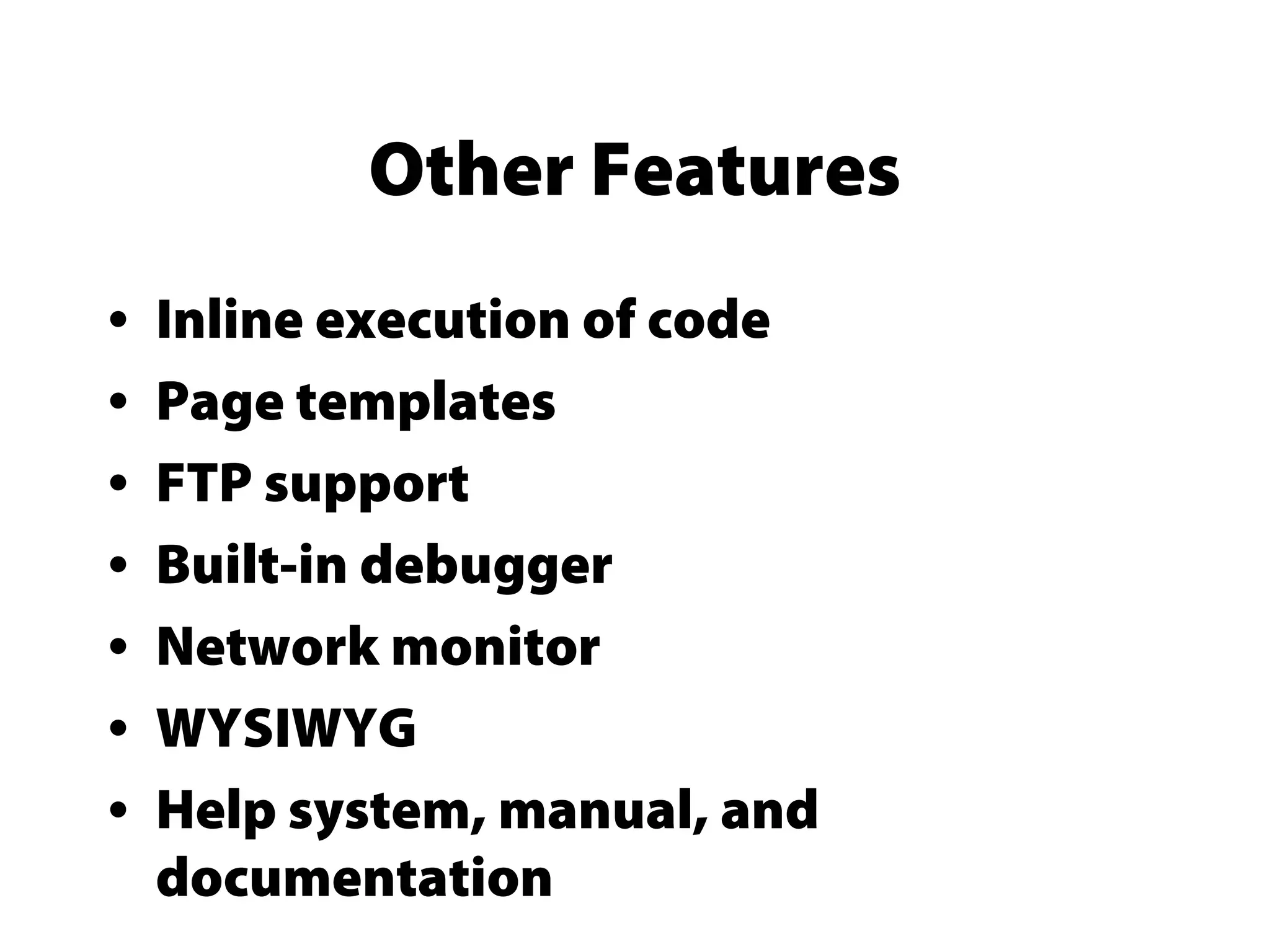
Other Features
• Inline execution of code
• Page templates
• FTP support
• Built-in debugger
• Network monitor
• WYSIWYG
• Help system, manual, and
documentation
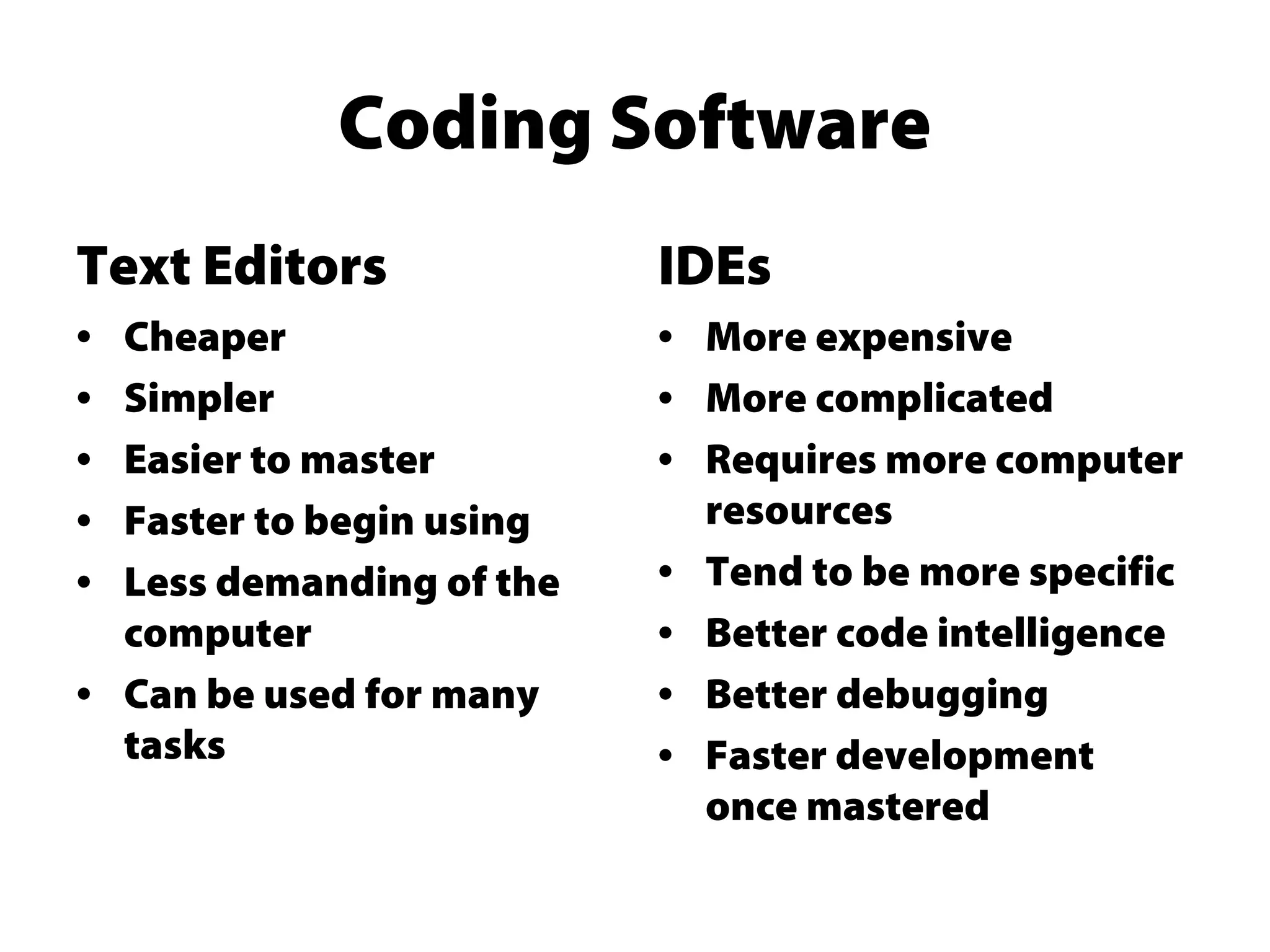
Coding Software
Text Editors
• Cheaper
• Simpler
• Easier to master
• Faster to begin using
• Less demanding of the
computer
• Can be used for many
tasks
IDEs
• More expensive
• More complicated
• Requires more computer
resources
• Tend to be more specific
• Better code intelligence
• Better debugging
• Faster development
once mastered
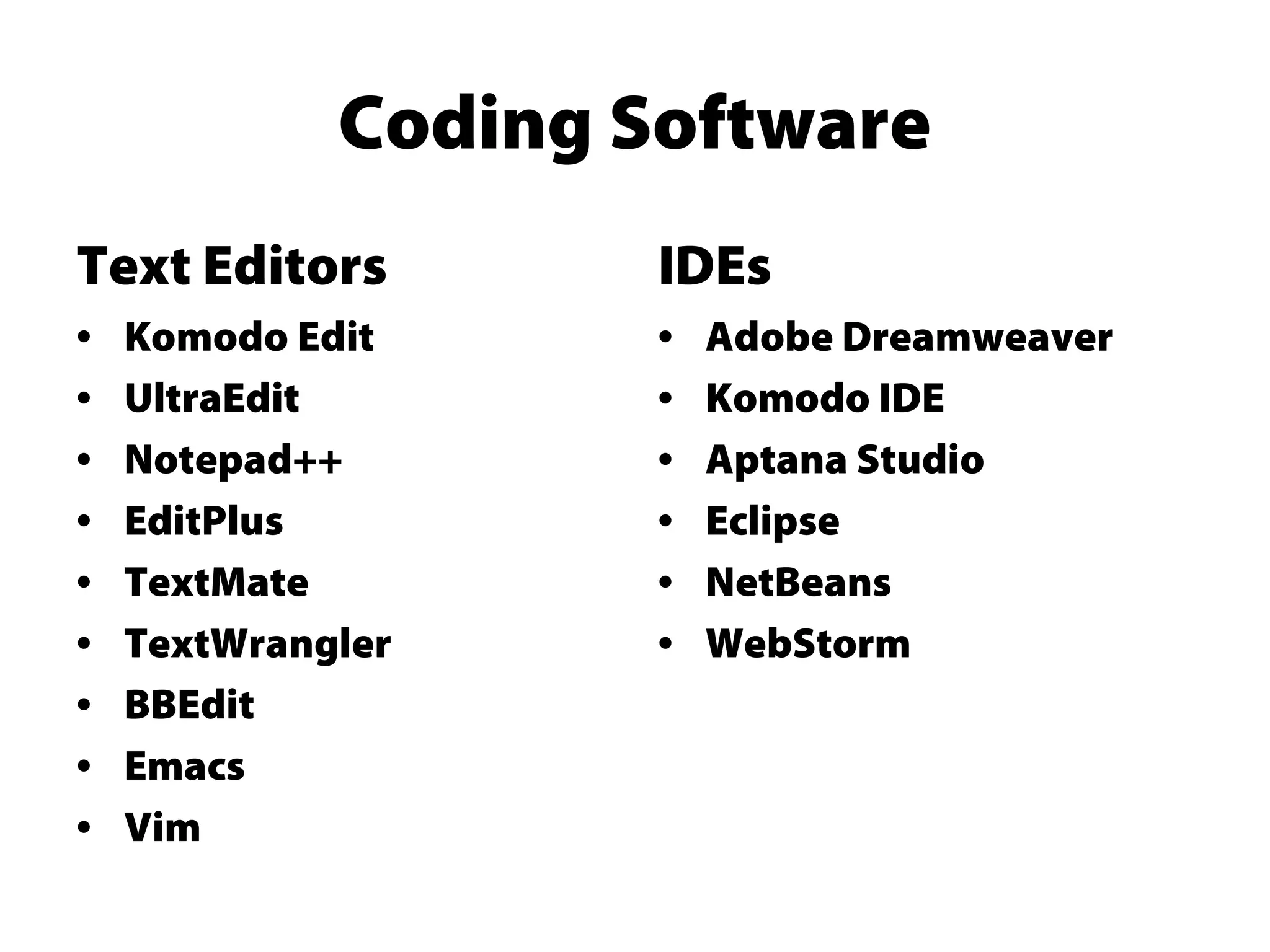
Coding Software
Text Editors
• Komodo Edit
• UltraEdit
• Notepad++
• EditPlus
• TextMate
• TextWrangler
• BBEdit
• Emacs
• Vim
IDEs
• Adobe Dreamweaver
• Komodo IDE
• Aptana Studio
• Eclipse
• NetBeans
• WebStorm
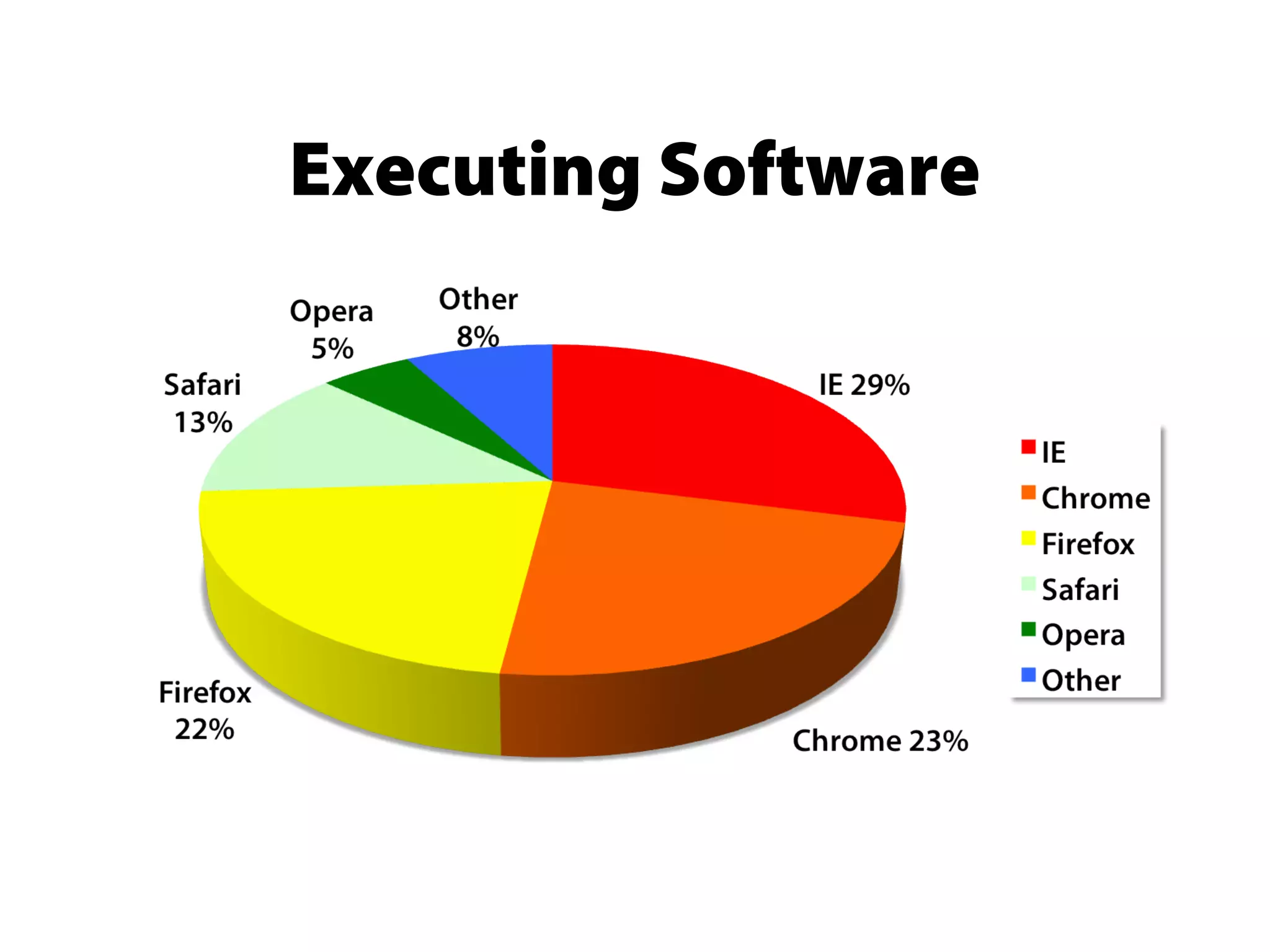
Executing Software
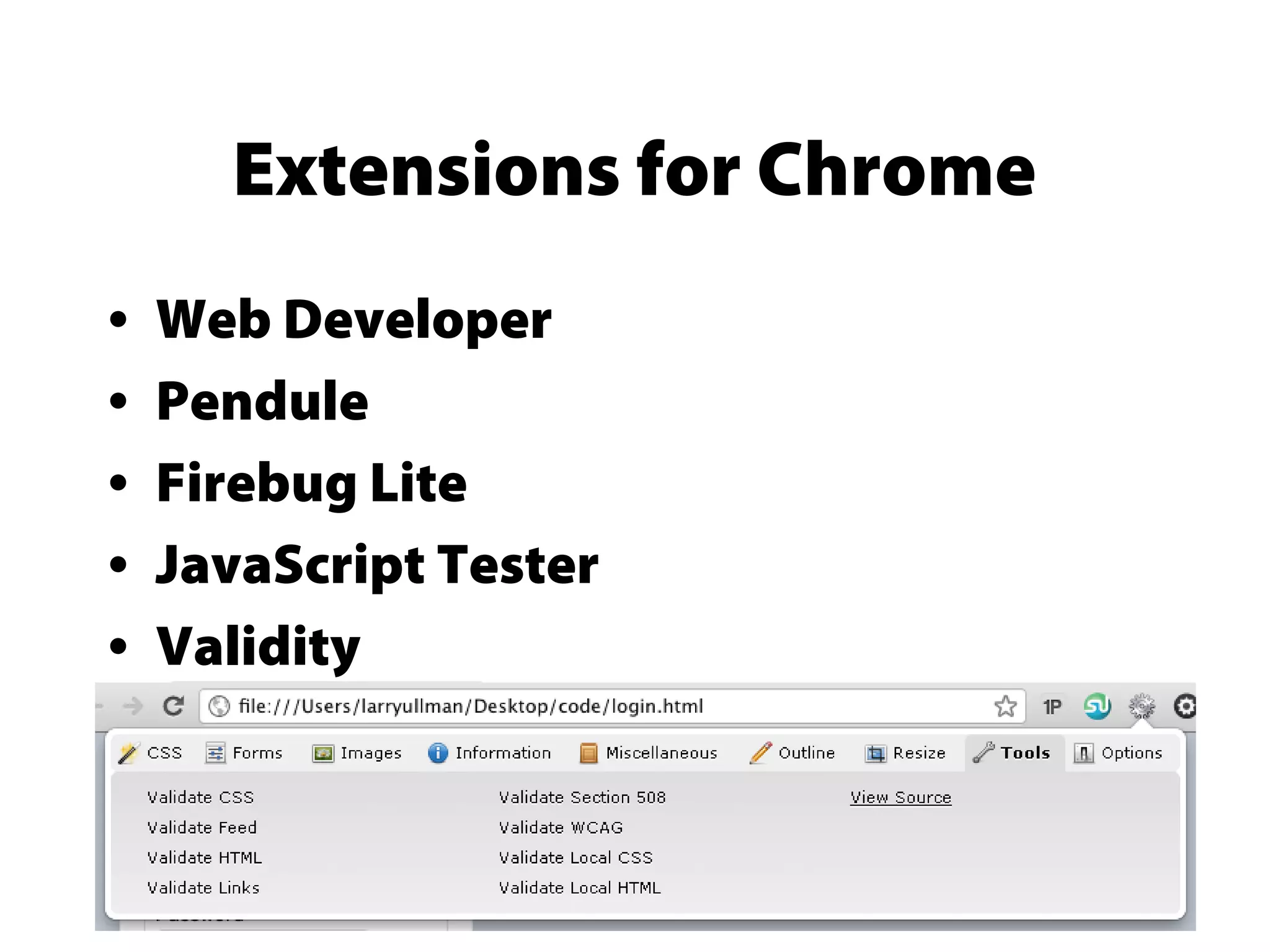
Extensions for Chrome
• Web Developer
• Pendule
• Firebug Lite
• JavaScript Tester
• Validity
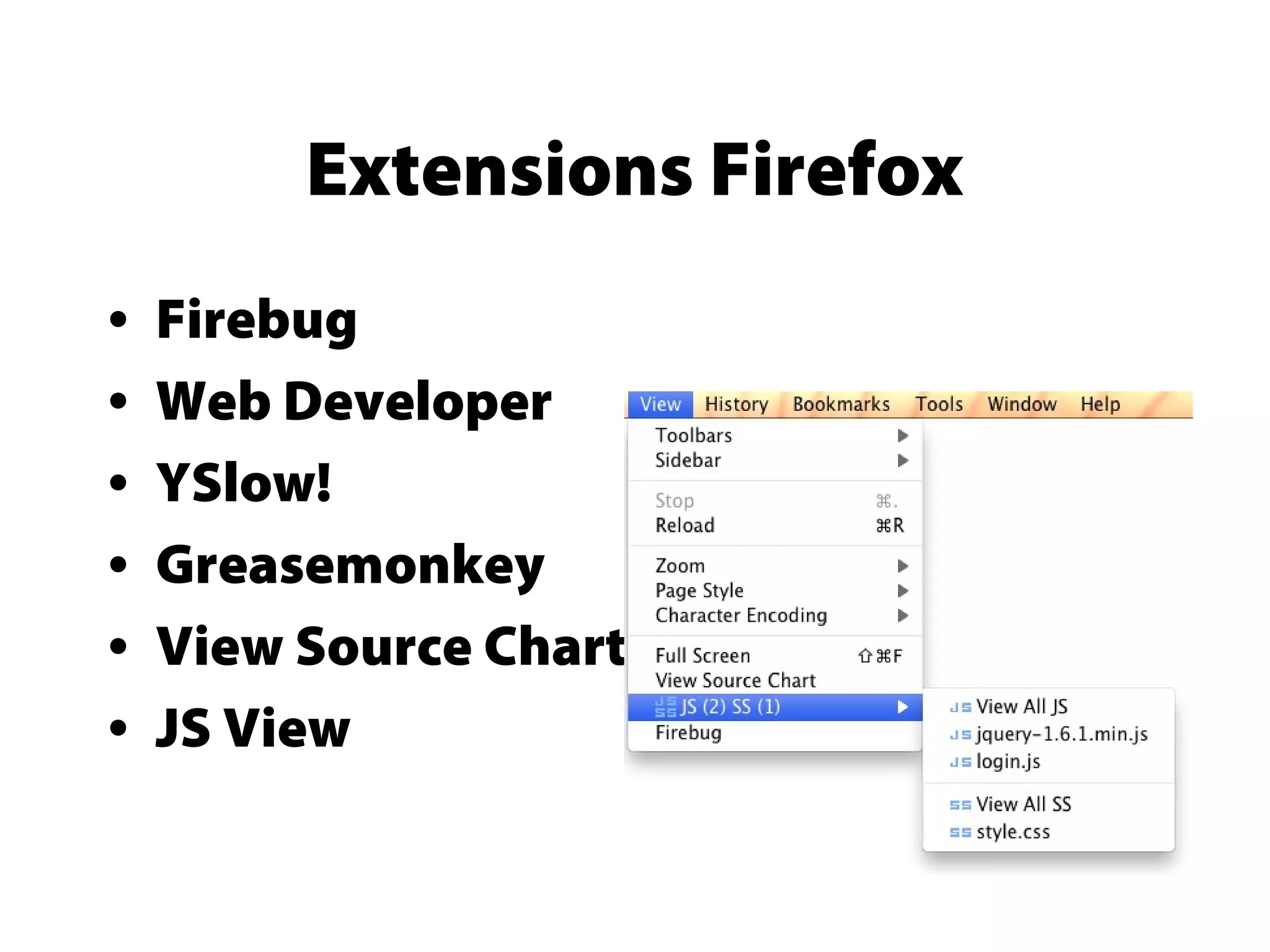
Extensions Firefox
• Firebug
• Web Developer
• YSlow!
• Greasemonkey
• View Source Chart
• JS View
Internet Explorer (Standard)
• IE Developer Toolbar
• Web Accessibility Toolbar
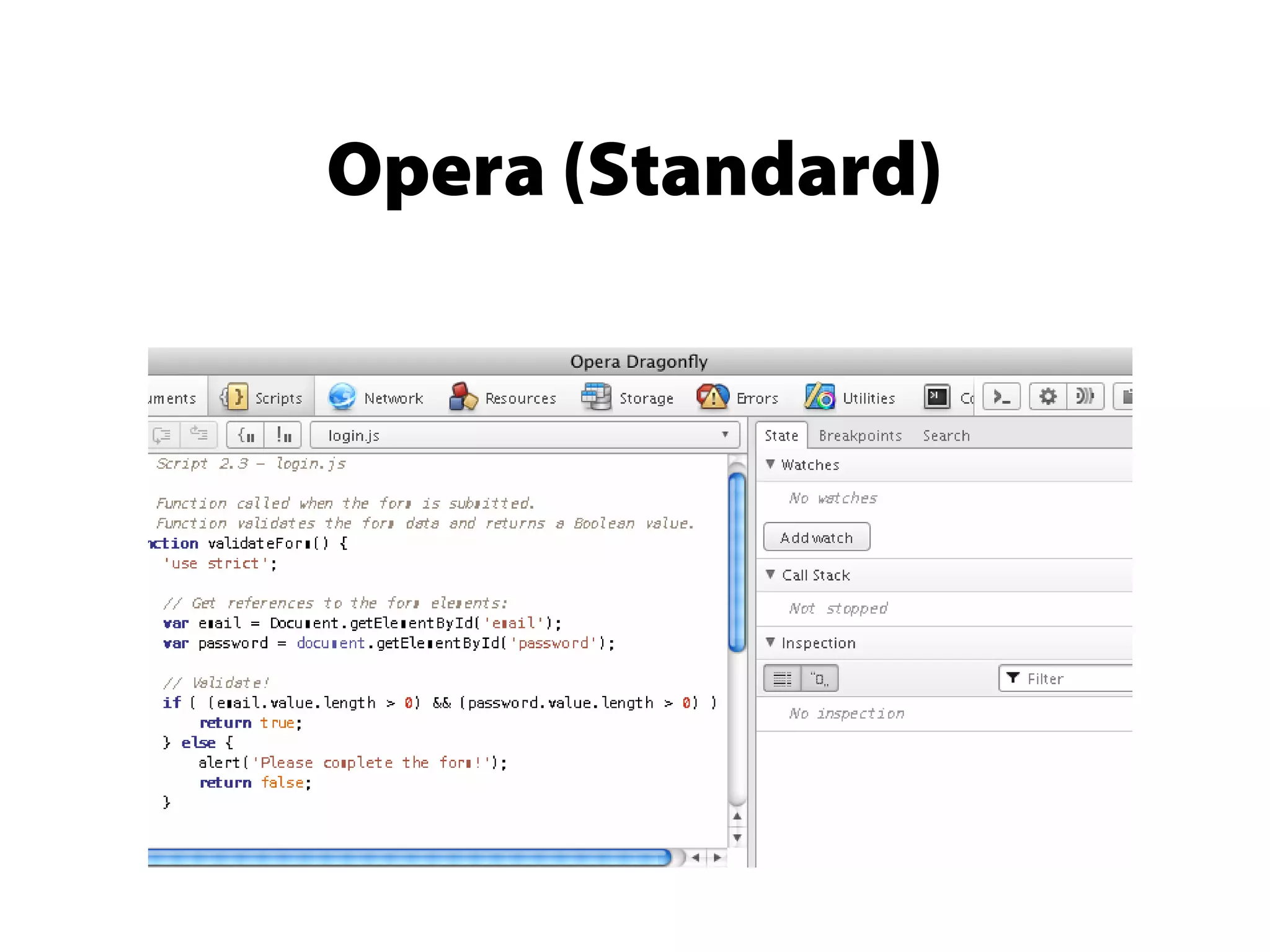
Opera (Standard)
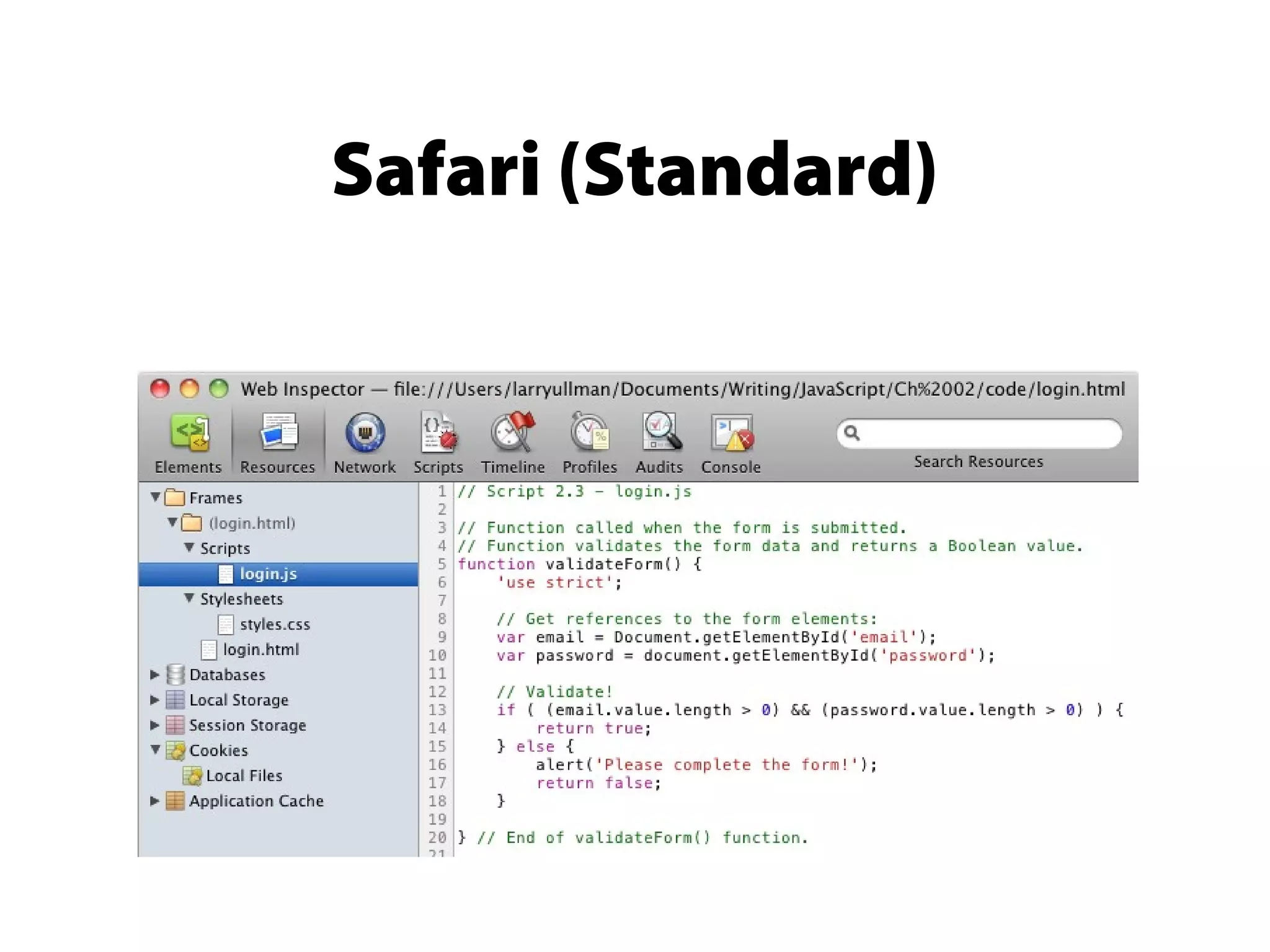
Safari (Standard)
Debugging Techniques
• Get a good text editor or IDE.
• Get a good development browser.
• Save the file and refresh the browser.
• Try a different browser.
• Take a break!
Bad Debugging Techniques
• Panicking!
• Ignoring error messages
• Trying random solutions
• Sending emails to teachers and writers
out of frustration

Tools of the trade

Editor's Notes

  • #4 Syntax highlighting can be useful for debugging as it implicitly validates the syntax. Notice how the keyword Document with a capital D is not colored in the second image.
  • #5 Also minimizes possible errors. The ability to track user defined or library variables and functions may also apply to refactoring.
  • #6 FTP support is useful with JavaScript, as it’s primarily used for Web development and you’ll want to be able to move the finished or edited work online. WYSIWYG is also helpful with Web development in particular. Debuggers and network monitors are also available in browsers.
  • #9 These are usage stats as of February 2012. But the focus here is on the best browser as a development tool, not the best browser overall or the most used browser. The quality of browsers as development software comes down to the built-in tools and the availability of extensions.
  • #10 Web developer: HTML, CSS, JavaScript and more (see image) Pendule: similar to Web developer Firebug Lite: watered down version of the excellent debugger Validity: for validating HTML
  • #11 Firebug is one of the first and is still one of the best Web developer extensions Yslow! For checking a page’s performance (from Yahoo!) Greasemonkey: for executing additional JavaScript JS View, for viewing JavaScript source on the page
  • #12 IE is not as extendible. IE Developer Tool bar is pretty good, let’s you test running as different versions of IE. Best for testing final version to make sure it’s compatible.
  • #13 Opera is extendible but it’s built-in Dragonfly is really good. Has all the necessary features.
  • #14 Safari has some extensions but its Web Inspector is sufficient, similar to Opera’s Dragonfly
  • #15 Good development tools do a better job of minimizing and highlighting problems. Validation can be done at jslint.com or jshint.com Rubber duck debugging is an EXCELLENT approach.