This document provides guidance on setting up a development environment for JavaScript programming. It discusses factors to consider like operating system and supported languages. It recommends using a text editor or IDE and describes features like syntax highlighting, code intelligence, debugging tools that are useful. Specific text editors, IDEs, browsers and developer tools are recommended for effective JavaScript development. Debugging techniques are also covered, like using console.log and alert to trace code execution and identify errors.
Things to considerwhen
setting up your development
environment:
• Operating System
• Language(s) supported
• Specific Features
3.
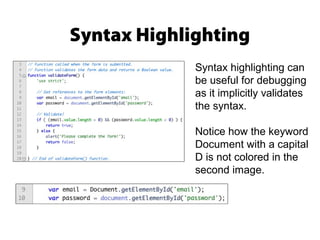
Syntax Highlighting
Syntax highlightingcan
be useful for debugging
as it implicitly validates
the syntax.
Notice how the keyword
Document with a capital
D is not colored in the
second image.
4.
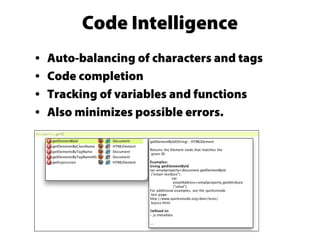
Code Intelligence
• Auto-balancingof characters and tags
• Code completion
• Tracking of variables and functions
• Also minimizes possible errors.
5.
Other Features
• Inlineexecution of code
• Page templates
• FTP support
• Built-in debugger
• Network monitor
• WYSIWYG
• Help system, manual, and
documentation
6.
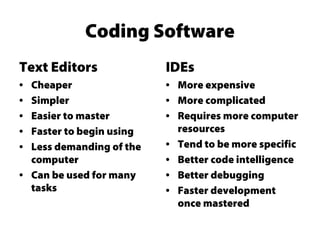
Coding Software
Text Editors
•Cheaper
• Simpler
• Easier to master
• Faster to begin using
• Less demanding of the
computer
• Can be used for many
tasks
IDEs
• More expensive
• More complicated
• Requires more computer
resources
• Tend to be more specific
• Better code intelligence
• Better debugging
• Faster development
once mastered
7.
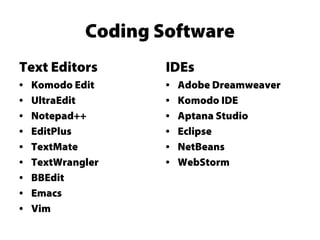
Coding Software
Text Editors
•Komodo Edit
• UltraEdit
• Notepad++
• EditPlus
• TextMate
• TextWrangler
• BBEdit
• Emacs
• Vim
IDEs
• Adobe Dreamweaver
• Komodo IDE
• Aptana Studio
• Eclipse
• NetBeans
• WebStorm
8.
What to LookFor
• DOM Inspector
• JavaScript source viewer
• Advanced JavaScript debugger
• Network monitor
• Error console
9.
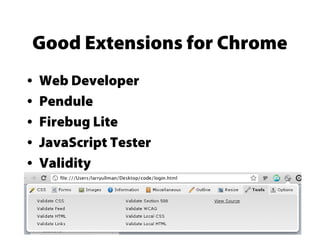
Good Extensions forChrome
• Web Developer
• Pendule
• Firebug Lite
• JavaScript Tester
• Validity
Useful features ofInternet
Explorer
• IE Developer Toolbar
• Web Accessibility Toolbar
IE is not as extendible. The IE Developer Tool bar is
pretty good. It let’s you test running as different
versions of IE.
IE is best for testing final versions of code to make
sure it’s compatible.
12.
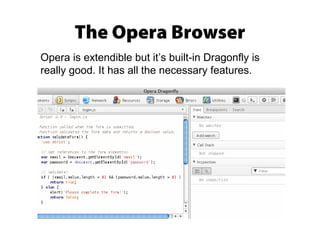
The Opera Browser
Operais extendible but it’s built-in Dragonfly is
really good. It has all the necessary features.
13.
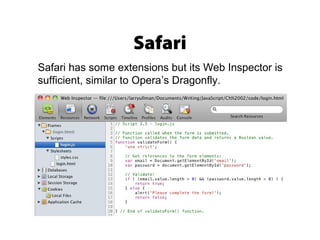
Safari
Safari has someextensions but its Web Inspector is
sufficient, similar to Opera’s Dragonfly.
14.
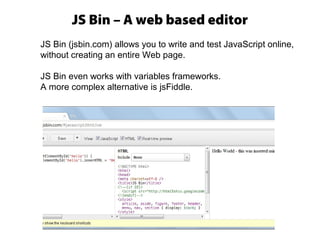
JS Bin –A web based editor
JS Bin (jsbin.com) allows you to write and test JavaScript online,
without creating an entire Web page.
JS Bin even works with variables frameworks.
A more complex alternative is jsFiddle.
15.
Types of errors
Syntactical
Syntacticalerrors prevent JavaScript from running. Caused by
improper syntax. Very common for beginners. Relatively easy to
find and fix.
Run-time
Run-time errors occur during execution of JavaScript. Can be
caused by referencing objects or methods that don’t exist. Can be
browser-specific.
Logical
Logical errors are bugs. No actual error reported, just an
unexpected result. Hardest to find and fix.
16.
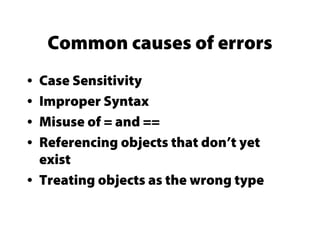
Common causes oferrors
• Case Sensitivity
• Improper Syntax
• Misuse of = and ==
• Referencing objects that don’t yet
exist
• Treating objects as the wrong type
17.
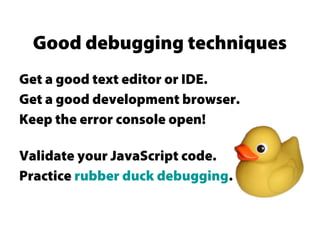
Get a goodtext editor or IDE.
Get a good development browser.
Keep the error console open!
Validate your JavaScript code.
Practice rubber duck debugging.
Good debugging techniques
18.
Debugging Techniques
• Useexternal JavaScript files
• Save the file and refresh the browser.
• Try a different browser.
• Take a break!
19.
Bad debugging techniques
•Panicking!
• Ignoring error messages
• Trying random solutions
• Not taking breaks
20.
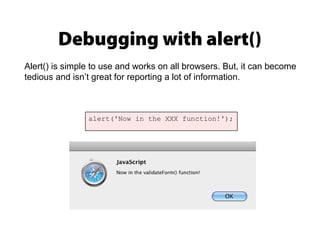
Debugging with alert()
alert('Nowin the XXX function!');
Alert() is simple to use and works on all browsers. But, it can become
tedious and isn’t great for reporting a lot of information.
21.
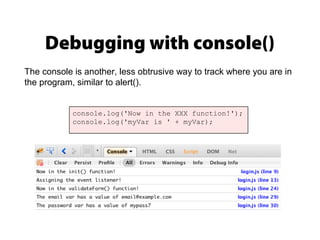
Debugging with console()
console.log('Nowin the XXX function!');
console.log('myVar is ' + myVar);
The console is another, less obtrusive way to track where you are in
the program, similar to alert().
Testing various browsers,extensions
and editors will help you find your
favorite setup.
Good luck, and happy scripting!
Editor's Notes
#6 FTP support is useful with JavaScript, as it’s primarily used for Web development and you’ll want to be able to move the finished or edited work online.
WYSIWYG is also helpful with Web development in particular.
Debuggers and network monitors are also available in browsers.
#9 Because JavaScript often does DOM manipulation, the ability to view the active DOM, not the initial DOM, is valuable.
Ability to execute JavaScript inline
Ability to set breakpoints, watch the values of variables and the flow of code.
Network monitor is key to debugging Ajax transactions
#10 Web developer: HTML, CSS, JavaScript and more (see image)
Pendule: similar to Web developer
Firebug Lite: watered down version of the excellent debugger
Validity: for validating HTML
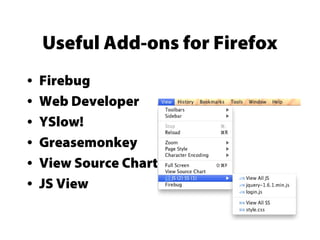
#11 Firebug is one of the first and is still one of the best Web developer extensions
Yslow! For checking a page’s performance (from Yahoo!)
Greasemonkey: for executing additional JavaScript
JS View, for viewing JavaScript source on the page
#17 Case sensitivity applies to almost everything: variables, functions, objects, etc.
Syntax problems include an imbalance of quotation marks, parentheses, brackets, etc.
The assignment and equality operators are frequently misused, which causes bugs.
In the browser, it’s easy to reference an object that doesn’t yet exist. You’ll need to understand the program flow to fix this.
You’ll sometimes see errors when you treat, for example, an object that’s not a string as if it were a string.
#18 Good development tools do a better job of minimizing and highlighting problems.
Validation can be done at jslint.com or jshint.com
Rubber duck debugging is an EXCELLENT approach.
#19 External JavaScript files are easier to edit and read, and line numbers can be more useful.
Never forget to save your work and refresh the browser!
Many problems are browser-specific. Use a different browser to confirm if it’s a general problem or a browser-specific one.
Take a break to clear your head!