Formatting Text with CSS
Objectives
Assess web fonts
Declare a font family
Use a custom font
Declare font size and line height
Implement bold and italics
HTML5 and CSS3 – Illustrated, 2nd Edition 2
Objectives (continued)
Style pseudo-elements
Specify hex and RGB colors
Add shadows
Create a media query
HTML5 and CSS3 – Illustrated, 2nd Edition 3
Assess Web Fonts
Web page font display limited by fonts
available on users’ machines
How to implement fonts consistently:
 Specify multiple font families
• Font stack: List of font families in order of
preference, separated by commas
 Specify a generic font family
• Generic font families: grouping of font
families according to shared characteristics
• Add to end of font stack
HTML5 and CSS3 – Illustrated, 2nd Edition 4
Assess Web Fonts
(continued)
How to implement fonts consistently
(continued):
 Use downloadable fonts
• User agent downloads and applies fonts not
installed on user’s computer
• Upload file containing elements of the font
family to web publishing location or reference
licensed downloadable font
• Add @font-face rule to style sheet
– Indicates font name and location of necessary files
HTML5 and CSS3 – Illustrated, 2nd Edition 5
Assess Web Fonts
(continued)
Commonly used font stacks
Generic font families
HTML5 and CSS3 – Illustrated, 2nd Edition 6
Declare a Font Family
font-family property: Used to
specify fonts in CSS
 Value is font stack that includes font
family name(s) and ends with generic
font family name
 Can be included in any style rule to apply
to elements selected in that rule
Test all fonts in your font stack
 Use browser developer tools to test and
not permanently changing the CSS code
HTML5 and CSS3 – Illustrated, 2nd Edition 7
Declare a Font Family (continued)
Code with font-family declarations
and display
HTML5 and CSS3 – Illustrated, 2nd Edition 8
Use a Custom Font
Custom fonts help to
 Create uniformity
 Add wider font possibilities
Available online, e.g.
 Google.com/fonts
 Defaults to only the normal version of
font
 Make selections to make other versions,
such as bold or italic, available
HTML5 and CSS3 – Illustrated, 2nd Edition 9
Use a Custom Font (continued)
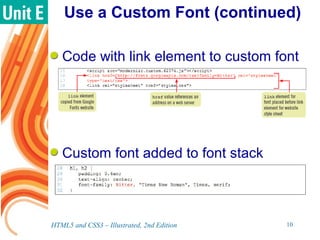
Code with link element to custom font
Custom font added to font stack
HTML5 and CSS3 – Illustrated, 2nd Edition 10
Declare Font Size
and Line Height
font-size property: used to specify
font size of an element
 Can specify size in many different units
Useful to specify font-sizes in style
sheet to standardize visual display of
font size in different browsers
 Specify html element in px
 Specify other elements in em or rem
HTML5 and CSS3 – Illustrated, 2nd Edition 11
Declare Font Size and
Line Height (continued)
By default, each font family includes
blank space above and below every
line of text
Use line-height property to set
minimum amount of vertical space
each line occupies
Adjusting line-height helps create
white space, which is used for visual
effect
HTML5 and CSS3 – Illustrated, 2nd Edition 12
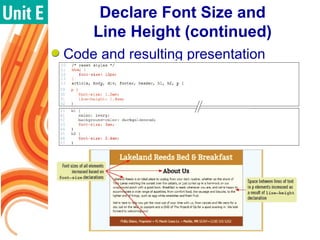
Declare Font Size and
Line Height (continued)
Code and resulting presentation
HTML5 and CSS3 – Illustrated, 2nd Edition 13
Implement Bold and Italics
Bold and italics often applied to words
or phrases
Use span element to isolate specific
sections for formatting:
 span element creates an inline element
• Does not fill space of parent element
• Is not rendered with line breaks before or
after
• Assign class value to span element
HTML5 and CSS3 – Illustrated, 2nd Edition 14
Implement Bold and Italics
(continued)
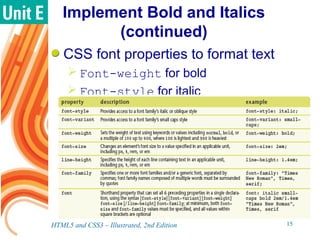
CSS font properties to format text
 Font-weight for bold
 Font-style for italic
HTML5 and CSS3 – Illustrated, 2nd Edition 15
Implement Bold and Italics
(continued)
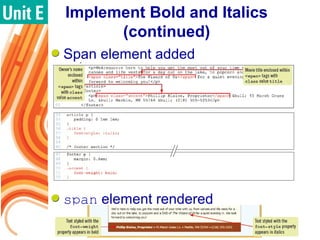
Span element added
span element rendered
HTML5 and CSS3 – Illustrated, 2nd Edition 16
Style Pseudo-Elements
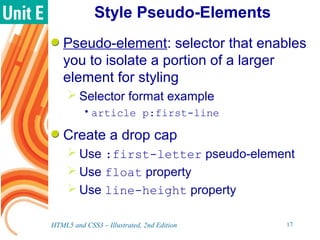
Pseudo-element: selector that enables
you to isolate a portion of a larger
element for styling
 Selector format example
•article p:first-line
Create a drop cap
 Use :first-letter pseudo-element
 Use float property
 Use line-height property
HTML5 and CSS3 – Illustrated, 2nd Edition 17
Style Pseudo-Elements
(continued)
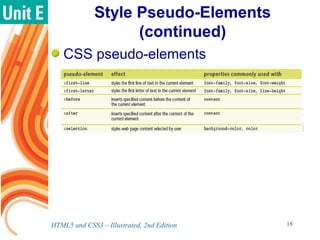
CSS pseudo-elements
HTML5 and CSS3 – Illustrated, 2nd Edition 18
Style Pseudo-Elements
(continued)
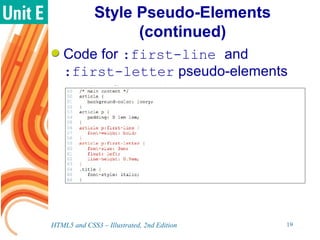
Code for :first-line and
:first-letter pseudo-elements
HTML5 and CSS3 – Illustrated, 2nd Edition 19
Style Pseudo-Elements
(continued)
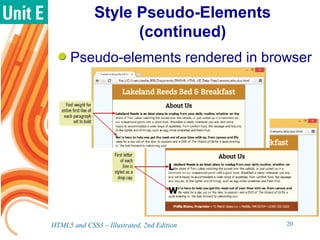
Pseudo-elements rendered in browser
HTML5 and CSS3 – Illustrated, 2nd Edition 20
Specify Hex and RGB
Colors
color and background-color
properties: used to specify the color of
text and other HTML elements
Four ways to specify colors:
 color name
 hexadecimal format
 rgb format, includes rgba
 hsl format, includes hsla
HTML5 and CSS3 – Illustrated, 2nd Edition 21
Specify Hex and RGB
Colors (continued)
CSS color systems
HTML5 and CSS3 – Illustrated, 2nd Edition 22
Specify Hex and RGB
Colors (continued)
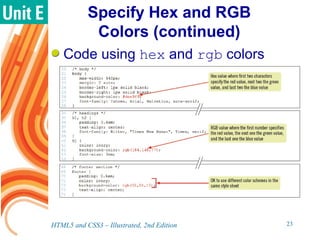
Code using hex and rgb colors
HTML5 and CSS3 – Illustrated, 2nd Edition 23
Specify Hex and RGB
Colors (continued)
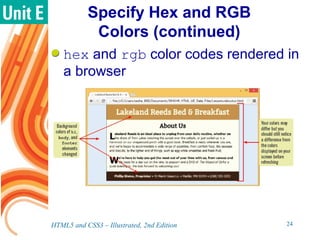
hex and rgb color codes rendered in
a browser
HTML5 and CSS3 – Illustrated, 2nd Edition 24
Add Shadows
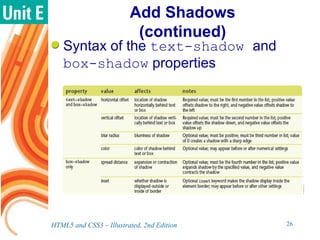
text-shadow: creates the
appearance of a shadow behind text
box-shadow: creates the appearance
of a shadow behind an element
text-shadow and box-shadow both
 Support four values: horizontal offset,
vertical offset, blur, and shadow color
box-shadow also supports
 Spread distance and insetHTML5 and CSS3 – Illustrated, 2nd Edition 25
Add Shadows
(continued)
Syntax of the text-shadow and
box-shadow properties
HTML5 and CSS3 – Illustrated, 2nd Edition 26
Add Shadows
(continued)
Examples of text-shadow and box-
shadow
HTML5 and CSS3 – Illustrated, 2nd Edition 27
Add Shadows
(continued)
Code for text-shadow and box-
shadow and resulting web page
HTML5 and CSS3 – Illustrated, 2nd Edition 28
Create a Media Query
Media queries: used to create a group
of rules for a specific device
 Starts with @media
 Lists one or more values for media type
Media type values for media queries
HTML5 and CSS3 – Illustrated, 2nd Edition 29
Create a Media Query
(continued)
HTML5 and CSS3 – Illustrated, 2nd Edition 30
Code for media query for printed
output
Create a Media Query
(continued)
HTML5 and CSS3 – Illustrated, 2nd Edition 31
Printed output based on media query
Summary
It is important to implement fonts so
that they will be displayed consistently
on different user agents
Font stacks are declared using the
font-family property
span element: generic element used
to isolate a portion of another element
 Used to create an inline element
HTML5 and CSS3 – Illustrated, 2nd Edition 32
Summary (continued)
Use custom fonts to widen font
possibilities and to create uniformity
Different aspects of font can be set
using CSS properties, such as:
 font-size property: set the font size
 font-weight property: make font bold
 font-style property: make font italic
Use line-height property to create
space above and below every line of
text
HTML5 and CSS3 – Illustrated, 2nd Edition 33
Summary (continued)
span element: generic element used
to isolate a portion of another element
 Used to create an inline element
 Used to apply bold/italic to text specified
by span element
Pseudo-elements to style a portion of
an element
:before and :after allow you to
generate repeated content from style
rules, without changing HTML code
HTML5 and CSS3 – Illustrated, 2nd Edition 34
Summary (continued)
In CSS, colors specified by name,
rgb/rgba, hex, or hsl/hsla value
 color property: sets font color
 background property: sets background
color
text-shadow and box-shadow
properties used to create shadows
 both support: horizontal/vertical offset,
blur radius, color
 box-shadow only supports: spread
distance, inset
HTML5 and CSS3 – Illustrated, 2nd Edition 35
Summary (continued)
Media query specifies style rules for a
specific device
 Starts with @media
 Supports media type values: all,
print, screen, and speech
HTML5 and CSS3 – Illustrated, 2nd Edition 36

Formatting text with CSS

  • 1.
  • 2.
    Objectives Assess web fonts Declarea font family Use a custom font Declare font size and line height Implement bold and italics HTML5 and CSS3 – Illustrated, 2nd Edition 2
  • 3.
    Objectives (continued) Style pseudo-elements Specifyhex and RGB colors Add shadows Create a media query HTML5 and CSS3 – Illustrated, 2nd Edition 3
  • 4.
    Assess Web Fonts Webpage font display limited by fonts available on users’ machines How to implement fonts consistently:  Specify multiple font families • Font stack: List of font families in order of preference, separated by commas  Specify a generic font family • Generic font families: grouping of font families according to shared characteristics • Add to end of font stack HTML5 and CSS3 – Illustrated, 2nd Edition 4
  • 5.
    Assess Web Fonts (continued) Howto implement fonts consistently (continued):  Use downloadable fonts • User agent downloads and applies fonts not installed on user’s computer • Upload file containing elements of the font family to web publishing location or reference licensed downloadable font • Add @font-face rule to style sheet – Indicates font name and location of necessary files HTML5 and CSS3 – Illustrated, 2nd Edition 5
  • 6.
    Assess Web Fonts (continued) Commonlyused font stacks Generic font families HTML5 and CSS3 – Illustrated, 2nd Edition 6
  • 7.
    Declare a FontFamily font-family property: Used to specify fonts in CSS  Value is font stack that includes font family name(s) and ends with generic font family name  Can be included in any style rule to apply to elements selected in that rule Test all fonts in your font stack  Use browser developer tools to test and not permanently changing the CSS code HTML5 and CSS3 – Illustrated, 2nd Edition 7
  • 8.
    Declare a FontFamily (continued) Code with font-family declarations and display HTML5 and CSS3 – Illustrated, 2nd Edition 8
  • 9.
    Use a CustomFont Custom fonts help to  Create uniformity  Add wider font possibilities Available online, e.g.  Google.com/fonts  Defaults to only the normal version of font  Make selections to make other versions, such as bold or italic, available HTML5 and CSS3 – Illustrated, 2nd Edition 9
  • 10.
    Use a CustomFont (continued) Code with link element to custom font Custom font added to font stack HTML5 and CSS3 – Illustrated, 2nd Edition 10
  • 11.
    Declare Font Size andLine Height font-size property: used to specify font size of an element  Can specify size in many different units Useful to specify font-sizes in style sheet to standardize visual display of font size in different browsers  Specify html element in px  Specify other elements in em or rem HTML5 and CSS3 – Illustrated, 2nd Edition 11
  • 12.
    Declare Font Sizeand Line Height (continued) By default, each font family includes blank space above and below every line of text Use line-height property to set minimum amount of vertical space each line occupies Adjusting line-height helps create white space, which is used for visual effect HTML5 and CSS3 – Illustrated, 2nd Edition 12
  • 13.
    Declare Font Sizeand Line Height (continued) Code and resulting presentation HTML5 and CSS3 – Illustrated, 2nd Edition 13
  • 14.
    Implement Bold andItalics Bold and italics often applied to words or phrases Use span element to isolate specific sections for formatting:  span element creates an inline element • Does not fill space of parent element • Is not rendered with line breaks before or after • Assign class value to span element HTML5 and CSS3 – Illustrated, 2nd Edition 14
  • 15.
    Implement Bold andItalics (continued) CSS font properties to format text  Font-weight for bold  Font-style for italic HTML5 and CSS3 – Illustrated, 2nd Edition 15
  • 16.
    Implement Bold andItalics (continued) Span element added span element rendered HTML5 and CSS3 – Illustrated, 2nd Edition 16
  • 17.
    Style Pseudo-Elements Pseudo-element: selectorthat enables you to isolate a portion of a larger element for styling  Selector format example •article p:first-line Create a drop cap  Use :first-letter pseudo-element  Use float property  Use line-height property HTML5 and CSS3 – Illustrated, 2nd Edition 17
  • 18.
    Style Pseudo-Elements (continued) CSS pseudo-elements HTML5and CSS3 – Illustrated, 2nd Edition 18
  • 19.
    Style Pseudo-Elements (continued) Code for:first-line and :first-letter pseudo-elements HTML5 and CSS3 – Illustrated, 2nd Edition 19
  • 20.
    Style Pseudo-Elements (continued) Pseudo-elements renderedin browser HTML5 and CSS3 – Illustrated, 2nd Edition 20
  • 21.
    Specify Hex andRGB Colors color and background-color properties: used to specify the color of text and other HTML elements Four ways to specify colors:  color name  hexadecimal format  rgb format, includes rgba  hsl format, includes hsla HTML5 and CSS3 – Illustrated, 2nd Edition 21
  • 22.
    Specify Hex andRGB Colors (continued) CSS color systems HTML5 and CSS3 – Illustrated, 2nd Edition 22
  • 23.
    Specify Hex andRGB Colors (continued) Code using hex and rgb colors HTML5 and CSS3 – Illustrated, 2nd Edition 23
  • 24.
    Specify Hex andRGB Colors (continued) hex and rgb color codes rendered in a browser HTML5 and CSS3 – Illustrated, 2nd Edition 24
  • 25.
    Add Shadows text-shadow: createsthe appearance of a shadow behind text box-shadow: creates the appearance of a shadow behind an element text-shadow and box-shadow both  Support four values: horizontal offset, vertical offset, blur, and shadow color box-shadow also supports  Spread distance and insetHTML5 and CSS3 – Illustrated, 2nd Edition 25
  • 26.
    Add Shadows (continued) Syntax ofthe text-shadow and box-shadow properties HTML5 and CSS3 – Illustrated, 2nd Edition 26
  • 27.
    Add Shadows (continued) Examples oftext-shadow and box- shadow HTML5 and CSS3 – Illustrated, 2nd Edition 27
  • 28.
    Add Shadows (continued) Code fortext-shadow and box- shadow and resulting web page HTML5 and CSS3 – Illustrated, 2nd Edition 28
  • 29.
    Create a MediaQuery Media queries: used to create a group of rules for a specific device  Starts with @media  Lists one or more values for media type Media type values for media queries HTML5 and CSS3 – Illustrated, 2nd Edition 29
  • 30.
    Create a MediaQuery (continued) HTML5 and CSS3 – Illustrated, 2nd Edition 30 Code for media query for printed output
  • 31.
    Create a MediaQuery (continued) HTML5 and CSS3 – Illustrated, 2nd Edition 31 Printed output based on media query
  • 32.
    Summary It is importantto implement fonts so that they will be displayed consistently on different user agents Font stacks are declared using the font-family property span element: generic element used to isolate a portion of another element  Used to create an inline element HTML5 and CSS3 – Illustrated, 2nd Edition 32
  • 33.
    Summary (continued) Use customfonts to widen font possibilities and to create uniformity Different aspects of font can be set using CSS properties, such as:  font-size property: set the font size  font-weight property: make font bold  font-style property: make font italic Use line-height property to create space above and below every line of text HTML5 and CSS3 – Illustrated, 2nd Edition 33
  • 34.
    Summary (continued) span element:generic element used to isolate a portion of another element  Used to create an inline element  Used to apply bold/italic to text specified by span element Pseudo-elements to style a portion of an element :before and :after allow you to generate repeated content from style rules, without changing HTML code HTML5 and CSS3 – Illustrated, 2nd Edition 34
  • 35.
    Summary (continued) In CSS,colors specified by name, rgb/rgba, hex, or hsl/hsla value  color property: sets font color  background property: sets background color text-shadow and box-shadow properties used to create shadows  both support: horizontal/vertical offset, blur radius, color  box-shadow only supports: spread distance, inset HTML5 and CSS3 – Illustrated, 2nd Edition 35
  • 36.
    Summary (continued) Media queryspecifies style rules for a specific device  Starts with @media  Supports media type values: all, print, screen, and speech HTML5 and CSS3 – Illustrated, 2nd Edition 36