TinyML
for SparkFun Edge
May 15, 2020
• Sparkfun Edge board 介紹
• 準備好軟體開發環境
• 關於Ambiq Apollo3 SDK
• 編譯程式、產生韌體燒錄檔
• 將燒錄檔寫入至 Sparkfun Edge board
• 連接終端機
Outline
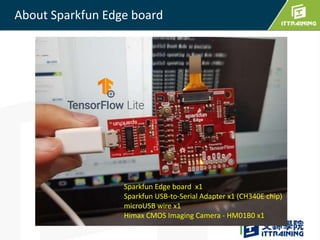
About Sparkfun Edge board
Sparkfun Edge board x1
Sparkfun USB-to-Serial Adapter x1 (CH340E chip)
microUSB wire x1
Himax CMOS Imaging Camera - HM01B0 x1
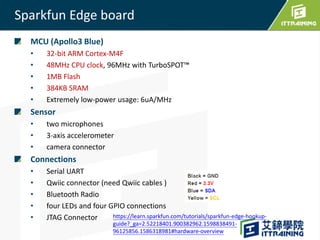
MCU (Apollo3 Blue)
• 32-bit ARM Cortex-M4F
• 48MHz CPU clock, 96MHz with TurboSPOT™
• 1MB Flash
• 384KB SRAM
• Extremely low-power usage: 6uA/MHz
Sensor
• two microphones
• 3-axis accelerometer
• camera connector
Connections
• Serial UART
• Qwiic connector (need Qwiic cables )
• Bluetooth Radio
• four LEDs and four GPIO connections
• JTAG Connector
Sparkfun Edge board
https://learn.sparkfun.com/tutorials/sparkfun-edge-hookup-
guide?_ga=2.52218401.900382962.1598838491-
96125856.1586318981#hardware-overview
Block Diagram of Apollo3 Blue MCU
Reset Button
UART connector
GPIO Button
MICx2
Qwiic connector
GPIO connections x4
Bluetooth Radio
LED x4
Camera connector
JTAG Connector
Accelerometer
MCU
Linux 系統
• 目的: Building the firmware for Sparkfun Edge Board
• OS: Ubuntu 18.04
**可參考本文章 ” Virtual Box建置Linux主機”
https://bit.ly/2RE0hK8
Windows 系統
• 目的: Training the Tensor flow model
• 所需軟體:
• Anaconda https://www.anaconda.com
• Python 3.7 and TensorFlow 2.0
• MobaXterm https://mobaxterm.mobatek.net/
• Serial to USB driver (CH340)
準備好軟體開發環境
Using SparkFun Edge Board with
Ambiq Apollo3 SDK
Layout of Ambiq Apollo3 SDK
BSP Layout of SparkFun_Edge
Setup Toolchain & build project
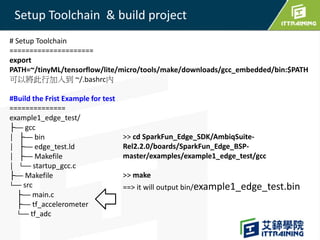
# Setup Toolchain
=====================
export
PATH=~/tinyML/tensorflow/lite/micro/tools/make/downloads/gcc_embedded/bin:$PATH
可以將此行加入到 ~/.bashrc內
#Build the Frist Example for test
==============
example1_edge_test/
├── gcc
│ ├── bin
│ ├── edge_test.ld
│ ├── Makefile
│ └── startup_gcc.c
├── Makefile
└── src
├── main.c
├── tf_accelerometer
└── tf_adc
>> cd SparkFun_Edge_SDK/AmbiqSuite-
Rel2.2.0/boards/SparkFun_Edge_BSP-
master/examples/example1_edge_test/gcc
>> make
==> it will output bin/example1_edge_test.bin
產生燒錄檔 & 寫入燒錄檔到板子
Genearte firmware 產生燒錄檔 xxx_wire.bin
====================
[on Linux]
cd apollo3_scripts
#copy xxx.bin to here
cp ../tensorflow/lite/micro/tools/make/gen/sparkfun_edge_cortex-m4/bin/
example1_edge_test.bin .
./build_fw.sh example1_edge_test.bin
==> example1_edge_test_wire.bin
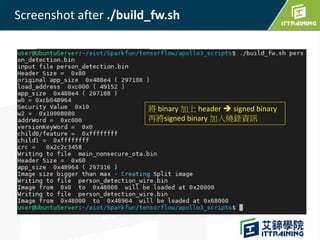
Screenshot after ./build_fw.sh
將 binary 加上 header  signed binary
再將signed binary 加入燒錄資訊
1.) 先將Sparkfun 透過 USB 線連接 PC
2.) 再檢查所有USB-to-Serial裝置
• Linux : 在終端機輸入 ls /dev/ttyUSB0
• MacOS : 輸入 ls /dev/cu.usbserial*
• Windows : 在裝置管理員檢查COM (此處為COM14)
燒入前檢查
Windows 須先安裝CH340 Driver
遵循以下步驟
1. 確認 Sparkfun edge board已經連接到 PC (USB-to-Serial 轉板 )
2. 先持續按著Button 14, 再按 button RST (進入燒錄模式)
3. 接著在[Anaconda Prompt ],
要切換到 apollo3_scripts 目錄, 輸入下列指令
python uart_wired_update.py COM14 -f example1_edge_test_wire.bin
在windows上燒錄bin檔到edge board
*須先安裝pyserial 套件
pip install pyserial
COM14 不能被其他程式佔用!!
COM14 is your COM PORT NUMBER
ScreenShot
Done means Success
You can use TeraTerm or putty
Display the output message from Edge board
[Setup->Serial Port ]
baud rate: 115200 bps, 8 N 1
Code Architecture
• UART printing for info/debugging
• ADC operation to sample from a microphone
• I2C operation to control the accelerometer
• GPIO functions (an output that can drive up to 12 mA)
"hal/am_hal_adc.h"
"hal/am_hal_gpio.h"
"hal/am_hal_uart.h"
mcu/apollo3/am_mcu_apollo.h
……………
MCU
pin
Board (Sparkfun Edge)
./boards/SparkFun_Edge_BSP-
master/bsp/am_bsp_pins.h
Application
MCU register R/W
Hardware
Abstraction Layer
(HAL)

Code Study

Tiny ML for spark Fun Edge

  • 1.
  • 2.
    • Sparkfun Edgeboard 介紹 • 準備好軟體開發環境 • 關於Ambiq Apollo3 SDK • 編譯程式、產生韌體燒錄檔 • 將燒錄檔寫入至 Sparkfun Edge board • 連接終端機 Outline
  • 3.
    About Sparkfun Edgeboard Sparkfun Edge board x1 Sparkfun USB-to-Serial Adapter x1 (CH340E chip) microUSB wire x1 Himax CMOS Imaging Camera - HM01B0 x1
  • 4.
    MCU (Apollo3 Blue) •32-bit ARM Cortex-M4F • 48MHz CPU clock, 96MHz with TurboSPOT™ • 1MB Flash • 384KB SRAM • Extremely low-power usage: 6uA/MHz Sensor • two microphones • 3-axis accelerometer • camera connector Connections • Serial UART • Qwiic connector (need Qwiic cables ) • Bluetooth Radio • four LEDs and four GPIO connections • JTAG Connector Sparkfun Edge board https://learn.sparkfun.com/tutorials/sparkfun-edge-hookup- guide?_ga=2.52218401.900382962.1598838491- 96125856.1586318981#hardware-overview
  • 5.
    Block Diagram ofApollo3 Blue MCU
  • 6.
    Reset Button UART connector GPIOButton MICx2 Qwiic connector GPIO connections x4 Bluetooth Radio LED x4 Camera connector JTAG Connector Accelerometer MCU
  • 7.
    Linux 系統 • 目的:Building the firmware for Sparkfun Edge Board • OS: Ubuntu 18.04 **可參考本文章 ” Virtual Box建置Linux主機” https://bit.ly/2RE0hK8 Windows 系統 • 目的: Training the Tensor flow model • 所需軟體: • Anaconda https://www.anaconda.com • Python 3.7 and TensorFlow 2.0 • MobaXterm https://mobaxterm.mobatek.net/ • Serial to USB driver (CH340) 準備好軟體開發環境
  • 8.
    Using SparkFun EdgeBoard with Ambiq Apollo3 SDK
  • 9.
    Layout of AmbiqApollo3 SDK
  • 10.
    BSP Layout ofSparkFun_Edge
  • 11.
    Setup Toolchain &build project # Setup Toolchain ===================== export PATH=~/tinyML/tensorflow/lite/micro/tools/make/downloads/gcc_embedded/bin:$PATH 可以將此行加入到 ~/.bashrc內 #Build the Frist Example for test ============== example1_edge_test/ ├── gcc │ ├── bin │ ├── edge_test.ld │ ├── Makefile │ └── startup_gcc.c ├── Makefile └── src ├── main.c ├── tf_accelerometer └── tf_adc >> cd SparkFun_Edge_SDK/AmbiqSuite- Rel2.2.0/boards/SparkFun_Edge_BSP- master/examples/example1_edge_test/gcc >> make ==> it will output bin/example1_edge_test.bin
  • 12.
    產生燒錄檔 & 寫入燒錄檔到板子 Geneartefirmware 產生燒錄檔 xxx_wire.bin ==================== [on Linux] cd apollo3_scripts #copy xxx.bin to here cp ../tensorflow/lite/micro/tools/make/gen/sparkfun_edge_cortex-m4/bin/ example1_edge_test.bin . ./build_fw.sh example1_edge_test.bin ==> example1_edge_test_wire.bin
  • 13.
    Screenshot after ./build_fw.sh 將binary 加上 header  signed binary 再將signed binary 加入燒錄資訊
  • 14.
    1.) 先將Sparkfun 透過USB 線連接 PC 2.) 再檢查所有USB-to-Serial裝置 • Linux : 在終端機輸入 ls /dev/ttyUSB0 • MacOS : 輸入 ls /dev/cu.usbserial* • Windows : 在裝置管理員檢查COM (此處為COM14) 燒入前檢查 Windows 須先安裝CH340 Driver
  • 15.
    遵循以下步驟 1. 確認 Sparkfunedge board已經連接到 PC (USB-to-Serial 轉板 ) 2. 先持續按著Button 14, 再按 button RST (進入燒錄模式) 3. 接著在[Anaconda Prompt ], 要切換到 apollo3_scripts 目錄, 輸入下列指令 python uart_wired_update.py COM14 -f example1_edge_test_wire.bin 在windows上燒錄bin檔到edge board *須先安裝pyserial 套件 pip install pyserial COM14 不能被其他程式佔用!! COM14 is your COM PORT NUMBER
  • 16.
  • 17.
    You can useTeraTerm or putty Display the output message from Edge board [Setup->Serial Port ] baud rate: 115200 bps, 8 N 1
  • 18.
    Code Architecture • UARTprinting for info/debugging • ADC operation to sample from a microphone • I2C operation to control the accelerometer • GPIO functions (an output that can drive up to 12 mA) "hal/am_hal_adc.h" "hal/am_hal_gpio.h" "hal/am_hal_uart.h" mcu/apollo3/am_mcu_apollo.h …………… MCU pin Board (Sparkfun Edge) ./boards/SparkFun_Edge_BSP- master/bsp/am_bsp_pins.h Application MCU register R/W Hardware Abstraction Layer (HAL)
  • 19.