The Influencer
Utilizing the Power of Social Selling
http://www.hubspot.com/ states, “Social selling is when salespeople use social media to
interact directly with their prospects.” While selling has always been social, the arrival of social
networks and the easy sharing of information facilitated through these networks provides a
unique and more direct opportunity to engage prospects with insight. Thus, you can say that the
defining characteristic of the social seller is to be seen as a valued resource to prospects.
Social Selling Strategies: Indispensable Part of
the Toolkit
 social selling -- the art of appealing to savvy buyers and strategically
leveraging social media to build relationships that deliver mutual benefits
before, during and after a deal is done. It’s a way to build a positive
reputation, unearth hidden insights about prospects and establish key
contacts. Tapping into the power of social media is quickly becoming the
norm, and here’s what we found:
 Salespeople using social media as part of their sales process exceeded quota
23% more often.
 71% of salespeople use social selling to build and nurture relationships
 83% of sales professionals say social selling tools are “important” or “very
important” for closing deals
 71% say social selling tools are “very impactful” or “impactful” on their
ability to grow revenue
https://business.linkedin.com/
Keep Your Funnel Full by Sharing Content
Prospects and Clients Love
By sharing the right content at the right time, you can quickly establish yourself as a
credible ally who will add value throughout the decision-making journey. The CMO Council
reports that decision makers consume five pieces of content before reaching a decision, so
it’s best to start sharing as early in the relationship as you can. The right content shared at
the right time can help turn a lead into a prospect and a prospect into a customer.
Prospects seek out different types of content at each stage of the sales funnel. By
matching the type of content you share to the prospect’s preferences, your prospects are
more likely to find your content valuable, making you both visible and credible.
Case studies are a good asset at this point; the more relevant they are to the prospect’s
current pain points, the better.
Blog posts can be crucial at this stage as well so long as they help to establish your
credibility and authority with the prospect/client.
Employee Advocacy
*Encourage sharing and interactivity*
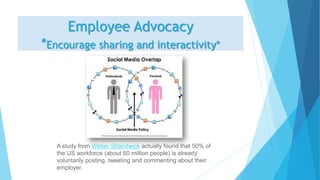
A study from Weber Shandwick actually found that 50% of
the US workforce (about 60 million people) is already
voluntarily posting, tweeting and commenting about their
employer.
As employee advocacy reaches the forefront of social media management trends, the line
between personal and professional has become more blurred than ever. The active use of
social media in the workplace makes it increasingly difficult to draw clear boundaries
between employers and employees. Employees are using social media not only to build
their personal brands, but to promote their companies at large.
Apart from being an innovative way to reach new audiences and raise brand
awareness, employee advocacy can also serve as a great feedback mechanism.
Employees that post about their organization on social media often provide critical
and helpful insights that can help a company improve its working environment,
culture, and even products.
Given the substantial impact that social media can have on a brand’s reputation,
any employee advocacy policy must be created with both care and vision. Employers
should be open to giving their employees a social voice, but with this, develop a set of
mutually agreed-upon guidelines to follow. This set of guidelines is meant to support
both parties involved: employees and employers alike.
How do I get
started?
Set up
accounts
and
share
1. Log into your LinkedIn profile
•Click into the "Share an Update" text box (top of page)
•Type your remark
•600 character limit
2. Attach the link to the article
•To share an article, simply type in the URL
•Allow a few seconds for the article image and description to show up
•Or copy-and-paste a URL into the share and update space
3. Select an option under "Share with”
•Select LinkedIn to show the update to everyone in your extended network, including your 1st, 2nd and 3rd
degree connections (recommended)
•Select connections to show the update to only your 1st degree connections.
•Select LinkedIn + Twitter to have your update visible both on your LinkedIn and Twitter accounts.
• (NOTE: Only the first 140 characters will be visible on Twitter. You can manage your Twitter
from the Profile section of your Settings page.)
• If you have a Twitter profile, selecting LinkedIn + Twitter is a great way to broadcast your information
to multiple social platforms.
•Finally after selecting who you want to share with, click the "Share" button to make it official.
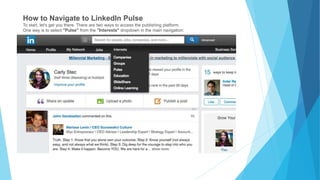
How to Navigate to LinkedIn Pulse
To start, let's get you there. There are two ways to access the publishing platform.
One way is to select "Pulse" from the "Interests" dropdown in the main navigation:
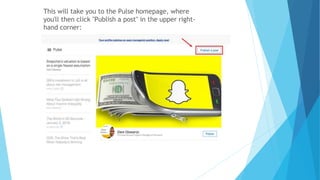
This will take you to the Pulse homepage, where
you'll then click "Publish a post" in the upper right-
hand corner:
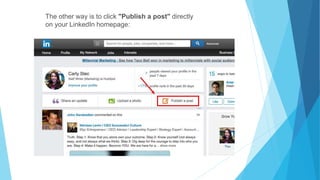
The other way is to click "Publish a post" directly
on your LinkedIn homepage:
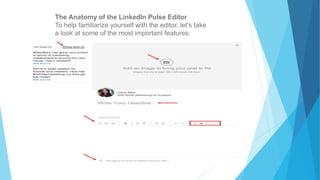
The Anatomy of the LinkedIn Pulse Editor
To help familiarize yourself with the editor, let's take
a look at some of the most important features:
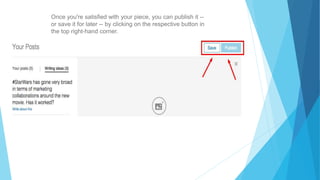
Once you're satisfied with your piece, you can publish it --
or save it for later -- by clicking on the respective button in
the top right-hand corner.
The large gray area above the editor is where you upload a
featured image. All you have to do is click on the box to upload an
option from your computer. Note: Images that are at least 700 x
400 pixels look best.
Underneath the featured image, you'll find a place to insert your
headline. We'll get into some helpful tips for choosing the perfect
headline below.
When you're ready to write, the actual editor is pretty intuitive.
The navigation displays different formatting options to help you
easily insert headers, add quotes, bold your text, adjust the
alignment, add bullet points, etc. If you're looking to add links,
images, video, or other rich media assets (audio and or video) to
your post, look to the icons on the far right.
One of the most important features of the editor can be found at
the very bottom. The tagging feature allows you to label your post
using categories such as "marketing strategy" or "project
management." These categorical tags will make it easier for
people to find your post.
Add visuals.
Just because LinkedIn is a professional network doesn't mean everything
has to be buttoned up and text-only. People like pictures and visual
examples. Including pictures in your posts will not only help you to
reinforce your points, but it'll also help to break up long blocks of text.
But before you go sprinkling visuals throughout your posts, it's important
to be mindful of how you're using them.
Pay attention to when you publish.
Being aware that LinkedIn is geared towards business professionals, you
want to be sure that your schedule aligns with business
professionals' LinkedIn usage patterns.
Take a moment to put yourself in the shoes of these business
professionals -- your potential readers. You probably wouldn't want to
publish a post on Monday morning, as many of them are just making
their way back into the office to catch up on emails and work from the
weekend. You also probably wouldn't want to publish a post on Friday
afternoon, as people are busy winding down on projects and prepping for
the weekend.
Sharing your updates and blogs to other social media
sources
To connect your site to your social networks, go to My Site
→ Sharing in your dashboard. You'll see various services in the
Publicize section: Facebook, Twitter, Google+, LinkedIn, Tumblr,
Path, and Eventbrite. To connect to a service, click the Connect
button and follow the prompts.
To share your new LinkedIn update on Twitter:
1.Go to your LinkedIn homepage.
2.Click Share an update.
3.Type your update in the share box.
4.In the Share with box below your update, select Public +
Twitter.
5.Click the Share button.
To share your new LinkedIn update with Groups:
There are groups from the Abu Dhabi Business Network to the
ZwembadBranche, and everything in between. You're sure to find
your niche networks with whom you can share your blog articles.
To find groups on LinkedIn, click on your “Interests” tab, and then
“Groups” in the drop down menu. Search for topics.
To connect your Twitter account and your Facebook profile:
1.Log in to the Twitter account you want to associate with your
Facebook profile.
2.Go to your Settings menu's Apps tab.
3.Click Connect to Facebook.
4.If you are not already logged in to Facebook, then you will be
prompted to enter your Facebook login credentials.
Both williamsauction.com & auctionnetwork.com afford numerous
opportunities to share stories, press releases and of course
property details.
Get started today and ask your sphere of influence to like and
share your posts as well!
My social media sphere of influence is upward of 1.4 million and
increasing daily.
If I can assist you in any way, please let me know.
My social media accounts:
• https://www.linkedin.com/in/jason1davis
• https://www.twitter.com/jakesun1
• https://www.facebook.com/jakesun01
• https://www.instagram.com/jakesun1
• https://plus.google.com/jakesun1
• https://www.youtube.com/jakesun1
• https://www.biggerpockets.com/users/Jakesun
Sources for
additional details
http://blog.hubspot.com/marketing/linkedin-publishing-
beginner-guide#sm.0001ijysoorppdmsvac2gv8y39r98
http://www.socialmediatoday.com/social-
business/jamieshanks/2015-09-10/infographic-12-hard-stats-
prove-power-social-selling
https://business.linkedin.com/sales-solutions/blog/k/keep-
your-funnel-full-by-sharing-content-buyers-love
http://blog.wishpond.com/post/64961826730/10-tips-how-to-
use-linkedin-to-drive-traffic-to-your
http://www.oktopost.com/blog/employee-advocacy-policy-dos-
and-donts/
https://www.cebglobal.com/top-insights/challenger-sale.html

The Influencer

  • 1.
    The Influencer Utilizing thePower of Social Selling
  • 2.
    http://www.hubspot.com/ states, “Socialselling is when salespeople use social media to interact directly with their prospects.” While selling has always been social, the arrival of social networks and the easy sharing of information facilitated through these networks provides a unique and more direct opportunity to engage prospects with insight. Thus, you can say that the defining characteristic of the social seller is to be seen as a valued resource to prospects.
  • 3.
    Social Selling Strategies:Indispensable Part of the Toolkit  social selling -- the art of appealing to savvy buyers and strategically leveraging social media to build relationships that deliver mutual benefits before, during and after a deal is done. It’s a way to build a positive reputation, unearth hidden insights about prospects and establish key contacts. Tapping into the power of social media is quickly becoming the norm, and here’s what we found:  Salespeople using social media as part of their sales process exceeded quota 23% more often.  71% of salespeople use social selling to build and nurture relationships  83% of sales professionals say social selling tools are “important” or “very important” for closing deals  71% say social selling tools are “very impactful” or “impactful” on their ability to grow revenue https://business.linkedin.com/
  • 5.
    Keep Your FunnelFull by Sharing Content Prospects and Clients Love By sharing the right content at the right time, you can quickly establish yourself as a credible ally who will add value throughout the decision-making journey. The CMO Council reports that decision makers consume five pieces of content before reaching a decision, so it’s best to start sharing as early in the relationship as you can. The right content shared at the right time can help turn a lead into a prospect and a prospect into a customer. Prospects seek out different types of content at each stage of the sales funnel. By matching the type of content you share to the prospect’s preferences, your prospects are more likely to find your content valuable, making you both visible and credible. Case studies are a good asset at this point; the more relevant they are to the prospect’s current pain points, the better. Blog posts can be crucial at this stage as well so long as they help to establish your credibility and authority with the prospect/client.
  • 6.
    Employee Advocacy *Encourage sharingand interactivity* A study from Weber Shandwick actually found that 50% of the US workforce (about 60 million people) is already voluntarily posting, tweeting and commenting about their employer.
  • 7.
    As employee advocacyreaches the forefront of social media management trends, the line between personal and professional has become more blurred than ever. The active use of social media in the workplace makes it increasingly difficult to draw clear boundaries between employers and employees. Employees are using social media not only to build their personal brands, but to promote their companies at large. Apart from being an innovative way to reach new audiences and raise brand awareness, employee advocacy can also serve as a great feedback mechanism. Employees that post about their organization on social media often provide critical and helpful insights that can help a company improve its working environment, culture, and even products. Given the substantial impact that social media can have on a brand’s reputation, any employee advocacy policy must be created with both care and vision. Employers should be open to giving their employees a social voice, but with this, develop a set of mutually agreed-upon guidelines to follow. This set of guidelines is meant to support both parties involved: employees and employers alike.
  • 8.
    How do Iget started? Set up accounts and share
  • 9.
    1. Log intoyour LinkedIn profile •Click into the "Share an Update" text box (top of page) •Type your remark •600 character limit 2. Attach the link to the article •To share an article, simply type in the URL •Allow a few seconds for the article image and description to show up •Or copy-and-paste a URL into the share and update space 3. Select an option under "Share with” •Select LinkedIn to show the update to everyone in your extended network, including your 1st, 2nd and 3rd degree connections (recommended) •Select connections to show the update to only your 1st degree connections. •Select LinkedIn + Twitter to have your update visible both on your LinkedIn and Twitter accounts. • (NOTE: Only the first 140 characters will be visible on Twitter. You can manage your Twitter from the Profile section of your Settings page.) • If you have a Twitter profile, selecting LinkedIn + Twitter is a great way to broadcast your information to multiple social platforms. •Finally after selecting who you want to share with, click the "Share" button to make it official.
  • 10.
    How to Navigateto LinkedIn Pulse To start, let's get you there. There are two ways to access the publishing platform. One way is to select "Pulse" from the "Interests" dropdown in the main navigation:
  • 11.
    This will takeyou to the Pulse homepage, where you'll then click "Publish a post" in the upper right- hand corner:
  • 12.
    The other wayis to click "Publish a post" directly on your LinkedIn homepage:
  • 13.
    The Anatomy ofthe LinkedIn Pulse Editor To help familiarize yourself with the editor, let's take a look at some of the most important features:
  • 14.
    Once you're satisfiedwith your piece, you can publish it -- or save it for later -- by clicking on the respective button in the top right-hand corner.
  • 15.
    The large grayarea above the editor is where you upload a featured image. All you have to do is click on the box to upload an option from your computer. Note: Images that are at least 700 x 400 pixels look best. Underneath the featured image, you'll find a place to insert your headline. We'll get into some helpful tips for choosing the perfect headline below. When you're ready to write, the actual editor is pretty intuitive. The navigation displays different formatting options to help you easily insert headers, add quotes, bold your text, adjust the alignment, add bullet points, etc. If you're looking to add links, images, video, or other rich media assets (audio and or video) to your post, look to the icons on the far right. One of the most important features of the editor can be found at the very bottom. The tagging feature allows you to label your post using categories such as "marketing strategy" or "project management." These categorical tags will make it easier for people to find your post.
  • 16.
    Add visuals. Just becauseLinkedIn is a professional network doesn't mean everything has to be buttoned up and text-only. People like pictures and visual examples. Including pictures in your posts will not only help you to reinforce your points, but it'll also help to break up long blocks of text. But before you go sprinkling visuals throughout your posts, it's important to be mindful of how you're using them. Pay attention to when you publish. Being aware that LinkedIn is geared towards business professionals, you want to be sure that your schedule aligns with business professionals' LinkedIn usage patterns. Take a moment to put yourself in the shoes of these business professionals -- your potential readers. You probably wouldn't want to publish a post on Monday morning, as many of them are just making their way back into the office to catch up on emails and work from the weekend. You also probably wouldn't want to publish a post on Friday afternoon, as people are busy winding down on projects and prepping for the weekend.
  • 17.
    Sharing your updatesand blogs to other social media sources To connect your site to your social networks, go to My Site → Sharing in your dashboard. You'll see various services in the Publicize section: Facebook, Twitter, Google+, LinkedIn, Tumblr, Path, and Eventbrite. To connect to a service, click the Connect button and follow the prompts. To share your new LinkedIn update on Twitter: 1.Go to your LinkedIn homepage. 2.Click Share an update. 3.Type your update in the share box. 4.In the Share with box below your update, select Public + Twitter. 5.Click the Share button. To share your new LinkedIn update with Groups: There are groups from the Abu Dhabi Business Network to the ZwembadBranche, and everything in between. You're sure to find your niche networks with whom you can share your blog articles. To find groups on LinkedIn, click on your “Interests” tab, and then “Groups” in the drop down menu. Search for topics.
  • 18.
    To connect yourTwitter account and your Facebook profile: 1.Log in to the Twitter account you want to associate with your Facebook profile. 2.Go to your Settings menu's Apps tab. 3.Click Connect to Facebook. 4.If you are not already logged in to Facebook, then you will be prompted to enter your Facebook login credentials. Both williamsauction.com & auctionnetwork.com afford numerous opportunities to share stories, press releases and of course property details. Get started today and ask your sphere of influence to like and share your posts as well! My social media sphere of influence is upward of 1.4 million and increasing daily. If I can assist you in any way, please let me know.
  • 19.
    My social mediaaccounts: • https://www.linkedin.com/in/jason1davis • https://www.twitter.com/jakesun1 • https://www.facebook.com/jakesun01 • https://www.instagram.com/jakesun1 • https://plus.google.com/jakesun1 • https://www.youtube.com/jakesun1 • https://www.biggerpockets.com/users/Jakesun
  • 20.