1
Part 8
LinkedIn Page & Posting
Tips
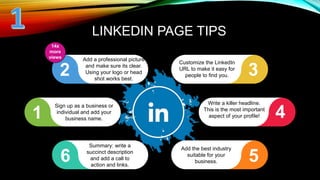
Add a professional picture
and make sure its clear.
Using your logo or head
shot works best.
LINKEDIN PAGE TIPS
Customize the LinkedIn
URL to make it easy for
people to find you.
Sign up as a business or
individual and add your
business name.
Write a killer headline.
This is the most important
aspect of your profile!
Add the best industry
suitable for your
business.
Summary: write a
succinct description
and add a call to
action and links.
1
2 3
4
5
6
14x
more
views
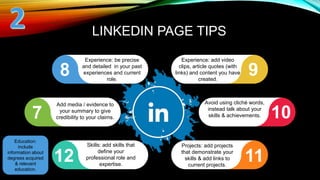
Experience: be precise
and detailed in your past
experiences and current
role.
LINKEDIN PAGE TIPS
Experience: add video
clips, article quotes (with
links) and content you have
created.
Add media / evidence to
your summary to give
credibility to your claims.
Avoid using cliché words,
instead talk about your
skills & achievements.
Projects: add projects
that demonstrate your
skills & add links to
current projects.
Skills: add skills that
define your
professional role and
expertise.
Education:
include
information about
degrees acquired
& relevant
education.
7
8 9
10
11
12
4
LINKEDIN PAGE
Pro Tip
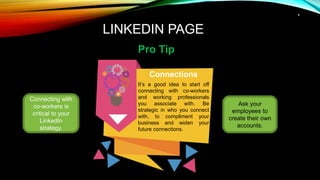
Connecting with
co-workers is
critical to your
LinkedIn
strategy.
Connections
It’s a good idea to start off
connecting with co-workers
and working professionals
you associate with. Be
strategic in who you connect
with, to compliment your
business and widen your
future connections.
Ask your
employees to
create their own
accounts.
5
LINKEDIN PAGE
Pro Tip
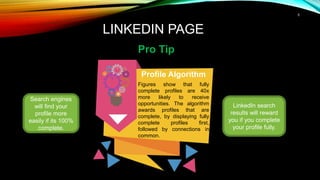
Search engines
will find your
profile more
easily if its 100%
complete.
Profile Algorithm
Figures show that fully
complete profiles are 40x
more likely to receive
opportunities. The algorithm
awards profiles that are
complete, by displaying fully
complete profiles first,
followed by connections in
common.
LinkedIn search
results will reward
you if you complete
your profile fully.
6
CREATE A SHOWCASE
PAGE
3
1
2
Click on the drop down
to the right of the edit
button.
Showcases are niche pages branched off of the main company page that allow a
company to promote specific products or market to a specific buyer.
Click on “Create A
Showcase Page”.
Enter information as you
would for regular pages
including: Web Links,
Images, Industry.
You can create up to 10
free showcase pages.
It’s a great way to
showcase your most
popular products and
services.
Include an incentive on
the picture with overlay
text.
?
7
LinkedIn Tips
8
RECOMMENDATIONS VS ENDORSEMENTS
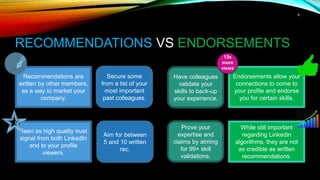
Recommendations are
written by other members,
as a way to market your
company.
Seen as high quality trust
signal from both LinkedIn
and to your profile
viewers.
Endorsements allow your
connections to come to
your profile and endorse
you for certain skills.
While still important
regarding Linkedin
algorithms, they are not
as credible as written
recommendations.
Secure some
from a list of your
most important
past colleagues.
Have colleagues
validate your
skills to back-up
your experience.
Aim for between
5 and 10 written
rec.
Prove your
expertise and
claims by aiming
for 99+ skill
validations.
13x
more
views
9
HOW TO GET MORE
RECOMMENDATIONS
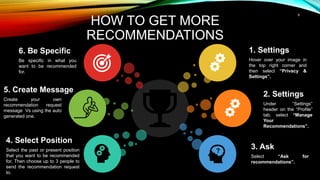
1. Settings
Hover over your image in
the top right corner and
then select “Privacy &
Settings”.
3. Ask
Select “Ask for
recommendations”.
2. Settings
Under “Settings”
header on the “Profile”
tab, select “Manage
Your
Recommendations”.
6. Be Specific
Be specific in what you
want to be recommended
for.
4. Select Position
Select the past or present position
that you want to be recommended
for. Then choose up to 3 people to
send the recommendation request
to.
5. Create Message
Create your own
recommendation request
message Vs using the auto
generated one.
10
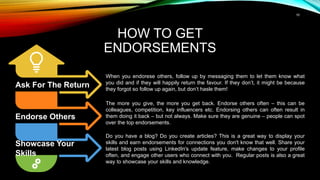
Ask For The Return
Endorse Others
Showcase Your
Skills
Do you have a blog? Do you create articles? This is a great way to display your
skills and earn endorsements for connections you don't know that well. Share your
latest blog posts using LinkedIn's update feature, make changes to your profile
often, and engage other users who connect with you. Regular posts is also a great
way to showcase your skills and knowledge.
HOW TO GET
ENDORSEMENTS
The more you give, the more you get back. Endorse others often – this can be
colleagues, competition, key influencers etc. Endorsing others can often result in
them doing it back – but not always. Make sure they are genuine – people can spot
over the top endorsements.
When you endorese others, follow up by messaging them to let them know what
you did and if they will happily return the favour. If they don’t, it might be because
they forgot so follow up again, but don’t hasle them!
11
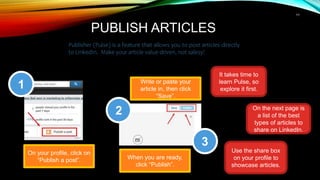
PUBLISH ARTICLES
Publisher (Pulse) is a feature that allows you to post articles directly
to LinkedIn. Make your article value-driven, not salesy!
On your profile, click on
“Publish a post”.
1
2
3
Write or paste your
article in, then click
“Save”.
When you are ready,
click “Publish”.
It takes time to
learn Pulse, so
explore it first.
On the next page is
a list of the best
types of articles to
share on LinkedIn.
Use the share box
on your profile to
showcase articles.
12
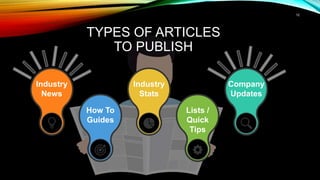
TYPES OF ARTICLES
TO PUBLISH
Industry
Stats
How To
Guides
Company
Updates
Industry
News
Lists /
Quick
Tips
13
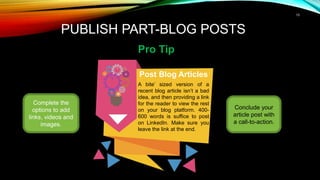
PUBLISH PART-BLOG POSTS
Pro Tip
Complete the
options to add
links, videos and
images.
Post Blog Articles
A bite’ sized version of a
recent blog article isn’t a bad
idea, and then providing a link
for the reader to view the rest
on your blog platform. 400-
600 words is suffice to post
on LinkedIn. Make sure you
leave the link at the end.
Conclude your
article post with
a call-to-action.
14
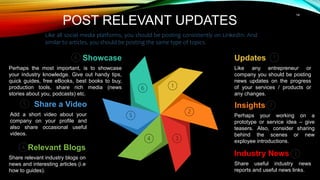
POST RELEVANT UPDATES
Like all social media platforms, you should be posting consistently on LinkedIn. And
similar to articles, you should be posting the same type of topics.
Insights
Perhaps your working on a
prototype or service idea – give
teasers. Also, consider sharing
behind the scenes or new
exployee introductions.
Industry News
Share useful industry news
reports and useful news links.
Share a Video
Add a short video about your
company on your profile and
also share occasional useful
videos.
Relevant Blogs
Share relevant industry blogs on
news and interesting articles (i.e
how to guides).
Updates
Like any entrepreneur or
company you should be posting
news updates on the progress
of your services / products or
any changes.
Showcase
Perhaps the most important, is to showcase
your industry knowledge. Give out handy tips,
quick guides, free eBooks, best books to buy,
production tools, share rich media (news
stories about you, podcasts) etc.
15
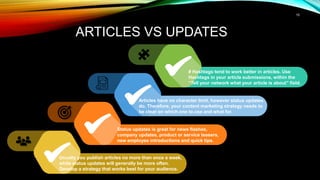
ARTICLES VS UPDATES
Usually you publish articles no more than once a week,
while status updates will generally be more often.
Develop a strategy that works best for your audience.
Status updates is great for news flashes,
company updates, product or service teasers,
new employee introductions and quick tips.
Articles have no character limit, however status updates
do. Therefore, your content marketing strategy needs to
be clear on which one to use and what for.
# Hashtags tend to work better in articles. Use
Hashtags in your article submissions, within the
“Tell your network what your article is about” field.
16
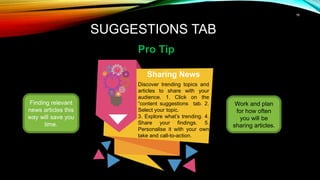
SUGGESTIONS TAB
Pro Tip
Finding relevant
news articles this
way will save you
time.
Sharing News
Discover trending topics and
articles to share with your
audience. 1. Click on the
“content suggestions tab. 2.
Select your topic.
3. Explore what’s trending. 4.
Share your findings. 5.
Personalise it with your own
take and call-to-action.
Work and plan
for how often
you will be
sharing articles.
17
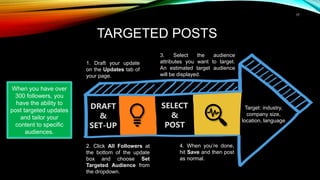
TARGETED POSTS
SELECT
&
POST
DRAFT
&
SET-UP
1. Draft your update
on the Updates tab of
your page.
Target: industry,
company size,
location, language
When you have over
300 followers, you
have the ability to
post targeted updates
and tailor your
content to specific
audiences.
2. Click All Followers at
the bottom of the update
box and choose Set
Targeted Audience from
the dropdown.
3. Select the audience
attributes you want to target.
An estimated target audience
will be displayed.
4. When you’re done,
hit Save and then post
as normal.
18
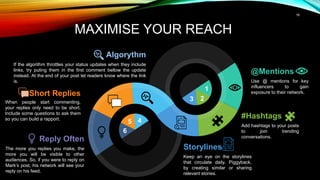
MAXIMISE YOUR REACH
Reply Often
The more you replies you make, the
more you will be visible to other
audiences. So, if you were to reply on
Mark’s post, his network will see your
reply on his feed.
Short Replies
When people start commenting,
your replies only need to be short.
Include some questions to ask them
so you can build a rapport.
@Mentions
Use @ mentions for key
influencers to gain
exposure to their network.
#Hashtags
Add hashtags to your posts
to join trending
conversations.
Algorythm
If the algorithm throttles your status updates when they include
links, try puting them in the first comment bellow the update
instead. At the end of your post let readers know where the link
is.
Storylines
Keep an eye on the storylines
that circulate daily. Piggyback,
by creating similar or sharing
relevant stories.
1
2
3
4
5
6
19
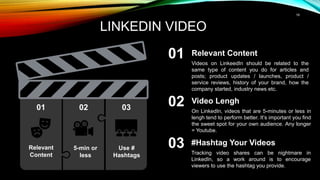
LINKEDIN VIDEO
Relevant
Content
Video Lengh
On LinkedIn, videos that are 5-minutes or less in
lengh tend to perform better. It’s important you find
the sweet spot for your own audience. Any longer
= Youtube.
#Hashtag Your Videos
Tracking video shares can be nightmare in
LinkedIn, so a work around is to encourage
viewers to use the hashtag you provide.
Relevant Content
Videos on LinkeedIn should be related to the
same type of content you do for articles and
posts; product updates / launches, product /
service reviews, history of your brand, how the
company started, industry news etc.
01 02 03
01
02
03
5-min or
less
Use #
Hashtags
20
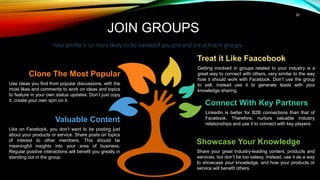
JOIN GROUPS
Your profile is 5x more likely to be viewed if you join and are active in groups.
Connect With Key Partners
LinkedIn is better for B2B connections than that of
Facebook. Therefore, nurture valuable industry
relationships and use it to connect with key players.
Showcase Your Knowledge
Share your great industry-leading content, products and
services, but don’t be too salesy. Instead, use it as a way
to showcase your knowledge, and how your products or
service will benefit others.
Clone The Most Popular
Use ideas you find from popular discussions, with the
most likes and comments to work on ideas and topics
to feature in your own status updates. Don’t just copy
it, create your own spin on it.
Treat it Like Faacebook
Getting involved in groups related to your industry is a
great way to connect with others, very similar to the way
how it should work with Facebook. Don’t use the group
to sell, instead use it to generate leads with your
knowledge sharing.
Valuable Content
Like on Facebook, you don’t want to be posting just
about your products or service. Share posts on topics
of interest to other members. This should be
meaningful insights into your area of business.
Regular positive interactions will benefit you greatly in
standing out in the group.
21
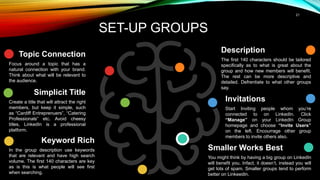
SET-UP GROUPS
Invitations
Start Inviting people whom you’re
connected to on LinkedIn. Click
“Manage” on your LinkedIn Group
homepage and choose “Invite Users”
on the left. Encourrage other group
members to invite others also.
Smaller Works Best
You might think by having a big group on LinkedIn
will benefit you. Infact, it doesn’t, instead you will
get lots of spam. Smaller groups tend to perform
better on LinkeedIn.
Simplicit Title
Create a title that will attract the right
members, but keep it simple, such
as “Cardiff Entreprenuers”, “Catering
Professionals” etc. Avoid cheesy
titles, LinkedIn is a professional
platform.
Keyword Rich
In the group description use keywords
that are relevant and have high search
volume. The first 140 characters are key
as is this is what people will see first
when searching.
Description
The first 140 characters should be tailored
specifically as to what is great about the
group and how new members will benefit.
The rest can be more descriptive and
detailed. Defrentiate to what other groups
say.
Topic Connection
Focus around a topic that has a
natural connection with your brand.
Think about what will be relevant to
the audience.
22
01
02
03
Request-To-Join Message
There are two ways you can compile this type of
message: it can to get them to complete a form by
asking questions or simplify it by giving some
direction on expectation. Always try to capture
their email address though.
Welcome Message
When people are approved to join your
group, set up a lovely welcome
message. This is a good place to
explain your expectations from them, if
you haven’t already explaind. It’s also a
great way to remind them to follow the
rules.
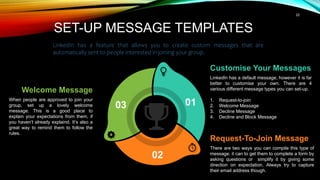
Customise Your Messages
LinkedIn has a default message, however it is far
better to customise your own. There are 4
various different message types you can set-up.
1. Request-to-join
2. Welcome Message
3. Decline Message
4. Decline and Block Message
SET-UP MESSAGE TEMPLATES
LinkedIn has a feature that allows you to create custom messages that are
automatically sent to people interested in joining your group.
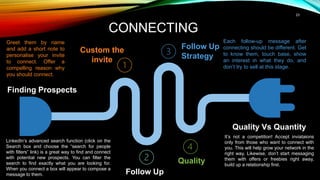
Finding Prospects
LinkedIn’s advanced search function (click on the
Search box and choose the “search for people
with filters” link) is a great way to find and connect
with potential new prospects. You can filter the
search to find exactly what you are looking for.
When you connect a box will appear to compose a
message to them.
Quality Vs Quantity
It’s not a competition! Accept inviataions
only from those who want to connect with
you. This will help grow your network in the
right way. Likewise, don’t start messaging
them with offers or freebies right away,
build up a relationship first.
Custom the
invite
Follow Up
Follow Up
Strategy
Quality
CONNECTING
23
Greet them by name
and add a short note to
personalise your invite
to connect. Offer a
compelling reason why
you should connect.
Each follow-up message after
connecting should be different. Get
to know them, touch base, show
an interest in what they do, and
don’t try to sell at this stage.
24
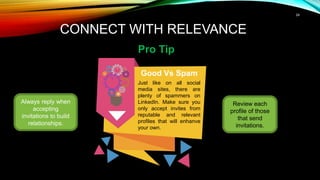
CONNECT WITH RELEVANCE
Pro Tip
Always reply when
accepting
invitations to build
relationships.
Good Vs Spam
Just like on all social
media sites, there are
plenty of spammers on
LinkedIn. Make sure you
only accept invites from
reputable and relevant
profiles that will enhanve
your own.
Review each
profile of those
that send
invitations.
25
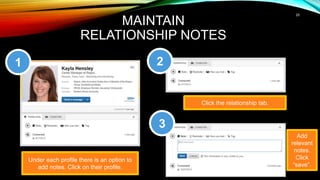
MAINTAIN
RELATIONSHIP NOTES
Under each profile there is an option to
add notes. Click on their profile.
Click the relationship tab.
Add
relevant
notes.
Click
“save”.
1 2
3
26
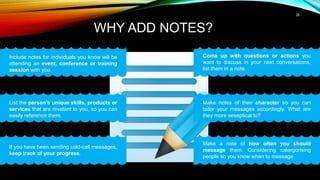
WHY ADD NOTES?
List the person’s unique skills, products or
services that are revelant to you, so you can
easily reference them.
Include notes for individuals you know will be
attending an event, conference or training
session with you.
If you have been sending cold-call messages,
keep track of your progress.
Come up with questions or actions you
want to discuss in your next conversations,
list them in a note.
Make notes of their character so you can
tailor your messages accordingly. What are
they more seseptical to?
Make a note of how often you should
message them. Considering catergorising
people so you know when to message.
27
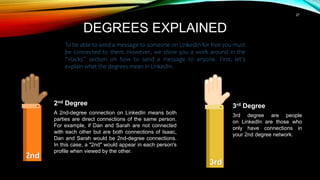
DEGREES EXPLAINED
2nd
2nd Degree
A 2nd-degree connection on LinkedIn means both
parties are direct connections of the same person.
For example, if Dan and Sarah are not connected
with each other but are both connections of Isaac,
Dan and Sarah would be 2nd-degree connections.
In this case, a "2nd" would appear in each person's
profile when viewed by the other.
3rd
3rd Degree
3rd degree are people
on LinkedIn are those who
only have connections in
your 2nd degree network.
To be able to send a message to someone on LinkedIn for free you must
be connected to them. However, we show you a work around in the
“Hacks” section on how to send a message to anyone. First, let’s
explain what the degrees mean in LinkedIn.
28
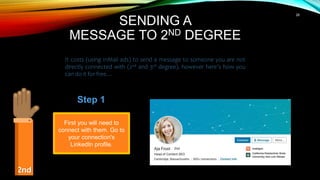
SENDING A
MESSAGE TO 2ND DEGREE
It costs (using InMail ads) to send a message to someone you are not
directly connected with (2nd and 3rd degree), however here’s how you
can do it for free…
2nd
First you will need to
connect with them. Go to
your connection's
LinkedIn profile.
Step 1
29
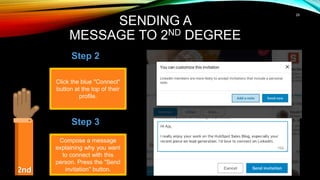
SENDING A
MESSAGE TO 2ND DEGREE
2nd
Click the blue "Connect"
button at the top of their
profile.
Step 2
Compose a message
explaining why you want
to connect with this
person. Press the "Send
invitation" button.
Step 3
30
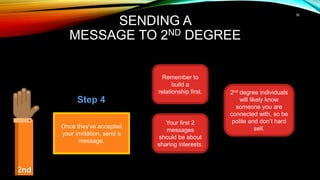
SENDING A
MESSAGE TO 2ND DEGREE
2nd
Once they've accepted
your invitation, send a
message.
Step 4
Remember to
build a
relationship first.
Your first 2
messages
should be about
sharing interests.
2nd degree individuals
will likely know
someone you are
connected with, so be
polite and don’t hard
sell.
31
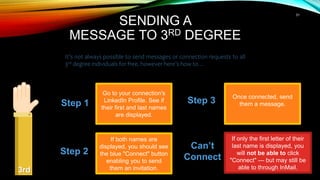
SENDING A
MESSAGE TO 3RD DEGREE
It’s not always possible to send messages or connection requests to all
3rd degree individuals for free, however here’s how to…
Go to your connection's
LinkedIn Profile. See if
their first and last names
are displayed.
Step 1
If both names are
displayed, you should see
the blue "Connect" button
enabling you to send
them an invitation.
Step 2
Step 3
Can’t
Connect
If only the first letter of their
last name is displayed, you
will not be able to click
"Connect" — but may still be
able to through InMail.
Once connected, send
them a message.
3rd
32
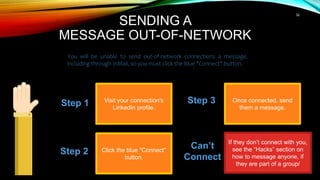
SENDING A
MESSAGE OUT-OF-NETWORK
You will be unable to send out-of-network connections a message,
including through InMail, so you must click the blue "Connect" button.
Visit your connection's
LinkedIn profile.
Step 1
Click the blue "Connect"
button.
Step 2
Step 3
Can’t
Connect
If they don’t connect with you,
see the “Hacks” section on
how to message anyone, if
they are part of a group/
Once connected, send
them a message.
33
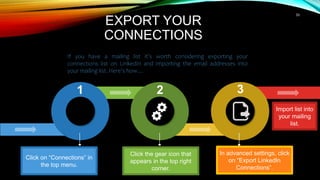
EXPORT YOUR
CONNECTIONS
If you have a mailing list it’s worth considering exporting your
connections list on LinkedIn and importing the email addresses into
your mailing list. Here’s how…
Click on “Connections” in
the top menu.
Click the gear icon that
appears in the top right
corner.
In advanced settings, click
on “Export LinkedIn
Connections”.
Import list into
your mailing
list.
1 2 3
34
LinkedIn Hacks
35
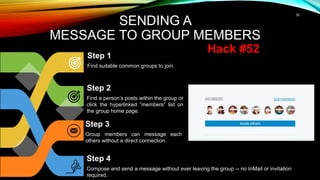
SENDING A
MESSAGE TO GROUP MEMBERS
Step 1
Find suitable common groups to join.
Step 2
Find a person’s posts within the group or
click the hyperlinked “members” list on
the group home page.
Step 3
Group members can message each
others without a direct connection.
Step 4
Compose and send a message without ever leaving the group -- no InMail or invitation
required.
Hack #52
36
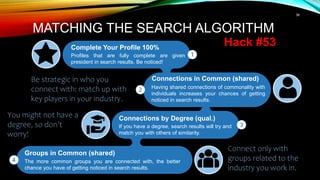
Complete Your Profile 100%
Profiles that are fully complete are given
president in search results. Be noticed!
MATCHING THE SEARCH ALGORITHM
Hack #53
Connections in Common (shared)
Having shared connections of commonality with
individuals increases your chances of getting
noticed in search results.
Connections by Degree (qual.)
If you have a degree, search results will try and
match you with others of similarity.
Groups in Common (shared)
The more common groups you are connected with, the better
chance you have of getting noticed in search results.
Connect only with
groups related to the
industry you work in.
You might not have a
degree, so don’t
worry!
Be strategic in who you
connect with: match up with
key players in your industry.
37
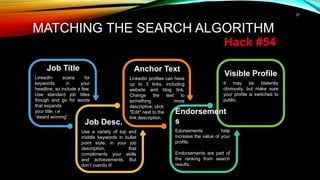
MATCHING THE SEARCH ALGORITHM
Hack #54
Visible Profile
It may be blatently
obviously, but make sure
your profile is switched to
public.
Anchor Text
LinkedIn profiles can have
up to 3 links, including
website and blog link.
Change the text to
something more
descriptive; click
"Edit" next to the
link description.
Job Title
LinkedIn scans for
keywords in your
headline, so include a few.
Use standard job titles
though and go for words
that expands
your title, i.e
“award winning”
Job Desc.
Use a variety of top and
middle keywords in bullet
point style, in your job
description, that
compliments your skills
and achievements. But
don’t overdo it!
Endorsement
s
Edorsements help
increase the value of your
profile.
Endorsements are part of
the ranking from search
results.
38
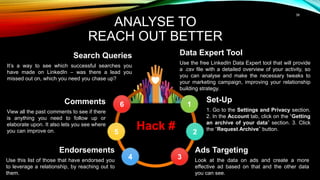
ANALYSE TO
REACH OUT BETTER
Set-Up
1. Go to the Settings and Privacy section.
2. In the Account tab, click on the “Getting
an archive of your data” section. 3. Click
the “Request Archive” button.
Ads Targeting
Look at the data on ads and create a more
effective ad based on that and the other data
you can see.
Comments
View all the past comments to see if there
is anything you need to follow up or
elaborate upon. It also lets you see where
you can improve on.
Endorsements
Use this list of those that have endorsed you
to leverage a relationship, by reaching out to
them.
Data Expert Tool
Use the free LinkedIn Data Expert tool that will provide
a .csv file with a detailed overview of your activity, so
you can analyse and make the necessary tweaks to
your marketing campaign, improving your relationship
building strategy.
Search Queries
It’s a way to see which successful searches you
have made on LinkedIn – was there a lead you
missed out on, which you need you chase up?
6 1
5
4 3
2
Hack #

Topic 12-8 LinkedIn Page and Posting Tips.ppt

  • 1.
    1 Part 8 LinkedIn Page& Posting Tips
  • 2.
    Add a professionalpicture and make sure its clear. Using your logo or head shot works best. LINKEDIN PAGE TIPS Customize the LinkedIn URL to make it easy for people to find you. Sign up as a business or individual and add your business name. Write a killer headline. This is the most important aspect of your profile! Add the best industry suitable for your business. Summary: write a succinct description and add a call to action and links. 1 2 3 4 5 6 14x more views
  • 3.
    Experience: be precise anddetailed in your past experiences and current role. LINKEDIN PAGE TIPS Experience: add video clips, article quotes (with links) and content you have created. Add media / evidence to your summary to give credibility to your claims. Avoid using cliché words, instead talk about your skills & achievements. Projects: add projects that demonstrate your skills & add links to current projects. Skills: add skills that define your professional role and expertise. Education: include information about degrees acquired & relevant education. 7 8 9 10 11 12
  • 4.
    4 LINKEDIN PAGE Pro Tip Connectingwith co-workers is critical to your LinkedIn strategy. Connections It’s a good idea to start off connecting with co-workers and working professionals you associate with. Be strategic in who you connect with, to compliment your business and widen your future connections. Ask your employees to create their own accounts.
  • 5.
    5 LINKEDIN PAGE Pro Tip Searchengines will find your profile more easily if its 100% complete. Profile Algorithm Figures show that fully complete profiles are 40x more likely to receive opportunities. The algorithm awards profiles that are complete, by displaying fully complete profiles first, followed by connections in common. LinkedIn search results will reward you if you complete your profile fully.
  • 6.
    6 CREATE A SHOWCASE PAGE 3 1 2 Clickon the drop down to the right of the edit button. Showcases are niche pages branched off of the main company page that allow a company to promote specific products or market to a specific buyer. Click on “Create A Showcase Page”. Enter information as you would for regular pages including: Web Links, Images, Industry. You can create up to 10 free showcase pages. It’s a great way to showcase your most popular products and services. Include an incentive on the picture with overlay text. ?
  • 7.
  • 8.
    8 RECOMMENDATIONS VS ENDORSEMENTS Recommendationsare written by other members, as a way to market your company. Seen as high quality trust signal from both LinkedIn and to your profile viewers. Endorsements allow your connections to come to your profile and endorse you for certain skills. While still important regarding Linkedin algorithms, they are not as credible as written recommendations. Secure some from a list of your most important past colleagues. Have colleagues validate your skills to back-up your experience. Aim for between 5 and 10 written rec. Prove your expertise and claims by aiming for 99+ skill validations. 13x more views
  • 9.
    9 HOW TO GETMORE RECOMMENDATIONS 1. Settings Hover over your image in the top right corner and then select “Privacy & Settings”. 3. Ask Select “Ask for recommendations”. 2. Settings Under “Settings” header on the “Profile” tab, select “Manage Your Recommendations”. 6. Be Specific Be specific in what you want to be recommended for. 4. Select Position Select the past or present position that you want to be recommended for. Then choose up to 3 people to send the recommendation request to. 5. Create Message Create your own recommendation request message Vs using the auto generated one.
  • 10.
    10 Ask For TheReturn Endorse Others Showcase Your Skills Do you have a blog? Do you create articles? This is a great way to display your skills and earn endorsements for connections you don't know that well. Share your latest blog posts using LinkedIn's update feature, make changes to your profile often, and engage other users who connect with you. Regular posts is also a great way to showcase your skills and knowledge. HOW TO GET ENDORSEMENTS The more you give, the more you get back. Endorse others often – this can be colleagues, competition, key influencers etc. Endorsing others can often result in them doing it back – but not always. Make sure they are genuine – people can spot over the top endorsements. When you endorese others, follow up by messaging them to let them know what you did and if they will happily return the favour. If they don’t, it might be because they forgot so follow up again, but don’t hasle them!
  • 11.
    11 PUBLISH ARTICLES Publisher (Pulse)is a feature that allows you to post articles directly to LinkedIn. Make your article value-driven, not salesy! On your profile, click on “Publish a post”. 1 2 3 Write or paste your article in, then click “Save”. When you are ready, click “Publish”. It takes time to learn Pulse, so explore it first. On the next page is a list of the best types of articles to share on LinkedIn. Use the share box on your profile to showcase articles.
  • 12.
    12 TYPES OF ARTICLES TOPUBLISH Industry Stats How To Guides Company Updates Industry News Lists / Quick Tips
  • 13.
    13 PUBLISH PART-BLOG POSTS ProTip Complete the options to add links, videos and images. Post Blog Articles A bite’ sized version of a recent blog article isn’t a bad idea, and then providing a link for the reader to view the rest on your blog platform. 400- 600 words is suffice to post on LinkedIn. Make sure you leave the link at the end. Conclude your article post with a call-to-action.
  • 14.
    14 POST RELEVANT UPDATES Likeall social media platforms, you should be posting consistently on LinkedIn. And similar to articles, you should be posting the same type of topics. Insights Perhaps your working on a prototype or service idea – give teasers. Also, consider sharing behind the scenes or new exployee introductions. Industry News Share useful industry news reports and useful news links. Share a Video Add a short video about your company on your profile and also share occasional useful videos. Relevant Blogs Share relevant industry blogs on news and interesting articles (i.e how to guides). Updates Like any entrepreneur or company you should be posting news updates on the progress of your services / products or any changes. Showcase Perhaps the most important, is to showcase your industry knowledge. Give out handy tips, quick guides, free eBooks, best books to buy, production tools, share rich media (news stories about you, podcasts) etc.
  • 15.
    15 ARTICLES VS UPDATES Usuallyyou publish articles no more than once a week, while status updates will generally be more often. Develop a strategy that works best for your audience. Status updates is great for news flashes, company updates, product or service teasers, new employee introductions and quick tips. Articles have no character limit, however status updates do. Therefore, your content marketing strategy needs to be clear on which one to use and what for. # Hashtags tend to work better in articles. Use Hashtags in your article submissions, within the “Tell your network what your article is about” field.
  • 16.
    16 SUGGESTIONS TAB Pro Tip Findingrelevant news articles this way will save you time. Sharing News Discover trending topics and articles to share with your audience. 1. Click on the “content suggestions tab. 2. Select your topic. 3. Explore what’s trending. 4. Share your findings. 5. Personalise it with your own take and call-to-action. Work and plan for how often you will be sharing articles.
  • 17.
    17 TARGETED POSTS SELECT & POST DRAFT & SET-UP 1. Draftyour update on the Updates tab of your page. Target: industry, company size, location, language When you have over 300 followers, you have the ability to post targeted updates and tailor your content to specific audiences. 2. Click All Followers at the bottom of the update box and choose Set Targeted Audience from the dropdown. 3. Select the audience attributes you want to target. An estimated target audience will be displayed. 4. When you’re done, hit Save and then post as normal.
  • 18.
    18 MAXIMISE YOUR REACH ReplyOften The more you replies you make, the more you will be visible to other audiences. So, if you were to reply on Mark’s post, his network will see your reply on his feed. Short Replies When people start commenting, your replies only need to be short. Include some questions to ask them so you can build a rapport. @Mentions Use @ mentions for key influencers to gain exposure to their network. #Hashtags Add hashtags to your posts to join trending conversations. Algorythm If the algorithm throttles your status updates when they include links, try puting them in the first comment bellow the update instead. At the end of your post let readers know where the link is. Storylines Keep an eye on the storylines that circulate daily. Piggyback, by creating similar or sharing relevant stories. 1 2 3 4 5 6
  • 19.
    19 LINKEDIN VIDEO Relevant Content Video Lengh OnLinkedIn, videos that are 5-minutes or less in lengh tend to perform better. It’s important you find the sweet spot for your own audience. Any longer = Youtube. #Hashtag Your Videos Tracking video shares can be nightmare in LinkedIn, so a work around is to encourage viewers to use the hashtag you provide. Relevant Content Videos on LinkeedIn should be related to the same type of content you do for articles and posts; product updates / launches, product / service reviews, history of your brand, how the company started, industry news etc. 01 02 03 01 02 03 5-min or less Use # Hashtags
  • 20.
    20 JOIN GROUPS Your profileis 5x more likely to be viewed if you join and are active in groups. Connect With Key Partners LinkedIn is better for B2B connections than that of Facebook. Therefore, nurture valuable industry relationships and use it to connect with key players. Showcase Your Knowledge Share your great industry-leading content, products and services, but don’t be too salesy. Instead, use it as a way to showcase your knowledge, and how your products or service will benefit others. Clone The Most Popular Use ideas you find from popular discussions, with the most likes and comments to work on ideas and topics to feature in your own status updates. Don’t just copy it, create your own spin on it. Treat it Like Faacebook Getting involved in groups related to your industry is a great way to connect with others, very similar to the way how it should work with Facebook. Don’t use the group to sell, instead use it to generate leads with your knowledge sharing. Valuable Content Like on Facebook, you don’t want to be posting just about your products or service. Share posts on topics of interest to other members. This should be meaningful insights into your area of business. Regular positive interactions will benefit you greatly in standing out in the group.
  • 21.
    21 SET-UP GROUPS Invitations Start Invitingpeople whom you’re connected to on LinkedIn. Click “Manage” on your LinkedIn Group homepage and choose “Invite Users” on the left. Encourrage other group members to invite others also. Smaller Works Best You might think by having a big group on LinkedIn will benefit you. Infact, it doesn’t, instead you will get lots of spam. Smaller groups tend to perform better on LinkeedIn. Simplicit Title Create a title that will attract the right members, but keep it simple, such as “Cardiff Entreprenuers”, “Catering Professionals” etc. Avoid cheesy titles, LinkedIn is a professional platform. Keyword Rich In the group description use keywords that are relevant and have high search volume. The first 140 characters are key as is this is what people will see first when searching. Description The first 140 characters should be tailored specifically as to what is great about the group and how new members will benefit. The rest can be more descriptive and detailed. Defrentiate to what other groups say. Topic Connection Focus around a topic that has a natural connection with your brand. Think about what will be relevant to the audience.
  • 22.
    22 01 02 03 Request-To-Join Message There aretwo ways you can compile this type of message: it can to get them to complete a form by asking questions or simplify it by giving some direction on expectation. Always try to capture their email address though. Welcome Message When people are approved to join your group, set up a lovely welcome message. This is a good place to explain your expectations from them, if you haven’t already explaind. It’s also a great way to remind them to follow the rules. Customise Your Messages LinkedIn has a default message, however it is far better to customise your own. There are 4 various different message types you can set-up. 1. Request-to-join 2. Welcome Message 3. Decline Message 4. Decline and Block Message SET-UP MESSAGE TEMPLATES LinkedIn has a feature that allows you to create custom messages that are automatically sent to people interested in joining your group.
  • 23.
    Finding Prospects LinkedIn’s advancedsearch function (click on the Search box and choose the “search for people with filters” link) is a great way to find and connect with potential new prospects. You can filter the search to find exactly what you are looking for. When you connect a box will appear to compose a message to them. Quality Vs Quantity It’s not a competition! Accept inviataions only from those who want to connect with you. This will help grow your network in the right way. Likewise, don’t start messaging them with offers or freebies right away, build up a relationship first. Custom the invite Follow Up Follow Up Strategy Quality CONNECTING 23 Greet them by name and add a short note to personalise your invite to connect. Offer a compelling reason why you should connect. Each follow-up message after connecting should be different. Get to know them, touch base, show an interest in what they do, and don’t try to sell at this stage.
  • 24.
    24 CONNECT WITH RELEVANCE ProTip Always reply when accepting invitations to build relationships. Good Vs Spam Just like on all social media sites, there are plenty of spammers on LinkedIn. Make sure you only accept invites from reputable and relevant profiles that will enhanve your own. Review each profile of those that send invitations.
  • 25.
    25 MAINTAIN RELATIONSHIP NOTES Under eachprofile there is an option to add notes. Click on their profile. Click the relationship tab. Add relevant notes. Click “save”. 1 2 3
  • 26.
    26 WHY ADD NOTES? Listthe person’s unique skills, products or services that are revelant to you, so you can easily reference them. Include notes for individuals you know will be attending an event, conference or training session with you. If you have been sending cold-call messages, keep track of your progress. Come up with questions or actions you want to discuss in your next conversations, list them in a note. Make notes of their character so you can tailor your messages accordingly. What are they more seseptical to? Make a note of how often you should message them. Considering catergorising people so you know when to message.
  • 27.
    27 DEGREES EXPLAINED 2nd 2nd Degree A2nd-degree connection on LinkedIn means both parties are direct connections of the same person. For example, if Dan and Sarah are not connected with each other but are both connections of Isaac, Dan and Sarah would be 2nd-degree connections. In this case, a "2nd" would appear in each person's profile when viewed by the other. 3rd 3rd Degree 3rd degree are people on LinkedIn are those who only have connections in your 2nd degree network. To be able to send a message to someone on LinkedIn for free you must be connected to them. However, we show you a work around in the “Hacks” section on how to send a message to anyone. First, let’s explain what the degrees mean in LinkedIn.
  • 28.
    28 SENDING A MESSAGE TO2ND DEGREE It costs (using InMail ads) to send a message to someone you are not directly connected with (2nd and 3rd degree), however here’s how you can do it for free… 2nd First you will need to connect with them. Go to your connection's LinkedIn profile. Step 1
  • 29.
    29 SENDING A MESSAGE TO2ND DEGREE 2nd Click the blue "Connect" button at the top of their profile. Step 2 Compose a message explaining why you want to connect with this person. Press the "Send invitation" button. Step 3
  • 30.
    30 SENDING A MESSAGE TO2ND DEGREE 2nd Once they've accepted your invitation, send a message. Step 4 Remember to build a relationship first. Your first 2 messages should be about sharing interests. 2nd degree individuals will likely know someone you are connected with, so be polite and don’t hard sell.
  • 31.
    31 SENDING A MESSAGE TO3RD DEGREE It’s not always possible to send messages or connection requests to all 3rd degree individuals for free, however here’s how to… Go to your connection's LinkedIn Profile. See if their first and last names are displayed. Step 1 If both names are displayed, you should see the blue "Connect" button enabling you to send them an invitation. Step 2 Step 3 Can’t Connect If only the first letter of their last name is displayed, you will not be able to click "Connect" — but may still be able to through InMail. Once connected, send them a message. 3rd
  • 32.
    32 SENDING A MESSAGE OUT-OF-NETWORK Youwill be unable to send out-of-network connections a message, including through InMail, so you must click the blue "Connect" button. Visit your connection's LinkedIn profile. Step 1 Click the blue "Connect" button. Step 2 Step 3 Can’t Connect If they don’t connect with you, see the “Hacks” section on how to message anyone, if they are part of a group/ Once connected, send them a message.
  • 33.
    33 EXPORT YOUR CONNECTIONS If youhave a mailing list it’s worth considering exporting your connections list on LinkedIn and importing the email addresses into your mailing list. Here’s how… Click on “Connections” in the top menu. Click the gear icon that appears in the top right corner. In advanced settings, click on “Export LinkedIn Connections”. Import list into your mailing list. 1 2 3
  • 34.
  • 35.
    35 SENDING A MESSAGE TOGROUP MEMBERS Step 1 Find suitable common groups to join. Step 2 Find a person’s posts within the group or click the hyperlinked “members” list on the group home page. Step 3 Group members can message each others without a direct connection. Step 4 Compose and send a message without ever leaving the group -- no InMail or invitation required. Hack #52
  • 36.
    36 Complete Your Profile100% Profiles that are fully complete are given president in search results. Be noticed! MATCHING THE SEARCH ALGORITHM Hack #53 Connections in Common (shared) Having shared connections of commonality with individuals increases your chances of getting noticed in search results. Connections by Degree (qual.) If you have a degree, search results will try and match you with others of similarity. Groups in Common (shared) The more common groups you are connected with, the better chance you have of getting noticed in search results. Connect only with groups related to the industry you work in. You might not have a degree, so don’t worry! Be strategic in who you connect with: match up with key players in your industry.
  • 37.
    37 MATCHING THE SEARCHALGORITHM Hack #54 Visible Profile It may be blatently obviously, but make sure your profile is switched to public. Anchor Text LinkedIn profiles can have up to 3 links, including website and blog link. Change the text to something more descriptive; click "Edit" next to the link description. Job Title LinkedIn scans for keywords in your headline, so include a few. Use standard job titles though and go for words that expands your title, i.e “award winning” Job Desc. Use a variety of top and middle keywords in bullet point style, in your job description, that compliments your skills and achievements. But don’t overdo it! Endorsement s Edorsements help increase the value of your profile. Endorsements are part of the ranking from search results.
  • 38.
    38 ANALYSE TO REACH OUTBETTER Set-Up 1. Go to the Settings and Privacy section. 2. In the Account tab, click on the “Getting an archive of your data” section. 3. Click the “Request Archive” button. Ads Targeting Look at the data on ads and create a more effective ad based on that and the other data you can see. Comments View all the past comments to see if there is anything you need to follow up or elaborate upon. It also lets you see where you can improve on. Endorsements Use this list of those that have endorsed you to leverage a relationship, by reaching out to them. Data Expert Tool Use the free LinkedIn Data Expert tool that will provide a .csv file with a detailed overview of your activity, so you can analyse and make the necessary tweaks to your marketing campaign, improving your relationship building strategy. Search Queries It’s a way to see which successful searches you have made on LinkedIn – was there a lead you missed out on, which you need you chase up? 6 1 5 4 3 2 Hack #