TALLY
AUTO SMS
INTRODUCTION
• With this Add-on, user can able to send SMS from Tally
• This Add-on is very useful to send SMS to party for all vouchers
BENEFITS
• With the help of this Add-on user can send SMS from Tally for Number of Vouchers like Sales,
Purchase, Payment, Receipt etc.
• It also allows user to Send SMS for Outstanding Amount to their Customers
IMPORTATNT: As a best practice it is advisable to take back up of your company data before installing the Add-
on
SETUP GUIDE
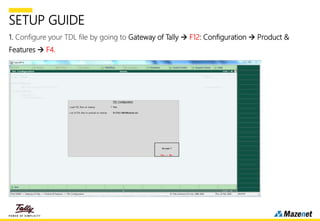
1. Configure your TDL file by going to Gateway of Tally  F12: Configuration  Product &
Features  F4.
SETUP GUIDE
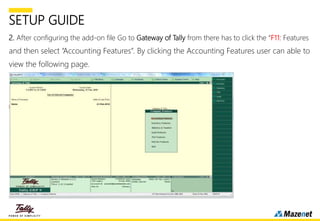
2. After configuring the add-on file Go to Gateway of Tally from there has to click the “F11: Features
and then select “Accounting Features”. By clicking the Accounting Features user can able to
view the following page.
SETUP GUIDE
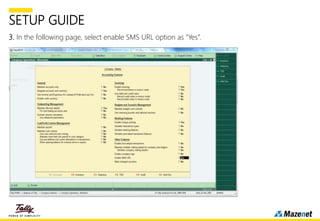
3. In the following page, select enable SMS URL option as “Yes”.
SETUP GUIDE
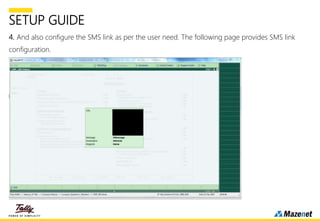
4. And also configure the SMS link as per the user need. The following page provides SMS link
configuration.
SETUP GUIDE
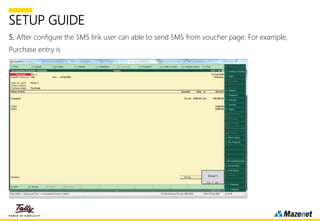
5. After configure the SMS link user can able to send SMS from voucher page. For example,
Purchase entry is
.
SETUP GUIDE
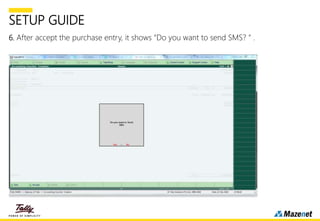
6. After accept the purchase entry, it shows “Do you want to send SMS? ” .
SETUP GUIDE
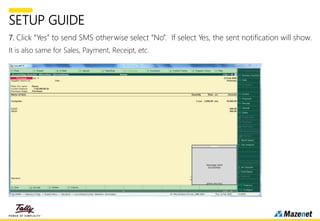
7. Click “Yes” to send SMS otherwise select “No”. If select Yes, the sent notification will show.
It is also same for Sales, Payment, Receipt, etc.
THANK YOU

Tally Auto SMS Module| Mazenet Technologies

  • 1.
  • 2.
    INTRODUCTION • With thisAdd-on, user can able to send SMS from Tally • This Add-on is very useful to send SMS to party for all vouchers BENEFITS • With the help of this Add-on user can send SMS from Tally for Number of Vouchers like Sales, Purchase, Payment, Receipt etc. • It also allows user to Send SMS for Outstanding Amount to their Customers IMPORTATNT: As a best practice it is advisable to take back up of your company data before installing the Add- on
  • 3.
    SETUP GUIDE 1. Configureyour TDL file by going to Gateway of Tally  F12: Configuration  Product & Features  F4.
  • 4.
    SETUP GUIDE 2. Afterconfiguring the add-on file Go to Gateway of Tally from there has to click the “F11: Features and then select “Accounting Features”. By clicking the Accounting Features user can able to view the following page.
  • 5.
    SETUP GUIDE 3. Inthe following page, select enable SMS URL option as “Yes”.
  • 6.
    SETUP GUIDE 4. Andalso configure the SMS link as per the user need. The following page provides SMS link configuration.
  • 7.
    SETUP GUIDE 5. Afterconfigure the SMS link user can able to send SMS from voucher page. For example, Purchase entry is .
  • 8.
    SETUP GUIDE 6. Afteraccept the purchase entry, it shows “Do you want to send SMS? ” .
  • 9.
    SETUP GUIDE 7. Click“Yes” to send SMS otherwise select “No”. If select Yes, the sent notification will show. It is also same for Sales, Payment, Receipt, etc.
  • 10.