TALLY
AUTO SYNCHRONIZATION
INTRODUCTION
• With this Add-on, User can able to schedule the synchronization for a specific period
• Tally will automatically synchronize the data on defined time
IMPORTATNT: As a best practice it is advisable to take back up of your company data before installing the Add-
on
NOTES
• This add-on requires restarting Tally at every time of any changes made in Auto
Sync configurations
• The Auto Sync configuration is machine specific and needs to be done on each machine
• Time has to be defined at one time. Data will be automatically synchronized on every day
SETUP GUIDE
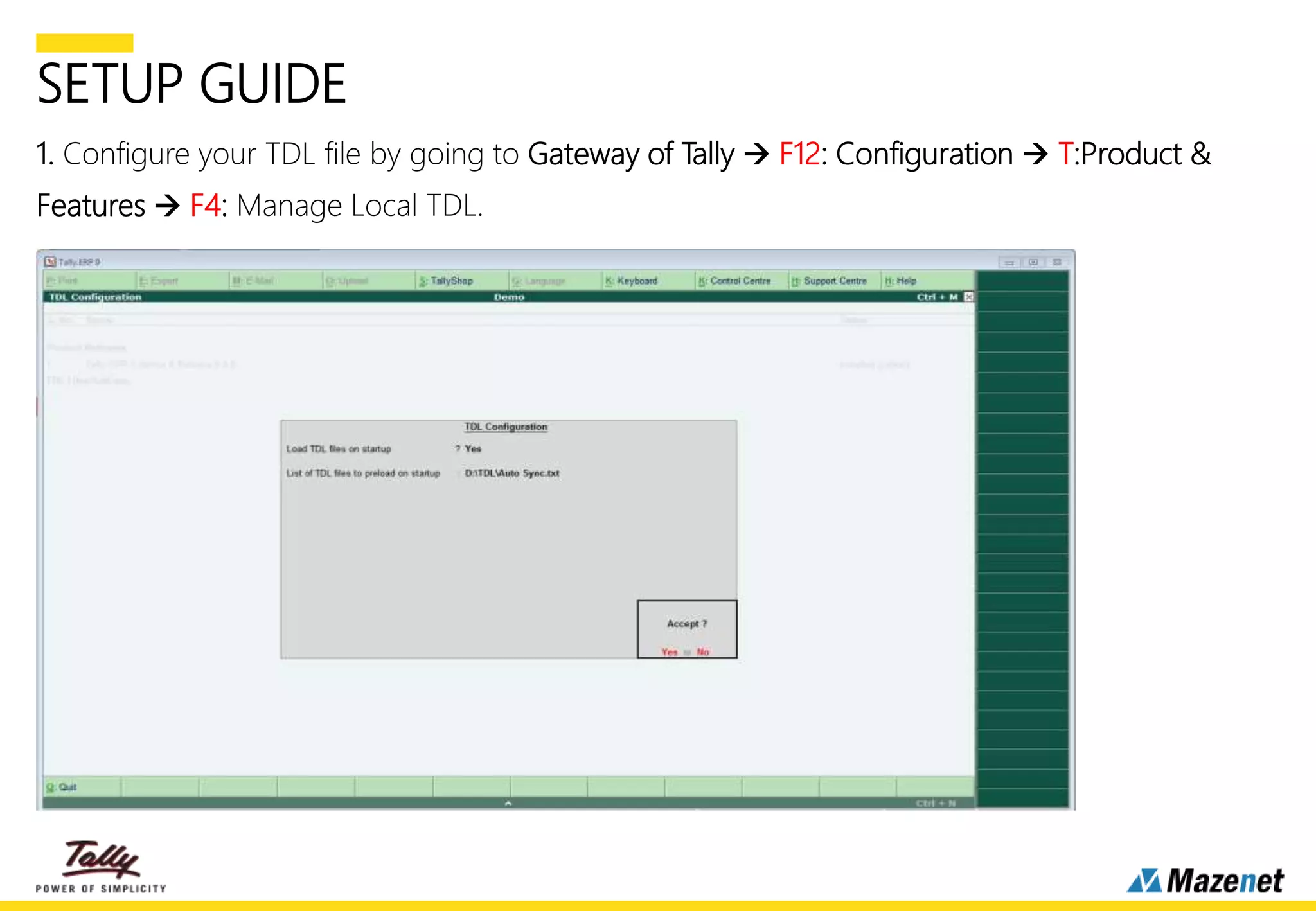
1. Configure your TDL file by going to Gateway of Tally  F12: Configuration  T:Product &
Features  F4: Manage Local TDL.
SETUP GUIDE
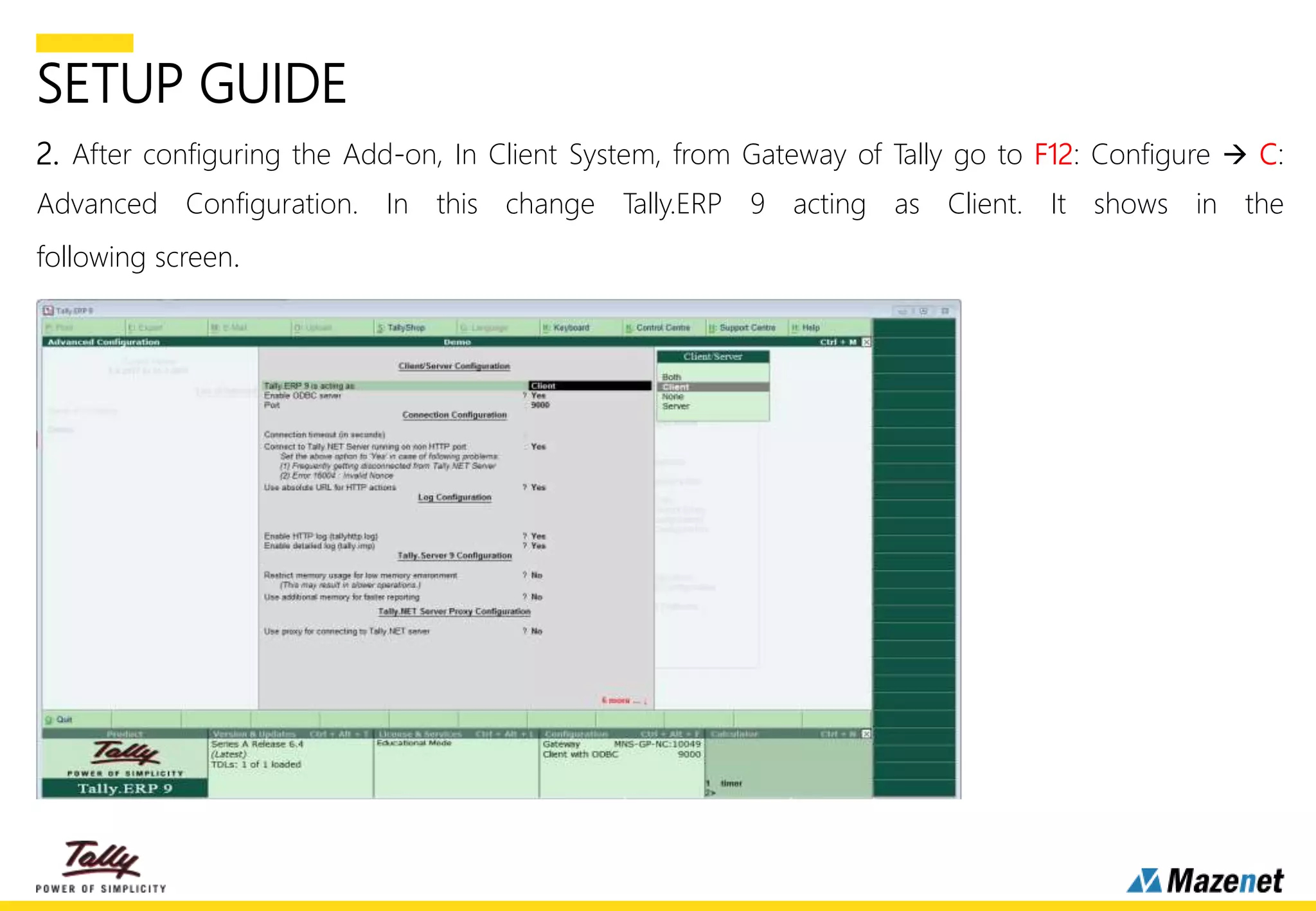
2. After configuring the Add-on, In Client System, from Gateway of Tally go to F12: Configure  C:
Advanced Configuration. In this change Tally.ERP 9 acting as Client. It shows in the
following screen.
SETUP GUIDE
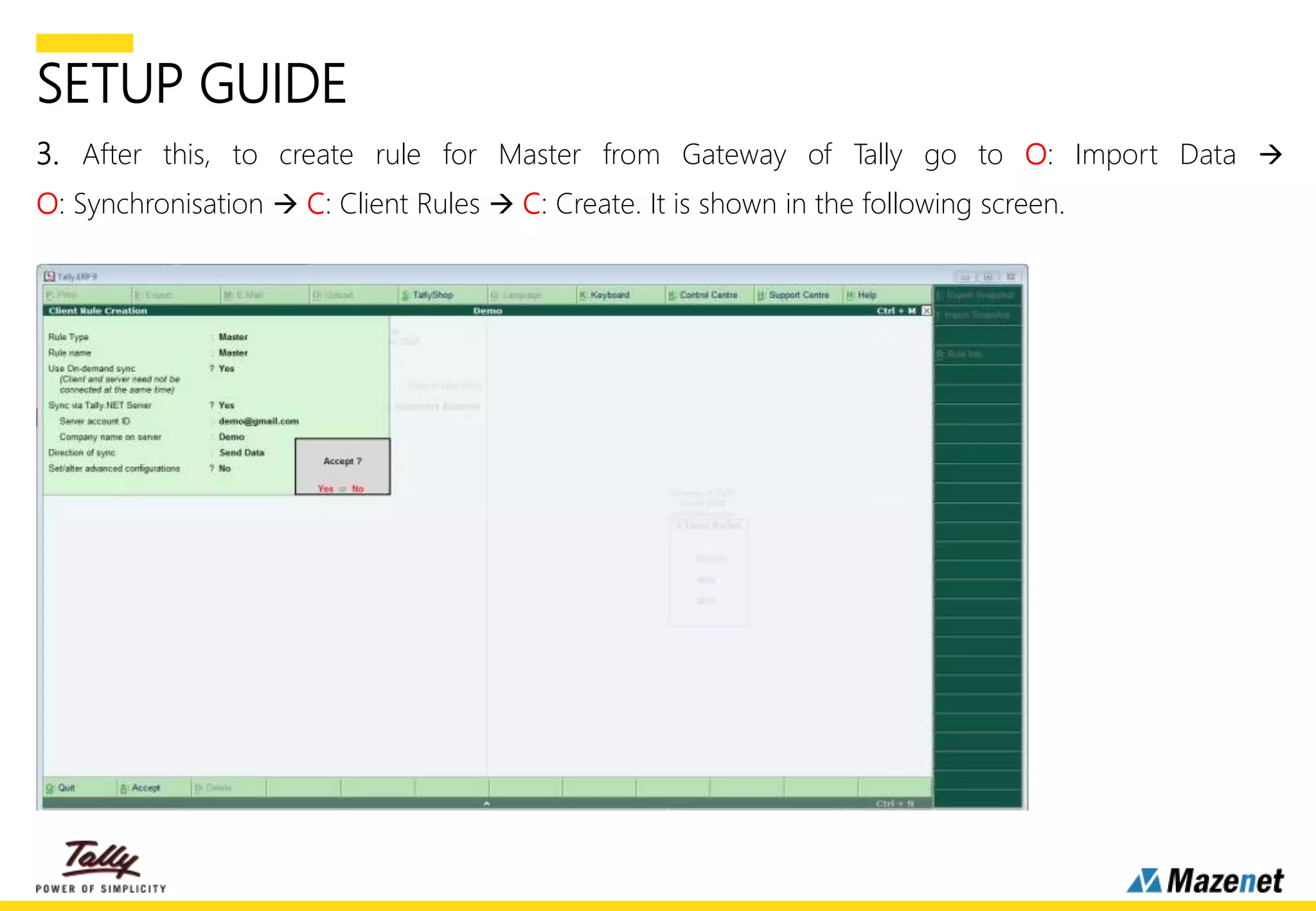
3. After this, to create rule for Master from Gateway of Tally go to O: Import Data 
O: Synchronisation  C: Client Rules  C: Create. It is shown in the following screen.
SETUP GUIDE
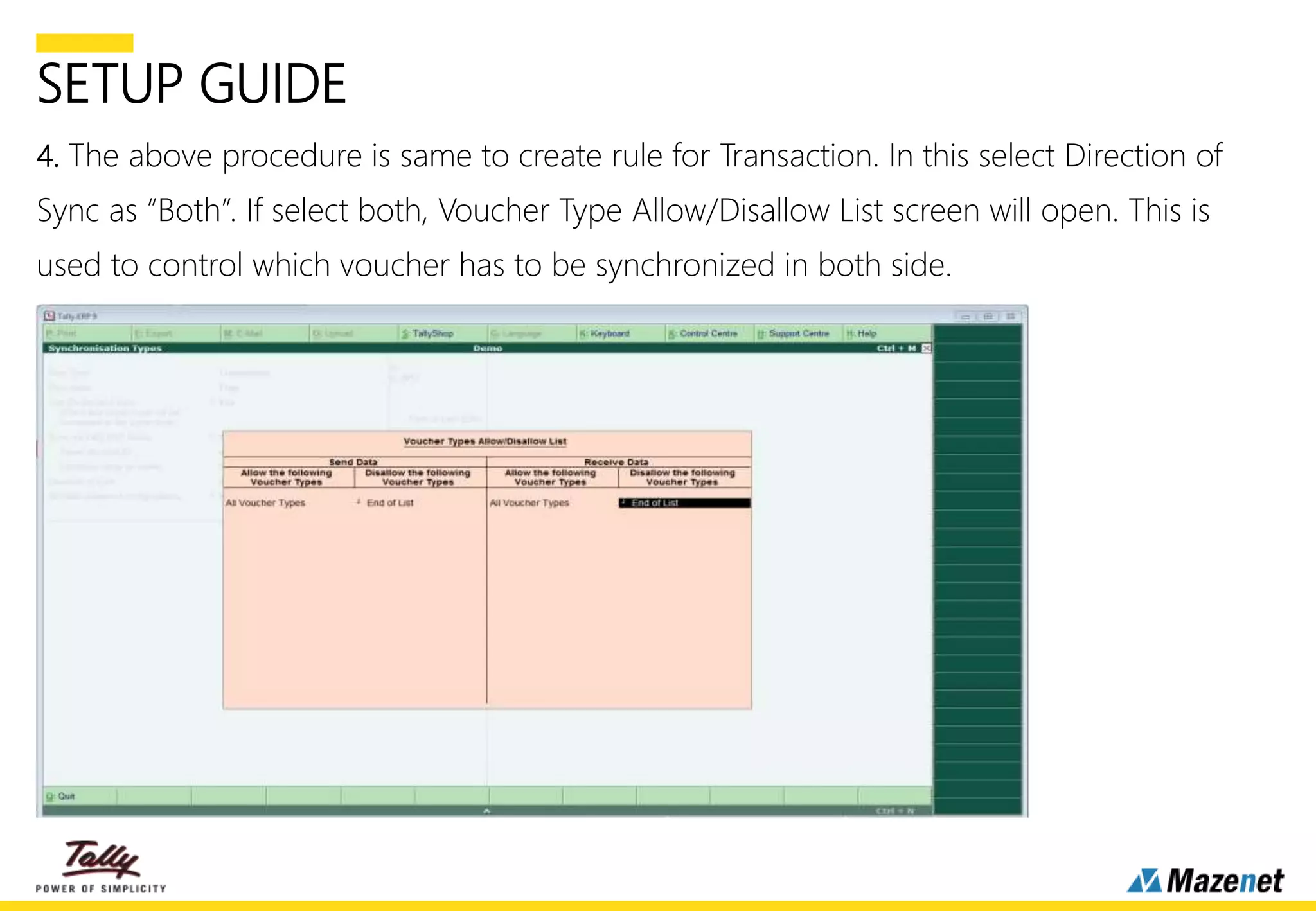
4. The above procedure is same to create rule for Transaction. In this select Direction of
Sync as “Both”. If select both, Voucher Type Allow/Disallow List screen will open. This is
used to control which voucher has to be synchronized in both side.
.
SETUP GUIDE
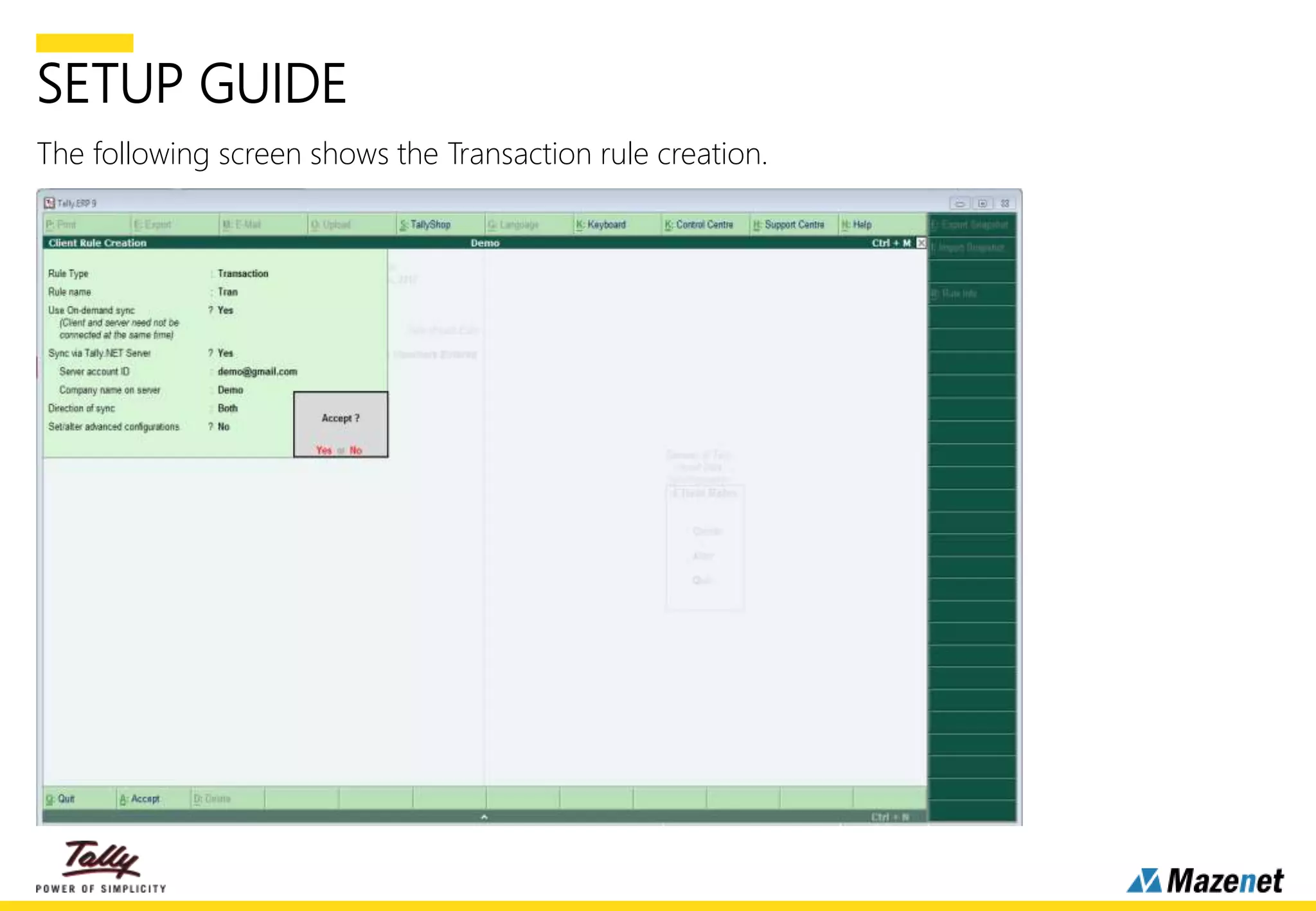
The following screen shows the Transaction rule creation.
SETUP GUIDE
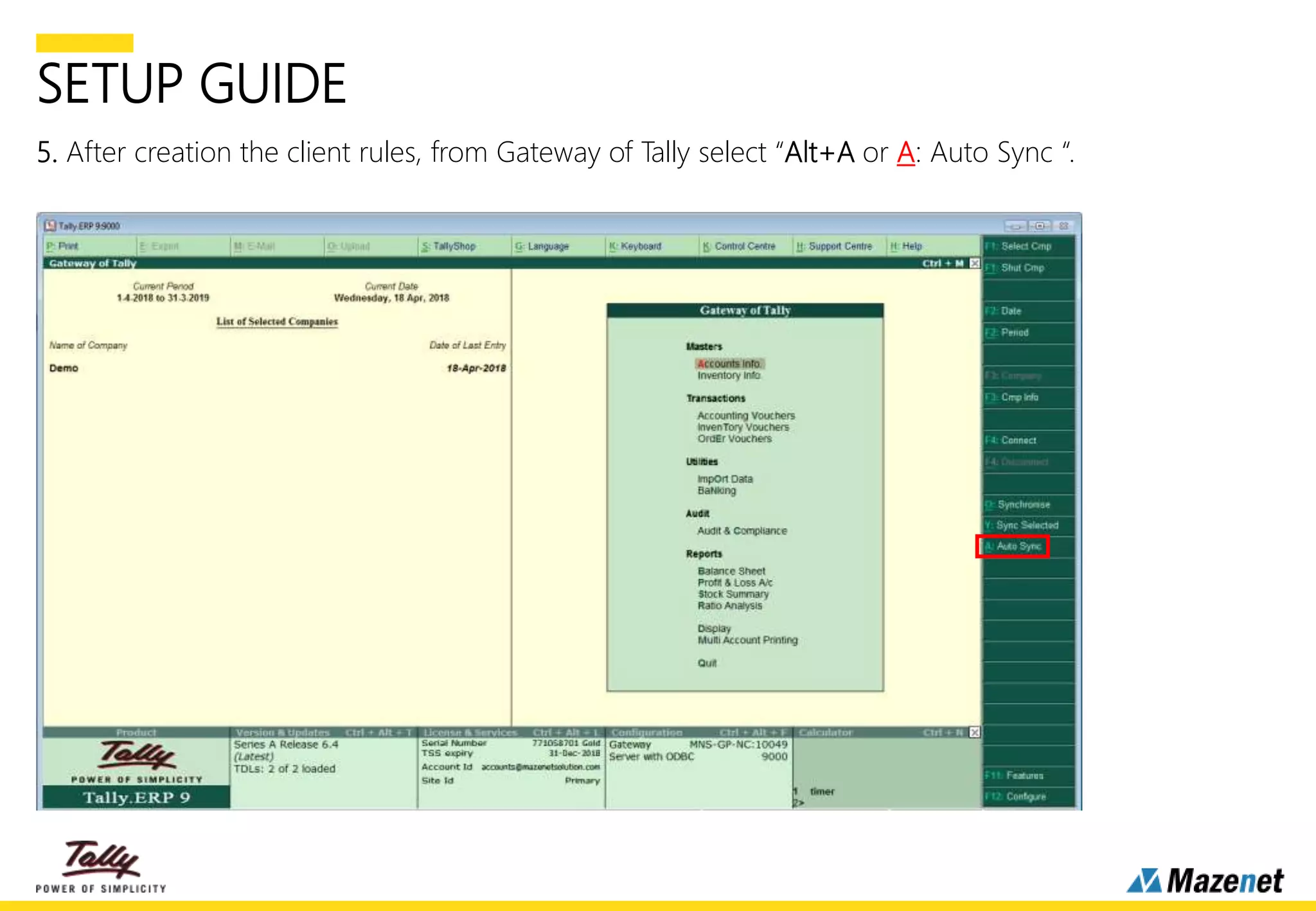
5. After creation the client rules, from Gateway of Tally select “Alt+A or A: Auto Sync “.
SETUP GUIDE
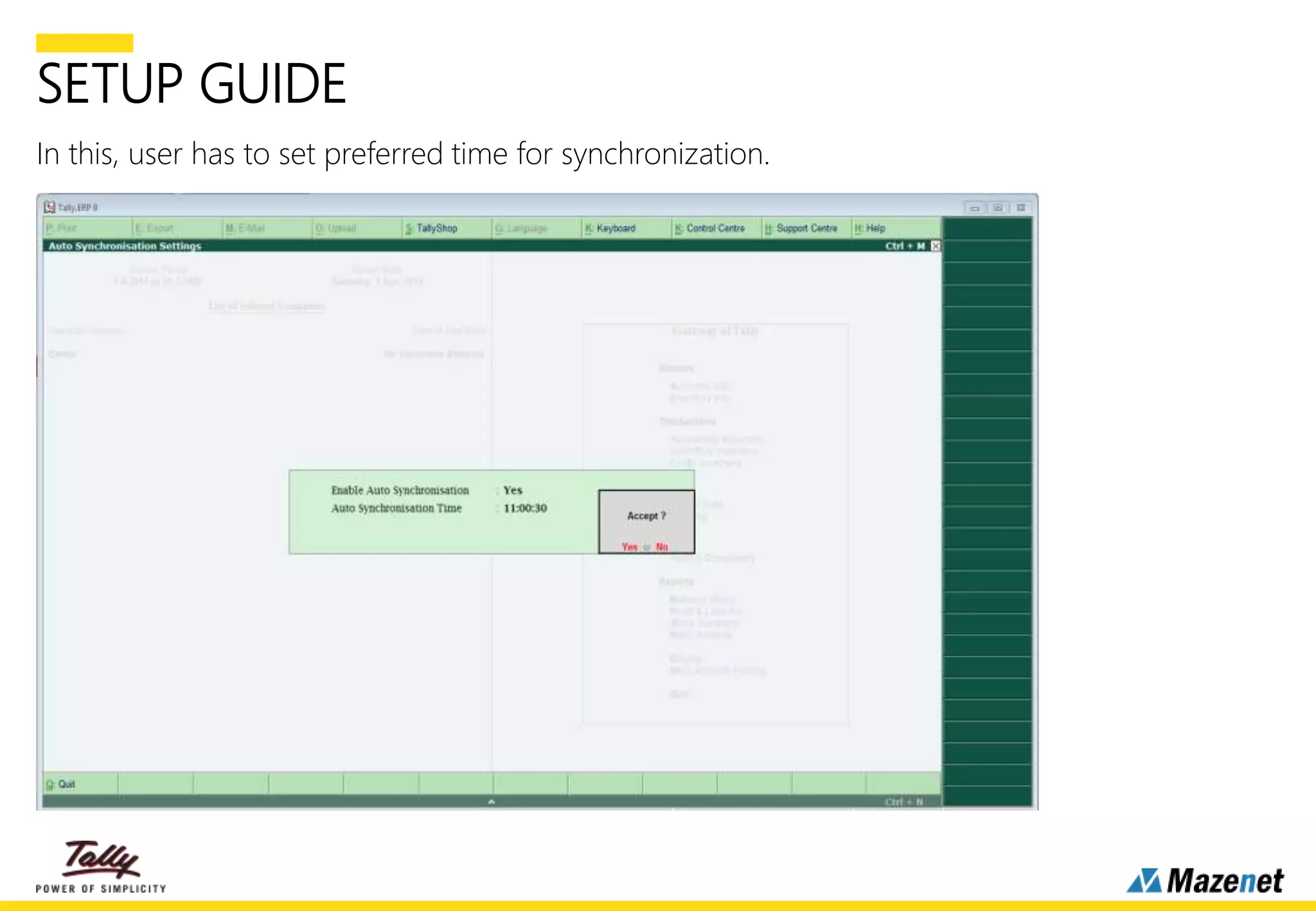
In this, user has to set preferred time for synchronization.
SETUP GUIDE
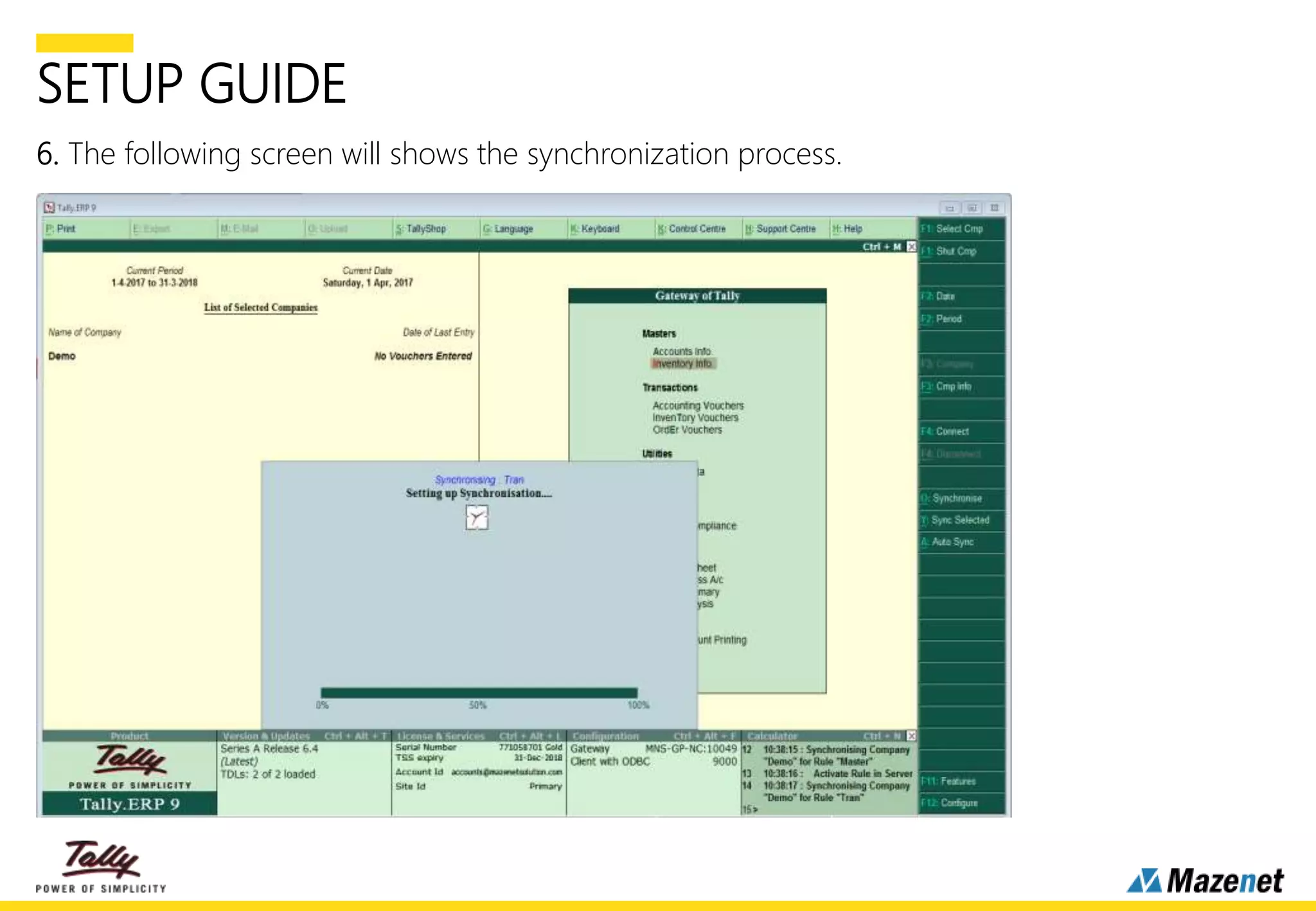
6. The following screen will shows the synchronization process.
SETUP GUIDE
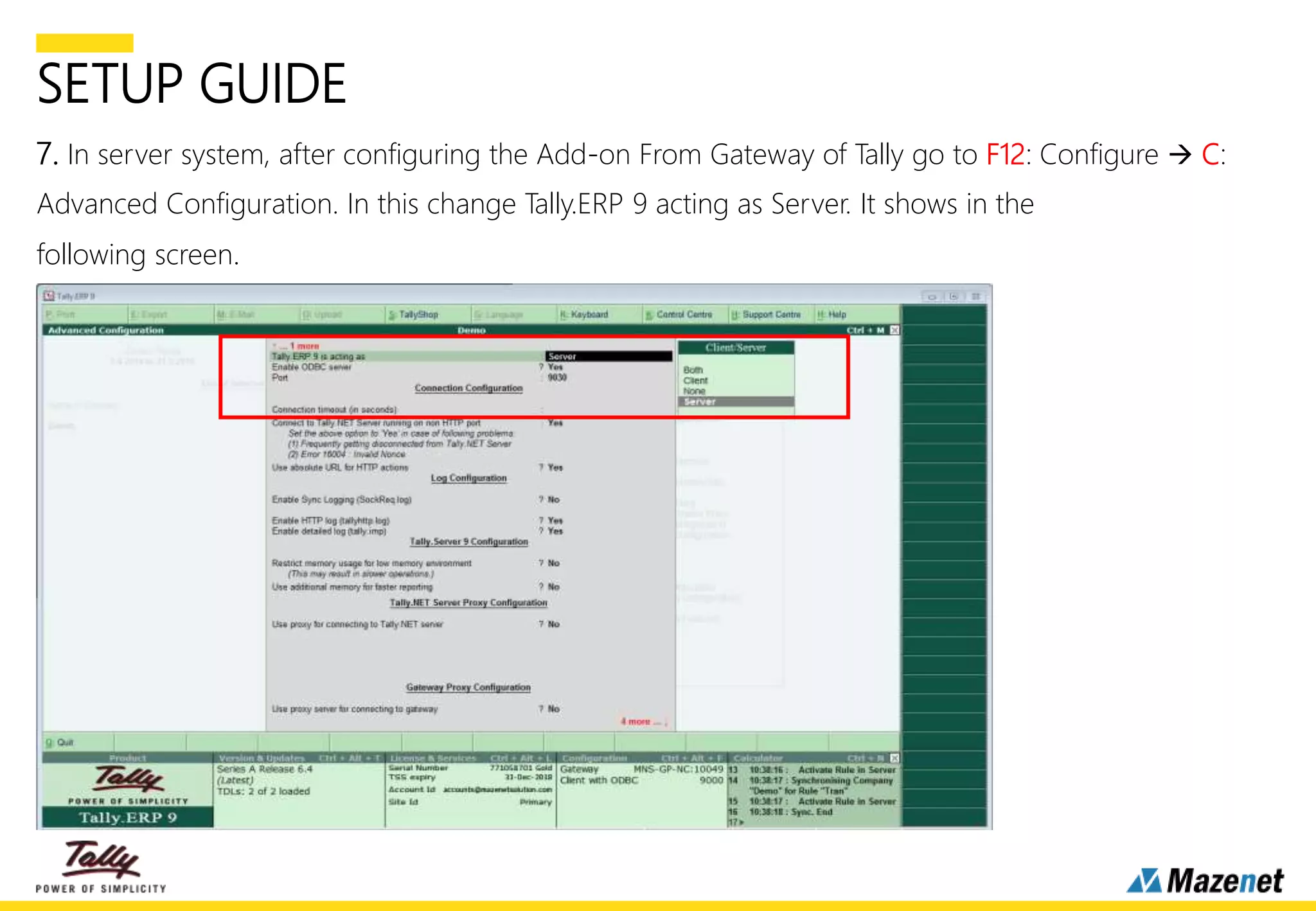
7. In server system, after configuring the Add-on From Gateway of Tally go to F12: Configure  C:
Advanced Configuration. In this change Tally.ERP 9 acting as Server. It shows in the
following screen.
SETUP GUIDE
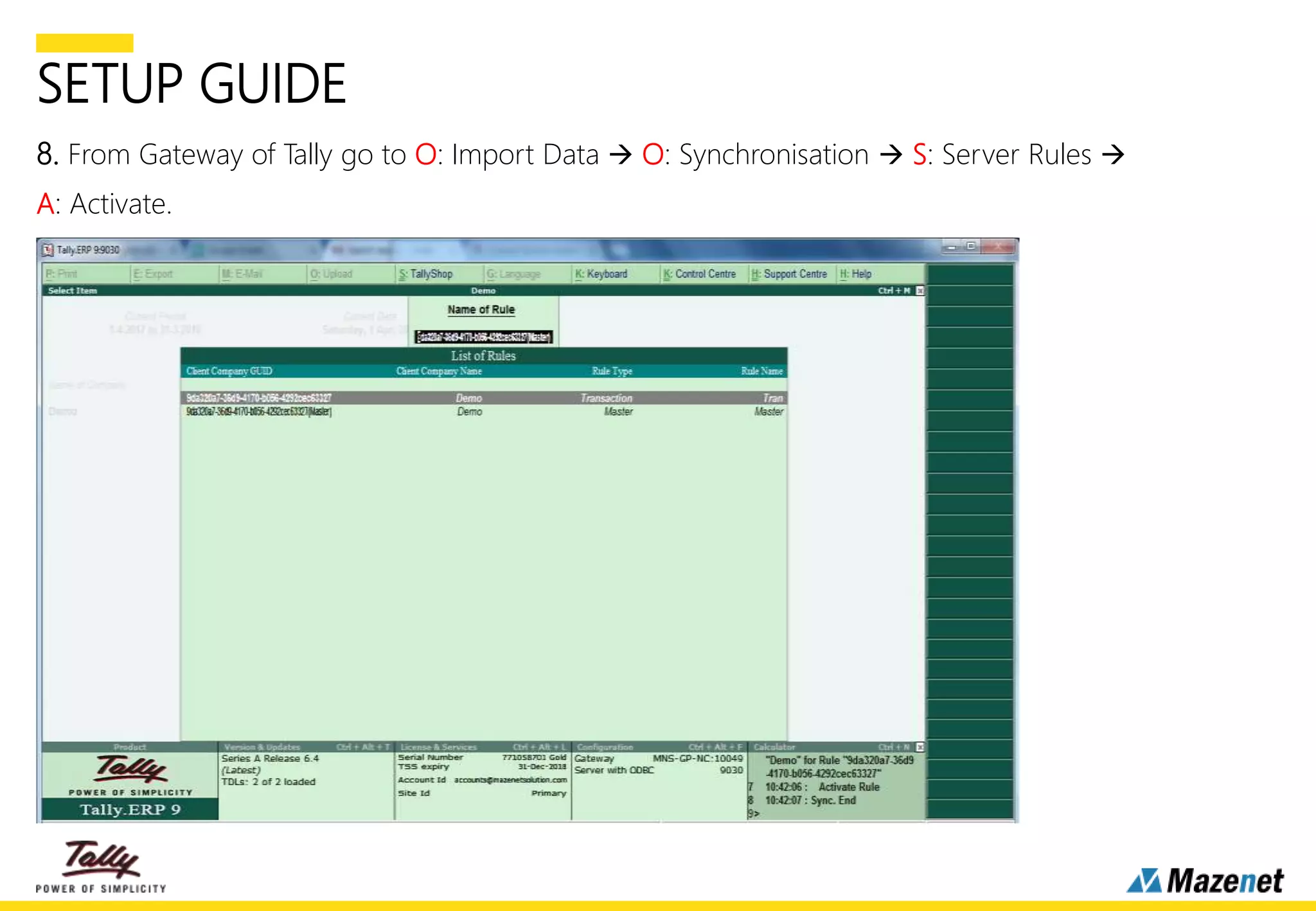
8. From Gateway of Tally go to O: Import Data  O: Synchronisation  S: Server Rules 
A: Activate.
SETUP GUIDE
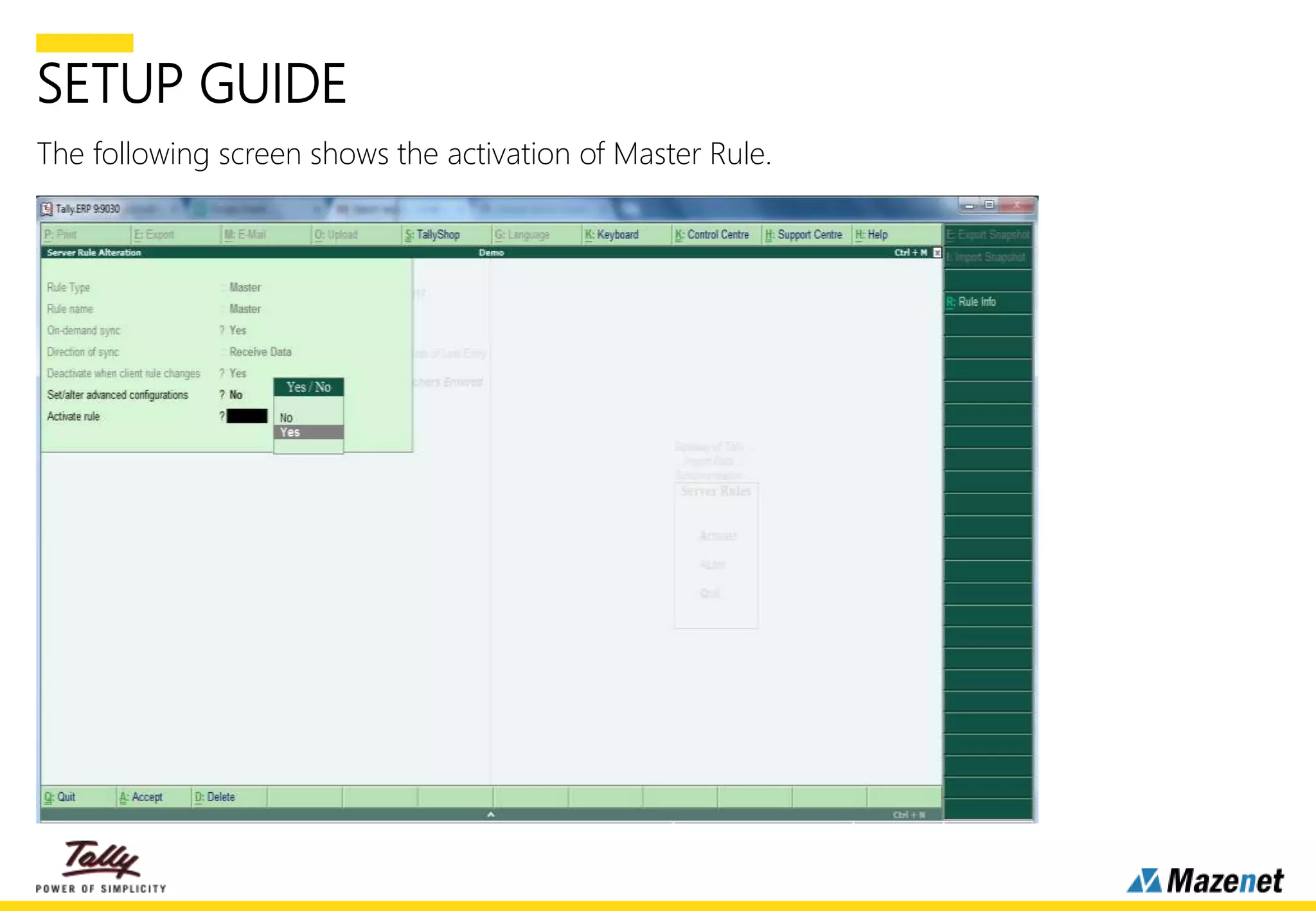
The following screen shows the activation of Master Rule.
SETUP GUIDE
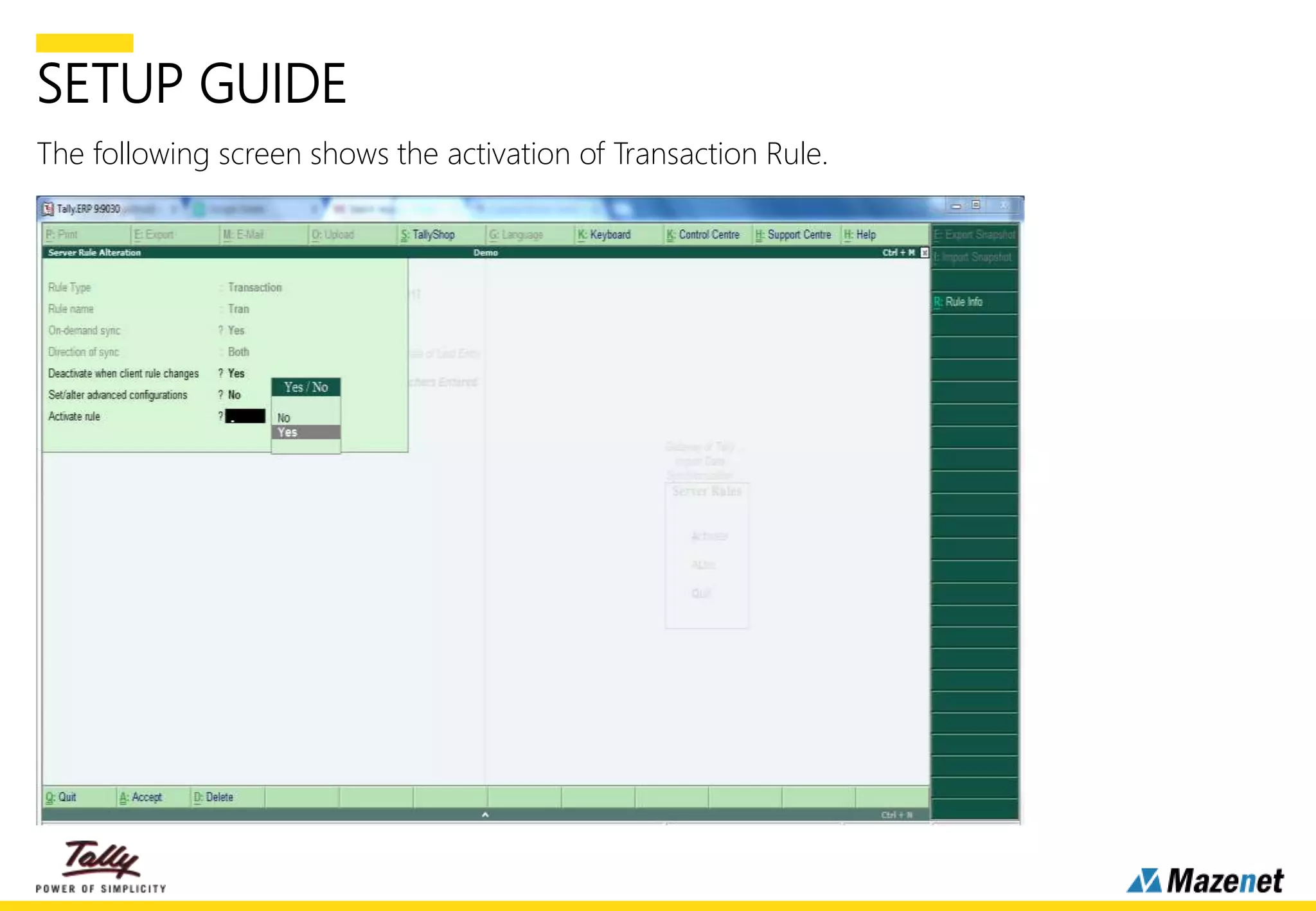
The following screen shows the activation of Transaction Rule.
SETUP GUIDE
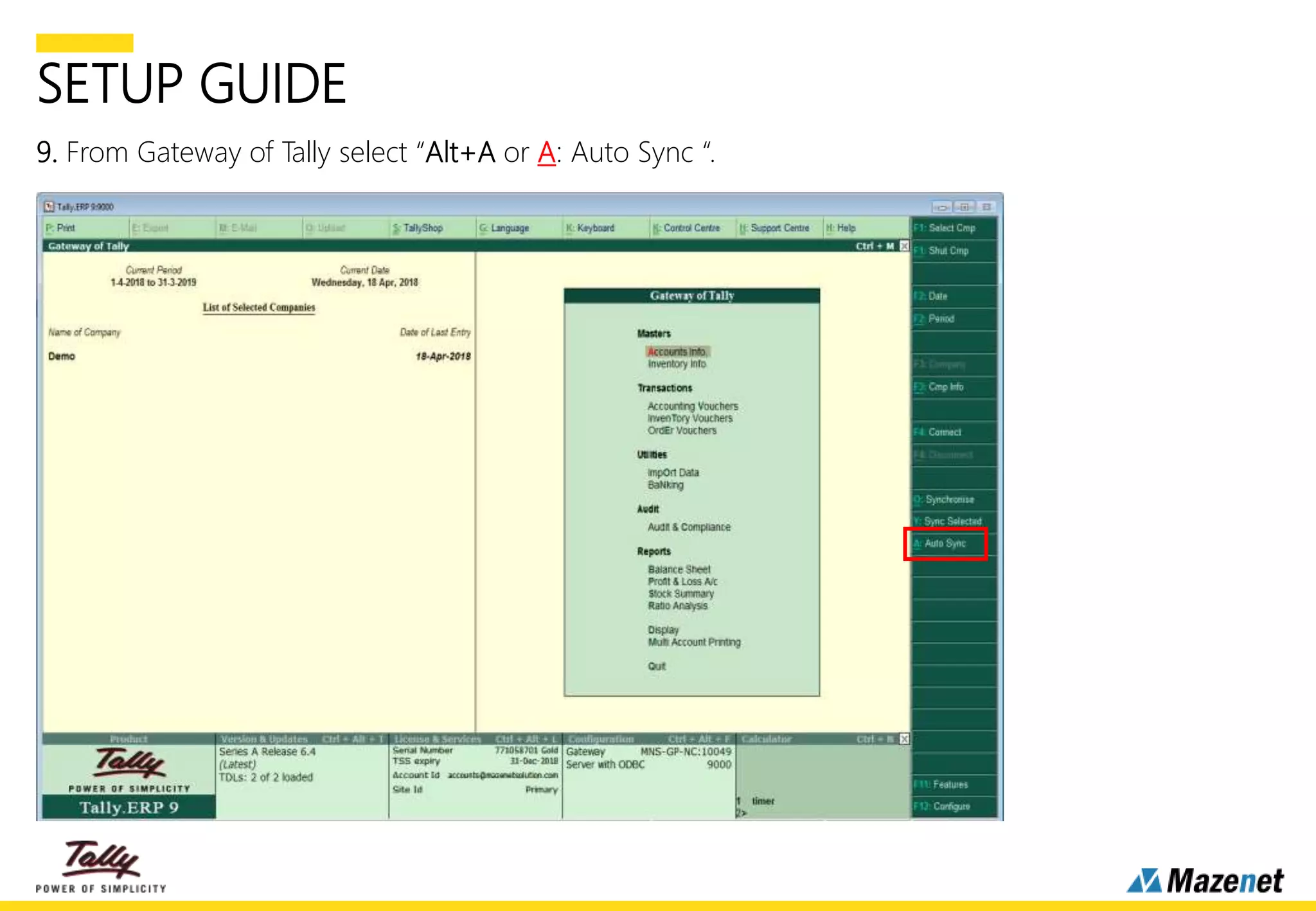
9. From Gateway of Tally select “Alt+A or A: Auto Sync “.
SETUP GUIDE
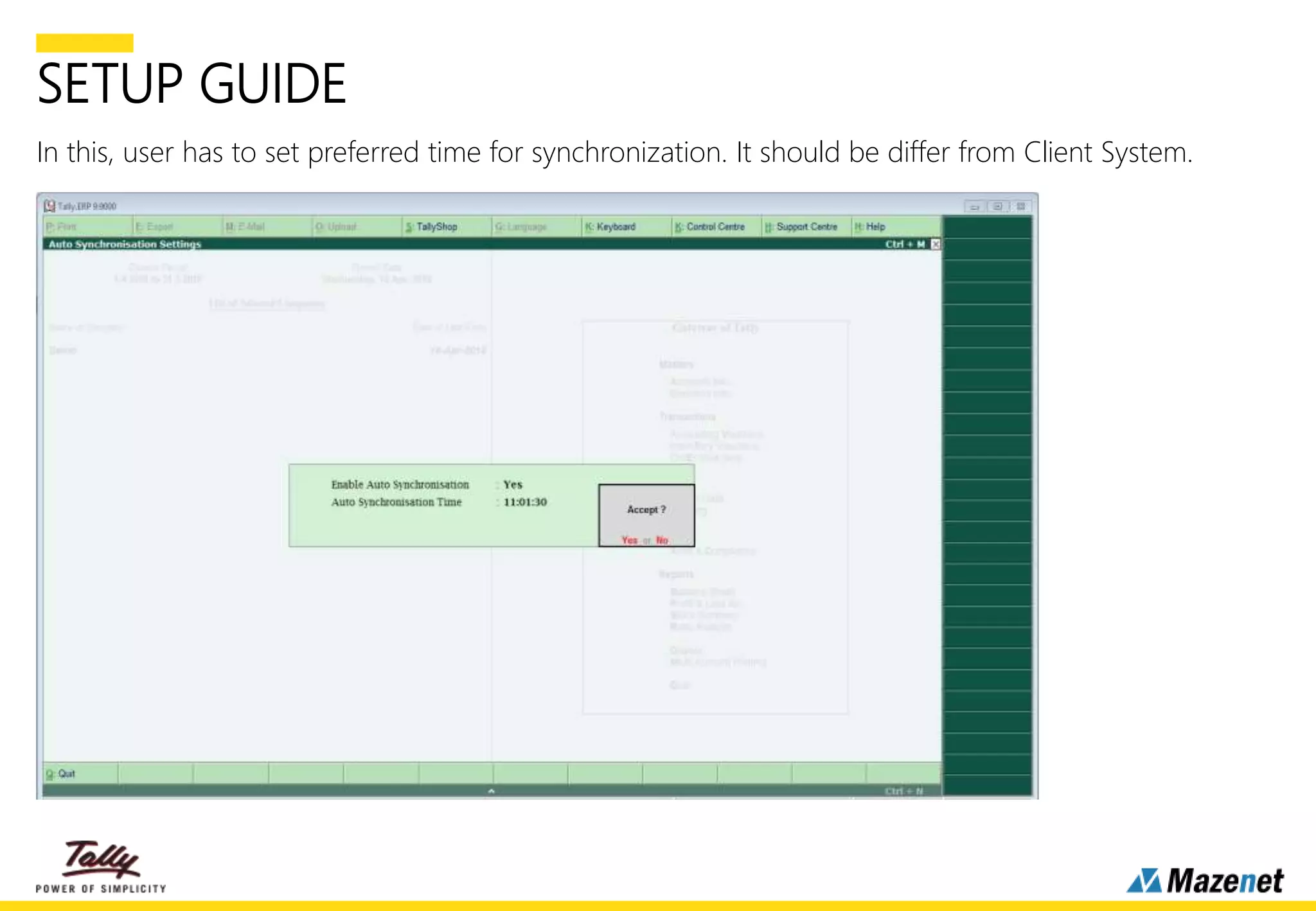
In this, user has to set preferred time for synchronization. It should be differ from Client System.
SETUP GUIDE
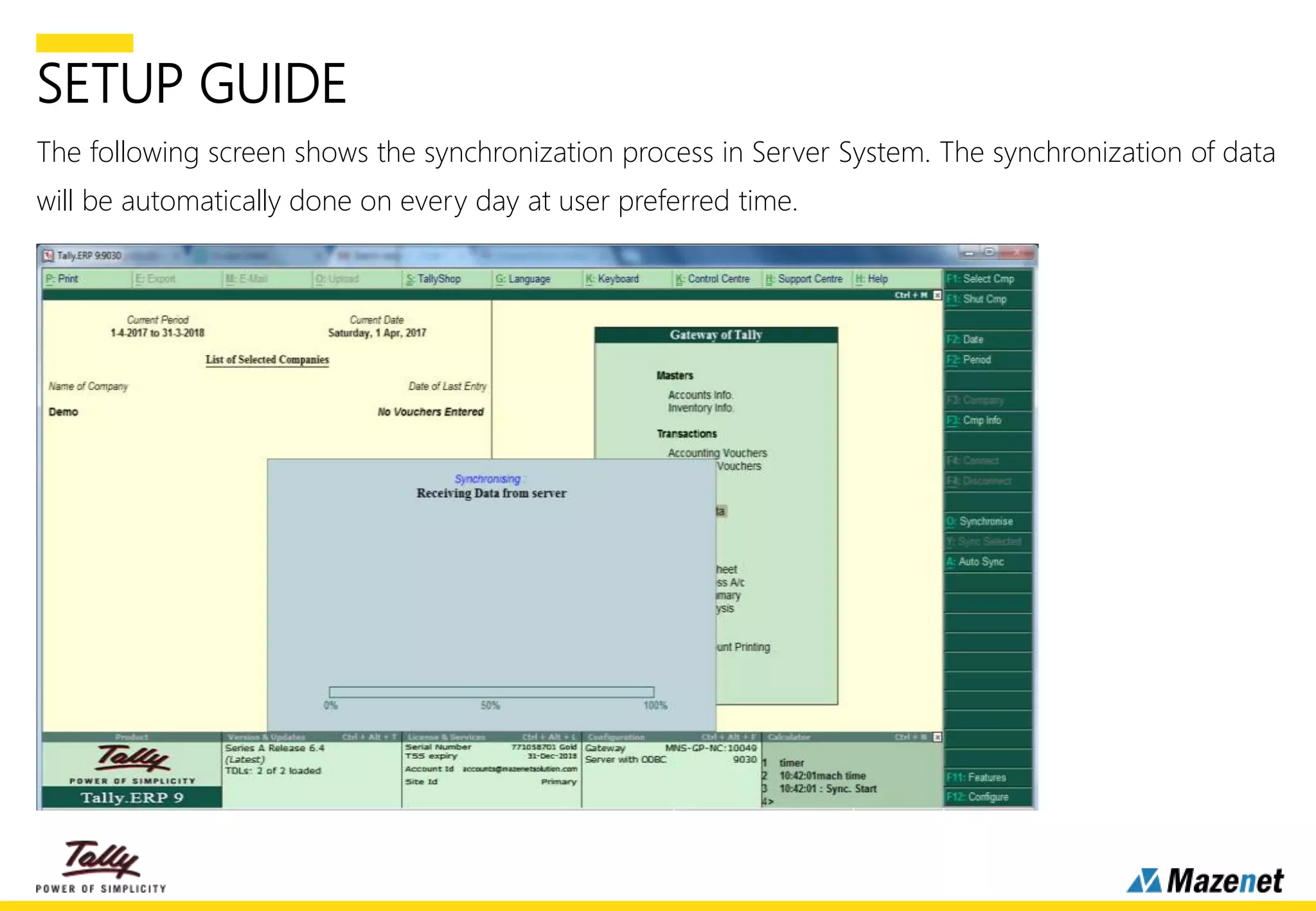
The following screen shows the synchronization process in Server System. The synchronization of data
will be automatically done on every day at user preferred time.
THANK YOU

Tally auto synchronization

  • 1.
  • 2.
    INTRODUCTION • With thisAdd-on, User can able to schedule the synchronization for a specific period • Tally will automatically synchronize the data on defined time IMPORTATNT: As a best practice it is advisable to take back up of your company data before installing the Add- on NOTES • This add-on requires restarting Tally at every time of any changes made in Auto Sync configurations • The Auto Sync configuration is machine specific and needs to be done on each machine • Time has to be defined at one time. Data will be automatically synchronized on every day
  • 3.
    SETUP GUIDE 1. Configureyour TDL file by going to Gateway of Tally  F12: Configuration  T:Product & Features  F4: Manage Local TDL.
  • 4.
    SETUP GUIDE 2. Afterconfiguring the Add-on, In Client System, from Gateway of Tally go to F12: Configure  C: Advanced Configuration. In this change Tally.ERP 9 acting as Client. It shows in the following screen.
  • 5.
    SETUP GUIDE 3. Afterthis, to create rule for Master from Gateway of Tally go to O: Import Data  O: Synchronisation  C: Client Rules  C: Create. It is shown in the following screen.
  • 6.
    SETUP GUIDE 4. Theabove procedure is same to create rule for Transaction. In this select Direction of Sync as “Both”. If select both, Voucher Type Allow/Disallow List screen will open. This is used to control which voucher has to be synchronized in both side. .
  • 7.
    SETUP GUIDE The followingscreen shows the Transaction rule creation.
  • 8.
    SETUP GUIDE 5. Aftercreation the client rules, from Gateway of Tally select “Alt+A or A: Auto Sync “.
  • 9.
    SETUP GUIDE In this,user has to set preferred time for synchronization.
  • 10.
    SETUP GUIDE 6. Thefollowing screen will shows the synchronization process.
  • 11.
    SETUP GUIDE 7. Inserver system, after configuring the Add-on From Gateway of Tally go to F12: Configure  C: Advanced Configuration. In this change Tally.ERP 9 acting as Server. It shows in the following screen.
  • 12.
    SETUP GUIDE 8. FromGateway of Tally go to O: Import Data  O: Synchronisation  S: Server Rules  A: Activate.
  • 13.
    SETUP GUIDE The followingscreen shows the activation of Master Rule.
  • 14.
    SETUP GUIDE The followingscreen shows the activation of Transaction Rule.
  • 15.
    SETUP GUIDE 9. FromGateway of Tally select “Alt+A or A: Auto Sync “.
  • 16.
    SETUP GUIDE In this,user has to set preferred time for synchronization. It should be differ from Client System.
  • 17.
    SETUP GUIDE The followingscreen shows the synchronization process in Server System. The synchronization of data will be automatically done on every day at user preferred time.
  • 18.