VOUCHER TYPE WISE
AUTO NUMBERING
INTRODUCTION
 With this Add-on, user can able to get continuous
voucher number by corresponding parent voucher type.
 No need to set voucher numbers manually or separate
number system in each child vouchers.
Important
As a best practice it is advisable to take back up of your company data
before installing the Add-on
SETUP GUIDE
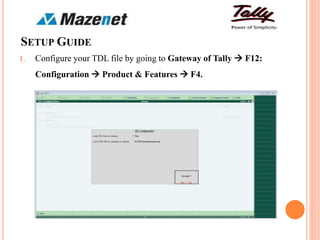
1. Configure your TDL file by going to Gateway of Tally  F12:
Configuration  Product & Features  F4.
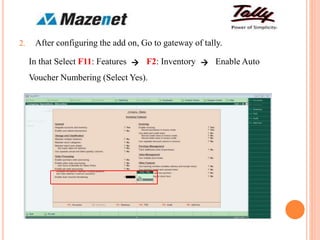
2. After configuring the add on, Go to gateway of tally.
In that Select F11: Features F2: Inventory Enable Auto
Voucher Numbering (Select Yes).
 
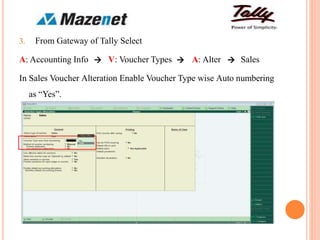
3. From Gateway of Tally Select
A: Accounting Info V: Voucher Types A: Alter Sales
In Sales Voucher Alteration Enable Voucher Type wise Auto numbering
as “Yes”.
  
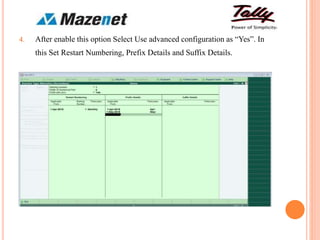
4. After enable this option Select Use advanced configuration as “Yes”. In
this Set Restart Numbering, Prefix Details and Suffix Details.
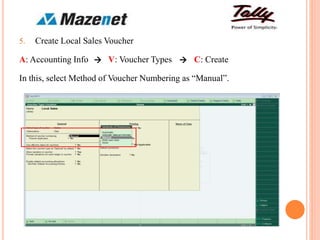
5. Create Local Sales Voucher
A: Accounting Info V: Voucher Types C: Create
In this, select Method of Voucher Numbering as “Manual”.
 
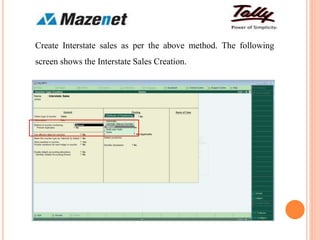
Create Interstate sales as per the above method. The following
screen shows the Interstate Sales Creation.
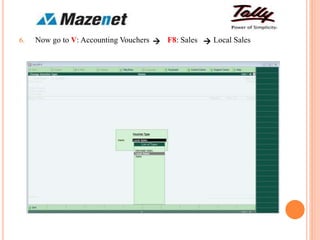
6. Now go to V: Accounting Vouchers F8: Sales Local Sales 
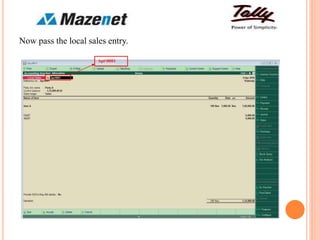
Now pass the local sales entry.
Apr0001
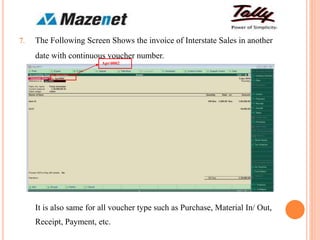
7. The Following Screen Shows the invoice of Interstate Sales in another
date with continuous voucher number.
It is also same for all voucher type such as Purchase, Material In/ Out,
Receipt, Payment, etc.
Apr0002
THANK YOU

Voucher type wise auto numbering

  • 1.
  • 2.
    INTRODUCTION  With thisAdd-on, user can able to get continuous voucher number by corresponding parent voucher type.  No need to set voucher numbers manually or separate number system in each child vouchers. Important As a best practice it is advisable to take back up of your company data before installing the Add-on
  • 3.
    SETUP GUIDE 1. Configureyour TDL file by going to Gateway of Tally  F12: Configuration  Product & Features  F4.
  • 4.
    2. After configuringthe add on, Go to gateway of tally. In that Select F11: Features F2: Inventory Enable Auto Voucher Numbering (Select Yes).  
  • 5.
    3. From Gatewayof Tally Select A: Accounting Info V: Voucher Types A: Alter Sales In Sales Voucher Alteration Enable Voucher Type wise Auto numbering as “Yes”.   
  • 6.
    4. After enablethis option Select Use advanced configuration as “Yes”. In this Set Restart Numbering, Prefix Details and Suffix Details.
  • 7.
    5. Create LocalSales Voucher A: Accounting Info V: Voucher Types C: Create In this, select Method of Voucher Numbering as “Manual”.  
  • 8.
    Create Interstate salesas per the above method. The following screen shows the Interstate Sales Creation.
  • 9.
    6. Now goto V: Accounting Vouchers F8: Sales Local Sales 
  • 10.
    Now pass thelocal sales entry. Apr0001
  • 11.
    7. The FollowingScreen Shows the invoice of Interstate Sales in another date with continuous voucher number. It is also same for all voucher type such as Purchase, Material In/ Out, Receipt, Payment, etc. Apr0002
  • 12.