Tableau
What is Tableau
 Tableau is a powerful data visualization tool used in the field of business
intelligence. It helps users create a variety of charts, graphs, maps,
dashboards, and stories to make data understandable and actionable
Here are some key features and aspects of
Tableau:
1. Data Visualization: Tableau excels in converting raw data into visually appealing and interactive
dashboards. Users can easily create visualizations by dragging and dropping elements onto a
canvas.
2. Ease of Use: With its intuitive interface, Tableau allows users with little to no technical skills to
create complex visualizations. It provides a drag-and-drop functionality that simplifies the
process of data analysis.
3. Data Connectivity: Tableau can connect to a wide range of data sources, including databases
(like MySQL, SQL Server, Oracle), cloud services (like Google Analytics, AWS), spreadsheets
(like Excel), and many more.
4. Interactive Dashboards: Tableau dashboards are highly interactive and allow users to drill down
into data, filter views, and interact with visual elements for a deeper understanding of the
underlying data.
 Real-time Data: Tableau can handle real-time data feeds, making it useful for dynamic data
analysis and monitoring key performance indicators (KPIs) in real-time.
 Advanced Analytics: It supports advanced analytics with features such as trend lines,
forecasting, and statistical analysis. Users can also integrate Tableau with programming
languages like R and Python for more complex data analysis.
 Collaboration and Sharing: Tableau provides tools for sharing visualizations and dashboards
with others. Tableau Server and Tableau Online allow users to publish dashboards to a central
location where others can access and interact with them.
 Customization: Users can customize the look and feel of their visualizations to align with their
brand or specific needs. This includes adjusting colors, fonts, and layout.
 Scalability: Tableau can handle large datasets and complex data models, making it suitable for
organizations of all sizes, from small businesses to large enterprises.
Tableau vs Excel
 Tableau and Excel are both powerful tools used for data analysis and visualization, but
they serve different purposes and have distinct features. Here’s a comparison highlighting
their key differences:
Purpose and Use Cases
 Excel: Primarily a spreadsheet application used for data entry, manipulation, and basic
analysis. It is widely used for financial modeling, budgeting, and simple data
visualizations.
 Tableau: A specialized data visualization and business intelligence tool designed for
creating interactive and complex visualizations. It excels at transforming large datasets into
actionable
 Data Visualization
 Excel: Offers basic charting capabilities such as bar charts, line charts, pie charts, and scatter
plots. Customization options are available, but they are more limited compared to specialized
tools.
 Tableau: Provides advanced and highly interactive visualizations including heat maps, tree
maps, geographic maps, and dashboards. It supports more complex visual representations and
interactive features.
 Data Handling
 Excel: Handles data within individual spreadsheets and can manage moderately sized datasets.
Performance can degrade with very large datasets.
 Tableau: Designed to handle large and complex datasets efficiently. It can connect to various
data sources simultaneously and process large volumes of data without significant performance
issues.
 Data Connectivity
 Excel: Can connect to a variety of data sources such as databases, web services, and other
spreadsheets. However, the process can be less seamless compared to Tableau.
 Tableau: Offers robust data connectivity options. It can connect to numerous data sources
including SQL databases, cloud services, big data platforms, and more. Tableau provides
real-time data connectivity and integration.
 Usability
 Excel: Known for its ease of use for basic data tasks. Most professionals are familiar with its
interface and functionalities. It is versatile for various non-visual data tasks like calculations,
pivot tables, and data cleaning.
 Tableau: Designed with a focus on user-friendly data visualization. Its drag-and-drop
interface allows users to create complex visualizations with minimal technical skills.
However, it is less suited for detailed data manipulation tasks that Excel handles well.
 Advanced Analytics
 Excel: Supports basic statistical analysis and can perform more complex calculations using
built-in formulas and functions. Advanced analytics often require add-ins or external tools.
 Tableau: Includes built-in advanced analytics features such as trend analysis, forecasting, and
clustering. It can integrate with programming languages like R and Python for deeper
analytical capabilities.
 Collaboration and Sharing
 Excel: Collaboration is possible but can be cumbersome, often requiring shared drives or email
exchanges. Excel Online offers some collaborative features.
 Tableau: Provides robust sharing and collaboration options through Tableau Server and
Tableau Online. Users can publish and share interactive dashboards with colleagues, who can
view and interact with them in real-time.
 Advanced Analytics
 Excel: Supports basic statistical analysis and can perform more complex calculations using
built-in formulas and functions. Advanced analytics often require add-ins or external tools.
 Tableau: Includes built-in advanced analytics features such as trend analysis, forecasting, and
clustering. It can integrate with programming languages like R and Python for deeper
analytical capabilities.
 Collaboration and Sharing
 Excel: Collaboration is possible but can be cumbersome, often requiring shared drives or email
exchanges. Excel Online offers some collaborative features.
 Tableau: Provides robust sharing and collaboration options through Tableau Server and
Tableau Online. Users can publish and share interactive dashboards with colleagues, who can
view and interact with them in real-time.
 Scalability
 Excel: Best suited for individual or small team use and for smaller datasets. Its performance can
degrade with very large data volumes.
 Tableau: Scales well to large teams and organizations. It is designed to handle big data and complex
data environments efficiently.
 Summary
 Excel is best for:
 Data entry and storage
 Financial modeling and budgeting
 Simple data analysis and visualization
 Detailed data manipulation and calculations
 Tableau is best for:
 Advanced and interactive data visualizations
 Handling large and complex datasets
 Real-time data analysis and monitoring
 Sharing and collaboration on data insights
Tableau Desktop
 Tableau Desktop is a professional-grade, standalone application used for creating and
analyzing data visualizations.
 Advanced Features: Offers a wide range of advanced analytics and visualization tools,
including complex calculations, predictive analysis, and sophisticated chart types.
 Data Connectivity: Can connect to a vast array of data sources including local files (Excel,
CSV), databases (SQL Server, Oracle, MySQL), cloud services (Google Analytics,
Salesforce), and big data platforms (Hadoop).
 Customization: Highly customizable dashboards and visualizations. Users can format charts,
apply filters, and create interactive elements.
 Data Preparation: Includes tools for data cleaning, blending, and transformation, enabling
users to prepare data for analysis within the application.
 Local and Server Publishing: Allows users to save their work locally or publish dashboards
to Tableau Server or Tableau Online for sharing and collaboration within an organization.
 Security: Offers robust security features for data access and sharing, ensuring data privacy
and compliance with organizational policies.
Tableau Public
 Tableau Public is a free, cloud-based version of Tableau designed for sharing visualizations with the
public.
 Cost: Free to use, making it accessible for students, educators, bloggers, and anyone interested in
data visualization.
 Data Connectivity: Limited compared to Tableau Desktop. Connects to data sources such as Excel,
Google Sheets, and some web data connectors, but lacks extensive database connectivity.
 Public Sharing: All visualizations created in Tableau Public must be saved to the Tableau Public
server, meaning they are publicly accessible. This makes it ideal for public-facing projects but
unsuitable for sensitive or confidential data.
 Community and Exposure: Visualizations published to Tableau Public can be seen and interacted
with by anyone, which is great for gaining exposure, sharing insights, and contributing to the data
visualization community.
 Feature Limitations: Lacks some advanced features available in Tableau Desktop, such as certain
data preparation and advanced analytics functionalities.
Data types in tableau
Data types define the kind of data that can be stored in a field. Correctly identifying and understanding data
types is crucial for effective data analysis and visualization. Tableau automatically detects data types when
you import data, but you can also manually change them if needed. Here are the primary data types in
Tableau:
1. String (Text)
Description: Represents text data.
Usage: Used for categorical data such as names, categories, and other non-numeric data.
Examples: "John Doe", "Product A", "New York"
2. Number (Numeric)
Description: Represents numeric data.
Subtypes:
Integer: Whole numbers without decimals.
Examples: 1, 42, -7
Decimal (Floating-point): Numbers with decimals.
Examples: 3.14, -0.001, 2500.75
3. Date and Time
Description: Represents dates and times.
Subtypes:
Date: Contains only date information.
Examples: "2024-06-02", "2021-12-25"
Date & Time: Contains both date and time information.
Examples: "2024-06-02 14:30:00", "2021-12-25 08:45:00"
Usage: Used for temporal data analysis such as trends over time, time series
analysis, and event tracking.
4. Boolean
Description: Represents binary data.
Values: True/False or Yes/No
Usage: Used for logical operations, conditions, and filters.
5. Geographical
Description: Represents geographical data.
Subtypes:
Country/Region
State/Province
City
Postal Code
Latitude and Longitude
Usage: Used for mapping data and geographical analysis. Tableau
recognizes these data types and can plot them on maps.
Cloumn formatting
 Cloumn Name [Changing to new name or resetting it back)
 Splitting columns using delimiter.
 Sorting columns. [headers]
 Sorting column. [values]
 Delete the column
Understanding Drill-Down Hierarchy
 A hierarchy in Tableau typically consists of fields that have a natural hierarchical
relationship. For example:
 Geographic Hierarchy: Country > State/Province > City
 Time Hierarchy: Year > Quarter > Month > Day
 Product Hierarchy: Category > Sub-Category > Product Name
Ways of sorting in tableau charts
 Quick sort
 Toolbar sort
 Pills sort
 Markscard sort
 Groups are a feature that allows you to combine multiple dimension members into a single,
higher-level category. This is useful for simplifying and organizing your data, making it easier to
analyze and visualize. For instance, you might group various product types into broader
categories, or several regions into a single territory.
 Measures are quantitative data that you can aggregate and analyze. They represent the numeric
values on which you perform calculations like sums, averages, minimums, maximums, and other
statistical operations. Measures are essential for creating meaningful visualizations and insights
from your data.
 Understanding Measures
 Measures typically include:
 Sales amounts
 Profit margins
 Quantities
 Costs
 Any other numeric data that can be mathematically operated upon
 Types of Aggregations
 SUM: Total of all values.
 AVG: Average of all values.
 MEDIAN: Middle value in a sorted list.
 COUNT: Number of values.
 COUNTD: Number of distinct values.
 MIN: Smallest value.
 MAX: Largest value
 Measures in Tableau are the backbone of data analysis, enabling you to quantify and analyze
various aspects of your data. By understanding how to effectively use and manipulate
measures, you can create insightful visualizations and dashboards that drive informed decision-
making. Whether using basic aggregations or complex calculated fields, measures help
transform raw data into actionable insights.
Discrete vs. Continuous
 Discrete Data
 Definition: Discrete data consist of distinct and separate values. These values are
often categorical and can be counted but not measured.
 Representation: In Tableau, discrete data fields are shown as blue pills in the Data
Pane and on the shelves.
 Visualization: Discrete data typically create headers or labels in charts, like
categories in a bar chart or points in a scatter plot.
 Examples:
 Product categories (e.g., Furniture, Office Supplies, Technology)
 Customer segments (e.g., Small Business, Corporate)
 Months (e.g., January, February
Discrete vs. Continuous
 Continuous Data
 Definition: Continuous data represent values that fall on a continuum and can be
measured but not counted. They are numeric and can take on any value within a
range.
 Representation: In Tableau, continuous data fields are shown as green pills in the
Data Pane and on the shelves.
 Visualization: Continuous data typically create axes in charts, like a continuous
axis in a line chart or histogram.
 Examples:
 Sales amounts (e.g., $1000, $5000)
 Profit margins (e.g., 10%, 20%)
 Dates (when treated as a continuous range)
Measures and Dimensions
 Measures
 Definition: Measures are quantitative data that can be aggregated and
are used for mathematical operations.
 Usage: Measures are typically analyzed numerically, such as summing sales
or averaging profits.
 Examples:
 Sales
 Profit
 Quantity
 Discount
Measures and Dimensions
 Dimensions
 Definition: Dimensions are qualitative data that provide context for
measures. They are used to segment data.
 Usage: Dimensions are often used to slice and dice the data, providing
categories for analysis.
 Examples:
 Product Name
 Customer Segment
 Region
 Order Date
Parameters and Sets
 Parameters and sets are powerful features in Tableau that enhance
interactivity and flexibility in your data visualizations. They allow users to
dynamically change the view and filter data based on specific conditions.
 Parameters
 Parameters are dynamic values that can be used to control various aspects of
a Tableau visualization. They can be integers, floats, dates, strings, or even
Boolean values. Parameters are single-valued and user-driven, meaning the
user can select or input a value, and that value can be used to modify
calculations, filters, reference lines, and more.
 Sets
 Definition
 Sets are custom fields that define a subset of your data based on specific
conditions. They can be static (fixed) or dynamic (computed), allowing for
flexible data segmentation and analysis.
 Uses of Parameters
 Filtering Data: Create dynamic filters that change based on parameter values.
 Calculations: Use parameters in calculated fields to change the logic dynamically.
 Reference Lines: Adjust reference lines based on parameter values.
 Top N Analysis: Display the top N items, where N is determined by the parameter
value.
 Uses of Sets
 Filtering Data: Use sets to include or exclude specific data points.
 Comparisons: Compare members of a set against the rest of the data.
 Highlighting: Highlight specific data points within a visualization.
 Conditional Formatting: Apply different formatting or calculations based on set
membership.
 Top N Analysis: Identify top or bottom performers based on a measure.
Combined Fields:
 Combined fields (or compound keys) are used to create a single field that
combines two or more fields. This can be helpful when you need a unique
identifier that spans multiple fields.
Title
 Definition: A title is the heading that appears at the top of a worksheet or
dashboard. It gives an immediate context or summary of the content being
displayed.
 Uses:
 To provide a clear, descriptive name for the visualization or dashboard.
 To give viewers an immediate understanding of what the chart or
dashboard is about.
 To include important information such as the data source, date range, or
key metrics.
Caption
 Definition: A caption is a text element that appears at the bottom of a
worksheet or dashboard. It provides additional information, explanations, or
context that might not be immediately evident from the visualization itself.
 Uses:
 To provide detailed descriptions or explanations of the data being presented.
 To include notes about data sources, methodology, or any assumptions made
in the analysis.
 To give credit or reference to external data sources.
 To highlight important findings or insights that viewers should take note of.
Exporting options
1. Save
2. Pdf
3. Image
4. Data file
5. To excel
6.Copy
Granularity
 Granularity in Tableau (and data analysis in general) refers to the level of detail or
specificity of the data being analyzed. It determines how detailed or summarized the data
points are in your visualization.
 Understanding Granularity
 High Granularity: This means the data is very detailed. For example, if your data
includes individual sales transactions, each row might represent a single sale, including the
exact date and time, the specific product sold, and the customer who bought it.
 Low Granularity: This means the data is more summarized. For example, if you
aggregate sales data by month, each row might represent the total sales for a specific
month, regardless of the specific transactions.
Fliters
 General (checking out exclude)
 Wildcard
 Conditional
 Top
Charts
 Charts in Tableau are visual representations of data that help users to understand and analyze
patterns, trends, and relationships within the data. Tableau offers a wide variety of chart types,
each suited to different kinds of data and analysis needs.
 Bar Chart
 Line Chart
 Pie Chart
 Scatter Plot
 Area Chart
 Map
 Histogram
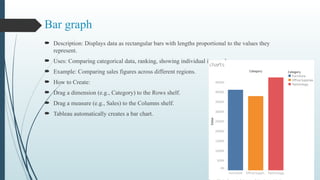
Bar graph
 Description: Displays data as rectangular bars with lengths proportional to the values they
represent.
 Uses: Comparing categorical data, ranking, showing individual item values.
 Example: Comparing sales figures across different regions.
 How to Create:
 Drag a dimension (e.g., Category) to the Rows shelf.
 Drag a measure (e.g., Sales) to the Columns shelf.
 Tableau automatically creates a bar chart.
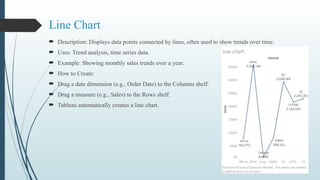
Line Chart
 Description: Displays data points connected by lines, often used to show trends over time.
 Uses: Trend analysis, time series data.
 Example: Showing monthly sales trends over a year.
 How to Create:
 Drag a date dimension (e.g., Order Date) to the Columns shelf.
 Drag a measure (e.g., Sales) to the Rows shelf.
 Tableau automatically creates a line chart.
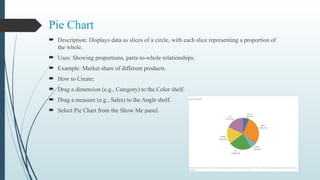
Pie Chart
 Description: Displays data as slices of a circle, with each slice representing a proportion of
the whole.
 Uses: Showing proportions, parts-to-whole relationships.
 Example: Market share of different products.
 How to Create:
 Drag a dimension (e.g., Category) to the Color shelf.
 Drag a measure (e.g., Sales) to the Angle shelf.
 Select Pie Chart from the Show Me panel.
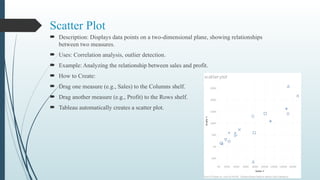
Scatter Plot
 Description: Displays data points on a two-dimensional plane, showing relationships
between two measures.
 Uses: Correlation analysis, outlier detection.
 Example: Analyzing the relationship between sales and profit.
 How to Create:
 Drag one measure (e.g., Sales) to the Columns shelf.
 Drag another measure (e.g., Profit) to the Rows shelf.
 Tableau automatically creates a scatter plot.
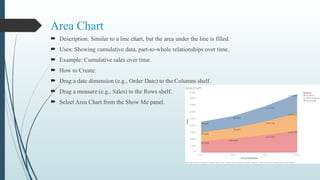
Area Chart
 Description: Similar to a line chart, but the area under the line is filled.
 Uses: Showing cumulative data, part-to-whole relationships over time.
 Example: Cumulative sales over time.
 How to Create:
 Drag a date dimension (e.g., Order Date) to the Columns shelf.
 Drag a measure (e.g., Sales) to the Rows shelf.
 Select Area Chart from the Show Me panel.
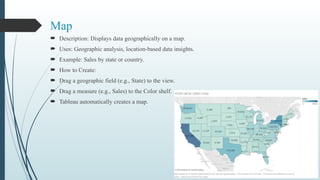
Map
 Description: Displays data geographically on a map.
 Uses: Geographic analysis, location-based data insights.
 Example: Sales by state or country.
 How to Create:
 Drag a geographic field (e.g., State) to the view.
 Drag a measure (e.g., Sales) to the Color shelf.
 Tableau automatically creates a map.
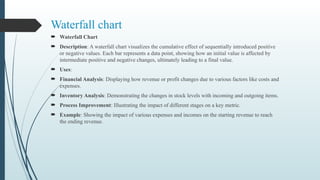
Waterfall chart
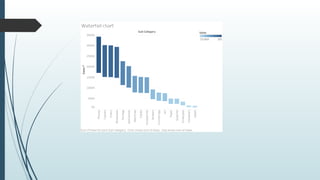
 Waterfall Chart
 Description: A waterfall chart visualizes the cumulative effect of sequentially introduced positive
or negative values. Each bar represents a data point, showing how an initial value is affected by
intermediate positive and negative changes, ultimately leading to a final value.
 Uses:
 Financial Analysis: Displaying how revenue or profit changes due to various factors like costs and
expenses.
 Inventory Analysis: Demonstrating the changes in stock levels with incoming and outgoing items.
 Process Improvement: Illustrating the impact of different stages on a key metric.
 Example: Showing the impact of various expenses and incomes on the starting revenue to reach
the ending revenue.
 How to Create:
 Create a Calculated Field for Running Total -> Go to the Data pane, right-click, and select Create
Calculated Field.
 Name it something like Running Total.Use the following formula:
 RUNNING_SUM(SUM([Value]))
 Build the Basic Chart:
 Drag your Category dimension to the Columns shelf. -> Drag your Value measure to the Rows shelf.
 Convert to Gantt Bar Chart: ->Change the mark type from Automatic to Gantt Bar in the Marks card.
 Add Running Total to Size:->Drag the Running Total calculated field to the Size shelf in the Marks
card.
 Adjust the Size: ->You might need to adjust the size of the bars to make them more visible. You can do
this by clicking on the Size shelf and adjusting the slider.
 Color Coding:->To differentiate between positive and negative changes, drag the Value field to the Color
shelf. Tableau will color the bars differently based on whether the values are positive or negative.
 Formatting:->Adjust the colors, labels, and tooltips to improve readability.
 Add labels by dragging the Value field to the Label shelf in the Marks card.
 Refinement:->You can add reference lines or annotations to provide more context.
 Ensure your axis and chart titles are descriptive.
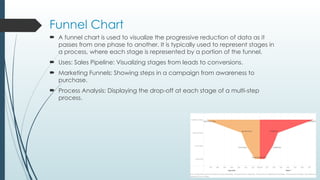
Funnel Chart
 A funnel chart is used to visualize the progressive reduction of data as it
passes from one phase to another. It is typically used to represent stages in
a process, where each stage is represented by a portion of the funnel.
 Uses: Sales Pipeline: Visualizing stages from leads to conversions.
 Marketing Funnels: Showing steps in a campaign from awareness to
purchase.
 Process Analysis: Displaying the drop-off at each stage of a multi-step
process.
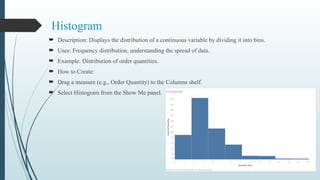
Histogram
 Description: Displays the distribution of a continuous variable by dividing it into bins.
 Uses: Frequency distribution, understanding the spread of data.
 Example: Distribution of order quantities.
 How to Create:
 Drag a measure (e.g., Order Quantity) to the Columns shelf.
 Select Histogram from the Show Me panel.
Tree map
 Description: A tree map is a visualization that displays hierarchical data using nested rectangles. Each
branch of the hierarchy is represented as a rectangle, containing smaller rectangles representing sub-
branches. The size and color of each rectangle represent quantitative variables, making it easy to see
patterns and compare sizes.
 Uses:
 Displaying Hierarchical Data: Visualizing data that has a hierarchical structure, such as
organizational structures, file directories, or category breakdowns.
 Comparing Proportions: Quickly showing the proportion of each category relative to the whole.
 Identifying Patterns: Highlighting patterns and relationships in large datasets.
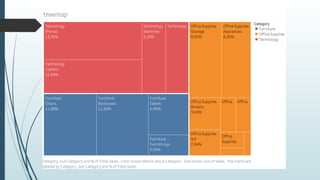
 Example: Visualizing sales data for different product categories and subcategories, where the size of
each rectangle represents the total sales and the color indicates profit margins.
 Build the Basic Chart:
 Drag the highest-level category dimension (e.g., Category) to the Rows shelf.
 Drag the next level category dimension (e.g., Sub-Category) to the Rows shelf, placing it to the
right of the first dimension.
 Drag the measure you want to size the rectangles by (e.g., Sales) to the Columns shelf.
 Convert to Tree Map:
 Select Tree Map from the Show Me panel.
 Color Coding:
 Drag a measure (e.g., Profit) to the Color shelf to color the rectangles based on this measure.
Bubble Chart
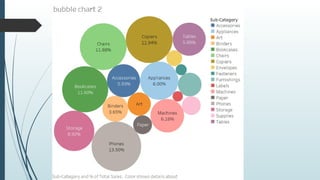
 Description: A bubble chart is a type of chart that displays three dimensions of data. Each
point is represented by a bubble, where the x-axis and y-axis represent two dimensions, and the
size of the bubble represents the third dimension. It is useful for showing relationships and
comparisons between three different variables.
 Uses:
 Comparing Relationships: Highlighting the relationship between three different variables.
 Visualizing Data Density: Showing data density and distribution across different categories.
 Identifying Outliers: Easily spotting outliers and patterns in the data.
 Example: Visualizing sales performance where the x-axis represents sales, the y-axis
represents profit, and the bubble size represents the number of orders.
 Build the Basic Chart:
 Drag the measure for the x-axis (e.g., Sales) to the Columns shelf.
 Drag the measure for the y-axis (e.g., Profit) to the Rows shelf.
 Convert to Bubble Chart:
 Change the mark type from Automatic to Circle in the Marks card.
 Add Bubble Size:
 Drag the measure you want to use for bubble size (e.g., Number of Orders) to the
Size shelf in the Marks card.
 Color Coding (Optional):
 Drag a dimension or measure (e.g., Region or Category) to the Color shelf to color-
code the bubbles.
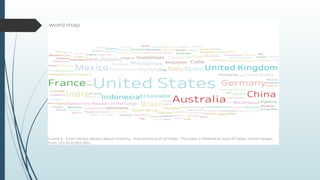
Word map (Word Cloud)
 A word map, also known as a word cloud, is a visual representation of text data where the size
of each word indicates its frequency or importance. It's a way to highlight the most prominent
terms within a body of text.
 Uses:
 Text Analysis: Summarizing large text datasets by highlighting the most frequent words.
 Marketing: Visualizing customer feedback, reviews, or social media mentions to understand
common themes.
 Content Creation: Identifying key topics or keywords in articles, blogs, or other written
content.
 Example: Visualizing the most common words in customer feedback to identify key areas of
concern or satisfaction.
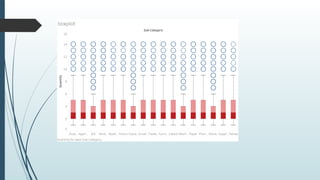
Box Plot
 Description: A box plot, also known as a whisker plot, is a standardized way of displaying
the distribution of data based on a five-number summary: minimum, first quartile (Q1),
median (Q2), third quartile (Q3), and maximum. It shows the spread and skewness of the
data and identifies outliers.
 Uses:
 Identifying Outliers: Easily spotting outliers in the data.
 Understanding Distribution: Visualizing the spread and central tendency of data.
 Comparing Distributions: Comparing distributions across different categories or groups.
 Example: Visualizing the distribution of sales across different product categories to
identify trends, outliers, and the overall distribution.
 Build the Basic Chart:
 Drag the dimension you want to categorize by (e.g., Category) to the Columns shelf.
 Drag the measure you want to analyze (e.g., Sales) to the Rows shelf.
 Convert to Box Plot:
 Select the box plot option from the Show Me panel. If it's not directly available, ensure you have an
axis for the measure and the dimension set up as described above.
 Add Box Plot:
 If the box plot does not automatically appear, you can manually add it:
 Right-click on the axis of the measure (e.g., Sales) and select Add Reference Line.
 Choose Box Plot from the reference line options.
 A box plot, also known as a whisker plot, is a graphical representation of data that shows the
distribution and variability of a dataset. It highlights key statistical measures and helps identify
outliers. Here are the important points and terms to understand:
 Minimum:
 The smallest data point excluding any outliers.
 Represented by the lower end of the whisker.
 First Quartile (Q1):
 Also known as the lower quartile, it marks the 25th percentile of the data.
 This is the median of the lower half of the dataset.
 The bottom edge of the box.
 Median (Q2)
 The middle value of the dataset, dividing it into two equal parts.
 Also known as the second quartile or the 50th percentile.
 Represented by a line inside the box.
 Third Quartile (Q3):
 Also known as the upper quartile, it marks the 75th percentile of the data.
 This is the median of the upper half of the dataset.
 The top edge of the box.
 Maximum:
 The largest data point excluding any outliers.
 Represented by the upper end of the whisker.
 Interquartile Range (IQR):
 The range between the first quartile (Q1) and the third quartile (Q3).
 IQR = Q3 - Q1
 It measures the spread of the middle 50% of the data.
 A larger IQR indicates more variability in the middle 50% of the data.
 Whiskers:
 Lines extending from the box to the smallest and largest values within 1.5 * IQR from the first and third
quartiles, respectively.
 They show the range of the data excluding outliers.
 Outliers:
 Data points that fall outside 1.5 * IQR above the third quartile or below the first quartile.
 Represented as individual points beyond the whiskers.
 They indicate variability and potential anomalies in the data.
 Box:
 The main part of the box plot, representing the IQR.
 Contains 50% of the data points, providing a visual representation of data spread and central
tendency.
 Visual Representation
 The box in the box plot represents the middle 50% of the data (IQR).
 The line inside the box is the median (Q2).
 The whiskers extend to the minimum and maximum values within 1.5 * IQR from Q1 and Q3,
respectively.
 Outliers are plotted as individual points beyond the whiskers.
Actions
 Actions are interactive elements that allow users to control the behavior of their
dashboards and worksheets. Actions can be used to create interactive and
dynamic visualizations, enhancing user experience and providing deeper insights.
There are several types of actions in Tableau, each serving different purposes:
Types of Actions in Tableau
 Filter Actions:
 Description: Allows users to filter data in one or more target sheets based on
selections in a source sheet.
 Use Case: Click on a region in a map to filter a bar chart to show data only for
that region.
Highlight Actions:
 Highlight Actions: Description: Highlights related data across multiple views
when a user hovers or clicks on a data point in the source sheet.
 Use Case: Hover over a category in a bar chart to highlight the corresponding
data points in a scatter plot.
URL Actions:
 Description: Opens a webpage or another resource based on selections in the
source sheet.
 Use Case: Click on a customer name to open their profile page in a web browser.
Go to Sheet Actions:
 Description: Navigates from one sheet to another within a dashboard or workbook.
 Use Case: Click on a summary chart to navigate to a detailed view of the data.
Go to URL Actions:
 Description: Similar to URL actions, but specifically used to navigate to external web
pages directly.
 Use Case: Click on a specific data point to navigate to a related web page for more
information.
Dashboard in Tableau
 Definition:
 A dashboard in Tableau is a collection of multiple views, visualizations, and other objects, such as
images, text, and web pages, arranged on a single canvas to provide an at-a-glance overview of data.
Dashboards are used to combine related data from various sources and present it in a cohesive,
interactive format.
 Uses:
 Data Visualization: Displaying multiple visualizations that represent different aspects of the data.
 Interactivity: Allowing users to interact with the data through filters, highlights, and actions.
 Storytelling: Communicating a data-driven narrative by combining various visualizations.
 Decision Making: Providing actionable insights to help stakeholders make informed decisions.
Components of a Dashboard:
 Views/Visualizations: Different charts, graphs, and maps created in Tableau.
 Filters: Interactive controls that allow users to filter data across all views on the dashboard.
 Parameters: User-defined controls that dynamically change the visualizations.
 Legends: Keys that explain the colors, shapes, or sizes used in the visualizations.
 Text: Annotations, titles, captions, or instructions added to the dashboard.
 Images: Static graphics such as logos or explanatory images.
 Web Pages: Embedded web content that provides additional context or information.
 Actions: Interactive elements like filter actions, highlight actions, and URL actions that
add interactivity to the dashboard.
Conclusion
 Dashboards in Tableau are powerful tools for integrating multiple data visualizations into a
single, interactive, and informative display. They enable users to explore data from various
perspectives, derive insights, and make data-driven decisions effectively. By understanding
how to create and use dashboards, you can maximize the impact of your data analysis and
visualization efforts.
Story Points in Tableau
 Definition:
 Story points in Tableau are a way to create a sequence of visualizations that work together to convey
a narrative or guide users through an analysis. A story is a collection of sheets or dashboards
arranged in a specific order, providing context and driving a specific message or insight.
 Uses:
 Data Storytelling: Presenting a data-driven narrative with a clear beginning, middle, and end.
 Guided Analysis: Leading users through a step-by-step exploration of data.
 Highlighting Key Insights: Emphasizing important findings and trends within the data.
 Interactive Reports: Allowing users to interact with each step of the story for deeper insights
Components of a Story:
 Story Points: Individual pages or slides within the story, each containing a visualization,
text, or a combination.
 Navigator: A toolbar that allows users to move between story points.
 Annotations: Text boxes or callouts used to explain each story point.
 Conclusion
 Story points in Tableau are an effective way to create a narrative flow that guides users
through an analysis, helping to highlight key insights and drive home specific messages.
By structuring your data in a story format, you can enhance the impact of your
visualizations and provide a more engaging and informative experience for your audience.
Joins
 Joins in Tableau are used to combine data from multiple tables into a single data source.
This allows you to analyze and visualize data from different sources together. Tableau
supports several types of joins, each with a specific purpose and use case.
 Types of Joins
 Inner Join:
 Description: Returns only the rows where there is a match in both joined tables.
 Use Case: When you need to analyze only the common data between two tables.
 Example: Combining customer data with sales data where both tables have matching
customer IDs.
 Left Join:
 Description: Returns all rows from the left table and the matched rows from the right table.
Unmatched rows from the right table will have NULL values.
 Use Case: When you want to retain all data from the primary table and add related data
from the secondary table.
 Example: Combining a list of all products (left table) with sales data (right table) to show
all products, including those that have not been sold.
 Right Join:
 Description: Returns all rows from the right table and the matched rows from the left table.
Unmatched rows from the left table will have NULL values.
 Use Case: When you want to retain all data from the secondary table and add related data
from the primary table.
 Example: Combining sales data (right table) with customer data (left table) to show all
sales, including those made to customers not in the customer list.
 Full Outer Join:
 Description: Returns all rows when there is a match in one of the tables. Unmatched rows
will have NULL values for the missing columns.
 Use Case: When you need a complete view of data from both tables, including unmatched
rows from either table.
 Example: Combining customer data with sales data to show all customers and all sales,
including customers with no sales and sales with no customer information.
Tableau_Course_Full_ Power_Point_presentation.pptx

Tableau_Course_Full_ Power_Point_presentation.pptx

  • 1.
  • 2.
    What is Tableau Tableau is a powerful data visualization tool used in the field of business intelligence. It helps users create a variety of charts, graphs, maps, dashboards, and stories to make data understandable and actionable
  • 3.
    Here are somekey features and aspects of Tableau: 1. Data Visualization: Tableau excels in converting raw data into visually appealing and interactive dashboards. Users can easily create visualizations by dragging and dropping elements onto a canvas. 2. Ease of Use: With its intuitive interface, Tableau allows users with little to no technical skills to create complex visualizations. It provides a drag-and-drop functionality that simplifies the process of data analysis. 3. Data Connectivity: Tableau can connect to a wide range of data sources, including databases (like MySQL, SQL Server, Oracle), cloud services (like Google Analytics, AWS), spreadsheets (like Excel), and many more. 4. Interactive Dashboards: Tableau dashboards are highly interactive and allow users to drill down into data, filter views, and interact with visual elements for a deeper understanding of the underlying data.
  • 4.
     Real-time Data:Tableau can handle real-time data feeds, making it useful for dynamic data analysis and monitoring key performance indicators (KPIs) in real-time.  Advanced Analytics: It supports advanced analytics with features such as trend lines, forecasting, and statistical analysis. Users can also integrate Tableau with programming languages like R and Python for more complex data analysis.  Collaboration and Sharing: Tableau provides tools for sharing visualizations and dashboards with others. Tableau Server and Tableau Online allow users to publish dashboards to a central location where others can access and interact with them.  Customization: Users can customize the look and feel of their visualizations to align with their brand or specific needs. This includes adjusting colors, fonts, and layout.  Scalability: Tableau can handle large datasets and complex data models, making it suitable for organizations of all sizes, from small businesses to large enterprises.
  • 5.
    Tableau vs Excel Tableau and Excel are both powerful tools used for data analysis and visualization, but they serve different purposes and have distinct features. Here’s a comparison highlighting their key differences:
  • 6.
    Purpose and UseCases  Excel: Primarily a spreadsheet application used for data entry, manipulation, and basic analysis. It is widely used for financial modeling, budgeting, and simple data visualizations.  Tableau: A specialized data visualization and business intelligence tool designed for creating interactive and complex visualizations. It excels at transforming large datasets into actionable
  • 7.
     Data Visualization Excel: Offers basic charting capabilities such as bar charts, line charts, pie charts, and scatter plots. Customization options are available, but they are more limited compared to specialized tools.  Tableau: Provides advanced and highly interactive visualizations including heat maps, tree maps, geographic maps, and dashboards. It supports more complex visual representations and interactive features.  Data Handling  Excel: Handles data within individual spreadsheets and can manage moderately sized datasets. Performance can degrade with very large datasets.  Tableau: Designed to handle large and complex datasets efficiently. It can connect to various data sources simultaneously and process large volumes of data without significant performance issues.
  • 8.
     Data Connectivity Excel: Can connect to a variety of data sources such as databases, web services, and other spreadsheets. However, the process can be less seamless compared to Tableau.  Tableau: Offers robust data connectivity options. It can connect to numerous data sources including SQL databases, cloud services, big data platforms, and more. Tableau provides real-time data connectivity and integration.  Usability  Excel: Known for its ease of use for basic data tasks. Most professionals are familiar with its interface and functionalities. It is versatile for various non-visual data tasks like calculations, pivot tables, and data cleaning.  Tableau: Designed with a focus on user-friendly data visualization. Its drag-and-drop interface allows users to create complex visualizations with minimal technical skills. However, it is less suited for detailed data manipulation tasks that Excel handles well.
  • 9.
     Advanced Analytics Excel: Supports basic statistical analysis and can perform more complex calculations using built-in formulas and functions. Advanced analytics often require add-ins or external tools.  Tableau: Includes built-in advanced analytics features such as trend analysis, forecasting, and clustering. It can integrate with programming languages like R and Python for deeper analytical capabilities.  Collaboration and Sharing  Excel: Collaboration is possible but can be cumbersome, often requiring shared drives or email exchanges. Excel Online offers some collaborative features.  Tableau: Provides robust sharing and collaboration options through Tableau Server and Tableau Online. Users can publish and share interactive dashboards with colleagues, who can view and interact with them in real-time.  Advanced Analytics  Excel: Supports basic statistical analysis and can perform more complex calculations using built-in formulas and functions. Advanced analytics often require add-ins or external tools.  Tableau: Includes built-in advanced analytics features such as trend analysis, forecasting, and clustering. It can integrate with programming languages like R and Python for deeper analytical capabilities.  Collaboration and Sharing  Excel: Collaboration is possible but can be cumbersome, often requiring shared drives or email exchanges. Excel Online offers some collaborative features.  Tableau: Provides robust sharing and collaboration options through Tableau Server and Tableau Online. Users can publish and share interactive dashboards with colleagues, who can view and interact with them in real-time.
  • 10.
     Scalability  Excel:Best suited for individual or small team use and for smaller datasets. Its performance can degrade with very large data volumes.  Tableau: Scales well to large teams and organizations. It is designed to handle big data and complex data environments efficiently.  Summary  Excel is best for:  Data entry and storage  Financial modeling and budgeting  Simple data analysis and visualization  Detailed data manipulation and calculations  Tableau is best for:  Advanced and interactive data visualizations  Handling large and complex datasets  Real-time data analysis and monitoring  Sharing and collaboration on data insights
  • 11.
    Tableau Desktop  TableauDesktop is a professional-grade, standalone application used for creating and analyzing data visualizations.  Advanced Features: Offers a wide range of advanced analytics and visualization tools, including complex calculations, predictive analysis, and sophisticated chart types.  Data Connectivity: Can connect to a vast array of data sources including local files (Excel, CSV), databases (SQL Server, Oracle, MySQL), cloud services (Google Analytics, Salesforce), and big data platforms (Hadoop).  Customization: Highly customizable dashboards and visualizations. Users can format charts, apply filters, and create interactive elements.  Data Preparation: Includes tools for data cleaning, blending, and transformation, enabling users to prepare data for analysis within the application.  Local and Server Publishing: Allows users to save their work locally or publish dashboards to Tableau Server or Tableau Online for sharing and collaboration within an organization.  Security: Offers robust security features for data access and sharing, ensuring data privacy and compliance with organizational policies.
  • 12.
    Tableau Public  TableauPublic is a free, cloud-based version of Tableau designed for sharing visualizations with the public.  Cost: Free to use, making it accessible for students, educators, bloggers, and anyone interested in data visualization.  Data Connectivity: Limited compared to Tableau Desktop. Connects to data sources such as Excel, Google Sheets, and some web data connectors, but lacks extensive database connectivity.  Public Sharing: All visualizations created in Tableau Public must be saved to the Tableau Public server, meaning they are publicly accessible. This makes it ideal for public-facing projects but unsuitable for sensitive or confidential data.  Community and Exposure: Visualizations published to Tableau Public can be seen and interacted with by anyone, which is great for gaining exposure, sharing insights, and contributing to the data visualization community.  Feature Limitations: Lacks some advanced features available in Tableau Desktop, such as certain data preparation and advanced analytics functionalities.
  • 13.
    Data types intableau Data types define the kind of data that can be stored in a field. Correctly identifying and understanding data types is crucial for effective data analysis and visualization. Tableau automatically detects data types when you import data, but you can also manually change them if needed. Here are the primary data types in Tableau: 1. String (Text) Description: Represents text data. Usage: Used for categorical data such as names, categories, and other non-numeric data. Examples: "John Doe", "Product A", "New York" 2. Number (Numeric) Description: Represents numeric data. Subtypes: Integer: Whole numbers without decimals. Examples: 1, 42, -7 Decimal (Floating-point): Numbers with decimals. Examples: 3.14, -0.001, 2500.75
  • 14.
    3. Date andTime Description: Represents dates and times. Subtypes: Date: Contains only date information. Examples: "2024-06-02", "2021-12-25" Date & Time: Contains both date and time information. Examples: "2024-06-02 14:30:00", "2021-12-25 08:45:00" Usage: Used for temporal data analysis such as trends over time, time series analysis, and event tracking. 4. Boolean Description: Represents binary data. Values: True/False or Yes/No Usage: Used for logical operations, conditions, and filters.
  • 15.
    5. Geographical Description: Representsgeographical data. Subtypes: Country/Region State/Province City Postal Code Latitude and Longitude Usage: Used for mapping data and geographical analysis. Tableau recognizes these data types and can plot them on maps.
  • 16.
    Cloumn formatting  CloumnName [Changing to new name or resetting it back)  Splitting columns using delimiter.  Sorting columns. [headers]  Sorting column. [values]  Delete the column
  • 17.
    Understanding Drill-Down Hierarchy A hierarchy in Tableau typically consists of fields that have a natural hierarchical relationship. For example:  Geographic Hierarchy: Country > State/Province > City  Time Hierarchy: Year > Quarter > Month > Day  Product Hierarchy: Category > Sub-Category > Product Name
  • 18.
    Ways of sortingin tableau charts  Quick sort  Toolbar sort  Pills sort  Markscard sort
  • 19.
     Groups area feature that allows you to combine multiple dimension members into a single, higher-level category. This is useful for simplifying and organizing your data, making it easier to analyze and visualize. For instance, you might group various product types into broader categories, or several regions into a single territory.  Measures are quantitative data that you can aggregate and analyze. They represent the numeric values on which you perform calculations like sums, averages, minimums, maximums, and other statistical operations. Measures are essential for creating meaningful visualizations and insights from your data.  Understanding Measures  Measures typically include:  Sales amounts  Profit margins  Quantities  Costs  Any other numeric data that can be mathematically operated upon
  • 20.
     Types ofAggregations  SUM: Total of all values.  AVG: Average of all values.  MEDIAN: Middle value in a sorted list.  COUNT: Number of values.  COUNTD: Number of distinct values.  MIN: Smallest value.  MAX: Largest value  Measures in Tableau are the backbone of data analysis, enabling you to quantify and analyze various aspects of your data. By understanding how to effectively use and manipulate measures, you can create insightful visualizations and dashboards that drive informed decision- making. Whether using basic aggregations or complex calculated fields, measures help transform raw data into actionable insights.
  • 21.
    Discrete vs. Continuous Discrete Data  Definition: Discrete data consist of distinct and separate values. These values are often categorical and can be counted but not measured.  Representation: In Tableau, discrete data fields are shown as blue pills in the Data Pane and on the shelves.  Visualization: Discrete data typically create headers or labels in charts, like categories in a bar chart or points in a scatter plot.  Examples:  Product categories (e.g., Furniture, Office Supplies, Technology)  Customer segments (e.g., Small Business, Corporate)  Months (e.g., January, February
  • 22.
    Discrete vs. Continuous Continuous Data  Definition: Continuous data represent values that fall on a continuum and can be measured but not counted. They are numeric and can take on any value within a range.  Representation: In Tableau, continuous data fields are shown as green pills in the Data Pane and on the shelves.  Visualization: Continuous data typically create axes in charts, like a continuous axis in a line chart or histogram.  Examples:  Sales amounts (e.g., $1000, $5000)  Profit margins (e.g., 10%, 20%)  Dates (when treated as a continuous range)
  • 23.
    Measures and Dimensions Measures  Definition: Measures are quantitative data that can be aggregated and are used for mathematical operations.  Usage: Measures are typically analyzed numerically, such as summing sales or averaging profits.  Examples:  Sales  Profit  Quantity  Discount
  • 24.
    Measures and Dimensions Dimensions  Definition: Dimensions are qualitative data that provide context for measures. They are used to segment data.  Usage: Dimensions are often used to slice and dice the data, providing categories for analysis.  Examples:  Product Name  Customer Segment  Region  Order Date
  • 25.
    Parameters and Sets Parameters and sets are powerful features in Tableau that enhance interactivity and flexibility in your data visualizations. They allow users to dynamically change the view and filter data based on specific conditions.  Parameters  Parameters are dynamic values that can be used to control various aspects of a Tableau visualization. They can be integers, floats, dates, strings, or even Boolean values. Parameters are single-valued and user-driven, meaning the user can select or input a value, and that value can be used to modify calculations, filters, reference lines, and more.  Sets  Definition  Sets are custom fields that define a subset of your data based on specific conditions. They can be static (fixed) or dynamic (computed), allowing for flexible data segmentation and analysis.
  • 26.
     Uses ofParameters  Filtering Data: Create dynamic filters that change based on parameter values.  Calculations: Use parameters in calculated fields to change the logic dynamically.  Reference Lines: Adjust reference lines based on parameter values.  Top N Analysis: Display the top N items, where N is determined by the parameter value.  Uses of Sets  Filtering Data: Use sets to include or exclude specific data points.  Comparisons: Compare members of a set against the rest of the data.  Highlighting: Highlight specific data points within a visualization.  Conditional Formatting: Apply different formatting or calculations based on set membership.  Top N Analysis: Identify top or bottom performers based on a measure.
  • 27.
    Combined Fields:  Combinedfields (or compound keys) are used to create a single field that combines two or more fields. This can be helpful when you need a unique identifier that spans multiple fields.
  • 28.
    Title  Definition: Atitle is the heading that appears at the top of a worksheet or dashboard. It gives an immediate context or summary of the content being displayed.  Uses:  To provide a clear, descriptive name for the visualization or dashboard.  To give viewers an immediate understanding of what the chart or dashboard is about.  To include important information such as the data source, date range, or key metrics.
  • 29.
    Caption  Definition: Acaption is a text element that appears at the bottom of a worksheet or dashboard. It provides additional information, explanations, or context that might not be immediately evident from the visualization itself.  Uses:  To provide detailed descriptions or explanations of the data being presented.  To include notes about data sources, methodology, or any assumptions made in the analysis.  To give credit or reference to external data sources.  To highlight important findings or insights that viewers should take note of.
  • 30.
    Exporting options 1. Save 2.Pdf 3. Image 4. Data file 5. To excel 6.Copy
  • 31.
    Granularity  Granularity inTableau (and data analysis in general) refers to the level of detail or specificity of the data being analyzed. It determines how detailed or summarized the data points are in your visualization.  Understanding Granularity  High Granularity: This means the data is very detailed. For example, if your data includes individual sales transactions, each row might represent a single sale, including the exact date and time, the specific product sold, and the customer who bought it.  Low Granularity: This means the data is more summarized. For example, if you aggregate sales data by month, each row might represent the total sales for a specific month, regardless of the specific transactions.
  • 32.
    Fliters  General (checkingout exclude)  Wildcard  Conditional  Top
  • 33.
    Charts  Charts inTableau are visual representations of data that help users to understand and analyze patterns, trends, and relationships within the data. Tableau offers a wide variety of chart types, each suited to different kinds of data and analysis needs.  Bar Chart  Line Chart  Pie Chart  Scatter Plot  Area Chart  Map  Histogram
  • 34.
    Bar graph  Description:Displays data as rectangular bars with lengths proportional to the values they represent.  Uses: Comparing categorical data, ranking, showing individual item values.  Example: Comparing sales figures across different regions.  How to Create:  Drag a dimension (e.g., Category) to the Rows shelf.  Drag a measure (e.g., Sales) to the Columns shelf.  Tableau automatically creates a bar chart.
  • 35.
    Line Chart  Description:Displays data points connected by lines, often used to show trends over time.  Uses: Trend analysis, time series data.  Example: Showing monthly sales trends over a year.  How to Create:  Drag a date dimension (e.g., Order Date) to the Columns shelf.  Drag a measure (e.g., Sales) to the Rows shelf.  Tableau automatically creates a line chart.
  • 36.
    Pie Chart  Description:Displays data as slices of a circle, with each slice representing a proportion of the whole.  Uses: Showing proportions, parts-to-whole relationships.  Example: Market share of different products.  How to Create:  Drag a dimension (e.g., Category) to the Color shelf.  Drag a measure (e.g., Sales) to the Angle shelf.  Select Pie Chart from the Show Me panel.
  • 37.
    Scatter Plot  Description:Displays data points on a two-dimensional plane, showing relationships between two measures.  Uses: Correlation analysis, outlier detection.  Example: Analyzing the relationship between sales and profit.  How to Create:  Drag one measure (e.g., Sales) to the Columns shelf.  Drag another measure (e.g., Profit) to the Rows shelf.  Tableau automatically creates a scatter plot.
  • 38.
    Area Chart  Description:Similar to a line chart, but the area under the line is filled.  Uses: Showing cumulative data, part-to-whole relationships over time.  Example: Cumulative sales over time.  How to Create:  Drag a date dimension (e.g., Order Date) to the Columns shelf.  Drag a measure (e.g., Sales) to the Rows shelf.  Select Area Chart from the Show Me panel.
  • 39.
    Map  Description: Displaysdata geographically on a map.  Uses: Geographic analysis, location-based data insights.  Example: Sales by state or country.  How to Create:  Drag a geographic field (e.g., State) to the view.  Drag a measure (e.g., Sales) to the Color shelf.  Tableau automatically creates a map.
  • 40.
    Waterfall chart  WaterfallChart  Description: A waterfall chart visualizes the cumulative effect of sequentially introduced positive or negative values. Each bar represents a data point, showing how an initial value is affected by intermediate positive and negative changes, ultimately leading to a final value.  Uses:  Financial Analysis: Displaying how revenue or profit changes due to various factors like costs and expenses.  Inventory Analysis: Demonstrating the changes in stock levels with incoming and outgoing items.  Process Improvement: Illustrating the impact of different stages on a key metric.  Example: Showing the impact of various expenses and incomes on the starting revenue to reach the ending revenue.
  • 42.
     How toCreate:  Create a Calculated Field for Running Total -> Go to the Data pane, right-click, and select Create Calculated Field.  Name it something like Running Total.Use the following formula:  RUNNING_SUM(SUM([Value]))  Build the Basic Chart:  Drag your Category dimension to the Columns shelf. -> Drag your Value measure to the Rows shelf.  Convert to Gantt Bar Chart: ->Change the mark type from Automatic to Gantt Bar in the Marks card.  Add Running Total to Size:->Drag the Running Total calculated field to the Size shelf in the Marks card.  Adjust the Size: ->You might need to adjust the size of the bars to make them more visible. You can do this by clicking on the Size shelf and adjusting the slider.  Color Coding:->To differentiate between positive and negative changes, drag the Value field to the Color shelf. Tableau will color the bars differently based on whether the values are positive or negative.  Formatting:->Adjust the colors, labels, and tooltips to improve readability.  Add labels by dragging the Value field to the Label shelf in the Marks card.  Refinement:->You can add reference lines or annotations to provide more context.  Ensure your axis and chart titles are descriptive.
  • 43.
    Funnel Chart  Afunnel chart is used to visualize the progressive reduction of data as it passes from one phase to another. It is typically used to represent stages in a process, where each stage is represented by a portion of the funnel.  Uses: Sales Pipeline: Visualizing stages from leads to conversions.  Marketing Funnels: Showing steps in a campaign from awareness to purchase.  Process Analysis: Displaying the drop-off at each stage of a multi-step process.
  • 44.
    Histogram  Description: Displaysthe distribution of a continuous variable by dividing it into bins.  Uses: Frequency distribution, understanding the spread of data.  Example: Distribution of order quantities.  How to Create:  Drag a measure (e.g., Order Quantity) to the Columns shelf.  Select Histogram from the Show Me panel.
  • 45.
    Tree map  Description:A tree map is a visualization that displays hierarchical data using nested rectangles. Each branch of the hierarchy is represented as a rectangle, containing smaller rectangles representing sub- branches. The size and color of each rectangle represent quantitative variables, making it easy to see patterns and compare sizes.  Uses:  Displaying Hierarchical Data: Visualizing data that has a hierarchical structure, such as organizational structures, file directories, or category breakdowns.  Comparing Proportions: Quickly showing the proportion of each category relative to the whole.  Identifying Patterns: Highlighting patterns and relationships in large datasets.  Example: Visualizing sales data for different product categories and subcategories, where the size of each rectangle represents the total sales and the color indicates profit margins.
  • 46.
     Build theBasic Chart:  Drag the highest-level category dimension (e.g., Category) to the Rows shelf.  Drag the next level category dimension (e.g., Sub-Category) to the Rows shelf, placing it to the right of the first dimension.  Drag the measure you want to size the rectangles by (e.g., Sales) to the Columns shelf.  Convert to Tree Map:  Select Tree Map from the Show Me panel.  Color Coding:  Drag a measure (e.g., Profit) to the Color shelf to color the rectangles based on this measure.
  • 48.
    Bubble Chart  Description:A bubble chart is a type of chart that displays three dimensions of data. Each point is represented by a bubble, where the x-axis and y-axis represent two dimensions, and the size of the bubble represents the third dimension. It is useful for showing relationships and comparisons between three different variables.  Uses:  Comparing Relationships: Highlighting the relationship between three different variables.  Visualizing Data Density: Showing data density and distribution across different categories.  Identifying Outliers: Easily spotting outliers and patterns in the data.  Example: Visualizing sales performance where the x-axis represents sales, the y-axis represents profit, and the bubble size represents the number of orders.
  • 49.
     Build theBasic Chart:  Drag the measure for the x-axis (e.g., Sales) to the Columns shelf.  Drag the measure for the y-axis (e.g., Profit) to the Rows shelf.  Convert to Bubble Chart:  Change the mark type from Automatic to Circle in the Marks card.  Add Bubble Size:  Drag the measure you want to use for bubble size (e.g., Number of Orders) to the Size shelf in the Marks card.  Color Coding (Optional):  Drag a dimension or measure (e.g., Region or Category) to the Color shelf to color- code the bubbles.
  • 51.
    Word map (WordCloud)  A word map, also known as a word cloud, is a visual representation of text data where the size of each word indicates its frequency or importance. It's a way to highlight the most prominent terms within a body of text.  Uses:  Text Analysis: Summarizing large text datasets by highlighting the most frequent words.  Marketing: Visualizing customer feedback, reviews, or social media mentions to understand common themes.  Content Creation: Identifying key topics or keywords in articles, blogs, or other written content.  Example: Visualizing the most common words in customer feedback to identify key areas of concern or satisfaction.
  • 53.
    Box Plot  Description:A box plot, also known as a whisker plot, is a standardized way of displaying the distribution of data based on a five-number summary: minimum, first quartile (Q1), median (Q2), third quartile (Q3), and maximum. It shows the spread and skewness of the data and identifies outliers.  Uses:  Identifying Outliers: Easily spotting outliers in the data.  Understanding Distribution: Visualizing the spread and central tendency of data.  Comparing Distributions: Comparing distributions across different categories or groups.  Example: Visualizing the distribution of sales across different product categories to identify trends, outliers, and the overall distribution.
  • 54.
     Build theBasic Chart:  Drag the dimension you want to categorize by (e.g., Category) to the Columns shelf.  Drag the measure you want to analyze (e.g., Sales) to the Rows shelf.  Convert to Box Plot:  Select the box plot option from the Show Me panel. If it's not directly available, ensure you have an axis for the measure and the dimension set up as described above.  Add Box Plot:  If the box plot does not automatically appear, you can manually add it:  Right-click on the axis of the measure (e.g., Sales) and select Add Reference Line.  Choose Box Plot from the reference line options.
  • 55.
     A boxplot, also known as a whisker plot, is a graphical representation of data that shows the distribution and variability of a dataset. It highlights key statistical measures and helps identify outliers. Here are the important points and terms to understand:  Minimum:  The smallest data point excluding any outliers.  Represented by the lower end of the whisker.  First Quartile (Q1):  Also known as the lower quartile, it marks the 25th percentile of the data.  This is the median of the lower half of the dataset.  The bottom edge of the box.  Median (Q2)  The middle value of the dataset, dividing it into two equal parts.  Also known as the second quartile or the 50th percentile.  Represented by a line inside the box.
  • 56.
     Third Quartile(Q3):  Also known as the upper quartile, it marks the 75th percentile of the data.  This is the median of the upper half of the dataset.  The top edge of the box.  Maximum:  The largest data point excluding any outliers.  Represented by the upper end of the whisker.  Interquartile Range (IQR):  The range between the first quartile (Q1) and the third quartile (Q3).  IQR = Q3 - Q1  It measures the spread of the middle 50% of the data.  A larger IQR indicates more variability in the middle 50% of the data.  Whiskers:  Lines extending from the box to the smallest and largest values within 1.5 * IQR from the first and third quartiles, respectively.  They show the range of the data excluding outliers.
  • 57.
     Outliers:  Datapoints that fall outside 1.5 * IQR above the third quartile or below the first quartile.  Represented as individual points beyond the whiskers.  They indicate variability and potential anomalies in the data.  Box:  The main part of the box plot, representing the IQR.  Contains 50% of the data points, providing a visual representation of data spread and central tendency.  Visual Representation  The box in the box plot represents the middle 50% of the data (IQR).  The line inside the box is the median (Q2).  The whiskers extend to the minimum and maximum values within 1.5 * IQR from Q1 and Q3, respectively.  Outliers are plotted as individual points beyond the whiskers.
  • 59.
    Actions  Actions areinteractive elements that allow users to control the behavior of their dashboards and worksheets. Actions can be used to create interactive and dynamic visualizations, enhancing user experience and providing deeper insights. There are several types of actions in Tableau, each serving different purposes:
  • 60.
    Types of Actionsin Tableau  Filter Actions:  Description: Allows users to filter data in one or more target sheets based on selections in a source sheet.  Use Case: Click on a region in a map to filter a bar chart to show data only for that region.
  • 61.
    Highlight Actions:  HighlightActions: Description: Highlights related data across multiple views when a user hovers or clicks on a data point in the source sheet.  Use Case: Hover over a category in a bar chart to highlight the corresponding data points in a scatter plot.
  • 62.
    URL Actions:  Description:Opens a webpage or another resource based on selections in the source sheet.  Use Case: Click on a customer name to open their profile page in a web browser.
  • 63.
    Go to SheetActions:  Description: Navigates from one sheet to another within a dashboard or workbook.  Use Case: Click on a summary chart to navigate to a detailed view of the data.
  • 64.
    Go to URLActions:  Description: Similar to URL actions, but specifically used to navigate to external web pages directly.  Use Case: Click on a specific data point to navigate to a related web page for more information.
  • 65.
    Dashboard in Tableau Definition:  A dashboard in Tableau is a collection of multiple views, visualizations, and other objects, such as images, text, and web pages, arranged on a single canvas to provide an at-a-glance overview of data. Dashboards are used to combine related data from various sources and present it in a cohesive, interactive format.  Uses:  Data Visualization: Displaying multiple visualizations that represent different aspects of the data.  Interactivity: Allowing users to interact with the data through filters, highlights, and actions.  Storytelling: Communicating a data-driven narrative by combining various visualizations.  Decision Making: Providing actionable insights to help stakeholders make informed decisions.
  • 66.
    Components of aDashboard:  Views/Visualizations: Different charts, graphs, and maps created in Tableau.  Filters: Interactive controls that allow users to filter data across all views on the dashboard.  Parameters: User-defined controls that dynamically change the visualizations.  Legends: Keys that explain the colors, shapes, or sizes used in the visualizations.  Text: Annotations, titles, captions, or instructions added to the dashboard.  Images: Static graphics such as logos or explanatory images.  Web Pages: Embedded web content that provides additional context or information.  Actions: Interactive elements like filter actions, highlight actions, and URL actions that add interactivity to the dashboard.
  • 67.
    Conclusion  Dashboards inTableau are powerful tools for integrating multiple data visualizations into a single, interactive, and informative display. They enable users to explore data from various perspectives, derive insights, and make data-driven decisions effectively. By understanding how to create and use dashboards, you can maximize the impact of your data analysis and visualization efforts.
  • 68.
    Story Points inTableau  Definition:  Story points in Tableau are a way to create a sequence of visualizations that work together to convey a narrative or guide users through an analysis. A story is a collection of sheets or dashboards arranged in a specific order, providing context and driving a specific message or insight.  Uses:  Data Storytelling: Presenting a data-driven narrative with a clear beginning, middle, and end.  Guided Analysis: Leading users through a step-by-step exploration of data.  Highlighting Key Insights: Emphasizing important findings and trends within the data.  Interactive Reports: Allowing users to interact with each step of the story for deeper insights
  • 69.
    Components of aStory:  Story Points: Individual pages or slides within the story, each containing a visualization, text, or a combination.  Navigator: A toolbar that allows users to move between story points.  Annotations: Text boxes or callouts used to explain each story point.  Conclusion  Story points in Tableau are an effective way to create a narrative flow that guides users through an analysis, helping to highlight key insights and drive home specific messages. By structuring your data in a story format, you can enhance the impact of your visualizations and provide a more engaging and informative experience for your audience.
  • 70.
    Joins  Joins inTableau are used to combine data from multiple tables into a single data source. This allows you to analyze and visualize data from different sources together. Tableau supports several types of joins, each with a specific purpose and use case.  Types of Joins  Inner Join:  Description: Returns only the rows where there is a match in both joined tables.  Use Case: When you need to analyze only the common data between two tables.  Example: Combining customer data with sales data where both tables have matching customer IDs.
  • 71.
     Left Join: Description: Returns all rows from the left table and the matched rows from the right table. Unmatched rows from the right table will have NULL values.  Use Case: When you want to retain all data from the primary table and add related data from the secondary table.  Example: Combining a list of all products (left table) with sales data (right table) to show all products, including those that have not been sold.  Right Join:  Description: Returns all rows from the right table and the matched rows from the left table. Unmatched rows from the left table will have NULL values.  Use Case: When you want to retain all data from the secondary table and add related data from the primary table.  Example: Combining sales data (right table) with customer data (left table) to show all sales, including those made to customers not in the customer list.
  • 72.
     Full OuterJoin:  Description: Returns all rows when there is a match in one of the tables. Unmatched rows will have NULL values for the missing columns.  Use Case: When you need a complete view of data from both tables, including unmatched rows from either table.  Example: Combining customer data with sales data to show all customers and all sales, including customers with no sales and sales with no customer information.