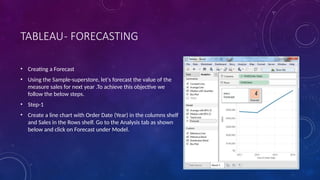
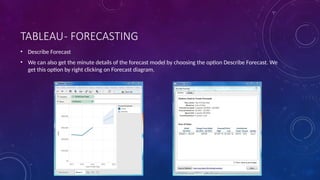
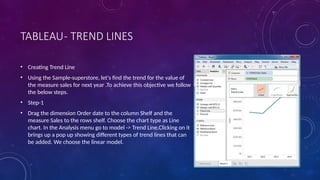
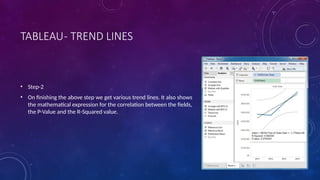
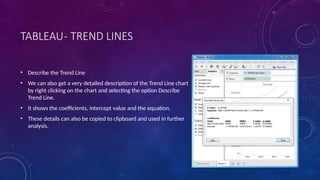
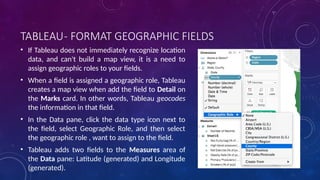
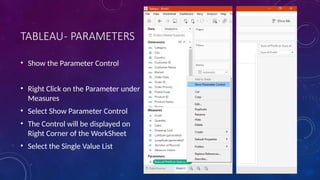
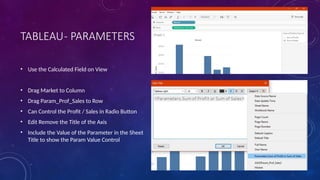
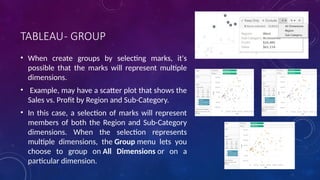
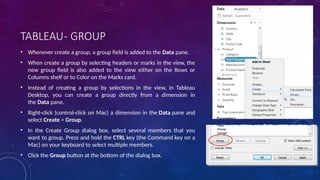
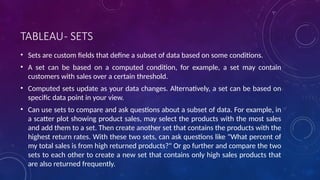
TABLEAU
AMPERSAND ACADEMY
OVERVIEW
• Business Intelligence tool for visually analyzing the data.
• Create and distribute interactive and shareable dashboards.
• Depict the trends, variations and density of the data in form of graphs and charts.
• Connect to files, relational and Big data sources to acquire and process data.
• Allows data blending and real time collaboration, which makes it very unique.
• Used by businesses, academic researchers and many governments to do visual data analysis.
• Positioned as a leader Business Intelligence and Analytics Platform in Gartner Magic Quadrant.
APPLICATION
• Create, Read, Write, and Modify Business Intelligence Reports
• Data Analyst or Data Scientist.
• Data Modelling
• Data Mining
• Data Presentation
TABLEAU- ADVANTAGES
• Powerful data discovery and exploration application.
• Fast.
• Drag And Drop Interface to visualize any data, explore different views.
• Combine multiple databases together easily.
• Does not need any complex scripting.
• Easy to share
TABLEAU- FEATURES
• Speed of Analysis - As it does not need high level of programming expertise, any computer user with
access to data can start using it to derive value from the data.
• Self-Reliant - Tableau does not need a complex software setup. The desktop version which is used by
most users is easily installed and contains all the features needed to start and complete data
analysis.
• Visual Discovery - The user explores and analyses the data by using visual tools like colours, trend
lines, charts and graphs. There is very little script to be written as nearly everything is done by drag
and drop.
TABLEAU- FEATURES
• Blend Diverse Data Sets - Tableau allows you to blend different relational, semi-structured and raw data sources in
real time, without expensive up-front integration costs. The users don’t need to know the details of how data is
stored.
• Architecture Agnostic - Tableau works in all kinds of devices where data flows. So the user need not worry about
specific hardware or software requirements to use Tableau.
• Real Time Collaboration - Tableau can filter, sort, and discuss data on the fly and embed a live dashboard in
portals like SharePoint site or Salesforce. You can save your view of data and allow colleagues to subscribe to your
interactive dashboards so they see the very latest data just by refreshing their web browser.
• Centralized Data - The tableau server provides a centralized location to manage all of the organization’s published
data sources. You can delete, change permissions, add tags, and manage schedules in one convenient location. It’s
easy to schedule extract refreshes and manage them in the data server. Administrators can centrally define a
schedule for extracts on the server for both incremental and full refreshes.
DOWNLOADING & INSTALLING
• The Free Personal Edition of Tableau Desktop can be downloaded from Tableau Desktop. You need to
register with your details to be able to download.
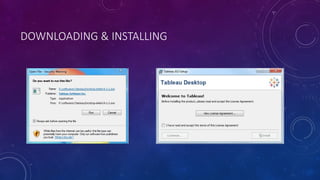
• After downloading, the installation is a very straight forward process in which you need to accept the
license agreement and provide the target folder for installation. The below screen shots describe the
entire setup process.
• Start the installation wizard
• Double clicking the TableauDesktop-64bit-9.x.x.exe will present a screen to allow the installation
program to run. Click Run.
DOWNLOADING & INSTALLING
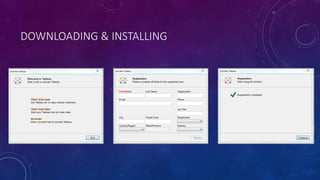
• Start Trial
• On completion of installation, the screen prompts you with the option to Start
the trial now or later. You may choose to start it now.
• Also if you have purchased Tableau then you may enter the License key.
• Provide Your Details
• Provide your name and organization details. Then Click "Next".
DOWNLOADING & INSTALLING
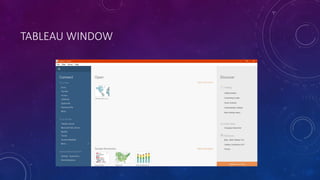
TABLEAU WINDOW
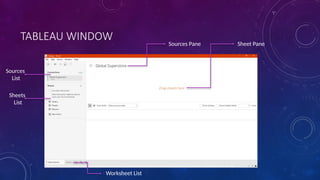
TABLEAU WINDOW Sources Pane Sheet Pane
Sources
List
Sheets
List
Worksheet List
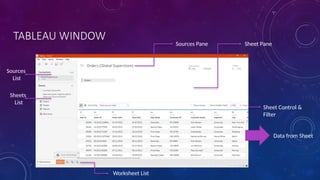
TABLEAU WINDOW
Sources Pane Sheet Pane
Sources
List
Sheets
List
Worksheet List
Data from Sheet
Sheet Control &
Filter
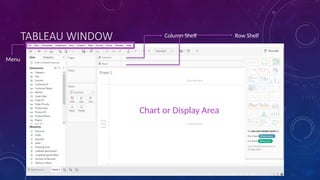
TABLEAU WINDOW Column Shelf Row Shelf
Menu
Chart or Display Area
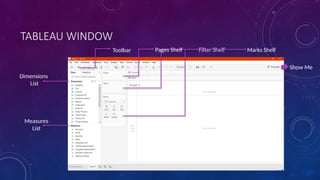
TABLEAU WINDOW
Dimensions
List
Measures
List
Filter Shelf
Pages Shelf Marks Shelf
Show Me
Toolbar
TABLEAU – TESTING CONNECTIONS
• Connect to a data source: It involves locating the data and use an appropriate
type of connection to read the data.
• Choose Dimensions and Measures: This involves selecting the required
columns from the source data for analysis.
• Apply Visualization technique: This involves applying required visualization
methods like a specific chart or graph type to the data being analyzed.
TABLEAU – TESTING CONNECTIONS
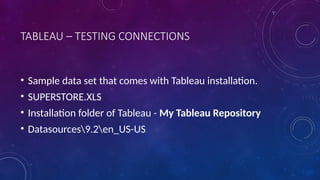
• Sample data set that comes with Tableau installation.
• SUPERSTORE.XLS
• Installation folder of Tableau - My Tableau Repository
• Datasources9.2en_US-US
CONNECT TO A DATA SOURCE
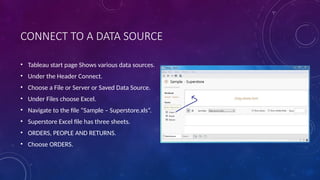
• Tableau start page Shows various data sources.
• Under the Header Connect.
• Choose a File or Server or Saved Data Source.
• Under Files choose Excel.
• Navigate to the file “Sample – Superstore.xls”.
• Superstore Excel file has three sheets.
• ORDERS, PEOPLE AND RETURNS.
• Choose ORDERS.
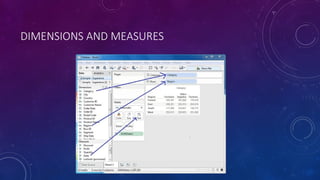
DIMENSIONS AND MEASURES
• Choose the Data to be analyzed by deciding on the Dimensions and Measures.
• Dimensions are the Descriptive Data.
• Measures are Numeric data.
• When put together, they help us visualize the performance of the dimensional
data with respect to the data which are measures.
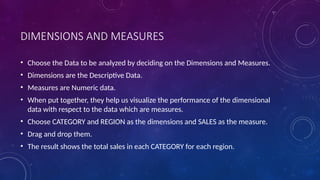
• Choose CATEGORY and REGION as the dimensions and SALES as the measure.
• Drag and drop them.
• The result shows the total sales in each CATEGORY for each region.
DIMENSIONS AND MEASURES
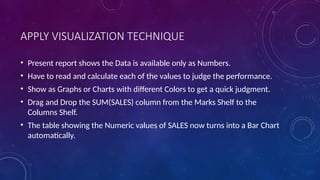
APPLY VISUALIZATION TECHNIQUE
• Present report shows the Data is available only as Numbers.
• Have to read and calculate each of the values to judge the performance.
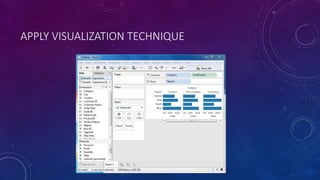
• Show as Graphs or Charts with different Colors to get a quick judgment.
• Drag and Drop the SUM(SALES) column from the Marks Shelf to the
Columns Shelf.
• The table showing the Numeric values of SALES now turns into a Bar Chart
automatically.
APPLY VISUALIZATION TECHNIQUE
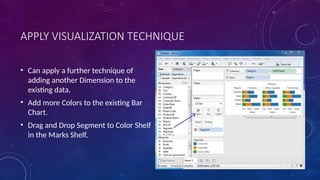
• Can apply a further technique of
adding another Dimension to the
existing data.
• Add more Colors to the existing Bar
Chart.
• Drag and Drop Segment to Color Shelf
in the Marks Shelf.
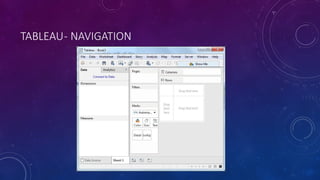
TABLEAU- NAVIGATION
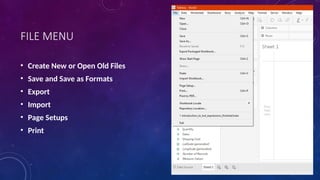
FILE MENU
• Create New or Open Old Files
• Save and Save as Formats
• Export
• Import
• Page Setups
• Print
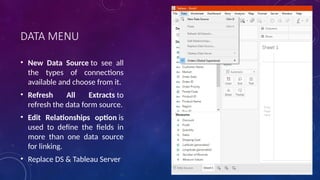
DATA MENU
• New Data Source to see all
the types of connections
available and choose from it.
• Refresh All Extracts to
refresh the data form source.
• Edit Relationships option is
used to define the fields in
more than one data source
for linking.
• Replace DS & Tableau Server
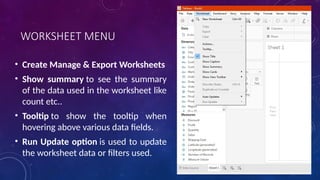
WORKSHEET MENU
• Create Manage & Export Worksheets
• Show summary to see the summary
of the data used in the worksheet like
count etc..
• Tooltip to show the tooltip when
hovering above various data fields.
• Run Update option is used to update
the worksheet data or filters used.
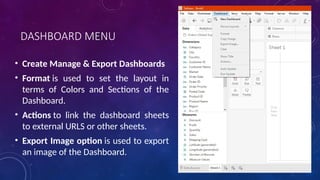
DASHBOARD MENU
• Create Manage & Export Dashboards
• Format is used to set the layout in
terms of Colors and Sections of the
Dashboard.
• Actions to link the dashboard sheets
to external URLS or other sheets.
• Export Image option is used to export
an image of the Dashboard.
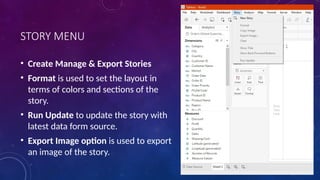
STORY MENU
• Create Manage & Export Stories
• Format is used to set the layout in
terms of colors and sections of the
story.
• Run Update to update the story with
latest data form source.
• Export Image option is used to export
an image of the story.
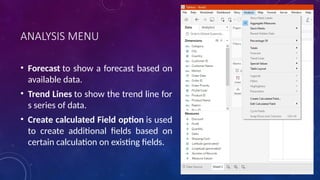
ANALYSIS MENU
• Forecast to show a forecast based on
available data.
• Trend Lines to show the trend line for
s series of data.
• Create calculated Field option is used
to create additional fields based on
certain calculation on existing fields.
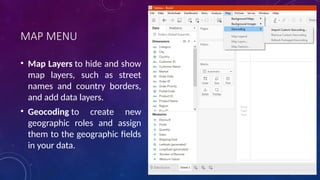
MAP MENU
• Map Layers to hide and show
map layers, such as street
names and country borders,
and add data layers.
• Geocoding to create new
geographic roles and assign
them to the geographic fields
in your data.
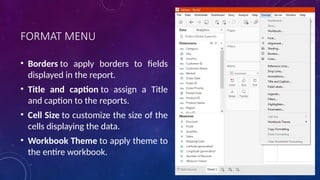
FORMAT MENU
• Borders to apply borders to fields
displayed in the report.
• Title and caption to assign a Title
and caption to the reports.
• Cell Size to customize the size of the
cells displaying the data.
• Workbook Theme to apply theme to
the entire workbook.
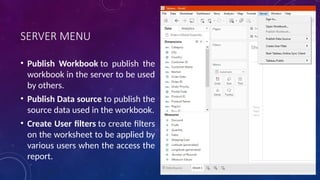
SERVER MENU
• Publish Workbook to publish the
workbook in the server to be used
by others.
• Publish Data source to publish the
source data used in the workbook.
• Create User filters to create filters
on the worksheet to be applied by
various users when the access the
report.
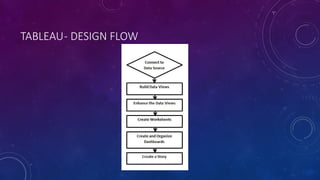
TABLEAU- DESIGN FLOW
• Tableau analyzes a lots of data over many time periods, dimensions and
measures, it needs a very meticulous planning to create a good dashboard or
story.
• It is important to know the approach to design a good dashboards.
• There are many best practices to be followed to create good worksheets and
dashboards.
• The final outcome expected from a Tableau project is ideally a dashboard with
story, there are many intermediate steps which need to be completed to reach
this goal.
TABLEAU- DESIGN FLOW
• Tableau connects to all popular data sources.
• Simple text files
• Relational sources
• No Sql Sources
• Cloud Databases
• Tableau connects to nearly every data source.
TABLEAU- DESIGN FLOW
Build Data Views
• After connecting to a data source, you get all the column and data available in
the Tableau environment. You classify them as dimensions, measures and create
any hierarchy required. Using these you build views which are traditionally
known as Reports. Tableau provides easy drag and drop feature to build views.
Enhance the Views
• The views created above needs to be enhanced further by use of filters,
aggregations, Labeling of Axes, Formatting of colors and borders etc.
Create Worksheets
• We create different worksheets to create different views on the same data or
different data.
TABLEAU- DESIGN FLOW
Create and Organize Dashboards
• Dashboards contain multiple worksheets which are linked it. So the action in
any of the worksheet can change the result in the dashboard accordingly.
Create a Story
• A story is a sheet that contains a sequence of worksheets or dashboards that
work together to convey information. You can create stories to show how
facts are connected, provide context, demonstrate how decisions relate to
outcomes, or simply make a compelling case
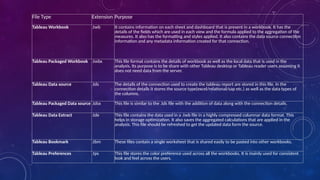
TABLEAU- FILE TYPES
• Result of Data Analysis in Tableau can be saved in various formats
to be Saved and Distributed.
• Various formats are referred as different File Types and they are
identified by different Extensions.
• Formats depend on how they are produced and for what purpose
they are used.
• All are stored as XML files which can be Opened and Edited.
File Type Extension Purpose
Tableau Workbook .twb It contains information on each sheet and dashboard that is present in a workbook. It has the
details of the fields which are used in each view and the formula applied to the aggregation of the
measures. It also has the formatting and styles applied. It also contains the data source connection
information and any metadata information created for that connection.
Tableau Packaged Workbook .twbx This file format contains the details of workbook as well as the local data that is used in the
analysis. Its purpose is to be share with other Tableau desktop or Tableau reader users assuming it
does not need data from the server.
Tableau Data source .tds The details of the connection used to create the tableau report are stored in this file. In the
connection details it stores the source type(excel/relational/sap etc.) as well as the data types of
the columns.
Tableau Packaged Data source .tdsx This file is similar to the .tds file with the addition of data along with the connection details.
Tableau Data Extract .tde This file contains the data used in a .twb file in a highly compressed columnar data format. This
helps in storage optimization. It also saves the aggregated calculations that are applied in the
analysis. This file should be refreshed to get the updated data form the source.
Tableau Bookmark .tbm These files contain a single worksheet that is shared easily to be pasted into other workbooks.
Tableau Preferences .tps This file stores the color preference used across all the workbooks. It is mainly used for consistent
look and feel across the users.
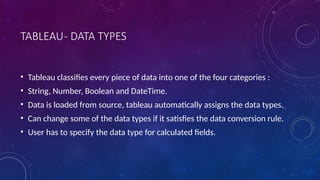
TABLEAU- DATA TYPES
• Tableau classifies every piece of data into one of the four categories :
• String, Number, Boolean and DateTime.
• Data is loaded from source, tableau automatically assigns the data types.
• Can change some of the data types if it satisfies the data conversion rule.
• User has to specify the data type for calculated fields.
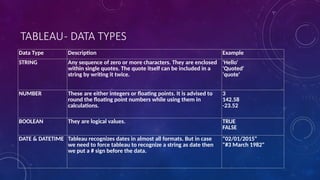
TABLEAU- DATA TYPES
Data Type Description Example
STRING Any sequence of zero or more characters. They are enclosed
within single quotes. The quote itself can be included in a
string by writing it twice.
'Hello'
'Quoted'
'quote'
NUMBER These are either integers or floating points. It is advised to
round the floating point numbers while using them in
calculations.
3
142.58
-23.52
BOOLEAN They are logical values. TRUE
FALSE
DATE & DATETIME Tableau recognizes dates in almost all formats. But in case
we need to force tableau to recognize a string as date then
we put a # sign before the data.
"02/01/2015"
"#3 March 1982"
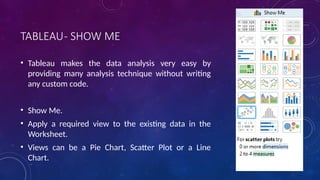
TABLEAU- SHOW ME
• Tableau makes the data analysis very easy by
providing many analysis technique without writing
any custom code.
• Show Me.
• Apply a required view to the existing data in the
Worksheet.
• Views can be a Pie Chart, Scatter Plot or a Line
Chart.
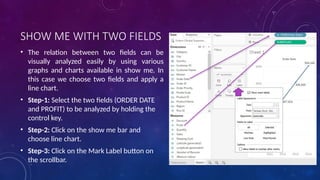
SHOW ME WITH TWO FIELDS
• The relation between two fields can be
visually analyzed easily by using various
graphs and charts available in show me. In
this case we choose two fields and apply a
line chart.
• Step-1: Select the two fields (ORDER DATE
and PROFIT) to be analyzed by holding the
control key.
• Step-2: Click on the show me bar and
choose line chart.
• Step-3: Click on the Mark Label button on
the scrollbar.
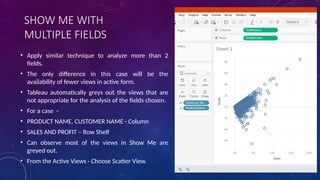
SHOW ME WITH
MULTIPLE FIELDS
• Apply similar technique to analyze more than 2
fields.
• The only difference in this case will be the
availability of fewer views in active form.
• Tableau automatically greys out the views that are
not appropriate for the analysis of the fields chosen.
• For a case -
• PRODUCT NAME, CUSTOMER NAME - Column
• SALES AND PROFIT – Row Shelf
• Can observe most of the views in Show Me are
greyed out.
• From the Active Views - Choose Scatter View.
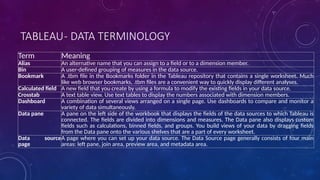
TABLEAU- DATA TERMINOLOGY
Term Meaning
Alias An alternative name that you can assign to a field or to a dimension member.
Bin A user-defined grouping of measures in the data source.
Bookmark A .tbm file in the Bookmarks folder in the Tableau repository that contains a single worksheet. Much
like web browser bookmarks, .tbm files are a convenient way to quickly display different analyses.
Calculated field A new field that you create by using a formula to modify the existing fields in your data source.
Crosstab A text table view. Use text tables to display the numbers associated with dimension members.
Dashboard A combination of several views arranged on a single page. Use dashboards to compare and monitor a
variety of data simultaneously.
Data pane A pane on the left side of the workbook that displays the fields of the data sources to which Tableau is
connected. The fields are divided into dimensions and measures. The Data pane also displays custom
fields such as calculations, binned fields, and groups. You build views of your data by dragging fields
from the Data pane onto the various shelves that are a part of every worksheet.
Data source
page
A page where you can set up your data source. The Data Source page generally consists of four main
areas: left pane, join area, preview area, and metadata area.
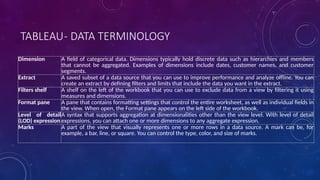
TABLEAU- DATA TERMINOLOGY
Dimension A field of categorical data. Dimensions typically hold discrete data such as hierarchies and members
that cannot be aggregated. Examples of dimensions include dates, customer names, and customer
segments.
Extract A saved subset of a data source that you can use to improve performance and analyze offline. You can
create an extract by defining filters and limits that include the data you want in the extract.
Filters shelf A shelf on the left of the workbook that you can use to exclude data from a view by filtering it using
measures and dimensions.
Format pane A pane that contains formatting settings that control the entire worksheet, as well as individual fields in
the view. When open, the Format pane appears on the left side of the workbook.
Level of detail
(LOD) expression
A syntax that supports aggregation at dimensionalities other than the view level. With level of detail
expressions, you can attach one or more dimensions to any aggregate expression.
Marks A part of the view that visually represents one or more rows in a data source. A mark can be, for
example, a bar, line, or square. You can control the type, color, and size of marks.
TABLEAU- DATA TERMINOLOGY
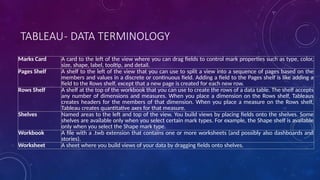
Marks Card A card to the left of the view where you can drag fields to control mark properties such as type, color,
size, shape, label, tooltip, and detail.
Pages Shelf A shelf to the left of the view that you can use to split a view into a sequence of pages based on the
members and values in a discrete or continuous field. Adding a field to the Pages shelf is like adding a
field to the Rows shelf, except that a new page is created for each new row.
Rows Shelf A shelf at the top of the workbook that you can use to create the rows of a data table. The shelf accepts
any number of dimensions and measures. When you place a dimension on the Rows shelf, Tableaus
creates headers for the members of that dimension. When you place a measure on the Rows shelf,
Tableau creates quantitative axes for that measure.
Shelves Named areas to the left and top of the view. You build views by placing fields onto the shelves. Some
shelves are available only when you select certain mark types. For example, the Shape shelf is available
only when you select the Shape mark type.
Workbook A file with a .twb extension that contains one or more worksheets (and possibly also dashboards and
stories).
Worksheet A sheet where you build views of your data by dragging fields onto shelves.
TABLEAU- DATA SOURCES
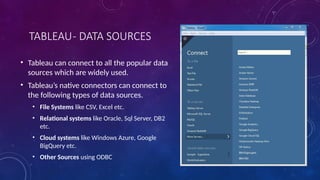
• Tableau can connect to all the popular data
sources which are widely used.
• Tableau’s native connectors can connect to
the following types of data sources.
• File Systems like CSV, Excel etc.
• Relational systems like Oracle, Sql Server, DB2
etc.
• Cloud systems like Windows Azure, Google
BigQuery etc.
• Other Sources using ODBC
TABLEAU- DATA SOURCES
Connect Live
• The connect live feature is used for real time data analysis. In this case Tableau connects to the real time data
source and keeps reading the data. So the result of the analysis is upto the second and latest changes are
reflected in the result. But on the downside it burdens the source system as it has to keep sending the data to
Tableau.
In-Memory
• Tableau can also process data in-memory by caching them in memory and not being connected to the source
anymore while analysing the data. Of course there will be a limit to the amount of data cached depending on
the availability of memory.
Combine Data Sources
• Tableau can connect to different data sources at the same time. For example in a single workbook you can
connect to a flat file and a relational source by defining multiple connections. This is used in data blending
which is a very unique feature in Tableau.
TABLEAU- CUSTOM DATA VIEW
• Custom data view is used to extend the normal data views with some
additional features.
• View can give different types of charts for the same underlying data.
• Can drill down a dimension field which is part of a pre-defined hierarchy
• Additional values of the measures are obtained at a different granularity.
DRILL DOWN VIEW
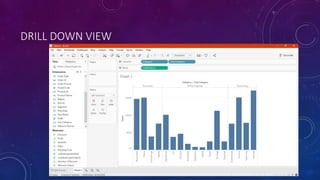
• Dimension fields are part of a hierarchy, usually need to know the result of
analysis for the next or previous level of aggregation.
• Knowing the result for a quarter we next get interested to know the results for
each month in that quarter and we may even need the result for each week.
• This is a case of drilling down the existing dimensions to get finer level of
granularity.
• To drill down and drill up for individual dimension members in a hierarchy, right-
click a table header and select Drill Down from the context menu.
• Let's consider bar chart created with the dimension CATEGORY in the columns
shelf and the measure SALES in the Rows shelf. Right click on the bar representing
Furniture and select Drill Down.
DRILL DOWN VIEW
SWAPPING DIMENSIONS
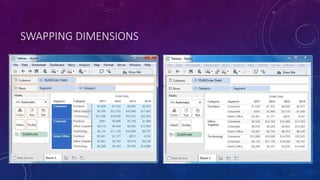
• Can create a new view form an exciting view by swapping the position of the
dimensions.
• Does not change the values of the measures, but it does change the position
of the measures.
• A view for analyzing the PROFIT for each year for each SEGMENT and
CATEGORY of PRODUCTS.
• Click on the vertical line at the end of category column and drag it to the
segment column.
SWAPPING DIMENSIONS
TABLEAU- EXTRACTING DATA
• Data extraction in Tableau creates a subset of data from the data
source.
• Useful in increasing performance by applying filters.
• Helps in applying features of Tableau to data – eg. finding the
distinct values in the data.
• Data extract feature - frequently used for creating a extract to be
stored locally drive for offline access.
TABLEAU- EXTRACTING DATA
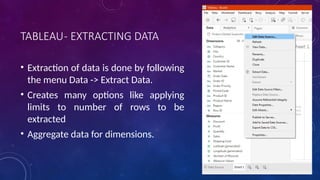
• Extraction of data is done by following
the menu Data -> Extract Data.
• Creates many options like applying
limits to number of rows to be
extracted
• Aggregate data for dimensions.
TABLEAU- EXTRACTING DATA
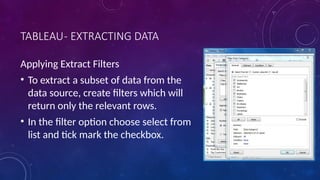
Applying Extract Filters
• To extract a subset of data from the
data source, create filters which will
return only the relevant rows.
• In the filter option choose select from
list and tick mark the checkbox.
TABLEAU- EXTRACTING DATA
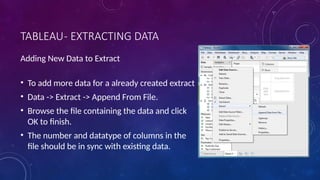
Adding New Data to Extract
• To add more data for a already created extract
• Data -> Extract -> Append From File.
• Browse the file containing the data and click
OK to finish.
• The number and datatype of columns in the
file should be in sync with existing data.
TABLEAU- EXTRACTING DATA
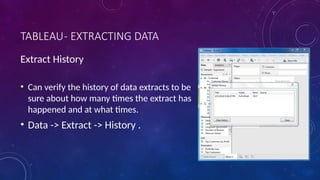
Extract History
• Can verify the history of data extracts to be
sure about how many times the extract has
happened and at what times.
• Data -> Extract -> History .
TABLEAU- FIELDS OPERATIONS
• Features to manipulate the fields present in Tableau data pane.
• Can rename the fields or combine two fields to create one filed.
• Such operations help in better organization of the dimensions
and measures
• Accommodates two or more fields with same name for better
data analysis.
TABLEAU- FIELDS OPERATIONS
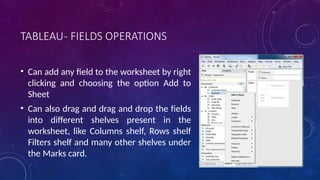
• Can add any field to the worksheet by right
clicking and choosing the option Add to
Sheet
• Can also drag and drag and drop the fields
into different shelves present in the
worksheet, like Columns shelf, Rows shelf
Filters shelf and many other shelves under
the Marks card.
TABLEAU- FIELDS OPERATIONS
• Combining two Fields
• Can combine two dimension fields to create one
filed.
• Combined field has a name which is a
combination of the individual fields.
• The values in the dimension get combined to
single value by joining the two strings into one
string separated by a comma.
• But this default name can be changed by using
the rename field operation.
TABLEAU- FIELDS OPERATIONS
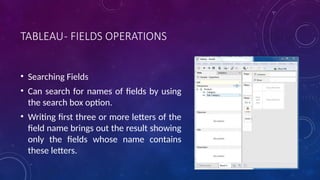
• Searching Fields
• Can search for names of fields by using
the search box option.
• Writing first three or more letters of the
field name brings out the result showing
only the fields whose name contains
these letters.
TABLEAU- FIELDS OPERATIONS
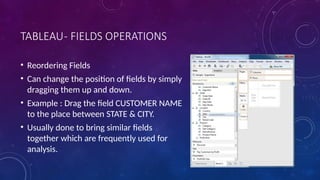
• Reordering Fields
• Can change the position of fields by simply
dragging them up and down.
• Example : Drag the field CUSTOMER NAME
to the place between STATE & CITY.
• Usually done to bring similar fields
together which are frequently used for
analysis.
TABLEAU- EDITING METADATA
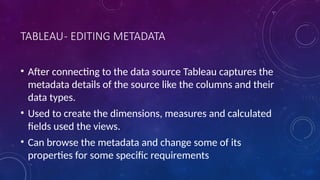
• After connecting to the data source Tableau captures the
metadata details of the source like the columns and their
data types.
• Used to create the dimensions, measures and calculated
fields used the views.
• Can browse the metadata and change some of its
properties for some specific requirements
TABLEAU- EDITING METADATA
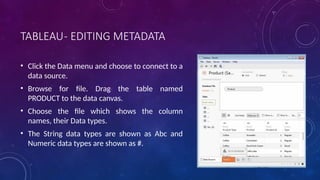
• Click the Data menu and choose to connect to a
data source.
• Browse for file. Drag the table named
PRODUCT to the data canvas.
• Choose the file which shows the column
names, their Data types.
• The String data types are shown as Abc and
Numeric data types are shown as #.
TABLEAU- EDITING METADATA
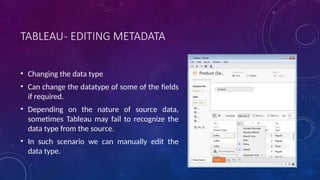
• Changing the data type
• Can change the datatype of some of the fields
if required.
• Depending on the nature of source data,
sometimes Tableau may fail to recognize the
data type from the source.
• In such scenario we can manually edit the
data type.
TABLEAU- EDITING METADATA
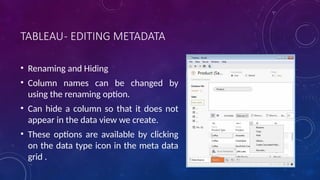
• Renaming and Hiding
• Column names can be changed by
using the renaming option.
• Can hide a column so that it does not
appear in the data view we create.
• These options are available by clicking
on the data type icon in the meta data
grid .
TABLEAU- EDITING METADATA
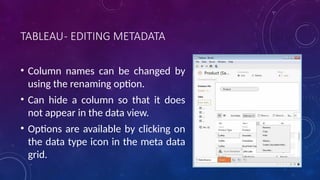
• Column names can be changed by
using the renaming option.
• Can hide a column so that it does
not appear in the data view.
• Options are available by clicking on
the data type icon in the meta data
grid.
TABLEAU- EDITING METADATA
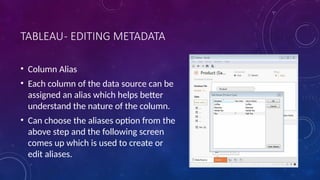
• Column Alias
• Each column of the data source can be
assigned an alias which helps better
understand the nature of the column.
• Can choose the aliases option from the
above step and the following screen
comes up which is used to create or
edit aliases.
TABLEAU- DATA JOINING
• Data joining is a very common requirement in any data
analysis.
• To join data from multiple sources or join data from
different tables in a single source.
• Feature to join the table by using the data pane available
under Edit Data Source in the Data menu.
TABLEAU- DATA JOINING
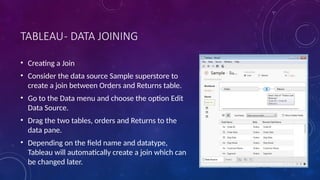
• Creating a Join
• Consider the data source Sample superstore to
create a join between Orders and Returns table.
• Go to the Data menu and choose the option Edit
Data Source.
• Drag the two tables, orders and Returns to the
data pane.
• Depending on the field name and datatype,
Tableau will automatically create a join which can
be changed later.
TABLEAU- DATA JOINING
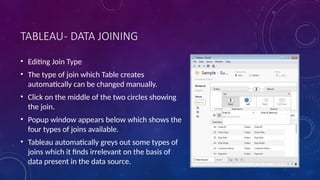
• Editing Join Type
• The type of join which Table creates
automatically can be changed manually.
• Click on the middle of the two circles showing
the join.
• Popup window appears below which shows the
four types of joins available.
• Tableau automatically greys out some types of
joins which it finds irrelevant on the basis of
data present in the data source.
TABLEAU- DATA JOINING
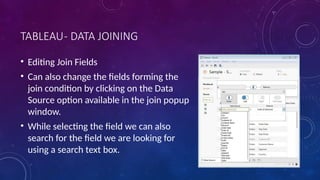
• Editing Join Fields
• Can also change the fields forming the
join condition by clicking on the Data
Source option available in the join popup
window.
• While selecting the field we can also
search for the field we are looking for
using a search text box.
TABLEAU- DATA BLENDING
• Data Blending is a very powerful feature in Tableau.
• Used when there is related data in multiple data sources which you want to analyze
together in a single view.
• Example, the Sales data is present in a relational database and Sales Target data in an
Excel spreadsheet.
• Compare actual sales to target sales, we can blend the data based on common dimensions
to get access to the Sales Target measure.
• The two sources involved in data blending are referred as Primary and secondary data
sources.
• A left join is created between the primary data source and the secondary data source with
all the data rows from primary and matching data rows from secondary data source.
TABLEAU- DATA BLENDING
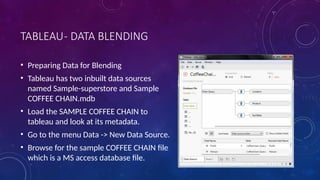
• Preparing Data for Blending
• Tableau has two inbuilt data sources
named Sample-superstore and Sample
COFFEE CHAIN.mdb
• Load the SAMPLE COFFEE CHAIN to
tableau and look at its metadata.
• Go to the menu Data -> New Data Source.
• Browse for the sample COFFEE CHAIN file
which is a MS access database file.
TABLEAU- DATA BLENDING
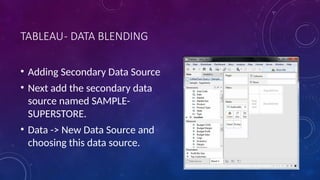
• Adding Secondary Data Source
• Next add the secondary data
source named SAMPLE-
SUPERSTORE.
• Data -> New Data Source and
choosing this data source.
TABLEAU- DATA BLENDING
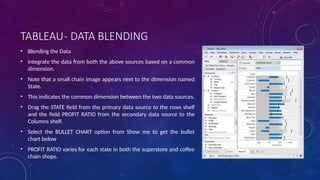
• Blending the Data
• Integrate the data from both the above sources based on a common
dimension.
• Note that a small chain image appears next to the dimension named
State.
• This indicates the common dimension between the two data sources.
• Drag the STATE field from the primary data source to the rows shelf
and the field PROFIT RATIO from the secondary data source to the
Columns shelf.
• Select the BULLET CHART option from Show me to get the bullet
chart below
• PROFIT RATIO varies for each state in both the superstore and coffee
chain shops.
TABLEAU WORKSHEETS
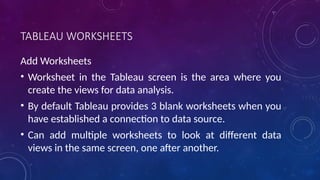
Add Worksheets
• Worksheet in the Tableau screen is the area where you
create the views for data analysis.
• By default Tableau provides 3 blank worksheets when you
have established a connection to data source.
• Can add multiple worksheets to look at different data
views in the same screen, one after another.
TABLEAU WORKSHEETS
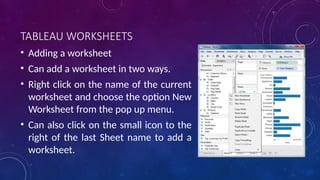
• Adding a worksheet
• Can add a worksheet in two ways.
• Right click on the name of the current
worksheet and choose the option New
Worksheet from the pop up menu.
• Can also click on the small icon to the
right of the last Sheet name to add a
worksheet.
TABLEAU WORKSHEETS
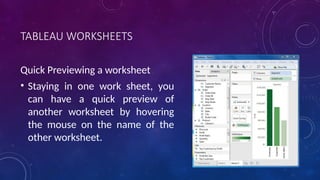
Quick Previewing a worksheet
• Staying in one work sheet, you
can have a quick preview of
another worksheet by hovering
the mouse on the name of the
other worksheet.
TABLEAU- RENAME WORKSHEET
• Can give appropriate names to the existing worksheets by renaming a worksheet.
• Helps in relating the content of the worksheet with its name.
• Ex: If we want to know which sheet has the view to know the segment wise profit
then with a proper name of the sheet we can identify it.
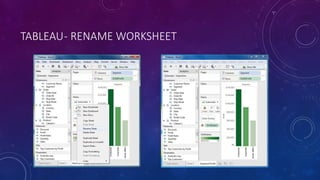
Renaming the worksheet
• To rename a worksheet, right click the sheet name and choose the option Rename
Sheet
TABLEAU- RENAME WORKSHEET
TABLEAU- SAVE & DELETE WORKSHEET
• An existing worksheet can be both saved and deleted.
• Helps in organizing the contents in the Tableau desktop
environment.
• Saving the worksheet is done by clicking the save button under the
main menu
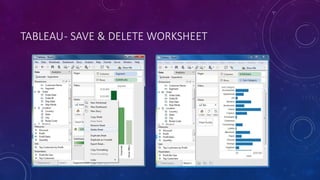
• To delete a worksheet, right click the worksheet name and choose
the option delete Sheet.
TABLEAU- SAVE & DELETE WORKSHEET
TABLEAU- REORDER WORKSHEET
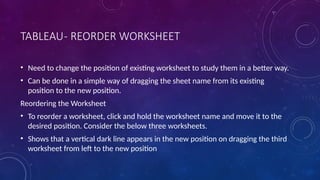
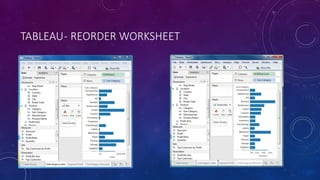
• Need to change the position of existing worksheet to study them in a better way.
• Can be done in a simple way of dragging the sheet name from its existing
position to the new position.
Reordering the Worksheet
• To reorder a worksheet, click and hold the worksheet name and move it to the
desired position. Consider the below three worksheets.
• Shows that a vertical dark line appears in the new position on dragging the third
worksheet from left to the new position
TABLEAU- REORDER WORKSHEET
TABLEAU- OPERATORS
• An Operator is a symbol that tells the compiler to perform specific mathematical or logical
manipulations. Tableau has a number of operators used to create calculated fields and
formulas.
• The details of the operators that are available and the order (precedence) of operations are as
follows:
Types of Operator
• General Operators
• Arithmetic Operators
• Relational Operators
• Logical Operators
TABLEAU- OPERATORS
General Operators
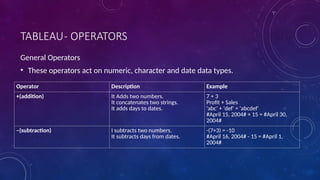
• These operators act on numeric, character and date data types.
Operator Description Example
+(addition) It Adds two numbers.
It concatenates two strings.
It adds days to dates.
7 + 3
Profit + Sales
'abc' + 'def' = 'abcdef'
#April 15, 2004# + 15 = #April 30,
2004#
–(subtraction) I subtracts two numbers.
It subtracts days from dates.
-(7+3) = -10
#April 16, 2004# - 15 = #April 1,
2004#
TABLEAU- OPERATORS
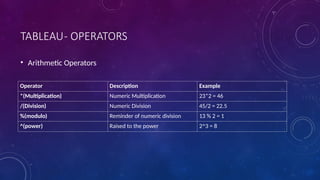
• Arithmetic Operators
Operator Description Example
*(Multiplication) Numeric Multiplication 23*2 = 46
/(Division) Numeric Division 45/2 = 22.5
%(modulo) Reminder of numeric division 13 % 2 = 1
^(power) Raised to the power 2^3 = 8
TABLEAU- OPERATORS
• Comparison Operators
• These operators are used in expressions whose result is a Boolean giving the output as TRUE or FALSE.
Operator Description Example
= = or = (Equal to) Compares two numbers or two strings or two dates to be equal.
Returns the Boolean value TRUE if they are else returns false.
‘Hello’ = ‘Hello’
5 = 15/ 3
!= or <> (not equal to) Compares two numbers or two strings or two dates to be unequal.
Returns the Boolean value TRUE if they are else returns false.
‘Good’ <> ‘Bad’
18 != 37 / 2
> (greater than) Compares two numbers or two strings or two dates where the first argument is greater
than second. Returns the boolean value TRUE if it is the case else returns false.
[Profit] > 20000
[Category] > ‘Q’
[Ship date] > #April 1, 2004#
< (less than) Compares two numbers or two strings or two dates where the first argument is smaller
than second. Returns the boolean value TRUE if it is the case else returns false.
[Profit] < 20000
[Category] < ‘Q’
[Ship date] < #April 1, 2004#
TABLEAU- OPERATORS
• Comparison Operators
• These operators are used in expressions whose result is a Boolean giving the output as TRUE or FALSE.
Operator Description Example
AND If the expressions or Boolean values present in both sides to AND
operator is evaluated to be TRUE then the result is TRUE. Else the result
is FALSE.
[Ship Date] > #April 1, 2012# AND
[Profit] > 10000
OR If any one or both of the expressions or Boolean values present in both
sides to AND operator is evaluated to be TRUE then the result is TRUE.
Else the result is FALSE.
[Ship Date] > #April 1, 2012# OR
[Profit] > 10000
NOT This operator negates the Boolean value of the expression present after
it.
NOT [Ship Date] > #April 1, 2012#
TABLEAU- OPERATORS
Operator Precedence
• The table below describes the order in which operators are
evaluated.
• The top row has the highest precedence.
• Operators on the same row have the same precedence.
• If two operators have the same precedence they are evaluated
from left to right in the formula.
• Parentheses can be used.
• The inner parentheses are evaluated before the outer
parentheses.
Precedence Operator
1 –(negate)
2 ^(power)
3 *, /, %
4 +, –
5 ==, >, <, >=, <=, !=
6 NOT
7 AND
8 OR
TABLEAU- FUNCTIONS
Tableau the calculation editor is used to apply calculations to the fields being analyzed. Tableau
has a number of inbuilt functions which help in creating expressions for complex calculations.
The description of different categories of functions.
• Number Functions
• String Functions
• Date Functions
• Logical Functions
• Aggregate Functions
TABLEAU- FUNCTIONS
• Number Functions
• These are the functions used for numeric calculations. They only take numbers as inputs.
Function Description Example
CEILING(number) Rounds a number to the nearest
integer of equal or greater value.
CEILING(2.145) = 3
POWER(number, power) Raises the number to the specified
power.
POWER(5,3) = 125
ROUND(number, [decimals]) Rounds numbers to a specified
number of digits.
ROUND(3.14152,2) = 3.14
TABLEAU- FUNCTIONS
String Functions
• String Functions are used for string manipulation
Function Description Example
LEN(string) Returns the length of the string. LEN("Tableau") = 7
LTRIM(string) Returns the string with any leading spaces
removed.
LTRIM(" Tableau ") = "Tableau"
REPLACE(string, substring,
replacement)
Searches string for substring and replaces it
with replacement. If substring is not found,
the string is not changed.
REPLACE("GreenBlueGreen",
"Blue", "Red") = "GreenRedGreen"
UPPER(string) Returns string, with all characters
uppercase.
UPPER("Tableau") = "TABLEAU"
TABLEAU- FUNCTIONS
• Date Functions
• Tableau has a variety of date functions to carry out calculations involving dates.
• All the date functions use the date_part which is a string indicating the part of the
date like - month, day or year.
Function Description Example
DATEADD(date_part, increment,
date)
Returns an increment added to
date. The type of increment is
specified in date_part.
DATEADD('month', 3, #2004-04-
15#) = 2004-07-15 12:00:00 AM
DATENAME(date_part, date,
[start_of_week])
Returns date_part of date as a
string. The start_of_week
parameter is optional.
DATENAME('month', #2004-04-
15#) = "April"
DAY(date) Returns the day of the given date
as an integer.
DAY(#2004-04-12#) = 12
NOW( ) Returns the current date and time. NOW( ) = 2004-04-15 1:08:21 PM
TABLEAU- FUNCTIONS
• Logical Functions
• These functions evaluate some single value or result of an expression and give a boolean output.
Function Description Example
IFNULL(expression1, expression2) The IFNULL function returns the first
expression if the result is not null, and
returns the second expression if it is null.
IFNULL([Sales], 0) = [Sales]
ISDATE(string) The ISDATE function returns TRUE if the
string argument can be converted to a date
and FALSEif it cannot.
ISDATE("11/05/98") = TRUE
ISDATE("14/05/98") = FALSE
MIN(expression) The MIN function returns the minimum of an
expression across all records or the minimum
of two expressions for each record.
AGGREGATE FUNCTIONS
Function Description
AVG(expression) Returns the average of all the values in the expression. AVG
can be used with numeric fields only. Null values are
ignored.
COUNT(expression) Returns the number of items in a group. Null values are not
counted.
MEDIAN(expression) Returns the median of an expression across all records.
Median can only be used with numeric fields. Null values
are ignored.
STDEV(expression) Returns the statistical standard deviation of all values in the
given expression based on a sample of the population.
TABLEAU- NUMERIC CALCULATIONS
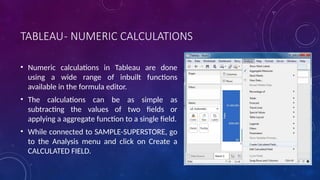
• Numeric calculations in Tableau are done
using a wide range of inbuilt functions
available in the formula editor.
• The calculations can be as simple as
subtracting the values of two fields or
applying a aggregate function to a single field.
• While connected to SAMPLE-SUPERSTORE, go
to the Analysis menu and click on Create a
CALCULATED FIELD.
TABLEAU- NUMERIC CALCULATIONS
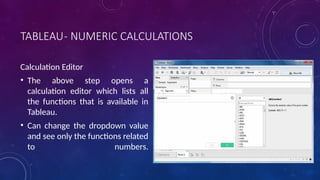
Calculation Editor
• The above step opens a
calculation editor which lists all
the functions that is available in
Tableau.
• Can change the dropdown value
and see only the functions related
to numbers.
TABLEAU- NUMERIC CALCULATIONS
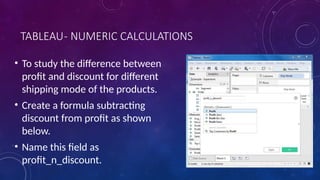
• To study the difference between
profit and discount for different
shipping mode of the products.
• Create a formula subtracting
discount from profit as shown
below.
• Name this field as
profit_n_discount.
TABLEAU- NUMERIC CALCULATIONS
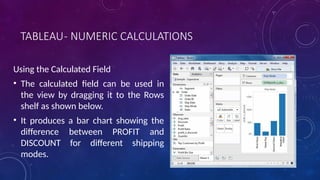
Using the Calculated Field
• The calculated field can be used in
the view by dragging it to the Rows
shelf as shown below.
• It produces a bar chart showing the
difference between PROFIT and
DISCOUNT for different shipping
modes.
TABLEAU- NUMERIC CALCULATIONS
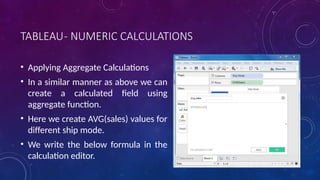
• Applying Aggregate Calculations
• In a similar manner as above we can
create a calculated field using
aggregate function.
• Here we create AVG(sales) values for
different ship mode.
• We write the below formula in the
calculation editor.
TABLEAU- NUMERIC CALCULATIONS
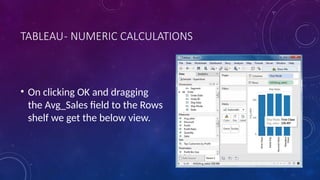
• On clicking OK and dragging
the Avg_Sales field to the Rows
shelf we get the below view.
TABLEAU- STRING CALCULATIONS
Calculations in Tableau involving Strings.
• Tableau has many inbuilt string functions
which can be used to do string
manipulations like - comparing,
concatenating, replacing few characters from
a string etc.
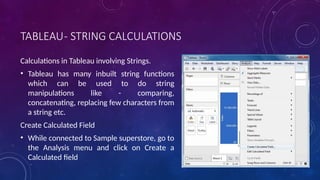
Create Calculated Field
• While connected to Sample superstore, go to
the Analysis menu and click on Create a
Calculated field
TABLEAU- STRING CALCULATIONS
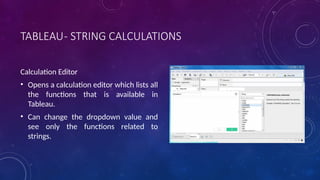
Calculation Editor
• Opens a calculation editor which lists all
the functions that is available in
Tableau.
• Can change the dropdown value and
see only the functions related to
strings.
TABLEAU- STRING CALCULATIONS
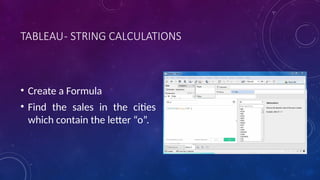
• Create a Formula
• Find the sales in the cities
which contain the letter “o”.
TABLEAU- STRING CALCULATIONS
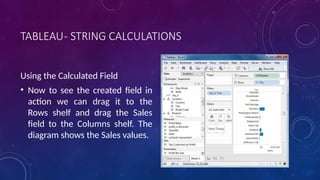
Using the Calculated Field
• Now to see the created field in
action we can drag it to the
Rows shelf and drag the Sales
field to the Columns shelf. The
diagram shows the Sales values.
TABLEAU- DATE CALCULATIONS
• Dates are one of the key fields which is extensively used in most of data analysis
scenarios.
• Tableau provides a large number of inbuilt functions involving dates.
• Can do simple date manipulations like adding or subtracting days from a date.
• Can also create complex expressions involving dates.
• Create Calculated Field
• While connected to Sample superstore, go to the Analysis menu and click on
Create a Calculated field, as shown in the below diagram.
TABLEAU- DATE CALCULATIONS
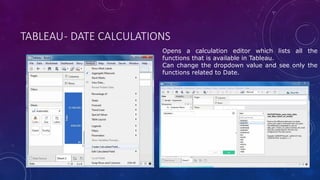
Opens a calculation editor which lists all the
functions that is available in Tableau.
Can change the dropdown value and see only the
functions related to Date.
TABLEAU- DATE CALCULATIONS
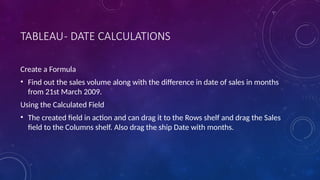
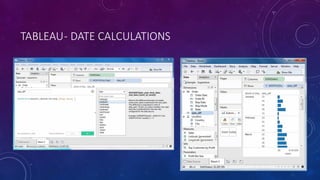
Create a Formula
• Find out the sales volume along with the difference in date of sales in months
from 21st March 2009.
Using the Calculated Field
• The created field in action and can drag it to the Rows shelf and drag the Sales
field to the Columns shelf. Also drag the ship Date with months.
TABLEAU- DATE CALCULATIONS
TABLEAU- TABLE CALCULATIONS
• Calculations which are applied to the values in the entire table.
• Example : For calculating a running total or running average we
need to apply a single method of calculation to an entire column.
Such calculations cannot be performed on some selected rows.
• Table has a feature called Quick Table Calculation which is used to
create such calculations.
TABLEAU- TABLE CALCULATIONS
STEP-1
• Select the measure on which the table calculation has to be applied and drag
it to column shelf.
STEP-2
• Right click on the measure and choose the option Quick Table Calculation.
STEP-3
• Choose one of the below options to be applied on the measure.
TABLEAU- TABLE CALCULATIONS
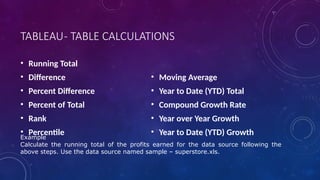
• Running Total
• Difference
• Percent Difference
• Percent of Total
• Rank
• Percentile
• Moving Average
• Year to Date (YTD) Total
• Compound Growth Rate
• Year over Year Growth
• Year to Date (YTD) Growth
Example
Calculate the running total of the profits earned for the data source following the
above steps. Use the data source named sample – superstore.xls.
TABLEAU- LOD EXPRESSIONS
• Level of Detail expressions are also called LOD expressions in
Tableau.
• Used to run complex queries involving many dimensions at the
data source level instead of bringing all the data to Tableau
interface.
• Eg: Adding dimension to an already calculated aggregate value.
TABLEAU- LOD EXPRESSIONS
Types of LOD
• There are three main types of LOD expressions.
• FIXED LOD - expressions compute values using the specified dimensions
without reference to any other dimensions in the view.
• INCLUDE LOD - level of detail expressions compute values using the specified
dimensions in addition to whatever dimensions are in the view.
• EXCLUDE LOD - levels of detail expressions subtract dimensions from the view
level of detail.
TABLEAU- LOD EXPRESSIONS
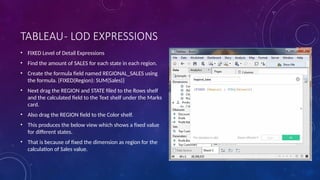
• FIXED Level of Detail Expressions
• Find the amount of SALES for each state in each region.
• Create the formula field named REGIONAL_SALES using
the formula. {FIXED(Region): SUM(Sales)}
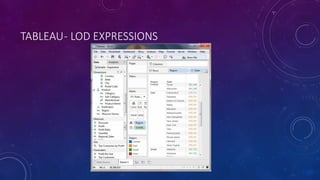
• Next drag the REGION and STATE filed to the Rows shelf
and the calculated field to the Text shelf under the Marks
card.
• Also drag the REGION field to the Color shelf.
• This produces the below view which shows a fixed value
for different states.
• That is because of fixed the dimension as region for the
calculation of Sales value.
TABLEAU- LOD EXPRESSIONS
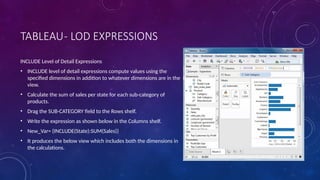
INCLUDE Level of Detail Expressions
• INCLUDE level of detail expressions compute values using the
specified dimensions in addition to whatever dimensions are in the
view.
• Calculate the sum of sales per state for each sub-category of
products.
• Drag the SUB-CATEGORY field to the Rows shelf.
• Write the expression as shown below in the Columns shelf.
• New_Var= {INCLUDE(State):SUM(Sales)}
• It produces the below view which includes both the dimensions in
the calculations.
TABLEAU- LOD EXPRESSIONS
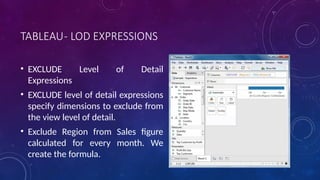
• EXCLUDE Level of Detail
Expressions
• EXCLUDE level of detail expressions
specify dimensions to exclude from
the view level of detail.
• Exclude Region from Sales figure
calculated for every month. We
create the formula.
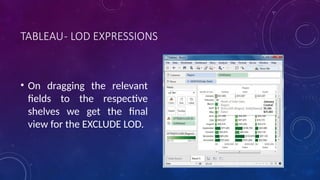
TABLEAU- LOD EXPRESSIONS
• On dragging the relevant
fields to the respective
shelves we get the final
view for the EXCLUDE LOD.
TABLEAU- LOD EXPRESSIONS
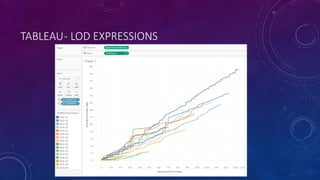
• Use the Sample - Superstore data source
• Create two calculated fields: a FIXED level of detail expression, and a date subtraction.
• First_Purchase_Date = {FIXED [Customer Name] : MIN([Order Date])}
• Days_Since_First_Purchase =DATETRUNC('month', [Order Date])-
DATETRUNC('month', [First Purchase Date])
• Drag Days_Since_First_Purchase from the Measures area of the Data pane to the
Dimensions area.
• Drag Days_Since_First_Purchase to Columns.
TABLEAU- LOD EXPRESSIONS
• Click Days_Since_First_Purchase on Columns and choose Continuous.
• Drag Sales to Rows.
• Change the aggregation for Sales on Rows from SUM to AVG.
• Add a quick table calculation to Sales on Rows: Running Total.
• Drag First Purchase Date to Color.
• Click the + in the YEAR(First Purchase Date) field on Color to add the next level down in
the date hierarchy: QUARTER(First Purchase Date).
• Tableau won't automatically put two fields on Color, but you can make it happen by
clicking the icon to the left of the QUARTER(First Purchase Date) field and choosing
Color:
TABLEAU- LOD EXPRESSIONS
TABLEAU- BASIC SORTING
• Sorting of data is a very important feature of data analysis.
• Tableau allows the sorting of data of the fields which are called dimensions.
There are two ways in which Tableau carries out the sorting.
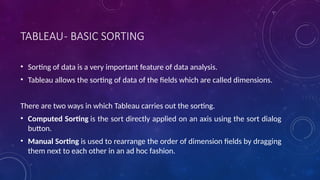
• Computed Sorting is the sort directly applied on an axis using the sort dialog
button.
• Manual Sorting is used to rearrange the order of dimension fields by dragging
them next to each other in an ad hoc fashion.
TABLEAU- BASIC SORTING
Computed Sorting
• This type of sorting involves choosing a field to be sorted and directly
applying the sort using sort dialog box. We have the option to choose the
sort order as ascending or descending and choose the field on which to
apply the sort.
Example
• We choose Sample-Superstore to apply sorting on the field named discount
By using the dimensions order date and Subcategory.
• The result shows the name of the sub-categories in a descending order
arranged for each year.
TABLEAU- BASIC SORTING
Manual Sorting
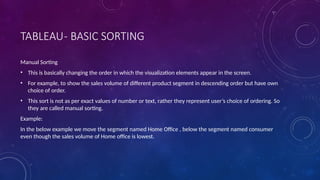
• This is basically changing the order in which the visualization elements appear in the screen.
• For example, to show the sales volume of different product segment in descending order but have own
choice of order.
• This sort is not as per exact values of number or text, rather they represent user’s choice of ordering. So
they are called manual sorting.
Example:
In the below example we move the segment named Home Office , below the segment named consumer
even though the sales volume of Home office is lowest.
TABLEAU- FILTER OPERATIONS
• Any data analysis and visualization work involves use of extensive Filtering of
data.
• Tableau has a very wide variety of filtering options to address these needs.
• There are many inbuilt functions for applying filters on the records using both
dimensions and measures.
• The filter option for measures offers numeric calculations and comparison.
• The filter option for dimension offers choosing string values from a list or use
a custom list of values.
TABLEAU- FILTER OPERATIONS
Creating Filters
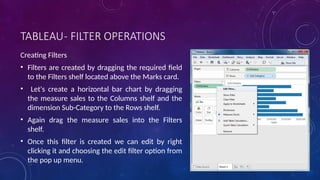
• Filters are created by dragging the required field
to the Filters shelf located above the Marks card.
• Let's create a horizontal bar chart by dragging
the measure sales to the Columns shelf and the
dimension Sub-Category to the Rows shelf.
• Again drag the measure sales into the Filters
shelf.
• Once this filter is created we can edit by right
clicking it and choosing the edit filter option from
the pop up menu.
CREATING FILTERS FOR MEASURES
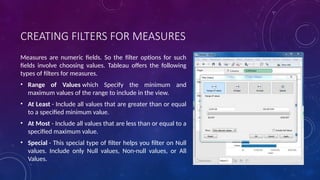
Measures are numeric fields. So the filter options for such
fields involve choosing values. Tableau offers the following
types of filters for measures.
• Range of Values which Specify the minimum and
maximum values of the range to include in the view.
• At Least - Include all values that are greater than or equal
to a specified minimum value.
• At Most - Include all values that are less than or equal to a
specified maximum value.
• Special - This special type of filter helps you filter on Null
values. Include only Null values, Non-null values, or All
Values.
CREATING FILTERS FOR MEASURES
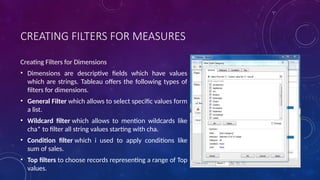
Creating Filters for Dimensions
• Dimensions are descriptive fields which have values
which are strings. Tableau offers the following types of
filters for dimensions.
• General Filter which allows to select specific values form
a list.
• Wildcard filter which allows to mention wildcards like
cha* to filter all string values starting with cha.
• Condition filter which i used to apply conditions like
sum of sales.
• Top filters to choose records representing a range of Top
values.
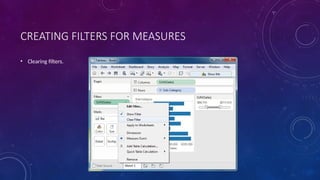
CREATING FILTERS FOR MEASURES
• Clearing filters.
TABLEAU- BASIC FILTERS
• Filtering is the process of removing certain values or range of values from a
result set.
• Tableau filtering feature allows both simple scenarios using field values as
well as advanced calculation or context based filters.
There are three types of basic filters available in Tableau.
• Filter Dimensions are the filters applied on the dimension fields.
• Filter Measures are the filters applied on the measure fields.
• Filter Dates are the filters applied on the date fields.
TABLEAU- BASIC FILTERS
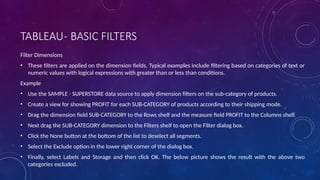
Filter Dimensions
• These filters are applied on the dimension fields. Typical examples include filtering based on categories of text or
numeric values with logical expressions with greater than or less than conditions.
Example
• Use the SAMPLE - SUPERSTORE data source to apply dimension filters on the sub-category of products.
• Create a view for showing PROFIT for each SUB-CATEGORY of products according to their shipping mode.
• Drag the dimension field SUB-CATEGORY to the Rows shelf and the measure field PROFIT to the Columns shelf.
• Next drag the SUB-CATEGORY dimension to the Filters shelf to open the Filter dialog box.
• Click the None button at the bottom of the list to deselect all segments.
• Select the Exclude option in the lower right corner of the dialog box.
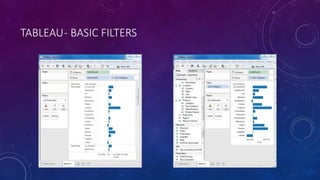
• Finally, select Labels and Storage and then click OK. The below picture shows the result with the above two
categories excluded.
TABLEAU- BASIC FILTERS
Filter Measures
• These filters are applied on the measure fields. Filtering is based on the calculations applied to the
measure fields. So, while in dimension filters we use only values to filter, in measures filter we use
calculations based on fields.
Example
• Use the SUPERSTORE data source to apply dimension filters on the average value of the profits.
• Create a view with ship mode and subcategory as dimensions and Average of profit as shown below.
• Drag the AVG (profit) value to the filter pane. Choose Average as the filter mode.
• Next choose "At least" and give a value to filter the rows which meet these criteria.
• On finishing the above steps we get the final view below showing only the SUBCATEGORIES whose
average PROFIT is greater than a value.
TABLEAU- BASIC FILTERS
Filter Dates
• Tableau treats the date field in three different ways while applying the date field. It can
apply filter by taking a relative date as compared to today, an absolute date or range of
dates. Each of this option is presented when a date field is dragged out of the filter pane.
Example
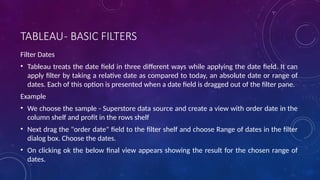
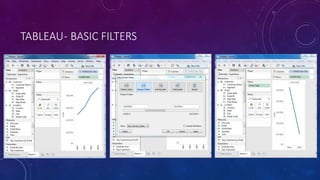
• We choose the sample - Superstore data source and create a view with order date in the
column shelf and profit in the rows shelf
• Next drag the "order date" field to the filter shelf and choose Range of dates in the filter
dialog box. Choose the dates.
• On clicking ok the below final view appears showing the result for the chosen range of
dates.
TABLEAU- BASIC FILTERS
TABLEAU- QUICK FILTERS
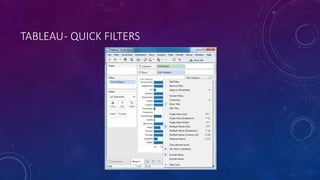
• Many filter types in Tableau are quickly available using right-click option on the dimension or
measure.
• Quick filters have enough functionality solve most of the common filtering needs.
Filter name Purpose
Single Value(List) Select one value at a time in a list.
Single Value(Dropdown) Select a single value in a drop-down list.
Multiple Values(List) Select one or more values in a list.
Multiple Values(Dropdown) Select one or more values in a drop-down list.
Multiple Values(Custom List) Search and select one or more values.
Single Value (Slider) Drag a horizontal slider to select a single value.
Wildcard Match Select values containing the specified characters.
TABLEAU- QUICK FILTERS
• Take the Sample-Superstore data source to apply
some quick filters.
• Choose sub-category as the row and sales as the
column which by default produces a horizontal bar
chart. Next we drag sub-category field to filters
pane.
• All the subcategories appear next to the chart. We
apply wildcard filtering using the expression a*
which selects all subcategory name starting with “a”.
• The below screen shows the result of applying this
filter where only the sub-categories starting with “A”
are displayed.
TABLEAU- QUICK FILTERS
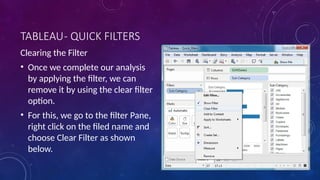
Clearing the Filter
• Once we complete our analysis
by applying the filter, we can
remove it by using the clear filter
option.
• For this, we go to the filter Pane,
right click on the filed name and
choose Clear Filter as shown
below.
TABLEAU- CONTEXT FILTERS
• The normal filters in Tableau are independent of each other. It means each of the
filter reads all the rows from the source data and creates its own result. But there
may be scenarios where we want the second filter to process only the records
returned by the first filter. So in this case the second filter is known as dependent
filters because they process only the data that passes through the context filter.
Context Filters serve two main purposes.
• Improve performance – If you set a lot of filters or have a large data source, the
queries can be slow. You can set one or more context filters to improve
performance.
• Create a dependent numerical or top N filter – You can set a context filter to
include only the data of interest, and then set a numerical or a top N filter.
TABLEAU- CONTEXT FILTERS
Creating Context Filter
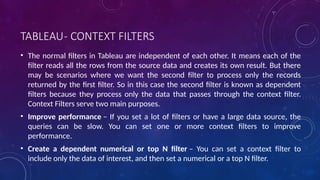
• Using the Sample-superstore, let's find the top
10 sub-Category of products for the category
called furniture .To achieve this objective we
follow the below steps.
Step-1
• Drag the dimension sub-Category to the Rows
shelf and the measure Sales to the Columns
Shelf.
• Choose horizontal bar chart as chart type.
• Drag the dimension Sub-Category again to the
filters shelf. We get the chart.
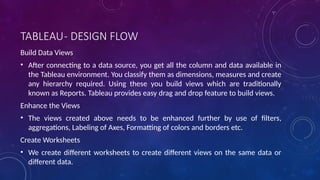
TABLEAU- CONTEXT FILTERS
Step-2
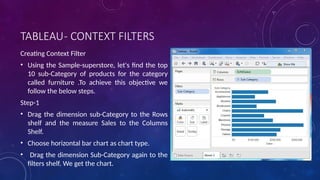
• Right click on the field Sub-Category in the filter shelf and go the fourth tab named Top.
Choose the option by field. From the next drop down choose the option Top 10 by Sales Sum
as shown below.
Step-3
• Drag the dimension Category to the filter shelf. Right click it to edit and under the general tab
choose Furniture from the list. As you can see the result shows three subcategory of
products.
Step-4
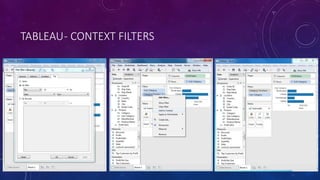
• Right click the Category-Furniture filter and select the option Add to Context. This produces
the final result which shows the subcategory of products from the category Furniture which
are among top 10 subcategories across all the products.
TABLEAU- CONTEXT FILTERS
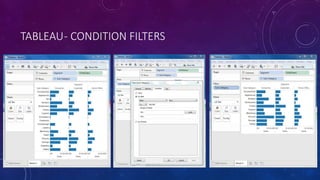
TABLEAU- CONDITION FILTERS
One of the important filtering options in Tableau is to apply some conditions to already
existing filters. These conditions can be very simple like finding only those sales which are
higher than certain amount or it can be a complex one based on certain formula. The
conditions can also be applied to create a range filter.
• Creating Condition Filter
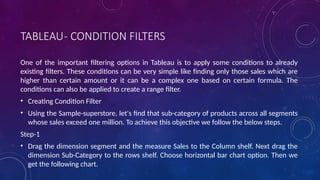
• Using the Sample-superstore, let's find that sub-category of products across all segments
whose sales exceed one million. To achieve this objective we follow the below steps.
Step-1
• Drag the dimension segment and the measure Sales to the Column shelf. Next drag the
dimension Sub-Category to the rows shelf. Choose horizontal bar chart option. Then we
get the following chart.
TABLEAU- CONDITION FILTERS
• Step-2
• Drag the dimension Sub-Category to the Filters Shelf. Right click it to
edit and go to the tab Condition. Here choose the radio option by
field. From the drop downs select Sales, Sum and greater than equal
to symbol specifying the value 100000.
• On finishing the above two steps we get a chart which shows only
those subcategory of products which have the required amount of
sale. Also this is shown for all the available segments where the
condition is met.
TABLEAU- CONDITION FILTERS
TABLEAU- TOP FILTERS
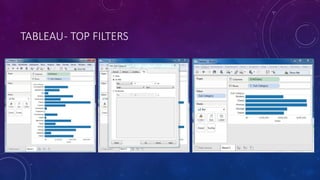
• The Top option in Tableau filter is used to limit the result set from a filter. For example, from a large set of records on
sales we want only the top 10 values. We can apply this filter using the inbuilt options for limiting the records in many
ways or by creating a formula. In this chapter we will explore the inbuilt options.
Creating Top Filter
• Using the Sample-superstore, let's find that sub-category of products which represent the top 5 sales amount. To
achieve this objective we follow the below steps.
• Step-1
• Drag the dimension Sub-Category to the Rows shelf and the Measure Sales to the Columns shelf. Choose the horizontal
bar as chart type. Tableau shows the below chart.
• Step-2
• Right click on the field Sub-Category and go to the tab named Top. Here we choose the second radio option by field.
Choose the option Top 5 by Sum of Sales using the dropdown options.
• On finishing the above step we get the below chart which shows the top 5 Sub-Category of products by sales.
TABLEAU- TOP FILTERS
CHARTS IN TABLEAU
• Bar Chart
• Line Chart
• Pie Chart
• Crosstab
• Scatter Plot
• Bubble Chart
• Bullet Graph
• Box Plot
• Tree Map
• Bump Chart
• Gannt Chart
• Histogram
• Motion Charts
• Waterfall Charts
TABLEAU- BAR CHART
• A bar chart represents data in rectangular bars with length of the bar proportional
to the value of the variable.
• Tableau automatically produces a bar chart when you drag a dimension to the row
shelf and measure to the column shelf.
• Can also use the bar chart option present in the Show Me button.
• If the data is not appropriate for bar chart then this option will be automatically
greyed out.
• In Tableau various types of Bar charts can be created by using a dimension and a
measure.
TABLEAU- BAR CHART
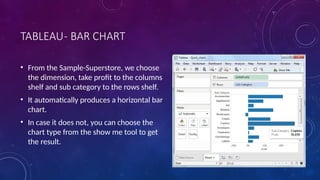
• From the Sample-Superstore, we choose
the dimension, take profit to the columns
shelf and sub category to the rows shelf.
• It automatically produces a horizontal bar
chart.
• In case it does not, you can choose the
chart type from the show me tool to get
the result.
TABLEAU- BAR CHART
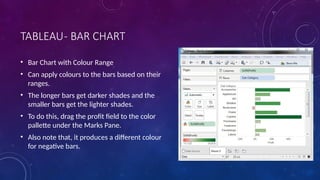
• Bar Chart with Colour Range
• Can apply colours to the bars based on their
ranges.
• The longer bars get darker shades and the
smaller bars get the lighter shades.
• To do this, drag the profit field to the color
pallette under the Marks Pane.
• Also note that, it produces a different colour
for negative bars.
TABLEAU- BAR CHART
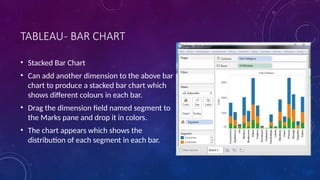
• Stacked Bar Chart
• Can add another dimension to the above bar
chart to produce a stacked bar chart which
shows different colours in each bar.
• Drag the dimension field named segment to
the Marks pane and drop it in colors.
• The chart appears which shows the
distribution of each segment in each bar.
TABLEAU- LINE CHART
• In a line chart a measure and a dimension are taken along the two
axes of the chart area.
• The pair of values for each observation becomes a point and the
joining of all these points create a line showing the variation or
relationship between the dimensions and measures chosen.
TABLEAU- LINE CHART
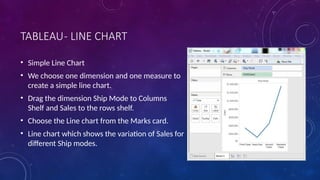
• Simple Line Chart
• We choose one dimension and one measure to
create a simple line chart.
• Drag the dimension Ship Mode to Columns
Shelf and Sales to the rows shelf.
• Choose the Line chart from the Marks card.
• Line chart which shows the variation of Sales for
different Ship modes.
TABLEAU- LINE CHART
• Multiple Measure Line Chart
• Can use one dimension with two or
more measures in a line chart.
• This will produce multiple line charts
each in one pane.
• Each pane represents the variation of
the dimension with the one of the
measures.
TABLEAU- LINE CHART
• Line Chart with Label
• Each of the points making the line chart
can be labeled to make the values of the
measure visible.
• In this case drop another measure Profit
Ratio into the labels pane in the Marks
card.
• Choose average as the aggregation and we
get the below chart showing the labels.
TABLEAU- PIE CHART
• A pie chart represents data as slices of a circle with different sizes
and colours.
• The slices are labeled and the numbers corresponding to each slice
is also represented in the chart.
• Can select the Pie chart option from the Marks card to create a pie
chart.
TABLEAU- PIE CHART
• Simple Pie Chart
• Can choose one dimension and one measure to
create a simple pie chart.
• Example, take the dimension named region with the
measure named profit.
• Drop the Region dimension in the colors and and
label marks.
• Drop the Profit measure into the size mark.
• Choose the chart type as Pie.
• Chart appears which shows the 4 regions in different
colours.
TABLEAU- PIE CHART
• Drill Down Pie Chart
• Can choose a dimension with hierarchy and as we go
deeper into the hierarchy the chart changes reflecting
the level of the dimension chosen.
• Example, take the dimension subcategory which has
two more levels - Manufacturer & Product Name.
• Take the measure profit and drop it to the Labels mark.
• The pie chart below appears which shows the values
for each slice.
TABLEAU- PIE CHART
• Going one more level into the
hierarchy, can get the
manufacturer as the label and
the above pie chart changes
more.
TABLEAU- CROSSTAB
• A crosstab chart in tableau is also called a Text table which shows
the data in textual form.
• The chart is made up of one or more dimension and one or more
measures.
• This chart can also show various calculations on the values of the
measure field like running total, percentage total etc.
TABLEAU- CROSSTAB
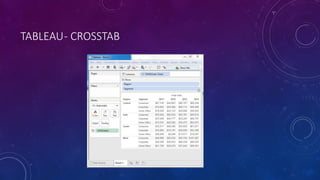
Simple Cross Tab
• Using the Sample-superstore let's plan to get the amount of sales for each
segment in each region. To display this data for each year using the order
dates available. To achieve this objective we follow the below steps.
• Step -1 Drag and drop the dimension order date to the columns shelf.
• Step-2 Drag and drop the dimensions region and segment to the rows shelf.
• Step-3 Pull the measure Sales to the labels Shelf under Marks.
TABLEAU- CROSSTAB
TABLEAU- CROSSTAB
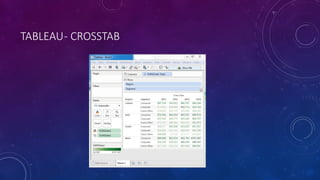
• Cross Tab - Color Encoded
• Can get the values color encoded in the cross tab chart by
dropping the measure field into the color shelf.
• This color coding shows the strength of the color depending on the
value of the measure.
• The larger values have a darker shade than the lighter values.
TABLEAU- CROSSTAB
TABLEAU- CROSSTAB
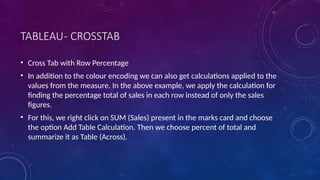
• Cross Tab with Row Percentage
• In addition to the colour encoding we can also get calculations applied to the
values from the measure. In the above example, we apply the calculation for
finding the percentage total of sales in each row instead of only the sales
figures.
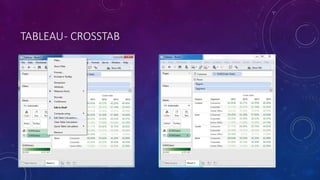
• For this, we right click on SUM (Sales) present in the marks card and choose
the option Add Table Calculation. Then we choose percent of total and
summarize it as Table (Across).
TABLEAU- CROSSTAB
TABLEAU- SCATTER PLOT
• As the name suggests a scatter plot shows many points scattered in the
Cartesian plane.
• It is created by plotting values of numerical variables as X and Y coordinates in
the Cartesian plane.
• Tableau takes at least one measure in the rows shelf and one measure in the
columns shelf to create a scatter plot.
• But we can add dimension fields to the scatter plot which play a role in
marking different colours for the already existing points in the scatter graph.
TABLEAU- SCATTER PLOT
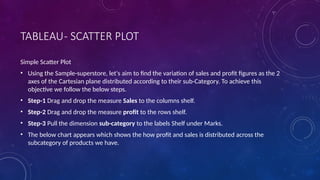
Simple Scatter Plot
• Using the Sample-superstore, let's aim to find the variation of sales and profit figures as the 2
axes of the Cartesian plane distributed according to their sub-Category. To achieve this
objective we follow the below steps.
• Step-1 Drag and drop the measure Sales to the columns shelf.
• Step-2 Drag and drop the measure profit to the rows shelf.
• Step-3 Pull the dimension sub-category to the labels Shelf under Marks.
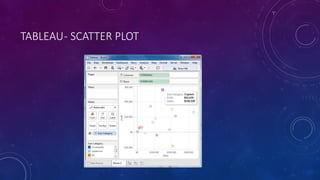
• The below chart appears which shows the how profit and sales is distributed across the
subcategory of products we have.
TABLEAU- SCATTER PLOT
• Scatter Plot - Color Encoded
• We can get the values color encoded by
dragging the dimension Sub-Category to
the color Shelf under the Marks card. This
chart shows the scatter points with
different color for each point.
TABLEAU- SCATTER PLOT
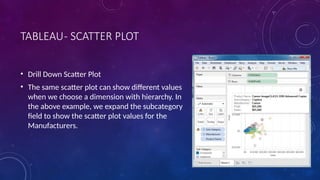
• Drill Down Scatter Plot
• The same scatter plot can show different values
when we choose a dimension with hierarchy. In
the above example, we expand the subcategory
field to show the scatter plot values for the
Manufacturers.
TABLEAU- BUBBLE CHART
• Bubble charts display data as a cluster of circles.
• Each of the values in the dimension field represents a circle
whereas the values of measure represent the size of those circles.
• As the values are not going to be presented in any row or column,
we drag the required fields to different shelves under the marks
card.
TABLEAU- BUBBLE CHART
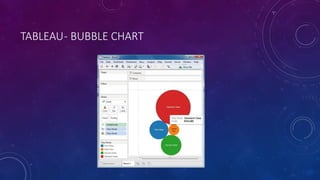
• Simple Bubble Chart
• Using the Sample-superstore let's plan to find the size of profits for different
ship mode. To achieve this objective we follow the below steps.
• Step -1 Drag and drop the measure profit in to the size shelf under Marks
card.
• Step-2 Drag and drop the dimension ship mode to the labels shelf under
Marks card.
• Step-3 Pull the dimension ship mode to the colors Shelf under Marks card.
TABLEAU- BUBBLE CHART
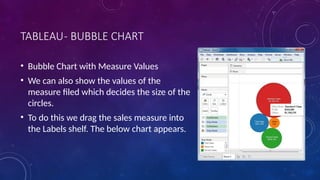
• Bubble Chart with Measure Values
• We can also show the values of the
measure filed which decides the size of the
circles.
• To do this we drag the sales measure into
the Labels shelf. The below chart appears.
TABLEAU- BUBBLE CHART
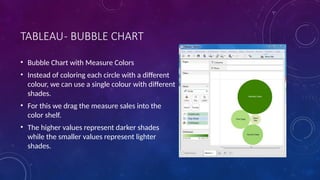
• Bubble Chart with Measure Colors
• Instead of coloring each circle with a different
colour, we can use a single colour with different
shades.
• For this we drag the measure sales into the
color shelf.
• The higher values represent darker shades
while the smaller values represent lighter
shades.
TABLEAU- BULLET GRAPH
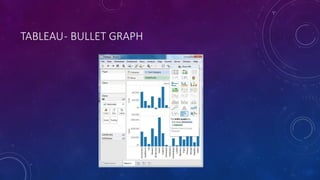
• A bullet chart is a variation of Bar chart.
• In this chart we compare the value of one measure with another
measure in context of finding the variation in the first measure
within a range of variations in the second measure.
• It is like two bars drawn upon one another to indicate their individual
values at the same position in the graph. It can be thought of as
combining two graphs as one to view a comparative result easily.
TABLEAU- BULLET GRAPH
Creating Bubble Chart
• Using the Sample-superstore let's plan to find the size of profits for the respective sales
figures in each sub-category. To achieve this objective we follow the below steps.
• Step-1
• Drag and drop the dimension Sub-Category from the data pane into the column shelf.
• Step-2
• Drag and drop the measures profit and sales to the rows shelf.
• The below chart appears which shows the two measures as two separate categories of bar
charts each representing the values for sub-categories.
TABLEAU- BULLET GRAPH
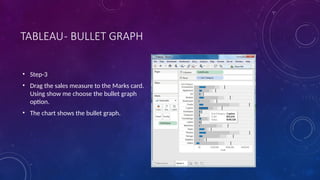
• Step-3
• Drag the sales measure to the Marks card.
Using show me choose the bullet graph
option.
• The chart shows the bullet graph.
TABLEAU- BOX PLOT
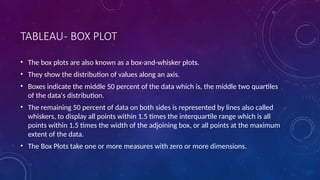
• The box plots are also known as a box-and-whisker plots.
• They show the distribution of values along an axis.
• Boxes indicate the middle 50 percent of the data which is, the middle two quartiles
of the data's distribution.
• The remaining 50 percent of data on both sides is represented by lines also called
whiskers, to display all points within 1.5 times the interquartile range which is all
points within 1.5 times the width of the adjoining box, or all points at the maximum
extent of the data.
• The Box Plots take one or more measures with zero or more dimensions.
TABLEAU- BOX PLOT
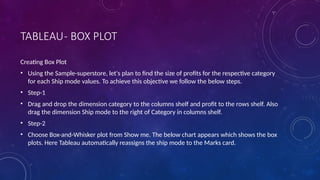
Creating Box Plot
• Using the Sample-superstore, let's plan to find the size of profits for the respective category
for each Ship mode values. To achieve this objective we follow the below steps.
• Step-1
• Drag and drop the dimension category to the columns shelf and profit to the rows shelf. Also
drag the dimension Ship mode to the right of Category in columns shelf.
• Step-2
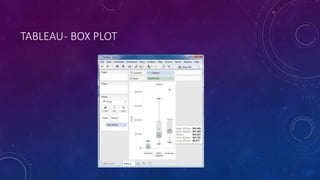
• Choose Box-and-Whisker plot from Show me. The below chart appears which shows the box
plots. Here Tableau automatically reassigns the ship mode to the Marks card.
TABLEAU- BOX PLOT
TABLEAU- BOX PLOT
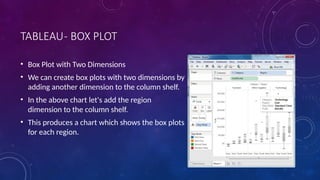
• Box Plot with Two Dimensions
• We can create box plots with two dimensions by
adding another dimension to the column shelf.
• In the above chart let's add the region
dimension to the column shelf.
• This produces a chart which shows the box plots
for each region.
TABLEAU- TREE MAP
• The tree map displays data in nested rectangles.
• The dimensions to define the structure of the tree map and measures to
define the size or color of the individual rectangle.
• The rectangles are easy to visualize as both the size and shade of the color of
the rectangle reflect the value of the measure.
• A Tree Map is created using one or more dimension with one or two
measures.
TABLEAU- TREE MAP
Creating Tree Map
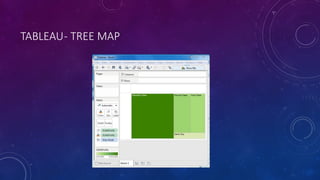
• Using the Sample-superstore, let's plan to find the size of profits for each Ship mode
values. To achieve this objective we follow the below steps.
• Step-1
• Drag and drop the measure profit two times to the Marks Card. Once to the size shelf
and again to the color shelf.
• Step-2
• Drag and drop the dimension ship mode to the Label shelf. Choose the chart type Tree
Map from Show me. The below chart appears.
TABLEAU- TREE MAP
TABLEAU- TREE MAP
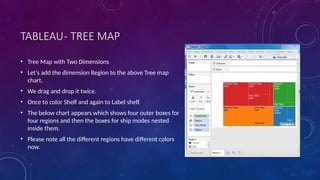
• Tree Map with Two Dimensions
• Let’s add the dimension Region to the above Tree map
chart.
• We drag and drop it twice.
• Once to color Shelf and again to Label shelf.
• The below chart appears which shows four outer boxes for
four regions and then the boxes for ship modes nested
inside them.
• Please note all the different regions have different colors
now.
TABLEAU- BUMP CHART
• A Bump Chart is used to compare two Dimensions against each
other using one of the Measure value.
• They are very useful for exploring the changes in Rank of a value
over a time dimension or place dimension or some other
dimension relevant to the analysis.
• The Bump Chart takes two dimensions with zero or more
measures.
TABLEAU- BUMP CHART
Creating Bump Chart
• Using the Sample-superstore,let's plan to find the variation of ship mode of
products with the variation of the sub-category. To achieve this objective we
follow the below steps.
• Step-1
• Drag and drop the dimension sub-category to the columns shelf. Also drag the
dimension Ship mode to the color shelf under Marks card. Leave the chart
type to Automatic.Then we get the below chart.
TABLEAU- BUMP CHART
TABLEAU- BUMP CHART
• Step-2
• Next we create a calculated field called Rank. Go to Analysis -> Create calculated
Field. Use Rank as the field name and write the expression index () in the
calculation area. It is a inbuilt function that creates an index for the current row in
the partition. Click OK and the new field will be visible in the measures section.
Right click on the field Rank and convert it to discrete.
• Step-3
• Drag Rank to the rows shelf. The below chart appears which shows the dimension
sub-category with each ship mode arranged in increasing order of their Rank value.
TABLEAU- BUMP CHART
TABLEAU- BUMP CHART
• Step-4
• Next we apply some more calculation to
the rank field using the measure Profit.
Right on Rank and choose Edit Table
calculation. Choose sorting by the field
profit using partition by sub-category and
addressed by ship mode. The below
picture shows the calculations applied.
• On finishing the above steps we get the
bump chart as shown below. It shows the
variation of profit for each ship mode
across various sub-categories.
TABLEAU- GANNT CHART
• A Gantt chart shows the progress of the value of a task or resource over a
period of time.
• It is extensively used in project management and other types of study of
variation over a period of time.
• In Gantt chart a time dimension is an essential field.
• The Gantt chart takes at least a dimension and a measure in addition to the
time dimension.
TABLEAU- GANNT CHART
Creating Gantt Chart
• Using the Sample-superstore let,s plan to find the variation of quantities of
different sub-category of products according to their ship mode over a range of
time. To achieve this objective we follow the below steps.
• Step-1
• Drag the dimension order date to the columns shelf and sub-category to the rows
shelf. Next we add the order date to the filters shelf. Also right click on order date
to convert it to exact date values. It is done as shown in the below diagram.
TABLEAU- GANNT CHART
• Step-2
• Next we edit the filter
condition to select a range
of dates. It is because we
want individual date
values and there is a very
large number of dates in
the data. The range is
created as shown below.
TABLEAU- GANNT CHART
• Step-3
• Next we drag the dimension
ship mode to the color shelf
and the measure Quantity to
the size shelf under the
Marks card. This produces
the Gantt chart as shown
below.
TABLEAU- HISTOGRAM
• A histogram represents the frequencies of values of a variable bucketed into
ranges.
• Histogram is similar to bar chart but it groups the values into continuous
ranges.
• Each bar in histogram represents the height of the number of values present
in that range.
• Tableau creates a histogram by taking one measure.
• It creates an additional bin field for the measure used in creating histogram.
TABLEAU- HISTOGRAM
Creating Histogram
• Using the Sample-superstore, let's plan to find the of quantities of sales for different
regions.
• To achieve this objective we follow the below steps.
• Drag the Measure named Quantity to the Rows shelf.
• Then open Show Me and select Histogram chart.
• The below diagram shows the chart created.
• It shows the quantities automatically bucketed into values ranging from 0 to 4811 and
divided into 12 bins.
TABLEAU- HISTOGRAM
• Creating Histogram with Dimension
• We can also add Dimensions to Measures to create histograms.
That will create a stacked histogram. Each bar will have stacks
representing the values of the dimension. Following the steps of
the above example we add the Region Dimension to the color
Shelf under Marks Card. That creates the below histogram where
each bar also includes the visualization for different regions.
TABLEAU- HISTOGRAM
TABLEAU- MOTION CHARTS
• Motion charts show data using the x and y-axes, displaying changes
over time by showing movement of data points within the defined
space as well as changes in the color of the lines.
• The main advantage of motion chart is to view the entire trail of how
the data has changed over time and not just a snapshot of the data.
• Tableau needs one Time Dimension and one Measure to create
Motion chart.
TABLEAU- MOTION CHARTS
• Creating Motion Chart
• Using the Sample-superstore let's plan to find the variation of Profits over the
months. To achieve this objective we follow the below steps.
• Step-1
• Drag the Dimension Order Date to the Columns Shelf. Drag it again to the
Pages Shelf. In the Pages shelf right click on Order Date and choose Month.
Then drag the measure Profit to the Rows Shelf. The following chart appears.
TABLEAU- MOTION CHARTS
• Step-2
• Put Check mark on the box next to Show History and then click on
the drop down arrow next to it. For “Marks to Show History For”
select “All”. Then under “Show”, select “Both”. Selecting “Marks”
shows only the points and selecting “Trails” shows only the line.
Click on the Play button. The following chart appears.
• Step-3
• Allowing the chart to run from January to December will create
the chart which shows how the profits have varied over each
month for all the years. Note that as the data changes the recent
months get a darker shade of the colour and the historical data
gets a lighter shade of the colours.
• Below is the chart after the motion chart is played for all the
months of the year.
TABLEAU- MOTION CHARTS
TABLEAU- WATERFALL CHARTS
• Waterfall charts effectively display the cumulative effect of sequential positive
and negative values.
• It shows where a value starts, ends and how it gets there incrementally.
• So we are able to see both the size of changes and difference in values
between consecutive data points.
• Tableau needs one Dimension and one Measure to create a waterfall chart.
TABLEAU- WATERFALL CHARTS
Creating Waterfall Chart
• Using the Sample-superstore, let's plan to find the variation of Sales for each
sub-category of Products. To achieve this objective we follow the below steps.
• Step-1
• Drag the Dimension sub-category to the columns shelf and the Measure Sales
to the Rows shelf. Sort the data in ascending order of sales value. For this use
the sort option appearing in the middle of the vertical axis when you hover
mouse around it. The below chart appears on completing this step.
TABLEAU- WATERFALL CHARTS
• Step-2
• Next right on the SUM (Sales) value and select running total from the table
calculation option. Change the chart type to Gantt Bar. The below chart appears.
• Step-3
• Create a calculated field named -sales and mention the following formula for its
value.
• Step-4
• Drag the newly created calculated field (-sales) to the size shelf under Marks Card.
The chart above now changes to produce the following chart which is a waterfall
chart.
TABLEAU- WATERFALL CHARTS
• Waterfall Chart with Color
• Next we can give different color shades to the bars in the chart by dragging the Sales measure to the color
shelf under the Marks Card. We get the below waterfall chart with color.
TABLEAU- DASHBOARD
• A Dashboard is a consolidated display of many worksheets and related information in a single place.
• It is used to compare and monitor a variety of data simultaneously.
• The different data views are displayed all at once.
• Dashboards are shown as tabs at the bottom of the workbook and they usually get updated with the
most recent data from the data source.
• While creating a dashboard, we can add views from any worksheet in the workbook along with many
supporting objects such as text areas, web pages, and images.
• Each view you add to the dashboard is connected to its corresponding worksheet.
• So when you modify the worksheet, the dashboard is updated and when you modify the view in the
dashboard, the worksheet is updated.
TABLEAU- DASHBOARD
Creating a Dashboard
• Using the Sample-superstore, let's plan to create a dashboard showing the sales and profits for different
segments and subcategory of products across all the states. To achieve this objective we follow the
below steps.
• Step-1
• Create a blank worksheet by using the add worksheet icon located at the bottom of the workbook.
• Drag the dimension SEGMENT to the columns shelf and the dimension SUB-CATEGORY to the Rows Shelf.
• Drag and drop the measure SALES to the color shelf and the measure PROFIT to the Size shelf.
• This worksheet is referred as the Master worksheet. Right click and rename this worksheet as
Sales_Profit.
TABLEAU- DASHBOARD
TABLEAU- DASHBOARD
• Step-2
• Next we create another sheet to hold the details of the Sales across the States.
• For this drag the dimension STATE to the Rows shelf and the measure SALES to the
Columns shelf. Next we apply a filter to the State field to arrange the Sales in
descending order. Right click and rename this worksheet as Sales_state. Follow the
diagram below to create this sheet.
• Step-3
• Next we create a blank dashboard by clicking on the create new dashboard link at the
bottom of the workbook. Right click and rename the dashboard as Profit-Dashboard.
TABLEAU- DASHBOARD
• Step-4
• Drag the two worksheets to the dashboard. Near the top border line of Sales Profit worksheet, you can
see three small icons. Click on the middle one which shows the prompt Use as filter on hovering the
mouse above it.
• Step-5
• Now in the dashboard click on the box representing Sub-category named Machines and segment named
Consumer.
• you can notice that only the states where the sales happened for this amount of profit are filtered out in
the right pane named Sales_state. So this illustrates how the sheets are linked in a dashboard.
TABLEAU- DASHBOARD
TABLEAU- FORMATTING
• Tableau has a very wide variety of formatting options to change
the appearance of the visualizations created.
• You can modify nearly every aspect like fonts, colors, size and
layout etc.
• You can format both the content and containers like tables, labels
of axes and workbook theme etc.
TABLEAU- FORMATTING
Formatting the Axes
• Let’s create a simple bar chart by dragging and dropping the dimension Sub-Category into the
Columns Shelf and the measure Profit into the Rows shelf. Click on the vertical axis and
highlight it. Then right click it and chose format.
Change the Font
• Click on the font drop down in the Format bar which appears in the left. We choose the font
type as Arial and size as 8pt. as shown below.
Change the Shade and Alignment
• Next we can also change the orientation of the values in the axes as well as the shading color as
shown below.
TABLEAU- FORMATTING
TABLEAU- FORMATTING
Format Borders
• Let’s see a crosstab chart with Sub-Category in the Columns shelf and State in the Rows shelf.
• Now we can change the borders of the crosstab table created by using the formatting options.
• Right click on crosstab chart and choose Format.
• The Format Borders appear in the left pane. Choose the options as shown below.
TABLEAU- FORMATTING
TABLEAU- FORECASTING
• Forecasting is about predicting the future value of a measure.
• There are many mathematical models for forecasting.
• Tableau uses the model known as exponential smoothing.
• In exponential smoothing, recent observations are given relatively more weight than
older observations.
• These models capture the evolving trend or seasonality of the data and extrapolate them
into the future.
• The result of a forecast can also become a field in the visualization created.
• Tableau takes one time dimension and one measure field to create forecast.
TABLEAU- FORECASTING
• Creating a Forecast
• Using the Sample-superstore, let's forecast the value of the
measure sales for next year .To achieve this objective we
follow the below steps.
• Step-1
• Create a line chart with Order Date (Year) in the columns shelf
and Sales in the Rows shelf. Go to the Analysis tab as shown
below and click on Forecast under Model.
TABLEAU- FORECASTING
• Step-2
• On completing the above step we get the option to set
various options for forecast. We choose the Forecast
Length as 2 Years and leave the Forecast Model to
Automatic as shown below.
TABLEAU- FORECASTING
• Describe Forecast
• We can also get the minute details of the forecast model by choosing the option Describe Forecast. We
get this option by right clicking on Forecast diagram.
TABLEAU- TREND LINES
• Trend lines are used to predict the continuation of certain trend of a variable.
• It also helps to identify the correlation between two variables by observing the
trend in both of them simultaneously.
• There are many mathematical models for establishing trend lines.
• Tableau gives us four options. They are Linear, Logarithmic, Exponential and
Polynomial.
• We will look into the linear model
• Tableau takes one time dimension and one measure field to create a Trend Line.
TABLEAU- TREND LINES
• Creating Trend Line
• Using the Sample-superstore, let's find the trend for the value of
the measure sales for next year .To achieve this objective we follow
the below steps.
• Step-1
• Drag the dimension Order date to the column Shelf and the
measure Sales to the rows shelf. Choose the chart type as Line
chart. In the Analysis menu go to model -> Trend Line.Clicking on it
brings up a pop up showing different types of trend lines that can
be added. We choose the linear model.
TABLEAU- TREND LINES
• Step-2
• On finishing the above step we get various trend lines. It also shows
the mathematical expression for the correlation between the fields,
the P-Value and the R-Squared value.
TABLEAU- TREND LINES
• Describe the Trend Line
• We can also get a very detailed description of the Trend Line chart
by right clicking on the chart and selecting the option Describe
Trend Line.
• It shows the coefficients, intercept value and the equation.
• These details can also be copied to clipboard and used in further
analysis.
TABLEAU- FORMAT GEOGRAPHIC FIELDS
• A geographic role associates each value in a field with a latitude and longitude value.
• When you assign a geographic role to a field, Tableau assigns latitude and longitude
values to each location in your data based on data that is already built in to the
Tableau map server.
• Tableau recognizes location data and assigns geographic roles to geographic fields
(e.g. Country, State, City).
• Tableau does not recognize location data and formats your geographic fields as
either numbers or strings.
• If Tableau recognizes your location data and automatically assigns geographic roles
to your fields (there will be a globe icon next to them in the Data pane), then it is
ready to build a map view.
TABLEAU- FORMAT GEOGRAPHIC FIELDS
• If Tableau does not immediately recognize location
data, and can't build a map view, it is a need to
assign geographic roles to your fields.
• When a field is assigned a geographic role, Tableau
creates a map view when add the field to Detail on
the Marks card. In other words, Tableau geocodes
the information in that field.
• In the Data pane, click the data type icon next to
the field, select Geographic Role, and then select
the geographic role , want to assign to the field.
• Tableau adds two fields to the Measures area of
the Data pane: Latitude (generated) and Longitude
(generated).
TABLEAU – TYPES OF GEOGRAPHIC FIELDS
Geographic Role Assign this role to a field if it contains:
Airport
International Air Transport Association (IATA) or International Civil Aviation Organization
(ICAO) airport codes.
Area Code (U.S.) U.S. telephone area codes; numbers only.
CBSA/MSA (U.S.)
U.S. Core Based Statistical Areas (CBSA), which includes Metropolitan Statistical Areas (MSA),
as defined by the U.S. Office of Management and Budget. CBSA/MSA Codes and Names are
recognized.
City Worldwide cities with population of 15,000 or more. Names are in English, French, German,
Spanish, Brazilian-Portuguese, Japanese, Korean, and Chinese.
Congressional District
(U.S.)
U.S. congressional districts.
TABLEAU – TYPES OF GEOGRAPHIC FIELDS
Country/Region
Worldwide countries, regions, and territories. Names are in English, French, German, Spanish,
Brazilian-Portuguese, Japanese, Korean, and Chinese. Tableau also recognizes, FIPS 10, ISO
3166-1 alpha 2, and ISO 3166-1 alpha 3. Names are included in various forms, including long,
short, and various abbreviations.
County
Second-level administrative divisions for select countries. For example, U.S. counties, French
départements, German kriese, etc.
Note: Second-level administrative division definitions vary by country. In Tableau, all second-
level administrative divisions are geocoded with the County geographic role.
NUTS Europe NUTS (Nomenclature of Territorial Units for Statistics) levels 1 - 3 codes. Codes and names,
including synonyms, are supported.
Latitude Latitude in decimal degrees. Only available for numeric fields.
Longitude Longitude in decimal degrees. Only available for numeric fields.
TABLEAU – TYPES OF GEOGRAPHIC FIELDS
State/Province
Worldwide state, province, and other first-level administrative divisions. Names are in English,
French, German, Spanish, Brazilian-Portuguese, Japanese, Korean, and Chinese. Note: Some
names are available only in their local form.
ZIP Code/Postcode
ZIP codes and postcodes for select countries. For example, U.S. five-digit zip codes, Australian
four-digit postcodes, German five-digit postcodes, etc.
GEO MAPS
• Open Superstore
• Load Orders Sheet
• Double Click on COUNTRY
Dimension
• Automatically Loads
Latitude and Longitude
GEO MAPS
• Open Superstore
• Load Orders Sheet
• Double Click on COUNTRY
Dimension
• Loads Latitude and Longitude
• Drag Profit to Color Shelf in Marks
Pane
• Drag Sales to Label Shelf in Marks
Pane
DASHBOARD USING GEO MAPS
• Open Superstore
• Load Orders Sheet
• Segment to Column
• Subcategory to Row
• Drag Profit to Color Shelf in Marks Pane
• Drag Sales to Label Shelf in Marks Pane
• Load Previous & Present Sheets to Dashboard and Apply Filter
TABLEAU- PARAMETERS
• Parameters are dynamic values that can replace constant
values in calculations, filters, and reference lines.
• Can replace the constant value in the formula with a
parameter.
• Using the Parameter control you can dynamically change
the threshold in your calculation.
TABLEAU- PARAMETERS
• Create a Parameter
• Show the Parameter
• Apply on Calculated Field
• Use the Calculated Field on View
TABLEAU- PARAMETERS
• Create a Parameter
• Next to Dimension Click to
Create Parameter
• Give Name of Parameter
• Select the List of Parameter
• Fill the Value and Display as
Options
TABLEAU- PARAMETERS
• Show the Parameter Control
• Right Click on the Parameter under
Measures
• Select Show Parameter Control
• The Control will be displayed on
Right Corner of the WorkSheet
• Select the Single Value List
TABLEAU- PARAMETERS
• Use on the Calculated Field
• Create a Calculated Field - Param_Prof_Sales
• Apply the Formula –
CASE[Sum of Profit or Sum of Sales]
WHEN 1 THEN SUM([Profit])
WHEN 2 THEN SUM([Sales])
END
TABLEAU- PARAMETERS
• Use the Calculated Field on View
• Drag Market to Column
• Drag Param_Prof_Sales to Row
• Can Control the Profit / Sales in Radio Button
• Edit Remove the Title of the Axis
• Include the Value of the Parameter in the Sheet
Title to show the Param Value Control
TABLEAU- GROUP
• Can Create a group from a dimension in the Data pane.
• Regardless of how you create a group, a new group field is added to
the Data pane.
• Can use the group field like other fields in the view, adding it to the
Columns or Rows shelves, to the Marks card, or to the Filters shelf.
• When Create a group by selecting headers or marks in the view, the
view is updated to use the grouped field.
TABLEAU- GROUP
• Press and hold the CTRL or Shift key on the keyboard to
multi-select headers in the view
To create a group, do one of the following:
• On Tableau Desktop, click the Group button on the toolbar,
right-click and select Group or click the Group icon on the
tooltip.
• On Tableau Server or Tableau Online, click the Group icon on
the tooltip.
• The selected members are combined into a single member.
The view now shows the SUM(Sales) across all binders,
envelopes and fasteners as a single mark. A default is
automatically constructed using the combined member
names. The dimension on the Rows or Columns shelf is
replaced with the new grouped field.
TABLEAU- GROUP
• Can visually identify groups of related marks by selecting marks
directly.
• This technique is especially useful when working with a scatter plot
or a view that doesn't have headers that you can select when
defining the group.
• Press and hold the CTRL or Shift key on the keyboard to select one
or more marks in the view. On a Mac, use the Shift key.
• To create a group do one of the following:
• For Tableau Desktop, click the Group button on the toolbar or
right-click and select Group.
• For Tableau Server or Tableau Online, click the Group icon on the
tooltip.
• The selected marks are grouped and all other members are
combined into an "Other" category. The new group field is
automatically added to Color.
TABLEAU- GROUP
• When create groups by selecting marks, it's
possible that the marks will represent multiple
dimensions.
• Example, may have a scatter plot that shows the
Sales vs. Profit by Region and Sub-Category.
• In this case, a selection of marks will represent
members of both the Region and Sub-Category
dimensions. When the selection represents
multiple dimensions, the Group menu lets you
choose to group on All Dimensions or on a
particular dimension.
TABLEAU- GROUP
• Whenever create a group, a group field is added to the Data pane.
• When create a group by selecting headers or marks in the view, the
new group field is also added to the view either on the Rows or
Columns shelf or to Color on the Marks card.
• Instead of creating a group by selections in the view, in Tableau
Desktop, you can create a group directly from a dimension in
the Data pane.
• Right-click (control-click on Mac) a dimension in the Data pane and
select Create > Group.
• In the Create Group dialog box, select several members that you
want to group. Press and hold the CTRL key (the Command key on a
Mac) on your keyboard to select multiple members.
• Click the Group button at the bottom of the dialog box.
TABLEAU- SETS
• Sets are custom fields that define a subset of data based on some conditions.
• A set can be based on a computed condition, for example, a set may contain
customers with sales over a certain threshold.
• Computed sets update as your data changes. Alternatively, a set can be based on
specific data point in your view.
• Can use sets to compare and ask questions about a subset of data. For example, in
a scatter plot showing product sales, may select the products with the most sales
and add them to a set. Then create another set that contains the products with the
highest return rates. With these two sets, can ask questions like "What percent of
my total sales is from high returned products?" Or go further and compare the two
sets to each other to create a new set that contains only high sales products that
are also returned frequently.

TABLEAU TRENDS IN BIG DATA LIBRAARIES.pptx

  • 1.
  • 2.
    OVERVIEW • Business Intelligencetool for visually analyzing the data. • Create and distribute interactive and shareable dashboards. • Depict the trends, variations and density of the data in form of graphs and charts. • Connect to files, relational and Big data sources to acquire and process data. • Allows data blending and real time collaboration, which makes it very unique. • Used by businesses, academic researchers and many governments to do visual data analysis. • Positioned as a leader Business Intelligence and Analytics Platform in Gartner Magic Quadrant.
  • 3.
    APPLICATION • Create, Read,Write, and Modify Business Intelligence Reports • Data Analyst or Data Scientist. • Data Modelling • Data Mining • Data Presentation
  • 4.
    TABLEAU- ADVANTAGES • Powerfuldata discovery and exploration application. • Fast. • Drag And Drop Interface to visualize any data, explore different views. • Combine multiple databases together easily. • Does not need any complex scripting. • Easy to share
  • 5.
    TABLEAU- FEATURES • Speedof Analysis - As it does not need high level of programming expertise, any computer user with access to data can start using it to derive value from the data. • Self-Reliant - Tableau does not need a complex software setup. The desktop version which is used by most users is easily installed and contains all the features needed to start and complete data analysis. • Visual Discovery - The user explores and analyses the data by using visual tools like colours, trend lines, charts and graphs. There is very little script to be written as nearly everything is done by drag and drop.
  • 6.
    TABLEAU- FEATURES • BlendDiverse Data Sets - Tableau allows you to blend different relational, semi-structured and raw data sources in real time, without expensive up-front integration costs. The users don’t need to know the details of how data is stored. • Architecture Agnostic - Tableau works in all kinds of devices where data flows. So the user need not worry about specific hardware or software requirements to use Tableau. • Real Time Collaboration - Tableau can filter, sort, and discuss data on the fly and embed a live dashboard in portals like SharePoint site or Salesforce. You can save your view of data and allow colleagues to subscribe to your interactive dashboards so they see the very latest data just by refreshing their web browser. • Centralized Data - The tableau server provides a centralized location to manage all of the organization’s published data sources. You can delete, change permissions, add tags, and manage schedules in one convenient location. It’s easy to schedule extract refreshes and manage them in the data server. Administrators can centrally define a schedule for extracts on the server for both incremental and full refreshes.
  • 7.
    DOWNLOADING & INSTALLING •The Free Personal Edition of Tableau Desktop can be downloaded from Tableau Desktop. You need to register with your details to be able to download. • After downloading, the installation is a very straight forward process in which you need to accept the license agreement and provide the target folder for installation. The below screen shots describe the entire setup process. • Start the installation wizard • Double clicking the TableauDesktop-64bit-9.x.x.exe will present a screen to allow the installation program to run. Click Run.
  • 8.
  • 9.
    DOWNLOADING & INSTALLING •Start Trial • On completion of installation, the screen prompts you with the option to Start the trial now or later. You may choose to start it now. • Also if you have purchased Tableau then you may enter the License key. • Provide Your Details • Provide your name and organization details. Then Click "Next".
  • 10.
  • 11.
  • 12.
    TABLEAU WINDOW SourcesPane Sheet Pane Sources List Sheets List Worksheet List
  • 13.
    TABLEAU WINDOW Sources PaneSheet Pane Sources List Sheets List Worksheet List Data from Sheet Sheet Control & Filter
  • 14.
    TABLEAU WINDOW ColumnShelf Row Shelf Menu Chart or Display Area
  • 15.
  • 16.
    TABLEAU – TESTINGCONNECTIONS • Connect to a data source: It involves locating the data and use an appropriate type of connection to read the data. • Choose Dimensions and Measures: This involves selecting the required columns from the source data for analysis. • Apply Visualization technique: This involves applying required visualization methods like a specific chart or graph type to the data being analyzed.
  • 17.
    TABLEAU – TESTINGCONNECTIONS • Sample data set that comes with Tableau installation. • SUPERSTORE.XLS • Installation folder of Tableau - My Tableau Repository • Datasources9.2en_US-US
  • 18.
    CONNECT TO ADATA SOURCE • Tableau start page Shows various data sources. • Under the Header Connect. • Choose a File or Server or Saved Data Source. • Under Files choose Excel. • Navigate to the file “Sample – Superstore.xls”. • Superstore Excel file has three sheets. • ORDERS, PEOPLE AND RETURNS. • Choose ORDERS.
  • 19.
    DIMENSIONS AND MEASURES •Choose the Data to be analyzed by deciding on the Dimensions and Measures. • Dimensions are the Descriptive Data. • Measures are Numeric data. • When put together, they help us visualize the performance of the dimensional data with respect to the data which are measures. • Choose CATEGORY and REGION as the dimensions and SALES as the measure. • Drag and drop them. • The result shows the total sales in each CATEGORY for each region.
  • 20.
  • 21.
    APPLY VISUALIZATION TECHNIQUE •Present report shows the Data is available only as Numbers. • Have to read and calculate each of the values to judge the performance. • Show as Graphs or Charts with different Colors to get a quick judgment. • Drag and Drop the SUM(SALES) column from the Marks Shelf to the Columns Shelf. • The table showing the Numeric values of SALES now turns into a Bar Chart automatically.
  • 22.
  • 23.
    APPLY VISUALIZATION TECHNIQUE •Can apply a further technique of adding another Dimension to the existing data. • Add more Colors to the existing Bar Chart. • Drag and Drop Segment to Color Shelf in the Marks Shelf.
  • 24.
  • 25.
    FILE MENU • CreateNew or Open Old Files • Save and Save as Formats • Export • Import • Page Setups • Print
  • 26.
    DATA MENU • NewData Source to see all the types of connections available and choose from it. • Refresh All Extracts to refresh the data form source. • Edit Relationships option is used to define the fields in more than one data source for linking. • Replace DS & Tableau Server
  • 27.
    WORKSHEET MENU • CreateManage & Export Worksheets • Show summary to see the summary of the data used in the worksheet like count etc.. • Tooltip to show the tooltip when hovering above various data fields. • Run Update option is used to update the worksheet data or filters used.
  • 28.
    DASHBOARD MENU • CreateManage & Export Dashboards • Format is used to set the layout in terms of Colors and Sections of the Dashboard. • Actions to link the dashboard sheets to external URLS or other sheets. • Export Image option is used to export an image of the Dashboard.
  • 29.
    STORY MENU • CreateManage & Export Stories • Format is used to set the layout in terms of colors and sections of the story. • Run Update to update the story with latest data form source. • Export Image option is used to export an image of the story.
  • 30.
    ANALYSIS MENU • Forecastto show a forecast based on available data. • Trend Lines to show the trend line for s series of data. • Create calculated Field option is used to create additional fields based on certain calculation on existing fields.
  • 31.
    MAP MENU • MapLayers to hide and show map layers, such as street names and country borders, and add data layers. • Geocoding to create new geographic roles and assign them to the geographic fields in your data.
  • 32.
    FORMAT MENU • Bordersto apply borders to fields displayed in the report. • Title and caption to assign a Title and caption to the reports. • Cell Size to customize the size of the cells displaying the data. • Workbook Theme to apply theme to the entire workbook.
  • 33.
    SERVER MENU • PublishWorkbook to publish the workbook in the server to be used by others. • Publish Data source to publish the source data used in the workbook. • Create User filters to create filters on the worksheet to be applied by various users when the access the report.
  • 35.
    TABLEAU- DESIGN FLOW •Tableau analyzes a lots of data over many time periods, dimensions and measures, it needs a very meticulous planning to create a good dashboard or story. • It is important to know the approach to design a good dashboards. • There are many best practices to be followed to create good worksheets and dashboards. • The final outcome expected from a Tableau project is ideally a dashboard with story, there are many intermediate steps which need to be completed to reach this goal.
  • 36.
  • 37.
    TABLEAU- DESIGN FLOW •Tableau connects to all popular data sources. • Simple text files • Relational sources • No Sql Sources • Cloud Databases • Tableau connects to nearly every data source.
  • 38.
    TABLEAU- DESIGN FLOW BuildData Views • After connecting to a data source, you get all the column and data available in the Tableau environment. You classify them as dimensions, measures and create any hierarchy required. Using these you build views which are traditionally known as Reports. Tableau provides easy drag and drop feature to build views. Enhance the Views • The views created above needs to be enhanced further by use of filters, aggregations, Labeling of Axes, Formatting of colors and borders etc. Create Worksheets • We create different worksheets to create different views on the same data or different data.
  • 39.
    TABLEAU- DESIGN FLOW Createand Organize Dashboards • Dashboards contain multiple worksheets which are linked it. So the action in any of the worksheet can change the result in the dashboard accordingly. Create a Story • A story is a sheet that contains a sequence of worksheets or dashboards that work together to convey information. You can create stories to show how facts are connected, provide context, demonstrate how decisions relate to outcomes, or simply make a compelling case
  • 40.
    TABLEAU- FILE TYPES •Result of Data Analysis in Tableau can be saved in various formats to be Saved and Distributed. • Various formats are referred as different File Types and they are identified by different Extensions. • Formats depend on how they are produced and for what purpose they are used. • All are stored as XML files which can be Opened and Edited.
  • 41.
    File Type ExtensionPurpose Tableau Workbook .twb It contains information on each sheet and dashboard that is present in a workbook. It has the details of the fields which are used in each view and the formula applied to the aggregation of the measures. It also has the formatting and styles applied. It also contains the data source connection information and any metadata information created for that connection. Tableau Packaged Workbook .twbx This file format contains the details of workbook as well as the local data that is used in the analysis. Its purpose is to be share with other Tableau desktop or Tableau reader users assuming it does not need data from the server. Tableau Data source .tds The details of the connection used to create the tableau report are stored in this file. In the connection details it stores the source type(excel/relational/sap etc.) as well as the data types of the columns. Tableau Packaged Data source .tdsx This file is similar to the .tds file with the addition of data along with the connection details. Tableau Data Extract .tde This file contains the data used in a .twb file in a highly compressed columnar data format. This helps in storage optimization. It also saves the aggregated calculations that are applied in the analysis. This file should be refreshed to get the updated data form the source. Tableau Bookmark .tbm These files contain a single worksheet that is shared easily to be pasted into other workbooks. Tableau Preferences .tps This file stores the color preference used across all the workbooks. It is mainly used for consistent look and feel across the users.
  • 42.
    TABLEAU- DATA TYPES •Tableau classifies every piece of data into one of the four categories : • String, Number, Boolean and DateTime. • Data is loaded from source, tableau automatically assigns the data types. • Can change some of the data types if it satisfies the data conversion rule. • User has to specify the data type for calculated fields.
  • 43.
    TABLEAU- DATA TYPES DataType Description Example STRING Any sequence of zero or more characters. They are enclosed within single quotes. The quote itself can be included in a string by writing it twice. 'Hello' 'Quoted' 'quote' NUMBER These are either integers or floating points. It is advised to round the floating point numbers while using them in calculations. 3 142.58 -23.52 BOOLEAN They are logical values. TRUE FALSE DATE & DATETIME Tableau recognizes dates in almost all formats. But in case we need to force tableau to recognize a string as date then we put a # sign before the data. "02/01/2015" "#3 March 1982"
  • 44.
    TABLEAU- SHOW ME •Tableau makes the data analysis very easy by providing many analysis technique without writing any custom code. • Show Me. • Apply a required view to the existing data in the Worksheet. • Views can be a Pie Chart, Scatter Plot or a Line Chart.
  • 45.
    SHOW ME WITHTWO FIELDS • The relation between two fields can be visually analyzed easily by using various graphs and charts available in show me. In this case we choose two fields and apply a line chart. • Step-1: Select the two fields (ORDER DATE and PROFIT) to be analyzed by holding the control key. • Step-2: Click on the show me bar and choose line chart. • Step-3: Click on the Mark Label button on the scrollbar.
  • 46.
    SHOW ME WITH MULTIPLEFIELDS • Apply similar technique to analyze more than 2 fields. • The only difference in this case will be the availability of fewer views in active form. • Tableau automatically greys out the views that are not appropriate for the analysis of the fields chosen. • For a case - • PRODUCT NAME, CUSTOMER NAME - Column • SALES AND PROFIT – Row Shelf • Can observe most of the views in Show Me are greyed out. • From the Active Views - Choose Scatter View.
  • 47.
    TABLEAU- DATA TERMINOLOGY TermMeaning Alias An alternative name that you can assign to a field or to a dimension member. Bin A user-defined grouping of measures in the data source. Bookmark A .tbm file in the Bookmarks folder in the Tableau repository that contains a single worksheet. Much like web browser bookmarks, .tbm files are a convenient way to quickly display different analyses. Calculated field A new field that you create by using a formula to modify the existing fields in your data source. Crosstab A text table view. Use text tables to display the numbers associated with dimension members. Dashboard A combination of several views arranged on a single page. Use dashboards to compare and monitor a variety of data simultaneously. Data pane A pane on the left side of the workbook that displays the fields of the data sources to which Tableau is connected. The fields are divided into dimensions and measures. The Data pane also displays custom fields such as calculations, binned fields, and groups. You build views of your data by dragging fields from the Data pane onto the various shelves that are a part of every worksheet. Data source page A page where you can set up your data source. The Data Source page generally consists of four main areas: left pane, join area, preview area, and metadata area.
  • 48.
    TABLEAU- DATA TERMINOLOGY DimensionA field of categorical data. Dimensions typically hold discrete data such as hierarchies and members that cannot be aggregated. Examples of dimensions include dates, customer names, and customer segments. Extract A saved subset of a data source that you can use to improve performance and analyze offline. You can create an extract by defining filters and limits that include the data you want in the extract. Filters shelf A shelf on the left of the workbook that you can use to exclude data from a view by filtering it using measures and dimensions. Format pane A pane that contains formatting settings that control the entire worksheet, as well as individual fields in the view. When open, the Format pane appears on the left side of the workbook. Level of detail (LOD) expression A syntax that supports aggregation at dimensionalities other than the view level. With level of detail expressions, you can attach one or more dimensions to any aggregate expression. Marks A part of the view that visually represents one or more rows in a data source. A mark can be, for example, a bar, line, or square. You can control the type, color, and size of marks.
  • 49.
    TABLEAU- DATA TERMINOLOGY MarksCard A card to the left of the view where you can drag fields to control mark properties such as type, color, size, shape, label, tooltip, and detail. Pages Shelf A shelf to the left of the view that you can use to split a view into a sequence of pages based on the members and values in a discrete or continuous field. Adding a field to the Pages shelf is like adding a field to the Rows shelf, except that a new page is created for each new row. Rows Shelf A shelf at the top of the workbook that you can use to create the rows of a data table. The shelf accepts any number of dimensions and measures. When you place a dimension on the Rows shelf, Tableaus creates headers for the members of that dimension. When you place a measure on the Rows shelf, Tableau creates quantitative axes for that measure. Shelves Named areas to the left and top of the view. You build views by placing fields onto the shelves. Some shelves are available only when you select certain mark types. For example, the Shape shelf is available only when you select the Shape mark type. Workbook A file with a .twb extension that contains one or more worksheets (and possibly also dashboards and stories). Worksheet A sheet where you build views of your data by dragging fields onto shelves.
  • 50.
    TABLEAU- DATA SOURCES •Tableau can connect to all the popular data sources which are widely used. • Tableau’s native connectors can connect to the following types of data sources. • File Systems like CSV, Excel etc. • Relational systems like Oracle, Sql Server, DB2 etc. • Cloud systems like Windows Azure, Google BigQuery etc. • Other Sources using ODBC
  • 51.
    TABLEAU- DATA SOURCES ConnectLive • The connect live feature is used for real time data analysis. In this case Tableau connects to the real time data source and keeps reading the data. So the result of the analysis is upto the second and latest changes are reflected in the result. But on the downside it burdens the source system as it has to keep sending the data to Tableau. In-Memory • Tableau can also process data in-memory by caching them in memory and not being connected to the source anymore while analysing the data. Of course there will be a limit to the amount of data cached depending on the availability of memory. Combine Data Sources • Tableau can connect to different data sources at the same time. For example in a single workbook you can connect to a flat file and a relational source by defining multiple connections. This is used in data blending which is a very unique feature in Tableau.
  • 52.
    TABLEAU- CUSTOM DATAVIEW • Custom data view is used to extend the normal data views with some additional features. • View can give different types of charts for the same underlying data. • Can drill down a dimension field which is part of a pre-defined hierarchy • Additional values of the measures are obtained at a different granularity.
  • 53.
    DRILL DOWN VIEW •Dimension fields are part of a hierarchy, usually need to know the result of analysis for the next or previous level of aggregation. • Knowing the result for a quarter we next get interested to know the results for each month in that quarter and we may even need the result for each week. • This is a case of drilling down the existing dimensions to get finer level of granularity. • To drill down and drill up for individual dimension members in a hierarchy, right- click a table header and select Drill Down from the context menu. • Let's consider bar chart created with the dimension CATEGORY in the columns shelf and the measure SALES in the Rows shelf. Right click on the bar representing Furniture and select Drill Down.
  • 54.
  • 55.
    SWAPPING DIMENSIONS • Cancreate a new view form an exciting view by swapping the position of the dimensions. • Does not change the values of the measures, but it does change the position of the measures. • A view for analyzing the PROFIT for each year for each SEGMENT and CATEGORY of PRODUCTS. • Click on the vertical line at the end of category column and drag it to the segment column.
  • 56.
  • 57.
    TABLEAU- EXTRACTING DATA •Data extraction in Tableau creates a subset of data from the data source. • Useful in increasing performance by applying filters. • Helps in applying features of Tableau to data – eg. finding the distinct values in the data. • Data extract feature - frequently used for creating a extract to be stored locally drive for offline access.
  • 58.
    TABLEAU- EXTRACTING DATA •Extraction of data is done by following the menu Data -> Extract Data. • Creates many options like applying limits to number of rows to be extracted • Aggregate data for dimensions.
  • 59.
    TABLEAU- EXTRACTING DATA ApplyingExtract Filters • To extract a subset of data from the data source, create filters which will return only the relevant rows. • In the filter option choose select from list and tick mark the checkbox.
  • 60.
    TABLEAU- EXTRACTING DATA AddingNew Data to Extract • To add more data for a already created extract • Data -> Extract -> Append From File. • Browse the file containing the data and click OK to finish. • The number and datatype of columns in the file should be in sync with existing data.
  • 61.
    TABLEAU- EXTRACTING DATA ExtractHistory • Can verify the history of data extracts to be sure about how many times the extract has happened and at what times. • Data -> Extract -> History .
  • 62.
    TABLEAU- FIELDS OPERATIONS •Features to manipulate the fields present in Tableau data pane. • Can rename the fields or combine two fields to create one filed. • Such operations help in better organization of the dimensions and measures • Accommodates two or more fields with same name for better data analysis.
  • 63.
    TABLEAU- FIELDS OPERATIONS •Can add any field to the worksheet by right clicking and choosing the option Add to Sheet • Can also drag and drag and drop the fields into different shelves present in the worksheet, like Columns shelf, Rows shelf Filters shelf and many other shelves under the Marks card.
  • 64.
    TABLEAU- FIELDS OPERATIONS •Combining two Fields • Can combine two dimension fields to create one filed. • Combined field has a name which is a combination of the individual fields. • The values in the dimension get combined to single value by joining the two strings into one string separated by a comma. • But this default name can be changed by using the rename field operation.
  • 65.
    TABLEAU- FIELDS OPERATIONS •Searching Fields • Can search for names of fields by using the search box option. • Writing first three or more letters of the field name brings out the result showing only the fields whose name contains these letters.
  • 66.
    TABLEAU- FIELDS OPERATIONS •Reordering Fields • Can change the position of fields by simply dragging them up and down. • Example : Drag the field CUSTOMER NAME to the place between STATE & CITY. • Usually done to bring similar fields together which are frequently used for analysis.
  • 67.
    TABLEAU- EDITING METADATA •After connecting to the data source Tableau captures the metadata details of the source like the columns and their data types. • Used to create the dimensions, measures and calculated fields used the views. • Can browse the metadata and change some of its properties for some specific requirements
  • 68.
    TABLEAU- EDITING METADATA •Click the Data menu and choose to connect to a data source. • Browse for file. Drag the table named PRODUCT to the data canvas. • Choose the file which shows the column names, their Data types. • The String data types are shown as Abc and Numeric data types are shown as #.
  • 69.
    TABLEAU- EDITING METADATA •Changing the data type • Can change the datatype of some of the fields if required. • Depending on the nature of source data, sometimes Tableau may fail to recognize the data type from the source. • In such scenario we can manually edit the data type.
  • 70.
    TABLEAU- EDITING METADATA •Renaming and Hiding • Column names can be changed by using the renaming option. • Can hide a column so that it does not appear in the data view we create. • These options are available by clicking on the data type icon in the meta data grid .
  • 71.
    TABLEAU- EDITING METADATA •Column names can be changed by using the renaming option. • Can hide a column so that it does not appear in the data view. • Options are available by clicking on the data type icon in the meta data grid.
  • 72.
    TABLEAU- EDITING METADATA •Column Alias • Each column of the data source can be assigned an alias which helps better understand the nature of the column. • Can choose the aliases option from the above step and the following screen comes up which is used to create or edit aliases.
  • 73.
    TABLEAU- DATA JOINING •Data joining is a very common requirement in any data analysis. • To join data from multiple sources or join data from different tables in a single source. • Feature to join the table by using the data pane available under Edit Data Source in the Data menu.
  • 74.
    TABLEAU- DATA JOINING •Creating a Join • Consider the data source Sample superstore to create a join between Orders and Returns table. • Go to the Data menu and choose the option Edit Data Source. • Drag the two tables, orders and Returns to the data pane. • Depending on the field name and datatype, Tableau will automatically create a join which can be changed later.
  • 75.
    TABLEAU- DATA JOINING •Editing Join Type • The type of join which Table creates automatically can be changed manually. • Click on the middle of the two circles showing the join. • Popup window appears below which shows the four types of joins available. • Tableau automatically greys out some types of joins which it finds irrelevant on the basis of data present in the data source.
  • 76.
    TABLEAU- DATA JOINING •Editing Join Fields • Can also change the fields forming the join condition by clicking on the Data Source option available in the join popup window. • While selecting the field we can also search for the field we are looking for using a search text box.
  • 77.
    TABLEAU- DATA BLENDING •Data Blending is a very powerful feature in Tableau. • Used when there is related data in multiple data sources which you want to analyze together in a single view. • Example, the Sales data is present in a relational database and Sales Target data in an Excel spreadsheet. • Compare actual sales to target sales, we can blend the data based on common dimensions to get access to the Sales Target measure. • The two sources involved in data blending are referred as Primary and secondary data sources. • A left join is created between the primary data source and the secondary data source with all the data rows from primary and matching data rows from secondary data source.
  • 78.
    TABLEAU- DATA BLENDING •Preparing Data for Blending • Tableau has two inbuilt data sources named Sample-superstore and Sample COFFEE CHAIN.mdb • Load the SAMPLE COFFEE CHAIN to tableau and look at its metadata. • Go to the menu Data -> New Data Source. • Browse for the sample COFFEE CHAIN file which is a MS access database file.
  • 79.
    TABLEAU- DATA BLENDING •Adding Secondary Data Source • Next add the secondary data source named SAMPLE- SUPERSTORE. • Data -> New Data Source and choosing this data source.
  • 80.
    TABLEAU- DATA BLENDING •Blending the Data • Integrate the data from both the above sources based on a common dimension. • Note that a small chain image appears next to the dimension named State. • This indicates the common dimension between the two data sources. • Drag the STATE field from the primary data source to the rows shelf and the field PROFIT RATIO from the secondary data source to the Columns shelf. • Select the BULLET CHART option from Show me to get the bullet chart below • PROFIT RATIO varies for each state in both the superstore and coffee chain shops.
  • 81.
    TABLEAU WORKSHEETS Add Worksheets •Worksheet in the Tableau screen is the area where you create the views for data analysis. • By default Tableau provides 3 blank worksheets when you have established a connection to data source. • Can add multiple worksheets to look at different data views in the same screen, one after another.
  • 82.
    TABLEAU WORKSHEETS • Addinga worksheet • Can add a worksheet in two ways. • Right click on the name of the current worksheet and choose the option New Worksheet from the pop up menu. • Can also click on the small icon to the right of the last Sheet name to add a worksheet.
  • 83.
    TABLEAU WORKSHEETS Quick Previewinga worksheet • Staying in one work sheet, you can have a quick preview of another worksheet by hovering the mouse on the name of the other worksheet.
  • 84.
    TABLEAU- RENAME WORKSHEET •Can give appropriate names to the existing worksheets by renaming a worksheet. • Helps in relating the content of the worksheet with its name. • Ex: If we want to know which sheet has the view to know the segment wise profit then with a proper name of the sheet we can identify it. Renaming the worksheet • To rename a worksheet, right click the sheet name and choose the option Rename Sheet
  • 85.
  • 86.
    TABLEAU- SAVE &DELETE WORKSHEET • An existing worksheet can be both saved and deleted. • Helps in organizing the contents in the Tableau desktop environment. • Saving the worksheet is done by clicking the save button under the main menu • To delete a worksheet, right click the worksheet name and choose the option delete Sheet.
  • 87.
    TABLEAU- SAVE &DELETE WORKSHEET
  • 88.
    TABLEAU- REORDER WORKSHEET •Need to change the position of existing worksheet to study them in a better way. • Can be done in a simple way of dragging the sheet name from its existing position to the new position. Reordering the Worksheet • To reorder a worksheet, click and hold the worksheet name and move it to the desired position. Consider the below three worksheets. • Shows that a vertical dark line appears in the new position on dragging the third worksheet from left to the new position
  • 89.
  • 90.
    TABLEAU- OPERATORS • AnOperator is a symbol that tells the compiler to perform specific mathematical or logical manipulations. Tableau has a number of operators used to create calculated fields and formulas. • The details of the operators that are available and the order (precedence) of operations are as follows: Types of Operator • General Operators • Arithmetic Operators • Relational Operators • Logical Operators
  • 91.
    TABLEAU- OPERATORS General Operators •These operators act on numeric, character and date data types. Operator Description Example +(addition) It Adds two numbers. It concatenates two strings. It adds days to dates. 7 + 3 Profit + Sales 'abc' + 'def' = 'abcdef' #April 15, 2004# + 15 = #April 30, 2004# –(subtraction) I subtracts two numbers. It subtracts days from dates. -(7+3) = -10 #April 16, 2004# - 15 = #April 1, 2004#
  • 92.
    TABLEAU- OPERATORS • ArithmeticOperators Operator Description Example *(Multiplication) Numeric Multiplication 23*2 = 46 /(Division) Numeric Division 45/2 = 22.5 %(modulo) Reminder of numeric division 13 % 2 = 1 ^(power) Raised to the power 2^3 = 8
  • 93.
    TABLEAU- OPERATORS • ComparisonOperators • These operators are used in expressions whose result is a Boolean giving the output as TRUE or FALSE. Operator Description Example = = or = (Equal to) Compares two numbers or two strings or two dates to be equal. Returns the Boolean value TRUE if they are else returns false. ‘Hello’ = ‘Hello’ 5 = 15/ 3 != or <> (not equal to) Compares two numbers or two strings or two dates to be unequal. Returns the Boolean value TRUE if they are else returns false. ‘Good’ <> ‘Bad’ 18 != 37 / 2 > (greater than) Compares two numbers or two strings or two dates where the first argument is greater than second. Returns the boolean value TRUE if it is the case else returns false. [Profit] > 20000 [Category] > ‘Q’ [Ship date] > #April 1, 2004# < (less than) Compares two numbers or two strings or two dates where the first argument is smaller than second. Returns the boolean value TRUE if it is the case else returns false. [Profit] < 20000 [Category] < ‘Q’ [Ship date] < #April 1, 2004#
  • 94.
    TABLEAU- OPERATORS • ComparisonOperators • These operators are used in expressions whose result is a Boolean giving the output as TRUE or FALSE. Operator Description Example AND If the expressions or Boolean values present in both sides to AND operator is evaluated to be TRUE then the result is TRUE. Else the result is FALSE. [Ship Date] > #April 1, 2012# AND [Profit] > 10000 OR If any one or both of the expressions or Boolean values present in both sides to AND operator is evaluated to be TRUE then the result is TRUE. Else the result is FALSE. [Ship Date] > #April 1, 2012# OR [Profit] > 10000 NOT This operator negates the Boolean value of the expression present after it. NOT [Ship Date] > #April 1, 2012#
  • 95.
    TABLEAU- OPERATORS Operator Precedence •The table below describes the order in which operators are evaluated. • The top row has the highest precedence. • Operators on the same row have the same precedence. • If two operators have the same precedence they are evaluated from left to right in the formula. • Parentheses can be used. • The inner parentheses are evaluated before the outer parentheses. Precedence Operator 1 –(negate) 2 ^(power) 3 *, /, % 4 +, – 5 ==, >, <, >=, <=, != 6 NOT 7 AND 8 OR
  • 96.
    TABLEAU- FUNCTIONS Tableau thecalculation editor is used to apply calculations to the fields being analyzed. Tableau has a number of inbuilt functions which help in creating expressions for complex calculations. The description of different categories of functions. • Number Functions • String Functions • Date Functions • Logical Functions • Aggregate Functions
  • 97.
    TABLEAU- FUNCTIONS • NumberFunctions • These are the functions used for numeric calculations. They only take numbers as inputs. Function Description Example CEILING(number) Rounds a number to the nearest integer of equal or greater value. CEILING(2.145) = 3 POWER(number, power) Raises the number to the specified power. POWER(5,3) = 125 ROUND(number, [decimals]) Rounds numbers to a specified number of digits. ROUND(3.14152,2) = 3.14
  • 98.
    TABLEAU- FUNCTIONS String Functions •String Functions are used for string manipulation Function Description Example LEN(string) Returns the length of the string. LEN("Tableau") = 7 LTRIM(string) Returns the string with any leading spaces removed. LTRIM(" Tableau ") = "Tableau" REPLACE(string, substring, replacement) Searches string for substring and replaces it with replacement. If substring is not found, the string is not changed. REPLACE("GreenBlueGreen", "Blue", "Red") = "GreenRedGreen" UPPER(string) Returns string, with all characters uppercase. UPPER("Tableau") = "TABLEAU"
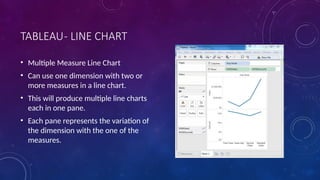
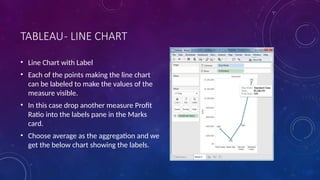
  • 99.
    TABLEAU- FUNCTIONS • DateFunctions • Tableau has a variety of date functions to carry out calculations involving dates. • All the date functions use the date_part which is a string indicating the part of the date like - month, day or year. Function Description Example DATEADD(date_part, increment, date) Returns an increment added to date. The type of increment is specified in date_part. DATEADD('month', 3, #2004-04- 15#) = 2004-07-15 12:00:00 AM DATENAME(date_part, date, [start_of_week]) Returns date_part of date as a string. The start_of_week parameter is optional. DATENAME('month', #2004-04- 15#) = "April" DAY(date) Returns the day of the given date as an integer. DAY(#2004-04-12#) = 12 NOW( ) Returns the current date and time. NOW( ) = 2004-04-15 1:08:21 PM
  • 100.
    TABLEAU- FUNCTIONS • LogicalFunctions • These functions evaluate some single value or result of an expression and give a boolean output. Function Description Example IFNULL(expression1, expression2) The IFNULL function returns the first expression if the result is not null, and returns the second expression if it is null. IFNULL([Sales], 0) = [Sales] ISDATE(string) The ISDATE function returns TRUE if the string argument can be converted to a date and FALSEif it cannot. ISDATE("11/05/98") = TRUE ISDATE("14/05/98") = FALSE MIN(expression) The MIN function returns the minimum of an expression across all records or the minimum of two expressions for each record.
  • 101.
    AGGREGATE FUNCTIONS Function Description AVG(expression)Returns the average of all the values in the expression. AVG can be used with numeric fields only. Null values are ignored. COUNT(expression) Returns the number of items in a group. Null values are not counted. MEDIAN(expression) Returns the median of an expression across all records. Median can only be used with numeric fields. Null values are ignored. STDEV(expression) Returns the statistical standard deviation of all values in the given expression based on a sample of the population.
  • 102.
    TABLEAU- NUMERIC CALCULATIONS •Numeric calculations in Tableau are done using a wide range of inbuilt functions available in the formula editor. • The calculations can be as simple as subtracting the values of two fields or applying a aggregate function to a single field. • While connected to SAMPLE-SUPERSTORE, go to the Analysis menu and click on Create a CALCULATED FIELD.
  • 103.
    TABLEAU- NUMERIC CALCULATIONS CalculationEditor • The above step opens a calculation editor which lists all the functions that is available in Tableau. • Can change the dropdown value and see only the functions related to numbers.
  • 104.
    TABLEAU- NUMERIC CALCULATIONS •To study the difference between profit and discount for different shipping mode of the products. • Create a formula subtracting discount from profit as shown below. • Name this field as profit_n_discount.
  • 105.
    TABLEAU- NUMERIC CALCULATIONS Usingthe Calculated Field • The calculated field can be used in the view by dragging it to the Rows shelf as shown below. • It produces a bar chart showing the difference between PROFIT and DISCOUNT for different shipping modes.
  • 106.
    TABLEAU- NUMERIC CALCULATIONS •Applying Aggregate Calculations • In a similar manner as above we can create a calculated field using aggregate function. • Here we create AVG(sales) values for different ship mode. • We write the below formula in the calculation editor.
  • 107.
    TABLEAU- NUMERIC CALCULATIONS •On clicking OK and dragging the Avg_Sales field to the Rows shelf we get the below view.
  • 108.
    TABLEAU- STRING CALCULATIONS Calculationsin Tableau involving Strings. • Tableau has many inbuilt string functions which can be used to do string manipulations like - comparing, concatenating, replacing few characters from a string etc. Create Calculated Field • While connected to Sample superstore, go to the Analysis menu and click on Create a Calculated field
  • 109.
    TABLEAU- STRING CALCULATIONS CalculationEditor • Opens a calculation editor which lists all the functions that is available in Tableau. • Can change the dropdown value and see only the functions related to strings.
  • 110.
    TABLEAU- STRING CALCULATIONS •Create a Formula • Find the sales in the cities which contain the letter “o”.
  • 111.
    TABLEAU- STRING CALCULATIONS Usingthe Calculated Field • Now to see the created field in action we can drag it to the Rows shelf and drag the Sales field to the Columns shelf. The diagram shows the Sales values.
  • 112.
    TABLEAU- DATE CALCULATIONS •Dates are one of the key fields which is extensively used in most of data analysis scenarios. • Tableau provides a large number of inbuilt functions involving dates. • Can do simple date manipulations like adding or subtracting days from a date. • Can also create complex expressions involving dates. • Create Calculated Field • While connected to Sample superstore, go to the Analysis menu and click on Create a Calculated field, as shown in the below diagram.
  • 113.
    TABLEAU- DATE CALCULATIONS Opensa calculation editor which lists all the functions that is available in Tableau. Can change the dropdown value and see only the functions related to Date.
  • 114.
    TABLEAU- DATE CALCULATIONS Createa Formula • Find out the sales volume along with the difference in date of sales in months from 21st March 2009. Using the Calculated Field • The created field in action and can drag it to the Rows shelf and drag the Sales field to the Columns shelf. Also drag the ship Date with months.
  • 115.
  • 116.
    TABLEAU- TABLE CALCULATIONS •Calculations which are applied to the values in the entire table. • Example : For calculating a running total or running average we need to apply a single method of calculation to an entire column. Such calculations cannot be performed on some selected rows. • Table has a feature called Quick Table Calculation which is used to create such calculations.
  • 117.
    TABLEAU- TABLE CALCULATIONS STEP-1 •Select the measure on which the table calculation has to be applied and drag it to column shelf. STEP-2 • Right click on the measure and choose the option Quick Table Calculation. STEP-3 • Choose one of the below options to be applied on the measure.
  • 118.
    TABLEAU- TABLE CALCULATIONS •Running Total • Difference • Percent Difference • Percent of Total • Rank • Percentile • Moving Average • Year to Date (YTD) Total • Compound Growth Rate • Year over Year Growth • Year to Date (YTD) Growth Example Calculate the running total of the profits earned for the data source following the above steps. Use the data source named sample – superstore.xls.
  • 119.
    TABLEAU- LOD EXPRESSIONS •Level of Detail expressions are also called LOD expressions in Tableau. • Used to run complex queries involving many dimensions at the data source level instead of bringing all the data to Tableau interface. • Eg: Adding dimension to an already calculated aggregate value.
  • 120.
    TABLEAU- LOD EXPRESSIONS Typesof LOD • There are three main types of LOD expressions. • FIXED LOD - expressions compute values using the specified dimensions without reference to any other dimensions in the view. • INCLUDE LOD - level of detail expressions compute values using the specified dimensions in addition to whatever dimensions are in the view. • EXCLUDE LOD - levels of detail expressions subtract dimensions from the view level of detail.
  • 121.
    TABLEAU- LOD EXPRESSIONS •FIXED Level of Detail Expressions • Find the amount of SALES for each state in each region. • Create the formula field named REGIONAL_SALES using the formula. {FIXED(Region): SUM(Sales)} • Next drag the REGION and STATE filed to the Rows shelf and the calculated field to the Text shelf under the Marks card. • Also drag the REGION field to the Color shelf. • This produces the below view which shows a fixed value for different states. • That is because of fixed the dimension as region for the calculation of Sales value.
  • 122.
  • 123.
    TABLEAU- LOD EXPRESSIONS INCLUDELevel of Detail Expressions • INCLUDE level of detail expressions compute values using the specified dimensions in addition to whatever dimensions are in the view. • Calculate the sum of sales per state for each sub-category of products. • Drag the SUB-CATEGORY field to the Rows shelf. • Write the expression as shown below in the Columns shelf. • New_Var= {INCLUDE(State):SUM(Sales)} • It produces the below view which includes both the dimensions in the calculations.
  • 124.
    TABLEAU- LOD EXPRESSIONS •EXCLUDE Level of Detail Expressions • EXCLUDE level of detail expressions specify dimensions to exclude from the view level of detail. • Exclude Region from Sales figure calculated for every month. We create the formula.
  • 125.
    TABLEAU- LOD EXPRESSIONS •On dragging the relevant fields to the respective shelves we get the final view for the EXCLUDE LOD.
  • 126.
    TABLEAU- LOD EXPRESSIONS •Use the Sample - Superstore data source • Create two calculated fields: a FIXED level of detail expression, and a date subtraction. • First_Purchase_Date = {FIXED [Customer Name] : MIN([Order Date])} • Days_Since_First_Purchase =DATETRUNC('month', [Order Date])- DATETRUNC('month', [First Purchase Date]) • Drag Days_Since_First_Purchase from the Measures area of the Data pane to the Dimensions area. • Drag Days_Since_First_Purchase to Columns.
  • 127.
    TABLEAU- LOD EXPRESSIONS •Click Days_Since_First_Purchase on Columns and choose Continuous. • Drag Sales to Rows. • Change the aggregation for Sales on Rows from SUM to AVG. • Add a quick table calculation to Sales on Rows: Running Total. • Drag First Purchase Date to Color. • Click the + in the YEAR(First Purchase Date) field on Color to add the next level down in the date hierarchy: QUARTER(First Purchase Date). • Tableau won't automatically put two fields on Color, but you can make it happen by clicking the icon to the left of the QUARTER(First Purchase Date) field and choosing Color:
  • 128.
  • 129.
    TABLEAU- BASIC SORTING •Sorting of data is a very important feature of data analysis. • Tableau allows the sorting of data of the fields which are called dimensions. There are two ways in which Tableau carries out the sorting. • Computed Sorting is the sort directly applied on an axis using the sort dialog button. • Manual Sorting is used to rearrange the order of dimension fields by dragging them next to each other in an ad hoc fashion.
  • 130.
    TABLEAU- BASIC SORTING ComputedSorting • This type of sorting involves choosing a field to be sorted and directly applying the sort using sort dialog box. We have the option to choose the sort order as ascending or descending and choose the field on which to apply the sort. Example • We choose Sample-Superstore to apply sorting on the field named discount By using the dimensions order date and Subcategory. • The result shows the name of the sub-categories in a descending order arranged for each year.
  • 131.
    TABLEAU- BASIC SORTING ManualSorting • This is basically changing the order in which the visualization elements appear in the screen. • For example, to show the sales volume of different product segment in descending order but have own choice of order. • This sort is not as per exact values of number or text, rather they represent user’s choice of ordering. So they are called manual sorting. Example: In the below example we move the segment named Home Office , below the segment named consumer even though the sales volume of Home office is lowest.
  • 132.
    TABLEAU- FILTER OPERATIONS •Any data analysis and visualization work involves use of extensive Filtering of data. • Tableau has a very wide variety of filtering options to address these needs. • There are many inbuilt functions for applying filters on the records using both dimensions and measures. • The filter option for measures offers numeric calculations and comparison. • The filter option for dimension offers choosing string values from a list or use a custom list of values.
  • 133.
    TABLEAU- FILTER OPERATIONS CreatingFilters • Filters are created by dragging the required field to the Filters shelf located above the Marks card. • Let's create a horizontal bar chart by dragging the measure sales to the Columns shelf and the dimension Sub-Category to the Rows shelf. • Again drag the measure sales into the Filters shelf. • Once this filter is created we can edit by right clicking it and choosing the edit filter option from the pop up menu.
  • 134.
    CREATING FILTERS FORMEASURES Measures are numeric fields. So the filter options for such fields involve choosing values. Tableau offers the following types of filters for measures. • Range of Values which Specify the minimum and maximum values of the range to include in the view. • At Least - Include all values that are greater than or equal to a specified minimum value. • At Most - Include all values that are less than or equal to a specified maximum value. • Special - This special type of filter helps you filter on Null values. Include only Null values, Non-null values, or All Values.
  • 135.
    CREATING FILTERS FORMEASURES Creating Filters for Dimensions • Dimensions are descriptive fields which have values which are strings. Tableau offers the following types of filters for dimensions. • General Filter which allows to select specific values form a list. • Wildcard filter which allows to mention wildcards like cha* to filter all string values starting with cha. • Condition filter which i used to apply conditions like sum of sales. • Top filters to choose records representing a range of Top values.
  • 136.
    CREATING FILTERS FORMEASURES • Clearing filters.
  • 137.
    TABLEAU- BASIC FILTERS •Filtering is the process of removing certain values or range of values from a result set. • Tableau filtering feature allows both simple scenarios using field values as well as advanced calculation or context based filters. There are three types of basic filters available in Tableau. • Filter Dimensions are the filters applied on the dimension fields. • Filter Measures are the filters applied on the measure fields. • Filter Dates are the filters applied on the date fields.
  • 138.
    TABLEAU- BASIC FILTERS FilterDimensions • These filters are applied on the dimension fields. Typical examples include filtering based on categories of text or numeric values with logical expressions with greater than or less than conditions. Example • Use the SAMPLE - SUPERSTORE data source to apply dimension filters on the sub-category of products. • Create a view for showing PROFIT for each SUB-CATEGORY of products according to their shipping mode. • Drag the dimension field SUB-CATEGORY to the Rows shelf and the measure field PROFIT to the Columns shelf. • Next drag the SUB-CATEGORY dimension to the Filters shelf to open the Filter dialog box. • Click the None button at the bottom of the list to deselect all segments. • Select the Exclude option in the lower right corner of the dialog box. • Finally, select Labels and Storage and then click OK. The below picture shows the result with the above two categories excluded.
  • 139.
  • 140.
    TABLEAU- BASIC FILTERS FilterMeasures • These filters are applied on the measure fields. Filtering is based on the calculations applied to the measure fields. So, while in dimension filters we use only values to filter, in measures filter we use calculations based on fields. Example • Use the SUPERSTORE data source to apply dimension filters on the average value of the profits. • Create a view with ship mode and subcategory as dimensions and Average of profit as shown below. • Drag the AVG (profit) value to the filter pane. Choose Average as the filter mode. • Next choose "At least" and give a value to filter the rows which meet these criteria. • On finishing the above steps we get the final view below showing only the SUBCATEGORIES whose average PROFIT is greater than a value.
  • 141.
  • 142.
    TABLEAU- BASIC FILTERS FilterDates • Tableau treats the date field in three different ways while applying the date field. It can apply filter by taking a relative date as compared to today, an absolute date or range of dates. Each of this option is presented when a date field is dragged out of the filter pane. Example • We choose the sample - Superstore data source and create a view with order date in the column shelf and profit in the rows shelf • Next drag the "order date" field to the filter shelf and choose Range of dates in the filter dialog box. Choose the dates. • On clicking ok the below final view appears showing the result for the chosen range of dates.
  • 143.
  • 144.
    TABLEAU- QUICK FILTERS •Many filter types in Tableau are quickly available using right-click option on the dimension or measure. • Quick filters have enough functionality solve most of the common filtering needs. Filter name Purpose Single Value(List) Select one value at a time in a list. Single Value(Dropdown) Select a single value in a drop-down list. Multiple Values(List) Select one or more values in a list. Multiple Values(Dropdown) Select one or more values in a drop-down list. Multiple Values(Custom List) Search and select one or more values. Single Value (Slider) Drag a horizontal slider to select a single value. Wildcard Match Select values containing the specified characters.
  • 145.
  • 146.
    TABLEAU- QUICK FILTERS •Take the Sample-Superstore data source to apply some quick filters. • Choose sub-category as the row and sales as the column which by default produces a horizontal bar chart. Next we drag sub-category field to filters pane. • All the subcategories appear next to the chart. We apply wildcard filtering using the expression a* which selects all subcategory name starting with “a”. • The below screen shows the result of applying this filter where only the sub-categories starting with “A” are displayed.
  • 147.
    TABLEAU- QUICK FILTERS Clearingthe Filter • Once we complete our analysis by applying the filter, we can remove it by using the clear filter option. • For this, we go to the filter Pane, right click on the filed name and choose Clear Filter as shown below.
  • 148.
    TABLEAU- CONTEXT FILTERS •The normal filters in Tableau are independent of each other. It means each of the filter reads all the rows from the source data and creates its own result. But there may be scenarios where we want the second filter to process only the records returned by the first filter. So in this case the second filter is known as dependent filters because they process only the data that passes through the context filter. Context Filters serve two main purposes. • Improve performance – If you set a lot of filters or have a large data source, the queries can be slow. You can set one or more context filters to improve performance. • Create a dependent numerical or top N filter – You can set a context filter to include only the data of interest, and then set a numerical or a top N filter.
  • 149.
    TABLEAU- CONTEXT FILTERS CreatingContext Filter • Using the Sample-superstore, let's find the top 10 sub-Category of products for the category called furniture .To achieve this objective we follow the below steps. Step-1 • Drag the dimension sub-Category to the Rows shelf and the measure Sales to the Columns Shelf. • Choose horizontal bar chart as chart type. • Drag the dimension Sub-Category again to the filters shelf. We get the chart.
  • 150.
    TABLEAU- CONTEXT FILTERS Step-2 •Right click on the field Sub-Category in the filter shelf and go the fourth tab named Top. Choose the option by field. From the next drop down choose the option Top 10 by Sales Sum as shown below. Step-3 • Drag the dimension Category to the filter shelf. Right click it to edit and under the general tab choose Furniture from the list. As you can see the result shows three subcategory of products. Step-4 • Right click the Category-Furniture filter and select the option Add to Context. This produces the final result which shows the subcategory of products from the category Furniture which are among top 10 subcategories across all the products.
  • 151.
  • 152.
    TABLEAU- CONDITION FILTERS Oneof the important filtering options in Tableau is to apply some conditions to already existing filters. These conditions can be very simple like finding only those sales which are higher than certain amount or it can be a complex one based on certain formula. The conditions can also be applied to create a range filter. • Creating Condition Filter • Using the Sample-superstore, let's find that sub-category of products across all segments whose sales exceed one million. To achieve this objective we follow the below steps. Step-1 • Drag the dimension segment and the measure Sales to the Column shelf. Next drag the dimension Sub-Category to the rows shelf. Choose horizontal bar chart option. Then we get the following chart.
  • 153.
    TABLEAU- CONDITION FILTERS •Step-2 • Drag the dimension Sub-Category to the Filters Shelf. Right click it to edit and go to the tab Condition. Here choose the radio option by field. From the drop downs select Sales, Sum and greater than equal to symbol specifying the value 100000. • On finishing the above two steps we get a chart which shows only those subcategory of products which have the required amount of sale. Also this is shown for all the available segments where the condition is met.
  • 154.
  • 155.
    TABLEAU- TOP FILTERS •The Top option in Tableau filter is used to limit the result set from a filter. For example, from a large set of records on sales we want only the top 10 values. We can apply this filter using the inbuilt options for limiting the records in many ways or by creating a formula. In this chapter we will explore the inbuilt options. Creating Top Filter • Using the Sample-superstore, let's find that sub-category of products which represent the top 5 sales amount. To achieve this objective we follow the below steps. • Step-1 • Drag the dimension Sub-Category to the Rows shelf and the Measure Sales to the Columns shelf. Choose the horizontal bar as chart type. Tableau shows the below chart. • Step-2 • Right click on the field Sub-Category and go to the tab named Top. Here we choose the second radio option by field. Choose the option Top 5 by Sum of Sales using the dropdown options. • On finishing the above step we get the below chart which shows the top 5 Sub-Category of products by sales.
  • 156.
  • 157.
    CHARTS IN TABLEAU •Bar Chart • Line Chart • Pie Chart • Crosstab • Scatter Plot • Bubble Chart • Bullet Graph • Box Plot • Tree Map • Bump Chart • Gannt Chart • Histogram • Motion Charts • Waterfall Charts
  • 158.
    TABLEAU- BAR CHART •A bar chart represents data in rectangular bars with length of the bar proportional to the value of the variable. • Tableau automatically produces a bar chart when you drag a dimension to the row shelf and measure to the column shelf. • Can also use the bar chart option present in the Show Me button. • If the data is not appropriate for bar chart then this option will be automatically greyed out. • In Tableau various types of Bar charts can be created by using a dimension and a measure.
  • 159.
    TABLEAU- BAR CHART •From the Sample-Superstore, we choose the dimension, take profit to the columns shelf and sub category to the rows shelf. • It automatically produces a horizontal bar chart. • In case it does not, you can choose the chart type from the show me tool to get the result.
  • 160.
    TABLEAU- BAR CHART •Bar Chart with Colour Range • Can apply colours to the bars based on their ranges. • The longer bars get darker shades and the smaller bars get the lighter shades. • To do this, drag the profit field to the color pallette under the Marks Pane. • Also note that, it produces a different colour for negative bars.
  • 161.
    TABLEAU- BAR CHART •Stacked Bar Chart • Can add another dimension to the above bar chart to produce a stacked bar chart which shows different colours in each bar. • Drag the dimension field named segment to the Marks pane and drop it in colors. • The chart appears which shows the distribution of each segment in each bar.
  • 162.
    TABLEAU- LINE CHART •In a line chart a measure and a dimension are taken along the two axes of the chart area. • The pair of values for each observation becomes a point and the joining of all these points create a line showing the variation or relationship between the dimensions and measures chosen.
  • 163.
    TABLEAU- LINE CHART •Simple Line Chart • We choose one dimension and one measure to create a simple line chart. • Drag the dimension Ship Mode to Columns Shelf and Sales to the rows shelf. • Choose the Line chart from the Marks card. • Line chart which shows the variation of Sales for different Ship modes.
  • 164.
    TABLEAU- LINE CHART •Multiple Measure Line Chart • Can use one dimension with two or more measures in a line chart. • This will produce multiple line charts each in one pane. • Each pane represents the variation of the dimension with the one of the measures.
  • 165.
    TABLEAU- LINE CHART •Line Chart with Label • Each of the points making the line chart can be labeled to make the values of the measure visible. • In this case drop another measure Profit Ratio into the labels pane in the Marks card. • Choose average as the aggregation and we get the below chart showing the labels.
  • 166.
    TABLEAU- PIE CHART •A pie chart represents data as slices of a circle with different sizes and colours. • The slices are labeled and the numbers corresponding to each slice is also represented in the chart. • Can select the Pie chart option from the Marks card to create a pie chart.
  • 167.
    TABLEAU- PIE CHART •Simple Pie Chart • Can choose one dimension and one measure to create a simple pie chart. • Example, take the dimension named region with the measure named profit. • Drop the Region dimension in the colors and and label marks. • Drop the Profit measure into the size mark. • Choose the chart type as Pie. • Chart appears which shows the 4 regions in different colours.
  • 168.
    TABLEAU- PIE CHART •Drill Down Pie Chart • Can choose a dimension with hierarchy and as we go deeper into the hierarchy the chart changes reflecting the level of the dimension chosen. • Example, take the dimension subcategory which has two more levels - Manufacturer & Product Name. • Take the measure profit and drop it to the Labels mark. • The pie chart below appears which shows the values for each slice.
  • 169.
    TABLEAU- PIE CHART •Going one more level into the hierarchy, can get the manufacturer as the label and the above pie chart changes more.
  • 170.
    TABLEAU- CROSSTAB • Acrosstab chart in tableau is also called a Text table which shows the data in textual form. • The chart is made up of one or more dimension and one or more measures. • This chart can also show various calculations on the values of the measure field like running total, percentage total etc.
  • 171.
    TABLEAU- CROSSTAB Simple CrossTab • Using the Sample-superstore let's plan to get the amount of sales for each segment in each region. To display this data for each year using the order dates available. To achieve this objective we follow the below steps. • Step -1 Drag and drop the dimension order date to the columns shelf. • Step-2 Drag and drop the dimensions region and segment to the rows shelf. • Step-3 Pull the measure Sales to the labels Shelf under Marks.
  • 172.
  • 173.
    TABLEAU- CROSSTAB • CrossTab - Color Encoded • Can get the values color encoded in the cross tab chart by dropping the measure field into the color shelf. • This color coding shows the strength of the color depending on the value of the measure. • The larger values have a darker shade than the lighter values.
  • 174.
  • 175.
    TABLEAU- CROSSTAB • CrossTab with Row Percentage • In addition to the colour encoding we can also get calculations applied to the values from the measure. In the above example, we apply the calculation for finding the percentage total of sales in each row instead of only the sales figures. • For this, we right click on SUM (Sales) present in the marks card and choose the option Add Table Calculation. Then we choose percent of total and summarize it as Table (Across).
  • 176.
  • 177.
    TABLEAU- SCATTER PLOT •As the name suggests a scatter plot shows many points scattered in the Cartesian plane. • It is created by plotting values of numerical variables as X and Y coordinates in the Cartesian plane. • Tableau takes at least one measure in the rows shelf and one measure in the columns shelf to create a scatter plot. • But we can add dimension fields to the scatter plot which play a role in marking different colours for the already existing points in the scatter graph.
  • 178.
    TABLEAU- SCATTER PLOT SimpleScatter Plot • Using the Sample-superstore, let's aim to find the variation of sales and profit figures as the 2 axes of the Cartesian plane distributed according to their sub-Category. To achieve this objective we follow the below steps. • Step-1 Drag and drop the measure Sales to the columns shelf. • Step-2 Drag and drop the measure profit to the rows shelf. • Step-3 Pull the dimension sub-category to the labels Shelf under Marks. • The below chart appears which shows the how profit and sales is distributed across the subcategory of products we have.
  • 179.
  • 180.
    TABLEAU- SCATTER PLOT •Scatter Plot - Color Encoded • We can get the values color encoded by dragging the dimension Sub-Category to the color Shelf under the Marks card. This chart shows the scatter points with different color for each point.
  • 181.
    TABLEAU- SCATTER PLOT •Drill Down Scatter Plot • The same scatter plot can show different values when we choose a dimension with hierarchy. In the above example, we expand the subcategory field to show the scatter plot values for the Manufacturers.
  • 182.
    TABLEAU- BUBBLE CHART •Bubble charts display data as a cluster of circles. • Each of the values in the dimension field represents a circle whereas the values of measure represent the size of those circles. • As the values are not going to be presented in any row or column, we drag the required fields to different shelves under the marks card.
  • 183.
    TABLEAU- BUBBLE CHART •Simple Bubble Chart • Using the Sample-superstore let's plan to find the size of profits for different ship mode. To achieve this objective we follow the below steps. • Step -1 Drag and drop the measure profit in to the size shelf under Marks card. • Step-2 Drag and drop the dimension ship mode to the labels shelf under Marks card. • Step-3 Pull the dimension ship mode to the colors Shelf under Marks card.
  • 184.
  • 185.
    TABLEAU- BUBBLE CHART •Bubble Chart with Measure Values • We can also show the values of the measure filed which decides the size of the circles. • To do this we drag the sales measure into the Labels shelf. The below chart appears.
  • 186.
    TABLEAU- BUBBLE CHART •Bubble Chart with Measure Colors • Instead of coloring each circle with a different colour, we can use a single colour with different shades. • For this we drag the measure sales into the color shelf. • The higher values represent darker shades while the smaller values represent lighter shades.
  • 187.
    TABLEAU- BULLET GRAPH •A bullet chart is a variation of Bar chart. • In this chart we compare the value of one measure with another measure in context of finding the variation in the first measure within a range of variations in the second measure. • It is like two bars drawn upon one another to indicate their individual values at the same position in the graph. It can be thought of as combining two graphs as one to view a comparative result easily.
  • 188.
    TABLEAU- BULLET GRAPH CreatingBubble Chart • Using the Sample-superstore let's plan to find the size of profits for the respective sales figures in each sub-category. To achieve this objective we follow the below steps. • Step-1 • Drag and drop the dimension Sub-Category from the data pane into the column shelf. • Step-2 • Drag and drop the measures profit and sales to the rows shelf. • The below chart appears which shows the two measures as two separate categories of bar charts each representing the values for sub-categories.
  • 189.
  • 190.
    TABLEAU- BULLET GRAPH •Step-3 • Drag the sales measure to the Marks card. Using show me choose the bullet graph option. • The chart shows the bullet graph.
  • 191.
    TABLEAU- BOX PLOT •The box plots are also known as a box-and-whisker plots. • They show the distribution of values along an axis. • Boxes indicate the middle 50 percent of the data which is, the middle two quartiles of the data's distribution. • The remaining 50 percent of data on both sides is represented by lines also called whiskers, to display all points within 1.5 times the interquartile range which is all points within 1.5 times the width of the adjoining box, or all points at the maximum extent of the data. • The Box Plots take one or more measures with zero or more dimensions.
  • 192.
    TABLEAU- BOX PLOT CreatingBox Plot • Using the Sample-superstore, let's plan to find the size of profits for the respective category for each Ship mode values. To achieve this objective we follow the below steps. • Step-1 • Drag and drop the dimension category to the columns shelf and profit to the rows shelf. Also drag the dimension Ship mode to the right of Category in columns shelf. • Step-2 • Choose Box-and-Whisker plot from Show me. The below chart appears which shows the box plots. Here Tableau automatically reassigns the ship mode to the Marks card.
  • 193.
  • 194.
    TABLEAU- BOX PLOT •Box Plot with Two Dimensions • We can create box plots with two dimensions by adding another dimension to the column shelf. • In the above chart let's add the region dimension to the column shelf. • This produces a chart which shows the box plots for each region.
  • 195.
    TABLEAU- TREE MAP •The tree map displays data in nested rectangles. • The dimensions to define the structure of the tree map and measures to define the size or color of the individual rectangle. • The rectangles are easy to visualize as both the size and shade of the color of the rectangle reflect the value of the measure. • A Tree Map is created using one or more dimension with one or two measures.
  • 196.
    TABLEAU- TREE MAP CreatingTree Map • Using the Sample-superstore, let's plan to find the size of profits for each Ship mode values. To achieve this objective we follow the below steps. • Step-1 • Drag and drop the measure profit two times to the Marks Card. Once to the size shelf and again to the color shelf. • Step-2 • Drag and drop the dimension ship mode to the Label shelf. Choose the chart type Tree Map from Show me. The below chart appears.
  • 197.
  • 198.
    TABLEAU- TREE MAP •Tree Map with Two Dimensions • Let’s add the dimension Region to the above Tree map chart. • We drag and drop it twice. • Once to color Shelf and again to Label shelf. • The below chart appears which shows four outer boxes for four regions and then the boxes for ship modes nested inside them. • Please note all the different regions have different colors now.
  • 199.
    TABLEAU- BUMP CHART •A Bump Chart is used to compare two Dimensions against each other using one of the Measure value. • They are very useful for exploring the changes in Rank of a value over a time dimension or place dimension or some other dimension relevant to the analysis. • The Bump Chart takes two dimensions with zero or more measures.
  • 200.
    TABLEAU- BUMP CHART CreatingBump Chart • Using the Sample-superstore,let's plan to find the variation of ship mode of products with the variation of the sub-category. To achieve this objective we follow the below steps. • Step-1 • Drag and drop the dimension sub-category to the columns shelf. Also drag the dimension Ship mode to the color shelf under Marks card. Leave the chart type to Automatic.Then we get the below chart.
  • 201.
  • 202.
    TABLEAU- BUMP CHART •Step-2 • Next we create a calculated field called Rank. Go to Analysis -> Create calculated Field. Use Rank as the field name and write the expression index () in the calculation area. It is a inbuilt function that creates an index for the current row in the partition. Click OK and the new field will be visible in the measures section. Right click on the field Rank and convert it to discrete. • Step-3 • Drag Rank to the rows shelf. The below chart appears which shows the dimension sub-category with each ship mode arranged in increasing order of their Rank value.
  • 203.
  • 204.
    TABLEAU- BUMP CHART •Step-4 • Next we apply some more calculation to the rank field using the measure Profit. Right on Rank and choose Edit Table calculation. Choose sorting by the field profit using partition by sub-category and addressed by ship mode. The below picture shows the calculations applied. • On finishing the above steps we get the bump chart as shown below. It shows the variation of profit for each ship mode across various sub-categories.
  • 205.
    TABLEAU- GANNT CHART •A Gantt chart shows the progress of the value of a task or resource over a period of time. • It is extensively used in project management and other types of study of variation over a period of time. • In Gantt chart a time dimension is an essential field. • The Gantt chart takes at least a dimension and a measure in addition to the time dimension.
  • 206.
    TABLEAU- GANNT CHART CreatingGantt Chart • Using the Sample-superstore let,s plan to find the variation of quantities of different sub-category of products according to their ship mode over a range of time. To achieve this objective we follow the below steps. • Step-1 • Drag the dimension order date to the columns shelf and sub-category to the rows shelf. Next we add the order date to the filters shelf. Also right click on order date to convert it to exact date values. It is done as shown in the below diagram.
  • 207.
    TABLEAU- GANNT CHART •Step-2 • Next we edit the filter condition to select a range of dates. It is because we want individual date values and there is a very large number of dates in the data. The range is created as shown below.
  • 208.
    TABLEAU- GANNT CHART •Step-3 • Next we drag the dimension ship mode to the color shelf and the measure Quantity to the size shelf under the Marks card. This produces the Gantt chart as shown below.
  • 209.
    TABLEAU- HISTOGRAM • Ahistogram represents the frequencies of values of a variable bucketed into ranges. • Histogram is similar to bar chart but it groups the values into continuous ranges. • Each bar in histogram represents the height of the number of values present in that range. • Tableau creates a histogram by taking one measure. • It creates an additional bin field for the measure used in creating histogram.
  • 210.
    TABLEAU- HISTOGRAM Creating Histogram •Using the Sample-superstore, let's plan to find the of quantities of sales for different regions. • To achieve this objective we follow the below steps. • Drag the Measure named Quantity to the Rows shelf. • Then open Show Me and select Histogram chart. • The below diagram shows the chart created. • It shows the quantities automatically bucketed into values ranging from 0 to 4811 and divided into 12 bins.
  • 211.
    TABLEAU- HISTOGRAM • CreatingHistogram with Dimension • We can also add Dimensions to Measures to create histograms. That will create a stacked histogram. Each bar will have stacks representing the values of the dimension. Following the steps of the above example we add the Region Dimension to the color Shelf under Marks Card. That creates the below histogram where each bar also includes the visualization for different regions.
  • 212.
  • 213.
    TABLEAU- MOTION CHARTS •Motion charts show data using the x and y-axes, displaying changes over time by showing movement of data points within the defined space as well as changes in the color of the lines. • The main advantage of motion chart is to view the entire trail of how the data has changed over time and not just a snapshot of the data. • Tableau needs one Time Dimension and one Measure to create Motion chart.
  • 214.
    TABLEAU- MOTION CHARTS •Creating Motion Chart • Using the Sample-superstore let's plan to find the variation of Profits over the months. To achieve this objective we follow the below steps. • Step-1 • Drag the Dimension Order Date to the Columns Shelf. Drag it again to the Pages Shelf. In the Pages shelf right click on Order Date and choose Month. Then drag the measure Profit to the Rows Shelf. The following chart appears.
  • 215.
    TABLEAU- MOTION CHARTS •Step-2 • Put Check mark on the box next to Show History and then click on the drop down arrow next to it. For “Marks to Show History For” select “All”. Then under “Show”, select “Both”. Selecting “Marks” shows only the points and selecting “Trails” shows only the line. Click on the Play button. The following chart appears. • Step-3 • Allowing the chart to run from January to December will create the chart which shows how the profits have varied over each month for all the years. Note that as the data changes the recent months get a darker shade of the colour and the historical data gets a lighter shade of the colours. • Below is the chart after the motion chart is played for all the months of the year.
  • 216.
  • 217.
    TABLEAU- WATERFALL CHARTS •Waterfall charts effectively display the cumulative effect of sequential positive and negative values. • It shows where a value starts, ends and how it gets there incrementally. • So we are able to see both the size of changes and difference in values between consecutive data points. • Tableau needs one Dimension and one Measure to create a waterfall chart.
  • 218.
    TABLEAU- WATERFALL CHARTS CreatingWaterfall Chart • Using the Sample-superstore, let's plan to find the variation of Sales for each sub-category of Products. To achieve this objective we follow the below steps. • Step-1 • Drag the Dimension sub-category to the columns shelf and the Measure Sales to the Rows shelf. Sort the data in ascending order of sales value. For this use the sort option appearing in the middle of the vertical axis when you hover mouse around it. The below chart appears on completing this step.
  • 219.
    TABLEAU- WATERFALL CHARTS •Step-2 • Next right on the SUM (Sales) value and select running total from the table calculation option. Change the chart type to Gantt Bar. The below chart appears. • Step-3 • Create a calculated field named -sales and mention the following formula for its value. • Step-4 • Drag the newly created calculated field (-sales) to the size shelf under Marks Card. The chart above now changes to produce the following chart which is a waterfall chart.
  • 220.
  • 221.
    TABLEAU- WATERFALL CHARTS •Waterfall Chart with Color • Next we can give different color shades to the bars in the chart by dragging the Sales measure to the color shelf under the Marks Card. We get the below waterfall chart with color.
  • 222.
    TABLEAU- DASHBOARD • ADashboard is a consolidated display of many worksheets and related information in a single place. • It is used to compare and monitor a variety of data simultaneously. • The different data views are displayed all at once. • Dashboards are shown as tabs at the bottom of the workbook and they usually get updated with the most recent data from the data source. • While creating a dashboard, we can add views from any worksheet in the workbook along with many supporting objects such as text areas, web pages, and images. • Each view you add to the dashboard is connected to its corresponding worksheet. • So when you modify the worksheet, the dashboard is updated and when you modify the view in the dashboard, the worksheet is updated.
  • 223.
    TABLEAU- DASHBOARD Creating aDashboard • Using the Sample-superstore, let's plan to create a dashboard showing the sales and profits for different segments and subcategory of products across all the states. To achieve this objective we follow the below steps. • Step-1 • Create a blank worksheet by using the add worksheet icon located at the bottom of the workbook. • Drag the dimension SEGMENT to the columns shelf and the dimension SUB-CATEGORY to the Rows Shelf. • Drag and drop the measure SALES to the color shelf and the measure PROFIT to the Size shelf. • This worksheet is referred as the Master worksheet. Right click and rename this worksheet as Sales_Profit.
  • 224.
  • 225.
    TABLEAU- DASHBOARD • Step-2 •Next we create another sheet to hold the details of the Sales across the States. • For this drag the dimension STATE to the Rows shelf and the measure SALES to the Columns shelf. Next we apply a filter to the State field to arrange the Sales in descending order. Right click and rename this worksheet as Sales_state. Follow the diagram below to create this sheet. • Step-3 • Next we create a blank dashboard by clicking on the create new dashboard link at the bottom of the workbook. Right click and rename the dashboard as Profit-Dashboard.
  • 226.
    TABLEAU- DASHBOARD • Step-4 •Drag the two worksheets to the dashboard. Near the top border line of Sales Profit worksheet, you can see three small icons. Click on the middle one which shows the prompt Use as filter on hovering the mouse above it. • Step-5 • Now in the dashboard click on the box representing Sub-category named Machines and segment named Consumer. • you can notice that only the states where the sales happened for this amount of profit are filtered out in the right pane named Sales_state. So this illustrates how the sheets are linked in a dashboard.
  • 227.
  • 228.
    TABLEAU- FORMATTING • Tableauhas a very wide variety of formatting options to change the appearance of the visualizations created. • You can modify nearly every aspect like fonts, colors, size and layout etc. • You can format both the content and containers like tables, labels of axes and workbook theme etc.
  • 229.
    TABLEAU- FORMATTING Formatting theAxes • Let’s create a simple bar chart by dragging and dropping the dimension Sub-Category into the Columns Shelf and the measure Profit into the Rows shelf. Click on the vertical axis and highlight it. Then right click it and chose format. Change the Font • Click on the font drop down in the Format bar which appears in the left. We choose the font type as Arial and size as 8pt. as shown below. Change the Shade and Alignment • Next we can also change the orientation of the values in the axes as well as the shading color as shown below.
  • 230.
  • 231.
    TABLEAU- FORMATTING Format Borders •Let’s see a crosstab chart with Sub-Category in the Columns shelf and State in the Rows shelf. • Now we can change the borders of the crosstab table created by using the formatting options. • Right click on crosstab chart and choose Format. • The Format Borders appear in the left pane. Choose the options as shown below.
  • 232.
  • 233.
    TABLEAU- FORECASTING • Forecastingis about predicting the future value of a measure. • There are many mathematical models for forecasting. • Tableau uses the model known as exponential smoothing. • In exponential smoothing, recent observations are given relatively more weight than older observations. • These models capture the evolving trend or seasonality of the data and extrapolate them into the future. • The result of a forecast can also become a field in the visualization created. • Tableau takes one time dimension and one measure field to create forecast.
  • 234.
    TABLEAU- FORECASTING • Creatinga Forecast • Using the Sample-superstore, let's forecast the value of the measure sales for next year .To achieve this objective we follow the below steps. • Step-1 • Create a line chart with Order Date (Year) in the columns shelf and Sales in the Rows shelf. Go to the Analysis tab as shown below and click on Forecast under Model.
  • 235.
    TABLEAU- FORECASTING • Step-2 •On completing the above step we get the option to set various options for forecast. We choose the Forecast Length as 2 Years and leave the Forecast Model to Automatic as shown below.
  • 236.
    TABLEAU- FORECASTING • DescribeForecast • We can also get the minute details of the forecast model by choosing the option Describe Forecast. We get this option by right clicking on Forecast diagram.
  • 237.
    TABLEAU- TREND LINES •Trend lines are used to predict the continuation of certain trend of a variable. • It also helps to identify the correlation between two variables by observing the trend in both of them simultaneously. • There are many mathematical models for establishing trend lines. • Tableau gives us four options. They are Linear, Logarithmic, Exponential and Polynomial. • We will look into the linear model • Tableau takes one time dimension and one measure field to create a Trend Line.
  • 238.
    TABLEAU- TREND LINES •Creating Trend Line • Using the Sample-superstore, let's find the trend for the value of the measure sales for next year .To achieve this objective we follow the below steps. • Step-1 • Drag the dimension Order date to the column Shelf and the measure Sales to the rows shelf. Choose the chart type as Line chart. In the Analysis menu go to model -> Trend Line.Clicking on it brings up a pop up showing different types of trend lines that can be added. We choose the linear model.
  • 239.
    TABLEAU- TREND LINES •Step-2 • On finishing the above step we get various trend lines. It also shows the mathematical expression for the correlation between the fields, the P-Value and the R-Squared value.
  • 240.
    TABLEAU- TREND LINES •Describe the Trend Line • We can also get a very detailed description of the Trend Line chart by right clicking on the chart and selecting the option Describe Trend Line. • It shows the coefficients, intercept value and the equation. • These details can also be copied to clipboard and used in further analysis.
  • 241.
    TABLEAU- FORMAT GEOGRAPHICFIELDS • A geographic role associates each value in a field with a latitude and longitude value. • When you assign a geographic role to a field, Tableau assigns latitude and longitude values to each location in your data based on data that is already built in to the Tableau map server. • Tableau recognizes location data and assigns geographic roles to geographic fields (e.g. Country, State, City). • Tableau does not recognize location data and formats your geographic fields as either numbers or strings. • If Tableau recognizes your location data and automatically assigns geographic roles to your fields (there will be a globe icon next to them in the Data pane), then it is ready to build a map view.
  • 242.
    TABLEAU- FORMAT GEOGRAPHICFIELDS • If Tableau does not immediately recognize location data, and can't build a map view, it is a need to assign geographic roles to your fields. • When a field is assigned a geographic role, Tableau creates a map view when add the field to Detail on the Marks card. In other words, Tableau geocodes the information in that field. • In the Data pane, click the data type icon next to the field, select Geographic Role, and then select the geographic role , want to assign to the field. • Tableau adds two fields to the Measures area of the Data pane: Latitude (generated) and Longitude (generated).
  • 243.
    TABLEAU – TYPESOF GEOGRAPHIC FIELDS Geographic Role Assign this role to a field if it contains: Airport International Air Transport Association (IATA) or International Civil Aviation Organization (ICAO) airport codes. Area Code (U.S.) U.S. telephone area codes; numbers only. CBSA/MSA (U.S.) U.S. Core Based Statistical Areas (CBSA), which includes Metropolitan Statistical Areas (MSA), as defined by the U.S. Office of Management and Budget. CBSA/MSA Codes and Names are recognized. City Worldwide cities with population of 15,000 or more. Names are in English, French, German, Spanish, Brazilian-Portuguese, Japanese, Korean, and Chinese. Congressional District (U.S.) U.S. congressional districts.
  • 244.
    TABLEAU – TYPESOF GEOGRAPHIC FIELDS Country/Region Worldwide countries, regions, and territories. Names are in English, French, German, Spanish, Brazilian-Portuguese, Japanese, Korean, and Chinese. Tableau also recognizes, FIPS 10, ISO 3166-1 alpha 2, and ISO 3166-1 alpha 3. Names are included in various forms, including long, short, and various abbreviations. County Second-level administrative divisions for select countries. For example, U.S. counties, French départements, German kriese, etc. Note: Second-level administrative division definitions vary by country. In Tableau, all second- level administrative divisions are geocoded with the County geographic role. NUTS Europe NUTS (Nomenclature of Territorial Units for Statistics) levels 1 - 3 codes. Codes and names, including synonyms, are supported. Latitude Latitude in decimal degrees. Only available for numeric fields. Longitude Longitude in decimal degrees. Only available for numeric fields.
  • 245.
    TABLEAU – TYPESOF GEOGRAPHIC FIELDS State/Province Worldwide state, province, and other first-level administrative divisions. Names are in English, French, German, Spanish, Brazilian-Portuguese, Japanese, Korean, and Chinese. Note: Some names are available only in their local form. ZIP Code/Postcode ZIP codes and postcodes for select countries. For example, U.S. five-digit zip codes, Australian four-digit postcodes, German five-digit postcodes, etc.
  • 246.
    GEO MAPS • OpenSuperstore • Load Orders Sheet • Double Click on COUNTRY Dimension • Automatically Loads Latitude and Longitude
  • 247.
    GEO MAPS • OpenSuperstore • Load Orders Sheet • Double Click on COUNTRY Dimension • Loads Latitude and Longitude • Drag Profit to Color Shelf in Marks Pane • Drag Sales to Label Shelf in Marks Pane
  • 248.
    DASHBOARD USING GEOMAPS • Open Superstore • Load Orders Sheet • Segment to Column • Subcategory to Row • Drag Profit to Color Shelf in Marks Pane • Drag Sales to Label Shelf in Marks Pane • Load Previous & Present Sheets to Dashboard and Apply Filter
  • 249.
    TABLEAU- PARAMETERS • Parametersare dynamic values that can replace constant values in calculations, filters, and reference lines. • Can replace the constant value in the formula with a parameter. • Using the Parameter control you can dynamically change the threshold in your calculation.
  • 250.
    TABLEAU- PARAMETERS • Createa Parameter • Show the Parameter • Apply on Calculated Field • Use the Calculated Field on View
  • 251.
    TABLEAU- PARAMETERS • Createa Parameter • Next to Dimension Click to Create Parameter • Give Name of Parameter • Select the List of Parameter • Fill the Value and Display as Options
  • 252.
    TABLEAU- PARAMETERS • Showthe Parameter Control • Right Click on the Parameter under Measures • Select Show Parameter Control • The Control will be displayed on Right Corner of the WorkSheet • Select the Single Value List
  • 253.
    TABLEAU- PARAMETERS • Useon the Calculated Field • Create a Calculated Field - Param_Prof_Sales • Apply the Formula – CASE[Sum of Profit or Sum of Sales] WHEN 1 THEN SUM([Profit]) WHEN 2 THEN SUM([Sales]) END
  • 254.
    TABLEAU- PARAMETERS • Usethe Calculated Field on View • Drag Market to Column • Drag Param_Prof_Sales to Row • Can Control the Profit / Sales in Radio Button • Edit Remove the Title of the Axis • Include the Value of the Parameter in the Sheet Title to show the Param Value Control
  • 255.
    TABLEAU- GROUP • CanCreate a group from a dimension in the Data pane. • Regardless of how you create a group, a new group field is added to the Data pane. • Can use the group field like other fields in the view, adding it to the Columns or Rows shelves, to the Marks card, or to the Filters shelf. • When Create a group by selecting headers or marks in the view, the view is updated to use the grouped field.
  • 256.
    TABLEAU- GROUP • Pressand hold the CTRL or Shift key on the keyboard to multi-select headers in the view To create a group, do one of the following: • On Tableau Desktop, click the Group button on the toolbar, right-click and select Group or click the Group icon on the tooltip. • On Tableau Server or Tableau Online, click the Group icon on the tooltip. • The selected members are combined into a single member. The view now shows the SUM(Sales) across all binders, envelopes and fasteners as a single mark. A default is automatically constructed using the combined member names. The dimension on the Rows or Columns shelf is replaced with the new grouped field.
  • 257.
    TABLEAU- GROUP • Canvisually identify groups of related marks by selecting marks directly. • This technique is especially useful when working with a scatter plot or a view that doesn't have headers that you can select when defining the group. • Press and hold the CTRL or Shift key on the keyboard to select one or more marks in the view. On a Mac, use the Shift key. • To create a group do one of the following: • For Tableau Desktop, click the Group button on the toolbar or right-click and select Group. • For Tableau Server or Tableau Online, click the Group icon on the tooltip. • The selected marks are grouped and all other members are combined into an "Other" category. The new group field is automatically added to Color.
  • 258.
    TABLEAU- GROUP • Whencreate groups by selecting marks, it's possible that the marks will represent multiple dimensions. • Example, may have a scatter plot that shows the Sales vs. Profit by Region and Sub-Category. • In this case, a selection of marks will represent members of both the Region and Sub-Category dimensions. When the selection represents multiple dimensions, the Group menu lets you choose to group on All Dimensions or on a particular dimension.
  • 259.
    TABLEAU- GROUP • Whenevercreate a group, a group field is added to the Data pane. • When create a group by selecting headers or marks in the view, the new group field is also added to the view either on the Rows or Columns shelf or to Color on the Marks card. • Instead of creating a group by selections in the view, in Tableau Desktop, you can create a group directly from a dimension in the Data pane. • Right-click (control-click on Mac) a dimension in the Data pane and select Create > Group. • In the Create Group dialog box, select several members that you want to group. Press and hold the CTRL key (the Command key on a Mac) on your keyboard to select multiple members. • Click the Group button at the bottom of the dialog box.
  • 260.
    TABLEAU- SETS • Setsare custom fields that define a subset of data based on some conditions. • A set can be based on a computed condition, for example, a set may contain customers with sales over a certain threshold. • Computed sets update as your data changes. Alternatively, a set can be based on specific data point in your view. • Can use sets to compare and ask questions about a subset of data. For example, in a scatter plot showing product sales, may select the products with the most sales and add them to a set. Then create another set that contains the products with the highest return rates. With these two sets, can ask questions like "What percent of my total sales is from high returned products?" Or go further and compare the two sets to each other to create a new set that contains only high sales products that are also returned frequently.