Welcome Tuesday  13 th  April
Today I t’s Elluminate time! Tour of Elluminate and a bit of brainstorming
Content Make sure the content you create is easy to see.  Keep background templates simple so that they don't distract from the content you want to share.   Avoid  gradient colors in the background.  Use a font type and size that is easy to read (no smaller than a 12 point standard font such as Arial, Verdana or Times New Roman).    Use visuals whenever possible especially for  complex processes or procedures.  Avoid slide after slide of bulleted lists.
Content cont… Avoid using bright colours Check download times for websites Avoid lag times, pre-load everything
 
During your presentation Slow things down Watch for responses Practice, practice, practice If you have a brain fog moment ask a question. Divert so you can collect your thoughts
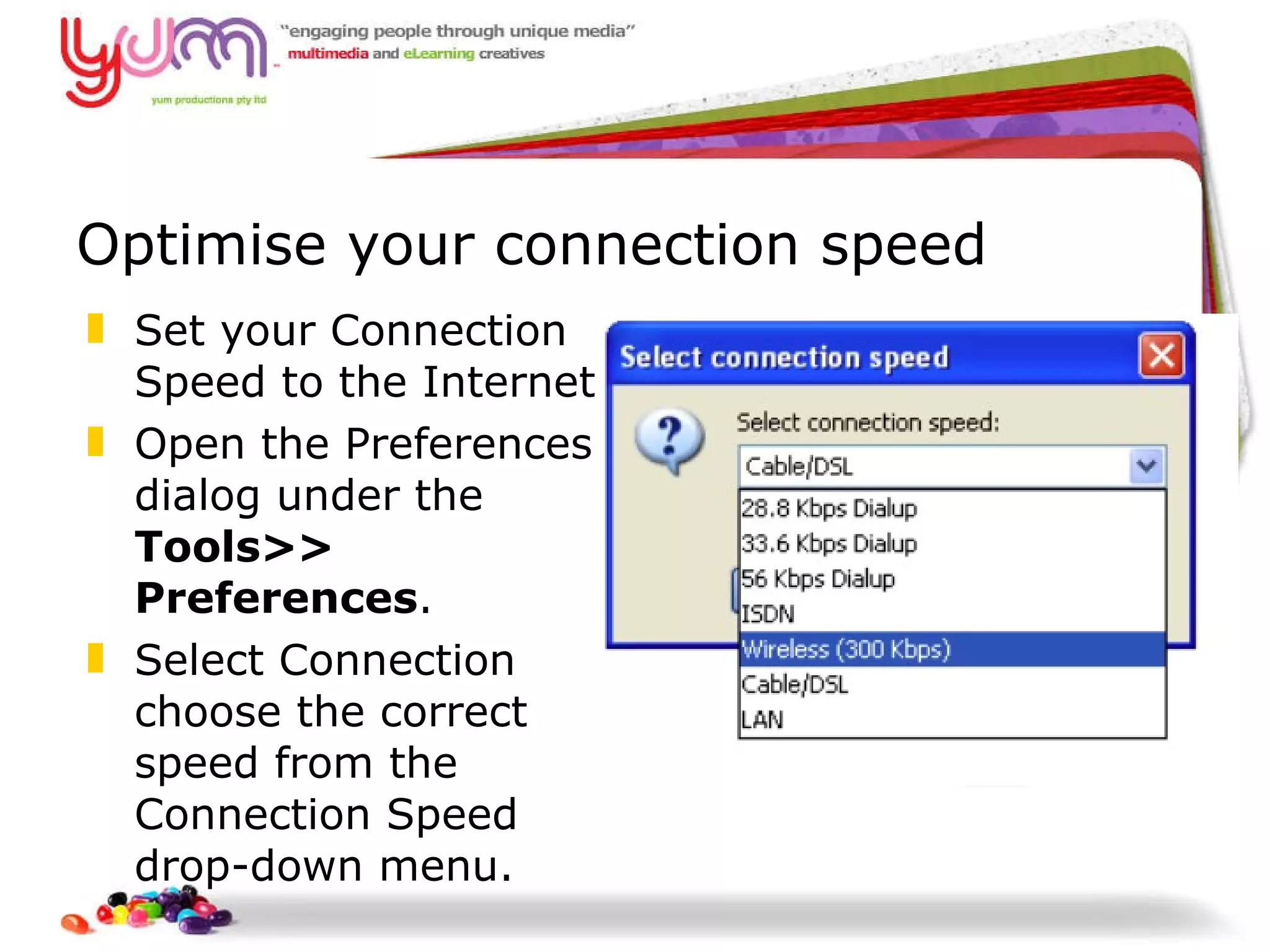
Optimise your connection speed Set your Connection Speed to the Internet  Open the Preferences dialog under the  Tools>> Preferences . Select Connection choose the correct speed from the Connection Speed drop-down menu.
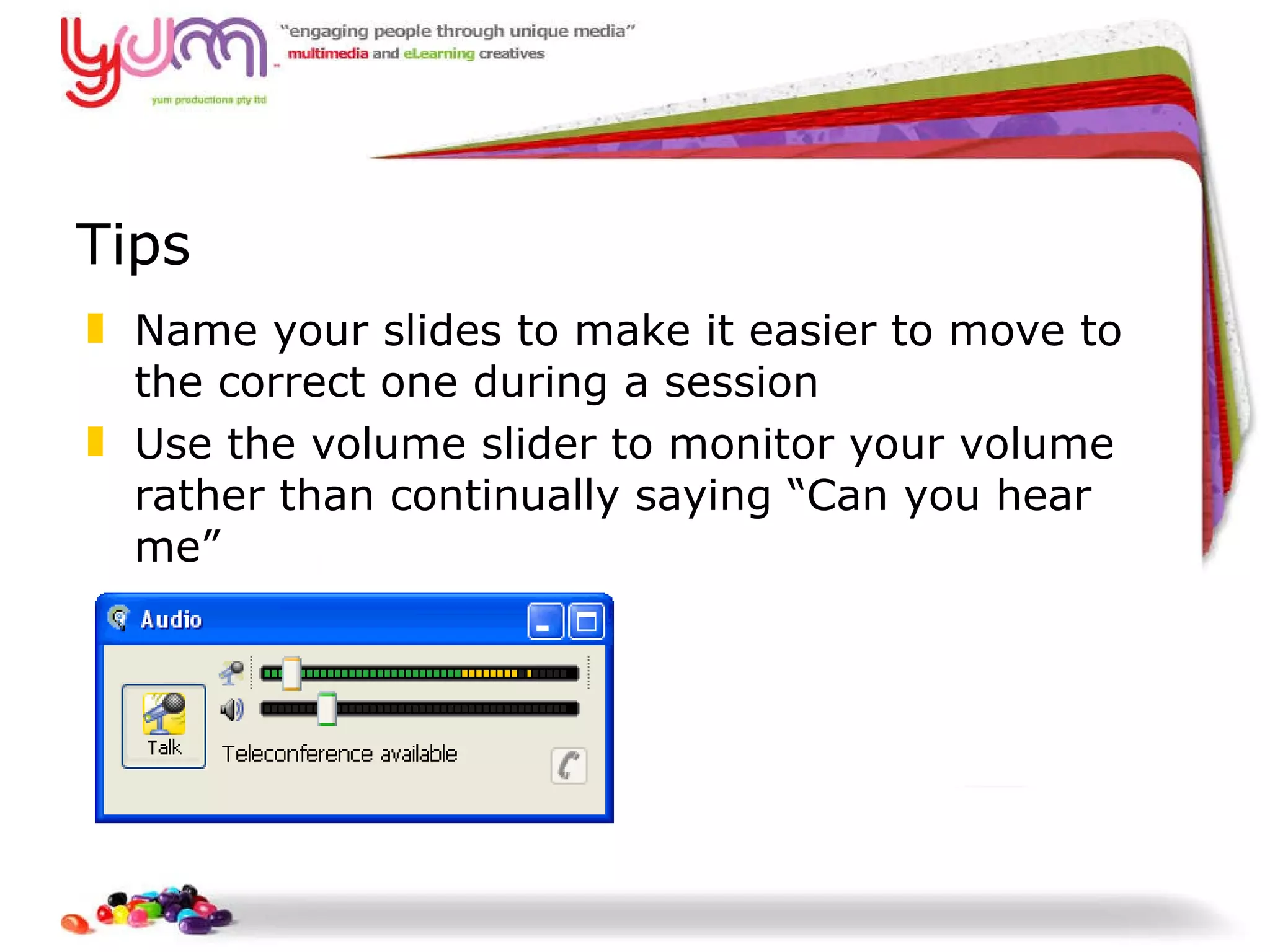
Tips Name your slides to make it easier to move to the correct one during a session Use the volume slider to monitor your volume rather than continually saying “Can you hear me”
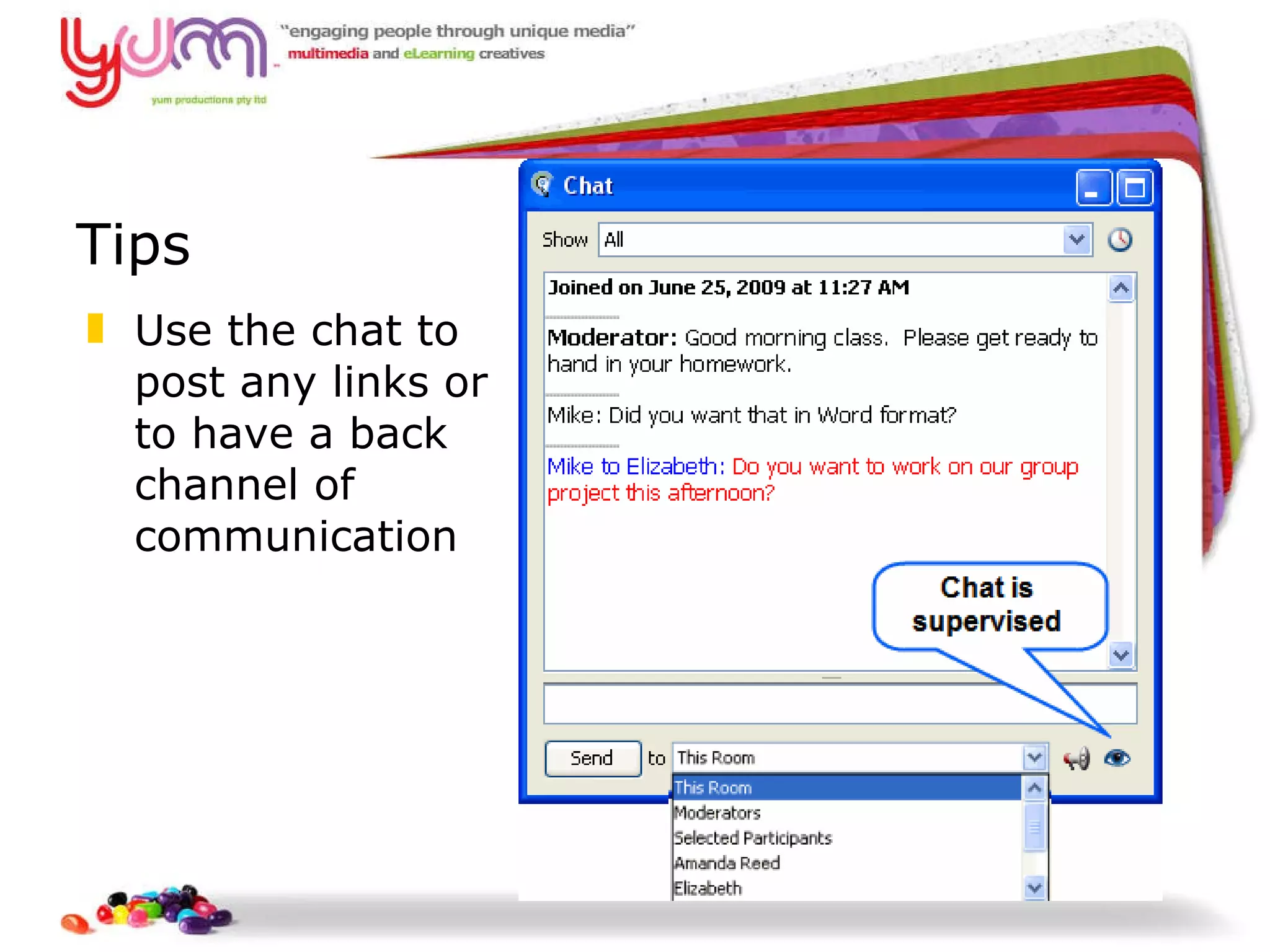
Tips Use the chat to post any links or to have a back channel of communication
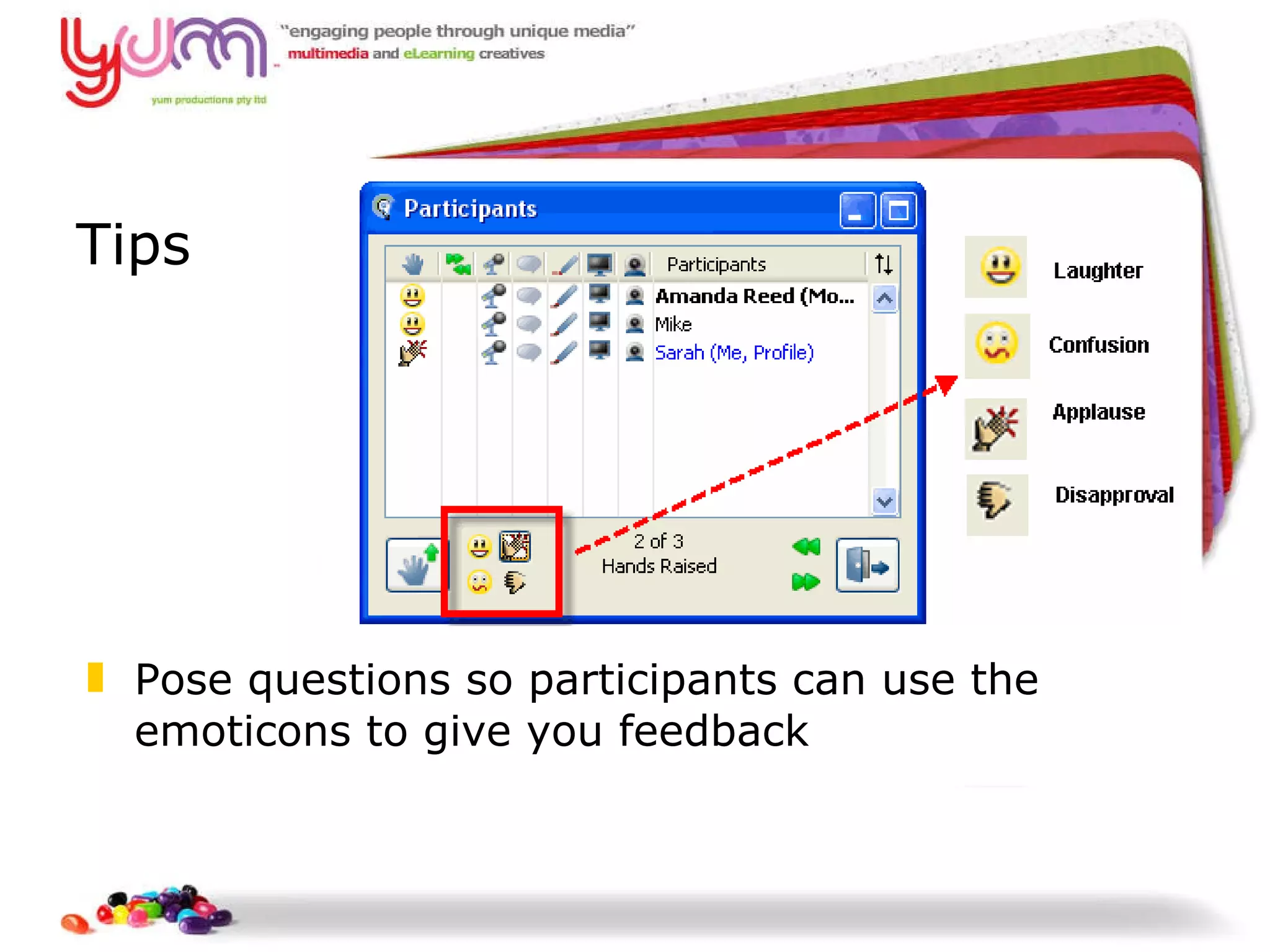
Tips Pose questions so participants can use the emoticons to give you feedback
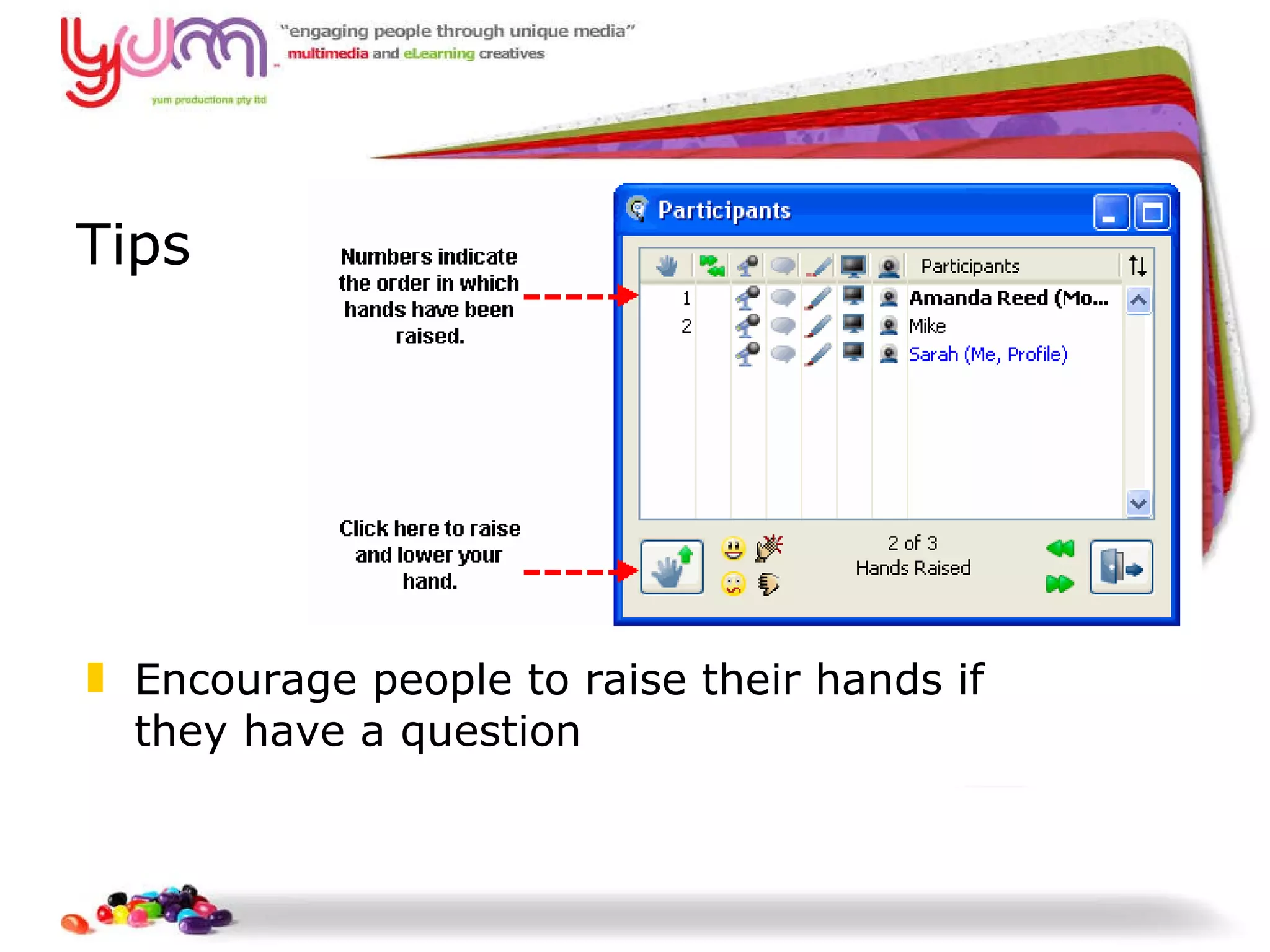
Tips Encourage people to raise their hands if they have a question
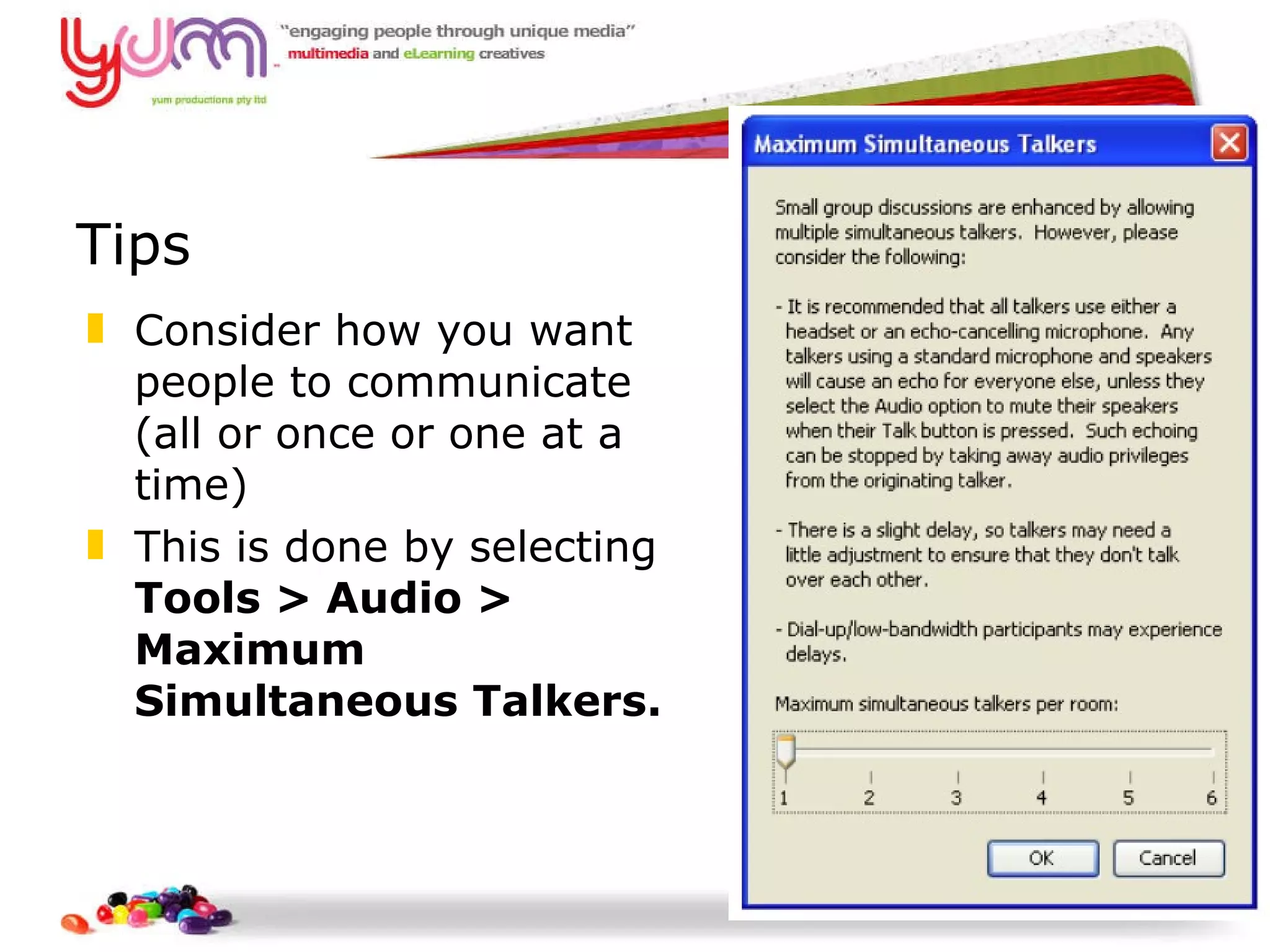
Tips Consider how you want people to communicate (all or once or one at a time) This is done by selecting  Tools > Audio > Maximum Simultaneous Talkers.
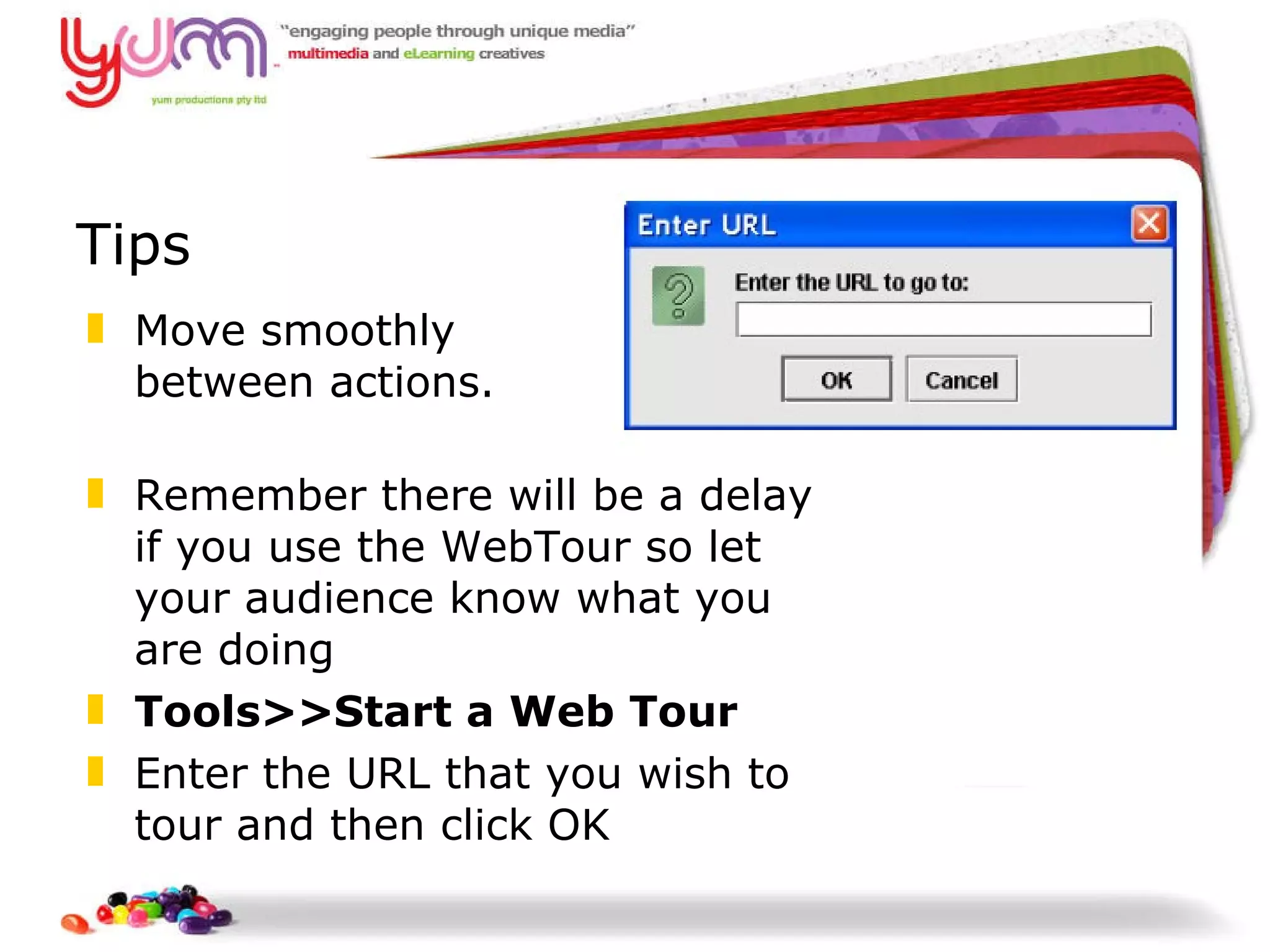
Tips Move smoothly  between actions.  Remember there will be a delay if you use the WebTour so let your audience know what you are doing Tools>>Start a Web Tour Enter the URL that you wish to tour and then click OK
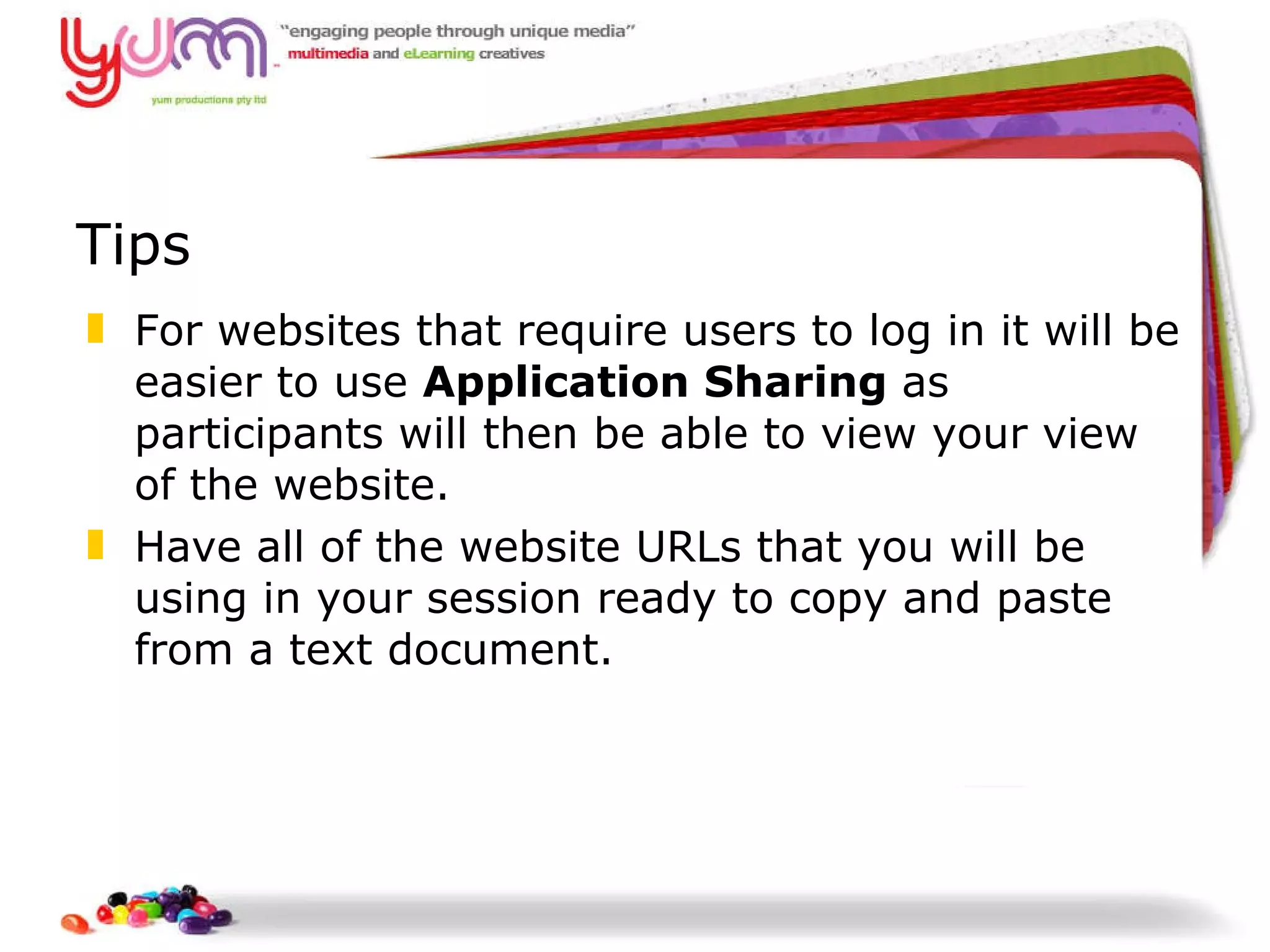
Tips For websites that require users to log in it will be easier to use  Application Sharing  as participants will then be able to view your view of the website.  Have all of the website URLs that you will be using in your session ready to copy and paste from a text document.
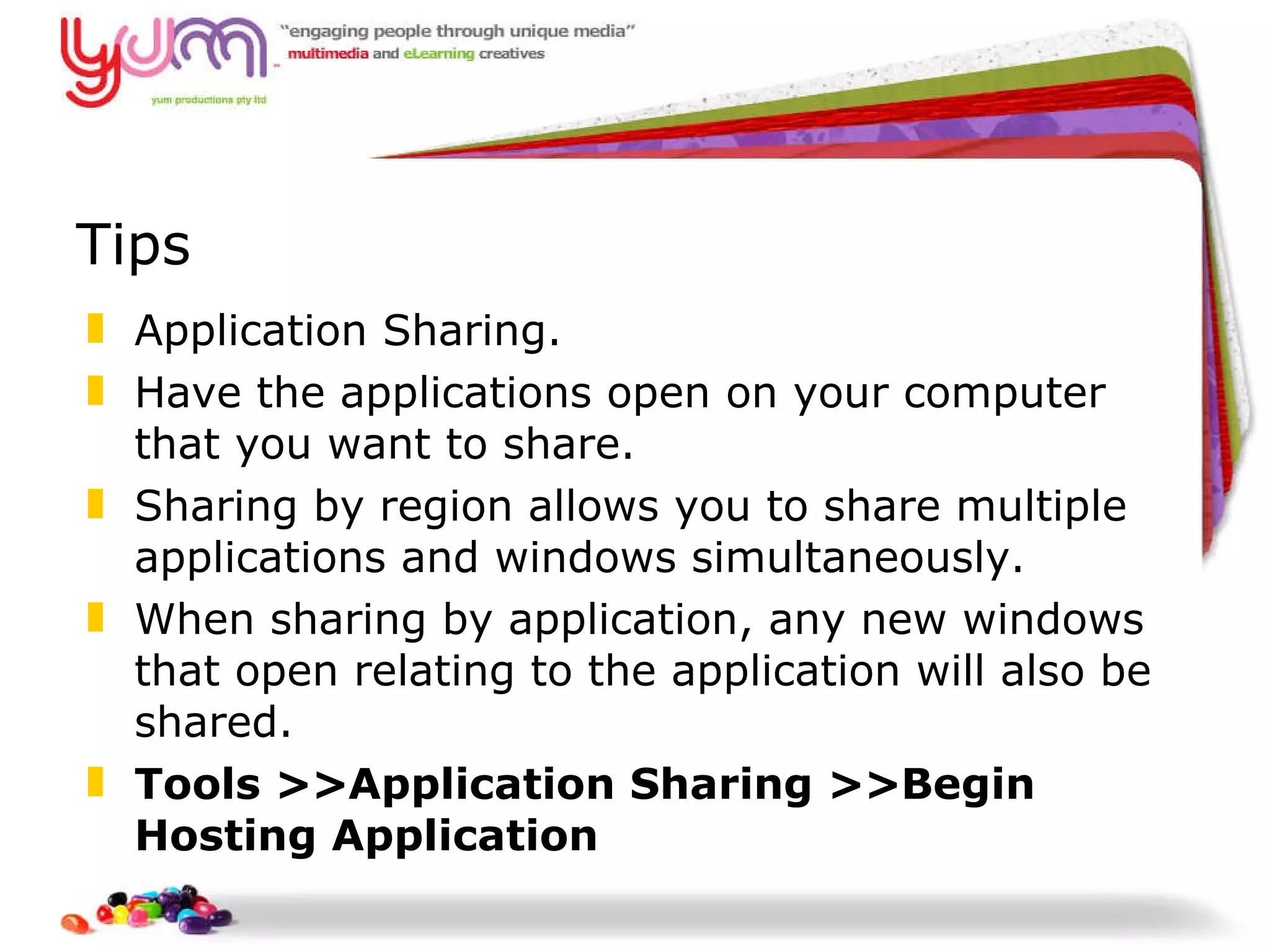
Tips Application Sharing. Have the applications open on your computer that you want to share. Sharing by region allows you to share multiple applications and windows simultaneously.  When sharing by application, any new windows that open relating to the application will also be shared. Tools >>Application Sharing >>Begin Hosting Application
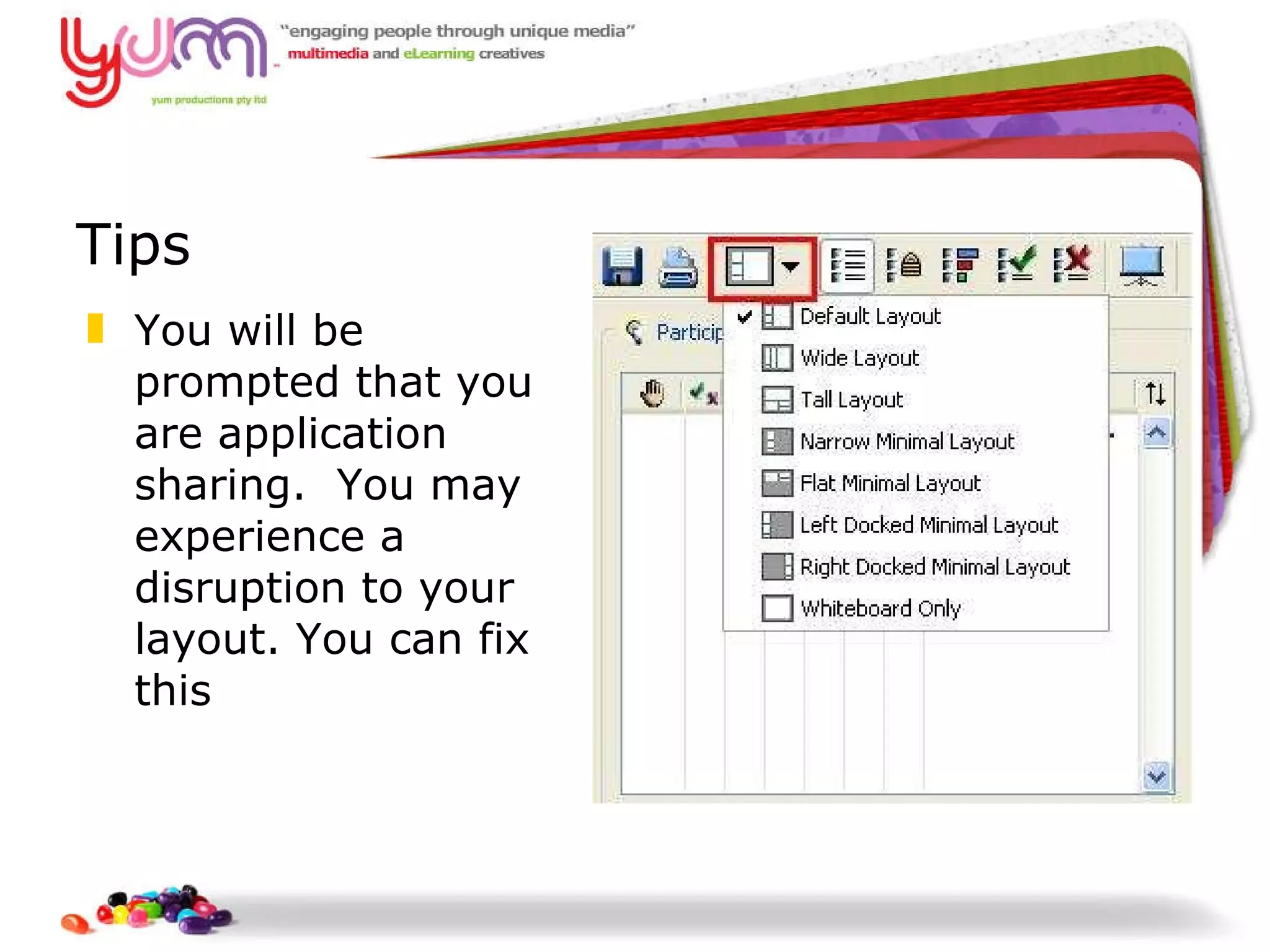
Tips You will be prompted that you are application sharing.  You may experience a disruption to your layout. You can fix this
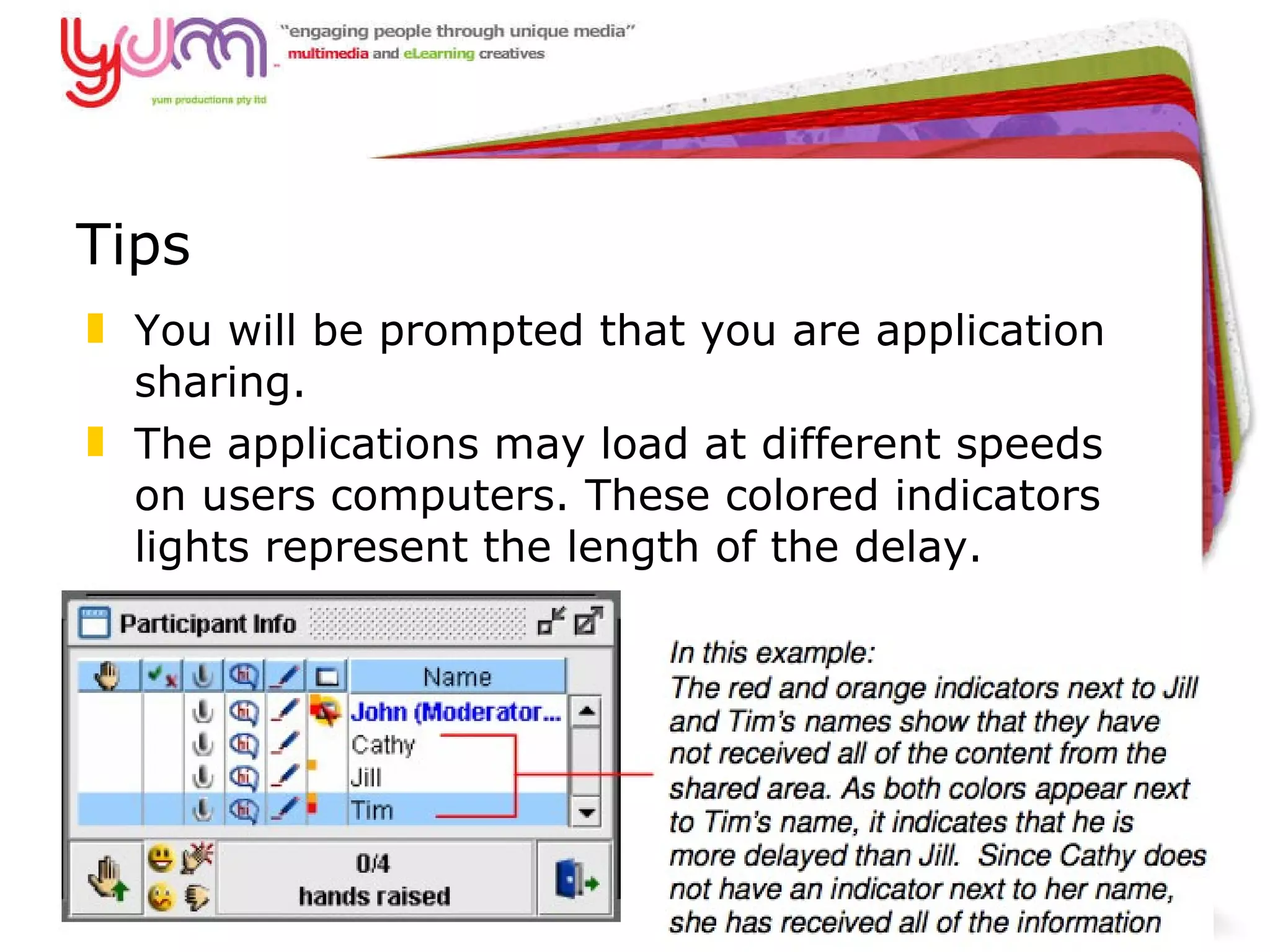
Tips You will be prompted that you are application sharing.  The applications may load at different speeds on users computers. These colored indicators lights represent the length of the delay.
Tips Poll the participants at various intervals to  obtain feedback. Choose from Yes/No, Multiple choice (3­5 responses)   Ask a question and have the participants answer using the polling response buttons located on  their toolbar.  To publish a copy of the polling statistics to the whiteboard, click  on the toolbar or click  the Publish to Whiteboard button on the Polling Statistics window.  
Questions Next and last session Tuesday 20th April 6.30pm
Thank you for playing

TAA eLearning Competencies 2010 - Session 8 slides

  • 1.
    Welcome Tuesday 13 th April
  • 2.
    Today I t’sElluminate time! Tour of Elluminate and a bit of brainstorming
  • 3.
    Content Make sure the content you create is easy to see.  Keep background templates simple so that they don't distract from the content you want toshare.   Avoid  gradient colors in the background.  Use a font type and size that is easy to read (no smaller than a 12 point standard font such as Arial, Verdana or Times New Roman).    Use visuals whenever possible especially for  complex processes or procedures.  Avoid slide after slide of bulleted lists.
  • 4.
    Content cont… Avoidusing bright colours Check download times for websites Avoid lag times, pre-load everything
  • 5.
  • 6.
    During your presentationSlow things down Watch for responses Practice, practice, practice If you have a brain fog moment ask a question. Divert so you can collect your thoughts
  • 7.
    Optimise your connectionspeed Set your Connection Speed to the Internet Open the Preferences dialog under the Tools>> Preferences . Select Connection choose the correct speed from the Connection Speed drop-down menu.
  • 8.
    Tips Name yourslides to make it easier to move to the correct one during a session Use the volume slider to monitor your volume rather than continually saying “Can you hear me”
  • 9.
    Tips Use thechat to post any links or to have a back channel of communication
  • 10.
    Tips Pose questionsso participants can use the emoticons to give you feedback
  • 11.
    Tips Encourage peopleto raise their hands if they have a question
  • 12.
    Tips Consider howyou want people to communicate (all or once or one at a time) This is done by selecting Tools > Audio > Maximum Simultaneous Talkers.
  • 13.
    Tips Move smoothly between actions. Remember there will be a delay if you use the WebTour so let your audience know what you are doing Tools>>Start a Web Tour Enter the URL that you wish to tour and then click OK
  • 14.
    Tips For websitesthat require users to log in it will be easier to use Application Sharing as participants will then be able to view your view of the website. Have all of the website URLs that you will be using in your session ready to copy and paste from a text document.
  • 15.
    Tips Application Sharing.Have the applications open on your computer that you want to share. Sharing by region allows you to share multiple applications and windows simultaneously. When sharing by application, any new windows that open relating to the application will also be shared. Tools >>Application Sharing >>Begin Hosting Application
  • 16.
    Tips You willbe prompted that you are application sharing. You may experience a disruption to your layout. You can fix this
  • 17.
    Tips You willbe prompted that you are application sharing. The applications may load at different speeds on users computers. These colored indicators lights represent the length of the delay.
  • 18.
    Tips Poll the participants at various intervals to  obtain feedback.Choose from Yes/No, Multiple choice (3­5 responses)   Ask a question and have the participants answer using the polling response buttons located on  their toolbar. To publish a copy of the polling statistics to the whiteboard, click  on the toolbar or click  the Publish to Whiteboard button on the Polling Statistics window.  
  • 19.
    Questions Next andlast session Tuesday 20th April 6.30pm
  • 20.