Professional Development System
Using CourseSites
A quick tutorial on:
• How to log on to CourseSites
• Basic Course Navigation
Professional Development System
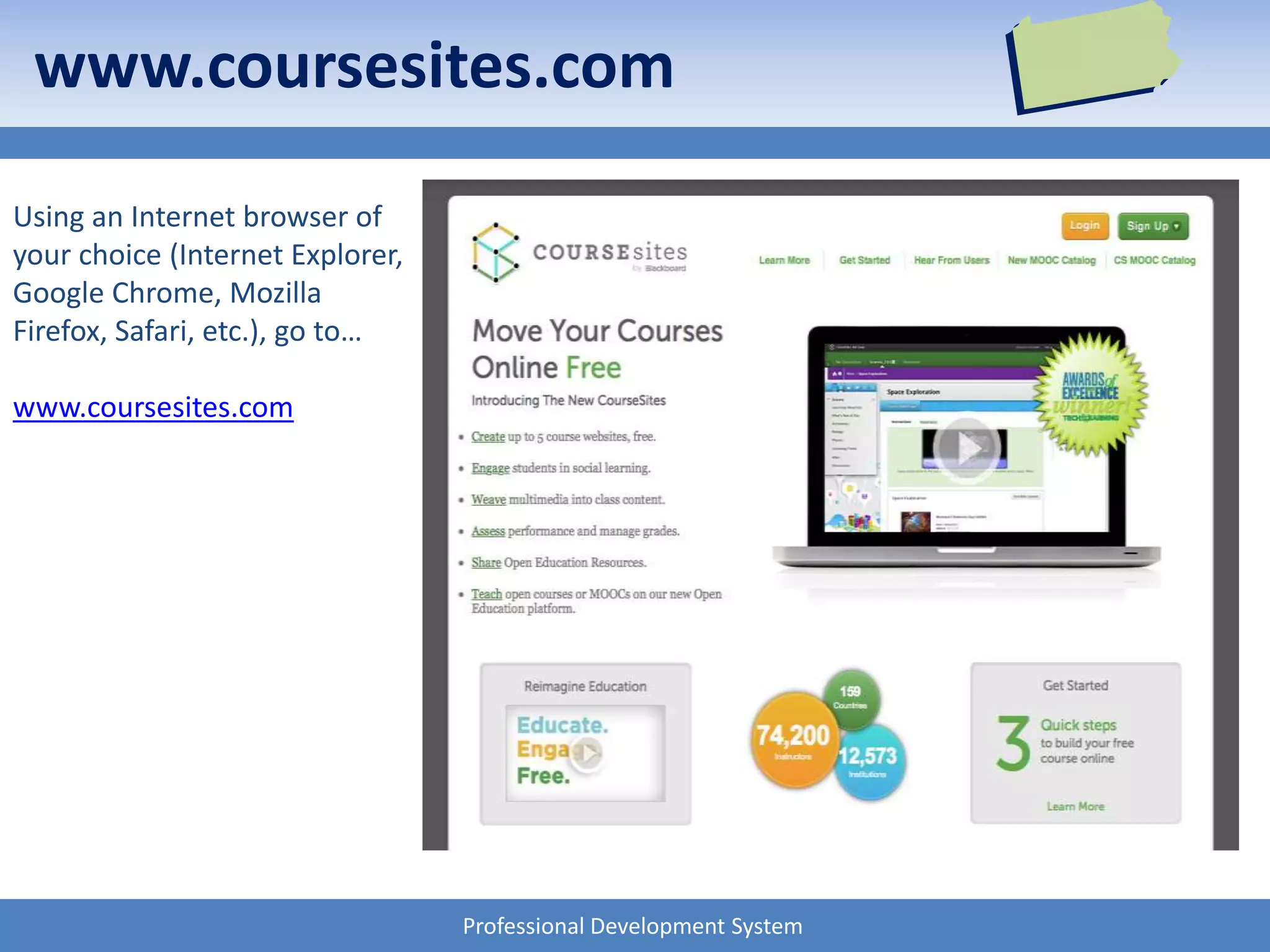
www.coursesites.com
Using an Internet browser of
your choice (Internet Explorer,
Google Chrome, Mozilla
Firefox, Safari, etc.), go to…
www.coursesites.com
Professional Development System
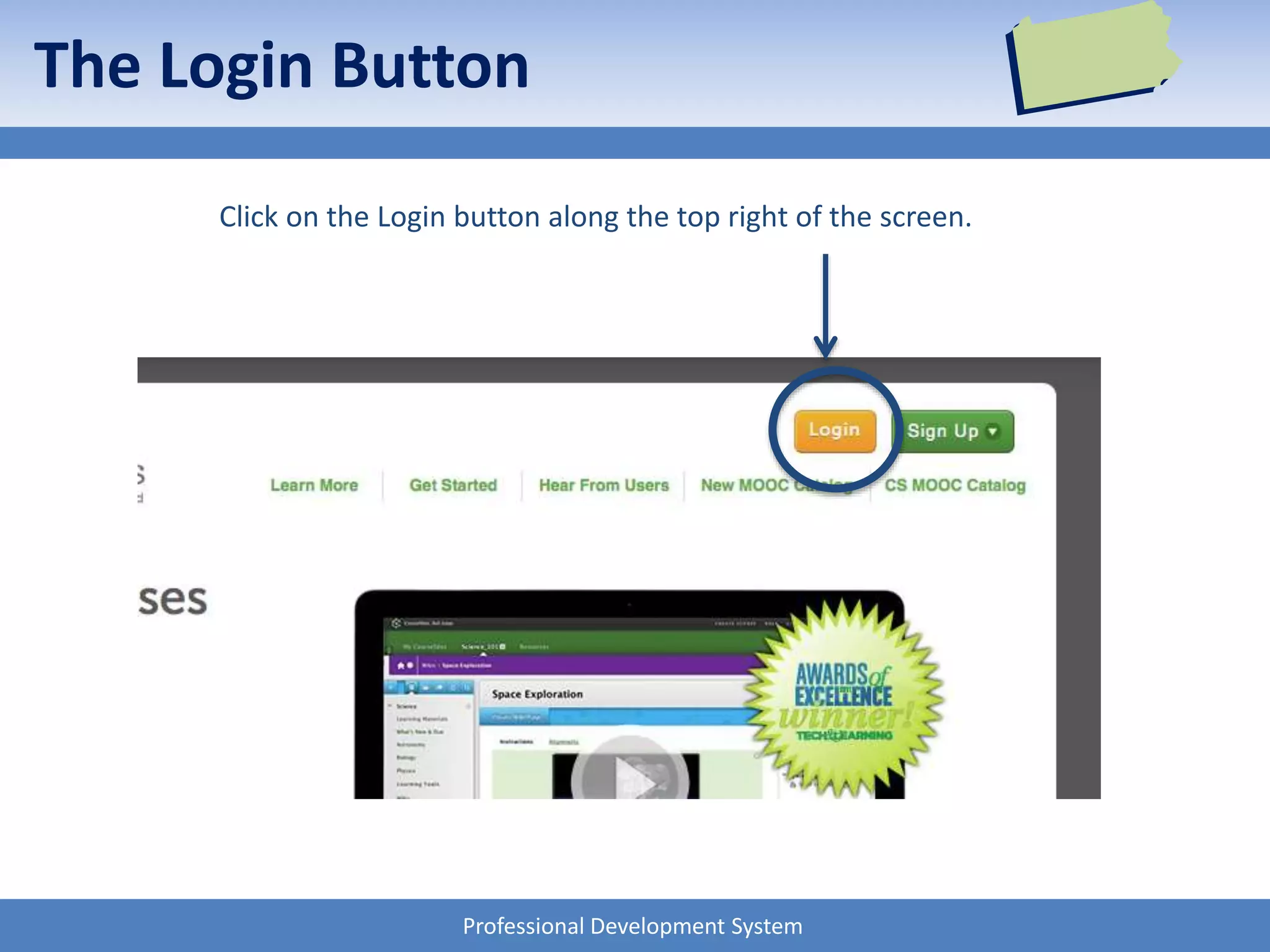
The Login Button
Click on the Login button along the top right of the screen.
Professional Development System
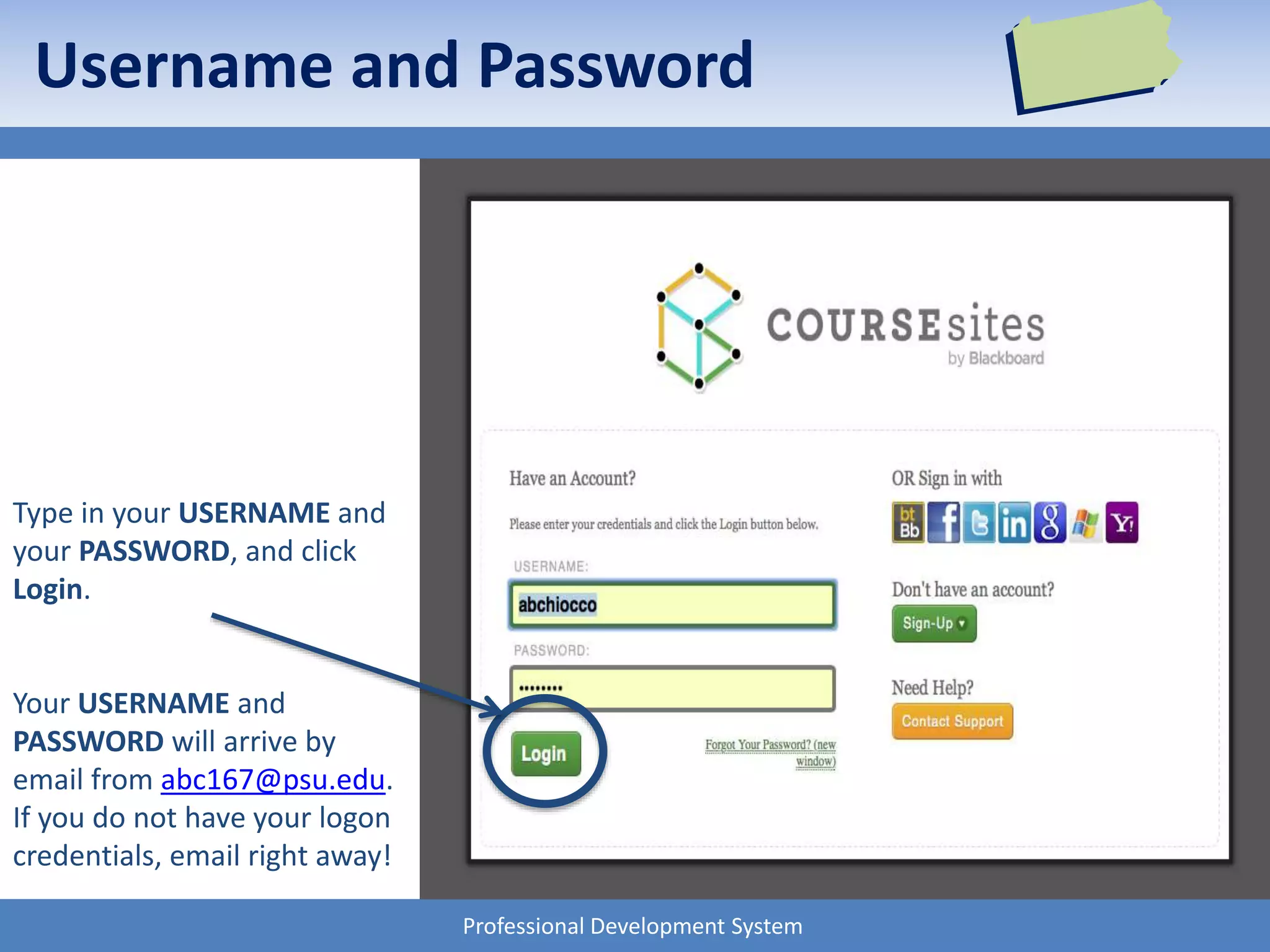
Username and Password
Type in your USERNAME and
your PASSWORD, and click
Login.
Your USERNAME and
PASSWORD will arrive by
email from abc167@psu.edu.
If you do not have your logon
credentials, email right away!
Professional Development System
Privacy & Cookies
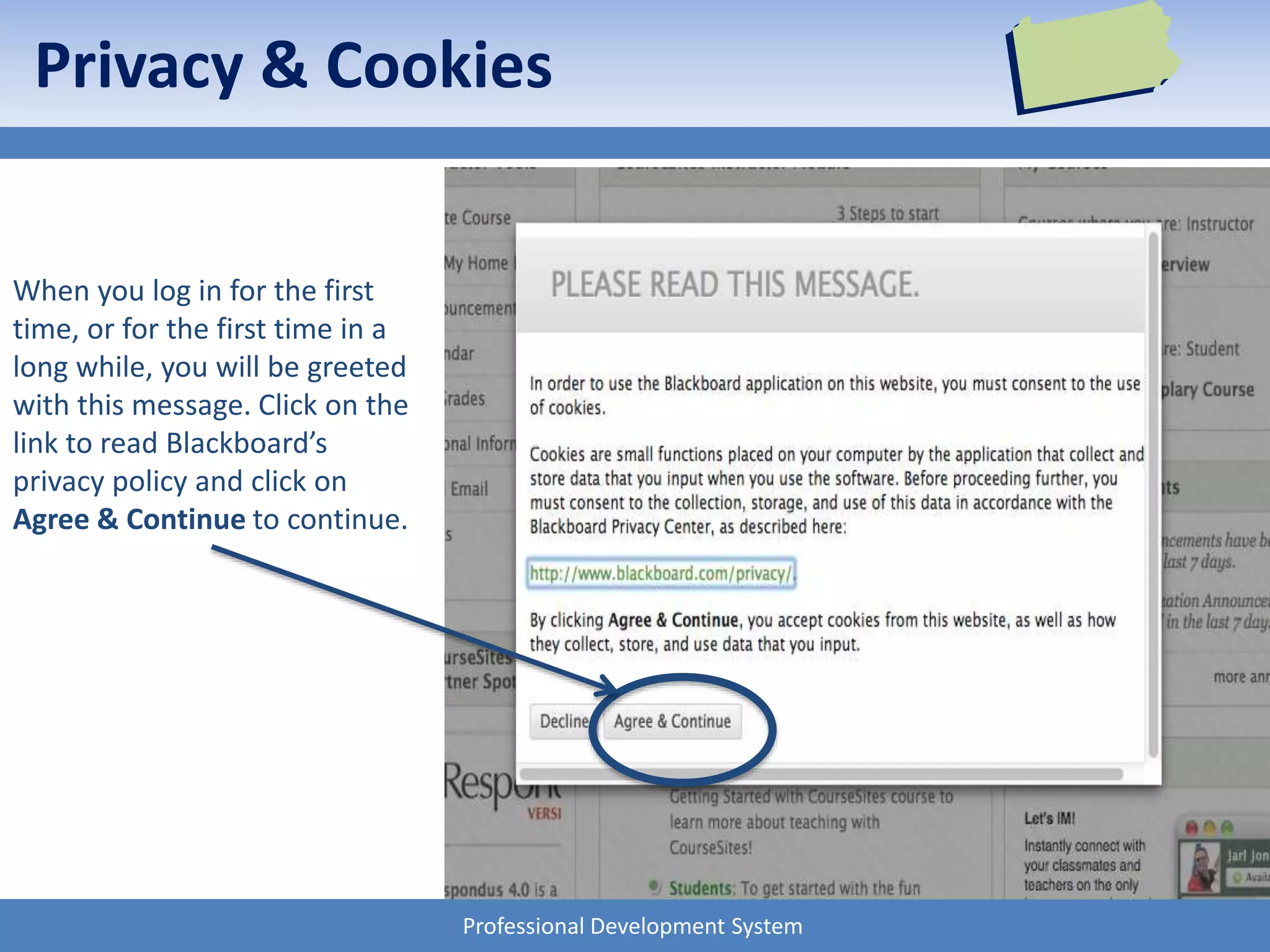
When you log in for the first
time, or for the first time in a
long while, you will be greeted
with this message. Click on the
link to read Blackboard’s
privacy policy and click on
Agree & Continue to continue.
Professional Development System
The Home Page
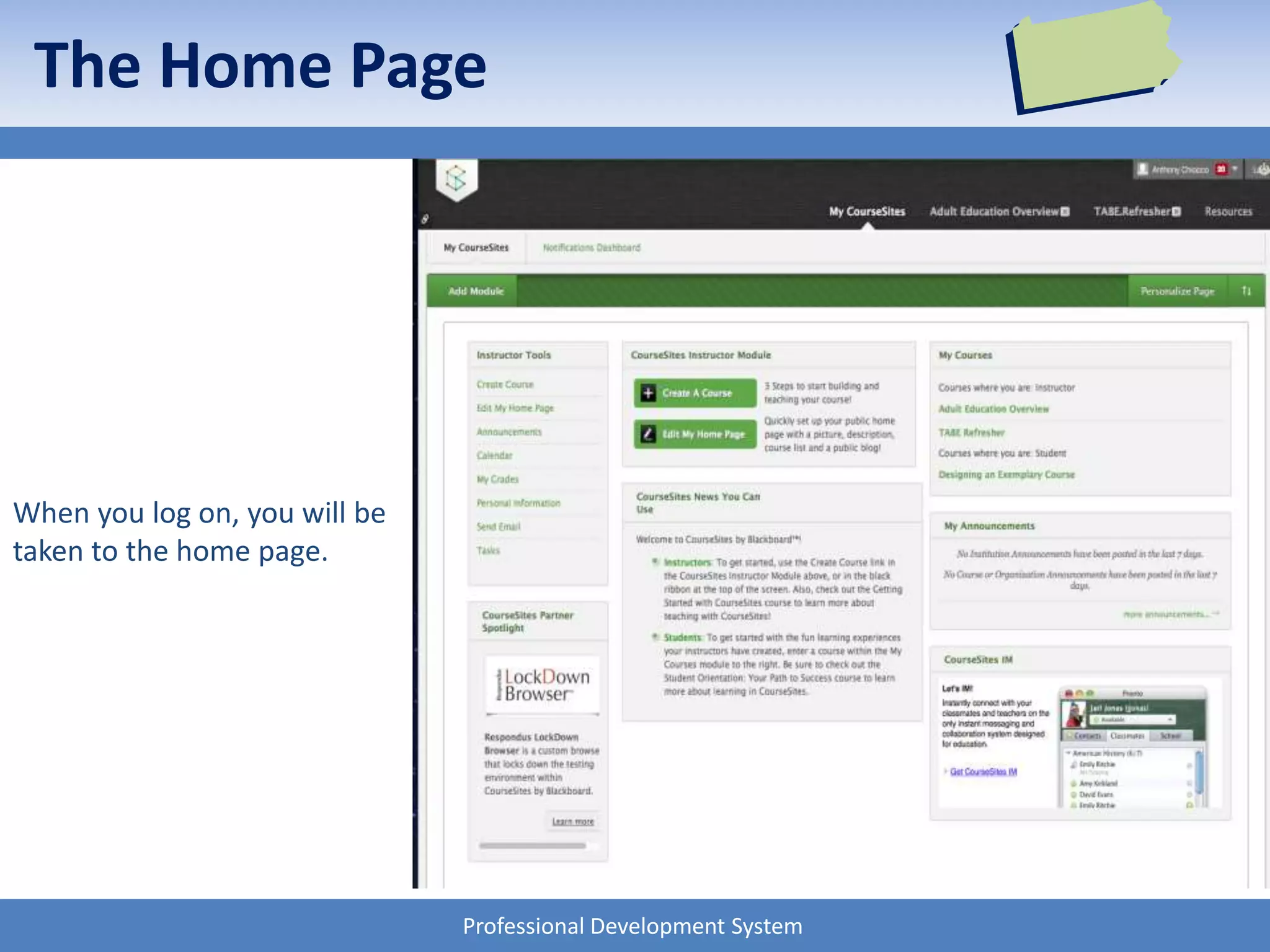
When you log on, you will be
taken to the home page.
Professional Development System
Location for Courses
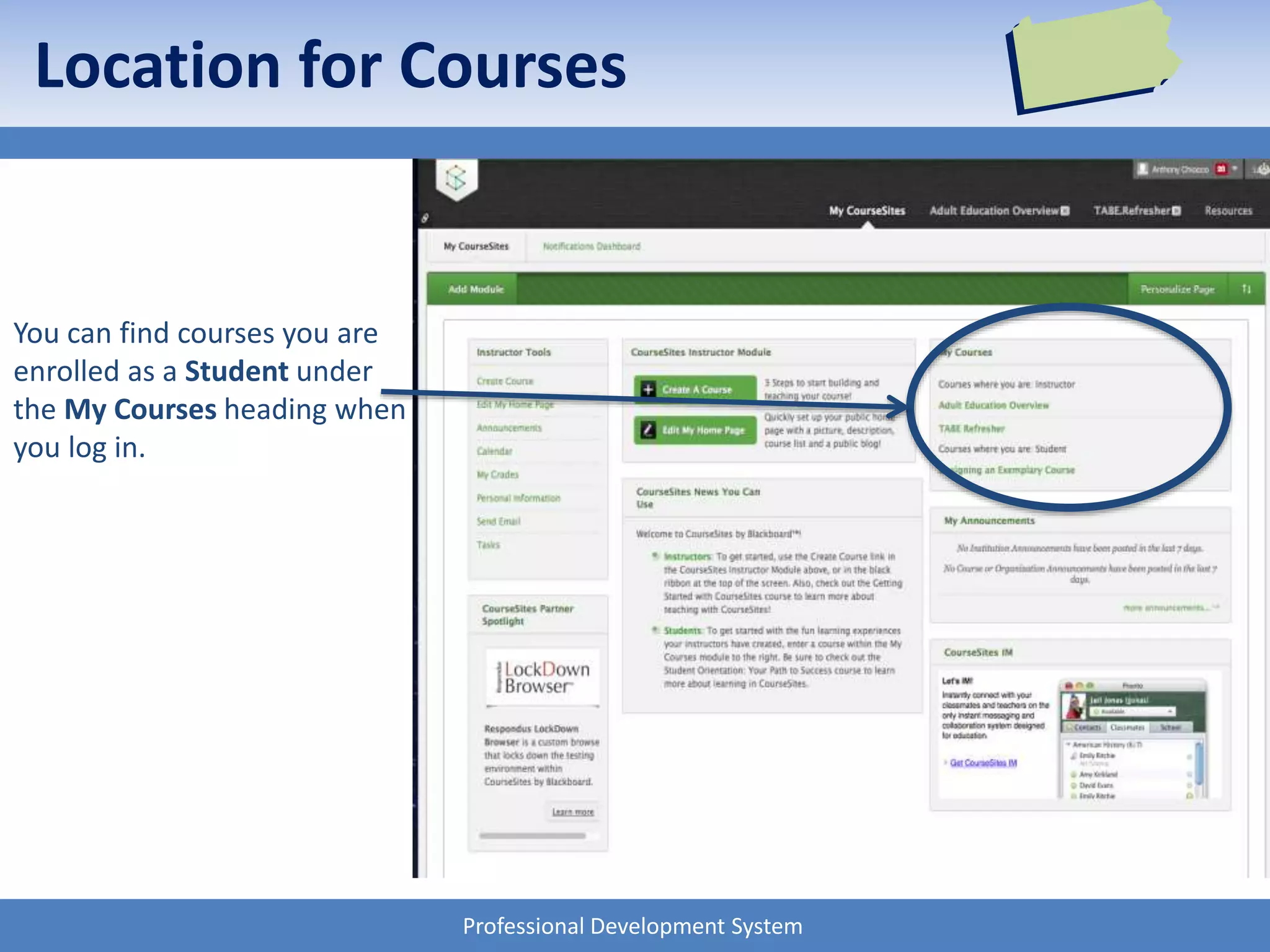
You can find courses you are
enrolled as a Student under
the My Courses heading when
you log in.
Professional Development System
Recently Viewed
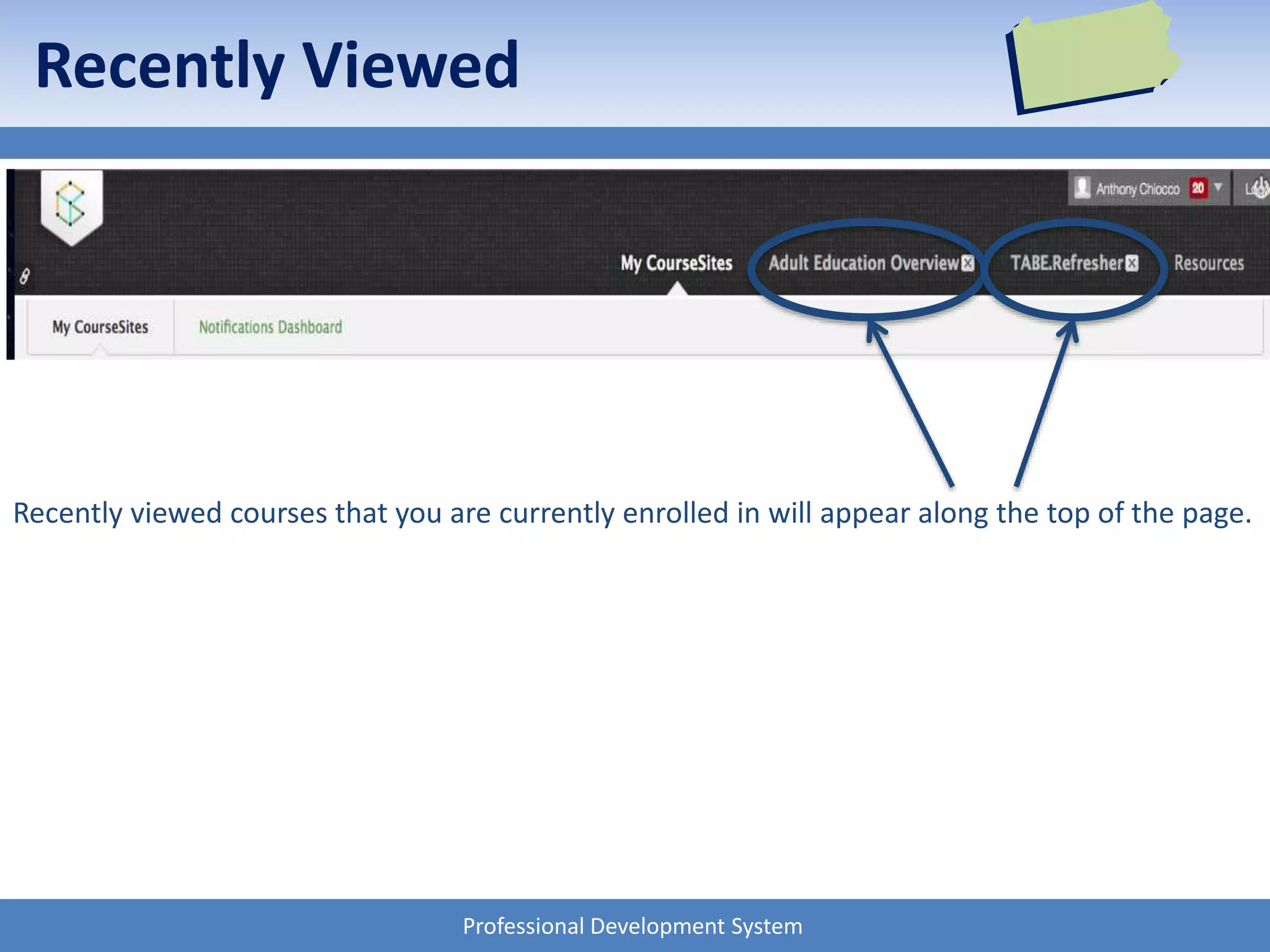
Recently viewed courses that you are currently enrolled in will appear along the top of the page.
Professional Development System
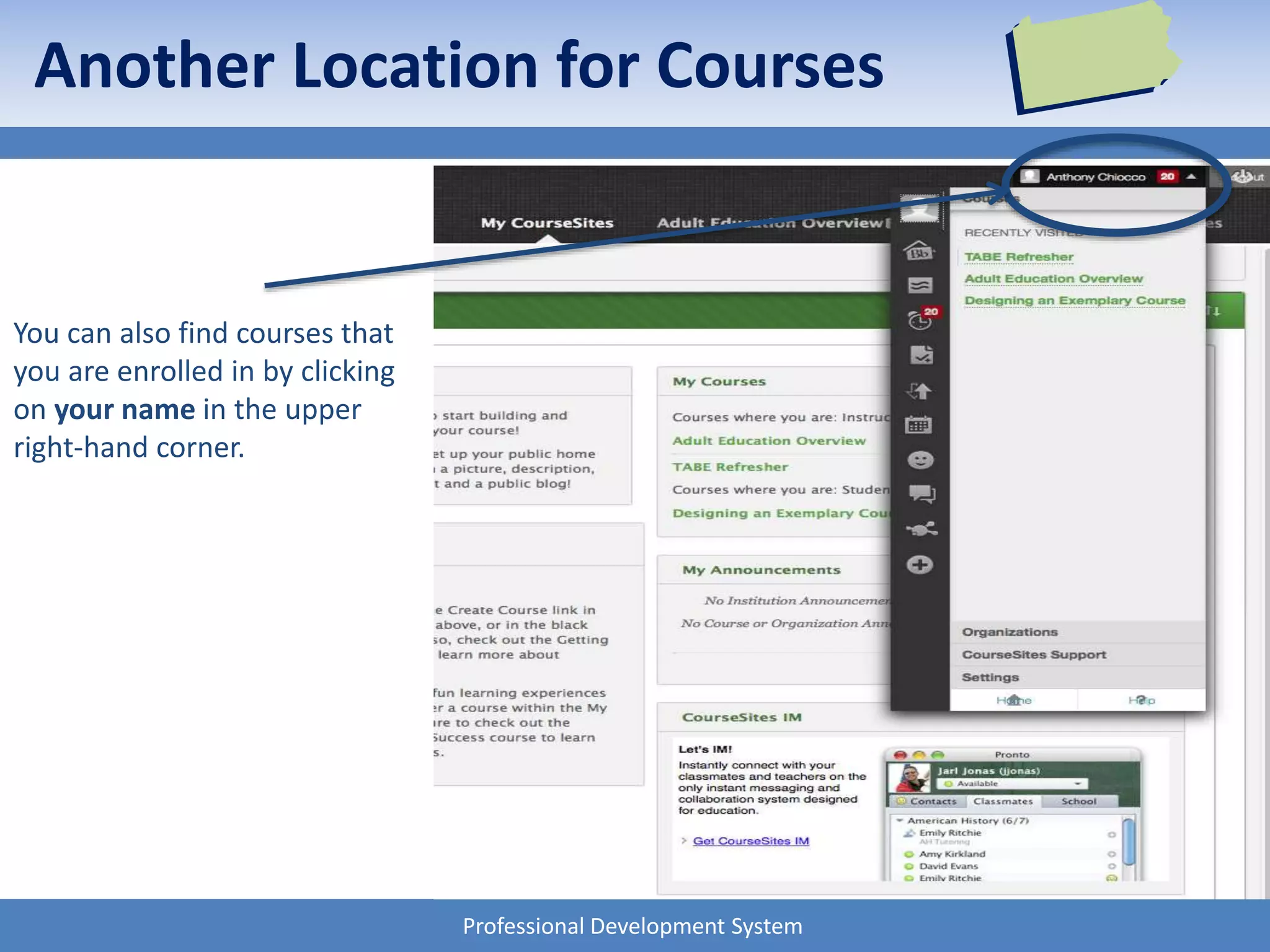
Another Location for Courses
You can also find courses that
you are enrolled in by clicking
on your name in the upper
right-hand corner.
Professional Development System
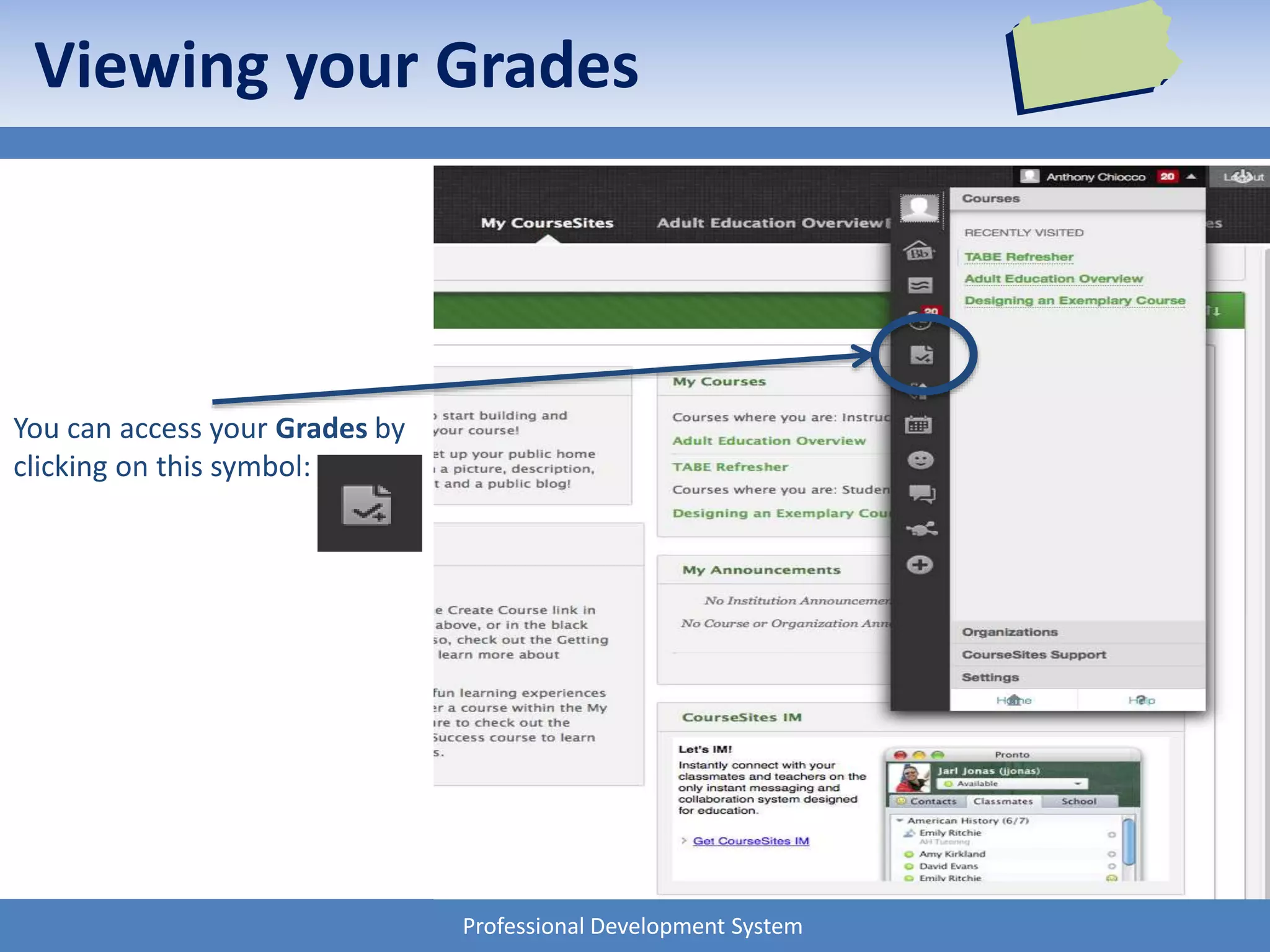
Viewing your Grades
You can access your Grades by
clicking on this symbol:
Professional Development System
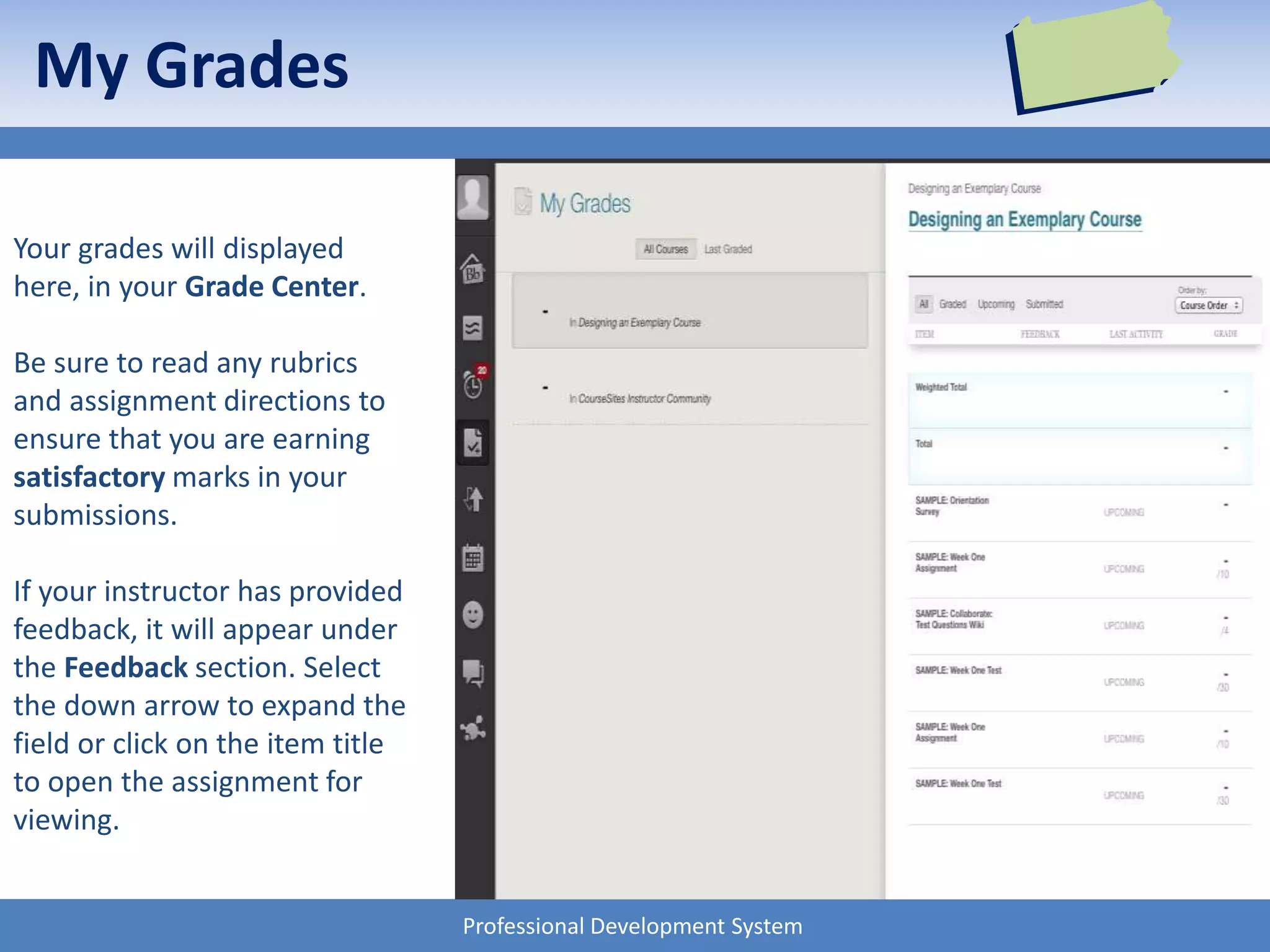
My Grades
Your grades will displayed
here, in your Grade Center.
Be sure to read any rubrics
and assignment directions to
ensure that you are earning
satisfactory marks in your
submissions.
If your instructor has provided
feedback, it will appear under
the Feedback section. Select
the down arrow to expand the
field or click on the item title
to open the assignment for
viewing.
Professional Development System
NEW ADMINISTRATOR TRAINING
A quick reference guide
Professional Development System
Navigating the Course
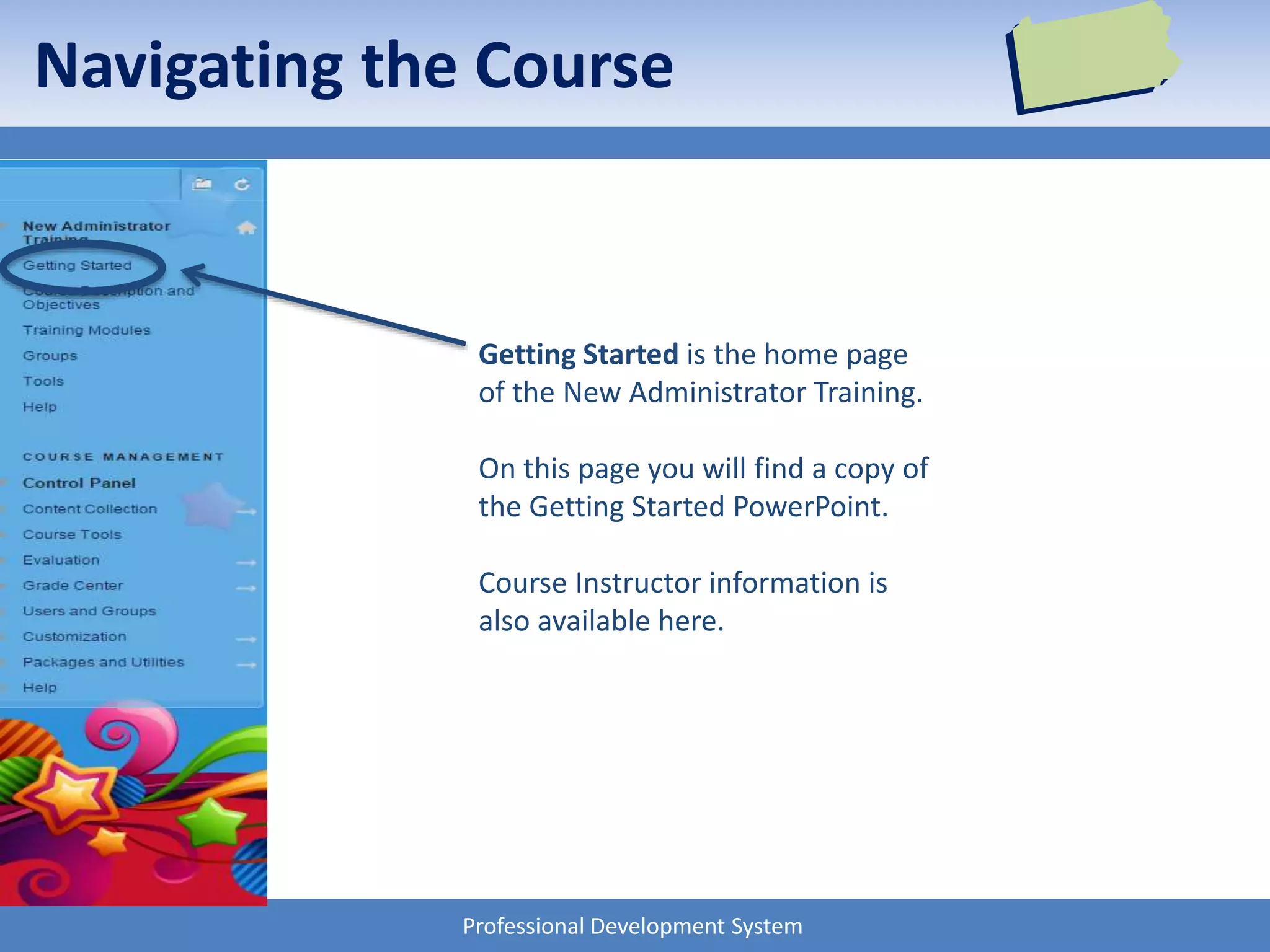
Getting Started is the home page
of the New Administrator Training.
On this page you will find a copy of
the Getting Started PowerPoint.
Course Instructor information is
also available here.
Professional Development System
Navigating the Course
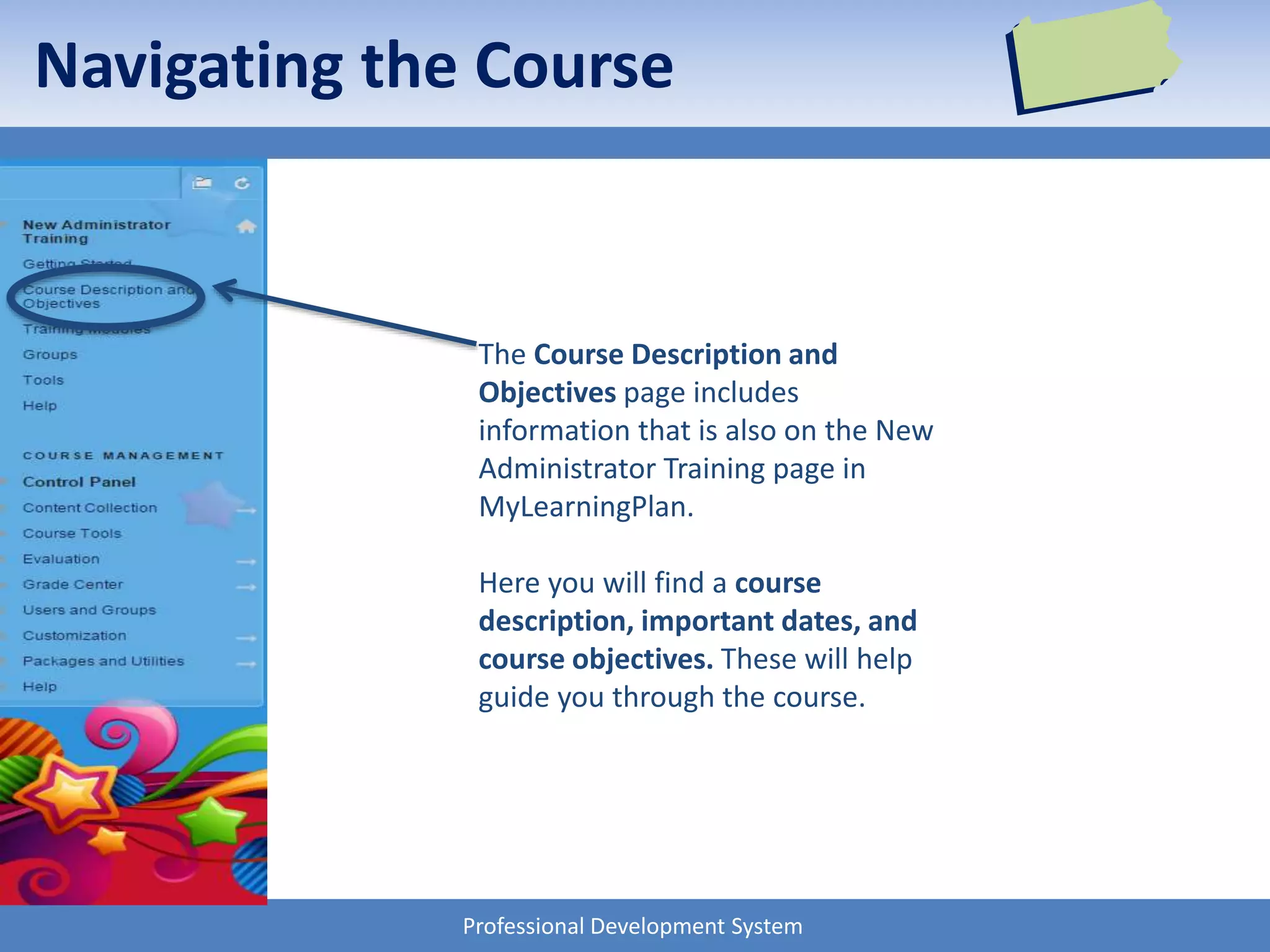
The Course Description and
Objectives page includes
information that is also on the New
Administrator Training page in
MyLearningPlan.
Here you will find a course
description, important dates, and
course objectives. These will help
guide you through the course.
Professional Development System
Navigating the Course
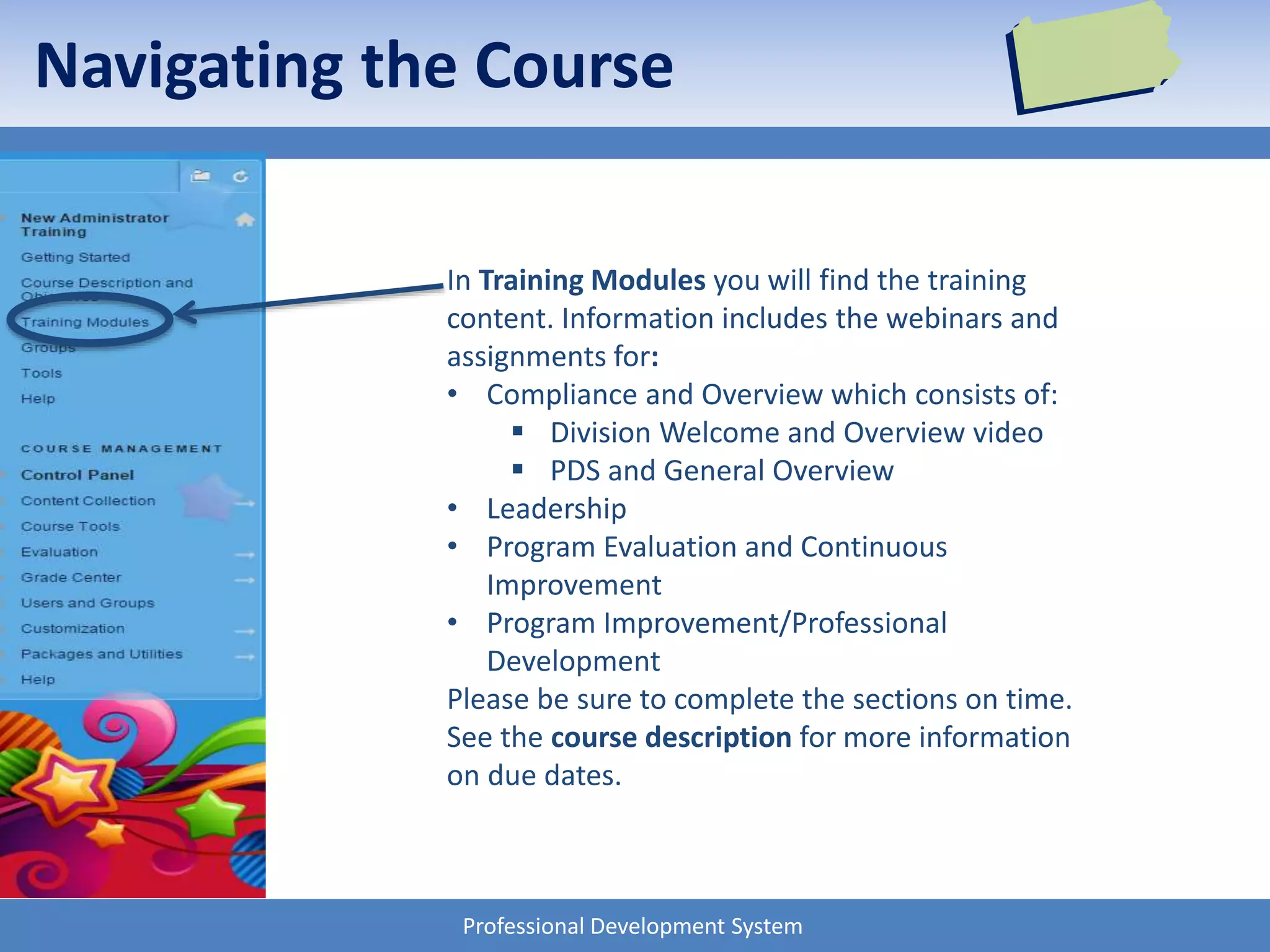
In Training Modules you will find the training
content. Information includes the webinars and
assignments for:
• Compliance and Overview which consists of:
 Division Welcome and Overview video
 PDS and General Overview
• Leadership
• Program Evaluation and Continuous
Improvement
• Program Improvement/Professional
Development
Please be sure to complete the sections on time.
See the course description for more information
on due dates.
Professional Development System
Navigating the Course
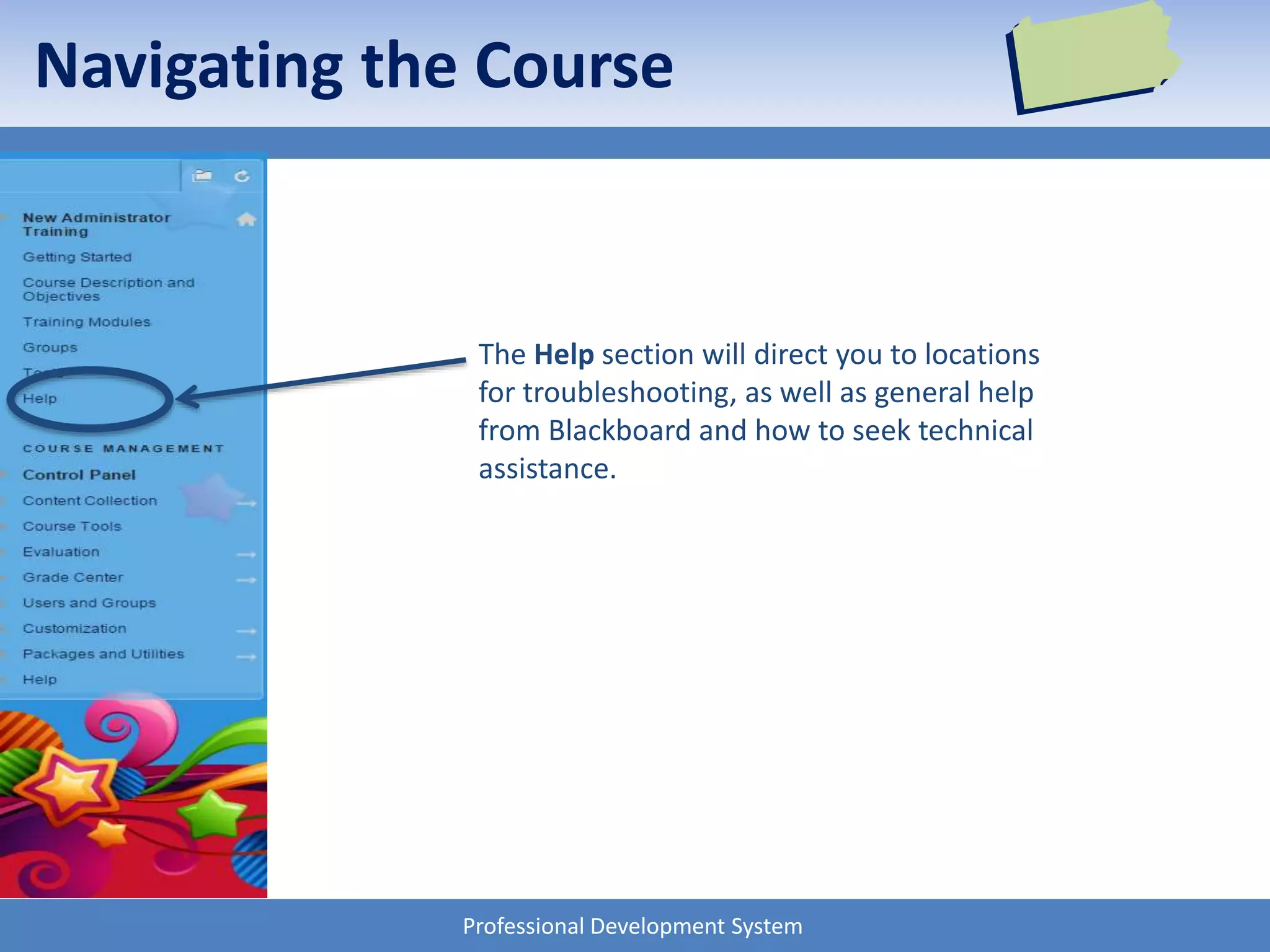
The Help section will direct you to locations
for troubleshooting, as well as general help
from Blackboard and how to seek technical
assistance.
Professional Development System
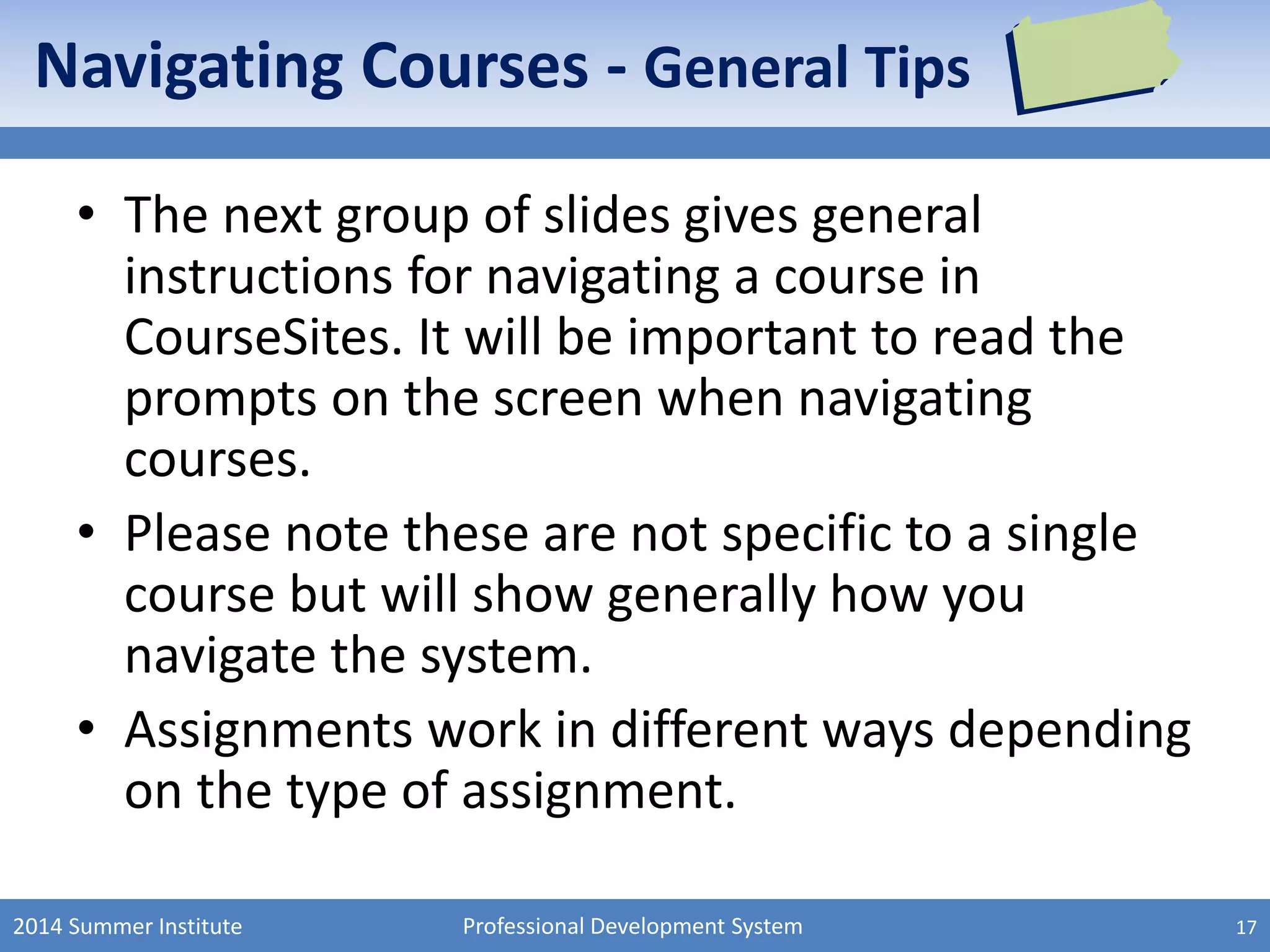
Navigating Courses - General Tips
• The next group of slides gives general
instructions for navigating a course in
CourseSites. It will be important to read the
prompts on the screen when navigating
courses.
• Please note these are not specific to a single
course but will show generally how you
navigate the system.
• Assignments work in different ways depending
on the type of assignment.
2014 Summer Institute 17
Professional Development System
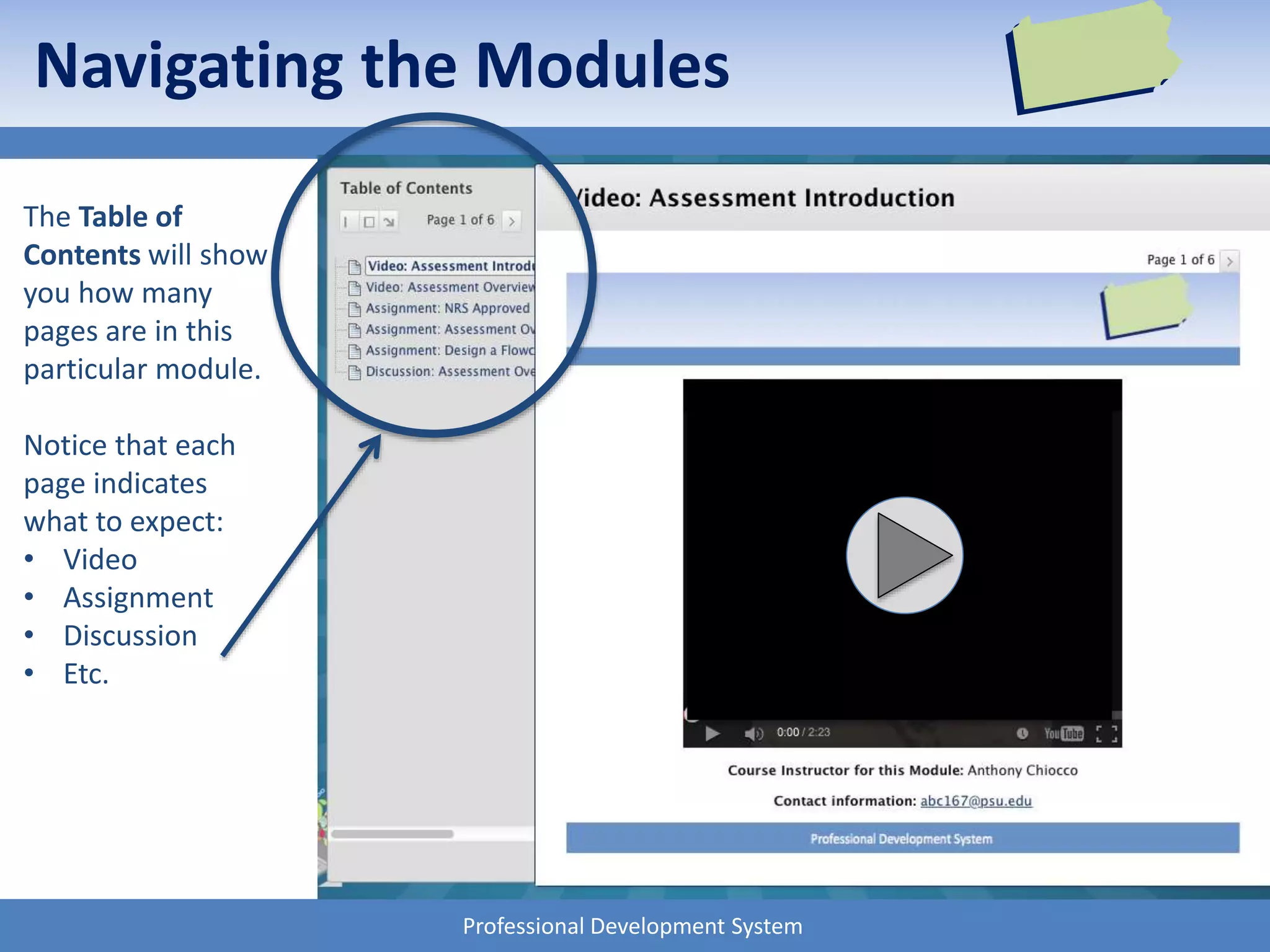
The Table of
Contents will show
you how many
pages are in this
particular module.
Notice that each
page indicates
what to expect:
• Video
• Assignment
• Discussion
• Etc.
Navigating the Modules
Professional Development System
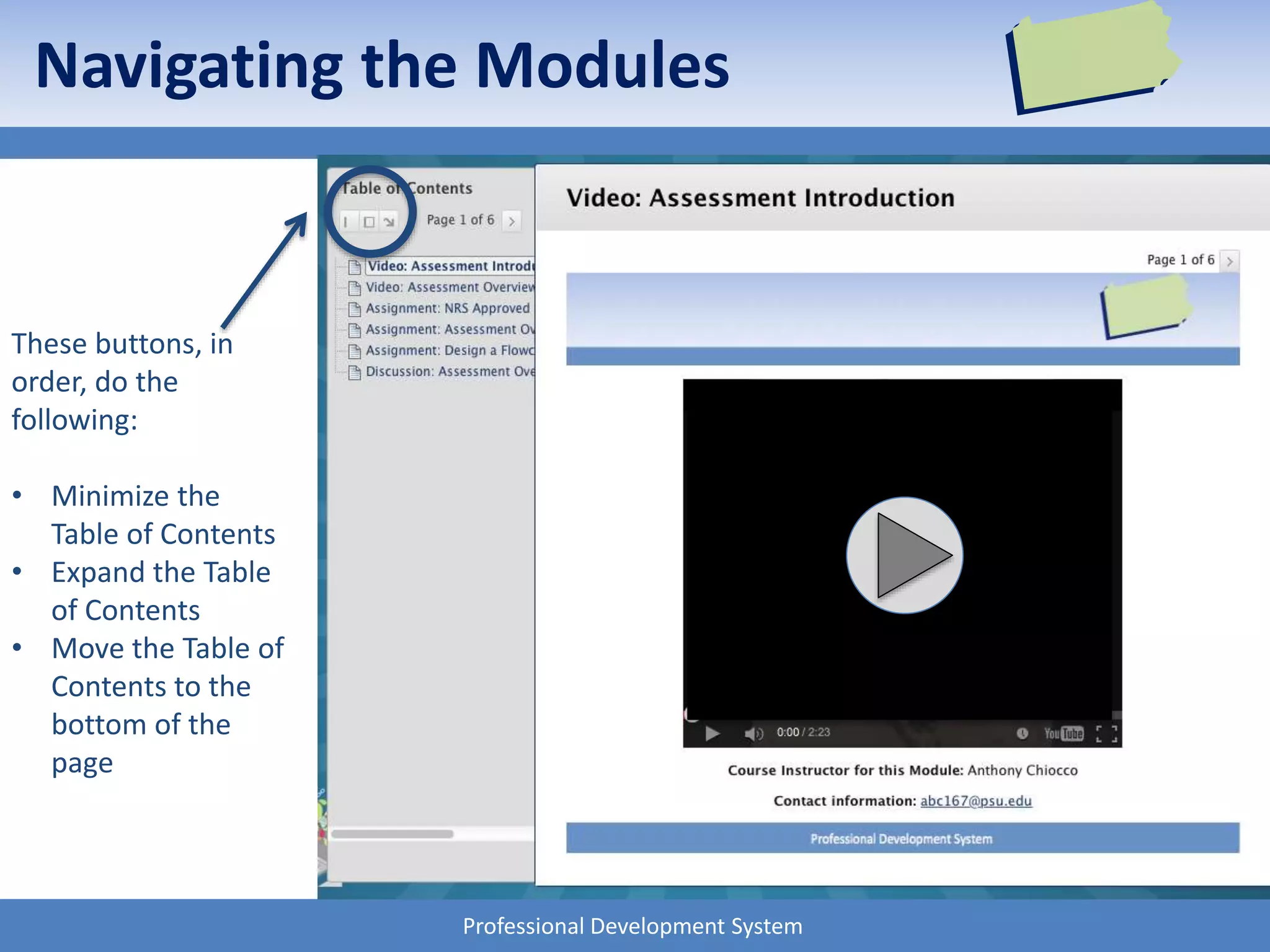
These buttons, in
order, do the
following:
• Minimize the
Table of Contents
• Expand the Table
of Contents
• Move the Table of
Contents to the
bottom of the
page
Navigating the Modules
Professional Development System
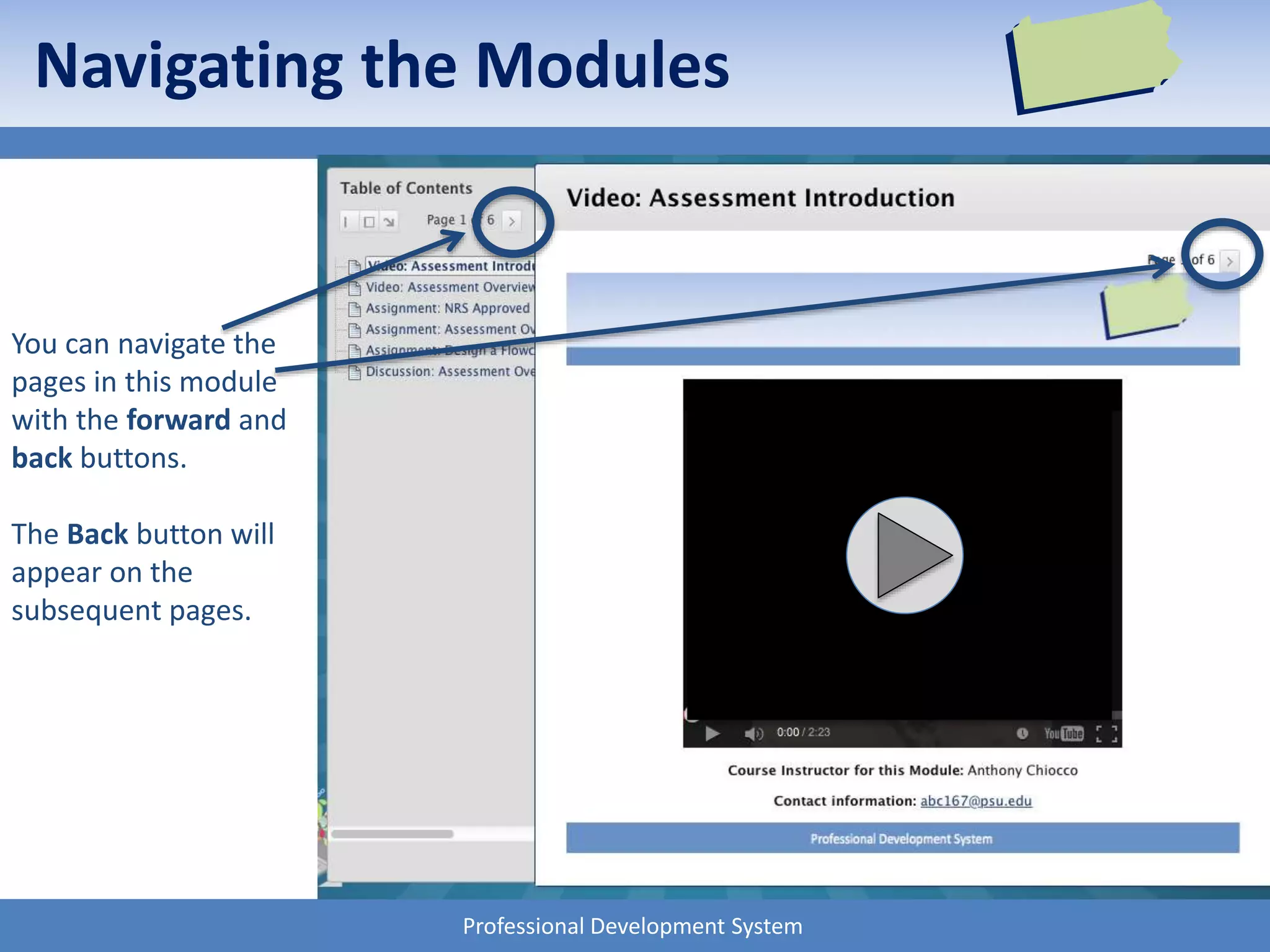
You can navigate the
pages in this module
with the forward and
back buttons.
The Back button will
appear on the
subsequent pages.
Navigating the Modules
Professional Development System
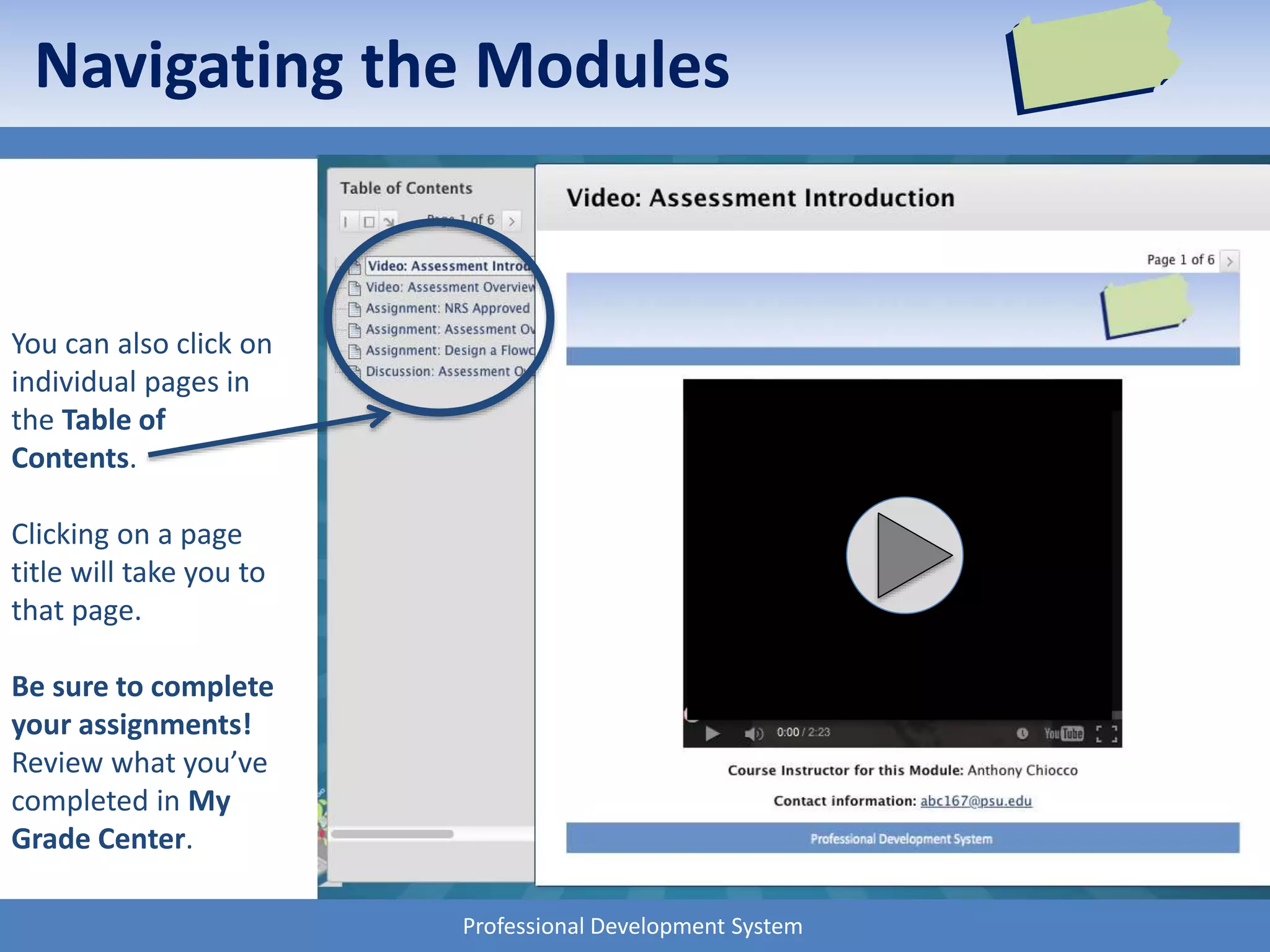
You can also click on
individual pages in
the Table of
Contents.
Clicking on a page
title will take you to
that page.
Be sure to complete
your assignments!
Review what you’ve
completed in My
Grade Center.
Navigating the Modules
Professional Development System
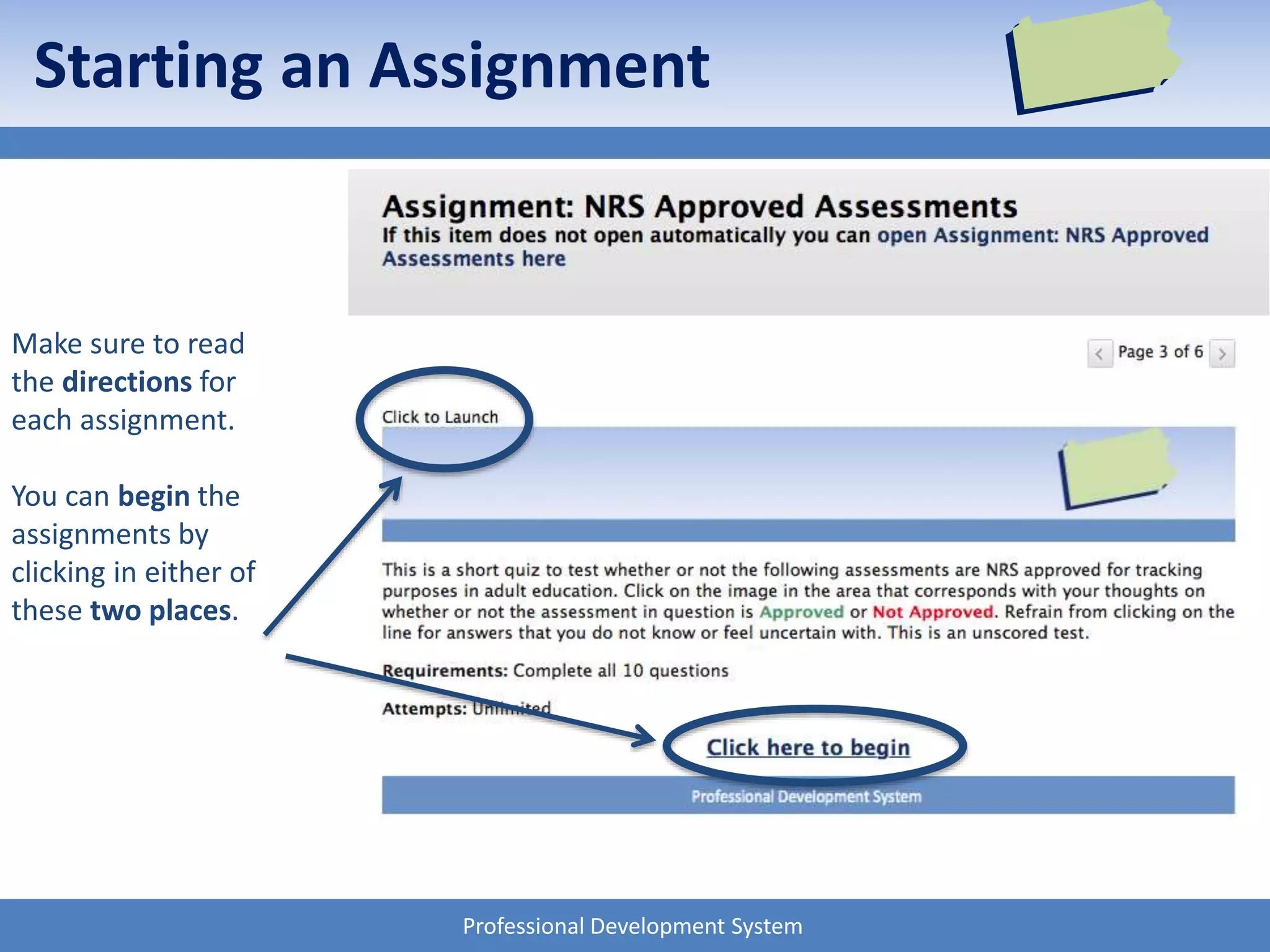
Make sure to read
the directions for
each assignment.
You can begin the
assignments by
clicking in either of
these two places.
Starting an Assignment
Professional Development System
Starting an Assignment
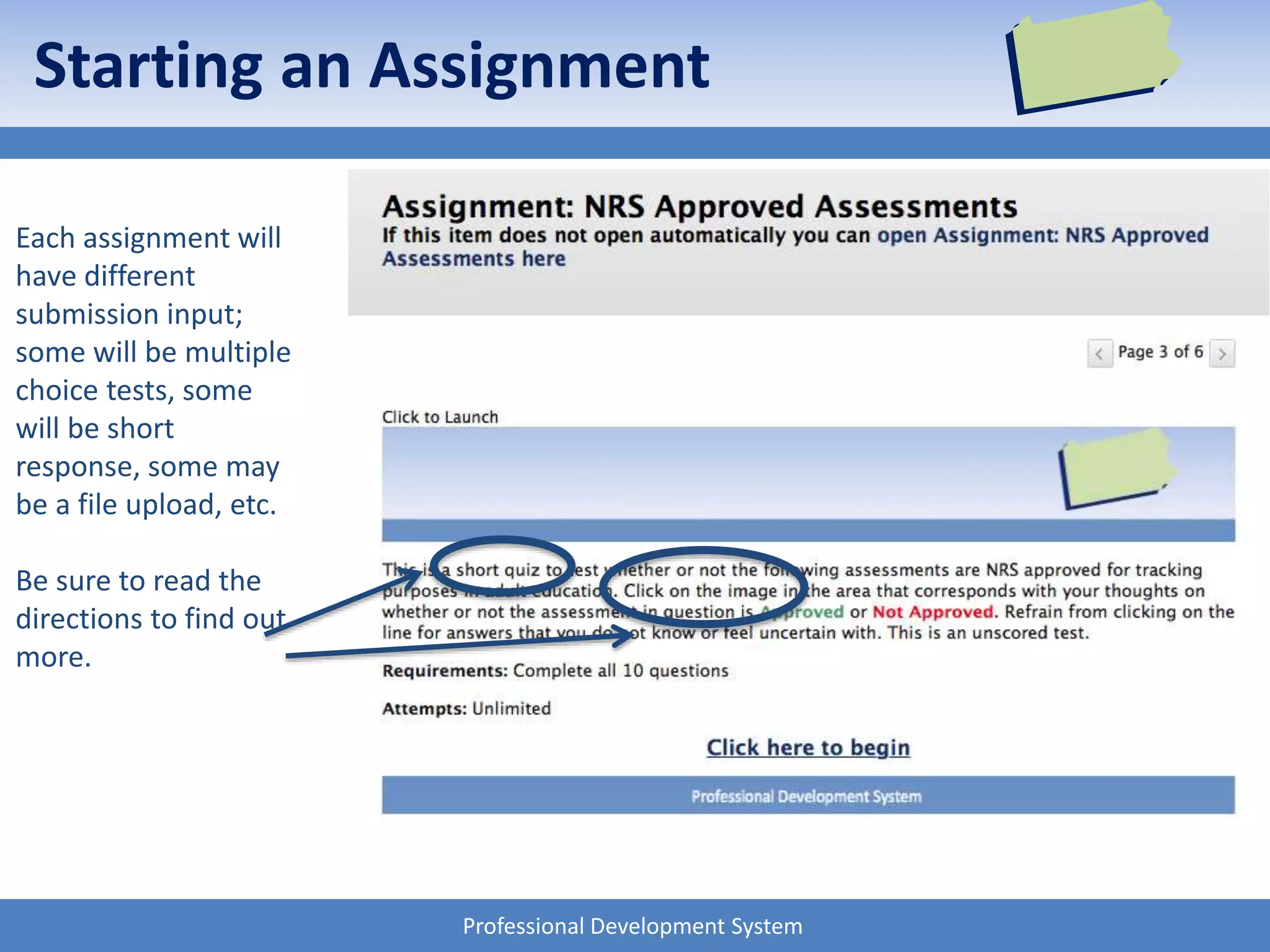
Each assignment will
have different
submission input;
some will be multiple
choice tests, some
will be short
response, some may
be a file upload, etc.
Be sure to read the
directions to find out
more.
Professional Development System
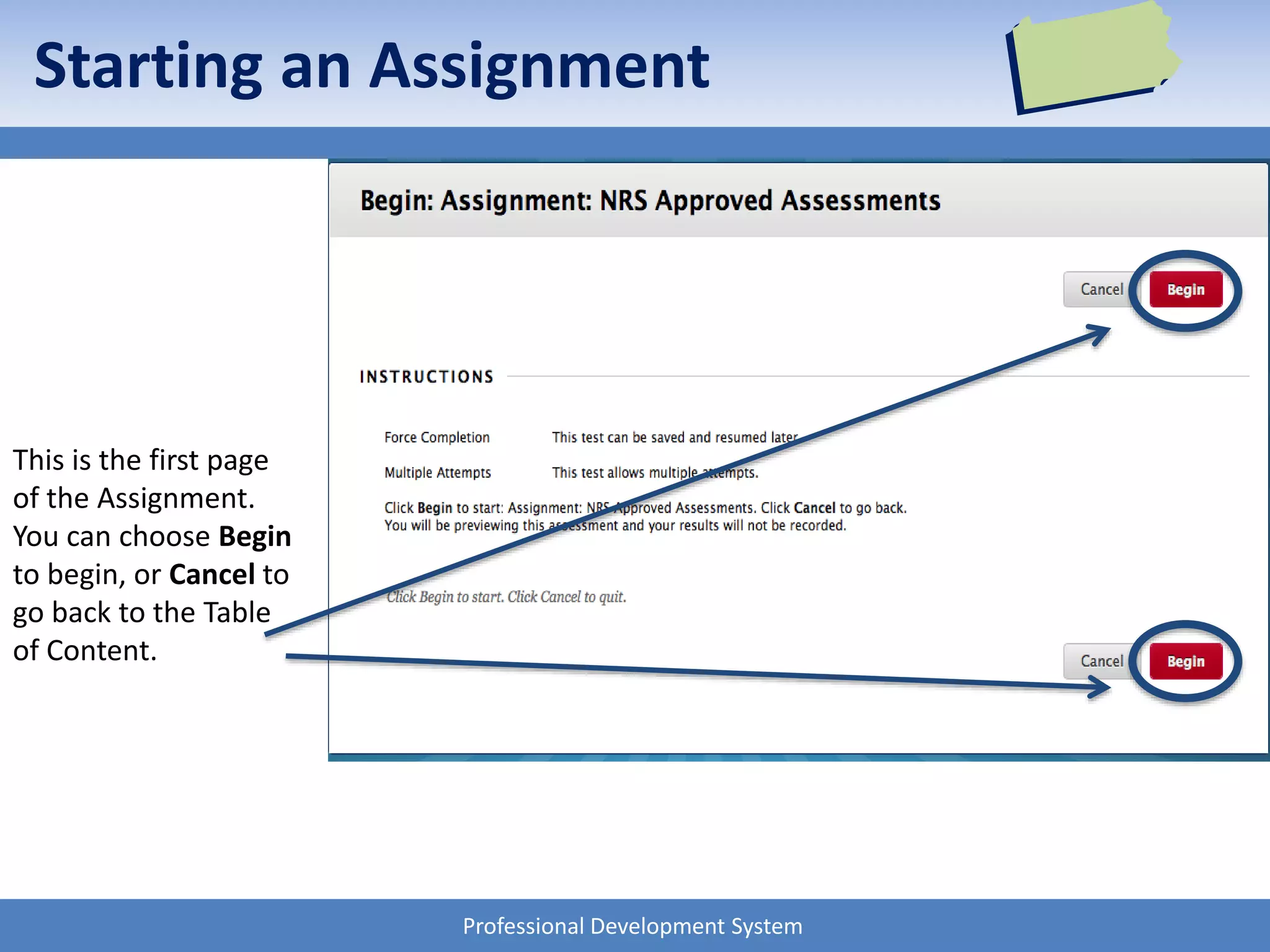
This is the first page
of the Assignment.
You can choose Begin
to begin, or Cancel to
go back to the Table
of Content.
Starting an Assignment
Professional Development System
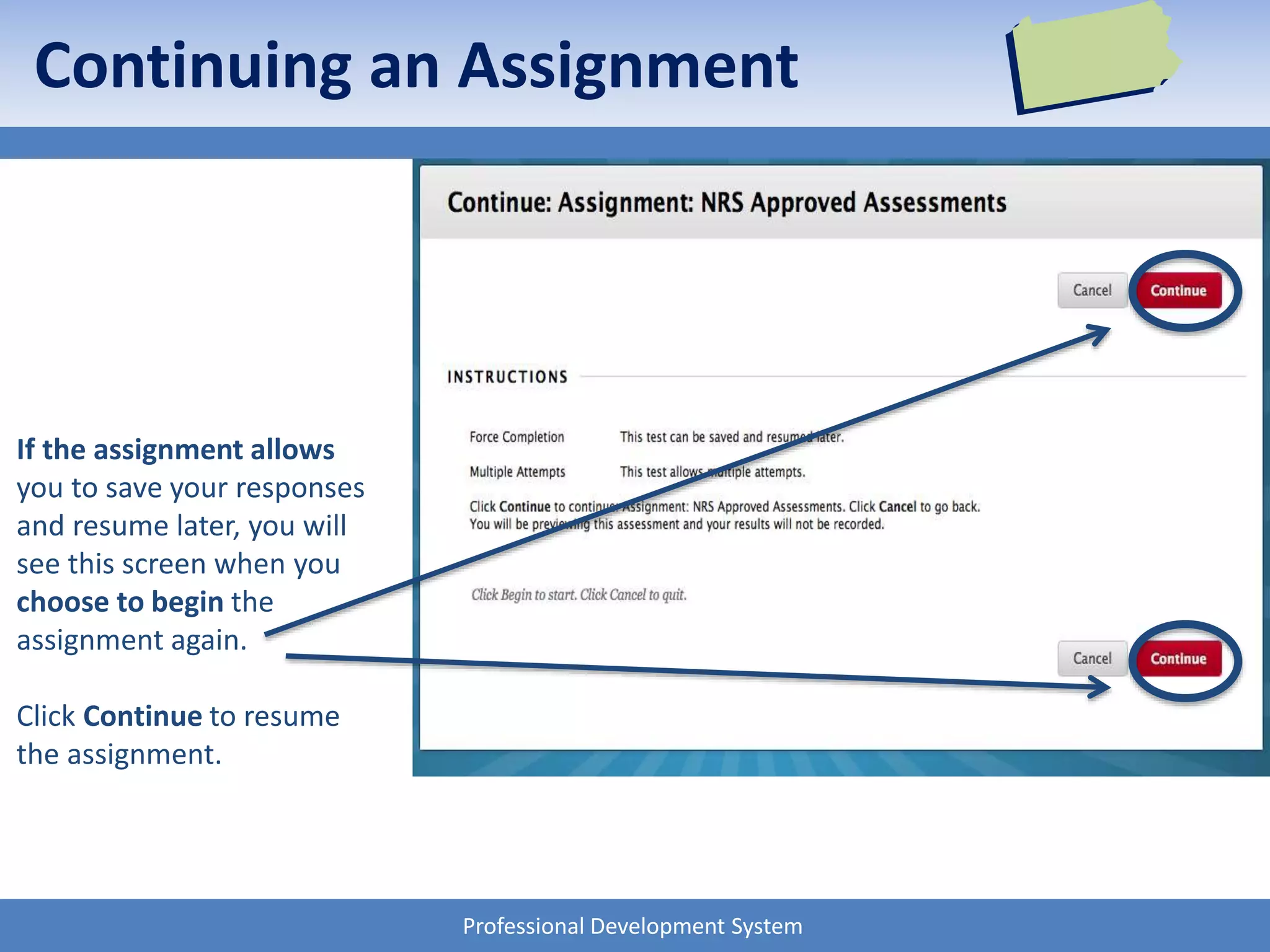
If the assignment allows
you to save your responses
and resume later, you will
see this screen when you
choose to begin the
assignment again.
Click Continue to resume
the assignment.
Continuing an Assignment
Professional Development System
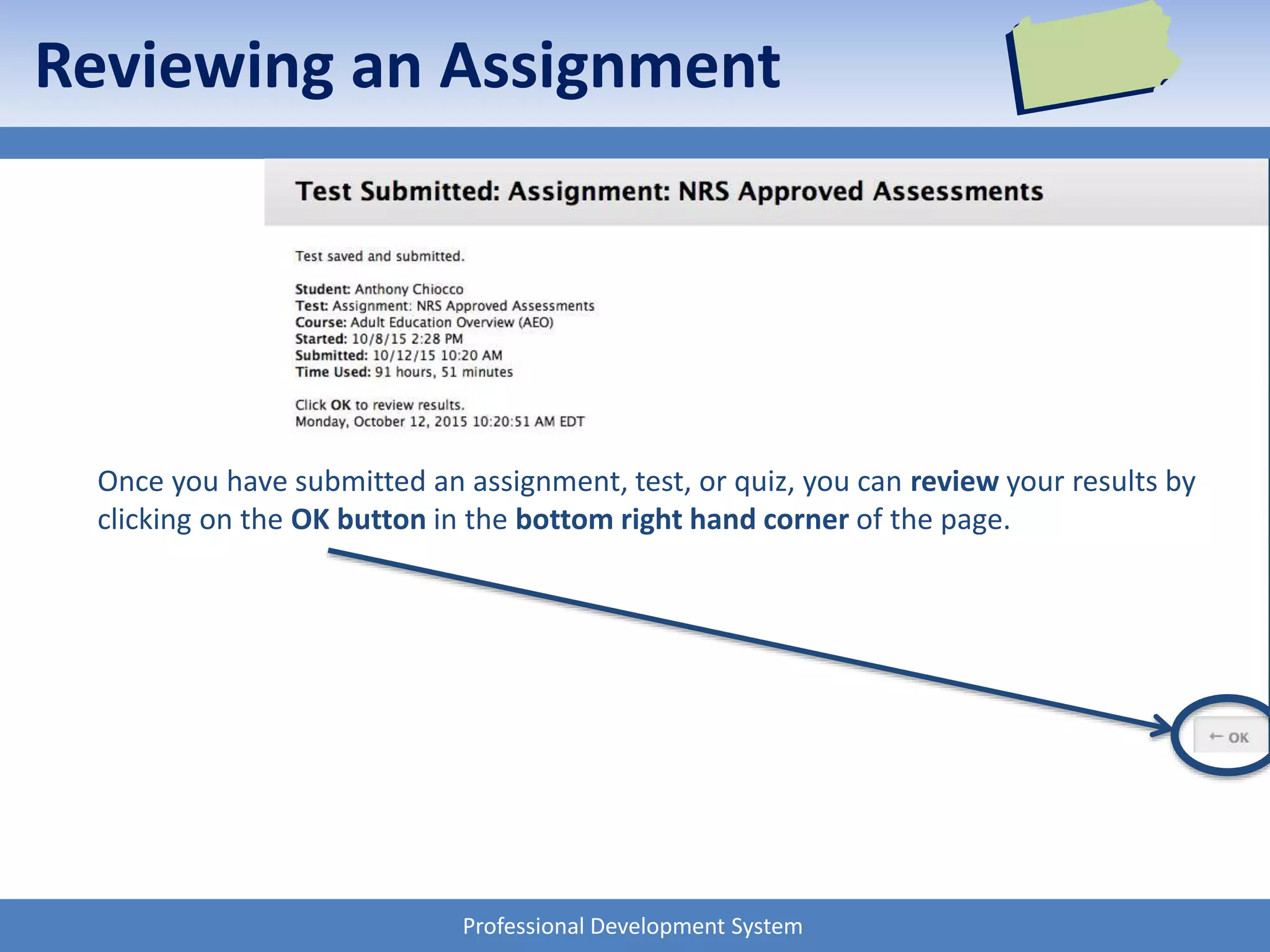
Once you have submitted an assignment, test, or quiz, you can review your results by
clicking on the OK button in the bottom right hand corner of the page.
Reviewing an Assignment
Professional Development System
Using CourseSites
If you have any questions on how to
use CourseSites, contact
Anthony Chiocco at abc167@psu.edu

New Administrator Training - Getting Started in CourseSites

  • 1.
    Professional Development System UsingCourseSites A quick tutorial on: • How to log on to CourseSites • Basic Course Navigation
  • 2.
    Professional Development System www.coursesites.com Usingan Internet browser of your choice (Internet Explorer, Google Chrome, Mozilla Firefox, Safari, etc.), go to… www.coursesites.com
  • 3.
    Professional Development System TheLogin Button Click on the Login button along the top right of the screen.
  • 4.
    Professional Development System Usernameand Password Type in your USERNAME and your PASSWORD, and click Login. Your USERNAME and PASSWORD will arrive by email from abc167@psu.edu. If you do not have your logon credentials, email right away!
  • 5.
    Professional Development System Privacy& Cookies When you log in for the first time, or for the first time in a long while, you will be greeted with this message. Click on the link to read Blackboard’s privacy policy and click on Agree & Continue to continue.
  • 6.
    Professional Development System TheHome Page When you log on, you will be taken to the home page.
  • 7.
    Professional Development System Locationfor Courses You can find courses you are enrolled as a Student under the My Courses heading when you log in.
  • 8.
    Professional Development System RecentlyViewed Recently viewed courses that you are currently enrolled in will appear along the top of the page.
  • 9.
    Professional Development System AnotherLocation for Courses You can also find courses that you are enrolled in by clicking on your name in the upper right-hand corner.
  • 10.
    Professional Development System Viewingyour Grades You can access your Grades by clicking on this symbol:
  • 11.
    Professional Development System MyGrades Your grades will displayed here, in your Grade Center. Be sure to read any rubrics and assignment directions to ensure that you are earning satisfactory marks in your submissions. If your instructor has provided feedback, it will appear under the Feedback section. Select the down arrow to expand the field or click on the item title to open the assignment for viewing.
  • 12.
    Professional Development System NEWADMINISTRATOR TRAINING A quick reference guide
  • 13.
    Professional Development System Navigatingthe Course Getting Started is the home page of the New Administrator Training. On this page you will find a copy of the Getting Started PowerPoint. Course Instructor information is also available here.
  • 14.
    Professional Development System Navigatingthe Course The Course Description and Objectives page includes information that is also on the New Administrator Training page in MyLearningPlan. Here you will find a course description, important dates, and course objectives. These will help guide you through the course.
  • 15.
    Professional Development System Navigatingthe Course In Training Modules you will find the training content. Information includes the webinars and assignments for: • Compliance and Overview which consists of:  Division Welcome and Overview video  PDS and General Overview • Leadership • Program Evaluation and Continuous Improvement • Program Improvement/Professional Development Please be sure to complete the sections on time. See the course description for more information on due dates.
  • 16.
    Professional Development System Navigatingthe Course The Help section will direct you to locations for troubleshooting, as well as general help from Blackboard and how to seek technical assistance.
  • 17.
    Professional Development System NavigatingCourses - General Tips • The next group of slides gives general instructions for navigating a course in CourseSites. It will be important to read the prompts on the screen when navigating courses. • Please note these are not specific to a single course but will show generally how you navigate the system. • Assignments work in different ways depending on the type of assignment. 2014 Summer Institute 17
  • 18.
    Professional Development System TheTable of Contents will show you how many pages are in this particular module. Notice that each page indicates what to expect: • Video • Assignment • Discussion • Etc. Navigating the Modules
  • 19.
    Professional Development System Thesebuttons, in order, do the following: • Minimize the Table of Contents • Expand the Table of Contents • Move the Table of Contents to the bottom of the page Navigating the Modules
  • 20.
    Professional Development System Youcan navigate the pages in this module with the forward and back buttons. The Back button will appear on the subsequent pages. Navigating the Modules
  • 21.
    Professional Development System Youcan also click on individual pages in the Table of Contents. Clicking on a page title will take you to that page. Be sure to complete your assignments! Review what you’ve completed in My Grade Center. Navigating the Modules
  • 22.
    Professional Development System Makesure to read the directions for each assignment. You can begin the assignments by clicking in either of these two places. Starting an Assignment
  • 23.
    Professional Development System Startingan Assignment Each assignment will have different submission input; some will be multiple choice tests, some will be short response, some may be a file upload, etc. Be sure to read the directions to find out more.
  • 24.
    Professional Development System Thisis the first page of the Assignment. You can choose Begin to begin, or Cancel to go back to the Table of Content. Starting an Assignment
  • 25.
    Professional Development System Ifthe assignment allows you to save your responses and resume later, you will see this screen when you choose to begin the assignment again. Click Continue to resume the assignment. Continuing an Assignment
  • 26.
    Professional Development System Onceyou have submitted an assignment, test, or quiz, you can review your results by clicking on the OK button in the bottom right hand corner of the page. Reviewing an Assignment
  • 27.
    Professional Development System UsingCourseSites If you have any questions on how to use CourseSites, contact Anthony Chiocco at abc167@psu.edu