Creating GUI Objects
//Create a button with text OK
JButton jbtOK = new JButton("OK");
// Create a label with text "Enter your name: "
JLabel jlblName = new JLabel("Enter your name: ");
// Create a text field with text "Type Name Here"
JTextField jtfName = new JTextField("Type Name Here");
// Create a check box with text bold
JCheckBox jchkBold = new JCheckBox("Bold");
// Create a radio button with text red
JRadioButton jrbRed = new JRadioButton("Red");
// Create a combo box with choices red, green, and blue
JComboBox jcboColor = new JComboBox(new String[]{"Red",
"Green", "Blue"});
2
Button
Label Text
field
Check
Box
Radio
Button
Combo
Box
3.
Swing vs. AWT
AWT is fine for developing simple graphical user interfaces, but not for
developing comprehensive GUI projects.
With the release of Java 2, the AWT user-interface components were
replaced by a more robust, versatile, and flexible library known as Swing
components.
Swing components are less dependent on the target platform and use less of
the native GUI resource.
For this reason, Swing components that don’t rely on native GUI are referred
to as lightweight components, and AWT components are referred to as
heavyweight components.
3
4.
GUI Class Hierarchy(Swing)
4
Dimension
Font
FontMetrics
Component
Graphics
Object Color
Container
Panel Applet
Frame
Dialog
Window
JComponent
JApplet
JFrame
JDialog
Swing Components
in the javax.swing package
Lightweight
Heavyweight
Classes in the java.awt
package
1
LayoutManager
*
GUI Helper Classes
6
Dimension
Font
FontMetrics
Component
Graphics
ObjectColor
Container
Panel Applet
Frame
Dialog
Window
JComponent
JApplet
JFrame
JDialog
Swing Components
in the javax.swing package
Lightweight
Heavyweight
Classes in the java.awt
package
1
LayoutManager
*
JPanel
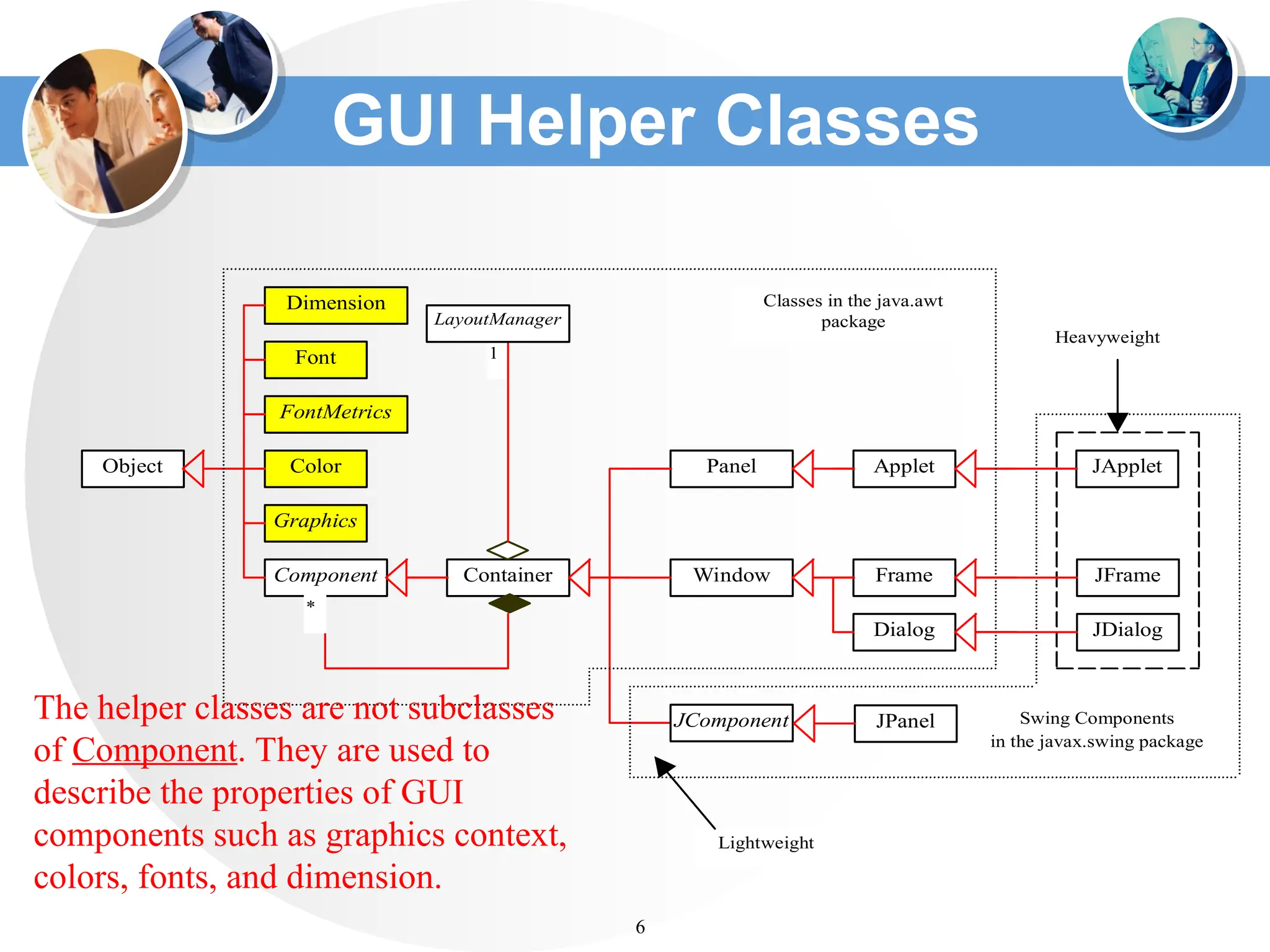
The helper classes are not subclasses
of Component. They are used to
describe the properties of GUI
components such as graphics context,
colors, fonts, and dimension.
Frames
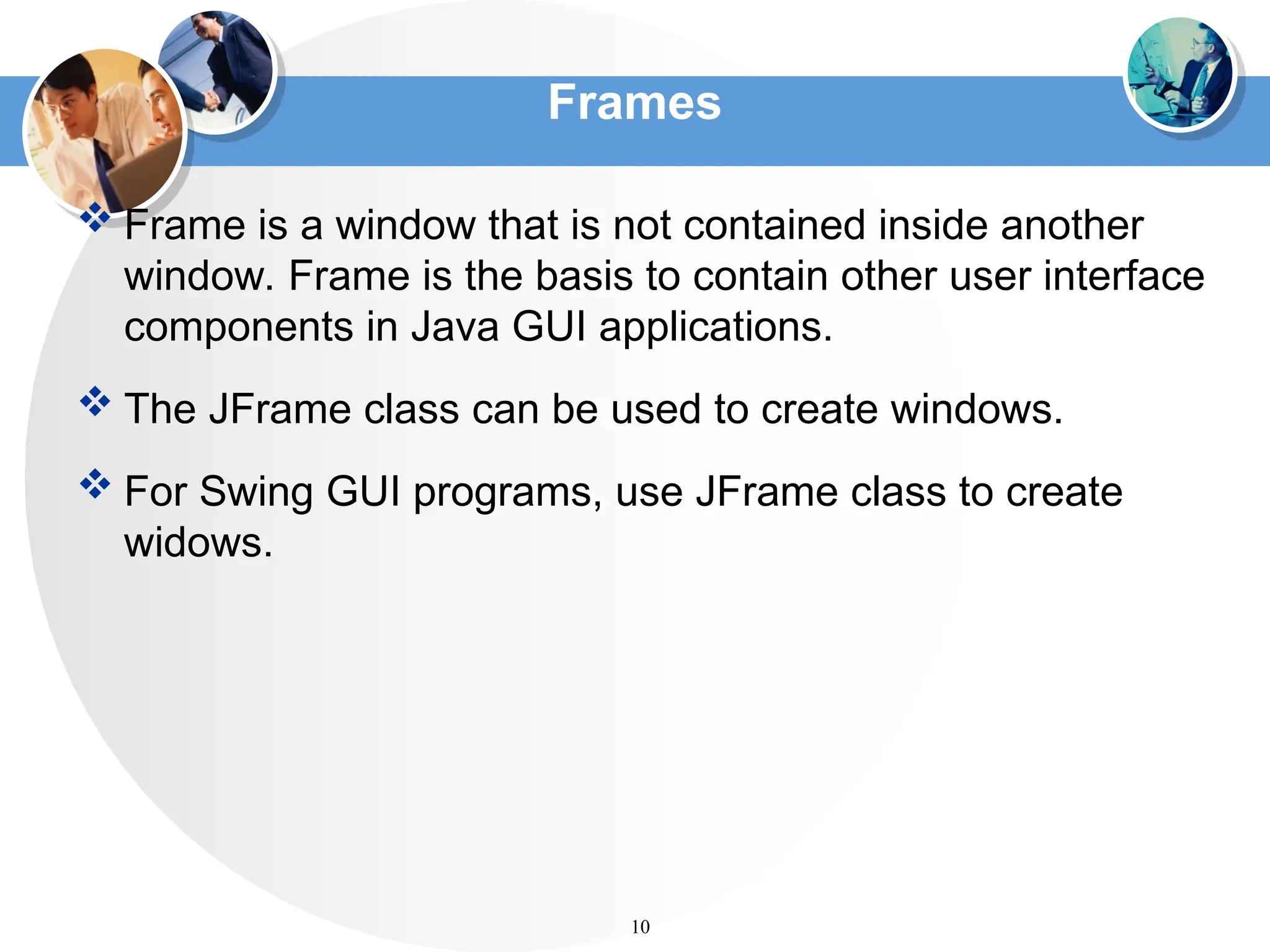
Frame isa window that is not contained inside another
window. Frame is the basis to contain other user interface
components in Java GUI applications.
The JFrame class can be used to create windows.
For Swing GUI programs, use JFrame class to create
widows.
10
11.
Creating Frames
11
Run
import javax.swing.*;
publicclass MyFrame {
public static void main(String[] args) {
JFrame frame = new JFrame("Test Frame");
frame.setSize(400, 300);
frame.setVisible(true);
frame.setDefaultCloseOperation(
JFrame.EXIT_ON_CLOSE);
}
}
MyFrame
12.
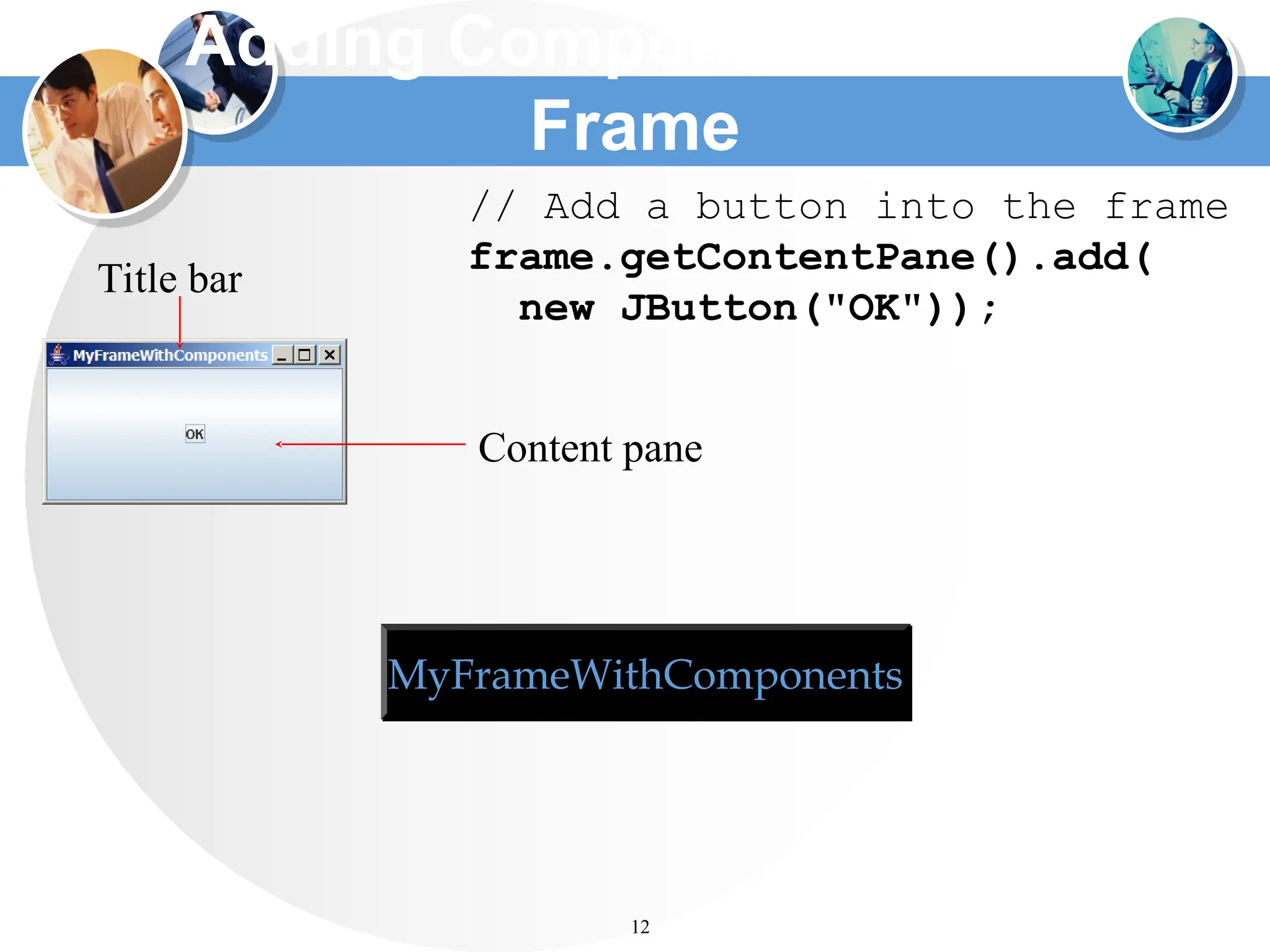
Adding Components intoa
Frame
12
// Add a button into the frame
frame.getContentPane().add(
new JButton("OK"));
MyFrameWithComponents
Title bar
Content pane
13.
Content Pane Delegationin
JDK 1.5
13
// Add a button into the frame
frame.getContentPane().add(
new JButton("OK"));
MyFrameWithComponents
Title bar
Content pane
// Add a button into the frame
frame.add(
new JButton("OK"));
14.
JFrame Class
14
javax.swing.JFrame
+JFrame()
+JFrame(title: String)
+getSize(width:int, height: int): void
+setLocation(x: int, y: int): void
+setVisible(visible: boolean): void
+setDefaultCloseOperation(mode: int): void
+setLocationRelativeTo (c: Component):
void
Creates a default frame with no title.
Creates a frame with the specified title.
Specifies the size of the frame.
Specifies the upper-left corner location of the frame.
Sets true to display the frame.
Specifies the operation when the frame is closed.
Sets the location of the frame relative to the specified component.
If the component is null, the frame is centered on the screen.
15.
Layout Managers
Java’s layoutmanagers provide a level of
abstraction to automatically map your user
interface on all window systems.
The UI components are placed in containers.
Each container has a layout manager to arrange
the UI components within the container.
Layout managers are set in containers using the
setLayout(LayoutManager) method in a container.
15
16.
Kinds of LayoutManagers
FlowLayout
GridLayout
BorderLayout
Several other layout managers …
16
17.
FlowLayout Example
Write aprogram that
adds three labels and
text fields into the
content pane of a
frame with a
FlowLayout manager.
17
ShowFlowLayout
18.
The FlowLayout Class
18
java.awt.FlowLayout
-alignment:int
-hgap: int
-vgap: int
+FlowLayout()
+FlowLayout(alignment: int)
+FlowLayout(alignment: int, hgap:
int, vgap: int)
The alignment of this layout manager (default: CENTER).
The horizontal gap of this layout manager (default: 5 pixels).
The vertical gap of this layout manager (default: 5 pixels).
Creates a default FlowLayout manager.
Creates a FlowLayout manager with a specified alignment.
Creates a FlowLayout manager with a specified alignment,
horizontal gap, and vertical gap.
The get and set methods for these data fields are provided in
the class, but omitted in the UML diagram for brevity.
19.
GridLayout Example
Rewrite theprogram in
the preceding example
using a GridLayout
manager instead of a
FlowLayout manager
to display the labels
and text fields.
19
ShowGridLayout
20.
The GridLayout Class
20
java.awt.GridLayout
-rows:int
-columns: int
-hgap: int
-vgap: int
+GridLayout()
+GridLayout(rows: int, columns: int)
+GridLayout(rows: int, columns: int,
hgap: int, vgap: int)
The number of rows in this layout manager (default: 1).
The number of columns in this layout manager (default: 1).
The horizontal gap of this layout manager (default: 0).
The vertical gap of this layout manager (default: 0).
Creates a default GridLayout manager.
Creates a GridLayout with a specified number of rows and columns.
Creates a GridLayout manager with a specified number of rows and
columns, horizontal gap, and vertical gap.
The get and set methods for these data fields are provided in
the class, but omitted in the UML diagram for brevity.
21.
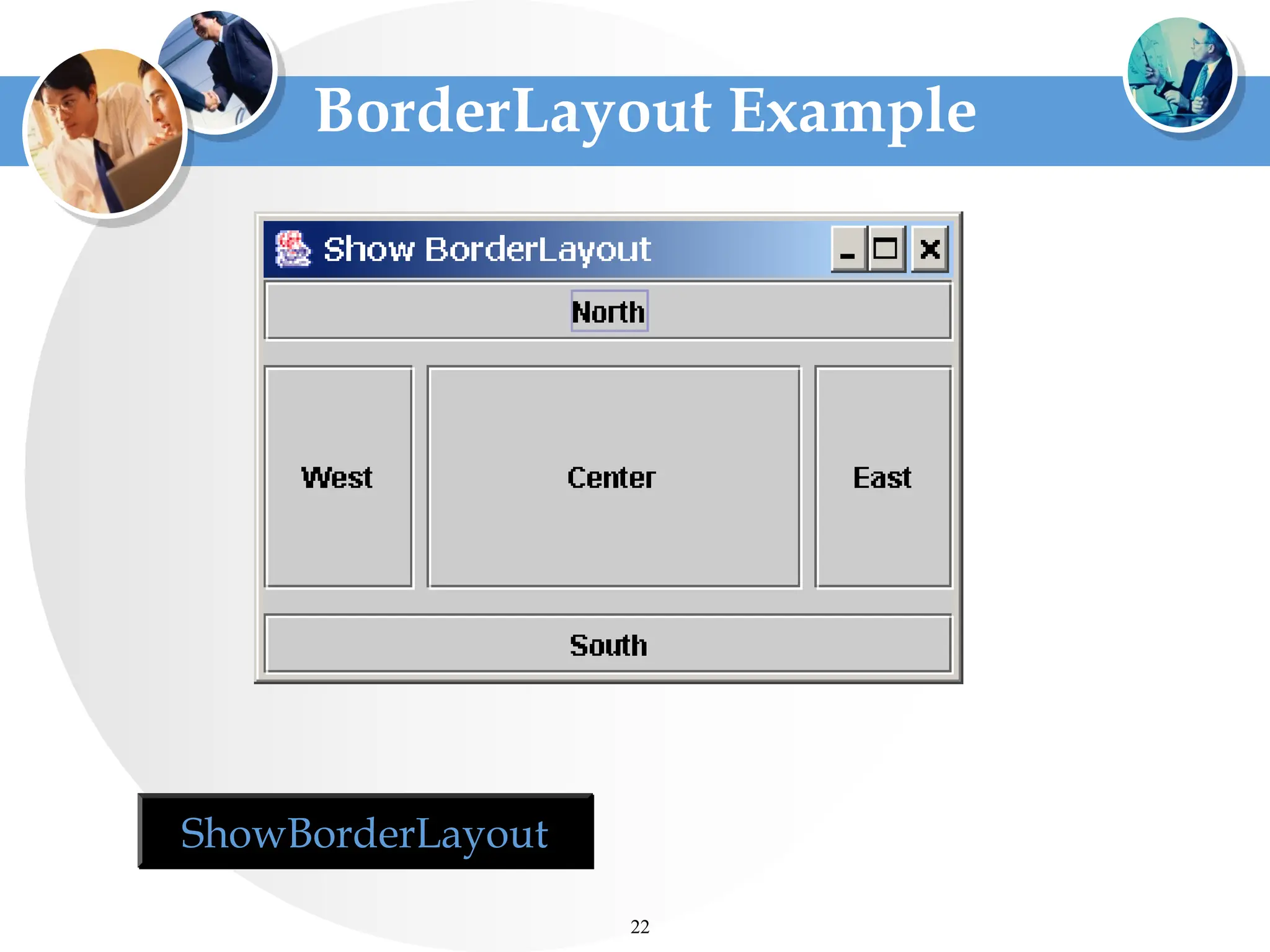
The BorderLayout Manager
TheBorderLayout
manager divides the
container into five areas:
East, South, West, North,
and Center. Components
are added to a
BorderLayout by using
the add method.
21
add(Component,
constraint), where
constraint is
BorderLayout.EAST,
BorderLayout.SOUTH,
BorderLayout.WEST,
BorderLayout.NORTH, or
BorderLayout.CENTER.
The BorderLayout Class
23
java.awt.BorderLayout
-hgap:int
-vgap: int
+BorderLayout()
+BorderLayout(hgap: int, vgap: int)
The horizontal gap of this layout manager (default: 0).
The vertical gap of this layout manager (default: 0).
Creates a default BorderLayout manager.
Creates a BorderLayout manager with a specified number of
horizontal gap, and vertical gap.
The get and set methods for these data fields are provided in
the class, but omitted in the UML diagram for brevity.
24.
The Color Class
Youcan set colors for GUI components by using the
java.awt.Color class. Colors are made of red, green, and blue
components, each of which is represented by a byte value that
describes its intensity, ranging from 0 (darkest shade) to 255
(lightest shade). This is known as the RGB model.
Color c = new Color(r, g, b);
r, g, and b specify a color by its red, green, and blue
components.
Example:
Color c = new Color(228, 100, 255);
24
25.
Standard Colors
Thirteenstandard colors (black, blue, cyan, darkGray, gray, green,
lightGray, magenta, orange, pink, red, white, yellow) are defined as
constants in java.awt.Color.
The standard color names are constants, but they are named as
variables with lowercase for the first word and uppercase for the first
letters of subsequent words.
Since JDK 1.4, you can also use the new constants: BLACK, BLUE,
CYAN, DARK_GRAY, GRAY, GREEN, LIGHT_GRAY, MAGENTA,
ORANGE, PINK, RED, WHITE, and YELLOW.
25
26.
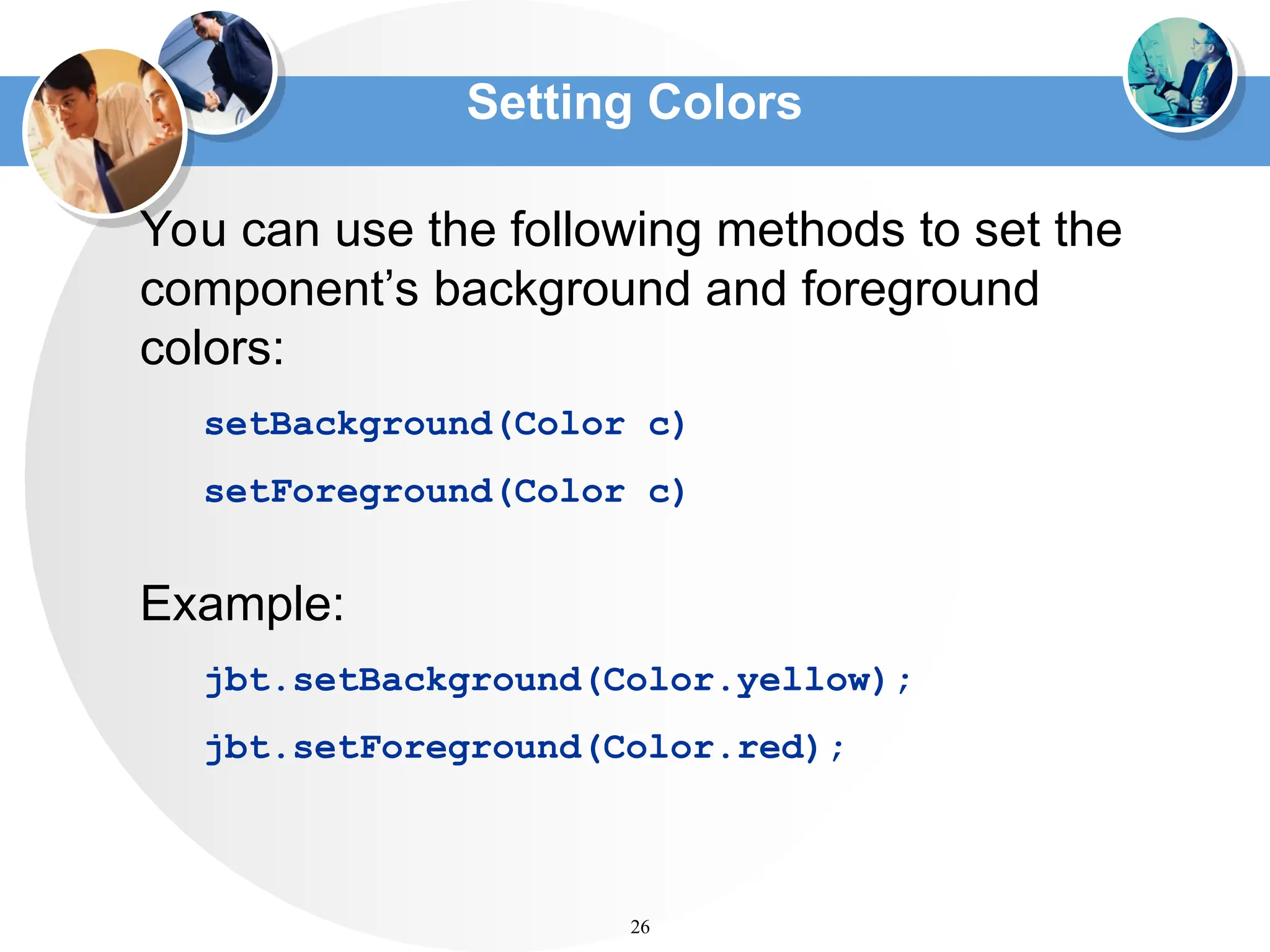
Setting Colors
You canuse the following methods to set the
component’s background and foreground
colors:
setBackground(Color c)
setForeground(Color c)
Example:
jbt.setBackground(Color.yellow);
jbt.setForeground(Color.red);
26
27.
The Font Class
FontmyFont = new Font(name, style, size);
Example:
Font myFont = new Font("SansSerif ", Font.BOLD, 16);
Font myFont = new Font("Serif", Font.BOLD+Font.ITALIC, 12);
JButton jbtOK = new JButton("OK“);
jbtOK.setFont(myFont);
27
Font Names
Standard font names
that are supported in
all platforms are:
SansSerif, Serif,
Monospaced, Dialog,
or DialogInput.
Font Style
Font.PLAIN (0),
Font.BOLD (1),
Font.ITALIC (2), and
Font.BOLD +
Font.ITALIC (3)
28.
Finding All AvailableFont Names
GraphicsEnvironment e =
GraphicsEnvironment.getLocalGraphicsEnvironment();
String[] fontnames =
e.getAvailableFontFamilyNames();
for (int i = 0; i < fontnames.length; i++)
System.out.println(fontnames[i]);
28
29.
Using Panels asSub-Containers
Panels act as sub-containers for grouping user interface components.
It is recommended that you place the user interface components in
panels and place the panels in a frame. You can also place panels in
a panel.
To add a component to JFrame, you actually add it to the content
pane of JFrame. To add a component to a panel, you add it directly to
the panel using the add method.
29
30.
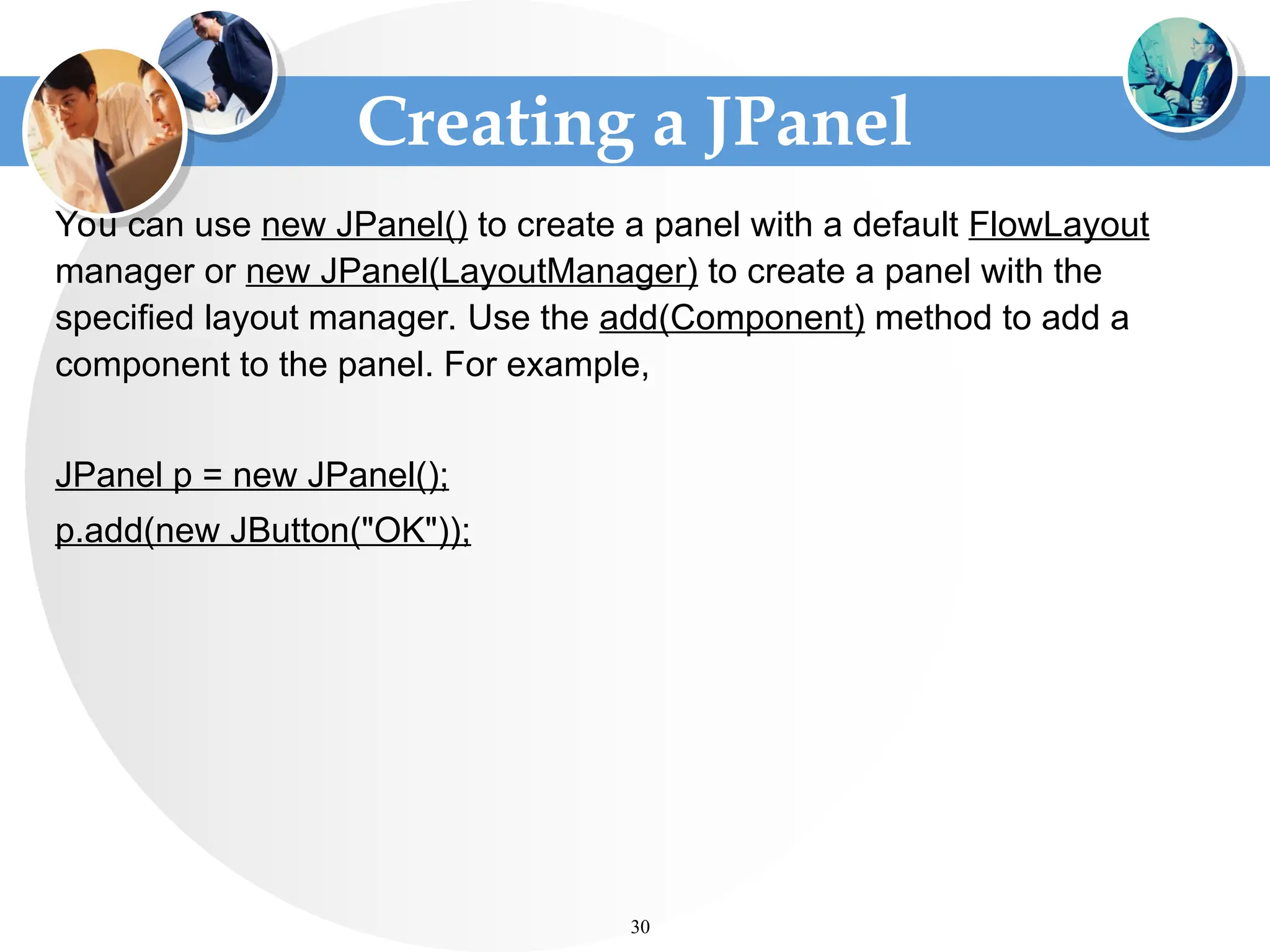
Creating a JPanel
Youcan use new JPanel() to create a panel with a default FlowLayout
manager or new JPanel(LayoutManager) to create a panel with the
specified layout manager. Use the add(Component) method to add a
component to the panel. For example,
JPanel p = new JPanel();
p.add(new JButton("OK"));
30
31.
Testing Panels Example
Thisexample uses panels to organize components. The
program creates a user interface for a Microwave oven.
31
TestPanels
A button
A textfield
12
buttons
frame
p2
p1
32.
Common Features ofSwing Components
32
java.awt.Container
+add(comp: Component): Component
+add(comp: Component, index: int): Component
+remove(comp: Component): void
+getLayout(): LayoutManager
+setLayout(l: LayoutManager): void
+paintComponents(g: Graphics): void
Adds a component to the container.
Adds a component to the container with the specified index.
Removes the component from the container.
Returns the layout manager for this container.
Sets the layout manager for this container.
Paints each of the components in this container.
java.awt.Component
-font: java.awt.Font
-background: java.awt.Color
-foreground: java.awt.Color
-preferredSize: Dimension
-visible: boolean
+getWidth(): int
+getHeight(): int
+getX(): int
+getY(): int
The font of this component.
The background color of this component.
The foreground color of this component.
The preferred size of this component.
Indicates whether this component is visible.
Returns the width of this component.
Returns the height of this component.
getX() and getY() return the coordinate of the component’s
upper-left corner within its parent component.
javax.swing.JComponent
-toolTipText: String
-border: javax.swing.border.Border
The tool tip text for this component. Tool tip text is displayed when
the mouse points on the component without clicking.
The border for this component.
The get and set methods for these data fields are provided in
the class, but omitted in the UML diagram for brevity.
The get and set methods for these data fields are provided in
the class, but omitted in the UML diagram for brevity.
33.
Borders
You can seta border on any object of the JComponent
class. Swing has several types of borders. To create a titled
border, use
new TitledBorder(String title).
To create a line border, use
new LineBorder(Color color, int width),
where width specifies the thickness of the line. For example,
the following code displays a titled border on a panel:
JPanel panel = new JPanel();
panel.setBorder(new TitleBorder(“My Panel”));
33
Image Icons
Javauses the javax.swing.ImageIcon class to represent
an icon. An icon is a fixed-size picture.
Images are normally stored in image files. You can use
new ImageIcon(filename) to construct an image icon.
For example, the following statement creates an icon
from an image file us.gif in the image directory under
the current class path:
ImageIcon icon = new ImageIcon("image/us.gif");
35
TestImageIcon

![Creating GUI Objects
// Create a button with text OK
JButton jbtOK = new JButton("OK");
// Create a label with text "Enter your name: "
JLabel jlblName = new JLabel("Enter your name: ");
// Create a text field with text "Type Name Here"
JTextField jtfName = new JTextField("Type Name Here");
// Create a check box with text bold
JCheckBox jchkBold = new JCheckBox("Bold");
// Create a radio button with text red
JRadioButton jrbRed = new JRadioButton("Red");
// Create a combo box with choices red, green, and blue
JComboBox jcboColor = new JComboBox(new String[]{"Red",
"Green", "Blue"});
2
Button
Label Text
field
Check
Box
Radio
Button
Combo
Box](https://image.slidesharecdn.com/1guibasic-251125021144-b9456635/75/1_GUI-Basicdafsdasewrwrwdsgdssdggssaafsfd-ppt-2-2048.jpg)




![Creating Frames
11
Run
import javax.swing.*;
public class MyFrame {
public static void main(String[] args) {
JFrame frame = new JFrame("Test Frame");
frame.setSize(400, 300);
frame.setVisible(true);
frame.setDefaultCloseOperation(
JFrame.EXIT_ON_CLOSE);
}
}
MyFrame](https://image.slidesharecdn.com/1guibasic-251125021144-b9456635/75/1_GUI-Basicdafsdasewrwrwdsgdssdggssaafsfd-ppt-11-2048.jpg)





![Finding All Available Font Names
GraphicsEnvironment e =
GraphicsEnvironment.getLocalGraphicsEnvironment();
String[] fontnames =
e.getAvailableFontFamilyNames();
for (int i = 0; i < fontnames.length; i++)
System.out.println(fontnames[i]);
28](https://image.slidesharecdn.com/1guibasic-251125021144-b9456635/75/1_GUI-Basicdafsdasewrwrwdsgdssdggssaafsfd-ppt-28-2048.jpg)