Java
GUI building with the AWT
AWT (Abstract Window Toolkit)








Присутній у всіх реалізаціях
JavaDescribed in most Java textbooks
Достатній для багатьох додатків
Використання елементів управління, визначених
вашим OS
Важко побудувати зрозумілий інтерфейс
import java.awt.*;
import java.awt.event.*;

2
Swing










Same concepts as AWT
Не працює в старших реалізаціях Java(Java 1.1 і
в більш ранішних)
Багато елементів управління і вони більш
гнучкі
Gives a choice of “look and feel” packages
Набагато простіше створювати привабливий
графічний інтерфейс
import javax.swing.*;

3
Swing vs. AWT








Swing більший, повільніший і більш складних
Swing є більш гнучким і краще виглядає
Swing і AWT несумісні - ви можете
використовувати будь-який із них, але ви не
можете змішувати їх
Вивчення AWT є хорошим початком для
вивчення Swing
Багато елементів управління просто
перейменовані


AWT: Button b = new Button ("OK");
Swing: JButton b = new JButton("OK");
4
To build a GUI...








Make somewhere to display things—usually a
Frame or Dialog (for an application), or an Applet
Create some Components, such as buttons, text
areas, panels, etc.
Add your Components to your display area
Arrange, or lay out, your Components
Attach Listeners to your Components



Interacting with a Component causes an Event to occur
A Listener gets a message when an interesting event
occurs, and executes some code to deal with it

5
Containers and Components


The job of a Container is to hold and display
Components



Some common subclasses of Component are Button,
Checkbox, Label, Scrollbar, TextField, and
TextArea



A Container is also a Component




This allows Containers to be nested

Some Container subclasses are Panel (and Applet),
Window, and Frame
6
An Applet is Panel is a Container
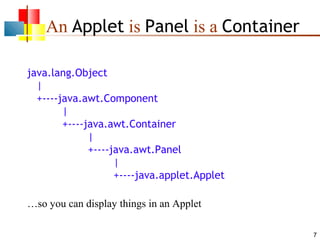
java.lang.Object
|
+----java.awt.Component
|
+----java.awt.Container
|
+----java.awt.Panel
|
+----java.applet.Applet
…so you can display things in an Applet
7
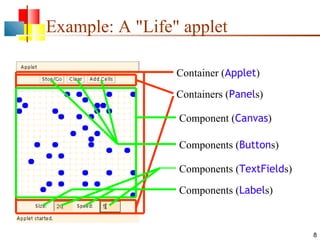
Example: A "Life" applet
Container (Applet)
Containers (Panels)
Component (Canvas)
Components (Buttons)
Components (TextFields)
Components (Labels)

8
Applets







An application has a
public static void main(String args[ ]) method, but
an Applet usually does not
An Applet's main method is in the Browser
To write an Applet, you extend Applet and override
some of its methods
The most important methods are init( ), start( ), and
paint(Graphics g)

9
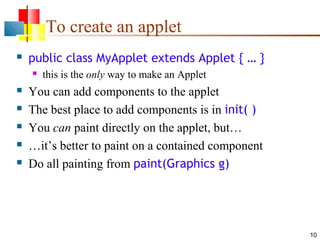
To create an applet


public class MyApplet extends Applet { … }








this is the only way to make an Applet

You can add components to the applet
The best place to add components is in init( )
You can paint directly on the applet, but…
…it’s better to paint on a contained component
Do all painting from paint(Graphics g)

10
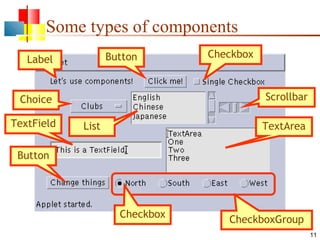
Some types of components
Button

Label

Scrollbar

Choice
TextField

Checkbox

List

TextArea

Button

Checkbox

CheckboxGroup
11
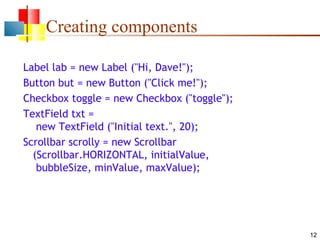
Creating components
Label lab = new Label ("Hi, Dave!");
Button but = new Button ("Click me!");
Checkbox toggle = new Checkbox ("toggle");
TextField txt =
new TextField ("Initial text.", 20);
Scrollbar scrolly = new Scrollbar
(Scrollbar.HORIZONTAL, initialValue,
bubbleSize, minValue, maxValue);

12
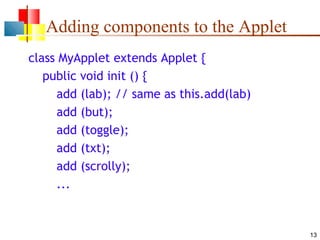
Adding components to the Applet
class MyApplet extends Applet {
public void init () {
add (lab); // same as this.add(lab)
add (but);
add (toggle);
add (txt);
add (scrolly);
...

13
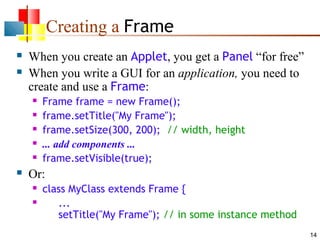
Creating a Frame



When you create an Applet, you get a Panel “for free”
When you write a GUI for an application, you need to
create and use a Frame:








Frame frame = new Frame();
frame.setTitle("My Frame");
frame.setSize(300, 200); // width, height
... add components ...
frame.setVisible(true);

Or:



class MyClass extends Frame {
...
setTitle("My Frame"); // in some instance method
14
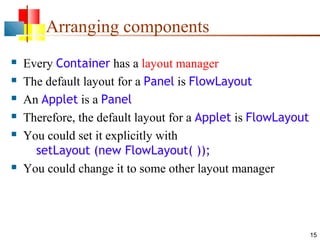
Arranging components








Every Container has a layout manager
The default layout for a Panel is FlowLayout
An Applet is a Panel
Therefore, the default layout for a Applet is FlowLayout
You could set it explicitly with
setLayout (new FlowLayout( ));
You could change it to some other layout manager

15
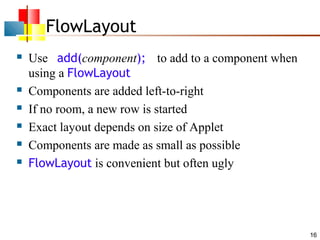
FlowLayout








Use add(component); to add to a component when
using a FlowLayout
Components are added left-to-right
If no room, a new row is started
Exact layout depends on size of Applet
Components are made as small as possible
FlowLayout is convenient but often ugly

16
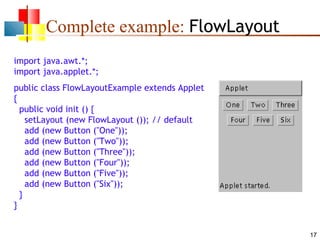
Complete example: FlowLayout
import java.awt.*;
import java.applet.*;
public class FlowLayoutExample extends Applet
{
public void init () {
setLayout (new FlowLayout ()); // default
add (new Button ("One"));
add (new Button ("Two"));
add (new Button ("Three"));
add (new Button ("Four"));
add (new Button ("Five"));
add (new Button ("Six"));
}
}
17
BorderLayout






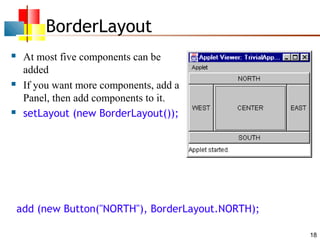
At most five components can be
added
If you want more components, add a
Panel, then add components to it.
setLayout (new BorderLayout());

add (new Button("NORTH"), BorderLayout.NORTH);
18
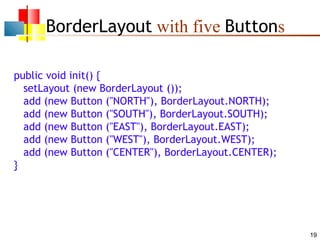
BorderLayout with five Buttons
public void init() {
setLayout (new BorderLayout ());
add (new Button ("NORTH"), BorderLayout.NORTH);
add (new Button ("SOUTH"), BorderLayout.SOUTH);
add (new Button ("EAST"), BorderLayout.EAST);
add (new Button ("WEST"), BorderLayout.WEST);
add (new Button ("CENTER"), BorderLayout.CENTER);
}

19
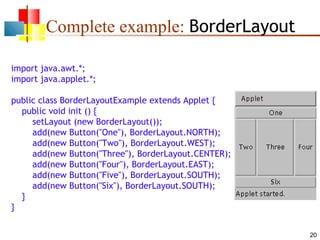
Complete example: BorderLayout
import java.awt.*;
import java.applet.*;
public class BorderLayoutExample extends Applet {
public void init () {
setLayout (new BorderLayout());
add(new Button("One"), BorderLayout.NORTH);
add(new Button("Two"), BorderLayout.WEST);
add(new Button("Three"), BorderLayout.CENTER);
add(new Button("Four"), BorderLayout.EAST);
add(new Button("Five"), BorderLayout.SOUTH);
add(new Button("Six"), BorderLayout.SOUTH);
}
}
20
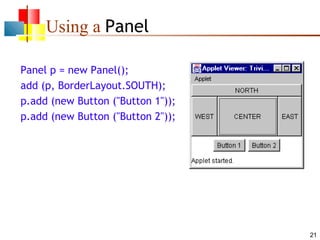
Using a Panel
Panel p = new Panel();
add (p, BorderLayout.SOUTH);
p.add (new Button ("Button 1"));
p.add (new Button ("Button 2"));

21
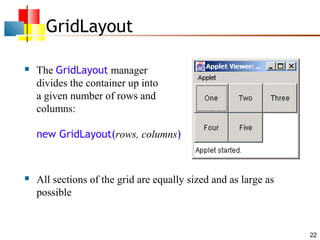
GridLayout


The GridLayout manager
divides the container up into
a given number of rows and
columns:
new GridLayout(rows, columns)



All sections of the grid are equally sized and as large as
possible

22
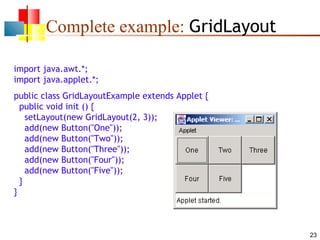
Complete example: GridLayout
import java.awt.*;
import java.applet.*;
public class GridLayoutExample extends Applet {
public void init () {
setLayout(new GridLayout(2, 3));
add(new Button("One"));
add(new Button("Two"));
add(new Button("Three"));
add(new Button("Four"));
add(new Button("Five"));
}
}

23
Making components active







Most components already appear to do something-buttons click, text appears
To associate an action with a component, attach a
listener to it
Components send events, listeners listen for events
Different components may send different events, and
require different listeners

24
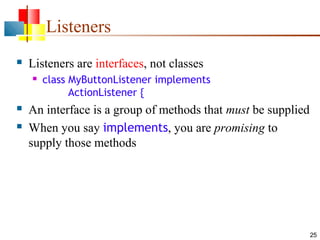
Listeners


Listeners are interfaces, not classes





class MyButtonListener implements
ActionListener {

An interface is a group of methods that must be supplied
When you say implements, you are promising to
supply those methods

25
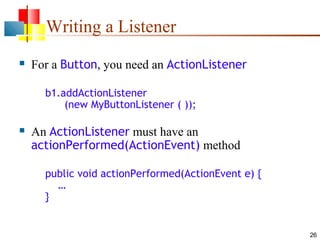
Writing a Listener


For a Button, you need an ActionListener
b1.addActionListener
(new MyButtonListener ( ));



An ActionListener must have an
actionPerformed(ActionEvent) method
public void actionPerformed(ActionEvent e) {
…
}

26
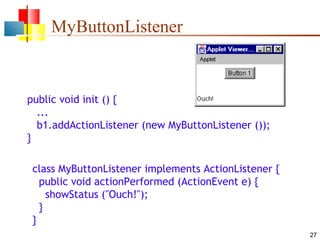
MyButtonListener

public void init () {
...
b1.addActionListener (new MyButtonListener ());
}
class MyButtonListener implements ActionListener {
public void actionPerformed (ActionEvent e) {
showStatus ("Ouch!");
}
}
27
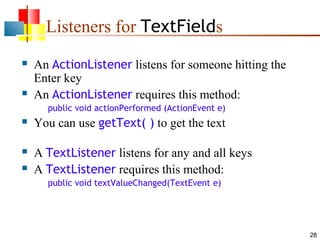
Listeners for TextFields




An ActionListener listens for someone hitting the
Enter key
An ActionListener requires this method:
public void actionPerformed (ActionEvent e)



You can use getText( ) to get the text



A TextListener listens for any and all keys
A TextListener requires this method:



public void textValueChanged(TextEvent e)

28
AWT and Swing


AWT Buttons vs. Swing JButtons:





Containers:






Swing uses the AWT layout managers, plus a couple of its own

Listeners:




A Frame is a Window is a Container is a Component
A JFrame is a Frame, etc.

Layout managers:




Swing uses AWT Containers

AWT Frames vs. Swing JFrames:




A Button is a Component
A JButton is an AbstractButton, which is a JComponent, which is a
Container, which is a Component

Swing uses many of the AWT listeners, plus a couple of its own

Bottom line: Not only is there a lot of similarity between AWT and Swing,
but Swing actually uses much of the AWT
29
Summary I: Building a GUI






Create a container, such as Frame or Applet
Choose a layout manager
Create more complex layouts by adding Panels; each
Panel can have its own layout manager
Create other components and add them to whichever
Panels you like

30
Summary II: Building a GUI




For each active component, look up what kind of
Listeners it can have
Create (implement) the Listeners







often there is one Listener for each active component
Active components can share the same Listener

For each Listener you implement, supply the methods
that it requires
For Applets, write the necessary HTML

31
Vocabulary











AWT – The Abstract Window Toolkit provides basic graphics
tools (tools for putting information on the screen)
Swing – A much better set of graphics tools
Container – a graphic element that can hold other graphic
elements (and is itself a Component)
Component – a graphic element (such as a Button or a
TextArea) provided by a graphics toolkit
listener – A piece of code that is activated when a particular kind
of event occurs
layout manager – An object whose job it is to arrange
Components in a Container

32
The End

33

25 awt

  • 1.
  • 2.
    AWT (Abstract WindowToolkit)       Присутній у всіх реалізаціях JavaDescribed in most Java textbooks Достатній для багатьох додатків Використання елементів управління, визначених вашим OS Важко побудувати зрозумілий інтерфейс import java.awt.*; import java.awt.event.*; 2
  • 3.
    Swing       Same concepts asAWT Не працює в старших реалізаціях Java(Java 1.1 і в більш ранішних) Багато елементів управління і вони більш гнучкі Gives a choice of “look and feel” packages Набагато простіше створювати привабливий графічний інтерфейс import javax.swing.*; 3
  • 4.
    Swing vs. AWT      Swingбільший, повільніший і більш складних Swing є більш гнучким і краще виглядає Swing і AWT несумісні - ви можете використовувати будь-який із них, але ви не можете змішувати їх Вивчення AWT є хорошим початком для вивчення Swing Багато елементів управління просто перейменовані  AWT: Button b = new Button ("OK"); Swing: JButton b = new JButton("OK"); 4
  • 5.
    To build aGUI...      Make somewhere to display things—usually a Frame or Dialog (for an application), or an Applet Create some Components, such as buttons, text areas, panels, etc. Add your Components to your display area Arrange, or lay out, your Components Attach Listeners to your Components   Interacting with a Component causes an Event to occur A Listener gets a message when an interesting event occurs, and executes some code to deal with it 5
  • 6.
    Containers and Components  Thejob of a Container is to hold and display Components  Some common subclasses of Component are Button, Checkbox, Label, Scrollbar, TextField, and TextArea  A Container is also a Component   This allows Containers to be nested Some Container subclasses are Panel (and Applet), Window, and Frame 6
  • 7.
    An Applet isPanel is a Container java.lang.Object | +----java.awt.Component | +----java.awt.Container | +----java.awt.Panel | +----java.applet.Applet …so you can display things in an Applet 7
  • 8.
    Example: A "Life"applet Container (Applet) Containers (Panels) Component (Canvas) Components (Buttons) Components (TextFields) Components (Labels) 8
  • 9.
    Applets     An application hasa public static void main(String args[ ]) method, but an Applet usually does not An Applet's main method is in the Browser To write an Applet, you extend Applet and override some of its methods The most important methods are init( ), start( ), and paint(Graphics g) 9
  • 10.
    To create anapplet  public class MyApplet extends Applet { … }       this is the only way to make an Applet You can add components to the applet The best place to add components is in init( ) You can paint directly on the applet, but… …it’s better to paint on a contained component Do all painting from paint(Graphics g) 10
  • 11.
    Some types ofcomponents Button Label Scrollbar Choice TextField Checkbox List TextArea Button Checkbox CheckboxGroup 11
  • 12.
    Creating components Label lab= new Label ("Hi, Dave!"); Button but = new Button ("Click me!"); Checkbox toggle = new Checkbox ("toggle"); TextField txt = new TextField ("Initial text.", 20); Scrollbar scrolly = new Scrollbar (Scrollbar.HORIZONTAL, initialValue, bubbleSize, minValue, maxValue); 12
  • 13.
    Adding components tothe Applet class MyApplet extends Applet { public void init () { add (lab); // same as this.add(lab) add (but); add (toggle); add (txt); add (scrolly); ... 13
  • 14.
    Creating a Frame   Whenyou create an Applet, you get a Panel “for free” When you write a GUI for an application, you need to create and use a Frame:       Frame frame = new Frame(); frame.setTitle("My Frame"); frame.setSize(300, 200); // width, height ... add components ... frame.setVisible(true); Or:   class MyClass extends Frame { ... setTitle("My Frame"); // in some instance method 14
  • 15.
    Arranging components       Every Containerhas a layout manager The default layout for a Panel is FlowLayout An Applet is a Panel Therefore, the default layout for a Applet is FlowLayout You could set it explicitly with setLayout (new FlowLayout( )); You could change it to some other layout manager 15
  • 16.
    FlowLayout       Use add(component); toadd to a component when using a FlowLayout Components are added left-to-right If no room, a new row is started Exact layout depends on size of Applet Components are made as small as possible FlowLayout is convenient but often ugly 16
  • 17.
    Complete example: FlowLayout importjava.awt.*; import java.applet.*; public class FlowLayoutExample extends Applet { public void init () { setLayout (new FlowLayout ()); // default add (new Button ("One")); add (new Button ("Two")); add (new Button ("Three")); add (new Button ("Four")); add (new Button ("Five")); add (new Button ("Six")); } } 17
  • 18.
    BorderLayout    At most fivecomponents can be added If you want more components, add a Panel, then add components to it. setLayout (new BorderLayout()); add (new Button("NORTH"), BorderLayout.NORTH); 18
  • 19.
    BorderLayout with fiveButtons public void init() { setLayout (new BorderLayout ()); add (new Button ("NORTH"), BorderLayout.NORTH); add (new Button ("SOUTH"), BorderLayout.SOUTH); add (new Button ("EAST"), BorderLayout.EAST); add (new Button ("WEST"), BorderLayout.WEST); add (new Button ("CENTER"), BorderLayout.CENTER); } 19
  • 20.
    Complete example: BorderLayout importjava.awt.*; import java.applet.*; public class BorderLayoutExample extends Applet { public void init () { setLayout (new BorderLayout()); add(new Button("One"), BorderLayout.NORTH); add(new Button("Two"), BorderLayout.WEST); add(new Button("Three"), BorderLayout.CENTER); add(new Button("Four"), BorderLayout.EAST); add(new Button("Five"), BorderLayout.SOUTH); add(new Button("Six"), BorderLayout.SOUTH); } } 20
  • 21.
    Using a Panel Panelp = new Panel(); add (p, BorderLayout.SOUTH); p.add (new Button ("Button 1")); p.add (new Button ("Button 2")); 21
  • 22.
    GridLayout  The GridLayout manager dividesthe container up into a given number of rows and columns: new GridLayout(rows, columns)  All sections of the grid are equally sized and as large as possible 22
  • 23.
    Complete example: GridLayout importjava.awt.*; import java.applet.*; public class GridLayoutExample extends Applet { public void init () { setLayout(new GridLayout(2, 3)); add(new Button("One")); add(new Button("Two")); add(new Button("Three")); add(new Button("Four")); add(new Button("Five")); } } 23
  • 24.
    Making components active     Mostcomponents already appear to do something-buttons click, text appears To associate an action with a component, attach a listener to it Components send events, listeners listen for events Different components may send different events, and require different listeners 24
  • 25.
    Listeners  Listeners are interfaces,not classes    class MyButtonListener implements ActionListener { An interface is a group of methods that must be supplied When you say implements, you are promising to supply those methods 25
  • 26.
    Writing a Listener  Fora Button, you need an ActionListener b1.addActionListener (new MyButtonListener ( ));  An ActionListener must have an actionPerformed(ActionEvent) method public void actionPerformed(ActionEvent e) { … } 26
  • 27.
    MyButtonListener public void init() { ... b1.addActionListener (new MyButtonListener ()); } class MyButtonListener implements ActionListener { public void actionPerformed (ActionEvent e) { showStatus ("Ouch!"); } } 27
  • 28.
    Listeners for TextFields   AnActionListener listens for someone hitting the Enter key An ActionListener requires this method: public void actionPerformed (ActionEvent e)  You can use getText( ) to get the text  A TextListener listens for any and all keys A TextListener requires this method:  public void textValueChanged(TextEvent e) 28
  • 29.
    AWT and Swing  AWTButtons vs. Swing JButtons:    Containers:    Swing uses the AWT layout managers, plus a couple of its own Listeners:   A Frame is a Window is a Container is a Component A JFrame is a Frame, etc. Layout managers:   Swing uses AWT Containers AWT Frames vs. Swing JFrames:   A Button is a Component A JButton is an AbstractButton, which is a JComponent, which is a Container, which is a Component Swing uses many of the AWT listeners, plus a couple of its own Bottom line: Not only is there a lot of similarity between AWT and Swing, but Swing actually uses much of the AWT 29
  • 30.
    Summary I: Buildinga GUI     Create a container, such as Frame or Applet Choose a layout manager Create more complex layouts by adding Panels; each Panel can have its own layout manager Create other components and add them to whichever Panels you like 30
  • 31.
    Summary II: Buildinga GUI   For each active component, look up what kind of Listeners it can have Create (implement) the Listeners     often there is one Listener for each active component Active components can share the same Listener For each Listener you implement, supply the methods that it requires For Applets, write the necessary HTML 31
  • 32.
    Vocabulary       AWT – TheAbstract Window Toolkit provides basic graphics tools (tools for putting information on the screen) Swing – A much better set of graphics tools Container – a graphic element that can hold other graphic elements (and is itself a Component) Component – a graphic element (such as a Button or a TextArea) provided by a graphics toolkit listener – A piece of code that is activated when a particular kind of event occurs layout manager – An object whose job it is to arrange Components in a Container 32
  • 33.