













Justin is Head Of Training and
Content Services at Sigma and
focusses on User Research and
content. His background is in
writing, information design and
training delivery.
Email: justin.darley@sigma.se
Twitter: @Just_UX
Phone: 01625 410988
 Like anything else, websites can deteriorate without maintenance
 It’s easier to add content than delete it
 Not everyone who edits a page is a skilled writer or designer…
Content auditing is time consuming,
manual and a little dull
Lots of what you want to find out about your site
needs a human being to look at the pages
Some of the work can be automated
And I’ll show you how to automate as much of it
as you can
It’s helpful to have an Olly
Someone with a level of web knowledge/savvy
who doesn’t mind some repetitive work (students
and interns can work well)
Crawl your site and create an Excel content
inventory.
Use Excel formulae to create columns showing your
website hierarchy. Optionally, use Excel formulae to
create charts showing the distribution of content
through the site.
Assess your priorities, reasons for auditing and resource
availability – use this information to decide what criteria to
assess in the audit. Add the relevant columns to your
inventory.
Using the inventory, audit the site adding content to all of
the columns you have prioritised.
Agree next steps and resourcing to address any issues
you find
 A couple of definitions:
 An inventory is quantitative; it mostly tells you what content you have,
how much content you have and where it is. I suggest you try to automate
this (see below)
 A completed audit is qualitative; it can show you how good your content
is, whether it meets the needs of your audience, how frequently it is
accessed, when it was last updated…
 The Screaming Frog SEO Spider
 Crawls sites and fetches key SEO
data
 Much of this data is useful for an
inventory (as well as SEO)
 Can be exported to Excel
 Free up to 500 URLs
 License £99 a year
1. Crawl the site with the Screaming Frog SEO Spider
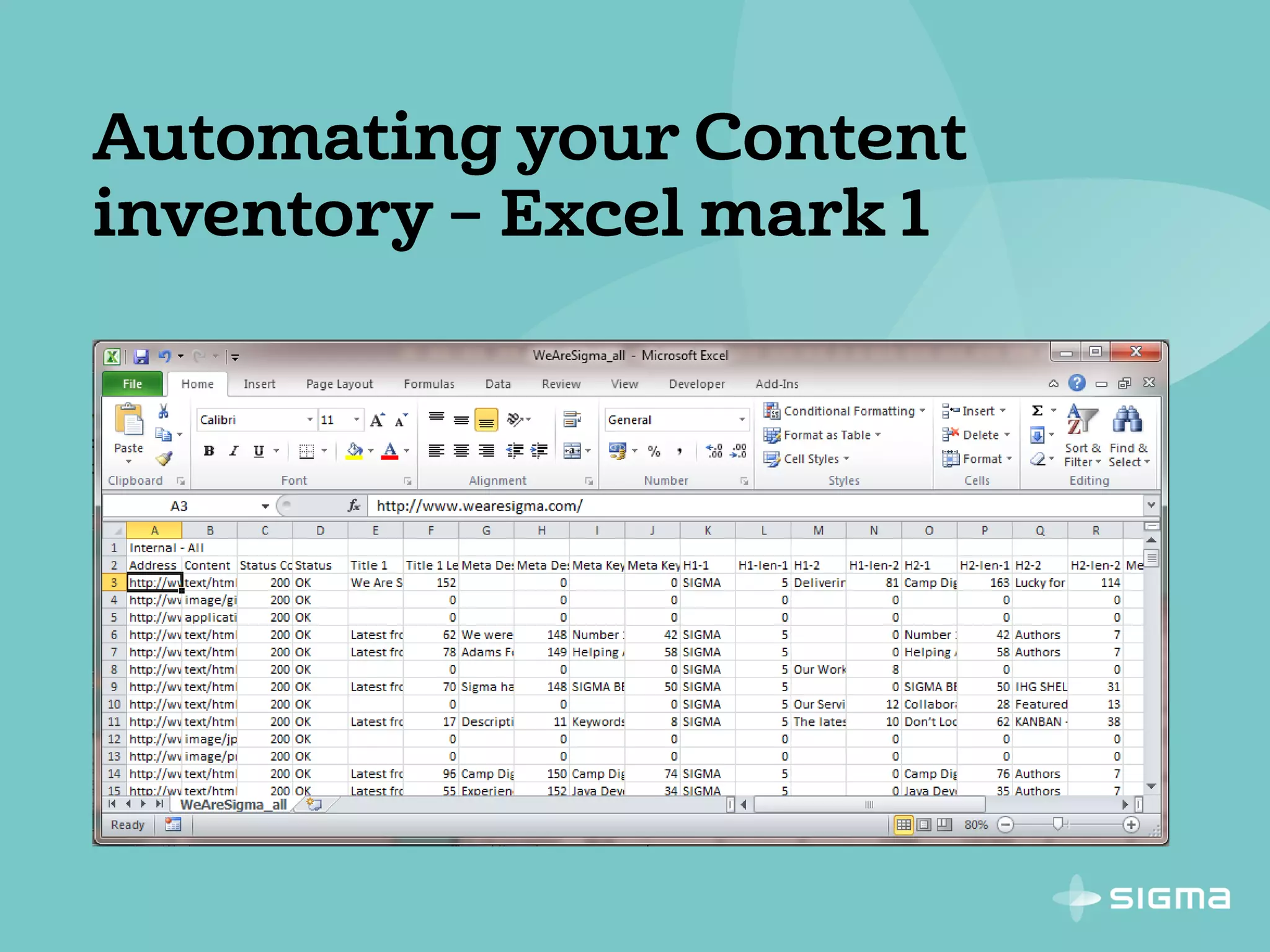
2. Export the whole crawl to Excel
3. Open the spreadsheet
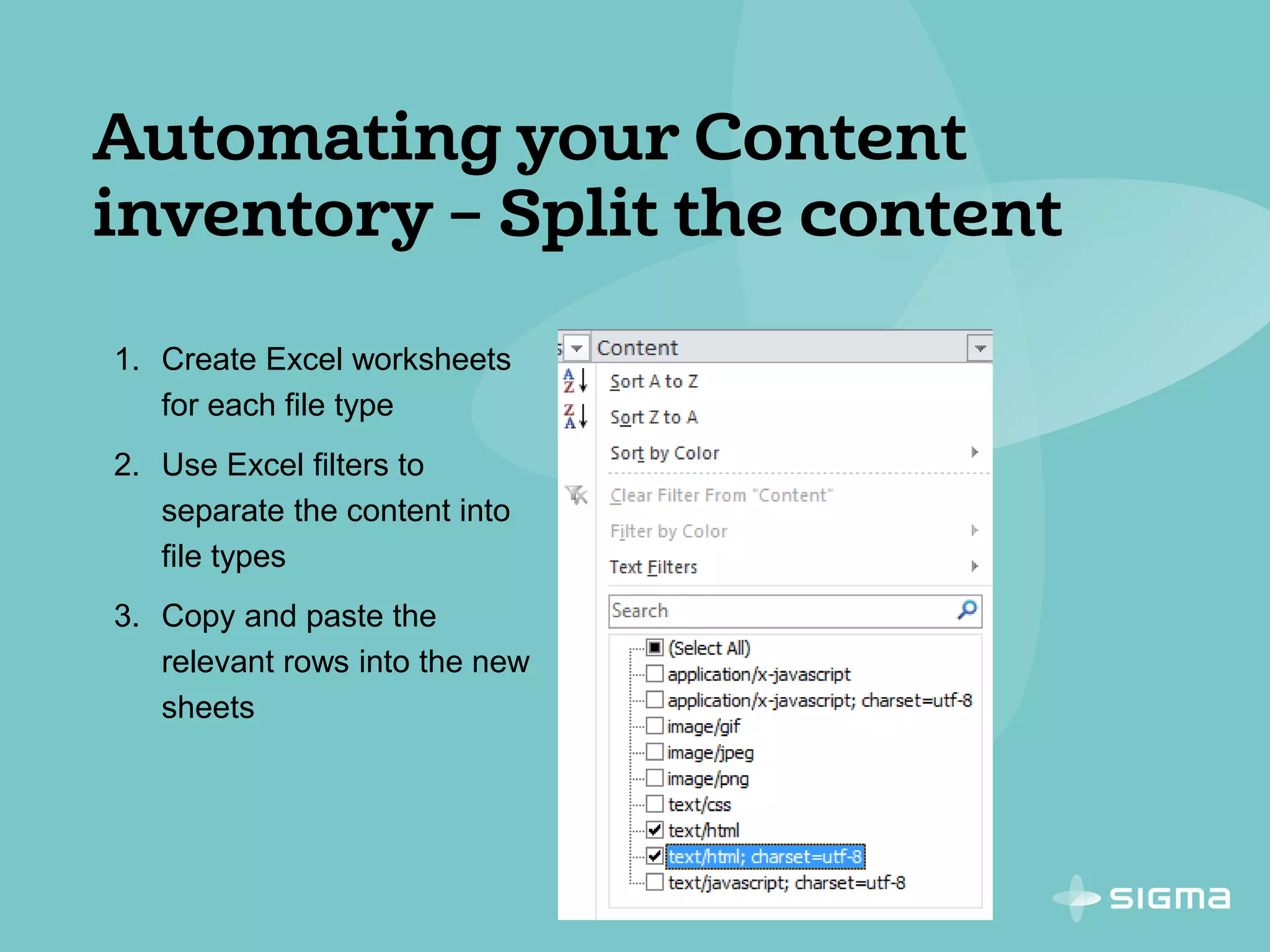
1. Create Excel worksheets
for each file type
2. Use Excel filters to
separate the content into
file types
3. Copy and paste the
relevant rows into the new
sheets
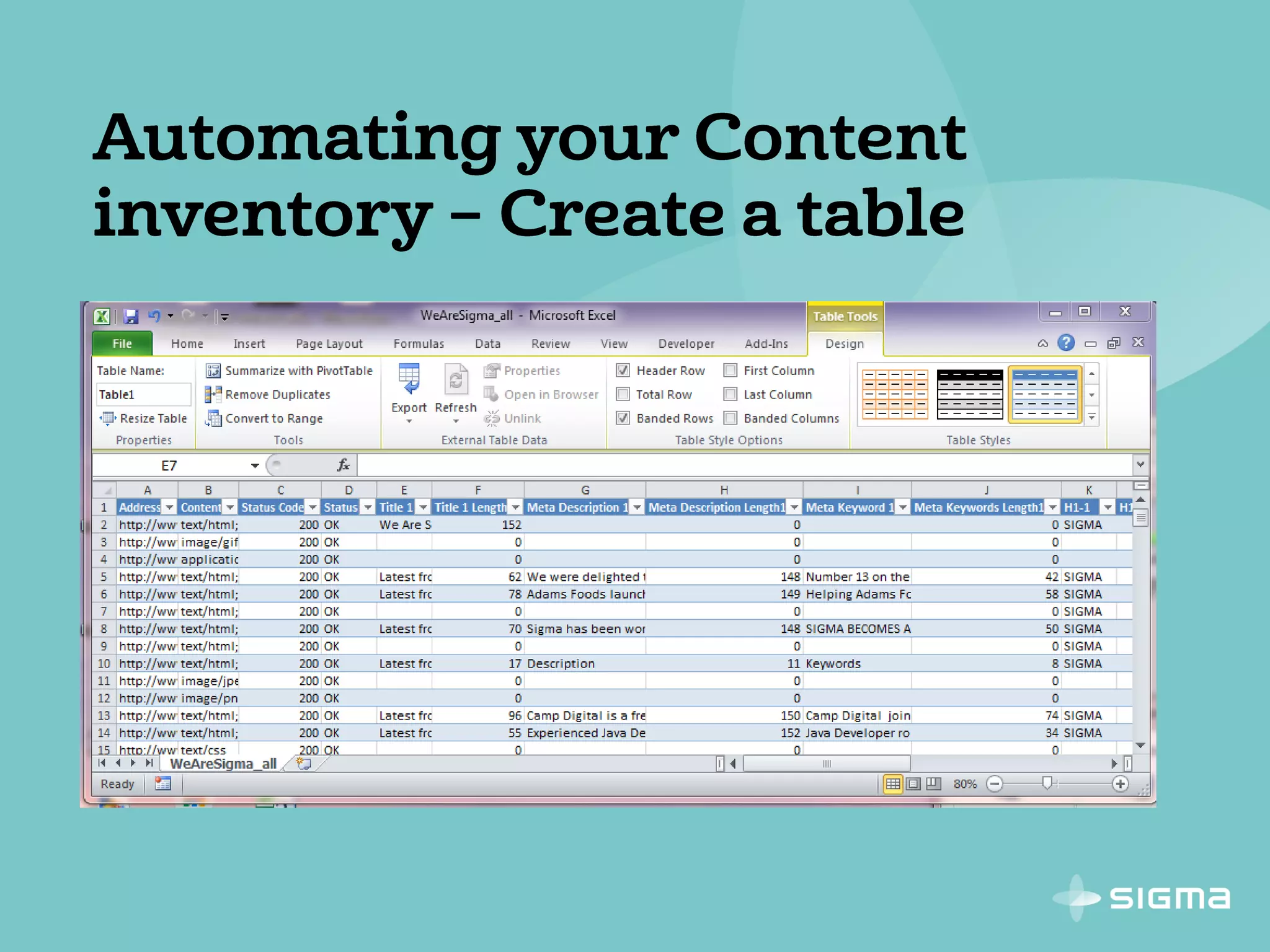
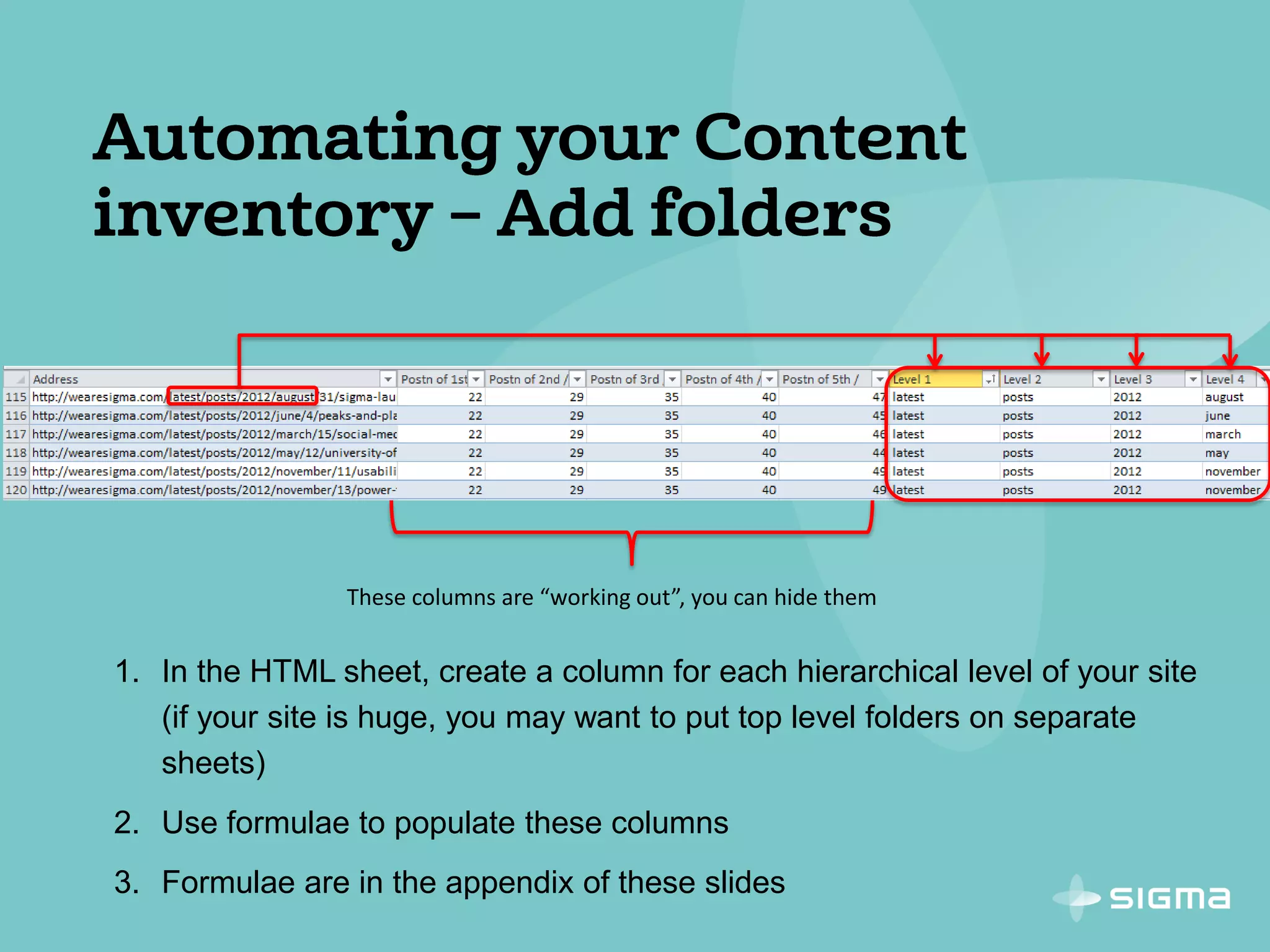
1. In the HTML sheet, create a column for each hierarchical level of your site
(if your site is huge, you may want to put top level folders on separate
sheets)
2. Use formulae to populate these columns
3. Formulae are in the appendix of these slides
These columns are “working out”, you can hide them
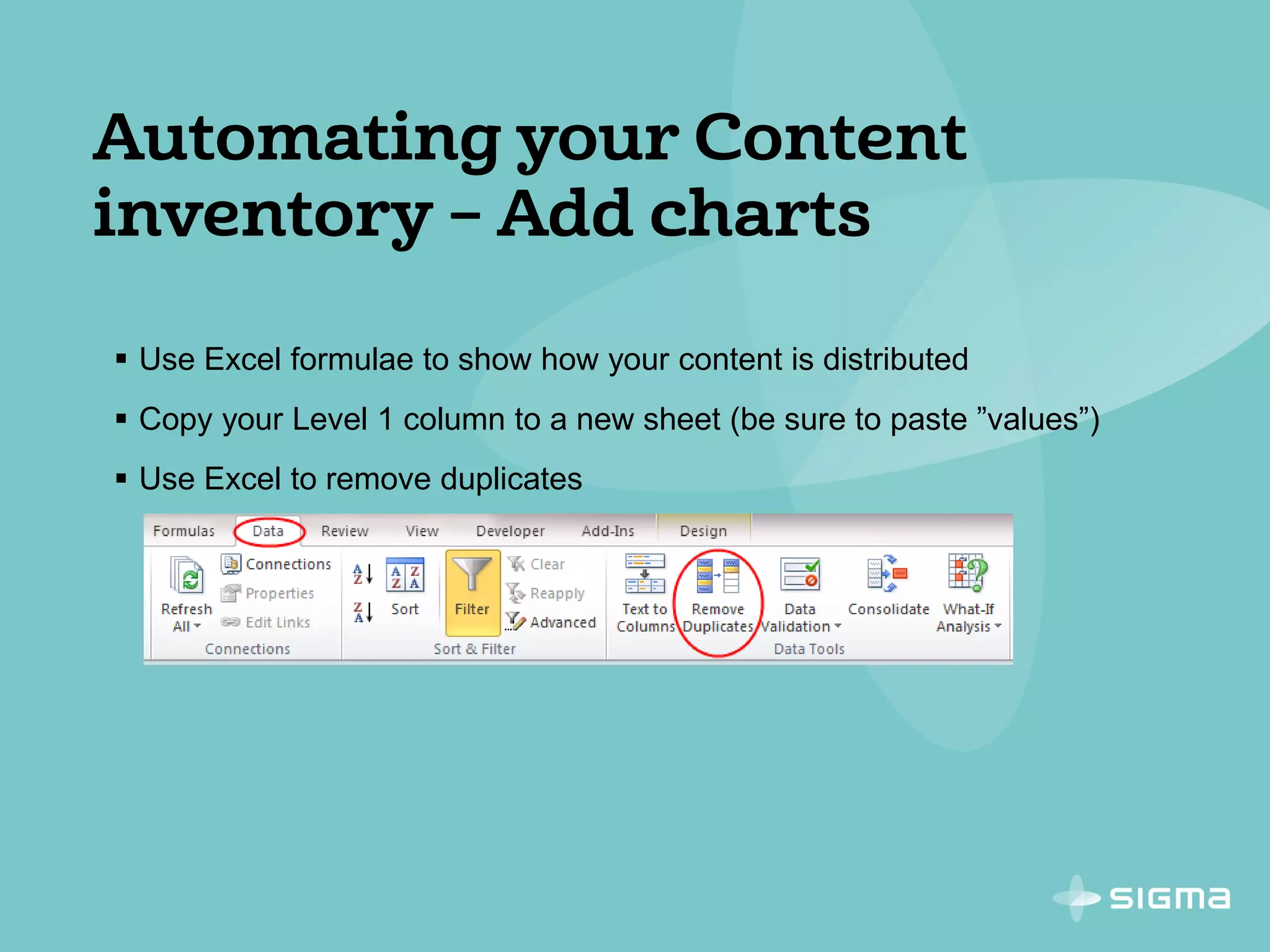
 Use Excel formulae to show how your content is distributed
 Copy your Level 1 column to a new sheet (be sure to paste ”values”)
 Use Excel to remove duplicates
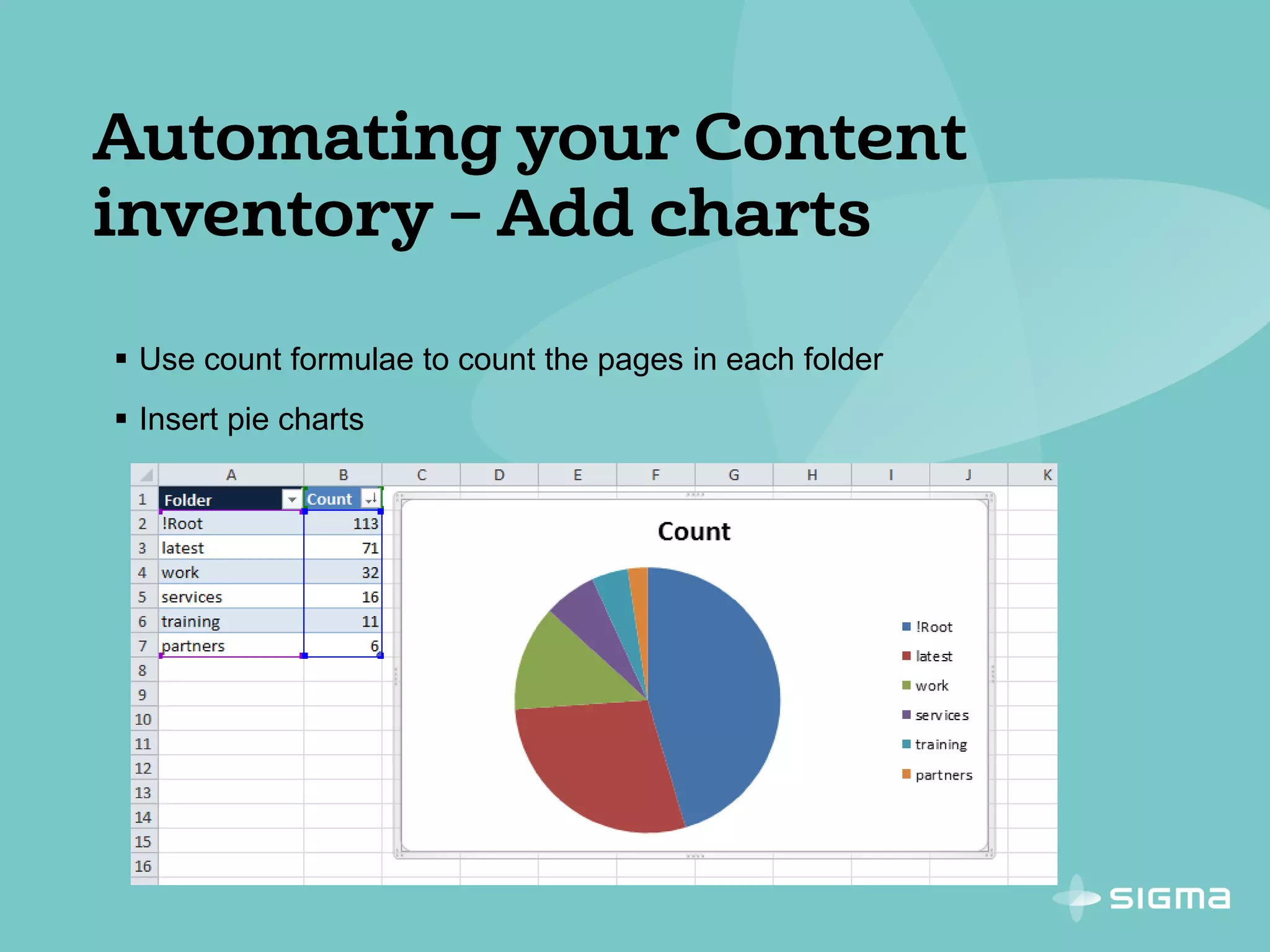
 Use count formulae to count the pages in each folder
 Insert pie charts
 All your published content is now in a spreadsheet
 It’s separated into folders and content types
 Charts show you how it is spread across the site
 This is your inventory
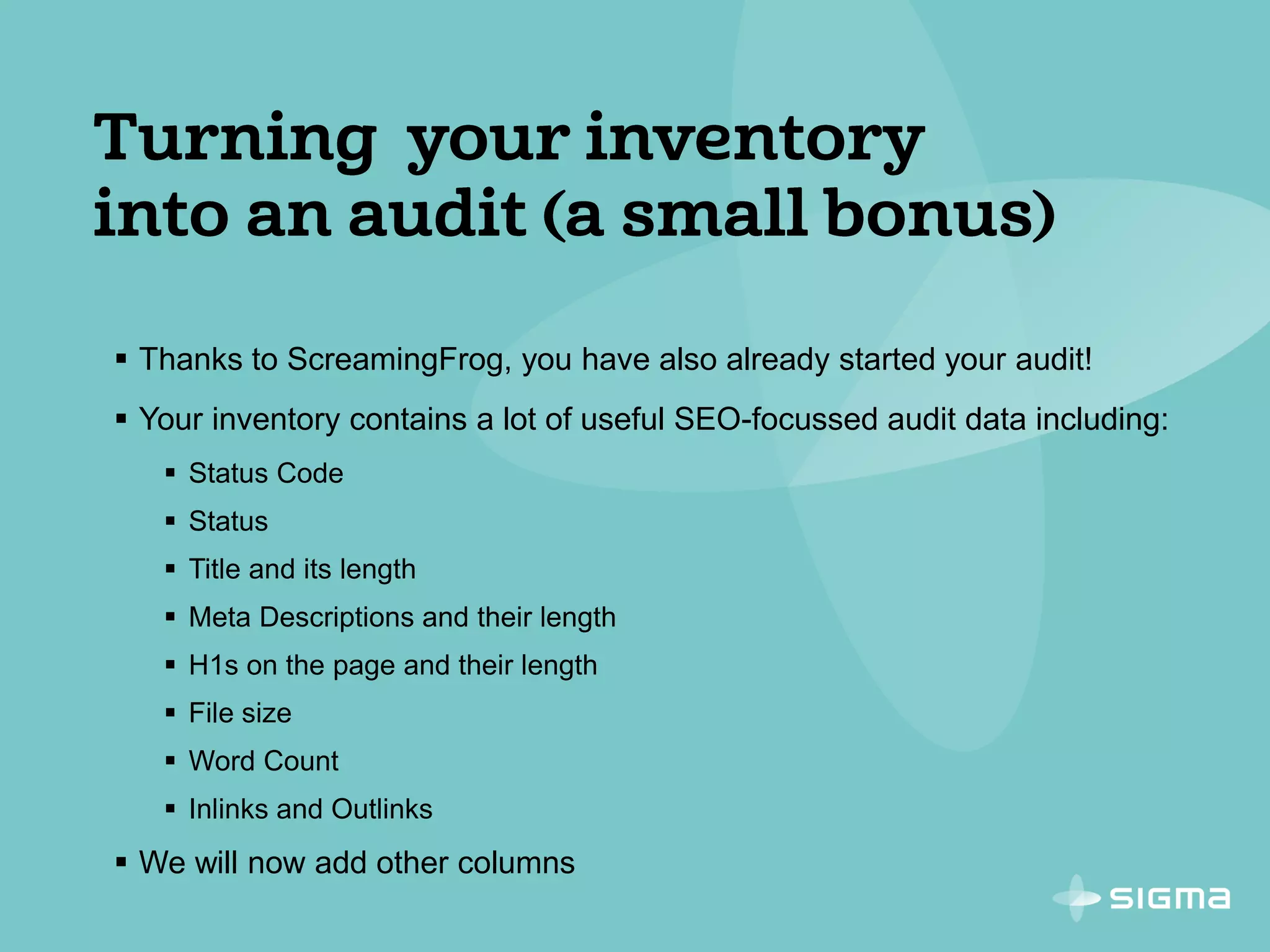
 Thanks to ScreamingFrog, you have also already started your audit!
 Your inventory contains a lot of useful SEO-focussed audit data including:
 Status Code
 Status
 Title and its length
 Meta Descriptions and their length
 H1s on the page and their length
 File size
 Word Count
 Inlinks and Outlinks
 We will now add other columns
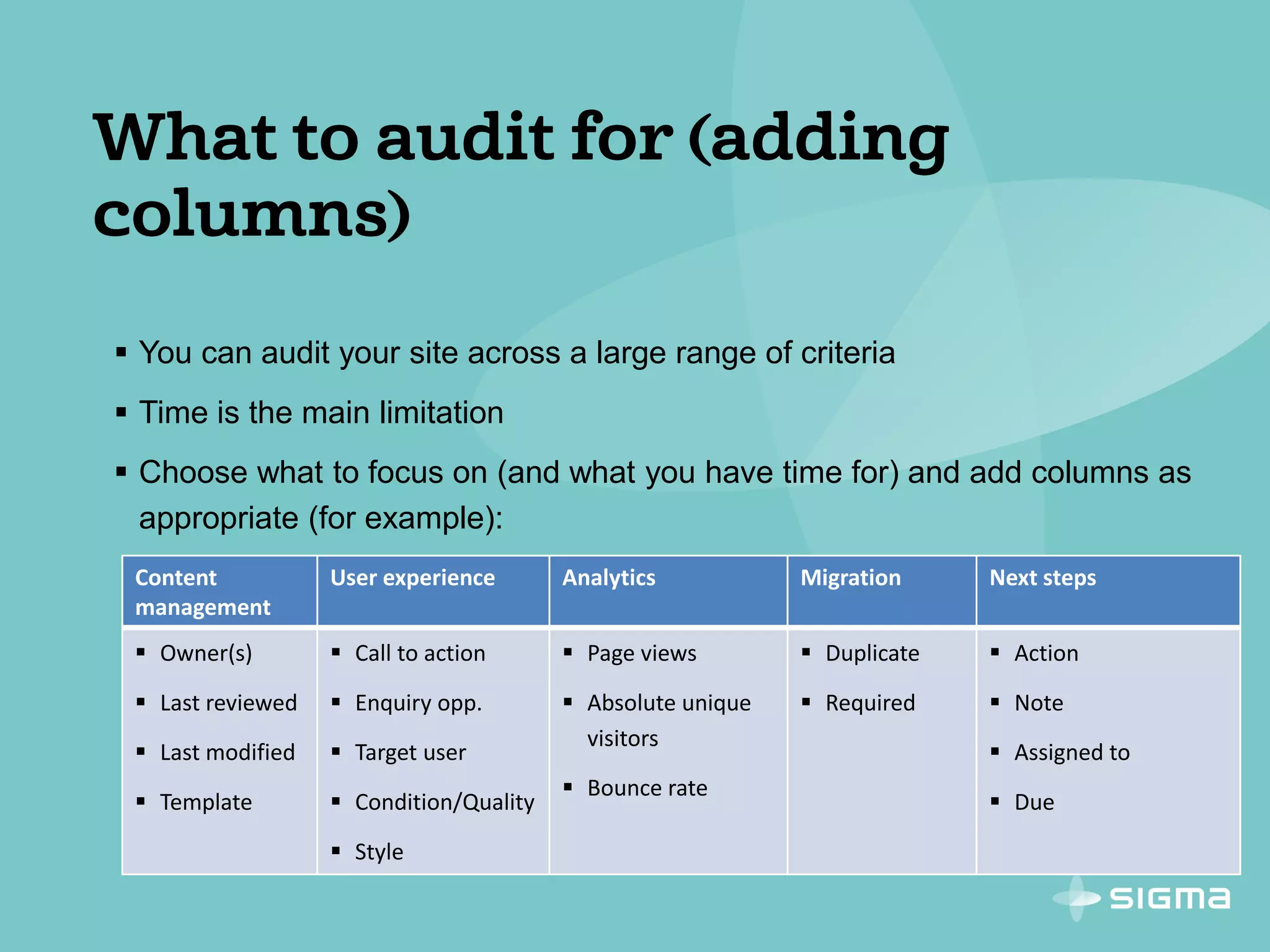
 You can audit your site across a large range of criteria
 Time is the main limitation
 Choose what to focus on (and what you have time for) and add columns as
appropriate (for example):
Content
management
User experience Analytics Migration Next steps
 Owner(s)
 Last reviewed
 Last modified
 Template
 Call to action
 Enquiry opp.
 Target user
 Condition/Quality
 Style
 Page views
 Absolute unique
visitors
 Bounce rate
 Duplicate
 Required
 Action
 Note
 Assigned to
 Due
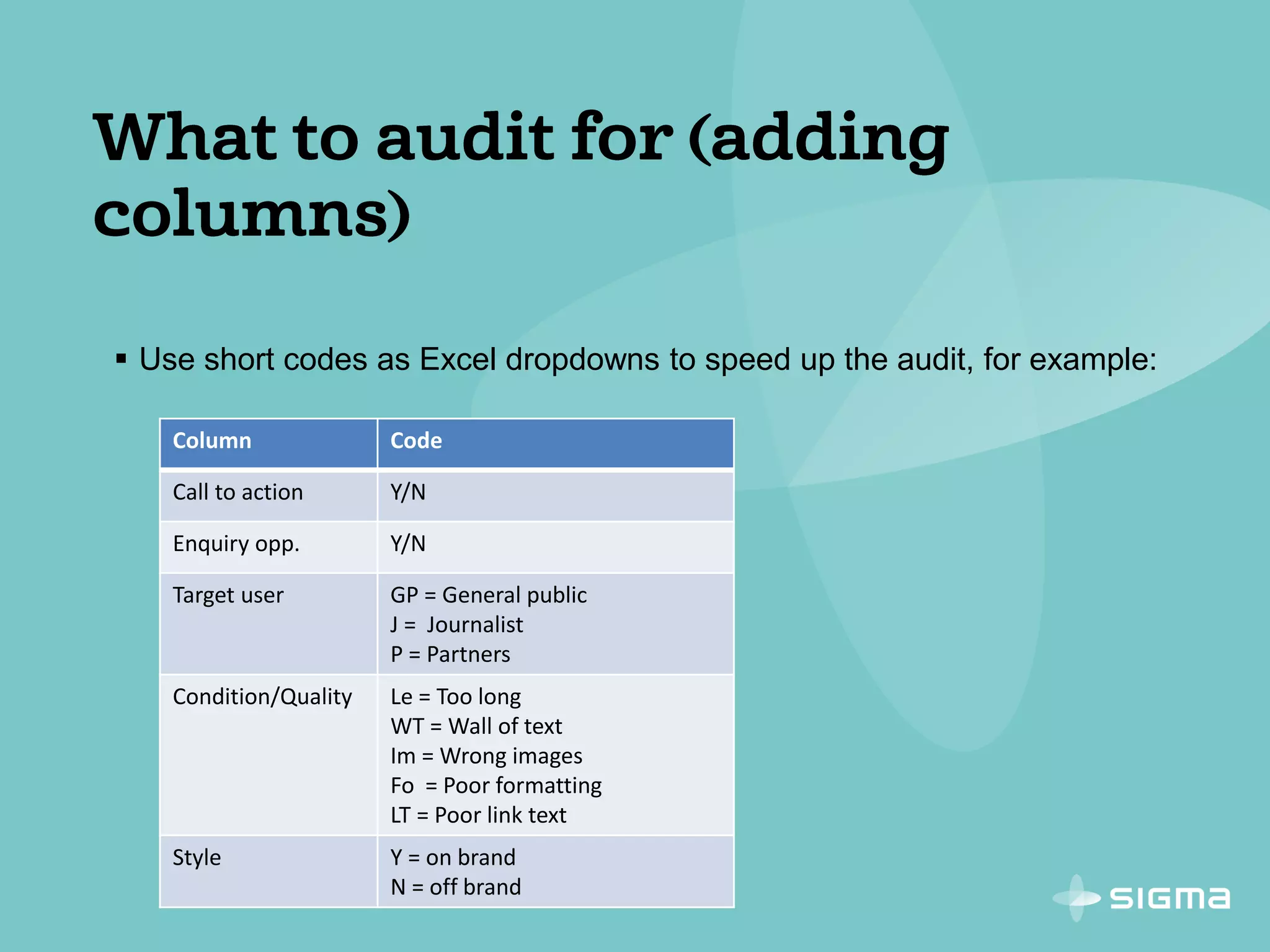
 Use short codes as Excel dropdowns to speed up the audit, for example:
Column Code
Call to action Y/N
Enquiry opp. Y/N
Target user GP = General public
J = Journalist
P = Partners
Condition/Quality Le = Too long
WT = Wall of text
Im = Wrong images
Fo = Poor formatting
LT = Poor link text
Style Y = on brand
N = off brand
 Use the URL column to visit each page
 Fill in the columns
Content
management
User experience Analytics Migration Next steps
 Owner(s)
 Last reviewed
 Last modified
 Template
 Call to action
 Enquiry opp.
 Target user
 Condition/Quality
 Style
 Page views
 Absolute unique
visitors
 Bounce rate
 Duplicate
 Required
 Action
 Note
 Assigned to
 Due
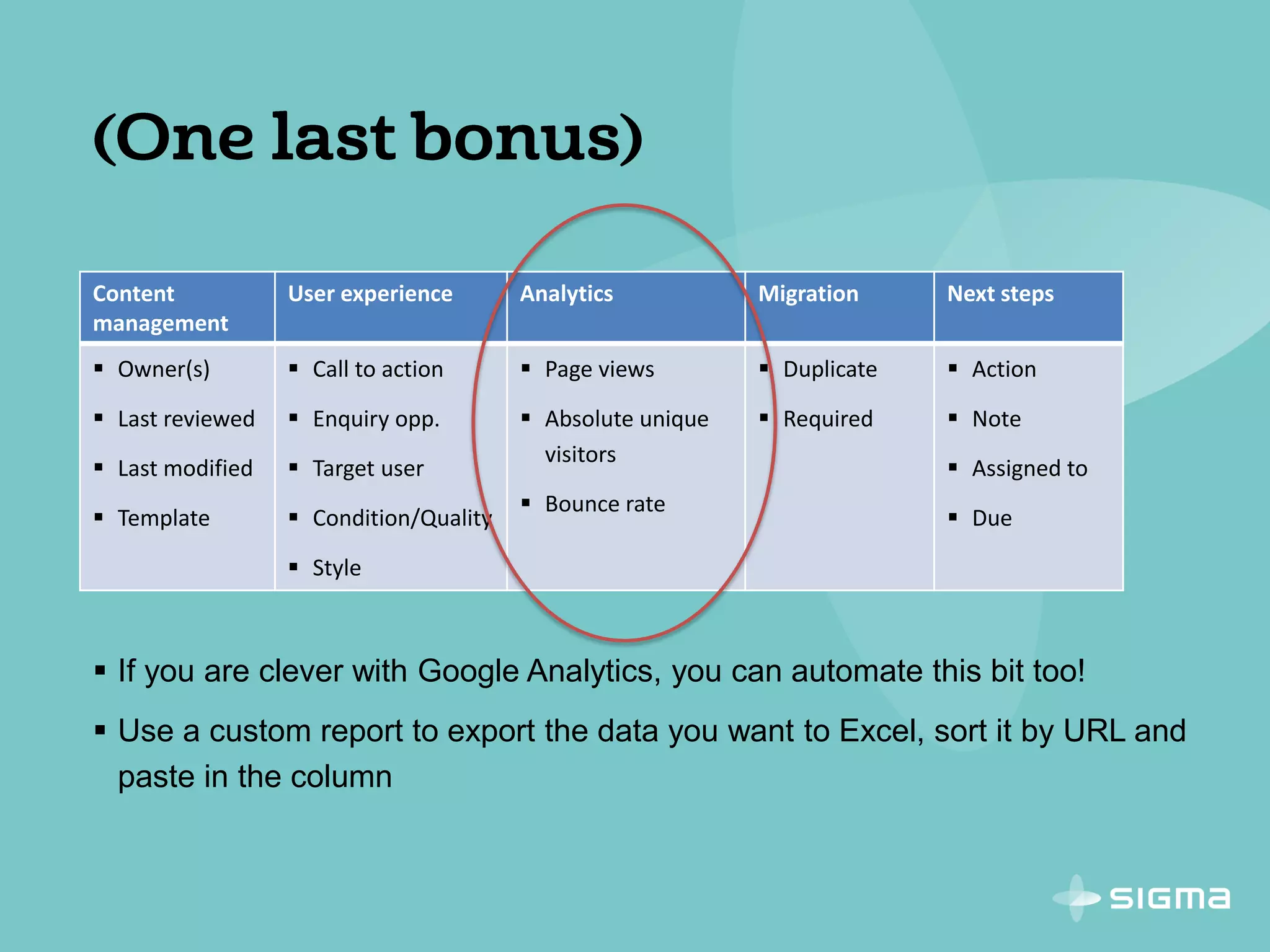
 If you are clever with Google Analytics, you can automate this bit too!
 Use a custom report to export the data you want to Excel, sort it by URL and
paste in the column
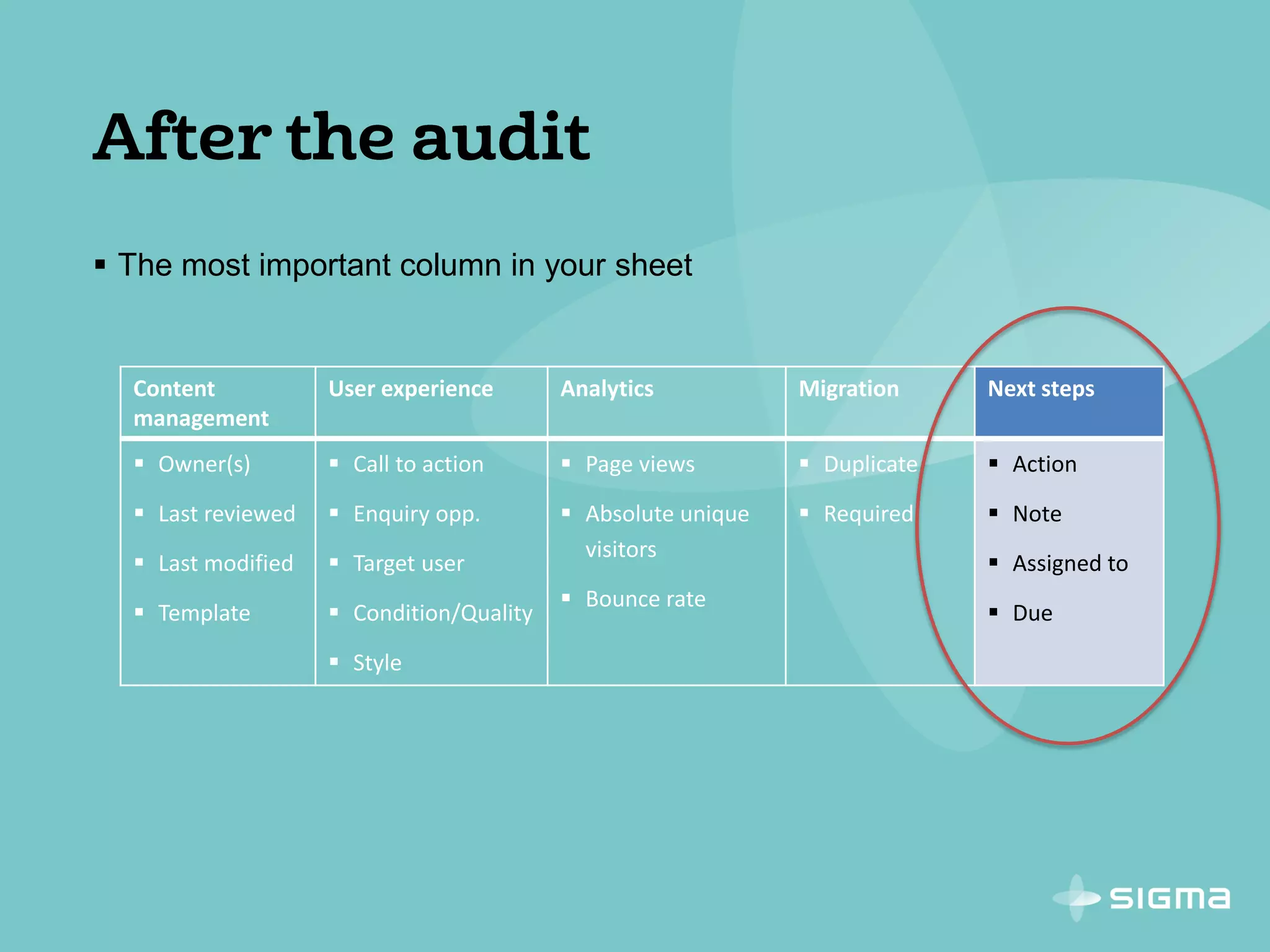
 The most important column in your sheet
Content
management
User experience Analytics Migration Next steps
 Owner(s)
 Last reviewed
 Last modified
 Template
 Call to action
 Enquiry opp.
 Target user
 Condition/Quality
 Style
 Page views
 Absolute unique
visitors
 Bounce rate
 Duplicate
 Required
 Action
 Note
 Assigned to
 Due
 Do you have any content with no target users? Why is it there?
 Which content is infrequently updated? Why? What will you do to fix it?
 Do you have content that is in poor condition:
 Badly written?
 Overly verbose?
 Badly laid out?
 Off brand?
 Carry out a top tasks analysis – do you have content for your top tasks?
 What are your strategic objectives – do you have content for those?
 Are you well set up for SEO?
 ...
Formula Notes
=SEARCH("/",A3,21)  Returns the position of the first slash in the URL
 In column B in a table column called “Postn of 1st /”
 21 is the position of the last character of our shortest domain., edit for your
site
=IFERROR(SEARCH("/",[Address],([Postn of 1st /]+1)),"")  Returns position of 2nd /. Returns blank if there is no 2nd slash.
 In column C in a table column called “Postn of 2nd /”
=IFERROR(SEARCH("/",[Address],([Postn of 2nd /]+1)),"")  Returns position of 3rd /. Returns blank if there is no 3rd slash.
 In column D in a table column called “Postn of 3rd /”
 Repeat for each part of your URL
=IFERROR(MID([@Address],([@[Postn of 1st /]]+1),([@[Postn
of 2nd /]]-[@[Postn of 1st /]]-1)),"!Root")
 Shows directories at Level 1 of your site
 Returns text between the first and second slashes (between “Postn of 1st /”
and “Postn of 2nd /”)
 Returns “!Root” when there is no second slash (the “!” keeps root at the top
when sorting
=IFERROR(MID([@Address],([@[Postn of 2nd /]]+1),([@[Postn
of 3rd /]]-[@[Postn of 2nd /]]-1)),"")
 Shows directories at Level 2 of your site
 Returns text between the second and third slashes . Returns blank when there
is no third slash
 Repeat for each part of your URL
=COUNTIF(HTMLPages[Level 1],[@Folder])  Use this for pie charts showing how your content is distributed.
 HTMLPages is the name of the table you insert on the HTML sheet of your
spreadsheet.
 Level 1 is the level 1 column on the HTML sheet.
 Folder is the first column on the sheet you are adding the chart to (see slide
17)

Sweeping out the cobwebs: Content auditing for large websites

  • 2.
    Justin is HeadOf Training and Content Services at Sigma and focusses on User Research and content. His background is in writing, information design and training delivery. Email: justin.darley@sigma.se Twitter: @Just_UX Phone: 01625 410988
  • 3.
     Like anythingelse, websites can deteriorate without maintenance  It’s easier to add content than delete it  Not everyone who edits a page is a skilled writer or designer…
  • 4.
    Content auditing istime consuming, manual and a little dull Lots of what you want to find out about your site needs a human being to look at the pages Some of the work can be automated And I’ll show you how to automate as much of it as you can It’s helpful to have an Olly Someone with a level of web knowledge/savvy who doesn’t mind some repetitive work (students and interns can work well)
  • 5.
    Crawl your siteand create an Excel content inventory. Use Excel formulae to create columns showing your website hierarchy. Optionally, use Excel formulae to create charts showing the distribution of content through the site. Assess your priorities, reasons for auditing and resource availability – use this information to decide what criteria to assess in the audit. Add the relevant columns to your inventory. Using the inventory, audit the site adding content to all of the columns you have prioritised. Agree next steps and resourcing to address any issues you find
  • 7.
     A coupleof definitions:  An inventory is quantitative; it mostly tells you what content you have, how much content you have and where it is. I suggest you try to automate this (see below)  A completed audit is qualitative; it can show you how good your content is, whether it meets the needs of your audience, how frequently it is accessed, when it was last updated…
  • 8.
     The ScreamingFrog SEO Spider  Crawls sites and fetches key SEO data  Much of this data is useful for an inventory (as well as SEO)  Can be exported to Excel  Free up to 500 URLs  License £99 a year
  • 9.
    1. Crawl thesite with the Screaming Frog SEO Spider 2. Export the whole crawl to Excel 3. Open the spreadsheet
  • 12.
    1. Create Excelworksheets for each file type 2. Use Excel filters to separate the content into file types 3. Copy and paste the relevant rows into the new sheets
  • 14.
    1. In theHTML sheet, create a column for each hierarchical level of your site (if your site is huge, you may want to put top level folders on separate sheets) 2. Use formulae to populate these columns 3. Formulae are in the appendix of these slides These columns are “working out”, you can hide them
  • 15.
     Use Excelformulae to show how your content is distributed  Copy your Level 1 column to a new sheet (be sure to paste ”values”)  Use Excel to remove duplicates
  • 16.
     Use countformulae to count the pages in each folder  Insert pie charts
  • 18.
     All yourpublished content is now in a spreadsheet  It’s separated into folders and content types  Charts show you how it is spread across the site  This is your inventory
  • 19.
     Thanks toScreamingFrog, you have also already started your audit!  Your inventory contains a lot of useful SEO-focussed audit data including:  Status Code  Status  Title and its length  Meta Descriptions and their length  H1s on the page and their length  File size  Word Count  Inlinks and Outlinks  We will now add other columns
  • 20.
     You canaudit your site across a large range of criteria  Time is the main limitation  Choose what to focus on (and what you have time for) and add columns as appropriate (for example): Content management User experience Analytics Migration Next steps  Owner(s)  Last reviewed  Last modified  Template  Call to action  Enquiry opp.  Target user  Condition/Quality  Style  Page views  Absolute unique visitors  Bounce rate  Duplicate  Required  Action  Note  Assigned to  Due
  • 21.
     Use shortcodes as Excel dropdowns to speed up the audit, for example: Column Code Call to action Y/N Enquiry opp. Y/N Target user GP = General public J = Journalist P = Partners Condition/Quality Le = Too long WT = Wall of text Im = Wrong images Fo = Poor formatting LT = Poor link text Style Y = on brand N = off brand
  • 22.
     Use theURL column to visit each page  Fill in the columns
  • 23.
    Content management User experience AnalyticsMigration Next steps  Owner(s)  Last reviewed  Last modified  Template  Call to action  Enquiry opp.  Target user  Condition/Quality  Style  Page views  Absolute unique visitors  Bounce rate  Duplicate  Required  Action  Note  Assigned to  Due  If you are clever with Google Analytics, you can automate this bit too!  Use a custom report to export the data you want to Excel, sort it by URL and paste in the column
  • 24.
     The mostimportant column in your sheet Content management User experience Analytics Migration Next steps  Owner(s)  Last reviewed  Last modified  Template  Call to action  Enquiry opp.  Target user  Condition/Quality  Style  Page views  Absolute unique visitors  Bounce rate  Duplicate  Required  Action  Note  Assigned to  Due
  • 25.
     Do youhave any content with no target users? Why is it there?  Which content is infrequently updated? Why? What will you do to fix it?  Do you have content that is in poor condition:  Badly written?  Overly verbose?  Badly laid out?  Off brand?  Carry out a top tasks analysis – do you have content for your top tasks?  What are your strategic objectives – do you have content for those?  Are you well set up for SEO?  ...
  • 28.
    Formula Notes =SEARCH("/",A3,21) Returns the position of the first slash in the URL  In column B in a table column called “Postn of 1st /”  21 is the position of the last character of our shortest domain., edit for your site =IFERROR(SEARCH("/",[Address],([Postn of 1st /]+1)),"")  Returns position of 2nd /. Returns blank if there is no 2nd slash.  In column C in a table column called “Postn of 2nd /” =IFERROR(SEARCH("/",[Address],([Postn of 2nd /]+1)),"")  Returns position of 3rd /. Returns blank if there is no 3rd slash.  In column D in a table column called “Postn of 3rd /”  Repeat for each part of your URL =IFERROR(MID([@Address],([@[Postn of 1st /]]+1),([@[Postn of 2nd /]]-[@[Postn of 1st /]]-1)),"!Root")  Shows directories at Level 1 of your site  Returns text between the first and second slashes (between “Postn of 1st /” and “Postn of 2nd /”)  Returns “!Root” when there is no second slash (the “!” keeps root at the top when sorting =IFERROR(MID([@Address],([@[Postn of 2nd /]]+1),([@[Postn of 3rd /]]-[@[Postn of 2nd /]]-1)),"")  Shows directories at Level 2 of your site  Returns text between the second and third slashes . Returns blank when there is no third slash  Repeat for each part of your URL =COUNTIF(HTMLPages[Level 1],[@Folder])  Use this for pie charts showing how your content is distributed.  HTMLPages is the name of the table you insert on the HTML sheet of your spreadsheet.  Level 1 is the level 1 column on the HTML sheet.  Folder is the first column on the sheet you are adding the chart to (see slide 17)