Prepared By Sujith Reddy… sujith.pelluru@gmail.com
Cross Applications
1) Cross applications is the concept to exchange the data among the systems.
2) ALE (Applications link enabling) is an SAP technology to support the cross-applications.
3) ALE uses IDOC (Intermediate Document) to support the cross applications.
4) IDOC is the carrier to carry the data from one system to another system.
Note: 1) In 1972 when the sap is developed, it is unable to exchange the data from sap to sap as well as sap to
non-sap.
2) At that time they purchase the EDI (Electronic Data Interchange) software and installed into sap.
3) With the help of EDI the sap exchange the data into sap system or non-sap system.
4) Now days we no need to purchase the EDI software. The sap people internally developed ALE.
5) With the help of ALE sap exchanges the data to the sap system or to the non-sap.
Sap can understand only the IDOC format, when it communicates with any other systems.
Distributing the data:
 Irrespective of the receiver the ABAPER job in the sender system is to generate the IDOC.
 The process of generating the IDOC is nothing but outbound process.
 Irrespective of the senders the ABAPER job in receiving system is to collect the data from IDOC and
post it to their relevant data base tables.
 The process of collecting the data from IDOC and as well as post it to their relevant database tables is
inbound process.
Run time components of an IDOC:
A unique IDOC number is generated which is 16 digit numbers.
It generates 3 types of records
a) control records
b) data records
c) status records
Control records:
1) Control records specify the sender as Well as receiver information.
2) It generates only one control records
3) This information will be saved on EDIDC table.
Data records:
1) Data records specify the data which is sent by sender system.
2) It generates any number of records.
3) This information will be saved on EDIDD table.
Prepared By Sujith Reddy… sujith.pelluru@gmail.com
Status records:
1) It generates the status code for each and every stage of transferring the data
2) It generates any number of status records.
3) Most of the times it generates four records.
4) This information is stored on EDIDS table.
There are two types of status codes.
1) Inbound status 2) outbound status.
Code code
(0.49) (50-76)
Note: the linking between EDIDC, EDIDD, and EDIDS Is the IDOC number.
Structure of an IDOC:
Control record Data record 1 status records 1
Data record 2 status records 2
Data record 3 status records 3
Data record 4 status records 4
| |
Data record N status record N
Types of an IDOC:
1) Basic type: a) standard IDOC or b) Custom IDOC
2) Extension type: standard IDOC + Custom IDOC.
Note: WE30 is the standard transaction code to Create, Change and to Display the IDOC.
If WE are working with standard database table information then WE go for standard IDOC.
If WE are working with custom database table information then WE go for custom IDOC.
If WE are working with standard database table along with some additional information then WE go for
Extended IDOC.
1) IDOC is the collection of segments.
2) Each segment is the collection of fields.
Characteristics of an IDOC:
1) Name of the IDOC.
2) List of segment.
3) Hierarchy of the segment.
4) Optional versus mandatory for the segment.
5) Provide parent and child relation ship for the segments.
6) Each segment can carry up to 1000 bytes.
7) Provide minimum and maximum number of repetitions of the segment.
Note:
WE31 is the transaction code to create, change and display the segments.
ALE configuration settings:
1) communication settings
2) message type specific settings
Prepared By Sujith Reddy… sujith.pelluru@gmail.com
Communication settings:
Sender-----Receiver
1) To build the bridge between two participated.
2) One time job
3) One way job
Communication between one system to another system is nothing but, communication betWEen one client of
sender system to another client of receiving system. Each participated system is called one logical system.
Steps to establish the communication settings:
1) Define logical systems.
2) Assign client to logical systems
3) Maintain RFC (remote function call) destination details.
 The receiver is in the 810 client, he wants Q7850 vendor details, and you provide the
following information.
Client : 810
User : sapuser
Password : *********
Logical system : Q7850
Object:
If the sender is in 800 client and he wants to send the Q7850 vendor details. Before sending
the data WE need to establish the communication setting betWEen 800 to 810 clients.
Steps to define logical system:
1) Execute SALE.
2) Click on basic settings.
3) Again click on logical systems
4) Execute define logical system
5) Click on NEW ENTRIES in App Tool bar
Prepared By Sujith Reddy… sujith.pelluru@gmail.com
6) Provide log. System name
7) Click on Save
Steps to assign my client to receiver logical system:
1) execute SCC4
2) click on change mode ctrl+f1
3) click on details ctrl+shift+f2 in app tool bar
4) provide logical system Z_800
Prepared By Sujith Reddy… sujith.pelluru@gmail.com
5) save
Steps to maintain RFC destination details:
1) execute SM59
2) Click on create in application tool bar.
3) Provide RFC destination Z_810.
4) Provide description SENDER TO RECIEVER.
5) Click on LOGON AND SECURITY TAB
Language EN
Client 810
User sapuser
Password *******
Prepared By Sujith Reddy… sujith.pelluru@gmail.com
6) click on CONNECTION TEST in app tool bar
7) come back and click on REMOTE LOGON in app tool bar
Note:
In the real-time communication settings are done by BASIS team
Message type specific settings:
1) out-bound a) sender system
2) in-bound b) receiver system
Out-bound process in background:
1) Based on the given input, outbound program will be triggered and fetch the application data from
database and generates the master IDOC.
2) Master IDOC is nothing data in an internal table.
3) Master IDOC will not save anywhere in the sap.
4) ALE service layer read the distribution model and identifies the intrested receivers and generates the
communication IDOC based on the receivers.
5) Distribution model is the collection of sender’s receivers and message type.
6) Message type is used to identify the type of the application (when data is sending.. (Vendor, customer,
material).
7) Communication IDOC is the physical IDOC which is receivers specific
8) ALE communication layer dispatch the communication IDOC to their relevant receivers.
Note: if you get zero masters IDOC the reason is the database having no application data based on the input.
If you get zero communication IDOC the reason would be,
a) There are no receivers in the distribution model.
b) Communication settings problem.
Steps to identify the transaction code based on short description:
1) execute SDMO
Prepared By Sujith Reddy… sujith.pelluru@gmail.com
2) provide short text---send vendor
3) execute it
4) Identify the transaction code.
OUTBOUND SETTINGS:
1) create distribution model (BD64)
2) create outbound partner profile (WE20)
a) message type
b) partner number (WE21)
c) mode of dispatch
i. immediate
ii.collect
Some of the standard message type and IDOC type:
T. code message type IDOC type short text
BD10 MATMAS MATMAS 01-05 SEND MATERIAL
BD11 MATMAS MATMAS 01-05 GET MATERIAL
BD12 DEBMAS DEBMAS 01-06 SEND CUSTOMER
BD13 DEBMAS DEBMAS 01-06 GET CUSTOMER
BD14 CREMAS CREMAS 01-05 SEND VENDOR
BD15 CREMAS CREMAS 01-05 GET VENDOR
Note: EDIMSG is the standard database table which contains all the message types and IDOC types.
STEPS TO CREATE DISTRIBUTION MODEL:
1) execute BD64
2) click on change mode
Prepared By Sujith Reddy… sujith.pelluru@gmail.com
3) create model view in application tool bar
4) provide short text—DISTRIBUTION MODEL
5) provide technical name—DBM_VEN.
6) Select the DIDTRIBUTION MODEL
7) Click on ADD MESSAGE TYPE in application tool bar
8) Provide sender—Z_800
9) Provide receiver—Z_810
10) message type—CREMAS
11) enter
12) repeat the same for all the receivers and message types
13) click on save
Port number:
It is used to specify the way of transferring the data. i. e. in which way WE want to reach destination
1) TRFC---ALE/IDOC
2) FILE PORT---LSMW/EDI/IDOC
3) XML PORT---JAVA
4) INTERNET PORT---WEB APPLICATION
Prepared By Sujith Reddy… sujith.pelluru@gmail.com
Steps to create port number:
1) Execute WE21
2) Select the transactional RFC at left hand side
3) Click on create in application tool bar
4) Click on enter( it generate one port number which id 10 digits)
5) Port—A000000130
6) Description---THIS IS MY PORT
7) Provide RFC destination –Z_810
Steps to create outbound partner profile:
1) execute WE20
2) select---PARTNER TYPE LS LOGICAL SYSTEM
3) click on create in application tool bar
4) partner number—Z_810
5) click on save
6) click on create outbound parameter
7) provide message type—CREMAS
8) receiver port---AW00000689
Prepared By Sujith Reddy… sujith.pelluru@gmail.com
9) select radio button TRANSFER IDOC IMMED
10) click on basic type and press f4
11) select the appropriate selection
12) click on save
Steps to send the vendor:
1) Execute BD14
2) Provide the account number of vendor---A7850
3) Message type---CREMAS
4) Target system---Z_810
5) Execute
6) ENTER
Steps to test the IDOC:
1.execute WE02/WE05
1.provide logical message---CREMAS
1.partner number---Z_810
Prepared By Sujith Reddy… sujith.pelluru@gmail.com
1.execute
If WE want to know the IDOC is reached to destination are not then WE must execute RBDMOIND standard
program.
1) If the status code 03 turn to 12 then the IDOC is reached to destination successfully.
2) If the status code remains 03 in the IDOC TRFC then it is still in then it is still in open mode.
3) If the status code 03 turn to 11 then the IDOC having the some errors in the TRFC.
Steps to identify the IDOC reached to destination or not:
1) execute SE38
2) provide program name RBDMOIND
Prepared By Sujith Reddy… sujith.pelluru@gmail.com
3) click on execute
4) again click on execute
5) click on yes
Note:
If the mode of the dispatch is collect then WE must execute, RSEOUT00 is standard program then only
collect IDOC will be dispatched to their relevant receivers.
Internal process
1) After IDOC is reached to receiver system. It goes to inbound partner profile. Identify the related
message type against that message type and identify the process code.
2) Against the process codes it identify the function module (inbound program) and trigger the inbound
program (function module).
3) Inbound program collect the data from IDOC and placed into internal tables. From the internal table
the data is transfer to application (vendor, customer, material),from the application the data is update
into their relevant data base table.
Inbound settings
Receiver system (810 client) :
Steps to assign client to logical system:
1. execute SCC4
2. click on change mode ctrl+f1
3. select the client 810 LS_SP810 FRANKFURT_DEUSTH
4. click on details ctrl+shift+f2 in app tool bar
Prepared By Sujith Reddy… sujith.pelluru@gmail.com
5. provide logical system LS_SP810
6. save
Steps to create inbound parameter profile IN 810 CLIENT:
1. execute WE20
2. select---PARTNER TYPE LS LOGICAL SYSTEM
3. click on create in application tool bar
4. partner number—Z_800
5. click on save
Prepared By Sujith Reddy… sujith.pelluru@gmail.com
6. click on create inbound parameter
7. provide message type—CREMAS
8. select the process code CRE1
9. click on save
Steps to test the IDOC:
1) execute WE02/WE05
2) provide logical message---CREMAS
3) partner number---Z_800
4) execute
Steps to reprocess the IDOC:
1) execute BD87
2) provide the IDOC number 78002
3) execute
Prepared By Sujith Reddy… sujith.pelluru@gmail.com
4) select the error IDOC
5) click on process in the application tool bar
Steps to create vendor:
1) execute XK01
2) provide vendor number Q7860
3) provide account group 0004
4) enter
5) provide name SITEL
6) search term sitel
7) country DE
8) save
Note:
If the mode of posting is collect then WE must execute RBDAPP01 standard program. Then only the
collect IDOC’ s will be posted into the relevant data base table
Filtering techniques
Filtering techniques are used to send the data form sender to receiver based on condition.
There are 3 types of filtering techniques.
1) IDOC filtering
2) segment filtering
3) reduced IDOC
IDOC filtering:
1) IDOC filtering technique is used to drop the IDOC at run time
2) IDOC filtering conditions are placed in distribution model(BD64)
Prepared By Sujith Reddy… sujith.pelluru@gmail.com
3) Before generating the communication IDOC, ale service layer reads the distribution model and
identifies for the interested receivers, if any receiver is available then it checks for the filtering
conditions.
4) If the given input satisfies the condition then only it generates the communication IDOC other wise it
won’t generate any communication IDOC.
Object: Develop the interface program to send the only raw material information from sender to receiver by
using filtering conditions.
Steps to work with IDOC filtering in distribution model:
1) execute BD64
2) click on change mode
3) click on create model view
4) provide short description and technical name
5) enter
6) select the distribution model
7) click on add message type
8) provide sender, receiver, and message type—MATMAS
Prepared By Sujith Reddy… sujith.pelluru@gmail.com
9) enter
10) expand distribution model until---NO FILTER SET
11) double click on it
12) click on create filter group
13) expand data filtering
14) expand filter group
15) select the required selection---MATERIAL TYPE
16) click on INSERT ROW
17) provide the value—ROH
18) enter
19) repeat the same for the rest of conditions
20) enter
21) click on SAVE
Steps to create outbound partner profile:
13) execute WE20
14) select---PARTNER TYPE LS LOGICAL SYSTEM
15) click on create in application tool bar
16) partner number—Z_810
Prepared By Sujith Reddy… sujith.pelluru@gmail.com
17) click on save
18) click on create outbound parameter
19) provide message type—MATMAS(READ AS MATMAS IN THE FIGURES)
20) receiver port---AW00000689
21) select radio button TRANSFER IDOC IMMED
22) click on basic type and press f4
23) select the appropriate selection
24) click on save
Steps to send the material details:
1) Execute BD10
2) Provide material number-100-100
3) Logical system-Z_810
4) Execute
SEGMENT FILTERING:
1) Segment filtering is used to drop the segments permanently to the particular user
2) The transaction code for segment filtering is BD56
NOTE: whenever WE are working with the segment filtering then WE must provide a dummy out bound partner
profile to the sender system.
STEPS:
1) Execute WE20
2) Select the partner type LS
3) Click on Create
Prepared By Sujith Reddy… sujith.pelluru@gmail.com
4) Provide the partner number as itself(Z_810)
5) Save
Steps to identify the segments:
1) Execute BD56
2) Provide IDOC name-MATMAS
3) Click on display
Object:
Develop an interface program to send the material details sender to receiver system and drop
the E1MARM segment information permanently.
Steps to work with segment filtering:
1) Execute BD56
2) Provide msgtype-MATMAS
3) Provide TY-LS Sender-LSSP800 and ty-LS Reciever-LSSP810
4) Segment type-E1MLANM
Prepared By Sujith Reddy… sujith.pelluru@gmail.com
5) Repeat the same for rest of the segments
6) Save
Reduced IDOC:
1) Reduced IDOC is used to drop the segments as WEll as fields permanently to the particular
receiver, WE cant drop the mandatory segments as WEll as fields which are in green color.
2) The transaction code for reduced IDOC is BD53
3) Here WE must create a new message type with existing message type and after WE
configure the ALE (distribution model and outbound partner profile).
Steps to work with reduced IDOC:
1) Execute BD53
2) Provide the reduced message type-ZSPMATMAS
3) Click on create
4) Provide message type reference-MATMAS( but here WE provided cremas because matmas has
already created).
5) enter
6) Provide description-REDUCED MESSAGE TYPE
7) Enter
Prepared By Sujith Reddy… sujith.pelluru@gmail.com
8) Select the required segment- E1LFA1M
9) Select the required fields
10) Click on-SELECT
11) Enter
12) Repeat the same for all the segments and fields
13) Save
Based on this mew message type WE create the distribution model and outbound partner profile
Difference betWEen segment filtering and reduced IDOC
Segment filtering;
1) This is used to drop the segments permanently to the particular receiver
2) Here WE no need to create the message type or the existing message type
3) The selected segment information only permanently to the receiver
4) The transaction code is BD56
Reduced IDOC:
1) This is used to drop the segments as WEll as fields permanently
2) Here WE must create a new message type with the existing message type
3) The selected segment as WEll as fields information only sends to receiver
4) The transaction code is BD53
Types of distributing the data:
1) Send the entire copy
2) Send changes only(CHANGE POINTER TECHNIQUE)
3) Get the entire copy
Send changes only (CHANGE POINTER TECHNIQUE):
1) Change pointer technique is used to send the changes of master data from sender to receiver
system
Prepared By Sujith Reddy… sujith.pelluru@gmail.com
2) Change pointer technique reads the change pointers and generate as WEll as dispatch
3) whenever the changes occurred in the master data the standard SAP itself prepare one
document(change document) and this information is maintained in CDHR and CDPOS table.
4) SMD(shared master data) is a tool which reads the distribution model and identifies the interested
receivers if any receiver is available then it generate the change pointers based on the change
document
5) Change pointer technique reads the change pointers and generate as WEll as dispatch the IDOC to
a relevant receiver
Note: change pointer technique is always at sender system and it always work with standard IDOC
ALE configuration steps for change pointer technique:
1) ALE configuration steps for standard IDOC outbound
a. Create distribution model-BD64
b. Create outbound partner profile-WE20
2) Activate the change pointer technique-BD61
3) Activate the message type-BD50
4) Generates as WEll as dispatches the changed IDOC( RBDMIDOC standard program)
Steps to activate the change pointer technique:
1) Execute BD61
2) Select the check box(change pointers activated)
3) Save
Steps to activate the msg type:
1) Execute BD50
2) Click on position
3) Provide the message type CREMAS
4) Select checkbox CREMAS
5) Save
Prepared By Sujith Reddy… sujith.pelluru@gmail.com
Steps to change the vendor details:
1) Execute xk02
2) Provide the vendor number select the checkbox –ADDRESS
3) Enter
4) Provide the changes
5) Save
Steps to generate as WEll as dispatch the IDOC’s:
1) Execute SE38
2) Provide program name RBDMIDOC
3) Execute
4) Message type CREMAS
5) Execute
Note:
In the real-time, based on the volume of the data WE run the RBDMIDOC program daily or WEekly or
monthly by background scheduling.
Steps to identify changes of any IDOC document (vendor,customer,purchase order…..):
1) Execute SE11
2) Open database table CDHR
3) Click on contents
4) Provide object id Q7890
5) Execute
6) Identify the change document contents
Prepared By Sujith Reddy… sujith.pelluru@gmail.com
7) Provide object class KRED
8) Object id Q7890 and CHANGNR-provide all the values
9) Identify the old and new values
Some of the requesting message types:
Application message type requesting message type
VENDOR CREMAS CREFET
CUSTOMER DEBMAS DEBFET
MATERIAL MATMAS MATFET
Note:
1) EDIMSG is the standard data base table which contains all the message types as WEll as
requesting message type.
2) ALERAQ01 is the IDOC type for any requesting message type.
In client 810:
1) First the basis people establish the communication settings from receiver to sender
Steps to create distribution model:
1) Execute BD64
2) Edit mode
3) Create model view
4) Provide short text , technical name and enter
5) Select the created distribution model
6) Add message type
7) Provide sender, receiver and message type-CREFET
8) Enter
9) Repeat the same for all the message type
10) Save
Steps to create port number:
1) Execute WE21
2) Click transactional RFC
3) Click on create
4) Enter
5) Provide description and RFC destination
6) Click on save
Steps to create outbound partner profile:
1) Execute WE20
2) Click on partner type ls
3) Select the partner
4) Click on create outbound parameters
5) Provide message type CREFET and receiver port
6) Transfer IDOC immediately
7) Select the basic type ALEREQ07
8) Save
Prepared By Sujith Reddy… sujith.pelluru@gmail.com
Steps to get the vendor:
1) Execute BD15
2) Provide vendor number
3) Provide message type-CREMAS
4) Execute
Client 800:
Steps to create inbound partner profile:
1) Execute WE20
2) Select partner type ls
3) Select the partner
4) Click on create inbound parameter
5) Provide message type CREFET
6) Process code CREF
7) Save
Custom IDOC
1) Against the goods supplied by the vendor our inventory team prepares the GR with MIGO
transaction
2) Against GR finance people physically verify the stock and prepares the invoice verification
3) Against IR document our finance people prepares the payment document and pay the amount to the
vendor with deduction amount TDS(tax deduction amount)
4) After 4 to 5 months the vendor asks the form
5) If our commercial department generate the form 16 and given to vendor for this they need the
following information
a. LR number
b. Vehicle number
c. Transporter name
6) This information is not maintained in entire p2p life cycle ( procure to pay)
7) Here WE design one additional screen with the above fields and attaches to MIGO transaction
through BADI implementation
8) This information is maintained in a ztable
9) If you want to send or receive this information then WE go for custom IDOC
Note: In this scenario first WE need to create the ztable with the following fields. Here WE provide the
name for this table as ZSUMGRAI
FIELD KE
Y
Data element Domain Data
type
Length Short description
Mandt Ok As per standard
Sap
GRNO Ok As per standard
Sap
LRNO ZSPLRNO YSPLRNO CHAR 15 LORRY RECIEPT
NUMBER
VNO ZSPVNO YSPVNO CHAR 15 VEHICLE NUMBER
TNAME ZSPTNAME YSPTNAME CHAT 25 TRANSPORTER
NUMBER
Prepared By Sujith Reddy… sujith.pelluru@gmail.com
Ale Configuration steps for the custom IDOC OUT BOUND:
1) Create the segments WE31
2) Create the IDOC WE30
3) Create the message type WE81
4) Link the message type to IDOC type WE82
5) Create the port number WE21
6) Create the outbound partner profile WE20
7) Distribution model is not required if WE pass the control record information
Steps to create the custom IDOC:
1) Execute WE31
2) Provide segment name Z1GRASEG
Note:
The standard segment name starts with E1 the custom segment name starts with Z1.
The definition of the Standard segments starts with the E2 and the definition of the custom
segments starts with Z2
3) Click on create
4) Provide short description GR ADDITIONAL DATA SEGMENT
5) Provide field name, data element name which WE have already created the ztable in DDIC.
6) Click on save
Note:
Whenever WE create the segment then automatically segment definition as WEll as an equivalent
structure is created in the DDIC.
Steps to create IDOC:
1) Execute WE30
2) Provide obj.name IDOC NAME (ZGRAIIDOC)
3) Click on create
Prepared By Sujith Reddy… sujith.pelluru@gmail.com
4) Provide description GR ADDITIONAL INFORAMATION
5) Enter
6) Select the IDOC
7) Click on create segment
8) Provide our segment name Z1GRAISEG and MINIMUM as 1 and MAXIMUM as 1
9) Enter and save
Steps to create the message type:
1) Execute WE81
2) Click on change mode
3) Click on new entries in application tool bar
Prepared By Sujith Reddy… sujith.pelluru@gmail.com
4) Provide the message type GRAIMASS
5) Short text GR INFORMATION
6) Save and enter
Steps to link the message type to IDOC:
1) Execute WE82
2) Click on change mode
3) Click on new entries
4) Provide the message type SUMMASS and basic type (IDOC type)ZSUMIDOC and release 700
5) SAVE
Prepared By Sujith Reddy… sujith.pelluru@gmail.com
Steps to identify the release:
1) Execute SE11
2) Open the table EDIMSG
3) Click on contents
4) Execute
5) Select the released field
6) Click on short descending in application tool bar and identify the released latest one.
Prepared By Sujith Reddy… sujith.pelluru@gmail.com
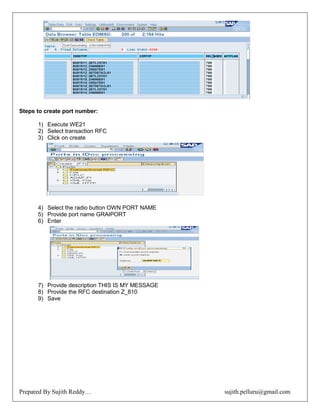
Steps to create port number:
1) Execute WE21
2) Select transaction RFC
3) Click on create
4) Select the radio button OWN PORT NAME
5) Provide port name GRAIPORT
6) Enter
7) Provide description THIS IS MY MESSAGE
8) Provide the RFC destination Z_810
9) Save
Prepared By Sujith Reddy… sujith.pelluru@gmail.com
Steps to create outbound partner profile:
1) Execute WE20
2) Select the partner Z_810
3) Click on create outbound parameters
4) Provide the message type SUMMASS
5) Transfer IDOC immediate
6) Select basic type SUMMASS
Steps to develop custom IDOC outbound program:
1) design the selection screen as shown below
2) generate the master IDOC( based on the given input WE fetch the data from the database and
placed into internal tables)
3) collect the control record information
4) generate as WEll as dispatch the communication IDOC
Prepared By Sujith Reddy… sujith.pelluru@gmail.com
Steps to identify the field name or data element of message type:
1) execute BD14 or BD12( known transaction)
2) place the cursor on the message type input field click on F1
3) click on technical information
4) identify the data element(EDI_MESTYP)
NOTE: if u want to identify the data element of logical system place the cursor on the target system input field
and click on F1 and then click on technical information then identify the data element (LOGSYS).
STEP 1: Design the selection screen as shown below
STEP 2: Filling the master IDOC
1) filling the master IDOC is nothing but filling the internal table which contain two fields
1. segment name( SEGNAM)
2. segment data( SDATA)
Prepared By Sujith Reddy… sujith.pelluru@gmail.com
2) whenever WE are working with custom IDOC then WE must declare three internal tables
1. master IDOC
2. control records
3. communication IDOC
3) And also WE need to declare one work area and internal table for each segment in the IDOC.
Procedure of filling the master IDOC's:
1) based on the given input WE fetch the data from the database and fill it into segment internal
tables
2) loop the segment internal table data and fill the master IDOC
STEP 3: Collect the control record information
1) collect the control record information is nothing but filling the internal table which contains the
following the fields
RCVPOR—Receiver port
RCVPRT- Receiver partner type
DOCTYP—IDOC type
MESTYP—message type
RCVPRN---receiver partner number
2) EDIDC table contains the above fields so WE simply declare our control record internal table by
referring EDIDC.
** Repeat the same for all the receivers.
STEP 4: Generate as Well as dispatch the communication IDOC
1) MASTER_IDOC_DISTRIBUTE is a function module which is used to generate as Well as
dispatch the relevant receivers
2) the input for the above function module is
1. data internal table
2. communication IDOC
3. control record work area
REPORT ZSUJITH_CUSTOMIDOC_OUTBOUND.
*DESIGN THE SELCTION SCREEN
DATA V1 LIKE ZSUMGRAI-GRNO.
SELECTION-SCREEN BEGIN OF BLOCK A WITH FRAME.
SELECT-OPTIONS S_GRNO FOR V1.
PARAMETER : P_MESTYP TYPE EDI_MESTYP,
P_LOGSYS TYPE LOGSYS.
SELECTION-SCREEN END OF BLOCK A.
*DECLARE THE MASTER IDOC DDID INTENAL TABLE
Prepared By Sujith Reddy… sujith.pelluru@gmail.com
DATA : WA_DATA LIKE EDIDD,
IT_DATA LIKE TABLE OF WA_DATA.
*DECLARE THE WORKAREA AND INTERNAL TABLE FOR EACH SEGMENT
DATA : WA_SEG LIKE Z1SUMSEG,
IT_SEG LIKE TABLE OF WA_SEG.
*FILLING THE MASTER IDOC
SELECT GRNO VNO LRNO TNAME FROM ZSUMGRAI INTO TABLE IT_SEG WHERE GRNO IN S_GRNO.
LOOP AT IT_SEG INTO WA_SEG.
WA_DATA-SEGNAM = 'Z1SUMSEG'.
WA_DATA-SDATA = WA_SEG.
APPEND WA_DATA TO IT_DATA.
CLEAR WA_DATA.
ENDLOOP.
*DECLARE COTROL RECORD INFORMATION
DATA WA_CON LIKE EDIDC.
DATA IT_CON LIKE TABLE OF WA_CON.
WA_CON-RCVPOR = 'SUMPORT'.
WA_CON-RCVPRT = 'LS'.
WA_CON-DOCTYP = 'ZSUMIDOC'.
WA_CON-MESTYP = 'P_MESTYP'.
WA_CON-RCVPRN = 'P_LOGSYS'.
APPEND WA_CON TO IT_CON.
CLEAR WA_CON.
* DECLARE THE COMMUNICATION IDOC
DATA : WA_COMM LIKE EDIDC,
IT_COMM LIKE TABLE OF WA_COMM.
LOOP AT IT_CON INTO WA_CON.
CALL FUNCTION 'MASTER_IDOC_DISTRIBUTE'
EXPORTING
MASTER_IDOC_CONTROL = WA_CON
TABLES
COMMUNICATION_IDOC_CONTROL = IT_COMM
MASTER_IDOC_DATA = IT_DATA.
ENDLOOP.
CALL FUNCTION 'REUSE_ALV_GRID_DISPLAY'
EXPORTING
I_STRUCTURE_NAME = 'EDIDC'
Prepared By Sujith Reddy… sujith.pelluru@gmail.com
TABLES
T_OUTTAB = IT_COMM.
ALE CONFIGURATION STEPS FOR CUSTOM IDOC PROGRAM (inbound)
Note: out bound program can be implemented either through executable program or through function module
Whereas inbound program must be implemented through function modules only because the interface
parameters are same (import, export, change parameters)
Note: the process code is used to identify the function model.
Steps:
1) create the segment(WE31)
2) create the IDOC(WE30)
3) create the message type(WE81)
4) link message type to IDOC type(WE80)
5) create the function module(WE37)
6) link the message type to function module(WE57)
7) create the mode of posting (BD51)
8) create the process code(WE42)
9) link the process code to function module (WE42)
10) create the inbound partner profile(WE20)
Note: step1 to step4 is not required when WE are working in a same server
Steps to create function module (WE37)
1) in the real time WE never create the function module WE always copy the existing function
module
Steps to identify the existing function module:
1) execute WE42
2) click on position
3) provide known process code ( CRE1)
4) double click on the process code( CRE1)
Prepared By Sujith Reddy… sujith.pelluru@gmail.com
5) identify the function module as
IDENTIFICATION: IDOC_INPUT_CREDITOR
Steps to create function group:
1) execute SE37
2) in the menu bar click on GOTO
3) under function group click on create group
4) provide your function group name as ( ZSUJITH_7AM_IDOC_FG)
5) save
Steps to activate the function group:
1) in the menu bar click on environment
2) click on inactive objects
Prepared By Sujith Reddy… sujith.pelluru@gmail.com
3) expand function group under local objects
4) select the function group( ZSUJITH_7AM_IDOC_FG)
5) right click on the function group click on activate
6) enter
Steps to copy the function module:
1) execute SE37
2) in the application tool bar click on copy
3) provide from function module : IDOC_INPUT_CREDITOR
To function module : ZSUJITH_INPUT_GRAITOR
Function group : ZSUJITH_7AM_IDOC_FG
Prepared By Sujith Reddy… sujith.pelluru@gmail.com
Steps to link the message type to function module WE57
1) execute WE57
2) click on change mode
3) click on new entries in the application tool bar
4) provide function module name : ZSPIDOC_INPUT_GRAITOR
function type : FUNCTION MODULE
basic type : ZGRAIIDOC
message type : GRAIMASS
direction : INBOUND
5) save
Prepared By Sujith Reddy… sujith.pelluru@gmail.com
Steps to create mode of posting:
1) execute BD51
2) click on new entries in the application tool bar
3) provide the function module name : ZSPIDOC_INPUT_GRAITOR
input type : 0
4) save
Steps to create process code as WEll as link the process code to function module:
1) execute WE42
2) click on change mode in the application tool bar
3) click on new entries
Prepared By Sujith Reddy… sujith.pelluru@gmail.com
Process code: ZGRA1
Short description: THIS IS MY PROCESS CODE
Identification: ZSPIDOC_INPUT_GRAITOR
4) select the radio button processing type as processing by function module radio button
5) save
6) select the function module from the drop down ( ZSPIDOC_INPUT_GRAITOR)
7) save
Prepared By Sujith Reddy… sujith.pelluru@gmail.com
Steps to create inbound partner profile:
1) execute WE20
2) select the partner-LSSP800
3) click on create inbound parameter
4) provide the message type—GRAIMASS
5) provide the process code –ZGRAI1
6) save
Prepared By Sujith Reddy… sujith.pelluru@gmail.com
FUNCTION ZSUJITHFUNCTIONMODULE.
DATA WA_DATA LIKE LINE OF IDOC_DATA.
DATA WA_RSEG1 LIKE Z1SUJITHSEG.
DATA WA LIKE ZSUJITHTABLE.
LOOP AT IDOC_DATA INTO WA_DATA.
IF WA_DATA-SEGNAM = 'Z1SUJITHSEG'.
WA_RSEG1 = WA_DATA-SDATA.
WA-GRNO = WA_RSEG1-GRNO.
WA-LRNO = WA_RSEG1-LRNO.
WA-VNO = WA_RSEG1-VNO.
WA-TNAME = WA_RSEG1-TNAME.
INSERT ZSUJITHTABLE FROM WA.
ENDIF.
ENDLOOP.
ENDFUNCTION.
Note: WE19 is the inbound test tool which WE used to test the inbound program
Steps to test the inbound program:
1) execute WE19
2) select the radio button via message type
3) provide your message type name –GRAIMASS
4) click on execute'
Prepared By Sujith Reddy… sujith.pelluru@gmail.com
5) double click on the segment, provide sample input
GRNO: 4500000001
LRNO: AP35 0000 5000
VNO: AP35 0000
TNAME: SUJITH
6) enter
Click on inbound function module in the application tool bar
Select the check box call in debugging mode
Select he radio button in fore-ground
7) Enter.
Prepared By Sujith Reddy… sujith.pelluru@gmail.com
Steps to download the IDOC information:
1) Execute IDOC
2) Select the radio button analyse IDOC field values
3) Click on execute
4) Provide the IDOC number 790748
5) Select the checkbox ALSO OUTPUT EMPTY FIELDS
6) Execute
Prepared By Sujith Reddy… sujith.pelluru@gmail.com
7) In the menu bar click on system —> list —> save —> local file
8) Select the radio button spread sheet and enter
9) Provide the file name
10) Click on generate
Prepared By Sujith Reddy… sujith.pelluru@gmail.com
EXTENDED IDOC OR ENHANCED IDOC:
1) Extended IDOC is the collection of standard IDOC with custom segments
2) Extended IDOC is used to send as WEll as receives the standard IDOC
3) Writing an extended IDOC outbound program is nothing but read and fill the additional segment
information only
4) Adding some additional functionality to the standard functionality is always through enhancements
1) As per client requirement WE added the pan number (PANNO) service tax(STNO) and tax indicator
(TIND) to the lfal1 table by using append structure.
2) If you want to send these additional fields information along with standard fields information then WE
go for extended IDOC
3) Here in this case WE create one additional segment with custom fields and attached to standard
IDOC this is called extended IDOC
4) Based on this extended IDOC WE configure the ALE
ALE Configuration steps for extended IDOC outbound:
1) Create the additional segments WE31
2) Create the extended IDOC WE30
3) Link the message type to extended IDOC WE32
4) Create the port number WE21
5) Create the outbound partner profile WE20
6) Create distribution model BD64
Steps to add PANNO STNO TIND to the standard database table lfa2 through append structure:
1) Execute se11
2) Select the radio button data base table
3) Provide LFA1 and click on display
4) Click on append structure in the application tool bar
5) Click on create append
6) Provide your append structure name ZSUJITH_APP_STR
7) Provide short description THIS IS MY STRUCTURE
8) Provide the field name PANNO and component type ZZSP_PANNO
9) Double clik on it
10) Provide short description PAN NUMBER
11) Domain name YYSP_PANNO
Prepared By Sujith Reddy… sujith.pelluru@gmail.com
12) Double click on domain
13) Provide short description, data type CHAR and length 10
14) Save, check and activate
15) Come back, save, check and activate
16) Repeat the same for remaining additional fields
17) Save the structure and activate the structure
Steps to create the segments:
1) Execute WE31
2) Provide segment name ZSSSSEGMENT
3) Click on create
4) Provide short description MY ADDITIONAL SEGMENT
5) Provide the field names PANNO and as WEll as data element ZZSP_PANNO
6) And also fill the other two fields
7) Click on save
Prepared By Sujith Reddy… sujith.pelluru@gmail.com
Steps to create extended IDOC:
1) Execute WE30
2) Provide extended IDOC name ZEXIDOC
3) Provide link basic type CREMAS05
4) Provide short description
5) Enter
6) Select The anyone of the reference segment E1LFA1M
7) Click on create segment
8) Provide segment type Z1ASEG MIN(1) and MAX(1)
Prepared By Sujith Reddy… sujith.pelluru@gmail.com
9) Enter
10) Save
Steps to link the message type to extended IDOC:
1) Execute WE82
2) Click on change mode
3) Click on new entries
4) Message type CREMAS basic type CREMAS05 extension ZEXIDOC release 700
5) Save
Prepared By Sujith Reddy… sujith.pelluru@gmail.com
Steps to create the port number
Steps to create outbound partner profile:
1) Execute WE20
2) Select the partner
3) If the message type is already exists then double click on it and provide the extension ZEXIDOC
4) Save
5) If message type is not available provide the fields as WE have done earlier)
Prepared By Sujith Reddy… sujith.pelluru@gmail.com
Create the distribution model(BD64)
Syntax rules of a IDOC:
1) The data for the segment must exists if it is specified as mandatory
2) WE should not exceed maximum number of repetitions for the segment
3) The data for the segment must exists in the same physical sequence of the segments
4) The data for the child segment cannot exists without having the data in parent segment.
 The standard program fetch the standard fields information from the database and fill the standard
segments only
 In the extended IDOC our job is to fetch the custom fields information and fill the custom segments
 Adding some additional logic(filling additional segments) to the standard is always through
enhancements
 Enhancements is the right place where the implementing the additional functionalities
ENHANCEMENTS
o PROCEDURAL APPROACH
 USEREXITS
 CUSTOMER EXTS
o OBJECT ORIENTED APPROACH
 BADI’S
User exits:
user exit is nothing but adding some additional functionalities to the standard functionalities is always
through sub-routines.
Customer exits:
customer exits is nothing but adding some additional functionalities to the standard functionalities is
always through function modules.
Customer exit is the collection of
1) screen exits
2) menu exits
3) function exits
4) field exits
Screen exits:
screen exit is used to add some additional sub-screens to the standard transaction.
Menu exit:
menu exit is used to add some additional menus to standard GUI (menu).
Function exit:
1) function exit is used to add some additional logic to the standard program
2) in the real-time function exit play a major role because whenever WE are working with screen
exit as WEll as menu exit, their functionality is implemented through function exit only.
Prepared By Sujith Reddy… sujith.pelluru@gmail.com
Field exit:
field exit is used to change the description of the input field as WEll as provide the additional validation
to the field.
Some of the scenarios related to user exits:
1st
scenario:
1) in the real-time the sales document number ranges are provided by functional people
2) based on the sales organization and distribution channel , WE split it into smaller ranges by
using user exits.
Steps to identify the user exit:
1) execute SPRO
2) click on SAP REFERENCE IMG in the application tool bar
3) expand SALES AND DISTRIBUTION and expand SYSTEM MODIFICATION and expand USER
EXIT and expand USER EXITS IN SALES
4) click on documentation icon of USER EXITS IN SALES PROCESSING ( IMG ACTIVITY
DOCUMENT)
5) identify the right based on short description
Prepared By Sujith Reddy… sujith.pelluru@gmail.com
User exit name: USEREXIT_NUMBER_RANGE in the program MV45AFZZ
Steps to implement the user exit:
1) execute SE38
2) provide program name MV45AFZZ
3) click on display
4) click on find function key
5) provide your USEREXIT_NUMBER_RANGE
6) enter
Prepared By Sujith Reddy… sujith.pelluru@gmail.com
7) double click on form
8) click on change mode then it will ask the access key
Prepared By Sujith Reddy… sujith.pelluru@gmail.com
9) take the print screen and send it to BASIS team
Based on the screen the basis team people download the access key from SERVICE.SAP.COM WEbsite and
that key is forwarded to us. Then WE provide the access key and press on enter. Then it is coming to
changeable mode, at there WE implement the logic.
but now a days after opening the user exit program, click on enhance in the application tool bar. In the
menu bar click on EDIT—ENHANCEMENT OPERATIONS---SHOW IMPLICIT ENHANCEMENT OPTIONS.
Select the yellow border in the form where you want to implement the logic, RIGHT CLICK---ENHANCEMENT
IMPLEMENTATION---CREATE. Select code, click on CREATE ENHANCEMENT IMPLEMENTATION, provide
enhancement implementation name and short description . Click on enter. Select the enhancement name (
created one) and click on enter then implement the logic.
Prepared By Sujith Reddy… sujith.pelluru@gmail.com
Program;
select single * zsonr into wa_nr where VKORG = VBAK-VKORG and VTWEG = VBAK-VTWEG.
If WA_NR-CVALUE is initail.
VBAK-VBELN = WA_NR-CVALUE.
WA_NR-CVALUE = WA_NR-LVALUE.
Modify ZSONR from WA_NR transporting CVALUE VKORG = VBAK-VKORG and VTWEG = VBAK-VTWEG.
Else.
VBAK-VBELN = WA_NR-CVALUE+1.
WA_NR-CVALUE = WA_NR-CVALUE+1.
Modify ZSONR from WA_NR transporting CVALUE where VKORG = VBAK-VKORG and VTWEG = VBAK-
VTWEG.
Endif.
2nd
scenario:
whenever WE create a sales document through VA01 transaction , the key information of the sales document
are maintained in a ztable by using user exit.
3rd
scenario:
whenever WE cancel or delete the sales document then WE must delete the sales document
information from the ztable by using user exit.
DELETE FROM <ZTABLE> WHERE VBELN = VBAK-VBELN.
PROGRAM NAME : MV45AFZZ
PROGRAM CALL FUNCTION: USEREXIT_DELETE_DOCUMENT
whenever WE click on save button in the sales document the WE must maintain the key information in a ztable.
Prepared By Sujith Reddy… sujith.pelluru@gmail.com
Program:
DATA WA LIKE ZSOI,
WA_VBELN = VBAK-VBELN,
WA_VKORG = VBAK-VKORG,
WA_KUNNR = VBAK-KUNNR,
WA_USER = SY-UNAME,
WA_DATA = SY-DATUM.
INSERT ZSOI FROM WA.
4th
scenario:
if the user creates sales order per 100kg of material and sends to customer, if the customer returns 10
kg of same material, then the sales person creates the return sales order for 10 kg of material. Then the system
check WEather the return quantity is less than or equal to actual quantity is 100 kg so it will accept the returns.
At the next time the customer returns the same 100kg of material then the sales person creates the return sales
order for the 100 kg, here the system check return order quantity is less than are equal to actual quantity or not
, here return order quantity is 100kg and actual quantity is 100kg so it accept.
In the above scenario sales order quantity is 100kg return order quantity is 110kg this is totally an error.
To avoid this type of situations WE implement the user exit.
Program:
VBAK-AUART = 'RE'.
DATA WA LIKE VBAP.
SELECT SINGLE * FROM VBAP INTO WA WHERE VBELN = VBAP=VBELN AND
POSNR = VBAP-POSNR.
WA-KWMENG = WA-KWMENG – VBAP-POSNR.
MODIFY VBAP FROM WA TRANSPORTING KWMENG WHERE VBELN = VBAP-VBELN AND POSNR =
VBAP-POSNR.
5th
scenario:
whenever the end user create create the sales document and click on save then WE validate the tax
conditions by using USEREXIT ( if any tax condition repeated then WE simply through an error message)
Note:
1) in the real time WE also work with billing document number ranges as WEll as delivery document
number ranges by using USEREXIT.
Call function:
USEEXIT_FIELD_MODIFICATION
CUSTOMER EXIT:
customer exit is used to add some additional functionality to the standard functionality it is always
through function modules modules,'
Note:
customer exits is always identified through package
the right exit (menu exit, function exit...........) under the customer exit is identified through short description or
breaking points.
Prepared By Sujith Reddy… sujith.pelluru@gmail.com
Customer exit is always implemented through the project one customer exit or enhancement is always through
attached to only one project.
Note:
writing an extended idoc outbound program is nothing but fill the additional segment information only
that means WE add some additional logic to the standard program through right function exit.
Note:
outbound exit will be triggered after filling of each and every standard segment.
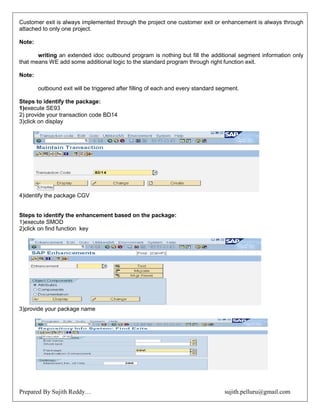
Steps to identify the package:
1)execute SE93
2) provide your transaction code BD14
3)click on display
4)identify the package CGV
Steps to identify the enhancement based on the package:
1)execute SMOD
2)click on find function key
3)provide your package name
Prepared By Sujith Reddy… sujith.pelluru@gmail.com
4)identify the customer exit enhancement name VSV00002
Steps to identify the right exit under the customer exit.
1) execute SMOD
2) open each and every enhancement VSV0001
3) select the radio button component
4) click on display
5) based on short description-
6) identify the right exit
7) if you are unable to identify
8) then create the project and place the break points on each and every exit and run the transaction BD14
9) then the cursor stops at any one of the exit
10) in that exit WE implement the logic
steps to create the project:
1) execute CMOD
2) provide your project name
3) click on create
Prepared By Sujith Reddy… sujith.pelluru@gmail.com
4) provide short text
5) save
6) click on enhancement assignments in application tool bar
7) provide customer exit name VSV000001
8) enter
9) VSV00002
10) enter
11) save
12) click on components
13) double click on each and every component
Prepared By Sujith Reddy… sujith.pelluru@gmail.com
14) place the cursor on the include program
15) click on stop(BREAK) button
16) repeat the same for each and every exit
17) click on change mode
18) click on activate all the components
19) come back and activate the program(PROJECT)
Prepared By Sujith Reddy… sujith.pelluru@gmail.com
Exit Name: FUNCTIONEXIT_SAPLKD01_001
DATA WA_SEG1 LIKE Z1ASEG.
DATA IT_SEG1 LIKE TABLE OF WA_SEG1.
DATA WA_DATA LIKE LINE OF IDOC_DATA.
DATA WA LIKE E1LFA1M.
IF SEGMENT_NAME = ' E1LFA1M'.
READ TABLE IDOC_DATA INTO WA_DATA INDEX1.
WA = WA_DATA-SDATA.
SELECT PANNO STNO TIND FROM LFA1 INTO TABLE IT_SEG1 WHERE LIFNR = WA_LIFNR.
LOOP AT IT_SEG1 INTO WA_SEG1.
WA_DATA-SEGNAM = 'Z1ASEG1'.
WA_DATA-SDATA = WA_SEG1.
APPEND WA_DATA TO IDOC_DATA.
ENDLOOP.
ENDIF.
EXTENDED IDOC INBOUND:
1) writing an extended idoc inbound program is nothing but read and post the additional segment
information only
2) inbound exit will be triggered at the time of each and every custom segment is reached
ALE CONFIGURATION STEPS FOR EXTENDED IDOC INBOUND:
1) create the additional segments WE31
2) create the extended idoc WE30
3) link the message type to extended idoc WE82
4) link the message type to function module and extended idoc WE57
5) create inbound partner profile-WE20
NOTE: Steps 1-4 is not required when WE are working with same server.
STEPS TO LINK THE MESSAGE TYPE TO FUNCTION MODULE AND EXTENDED IDOC:
1) execute WE57
2) click on change mode
3) click on new entries in application tool bar
Prepared By Sujith Reddy… sujith.pelluru@gmail.com
4) function module IDOC_INPUT_CREDITOR and function type FUNCTION MODULE
5) basic type CREMAS05 and extension ZEXIDOC and message type CREMAS and direction is
INBOUND
6) save
Prepared By Sujith Reddy… sujith.pelluru@gmail.com
CREATE INBOUND PARTNER PROFILE-WE20:
PROGRAM:
DATA WA_STAT LIKELINE OF IDOC_STAUS.
DATA WA_DATA LIKE LINE OF IDOC_DATA.
DATA WA_RSEG LIKE Z1ASEG.
DATA WA LIKE E1LFA1M.
LOOP AT IDOC_DATA INTO WA_DATA.
IF WA_DATA-SEGNAM = 'E1LFA1M'.
WA = WA_DATA-SDATA.
ELSEIF WA_DATA-SEGNAM = 'Z1ASEG'.
WA_RSEG = WA_DATA-SDATA.
UPDATE LFA1 SET PANNO = WA_RSEG-PANNO.
STNO = WA_RSEG-STNO.
TIND = WA_RSEG-TIND.
WHERE LIFNR = WA_LIFNR.
IF SY-SUBRC = 0.
WA_STAT-DOCNUM = WA_DATA-DOCNUM.
WA_STAT-STATUS = '53'.
APPEND WA_STAT TO IDOC_STATUS.
ELSE.
WA_STAT-DOCNUM = WA_DATA-DOCNUM.
WA_STAT-STATUS = '51'.
APPEND WA_STAT TO IDOC_STATUS.
ENDIF.
ENDLOOP.
WORKING WITH TRANSACTIONAL DATA:
1) whenever the user create and save the transactional data then automatically one idoc will be generated
and dispatched to their relevant receivers.
2) Through message control only WE can send the transactional data.
Prepared By Sujith Reddy… sujith.pelluru@gmail.com
ALE CONFIGURATION STEPS FOR TRANSACTIONAL DATA OUTBOUND:
1) provide the medium as ale for the application NACE( this step is not required in ecc6.0)
2) create distribution model-bd64
3) create outbound partner
STEPS TO CREATE MEDIUM AS ALE FOR THE PURCHASE ORDER APPLICATION:
1) Execute NACE
2) select the purchase order applcation EF.
3) Click on output types in the application toolbar
4) select the output type NACE (which mentioned by function people).
5) Double click on the processing routines.
6) if the output medium ALE is not available then select the EDI click on the change mode click on
copy in the application toolbar.
Prepared By Sujith Reddy… sujith.pelluru@gmail.com
7) Select the transaction medium as EDI.
8) Click on enter, yes.
CREATE THE DISTRIBUTION MODEL (BD64):
1) Execute BD 64.
2) click on change mode.
3) Click on create modelview.
Prepared By Sujith Reddy… sujith.pelluru@gmail.com
4) Provide the short description. (DBM for transactional data.
5) Provide the techinical name (DBM_DATA)
6) enter.
7) Select the distribution model.
8) Click on add message type in the application tool bar.
9) Provide the sendor(lssp800), receiver (lssp810) and message type (ordrs).
10) Enter.
11) Click on save.
CREATE OUT BOUND PARTNER PROFILE (WE20):
1) Execute WE 20.
2) select the perameter type LS.
3) Select the partner (lssp810).
4) Click ion create the out bound perameter.
5) Provide message type : ordrsp.
Port no : A000000064
O transfer the idoc immediate.
Basic type : ordrs 05
Prepared By Sujith Reddy… sujith.pelluru@gmail.com
6) click on message control tab.
7) click on insert row
8) provide application EF.
9) Select the message type NEU.
10) Select the Process code ME10.
11) click on insert rows to send the changes information.
12) provide the application : EF
13) provide the message type : NEU
14) provide the process code : ME10
15) select the check box change message.
16) click on save.
Prepared By Sujith Reddy… sujith.pelluru@gmail.com
NOTE:
1) when ever the end user create the purchase odrer then automatically one idoc is generated as
WEll as dispatch to their relavant receiver.
2) If you want to send the purchase order inforamation to the vendor then WE must create the
outbound partner profile in “partner type LI”.
3) If you want to send the sales order information to the customer then WE must create outbound
partner profile in the “partner type KU”.
4) If you want to send the information to the bank or payment information to the banj then WE must
create the uoybound partner profile under “ partner type B”.
NOTE: In the real time the port number is created by basis team.
ALE CONFIGARATION STEPS FOR TRANSACTION DATA INBOUND:
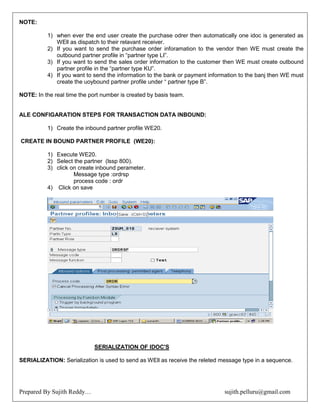
1) Create the inbound partner profile WE20.
CREATE IN BOUND PARTNER PROFILE (WE20):
1) Execute WE20.
2) Select the partner (lssp 800).
3) click on create inbound perameter.
Message type :ordrsp
process code : ordr
4) Click on save
SERIALIZATION OF IDOC'S
SERIALIZATION: Serialization is used to send as WEll as receive the releted message type in a sequence.
Prepared By Sujith Reddy… sujith.pelluru@gmail.com
ALE CONFIGARATION STEPS FOR SERIALIZATION OUTBOUND:
1) Define the serialization group (sale).
2) Create the distribution model with the related message type and sredat message type (BD64)
3) create the out bound partner profile with the related message type and sredat message type (WE
20)
STEPS TO CREATE THE SERIALIZATION GROUP:
1) Execute tha SALE transaction.
2) Expand modeling and implementing the business process.
3) Expan d the master data distribution.
4) Expand “serialization for sending and receiving data”
5) expand serialization using message type.
6) Define serialization groups
7) click on new entries.
8) Provide serialization group name and short description.
9) Click on save.
10) Select the serialization group.
Prepared By Sujith Reddy… sujith.pelluru@gmail.com
11) Double click on “assignment of logical message to serialization group”.
12) Click on new entries provide the message type and seqquence no's.
Message type Seq no
MATMAS 1
CLFMAS 2
13) Click on save.
STEPS TO CREATE DISTRIBUTION MODEL WITH MATMAS,CLFMAS,SERDAT:
SENDOR RECEIVER MESSAGE TYPE
LSSP800 LSSP810 MATMAS
LSSP800 LSSP810 CLFMAS
LSSP800 LSSP810 SREDAT
STEPS TO CREATE OUT BOUND PARTNER PROFILE WITH MATMAS ,CLFMAS AND SREDAT
MESSAGE TYPE:
1) Execute WE20.
2) Select the partner lssp810
3) cretae the out bound perameters for MATMAS CLFMAS AND SREDAT.
4) Save.
Prepared By Sujith Reddy… sujith.pelluru@gmail.com
ALE CONFIGARATION STEPS FOR SERIALIZATION IN BOUND:
1) Define serialization group.
2) Define inbound processing.
3) Create inbound partner profile with related message types and SREDAT.
STEPA TO DEFINE SERIALIZATION GROUP:
1) Execute SALE transaction.
2) Expand “modelling and implement business process”
3) Expand “master data distribution”.
4) Expand “serialization for sending and receiving data”.
5) Expand “serialization using message types”.
6) Expand “define serialization group”.
7) Click on new entries.
8) Provide serialization group name and short dezscription
9) click on serialization group.
10) Click on assignment logical message to serialization group (ZSUJITH_SG).
11) Click on new entries.
Prepared By Sujith Reddy… sujith.pelluru@gmail.com
12) Provide message types serial no's
MATMAS 01
CLFMAS 02
13) Save.
STEPS TO DEFINE INBOUND PROCESSING:
1) Click on back 3 time (sale transcation)
2) Expand define “inbound pracessing”.
Prepared By Sujith Reddy… sujith.pelluru@gmail.com
3) Click on new entries.
GROUP MESSAGE TYPE SENDING SYSTEM OBJ/PROC
ZSUJITH_SG MATMAS LSSP800 01
ZSUJITH_SG CLFMAS LSSP800 02
4) Save.
CREATE INBOUND PARTNER WITH MATMAS, CLFMAS AND SREDAT:
1) Execute WE20.
2) Select the partner LSSP800
3) Click on inbound perameters.
4) Create the inbound perameters.
5) Click on save.
Prepared By Sujith Reddy… sujith.pelluru@gmail.com
STEPS TO DELETE THE IDOC:
1) Execute WE20.
2) Provide the condotions according to our reqirement.
Ex: logical message : cremas.
3) Click on execute.
ARCHIVING IODC'S
1) This is used to improve the performance of the system. This is used to transfer the IDOCS from SAP to
Physical path which is in C drive or D drive.
2) Before Archiving the IDOC's the basic people creates the logical and physical path and assign the
logical path to physical path by using file transaction
NOTE:
1) WE cannot archive the error idocs with the status code 29 and 51.
2) If WE want to archive the error idoc first WE change the error status code to temporary status code
and later WE archive idoc.
3) SARA is the transaction code to archive the idoc.
STEPS TO ARCHIVE THE IDOC:
1) Execute SARA
2) Provide archiving object : IDOC
3) Click on enter.
4) Click on write
Prepared By Sujith Reddy… sujith.pelluru@gmail.com
5) Click on maintain.
6) Click oc variant ZSPAIDOC.
7) Click on enter.
8) Select the radio button for all selection screen.
9) Click on enter.
Prepared By Sujith Reddy… sujith.pelluru@gmail.com
10) Provide the condition based on our requirement.
11) Click on attributes button in the application tool bar.
12) Provide short description based on our requirement.
13) Click on save.
14) Click on start date.
15) Click on immediate.
16) Save
Prepared By Sujith Reddy… sujith.pelluru@gmail.com
17) Other wise click on date/time
18) Click on execute.
NOTE:
1) RSEXARCA is the standard program which is used to archiving the idoc's.
2) RSEXARCL is the standard program which is used to RELOAD archiving the idoc's.
3) RSEXARCD is the standard program which is used to DELETE archiving the idoc's.
NOTE: RCI_SET_STATUS is the standard program which is used to change idoc original status code to
temporary status code this is required to archive the error idoc
STATUS CODES:
1) OUT BOUND STATUS CODES ( 1-49)
2) INBOUND STATUS CODES (50-76)
NOTE: WE47 is the tcode ehich is used to display all the status codes and their short description.
OUT BOUND STATUS CODES:
STATUS CODE 03 ( data passed to port ok) :
1) after getingb the stauts code 03 WE execute the RBDMOIND standard program
2) if the satus code 03 turned to 12 then the idoc is reached to the destination.
3) If the status code 03 turned ton 11 error occur during dispatch.
4) If the stautus code remains 03 the idoc is in the TRFC queue.
STATUS CODE 30 (idoc ready for dispatch)
1) if the satuts code remains the 30 then WE must check the mode of dispatch in the
outbound partner profile.
2) If the most of dispatch is collect then WE must execute the RSEOUT00 standard
program then only coolect idoc will be dispatched to relavent receivers.
3) If the mode of dispatch is immediate that is due tlo traffic.
Prepared By Sujith Reddy… sujith.pelluru@gmail.com
STATUS CODE 29: (ERROR IN ALE SERVICE LAYER)
1) An entry is missed in outbound partner profile (abaper job)
2) Data miss match (function people job)
ex: the given company code 0005 is not available.
3) Configaration and synchronization problem (basis team job)
STATUS CODE 26: (error during syntax check of an idoc)
1)When ever WE are not fallow the syntax rules then WE get the syntax error
STATUS CODE 01: (IDOC GENERATION)
1) In R/3 System when ever an idoc is generated then WE get the status code 01.
2) In R/2 system when ever an idoc is generated then WE get the status code 00.
STATUS CODE 42: (IDOC WAS CREATES BY TEST TRANSATION)
1) When ever WE created the idoc through WE19 transaction then WE get the test code 42
instead of status code 01.
INBOUND STATUS CODES:
STATUS CODES 64:
1) If the status code remains 64 then WE must check the mode of posting in the inbound
partner profile.
2) If the mode of posting is collect the WE must execute RBDAPP01 standard program
then only the data posted into the application.
3) If the mode posting is immediate that is due to traffic.
STATUS CODE 56: (IDOC WITH ERROR ADDED)
1) An entry is not created in the inbound partner profile (Abaper job).
STATUS CODE 51: ( APPLICTAION DOCUMENT IS NOT POSTED)
1) Data missmatch (Function people job).
Ex: The given country IN is not defined.
2) Configaration and synchronization problem (basis people job).
STATUS CODE 74: (IDOC WAS CREATED BY TEST TRANSCATION)
1) When ever WE test the inbound program WE19 transaction then the status code 74 WE
get instead of 50.
STATUS CODE 62: (IDOC PASSED TO APPLICATION)
1) At that time of data is passing from internal table to application then WE get 64, if the
data is reached to application then WE get the status code 60.
STATUS CODES 50: (IDOC ADDED)
1) When ever the idoc s reached to destination system then WE get the status code 50.

Sujith ~ cross applications

  • 1.
    Prepared By SujithReddy… sujith.pelluru@gmail.com Cross Applications 1) Cross applications is the concept to exchange the data among the systems. 2) ALE (Applications link enabling) is an SAP technology to support the cross-applications. 3) ALE uses IDOC (Intermediate Document) to support the cross applications. 4) IDOC is the carrier to carry the data from one system to another system. Note: 1) In 1972 when the sap is developed, it is unable to exchange the data from sap to sap as well as sap to non-sap. 2) At that time they purchase the EDI (Electronic Data Interchange) software and installed into sap. 3) With the help of EDI the sap exchange the data into sap system or non-sap system. 4) Now days we no need to purchase the EDI software. The sap people internally developed ALE. 5) With the help of ALE sap exchanges the data to the sap system or to the non-sap. Sap can understand only the IDOC format, when it communicates with any other systems. Distributing the data:  Irrespective of the receiver the ABAPER job in the sender system is to generate the IDOC.  The process of generating the IDOC is nothing but outbound process.  Irrespective of the senders the ABAPER job in receiving system is to collect the data from IDOC and post it to their relevant data base tables.  The process of collecting the data from IDOC and as well as post it to their relevant database tables is inbound process. Run time components of an IDOC: A unique IDOC number is generated which is 16 digit numbers. It generates 3 types of records a) control records b) data records c) status records Control records: 1) Control records specify the sender as Well as receiver information. 2) It generates only one control records 3) This information will be saved on EDIDC table. Data records: 1) Data records specify the data which is sent by sender system. 2) It generates any number of records. 3) This information will be saved on EDIDD table.
  • 2.
    Prepared By SujithReddy… sujith.pelluru@gmail.com Status records: 1) It generates the status code for each and every stage of transferring the data 2) It generates any number of status records. 3) Most of the times it generates four records. 4) This information is stored on EDIDS table. There are two types of status codes. 1) Inbound status 2) outbound status. Code code (0.49) (50-76) Note: the linking between EDIDC, EDIDD, and EDIDS Is the IDOC number. Structure of an IDOC: Control record Data record 1 status records 1 Data record 2 status records 2 Data record 3 status records 3 Data record 4 status records 4 | | Data record N status record N Types of an IDOC: 1) Basic type: a) standard IDOC or b) Custom IDOC 2) Extension type: standard IDOC + Custom IDOC. Note: WE30 is the standard transaction code to Create, Change and to Display the IDOC. If WE are working with standard database table information then WE go for standard IDOC. If WE are working with custom database table information then WE go for custom IDOC. If WE are working with standard database table along with some additional information then WE go for Extended IDOC. 1) IDOC is the collection of segments. 2) Each segment is the collection of fields. Characteristics of an IDOC: 1) Name of the IDOC. 2) List of segment. 3) Hierarchy of the segment. 4) Optional versus mandatory for the segment. 5) Provide parent and child relation ship for the segments. 6) Each segment can carry up to 1000 bytes. 7) Provide minimum and maximum number of repetitions of the segment. Note: WE31 is the transaction code to create, change and display the segments. ALE configuration settings: 1) communication settings 2) message type specific settings
  • 3.
    Prepared By SujithReddy… sujith.pelluru@gmail.com Communication settings: Sender-----Receiver 1) To build the bridge between two participated. 2) One time job 3) One way job Communication between one system to another system is nothing but, communication betWEen one client of sender system to another client of receiving system. Each participated system is called one logical system. Steps to establish the communication settings: 1) Define logical systems. 2) Assign client to logical systems 3) Maintain RFC (remote function call) destination details.  The receiver is in the 810 client, he wants Q7850 vendor details, and you provide the following information. Client : 810 User : sapuser Password : ********* Logical system : Q7850 Object: If the sender is in 800 client and he wants to send the Q7850 vendor details. Before sending the data WE need to establish the communication setting betWEen 800 to 810 clients. Steps to define logical system: 1) Execute SALE. 2) Click on basic settings. 3) Again click on logical systems 4) Execute define logical system 5) Click on NEW ENTRIES in App Tool bar
  • 4.
    Prepared By SujithReddy… sujith.pelluru@gmail.com 6) Provide log. System name 7) Click on Save Steps to assign my client to receiver logical system: 1) execute SCC4 2) click on change mode ctrl+f1 3) click on details ctrl+shift+f2 in app tool bar 4) provide logical system Z_800
  • 5.
    Prepared By SujithReddy… sujith.pelluru@gmail.com 5) save Steps to maintain RFC destination details: 1) execute SM59 2) Click on create in application tool bar. 3) Provide RFC destination Z_810. 4) Provide description SENDER TO RECIEVER. 5) Click on LOGON AND SECURITY TAB Language EN Client 810 User sapuser Password *******
  • 6.
    Prepared By SujithReddy… sujith.pelluru@gmail.com 6) click on CONNECTION TEST in app tool bar 7) come back and click on REMOTE LOGON in app tool bar Note: In the real-time communication settings are done by BASIS team Message type specific settings: 1) out-bound a) sender system 2) in-bound b) receiver system Out-bound process in background: 1) Based on the given input, outbound program will be triggered and fetch the application data from database and generates the master IDOC. 2) Master IDOC is nothing data in an internal table. 3) Master IDOC will not save anywhere in the sap. 4) ALE service layer read the distribution model and identifies the intrested receivers and generates the communication IDOC based on the receivers. 5) Distribution model is the collection of sender’s receivers and message type. 6) Message type is used to identify the type of the application (when data is sending.. (Vendor, customer, material). 7) Communication IDOC is the physical IDOC which is receivers specific 8) ALE communication layer dispatch the communication IDOC to their relevant receivers. Note: if you get zero masters IDOC the reason is the database having no application data based on the input. If you get zero communication IDOC the reason would be, a) There are no receivers in the distribution model. b) Communication settings problem. Steps to identify the transaction code based on short description: 1) execute SDMO
  • 7.
    Prepared By SujithReddy… sujith.pelluru@gmail.com 2) provide short text---send vendor 3) execute it 4) Identify the transaction code. OUTBOUND SETTINGS: 1) create distribution model (BD64) 2) create outbound partner profile (WE20) a) message type b) partner number (WE21) c) mode of dispatch i. immediate ii.collect Some of the standard message type and IDOC type: T. code message type IDOC type short text BD10 MATMAS MATMAS 01-05 SEND MATERIAL BD11 MATMAS MATMAS 01-05 GET MATERIAL BD12 DEBMAS DEBMAS 01-06 SEND CUSTOMER BD13 DEBMAS DEBMAS 01-06 GET CUSTOMER BD14 CREMAS CREMAS 01-05 SEND VENDOR BD15 CREMAS CREMAS 01-05 GET VENDOR Note: EDIMSG is the standard database table which contains all the message types and IDOC types. STEPS TO CREATE DISTRIBUTION MODEL: 1) execute BD64 2) click on change mode
  • 8.
    Prepared By SujithReddy… sujith.pelluru@gmail.com 3) create model view in application tool bar 4) provide short text—DISTRIBUTION MODEL 5) provide technical name—DBM_VEN. 6) Select the DIDTRIBUTION MODEL 7) Click on ADD MESSAGE TYPE in application tool bar 8) Provide sender—Z_800 9) Provide receiver—Z_810 10) message type—CREMAS 11) enter 12) repeat the same for all the receivers and message types 13) click on save Port number: It is used to specify the way of transferring the data. i. e. in which way WE want to reach destination 1) TRFC---ALE/IDOC 2) FILE PORT---LSMW/EDI/IDOC 3) XML PORT---JAVA 4) INTERNET PORT---WEB APPLICATION
  • 9.
    Prepared By SujithReddy… sujith.pelluru@gmail.com Steps to create port number: 1) Execute WE21 2) Select the transactional RFC at left hand side 3) Click on create in application tool bar 4) Click on enter( it generate one port number which id 10 digits) 5) Port—A000000130 6) Description---THIS IS MY PORT 7) Provide RFC destination –Z_810 Steps to create outbound partner profile: 1) execute WE20 2) select---PARTNER TYPE LS LOGICAL SYSTEM 3) click on create in application tool bar 4) partner number—Z_810 5) click on save 6) click on create outbound parameter 7) provide message type—CREMAS 8) receiver port---AW00000689
  • 10.
    Prepared By SujithReddy… sujith.pelluru@gmail.com 9) select radio button TRANSFER IDOC IMMED 10) click on basic type and press f4 11) select the appropriate selection 12) click on save Steps to send the vendor: 1) Execute BD14 2) Provide the account number of vendor---A7850 3) Message type---CREMAS 4) Target system---Z_810 5) Execute 6) ENTER Steps to test the IDOC: 1.execute WE02/WE05 1.provide logical message---CREMAS 1.partner number---Z_810
  • 11.
    Prepared By SujithReddy… sujith.pelluru@gmail.com 1.execute If WE want to know the IDOC is reached to destination are not then WE must execute RBDMOIND standard program. 1) If the status code 03 turn to 12 then the IDOC is reached to destination successfully. 2) If the status code remains 03 in the IDOC TRFC then it is still in then it is still in open mode. 3) If the status code 03 turn to 11 then the IDOC having the some errors in the TRFC. Steps to identify the IDOC reached to destination or not: 1) execute SE38 2) provide program name RBDMOIND
  • 12.
    Prepared By SujithReddy… sujith.pelluru@gmail.com 3) click on execute 4) again click on execute 5) click on yes Note: If the mode of the dispatch is collect then WE must execute, RSEOUT00 is standard program then only collect IDOC will be dispatched to their relevant receivers. Internal process 1) After IDOC is reached to receiver system. It goes to inbound partner profile. Identify the related message type against that message type and identify the process code. 2) Against the process codes it identify the function module (inbound program) and trigger the inbound program (function module). 3) Inbound program collect the data from IDOC and placed into internal tables. From the internal table the data is transfer to application (vendor, customer, material),from the application the data is update into their relevant data base table. Inbound settings Receiver system (810 client) : Steps to assign client to logical system: 1. execute SCC4 2. click on change mode ctrl+f1 3. select the client 810 LS_SP810 FRANKFURT_DEUSTH 4. click on details ctrl+shift+f2 in app tool bar
  • 13.
    Prepared By SujithReddy… sujith.pelluru@gmail.com 5. provide logical system LS_SP810 6. save Steps to create inbound parameter profile IN 810 CLIENT: 1. execute WE20 2. select---PARTNER TYPE LS LOGICAL SYSTEM 3. click on create in application tool bar 4. partner number—Z_800 5. click on save
  • 14.
    Prepared By SujithReddy… sujith.pelluru@gmail.com 6. click on create inbound parameter 7. provide message type—CREMAS 8. select the process code CRE1 9. click on save Steps to test the IDOC: 1) execute WE02/WE05 2) provide logical message---CREMAS 3) partner number---Z_800 4) execute Steps to reprocess the IDOC: 1) execute BD87 2) provide the IDOC number 78002 3) execute
  • 15.
    Prepared By SujithReddy… sujith.pelluru@gmail.com 4) select the error IDOC 5) click on process in the application tool bar Steps to create vendor: 1) execute XK01 2) provide vendor number Q7860 3) provide account group 0004 4) enter 5) provide name SITEL 6) search term sitel 7) country DE 8) save Note: If the mode of posting is collect then WE must execute RBDAPP01 standard program. Then only the collect IDOC’ s will be posted into the relevant data base table Filtering techniques Filtering techniques are used to send the data form sender to receiver based on condition. There are 3 types of filtering techniques. 1) IDOC filtering 2) segment filtering 3) reduced IDOC IDOC filtering: 1) IDOC filtering technique is used to drop the IDOC at run time 2) IDOC filtering conditions are placed in distribution model(BD64)
  • 16.
    Prepared By SujithReddy… sujith.pelluru@gmail.com 3) Before generating the communication IDOC, ale service layer reads the distribution model and identifies for the interested receivers, if any receiver is available then it checks for the filtering conditions. 4) If the given input satisfies the condition then only it generates the communication IDOC other wise it won’t generate any communication IDOC. Object: Develop the interface program to send the only raw material information from sender to receiver by using filtering conditions. Steps to work with IDOC filtering in distribution model: 1) execute BD64 2) click on change mode 3) click on create model view 4) provide short description and technical name 5) enter 6) select the distribution model 7) click on add message type 8) provide sender, receiver, and message type—MATMAS
  • 17.
    Prepared By SujithReddy… sujith.pelluru@gmail.com 9) enter 10) expand distribution model until---NO FILTER SET 11) double click on it 12) click on create filter group 13) expand data filtering 14) expand filter group 15) select the required selection---MATERIAL TYPE 16) click on INSERT ROW 17) provide the value—ROH 18) enter 19) repeat the same for the rest of conditions 20) enter 21) click on SAVE Steps to create outbound partner profile: 13) execute WE20 14) select---PARTNER TYPE LS LOGICAL SYSTEM 15) click on create in application tool bar 16) partner number—Z_810
  • 18.
    Prepared By SujithReddy… sujith.pelluru@gmail.com 17) click on save 18) click on create outbound parameter 19) provide message type—MATMAS(READ AS MATMAS IN THE FIGURES) 20) receiver port---AW00000689 21) select radio button TRANSFER IDOC IMMED 22) click on basic type and press f4 23) select the appropriate selection 24) click on save Steps to send the material details: 1) Execute BD10 2) Provide material number-100-100 3) Logical system-Z_810 4) Execute SEGMENT FILTERING: 1) Segment filtering is used to drop the segments permanently to the particular user 2) The transaction code for segment filtering is BD56 NOTE: whenever WE are working with the segment filtering then WE must provide a dummy out bound partner profile to the sender system. STEPS: 1) Execute WE20 2) Select the partner type LS 3) Click on Create
  • 19.
    Prepared By SujithReddy… sujith.pelluru@gmail.com 4) Provide the partner number as itself(Z_810) 5) Save Steps to identify the segments: 1) Execute BD56 2) Provide IDOC name-MATMAS 3) Click on display Object: Develop an interface program to send the material details sender to receiver system and drop the E1MARM segment information permanently. Steps to work with segment filtering: 1) Execute BD56 2) Provide msgtype-MATMAS 3) Provide TY-LS Sender-LSSP800 and ty-LS Reciever-LSSP810 4) Segment type-E1MLANM
  • 20.
    Prepared By SujithReddy… sujith.pelluru@gmail.com 5) Repeat the same for rest of the segments 6) Save Reduced IDOC: 1) Reduced IDOC is used to drop the segments as WEll as fields permanently to the particular receiver, WE cant drop the mandatory segments as WEll as fields which are in green color. 2) The transaction code for reduced IDOC is BD53 3) Here WE must create a new message type with existing message type and after WE configure the ALE (distribution model and outbound partner profile). Steps to work with reduced IDOC: 1) Execute BD53 2) Provide the reduced message type-ZSPMATMAS 3) Click on create 4) Provide message type reference-MATMAS( but here WE provided cremas because matmas has already created). 5) enter 6) Provide description-REDUCED MESSAGE TYPE 7) Enter
  • 21.
    Prepared By SujithReddy… sujith.pelluru@gmail.com 8) Select the required segment- E1LFA1M 9) Select the required fields 10) Click on-SELECT 11) Enter 12) Repeat the same for all the segments and fields 13) Save Based on this mew message type WE create the distribution model and outbound partner profile Difference betWEen segment filtering and reduced IDOC Segment filtering; 1) This is used to drop the segments permanently to the particular receiver 2) Here WE no need to create the message type or the existing message type 3) The selected segment information only permanently to the receiver 4) The transaction code is BD56 Reduced IDOC: 1) This is used to drop the segments as WEll as fields permanently 2) Here WE must create a new message type with the existing message type 3) The selected segment as WEll as fields information only sends to receiver 4) The transaction code is BD53 Types of distributing the data: 1) Send the entire copy 2) Send changes only(CHANGE POINTER TECHNIQUE) 3) Get the entire copy Send changes only (CHANGE POINTER TECHNIQUE): 1) Change pointer technique is used to send the changes of master data from sender to receiver system
  • 22.
    Prepared By SujithReddy… sujith.pelluru@gmail.com 2) Change pointer technique reads the change pointers and generate as WEll as dispatch 3) whenever the changes occurred in the master data the standard SAP itself prepare one document(change document) and this information is maintained in CDHR and CDPOS table. 4) SMD(shared master data) is a tool which reads the distribution model and identifies the interested receivers if any receiver is available then it generate the change pointers based on the change document 5) Change pointer technique reads the change pointers and generate as WEll as dispatch the IDOC to a relevant receiver Note: change pointer technique is always at sender system and it always work with standard IDOC ALE configuration steps for change pointer technique: 1) ALE configuration steps for standard IDOC outbound a. Create distribution model-BD64 b. Create outbound partner profile-WE20 2) Activate the change pointer technique-BD61 3) Activate the message type-BD50 4) Generates as WEll as dispatches the changed IDOC( RBDMIDOC standard program) Steps to activate the change pointer technique: 1) Execute BD61 2) Select the check box(change pointers activated) 3) Save Steps to activate the msg type: 1) Execute BD50 2) Click on position 3) Provide the message type CREMAS 4) Select checkbox CREMAS 5) Save
  • 23.
    Prepared By SujithReddy… sujith.pelluru@gmail.com Steps to change the vendor details: 1) Execute xk02 2) Provide the vendor number select the checkbox –ADDRESS 3) Enter 4) Provide the changes 5) Save Steps to generate as WEll as dispatch the IDOC’s: 1) Execute SE38 2) Provide program name RBDMIDOC 3) Execute 4) Message type CREMAS 5) Execute Note: In the real-time, based on the volume of the data WE run the RBDMIDOC program daily or WEekly or monthly by background scheduling. Steps to identify changes of any IDOC document (vendor,customer,purchase order…..): 1) Execute SE11 2) Open database table CDHR 3) Click on contents 4) Provide object id Q7890 5) Execute 6) Identify the change document contents
  • 24.
    Prepared By SujithReddy… sujith.pelluru@gmail.com 7) Provide object class KRED 8) Object id Q7890 and CHANGNR-provide all the values 9) Identify the old and new values Some of the requesting message types: Application message type requesting message type VENDOR CREMAS CREFET CUSTOMER DEBMAS DEBFET MATERIAL MATMAS MATFET Note: 1) EDIMSG is the standard data base table which contains all the message types as WEll as requesting message type. 2) ALERAQ01 is the IDOC type for any requesting message type. In client 810: 1) First the basis people establish the communication settings from receiver to sender Steps to create distribution model: 1) Execute BD64 2) Edit mode 3) Create model view 4) Provide short text , technical name and enter 5) Select the created distribution model 6) Add message type 7) Provide sender, receiver and message type-CREFET 8) Enter 9) Repeat the same for all the message type 10) Save Steps to create port number: 1) Execute WE21 2) Click transactional RFC 3) Click on create 4) Enter 5) Provide description and RFC destination 6) Click on save Steps to create outbound partner profile: 1) Execute WE20 2) Click on partner type ls 3) Select the partner 4) Click on create outbound parameters 5) Provide message type CREFET and receiver port 6) Transfer IDOC immediately 7) Select the basic type ALEREQ07 8) Save
  • 25.
    Prepared By SujithReddy… sujith.pelluru@gmail.com Steps to get the vendor: 1) Execute BD15 2) Provide vendor number 3) Provide message type-CREMAS 4) Execute Client 800: Steps to create inbound partner profile: 1) Execute WE20 2) Select partner type ls 3) Select the partner 4) Click on create inbound parameter 5) Provide message type CREFET 6) Process code CREF 7) Save Custom IDOC 1) Against the goods supplied by the vendor our inventory team prepares the GR with MIGO transaction 2) Against GR finance people physically verify the stock and prepares the invoice verification 3) Against IR document our finance people prepares the payment document and pay the amount to the vendor with deduction amount TDS(tax deduction amount) 4) After 4 to 5 months the vendor asks the form 5) If our commercial department generate the form 16 and given to vendor for this they need the following information a. LR number b. Vehicle number c. Transporter name 6) This information is not maintained in entire p2p life cycle ( procure to pay) 7) Here WE design one additional screen with the above fields and attaches to MIGO transaction through BADI implementation 8) This information is maintained in a ztable 9) If you want to send or receive this information then WE go for custom IDOC Note: In this scenario first WE need to create the ztable with the following fields. Here WE provide the name for this table as ZSUMGRAI FIELD KE Y Data element Domain Data type Length Short description Mandt Ok As per standard Sap GRNO Ok As per standard Sap LRNO ZSPLRNO YSPLRNO CHAR 15 LORRY RECIEPT NUMBER VNO ZSPVNO YSPVNO CHAR 15 VEHICLE NUMBER TNAME ZSPTNAME YSPTNAME CHAT 25 TRANSPORTER NUMBER
  • 26.
    Prepared By SujithReddy… sujith.pelluru@gmail.com Ale Configuration steps for the custom IDOC OUT BOUND: 1) Create the segments WE31 2) Create the IDOC WE30 3) Create the message type WE81 4) Link the message type to IDOC type WE82 5) Create the port number WE21 6) Create the outbound partner profile WE20 7) Distribution model is not required if WE pass the control record information Steps to create the custom IDOC: 1) Execute WE31 2) Provide segment name Z1GRASEG Note: The standard segment name starts with E1 the custom segment name starts with Z1. The definition of the Standard segments starts with the E2 and the definition of the custom segments starts with Z2 3) Click on create 4) Provide short description GR ADDITIONAL DATA SEGMENT 5) Provide field name, data element name which WE have already created the ztable in DDIC. 6) Click on save Note: Whenever WE create the segment then automatically segment definition as WEll as an equivalent structure is created in the DDIC. Steps to create IDOC: 1) Execute WE30 2) Provide obj.name IDOC NAME (ZGRAIIDOC) 3) Click on create
  • 27.
    Prepared By SujithReddy… sujith.pelluru@gmail.com 4) Provide description GR ADDITIONAL INFORAMATION 5) Enter 6) Select the IDOC 7) Click on create segment 8) Provide our segment name Z1GRAISEG and MINIMUM as 1 and MAXIMUM as 1 9) Enter and save Steps to create the message type: 1) Execute WE81 2) Click on change mode 3) Click on new entries in application tool bar
  • 28.
    Prepared By SujithReddy… sujith.pelluru@gmail.com 4) Provide the message type GRAIMASS 5) Short text GR INFORMATION 6) Save and enter Steps to link the message type to IDOC: 1) Execute WE82 2) Click on change mode 3) Click on new entries 4) Provide the message type SUMMASS and basic type (IDOC type)ZSUMIDOC and release 700 5) SAVE
  • 29.
    Prepared By SujithReddy… sujith.pelluru@gmail.com Steps to identify the release: 1) Execute SE11 2) Open the table EDIMSG 3) Click on contents 4) Execute 5) Select the released field 6) Click on short descending in application tool bar and identify the released latest one.
  • 30.
    Prepared By SujithReddy… sujith.pelluru@gmail.com Steps to create port number: 1) Execute WE21 2) Select transaction RFC 3) Click on create 4) Select the radio button OWN PORT NAME 5) Provide port name GRAIPORT 6) Enter 7) Provide description THIS IS MY MESSAGE 8) Provide the RFC destination Z_810 9) Save
  • 31.
    Prepared By SujithReddy… sujith.pelluru@gmail.com Steps to create outbound partner profile: 1) Execute WE20 2) Select the partner Z_810 3) Click on create outbound parameters 4) Provide the message type SUMMASS 5) Transfer IDOC immediate 6) Select basic type SUMMASS Steps to develop custom IDOC outbound program: 1) design the selection screen as shown below 2) generate the master IDOC( based on the given input WE fetch the data from the database and placed into internal tables) 3) collect the control record information 4) generate as WEll as dispatch the communication IDOC
  • 32.
    Prepared By SujithReddy… sujith.pelluru@gmail.com Steps to identify the field name or data element of message type: 1) execute BD14 or BD12( known transaction) 2) place the cursor on the message type input field click on F1 3) click on technical information 4) identify the data element(EDI_MESTYP) NOTE: if u want to identify the data element of logical system place the cursor on the target system input field and click on F1 and then click on technical information then identify the data element (LOGSYS). STEP 1: Design the selection screen as shown below STEP 2: Filling the master IDOC 1) filling the master IDOC is nothing but filling the internal table which contain two fields 1. segment name( SEGNAM) 2. segment data( SDATA)
  • 33.
    Prepared By SujithReddy… sujith.pelluru@gmail.com 2) whenever WE are working with custom IDOC then WE must declare three internal tables 1. master IDOC 2. control records 3. communication IDOC 3) And also WE need to declare one work area and internal table for each segment in the IDOC. Procedure of filling the master IDOC's: 1) based on the given input WE fetch the data from the database and fill it into segment internal tables 2) loop the segment internal table data and fill the master IDOC STEP 3: Collect the control record information 1) collect the control record information is nothing but filling the internal table which contains the following the fields RCVPOR—Receiver port RCVPRT- Receiver partner type DOCTYP—IDOC type MESTYP—message type RCVPRN---receiver partner number 2) EDIDC table contains the above fields so WE simply declare our control record internal table by referring EDIDC. ** Repeat the same for all the receivers. STEP 4: Generate as Well as dispatch the communication IDOC 1) MASTER_IDOC_DISTRIBUTE is a function module which is used to generate as Well as dispatch the relevant receivers 2) the input for the above function module is 1. data internal table 2. communication IDOC 3. control record work area REPORT ZSUJITH_CUSTOMIDOC_OUTBOUND. *DESIGN THE SELCTION SCREEN DATA V1 LIKE ZSUMGRAI-GRNO. SELECTION-SCREEN BEGIN OF BLOCK A WITH FRAME. SELECT-OPTIONS S_GRNO FOR V1. PARAMETER : P_MESTYP TYPE EDI_MESTYP, P_LOGSYS TYPE LOGSYS. SELECTION-SCREEN END OF BLOCK A. *DECLARE THE MASTER IDOC DDID INTENAL TABLE
  • 34.
    Prepared By SujithReddy… sujith.pelluru@gmail.com DATA : WA_DATA LIKE EDIDD, IT_DATA LIKE TABLE OF WA_DATA. *DECLARE THE WORKAREA AND INTERNAL TABLE FOR EACH SEGMENT DATA : WA_SEG LIKE Z1SUMSEG, IT_SEG LIKE TABLE OF WA_SEG. *FILLING THE MASTER IDOC SELECT GRNO VNO LRNO TNAME FROM ZSUMGRAI INTO TABLE IT_SEG WHERE GRNO IN S_GRNO. LOOP AT IT_SEG INTO WA_SEG. WA_DATA-SEGNAM = 'Z1SUMSEG'. WA_DATA-SDATA = WA_SEG. APPEND WA_DATA TO IT_DATA. CLEAR WA_DATA. ENDLOOP. *DECLARE COTROL RECORD INFORMATION DATA WA_CON LIKE EDIDC. DATA IT_CON LIKE TABLE OF WA_CON. WA_CON-RCVPOR = 'SUMPORT'. WA_CON-RCVPRT = 'LS'. WA_CON-DOCTYP = 'ZSUMIDOC'. WA_CON-MESTYP = 'P_MESTYP'. WA_CON-RCVPRN = 'P_LOGSYS'. APPEND WA_CON TO IT_CON. CLEAR WA_CON. * DECLARE THE COMMUNICATION IDOC DATA : WA_COMM LIKE EDIDC, IT_COMM LIKE TABLE OF WA_COMM. LOOP AT IT_CON INTO WA_CON. CALL FUNCTION 'MASTER_IDOC_DISTRIBUTE' EXPORTING MASTER_IDOC_CONTROL = WA_CON TABLES COMMUNICATION_IDOC_CONTROL = IT_COMM MASTER_IDOC_DATA = IT_DATA. ENDLOOP. CALL FUNCTION 'REUSE_ALV_GRID_DISPLAY' EXPORTING I_STRUCTURE_NAME = 'EDIDC'
  • 35.
    Prepared By SujithReddy… sujith.pelluru@gmail.com TABLES T_OUTTAB = IT_COMM. ALE CONFIGURATION STEPS FOR CUSTOM IDOC PROGRAM (inbound) Note: out bound program can be implemented either through executable program or through function module Whereas inbound program must be implemented through function modules only because the interface parameters are same (import, export, change parameters) Note: the process code is used to identify the function model. Steps: 1) create the segment(WE31) 2) create the IDOC(WE30) 3) create the message type(WE81) 4) link message type to IDOC type(WE80) 5) create the function module(WE37) 6) link the message type to function module(WE57) 7) create the mode of posting (BD51) 8) create the process code(WE42) 9) link the process code to function module (WE42) 10) create the inbound partner profile(WE20) Note: step1 to step4 is not required when WE are working in a same server Steps to create function module (WE37) 1) in the real time WE never create the function module WE always copy the existing function module Steps to identify the existing function module: 1) execute WE42 2) click on position 3) provide known process code ( CRE1) 4) double click on the process code( CRE1)
  • 36.
    Prepared By SujithReddy… sujith.pelluru@gmail.com 5) identify the function module as IDENTIFICATION: IDOC_INPUT_CREDITOR Steps to create function group: 1) execute SE37 2) in the menu bar click on GOTO 3) under function group click on create group 4) provide your function group name as ( ZSUJITH_7AM_IDOC_FG) 5) save Steps to activate the function group: 1) in the menu bar click on environment 2) click on inactive objects
  • 37.
    Prepared By SujithReddy… sujith.pelluru@gmail.com 3) expand function group under local objects 4) select the function group( ZSUJITH_7AM_IDOC_FG) 5) right click on the function group click on activate 6) enter Steps to copy the function module: 1) execute SE37 2) in the application tool bar click on copy 3) provide from function module : IDOC_INPUT_CREDITOR To function module : ZSUJITH_INPUT_GRAITOR Function group : ZSUJITH_7AM_IDOC_FG
  • 38.
    Prepared By SujithReddy… sujith.pelluru@gmail.com Steps to link the message type to function module WE57 1) execute WE57 2) click on change mode 3) click on new entries in the application tool bar 4) provide function module name : ZSPIDOC_INPUT_GRAITOR function type : FUNCTION MODULE basic type : ZGRAIIDOC message type : GRAIMASS direction : INBOUND 5) save
  • 39.
    Prepared By SujithReddy… sujith.pelluru@gmail.com Steps to create mode of posting: 1) execute BD51 2) click on new entries in the application tool bar 3) provide the function module name : ZSPIDOC_INPUT_GRAITOR input type : 0 4) save Steps to create process code as WEll as link the process code to function module: 1) execute WE42 2) click on change mode in the application tool bar 3) click on new entries
  • 40.
    Prepared By SujithReddy… sujith.pelluru@gmail.com Process code: ZGRA1 Short description: THIS IS MY PROCESS CODE Identification: ZSPIDOC_INPUT_GRAITOR 4) select the radio button processing type as processing by function module radio button 5) save 6) select the function module from the drop down ( ZSPIDOC_INPUT_GRAITOR) 7) save
  • 41.
    Prepared By SujithReddy… sujith.pelluru@gmail.com Steps to create inbound partner profile: 1) execute WE20 2) select the partner-LSSP800 3) click on create inbound parameter 4) provide the message type—GRAIMASS 5) provide the process code –ZGRAI1 6) save
  • 42.
    Prepared By SujithReddy… sujith.pelluru@gmail.com FUNCTION ZSUJITHFUNCTIONMODULE. DATA WA_DATA LIKE LINE OF IDOC_DATA. DATA WA_RSEG1 LIKE Z1SUJITHSEG. DATA WA LIKE ZSUJITHTABLE. LOOP AT IDOC_DATA INTO WA_DATA. IF WA_DATA-SEGNAM = 'Z1SUJITHSEG'. WA_RSEG1 = WA_DATA-SDATA. WA-GRNO = WA_RSEG1-GRNO. WA-LRNO = WA_RSEG1-LRNO. WA-VNO = WA_RSEG1-VNO. WA-TNAME = WA_RSEG1-TNAME. INSERT ZSUJITHTABLE FROM WA. ENDIF. ENDLOOP. ENDFUNCTION. Note: WE19 is the inbound test tool which WE used to test the inbound program Steps to test the inbound program: 1) execute WE19 2) select the radio button via message type 3) provide your message type name –GRAIMASS 4) click on execute'
  • 43.
    Prepared By SujithReddy… sujith.pelluru@gmail.com 5) double click on the segment, provide sample input GRNO: 4500000001 LRNO: AP35 0000 5000 VNO: AP35 0000 TNAME: SUJITH 6) enter Click on inbound function module in the application tool bar Select the check box call in debugging mode Select he radio button in fore-ground 7) Enter.
  • 44.
    Prepared By SujithReddy… sujith.pelluru@gmail.com Steps to download the IDOC information: 1) Execute IDOC 2) Select the radio button analyse IDOC field values 3) Click on execute 4) Provide the IDOC number 790748 5) Select the checkbox ALSO OUTPUT EMPTY FIELDS 6) Execute
  • 45.
    Prepared By SujithReddy… sujith.pelluru@gmail.com 7) In the menu bar click on system —> list —> save —> local file 8) Select the radio button spread sheet and enter 9) Provide the file name 10) Click on generate
  • 46.
    Prepared By SujithReddy… sujith.pelluru@gmail.com EXTENDED IDOC OR ENHANCED IDOC: 1) Extended IDOC is the collection of standard IDOC with custom segments 2) Extended IDOC is used to send as WEll as receives the standard IDOC 3) Writing an extended IDOC outbound program is nothing but read and fill the additional segment information only 4) Adding some additional functionality to the standard functionality is always through enhancements 1) As per client requirement WE added the pan number (PANNO) service tax(STNO) and tax indicator (TIND) to the lfal1 table by using append structure. 2) If you want to send these additional fields information along with standard fields information then WE go for extended IDOC 3) Here in this case WE create one additional segment with custom fields and attached to standard IDOC this is called extended IDOC 4) Based on this extended IDOC WE configure the ALE ALE Configuration steps for extended IDOC outbound: 1) Create the additional segments WE31 2) Create the extended IDOC WE30 3) Link the message type to extended IDOC WE32 4) Create the port number WE21 5) Create the outbound partner profile WE20 6) Create distribution model BD64 Steps to add PANNO STNO TIND to the standard database table lfa2 through append structure: 1) Execute se11 2) Select the radio button data base table 3) Provide LFA1 and click on display 4) Click on append structure in the application tool bar 5) Click on create append 6) Provide your append structure name ZSUJITH_APP_STR 7) Provide short description THIS IS MY STRUCTURE 8) Provide the field name PANNO and component type ZZSP_PANNO 9) Double clik on it 10) Provide short description PAN NUMBER 11) Domain name YYSP_PANNO
  • 47.
    Prepared By SujithReddy… sujith.pelluru@gmail.com 12) Double click on domain 13) Provide short description, data type CHAR and length 10 14) Save, check and activate 15) Come back, save, check and activate 16) Repeat the same for remaining additional fields 17) Save the structure and activate the structure Steps to create the segments: 1) Execute WE31 2) Provide segment name ZSSSSEGMENT 3) Click on create 4) Provide short description MY ADDITIONAL SEGMENT 5) Provide the field names PANNO and as WEll as data element ZZSP_PANNO 6) And also fill the other two fields 7) Click on save
  • 48.
    Prepared By SujithReddy… sujith.pelluru@gmail.com Steps to create extended IDOC: 1) Execute WE30 2) Provide extended IDOC name ZEXIDOC 3) Provide link basic type CREMAS05 4) Provide short description 5) Enter 6) Select The anyone of the reference segment E1LFA1M 7) Click on create segment 8) Provide segment type Z1ASEG MIN(1) and MAX(1)
  • 49.
    Prepared By SujithReddy… sujith.pelluru@gmail.com 9) Enter 10) Save Steps to link the message type to extended IDOC: 1) Execute WE82 2) Click on change mode 3) Click on new entries 4) Message type CREMAS basic type CREMAS05 extension ZEXIDOC release 700 5) Save
  • 50.
    Prepared By SujithReddy… sujith.pelluru@gmail.com Steps to create the port number Steps to create outbound partner profile: 1) Execute WE20 2) Select the partner 3) If the message type is already exists then double click on it and provide the extension ZEXIDOC 4) Save 5) If message type is not available provide the fields as WE have done earlier)
  • 51.
    Prepared By SujithReddy… sujith.pelluru@gmail.com Create the distribution model(BD64) Syntax rules of a IDOC: 1) The data for the segment must exists if it is specified as mandatory 2) WE should not exceed maximum number of repetitions for the segment 3) The data for the segment must exists in the same physical sequence of the segments 4) The data for the child segment cannot exists without having the data in parent segment.  The standard program fetch the standard fields information from the database and fill the standard segments only  In the extended IDOC our job is to fetch the custom fields information and fill the custom segments  Adding some additional logic(filling additional segments) to the standard is always through enhancements  Enhancements is the right place where the implementing the additional functionalities ENHANCEMENTS o PROCEDURAL APPROACH  USEREXITS  CUSTOMER EXTS o OBJECT ORIENTED APPROACH  BADI’S User exits: user exit is nothing but adding some additional functionalities to the standard functionalities is always through sub-routines. Customer exits: customer exits is nothing but adding some additional functionalities to the standard functionalities is always through function modules. Customer exit is the collection of 1) screen exits 2) menu exits 3) function exits 4) field exits Screen exits: screen exit is used to add some additional sub-screens to the standard transaction. Menu exit: menu exit is used to add some additional menus to standard GUI (menu). Function exit: 1) function exit is used to add some additional logic to the standard program 2) in the real-time function exit play a major role because whenever WE are working with screen exit as WEll as menu exit, their functionality is implemented through function exit only.
  • 52.
    Prepared By SujithReddy… sujith.pelluru@gmail.com Field exit: field exit is used to change the description of the input field as WEll as provide the additional validation to the field. Some of the scenarios related to user exits: 1st scenario: 1) in the real-time the sales document number ranges are provided by functional people 2) based on the sales organization and distribution channel , WE split it into smaller ranges by using user exits. Steps to identify the user exit: 1) execute SPRO 2) click on SAP REFERENCE IMG in the application tool bar 3) expand SALES AND DISTRIBUTION and expand SYSTEM MODIFICATION and expand USER EXIT and expand USER EXITS IN SALES 4) click on documentation icon of USER EXITS IN SALES PROCESSING ( IMG ACTIVITY DOCUMENT) 5) identify the right based on short description
  • 53.
    Prepared By SujithReddy… sujith.pelluru@gmail.com User exit name: USEREXIT_NUMBER_RANGE in the program MV45AFZZ Steps to implement the user exit: 1) execute SE38 2) provide program name MV45AFZZ 3) click on display 4) click on find function key 5) provide your USEREXIT_NUMBER_RANGE 6) enter
  • 54.
    Prepared By SujithReddy… sujith.pelluru@gmail.com 7) double click on form 8) click on change mode then it will ask the access key
  • 55.
    Prepared By SujithReddy… sujith.pelluru@gmail.com 9) take the print screen and send it to BASIS team Based on the screen the basis team people download the access key from SERVICE.SAP.COM WEbsite and that key is forwarded to us. Then WE provide the access key and press on enter. Then it is coming to changeable mode, at there WE implement the logic. but now a days after opening the user exit program, click on enhance in the application tool bar. In the menu bar click on EDIT—ENHANCEMENT OPERATIONS---SHOW IMPLICIT ENHANCEMENT OPTIONS. Select the yellow border in the form where you want to implement the logic, RIGHT CLICK---ENHANCEMENT IMPLEMENTATION---CREATE. Select code, click on CREATE ENHANCEMENT IMPLEMENTATION, provide enhancement implementation name and short description . Click on enter. Select the enhancement name ( created one) and click on enter then implement the logic.
  • 56.
    Prepared By SujithReddy… sujith.pelluru@gmail.com
  • 57.
    Prepared By SujithReddy… sujith.pelluru@gmail.com Program; select single * zsonr into wa_nr where VKORG = VBAK-VKORG and VTWEG = VBAK-VTWEG. If WA_NR-CVALUE is initail. VBAK-VBELN = WA_NR-CVALUE. WA_NR-CVALUE = WA_NR-LVALUE. Modify ZSONR from WA_NR transporting CVALUE VKORG = VBAK-VKORG and VTWEG = VBAK-VTWEG. Else. VBAK-VBELN = WA_NR-CVALUE+1. WA_NR-CVALUE = WA_NR-CVALUE+1. Modify ZSONR from WA_NR transporting CVALUE where VKORG = VBAK-VKORG and VTWEG = VBAK- VTWEG. Endif. 2nd scenario: whenever WE create a sales document through VA01 transaction , the key information of the sales document are maintained in a ztable by using user exit. 3rd scenario: whenever WE cancel or delete the sales document then WE must delete the sales document information from the ztable by using user exit. DELETE FROM <ZTABLE> WHERE VBELN = VBAK-VBELN. PROGRAM NAME : MV45AFZZ PROGRAM CALL FUNCTION: USEREXIT_DELETE_DOCUMENT whenever WE click on save button in the sales document the WE must maintain the key information in a ztable.
  • 58.
    Prepared By SujithReddy… sujith.pelluru@gmail.com Program: DATA WA LIKE ZSOI, WA_VBELN = VBAK-VBELN, WA_VKORG = VBAK-VKORG, WA_KUNNR = VBAK-KUNNR, WA_USER = SY-UNAME, WA_DATA = SY-DATUM. INSERT ZSOI FROM WA. 4th scenario: if the user creates sales order per 100kg of material and sends to customer, if the customer returns 10 kg of same material, then the sales person creates the return sales order for 10 kg of material. Then the system check WEather the return quantity is less than or equal to actual quantity is 100 kg so it will accept the returns. At the next time the customer returns the same 100kg of material then the sales person creates the return sales order for the 100 kg, here the system check return order quantity is less than are equal to actual quantity or not , here return order quantity is 100kg and actual quantity is 100kg so it accept. In the above scenario sales order quantity is 100kg return order quantity is 110kg this is totally an error. To avoid this type of situations WE implement the user exit. Program: VBAK-AUART = 'RE'. DATA WA LIKE VBAP. SELECT SINGLE * FROM VBAP INTO WA WHERE VBELN = VBAP=VBELN AND POSNR = VBAP-POSNR. WA-KWMENG = WA-KWMENG – VBAP-POSNR. MODIFY VBAP FROM WA TRANSPORTING KWMENG WHERE VBELN = VBAP-VBELN AND POSNR = VBAP-POSNR. 5th scenario: whenever the end user create create the sales document and click on save then WE validate the tax conditions by using USEREXIT ( if any tax condition repeated then WE simply through an error message) Note: 1) in the real time WE also work with billing document number ranges as WEll as delivery document number ranges by using USEREXIT. Call function: USEEXIT_FIELD_MODIFICATION CUSTOMER EXIT: customer exit is used to add some additional functionality to the standard functionality it is always through function modules modules,' Note: customer exits is always identified through package the right exit (menu exit, function exit...........) under the customer exit is identified through short description or breaking points.
  • 59.
    Prepared By SujithReddy… sujith.pelluru@gmail.com Customer exit is always implemented through the project one customer exit or enhancement is always through attached to only one project. Note: writing an extended idoc outbound program is nothing but fill the additional segment information only that means WE add some additional logic to the standard program through right function exit. Note: outbound exit will be triggered after filling of each and every standard segment. Steps to identify the package: 1)execute SE93 2) provide your transaction code BD14 3)click on display 4)identify the package CGV Steps to identify the enhancement based on the package: 1)execute SMOD 2)click on find function key 3)provide your package name
  • 60.
    Prepared By SujithReddy… sujith.pelluru@gmail.com 4)identify the customer exit enhancement name VSV00002 Steps to identify the right exit under the customer exit. 1) execute SMOD 2) open each and every enhancement VSV0001 3) select the radio button component 4) click on display 5) based on short description- 6) identify the right exit 7) if you are unable to identify 8) then create the project and place the break points on each and every exit and run the transaction BD14 9) then the cursor stops at any one of the exit 10) in that exit WE implement the logic steps to create the project: 1) execute CMOD 2) provide your project name 3) click on create
  • 61.
    Prepared By SujithReddy… sujith.pelluru@gmail.com 4) provide short text 5) save 6) click on enhancement assignments in application tool bar 7) provide customer exit name VSV000001 8) enter 9) VSV00002 10) enter 11) save 12) click on components 13) double click on each and every component
  • 62.
    Prepared By SujithReddy… sujith.pelluru@gmail.com 14) place the cursor on the include program 15) click on stop(BREAK) button 16) repeat the same for each and every exit 17) click on change mode 18) click on activate all the components 19) come back and activate the program(PROJECT)
  • 63.
    Prepared By SujithReddy… sujith.pelluru@gmail.com Exit Name: FUNCTIONEXIT_SAPLKD01_001 DATA WA_SEG1 LIKE Z1ASEG. DATA IT_SEG1 LIKE TABLE OF WA_SEG1. DATA WA_DATA LIKE LINE OF IDOC_DATA. DATA WA LIKE E1LFA1M. IF SEGMENT_NAME = ' E1LFA1M'. READ TABLE IDOC_DATA INTO WA_DATA INDEX1. WA = WA_DATA-SDATA. SELECT PANNO STNO TIND FROM LFA1 INTO TABLE IT_SEG1 WHERE LIFNR = WA_LIFNR. LOOP AT IT_SEG1 INTO WA_SEG1. WA_DATA-SEGNAM = 'Z1ASEG1'. WA_DATA-SDATA = WA_SEG1. APPEND WA_DATA TO IDOC_DATA. ENDLOOP. ENDIF. EXTENDED IDOC INBOUND: 1) writing an extended idoc inbound program is nothing but read and post the additional segment information only 2) inbound exit will be triggered at the time of each and every custom segment is reached ALE CONFIGURATION STEPS FOR EXTENDED IDOC INBOUND: 1) create the additional segments WE31 2) create the extended idoc WE30 3) link the message type to extended idoc WE82 4) link the message type to function module and extended idoc WE57 5) create inbound partner profile-WE20 NOTE: Steps 1-4 is not required when WE are working with same server. STEPS TO LINK THE MESSAGE TYPE TO FUNCTION MODULE AND EXTENDED IDOC: 1) execute WE57 2) click on change mode 3) click on new entries in application tool bar
  • 64.
    Prepared By SujithReddy… sujith.pelluru@gmail.com 4) function module IDOC_INPUT_CREDITOR and function type FUNCTION MODULE 5) basic type CREMAS05 and extension ZEXIDOC and message type CREMAS and direction is INBOUND 6) save
  • 65.
    Prepared By SujithReddy… sujith.pelluru@gmail.com CREATE INBOUND PARTNER PROFILE-WE20: PROGRAM: DATA WA_STAT LIKELINE OF IDOC_STAUS. DATA WA_DATA LIKE LINE OF IDOC_DATA. DATA WA_RSEG LIKE Z1ASEG. DATA WA LIKE E1LFA1M. LOOP AT IDOC_DATA INTO WA_DATA. IF WA_DATA-SEGNAM = 'E1LFA1M'. WA = WA_DATA-SDATA. ELSEIF WA_DATA-SEGNAM = 'Z1ASEG'. WA_RSEG = WA_DATA-SDATA. UPDATE LFA1 SET PANNO = WA_RSEG-PANNO. STNO = WA_RSEG-STNO. TIND = WA_RSEG-TIND. WHERE LIFNR = WA_LIFNR. IF SY-SUBRC = 0. WA_STAT-DOCNUM = WA_DATA-DOCNUM. WA_STAT-STATUS = '53'. APPEND WA_STAT TO IDOC_STATUS. ELSE. WA_STAT-DOCNUM = WA_DATA-DOCNUM. WA_STAT-STATUS = '51'. APPEND WA_STAT TO IDOC_STATUS. ENDIF. ENDLOOP. WORKING WITH TRANSACTIONAL DATA: 1) whenever the user create and save the transactional data then automatically one idoc will be generated and dispatched to their relevant receivers. 2) Through message control only WE can send the transactional data.
  • 66.
    Prepared By SujithReddy… sujith.pelluru@gmail.com ALE CONFIGURATION STEPS FOR TRANSACTIONAL DATA OUTBOUND: 1) provide the medium as ale for the application NACE( this step is not required in ecc6.0) 2) create distribution model-bd64 3) create outbound partner STEPS TO CREATE MEDIUM AS ALE FOR THE PURCHASE ORDER APPLICATION: 1) Execute NACE 2) select the purchase order applcation EF. 3) Click on output types in the application toolbar 4) select the output type NACE (which mentioned by function people). 5) Double click on the processing routines. 6) if the output medium ALE is not available then select the EDI click on the change mode click on copy in the application toolbar.
  • 67.
    Prepared By SujithReddy… sujith.pelluru@gmail.com 7) Select the transaction medium as EDI. 8) Click on enter, yes. CREATE THE DISTRIBUTION MODEL (BD64): 1) Execute BD 64. 2) click on change mode. 3) Click on create modelview.
  • 68.
    Prepared By SujithReddy… sujith.pelluru@gmail.com 4) Provide the short description. (DBM for transactional data. 5) Provide the techinical name (DBM_DATA) 6) enter. 7) Select the distribution model. 8) Click on add message type in the application tool bar. 9) Provide the sendor(lssp800), receiver (lssp810) and message type (ordrs). 10) Enter. 11) Click on save. CREATE OUT BOUND PARTNER PROFILE (WE20): 1) Execute WE 20. 2) select the perameter type LS. 3) Select the partner (lssp810). 4) Click ion create the out bound perameter. 5) Provide message type : ordrsp. Port no : A000000064 O transfer the idoc immediate. Basic type : ordrs 05
  • 69.
    Prepared By SujithReddy… sujith.pelluru@gmail.com 6) click on message control tab. 7) click on insert row 8) provide application EF. 9) Select the message type NEU. 10) Select the Process code ME10. 11) click on insert rows to send the changes information. 12) provide the application : EF 13) provide the message type : NEU 14) provide the process code : ME10 15) select the check box change message. 16) click on save.
  • 70.
    Prepared By SujithReddy… sujith.pelluru@gmail.com NOTE: 1) when ever the end user create the purchase odrer then automatically one idoc is generated as WEll as dispatch to their relavant receiver. 2) If you want to send the purchase order inforamation to the vendor then WE must create the outbound partner profile in “partner type LI”. 3) If you want to send the sales order information to the customer then WE must create outbound partner profile in the “partner type KU”. 4) If you want to send the information to the bank or payment information to the banj then WE must create the uoybound partner profile under “ partner type B”. NOTE: In the real time the port number is created by basis team. ALE CONFIGARATION STEPS FOR TRANSACTION DATA INBOUND: 1) Create the inbound partner profile WE20. CREATE IN BOUND PARTNER PROFILE (WE20): 1) Execute WE20. 2) Select the partner (lssp 800). 3) click on create inbound perameter. Message type :ordrsp process code : ordr 4) Click on save SERIALIZATION OF IDOC'S SERIALIZATION: Serialization is used to send as WEll as receive the releted message type in a sequence.
  • 71.
    Prepared By SujithReddy… sujith.pelluru@gmail.com ALE CONFIGARATION STEPS FOR SERIALIZATION OUTBOUND: 1) Define the serialization group (sale). 2) Create the distribution model with the related message type and sredat message type (BD64) 3) create the out bound partner profile with the related message type and sredat message type (WE 20) STEPS TO CREATE THE SERIALIZATION GROUP: 1) Execute tha SALE transaction. 2) Expand modeling and implementing the business process. 3) Expan d the master data distribution. 4) Expand “serialization for sending and receiving data” 5) expand serialization using message type. 6) Define serialization groups 7) click on new entries. 8) Provide serialization group name and short description. 9) Click on save. 10) Select the serialization group.
  • 72.
    Prepared By SujithReddy… sujith.pelluru@gmail.com 11) Double click on “assignment of logical message to serialization group”. 12) Click on new entries provide the message type and seqquence no's. Message type Seq no MATMAS 1 CLFMAS 2 13) Click on save. STEPS TO CREATE DISTRIBUTION MODEL WITH MATMAS,CLFMAS,SERDAT: SENDOR RECEIVER MESSAGE TYPE LSSP800 LSSP810 MATMAS LSSP800 LSSP810 CLFMAS LSSP800 LSSP810 SREDAT STEPS TO CREATE OUT BOUND PARTNER PROFILE WITH MATMAS ,CLFMAS AND SREDAT MESSAGE TYPE: 1) Execute WE20. 2) Select the partner lssp810 3) cretae the out bound perameters for MATMAS CLFMAS AND SREDAT. 4) Save.
  • 73.
    Prepared By SujithReddy… sujith.pelluru@gmail.com ALE CONFIGARATION STEPS FOR SERIALIZATION IN BOUND: 1) Define serialization group. 2) Define inbound processing. 3) Create inbound partner profile with related message types and SREDAT. STEPA TO DEFINE SERIALIZATION GROUP: 1) Execute SALE transaction. 2) Expand “modelling and implement business process” 3) Expand “master data distribution”. 4) Expand “serialization for sending and receiving data”. 5) Expand “serialization using message types”. 6) Expand “define serialization group”. 7) Click on new entries. 8) Provide serialization group name and short dezscription 9) click on serialization group. 10) Click on assignment logical message to serialization group (ZSUJITH_SG). 11) Click on new entries.
  • 74.
    Prepared By SujithReddy… sujith.pelluru@gmail.com 12) Provide message types serial no's MATMAS 01 CLFMAS 02 13) Save. STEPS TO DEFINE INBOUND PROCESSING: 1) Click on back 3 time (sale transcation) 2) Expand define “inbound pracessing”.
  • 75.
    Prepared By SujithReddy… sujith.pelluru@gmail.com 3) Click on new entries. GROUP MESSAGE TYPE SENDING SYSTEM OBJ/PROC ZSUJITH_SG MATMAS LSSP800 01 ZSUJITH_SG CLFMAS LSSP800 02 4) Save. CREATE INBOUND PARTNER WITH MATMAS, CLFMAS AND SREDAT: 1) Execute WE20. 2) Select the partner LSSP800 3) Click on inbound perameters. 4) Create the inbound perameters. 5) Click on save.
  • 76.
    Prepared By SujithReddy… sujith.pelluru@gmail.com STEPS TO DELETE THE IDOC: 1) Execute WE20. 2) Provide the condotions according to our reqirement. Ex: logical message : cremas. 3) Click on execute. ARCHIVING IODC'S 1) This is used to improve the performance of the system. This is used to transfer the IDOCS from SAP to Physical path which is in C drive or D drive. 2) Before Archiving the IDOC's the basic people creates the logical and physical path and assign the logical path to physical path by using file transaction NOTE: 1) WE cannot archive the error idocs with the status code 29 and 51. 2) If WE want to archive the error idoc first WE change the error status code to temporary status code and later WE archive idoc. 3) SARA is the transaction code to archive the idoc. STEPS TO ARCHIVE THE IDOC: 1) Execute SARA 2) Provide archiving object : IDOC 3) Click on enter. 4) Click on write
  • 77.
    Prepared By SujithReddy… sujith.pelluru@gmail.com 5) Click on maintain. 6) Click oc variant ZSPAIDOC. 7) Click on enter. 8) Select the radio button for all selection screen. 9) Click on enter.
  • 78.
    Prepared By SujithReddy… sujith.pelluru@gmail.com 10) Provide the condition based on our requirement. 11) Click on attributes button in the application tool bar. 12) Provide short description based on our requirement. 13) Click on save. 14) Click on start date. 15) Click on immediate. 16) Save
  • 79.
    Prepared By SujithReddy… sujith.pelluru@gmail.com 17) Other wise click on date/time 18) Click on execute. NOTE: 1) RSEXARCA is the standard program which is used to archiving the idoc's. 2) RSEXARCL is the standard program which is used to RELOAD archiving the idoc's. 3) RSEXARCD is the standard program which is used to DELETE archiving the idoc's. NOTE: RCI_SET_STATUS is the standard program which is used to change idoc original status code to temporary status code this is required to archive the error idoc STATUS CODES: 1) OUT BOUND STATUS CODES ( 1-49) 2) INBOUND STATUS CODES (50-76) NOTE: WE47 is the tcode ehich is used to display all the status codes and their short description. OUT BOUND STATUS CODES: STATUS CODE 03 ( data passed to port ok) : 1) after getingb the stauts code 03 WE execute the RBDMOIND standard program 2) if the satus code 03 turned to 12 then the idoc is reached to the destination. 3) If the status code 03 turned ton 11 error occur during dispatch. 4) If the stautus code remains 03 the idoc is in the TRFC queue. STATUS CODE 30 (idoc ready for dispatch) 1) if the satuts code remains the 30 then WE must check the mode of dispatch in the outbound partner profile. 2) If the most of dispatch is collect then WE must execute the RSEOUT00 standard program then only coolect idoc will be dispatched to relavent receivers. 3) If the mode of dispatch is immediate that is due tlo traffic.
  • 80.
    Prepared By SujithReddy… sujith.pelluru@gmail.com STATUS CODE 29: (ERROR IN ALE SERVICE LAYER) 1) An entry is missed in outbound partner profile (abaper job) 2) Data miss match (function people job) ex: the given company code 0005 is not available. 3) Configaration and synchronization problem (basis team job) STATUS CODE 26: (error during syntax check of an idoc) 1)When ever WE are not fallow the syntax rules then WE get the syntax error STATUS CODE 01: (IDOC GENERATION) 1) In R/3 System when ever an idoc is generated then WE get the status code 01. 2) In R/2 system when ever an idoc is generated then WE get the status code 00. STATUS CODE 42: (IDOC WAS CREATES BY TEST TRANSATION) 1) When ever WE created the idoc through WE19 transaction then WE get the test code 42 instead of status code 01. INBOUND STATUS CODES: STATUS CODES 64: 1) If the status code remains 64 then WE must check the mode of posting in the inbound partner profile. 2) If the mode of posting is collect the WE must execute RBDAPP01 standard program then only the data posted into the application. 3) If the mode posting is immediate that is due to traffic. STATUS CODE 56: (IDOC WITH ERROR ADDED) 1) An entry is not created in the inbound partner profile (Abaper job). STATUS CODE 51: ( APPLICTAION DOCUMENT IS NOT POSTED) 1) Data missmatch (Function people job). Ex: The given country IN is not defined. 2) Configaration and synchronization problem (basis people job). STATUS CODE 74: (IDOC WAS CREATED BY TEST TRANSCATION) 1) When ever WE test the inbound program WE19 transaction then the status code 74 WE get instead of 50. STATUS CODE 62: (IDOC PASSED TO APPLICATION) 1) At that time of data is passing from internal table to application then WE get 64, if the data is reached to application then WE get the status code 60. STATUS CODES 50: (IDOC ADDED) 1) When ever the idoc s reached to destination system then WE get the status code 50.