Single Order Processing
(Self delivery)
In this module, we will discuss:-
1. How to process a single order?
2. How to download duplicate copies?
3. How to mark the order as returned?
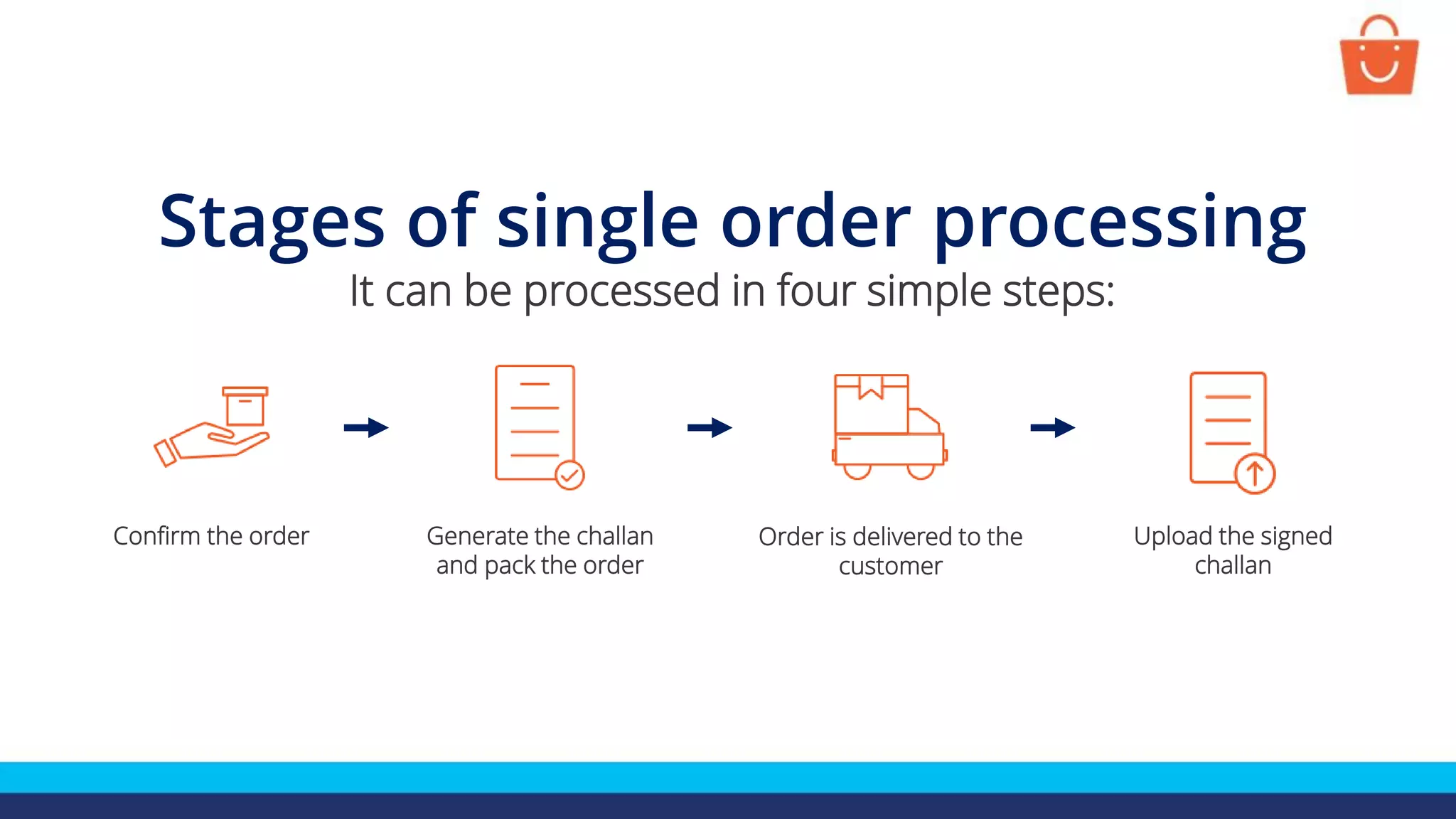
Stages of single order processing
It can be processed in four simple steps:
Confirm the order Order is delivered to the
customer
Generate the challan
and pack the order
Upload the signed
challan
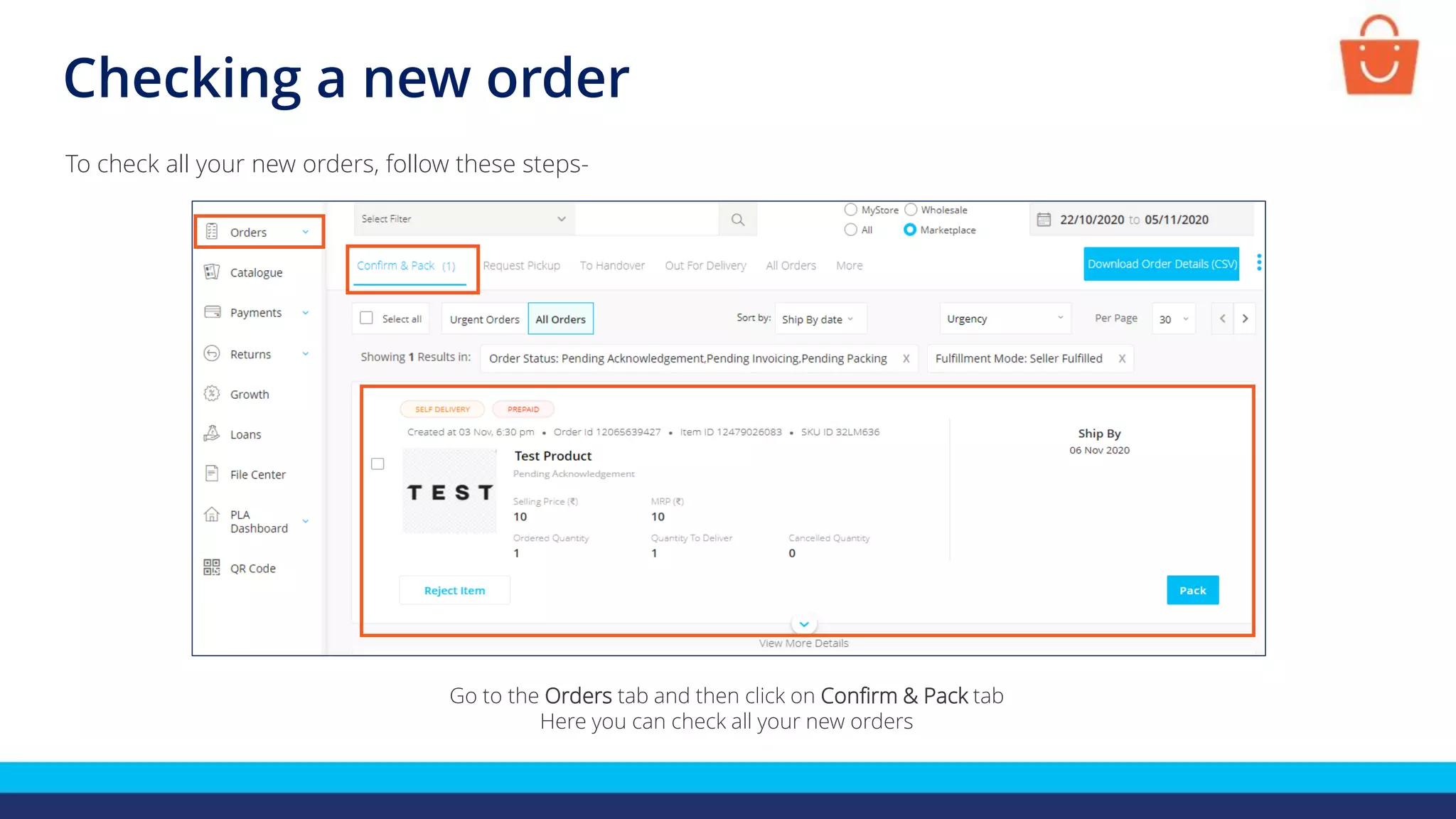
Checking a new order
Go to the Orders tab and then click on Confirm & Pack tab
Here you can check all your new orders
To check all your new orders, follow these steps-
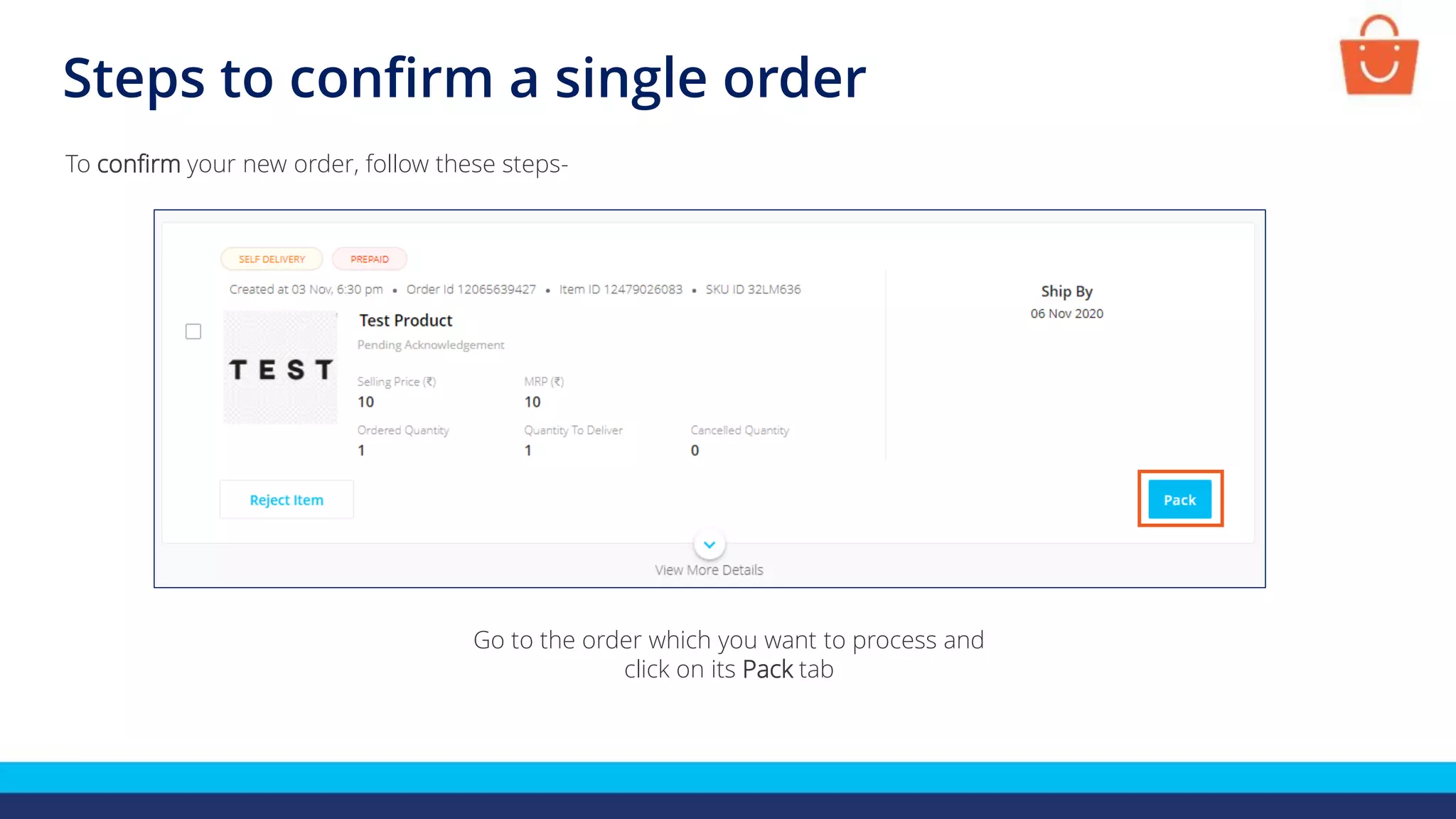
Go to the order which you want to process and
click on its Pack tab
Steps to confirm a single order
To confirm your new order, follow these steps-
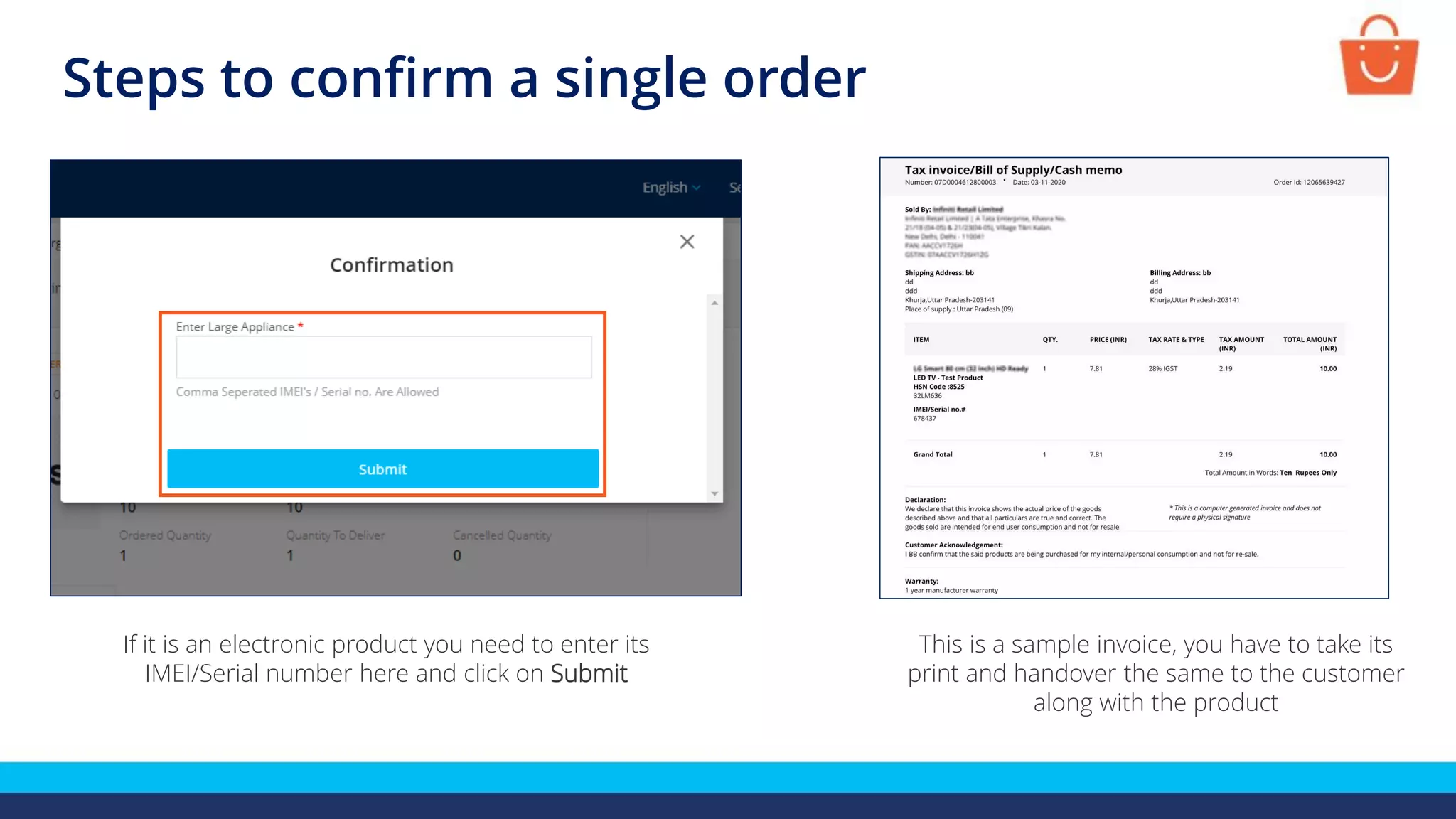
If it is an electronic product you need to enter its
IMEI/Serial number here and click on Submit
This is a sample invoice, you have to take its
print and handover the same to the customer
along with the product
Steps to confirm a single order
Steps to download the delivery challan
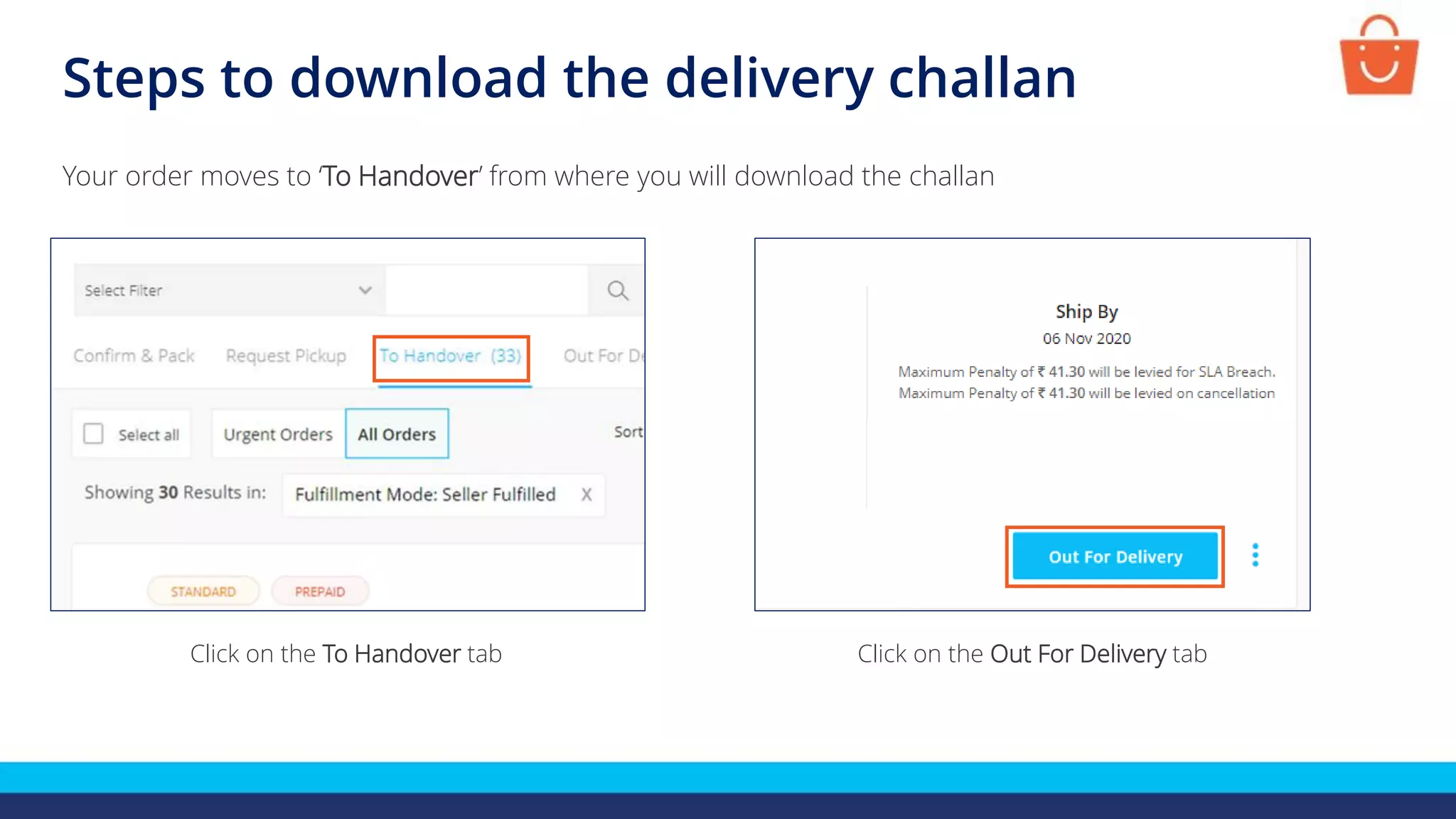
Click on the Out For Delivery tabClick on the To Handover tab
Your order moves to ‘To Handover’ from where you will download the challan
Steps to download the delivery challan
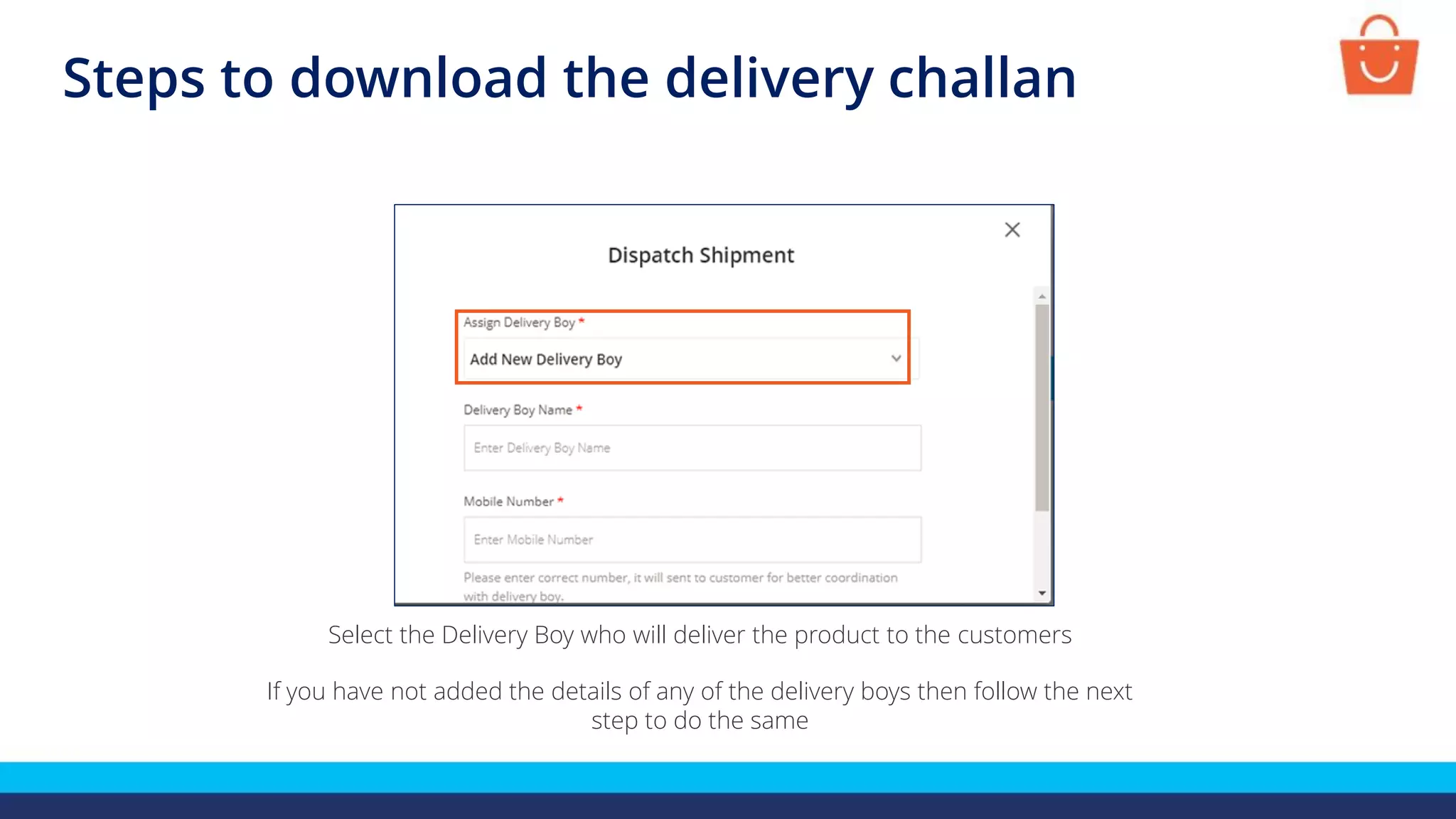
Select the Delivery Boy who will deliver the product to the customers
If you have not added the details of any of the delivery boys then follow the next
step to do the same
Steps to download the delivery challan
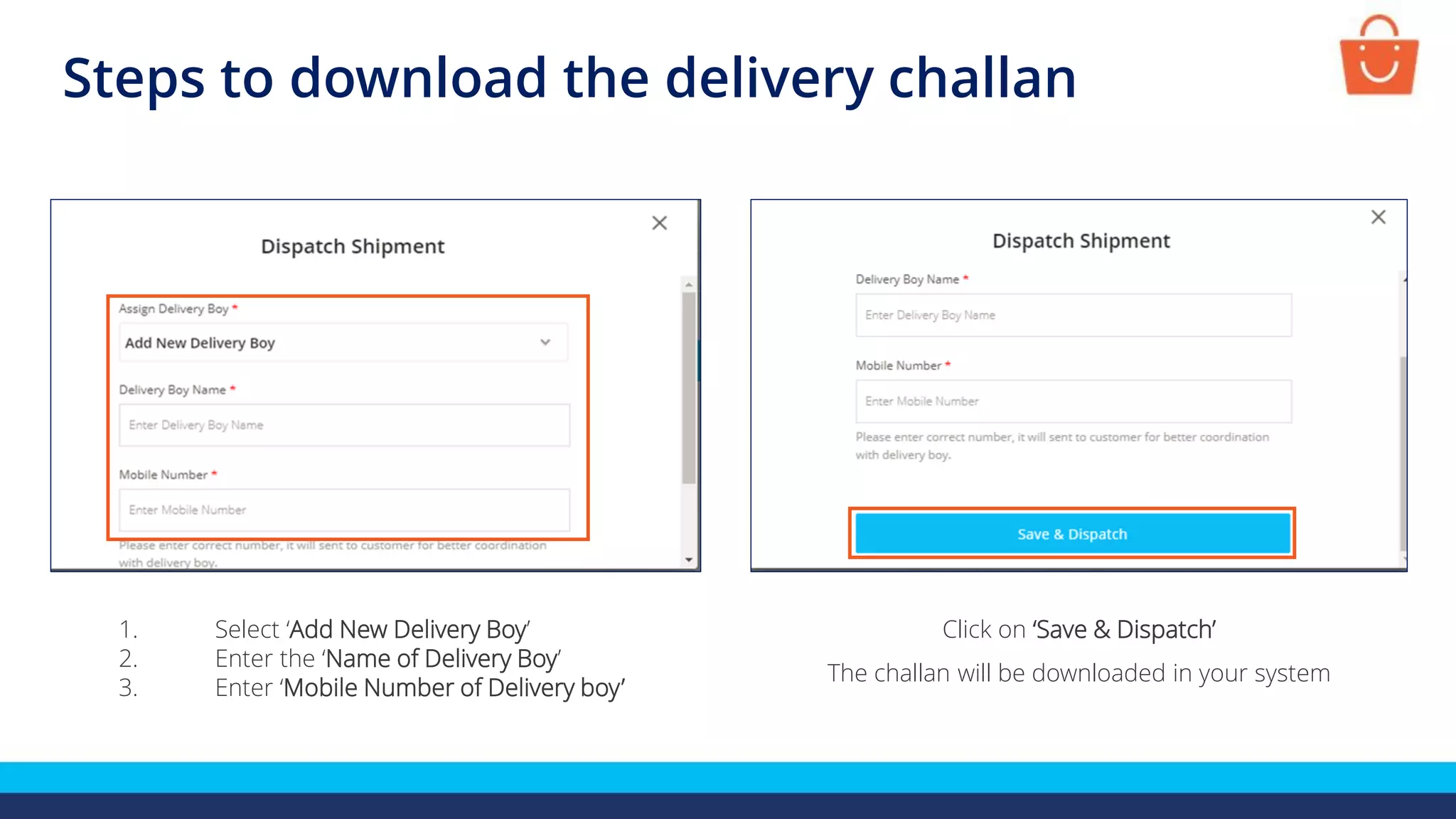
1. Select ‘Add New Delivery Boy’
2. Enter the ‘Name of Delivery Boy’
3. Enter ‘Mobile Number of Delivery boy’
Click on ‘Save & Dispatch’
The challan will be downloaded in your system
Steps to download the delivery challan
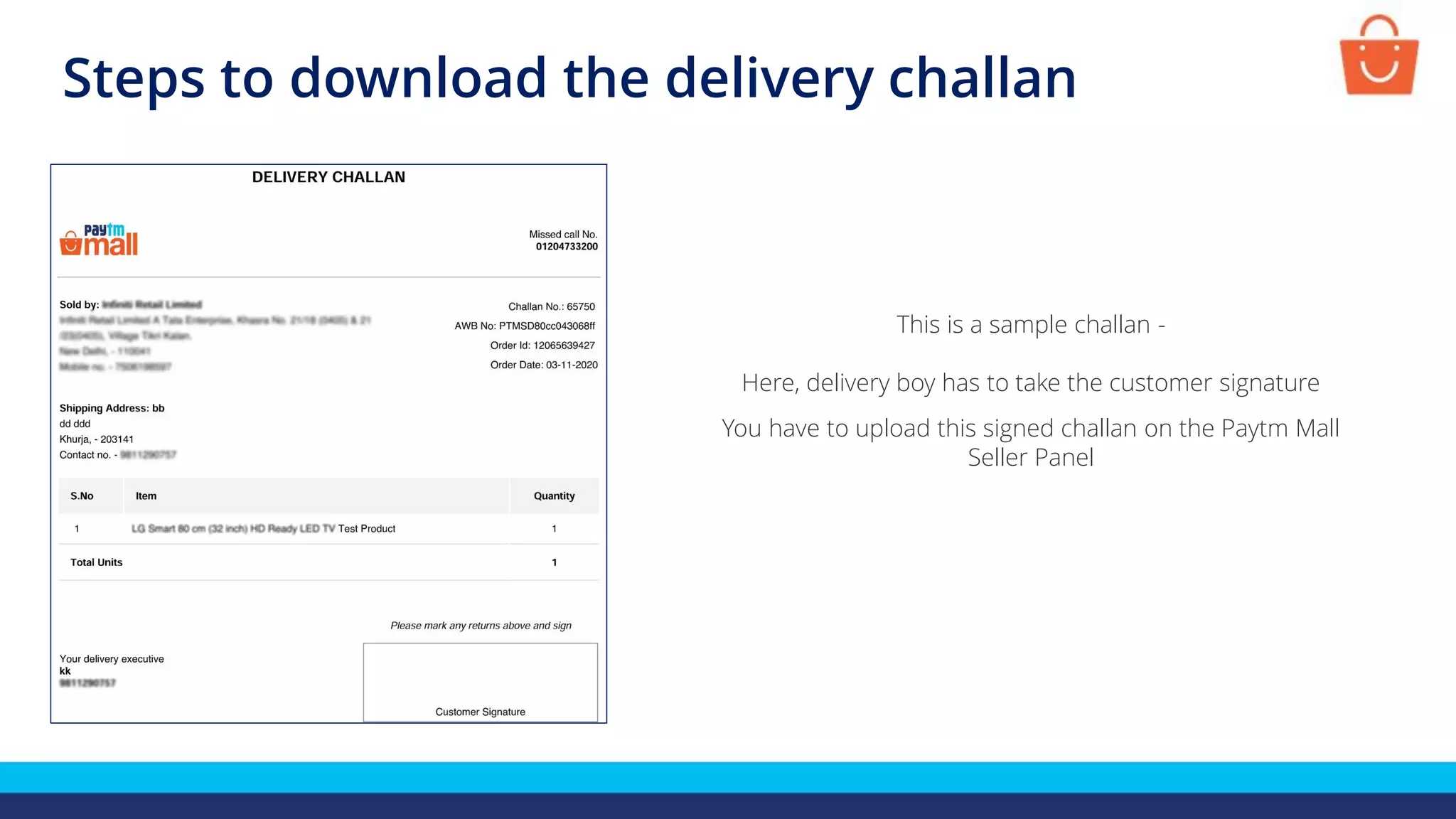
This is a sample challan -
Here, delivery boy has to take the customer signature
You have to upload this signed challan on the Paytm Mall
Seller Panel
Steps to upload a signed delivery challan
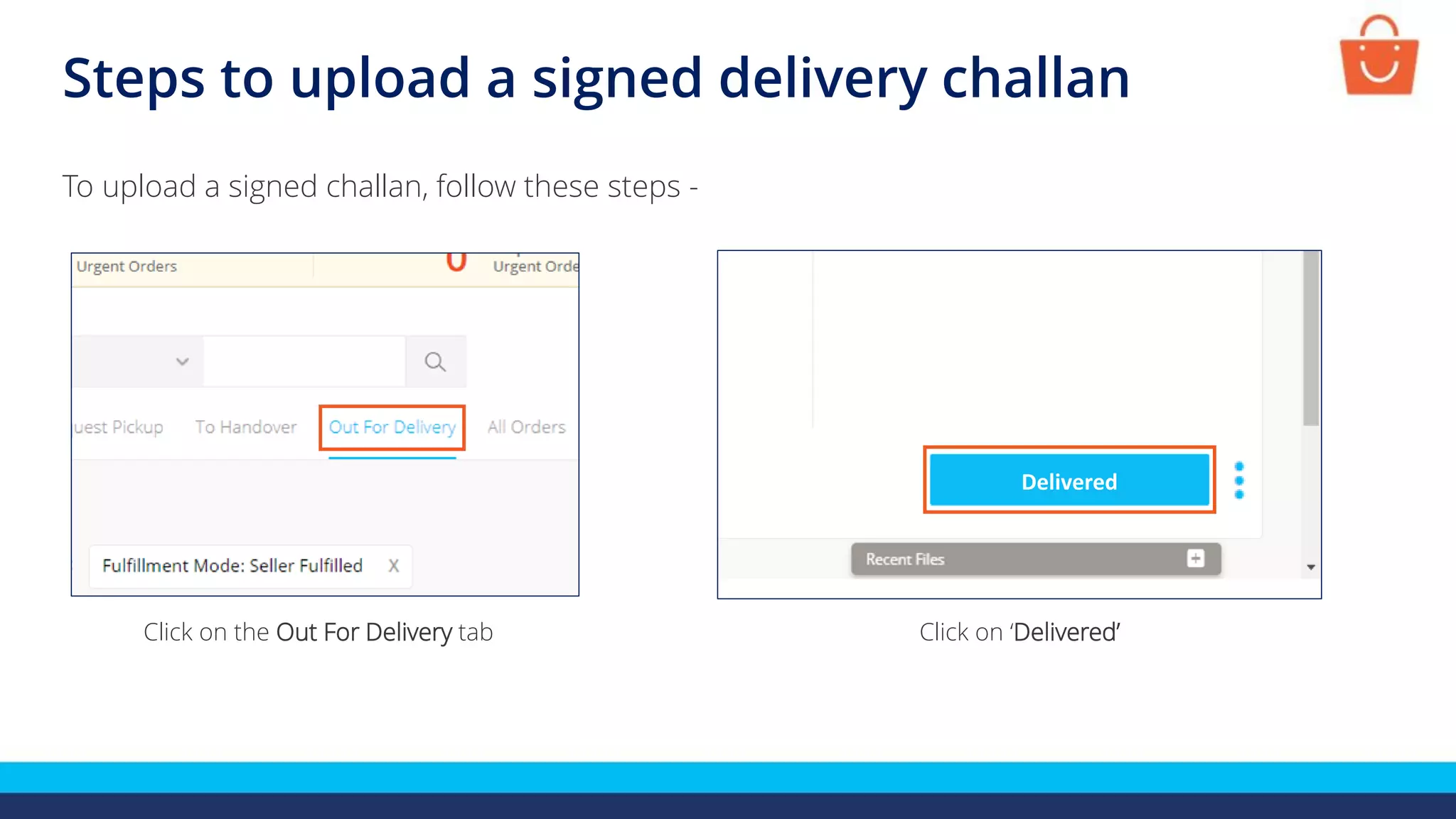
To upload a signed challan, follow these steps -
Click on the Out For Delivery tab Click on ‘Delivered’
Delivered
Steps to upload a signed delivery challan
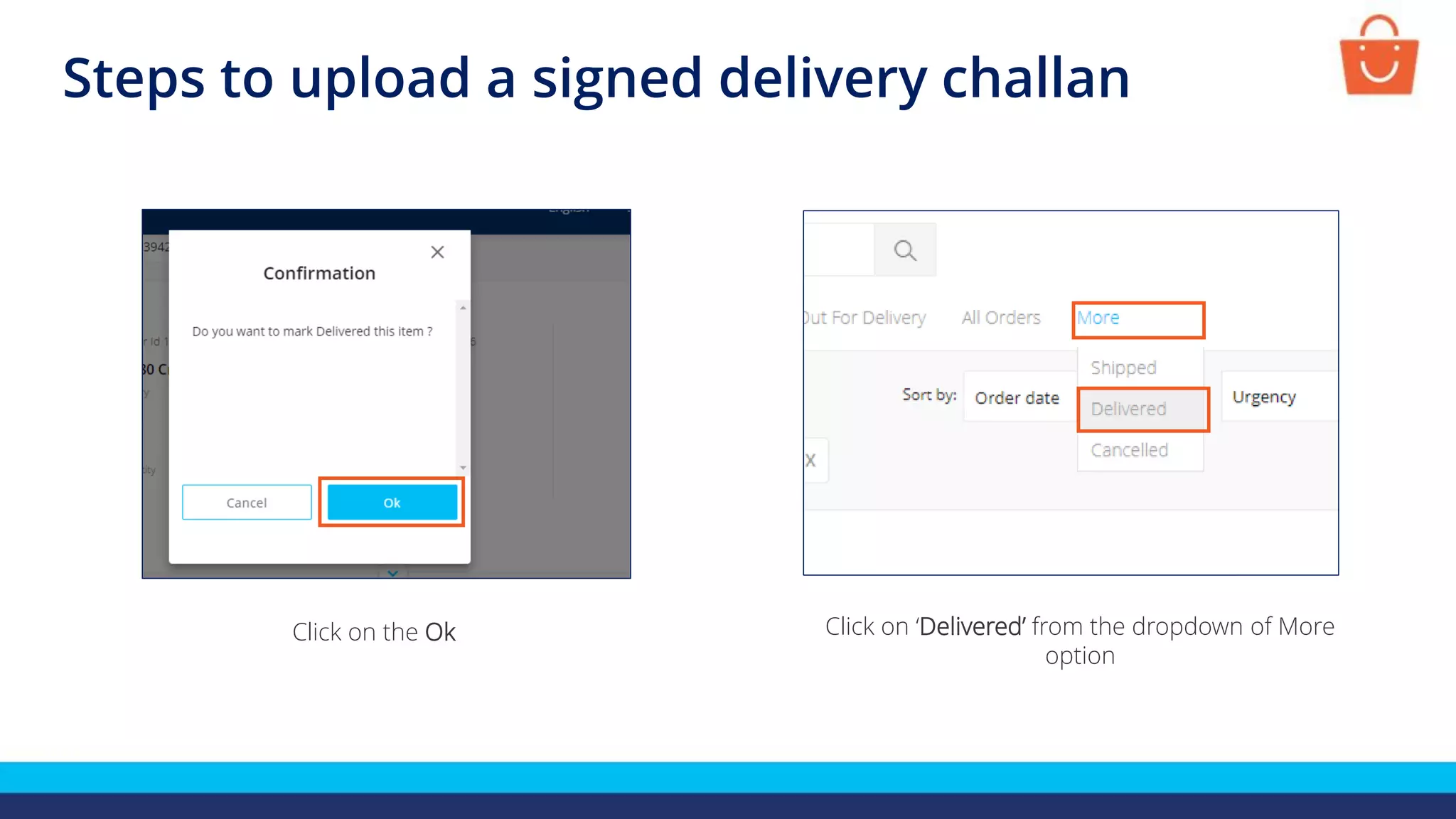
Click on the Ok Click on ‘Delivered’ from the dropdown of More
option
Steps to upload a signed delivery challan
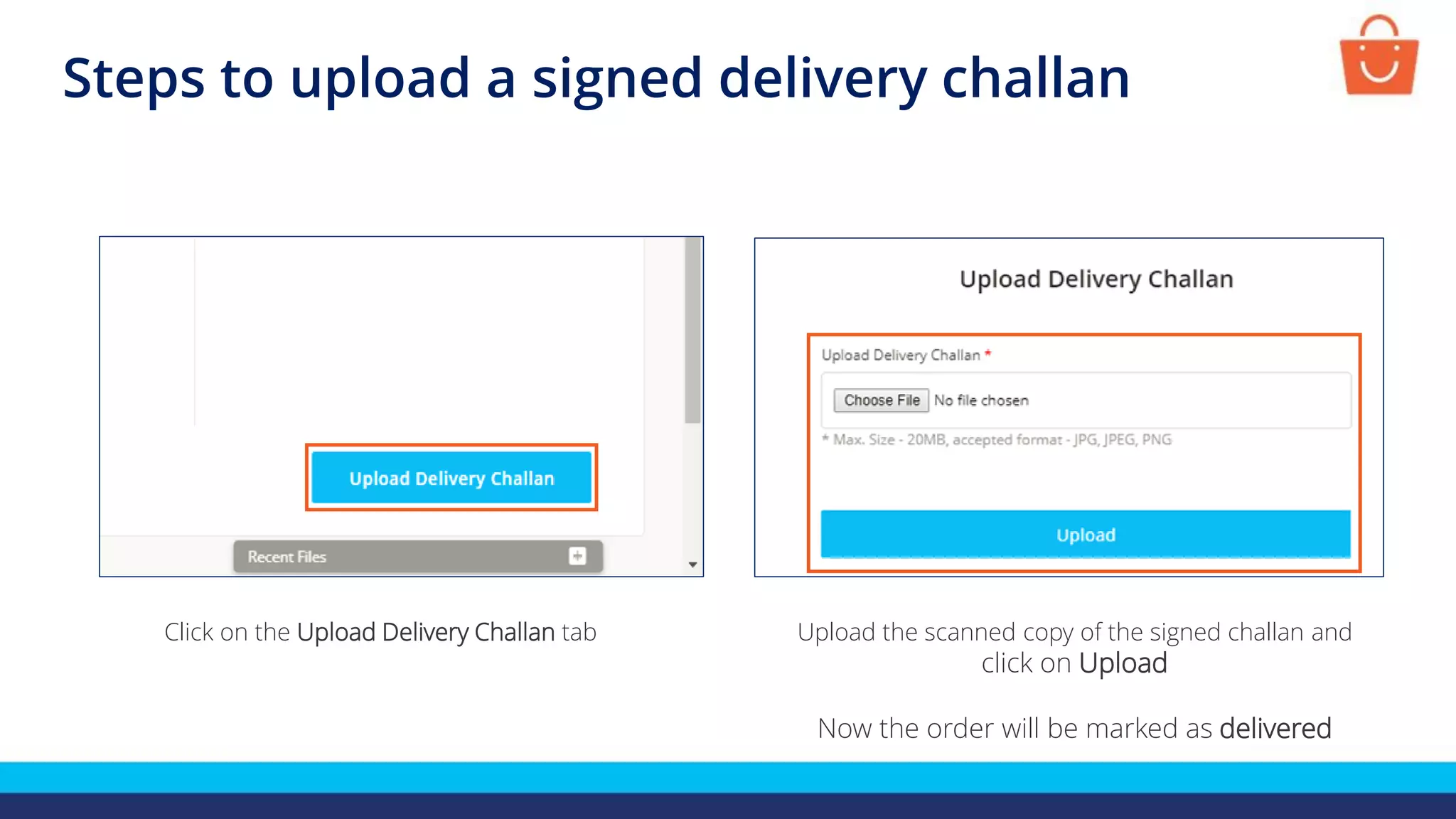
Click on the Upload Delivery Challan tab Upload the scanned copy of the signed challan and
click on Upload
Now the order will be marked as delivered
Download duplicate copies
In case you have lost your invoice or challan before delivery, you can generate
the duplicates by going on Out For Delivery tab
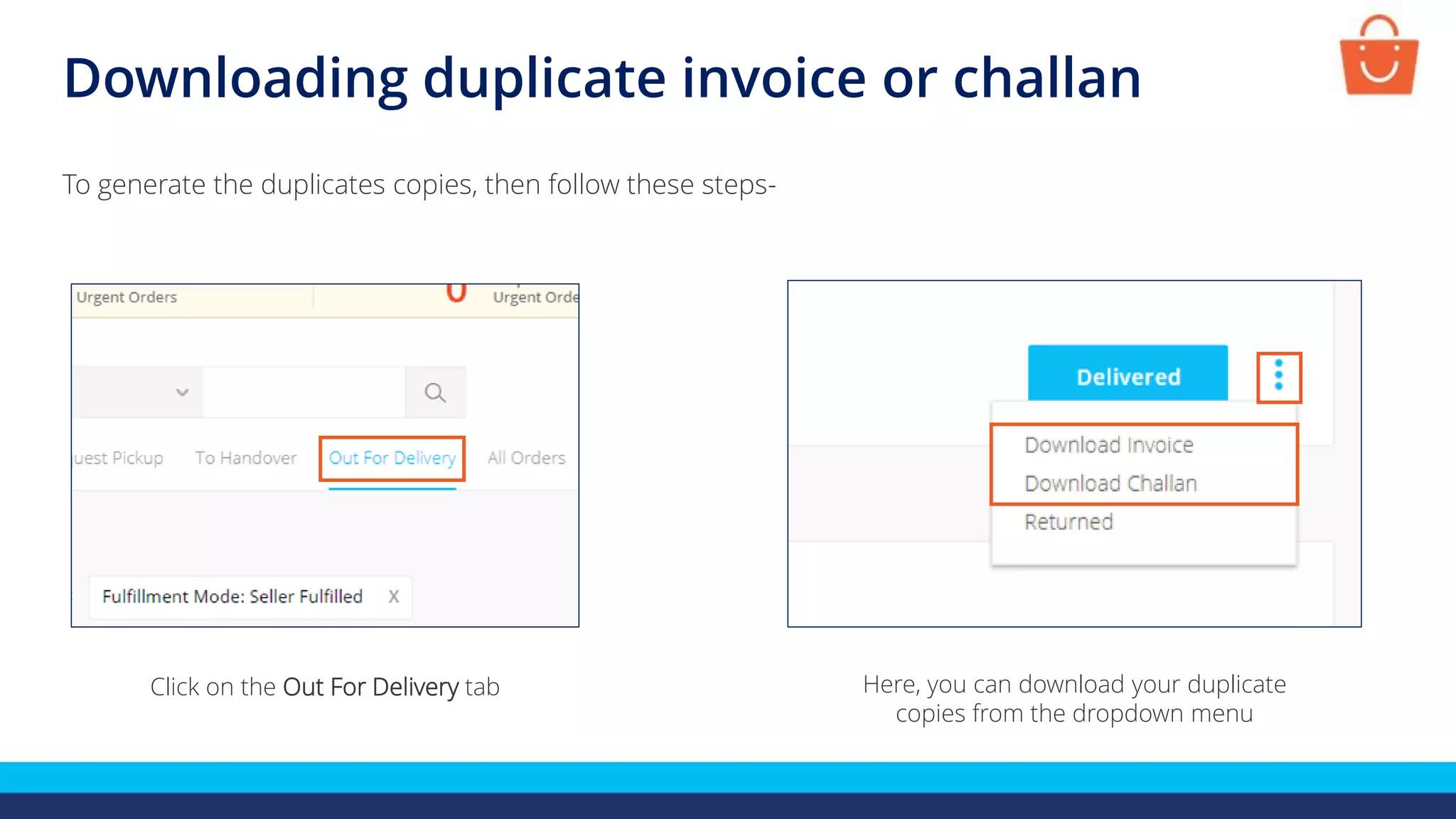
Downloading duplicate invoice or challan
To generate the duplicates copies, then follow these steps-
Click on the Out For Delivery tab Here, you can download your duplicate
copies from the dropdown menu
Mark the order as returned
In case the customer does not accept the orders or requests for return, you
can mark the order as return from the seller panel
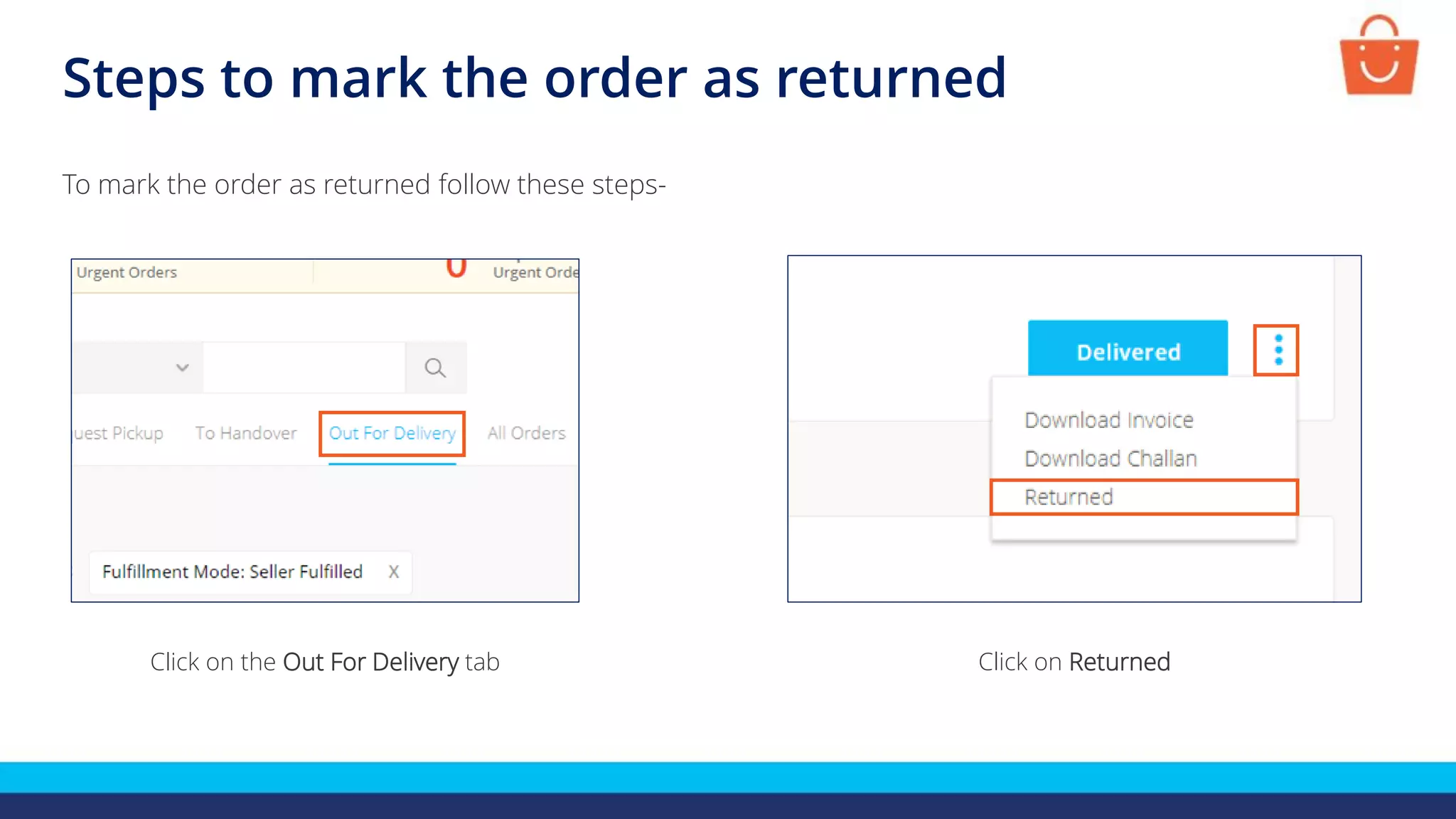
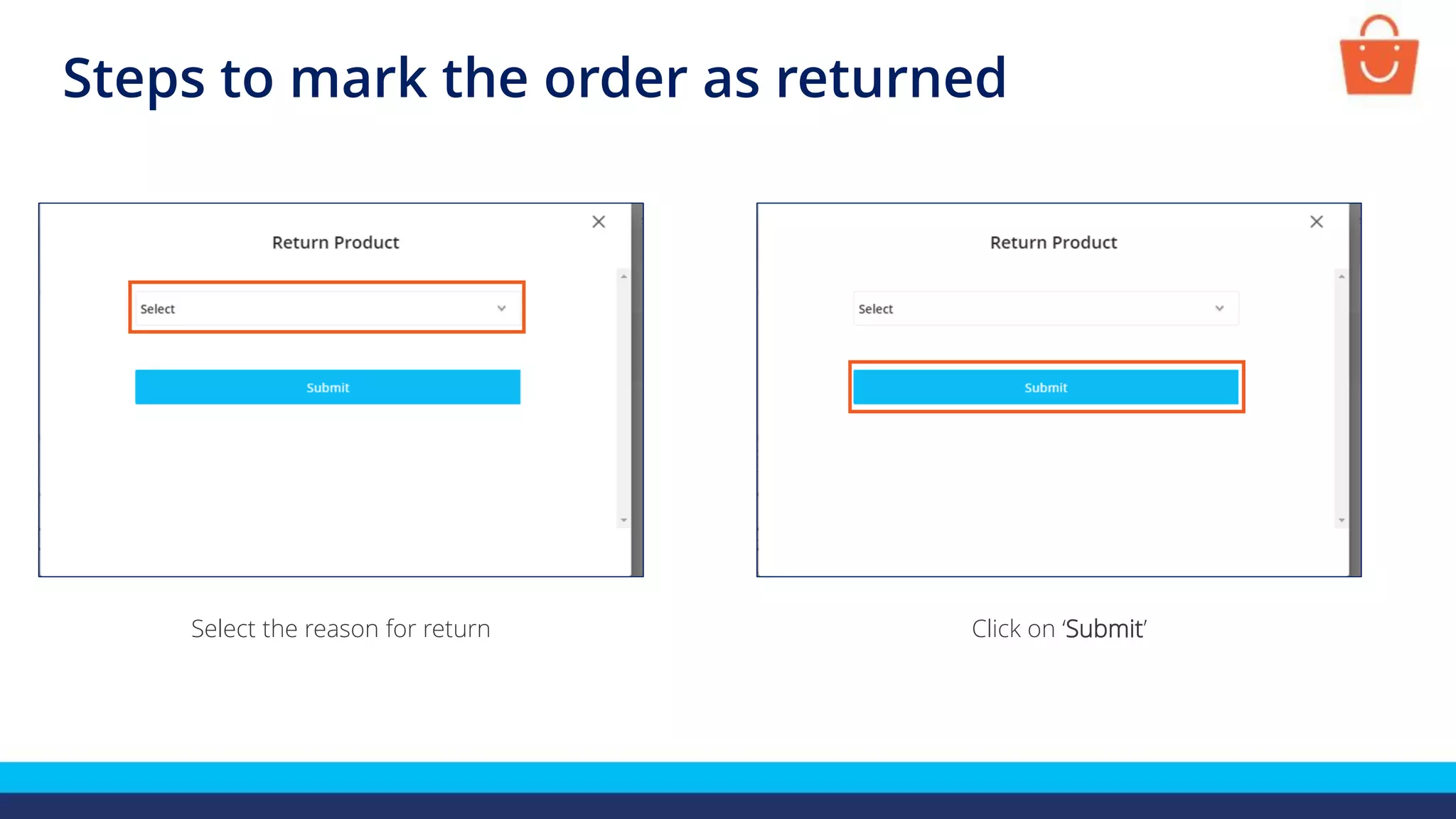
Steps to mark the order as returned
To mark the order as returned follow these steps-
Click on the Out For Delivery tab Click on Returned
Steps to mark the order as returned
Select the reason for return Click on ‘Submit’
Thanks everyone!
For any query, please raise a ticket using the Seller Helpdesk tab on
your seller panel

Single order processing (self delivery)

  • 1.
    Single Order Processing (Selfdelivery) In this module, we will discuss:- 1. How to process a single order? 2. How to download duplicate copies? 3. How to mark the order as returned?
  • 2.
    Stages of singleorder processing It can be processed in four simple steps: Confirm the order Order is delivered to the customer Generate the challan and pack the order Upload the signed challan
  • 3.
    Checking a neworder Go to the Orders tab and then click on Confirm & Pack tab Here you can check all your new orders To check all your new orders, follow these steps-
  • 4.
    Go to theorder which you want to process and click on its Pack tab Steps to confirm a single order To confirm your new order, follow these steps-
  • 5.
    If it isan electronic product you need to enter its IMEI/Serial number here and click on Submit This is a sample invoice, you have to take its print and handover the same to the customer along with the product Steps to confirm a single order
  • 6.
    Steps to downloadthe delivery challan Click on the Out For Delivery tabClick on the To Handover tab Your order moves to ‘To Handover’ from where you will download the challan
  • 7.
    Steps to downloadthe delivery challan Select the Delivery Boy who will deliver the product to the customers If you have not added the details of any of the delivery boys then follow the next step to do the same
  • 8.
    Steps to downloadthe delivery challan 1. Select ‘Add New Delivery Boy’ 2. Enter the ‘Name of Delivery Boy’ 3. Enter ‘Mobile Number of Delivery boy’ Click on ‘Save & Dispatch’ The challan will be downloaded in your system
  • 9.
    Steps to downloadthe delivery challan This is a sample challan - Here, delivery boy has to take the customer signature You have to upload this signed challan on the Paytm Mall Seller Panel
  • 10.
    Steps to uploada signed delivery challan To upload a signed challan, follow these steps - Click on the Out For Delivery tab Click on ‘Delivered’ Delivered
  • 11.
    Steps to uploada signed delivery challan Click on the Ok Click on ‘Delivered’ from the dropdown of More option
  • 12.
    Steps to uploada signed delivery challan Click on the Upload Delivery Challan tab Upload the scanned copy of the signed challan and click on Upload Now the order will be marked as delivered
  • 13.
    Download duplicate copies Incase you have lost your invoice or challan before delivery, you can generate the duplicates by going on Out For Delivery tab
  • 14.
    Downloading duplicate invoiceor challan To generate the duplicates copies, then follow these steps- Click on the Out For Delivery tab Here, you can download your duplicate copies from the dropdown menu
  • 15.
    Mark the orderas returned In case the customer does not accept the orders or requests for return, you can mark the order as return from the seller panel
  • 16.
    Steps to markthe order as returned To mark the order as returned follow these steps- Click on the Out For Delivery tab Click on Returned
  • 17.
    Steps to markthe order as returned Select the reason for return Click on ‘Submit’
  • 18.
    Thanks everyone! For anyquery, please raise a ticket using the Seller Helpdesk tab on your seller panel