PPM systems have tremendous potential to improve
management effectiveness in organizations – but
merely implementing a PPM system is not enough.
timeframe is an application that helps
organizations leverage their PPM systems through
real-time binding of people and projects.
Time Report
Status
Users
Projects
timeframe bridges the gap in communication and
connectedness so that everyone involved in the
development life cycle is on the same page.
Managers
Developers
Decisions
Tasks
The application opens up on the Projects page.
These are the Projects assigned to you in the PPM
system used by your organization, such as Clarity.
To get started – press on the Start button on top.
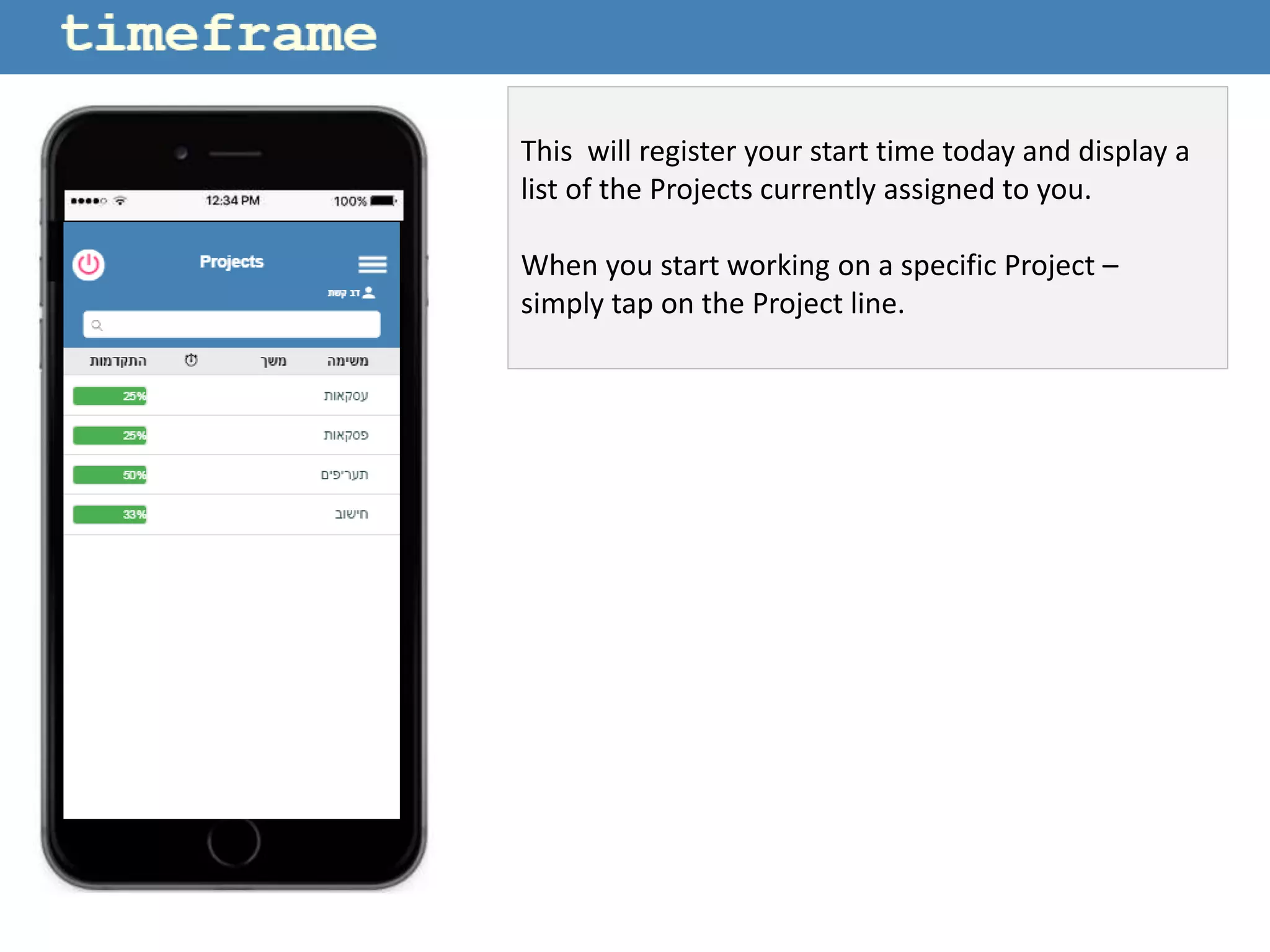
This will register your start time today and display a
list of the Projects currently assigned to you.
When you start working on a specific Project –
simply tap on the Project line.
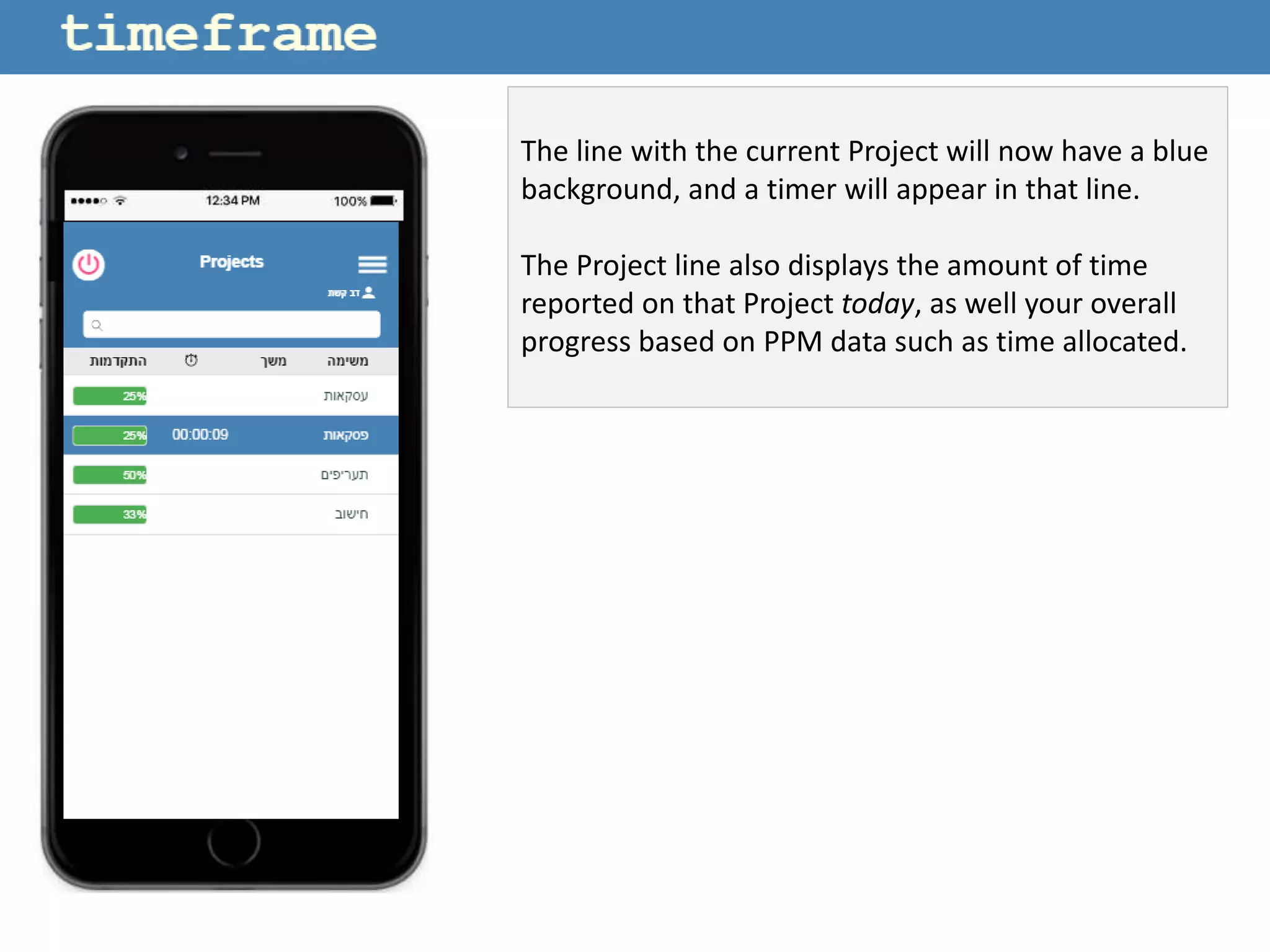
The line with the current Project will now have a blue
background, and a timer will appear in that line.
The Project line also displays the amount of time
reported on that Project today, as well your overall
progress based on PPM data such as time allocated.
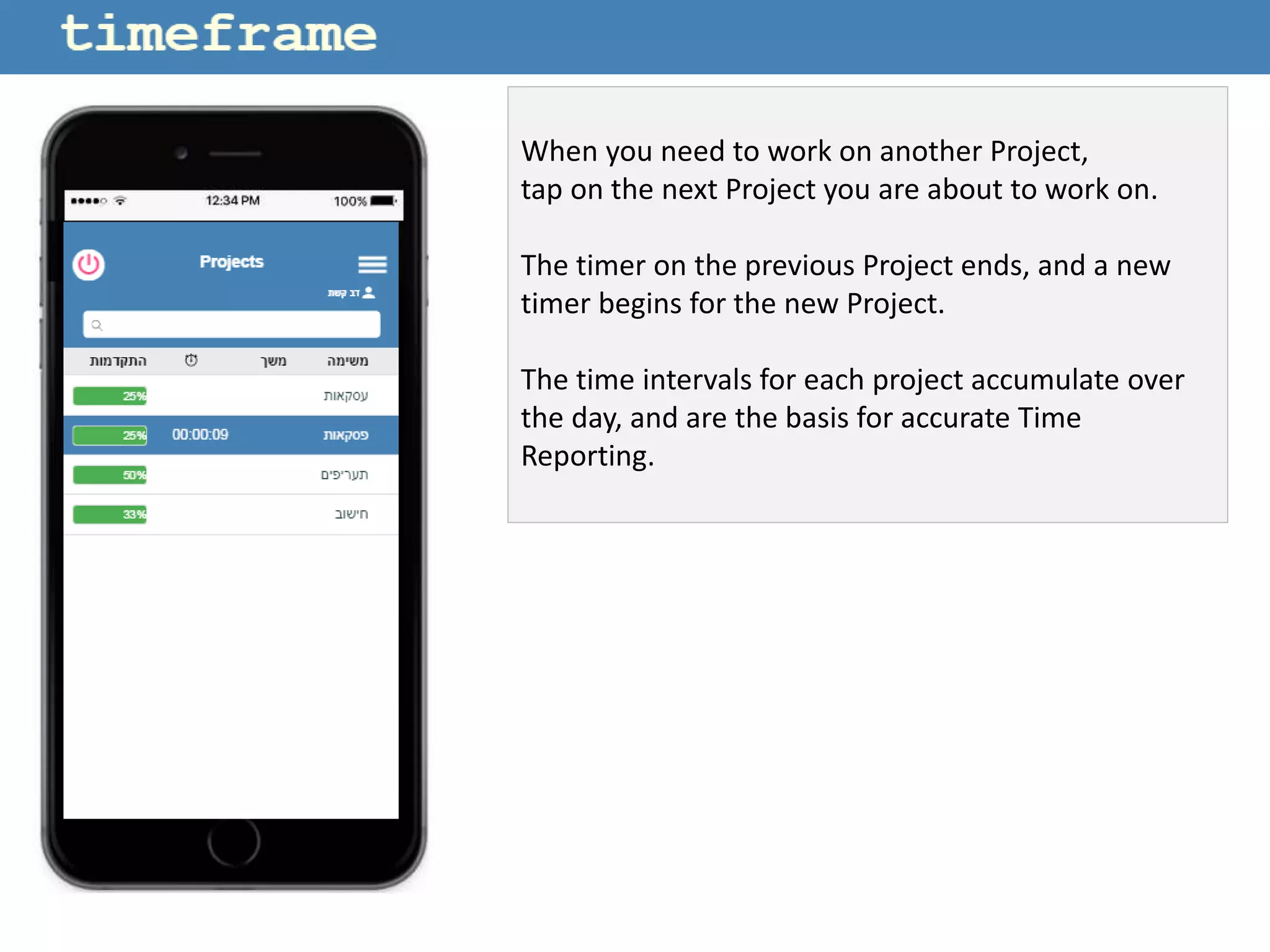
When you need to work on another Project,
tap on the next Project you are about to work on.
The timer on the previous Project ends, and a new
timer begins for the new Project.
The time intervals for each project accumulate over
the day, and are the basis for accurate Time
Reporting.
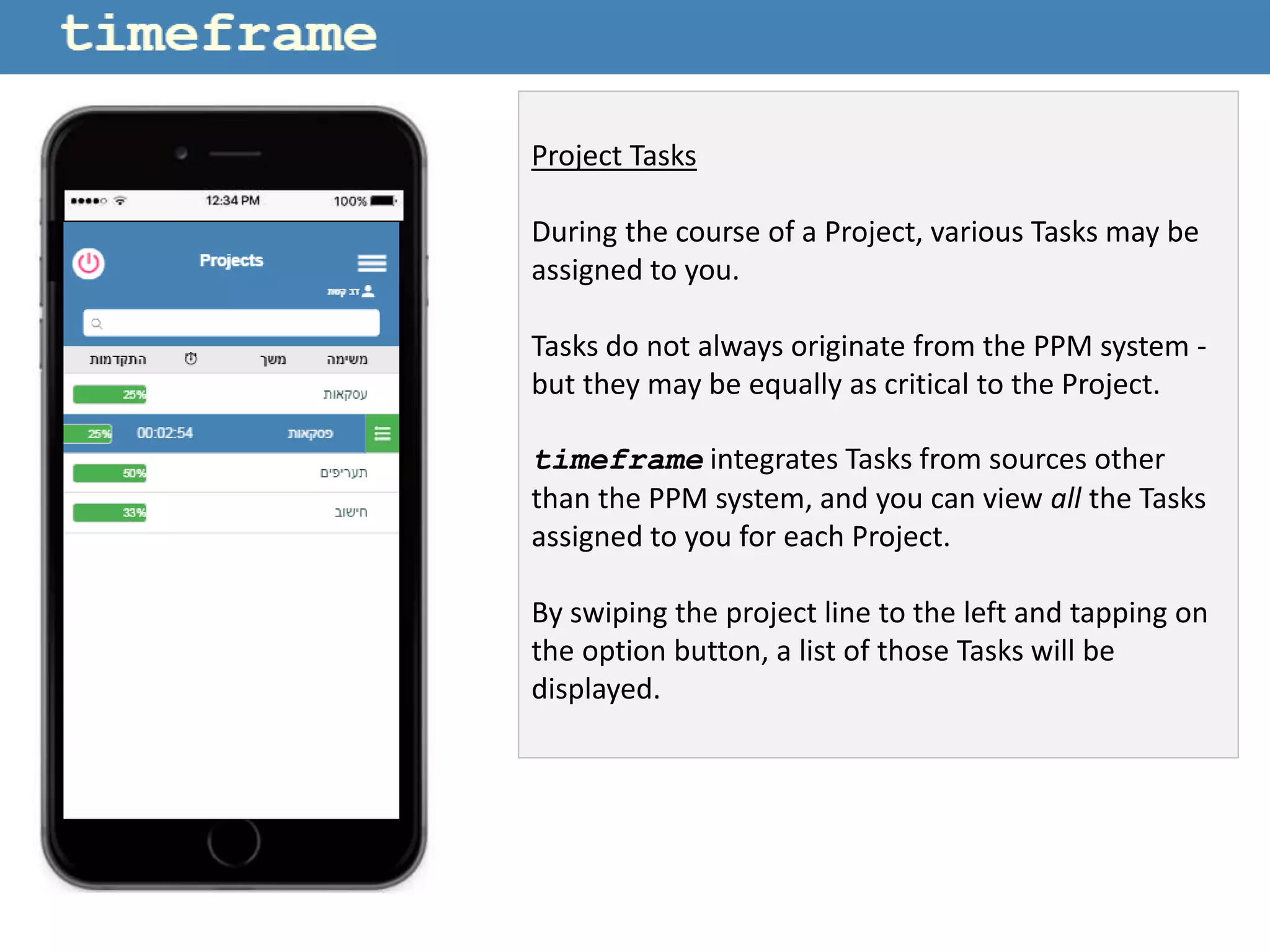
Project Tasks
During the course of a Project, various Tasks may be
assigned to you.
Tasks do not always originate from the PPM system -
but they may be equally as critical to the Project.
timeframe integrates Tasks from sources other
than the PPM system, and you can view all the Tasks
assigned to you for each Project.
By swiping the project line to the left and tapping on
the option button, a list of those Tasks will be
displayed.
The list of Tasks is ordered by the nearest Due Date.
On the Settings page you can define the amount of
days before a Due Date is about to pass in order to
receive alerts.
To report a Task “complete” - simply click on the
checkbox to the right of the Task description.
The updated status is immediately synchronized
across the system.
By sliding the line to the left you can also choose
from a list of other statuses – such as “In hold”,
or view the text description of that Task.
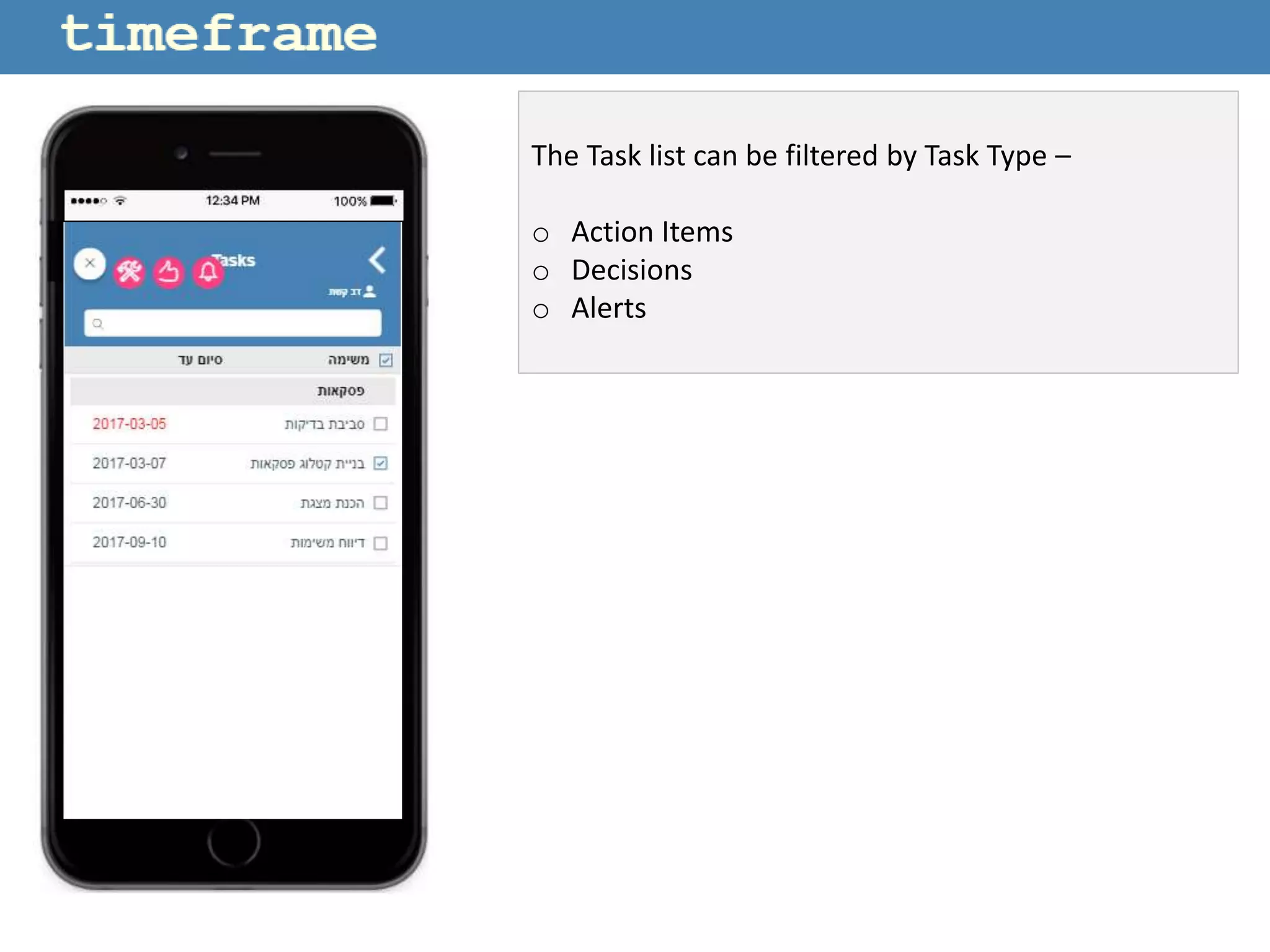
The Task list can be filtered by Task Type –
o Action Items
o Decisions
o Alerts
Menu Options
o Tasks - View all the Tasks assigned to you ,
regardless of the related Project.
o Daily Report - Adjust information that may have
been incorrectly reported during the day.
o Weekly Report – Display your Weekly Time Report
in the format used by your PPM system.
o Resources - View Projects, Tasks and Time Reports
of people that you manage or are authorized to
view.
o User Settings - Define preferences such as the
time format to be displayed, Due Day alerts
and so on.
Tasks
View all the Tasks assigned to you – regardless of the
related Project.
Daily Report
View a list of the time intervals recorded during the
day - including the Clock-In and Clock-Out times.
You can adjust information that may have been
incorrectly reported during the day.
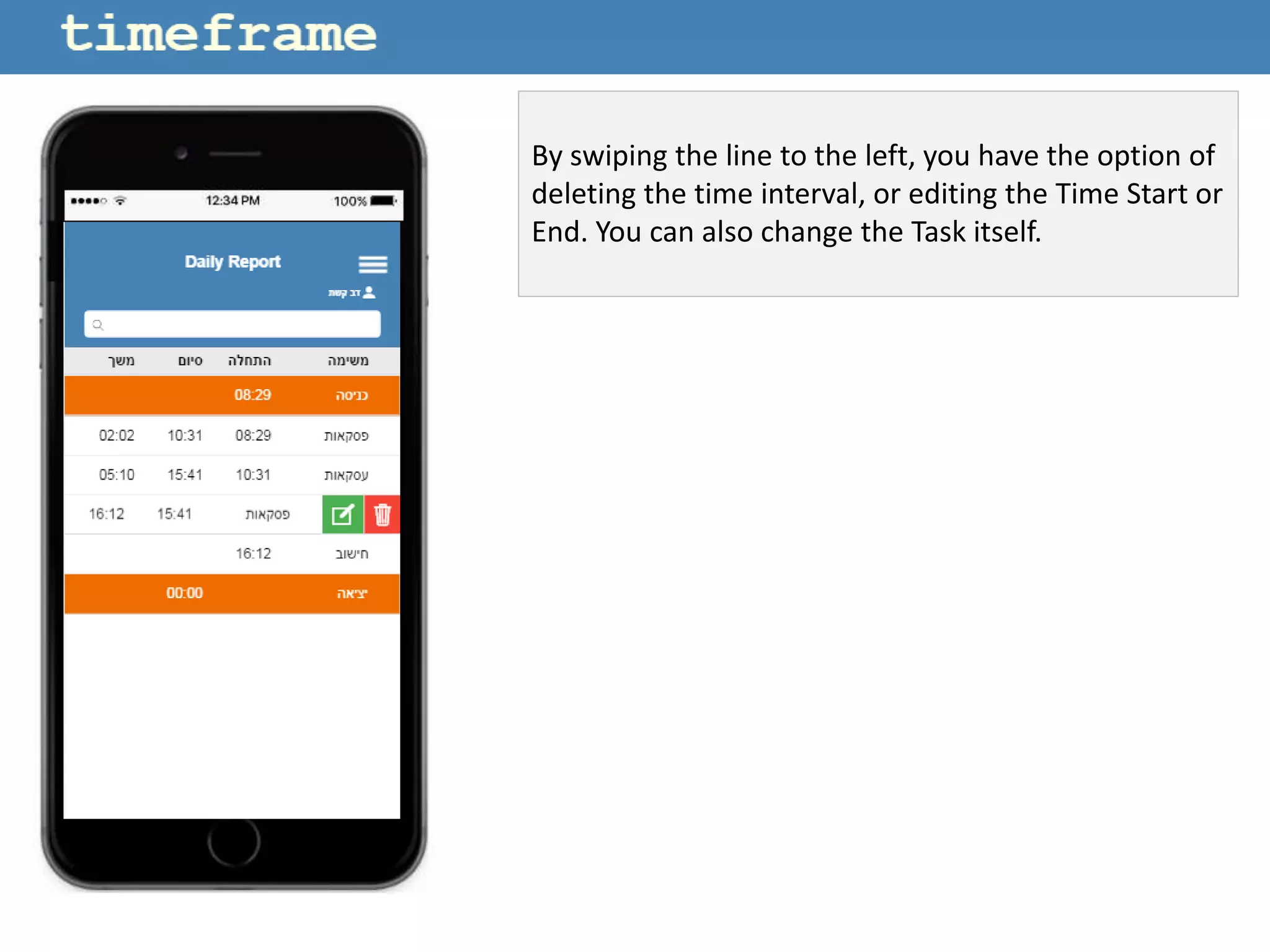
By swiping the line to the left, you have the option of
deleting the time interval, or editing the Time Start or
End. You can also change the Task itself.
You can also swipe the line to the right and choose to
automatically align the Start Time or End Time with
the adjacent line.
Weekly Report
View a summary of this week’s daily time intervals.
Additional options:
o Export to your PPM system or Excel spreadsheet
o Choose a different week
o Include Clock-In time
o Display time in clock format (HH:MM) or decimal
Resources
View Projects, Tasks and Time Reports of people that
you manage or are authorized to view.
The list displays the last Project that each person
worked on, and the last time updated.
By swiping the line to the left, you can choose to view
that person’s Projects list or Weekly Report.
In the header you can see the name of the person
being viewed and a small lock icon indicating that the
data cannot be changed.
The functionality remains the same – you can swipe
the line to the left and view that person’s Project
Tasks.
You can also view that person’s Weekly Report
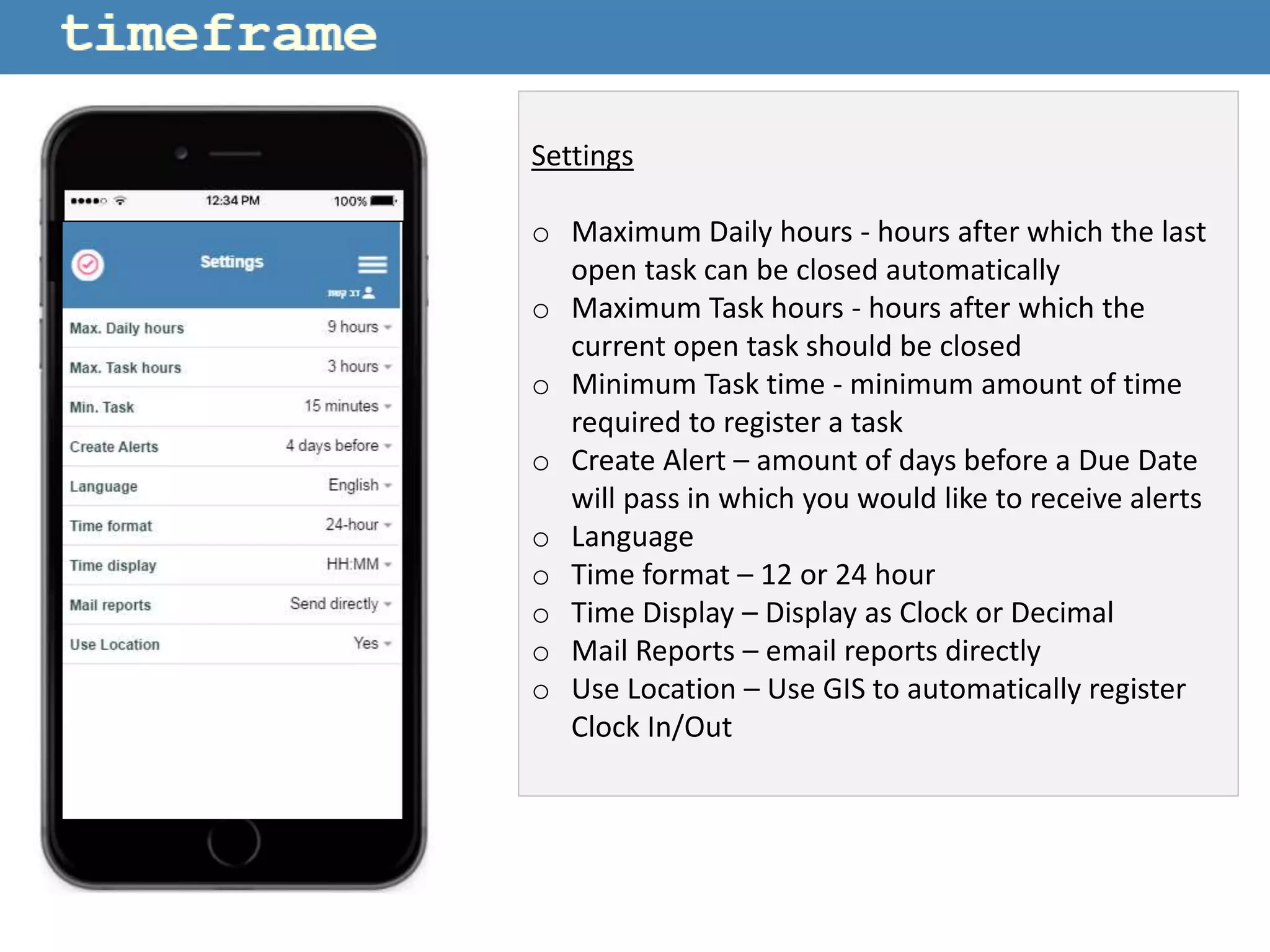
Settings
o Maximum Daily hours - hours after which the last
open task can be closed automatically
o Maximum Task hours - hours after which the
current open task should be closed
o Minimum Task time - minimum amount of time
required to register a task
o Create Alert – amount of days before a Due Date
will pass in which you would like to receive alerts
o Language
o Time format – 12 or 24 hour
o Time Display – Display as Clock or Decimal
o Mail Reports – email reports directly
o Use Location – Use GIS to automatically register
Clock In/Out
Ionic Framework enables developers to build
mobile apps using familiar web technologies,
and simplifies front-end development.
Technology/Architecture - Serverless hybrid mobile application
Ionic Framework enables developers to build
mobile apps using familiar web technologies,
and simplifies front-end development.
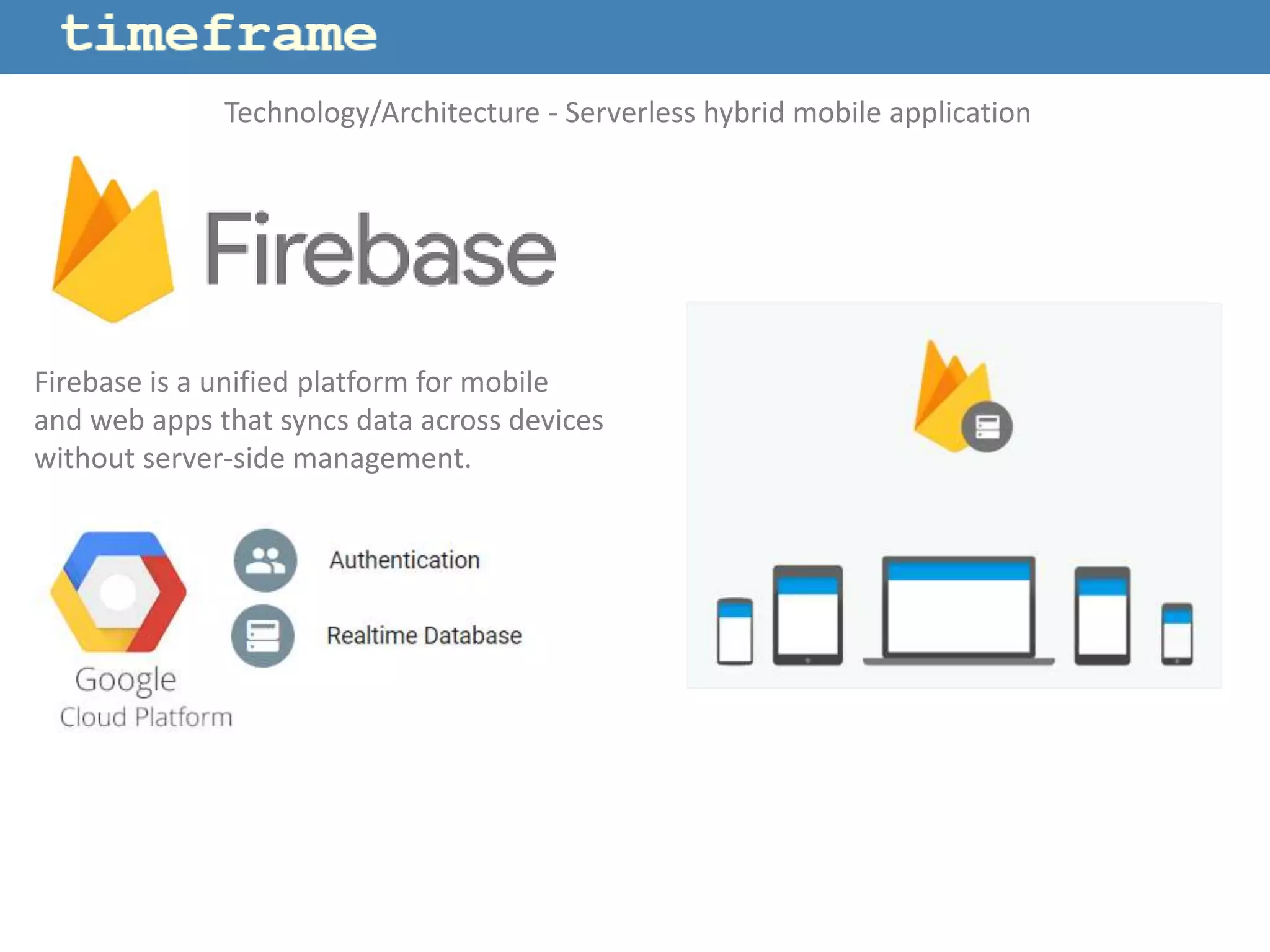
Firebase is a unified platform for mobile
and web apps that syncs data across devices
without server-side management.
Technology/Architecture - Serverless hybrid mobile application
Ionic Framework enables developers to build
mobile apps using familiar web technologies,
and simplifies front-end development.
Firebase is a unified platform for mobile
and web apps that syncs data across devices
without server-side management.
Technology/Architecture - Serverless hybrid mobile application

Starsoft tm1

  • 1.
    PPM systems havetremendous potential to improve management effectiveness in organizations – but merely implementing a PPM system is not enough. timeframe is an application that helps organizations leverage their PPM systems through real-time binding of people and projects.
  • 2.
    Time Report Status Users Projects timeframe bridgesthe gap in communication and connectedness so that everyone involved in the development life cycle is on the same page. Managers Developers Decisions Tasks
  • 3.
    The application opensup on the Projects page. These are the Projects assigned to you in the PPM system used by your organization, such as Clarity. To get started – press on the Start button on top.
  • 4.
    This will registeryour start time today and display a list of the Projects currently assigned to you. When you start working on a specific Project – simply tap on the Project line.
  • 5.
    The line withthe current Project will now have a blue background, and a timer will appear in that line. The Project line also displays the amount of time reported on that Project today, as well your overall progress based on PPM data such as time allocated.
  • 6.
    When you needto work on another Project, tap on the next Project you are about to work on. The timer on the previous Project ends, and a new timer begins for the new Project. The time intervals for each project accumulate over the day, and are the basis for accurate Time Reporting.
  • 7.
    Project Tasks During thecourse of a Project, various Tasks may be assigned to you. Tasks do not always originate from the PPM system - but they may be equally as critical to the Project. timeframe integrates Tasks from sources other than the PPM system, and you can view all the Tasks assigned to you for each Project. By swiping the project line to the left and tapping on the option button, a list of those Tasks will be displayed.
  • 8.
    The list ofTasks is ordered by the nearest Due Date. On the Settings page you can define the amount of days before a Due Date is about to pass in order to receive alerts.
  • 9.
    To report aTask “complete” - simply click on the checkbox to the right of the Task description. The updated status is immediately synchronized across the system. By sliding the line to the left you can also choose from a list of other statuses – such as “In hold”, or view the text description of that Task.
  • 10.
    The Task listcan be filtered by Task Type – o Action Items o Decisions o Alerts
  • 11.
    Menu Options o Tasks- View all the Tasks assigned to you , regardless of the related Project. o Daily Report - Adjust information that may have been incorrectly reported during the day. o Weekly Report – Display your Weekly Time Report in the format used by your PPM system. o Resources - View Projects, Tasks and Time Reports of people that you manage or are authorized to view. o User Settings - Define preferences such as the time format to be displayed, Due Day alerts and so on.
  • 12.
    Tasks View all theTasks assigned to you – regardless of the related Project.
  • 13.
    Daily Report View alist of the time intervals recorded during the day - including the Clock-In and Clock-Out times. You can adjust information that may have been incorrectly reported during the day.
  • 14.
    By swiping theline to the left, you have the option of deleting the time interval, or editing the Time Start or End. You can also change the Task itself.
  • 15.
    You can alsoswipe the line to the right and choose to automatically align the Start Time or End Time with the adjacent line.
  • 16.
    Weekly Report View asummary of this week’s daily time intervals. Additional options: o Export to your PPM system or Excel spreadsheet o Choose a different week o Include Clock-In time o Display time in clock format (HH:MM) or decimal
  • 17.
    Resources View Projects, Tasksand Time Reports of people that you manage or are authorized to view. The list displays the last Project that each person worked on, and the last time updated.
  • 18.
    By swiping theline to the left, you can choose to view that person’s Projects list or Weekly Report.
  • 19.
    In the headeryou can see the name of the person being viewed and a small lock icon indicating that the data cannot be changed. The functionality remains the same – you can swipe the line to the left and view that person’s Project Tasks.
  • 20.
    You can alsoview that person’s Weekly Report
  • 21.
    Settings o Maximum Dailyhours - hours after which the last open task can be closed automatically o Maximum Task hours - hours after which the current open task should be closed o Minimum Task time - minimum amount of time required to register a task o Create Alert – amount of days before a Due Date will pass in which you would like to receive alerts o Language o Time format – 12 or 24 hour o Time Display – Display as Clock or Decimal o Mail Reports – email reports directly o Use Location – Use GIS to automatically register Clock In/Out
  • 22.
    Ionic Framework enablesdevelopers to build mobile apps using familiar web technologies, and simplifies front-end development. Technology/Architecture - Serverless hybrid mobile application Ionic Framework enables developers to build mobile apps using familiar web technologies, and simplifies front-end development.
  • 23.
    Firebase is aunified platform for mobile and web apps that syncs data across devices without server-side management. Technology/Architecture - Serverless hybrid mobile application
  • 24.
    Ionic Framework enablesdevelopers to build mobile apps using familiar web technologies, and simplifies front-end development. Firebase is a unified platform for mobile and web apps that syncs data across devices without server-side management. Technology/Architecture - Serverless hybrid mobile application