Classification: Controlled
Classification: Controlled. Copyright ©2024 Version 1. All rights reserved.
Count Occurrences
within Cases
Tech Tips – IBM SPSS Statistics
Classification: Controlled
Classification: Controlled. Copyright ©2024 Version 1. All rights reserved.
• Did you know that you can count occurrences within cases?
• You might have a satisfaction survey that contains a lot of questions with the same scale.
• You can use this procedure to calculate the total number of ‘Very Satisfied’ responses respondent
gave across a number of questions.
• Or, you might have a survey that contains a list of magazines where each magazine is a variable in your
data and each respondent indicates Yes or No for each magazine.
• You can use this procedure to calculate the total number of magazines each person reads.
Tech Tips – Count Occurrences within Cases
Classification: Controlled
Classification: Controlled. Copyright ©2024 Version 1. All rights reserved.
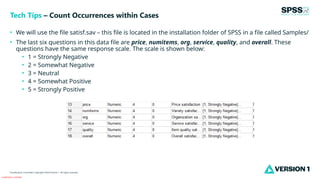
• We will use the file satisf.sav – this file is located in the installation folder of SPSS in a file called Samples/
• The last six questions in this data file are price, numitems, org, service, quality, and overall. These
questions have the same response scale. The scale is shown below:
• 1 = Strongly Negative
• 2 = Somewhat Negative
• 3 = Neutral
• 4 = Somewhat Positive
• 5 = Strongly Positive
Tech Tips – Count Occurrences within Cases
Classification: Controlled
Classification: Controlled. Copyright ©2024 Version 1. All rights reserved.
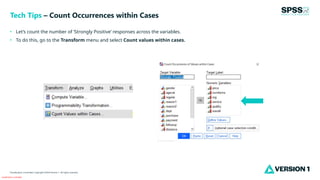
• Let’s count the number of ‘Strongly Positive’ responses across the variables.
• To do this, go to the Transform menu and select Count values within cases.
Tech Tips – Count Occurrences within Cases
Classification: Controlled
Classification: Controlled. Copyright ©2024 Version 1. All rights reserved.
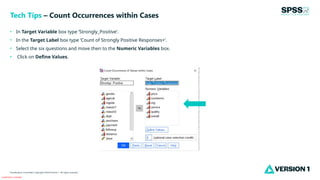
• In Target Variable box type ‘Strongly_Positive’.
• In the Target Label box type ‘Count of Strongly Positive Responses+’.
• Select the six questions and move then to the Numeric Variables box.
• Click on Define Values.
Tech Tips – Count Occurrences within Cases
Classification: Controlled
Classification: Controlled. Copyright ©2024 Version 1. All rights reserved.
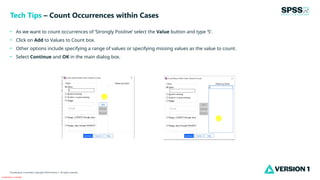
• As we want to count occurrences of ‘Strongly Positive’ select the Value button and type ‘5’.
• Click on Add to Values to Count box.
• Other options include specifying a range of values or specifying missing values as the value to count.
• Select Continue and OK in the main dialog box.
Tech Tips – Count Occurrences within Cases
Classification: Controlled
Classification: Controlled. Copyright ©2024 Version 1. All rights reserved.
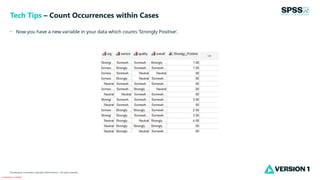
• Now you have a new variable in your data which counts ‘Strongly Positive’.
Tech Tips – Count Occurrences within Cases
Classification: Controlled
Classification: Controlled. Copyright ©2024 Version 1. All rights reserved.
• The If cases dialog box allows you to count occurrences of values for a subset of cases using
conditional expressions
• If the result of a conditional expression is true, the case is included in the selected subset
• If the results of a conditional expression false or missing, the case is not included in the
selected subset
Tech Tips – Count Occurrences within Cases
Classification: Controlled
Classification: Controlled. Copyright ©2024 Version 1. All rights reserved.
For more information
please visit spssanalyticspartner.com
Thank You

SPSS Statistics - Count Occurrences within Cases.pptx

  • 1.
    Classification: Controlled Classification: Controlled.Copyright ©2024 Version 1. All rights reserved. Count Occurrences within Cases Tech Tips – IBM SPSS Statistics
  • 2.
    Classification: Controlled Classification: Controlled.Copyright ©2024 Version 1. All rights reserved. • Did you know that you can count occurrences within cases? • You might have a satisfaction survey that contains a lot of questions with the same scale. • You can use this procedure to calculate the total number of ‘Very Satisfied’ responses respondent gave across a number of questions. • Or, you might have a survey that contains a list of magazines where each magazine is a variable in your data and each respondent indicates Yes or No for each magazine. • You can use this procedure to calculate the total number of magazines each person reads. Tech Tips – Count Occurrences within Cases
  • 3.
    Classification: Controlled Classification: Controlled.Copyright ©2024 Version 1. All rights reserved. • We will use the file satisf.sav – this file is located in the installation folder of SPSS in a file called Samples/ • The last six questions in this data file are price, numitems, org, service, quality, and overall. These questions have the same response scale. The scale is shown below: • 1 = Strongly Negative • 2 = Somewhat Negative • 3 = Neutral • 4 = Somewhat Positive • 5 = Strongly Positive Tech Tips – Count Occurrences within Cases
  • 4.
    Classification: Controlled Classification: Controlled.Copyright ©2024 Version 1. All rights reserved. • Let’s count the number of ‘Strongly Positive’ responses across the variables. • To do this, go to the Transform menu and select Count values within cases. Tech Tips – Count Occurrences within Cases
  • 5.
    Classification: Controlled Classification: Controlled.Copyright ©2024 Version 1. All rights reserved. • In Target Variable box type ‘Strongly_Positive’. • In the Target Label box type ‘Count of Strongly Positive Responses+’. • Select the six questions and move then to the Numeric Variables box. • Click on Define Values. Tech Tips – Count Occurrences within Cases
  • 6.
    Classification: Controlled Classification: Controlled.Copyright ©2024 Version 1. All rights reserved. • As we want to count occurrences of ‘Strongly Positive’ select the Value button and type ‘5’. • Click on Add to Values to Count box. • Other options include specifying a range of values or specifying missing values as the value to count. • Select Continue and OK in the main dialog box. Tech Tips – Count Occurrences within Cases
  • 7.
    Classification: Controlled Classification: Controlled.Copyright ©2024 Version 1. All rights reserved. • Now you have a new variable in your data which counts ‘Strongly Positive’. Tech Tips – Count Occurrences within Cases
  • 8.
    Classification: Controlled Classification: Controlled.Copyright ©2024 Version 1. All rights reserved. • The If cases dialog box allows you to count occurrences of values for a subset of cases using conditional expressions • If the result of a conditional expression is true, the case is included in the selected subset • If the results of a conditional expression false or missing, the case is not included in the selected subset Tech Tips – Count Occurrences within Cases
  • 9.
    Classification: Controlled Classification: Controlled.Copyright ©2024 Version 1. All rights reserved. For more information please visit spssanalyticspartner.com Thank You