(Statistical Package
for Social Science)
Professor Dr. AB Rajar, MBBS, Dip-Diab, MPH, Ph.D. CPHE
Director of Research and Innovative Center
[IBN-E-SINA UNIVERSITY]
PROF DR AB RAJAR //DRABRAJAR@GMAIL.COM 1
LEARNING OBJECTIVES
A
•Introduction to
SPSS
B
•Account setting
C
•Downloading &
Installation
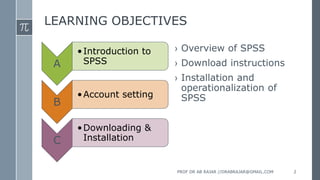
› Overview of SPSS
› Download instructions
› Installation and
operationalization of
SPSS
PROF DR AB RAJAR //DRABRAJAR@GMAIL.COM 2
INTRODUCTION
 Originally it is an acronym of Statistical Package
for the Social Science but now it stands for
Statistical Product and Service Solutions
 One of the most popular statistical packages
which can perform highly complex data
manipulation and analysis with simple instructions
PROF DR AB RAJAR //DRABRAJAR@GMAIL.COM 3
INTRODUCTION
› A commercially produced statistical software package that is
widely used in the field of Education, Medication,
Economics, and Industry.
› Program functionality is broken into over a dozen different
modules which are sold individually.
› Most commonly used are Base, Regression Models, and
Advanced Modules.
› SPSS data files include both the data and also variable
information (variable and value labels, formats, and missing
values)
PROF DR AB RAJAR //DRABRAJAR@GMAIL.COM 4
INTRODUCTION
› SPSS is a powerful and flexible system for
statistical and information analysis
› With SPSS we can …
 Prepare Statistical tables, Graphs, Pie charts,
Frequency polygon curves, histograms, etc.
 Comparison of mean with t-test, Z-test, ANOVA,
etc.
 Perform advanced statistical analysis like multiple
regression, factor analysis, analysis of variance,
etc.
PROF DR AB RAJAR //DRABRAJAR@GMAIL.COM 5
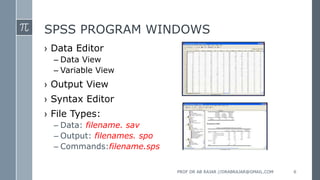
SPSS PROGRAM WINDOWS
› Data Editor
– Data View
– Variable View
› Output View
› Syntax Editor
› File Types:
– Data: filename. sav
– Output: filenames. spo
– Commands:filename.sps
PROF DR AB RAJAR //DRABRAJAR@GMAIL.COM 6
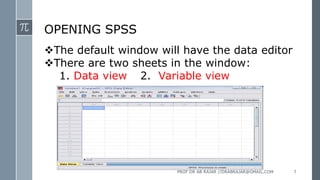
OPENING SPSS
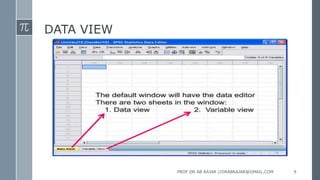
The default window will have the data editor
There are two sheets in the window:
1. Data view 2. Variable view
PROF DR AB RAJAR //DRABRAJAR@GMAIL.COM 7
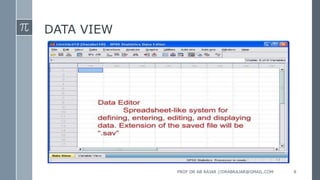
DATA VIEW
PROF DR AB RAJAR //DRABRAJAR@GMAIL.COM 8
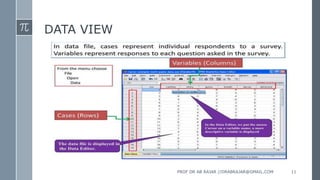
DATA VIEW
PROF DR AB RAJAR //DRABRAJAR@GMAIL.COM 9
DATA VIEW
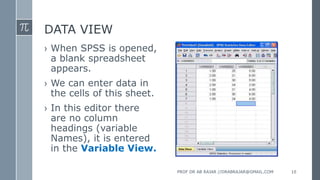
› When SPSS is opened,
a blank spreadsheet
appears.
› We can enter data in
the cells of this sheet.
› In this editor there
are no column
headings (variable
Names), it is entered
in the Variable View.
PROF DR AB RAJAR //DRABRAJAR@GMAIL.COM 10
DATA VIEW
PROF DR AB RAJAR //DRABRAJAR@GMAIL.COM 11
VARIABLE VIEW
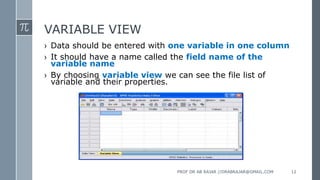
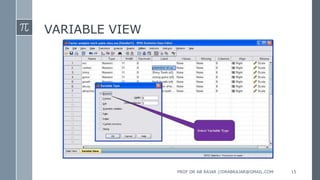
› Data should be entered with one variable in one column
› It should have a name called the field name of the
variable name
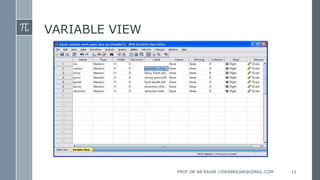
› By choosing variable view we can see the file list of
variable and their properties.
PROF DR AB RAJAR //DRABRAJAR@GMAIL.COM 12
VARIABLE VIEW
PROF DR AB RAJAR //DRABRAJAR@GMAIL.COM 13
VARIABLE VIEW
› Rules for Naming the variables
• Special characters like, @,# are not allowed in
defining names.
• No two fields should have the same name
• Names should not have spaces in between
• Educational level is wrong
• EDU_LEV is preferred
• SPSS would pick up duplicate names and assigns a
new and unique name like V1, V2, etc.
PROF DR AB RAJAR //DRABRAJAR@GMAIL.COM 14
VARIABLE VIEW
PROF DR AB RAJAR //DRABRAJAR@GMAIL.COM 15
VARIABLE VIEW
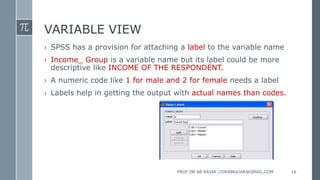
› SPSS has a provision for attaching a label to the variable name
› Income_ Group is a variable name but its label could be more
descriptive like INCOME OF THE RESPONDENT.
› A numeric code like 1 for male and 2 for female needs a label
› Labels help in getting the output with actual names than codes.
PROF DR AB RAJAR //DRABRAJAR@GMAIL.COM 16
SCALES OF MEASUREMENT
•Nominal Scale - groups or classes
Gender
•Ordinal Scale - order matters
Ranks (top ten videos)
•Interval Scale - difference or distance matters – has
arbitrary zero value.
Temperatures (0F, 0C), Likert Scale
•Ratio Scale - Ratio matters – has a natural zero value.
Salaries
PROF DR AB RAJAR //DRABRAJAR@GMAIL.COM 17
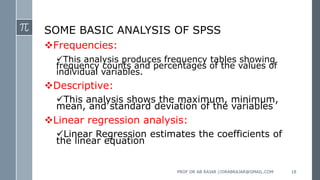
SOME BASIC ANALYSIS OF SPSS
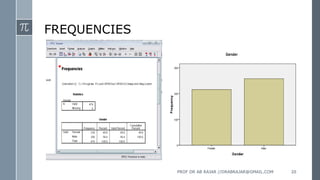
Frequencies:
This analysis produces frequency tables showing
frequency counts and percentages of the values of
individual variables.
Descriptive:
This analysis shows the maximum, minimum,
mean, and standard deviation of the variables
Linear regression analysis:
Linear Regression estimates the coefficients of
the linear equation
PROF DR AB RAJAR //DRABRAJAR@GMAIL.COM 18
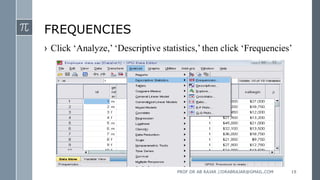
FREQUENCIES
› Click ‘Analyze,’ ‘Descriptive statistics,’ then click ‘Frequencies’
PROF DR AB RAJAR //DRABRAJAR@GMAIL.COM 19
FREQUENCIES
PROF DR AB RAJAR //DRABRAJAR@GMAIL.COM 20
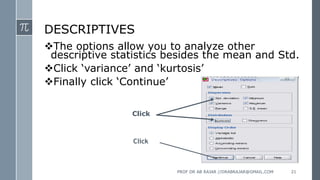
DESCRIPTIVES
The options allow you to analyze other
descriptive statistics besides the mean and Std.
Click ‘variance’ and ‘kurtosis’
Finally click ‘Continue’
Click
Click
PROF DR AB RAJAR //DRABRAJAR@GMAIL.COM 21
DESCRIPTIVES
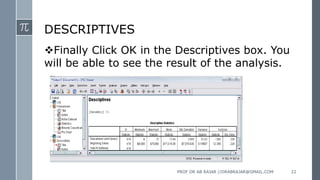
Finally Click OK in the Descriptives box. You
will be able to see the result of the analysis.
PROF DR AB RAJAR //DRABRAJAR@GMAIL.COM 22
GRAPHS
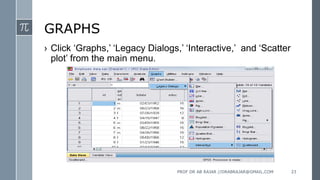
› Click ‘Graphs,’ ‘Legacy Dialogs,’ ‘Interactive,’ and ‘Scatter
plot’ from the main menu.
PROF DR AB RAJAR //DRABRAJAR@GMAIL.COM 23
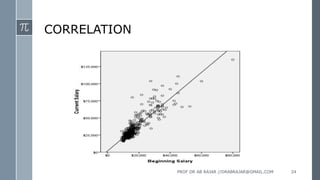
CORRELATION
PROF DR AB RAJAR //DRABRAJAR@GMAIL.COM 24
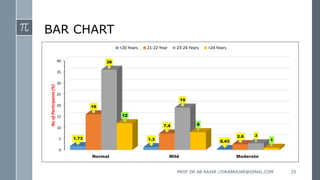
BAR CHART
0
5
10
15
20
25
30
35
40
Normal Mild Moderate
1.73 1.3 0.43
16
7.4
2.6
36
19
3
12
8
1
No
of
Participants
(%)
<20 Years 21-22 Year 23-24 Years >24 Years
PROF DR AB RAJAR //DRABRAJAR@GMAIL.COM 25
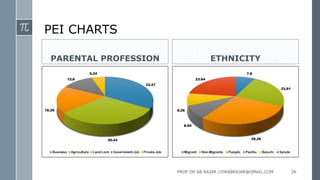
PEI CHARTS
PARENTAL PROFESSION ETHNICITY
PROF DR AB RAJAR //DRABRAJAR@GMAIL.COM 26
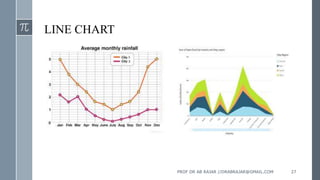
LINE CHART
PROF DR AB RAJAR //DRABRAJAR@GMAIL.COM 27
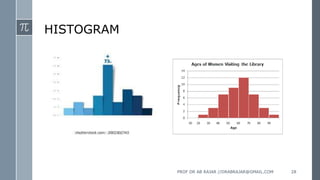
HISTOGRAM
PROF DR AB RAJAR //DRABRAJAR@GMAIL.COM 28
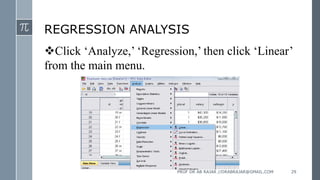
REGRESSION ANALYSIS
Click ‘Analyze,’ ‘Regression,’ then click ‘Linear’
from the main menu.
PROF DR AB RAJAR //DRABRAJAR@GMAIL.COM 29
SPSS, Download/Installation Steps
PROF DR AB RAJAR //DRABRAJAR@GMAIL.COM 30
IBM SPSS download & installation instructions
1. Get the software Authorization Code from
http://sts.fullerton.edu/software/SPSS by clicking on
the Get SPSS Software link.
2. Go to http://www.spss.com and click on Downloads
to download the SPSS Statistics software.
3. Create an account.
4. Install the software based on your operating system.
5. Authorize the software by entering your Authorization
Code
PROF DR AB RAJAR //DRABRAJAR@GMAIL.COM 31
1 Get the software Authorization Code
PROF DR AB RAJAR //DRABRAJAR@GMAIL.COM 32
1 Get the software Authorization Code
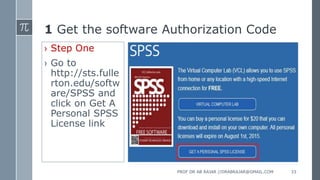
› Step One
› Go to
http://sts.fulle
rton.edu/softw
are/SPSS and
click on Get A
Personal SPSS
License link
PROF DR AB RAJAR //DRABRAJAR@GMAIL.COM 33
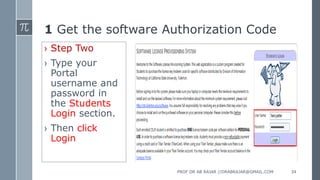
1 Get the software Authorization Code
› Step Two
› Type your
Portal
username and
password in
the Students
Login section.
› Then click
Login
PROF DR AB RAJAR //DRABRAJAR@GMAIL.COM 34
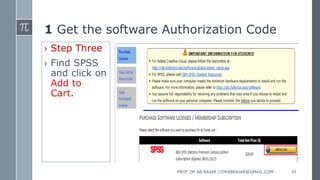
1 Get the software Authorization Code
› Step Three
› Find SPSS
and click on
Add to
Cart.
PROF DR AB RAJAR //DRABRAJAR@GMAIL.COM 35
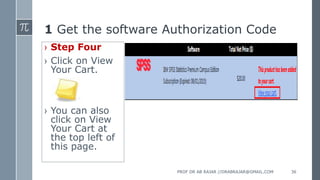
1 Get the software Authorization Code
› Step Four
› Click on View
Your Cart.
› You can also
click on View
Your Cart at
the top left of
this page.
PROF DR AB RAJAR //DRABRAJAR@GMAIL.COM 36
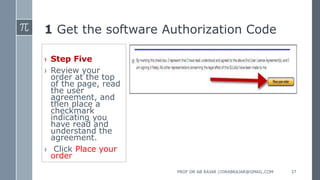
1 Get the software Authorization Code
› Step Five
› Review your
order at the top
of the page, read
the user
agreement, and
then place a
checkmark
indicating you
have read and
understand the
agreement.
› Click Place your
order
PROF DR AB RAJAR //DRABRAJAR@GMAIL.COM 37
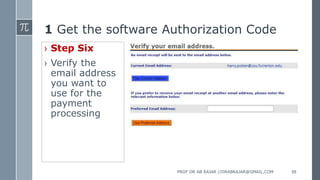
1 Get the software Authorization Code
› Step Six
› Verify the
email address
you want to
use for the
payment
processing
PROF DR AB RAJAR //DRABRAJAR@GMAIL.COM 38
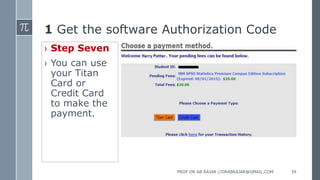
1 Get the software Authorization Code
› Step Seven
› You can use
your Titan
Card or
Credit Card
to make the
payment.
PROF DR AB RAJAR //DRABRAJAR@GMAIL.COM 39
1 Get the software Authorization Code
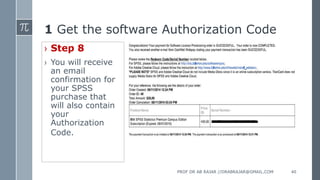
› Step 8
› You will receive
an email
confirmation for
your SPSS
purchase that
will also contain
your
Authorization
Code.
PROF DR AB RAJAR //DRABRAJAR@GMAIL.COM 40
2 Download the Software
PROF DR AB RAJAR //DRABRAJAR@GMAIL.COM 41
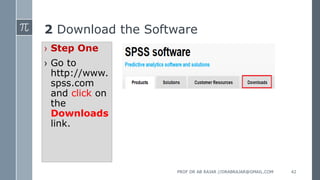
2 Download the Software
› Step One
› Go to
http://www.
spss.com
and click on
the
Downloads
link.
PROF DR AB RAJAR //DRABRAJAR@GMAIL.COM 42
2 Download the Software
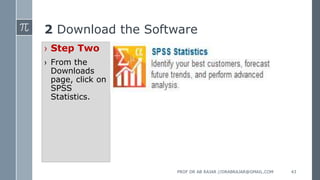
› Step Two
› From the
Downloads
page, click on
SPSS
Statistics.
PROF DR AB RAJAR //DRABRAJAR@GMAIL.COM 43
2 Download the Software
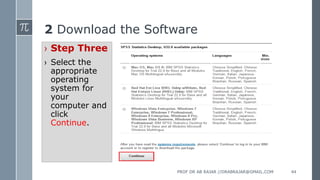
› Step Three
› Select the
appropriate
operating
system for
your
computer and
click
Continue.
PROF DR AB RAJAR //DRABRAJAR@GMAIL.COM 44
3 Create an Account
PROF DR AB RAJAR //DRABRAJAR@GMAIL.COM 45
3 Create an Account
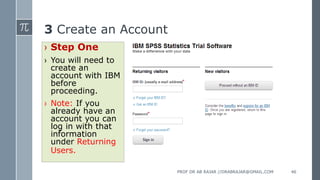
› Step One
› You will need to
create an
account with IBM
before
proceeding.
› Note: If you
already have an
account you can
log in with that
information
under Returning
Users.
PROF DR AB RAJAR //DRABRAJAR@GMAIL.COM 46
3 Create an Account
› Step Two
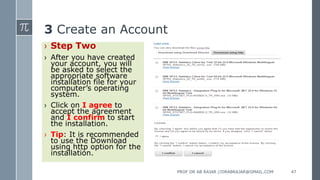
› After you have created
your account, you will
be asked to select the
appropriate software
installation file for your
computer’s operating
system.
› Click on I agree to
accept the agreement
and I confirm to start
the installation.
› Tip: It is recommended
to use the Download
using http option for the
installation.
PROF DR AB RAJAR //DRABRAJAR@GMAIL.COM 47
4 Installing your software
PROF DR AB RAJAR //DRABRAJAR@GMAIL.COM 48
4 Installing your software
› Step One
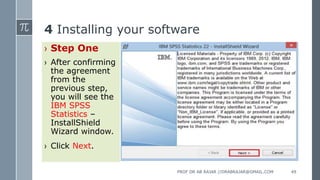
› After confirming
the agreement
from the
previous step,
you will see the
IBM SPSS
Statistics –
InstallShield
Wizard window.
› Click Next.
PROF DR AB RAJAR //DRABRAJAR@GMAIL.COM 49
4 Installing your software
› Step Two
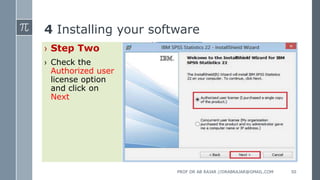
› Check the
Authorized user
license option
and click on
Next
PROF DR AB RAJAR //DRABRAJAR@GMAIL.COM 50
4 Installing your software
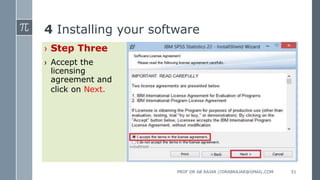
› Step Three
› Accept the
licensing
agreement and
click on Next.
PROF DR AB RAJAR //DRABRAJAR@GMAIL.COM 51
4 Installing your software
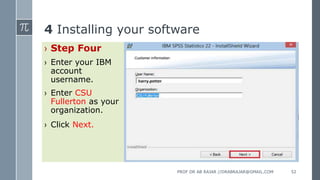
› Step Four
› Enter your IBM
account
username.
› Enter CSU
Fullerton as your
organization.
› Click Next.
PROF DR AB RAJAR //DRABRAJAR@GMAIL.COM 52
4 Installing your software
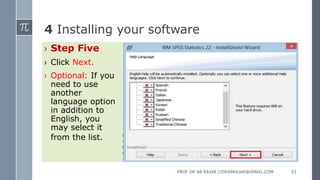
› Step Five
› Click Next.
› Optional: If you
need to use
another
language option
in addition to
English, you
may select it
from the list.
PROF DR AB RAJAR //DRABRAJAR@GMAIL.COM 53
4 Installing your software
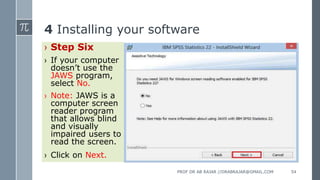
› Step Six
› If your computer
doesn’t use the
JAWS program,
select No.
› Note: JAWS is a
computer screen
reader program
that allows blind
and visually
impaired users to
read the screen.
› Click on Next.
PROF DR AB RAJAR //DRABRAJAR@GMAIL.COM 54
4 Installing your software
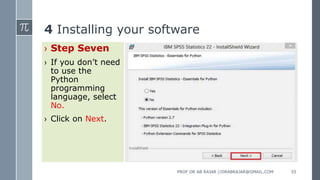
› Step Seven
› If you don’t need
to use the
Python
programming
language, select
No.
› Click on Next.
PROF DR AB RAJAR //DRABRAJAR@GMAIL.COM 55
4 Installing your software
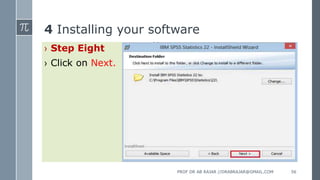
› Step Eight
› Click on Next.
PROF DR AB RAJAR //DRABRAJAR@GMAIL.COM 56
4 Installing your software
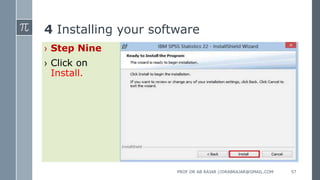
› Step Nine
› Click on
Install.
PROF DR AB RAJAR //DRABRAJAR@GMAIL.COM 57
4 Installing your software
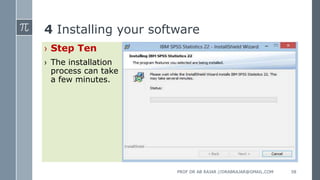
› Step Ten
› The installation
process can take
a few minutes.
PROF DR AB RAJAR //DRABRAJAR@GMAIL.COM 58
4 Installing your software
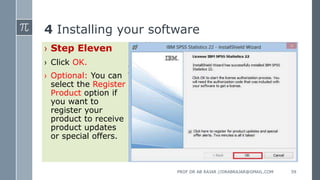
› Step Eleven
› Click OK.
› Optional: You can
select the Register
Product option if
you want to
register your
product to receive
product updates
or special offers.
PROF DR AB RAJAR //DRABRAJAR@GMAIL.COM 59
5 Authorize your software
PROF DR AB RAJAR //DRABRAJAR@GMAIL.COM 60
5 Authorize your software
› Once the software has been installed, you will be prompted to
authorize it.
› OMG I can’t find my Authorization Code!
› Don’t panic! First, check your student email account. You should have
received an email with the license serial number when you placed the
order.
› I think I deleted that email!
› Okay. Go to https://apps.fullerton.edu/E-Licensing and select
Students. Log on with your Portal username and password. Click
View Purchased License on the left. Voila! There are all of the
serial numbers for the software that you purchased through
CSUF.
PROF DR AB RAJAR //DRABRAJAR@GMAIL.COM 61
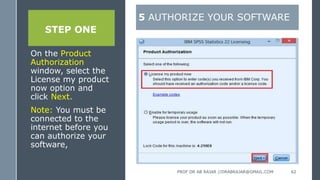
STEP ONE
On the Product
Authorization
window, select the
License my product
now option and
click Next.
Note: You must be
connected to the
internet before you
can authorize your
software,
5 AUTHORIZE YOUR SOFTWARE
PROF DR AB RAJAR //DRABRAJAR@GMAIL.COM 62
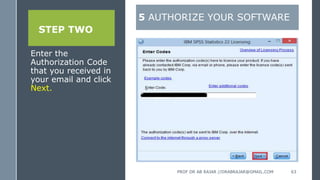
STEP TWO
Enter the
Authorization Code
that you received in
your email and click
Next.
5 AUTHORIZE YOUR SOFTWARE
PROF DR AB RAJAR //DRABRAJAR@GMAIL.COM 63
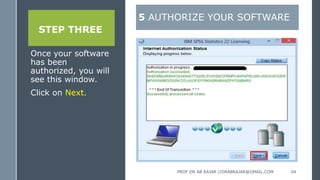
STEP THREE
Once your software
has been
authorized, you will
see this window.
Click on Next.
5 AUTHORIZE YOUR SOFTWARE
PROF DR AB RAJAR //DRABRAJAR@GMAIL.COM 64
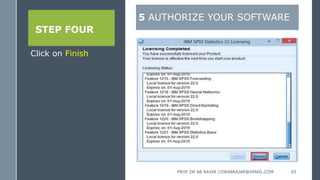
STEP FOUR
Click on Finish
5 AUTHORIZE YOUR SOFTWARE
PROF DR AB RAJAR //DRABRAJAR@GMAIL.COM 65
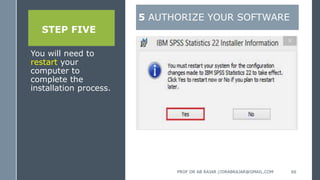
STEP FIVE
You will need to
restart your
computer to
complete the
installation process.
5 AUTHORIZE YOUR SOFTWARE
PROF DR AB RAJAR //DRABRAJAR@GMAIL.COM 66
THANK YOU
PROF DR AB RAJAR //DRABRAJAR@GMAIL.COM 67

SPSS DOWNLOAD & INSTALATION.pptx

  • 1.
    (Statistical Package for SocialScience) Professor Dr. AB Rajar, MBBS, Dip-Diab, MPH, Ph.D. CPHE Director of Research and Innovative Center [IBN-E-SINA UNIVERSITY] PROF DR AB RAJAR //DRABRAJAR@GMAIL.COM 1
  • 2.
    LEARNING OBJECTIVES A •Introduction to SPSS B •Accountsetting C •Downloading & Installation › Overview of SPSS › Download instructions › Installation and operationalization of SPSS PROF DR AB RAJAR //DRABRAJAR@GMAIL.COM 2
  • 3.
    INTRODUCTION  Originally itis an acronym of Statistical Package for the Social Science but now it stands for Statistical Product and Service Solutions  One of the most popular statistical packages which can perform highly complex data manipulation and analysis with simple instructions PROF DR AB RAJAR //DRABRAJAR@GMAIL.COM 3
  • 4.
    INTRODUCTION › A commerciallyproduced statistical software package that is widely used in the field of Education, Medication, Economics, and Industry. › Program functionality is broken into over a dozen different modules which are sold individually. › Most commonly used are Base, Regression Models, and Advanced Modules. › SPSS data files include both the data and also variable information (variable and value labels, formats, and missing values) PROF DR AB RAJAR //DRABRAJAR@GMAIL.COM 4
  • 5.
    INTRODUCTION › SPSS isa powerful and flexible system for statistical and information analysis › With SPSS we can …  Prepare Statistical tables, Graphs, Pie charts, Frequency polygon curves, histograms, etc.  Comparison of mean with t-test, Z-test, ANOVA, etc.  Perform advanced statistical analysis like multiple regression, factor analysis, analysis of variance, etc. PROF DR AB RAJAR //DRABRAJAR@GMAIL.COM 5
  • 6.
    SPSS PROGRAM WINDOWS ›Data Editor – Data View – Variable View › Output View › Syntax Editor › File Types: – Data: filename. sav – Output: filenames. spo – Commands:filename.sps PROF DR AB RAJAR //DRABRAJAR@GMAIL.COM 6
  • 7.
    OPENING SPSS The defaultwindow will have the data editor There are two sheets in the window: 1. Data view 2. Variable view PROF DR AB RAJAR //DRABRAJAR@GMAIL.COM 7
  • 8.
    DATA VIEW PROF DRAB RAJAR //DRABRAJAR@GMAIL.COM 8
  • 9.
    DATA VIEW PROF DRAB RAJAR //DRABRAJAR@GMAIL.COM 9
  • 10.
    DATA VIEW › WhenSPSS is opened, a blank spreadsheet appears. › We can enter data in the cells of this sheet. › In this editor there are no column headings (variable Names), it is entered in the Variable View. PROF DR AB RAJAR //DRABRAJAR@GMAIL.COM 10
  • 11.
    DATA VIEW PROF DRAB RAJAR //DRABRAJAR@GMAIL.COM 11
  • 12.
    VARIABLE VIEW › Datashould be entered with one variable in one column › It should have a name called the field name of the variable name › By choosing variable view we can see the file list of variable and their properties. PROF DR AB RAJAR //DRABRAJAR@GMAIL.COM 12
  • 13.
    VARIABLE VIEW PROF DRAB RAJAR //DRABRAJAR@GMAIL.COM 13
  • 14.
    VARIABLE VIEW › Rulesfor Naming the variables • Special characters like, @,# are not allowed in defining names. • No two fields should have the same name • Names should not have spaces in between • Educational level is wrong • EDU_LEV is preferred • SPSS would pick up duplicate names and assigns a new and unique name like V1, V2, etc. PROF DR AB RAJAR //DRABRAJAR@GMAIL.COM 14
  • 15.
    VARIABLE VIEW PROF DRAB RAJAR //DRABRAJAR@GMAIL.COM 15
  • 16.
    VARIABLE VIEW › SPSShas a provision for attaching a label to the variable name › Income_ Group is a variable name but its label could be more descriptive like INCOME OF THE RESPONDENT. › A numeric code like 1 for male and 2 for female needs a label › Labels help in getting the output with actual names than codes. PROF DR AB RAJAR //DRABRAJAR@GMAIL.COM 16
  • 17.
    SCALES OF MEASUREMENT •NominalScale - groups or classes Gender •Ordinal Scale - order matters Ranks (top ten videos) •Interval Scale - difference or distance matters – has arbitrary zero value. Temperatures (0F, 0C), Likert Scale •Ratio Scale - Ratio matters – has a natural zero value. Salaries PROF DR AB RAJAR //DRABRAJAR@GMAIL.COM 17
  • 18.
    SOME BASIC ANALYSISOF SPSS Frequencies: This analysis produces frequency tables showing frequency counts and percentages of the values of individual variables. Descriptive: This analysis shows the maximum, minimum, mean, and standard deviation of the variables Linear regression analysis: Linear Regression estimates the coefficients of the linear equation PROF DR AB RAJAR //DRABRAJAR@GMAIL.COM 18
  • 19.
    FREQUENCIES › Click ‘Analyze,’‘Descriptive statistics,’ then click ‘Frequencies’ PROF DR AB RAJAR //DRABRAJAR@GMAIL.COM 19
  • 20.
    FREQUENCIES PROF DR ABRAJAR //DRABRAJAR@GMAIL.COM 20
  • 21.
    DESCRIPTIVES The options allowyou to analyze other descriptive statistics besides the mean and Std. Click ‘variance’ and ‘kurtosis’ Finally click ‘Continue’ Click Click PROF DR AB RAJAR //DRABRAJAR@GMAIL.COM 21
  • 22.
    DESCRIPTIVES Finally Click OKin the Descriptives box. You will be able to see the result of the analysis. PROF DR AB RAJAR //DRABRAJAR@GMAIL.COM 22
  • 23.
    GRAPHS › Click ‘Graphs,’‘Legacy Dialogs,’ ‘Interactive,’ and ‘Scatter plot’ from the main menu. PROF DR AB RAJAR //DRABRAJAR@GMAIL.COM 23
  • 24.
    CORRELATION PROF DR ABRAJAR //DRABRAJAR@GMAIL.COM 24
  • 25.
    BAR CHART 0 5 10 15 20 25 30 35 40 Normal MildModerate 1.73 1.3 0.43 16 7.4 2.6 36 19 3 12 8 1 No of Participants (%) <20 Years 21-22 Year 23-24 Years >24 Years PROF DR AB RAJAR //DRABRAJAR@GMAIL.COM 25
  • 26.
    PEI CHARTS PARENTAL PROFESSIONETHNICITY PROF DR AB RAJAR //DRABRAJAR@GMAIL.COM 26
  • 27.
    LINE CHART PROF DRAB RAJAR //DRABRAJAR@GMAIL.COM 27
  • 28.
    HISTOGRAM PROF DR ABRAJAR //DRABRAJAR@GMAIL.COM 28
  • 29.
    REGRESSION ANALYSIS Click ‘Analyze,’‘Regression,’ then click ‘Linear’ from the main menu. PROF DR AB RAJAR //DRABRAJAR@GMAIL.COM 29
  • 30.
    SPSS, Download/Installation Steps PROFDR AB RAJAR //DRABRAJAR@GMAIL.COM 30
  • 31.
    IBM SPSS download& installation instructions 1. Get the software Authorization Code from http://sts.fullerton.edu/software/SPSS by clicking on the Get SPSS Software link. 2. Go to http://www.spss.com and click on Downloads to download the SPSS Statistics software. 3. Create an account. 4. Install the software based on your operating system. 5. Authorize the software by entering your Authorization Code PROF DR AB RAJAR //DRABRAJAR@GMAIL.COM 31
  • 32.
    1 Get thesoftware Authorization Code PROF DR AB RAJAR //DRABRAJAR@GMAIL.COM 32
  • 33.
    1 Get thesoftware Authorization Code › Step One › Go to http://sts.fulle rton.edu/softw are/SPSS and click on Get A Personal SPSS License link PROF DR AB RAJAR //DRABRAJAR@GMAIL.COM 33
  • 34.
    1 Get thesoftware Authorization Code › Step Two › Type your Portal username and password in the Students Login section. › Then click Login PROF DR AB RAJAR //DRABRAJAR@GMAIL.COM 34
  • 35.
    1 Get thesoftware Authorization Code › Step Three › Find SPSS and click on Add to Cart. PROF DR AB RAJAR //DRABRAJAR@GMAIL.COM 35
  • 36.
    1 Get thesoftware Authorization Code › Step Four › Click on View Your Cart. › You can also click on View Your Cart at the top left of this page. PROF DR AB RAJAR //DRABRAJAR@GMAIL.COM 36
  • 37.
    1 Get thesoftware Authorization Code › Step Five › Review your order at the top of the page, read the user agreement, and then place a checkmark indicating you have read and understand the agreement. › Click Place your order PROF DR AB RAJAR //DRABRAJAR@GMAIL.COM 37
  • 38.
    1 Get thesoftware Authorization Code › Step Six › Verify the email address you want to use for the payment processing PROF DR AB RAJAR //DRABRAJAR@GMAIL.COM 38
  • 39.
    1 Get thesoftware Authorization Code › Step Seven › You can use your Titan Card or Credit Card to make the payment. PROF DR AB RAJAR //DRABRAJAR@GMAIL.COM 39
  • 40.
    1 Get thesoftware Authorization Code › Step 8 › You will receive an email confirmation for your SPSS purchase that will also contain your Authorization Code. PROF DR AB RAJAR //DRABRAJAR@GMAIL.COM 40
  • 41.
    2 Download theSoftware PROF DR AB RAJAR //DRABRAJAR@GMAIL.COM 41
  • 42.
    2 Download theSoftware › Step One › Go to http://www. spss.com and click on the Downloads link. PROF DR AB RAJAR //DRABRAJAR@GMAIL.COM 42
  • 43.
    2 Download theSoftware › Step Two › From the Downloads page, click on SPSS Statistics. PROF DR AB RAJAR //DRABRAJAR@GMAIL.COM 43
  • 44.
    2 Download theSoftware › Step Three › Select the appropriate operating system for your computer and click Continue. PROF DR AB RAJAR //DRABRAJAR@GMAIL.COM 44
  • 45.
    3 Create anAccount PROF DR AB RAJAR //DRABRAJAR@GMAIL.COM 45
  • 46.
    3 Create anAccount › Step One › You will need to create an account with IBM before proceeding. › Note: If you already have an account you can log in with that information under Returning Users. PROF DR AB RAJAR //DRABRAJAR@GMAIL.COM 46
  • 47.
    3 Create anAccount › Step Two › After you have created your account, you will be asked to select the appropriate software installation file for your computer’s operating system. › Click on I agree to accept the agreement and I confirm to start the installation. › Tip: It is recommended to use the Download using http option for the installation. PROF DR AB RAJAR //DRABRAJAR@GMAIL.COM 47
  • 48.
    4 Installing yoursoftware PROF DR AB RAJAR //DRABRAJAR@GMAIL.COM 48
  • 49.
    4 Installing yoursoftware › Step One › After confirming the agreement from the previous step, you will see the IBM SPSS Statistics – InstallShield Wizard window. › Click Next. PROF DR AB RAJAR //DRABRAJAR@GMAIL.COM 49
  • 50.
    4 Installing yoursoftware › Step Two › Check the Authorized user license option and click on Next PROF DR AB RAJAR //DRABRAJAR@GMAIL.COM 50
  • 51.
    4 Installing yoursoftware › Step Three › Accept the licensing agreement and click on Next. PROF DR AB RAJAR //DRABRAJAR@GMAIL.COM 51
  • 52.
    4 Installing yoursoftware › Step Four › Enter your IBM account username. › Enter CSU Fullerton as your organization. › Click Next. PROF DR AB RAJAR //DRABRAJAR@GMAIL.COM 52
  • 53.
    4 Installing yoursoftware › Step Five › Click Next. › Optional: If you need to use another language option in addition to English, you may select it from the list. PROF DR AB RAJAR //DRABRAJAR@GMAIL.COM 53
  • 54.
    4 Installing yoursoftware › Step Six › If your computer doesn’t use the JAWS program, select No. › Note: JAWS is a computer screen reader program that allows blind and visually impaired users to read the screen. › Click on Next. PROF DR AB RAJAR //DRABRAJAR@GMAIL.COM 54
  • 55.
    4 Installing yoursoftware › Step Seven › If you don’t need to use the Python programming language, select No. › Click on Next. PROF DR AB RAJAR //DRABRAJAR@GMAIL.COM 55
  • 56.
    4 Installing yoursoftware › Step Eight › Click on Next. PROF DR AB RAJAR //DRABRAJAR@GMAIL.COM 56
  • 57.
    4 Installing yoursoftware › Step Nine › Click on Install. PROF DR AB RAJAR //DRABRAJAR@GMAIL.COM 57
  • 58.
    4 Installing yoursoftware › Step Ten › The installation process can take a few minutes. PROF DR AB RAJAR //DRABRAJAR@GMAIL.COM 58
  • 59.
    4 Installing yoursoftware › Step Eleven › Click OK. › Optional: You can select the Register Product option if you want to register your product to receive product updates or special offers. PROF DR AB RAJAR //DRABRAJAR@GMAIL.COM 59
  • 60.
    5 Authorize yoursoftware PROF DR AB RAJAR //DRABRAJAR@GMAIL.COM 60
  • 61.
    5 Authorize yoursoftware › Once the software has been installed, you will be prompted to authorize it. › OMG I can’t find my Authorization Code! › Don’t panic! First, check your student email account. You should have received an email with the license serial number when you placed the order. › I think I deleted that email! › Okay. Go to https://apps.fullerton.edu/E-Licensing and select Students. Log on with your Portal username and password. Click View Purchased License on the left. Voila! There are all of the serial numbers for the software that you purchased through CSUF. PROF DR AB RAJAR //DRABRAJAR@GMAIL.COM 61
  • 62.
    STEP ONE On theProduct Authorization window, select the License my product now option and click Next. Note: You must be connected to the internet before you can authorize your software, 5 AUTHORIZE YOUR SOFTWARE PROF DR AB RAJAR //DRABRAJAR@GMAIL.COM 62
  • 63.
    STEP TWO Enter the AuthorizationCode that you received in your email and click Next. 5 AUTHORIZE YOUR SOFTWARE PROF DR AB RAJAR //DRABRAJAR@GMAIL.COM 63
  • 64.
    STEP THREE Once yoursoftware has been authorized, you will see this window. Click on Next. 5 AUTHORIZE YOUR SOFTWARE PROF DR AB RAJAR //DRABRAJAR@GMAIL.COM 64
  • 65.
    STEP FOUR Click onFinish 5 AUTHORIZE YOUR SOFTWARE PROF DR AB RAJAR //DRABRAJAR@GMAIL.COM 65
  • 66.
    STEP FIVE You willneed to restart your computer to complete the installation process. 5 AUTHORIZE YOUR SOFTWARE PROF DR AB RAJAR //DRABRAJAR@GMAIL.COM 66
  • 67.
    THANK YOU PROF DRAB RAJAR //DRABRAJAR@GMAIL.COM 67