PRACTICAL FILE OF INSTRUMENTATION
       COMPUTATIONAL LABORATORY


                                                                                            SUBMITTED BY:
                                                                                            AMAN PRAKASH
                                                                                            ROLL NO. 112508
                                                                                            BATCH- 2011


                       NATIONAL INSTITUTE OF TECHNICAL TEACHER’S
TRAINING AND RESEARCH ,CHANDIGARH 160019
 
1      INTRODUCTION:                 Single Phase Full Bridge Invertrer Using


IGBT.

1.1  Circuit Modeling Using Simulink   
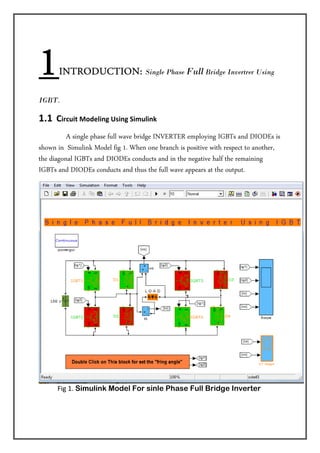
                A single phase full wave bridge INVERTER employing IGBTs and DIODEs is
shown in Simulink Model fig 1. When one branch is positive with respect to another,
the diagonal IGBTs and DIODEs conducts and in the negative half the remaining
IGBTs and DIODEs conducts and thus the full wave appears at the output.


           Fig 1. Simulink Model For sinle Phase Full Bridge Inverter 

 
1.2 Gathering Blocks   
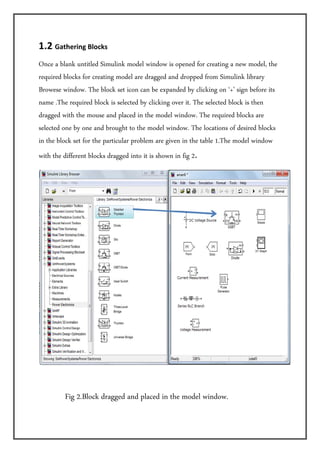
Once a blank untitled Simulink model window is opened for creating a new model, the
required blocks for creating model are dragged and dropped from Simulink library
Browese window. The block set icon can be expanded by clicking on ‘+’ sign before its
name .The required block is selected by clicking over it. The selected block is then
dragged with the mouse and placed in the model window. The required blocks are
selected one by one and brought to the model window. The locations of desired blocks
in the block set for the particular problem are given in the table 1.The model window
with the different blocks dragged into it is shown in fig 2. 


            Fig 2.Block dragged and placed in the model window.


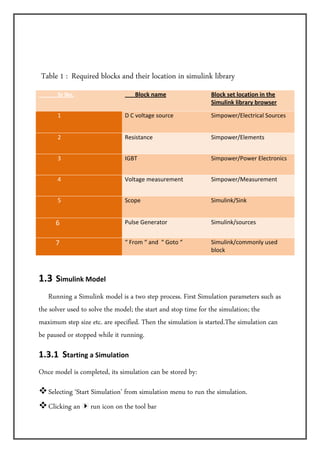
 Table 1 : Required blocks and their location in simulink library
             Sr No.                         Block name          Block set location in the 
                                                                Simulink library browser

             1                       D C voltage source         Simpower/Electrical Sources 


             2                       Resistance                 Simpower/Elements 


             3                       IGBT                       Simpower/Power Electronics 


             4                       Voltage measurement        Simpower/Measurement 


             5                       Scope                      Simulink/Sink 


          6                          Pulse Generator            Simulink/sources 


          7                          “ From “ and  “ Goto “     Simulink/commonly used 
                                                                block 
   

1.3  Simulink Model 
      Running a Simulink model is a two step process. First Simulation parameters such as
the solver used to solve the model; the start and stop time for the simulation; the
maximum step size etc. are specified. Then the simulation is started.The simulation can
be paused or stopped while it running.

1.3.1  Starting a Simulation  
Once model is completed, its simulation can be stored by:

      Selecting ‘Start Simulation’ from simulation menu to run the simulation.
      Clicking an        run icon on the tool bar
Make sure that the model window is the active window before starting a simulation.
Simulink starts the simulation at the start time specified and continues till the
simulation reaches the final time step specified in the solver option. Completion of
simulation will be indicated by a beeping sound. Progress of the simulation is shown at
the bottom of the model window.

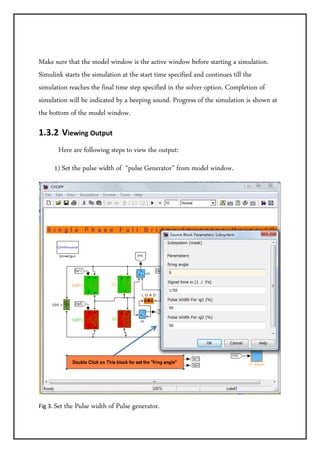
1.3.2  Viewing Output 
         Here are following steps to view the output:
      1) Set the pulse width of “pulse Generator” from model window.


Fig 3. Set   the Pulse width of Pulse generator. 
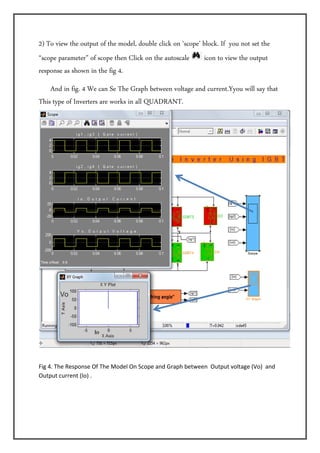
2) To view the output of the model, double click on ‘scope’ block. If you not set the
“scope parameter” of scope then Click on the autoscale      icon to view the output
response as shown in the fig 4.  
    And in fig. 4 We can Se The Graph between voltage and current.Yyou will say that
This type of Inverters are works in all QUADRANT. 


Fig 4. The Response Of The Model On Scope and Graph between  Output voltage (Vo)  and 
Output current (Io) .
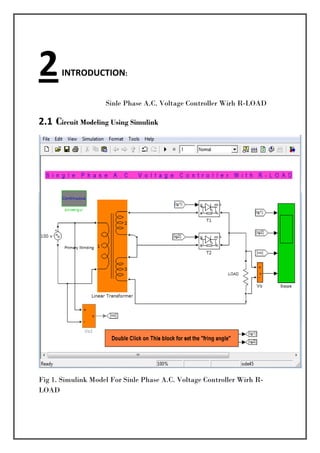
2       INTRODUCTION: 


                    Sinle Phase A.C. Voltage Controller Wirh R-LOAD

2.1  Circuit Modeling Using Simulink  


Fig 1. Simulink Model For Sinle Phase A.C. Voltage Controller Wirh R-
LOAD 

 
AC voltage controller are thyristor based devices which convert fixed alternating Voltage
directly to variable alternating voltage without a change in frequency.
      When thyristor T2 is triggred at t=o,2pi,4pi,....it gets turned on and load voltage
Vo is equal to source voltage Vs.At t=pi,3pi,5pi,.......,as source voltage tends to become
negative,T2 is turned off as load current,io is Zero.

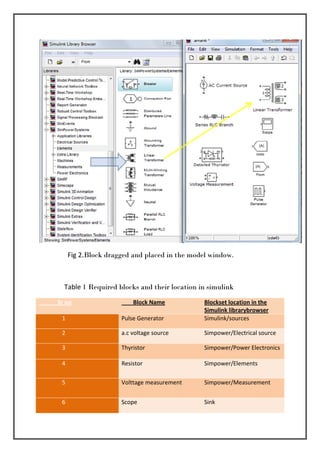
2.2  Gathering Blocks  
Once a blank untitled Simulink model window is opened for creating a new model, the
required blocks for creating model are dragged and dropped from Simulink library
window. The block set icon can be expanded by clicking on ‘+’ sign before its name
.The required block is selected by clicking over it. The selected block is then dragged
with the mouse and placed in the model window. The required blocks are selected one
by one and brought to the model window. The locations of desired blocks in the block
set for the particular problem are given in the table 1.The model window with the
different blocks dragged into it is shown in fig 2.
 
 
                 Fig 2.Block dragged and placed in the model window. 


               Table 1 Required blocks and their location in simulink  
             Sr no                   Block Name            Blockset location in the 
                                                           Simulink librarybrowser
                1            Pulse Generator               Simulink/sources 

                2            a.c voltage source            Simpower/Electrical source 

                3            Thyristor                     Simpower/Power Electronics 

                4            Resistor                      Simpower/Elements 

                5            Volttage measurement          Simpower/Measurement 


                6            Scope                         Sink 
 

2.3  SIMULATING A MODEL 
      Running a Simulink model is a two step process. First Simulation parameters such as
the solver used to solve the model; the start and stop time for the simulation; the
maximum step size etc. are specified. Then the simulation is started.The simulation can
be paused or stopped while it running.

2.3.1  Starting a Simulation  
Once model is completed, its simulation can be stored by:

    • Selecting ‘Start Simulation’ from simulation menu to run the simulation.
    • Clicking an      run icon on the tool bar
    • Pressing ‘ctrl-T’ key on the keyboard
Make sure that the model window is the active window before starting a simulation.
Simulink starts the simulation at the start time specified and continues till the
simulation reaches the final time step specified in the solver option. Completion of
simulation will be indicated by a beeping sound. Progress of the simulation is shown at
the bottom of the model window.
2.3.2  Viewing Output   
Here are following steps to view the output:
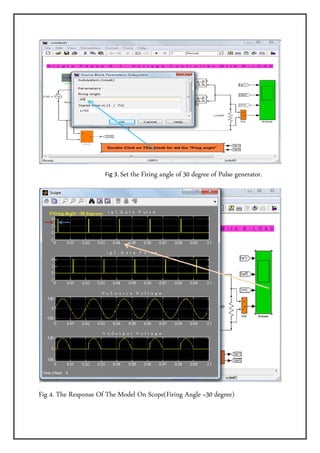
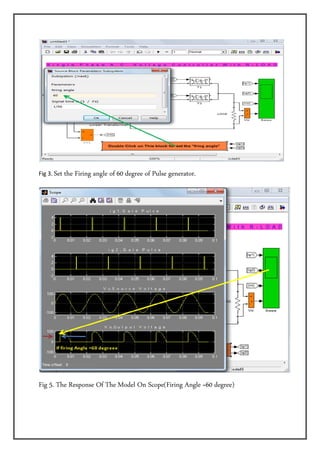
       1) Set the firing angle for thyristor of “pulse Generator” from model window.
          2)To
           view the output of the model, double click on ‘scope’ block. If you not set
the “scope parameter” of scope then Click on the autoscale       icon to view the output
response as shown in the fig 4. And fig 5.  


                      Fig 3. Set   the Firing angle of 30 degree of Pulse generator.


Fig 4. The Response Of The Model On Scope(Firing Angle =30 degree)
 
Fig 3. Set   the Firing angle of 60 degree of Pulse generator.


Fig 5. The Response Of The Model On Scope(Firing Angle =60 degree)
 
3   . INTRODUCTION: 

              SPEED CONTROL OF ASYNCHRONOUS MOTOR
B Y U S I N G V A R Y I N G THE P U L S E O F P U L S E G E N E R A T O R.
3.1  Circuit Modeling Using Simulink  


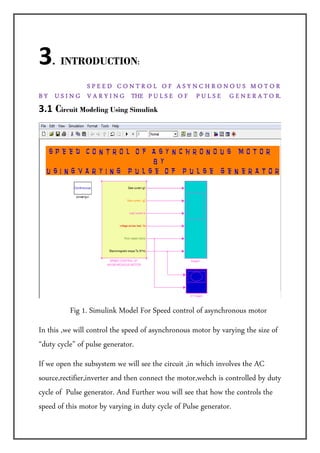
          Fig 1. Simulink Model For Speed control of asynchronous motor
In this ,we will control the speed of asynchronous motor by varying the size of
“duty cycle” of pulse generator.
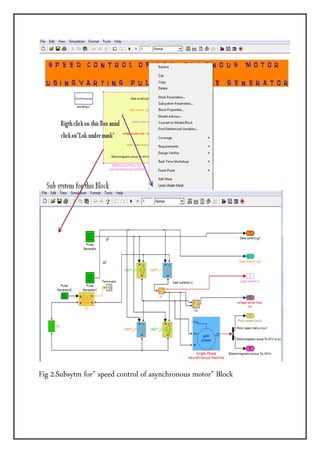
If we open the subsystem we will see the circuit ,in which involves the AC
source,rectifier,inverter and then connect the motor,wehch is controlled by duty
cycle of Pulse generator. And Further wou will see that how the controls the
speed of this motor by varying in duty cycle of Pulse generator.
 
Fig 2.Subsytm for” speed control of asynchronous motor” Block 


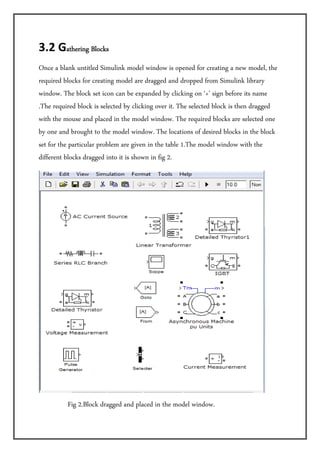
3.2 Gathering Blocks         

Once a blank untitled Simulink model window is opened for creating a new model, the
required blocks for creating model are dragged and dropped from Simulink library
window. The block set icon can be expanded by clicking on ‘+’ sign before its name
.The required block is selected by clicking over it. The selected block is then dragged
with the mouse and placed in the model window. The required blocks are selected one
by one and brought to the model window. The locations of desired blocks in the block
set for the particular problem are given in the table 1.The model window with the
different blocks dragged into it is shown in fig 2.


                 Fig 2.Block dragged and placed in the model window.
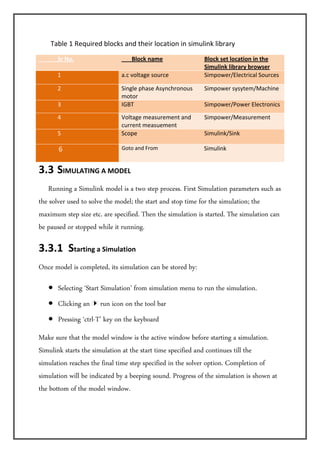
       Table 1 Required blocks and their location in simulink library 
             Sr No.                    Block name            Block set location in the 
                                                             Simulink library browser
             1                  a.c voltage source           Simpower/Electrical Sources 

             2                  Single phase Asynchronous    Simpower sysytem/Machine 
                                motor 
             3                  IGBT                         Simpower/Power Electronics 
             4                  Voltage measurement and      Simpower/Measurement 
                                current measuement 
             5                  Scope                        Simulink/Sink 

           6                    Goto and From                Simulink


3.3  SIMULATING A MODEL 
      Running a Simulink model is a two step process. First Simulation parameters such as
the solver used to solve the model; the start and stop time for the simulation; the
maximum step size etc. are specified. Then the simulation is started. The simulation can
be paused or stopped while it running.

3.3.1  Starting a Simulation  
Once model is completed, its simulation can be stored by:

      • Selecting ‘Start Simulation’ from simulation menu to run the simulation.
      • Clicking an      run icon on the tool bar
      • Pressing ‘ctrl-T’ key on the keyboard
Make sure that the model window is the active window before starting a simulation.
Simulink starts the simulation at the start time specified and continues till the
simulation reaches the final time step specified in the solver option. Completion of
simulation will be indicated by a beeping sound. Progress of the simulation is shown at
the bottom of the model window.
3.3.2  Viewing Output   
         Here are following steps to view the output:
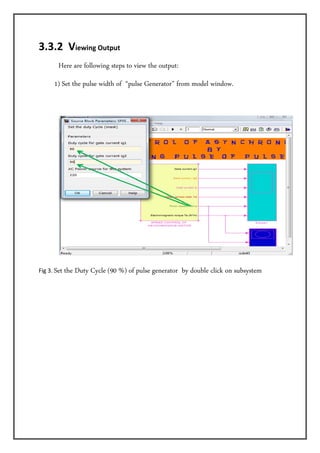
      1) Set the pulse width of “pulse Generator” from model window.


Fig 3. Set   the Duty Cycle (90 %) of pulse generator by double click on subsystem
 
         
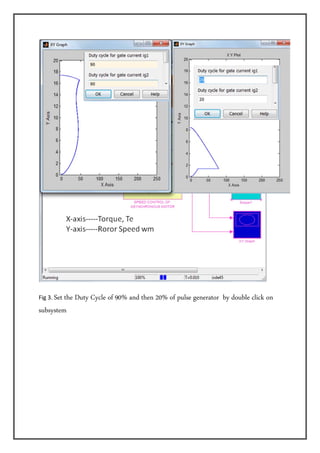
Fig 3. Set
         the Duty Cycle of 90% and then 20% of pulse generator by double click on
subsystem


    4.     INTRODUCTION: 


                          F I R S T Q A D R A N T O R T Y P E "" A "" C H O P P E R 

4.1  Circuit Modeling Using Simulink


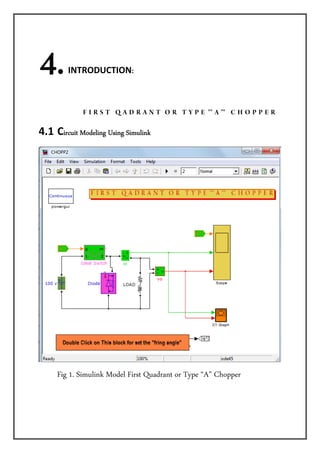
      Fig 1. Simulink Model First Quadrant or Type “A” Chopper
This type of choppers are works in First Quadrant.A chopper is a static device
that converts fixed dc input voltage to a variable DC output voltage.
Chopper is represented by a switch(Ideal switch) ,which may be turned “on”
and “off” as desired.d,During the period of Ton,chopper is “on” and load
voltage is equal to source voltage,Vs. During the interval of Toff,Chopper is
“off” ,load current flows through the freewheeling diode,then load volage is
zero.
During Ton—
-(chopping period) T=Ton+Toff,...................................................................1)
 duty cycle=(Ton/T) , ...................................................................................2)
Vo = (Ton/Ton+Toff) = (Ton/T)*Vs = (duty cycle*Vs) , ..........................3)
Vo=f*Ton*Vs......f=(1/T) ..............................................................................4)
                f = chopping frequency

4.2 Gathering Blocks                

Once a blank untitled Simulink model window is opened for creating a new model, the
required blocks for creating model are dragged and dropped from Simulink library
window. The block set icon can be expanded by clicking on ‘+’ sign before its name
.The required block is selected by clicking over it. The selected block is then dragged
with the mouse and placed in the model window. The required blocks are selected one
by one and brought to the model window. The locations of desired blocks in the block
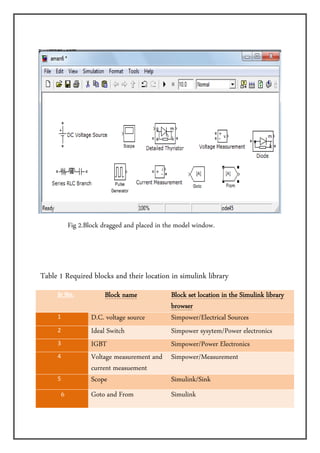
set for the particular problem are given in the table 1.The model window with the
different blocks dragged into it is shown in fig 2.


                 Fig 2.Block dragged and placed in the model window.


 Table 1 Required blocks and their location in simulink library

             Sr No.          Block name          Block set location in the Simulink library
                                                 browser
             1           D.C. voltage source     Simpower/Electrical Sources
             2           Ideal Switch            Simpower sysytem/Power electronics
             3           IGBT                    Simpower/Power Electronics
             4           Voltage measurement and Simpower/Measurement
                         current measuement
             5           Scope                   Simulink/Sink
              6          Goto and From              Simulink
4.3  SIMULATING A MODEL 

 Running  a Simulink model is a two step process. First Simulation parameters such as
the solver used to solve the model; the start and stop time for the simulation; the
maximum step size etc. are specified. Then the simulation is started. The simulation can
be paused or stopped while it running.

4.3.1  Starting a Simulation  
Once model is completed, its simulation can be stored by:

   • Selecting ‘Start Simulation’ from simulation menu to run the simulation.
   • Clicking an       run icon on the tool bar
   • Pressing ‘ctrl-T’ key on the keyboard
Make sure that the model window is the active window before starting a simulation.
Simulink starts the simulation at the start time specified and continues till the
simulation reaches the final time step specified in the solver option. Completion of
simulation will be indicated by a beeping sound. Progress of the simulation is shown at
the bottom of the model window.

4.3.2  Viewing Output  
         Here are following steps to view the output:
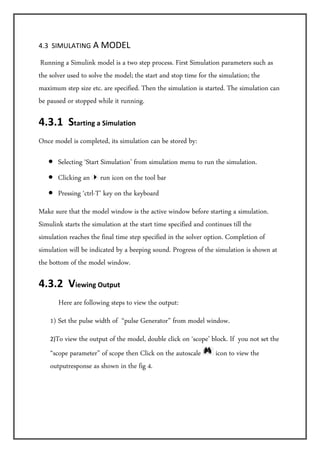
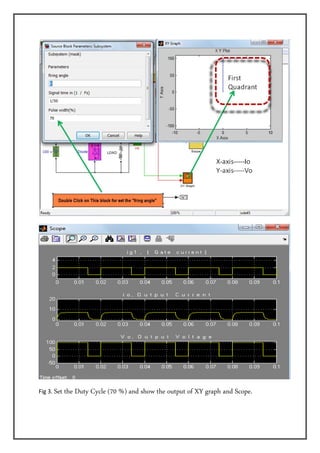
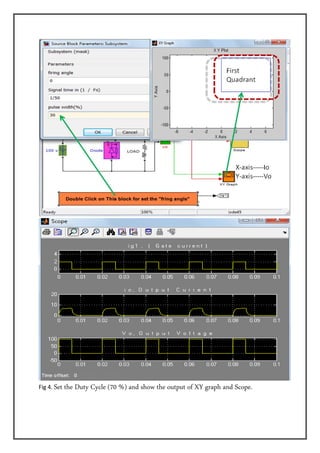
    1) Set the pulse width of “pulse Generator” from model window.
    2)To view the output of the model, double click on ‘scope’ block. If you not set the
    “scope parameter” of scope then Click on the autoscale      icon to view the
    outputresponse as shown in the fig 4.
Fig 3. Set   the Duty Cycle (70 %) and show the output of XY graph and Scope.
Fig 4. Set   the Duty Cycle (70 %) and show the output of XY graph and Scope.
5.        INTRODUCTION 


SINGLE PHASE HALF WAVE CONVERTER DRIVE

5.1  Circuit Modeling Using Simulink


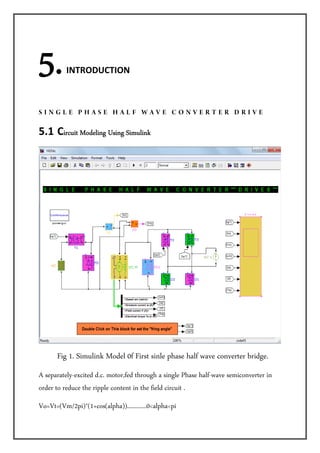
      Fig 1. Simulink Model 0f First sinle phase half wave converter bridge.
A separately-excited d.c. motor,fed through a single Phase half-wave semiconverter in
order to reduce the ripple content in the field circuit .
Vo=Vt=(Vm/2pi)*(1+cos(alpha))............0<alpha<pi
Vm = maximum value of source voltage.

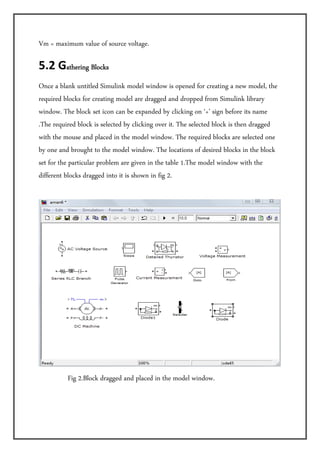
5.2 Gathering Blocks         

Once a blank untitled Simulink model window is opened for creating a new model, the
required blocks for creating model are dragged and dropped from Simulink library
window. The block set icon can be expanded by clicking on ‘+’ sign before its name
.The required block is selected by clicking over it. The selected block is then dragged
with the mouse and placed in the model window. The required blocks are selected one
by one and brought to the model window. The locations of desired blocks in the block
set for the particular problem are given in the table 1.The model window with the
different blocks dragged into it is shown in fig 2.


                 Fig 2.Block dragged and placed in the model window.


 Table 1 Required blocks and their location in simulink library

             Sr No.          Block name          Block set location in the Simulink library
                                                 browser
             1           A . C . voltage source  Simpower/Electrical Sources
             2           Diode                   Simpower sysytem/Power electronics
             3           Thyristor               Simpower/Power Electronics
             4           Voltage measurement and Simpower/Measurement
                         current measuement
             5           Scope                   Simulink/Sink
            6            Goto and From                 Simulink
            7            D.C. Machine                   Simpower system/machines


5.3.1  Starting a Simulation  
Once model is completed, its simulation can be stored by:

      • Selecting ‘Start Simulation’ from simulation menu to run the simulation.
      • Clicking an         run icon on the tool bar
      • Pressing ‘ctrl-T’ key on the keyboard
Make sure that the model window is the active window before starting a simulation.
Simulink starts the simulation at the start time specified and continues till the
simulation reaches the final time step specified in the solver option. Completion of
simulation will be indicated by a beeping sound. Progress of the simulation is shown at
the bottom of the model window.
5.3.2  Viewing Output  
         Here are following steps to view the output:
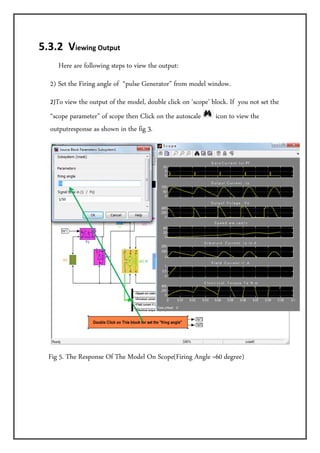
    2) Set the Firing angle of “pulse Generator” from model window.
    2)To view the output of the model, double click on ‘scope’ block. If you not set the
    “scope parameter” of scope then Click on the autoscale      icon to view the
    outputresponse as shown in the fig 3.


   Fig 5. The Response Of The Model On Scope(Firing Angle =60 degree)
 

Simulik pdf

  • 1.
    PRACTICAL FILE OFINSTRUMENTATION COMPUTATIONAL LABORATORY                                                                                                                                                                                                                                 SUBMITTED BY: AMAN PRAKASH ROLL NO. 112508 BATCH- 2011 NATIONAL INSTITUTE OF TECHNICAL TEACHER’S TRAINING AND RESEARCH ,CHANDIGARH 160019  
  • 2.
    1 INTRODUCTION: Single Phase Full Bridge Invertrer Using IGBT. 1.1  Circuit Modeling Using Simulink                    A single phase full wave bridge INVERTER employing IGBTs and DIODEs is shown in Simulink Model fig 1. When one branch is positive with respect to another, the diagonal IGBTs and DIODEs conducts and in the negative half the remaining IGBTs and DIODEs conducts and thus the full wave appears at the output.            Fig 1. Simulink Model For sinle Phase Full Bridge Inverter   
  • 3.
    1.2 Gathering Blocks    Once a blankuntitled Simulink model window is opened for creating a new model, the required blocks for creating model are dragged and dropped from Simulink library Browese window. The block set icon can be expanded by clicking on ‘+’ sign before its name .The required block is selected by clicking over it. The selected block is then dragged with the mouse and placed in the model window. The required blocks are selected one by one and brought to the model window. The locations of desired blocks in the block set for the particular problem are given in the table 1.The model window with the different blocks dragged into it is shown in fig 2.                  Fig 2.Block dragged and placed in the model window.
  • 4.
               Table 1 :Required blocks and their location in simulink library              Sr No.        Block name Block set location in the  Simulink library browser              1  D C voltage source  Simpower/Electrical Sources               2  Resistance  Simpower/Elements               3  IGBT  Simpower/Power Electronics               4         Voltage measurement  Simpower/Measurement               5  Scope  Simulink/Sink            6  Pulse Generator  Simulink/sources            7  “ From “ and  “ Goto “  Simulink/commonly used  block      1.3  Simulink Model        Running a Simulink model is a two step process. First Simulation parameters such as the solver used to solve the model; the start and stop time for the simulation; the maximum step size etc. are specified. Then the simulation is started.The simulation can be paused or stopped while it running. 1.3.1  Starting a Simulation   Once model is completed, its simulation can be stored by: Selecting ‘Start Simulation’ from simulation menu to run the simulation. Clicking an run icon on the tool bar
  • 5.
    Make sure thatthe model window is the active window before starting a simulation. Simulink starts the simulation at the start time specified and continues till the simulation reaches the final time step specified in the solver option. Completion of simulation will be indicated by a beeping sound. Progress of the simulation is shown at the bottom of the model window. 1.3.2  Viewing Output           Here are following steps to view the output: 1) Set the pulse width of “pulse Generator” from model window.    Fig 3. Set the Pulse width of Pulse generator. 
  • 6.
    2) To viewthe output of the model, double click on ‘scope’ block. If you not set the “scope parameter” of scope then Click on the autoscale icon to view the output response as shown in the fig 4.   And in fig. 4 We can Se The Graph between voltage and current.Yyou will say that This type of Inverters are works in all QUADRANT.  Fig 4. The Response Of The Model On Scope and Graph between  Output voltage (Vo)  and  Output current (Io) .
  • 7.
    2   INTRODUCTION:  Sinle Phase A.C. Voltage Controller Wirh R-LOAD 2.1  Circuit Modeling Using Simulink     Fig 1. Simulink Model For Sinle Phase A.C. Voltage Controller Wirh R- LOAD   
  • 8.
    AC voltage controllerare thyristor based devices which convert fixed alternating Voltage directly to variable alternating voltage without a change in frequency. When thyristor T2 is triggred at t=o,2pi,4pi,....it gets turned on and load voltage Vo is equal to source voltage Vs.At t=pi,3pi,5pi,.......,as source voltage tends to become negative,T2 is turned off as load current,io is Zero. 2.2  Gathering Blocks   Once a blank untitled Simulink model window is opened for creating a new model, the required blocks for creating model are dragged and dropped from Simulink library window. The block set icon can be expanded by clicking on ‘+’ sign before its name .The required block is selected by clicking over it. The selected block is then dragged with the mouse and placed in the model window. The required blocks are selected one by one and brought to the model window. The locations of desired blocks in the block set for the particular problem are given in the table 1.The model window with the different blocks dragged into it is shown in fig 2.  
  • 9.
                       Fig 2.Block dragged andplaced in the model window.                   Table 1 Required blocks and their location in simulink                Sr no         Block Name Blockset location in the  Simulink librarybrowser                 1  Pulse Generator  Simulink/sources                  2  a.c voltage source  Simpower/Electrical source                  3        Thyristor  Simpower/Power Electronics                  4  Resistor   Simpower/Elements                  5  Volttage measurement  Simpower/Measurement                  6  Scope  Sink 
  • 10.
      2.3  SIMULATING A MODEL        Runninga Simulink model is a two step process. First Simulation parameters such as the solver used to solve the model; the start and stop time for the simulation; the maximum step size etc. are specified. Then the simulation is started.The simulation can be paused or stopped while it running. 2.3.1  Starting a Simulation   Once model is completed, its simulation can be stored by: • Selecting ‘Start Simulation’ from simulation menu to run the simulation. • Clicking an run icon on the tool bar • Pressing ‘ctrl-T’ key on the keyboard Make sure that the model window is the active window before starting a simulation. Simulink starts the simulation at the start time specified and continues till the simulation reaches the final time step specified in the solver option. Completion of simulation will be indicated by a beeping sound. Progress of the simulation is shown at the bottom of the model window. 2.3.2  Viewing Output    Here are following steps to view the output: 1) Set the firing angle for thyristor of “pulse Generator” from model window.           2)To view the output of the model, double click on ‘scope’ block. If you not set the “scope parameter” of scope then Click on the autoscale icon to view the output response as shown in the fig 4. And fig 5.        
  • 11.
      Fig 3. Set the Firing angle of 30 degree of Pulse generator. Fig 4. The Response Of The Model On Scope(Firing Angle =30 degree)
  • 12.
      Fig 3. Set the Firing angle of 60 degree of Pulse generator. Fig 5. The Response Of The Model On Scope(Firing Angle =60 degree)  
  • 13.
    3 . INTRODUCTION:  SPEED CONTROL OF ASYNCHRONOUS MOTOR B Y U S I N G V A R Y I N G THE P U L S E O F P U L S E G E N E R A T O R. 3.1  Circuit Modeling Using Simulink     Fig 1. Simulink Model For Speed control of asynchronous motor In this ,we will control the speed of asynchronous motor by varying the size of “duty cycle” of pulse generator. If we open the subsystem we will see the circuit ,in which involves the AC source,rectifier,inverter and then connect the motor,wehch is controlled by duty cycle of Pulse generator. And Further wou will see that how the controls the speed of this motor by varying in duty cycle of Pulse generator.
  • 14.
      Fig 2.Subsytm for”speed control of asynchronous motor” Block     
  • 15.
    3.2 Gathering Blocks   Once a blank untitled Simulink model window is opened for creating a new model, the required blocks for creating model are dragged and dropped from Simulink library window. The block set icon can be expanded by clicking on ‘+’ sign before its name .The required block is selected by clicking over it. The selected block is then dragged with the mouse and placed in the model window. The required blocks are selected one by one and brought to the model window. The locations of desired blocks in the block set for the particular problem are given in the table 1.The model window with the different blocks dragged into it is shown in fig 2.                    Fig 2.Block dragged and placed in the model window.
  • 16.
           Table 1 Required blocks and their location in simulink library               Sr No.        Block name Block set location in the  Simulink library browser              1  a.c voltage source  Simpower/Electrical Sources               2  Single phase Asynchronous  Simpower sysytem/Machine  motor               3  IGBT  Simpower/Power Electronics               4         Voltage measurement and  Simpower/Measurement  current measuement               5  Scope  Simulink/Sink            6  Goto and From  Simulink 3.3  SIMULATING A MODEL        Running a Simulink model is a two step process. First Simulation parameters such as the solver used to solve the model; the start and stop time for the simulation; the maximum step size etc. are specified. Then the simulation is started. The simulation can be paused or stopped while it running. 3.3.1  Starting a Simulation   Once model is completed, its simulation can be stored by: • Selecting ‘Start Simulation’ from simulation menu to run the simulation. • Clicking an run icon on the tool bar • Pressing ‘ctrl-T’ key on the keyboard Make sure that the model window is the active window before starting a simulation. Simulink starts the simulation at the start time specified and continues till the simulation reaches the final time step specified in the solver option. Completion of simulation will be indicated by a beeping sound. Progress of the simulation is shown at the bottom of the model window.
  • 17.
    3.3.2  Viewing Output             Here are followingsteps to view the output: 1) Set the pulse width of “pulse Generator” from model window.         Fig 3. Set the Duty Cycle (90 %) of pulse generator by double click on subsystem
  • 18.
        Fig 3. Set the Duty Cycle of 90% and then 20% of pulse generator by double click on subsystem            
  • 19.
      4.   INTRODUCTION:                            F I R S T Q A D R A N T O R T Y P E "" A "" C H O P P E R  4.1  Circuit Modeling Using Simulink Fig 1. Simulink Model First Quadrant or Type “A” Chopper
  • 20.
    This type ofchoppers are works in First Quadrant.A chopper is a static device that converts fixed dc input voltage to a variable DC output voltage. Chopper is represented by a switch(Ideal switch) ,which may be turned “on” and “off” as desired.d,During the period of Ton,chopper is “on” and load voltage is equal to source voltage,Vs. During the interval of Toff,Chopper is “off” ,load current flows through the freewheeling diode,then load volage is zero. During Ton— -(chopping period) T=Ton+Toff,...................................................................1) duty cycle=(Ton/T) , ...................................................................................2) Vo = (Ton/Ton+Toff) = (Ton/T)*Vs = (duty cycle*Vs) , ..........................3) Vo=f*Ton*Vs......f=(1/T) ..............................................................................4) f = chopping frequency 4.2 Gathering Blocks   Once a blank untitled Simulink model window is opened for creating a new model, the required blocks for creating model are dragged and dropped from Simulink library window. The block set icon can be expanded by clicking on ‘+’ sign before its name .The required block is selected by clicking over it. The selected block is then dragged with the mouse and placed in the model window. The required blocks are selected one by one and brought to the model window. The locations of desired blocks in the block set for the particular problem are given in the table 1.The model window with the different blocks dragged into it is shown in fig 2.
  • 21.
                         Fig 2.Block dragged and placed in the model window.             Table 1 Required blocks and their location in simulink library              Sr No. Block name Block set location in the Simulink library browser              1  D.C. voltage source Simpower/Electrical Sources              2  Ideal Switch Simpower sysytem/Power electronics              3  IGBT Simpower/Power Electronics              4         Voltage measurement and Simpower/Measurement current measuement              5  Scope Simulink/Sink 6 Goto and From Simulink
  • 22.
    4.3  SIMULATING A MODEL   Running aSimulink model is a two step process. First Simulation parameters such as the solver used to solve the model; the start and stop time for the simulation; the maximum step size etc. are specified. Then the simulation is started. The simulation can be paused or stopped while it running. 4.3.1  Starting a Simulation   Once model is completed, its simulation can be stored by: • Selecting ‘Start Simulation’ from simulation menu to run the simulation. • Clicking an run icon on the tool bar • Pressing ‘ctrl-T’ key on the keyboard Make sure that the model window is the active window before starting a simulation. Simulink starts the simulation at the start time specified and continues till the simulation reaches the final time step specified in the solver option. Completion of simulation will be indicated by a beeping sound. Progress of the simulation is shown at the bottom of the model window. 4.3.2  Viewing Output            Here are following steps to view the output: 1) Set the pulse width of “pulse Generator” from model window. 2)To view the output of the model, double click on ‘scope’ block. If you not set the “scope parameter” of scope then Click on the autoscale icon to view the outputresponse as shown in the fig 4.
  • 23.
    Fig 3. Set the Duty Cycle (70 %) and show the output of XY graph and Scope.
  • 24.
    Fig 4. Set the Duty Cycle (70 %) and show the output of XY graph and Scope.
  • 25.
    5.   INTRODUCTION  SINGLE PHASE HALF WAVE CONVERTER DRIVE 5.1  Circuit Modeling Using Simulink Fig 1. Simulink Model 0f First sinle phase half wave converter bridge. A separately-excited d.c. motor,fed through a single Phase half-wave semiconverter in order to reduce the ripple content in the field circuit . Vo=Vt=(Vm/2pi)*(1+cos(alpha))............0<alpha<pi
  • 26.
    Vm = maximumvalue of source voltage. 5.2 Gathering Blocks   Once a blank untitled Simulink model window is opened for creating a new model, the required blocks for creating model are dragged and dropped from Simulink library window. The block set icon can be expanded by clicking on ‘+’ sign before its name .The required block is selected by clicking over it. The selected block is then dragged with the mouse and placed in the model window. The required blocks are selected one by one and brought to the model window. The locations of desired blocks in the block set for the particular problem are given in the table 1.The model window with the different blocks dragged into it is shown in fig 2.                      Fig 2.Block dragged and placed in the model window.  
  • 27.
              Table 1 Requiredblocks and their location in simulink library              Sr No. Block name Block set location in the Simulink library browser              1  A . C . voltage source Simpower/Electrical Sources              2  Diode Simpower sysytem/Power electronics              3  Thyristor Simpower/Power Electronics              4         Voltage measurement and Simpower/Measurement current measuement              5  Scope Simulink/Sink 6 Goto and From Simulink 7 D.C. Machine Simpower system/machines   5.3.1  Starting a Simulation   Once model is completed, its simulation can be stored by: • Selecting ‘Start Simulation’ from simulation menu to run the simulation. • Clicking an run icon on the tool bar • Pressing ‘ctrl-T’ key on the keyboard Make sure that the model window is the active window before starting a simulation. Simulink starts the simulation at the start time specified and continues till the simulation reaches the final time step specified in the solver option. Completion of simulation will be indicated by a beeping sound. Progress of the simulation is shown at the bottom of the model window.
  • 28.
    5.3.2  Viewing Output            Here are followingsteps to view the output: 2) Set the Firing angle of “pulse Generator” from model window. 2)To view the output of the model, double click on ‘scope’ block. If you not set the “scope parameter” of scope then Click on the autoscale icon to view the outputresponse as shown in the fig 3. Fig 5. The Response Of The Model On Scope(Firing Angle =60 degree)
  • 29.