Dr. Amy Ackerman
Karen Simmons
Jackie Cruz
Elsann Machotka
Sandy Kirshner
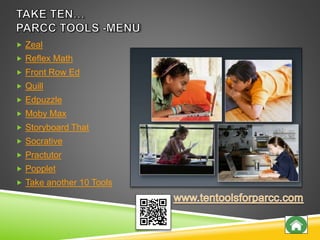
 Zeal
 Reflex Math
 Front Row Ed
 Quill
 Edpuzzle
 Moby Max
 Storyboard That
 Socrative
 Practutor
 Popplet
 Take another 10 Tools
• Find some tools that work
for you.
• Give your students
practice.
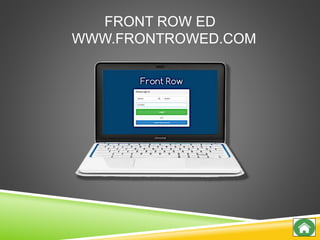
FRONT ROW ED
WWW.FRONTROWED.COM
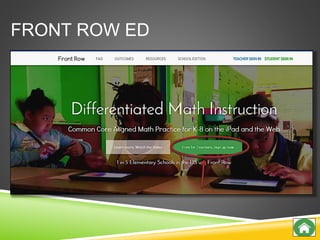
FRONT ROW ED
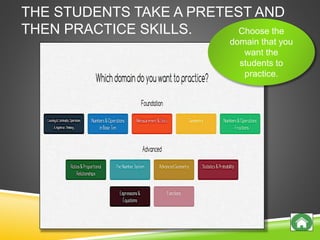
THE STUDENTS TAKE A PRETEST AND
THEN PRACTICE SKILLS. Choose the
domain that you
want the
students to
practice.
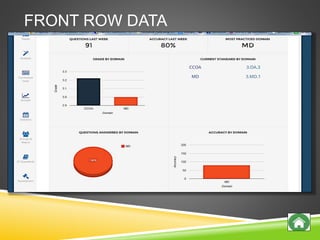
FRONT ROW DATA
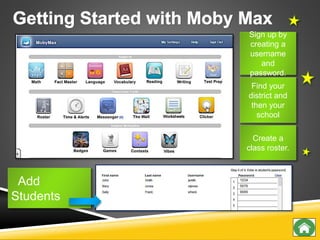
MOBY MAX
WWW.MOBYMAX.COM
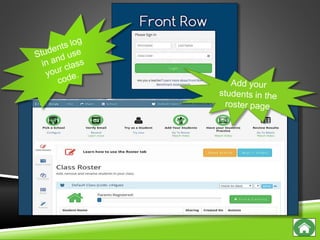
Add
Students
Sign up by
creating a
username
and
password.
Find your
district and
then your
school
Create a
class roster.
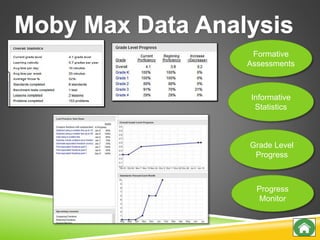
Formative
Assessments
Informative
Statistics
Grade Level
Progress
Progress
Monitor
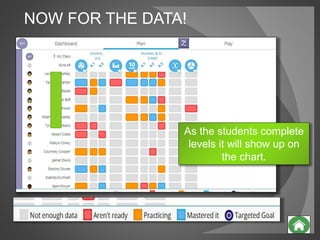
NOW FOR THE DATA!
As the students complete
levels it will show up on
the chart.
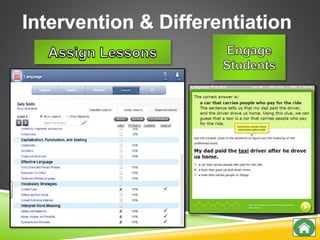
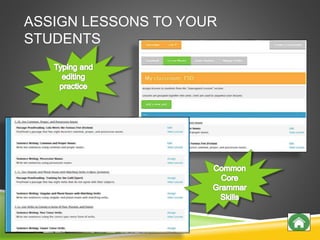
ASSIGN LESSONS TO YOUR
STUDENTS
STORYBOARDTHAT.COM
edpuzzle logo
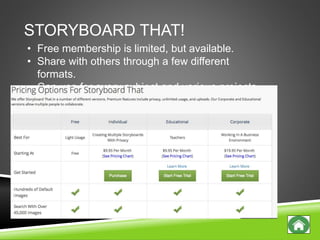
STORYBOARD THAT!
• Free membership is limited, but available.
• Share with others through a few different
formats.
• Can use for every subject and various projects.
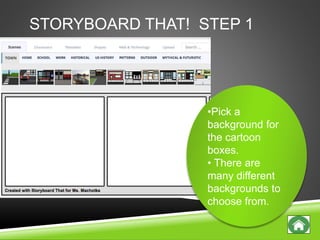
STORYBOARD THAT! STEP 1
•Pick a
background for
the cartoon
boxes.
• There are
many different
backgrounds to
choose from.
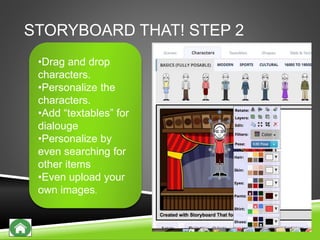
STORYBOARD THAT! STEP 2
•Drag and drop
characters.
•Personalize the
characters.
•Add “textables” for
dialouge
•Personalize by
even searching for
other items
•Even upload your
own images.
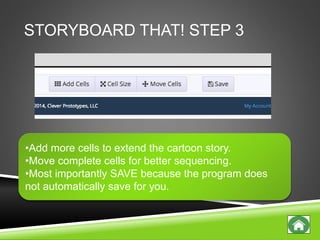
STORYBOARD THAT! STEP 3
•Add more cells to extend the cartoon story.
•Move complete cells for better sequencing.
•Most importantly SAVE because the program does
not automatically save for you.
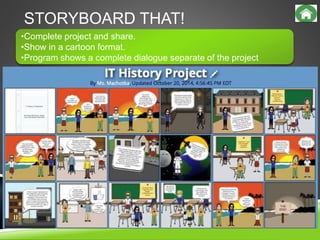
STORYBOARD THAT!
•Complete project and share.
•Show in a cartoon format.
•Program shows a complete dialogue separate of the project
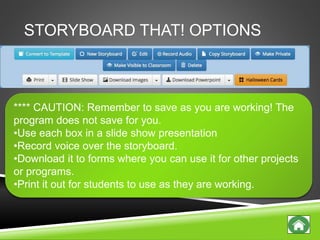
STORYBOARD THAT! OPTIONS
**** CAUTION: Remember to save as you are working! The
program does not save for you.
•Use each box in a slide show presentation
•Record voice over the storyboard.
•Download it to forms where you can use it for other projects
or programs.
•Print it out for students to use as they are working.
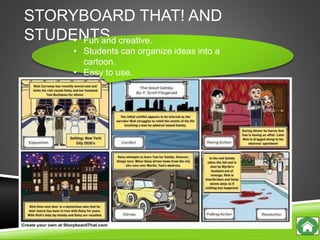
STORYBOARD THAT! AND
STUDENTS• Fun and creative.
• Students can organize ideas into a
cartoon.
• Easy to use.
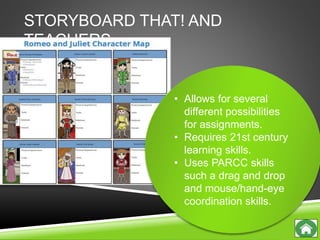
STORYBOARD THAT! AND
TEACHERS
• Allows for several
different possibilities
for assignments.
• Requires 21st century
learning skills.
• Uses PARCC skills
such a drag and drop
and mouse/hand-eye
coordination skills.
STORYBOARD THAT! AND PARCC
• Complete drag and drop
features for creation.
• Text box creation to add
words.
• Uses a lot of scrolling
and other various mouse
control skills throughout
for successful creation.
EDPUZZLE
EDPUZZLE.COM
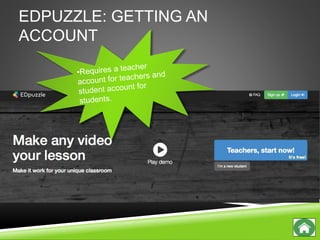
EDPUZZLE: GETTING AN
ACCOUNT
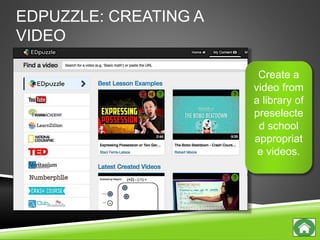
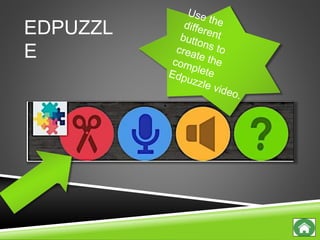
EDPUZZLE: CREATING A
VIDEO
Create a
video from
a library of
preselecte
d school
appropriat
e videos.
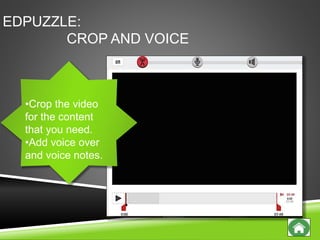
EDPUZZLE:
CROP AND VOICE
•Crop the video
for the content
that you need.
•Add voice over
and voice notes.
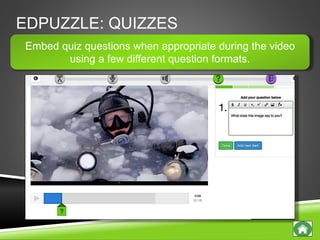
EDPUZZLE: QUIZZES
Embed quiz questions when appropriate during the video
using a few different question formats.
EDPUZZL
E
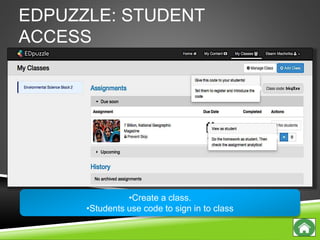
EDPUZZLE: STUDENT
ACCESS
•Create a class.
•Students use code to sign in to class
EDPUZZLE
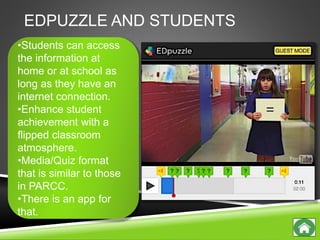
EDPUZZLE AND STUDENTS
•Students can access
the information at
home or at school as
long as they have an
internet connection.
•Enhance student
achievement with a
flipped classroom
atmosphere.
•Media/Quiz format
that is similar to those
in PARCC.
•There is an app for
that.
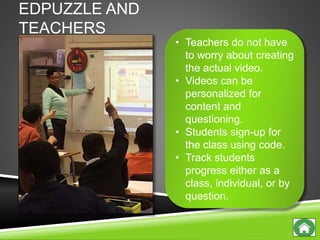
EDPUZZLE AND
TEACHERS
• Teachers do not have
to worry about creating
the actual video.
• Videos can be
personalized for
content and
questioning.
• Students sign-up for
the class using code.
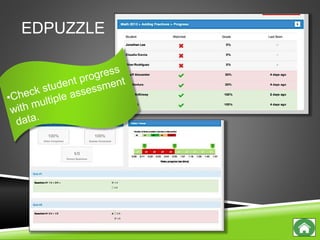
• Track students
progress either as a
class, individual, or by
question.
EDPUZZLE AND PARCC
• Offers different question and response types for quizzes.
• Quiz is embedded right in the content.
• Students have to comprehend information in the media
format that is given.
REFLEX MATH.COM
edpuzzle logo
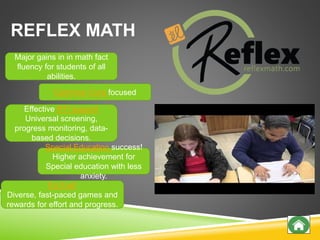
REFLEX MATH
Effective RTI support
Universal screening,
progress monitoring, data-
based decisions.
Common Core focused
Major gains in in math fact
fluency for students of all
abilities.
It’s Fun!
Diverse, fast-paced games and
rewards for effort and progress.
Special Education success!
Higher achievement for
Special education with less
anxiety.
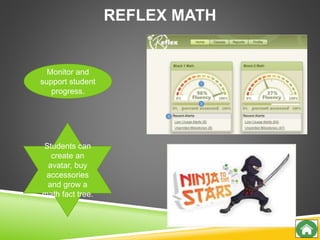
REFLEX MATH
Monitor and
support student
progress.
Students can
create an
avatar, buy
accessories
and grow a
math fact tree.
PRACTUTOR
WWW.PRACTUTOR.COM
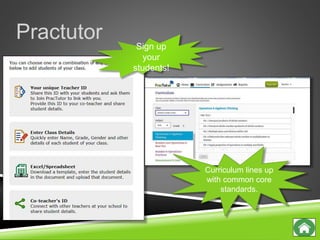
PRACTUTOR
Practutor
Curriculum lines up
with common core
standards.
Sign up
your
students!
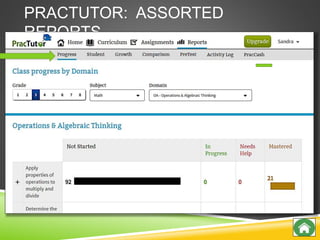
PRACTUTOR: ASSORTED
REPORTS
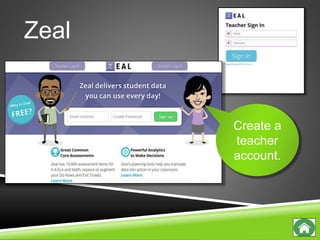
ZEAL:
WWW.ZEAL.COM
Zeal
Create a
teacher
account.
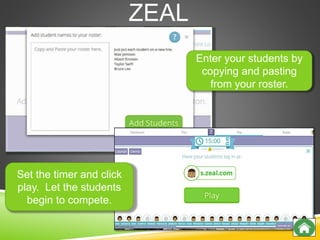
ZEAL
Enter your students by
copying and pasting
from your roster.
Set the timer and click
play. Let the students
begin to compete.
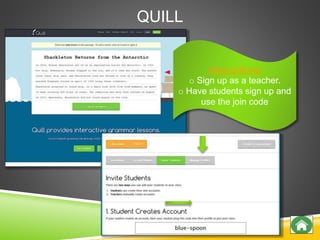
QUILL
WWW.QUILL.ORG
QUILL
www.quill.org
o Sign up as a teacher.
o Have students sign up and
use the join code
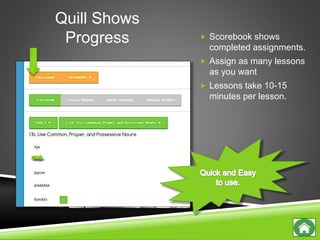
Quill Shows
Progress  Scorebook shows
completed assignments.
 Assign as many lessons
as you want
 Lessons take 10-15
minutes per lesson.
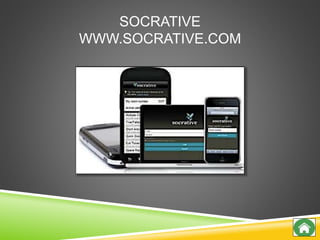
SOCRATIVE
WWW.SOCRATIVE.COM
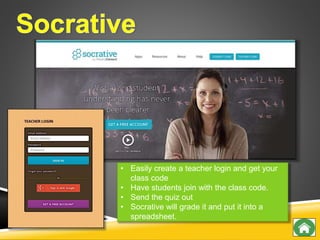
• Easily create a teacher login and get your
class code
• Have students join with the class code.
• Send the quiz out
• Socrative will grade it and put it into a
spreadsheet.
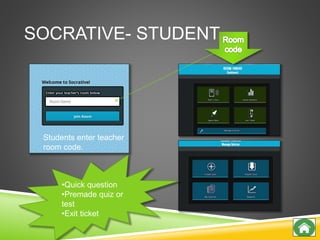
SOCRATIVE- STUDENT
Students enter teacher
room code.
•Quick question
•Premade quiz or
test
•Exit ticket
SOCRATIVE
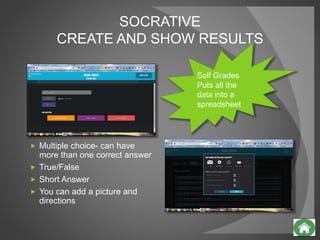
CREATE AND SHOW RESULTS
 Multiple choice- can have
more than one correct answer
 True/False
 Short Answer
 You can add a picture and
directions
Self Grades
Puts all the
data into a
spreadsheet
POPPLET
WWW.POPPLET .COM
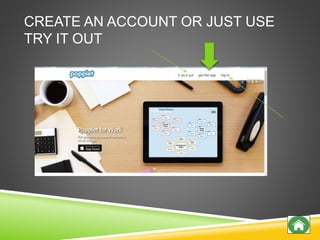
CREATE AN ACCOUNT OR JUST USE
TRY IT OUT
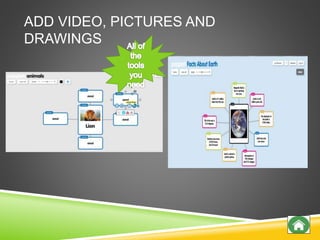
ADD VIDEO, PICTURES AND
DRAWINGS
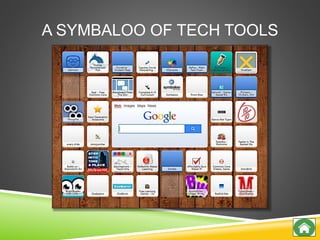
A SYMBALOO OF TECH TOOLS
MORE RESOURCES
 Please feel free to view the following slides there are more tools
on there for you to use!
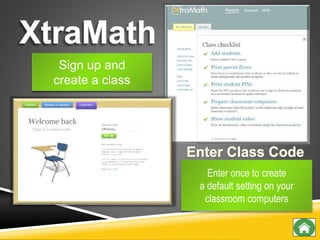
Sign up and
create a class
Enter once to create
a default setting on your
classroom computers
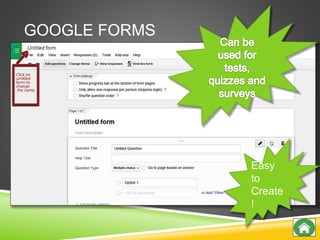
GOOGLE FORMS
HTTP://WWW.GOOGLE.COM/FORMS/ABOUT
/
GOOGLE FORMS
Easy
to
Create
!
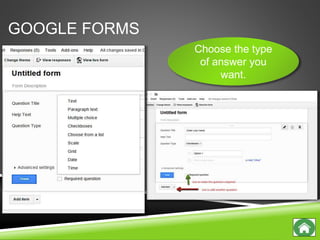
GOOGLE FORMS
Choose the type
of answer you
want.
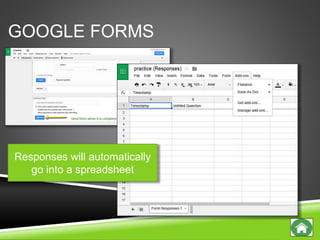
Responses will automatically
go into a spreadsheet
GOOGLE FORMS
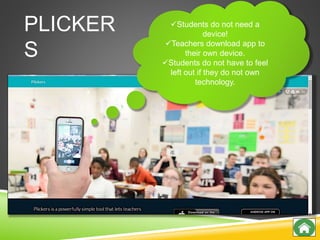
PLICKERS
WWW.PLICKERS.COM
PLICKER
S
Students do not need a
device!
Teachers download app to
their own device.
Students do not have to feel
left out if they do not own
technology.
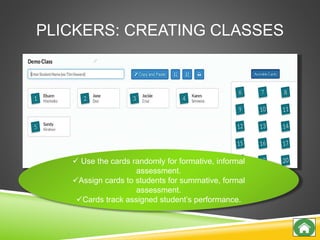
PLICKERS: CREATING CLASSES
 Use the cards randomly for formative, informal
assessment.
Assign cards to students for summative, formal
assessment.
Cards track assigned student’s performance.
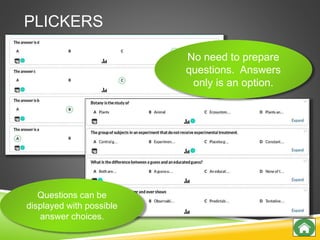
PLICKERS
Questions can be
displayed with possible
answer choices.
No need to prepare
questions. Answers
only is an option.
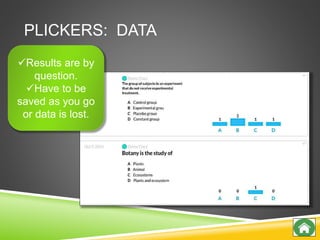
PLICKERS: DATA
Results are by
question.
Have to be
saved as you go
or data is lost.
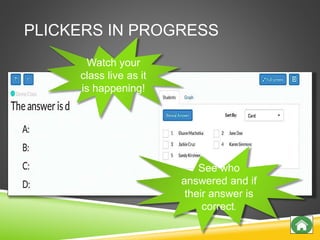
PLICKERS IN PROGRESS
Watch your
class live as it
is happening!
See who
answered and if
their answer is
correct.
KAHOOT!
GETKAHOOT.COM
KAHOOT
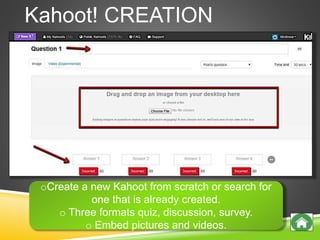
Kahoot! CREATION
oCreate a new Kahoot from scratch or search for
one that is already created.
o Three formats quiz, discussion, survey.
o Embed pictures and videos.
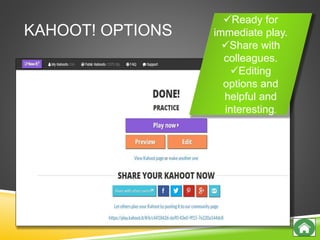
KAHOOT! OPTIONS
Ready for
immediate play.
Share with
colleagues.
Editing
options and
helpful and
interesting.
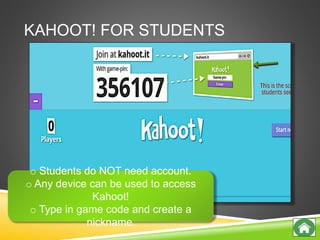
KAHOOT! FOR STUDENTS
o Students do NOT need account.
o Any device can be used to access
Kahoot!
o Type in game code and create a
nickname.
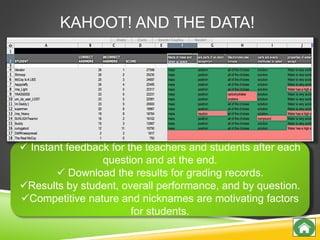
KAHOOT! AND THE DATA!
 Instant feedback for the teachers and students after each
question and at the end.
 Download the results for grading records.
Results by student, overall performance, and by question.
Competitive nature and nicknames are motivating factors
for students.
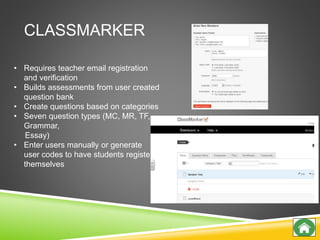
CLASSMARKER
• Requires teacher email registration
and verification
• Builds assessments from user created
question bank
• Create questions based on categories
• Seven question types (MC, MR, TF,
Grammar,
Essay)
• Enter users manually or generate
user codes to have students register
themselves
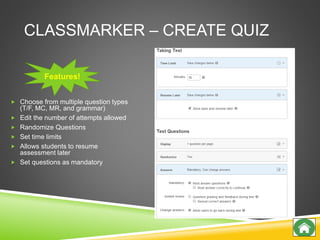
CLASSMARKER – CREATE QUIZ
 Choose from multiple question types
(T/F, MC, MR, and grammar)
 Edit the number of attempts allowed
 Randomize Questions
 Set time limits
 Allows students to resume
assessment later
 Set questions as mandatory
Features!
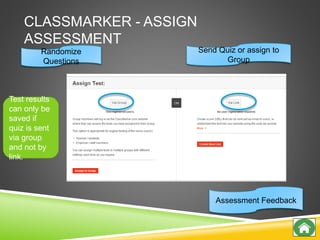
CLASSMARKER - ASSIGN
ASSESSMENT
Randomize
Questions
Assessment Feedback
Send Quiz or assign to
Group
Test results
can only be
saved if
quiz is sent
via group
and not by
link.
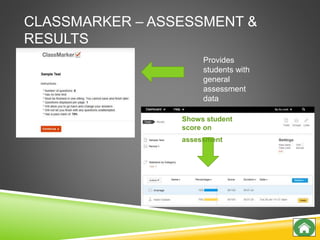
CLASSMARKER – ASSESSMENT &
RESULTS
Shows student
score on
assessment
Provides
students with
general
assessment
data
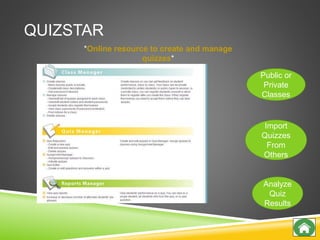
QUIZSTAR
*Online resource to create and manage
quizzes*
Public or
Private
Classes
Import
Quizzes
From
Others
Analyze
Quiz
Results
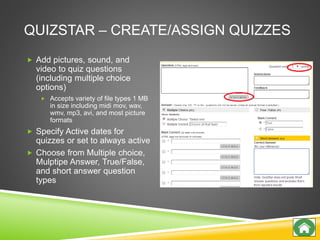
QUIZSTAR – CREATE/ASSIGN QUIZZES
 Add pictures, sound, and
video to quiz questions
(including multiple choice
options)
 Accepts variety of file types 1 MB
in size including midi mov, wav,
wmv, mp3, avi, and most picture
formats
 Specify Active dates for
quizzes or set to always active
 Choose from Multiple choice,
Mulptipe Answer, True/False,
and short answer question
types
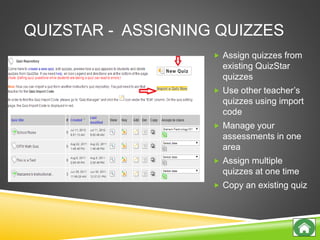
QUIZSTAR - ASSIGNING QUIZZES
 Assign quizzes from
existing QuizStar
quizzes
 Use other teacher’s
quizzes using import
code
 Manage your
assessments in one
area
 Assign multiple
quizzes at one time
 Copy an existing quiz
Social Storytelling
Easy to use
A way to gather all your
pictures, audio and videos.
Web 2.0 Tool
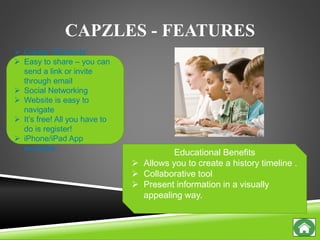
CAPZLES - FEATURES
 Create “Moments”
 Easy to share – you can
send a link or invite
through email
 Social Networking
 Website is easy to
navigate
 It’s free! All you have to
do is register!
 iPhone/iPad App
available
Educational Benefits
 Allows you to create a history timeline .
 Collaborative tool
 Present information in a visually
appealing way.
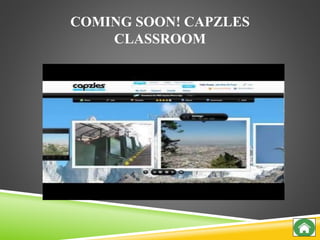
COMING SOON! CAPZLES
CLASSROOM
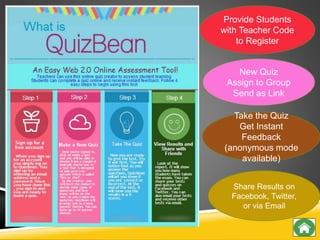
Provide Students
with Teacher Code
to Register
New Quiz
Assign to Group
Send as Link
Take the Quiz
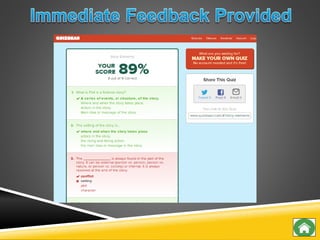
Get Instant
Feedback
(anonymous mode
available)
Share Results on
Facebook, Twitter,
or via Email
QUIZBEAN QUIZ
Login to quiztools.weebly.com on your device
www.quizbean.com/r/qbjrcmtjzcdL
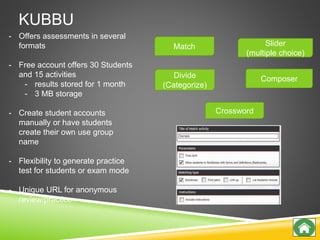
KUBBU
Match
Divide
(Categorize)
Slider
(multiple choice)
Composer
Crossword
- Offers assessments in several
formats
- Free account offers 30 Students
and 15 activities
- results stored for 1 month
- 3 MB storage
- Create student accounts
manually or have students
create their own use group
name
- Flexibility to generate practice
test for students or exam mode
- Unique URL for anonymous
review/practice
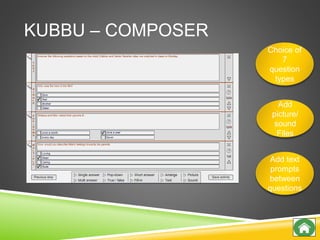
KUBBU – COMPOSER
Choice of
7
question
types
Add
picture/
sound
Files
Add text
prompts
between
questions
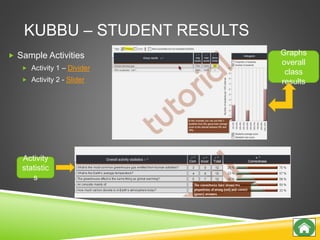
KUBBU – STUDENT RESULTS
 Sample Activities
 Activity 1 – Divider
 Activity 2 - Slider
Graphs
overall
class
results
Activity
statistic
s
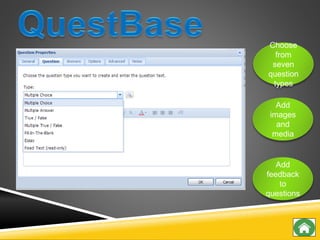
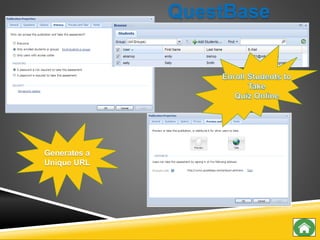
Choose
from
seven
question
types
Add
images
and
media
Add
feedback
to
questions
Generates a
Unique URL
QuestBase
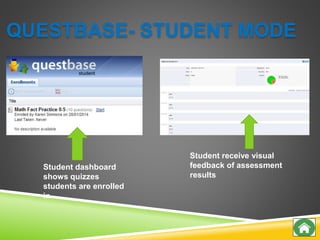
QUESTBASE- STUDENT MODE
Student receive visual
feedback of assessment
results
Student dashboard
shows quizzes
students are enrolled
in
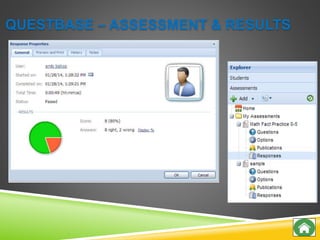
QUESTBASE – ASSESSMENT & RESULTS
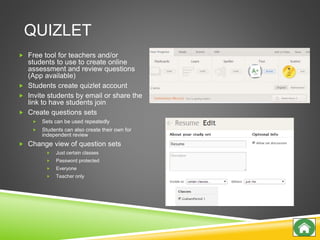
QUIZLET
 Free tool for teachers and/or
students to use to create online
assessment and review questions
(App available)
 Students create quizlet account
 Invite students by email or share the
link to have students join
 Create questions sets
 Sets can be used repeatedly
 Students can also create their own for
independent review
 Change view of question sets
 Just certain classes
 Password protected
 Everyone
 Teacher only
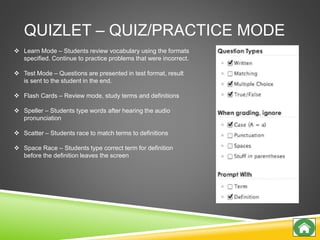
QUIZLET – QUIZ/PRACTICE MODE
 Learn Mode – Students review vocabulary using the formats
specified. Continue to practice problems that were incorrect.
 Test Mode – Questions are presented in test format, result
is sent to the student in the end.
 Flash Cards – Review mode, study terms and definitions
 Speller – Students type words after hearing the audio
pronunciation
 Scatter – Students race to match terms to definitions
 Space Race – Students type correct term for definition
before the definition leaves the screen
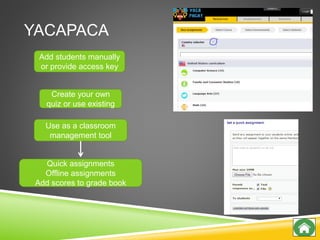
YACAPACA
Use as a classroom
management tool
Create your own
quiz or use existing
Add students manually
or provide access key
Quick assignments
Offline assignments
Add scores to grade book
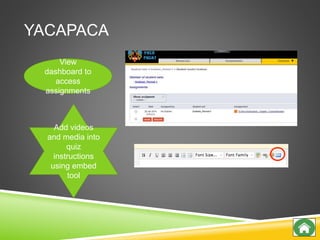
YACAPACA
View
dashboard to
access
assignments
Add videos
and media into
quiz
instructions
using embed
tool
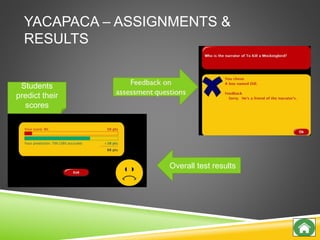
YACAPACA – ASSIGNMENTS &
RESULTS
Overall test results
Students
predict their
scores
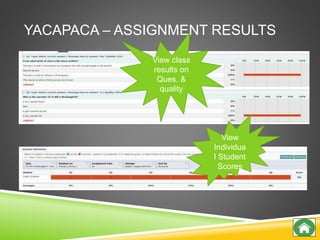
YACAPACA – ASSIGNMENT RESULTS
View class
results on
Ques. &
quality
View
Individua
l Student
Scores
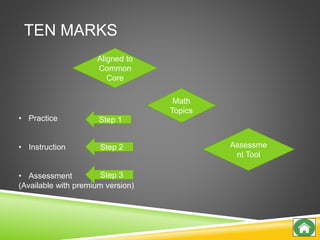
TEN MARKS
Aligned to
Common
Core
Math
Topics
Assessme
nt Tool
• Practice
• Instruction
• Assessment
(Available with premium version)
Step 1
Step 2
Step 3
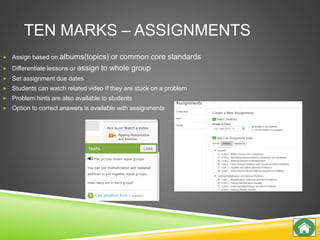
TEN MARKS – ASSIGNMENTS
 Assign based on albums(topics) or common core standards
 Differentiate lessons or assign to whole group
 Set assignment due dates
 Students can watch related video If they are stuck on a problem
 Problem hints are also available to students
 Option to correct answers is available with assignments
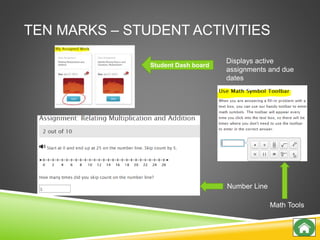
TEN MARKS – STUDENT ACTIVITIES
Student Dash board
Displays active
assignments and due
dates
Number Line
Math Tools
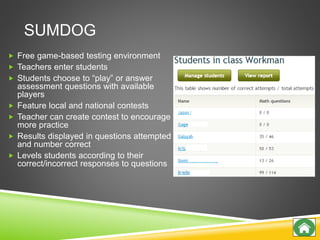
SUMDOG
 Free game-based testing environment
 Teachers enter students
 Students choose to “play” or answer
assessment questions with available
players
 Feature local and national contests
 Teacher can create contest to encourage
more practice
 Results displayed in questions attempted
and number correct
 Levels students according to their
correct/incorrect responses to questions
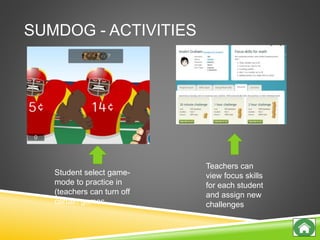
SUMDOG - ACTIVITIES
Teachers can
view focus skills
for each student
and assign new
challenges
Student select game-
mode to practice in
(teachers can turn off
certain games
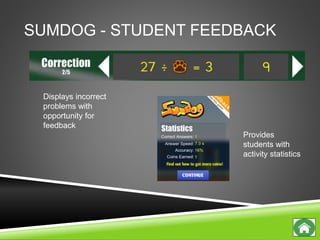
SUMDOG - STUDENT FEEDBACK
Displays incorrect
problems with
opportunity for
feedback
Provides
students with
activity statistics
TECHNOLOGY USED
Splashtop – Turns your tablet into an interactive device that controls your
computer Website: http://www.splashtop.com/downloads
Weebly: quiztools.weebly.com
Website: www.weebly.com
Slideshare – Share presentation slides online
Website: http://www.slideshare.net/

Simmons.fmct yppt.may.20.2015.1256am

  • 1.
    Dr. Amy Ackerman KarenSimmons Jackie Cruz Elsann Machotka Sandy Kirshner
  • 2.
     Zeal  ReflexMath  Front Row Ed  Quill  Edpuzzle  Moby Max  Storyboard That  Socrative  Practutor  Popplet  Take another 10 Tools
  • 3.
    • Find sometools that work for you. • Give your students practice.
  • 4.
  • 5.
  • 7.
    THE STUDENTS TAKEA PRETEST AND THEN PRACTICE SKILLS. Choose the domain that you want the students to practice.
  • 8.
  • 9.
  • 10.
    Add Students Sign up by creatinga username and password. Find your district and then your school Create a class roster.
  • 12.
  • 13.
    NOW FOR THEDATA! As the students complete levels it will show up on the chart.
  • 14.
    ASSIGN LESSONS TOYOUR STUDENTS
  • 15.
  • 16.
    STORYBOARD THAT! • Freemembership is limited, but available. • Share with others through a few different formats. • Can use for every subject and various projects.
  • 17.
    STORYBOARD THAT! STEP1 •Pick a background for the cartoon boxes. • There are many different backgrounds to choose from.
  • 18.
    STORYBOARD THAT! STEP2 •Drag and drop characters. •Personalize the characters. •Add “textables” for dialouge •Personalize by even searching for other items •Even upload your own images.
  • 19.
    STORYBOARD THAT! STEP3 •Add more cells to extend the cartoon story. •Move complete cells for better sequencing. •Most importantly SAVE because the program does not automatically save for you.
  • 20.
    STORYBOARD THAT! •Complete projectand share. •Show in a cartoon format. •Program shows a complete dialogue separate of the project
  • 21.
    STORYBOARD THAT! OPTIONS ****CAUTION: Remember to save as you are working! The program does not save for you. •Use each box in a slide show presentation •Record voice over the storyboard. •Download it to forms where you can use it for other projects or programs. •Print it out for students to use as they are working.
  • 22.
    STORYBOARD THAT! AND STUDENTS•Fun and creative. • Students can organize ideas into a cartoon. • Easy to use.
  • 23.
    STORYBOARD THAT! AND TEACHERS •Allows for several different possibilities for assignments. • Requires 21st century learning skills. • Uses PARCC skills such a drag and drop and mouse/hand-eye coordination skills.
  • 24.
    STORYBOARD THAT! ANDPARCC • Complete drag and drop features for creation. • Text box creation to add words. • Uses a lot of scrolling and other various mouse control skills throughout for successful creation.
  • 25.
  • 26.
  • 27.
    EDPUZZLE: CREATING A VIDEO Createa video from a library of preselecte d school appropriat e videos.
  • 28.
    EDPUZZLE: CROP AND VOICE •Cropthe video for the content that you need. •Add voice over and voice notes.
  • 29.
    EDPUZZLE: QUIZZES Embed quizquestions when appropriate during the video using a few different question formats.
  • 30.
  • 31.
    EDPUZZLE: STUDENT ACCESS •Create aclass. •Students use code to sign in to class
  • 32.
  • 33.
    EDPUZZLE AND STUDENTS •Studentscan access the information at home or at school as long as they have an internet connection. •Enhance student achievement with a flipped classroom atmosphere. •Media/Quiz format that is similar to those in PARCC. •There is an app for that.
  • 34.
    EDPUZZLE AND TEACHERS • Teachersdo not have to worry about creating the actual video. • Videos can be personalized for content and questioning. • Students sign-up for the class using code. • Track students progress either as a class, individual, or by question.
  • 35.
    EDPUZZLE AND PARCC •Offers different question and response types for quizzes. • Quiz is embedded right in the content. • Students have to comprehend information in the media format that is given.
  • 36.
  • 37.
    REFLEX MATH Effective RTIsupport Universal screening, progress monitoring, data- based decisions. Common Core focused Major gains in in math fact fluency for students of all abilities. It’s Fun! Diverse, fast-paced games and rewards for effort and progress. Special Education success! Higher achievement for Special education with less anxiety.
  • 38.
    REFLEX MATH Monitor and supportstudent progress. Students can create an avatar, buy accessories and grow a math fact tree.
  • 39.
  • 40.
  • 41.
    Practutor Curriculum lines up withcommon core standards. Sign up your students!
  • 42.
  • 43.
  • 44.
  • 45.
    ZEAL Enter your studentsby copying and pasting from your roster. Set the timer and click play. Let the students begin to compete.
  • 46.
  • 47.
    QUILL www.quill.org o Sign upas a teacher. o Have students sign up and use the join code
  • 48.
    Quill Shows Progress Scorebook shows completed assignments.  Assign as many lessons as you want  Lessons take 10-15 minutes per lesson.
  • 49.
  • 50.
    • Easily createa teacher login and get your class code • Have students join with the class code. • Send the quiz out • Socrative will grade it and put it into a spreadsheet.
  • 51.
    SOCRATIVE- STUDENT Students enterteacher room code. •Quick question •Premade quiz or test •Exit ticket
  • 52.
    SOCRATIVE CREATE AND SHOWRESULTS  Multiple choice- can have more than one correct answer  True/False  Short Answer  You can add a picture and directions Self Grades Puts all the data into a spreadsheet
  • 53.
  • 54.
    CREATE AN ACCOUNTOR JUST USE TRY IT OUT
  • 55.
    ADD VIDEO, PICTURESAND DRAWINGS
  • 56.
    A SYMBALOO OFTECH TOOLS
  • 57.
    MORE RESOURCES  Pleasefeel free to view the following slides there are more tools on there for you to use!
  • 58.
    Sign up and createa class Enter once to create a default setting on your classroom computers
  • 61.
  • 62.
  • 63.
    GOOGLE FORMS Choose thetype of answer you want.
  • 64.
    Responses will automatically gointo a spreadsheet GOOGLE FORMS
  • 65.
  • 66.
    PLICKER S Students do notneed a device! Teachers download app to their own device. Students do not have to feel left out if they do not own technology.
  • 67.
    PLICKERS: CREATING CLASSES Use the cards randomly for formative, informal assessment. Assign cards to students for summative, formal assessment. Cards track assigned student’s performance.
  • 68.
    PLICKERS Questions can be displayedwith possible answer choices. No need to prepare questions. Answers only is an option.
  • 69.
    PLICKERS: DATA Results areby question. Have to be saved as you go or data is lost.
  • 70.
    PLICKERS IN PROGRESS Watchyour class live as it is happening! See who answered and if their answer is correct.
  • 71.
  • 72.
  • 73.
    Kahoot! CREATION oCreate anew Kahoot from scratch or search for one that is already created. o Three formats quiz, discussion, survey. o Embed pictures and videos.
  • 74.
    KAHOOT! OPTIONS Ready for immediateplay. Share with colleagues. Editing options and helpful and interesting.
  • 75.
    KAHOOT! FOR STUDENTS oStudents do NOT need account. o Any device can be used to access Kahoot! o Type in game code and create a nickname.
  • 76.
    KAHOOT! AND THEDATA!  Instant feedback for the teachers and students after each question and at the end.  Download the results for grading records. Results by student, overall performance, and by question. Competitive nature and nicknames are motivating factors for students.
  • 77.
    CLASSMARKER • Requires teacheremail registration and verification • Builds assessments from user created question bank • Create questions based on categories • Seven question types (MC, MR, TF, Grammar, Essay) • Enter users manually or generate user codes to have students register themselves
  • 78.
    CLASSMARKER – CREATEQUIZ  Choose from multiple question types (T/F, MC, MR, and grammar)  Edit the number of attempts allowed  Randomize Questions  Set time limits  Allows students to resume assessment later  Set questions as mandatory Features!
  • 79.
    CLASSMARKER - ASSIGN ASSESSMENT Randomize Questions AssessmentFeedback Send Quiz or assign to Group Test results can only be saved if quiz is sent via group and not by link.
  • 80.
    CLASSMARKER – ASSESSMENT& RESULTS Shows student score on assessment Provides students with general assessment data
  • 81.
    QUIZSTAR *Online resource tocreate and manage quizzes* Public or Private Classes Import Quizzes From Others Analyze Quiz Results
  • 82.
    QUIZSTAR – CREATE/ASSIGNQUIZZES  Add pictures, sound, and video to quiz questions (including multiple choice options)  Accepts variety of file types 1 MB in size including midi mov, wav, wmv, mp3, avi, and most picture formats  Specify Active dates for quizzes or set to always active  Choose from Multiple choice, Mulptipe Answer, True/False, and short answer question types
  • 83.
    QUIZSTAR - ASSIGNINGQUIZZES  Assign quizzes from existing QuizStar quizzes  Use other teacher’s quizzes using import code  Manage your assessments in one area  Assign multiple quizzes at one time  Copy an existing quiz
  • 84.
    Social Storytelling Easy touse A way to gather all your pictures, audio and videos. Web 2.0 Tool
  • 85.
    CAPZLES - FEATURES Create “Moments”  Easy to share – you can send a link or invite through email  Social Networking  Website is easy to navigate  It’s free! All you have to do is register!  iPhone/iPad App available Educational Benefits  Allows you to create a history timeline .  Collaborative tool  Present information in a visually appealing way.
  • 86.
  • 87.
    Provide Students with TeacherCode to Register New Quiz Assign to Group Send as Link Take the Quiz Get Instant Feedback (anonymous mode available) Share Results on Facebook, Twitter, or via Email
  • 88.
    QUIZBEAN QUIZ Login toquiztools.weebly.com on your device www.quizbean.com/r/qbjrcmtjzcdL
  • 90.
    KUBBU Match Divide (Categorize) Slider (multiple choice) Composer Crossword - Offersassessments in several formats - Free account offers 30 Students and 15 activities - results stored for 1 month - 3 MB storage - Create student accounts manually or have students create their own use group name - Flexibility to generate practice test for students or exam mode - Unique URL for anonymous review/practice
  • 91.
    KUBBU – COMPOSER Choiceof 7 question types Add picture/ sound Files Add text prompts between questions
  • 92.
    KUBBU – STUDENTRESULTS  Sample Activities  Activity 1 – Divider  Activity 2 - Slider Graphs overall class results Activity statistic s
  • 93.
  • 94.
  • 95.
    QUESTBASE- STUDENT MODE Studentreceive visual feedback of assessment results Student dashboard shows quizzes students are enrolled in
  • 96.
  • 97.
    QUIZLET  Free toolfor teachers and/or students to use to create online assessment and review questions (App available)  Students create quizlet account  Invite students by email or share the link to have students join  Create questions sets  Sets can be used repeatedly  Students can also create their own for independent review  Change view of question sets  Just certain classes  Password protected  Everyone  Teacher only
  • 98.
    QUIZLET – QUIZ/PRACTICEMODE  Learn Mode – Students review vocabulary using the formats specified. Continue to practice problems that were incorrect.  Test Mode – Questions are presented in test format, result is sent to the student in the end.  Flash Cards – Review mode, study terms and definitions  Speller – Students type words after hearing the audio pronunciation  Scatter – Students race to match terms to definitions  Space Race – Students type correct term for definition before the definition leaves the screen
  • 99.
    YACAPACA Use as aclassroom management tool Create your own quiz or use existing Add students manually or provide access key Quick assignments Offline assignments Add scores to grade book
  • 100.
    YACAPACA View dashboard to access assignments Add videos andmedia into quiz instructions using embed tool
  • 101.
    YACAPACA – ASSIGNMENTS& RESULTS Overall test results Students predict their scores
  • 102.
    YACAPACA – ASSIGNMENTRESULTS View class results on Ques. & quality View Individua l Student Scores
  • 103.
    TEN MARKS Aligned to Common Core Math Topics Assessme ntTool • Practice • Instruction • Assessment (Available with premium version) Step 1 Step 2 Step 3
  • 104.
    TEN MARKS –ASSIGNMENTS  Assign based on albums(topics) or common core standards  Differentiate lessons or assign to whole group  Set assignment due dates  Students can watch related video If they are stuck on a problem  Problem hints are also available to students  Option to correct answers is available with assignments
  • 105.
    TEN MARKS –STUDENT ACTIVITIES Student Dash board Displays active assignments and due dates Number Line Math Tools
  • 106.
    SUMDOG  Free game-basedtesting environment  Teachers enter students  Students choose to “play” or answer assessment questions with available players  Feature local and national contests  Teacher can create contest to encourage more practice  Results displayed in questions attempted and number correct  Levels students according to their correct/incorrect responses to questions
  • 107.
    SUMDOG - ACTIVITIES Teacherscan view focus skills for each student and assign new challenges Student select game- mode to practice in (teachers can turn off certain games
  • 108.
    SUMDOG - STUDENTFEEDBACK Displays incorrect problems with opportunity for feedback Provides students with activity statistics
  • 109.
    TECHNOLOGY USED Splashtop –Turns your tablet into an interactive device that controls your computer Website: http://www.splashtop.com/downloads Weebly: quiztools.weebly.com Website: www.weebly.com Slideshare – Share presentation slides online Website: http://www.slideshare.net/