SharePoint 2007 for beginnerByM J FerdousSharePoint ConsultantTechnical Author, DevMedia Group
AgendaSharePoint FeatureCMS/SPS/WSS RoadmapsSharePoint Team site/ Publishing PortalInstallation StepsDevelopment ToolsDevelopment: Web PartsDevelopment: WorkflowDevelopment: List DefinitionVirtual Lab
PlatformServicesWorkspaces, Mgmt,Security, Storage,Topology, Site ModelSharePoint Feature AreasServer-based Excel spreadsheets and data visualization, Report Center, BI Web Parts, KPIs/DashboardsDocs/tasks/calendars, blogs, wikis, e-mail integration, project management “lite”, Outlook integration, offline docs/listsBusinessIntelligenceCollaborationEnterprise Portal template, Site Directory, My Sites, social networking, privacy controlRich and Web forms based front-ends, LOB actions, pluggable SSOBusinessFormsPortalContentManagementSearchIntegrated document management, records management, and Web content management with policies and workflowEnterprise scalability,contextual relevance, rich people and business data search
Content Management Server 2002SharePoint Portal Server 2003Windows SharePoint Services “v2”Office SharePoint Server 2007Portal, Web Content Management, and MoreSharePoint Portal Server 2001SharePoint Team Services “v1”SharePoint 2010Windows SharePoint Services “v3”CMS/SPS/WSS Roadmap
SharePoint Team SiteM J FerdousM J FerdousM J FerdousSite ContentGain quick access to all content on the site.Site ActionsGain quick access to Team Site actions, including Create Content, Edit Page, and Site Settings.Document LibrariesStore team documents and collaborate on them.SharePoint Server 2007 Team Sites are Web sites created from a template and designed for team collaboration. They are hosted on the corporate network. Team Sites are a great way to coordinate team activities with document collaboration and storage.Topics in this guide include:Create a Team Site
Add Content
Upload Documents
Edit Documents
Create a New Document Library
Allow Access to Your SitePeople and GroupsControl who can access your site and what content they can view and edit. Recycle BinRestore or permanently remove deleted items.
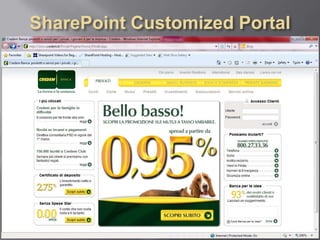
SharePoint Customized Portal
Installation StepsPre-Requisites for installing MOSSInstall Windows Server 2003Windows security updateInstall SQL Server 2005Install Framework 3.0     Configure SQL server 2005Install Microsoft SQL Server 2005 Service Pack 2Install SharePoint Server 2007Note: Download details steps from Simple MOSS 2007 Installation Guide Beta Version
Development ToolsMOSS Development Tools are SharePoint Designer 2007  To Design SharePoint Portal SiteVisual Studio 2005/2008  To use MS SharePoint ExtensionVisual Studio  2005/2008 Extension for MS SharePoint Service 3.0  To create custom web part, list definition etc.Microsoft Office 2003/2007  To create document template
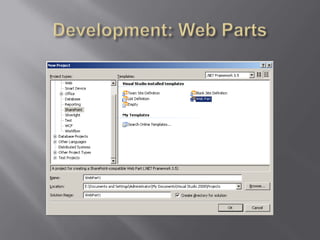
Development: Web PartsOpen VS.Net 2005/ 2008 to create new Web Part  ProjectFile  New  Project  SharePointCreate new project using Web Part TemplateWrite your custom code Go to your project propertiesChange the destination web application URLDebug Start Browser with URLBuild the project Deploy SolutionYour custom web part should be available in your SharePoint application
Development: Web Parts
Development: Web PartsWeb App URL
Development: WorkflowCustom workflow to approve page or documentCreate custom workflow for Approving & Publishing PageMOSS Workflow task can be Parallel or SerialPublish document or page using custom workflowNote: When we create a web application or sub site under the web app, by default MOSS creates one default workflow: [Parallel Approval] for the page or document list library but there is no workflow for custom list (document or image) library. You have to set a custom workflow for the custom list library as the same way if you want to create a custom workflow for the page.
Development: WorkflowFigure  K: Graphical Presentation of a custom workflow with two approvers (serial)
Development: List DefinitionCreate  List Definition TemplateOpen SharePoint Solution GeneratorSelect List Definition  Click NextSpecify your site URL Choose the List(s) to include in the generated SolutionGenerate solution in to specific folderIt will generate a VS. Net SolutionCustomize it if you need Deploy it as like as custom web part
Development: List Definition
Demo
Demo
Demo
Demo
Demo
Demo
Demo
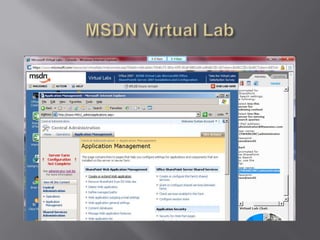
MSDN Virtual LabGo to http://www.microsoft.com/events/vlabs/default.mspx
MSDN Virtual Lab
MSDN Virtual Lab

Share Point For Beginners V1

  • 1.
    SharePoint 2007 forbeginnerByM J FerdousSharePoint ConsultantTechnical Author, DevMedia Group
  • 2.
    AgendaSharePoint FeatureCMS/SPS/WSS RoadmapsSharePointTeam site/ Publishing PortalInstallation StepsDevelopment ToolsDevelopment: Web PartsDevelopment: WorkflowDevelopment: List DefinitionVirtual Lab
  • 3.
    PlatformServicesWorkspaces, Mgmt,Security, Storage,Topology,Site ModelSharePoint Feature AreasServer-based Excel spreadsheets and data visualization, Report Center, BI Web Parts, KPIs/DashboardsDocs/tasks/calendars, blogs, wikis, e-mail integration, project management “lite”, Outlook integration, offline docs/listsBusinessIntelligenceCollaborationEnterprise Portal template, Site Directory, My Sites, social networking, privacy controlRich and Web forms based front-ends, LOB actions, pluggable SSOBusinessFormsPortalContentManagementSearchIntegrated document management, records management, and Web content management with policies and workflowEnterprise scalability,contextual relevance, rich people and business data search
  • 4.
    Content Management Server2002SharePoint Portal Server 2003Windows SharePoint Services “v2”Office SharePoint Server 2007Portal, Web Content Management, and MoreSharePoint Portal Server 2001SharePoint Team Services “v1”SharePoint 2010Windows SharePoint Services “v3”CMS/SPS/WSS Roadmap
  • 5.
    SharePoint Team SiteMJ FerdousM J FerdousM J FerdousSite ContentGain quick access to all content on the site.Site ActionsGain quick access to Team Site actions, including Create Content, Edit Page, and Site Settings.Document LibrariesStore team documents and collaborate on them.SharePoint Server 2007 Team Sites are Web sites created from a template and designed for team collaboration. They are hosted on the corporate network. Team Sites are a great way to coordinate team activities with document collaboration and storage.Topics in this guide include:Create a Team Site
  • 6.
  • 7.
  • 8.
  • 9.
    Create a NewDocument Library
  • 10.
    Allow Access toYour SitePeople and GroupsControl who can access your site and what content they can view and edit. Recycle BinRestore or permanently remove deleted items.
  • 11.
  • 12.
    Installation StepsPre-Requisites forinstalling MOSSInstall Windows Server 2003Windows security updateInstall SQL Server 2005Install Framework 3.0     Configure SQL server 2005Install Microsoft SQL Server 2005 Service Pack 2Install SharePoint Server 2007Note: Download details steps from Simple MOSS 2007 Installation Guide Beta Version
  • 13.
    Development ToolsMOSS DevelopmentTools are SharePoint Designer 2007  To Design SharePoint Portal SiteVisual Studio 2005/2008  To use MS SharePoint ExtensionVisual Studio 2005/2008 Extension for MS SharePoint Service 3.0  To create custom web part, list definition etc.Microsoft Office 2003/2007  To create document template
  • 14.
    Development: Web PartsOpenVS.Net 2005/ 2008 to create new Web Part ProjectFile  New  Project  SharePointCreate new project using Web Part TemplateWrite your custom code Go to your project propertiesChange the destination web application URLDebug Start Browser with URLBuild the project Deploy SolutionYour custom web part should be available in your SharePoint application
  • 15.
  • 16.
  • 17.
    Development: WorkflowCustom workflowto approve page or documentCreate custom workflow for Approving & Publishing PageMOSS Workflow task can be Parallel or SerialPublish document or page using custom workflowNote: When we create a web application or sub site under the web app, by default MOSS creates one default workflow: [Parallel Approval] for the page or document list library but there is no workflow for custom list (document or image) library. You have to set a custom workflow for the custom list library as the same way if you want to create a custom workflow for the page.
  • 18.
    Development: WorkflowFigure K: Graphical Presentation of a custom workflow with two approvers (serial)
  • 19.
    Development: List DefinitionCreate List Definition TemplateOpen SharePoint Solution GeneratorSelect List Definition  Click NextSpecify your site URL Choose the List(s) to include in the generated SolutionGenerate solution in to specific folderIt will generate a VS. Net SolutionCustomize it if you need Deploy it as like as custom web part
  • 20.
  • 21.
  • 22.
  • 23.
  • 24.
  • 25.
  • 26.
  • 27.
  • 28.
    MSDN Virtual LabGoto http://www.microsoft.com/events/vlabs/default.mspx
  • 29.
  • 30.