How to configure Windows Firewall to allow WebCam Server


           How to Configure Windows Firewall
                       to Allow WebCam Server


Windows XP includes Internet Connection Firewall (ICF) software you can use to restrict what
information is communicated between the Internet and your computer. If you are running Windows XP
Service Pack 2 (SP2), the firewall is turned on by default.


This document will provide the guidelines of configuring the enabled ICF in Windows XP and Windows
SP2 to allow WebCam Server.


Configuring Windows XP Firewall

When ICF is enabled in Windows XP, WebCam Server will stop working. You need to manually open
the corresponding ports so that WebCam Server can work correctly.


The ports WebCam Server requires are:

     Command Port       4550
     Data Port          5550
     Audio Port         6550
     HTTP Port          80


To manually open WebCam Server’s ports:
1.     Click Start, point to Settings, select Network Connections, click Local Area Connection, and
       then click Properties. This displays the Local Area Connection Properties dialog box.


GeoVision Inc.                                    1                           Revision Date: 2004/11/5
How to configure Windows Firewall to allow WebCam Server


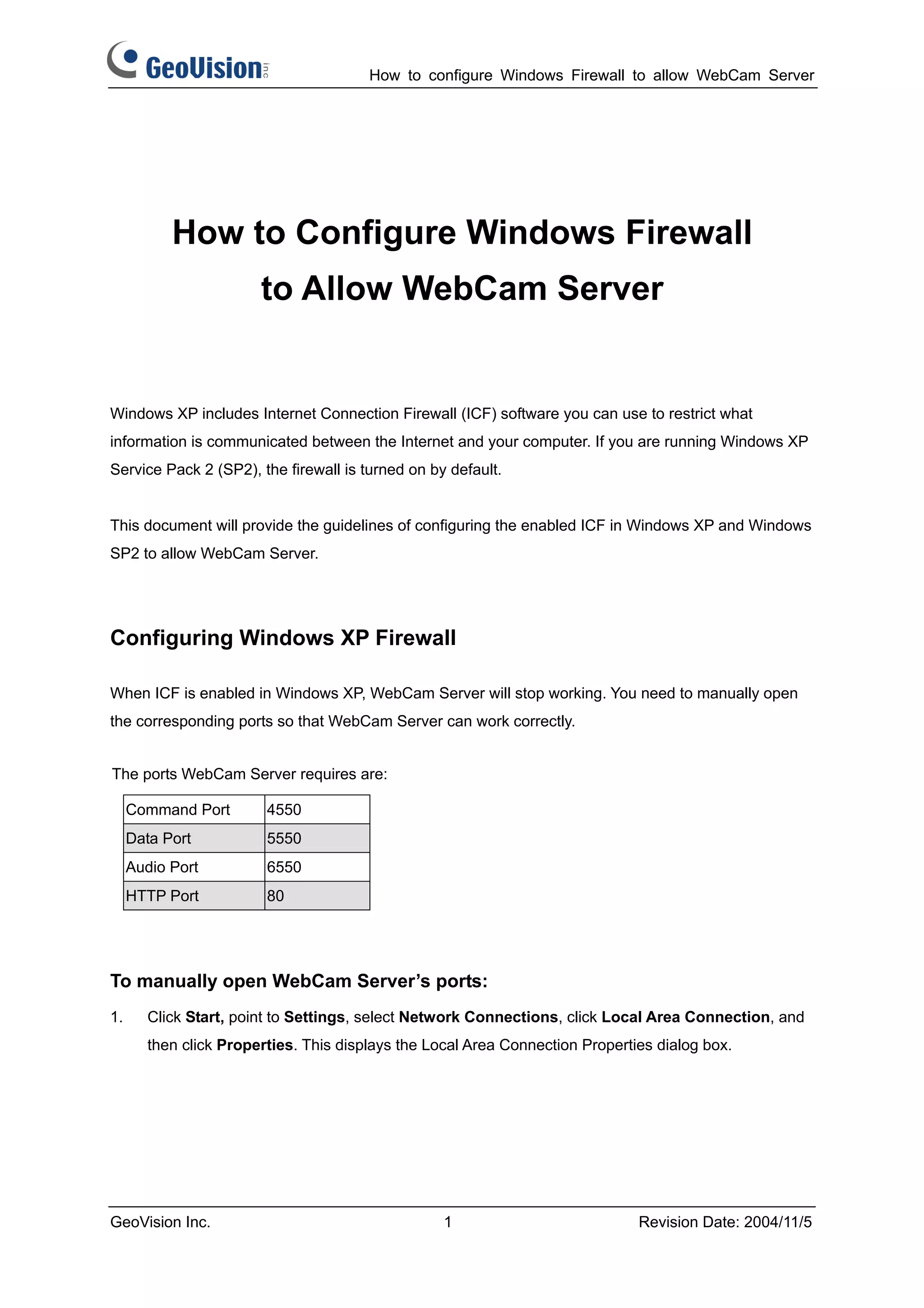
2.   On the Advanced tab, click Settings.


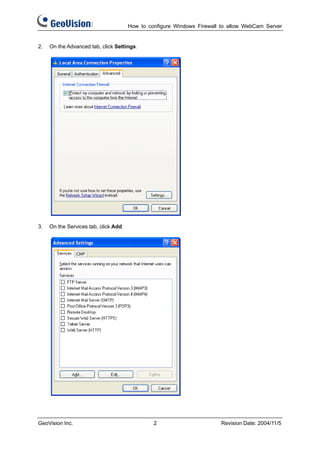
3.   On the Services tab, click Add.


GeoVision Inc.                                  2                       Revision Date: 2004/11/5
How to configure Windows Firewall to allow WebCam Server


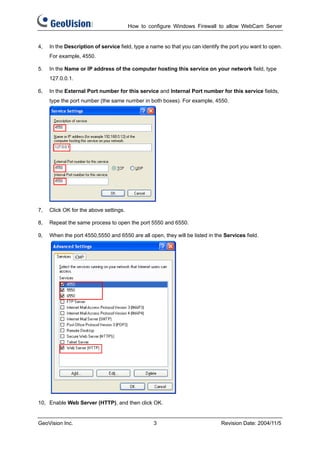
4,   In the Description of service field, type a name so that you can identify the port you want to open.
     For example, 4550.

5.   In the Name or IP address of the computer hosting this service on your network field, type
     127.0.0.1.

6,   In the External Port number for this service and Internal Port number for this service fields,
     type the port number (the same number in both boxes). For example, 4550.


7,   Click OK for the above settings.

8,   Repeat the same process to open the port 5550 and 6550.

9,   When the port 4550,5550 and 6550 are all open, they will be listed in the Services field.


10, Enable Web Server (HTTP), and then click OK.


GeoVision Inc.                                   3                            Revision Date: 2004/11/5
How to configure Windows Firewall to allow WebCam Server


Configuring Windows XP SP2 Firewall

When the firewall in Windows XP SP2 is turned on automatically, there are two ways to allow WebCam
Server connecting to your computer.


To automatically add WebCam Server programs:
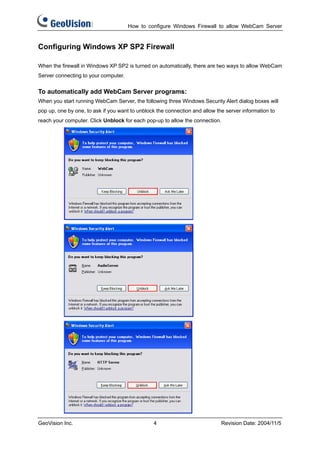
When you start running WebCam Server, the following three Windows Security Alert dialog boxes will
pop up, one by one, to ask if you want to unblock the connection and allow the server information to
reach your computer. Click Unblock for each pop-up to allow the connection.


GeoVision Inc.                                  4                            Revision Date: 2004/11/5
How to configure Windows Firewall to allow WebCam Server


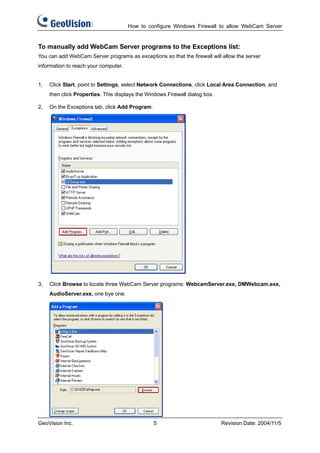
To manually add WebCam Server programs to the Exceptions list:
You can add WebCam Server programs as exceptions so that the firewall will allow the server
information to reach your computer.


1,   Click Start, point to Settings, select Network Connections, click Local Area Connection, and
     then click Properties. This displays the Windows Firewall dialog box.

2,   On the Exceptions tab, click Add Program.


3,   Click Browse to locate three WebCam Server programs: WebcamServer.exe, DMWebcam.exe,
     AudioServer.exe, one bye one.


GeoVision Inc.                                   5                           Revision Date: 2004/11/5
How to configure Windows Firewall to allow WebCam Server


4,   Double click the located program so that it will appear in the Programs field.

5.   Click OK for the above settings.


GeoVision Inc.                                   6                            Revision Date: 2004/11/5

GeoVision : Video Management Solutions : Open Windows Firewall to allow Webcam on GV-NVR

  • 1.
    How to configureWindows Firewall to allow WebCam Server How to Configure Windows Firewall to Allow WebCam Server Windows XP includes Internet Connection Firewall (ICF) software you can use to restrict what information is communicated between the Internet and your computer. If you are running Windows XP Service Pack 2 (SP2), the firewall is turned on by default. This document will provide the guidelines of configuring the enabled ICF in Windows XP and Windows SP2 to allow WebCam Server. Configuring Windows XP Firewall When ICF is enabled in Windows XP, WebCam Server will stop working. You need to manually open the corresponding ports so that WebCam Server can work correctly. The ports WebCam Server requires are: Command Port 4550 Data Port 5550 Audio Port 6550 HTTP Port 80 To manually open WebCam Server’s ports: 1. Click Start, point to Settings, select Network Connections, click Local Area Connection, and then click Properties. This displays the Local Area Connection Properties dialog box. GeoVision Inc. 1 Revision Date: 2004/11/5
  • 2.
    How to configureWindows Firewall to allow WebCam Server 2. On the Advanced tab, click Settings. 3. On the Services tab, click Add. GeoVision Inc. 2 Revision Date: 2004/11/5
  • 3.
    How to configureWindows Firewall to allow WebCam Server 4, In the Description of service field, type a name so that you can identify the port you want to open. For example, 4550. 5. In the Name or IP address of the computer hosting this service on your network field, type 127.0.0.1. 6, In the External Port number for this service and Internal Port number for this service fields, type the port number (the same number in both boxes). For example, 4550. 7, Click OK for the above settings. 8, Repeat the same process to open the port 5550 and 6550. 9, When the port 4550,5550 and 6550 are all open, they will be listed in the Services field. 10, Enable Web Server (HTTP), and then click OK. GeoVision Inc. 3 Revision Date: 2004/11/5
  • 4.
    How to configureWindows Firewall to allow WebCam Server Configuring Windows XP SP2 Firewall When the firewall in Windows XP SP2 is turned on automatically, there are two ways to allow WebCam Server connecting to your computer. To automatically add WebCam Server programs: When you start running WebCam Server, the following three Windows Security Alert dialog boxes will pop up, one by one, to ask if you want to unblock the connection and allow the server information to reach your computer. Click Unblock for each pop-up to allow the connection. GeoVision Inc. 4 Revision Date: 2004/11/5
  • 5.
    How to configureWindows Firewall to allow WebCam Server To manually add WebCam Server programs to the Exceptions list: You can add WebCam Server programs as exceptions so that the firewall will allow the server information to reach your computer. 1, Click Start, point to Settings, select Network Connections, click Local Area Connection, and then click Properties. This displays the Windows Firewall dialog box. 2, On the Exceptions tab, click Add Program. 3, Click Browse to locate three WebCam Server programs: WebcamServer.exe, DMWebcam.exe, AudioServer.exe, one bye one. GeoVision Inc. 5 Revision Date: 2004/11/5
  • 6.
    How to configureWindows Firewall to allow WebCam Server 4, Double click the located program so that it will appear in the Programs field. 5. Click OK for the above settings. GeoVision Inc. 6 Revision Date: 2004/11/5