Blocking Windows 10 upgrade
John Lorens
847-687-1329
johnlorens@gmail.com
www.lorenstechsolutions.com
1
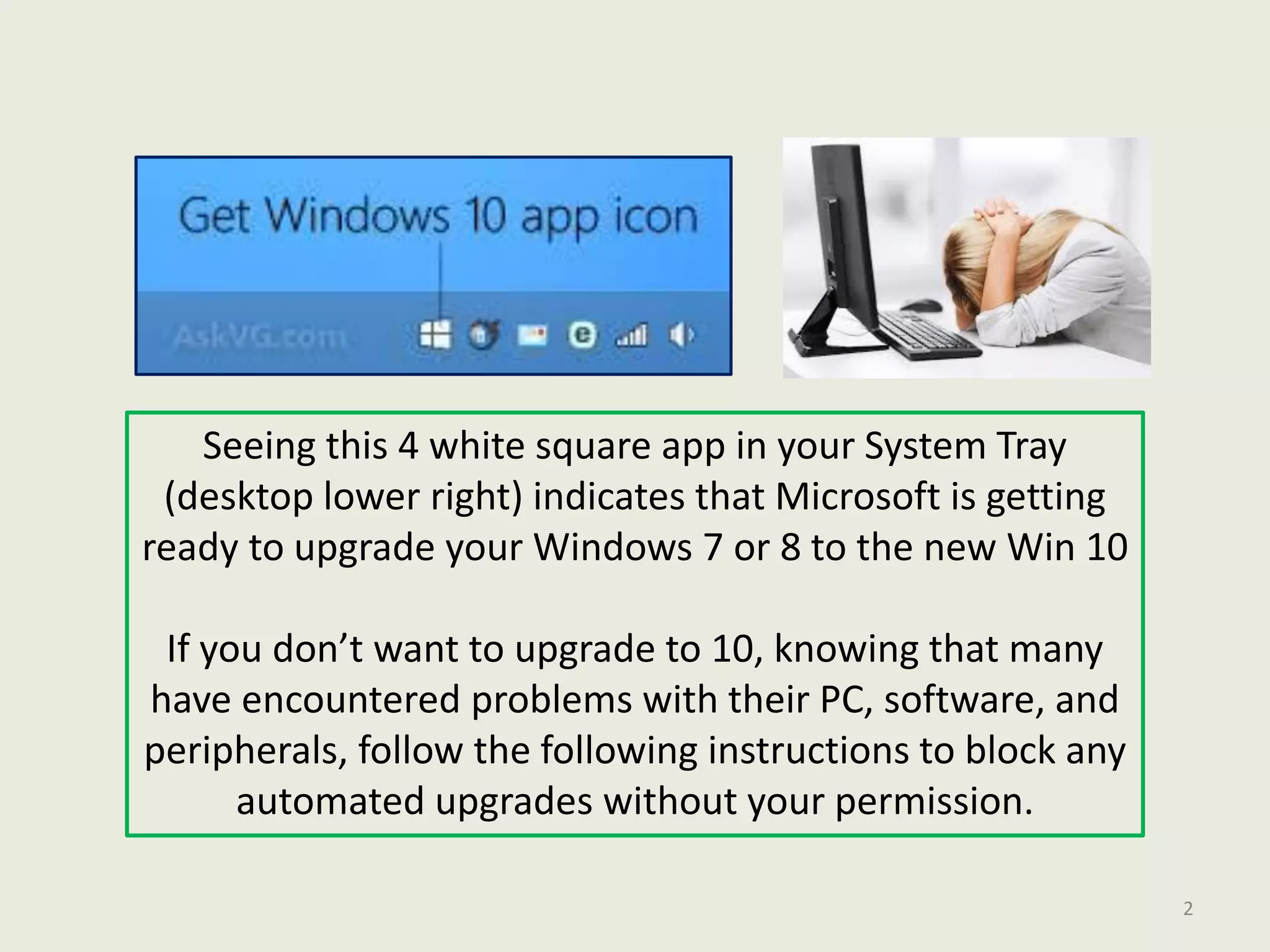
Seeing this 4 white square app in your System Tray
(desktop lower right) indicates that Microsoft is getting
ready to upgrade your Windows 7 or 8 to the new Win 10
If you don’t want to upgrade to 10, knowing that many
have encountered problems with their PC, software, and
peripherals, follow the following instructions to block any
automated upgrades without your permission.
2
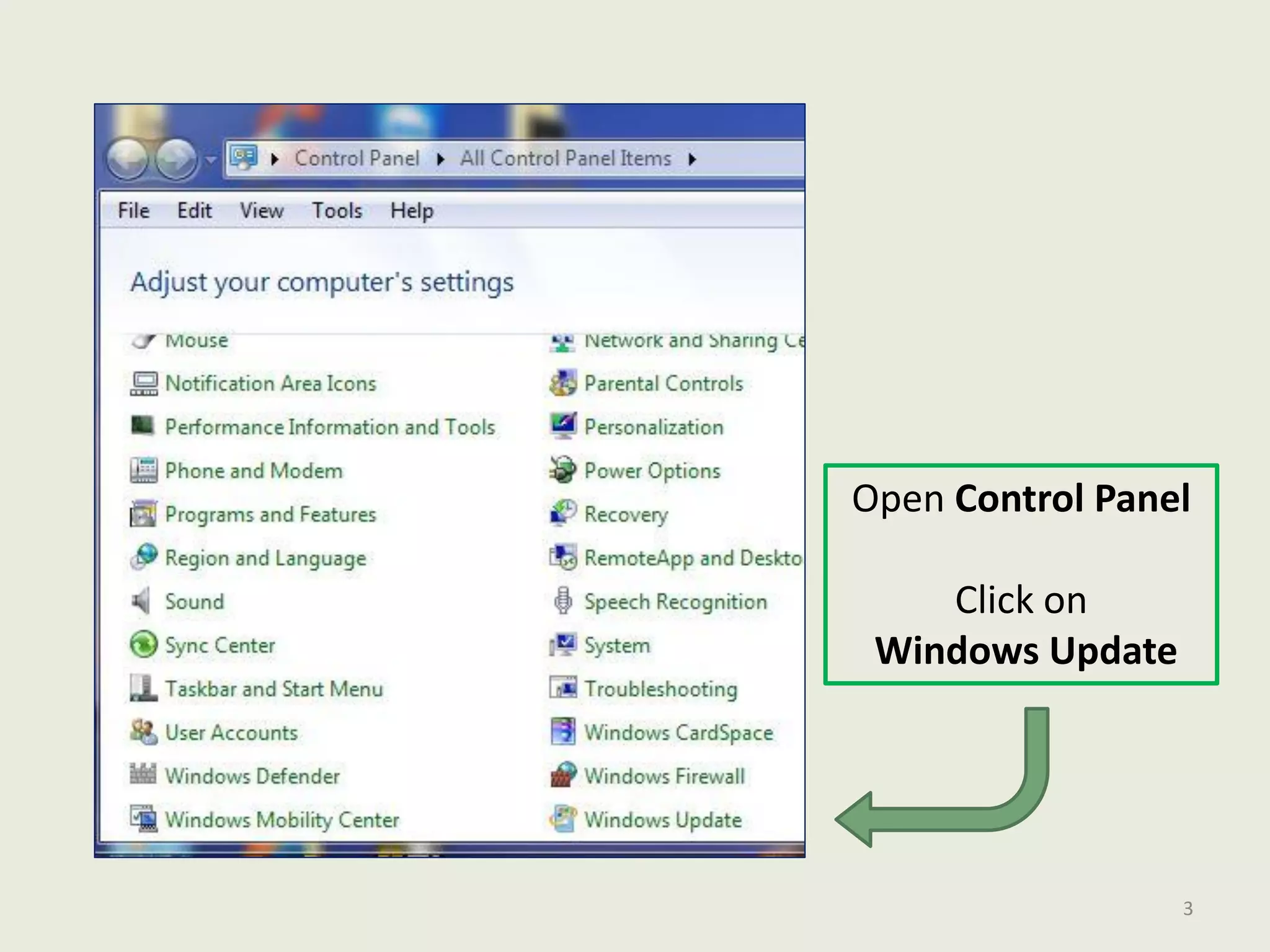
Open Control Panel
Click on
Windows Update
3
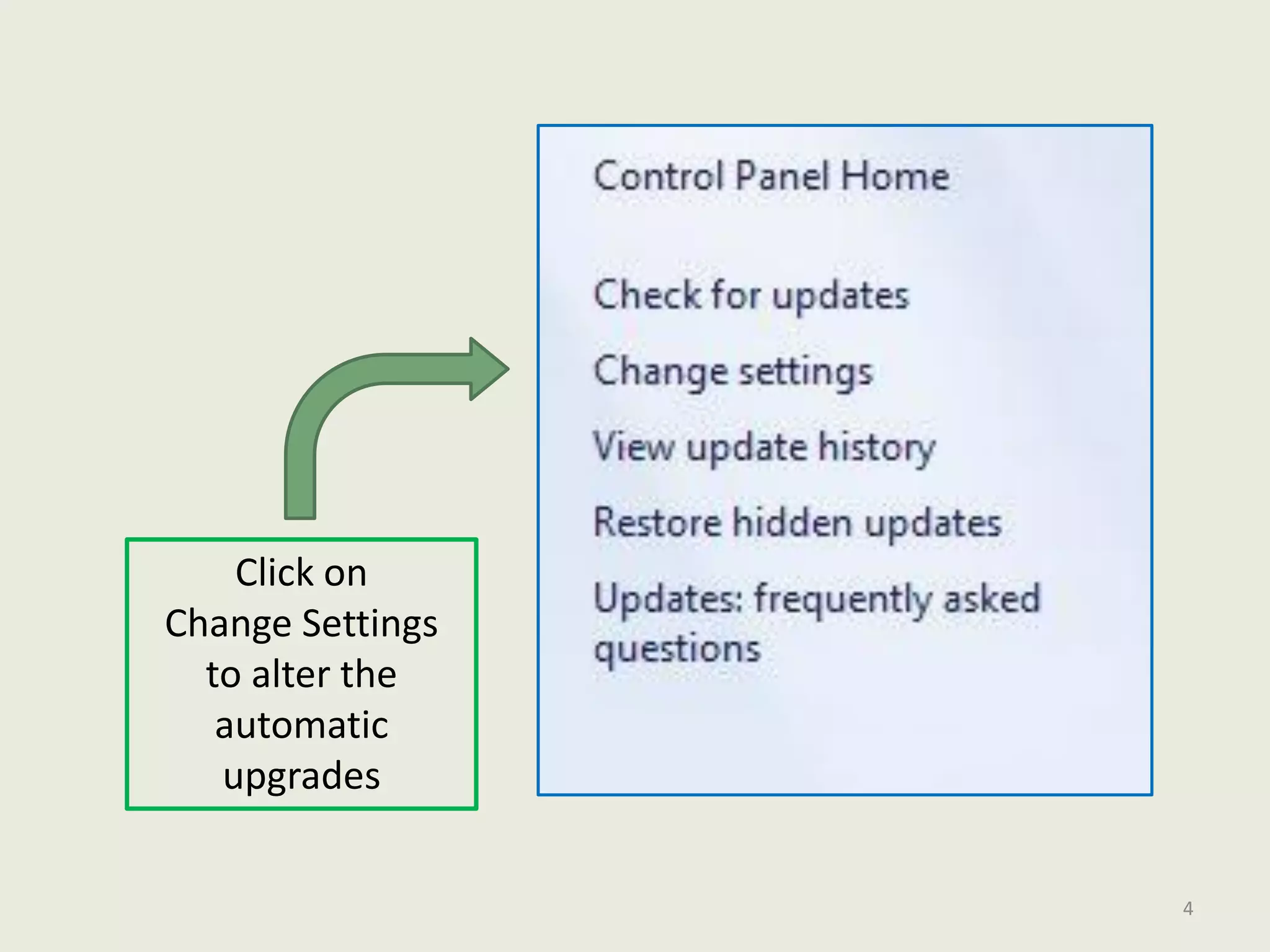
Click on
Change Settings
to alter the
automatic
upgrades
4
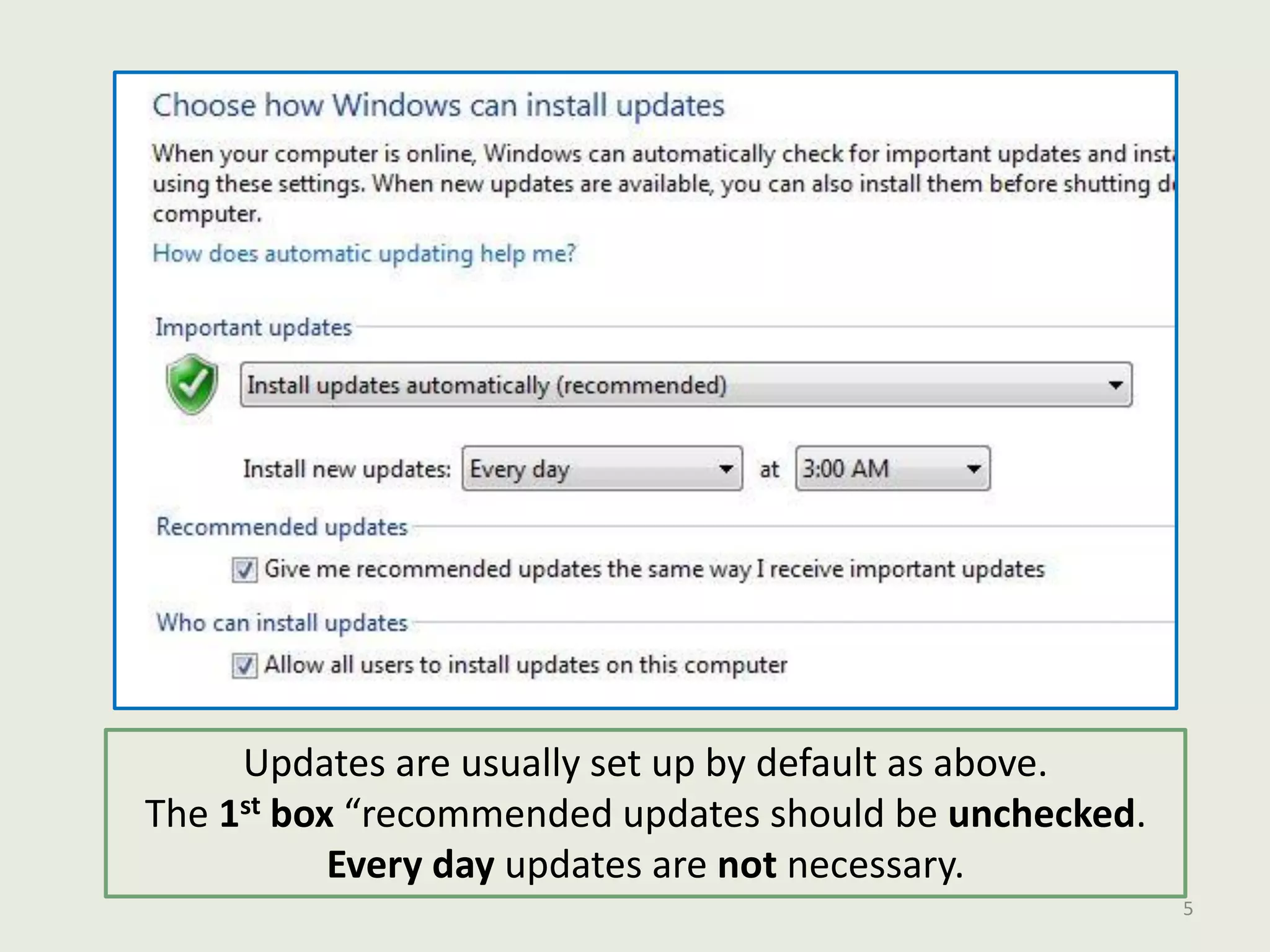
Updates are usually set up by default as above.
The 1st box “recommended updates should be unchecked.
Every day updates are not necessary.
5
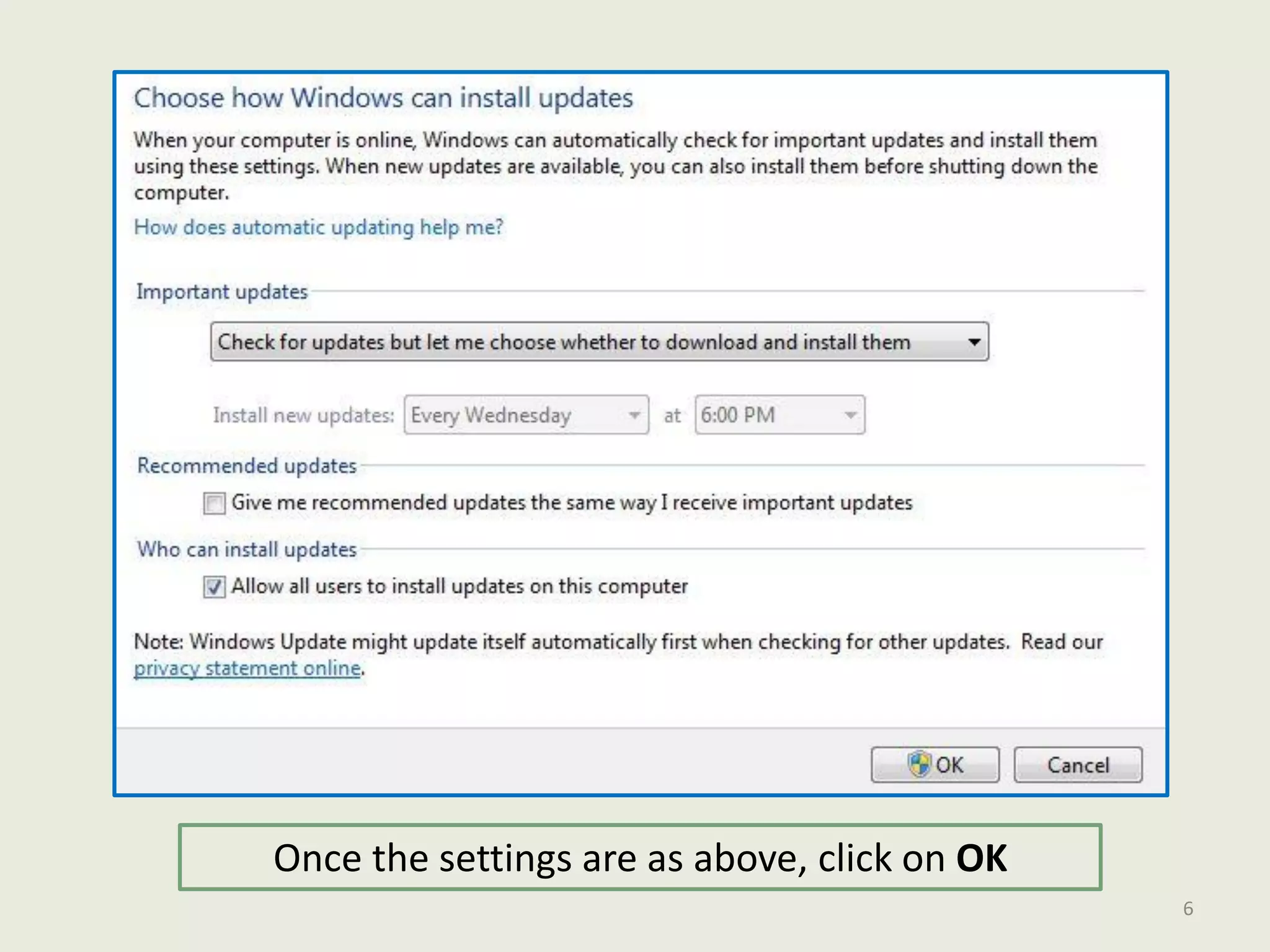
Once the settings are as above, click on OK
6
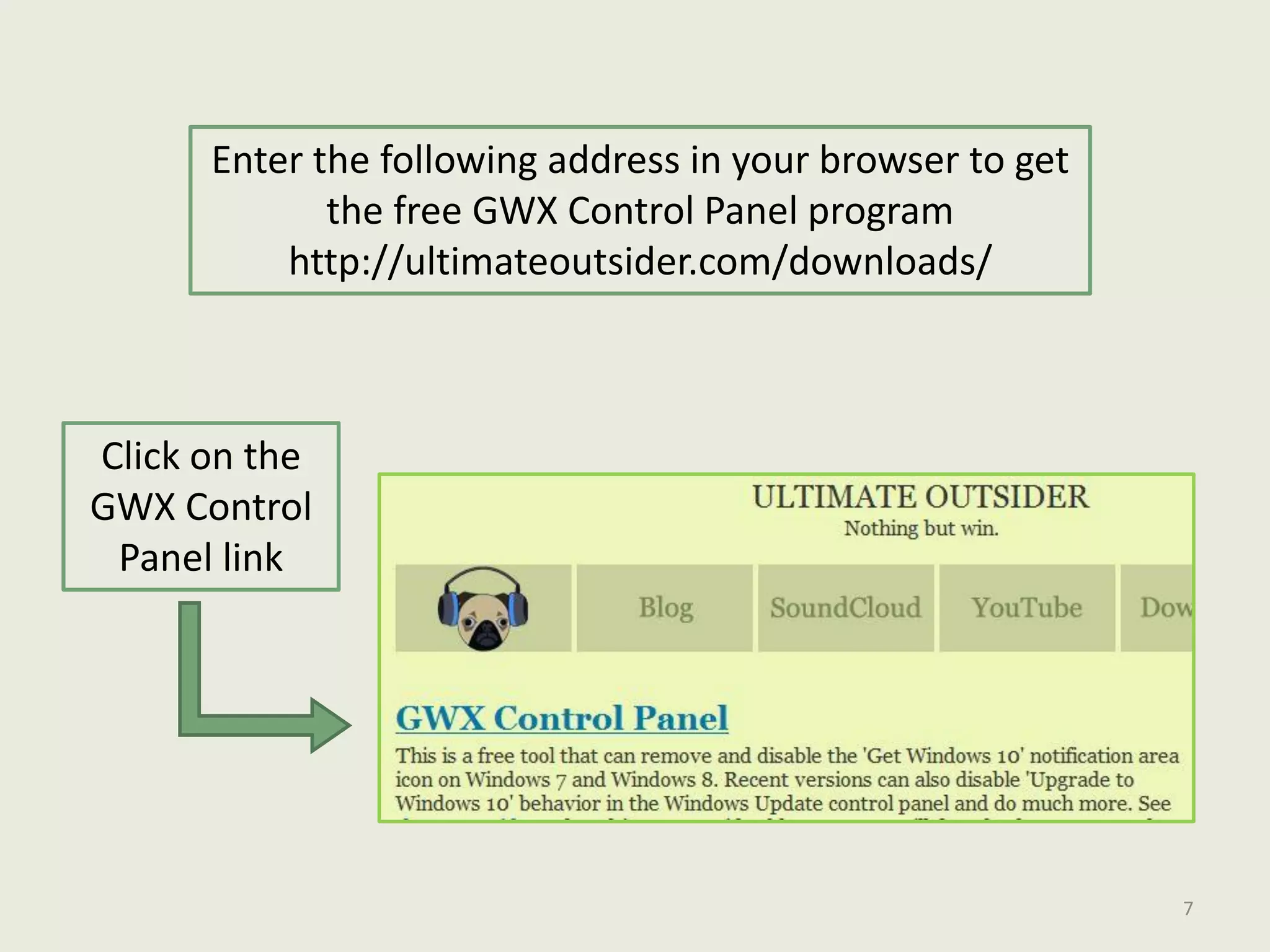
Enter the following address in your browser to get
the free GWX Control Panel program
http://ultimateoutsider.com/downloads/
Click on the
GWX Control
Panel link
7
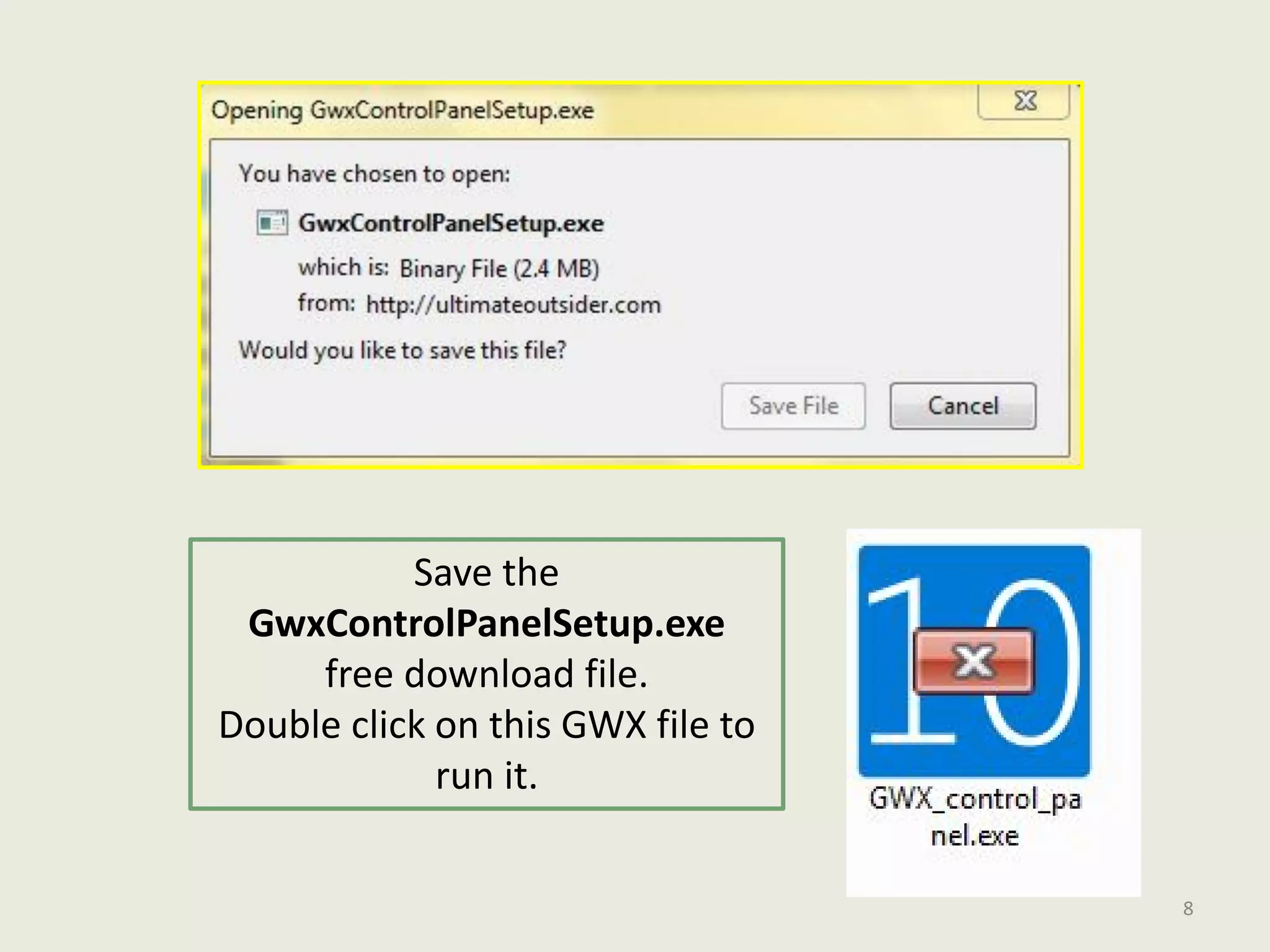
Save the
GwxControlPanelSetup.exe
free download file.
Double click on this GWX file to
run it.
8
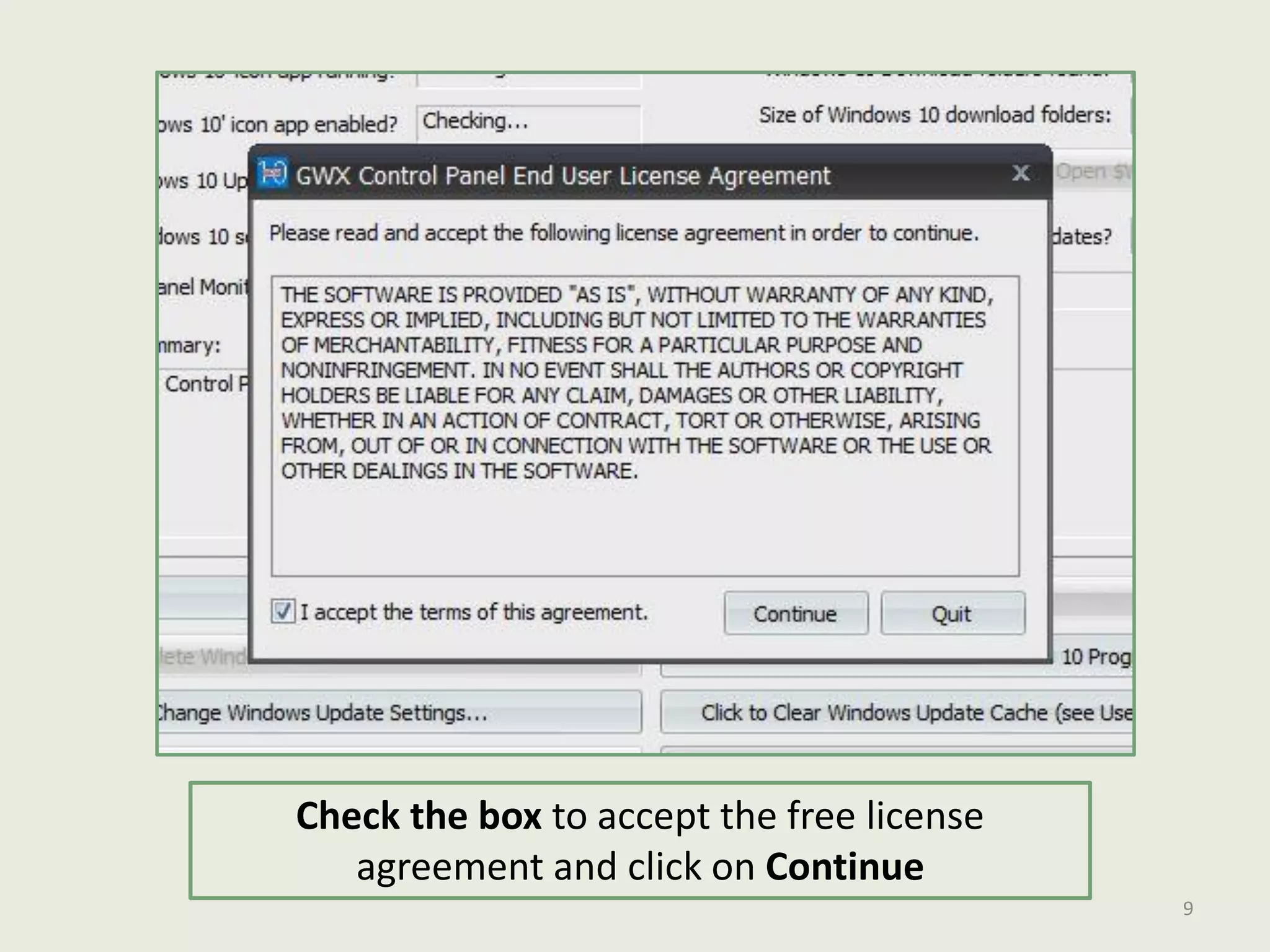
Check the box to accept the free license
agreement and click on Continue
9
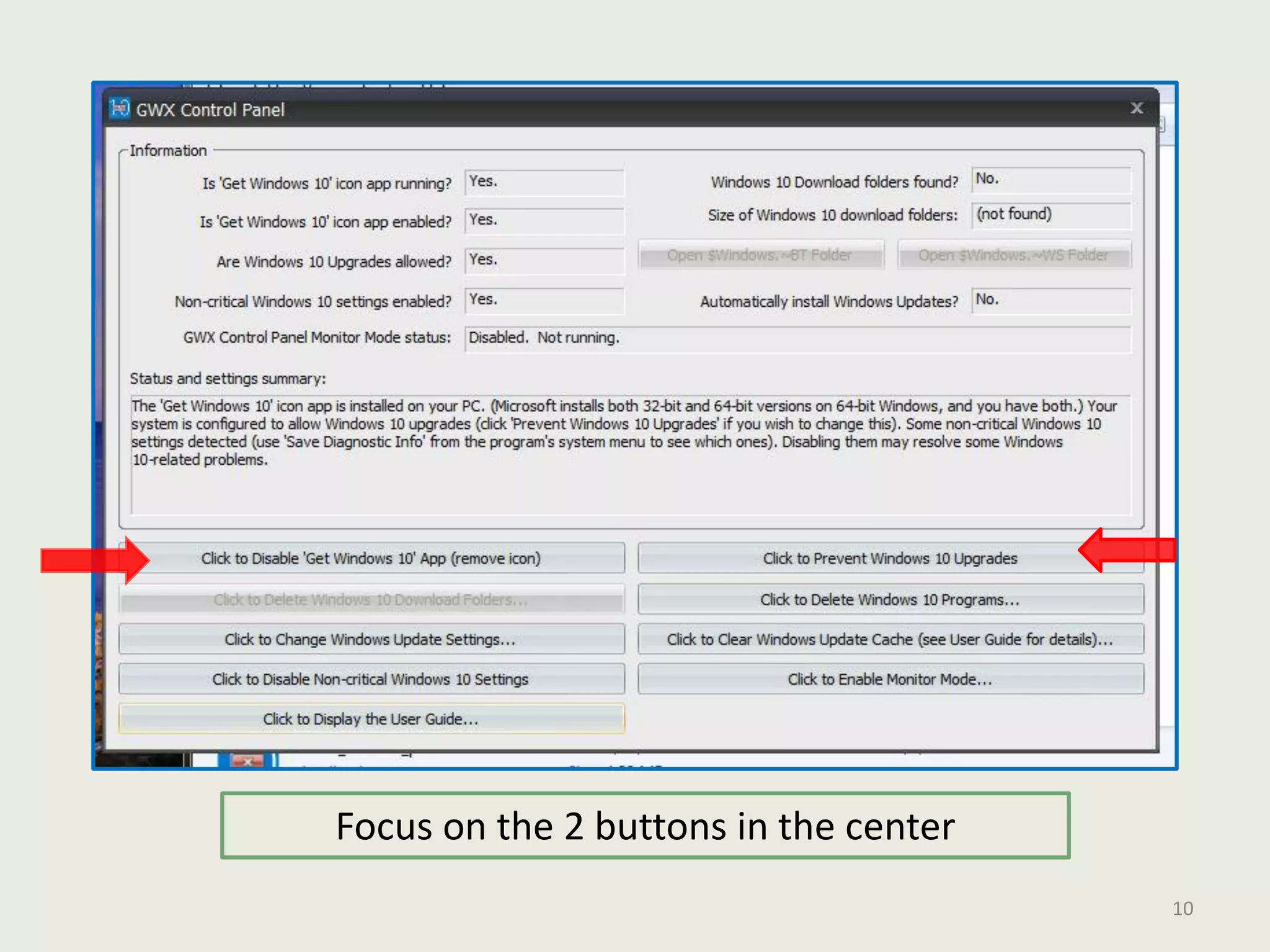
Focus on the 2 buttons in the center
10
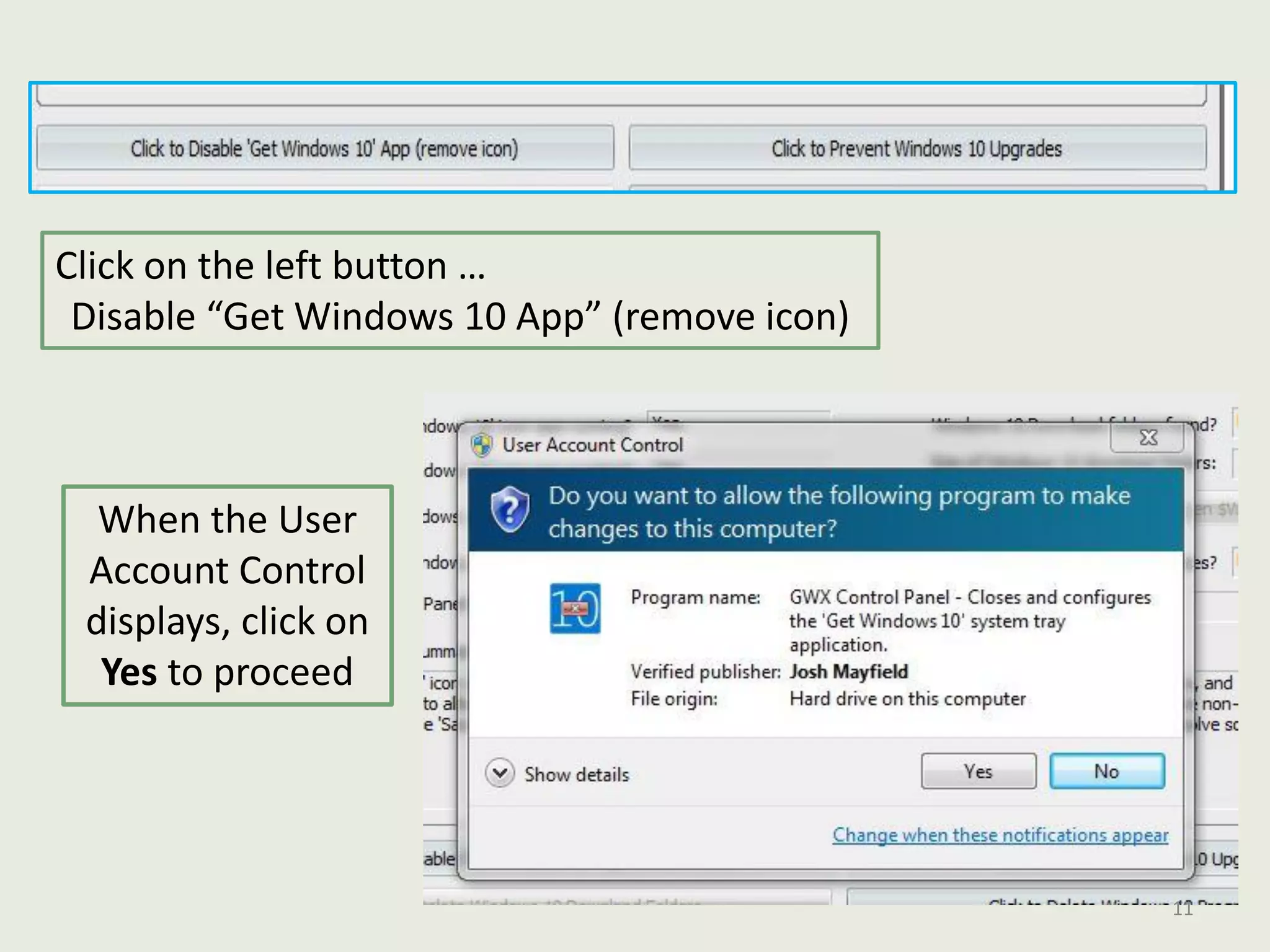
Click on the left button …
Disable “Get Windows 10 App” (remove icon)
When the User
Account Control
displays, click on
Yes to proceed
11
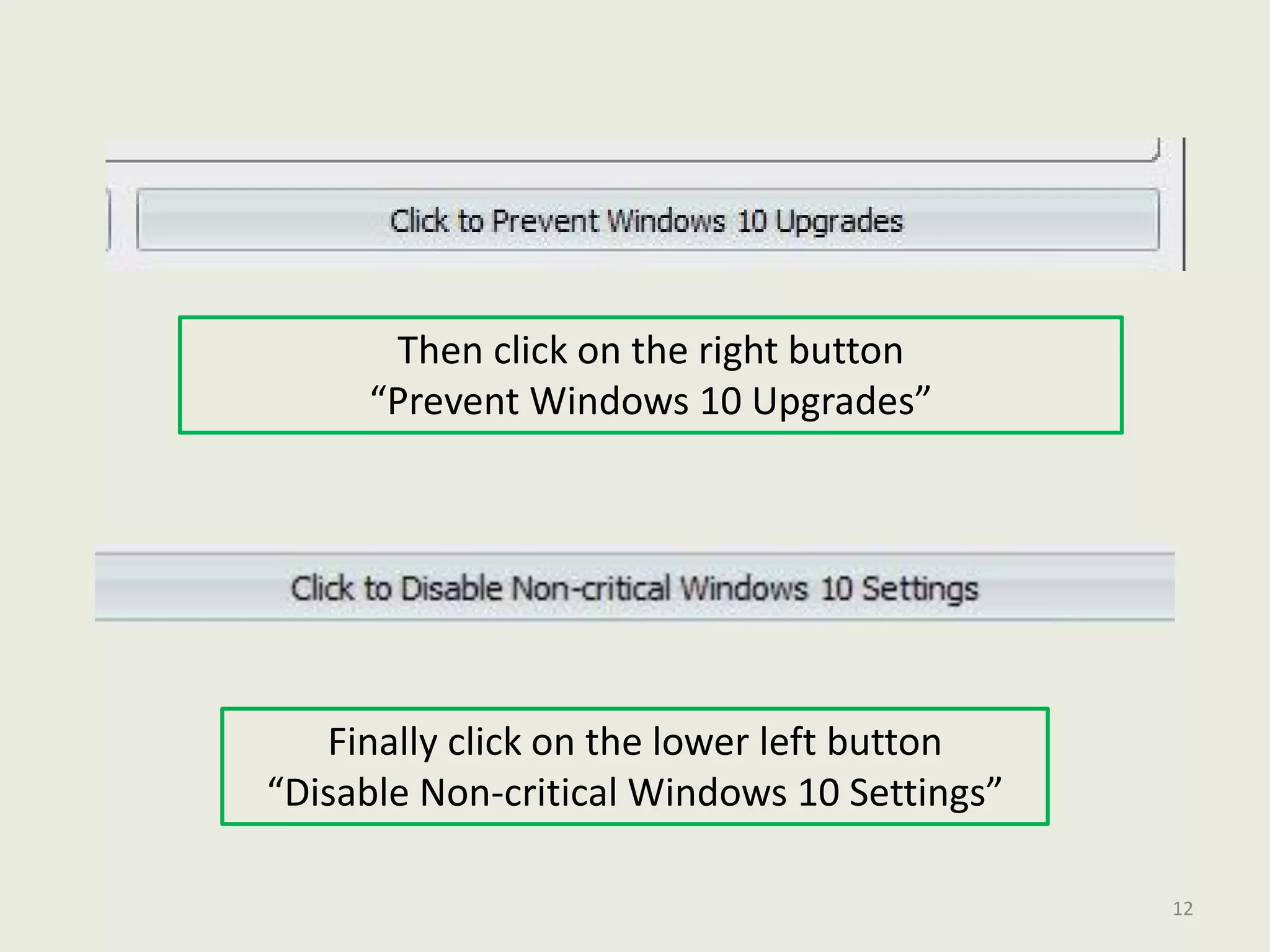
Then click on the right button
“Prevent Windows 10 Upgrades”
Finally click on the lower left button
“Disable Non-critical Windows 10 Settings”
12
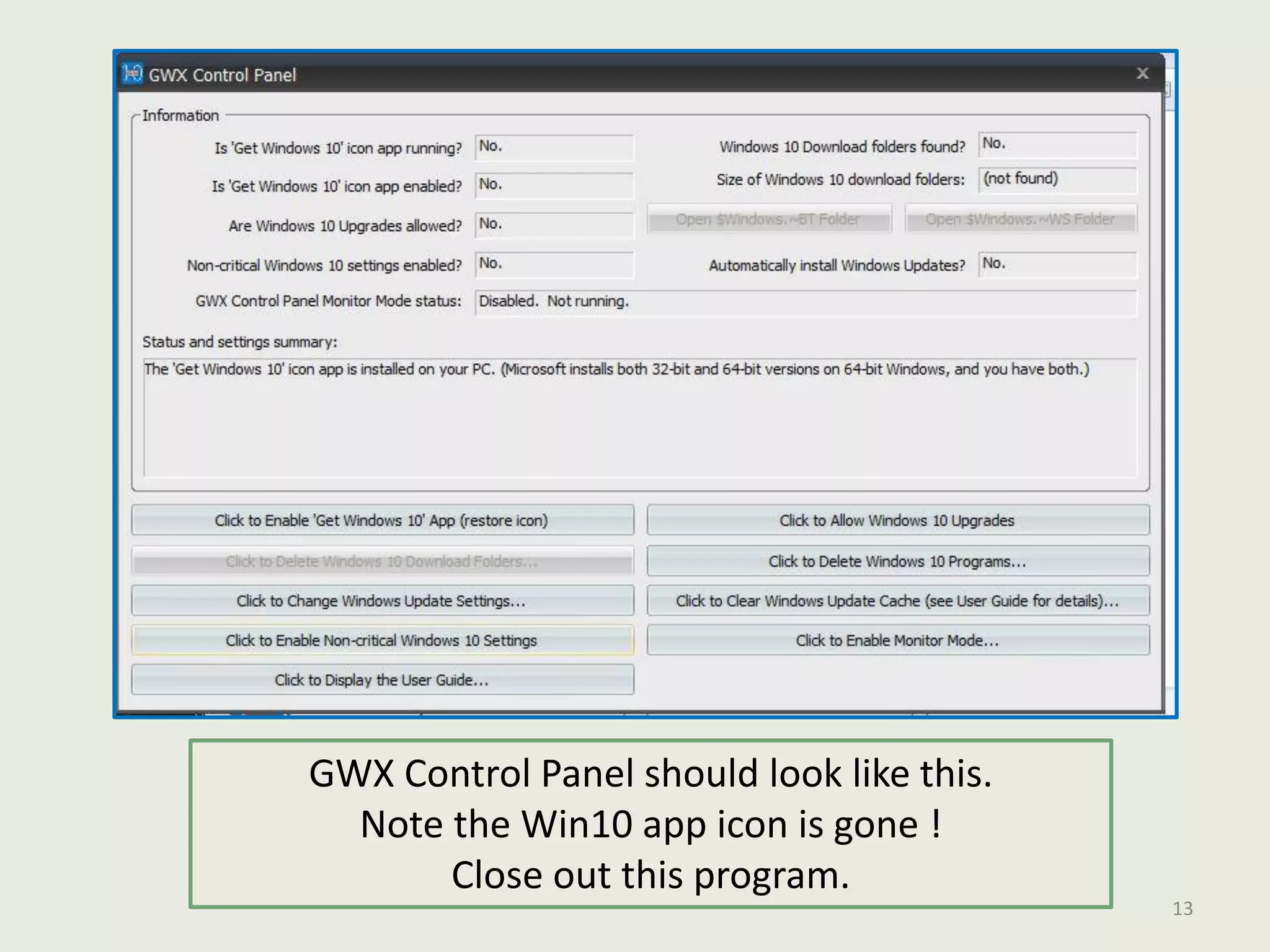
GWX Control Panel should look like this.
Note the Win10 app icon is gone !
Close out this program.
13
Window 10 is blocked
No means NO,
until I’m ready for it
14
15
John Lorens
Program / Project Manager
Computer Engineer
johnlorens@gmail.com
847-687-1329
www.lorenstechsolutions.com
www.linkedin.com/in/johnlorens/

Blocking Windows 10 Upgrade

  • 1.
    Blocking Windows 10upgrade John Lorens 847-687-1329 johnlorens@gmail.com www.lorenstechsolutions.com 1
  • 2.
    Seeing this 4white square app in your System Tray (desktop lower right) indicates that Microsoft is getting ready to upgrade your Windows 7 or 8 to the new Win 10 If you don’t want to upgrade to 10, knowing that many have encountered problems with their PC, software, and peripherals, follow the following instructions to block any automated upgrades without your permission. 2
  • 3.
    Open Control Panel Clickon Windows Update 3
  • 4.
    Click on Change Settings toalter the automatic upgrades 4
  • 5.
    Updates are usuallyset up by default as above. The 1st box “recommended updates should be unchecked. Every day updates are not necessary. 5
  • 6.
    Once the settingsare as above, click on OK 6
  • 7.
    Enter the followingaddress in your browser to get the free GWX Control Panel program http://ultimateoutsider.com/downloads/ Click on the GWX Control Panel link 7
  • 8.
    Save the GwxControlPanelSetup.exe free downloadfile. Double click on this GWX file to run it. 8
  • 9.
    Check the boxto accept the free license agreement and click on Continue 9
  • 10.
    Focus on the2 buttons in the center 10
  • 11.
    Click on theleft button … Disable “Get Windows 10 App” (remove icon) When the User Account Control displays, click on Yes to proceed 11
  • 12.
    Then click onthe right button “Prevent Windows 10 Upgrades” Finally click on the lower left button “Disable Non-critical Windows 10 Settings” 12
  • 13.
    GWX Control Panelshould look like this. Note the Win10 app icon is gone ! Close out this program. 13
  • 14.
    Window 10 isblocked No means NO, until I’m ready for it 14
  • 15.
    15 John Lorens Program /Project Manager Computer Engineer johnlorens@gmail.com 847-687-1329 www.lorenstechsolutions.com www.linkedin.com/in/johnlorens/