How to enable
Windows Remote Desktop Connection
Proprietary & Confidential
In this Slideshare, learn how to:
Part One: Enable Remote Desktop Connection
Part Two: Access a remote computer

Proprietary & Confidential

2
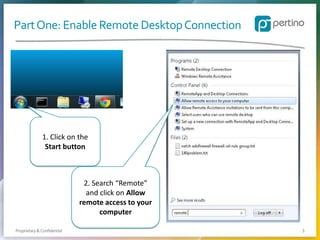
Part One: Enable Remote Desktop Connection

1. Click on the
Start button

2. Search “Remote”
and click on Allow
remote access to your
computer
Proprietary & Confidential

3
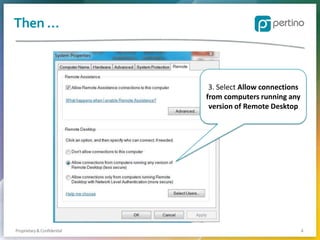
Then …

3. Select Allow connections
from computers running any
version of Remote Desktop

Proprietary & Confidential

4
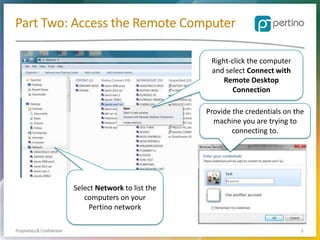
Part Two: Access the Remote Computer
Right-click the computer
and select Connect with
Remote Desktop
Connection
Provide the credentials on the
machine you are trying to
connecting to.

Select Network to list the
computers on your
Pertino network
Proprietary & Confidential

5
Supported Microsoft Versions
Note: Microsoft Remote Desktop Connection is only
available on the Professional and Enterprise versions of
Windows. Standard and Home additions have the RDP
client, but cannot be used to be connect remotely. You can
use other methods such as VNC, but you will need to install
separately.

Proprietary & Confidential

6
Thanks for viewing!

Simple, secure, cloud-based networking
that connects people everywhere
with IT resources anywhere.
pertino.com
Proprietary & Confidential

Slide 7

How to Enable Windows Remote Desktop Connection

  • 1.
    How to enable WindowsRemote Desktop Connection Proprietary & Confidential
  • 2.
    In this Slideshare,learn how to: Part One: Enable Remote Desktop Connection Part Two: Access a remote computer Proprietary & Confidential 2
  • 3.
    Part One: EnableRemote Desktop Connection 1. Click on the Start button 2. Search “Remote” and click on Allow remote access to your computer Proprietary & Confidential 3
  • 4.
    Then … 3. SelectAllow connections from computers running any version of Remote Desktop Proprietary & Confidential 4
  • 5.
    Part Two: Accessthe Remote Computer Right-click the computer and select Connect with Remote Desktop Connection Provide the credentials on the machine you are trying to connecting to. Select Network to list the computers on your Pertino network Proprietary & Confidential 5
  • 6.
    Supported Microsoft Versions Note:Microsoft Remote Desktop Connection is only available on the Professional and Enterprise versions of Windows. Standard and Home additions have the RDP client, but cannot be used to be connect remotely. You can use other methods such as VNC, but you will need to install separately. Proprietary & Confidential 6
  • 7.
    Thanks for viewing! Simple,secure, cloud-based networking that connects people everywhere with IT resources anywhere. pertino.com Proprietary & Confidential Slide 7