SENTIMENT-ANALYSIS-APP
With Bluemix DevOps Services
Sheetal Sharma
Internship at IBM
Innovation
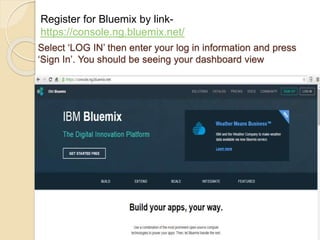
Select ‘LOG IN’ then enter your log in information and press
‘Sign In’. You should be seeing your dashboard view
Register for Bluemix by link-
https://console.ng.bluemix.net/
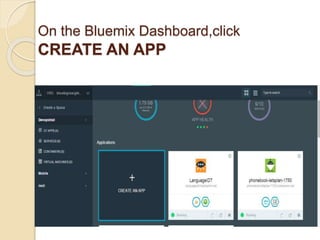
On the Bluemix Dashboard,click
CREATE AN APP
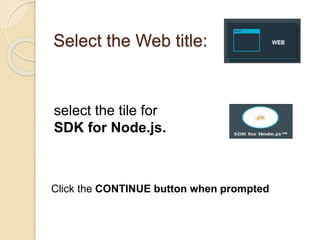
Select the Web title:
select the tile for
SDK for Node.js.
Click the CONTINUE button when prompted
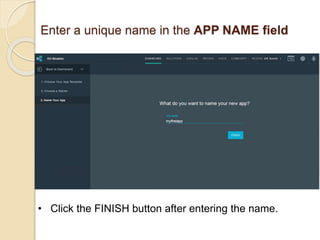
Enter a unique name in the APP NAME field
• Click the FINISH button after entering the name.
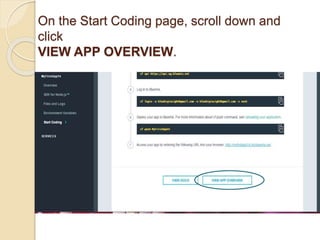
On the Start Coding page, scroll down and
click
VIEW APP OVERVIEW.
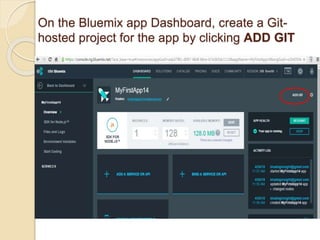
On the Bluemix app Dashboard, create a Git-
hosted project for the app by clicking ADD GIT
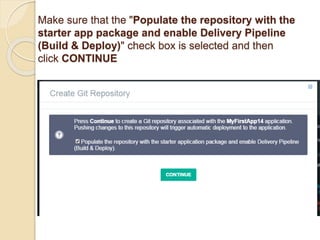
Make sure that the "Populate the repository with the
starter app package and enable Delivery Pipeline
(Build & Deploy)" check box is selected and then
click CONTINUE
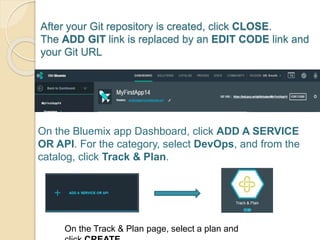
After your Git repository is created, click CLOSE.
The ADD GIT link is replaced by an EDIT CODE link and
your Git URL
On the Bluemix app Dashboard, click ADD A SERVICE
OR API. For the category, select DevOps, and from the
catalog, click Track & Plan.
On the Track & Plan page, select a plan and
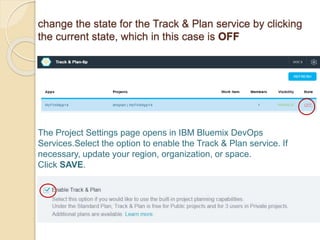
change the state for the Track & Plan service by clicking
the current state, which in this case is OFF
The Project Settings page opens in IBM Bluemix DevOps
Services.Select the option to enable the Track & Plan service. If
necessary, update your region, organization, or space.
Click SAVE.
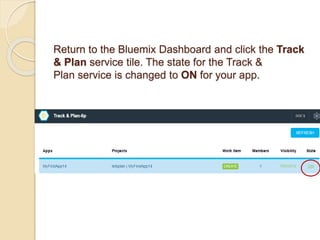
Return to the Bluemix Dashboard and click the Track
& Plan service tile. The state for the Track &
Plan service is changed to ON for your app.
Explore and clone the sample
project
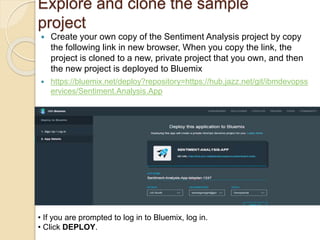
 Create your own copy of the Sentiment Analysis project by copy
the following link in new browser, When you copy the link, the
project is cloned to a new, private project that you own, and then
the new project is deployed to Bluemix
 https://bluemix.net/deploy?repository=https://hub.jazz.net/git/ibmdevopss
ervices/Sentiment.Analysis.App
• If you are prompted to log in to Bluemix, log in.
• Click DEPLOY.
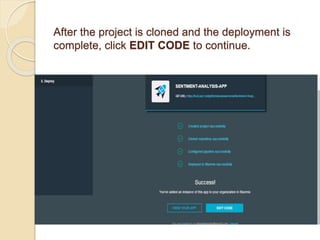
After the project is cloned and the deployment is
complete, click EDIT CODE to continue.
Enable the Track & Plan feature
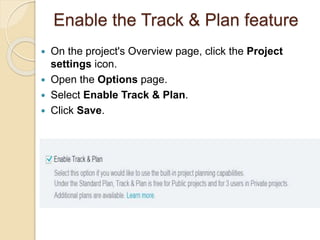
 On the project's Overview page, click the Project
settings icon.
 Open the Options page.
 Select Enable Track & Plan.
 Click Save.
Explore the Track & Plan views
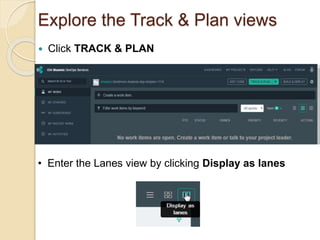
 Click TRACK & PLAN
• Enter the Lanes view by clicking Display as lanes
Create a task
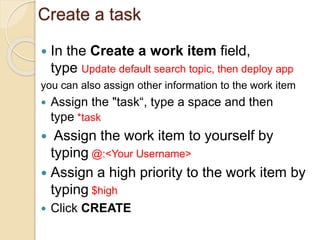
 In the Create a work item field,
type Update default search topic, then deploy app
you can also assign other information to the work item
 Assign the "task“, type a space and then
type *task
 Assign the work item to yourself by
typing @:<Your Username>
 Assign a high priority to the work item by
typing $high
 Click CREATE
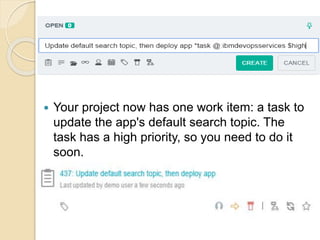
 Your project now has one work item: a task to
update the app's default search topic. The
task has a high priority, so you need to do it
soon.
Change the status of the task
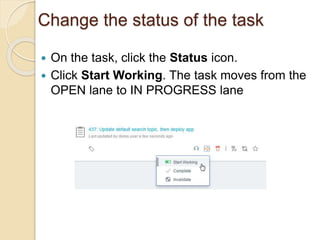
 On the task, click the Status icon.
 Click Start Working. The task moves from the
OPEN lane to IN PROGRESS lane
Modify your project's code
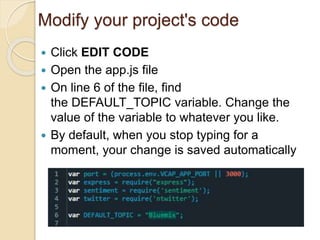
 Click EDIT CODE
 Open the app.js file
 On line 6 of the file, find
the DEFAULT_TOPIC variable. Change the
value of the variable to whatever you like.
 By default, when you stop typing for a
moment, your change is saved automatically
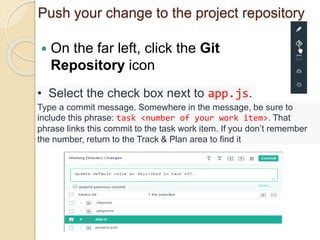
Push your change to the project repository
 On the far left, click the Git
Repository icon
• Select the check box next to app.js.
Type a commit message. Somewhere in the message, be sure to
include this phrase: task <number of your work item>. That
phrase links this commit to the task work item. If you don’t remember
the number, return to the Track & Plan area to find it
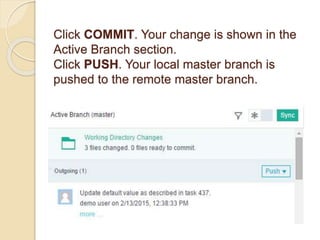
Click COMMIT. Your change is shown in the
Active Branch section.
Click PUSH. Your local master branch is
pushed to the remote master branch.
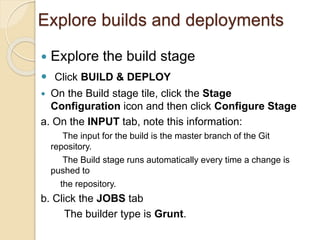
Explore builds and deployments
 Explore the build stage
 Click BUILD & DEPLOY
 On the Build stage tile, click the Stage
Configuration icon and then click Configure Stage
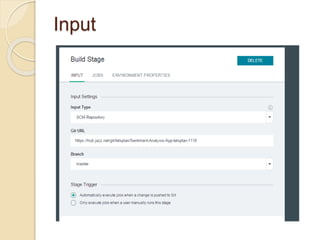
a. On the INPUT tab, note this information:
The input for the build is the master branch of the Git
repository.
The Build stage runs automatically every time a change is
pushed to
the repository.
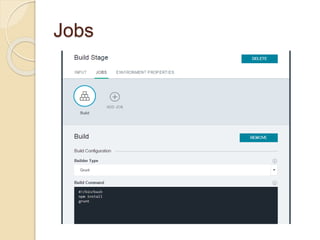
b. Click the JOBS tab
The builder type is Grunt.
Input
Jobs
Deploy the app and verify your
change
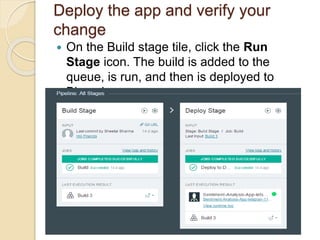
 On the Build stage tile, click the Run
Stage icon. The build is added to the
queue, is run, and then is deployed to
Bluemix
Complete the work item
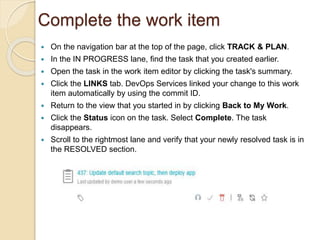
 On the navigation bar at the top of the page, click TRACK & PLAN.
 In the IN PROGRESS lane, find the task that you created earlier.
 Open the task in the work item editor by clicking the task's summary.
 Click the LINKS tab. DevOps Services linked your change to this work
item automatically by using the commit ID.
 Return to the view that you started in by clicking Back to My Work.
 Click the Status icon on the task. Select Complete. The task
disappears.
 Scroll to the rightmost lane and verify that your newly resolved task is in
the RESOLVED section.
My App
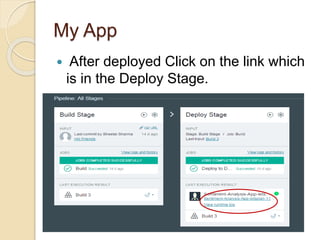
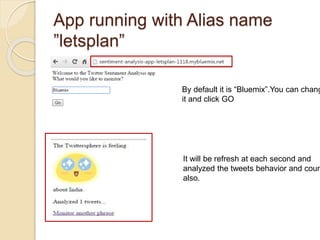
 After deployed Click on the link which
is in the Deploy Stage.
App running with Alias name
”letsplan”
By default it is “Bluemix”.You can chang
it and click GO
It will be refresh at each second and
analyzed the tweets behavior and coun
also.
Sentiment Analysis App with DevOps Services

Sentiment Analysis App with DevOps Services

  • 1.
    SENTIMENT-ANALYSIS-APP With Bluemix DevOpsServices Sheetal Sharma Internship at IBM Innovation
  • 2.
    Select ‘LOG IN’then enter your log in information and press ‘Sign In’. You should be seeing your dashboard view Register for Bluemix by link- https://console.ng.bluemix.net/
  • 3.
    On the BluemixDashboard,click CREATE AN APP
  • 4.
    Select the Webtitle: select the tile for SDK for Node.js. Click the CONTINUE button when prompted
  • 5.
    Enter a uniquename in the APP NAME field • Click the FINISH button after entering the name.
  • 6.
    On the StartCoding page, scroll down and click VIEW APP OVERVIEW.
  • 7.
    On the Bluemixapp Dashboard, create a Git- hosted project for the app by clicking ADD GIT
  • 8.
    Make sure thatthe "Populate the repository with the starter app package and enable Delivery Pipeline (Build & Deploy)" check box is selected and then click CONTINUE
  • 9.
    After your Gitrepository is created, click CLOSE. The ADD GIT link is replaced by an EDIT CODE link and your Git URL On the Bluemix app Dashboard, click ADD A SERVICE OR API. For the category, select DevOps, and from the catalog, click Track & Plan. On the Track & Plan page, select a plan and
  • 10.
    change the statefor the Track & Plan service by clicking the current state, which in this case is OFF The Project Settings page opens in IBM Bluemix DevOps Services.Select the option to enable the Track & Plan service. If necessary, update your region, organization, or space. Click SAVE.
  • 11.
    Return to theBluemix Dashboard and click the Track & Plan service tile. The state for the Track & Plan service is changed to ON for your app.
  • 12.
    Explore and clonethe sample project  Create your own copy of the Sentiment Analysis project by copy the following link in new browser, When you copy the link, the project is cloned to a new, private project that you own, and then the new project is deployed to Bluemix  https://bluemix.net/deploy?repository=https://hub.jazz.net/git/ibmdevopss ervices/Sentiment.Analysis.App • If you are prompted to log in to Bluemix, log in. • Click DEPLOY.
  • 13.
    After the projectis cloned and the deployment is complete, click EDIT CODE to continue.
  • 14.
    Enable the Track& Plan feature  On the project's Overview page, click the Project settings icon.  Open the Options page.  Select Enable Track & Plan.  Click Save.
  • 15.
    Explore the Track& Plan views  Click TRACK & PLAN • Enter the Lanes view by clicking Display as lanes
  • 16.
    Create a task In the Create a work item field, type Update default search topic, then deploy app you can also assign other information to the work item  Assign the "task“, type a space and then type *task  Assign the work item to yourself by typing @:<Your Username>  Assign a high priority to the work item by typing $high  Click CREATE
  • 17.
     Your projectnow has one work item: a task to update the app's default search topic. The task has a high priority, so you need to do it soon.
  • 18.
    Change the statusof the task  On the task, click the Status icon.  Click Start Working. The task moves from the OPEN lane to IN PROGRESS lane
  • 19.
    Modify your project'scode  Click EDIT CODE  Open the app.js file  On line 6 of the file, find the DEFAULT_TOPIC variable. Change the value of the variable to whatever you like.  By default, when you stop typing for a moment, your change is saved automatically
  • 20.
    Push your changeto the project repository  On the far left, click the Git Repository icon • Select the check box next to app.js. Type a commit message. Somewhere in the message, be sure to include this phrase: task <number of your work item>. That phrase links this commit to the task work item. If you don’t remember the number, return to the Track & Plan area to find it
  • 21.
    Click COMMIT. Yourchange is shown in the Active Branch section. Click PUSH. Your local master branch is pushed to the remote master branch.
  • 22.
    Explore builds anddeployments  Explore the build stage  Click BUILD & DEPLOY  On the Build stage tile, click the Stage Configuration icon and then click Configure Stage a. On the INPUT tab, note this information: The input for the build is the master branch of the Git repository. The Build stage runs automatically every time a change is pushed to the repository. b. Click the JOBS tab The builder type is Grunt.
  • 23.
  • 24.
  • 25.
    Deploy the appand verify your change  On the Build stage tile, click the Run Stage icon. The build is added to the queue, is run, and then is deployed to Bluemix
  • 26.
    Complete the workitem  On the navigation bar at the top of the page, click TRACK & PLAN.  In the IN PROGRESS lane, find the task that you created earlier.  Open the task in the work item editor by clicking the task's summary.  Click the LINKS tab. DevOps Services linked your change to this work item automatically by using the commit ID.  Return to the view that you started in by clicking Back to My Work.  Click the Status icon on the task. Select Complete. The task disappears.  Scroll to the rightmost lane and verify that your newly resolved task is in the RESOLVED section.
  • 27.
    My App  Afterdeployed Click on the link which is in the Deploy Stage.
  • 28.
    App running withAlias name ”letsplan” By default it is “Bluemix”.You can chang it and click GO It will be refresh at each second and analyzed the tweets behavior and coun also.