1/10
Build a cloud app that uses the Bluemix
“Weather Company Data” service
This lab is meant to help you explore IBM® Bluemix through hands-on activities. Develop cloud
applications using Bluemix is easy, as you can not only write your own code, but also leverage existing
cloud services to compose new business features. For further information on Bluemix capabilities, go to
https://console.ng.bluemix.net/catalog
Before you begin
To complete this lab, you need a valid Bluemix account and enough resources to deploy a new
application. See the detailed requirements at:
https://bluelabs.mybluemix.net/workshops/homestead-weather
Learning Objectives
In this lab, you follow a typical DevOps lifecycle (Plan, Dev&Test, Deploy, Operate) to modify a web
application. The main Bluemix capabilities you will experiment are:
 Node.js and Cloud Foundry runtime
 Agile planning and tracking
 Code change using the Web editor
 Continuous integration with Git on Bluemix
 Continuous delivery with the Delivery pipeline
 The “Weather Company Data for Bluemix” service for weather forecasts
About the Homestead Store application
Homestead Corporation is a retailer of products for outdoor activities. On their website, they sell items
such as ski boots, backpacks, hiking boots, or bikes. Homestead wants to include some weather data in
their website to suggest activities to their clients. In this lab, you will modify the application and create
the page to display recommended activities according to the weather forecasts.
2/10
In this workshop, you start from an existing application available on GitHub (HomesteadStore). You clone it to reuse
the code instead of starting a new application from scratch. Then the goal is to modify the application in order to
add a page that provide suggested activities according to the weather forecasts.
1. CLONE AND DEPLOY THE HOMESTEAD APPLICATION
In this section, you use a Bluemix feature to clone an existing application and to automatically create the
environment to develop and deploy new features.
1.1. The application to reuse is available on GitHub (https://github.com/cloud-advisor/homesteadStore.git).
You can browse the Git repository but don’t clone it from Git. In the following steps, you will
use a Bluemix tool to clone and setup an entire environment.
1.2. Click the “Deploy to Bluemix” button so that Bluemix creates the environment for you. If the
button does not work, copy and paste the URL is a web browser instead.
1.3. When the Deploy to Bluemix page appears, click the LOG IN button.
1.4. Enter the APP NAME. It has to be a unique identifier as it will be used as the public URL of your
application. Keep the other default values (region, organization, space) and click DEPLOY.
1.5. The process can take a couple of minutes because it does a lot of different things. First, a
project is created to manage your development activities (Agile planning, Web editor). Second,
the source project is cloned to populate your own repository (your copy of the original source
code). Then a delivery pipeline is configured to support automated build and deployments.
And last but not least, the application is deployed on Bluemix.
1.6. Click VIEW YOUR APP. A new tab opens and you can explore the Homestead Store application.
1.7. Go back to the previous tab in your browser (Deploy to Bluemix). Click EDIT CODE to access
your new project on Bluemix.
3/10
2. REVIEW YOUR PROJECT ENVIRONMENT
In this section, you access the development environment and you create a new task to manage the work you have
to complete.
2.1. Open the Delivery Pipeline page (BUILD & DEPLOY button on the upper right corner)
2.2. Notice that a Delivery Pipeline has already been created for your project. The Build Stage is
taking care of automated builds and the Deploy Stage does automated deployments
(continuous delivery).
2.3. Open the Agile planning and tracking page (TRACK & PLAN button on the upper right corner).
2.4. In the OPEN pane, create a new work item with the following description: “Add a page to
suggest activities according to weather forecasts”.
2.5. Click the small (orange) arrow and change the status of this work item (Start working)
2.6. The work item moves to the In Progress section.
Write down the work item number as you will need it later in the lab (1287 in the example
above, but your number will be different).
Note that you can create multiple work items (different types, tags and priorities). You can tem
use the Track&Plan tool to manage the work of an agile team (Backlog, Sprint Planning, Team
activities and real time progress…). We keep it quite simple in this lab with only one work item.
2.7. Open Web editor (EDIT CODE button on the upper right corner).
4/10
You are now ready to modify the code of your application.
3. ADD A PAGE FOR RECOMMENDED ACTIVITIES
In this section, you create the very first version of the new page that you need to develop, then you quickly test your
modification.
3.1. Click the views folder and expand it to reveal its content. Right-click the views folder and create
a new file called activities.ejs (right-click > New > File).
3.2. Add (copy&paste) the following code to the new file:
(if the Copy&Paste alters the indentation, you may want to use a tool such as http://jsbeautifier.org/)
<html>
<head>
<title>Homestead Co.</title>
<meta name="description" content="">
<meta name="keywords" content="">
<meta name="viewport" content="width=device-width, initial-scale=1, maximum-
scale=1, user-scalable=no">
<link rel="stylesheet" href="bootstrap/css/candy-box.css"><style>
body { padding-top: 60px; }
</style>
<script
src="//ajax.googleapis.com/ajax/libs/jquery/1.11.0/jquery.min.js"></script>
</head>
<% include header-activities.ejs %>
<body>
<div class="jumbotron">
<h1>Under Construction</h1>
</div>
</body>
<% include footer.ejs %>
</html>
3.3. Select the header.ejs file. Look for the line that is commented and remove the comment to
activate the new menu item.
3.4. Open the app.js file (root folder). Look for the section that defines the routes (around line 35).
Add a new route: app.get('/activities', routes.activities);
3.5. Under the routes folder, select the index.js file (this is the main router of the application). At
the end of the file, add some code to render the new Activities page.
// Render the Activities page
exports.activities = function(req, res) {
res.render('activities');
};
5/10
3.6. Turn on the Live Edit feature and click OK when asked to redeploy the application. For more
information on the live Edit capabilities (sync, debug), go to
https://hub.jazz.net/tutorials/livesync
3.7. Once the application has been redeployed (green dot indicates the app is up and running), click
the Open the Deployed App link.
3.8. Verify that the new page has been added to the application.
3.9. Go back to the development environment and click TRACK & PLAN (upper right corner).
3.10. Click the title of the work item to open it. A new page opens with a DISCUSSION section.
Add some text to explain your progress (e.g. “I created the new page, now I need to add
weather forecasts”. Note that you could also modify the estimate, the time remaining or the
due date.
3.11. Click SAVE. Your comment is added to the discussion thread.
4. ADD THE “WEATHER COMPANY DATA” SERVICE TO YOUR APPLICATION
In this section, you add the “Weather Company Data for IBM Bluemix” service to your Bluemix application. This
easy step is required to be able to add Weather API calls in your code.
4.1. Click EDIT CODE (upper-right corner), then click Open the App Overview.
4.2. A new window opens. It is the dashboard of your deployed application on Bluemix. Click ADD A
SERVICE OR API then type in “Weather” in the search box to quickly access the service.
6/10
4.3. Click the “Weather Company Data for IBM Bluemix” tile, then CREATE. Once the new service is
created, the application needs to be restaged (so click RESTAGE when asked). When staging
completes, the “Weather Company Data for IBM Bluemix” service is added to the application.
You are now ready to use the Weather APIs in your application. Yes, it is that simple!
5. CALL THE WEATHER API FROM YOUR APPLICATION
In this section, you modify the source code to add Weather API calls and get access to weather forecasts. The
information is then used to suggest some activities depending on the upcoming weather conditions.
5.1. Go back to the development environment to modify a bit more the code of your application.
5.2. Open the index.js file under the Route folder. Add the following code after line 14.
(if the Copy&Paste alters the indentation, you may want to use a tool such as http://jsbeautifier.org/)
// Weather data
var request = require('request');
var services = JSON.parse(process.env.VCAP_SERVICES);
var weather_service = services["weatherinsights"][0].credentials.url;
function weatherdataAPI(path, qs, done) {
var url = weather_service + path;
console.log(url, qs);
request({
url: url,
method: "GET",
headers: {
"Content-Type": "application/json;charset=utf-8",
"Accept": "application/json"
},
qs: qs
}, function(err, req, data) {
if (err) {
done(err);
} else {
if (req.statusCode >= 200 && req.statusCode < 400) {
try {
done(null, JSON.parse(data));
} catch(e) {
console.log(e);
done(e);
}
} else {
console.log(err);
done({ message: req.statusCode, data: data });
}
}
});
}
// End of Weather data
7/10
This simple function uses the “Weather Company Data” service that is bound to your Bluemix
application. It first gets the credentials for the service (stored in VCAP_SERVICES), before sending a
GET http request (REST API).
5.3. In the same file, modify the exports.activities section to include a call to the weatherAPI
function as shown below.
(if the Copy&Paste alters the indentation, you may want to use a tool such as http://jsbeautifier.org/)
exports.activities = function(req, res) {
var geoloc="45.50,-73.56"; // Montreal, Canada
// Hanaoi, Vietnam // var geoloc="21.03,105.83";
// Sao Paulo, Brasil // var geoloc= "-23.55,-46.63";
var geocode = geoloc.split(",");
weatherdataAPI("/api/weather/v1/geocode/" + geocode[0] + "/" + geocode[1] +
"/forecast/daily/10day.json", {
units: req.query.units || "m",
language: req.query.language || "en"
}, function(err, result) {
if (err) {
res.send(err).status(400);
} else {
res.render('activities',{weather: result });
//res.json(result); //for debug
}
});
};
In this code, the weatherdataAPI function is called to obtain a forecast for the next 10 days. To
simplify the workshop, the location (geoloc) is set to Montreal, Canada. But it can be changed in the
code by any other location around the world (latitude, longitude).
5.4. Open the sol-activities.ejs file under the views>sol folder. To help you in this task, the final
code to use it available and you just have to copy it.
5.5. Copy the code between <BODY> …</BODY> section (line 21 to 70)
5.6. Now under the views folder, open the activities.ejs file. Modify the code of the <BODY>
…</BODY> section with the one copied form the sol-activities.ejs file. Your code should now be
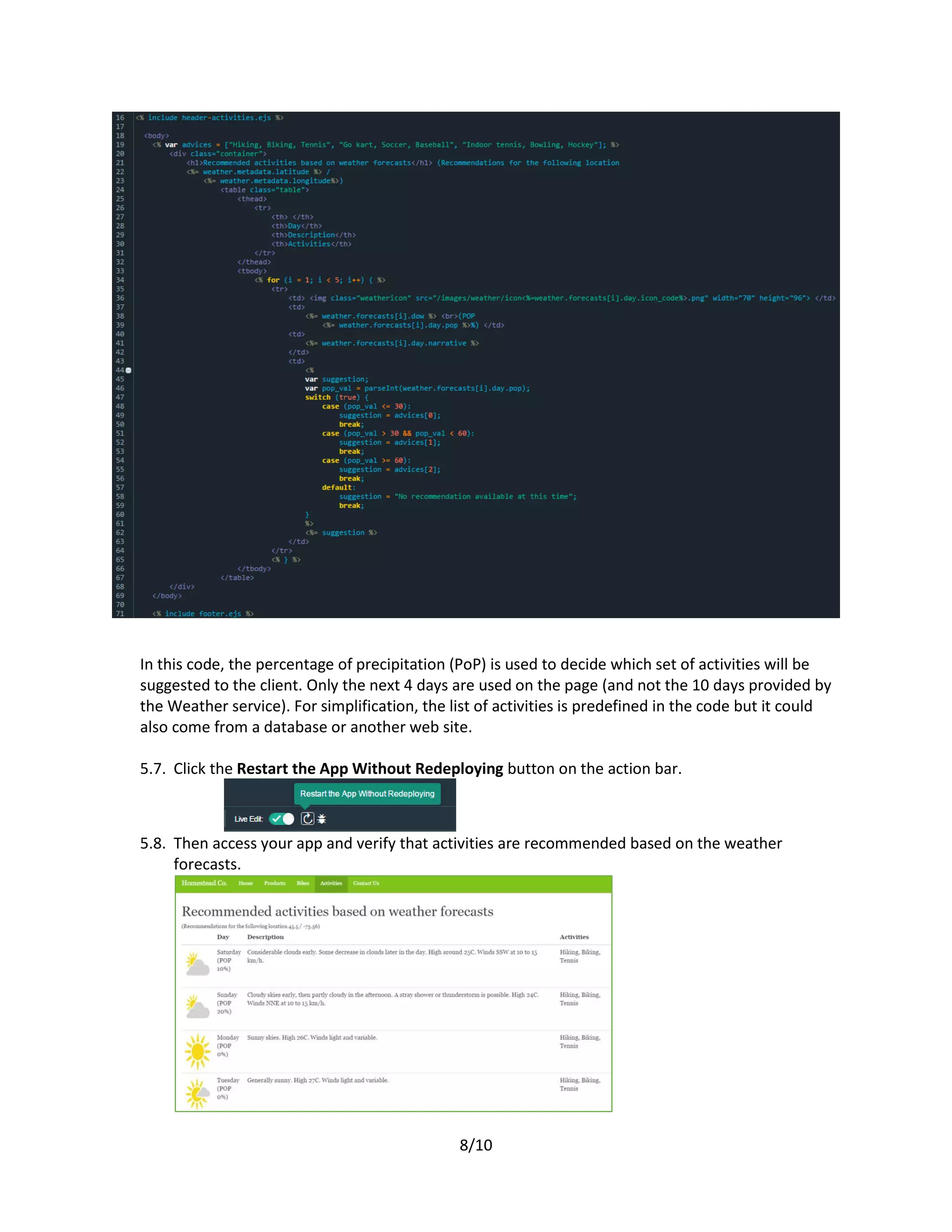
similar to the one below:
8/10
In this code, the percentage of precipitation (PoP) is used to decide which set of activities will be
suggested to the client. Only the next 4 days are used on the page (and not the 10 days provided by
the Weather service). For simplification, the list of activities is predefined in the code but it could
also come from a database or another web site.
5.7. Click the Restart the App Without Redeploying button on the action bar.
5.8. Then access your app and verify that activities are recommended based on the weather
forecasts.
9/10
6. SUBMIT YOUR CHANGES TO THE PROJECT REPOSITORY
In this section, you submit your changes to the shared repository. So far, your changes in the code were only visible
from your workspace (isolation). Once you submit the changes, all the team members get access to your code.
6.1. Click the Git Repository icon on the left pane
6.2. Enter a commit message with contain the work item number you created for this activity. In
this example, the number is 2215 but yours will be different: “As per task 2215, modified the
Activities page to include calls to the Weather APIs”. Because you include a work item number,
Bluemix creates a link between the change in Git and your activities (lifecycle traceability).
6.3. Click Commit, then click Push in the outgoing section.
6.4. Go to the Delivery Pipeline page (BUILD & DEPLOY button on upper-right corner). Notice that
because you pushed new code to the repository, a build and a deployment are automatically
triggered.
6.5. Got to the agile planning page (BUILD & DEPLOY button on upper-right corner).
6.6. Click the title of the work item to open it. In the new window, go to the LINKS tab.
6.7. Notice that the work item is linked to a change set in Git (lifecycle traceability).
10/10
6.8. Go back to the OVERVIEW tab. In the DISCUSSION part, indicate your progress (e.g. “The new
page with weather data has been developed and tested”).
6.9. Change the status of the work item, then click SAVE.
The work item is now closed, and the new feature has been deployed.
Congratulations! You have deployed a web application that provides activity
recommendations based on the weather forecasts.
In this workshop, you have created a Node.js application (Cloud Foundry
runtime), you have leveraged some Bluemix tools for agile planning (Track &
Plan), for coding activities (Web IDE), for continuous integration (Hosted Git), and
for continuous delivery (Delivery Pipeline).
You have also instanciate the Weather Company Data for Bluemix service to
include weather forecast data in your application.
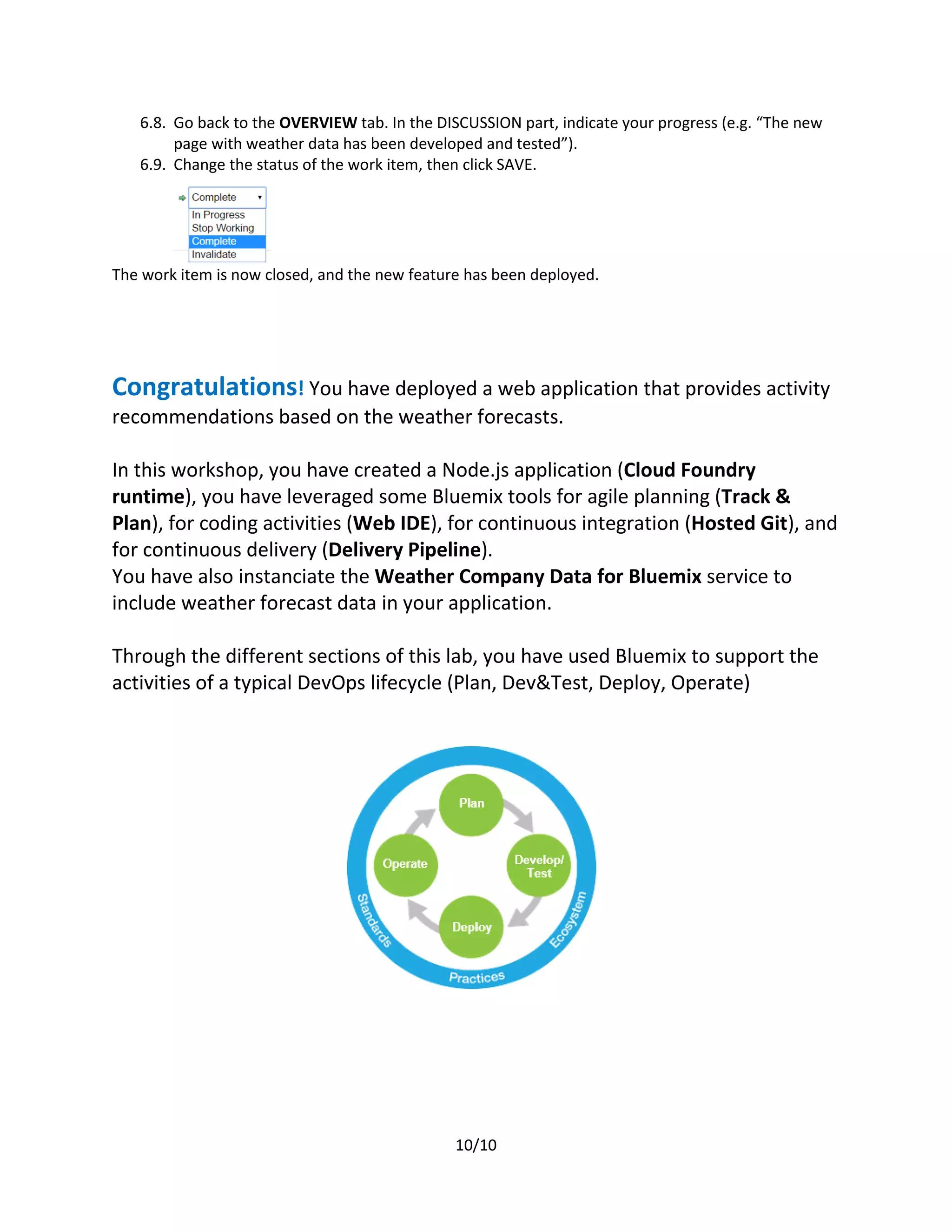
Through the different sections of this lab, you have used Bluemix to support the
activities of a typical DevOps lifecycle (Plan, Dev&Test, Deploy, Operate)

Homestead Weather workshop

  • 1.
    1/10 Build a cloudapp that uses the Bluemix “Weather Company Data” service This lab is meant to help you explore IBM® Bluemix through hands-on activities. Develop cloud applications using Bluemix is easy, as you can not only write your own code, but also leverage existing cloud services to compose new business features. For further information on Bluemix capabilities, go to https://console.ng.bluemix.net/catalog Before you begin To complete this lab, you need a valid Bluemix account and enough resources to deploy a new application. See the detailed requirements at: https://bluelabs.mybluemix.net/workshops/homestead-weather Learning Objectives In this lab, you follow a typical DevOps lifecycle (Plan, Dev&Test, Deploy, Operate) to modify a web application. The main Bluemix capabilities you will experiment are:  Node.js and Cloud Foundry runtime  Agile planning and tracking  Code change using the Web editor  Continuous integration with Git on Bluemix  Continuous delivery with the Delivery pipeline  The “Weather Company Data for Bluemix” service for weather forecasts About the Homestead Store application Homestead Corporation is a retailer of products for outdoor activities. On their website, they sell items such as ski boots, backpacks, hiking boots, or bikes. Homestead wants to include some weather data in their website to suggest activities to their clients. In this lab, you will modify the application and create the page to display recommended activities according to the weather forecasts.
  • 2.
    2/10 In this workshop,you start from an existing application available on GitHub (HomesteadStore). You clone it to reuse the code instead of starting a new application from scratch. Then the goal is to modify the application in order to add a page that provide suggested activities according to the weather forecasts. 1. CLONE AND DEPLOY THE HOMESTEAD APPLICATION In this section, you use a Bluemix feature to clone an existing application and to automatically create the environment to develop and deploy new features. 1.1. The application to reuse is available on GitHub (https://github.com/cloud-advisor/homesteadStore.git). You can browse the Git repository but don’t clone it from Git. In the following steps, you will use a Bluemix tool to clone and setup an entire environment. 1.2. Click the “Deploy to Bluemix” button so that Bluemix creates the environment for you. If the button does not work, copy and paste the URL is a web browser instead. 1.3. When the Deploy to Bluemix page appears, click the LOG IN button. 1.4. Enter the APP NAME. It has to be a unique identifier as it will be used as the public URL of your application. Keep the other default values (region, organization, space) and click DEPLOY. 1.5. The process can take a couple of minutes because it does a lot of different things. First, a project is created to manage your development activities (Agile planning, Web editor). Second, the source project is cloned to populate your own repository (your copy of the original source code). Then a delivery pipeline is configured to support automated build and deployments. And last but not least, the application is deployed on Bluemix. 1.6. Click VIEW YOUR APP. A new tab opens and you can explore the Homestead Store application. 1.7. Go back to the previous tab in your browser (Deploy to Bluemix). Click EDIT CODE to access your new project on Bluemix.
  • 3.
    3/10 2. REVIEW YOURPROJECT ENVIRONMENT In this section, you access the development environment and you create a new task to manage the work you have to complete. 2.1. Open the Delivery Pipeline page (BUILD & DEPLOY button on the upper right corner) 2.2. Notice that a Delivery Pipeline has already been created for your project. The Build Stage is taking care of automated builds and the Deploy Stage does automated deployments (continuous delivery). 2.3. Open the Agile planning and tracking page (TRACK & PLAN button on the upper right corner). 2.4. In the OPEN pane, create a new work item with the following description: “Add a page to suggest activities according to weather forecasts”. 2.5. Click the small (orange) arrow and change the status of this work item (Start working) 2.6. The work item moves to the In Progress section. Write down the work item number as you will need it later in the lab (1287 in the example above, but your number will be different). Note that you can create multiple work items (different types, tags and priorities). You can tem use the Track&Plan tool to manage the work of an agile team (Backlog, Sprint Planning, Team activities and real time progress…). We keep it quite simple in this lab with only one work item. 2.7. Open Web editor (EDIT CODE button on the upper right corner).
  • 4.
    4/10 You are nowready to modify the code of your application. 3. ADD A PAGE FOR RECOMMENDED ACTIVITIES In this section, you create the very first version of the new page that you need to develop, then you quickly test your modification. 3.1. Click the views folder and expand it to reveal its content. Right-click the views folder and create a new file called activities.ejs (right-click > New > File). 3.2. Add (copy&paste) the following code to the new file: (if the Copy&Paste alters the indentation, you may want to use a tool such as http://jsbeautifier.org/) <html> <head> <title>Homestead Co.</title> <meta name="description" content=""> <meta name="keywords" content=""> <meta name="viewport" content="width=device-width, initial-scale=1, maximum- scale=1, user-scalable=no"> <link rel="stylesheet" href="bootstrap/css/candy-box.css"><style> body { padding-top: 60px; } </style> <script src="//ajax.googleapis.com/ajax/libs/jquery/1.11.0/jquery.min.js"></script> </head> <% include header-activities.ejs %> <body> <div class="jumbotron"> <h1>Under Construction</h1> </div> </body> <% include footer.ejs %> </html> 3.3. Select the header.ejs file. Look for the line that is commented and remove the comment to activate the new menu item. 3.4. Open the app.js file (root folder). Look for the section that defines the routes (around line 35). Add a new route: app.get('/activities', routes.activities); 3.5. Under the routes folder, select the index.js file (this is the main router of the application). At the end of the file, add some code to render the new Activities page. // Render the Activities page exports.activities = function(req, res) { res.render('activities'); };
  • 5.
    5/10 3.6. Turn onthe Live Edit feature and click OK when asked to redeploy the application. For more information on the live Edit capabilities (sync, debug), go to https://hub.jazz.net/tutorials/livesync 3.7. Once the application has been redeployed (green dot indicates the app is up and running), click the Open the Deployed App link. 3.8. Verify that the new page has been added to the application. 3.9. Go back to the development environment and click TRACK & PLAN (upper right corner). 3.10. Click the title of the work item to open it. A new page opens with a DISCUSSION section. Add some text to explain your progress (e.g. “I created the new page, now I need to add weather forecasts”. Note that you could also modify the estimate, the time remaining or the due date. 3.11. Click SAVE. Your comment is added to the discussion thread. 4. ADD THE “WEATHER COMPANY DATA” SERVICE TO YOUR APPLICATION In this section, you add the “Weather Company Data for IBM Bluemix” service to your Bluemix application. This easy step is required to be able to add Weather API calls in your code. 4.1. Click EDIT CODE (upper-right corner), then click Open the App Overview. 4.2. A new window opens. It is the dashboard of your deployed application on Bluemix. Click ADD A SERVICE OR API then type in “Weather” in the search box to quickly access the service.
  • 6.
    6/10 4.3. Click the“Weather Company Data for IBM Bluemix” tile, then CREATE. Once the new service is created, the application needs to be restaged (so click RESTAGE when asked). When staging completes, the “Weather Company Data for IBM Bluemix” service is added to the application. You are now ready to use the Weather APIs in your application. Yes, it is that simple! 5. CALL THE WEATHER API FROM YOUR APPLICATION In this section, you modify the source code to add Weather API calls and get access to weather forecasts. The information is then used to suggest some activities depending on the upcoming weather conditions. 5.1. Go back to the development environment to modify a bit more the code of your application. 5.2. Open the index.js file under the Route folder. Add the following code after line 14. (if the Copy&Paste alters the indentation, you may want to use a tool such as http://jsbeautifier.org/) // Weather data var request = require('request'); var services = JSON.parse(process.env.VCAP_SERVICES); var weather_service = services["weatherinsights"][0].credentials.url; function weatherdataAPI(path, qs, done) { var url = weather_service + path; console.log(url, qs); request({ url: url, method: "GET", headers: { "Content-Type": "application/json;charset=utf-8", "Accept": "application/json" }, qs: qs }, function(err, req, data) { if (err) { done(err); } else { if (req.statusCode >= 200 && req.statusCode < 400) { try { done(null, JSON.parse(data)); } catch(e) { console.log(e); done(e); } } else { console.log(err); done({ message: req.statusCode, data: data }); } } }); } // End of Weather data
  • 7.
    7/10 This simple functionuses the “Weather Company Data” service that is bound to your Bluemix application. It first gets the credentials for the service (stored in VCAP_SERVICES), before sending a GET http request (REST API). 5.3. In the same file, modify the exports.activities section to include a call to the weatherAPI function as shown below. (if the Copy&Paste alters the indentation, you may want to use a tool such as http://jsbeautifier.org/) exports.activities = function(req, res) { var geoloc="45.50,-73.56"; // Montreal, Canada // Hanaoi, Vietnam // var geoloc="21.03,105.83"; // Sao Paulo, Brasil // var geoloc= "-23.55,-46.63"; var geocode = geoloc.split(","); weatherdataAPI("/api/weather/v1/geocode/" + geocode[0] + "/" + geocode[1] + "/forecast/daily/10day.json", { units: req.query.units || "m", language: req.query.language || "en" }, function(err, result) { if (err) { res.send(err).status(400); } else { res.render('activities',{weather: result }); //res.json(result); //for debug } }); }; In this code, the weatherdataAPI function is called to obtain a forecast for the next 10 days. To simplify the workshop, the location (geoloc) is set to Montreal, Canada. But it can be changed in the code by any other location around the world (latitude, longitude). 5.4. Open the sol-activities.ejs file under the views>sol folder. To help you in this task, the final code to use it available and you just have to copy it. 5.5. Copy the code between <BODY> …</BODY> section (line 21 to 70) 5.6. Now under the views folder, open the activities.ejs file. Modify the code of the <BODY> …</BODY> section with the one copied form the sol-activities.ejs file. Your code should now be similar to the one below:
  • 8.
    8/10 In this code,the percentage of precipitation (PoP) is used to decide which set of activities will be suggested to the client. Only the next 4 days are used on the page (and not the 10 days provided by the Weather service). For simplification, the list of activities is predefined in the code but it could also come from a database or another web site. 5.7. Click the Restart the App Without Redeploying button on the action bar. 5.8. Then access your app and verify that activities are recommended based on the weather forecasts.
  • 9.
    9/10 6. SUBMIT YOURCHANGES TO THE PROJECT REPOSITORY In this section, you submit your changes to the shared repository. So far, your changes in the code were only visible from your workspace (isolation). Once you submit the changes, all the team members get access to your code. 6.1. Click the Git Repository icon on the left pane 6.2. Enter a commit message with contain the work item number you created for this activity. In this example, the number is 2215 but yours will be different: “As per task 2215, modified the Activities page to include calls to the Weather APIs”. Because you include a work item number, Bluemix creates a link between the change in Git and your activities (lifecycle traceability). 6.3. Click Commit, then click Push in the outgoing section. 6.4. Go to the Delivery Pipeline page (BUILD & DEPLOY button on upper-right corner). Notice that because you pushed new code to the repository, a build and a deployment are automatically triggered. 6.5. Got to the agile planning page (BUILD & DEPLOY button on upper-right corner). 6.6. Click the title of the work item to open it. In the new window, go to the LINKS tab. 6.7. Notice that the work item is linked to a change set in Git (lifecycle traceability).
  • 10.
    10/10 6.8. Go backto the OVERVIEW tab. In the DISCUSSION part, indicate your progress (e.g. “The new page with weather data has been developed and tested”). 6.9. Change the status of the work item, then click SAVE. The work item is now closed, and the new feature has been deployed. Congratulations! You have deployed a web application that provides activity recommendations based on the weather forecasts. In this workshop, you have created a Node.js application (Cloud Foundry runtime), you have leveraged some Bluemix tools for agile planning (Track & Plan), for coding activities (Web IDE), for continuous integration (Hosted Git), and for continuous delivery (Delivery Pipeline). You have also instanciate the Weather Company Data for Bluemix service to include weather forecast data in your application. Through the different sections of this lab, you have used Bluemix to support the activities of a typical DevOps lifecycle (Plan, Dev&Test, Deploy, Operate)