Extending an Android app using the IBM 
Push for Bluemix cloud service 
© 2009 IBM Corporation 
Susan Rizzo – IBM Mobile Cloud 
9 November 2014
IBM Push for Bluemix – Fast Path 
A fast path to setup of the BlueList Push sample 
This presentation was created to show you how to quickly create & configure the IBM BlueMix 
Mobile Sample “BlueList Push for Android” using Android Studio. 
 What you'll need to get started! 
– Google Developers Console ( https://cloud.google.com/console/project ) 
• You'll need a gmail ID for this :-) 
– Bluemix account ( https://ace.ng.bluemix.net/ ) 
– Git client (pick one of the many git clients available) 
• You'll need this to download (“git clone”) the code 
– Gradle installed ( http://www.gradle.org/ ) 
• Download Gradle zip and extract into directory of your choice 
– Android Studio ( http://developer.android.com/sdk/installing/studio.html ) 
• Follow the installation instructions provided 
– Cloud Foundry ( http://docs.cloudfoundry.org/devguide/installcf/ ) 
• Install the cf Command Line Interface (CLI) 
Source: http://www.ibm.com/developerworks/library/mo-android-push-app/index.html 
© 2014 2 IBM Corporation
Create Project in Google Developers Console with GCM setup 
*** Quick Summary of Steps *** 
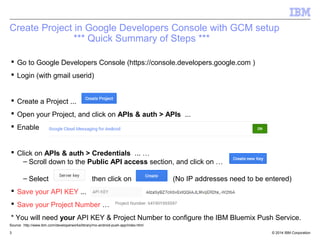
 Go to Google Developers Console (https://console.developers.google.com ) 
 Login (with gmail userid) 
 Create a Project ... 
 Open your Project, and click on APIs & auth > APIs ... 
 Enable 
 Click on APIs & auth > Credentials ... … 
– Scroll down to the Public API access section, and click on … 
– Select then click on (No IP addresses need to be entered) 
 Save your API KEY ... 
 Save your Project Number … 
* You will need your API KEY & Project Number to configure the IBM Bluemix Push Service. 
Source: http://www.ibm.com/developerworks/library/mo-android-push-app/index.html 
© 2014 3 IBM Corporation
While you're here … save the BlueList App values needed later ! 
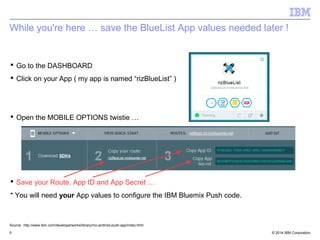
 Go to the DASHBOARD 
 Click on your App ( my app is named “rizBlueList” ) 
 Open the MOBILE OPTIONS twistie … 
 Save your Route, App ID and App Secret … 
* You will need your App values to configure the IBM Bluemix Push code. 
Source: http://www.ibm.com/developerworks/library/mo-android-push-app/index.html 
© 2014 5 IBM Corporation
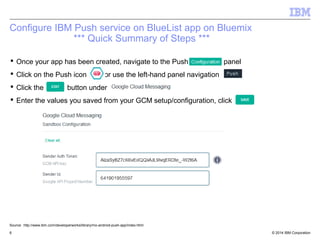
Configure IBM Push service on BlueList app on Bluemix 
*** Quick Summary of Steps *** 
 Once your app has been created, navigate to the Push panel 
 Click on the Push icon or use the left-hand panel navigation 
 Click the button under 
 Enter the values you saved from your GCM setup/configuration, click 
Source: http://www.ibm.com/developerworks/library/mo-android-push-app/index.html 
© 2014 6 IBM Corporation
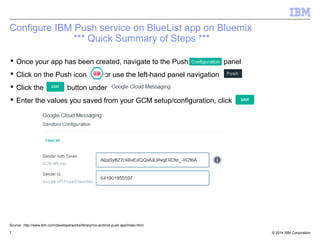
Configure IBM Push service on BlueList app on Bluemix 
*** Quick Summary of Steps *** 
 Once your app has been created, navigate to the Push panel 
 Click on the Push icon or use the left-hand panel navigation 
 Click the button under 
 Enter the values you saved from your GCM setup/configuration, click 
Source: http://www.ibm.com/developerworks/library/mo-android-push-app/index.html 
© 2014 7 IBM Corporation
IBM Push for Bluemix – Fast Path 
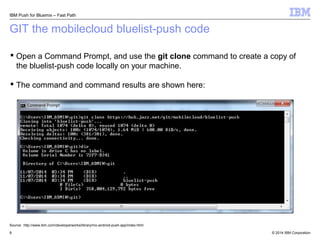
GIT the mobilecloud bluelist-push code 
 Open a Command Prompt, and use the git clone command to create a copy of 
the bluelist-push code locally on your machine. 
 The command and command results are shown here: 
Source: http://www.ibm.com/developerworks/library/mo-android-push-app/index.html 
© 2014 8 IBM Corporation
IBM Push for Bluemix – Fast Path 
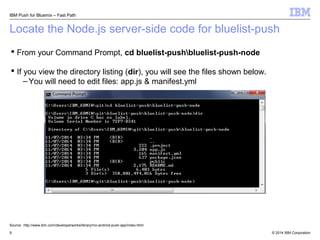
Locate the Node.js server-side code for bluelist-push 
 From your Command Prompt, cd bluelist-pushbluelist-push-node 
 If you view the directory listing (dir), you will see the files shown below. 
–You will need to edit files: app.js & manifest.yml 
Source: http://www.ibm.com/developerworks/library/mo-android-push-app/index.html 
© 2014 9 IBM Corporation
IBM Push for Bluemix – Fast Path 
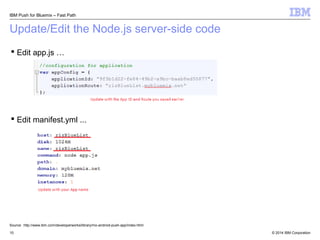
Update/Edit the Node.js server-side code 
 Edit app.js … 
 Edit manifest.yml ... 
Source: http://www.ibm.com/developerworks/library/mo-android-push-app/index.html 
© 2014 10 IBM Corporation
IBM Push for Bluemix – Fast Path 
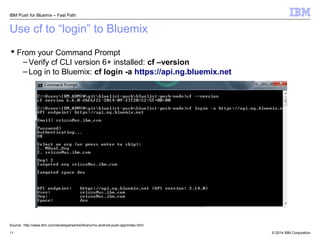
Use cf to “login” to Bluemix 
 From your Command Prompt 
– Verify cf CLI version 6+ installed: cf –version 
– Log in to Bluemix: cf login -a https://api.ng.bluemix.net 
Source: http://www.ibm.com/developerworks/library/mo-android-push-app/index.html 
© 2014 11 IBM Corporation
IBM Push for Bluemix – Fast Path 
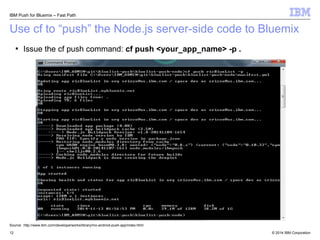
Use cf to “push” the Node.js server-side code to Bluemix 
 Issue the cf push command: cf push <your_app_name> -p . 
Source: http://www.ibm.com/developerworks/library/mo-android-push-app/index.html 
© 2014 12 IBM Corporation
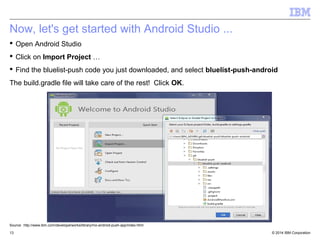
Now, let's get started with Android Studio ... 
 Open Android Studio 
 Click on Import Project … 
 Find the bluelist-push code you just downloaded, and select bluelist-push-android 
The build.gradle file will take care of the rest! Click OK. 
Source: http://www.ibm.com/developerworks/library/mo-android-push-app/index.html 
© 2014 13 IBM Corporation
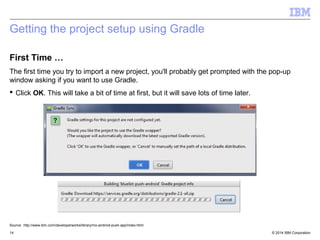
Getting the project setup using Gradle 
First Time … 
The first time you try to import a new project, you'll probably get prompted with the pop-up 
window asking if you want to use Gradle. 
 Click OK. This will take a bit of time at first, but it will save lots of time later. 
Source: http://www.ibm.com/developerworks/library/mo-android-push-app/index.html 
© 2014 14 IBM Corporation
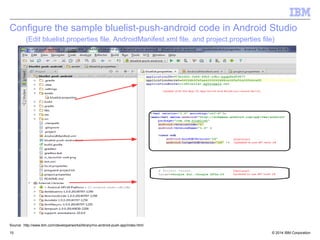
Configure the sample bluelist-push-android code in Android Studio 
(Edit bluelist.properties file, AndroidManifest.xml file, and project.properties file) 
Source: http://www.ibm.com/developerworks/library/mo-android-push-app/index.html 
© 2014 15 IBM Corporation
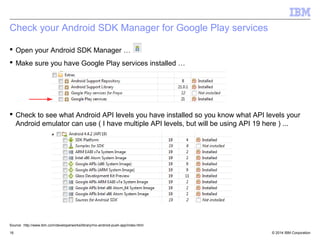
Check your Android SDK Manager for Google Play services 
 Open your Android SDK Manager … 
 Make sure you have Google Play services installed … 
 Check to see what Android API levels you have installed so you know what API levels your 
Android emulator can use ( I have multiple API levels, but will be using API 19 here ) ... 
Source: http://www.ibm.com/developerworks/library/mo-android-push-app/index.html 
© 2014 16 IBM Corporation
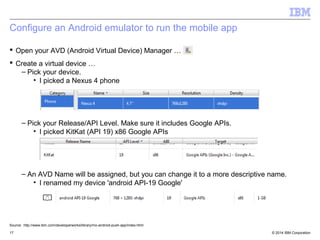
Configure an Android emulator to run the mobile app 
 Open your AVD (Android Virtual Device) Manager … 
 Create a virtual device … 
– Pick your device. 
• I picked a Nexus 4 phone 
– Pick your Release/API Level. Make sure it includes Google APIs. 
• I picked KitKat (API 19) x86 Google APIs 
– An AVD Name will be assigned, but you can change it to a more descriptive name. 
• I renamed my device 'android API-19 Google' 
Source: http://www.ibm.com/developerworks/library/mo-android-push-app/index.html 
© 2014 17 IBM Corporation
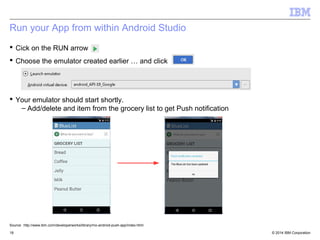
Run your App from within Android Studio 
 Cick on the RUN arrow 
 Choose the emulator created earlier … and click 
 Your emulator should start shortly. 
– Add/delete and item from the grocery list to get Push notification 
Source: http://www.ibm.com/developerworks/library/mo-android-push-app/index.html 
© 2014 18 IBM Corporation

Extending An Android App Using the IBM Push for Bluemix Cloud Service

  • 1.
    Extending an Androidapp using the IBM Push for Bluemix cloud service © 2009 IBM Corporation Susan Rizzo – IBM Mobile Cloud 9 November 2014
  • 2.
    IBM Push forBluemix – Fast Path A fast path to setup of the BlueList Push sample This presentation was created to show you how to quickly create & configure the IBM BlueMix Mobile Sample “BlueList Push for Android” using Android Studio.  What you'll need to get started! – Google Developers Console ( https://cloud.google.com/console/project ) • You'll need a gmail ID for this :-) – Bluemix account ( https://ace.ng.bluemix.net/ ) – Git client (pick one of the many git clients available) • You'll need this to download (“git clone”) the code – Gradle installed ( http://www.gradle.org/ ) • Download Gradle zip and extract into directory of your choice – Android Studio ( http://developer.android.com/sdk/installing/studio.html ) • Follow the installation instructions provided – Cloud Foundry ( http://docs.cloudfoundry.org/devguide/installcf/ ) • Install the cf Command Line Interface (CLI) Source: http://www.ibm.com/developerworks/library/mo-android-push-app/index.html © 2014 2 IBM Corporation
  • 3.
    Create Project inGoogle Developers Console with GCM setup *** Quick Summary of Steps ***  Go to Google Developers Console (https://console.developers.google.com )  Login (with gmail userid)  Create a Project ...  Open your Project, and click on APIs & auth > APIs ...  Enable  Click on APIs & auth > Credentials ... … – Scroll down to the Public API access section, and click on … – Select then click on (No IP addresses need to be entered)  Save your API KEY ...  Save your Project Number … * You will need your API KEY & Project Number to configure the IBM Bluemix Push Service. Source: http://www.ibm.com/developerworks/library/mo-android-push-app/index.html © 2014 3 IBM Corporation
  • 4.
    While you're here… save the BlueList App values needed later !  Go to the DASHBOARD  Click on your App ( my app is named “rizBlueList” )  Open the MOBILE OPTIONS twistie …  Save your Route, App ID and App Secret … * You will need your App values to configure the IBM Bluemix Push code. Source: http://www.ibm.com/developerworks/library/mo-android-push-app/index.html © 2014 5 IBM Corporation
  • 5.
    Configure IBM Pushservice on BlueList app on Bluemix *** Quick Summary of Steps ***  Once your app has been created, navigate to the Push panel  Click on the Push icon or use the left-hand panel navigation  Click the button under  Enter the values you saved from your GCM setup/configuration, click Source: http://www.ibm.com/developerworks/library/mo-android-push-app/index.html © 2014 6 IBM Corporation
  • 6.
    Configure IBM Pushservice on BlueList app on Bluemix *** Quick Summary of Steps ***  Once your app has been created, navigate to the Push panel  Click on the Push icon or use the left-hand panel navigation  Click the button under  Enter the values you saved from your GCM setup/configuration, click Source: http://www.ibm.com/developerworks/library/mo-android-push-app/index.html © 2014 7 IBM Corporation
  • 7.
    IBM Push forBluemix – Fast Path GIT the mobilecloud bluelist-push code  Open a Command Prompt, and use the git clone command to create a copy of the bluelist-push code locally on your machine.  The command and command results are shown here: Source: http://www.ibm.com/developerworks/library/mo-android-push-app/index.html © 2014 8 IBM Corporation
  • 8.
    IBM Push forBluemix – Fast Path Locate the Node.js server-side code for bluelist-push  From your Command Prompt, cd bluelist-pushbluelist-push-node  If you view the directory listing (dir), you will see the files shown below. –You will need to edit files: app.js & manifest.yml Source: http://www.ibm.com/developerworks/library/mo-android-push-app/index.html © 2014 9 IBM Corporation
  • 9.
    IBM Push forBluemix – Fast Path Update/Edit the Node.js server-side code  Edit app.js …  Edit manifest.yml ... Source: http://www.ibm.com/developerworks/library/mo-android-push-app/index.html © 2014 10 IBM Corporation
  • 10.
    IBM Push forBluemix – Fast Path Use cf to “login” to Bluemix  From your Command Prompt – Verify cf CLI version 6+ installed: cf –version – Log in to Bluemix: cf login -a https://api.ng.bluemix.net Source: http://www.ibm.com/developerworks/library/mo-android-push-app/index.html © 2014 11 IBM Corporation
  • 11.
    IBM Push forBluemix – Fast Path Use cf to “push” the Node.js server-side code to Bluemix  Issue the cf push command: cf push <your_app_name> -p . Source: http://www.ibm.com/developerworks/library/mo-android-push-app/index.html © 2014 12 IBM Corporation
  • 12.
    Now, let's getstarted with Android Studio ...  Open Android Studio  Click on Import Project …  Find the bluelist-push code you just downloaded, and select bluelist-push-android The build.gradle file will take care of the rest! Click OK. Source: http://www.ibm.com/developerworks/library/mo-android-push-app/index.html © 2014 13 IBM Corporation
  • 13.
    Getting the projectsetup using Gradle First Time … The first time you try to import a new project, you'll probably get prompted with the pop-up window asking if you want to use Gradle.  Click OK. This will take a bit of time at first, but it will save lots of time later. Source: http://www.ibm.com/developerworks/library/mo-android-push-app/index.html © 2014 14 IBM Corporation
  • 14.
    Configure the samplebluelist-push-android code in Android Studio (Edit bluelist.properties file, AndroidManifest.xml file, and project.properties file) Source: http://www.ibm.com/developerworks/library/mo-android-push-app/index.html © 2014 15 IBM Corporation
  • 15.
    Check your AndroidSDK Manager for Google Play services  Open your Android SDK Manager …  Make sure you have Google Play services installed …  Check to see what Android API levels you have installed so you know what API levels your Android emulator can use ( I have multiple API levels, but will be using API 19 here ) ... Source: http://www.ibm.com/developerworks/library/mo-android-push-app/index.html © 2014 16 IBM Corporation
  • 16.
    Configure an Androidemulator to run the mobile app  Open your AVD (Android Virtual Device) Manager …  Create a virtual device … – Pick your device. • I picked a Nexus 4 phone – Pick your Release/API Level. Make sure it includes Google APIs. • I picked KitKat (API 19) x86 Google APIs – An AVD Name will be assigned, but you can change it to a more descriptive name. • I renamed my device 'android API-19 Google' Source: http://www.ibm.com/developerworks/library/mo-android-push-app/index.html © 2014 17 IBM Corporation
  • 17.
    Run your Appfrom within Android Studio  Cick on the RUN arrow  Choose the emulator created earlier … and click  Your emulator should start shortly. – Add/delete and item from the grocery list to get Push notification Source: http://www.ibm.com/developerworks/library/mo-android-push-app/index.html © 2014 18 IBM Corporation