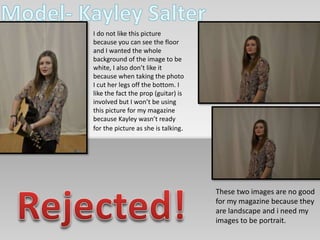
I do not like this picture 
because you can see the floor 
and I wanted the whole 
background of the image to be 
white, I also don’t like it 
because when taking the photo 
I cut her legs off the bottom. I 
like the fact the prop (guitar) is 
involved but I won’t be using 
this picture for my magazine 
because Kayley wasn’t ready 
for the picture as she is talking. 
These two images are no good 
for my magazine because they 
are landscape and i need my 
images to be portrait.
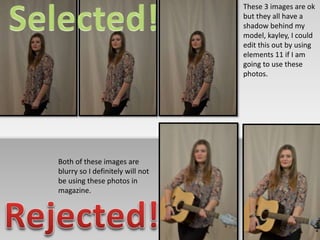
These 3 images are ok 
but they all have a 
shadow behind my 
model, kayley, I could 
edit this out by using 
elements 11 if I am 
going to use these 
photos. 
Both of these images are 
blurry so I definitely will not 
be using these photos in 
magazine.
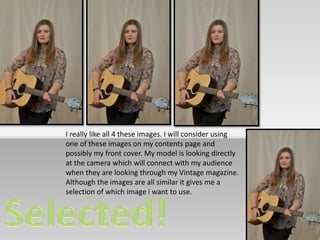
I really like all 4 these images. I will consider using 
one of these images on my contents page and 
possibly my front cover. My model is looking directly 
at the camera which will connect with my audience 
when they are looking through my Vintage magazine. 
Although the images are all similar it gives me a 
selection of which image i want to use.
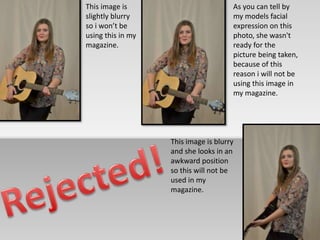
This image is 
slightly blurry 
so i won’t be 
using this in my 
magazine. 
As you can tell by 
my models facial 
expression on this 
photo, she wasn't 
ready for the 
picture being taken, 
because of this 
reason i will not be 
using this image in 
my magazine. 
This image is blurry 
and she looks in an 
awkward position 
so this will not be 
used in my 
magazine.
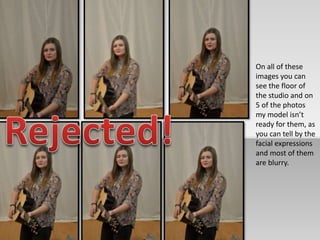
On all of these 
images you can 
see the floor of 
the studio and on 
5 of the photos 
my model isn’t 
ready for them, as 
you can tell by the 
facial expressions 
and most of them 
are blurry.
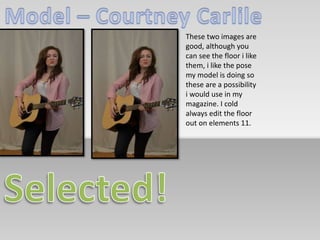
These two images are 
good, although you 
can see the floor i like 
them, i like the pose 
my model is doing so 
these are a possibility 
i would use in my 
magazine. I cold 
always edit the floor 
out on elements 11.
These images are blurry so they will not 
be used for any of the pages in my 
magazine.
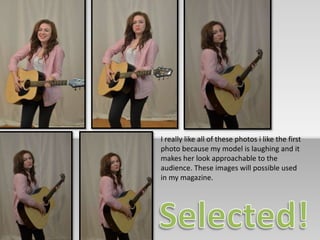
I really like all of these photos i like the first 
photo because my model is laughing and it 
makes her look approachable to the 
audience. These images will possible used 
in my magazine.
These images are all blurry so they are not 
usable.
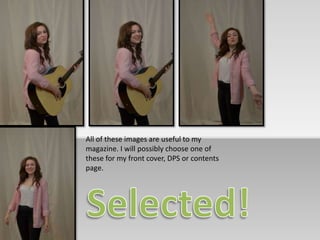
All of these images are useful to my 
magazine. I will possibly choose one of 
these for my front cover, DPS or contents 
page.
Again, all of these 
images are blurry, it is 
a shame because they 
have the potential to 
be good images. On 
two of these images 
my model wasn’t 
ready for them.

Selection and rejection

  • 2.
    I do notlike this picture because you can see the floor and I wanted the whole background of the image to be white, I also don’t like it because when taking the photo I cut her legs off the bottom. I like the fact the prop (guitar) is involved but I won’t be using this picture for my magazine because Kayley wasn’t ready for the picture as she is talking. These two images are no good for my magazine because they are landscape and i need my images to be portrait.
  • 3.
    These 3 imagesare ok but they all have a shadow behind my model, kayley, I could edit this out by using elements 11 if I am going to use these photos. Both of these images are blurry so I definitely will not be using these photos in magazine.
  • 4.
    I really likeall 4 these images. I will consider using one of these images on my contents page and possibly my front cover. My model is looking directly at the camera which will connect with my audience when they are looking through my Vintage magazine. Although the images are all similar it gives me a selection of which image i want to use.
  • 5.
    This image is slightly blurry so i won’t be using this in my magazine. As you can tell by my models facial expression on this photo, she wasn't ready for the picture being taken, because of this reason i will not be using this image in my magazine. This image is blurry and she looks in an awkward position so this will not be used in my magazine.
  • 6.
    On all ofthese images you can see the floor of the studio and on 5 of the photos my model isn’t ready for them, as you can tell by the facial expressions and most of them are blurry.
  • 7.
    These two imagesare good, although you can see the floor i like them, i like the pose my model is doing so these are a possibility i would use in my magazine. I cold always edit the floor out on elements 11.
  • 8.
    These images areblurry so they will not be used for any of the pages in my magazine.
  • 9.
    I really likeall of these photos i like the first photo because my model is laughing and it makes her look approachable to the audience. These images will possible used in my magazine.
  • 10.
    These images areall blurry so they are not usable.
  • 11.
    All of theseimages are useful to my magazine. I will possibly choose one of these for my front cover, DPS or contents page.
  • 13.
    Again, all ofthese images are blurry, it is a shame because they have the potential to be good images. On two of these images my model wasn’t ready for them.

Editor's Notes

  • #2 Pictures in 3-D flip book (Intermediate) To reproduce the picture effects on this slide, do the following: On the Home tab, in the Slides group, click Layout, and then click Blank. Also on the Home tab, in the Drawing group, click Shapes, and then under Rectangles click Rectangle (first option from the left). On the slide, drag to draw a rectangle. Select the rectangle. Under Drawing Tools, on the Format tab, in the Size group, enter 3.71” in the Height box and 2.57” in the Width box. Also under Drawing Tools, on the Format tab, in the Shape Styles group, click Shape Outline, and then click No Outline. On the Home tab, in the Clipboard group, click the arrow to the right of Copy, and then click Duplicate. Select the first rectangle. Under Drawing Tools, on the Format tab, in the Shape Styles group, click Shape Fill, and then click Picture. In the Insert Picture dialog box, select a picture and then click Insert. Also under Drawing Tools, on the Format tab, in the Shape Styles group, click Shape Effects, point to 3-D Rotation, and then click 3-D Rotation Options. In the Format Shape dialog box, click 3-D Rotation in the left pane, and in the 3-D Rotation pane do the following: Click the button next to Presets, and then under Perspective click Perspective Contrasting Right. In the X box, enter 342.5°. In the Y box, enter 57.2°. In the Z box, enter 11°. In the Perspective box, enter 25°. Select the second rectangle. Under Drawing Tools, on the Format tab, in the Shape Styles group, click Shape Fill, and then click Picture. In the Insert Picture dialog box, select another picture and then click Insert. Also under Drawing Tools, on the Format tab, in the Shape Styles group, click Shape Effects, point to 3-D Rotation, and then click 3-D Rotation Options. In the Format Shape dialog box, click 3-D Rotation in the left pane, and in the 3-D Rotation pane do the following: In the Presets list, under Perspective, click Perspective Contrasting Right. In the X box, enter 300.6°. In the Y box, enter 68.7°. In the Z box, enter 329°. In the Perspective box, enter 0°. Position the two rectangles so that the bottom left corners touch. On the Home tab, in the Drawing group, click Shapes, and then under Rectangles click Rectangle. On the slide, drag to draw a rectangle. Select the rectangle. Under Drawing Tools, on the Format tab, in the Size group, enter 2.5” into the Height box and 3.25” into the Width box. Also under Drawing Tools, on the Format tab, in the Shape Styles group, click Shape Outline, and then click No Outline. On the Home tab, in the Clipboard group, click the arrow to the right of Copy, and then click Duplicate. Select the third rectangle. Under Drawing Tools, on the Format tab, in the Shape Styles group, click Shape Fill, and then click Picture. In the Insert Picture dialog box, select a picture and then click Insert. Also under Drawing Tools, on the Format tab, in the Shape Styles group, click Shape Effects, point to 3-D Rotation, and then click 3-D Rotation Options. In the Format Picture dialog box, click 3-D Rotation in the left pane, and in the 3-D Rotation pane do the following: Click the button next to Presets, and then under Perspective click Perspective Contrasting Right. In the X box, enter 303.1°. In the Y box, enter 313°. In the Z box, enter 78°. In the Perspective box, enter 100°. Select the fourth rectangle. Under Drawing Tools, on the Format tab, in the Shape Styles group, click Shape Fill, and then click Picture. In the Insert Picture dialog box, select a picture and then click Insert. Also under Drawing Tools, on the Format tab, in the Shape Styles group, click Shape Effects, point to 3-D Rotation, and then click 3-D Rotation Options. In the Format Picture dialog box, click 3-D Rotation in the left pane, and in the 3-D Rotation pane do the following: Click the button next to Presets, and then under Perspective click Perspective Contrasting Right. In the X box, enter 310.3°. In the Y box, enter 330°. In the Z box, enter 63°. In the Perspective box, enter 90°. Also in the Format Picture dialog box, click Shadow in the left pane, and in the Shadow pane, do the following: Click the button next to Color, and then under Theme Colors click Black, Text 1. In the Transparency box, enter 47%. In the Size box, enter 102%. In the Blur box, enter 16 pt. In the Angle box, enter 160°. In the Distance box, enter 4 pt. Position the third and fourth rectangles so that the left corners touch the bottom left corners of the first and second rectangles. To reproduce the background effects on this slide, do the following: Right-click the slide background area, and then click Format Background. In the Format Background dialog box, click Fill in the left pane, select Gradient fill in the Fill pane, and then do the following: In the Type list, select Linear. Click the button next to Direction, and then click Linear Down (first row, second option from the left). Under Gradient stops, click Add gradient stops or Remove gradient stops until four stops appear in the slider. Also under Gradient stops, customize the gradient stops as follows: Select the first stop in the slider, and then do the following: In the Position box, enter 0%. Click the button next to Color, and then under Theme Colors click White, Background 1, Darker 15% (third row, first option from the left). Select the next stop in the slider, and then do the following: In the Stop position box, enter 56%. Click the button next to Color, and then under Theme Colors click White, Background 1, Darker 5% (second row, first option from the left). Select the next stop in the slider, and then do the following: In the Stop position box, enter 57%. Click the button next to Color, click More Colors, and then in the Colors dialog box, on the Custom tab, enter values for Red: 169, Green: 169, Blue: 169. Select the last stop in the slider, and then do the following: In the Stop position box, enter 100%. Click the button next to Color, click More Colors, and then in the Colors dialog box, on the Custom tab, enter values for Red: 211, Green: 211, Blue: 211.