Searching the Literature:
Medline
Tools for searching the scholarly literature
• A database is a specialised research tool that
identify useful journal articles
• There are a range of allied health databases:
– Medline, Embase, CINAHL, Cochrane Library,
AMED, SportDiscus, PedRO, PsycInfo and
more …
– Access from Databases tab on Library home
page: latrobe.edu.au/library
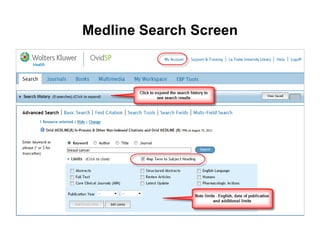
Medline Search Screen
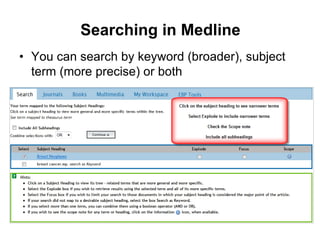
Searching in Medline
• You can search by keyword (broader), subject
term (more precise) or both
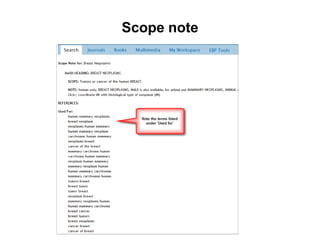
Scope note
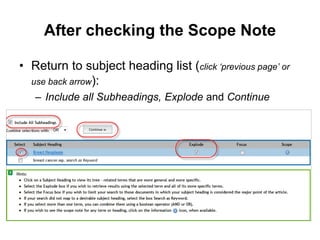
After checking the Scope Note
• Return to subject heading list (click ‘previous page’ or
use back arrow):
– Include all Subheadings, Explode and Continue
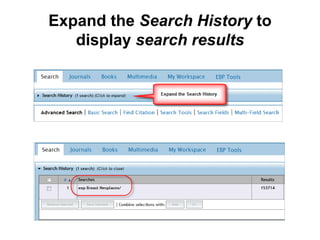
Expand the Search History to
display search results
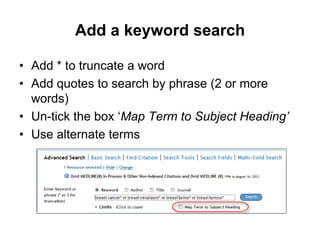
Add a keyword search
• Add * to truncate a word
• Add quotes to search by phrase (2 or more
words)
• Un-tick the box ‘Map Term to Subject Heading’
• Use alternate terms
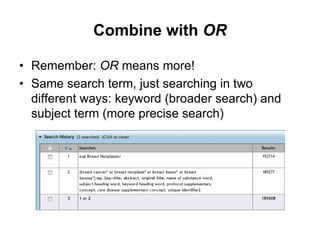
Combine with OR
• Remember: OR means more!
• Same search term, just searching in two
different ways: keyword (broader search) and
subject term (more precise search)
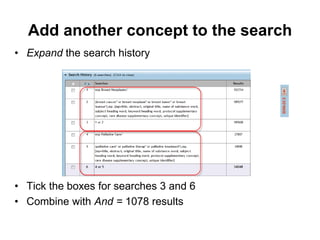
Add another concept to the search
• Expand the search history
• Tick the boxes for searches 3 and 6
• Combine with And = 1078 results
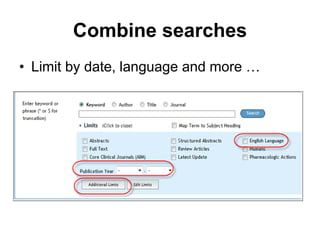
Combine searches
• Limit by date, language and more …
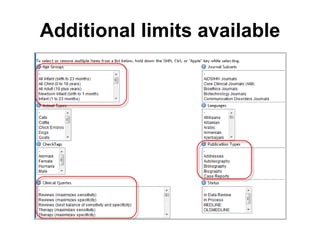
Additional limits available
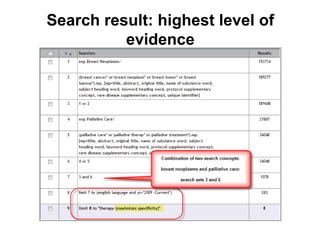
Search result: highest level of
evidence
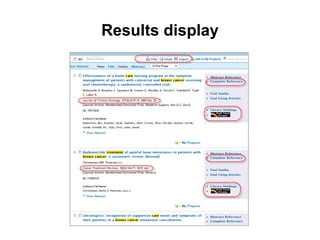
Results display
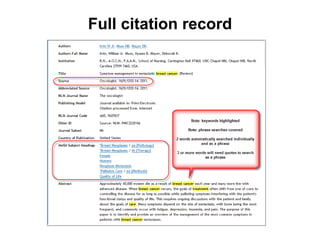
Full citation record
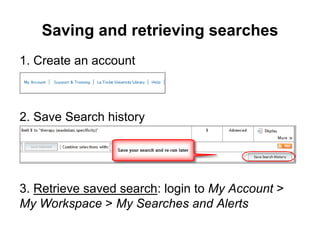
Saving and retrieving searches
1. Create an account
2. Save Search history
3. Retrieve saved search: login to My Account >
My Workspace > My Searches and Alerts
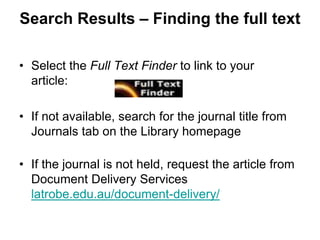
Search Results – Finding the full text
• Select the Full Text Finder to link to your
article:
• If not available, search for the journal title from
Journals tab on the Library homepage
• If the journal is not held, request the article from
Document Delivery Services
latrobe.edu.au/document-delivery/

Searching Medline

  • 1.
  • 2.
    Tools for searchingthe scholarly literature • A database is a specialised research tool that identify useful journal articles • There are a range of allied health databases: – Medline, Embase, CINAHL, Cochrane Library, AMED, SportDiscus, PedRO, PsycInfo and more … – Access from Databases tab on Library home page: latrobe.edu.au/library
  • 3.
  • 4.
    Searching in Medline •You can search by keyword (broader), subject term (more precise) or both
  • 5.
  • 6.
    After checking theScope Note • Return to subject heading list (click ‘previous page’ or use back arrow): – Include all Subheadings, Explode and Continue
  • 7.
    Expand the SearchHistory to display search results
  • 8.
    Add a keywordsearch • Add * to truncate a word • Add quotes to search by phrase (2 or more words) • Un-tick the box ‘Map Term to Subject Heading’ • Use alternate terms
  • 9.
    Combine with OR •Remember: OR means more! • Same search term, just searching in two different ways: keyword (broader search) and subject term (more precise search)
  • 10.
    Add another conceptto the search • Expand the search history • Tick the boxes for searches 3 and 6 • Combine with And = 1078 results
  • 11.
    Combine searches • Limitby date, language and more …
  • 12.
  • 13.
    Search result: highestlevel of evidence
  • 14.
  • 15.
  • 16.
    Saving and retrievingsearches 1. Create an account 2. Save Search history 3. Retrieve saved search: login to My Account > My Workspace > My Searches and Alerts
  • 17.
    Search Results –Finding the full text • Select the Full Text Finder to link to your article: • If not available, search for the journal title from Journals tab on the Library homepage • If the journal is not held, request the article from Document Delivery Services latrobe.edu.au/document-delivery/

Editor's Notes