Searching for Documents
with Discovery
Tavistock and Portman NHS Foundation Trust
What is Discovery?
What is Discovery?
Discovery is a tool that searches through several sources at
once:
• The library’s catalogue
• Online databases
• Online journals
• And more
How to access Discovery?
Go to the library’s website:
http://library.tavistockandportman.ac.uk
How to access Discovery?
Go to the library’s website:
http://library.tavistockandportman.ac.uk
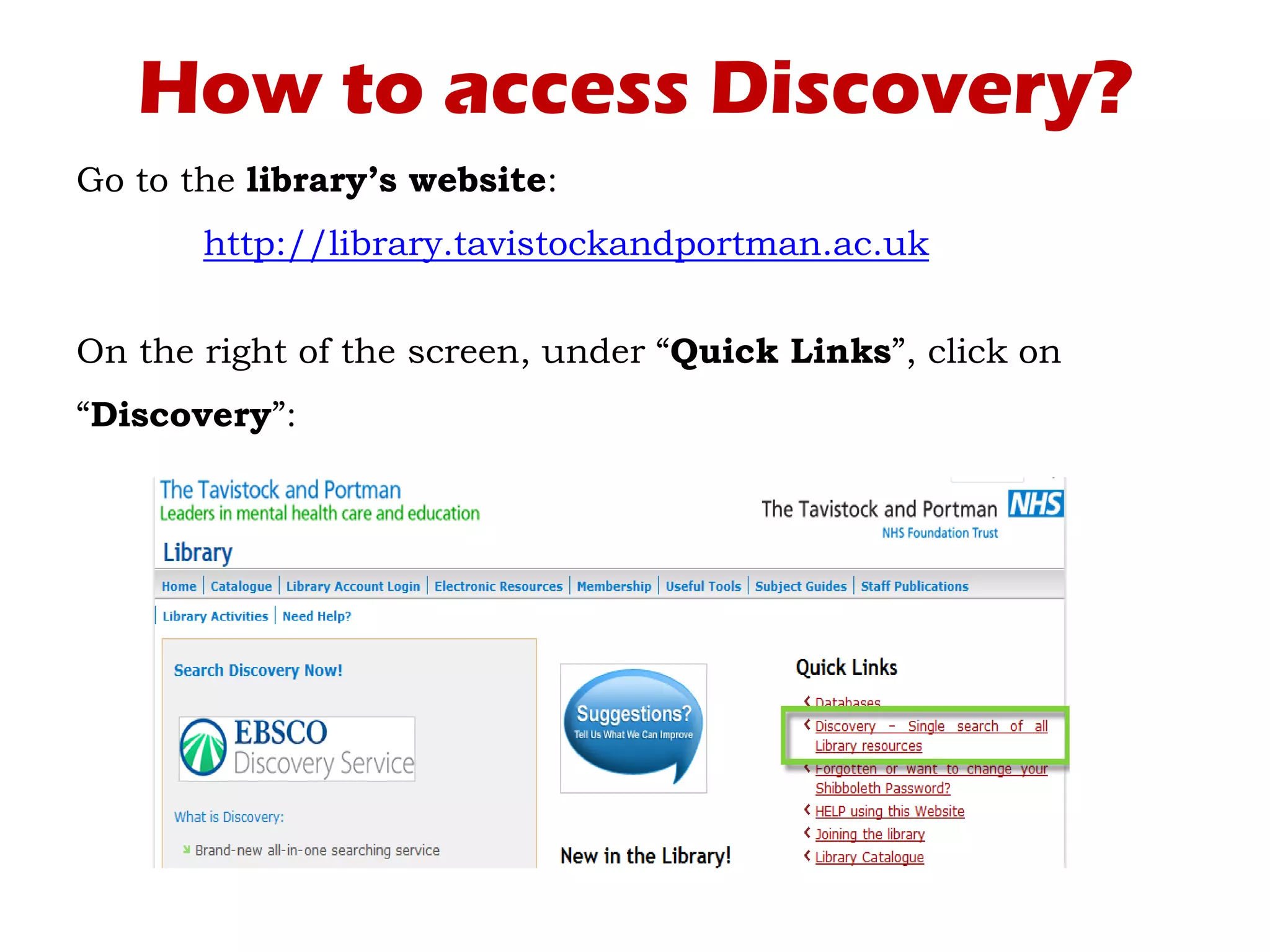
On the right of the screen, under “Quick Links”, click on
“Discovery”:
How to access Discovery?
Enter your Shibboleth password.
How to access Discovery?
Enter your Shibboleth password.
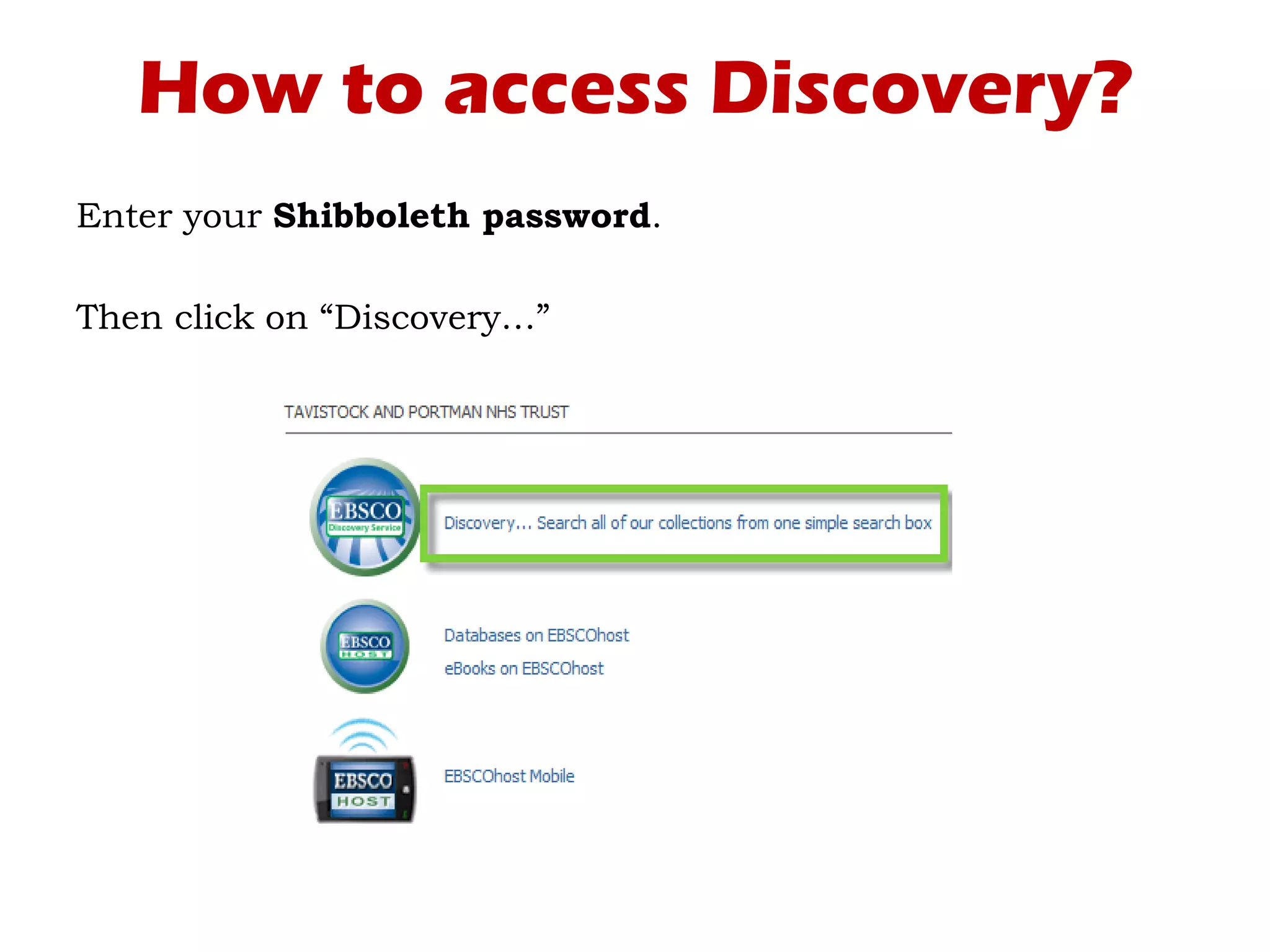
Then click on “Discovery…”
How to search Discovery?
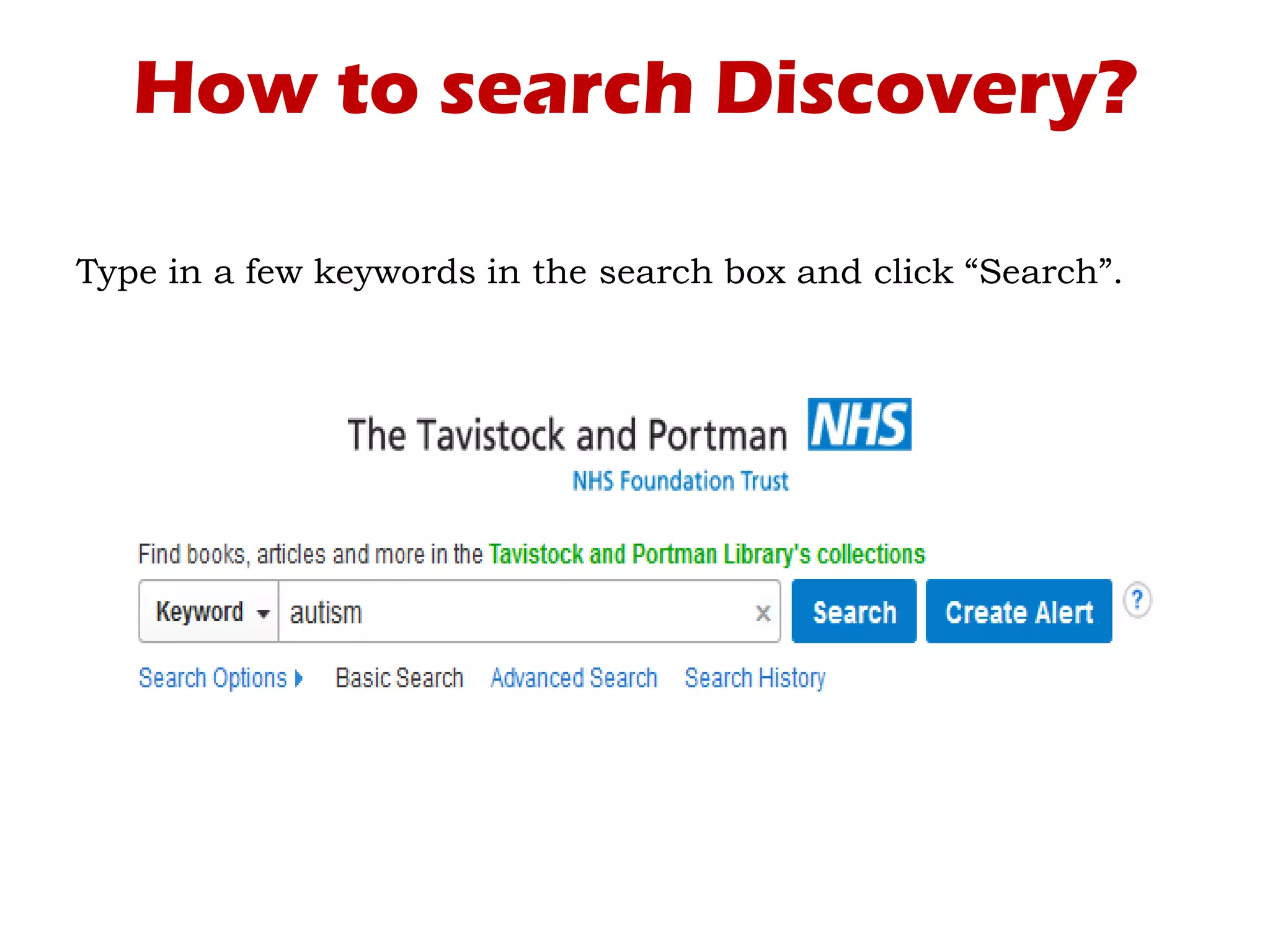
Type in a few keywords in the search box and click “Search”.
How to search Discovery?
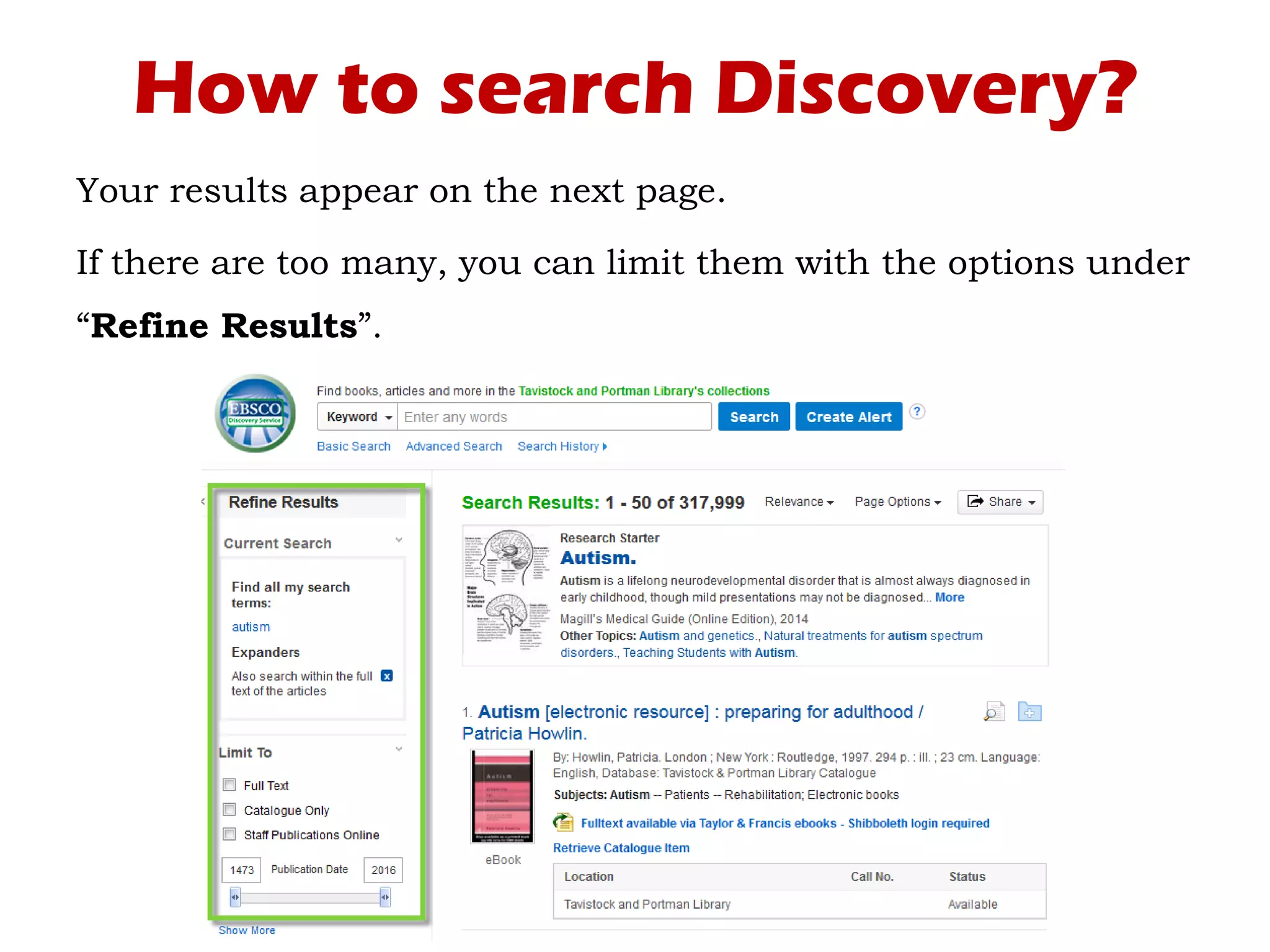
Your results appear on the next page.
If there are too many, you can limit them with the options under
“Refine Results”.
How to search Discovery?
Your results appear on the next page.
If there are too many, you can limit them with the options under
“Refine Results”.
How to search Discovery?
Some examples of limiters you can use:
• Choose “Full Text” for something your can read online.
How to search Discovery?
Some examples of limiters you can use:
• Choose “Full Text” for something your can read online.
• Choose “Catalogue Only” for something you can borrow from
the library.
How to search Discovery?
Some examples of limiters you can use:
• Choose “Full Text” for something your can read online.
• Choose “Catalogue Only” for something you can borrow from
the library.
• Change the publication date to get more recent documents.
How to search Discovery?
Some examples of limiters you can use:
• Choose “Full Text” for something your can read online.
• Choose “Catalogue Only” for something you can borrow from
the library.
• Change the publication date to get more recent documents.
Play out with the other options until you find relevant
documents.
Online Access
Online Access
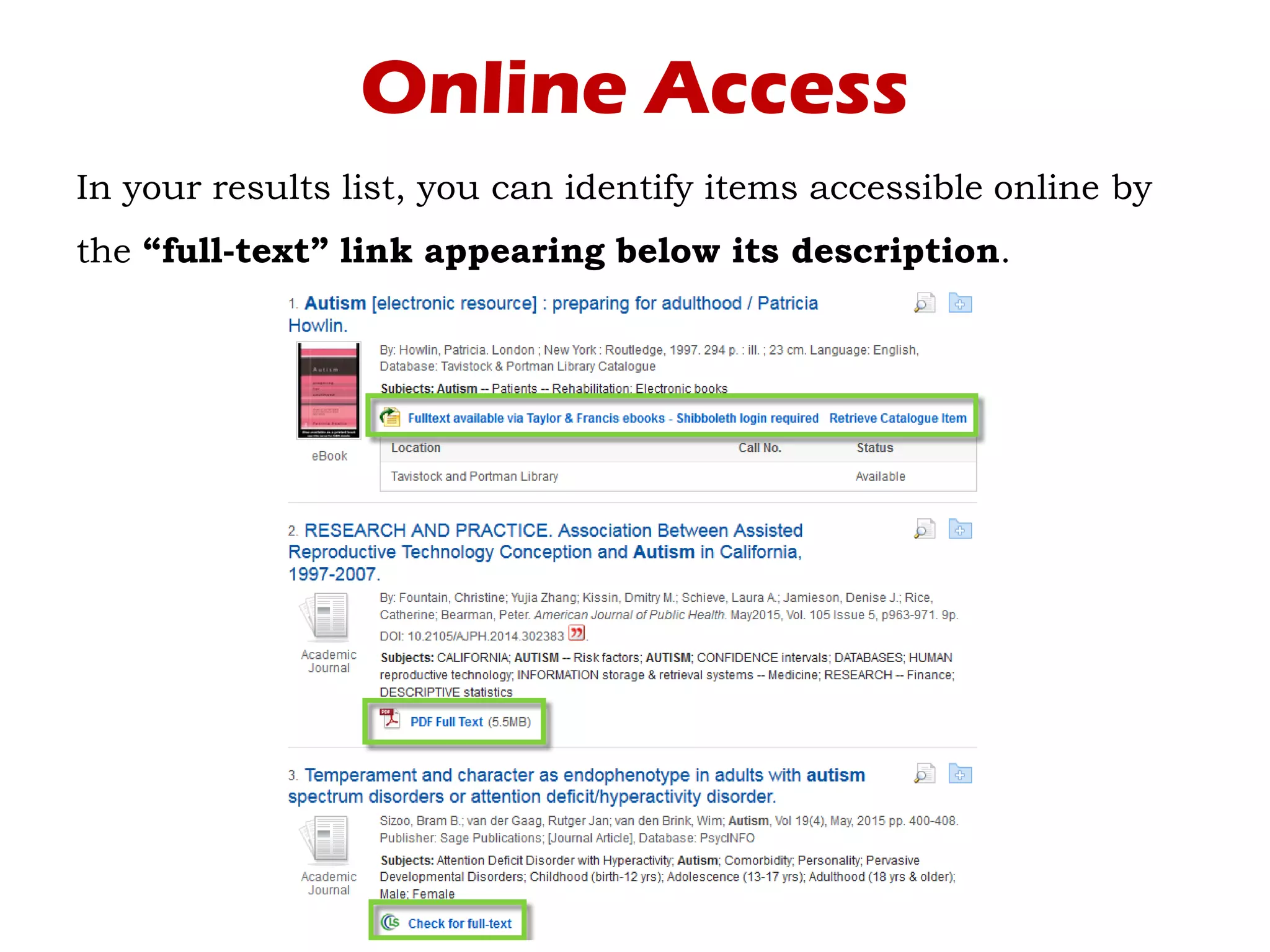
In your results list, you can identify items accessible online by
the “full-text” link appearing below its description.
Online Access
In your results list, you can identify items accessible online by
the “full-text” link appearing below its description.
Online Access
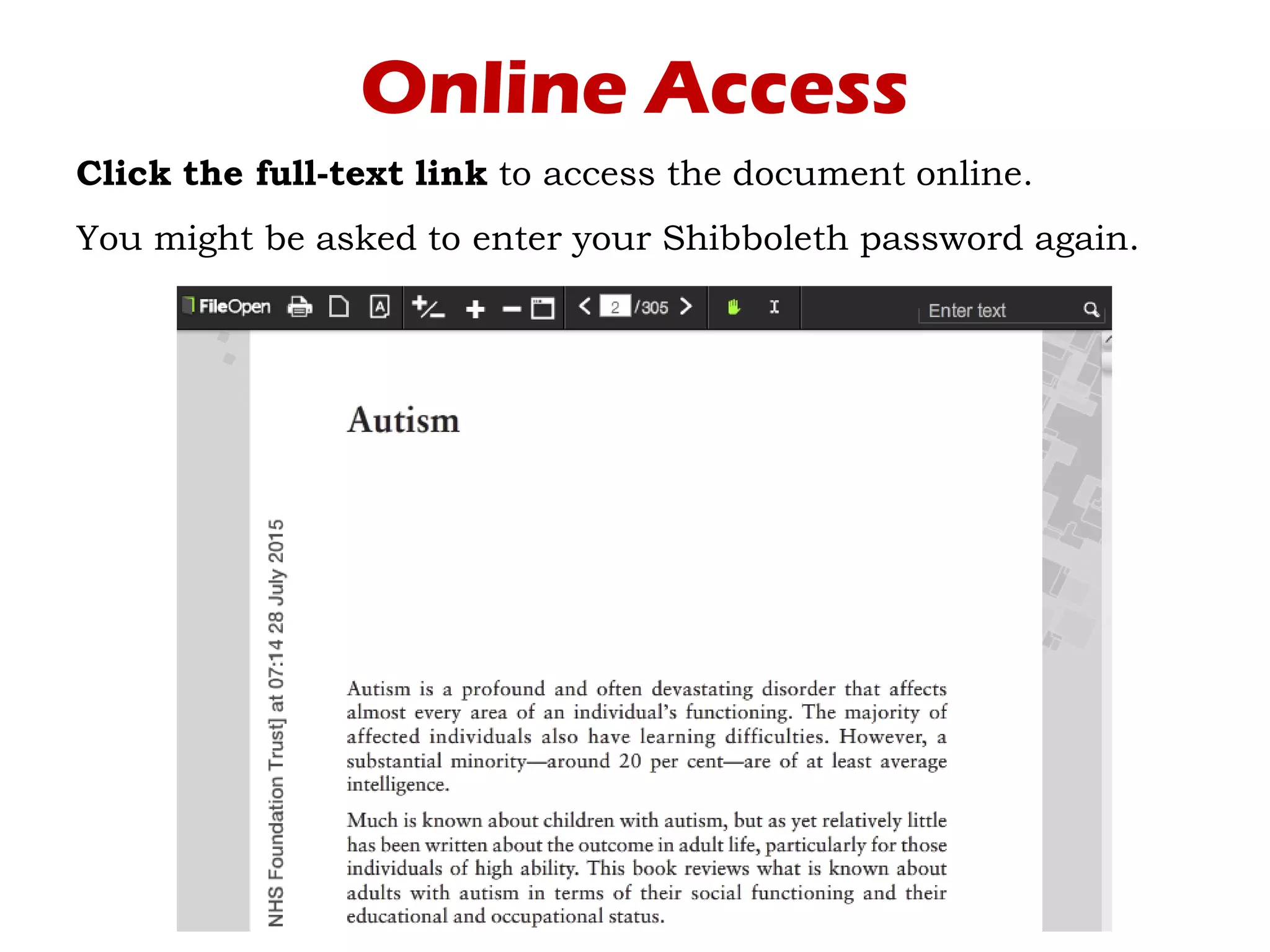
Click the full-text link to access the document online.
You might be asked to enter your Shibboleth password again.
Online Access
Click the full-text link to access the document online.
You might be asked to enter your Shibboleth password again.
Catalogue Items
Catalogue Items
Back on the results page.
Catalogue Items
Back on the results page.
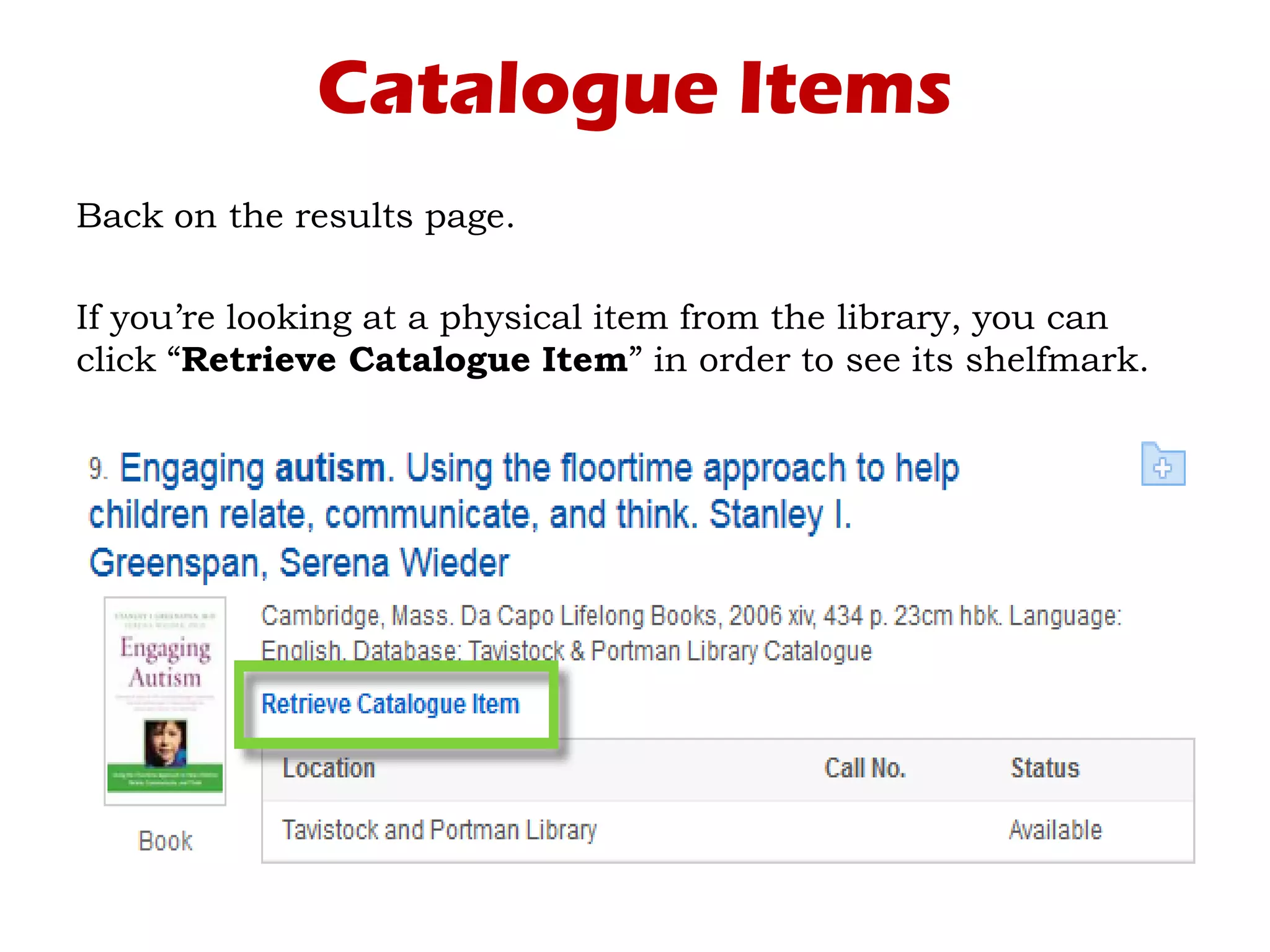
If you’re looking at a physical item from the library, you can
click “Retrieve Catalogue Item” in order to see its shelfmark.
Catalogue Items
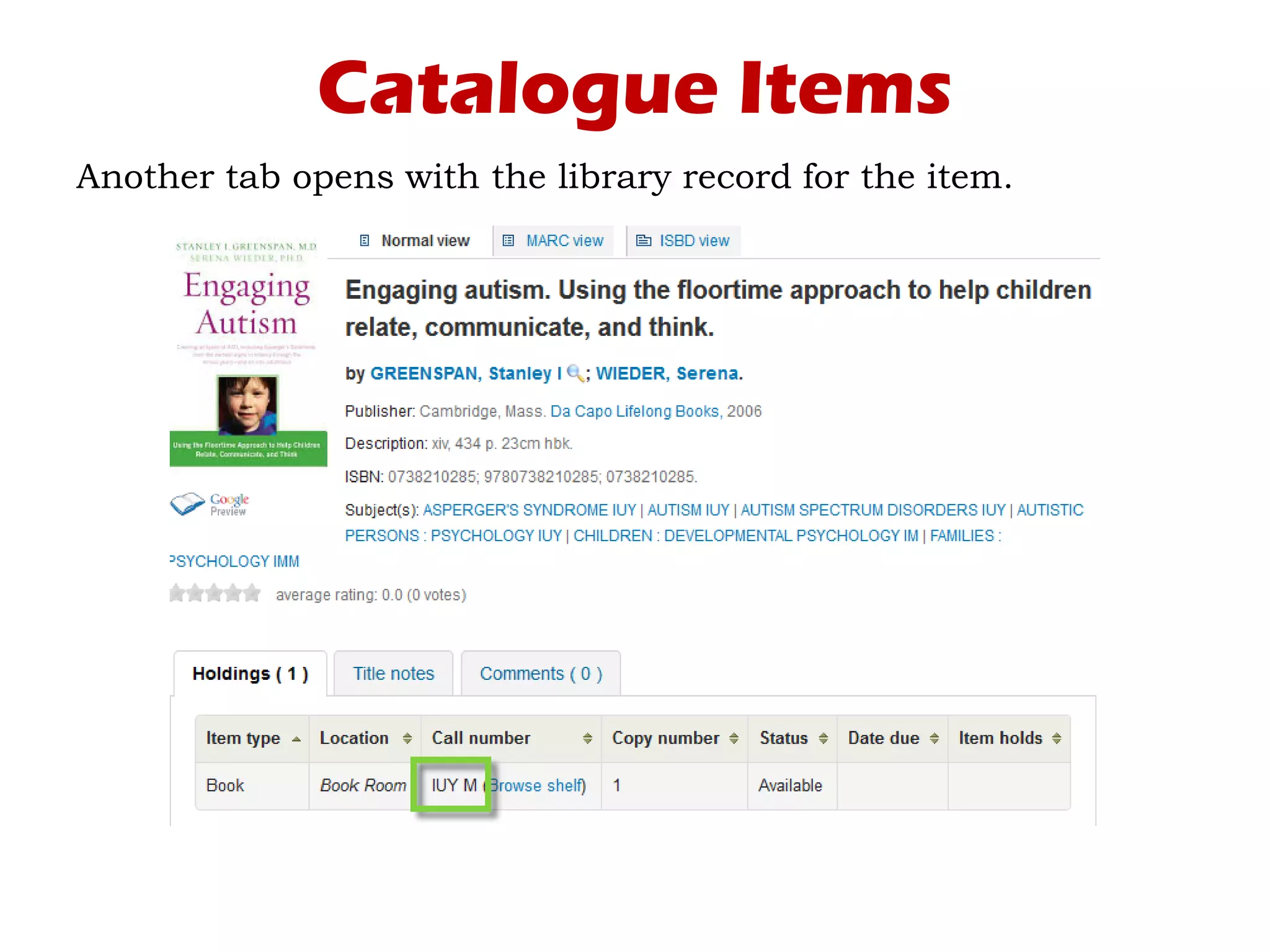
Another tab opens with the library record for the item.
Catalogue Items
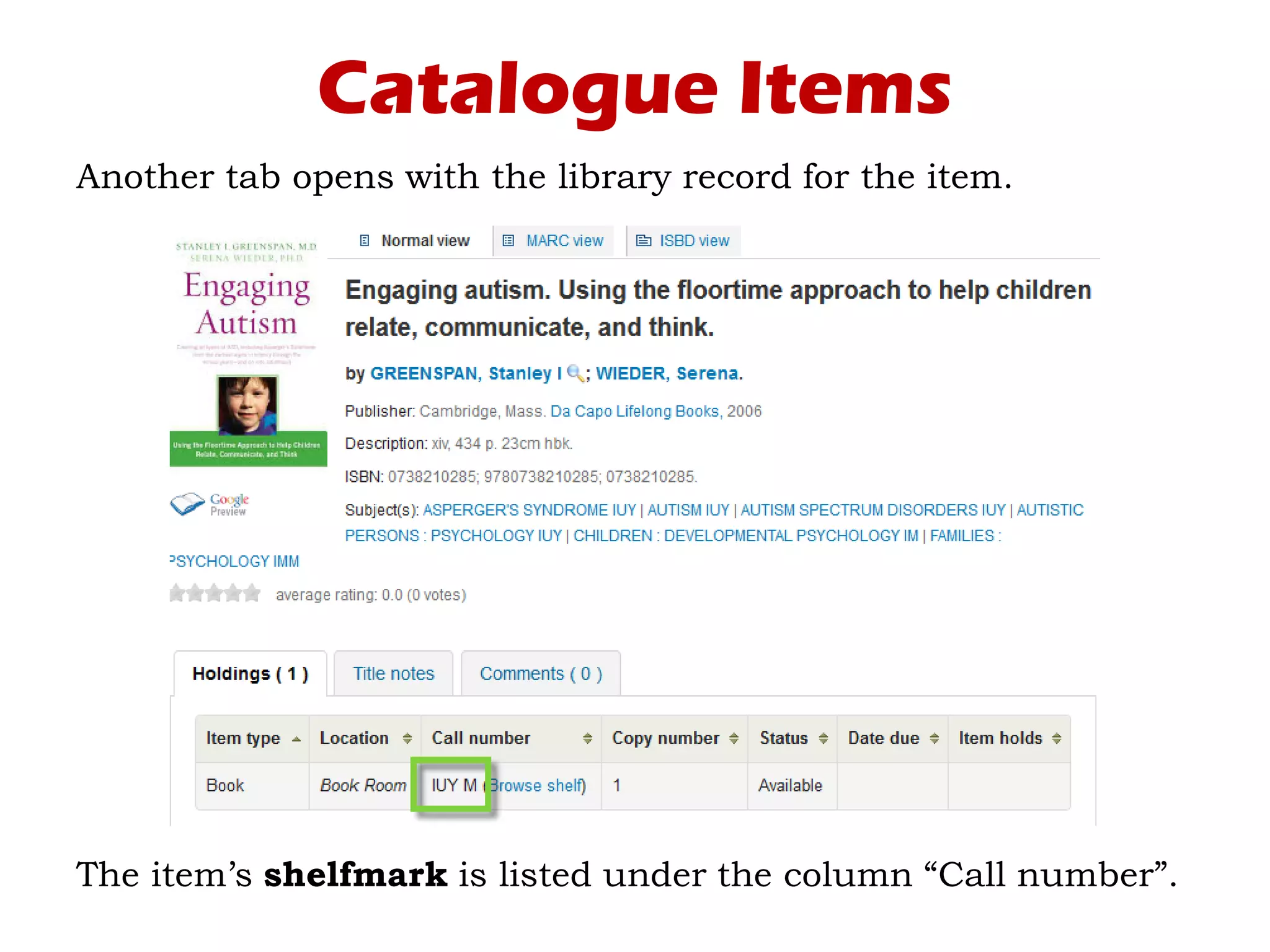
Another tab opens with the library record for the item.
The item’s shelfmark is listed under the column “Call number”.
Catalogue Items
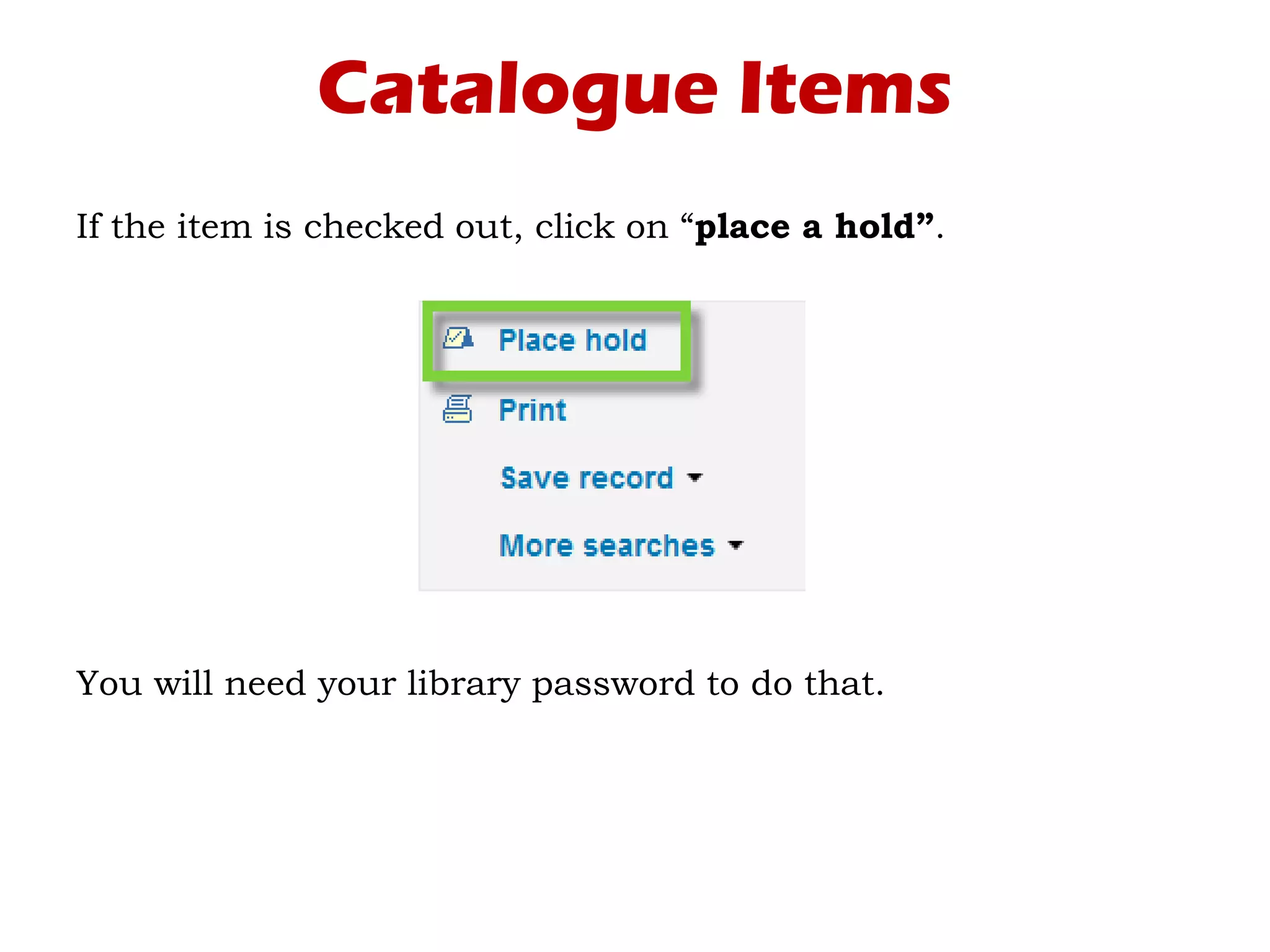
If the item is checked out, click on “place a hold”.
You will need your library password to do that.
Catalogue Items
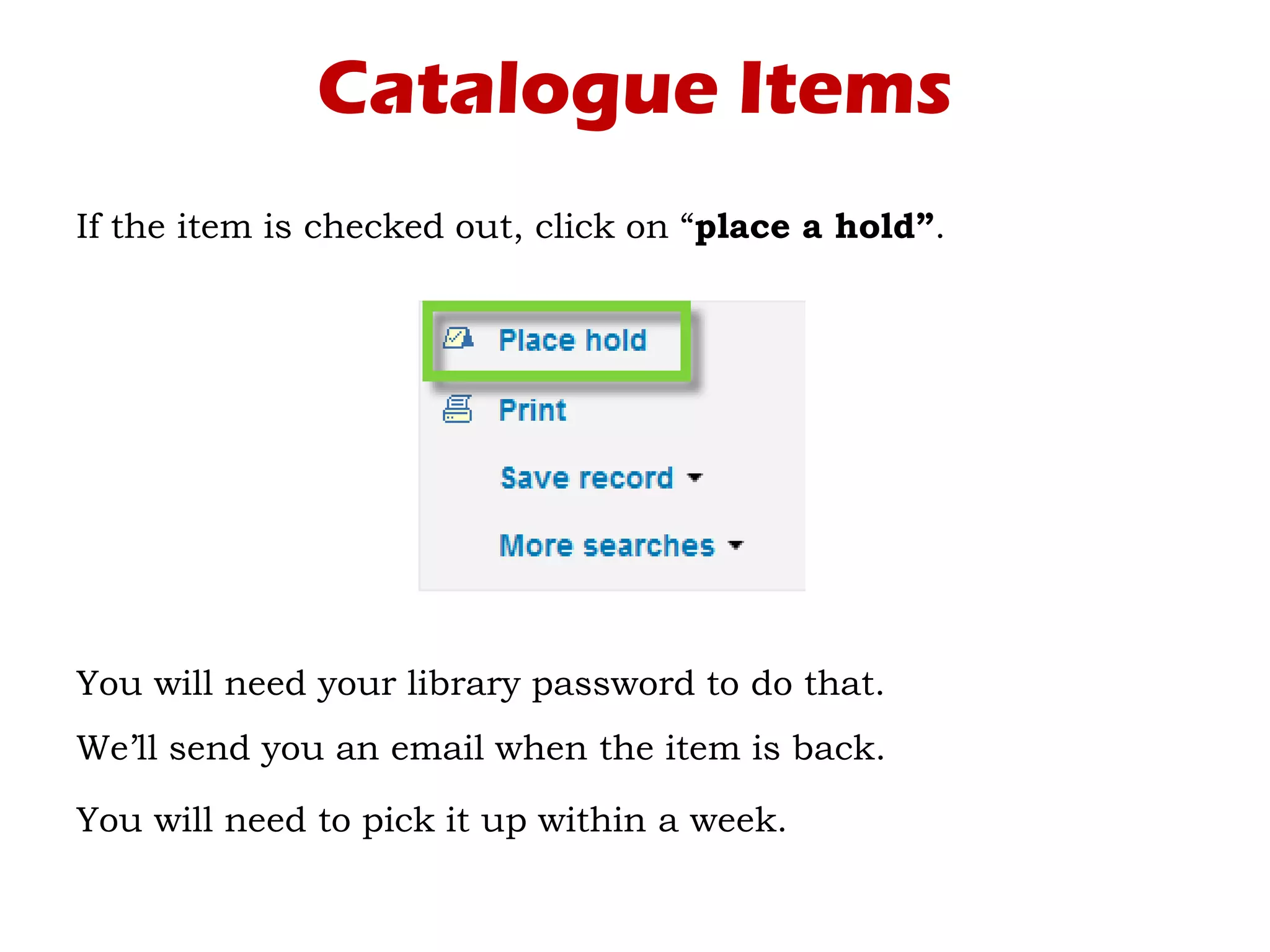
If the item is checked out, click on “place a hold”.
You will need your library password to do that.
We’ll send you an email when the item is back.
You will need to pick it up within a week.
If you encounter any problem,
contact the library
The easiest way is to send us an email here:
library@tavi-port.ac.uk
Have a good search!
The Tavistock and Portman NHS Foundation Trust

Searching for Documents with Discovery

  • 1.
    Searching for Documents withDiscovery Tavistock and Portman NHS Foundation Trust
  • 2.
  • 3.
    What is Discovery? Discoveryis a tool that searches through several sources at once: • The library’s catalogue • Online databases • Online journals • And more
  • 4.
    How to accessDiscovery?
  • 5.
    How to accessDiscovery? Go to the library’s website: http://library.tavistockandportman.ac.uk
  • 6.
    How to accessDiscovery? Go to the library’s website: http://library.tavistockandportman.ac.uk On the right of the screen, under “Quick Links”, click on “Discovery”:
  • 7.
    How to accessDiscovery? Enter your Shibboleth password.
  • 8.
    How to accessDiscovery? Enter your Shibboleth password. Then click on “Discovery…”
  • 9.
    How to searchDiscovery?
  • 10.
    How to searchDiscovery? Type in a few keywords in the search box and click “Search”.
  • 11.
    How to searchDiscovery? Your results appear on the next page. If there are too many, you can limit them with the options under “Refine Results”.
  • 12.
    How to searchDiscovery? Your results appear on the next page. If there are too many, you can limit them with the options under “Refine Results”.
  • 13.
    How to searchDiscovery? Some examples of limiters you can use: • Choose “Full Text” for something your can read online.
  • 14.
    How to searchDiscovery? Some examples of limiters you can use: • Choose “Full Text” for something your can read online. • Choose “Catalogue Only” for something you can borrow from the library.
  • 15.
    How to searchDiscovery? Some examples of limiters you can use: • Choose “Full Text” for something your can read online. • Choose “Catalogue Only” for something you can borrow from the library. • Change the publication date to get more recent documents.
  • 16.
    How to searchDiscovery? Some examples of limiters you can use: • Choose “Full Text” for something your can read online. • Choose “Catalogue Only” for something you can borrow from the library. • Change the publication date to get more recent documents. Play out with the other options until you find relevant documents.
  • 17.
  • 18.
    Online Access In yourresults list, you can identify items accessible online by the “full-text” link appearing below its description.
  • 19.
    Online Access In yourresults list, you can identify items accessible online by the “full-text” link appearing below its description.
  • 20.
    Online Access Click thefull-text link to access the document online. You might be asked to enter your Shibboleth password again.
  • 21.
    Online Access Click thefull-text link to access the document online. You might be asked to enter your Shibboleth password again.
  • 22.
  • 23.
    Catalogue Items Back onthe results page.
  • 24.
    Catalogue Items Back onthe results page. If you’re looking at a physical item from the library, you can click “Retrieve Catalogue Item” in order to see its shelfmark.
  • 25.
    Catalogue Items Another tabopens with the library record for the item.
  • 26.
    Catalogue Items Another tabopens with the library record for the item. The item’s shelfmark is listed under the column “Call number”.
  • 27.
    Catalogue Items If theitem is checked out, click on “place a hold”. You will need your library password to do that.
  • 28.
    Catalogue Items If theitem is checked out, click on “place a hold”. You will need your library password to do that. We’ll send you an email when the item is back. You will need to pick it up within a week.
  • 29.
    If you encounterany problem, contact the library The easiest way is to send us an email here: library@tavi-port.ac.uk
  • 30.
    Have a goodsearch! The Tavistock and Portman NHS Foundation Trust