Screen-Capturing,
Screen-Casting, and
Screen Sharing
For the Budget-Friendly Teacher!
Staci Trekles, Clinical Associate Professor
Alex Criswell, Graduate Candidate,
Communications and Instructional Design
Emily Beemsterboer, Instructional Specialist
Purdue University Calumet
Hammond, Indiana
Objectives
This workshop will help you:
Identify the difference between screen capture, screen-cast,
and screen sharing, and select the one that makes the most
sense for a given application
Use Skitch, Screenr, and Join.me as free tools for screen
capture, screencasting, and sharing
Discuss and share ways in which you can use these screen
techniques in your classroom, including in “flipped”
classroom environments
So what’s the difference?
Screen Capture: a still picture of a computer screen to
illustrate a concept or command; sometimes called a
“screenshot”
Screen-Casting: a pre-recorded video demonstration of a
computer operation in action
Screen Sharing: a method by which two users connect
remotely to share what’s displayed on one another’s
screen; allows for live demonstrations and often gives
each user the option to “take over” the other’s screen to
help troubleshoot problems
Examples
Staci uses screencasts in her online and hybrid classes all
the time: http://www.screencast.com/users/StaciTrekles
Skitch and Evernote are being used by many teachers
and students on the iPads at the Hammond Academy of
Science and Technology (public lab school in Hammond,
IN), especially in math and social studies for note-taking
and annotation
Join.me is great for collaborating across long or short
distances – tech support may be an obvious one, but why
not work on a lesson together, or share a great video or
piece of digital art quickly and easily?
About Skitch
Skitch is available for Mac, Windows, iOS, Android – it
was recently purchased by Evernote so it now works with
Evernote
http://skitch.com
http://evernote.com
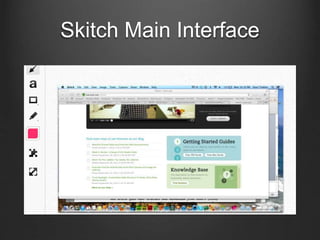
Skitch allows you to make screen captures and annotate
them on the fly
You can also take your own images with your webcam, or
annotate images created in other programs or
downloaded from the Web
Skitch in Action
Take a fullscreen
snapshot, a specific
portion of the screen, a
camera shot, open a file,
or annotate a blank
space
Once you have
something to work with,
you get an easy, user-
friendly interface
Skitch Main Interface
Done Annotating?
Drag the completed item from the bottom tab directly into
any of your documents
You can even share to
Evernote
Cool Skitch Uses
Students can do everything from annotate lab reports and
images to create art programs, graphs, and diagrams
easily and simply
Many teachers are using Evernote in mobile-ready
classrooms
With Evernote integration, Skitch expands the
opportunities available to students and teachers for
sharing and distributing classwork, especially in iPad and
tablet classrooms
Windows
Operating
System?
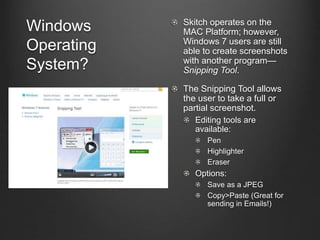
Skitch operates on the
MAC Platform; however,
Windows 7 users are still
able to create screenshots
with another program—
Snipping Tool.
The Snipping Tool allows
the user to take a full or
partial screenshot.
Editing tools are
available:
Pen
Highlighter
Eraser
Options:
Save as a JPEG
Copy>Paste (Great for
sending in Emails!)
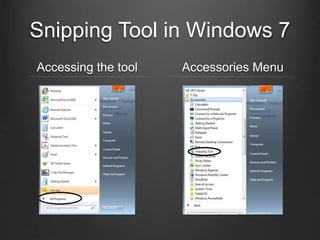
Snipping Tool in Windows 7
Accessing the tool Accessories Menu
About Screenr
Screenr (http://screenr.com) is a online
recording program that allows you to make up
to 5 minute screen-castings.
Nothing to install or download to use it
Either PC or Mac works!
Plays everywhere (iPhones included)
Hosts your videos!
Best of all, completely FREE!
Technical Information
Mac (OSX 10.4 and up) or Windows (XP,
Vista or Windows 7)
IE 6, 7, and 8; Firefox 3+; Safari 3+; and
Google Chrome
Java 1.5 runtime or later for recording
Flash Player 9 (release 115 or later) or Flash
Player 10 for playing screencasts
Starting off…
Easy as 1-2-
3!
Prepare,
Shoot, and
Share
Limitations
5 minute limit on videos
No editing software
All videos public (if hosted on Screenr)
Note: you may need to install Java first
(they point you toward the download
and make it simple)
Great Uses
Showing a “How to”
Classroom update videos to
parents
Great assignment idea!
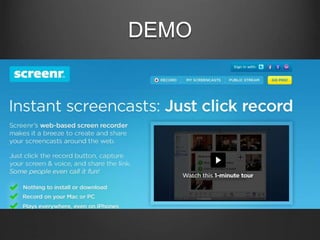
DEMO
About Join Me
Join Me (http://www.join.me) is a simple and free way to
share your screen for collaboration in a short amount of
time.
With Join Me, you can do several things, such as:
Enable Audio Conferencing (with desktop app)
Chat globally (all users) or privately
Request control of presenters’ screen (viewers)
Send files to users (Presenter>Participant,
Participant>Presenter)
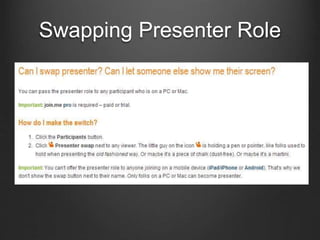
Swap Presenter Role (Pro)
Use on mobile devices
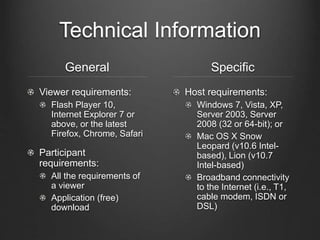
Technical Information
General
Viewer requirements:
Flash Player 10,
Internet Explorer 7 or
above, or the latest
Firefox, Chrome, Safari
Participant
requirements:
All the requirements of
a viewer
Application (free)
download
Specific
Host requirements:
Windows 7, Vista, XP,
Server 2003, Server
2008 (32 or 64-bit); or
Mac OS X Snow
Leopard (v10.6 Intel-
based), Lion (v10.7
Intel-based)
Broadband connectivity
to the Internet (i.e., T1,
cable modem, ISDN or
DSL)
Starting off…
You can access
Join Me via two
ways:
• Application
• PC/MAC
Download
• Website
• Presenter’
s must
download
the app.
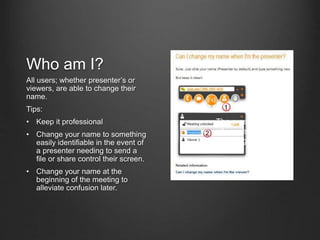
Who am I?
All users; whether presenter’s or
viewers, are able to change their
name.
Tips:
• Keep it professional
• Change your name to something
easily identifiable in the event of
a presenter needing to send a
file or share control their screen.
• Change your name at the
beginning of the meeting to
alleviate confusion later.
The presenter and
all viewers are able
to change their
names.
I’m not ready!
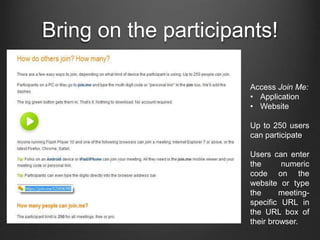
Bring on the participants!
Access Join Me:
• Application
• Website
Up to 250 users
can participate
Users can enter
the numeric
code on the
website or type
the meeting-
specific URL in
the URL box of
their browser.
The Secret Code
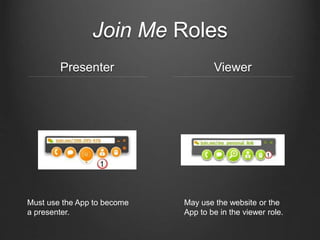
Join Me Roles
Presenter Viewer
Must use the App to become
a presenter.
May use the website or the
App to be in the viewer role.
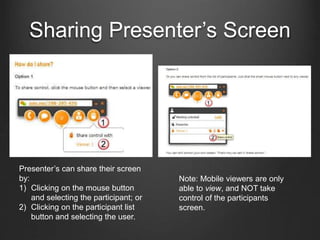
Sharing Presenter’s Screen
Presenter’s can share their screen
by:
1) Clicking on the mouse button
and selecting the participant; or
2) Clicking on the participant list
button and selecting the user.
Note: Mobile viewers are only
able to view, and NOT take
control of the participants
screen.
Swapping Presenter Role
Audio*
*For audio usage, the application is required.
Participants can join by Internet calling or by Phone (pro)
Chat
Users can chat privately (@UserName) or globally (@All)
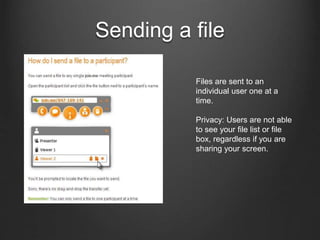
Sending a file
Files are sent to an
individual user one at a
time.
Privacy: Users are not able
to see your file list or file
box, regardless if you are
sharing your screen.
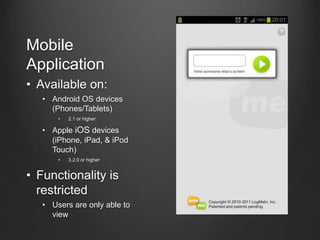
Mobile
Application
• Available on:
• Android OS devices
(Phones/Tablets)
• 2.1 or higher
• Apple iOS devices
(iPhone, iPad, & iPod
Touch)
• 3.2.0 or higher
• Functionality is
restricted
• Users are only able to
view
Security
Join Me uses 356-bit SSL encryption
Data such as images, files, or user information are
not stored on their servers.
Pro allows further security with restrictions on joining.
Free version allows anyone to enter with the code.
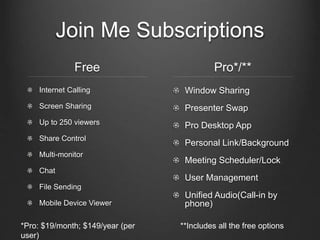
Join Me Subscriptions
Free
Internet Calling
Screen Sharing
Up to 250 viewers
Share Control
Multi-monitor
Chat
File Sending
Mobile Device Viewer
Pro*/**
Window Sharing
Presenter Swap
Pro Desktop App
Personal Link/Background
Meeting Scheduler/Lock
User Management
Unified Audio(Call-in by
phone)
**Includes all the free options*Pro: $19/month; $149/year (per
user)
Limitations
Chat Logs are not saved.
One presenter at a time
Must use the App
Meetings are not recorded.
Swapping Roles within meetings requires a Pro account.
Free meetings are not “locked”
Pro account allows locked meetings
Free meetings share the entire screen
Window sharing available with a Pro account
Great Uses
Flipped Classroom
Training and PD
Tech Support
Be Aware…
Screencast publishing and screen sharing takes bandwidth,
sometimes quite a lot
http://www.Screencast.com allows you to publish screencasts for
free, but you’ll need to pay for a pro account if you go over your
allotted bandwidth
You can create a screen capture on an iPad (press the top and
Home buttons together), but you cannot yet create screencasts or
share your iPad screen with another user
However, you can use apps like Join.me or GotoMyPC to view
someone else’s shared computer screen on an iPad or Android
device
Tools for Android screencasting are available, though still
somewhat in development (http://blogjakes.com/android-
screencast-tools/)
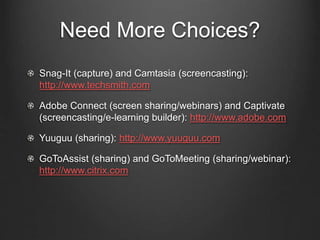
Need More Choices?
Snag-It (capture) and Camtasia (screencasting):
http://www.techsmith.com
Adobe Connect (screen sharing/webinars) and Captivate
(screencasting/e-learning builder): http://www.adobe.com
Yuuguu (sharing): http://www.yuuguu.com
GoToAssist (sharing) and GoToMeeting (sharing/webinar):
http://www.citrix.com
Resources
Screen capture in the classroom ideas:
http://prezi.com/a81jjsnnnjiu/using-screen-capture-tools-in-the-
classroom/
10 Tools to Flip Your Class (tip: most are screen-capture
related!): http://electriceducator.blogspot.com/2011/04/10-tools-
to-help-you-flip-your.html
Flipped classroom design:
http://digitalsandbox.weebly.com/flipped-classroom-design.html
Flipped class best practices:
http://www.edutopia.org/blog/flipped-classroom-best-practices-
andrew-miller
Thank you!
Questions? Ideas? Want to share a cool screen capture or
screencast?
Staci: atrekles@purdue.edu,
http://education.purduecal.edu/Faculty/Trekles
Alex: Alex.Criswell@purduecal.edu
Emily: elbeemst@me.com
Download these slides:
http://www.slideshare.net/andella
Help ICE plan for next year by
providing feedback for this session:
Scan the code to the left or visit
http://bit.ly/ICEfeedback to
respond to a short survey
about this session.
Thank you for your help.

Screencasting for the budget-friendly teacher

  • 1.
    Screen-Capturing, Screen-Casting, and Screen Sharing Forthe Budget-Friendly Teacher! Staci Trekles, Clinical Associate Professor Alex Criswell, Graduate Candidate, Communications and Instructional Design Emily Beemsterboer, Instructional Specialist Purdue University Calumet Hammond, Indiana
  • 2.
    Objectives This workshop willhelp you: Identify the difference between screen capture, screen-cast, and screen sharing, and select the one that makes the most sense for a given application Use Skitch, Screenr, and Join.me as free tools for screen capture, screencasting, and sharing Discuss and share ways in which you can use these screen techniques in your classroom, including in “flipped” classroom environments
  • 3.
    So what’s thedifference? Screen Capture: a still picture of a computer screen to illustrate a concept or command; sometimes called a “screenshot” Screen-Casting: a pre-recorded video demonstration of a computer operation in action Screen Sharing: a method by which two users connect remotely to share what’s displayed on one another’s screen; allows for live demonstrations and often gives each user the option to “take over” the other’s screen to help troubleshoot problems
  • 4.
    Examples Staci uses screencastsin her online and hybrid classes all the time: http://www.screencast.com/users/StaciTrekles Skitch and Evernote are being used by many teachers and students on the iPads at the Hammond Academy of Science and Technology (public lab school in Hammond, IN), especially in math and social studies for note-taking and annotation Join.me is great for collaborating across long or short distances – tech support may be an obvious one, but why not work on a lesson together, or share a great video or piece of digital art quickly and easily?
  • 5.
    About Skitch Skitch isavailable for Mac, Windows, iOS, Android – it was recently purchased by Evernote so it now works with Evernote http://skitch.com http://evernote.com Skitch allows you to make screen captures and annotate them on the fly You can also take your own images with your webcam, or annotate images created in other programs or downloaded from the Web
  • 6.
    Skitch in Action Takea fullscreen snapshot, a specific portion of the screen, a camera shot, open a file, or annotate a blank space Once you have something to work with, you get an easy, user- friendly interface
  • 7.
  • 8.
    Done Annotating? Drag thecompleted item from the bottom tab directly into any of your documents
  • 9.
    You can evenshare to Evernote
  • 10.
    Cool Skitch Uses Studentscan do everything from annotate lab reports and images to create art programs, graphs, and diagrams easily and simply Many teachers are using Evernote in mobile-ready classrooms With Evernote integration, Skitch expands the opportunities available to students and teachers for sharing and distributing classwork, especially in iPad and tablet classrooms
  • 11.
    Windows Operating System? Skitch operates onthe MAC Platform; however, Windows 7 users are still able to create screenshots with another program— Snipping Tool. The Snipping Tool allows the user to take a full or partial screenshot. Editing tools are available: Pen Highlighter Eraser Options: Save as a JPEG Copy>Paste (Great for sending in Emails!)
  • 12.
    Snipping Tool inWindows 7 Accessing the tool Accessories Menu
  • 13.
    About Screenr Screenr (http://screenr.com)is a online recording program that allows you to make up to 5 minute screen-castings. Nothing to install or download to use it Either PC or Mac works! Plays everywhere (iPhones included) Hosts your videos! Best of all, completely FREE!
  • 14.
    Technical Information Mac (OSX10.4 and up) or Windows (XP, Vista or Windows 7) IE 6, 7, and 8; Firefox 3+; Safari 3+; and Google Chrome Java 1.5 runtime or later for recording Flash Player 9 (release 115 or later) or Flash Player 10 for playing screencasts
  • 15.
    Starting off… Easy as1-2- 3! Prepare, Shoot, and Share
  • 16.
    Limitations 5 minute limiton videos No editing software All videos public (if hosted on Screenr) Note: you may need to install Java first (they point you toward the download and make it simple)
  • 17.
    Great Uses Showing a“How to” Classroom update videos to parents Great assignment idea!
  • 18.
  • 19.
    About Join Me JoinMe (http://www.join.me) is a simple and free way to share your screen for collaboration in a short amount of time. With Join Me, you can do several things, such as: Enable Audio Conferencing (with desktop app) Chat globally (all users) or privately Request control of presenters’ screen (viewers) Send files to users (Presenter>Participant, Participant>Presenter) Swap Presenter Role (Pro) Use on mobile devices
  • 20.
    Technical Information General Viewer requirements: FlashPlayer 10, Internet Explorer 7 or above, or the latest Firefox, Chrome, Safari Participant requirements: All the requirements of a viewer Application (free) download Specific Host requirements: Windows 7, Vista, XP, Server 2003, Server 2008 (32 or 64-bit); or Mac OS X Snow Leopard (v10.6 Intel- based), Lion (v10.7 Intel-based) Broadband connectivity to the Internet (i.e., T1, cable modem, ISDN or DSL)
  • 21.
    Starting off… You canaccess Join Me via two ways: • Application • PC/MAC Download • Website • Presenter’ s must download the app.
  • 22.
    Who am I? Allusers; whether presenter’s or viewers, are able to change their name. Tips: • Keep it professional • Change your name to something easily identifiable in the event of a presenter needing to send a file or share control their screen. • Change your name at the beginning of the meeting to alleviate confusion later. The presenter and all viewers are able to change their names.
  • 23.
  • 24.
    Bring on theparticipants! Access Join Me: • Application • Website Up to 250 users can participate Users can enter the numeric code on the website or type the meeting- specific URL in the URL box of their browser.
  • 25.
  • 26.
    Join Me Roles PresenterViewer Must use the App to become a presenter. May use the website or the App to be in the viewer role.
  • 27.
    Sharing Presenter’s Screen Presenter’scan share their screen by: 1) Clicking on the mouse button and selecting the participant; or 2) Clicking on the participant list button and selecting the user. Note: Mobile viewers are only able to view, and NOT take control of the participants screen.
  • 28.
  • 29.
    Audio* *For audio usage,the application is required. Participants can join by Internet calling or by Phone (pro)
  • 30.
    Chat Users can chatprivately (@UserName) or globally (@All)
  • 31.
    Sending a file Filesare sent to an individual user one at a time. Privacy: Users are not able to see your file list or file box, regardless if you are sharing your screen.
  • 32.
    Mobile Application • Available on: •Android OS devices (Phones/Tablets) • 2.1 or higher • Apple iOS devices (iPhone, iPad, & iPod Touch) • 3.2.0 or higher • Functionality is restricted • Users are only able to view
  • 33.
    Security Join Me uses356-bit SSL encryption Data such as images, files, or user information are not stored on their servers. Pro allows further security with restrictions on joining. Free version allows anyone to enter with the code.
  • 34.
    Join Me Subscriptions Free InternetCalling Screen Sharing Up to 250 viewers Share Control Multi-monitor Chat File Sending Mobile Device Viewer Pro*/** Window Sharing Presenter Swap Pro Desktop App Personal Link/Background Meeting Scheduler/Lock User Management Unified Audio(Call-in by phone) **Includes all the free options*Pro: $19/month; $149/year (per user)
  • 35.
    Limitations Chat Logs arenot saved. One presenter at a time Must use the App Meetings are not recorded. Swapping Roles within meetings requires a Pro account. Free meetings are not “locked” Pro account allows locked meetings Free meetings share the entire screen Window sharing available with a Pro account
  • 36.
  • 37.
    Be Aware… Screencast publishingand screen sharing takes bandwidth, sometimes quite a lot http://www.Screencast.com allows you to publish screencasts for free, but you’ll need to pay for a pro account if you go over your allotted bandwidth You can create a screen capture on an iPad (press the top and Home buttons together), but you cannot yet create screencasts or share your iPad screen with another user However, you can use apps like Join.me or GotoMyPC to view someone else’s shared computer screen on an iPad or Android device Tools for Android screencasting are available, though still somewhat in development (http://blogjakes.com/android- screencast-tools/)
  • 38.
    Need More Choices? Snag-It(capture) and Camtasia (screencasting): http://www.techsmith.com Adobe Connect (screen sharing/webinars) and Captivate (screencasting/e-learning builder): http://www.adobe.com Yuuguu (sharing): http://www.yuuguu.com GoToAssist (sharing) and GoToMeeting (sharing/webinar): http://www.citrix.com
  • 39.
    Resources Screen capture inthe classroom ideas: http://prezi.com/a81jjsnnnjiu/using-screen-capture-tools-in-the- classroom/ 10 Tools to Flip Your Class (tip: most are screen-capture related!): http://electriceducator.blogspot.com/2011/04/10-tools- to-help-you-flip-your.html Flipped classroom design: http://digitalsandbox.weebly.com/flipped-classroom-design.html Flipped class best practices: http://www.edutopia.org/blog/flipped-classroom-best-practices- andrew-miller
  • 40.
    Thank you! Questions? Ideas?Want to share a cool screen capture or screencast? Staci: atrekles@purdue.edu, http://education.purduecal.edu/Faculty/Trekles Alex: Alex.Criswell@purduecal.edu Emily: elbeemst@me.com Download these slides: http://www.slideshare.net/andella
  • 41.
    Help ICE planfor next year by providing feedback for this session: Scan the code to the left or visit http://bit.ly/ICEfeedback to respond to a short survey about this session. Thank you for your help.