©Dr. Phil Polstra
Windows Forensics
Dr. Phil Polstra @ppolstra
PhD, CISSP, CEH http://philpolstra.com
©Dr. Phil Polstra
Forensic Basics: Background
©Dr. Phil Polstra
What is Forensics?
●
Merriam-Webster: Forensic (n) belonging to, used
in, or suitable to courts of judicature or to
public discussion and debate
●
Forensic science or forensics is the scientific
collection of evidence of sufficient quality that it
is suitable for use in court
©Dr. Phil Polstra
Kinds of Forensics
●
Physical
– Transfer
– Fingerprints
– DNA
●
Digital
– Network
– Data storage
– Small devices
– Computers
©Dr. Phil Polstra
General Principles
●
Maintain integrity of evidence
●
Maintain chain of custody
●
Document everything
– Handwritten is better
– Work with a partner if possible
●
Follow standard practices
©Dr. Phil Polstra
Phases of Investigation
●
Evidence preservation
– First do no harm
●
Evidence searching
– More complicated as storage has increased
●
Event reconstruction
©Dr. Phil Polstra
Incident Response
●
First validate that there was an incident
●
Then proceed with preservation, searching,
and event reconstruction
●
Might need to do some preliminary
investigation to determine if there was an
incident
●
Not done till reports are complete
©Dr. Phil Polstra
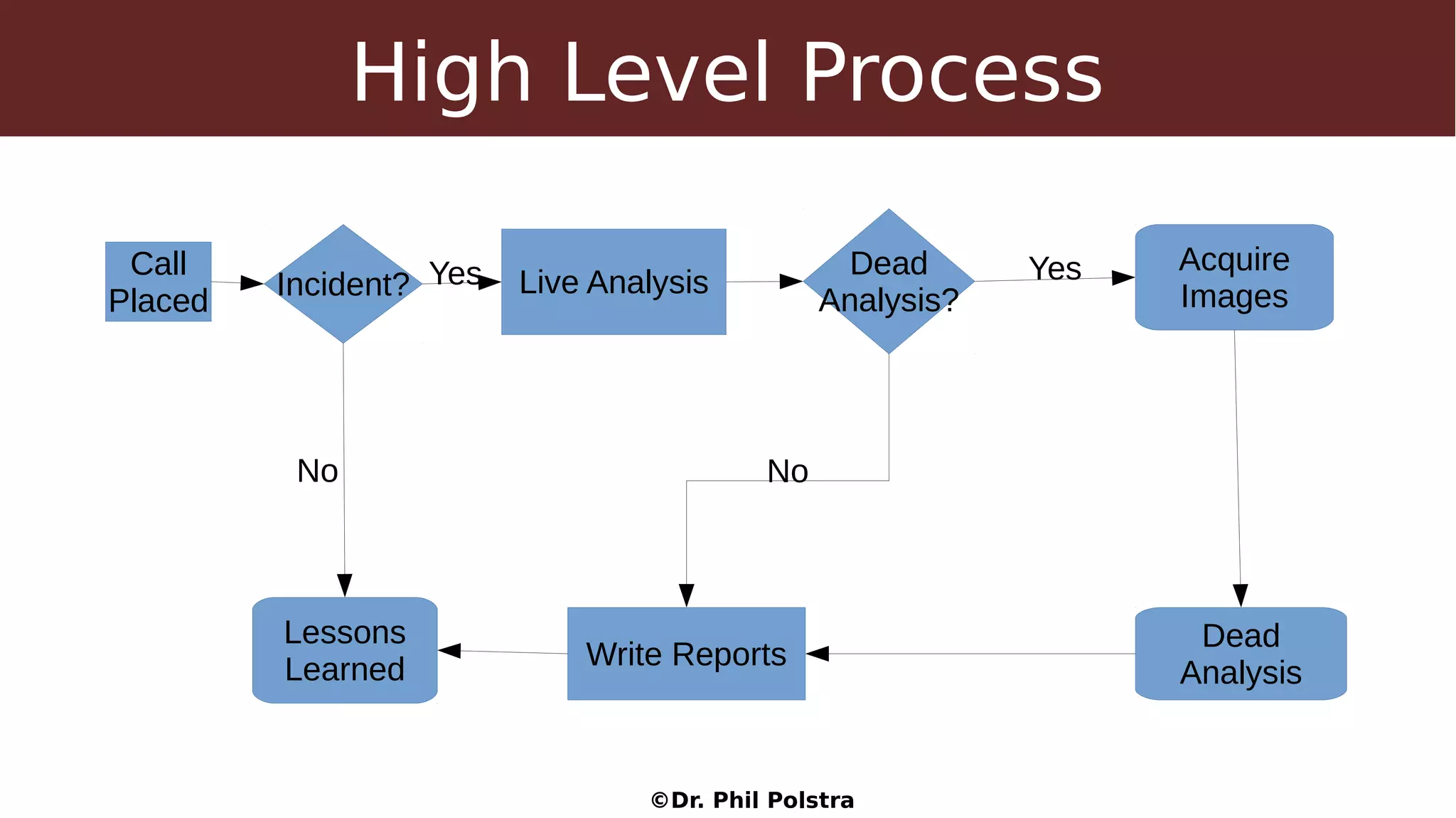
High Level Process
Call
Placed
Incident?
Lessons
Learned
No
Live AnalysisYes Dead
Analysis?
Acquire
Images
Yes
Dead
Analysis
Write Reports
No
©Dr. Phil Polstra
Forensic Basics: First Steps
©Dr. Phil Polstra
Be Prepared
●
Have a response kit with a complete set of forensics
tools
– Both 32-bit and 64-bit versions
– Ideally CDROM and USB
– We will build this set of tools throughout this course
●
Hardware
– Write blockers
– Media
– Forensic laptop
●
Notebook, etc. for documentation
©Dr. Phil Polstra
Your Forensics Workstation
●
At least 8GB of RAM is recommended
●
Ideally with USB 3.0 port(s)
●
Wired networking available
●
Linux distro (64-bit)
– Specialized distros such as SIFT or
– Ubuntu or
– Your favorite distro
©Dr. Phil Polstra
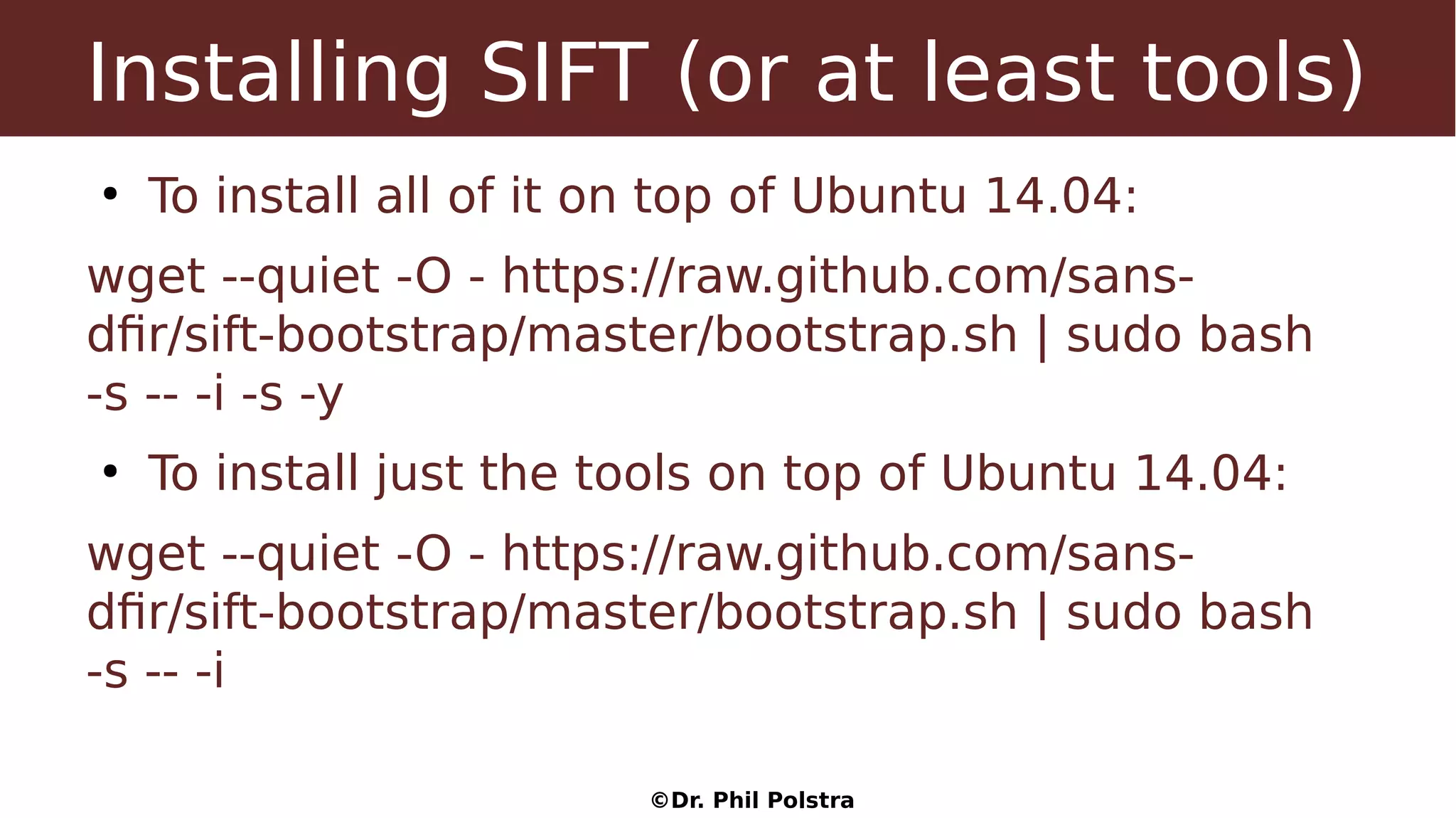
Installing SIFT (or at least tools)
●
To install all of it on top of Ubuntu 14.04:
wget --quiet -O - https://raw.github.com/sans-
dfir/sift-bootstrap/master/bootstrap.sh | sudo bash
-s -- -i -s -y
●
To install just the tools on top of Ubuntu 14.04:
wget --quiet -O - https://raw.github.com/sans-
dfir/sift-bootstrap/master/bootstrap.sh | sudo bash
-s -- -i
©Dr. Phil Polstra
Installing Tools
●
If you are running a Debian/Ubuntu distro run the
install-dfir.sh script provided
●
Alternatively, the virtual machine image can be
used
©Dr. Phil Polstra
Starting an Investigation
©Dr. Phil Polstra
High Level Process
Call
Placed Incident?
Lessons
Learned
No
Live AnalysisYes Dead
Analysis?
Acquire
Images
Yes
Dead
Analysis
Write Reports
No
©Dr. Phil Polstra
Has there been an incident?
●
Open a case file
●
Talk to the users
– Why did they call you?
– Why do they think there is a problem?
– What is known about the potential victim system:
●
Normal use
●
Origins
●
Recent repairs?
©Dr. Phil Polstra
Documentation
●
Write notes in your notebook
– What users said
– What you know about the subject system
●
Consider taking photos of system and screen if
appropriate
●
You are now ready to consider actually touching
the system
©Dr. Phil Polstra
Mount the known good binaries
●
More complicated than Linux equivalent
●
Check path to point to your programs first
●
Cannot completely replace Windows binaries
●
Advanced malware can hide its presence
●
USB 3.0 Flash drive recommended
– For practice you might want USB 2.0 for use in VirtualBox
©Dr. Phil Polstra
Minimize disturbance to system
●
Don't install anything on subject system
●
Don't create new files on the system
●
Minimize memory footprint
●
Possible solutions
– Netcat (best)
– Store to USB drive
©Dr. Phil Polstra
Using Netcat to Transport Data
●
Listeners are created on forensic workstation
– Command output
– Receive suspicious files
●
Standard commands are ran on subject and results
sent to workstation
●
Suspicious files are also sent
●
Automated with shell/batch scripts
©Dr. Phil Polstra
Collecting Volatile Data
©Dr. Phil Polstra
Data to Collect
●
Date and Time
– Clock may be skewed
– Might be in different timezone
●
Network interfaces
– Funny networks
– Promiscuous mode?
●
Network connections
©Dr. Phil Polstra
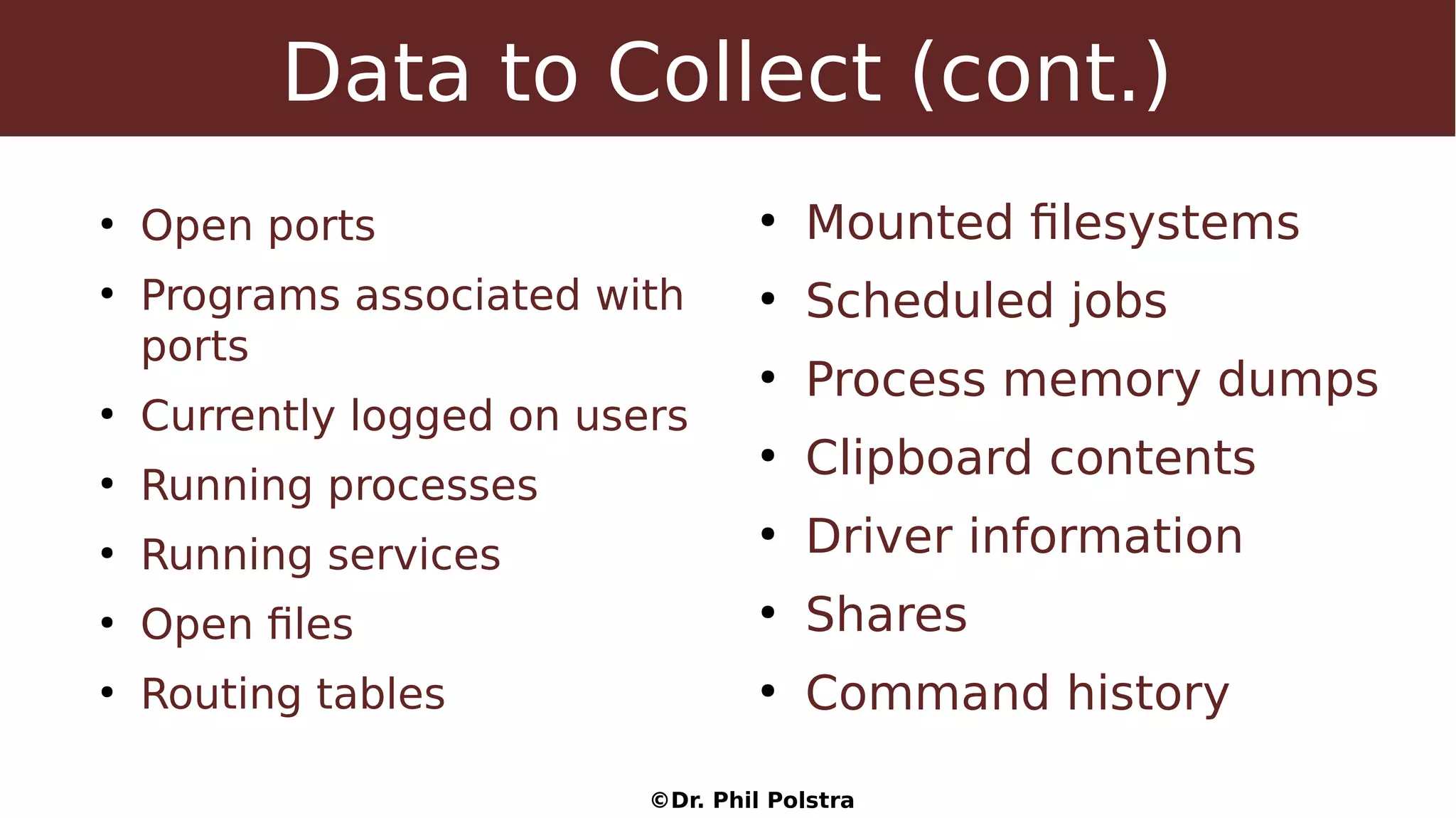
Data to Collect (cont.)
●
Open ports
●
Programs associated with
ports
●
Currently logged on users
●
Running processes
●
Running services
●
Open files
●
Routing tables
●
Mounted filesystems
●
Scheduled jobs
●
Process memory dumps
●
Clipboard contents
●
Driver information
●
Shares
●
Command history
©Dr. Phil Polstra
Collecting Data
●
Run initial scan on Win7 subject
●
Examine log on workstation
●
What do you see?
©Dr. Phil Polstra
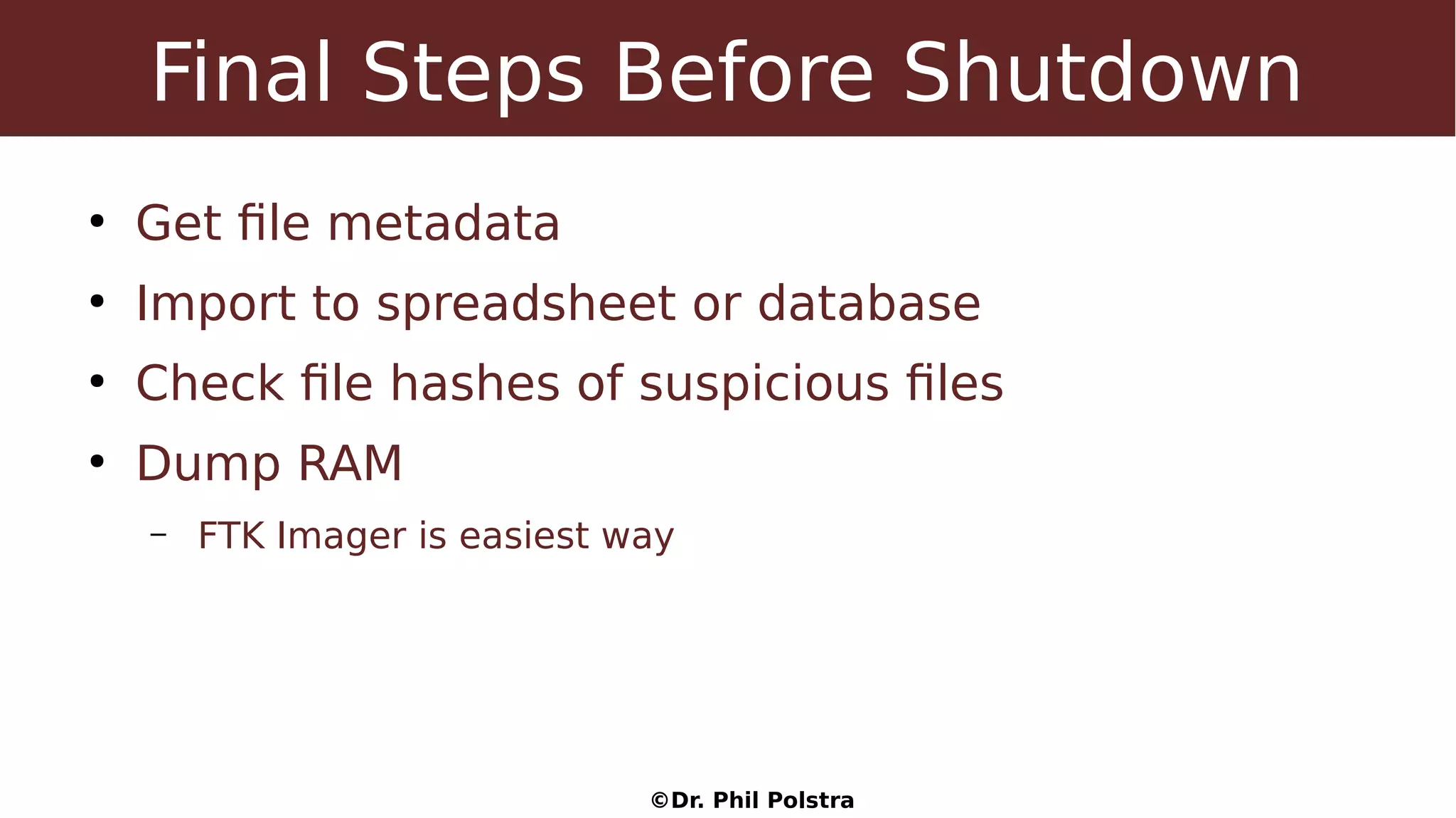
Final Steps Before Shutdown
●
Get file metadata
●
Import to spreadsheet or database
●
Check file hashes of suspicious files
●
Dump RAM
– FTK Imager is easiest way
©Dr. Phil Polstra
Making Filesystem Images
©Dr. Phil Polstra
Image File Formats
●
Raw
●
Proprietary with embedded metadata
●
Proprietary with metadata in separate file
●
Raw with hashes stored in a separate file
©Dr. Phil Polstra
Creating an Image
●
Raw: dd if=<subject device> of=<image file>
bs=512
●
Raw with hashes along the way: dcfldd if=<subject
device> of=<image file> bs=512
hash=<algorithm> hash window=<chunk size>
hashlog=<hash file>
●
Dcfldd will create image from running systems!
©Dr. Phil Polstra
Write Blocking
●
Hardware write blockers
– Commercial blockers for SATA only $350+
– USB write blocker described in USB class
●
Cheap at about $25
●
Slow due to limits of microcontroller that is full-speed (12 Mbps) only
●
Software write blocking
– Use udev rules as described in USB forensics course
– Boot live forensics Linux on subject computer
– Boot live forensics Linux on forensics workstation
©Dr. Phil Polstra
Making the Image
●
This takes too long to do in this class
●
Several images are provided for this class and
general study
©Dr. Phil Polstra
Mounting Images: MBR Basics
©Dr. Phil Polstra
High Level Process
Call
Placed Incident?
Lessons
Learned
No
Live AnalysisYes Dead
Analysis?
Acquire
Images
Yes
Dead
Analysis
Write Reports
No
©Dr. Phil Polstra
Master Boot Record
●
Ancient standard (from the 80s)
●
Allows up to four partition
●
At most one partition can be active (bootable)
●
Some partitions may be extended partitions
– Can contain multiple partitions inside them
– Partitions are stored in a linked list
●
Being replaced with GUID partition tables
©Dr. Phil Polstra
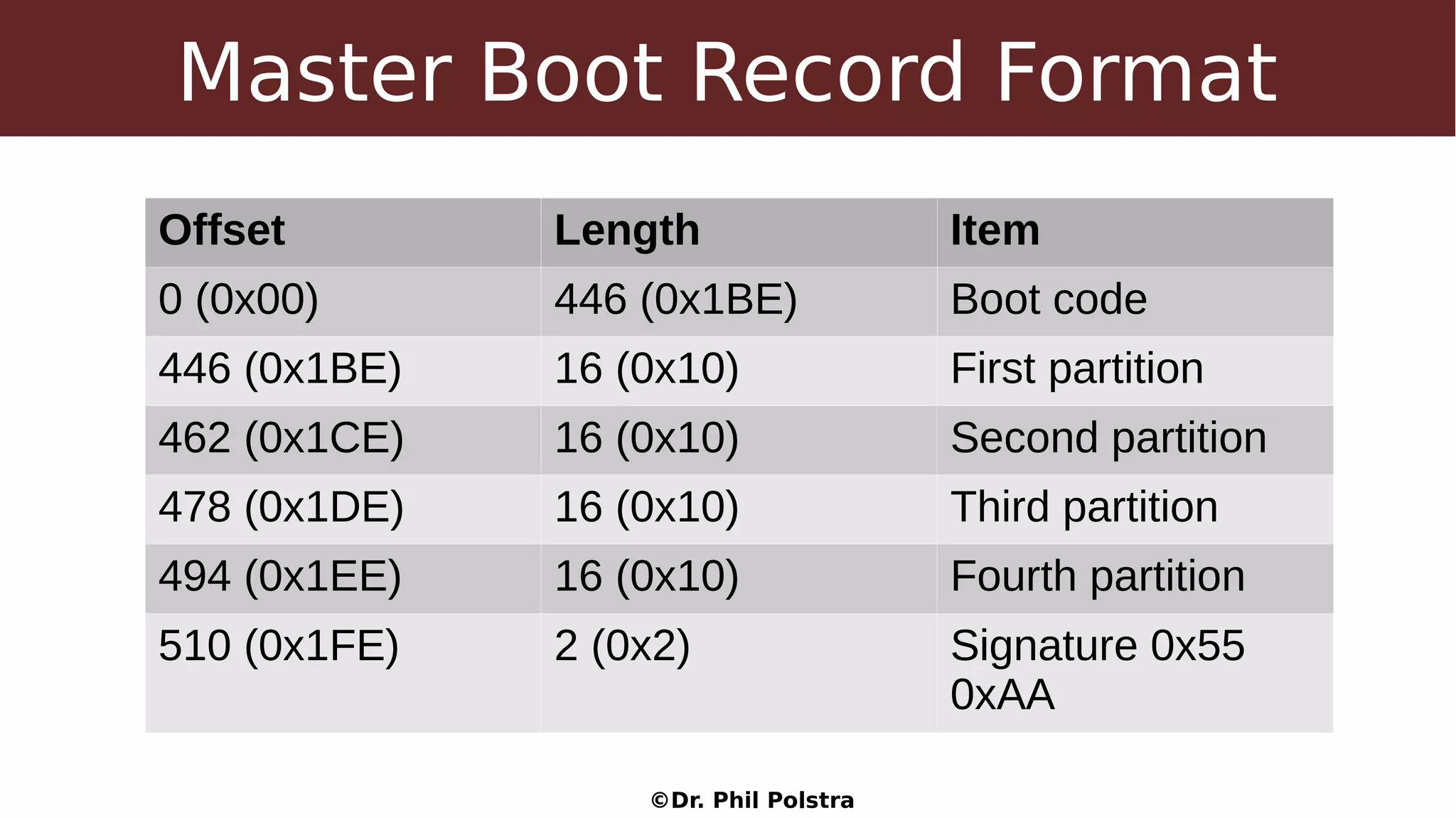
Master Boot Record Format
Offset Length Item
0 (0x00) 446 (0x1BE) Boot code
446 (0x1BE) 16 (0x10) First partition
462 (0x1CE) 16 (0x10) Second partition
478 (0x1DE) 16 (0x10) Third partition
494 (0x1EE) 16 (0x10) Fourth partition
510 (0x1FE) 2 (0x2) Signature 0x55
0xAA
©Dr. Phil Polstra
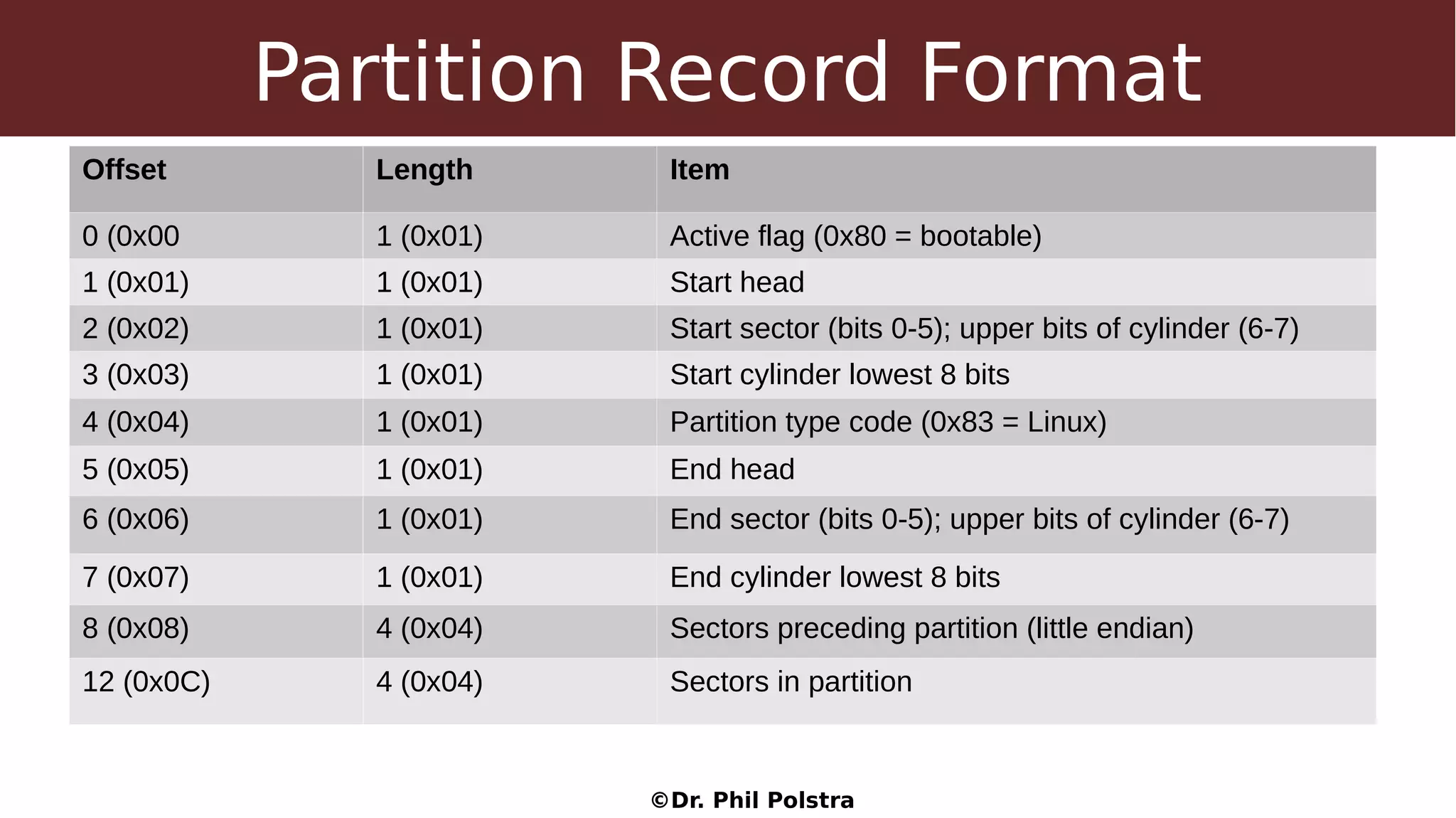
Partition Record Format
Offset Length Item
0 (0x00 1 (0x01) Active flag (0x80 = bootable)
1 (0x01) 1 (0x01) Start head
2 (0x02) 1 (0x01) Start sector (bits 0-5); upper bits of cylinder (6-7)
3 (0x03) 1 (0x01) Start cylinder lowest 8 bits
4 (0x04) 1 (0x01) Partition type code (0x83 = Linux)
5 (0x05) 1 (0x01) End head
6 (0x06) 1 (0x01) End sector (bits 0-5); upper bits of cylinder (6-7)
7 (0x07) 1 (0x01) End cylinder lowest 8 bits
8 (0x08) 4 (0x04) Sectors preceding partition (little endian)
12 (0x0C) 4 (0x04) Sectors in partition
©Dr. Phil Polstra
Mounting an Image with a MBR
● Fdisk <image> to get start sector
● Mount with sudo mount -o
ro,noatime,loop,offset=$(( sect * 512 )) <image>
<mount point>
● Use Python script included in class materials
©Dr. Phil Polstra
Mounting Images: Extended Partitions
©Dr. Phil Polstra
Extended Partitions
●
Used with MBR-based drives with more than 4
partitions
●
A primary extended partition stores logical
partitions inside of itself
●
Each logical partition is proceeded by an “MBR
sector”
– Offsets are relative to extended partition
– Interpreted as a linked list
– Normally only first two entries are used
©Dr. Phil Polstra
Extended Partition MBR Format
Offset Length Item
0 (0x00) 446 (0x1BE) Boot code (unused)
446 (0x1BE) 16 (0x10) First partition
462 (0x1CE) 16 (0x10) Second partition (if any)
478 (0x1DE) 16 (0x10) Third partition (unused)
494 (0x1EE) 16 (0x10) Fourth partition (unused)
510 (0x1FE) 2 (0x2) Signature 0x55 0xAA
©Dr. Phil Polstra
Partition Record Format
Offset Length Item
0 (0x00 1 (0x01) Active flag (0x80 = bootable)
1 (0x01) 1 (0x01) Start head
2 (0x02) 1 (0x01) Start sector (bits 0-5); upper bits of cylinder (6-7)
3 (0x03) 1 (0x01) Start cylinder lowest 8 bits
4 (0x04) 1 (0x01) Partition type code (0x83 = Linux)
5 (0x05) 1 (0x01) End head
6 (0x06) 1 (0x01) End sector (bits 0-5); upper bits of cylinder (6-7)
7 (0x07) 1 (0x01) End cylinder lowest 8 bits
8 (0x08) 4 (0x04) Sectors preceding partition (little endian)
12 (0x0C) 4 (0x04) Sectors in partition
©Dr. Phil Polstra
Mounting Images: GUID Partitions
©Dr. Phil Polstra
High Level Process
Call
Placed Incident?
Lessons
Learned
No
Live AnalysisYes Dead
Analysis?
Acquire
Images
Yes
Dead
Analysis
Write Reports
No
©Dr. Phil Polstra
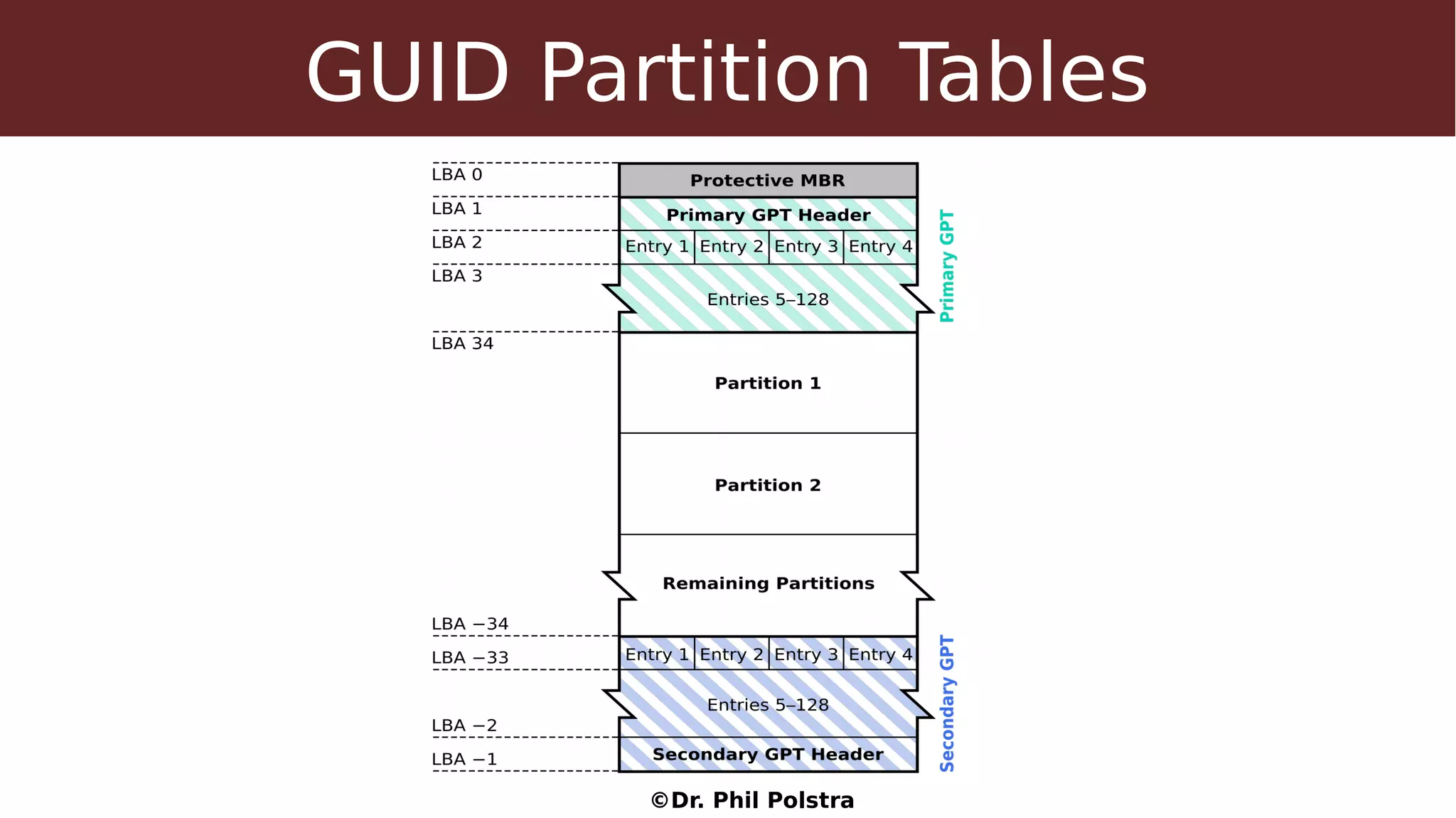
GUID Partitions
●
Part of the UEFI system to replace BIOS boot
●
Allows up to 128 partitions
●
Simple
●
The new standard
●
All current 64-bit systems ship with this
©Dr. Phil Polstra
GUID Partition Tables
©Dr. Phil Polstra
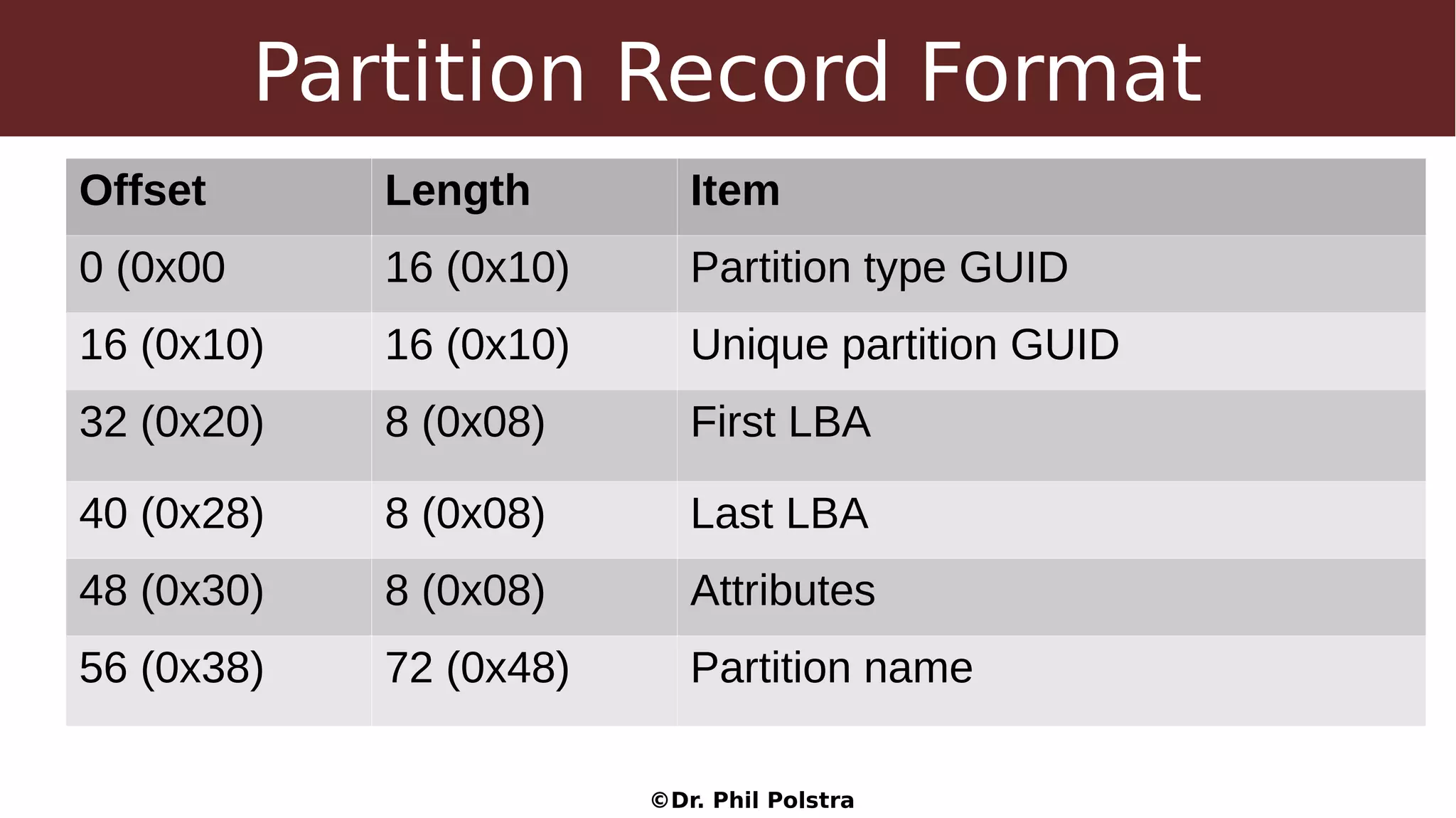
Partition Record Format
Offset Length Item
0 (0x00 16 (0x10) Partition type GUID
16 (0x10) 16 (0x10) Unique partition GUID
32 (0x20) 8 (0x08) First LBA
40 (0x28) 8 (0x08) Last LBA
48 (0x30) 8 (0x08) Attributes
56 (0x38) 72 (0x48) Partition name
©Dr. Phil Polstra
Partition Attributes
Bit Content Description
0 System partition Must preserve partition as is
1 EFI Firmware Operating system should ignore this
partition
2 Legacy BIOS boot Equivalent to 0x80 in MBR
3-47 Reserved Should be zeros
48-63 Type specific Varies by partition type (60=RO,
62=Hidden, 63=No automount for
Windows)
©Dr. Phil Polstra
Mounting GUID partitions
©Dr. Phil Polstra
FAT Filesystem Basics
©Dr. Phil Polstra
FAT Filesystem
●
Been around since DOS
●
Three flavors: FAT12, FAT16, & FAT32
●
Contains File Allocation Tables
●
De facto standard
●
Modern versions of Windows won't
install on it
©Dr. Phil Polstra
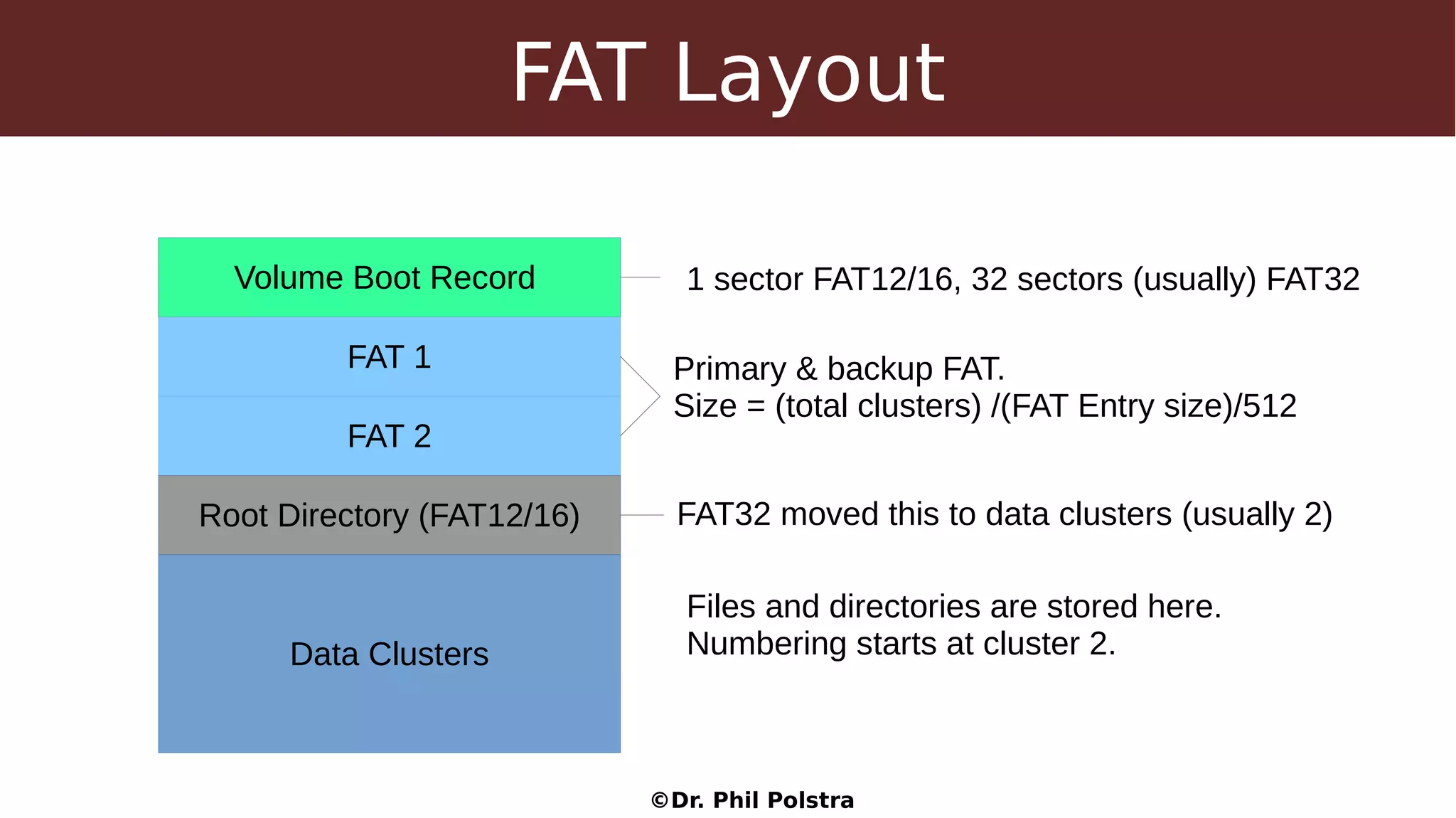
FAT Layout
Volume Boot Record
FAT 1
FAT 2
Root Directory (FAT12/16)
Data Clusters
1 sector FAT12/16, 32 sectors (usually) FAT32
Primary & backup FAT.
Size = (total clusters) /(FAT Entry size)/512
FAT32 moved this to data clusters (usually 2)
Files and directories are stored here.
Numbering starts at cluster 2.
©Dr. Phil Polstra
Volume Boot Record
●
Allows filesystem to tell operating
system about itself
●
Contains needed and extended
parts
●
One sector for FAT12/16
●
Normally 32 sectors for FAT32
©Dr. Phil Polstra
File Allocation Table
●
Gives status for each cluster
– Available
– Used and file continues to another cluster
– Used and last cluster in a file
●
First two entries are special
●
Used to create a cluster chain
●
Two FAT are normally updated together
©Dr. Phil Polstra
Directory Entries
●
Contain metadata
– MAC times
– File size
●
Contains the starting cluster for a
file
●
Relate file names to cluster chains
©Dr. Phil Polstra
Data Clusters
●
Where all the files live
●
All directories (with the possible
exception of root directory) live here
too
●
The only part of the disk that isn't
overhead
●
Collection of sectors
©Dr. Phil Polstra
The Volume Boot Record
©Dr. Phil Polstra
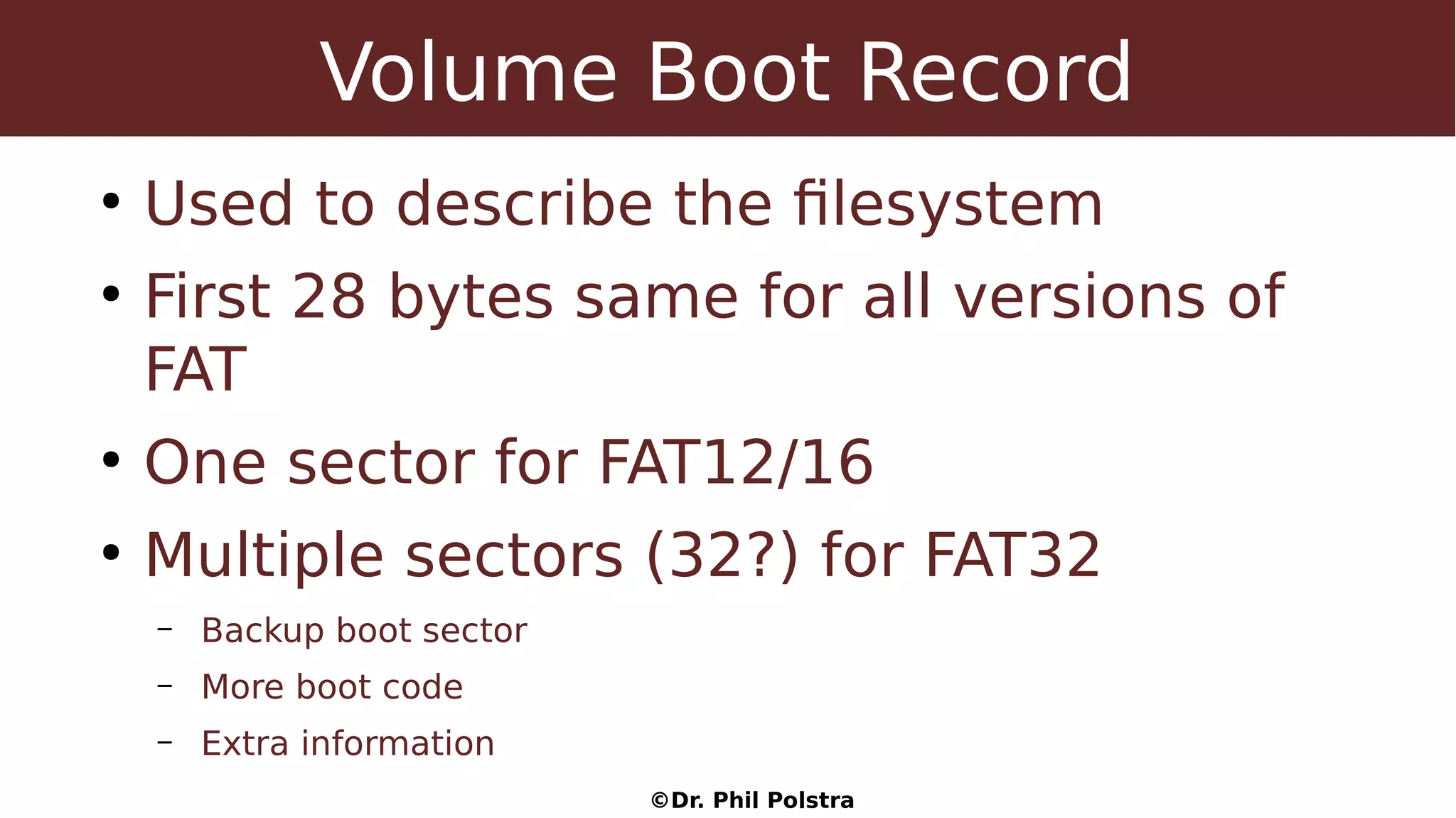
Volume Boot Record
●
Used to describe the filesystem
●
First 28 bytes same for all versions of
FAT
●
One sector for FAT12/16
●
Multiple sectors (32?) for FAT32
– Backup boot sector
– More boot code
– Extra information
©Dr. Phil Polstra
FAT12/16/32 First Parts
Offset Length Item
0 (0x00) 3 (0x3) Jump to bootstrap
3 (0x03) 8 (0x08) OEM name (who made this filesystem?)
11(0x0B) 2 (0x02) Bytes/sector (probably 512)
13 (0x0D) 1 (0x01) Sectors/cluster (usually power of 2)
14 (0x0E) 2 (0x02) Reserved sectors before filesystem (1 or 32)
16(0x10) 1 (0x01) Copies of FAT (probably 2)
©Dr. Phil Polstra
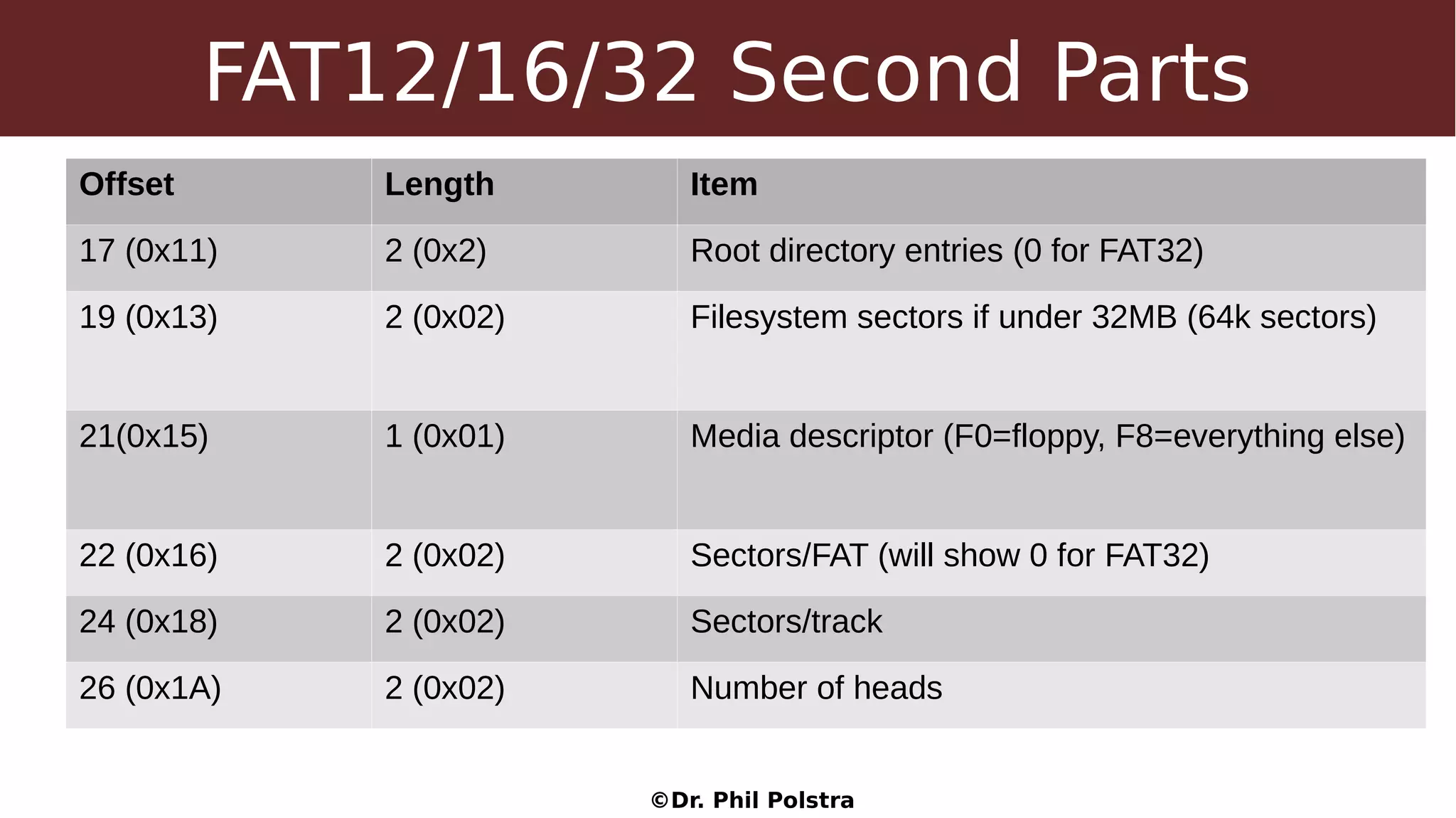
FAT12/16/32 Second Parts
Offset Length Item
17 (0x11) 2 (0x2) Root directory entries (0 for FAT32)
19 (0x13) 2 (0x02) Filesystem sectors if under 32MB (64k sectors)
21(0x15) 1 (0x01) Media descriptor (F0=floppy, F8=everything else)
22 (0x16) 2 (0x02) Sectors/FAT (will show 0 for FAT32)
24 (0x18) 2 (0x02) Sectors/track
26 (0x1A) 2 (0x02) Number of heads
©Dr. Phil Polstra
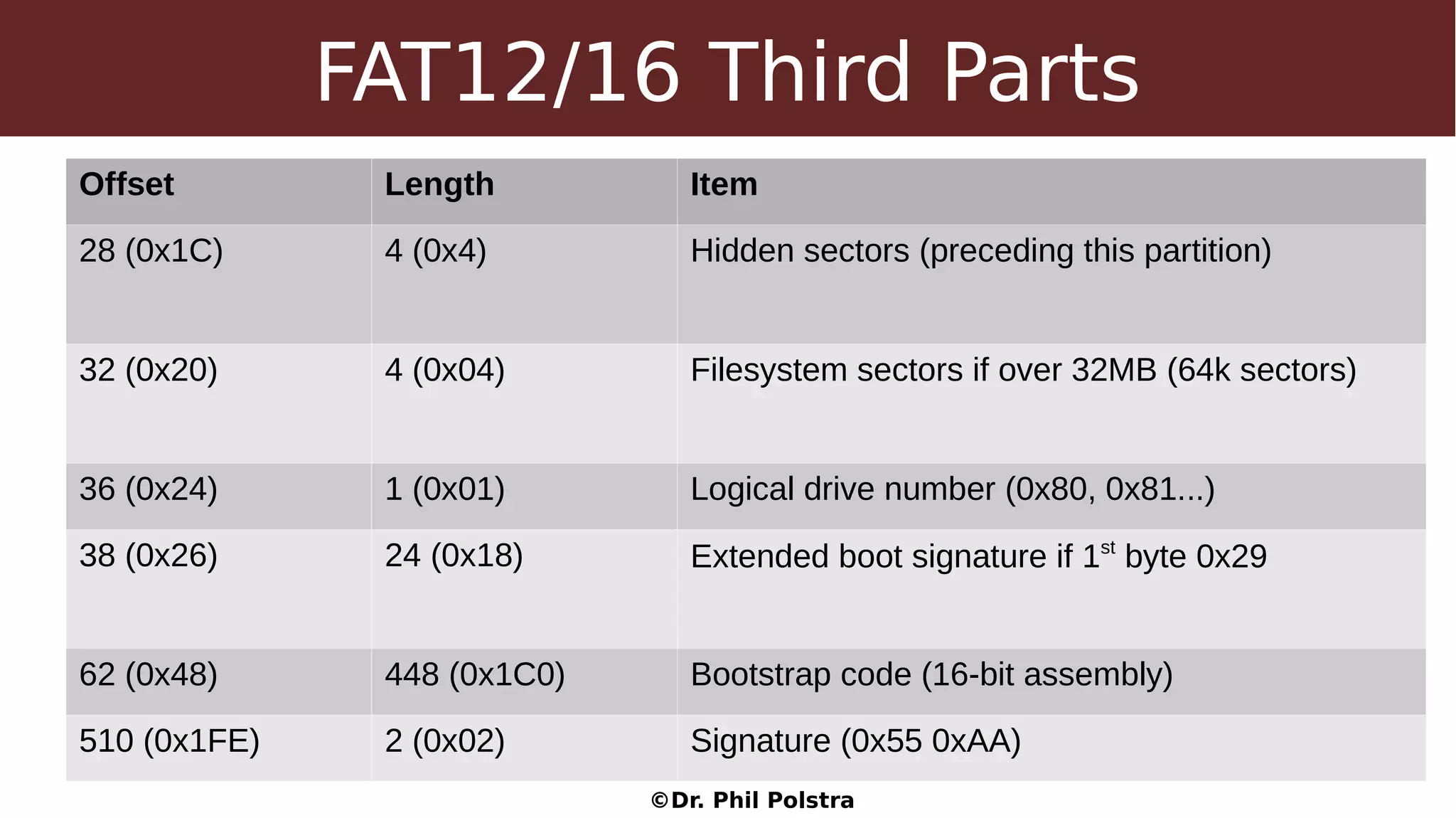
FAT12/16 Third Parts
Offset Length Item
28 (0x1C) 4 (0x4) Hidden sectors (preceding this partition)
32 (0x20) 4 (0x04) Filesystem sectors if over 32MB (64k sectors)
36 (0x24) 1 (0x01) Logical drive number (0x80, 0x81...)
38 (0x26) 24 (0x18) Extended boot signature if 1st
byte 0x29
62 (0x48) 448 (0x1C0) Bootstrap code (16-bit assembly)
510 (0x1FE) 2 (0x02) Signature (0x55 0xAA)
©Dr. Phil Polstra
FAT12/16 Extended Signatures
Offset Length Item
38 (0x26) 1 (0x1) 0x29 indicates an extended signature follows
39 (0x27) 4 (0x04) Partition serial number
43 (0x2B) 11 (0x0B) Volume label or “NO NAME”
54 (0x36) 8 (0x08) Human readable filesystem type
©Dr. Phil Polstra
FAT32 Third Parts
Offset Length Item
28 (0x1C) 4 (0x4) Hidden sectors (preceding this partition)
32 (0x20) 4 (0x04) Filesystem sectors if over 32MB (64k sectors)
36 (0x24) 4 (0x04) Sectors/FAT
40 (0x28) 2 (0x02) Mirror Flag (b7=1 single FAT then b0-3 tell which)
42 (0x2A) 2 Filesystem version
44 (0x2C) 4 (0x04) First cluster of root directory (probably 2)
©Dr. Phil Polstra
FAT32 Fourth Parts
Offset Length Item
48 (0x30) 2 (0x2) FSINFO sector # in reserved area (probably 1)
50 (0x32) 2 (0x02) Backup boot sector # in reserved are (usually 6)
64 (0x40) 1 (0x01) Logical Drive (0x80, 0x81...)
66 (0x42) 24 (0x18) Extended boot signature (same as FAT12/16)
90 (0x5A) 420 (0x1A4) Bootstrap code
510 (0x1FE) 2 (0x02) Signature (0x55 0xAA)
©Dr. Phil Polstra
FAT32 FSINFO Block
Offset Length Item
0 (0x00) 4 (0x4) Signature RRaA
484 (0x1E4) 4 (0x04) Start marker rrAa
488 (0x1E8) 4 (0x04) Free clusters (0xFFFFFFFF = unknown)
492 (0x1EC) 4 (0x04) Last allocated cluster (0xFFFFFFFF = unknown)
508 (0x1FC) 4 (0x04) Signature (0x00 0x00 0x55 0xAA)
©Dr. Phil Polstra
FAT Directory Entries
©Dr. Phil Polstra
Directory Entries
●
Contain
– Filename (8.3)
– MAC timestamps
– File size
– First cluster
●
32 bytes long
●
First two entries for subdirectories: . & ..
●
Kludge for long filename support
©Dr. Phil Polstra
Directory Entries
Offset Length Item
0 (0x00) 11 (0x0B) File name
11 (0x0B) 1 (0x01) Attributes: B0-5: RO, hidden, system, volume
label, subdirectory, archive B6-7: unused
14 (0x0E) 4 (0x04) Creation Time & Date
18 (0x12) 2 (0x02) Last Access Date (no time)
20 (0x14) 2 (0x02) Starting cluster high word (FAT32)
22 (0x16) 4 (0x04) Modified Time & Date
26 (0x1A) 2 (0x02) Starting cluster low word
28 (0x1C) 4 (0x04) File size in bytes (0 for directories)
©Dr. Phil Polstra
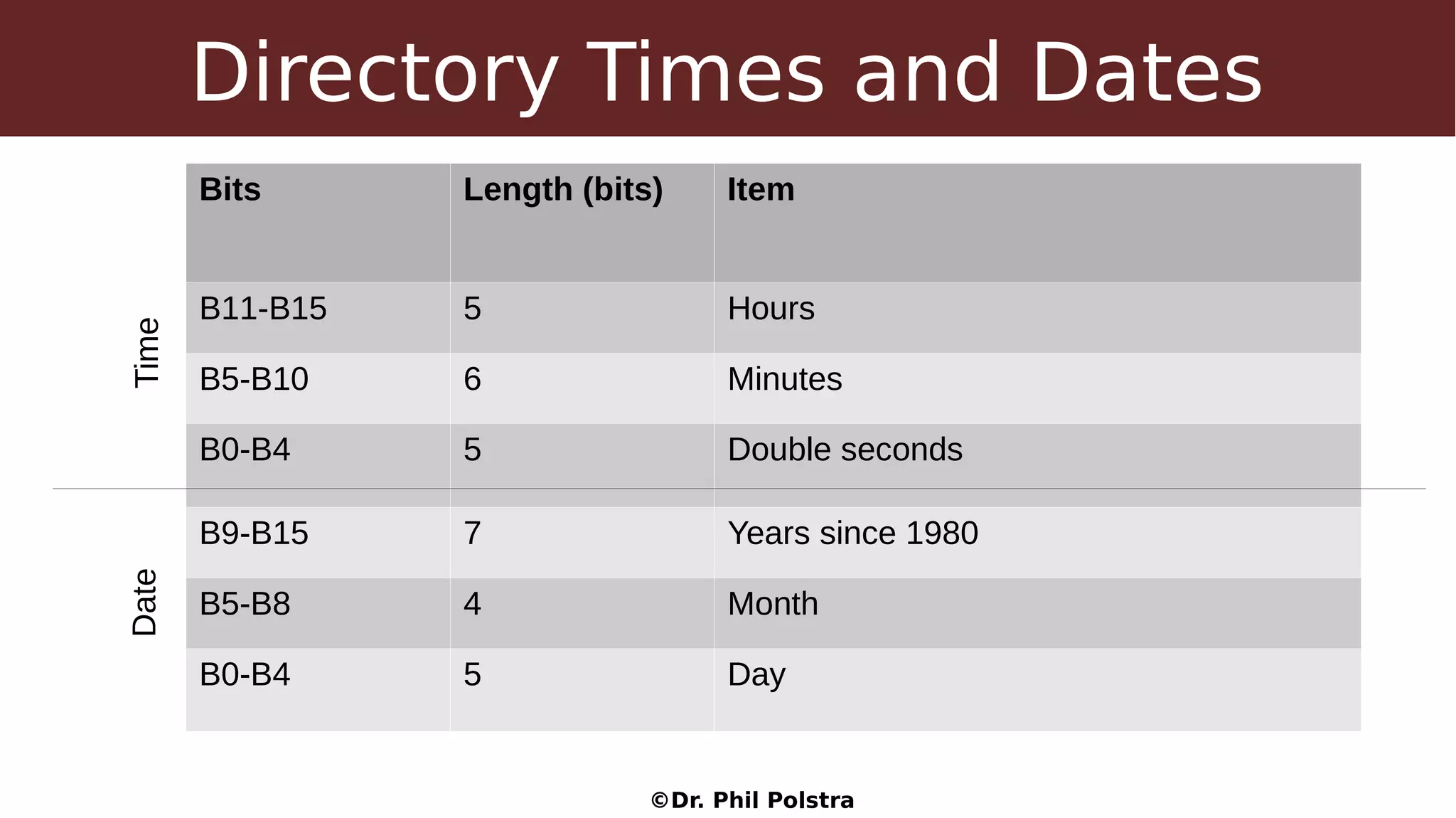
Directory Times and Dates
Bits Length (bits) Item
B11-B15 5 Hours
B5-B10 6 Minutes
B0-B4 5 Double seconds
B9-B15 7 Years since 1980
B5-B8 4 Month
B0-B4 5 Day
TimeDate
©Dr. Phil Polstra
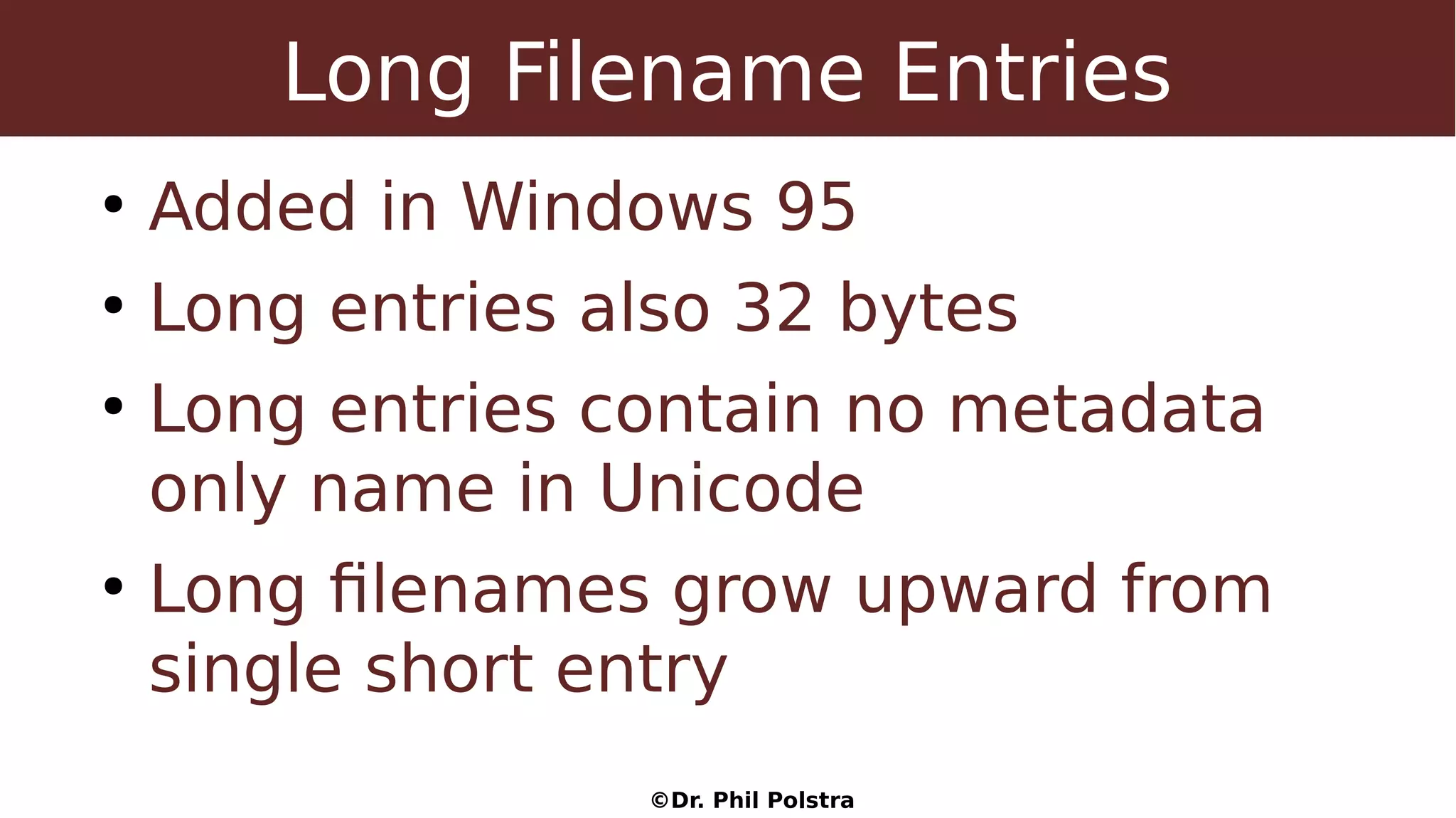
Long Filename Entries
●
Added in Windows 95
●
Long entries also 32 bytes
●
Long entries contain no metadata
only name in Unicode
●
Long filenames grow upward from
single short entry
©Dr. Phil Polstra
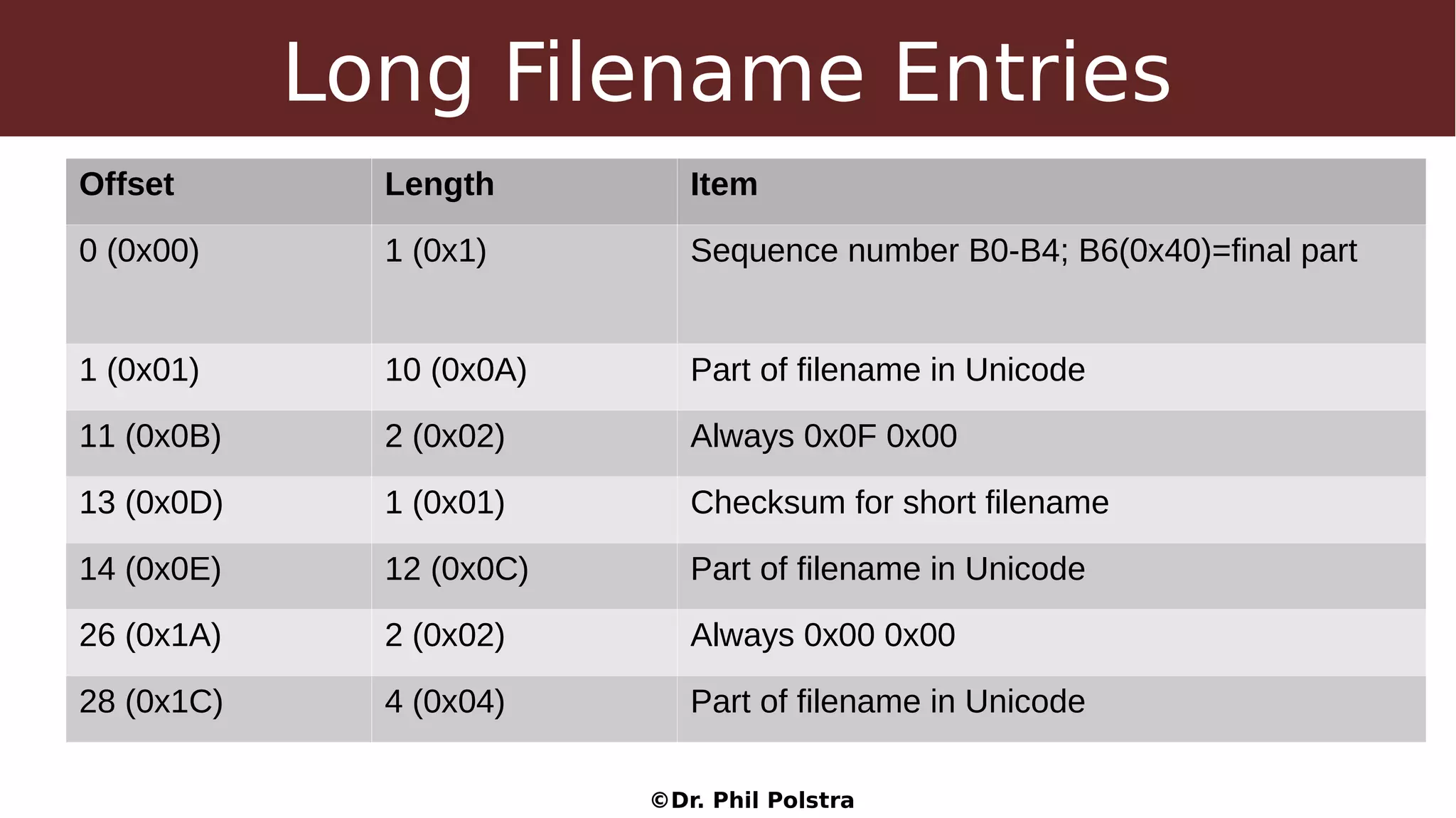
Long Filename Entries
Offset Length Item
0 (0x00) 1 (0x1) Sequence number B0-B4; B6(0x40)=final part
1 (0x01) 10 (0x0A) Part of filename in Unicode
11 (0x0B) 2 (0x02) Always 0x0F 0x00
13 (0x0D) 1 (0x01) Checksum for short filename
14 (0x0E) 12 (0x0C) Part of filename in Unicode
26 (0x1A) 2 (0x02) Always 0x00 0x00
28 (0x1C) 4 (0x04) Part of filename in Unicode
©Dr. Phil Polstra
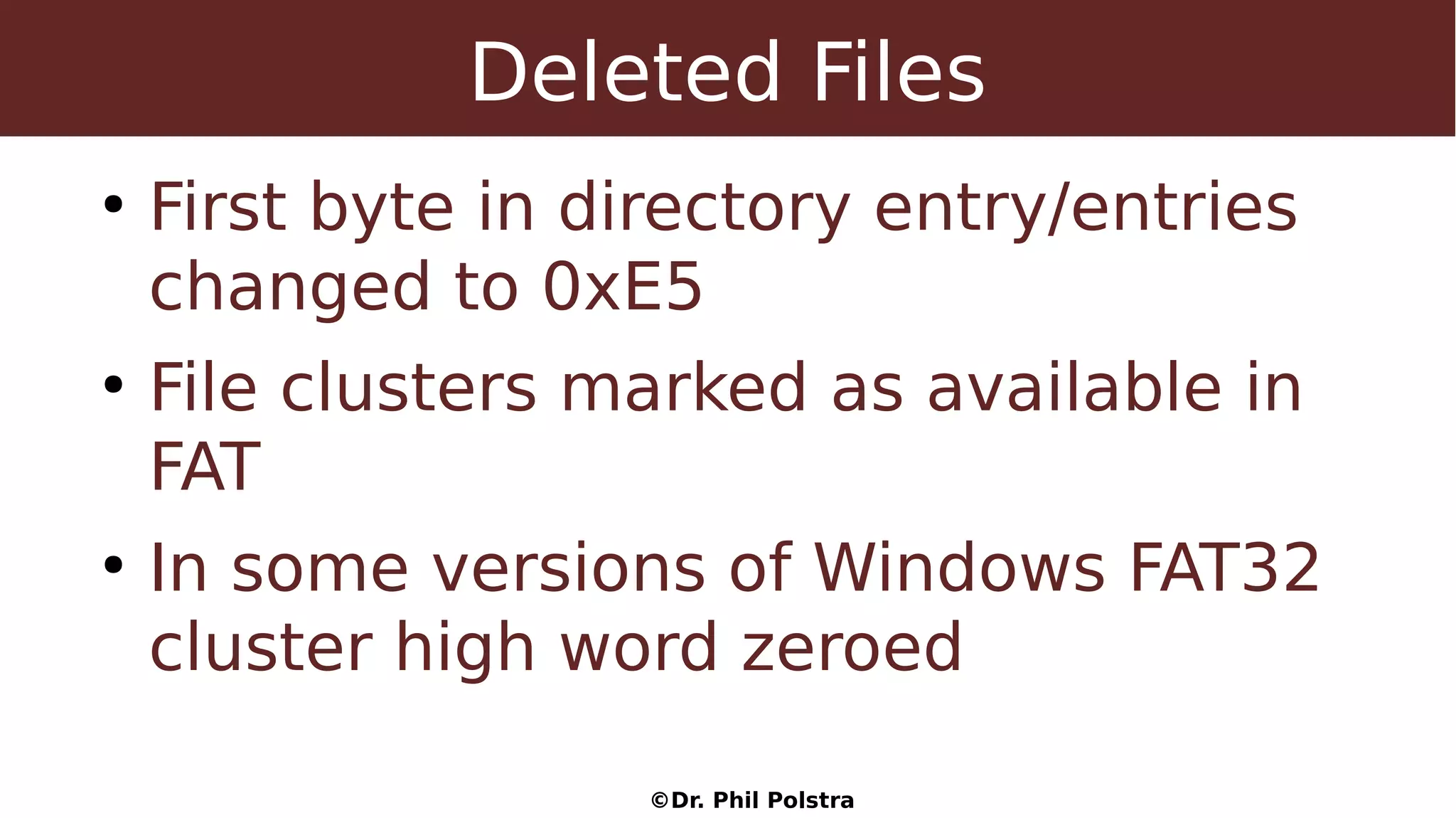
Deleted Files
●
First byte in directory entry/entries
changed to 0xE5
●
File clusters marked as available in
FAT
●
In some versions of Windows FAT32
cluster high word zeroed
©Dr. Phil Polstra
Deleted Files
©Dr. Phil Polstra
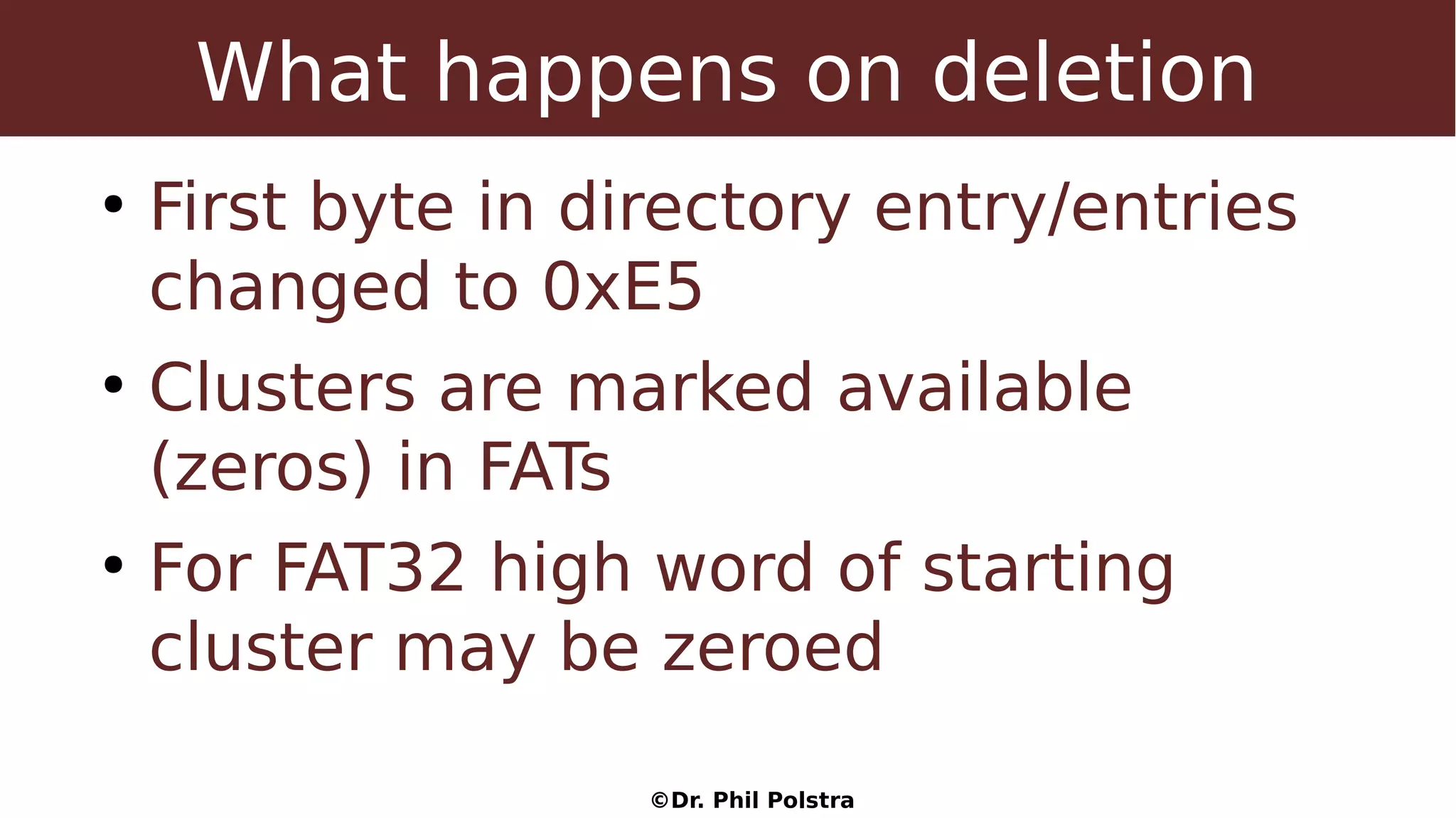
What happens on deletion
●
First byte in directory entry/entries
changed to 0xE5
●
Clusters are marked available
(zeros) in FATs
●
For FAT32 high word of starting
cluster may be zeroed
©Dr. Phil Polstra
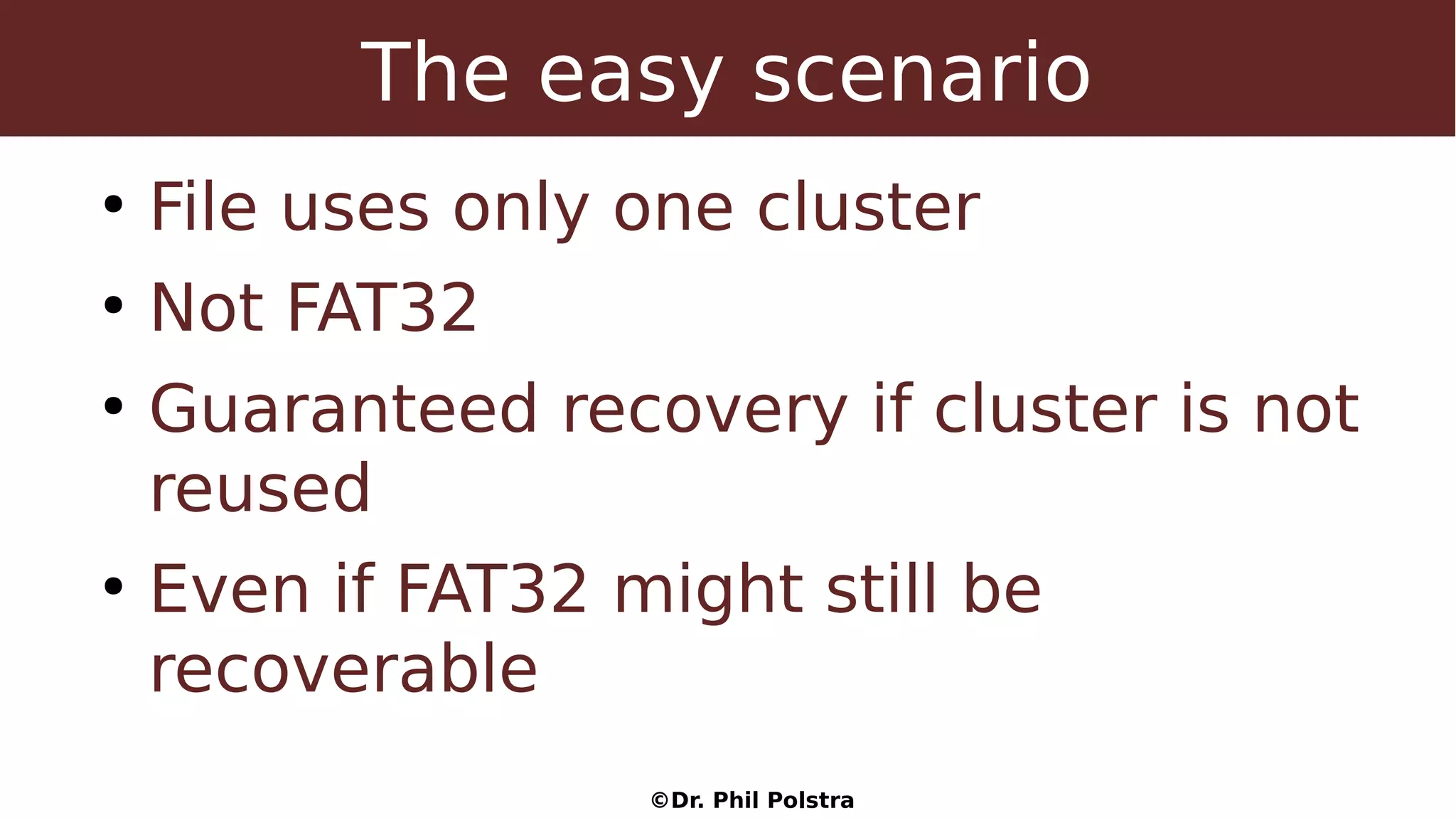
The easy scenario
●
File uses only one cluster
●
Not FAT32
●
Guaranteed recovery if cluster is not
reused
●
Even if FAT32 might still be
recoverable
©Dr. Phil Polstra
The medium difficulty scenario
●
File is contiguous (not fragmented)
●
Not FAT32
●
Recovery is likely if clusters have
not been reused
●
FAT32 recovery far from guaranteed
©Dr. Phil Polstra
The scenario you don't want
●
File is fragmented
●
If you are extra unlucky also FAT32
●
Must rely on best guess of cluster
allocation
●
If it is even possible, manual
intervention may be required
©Dr. Phil Polstra
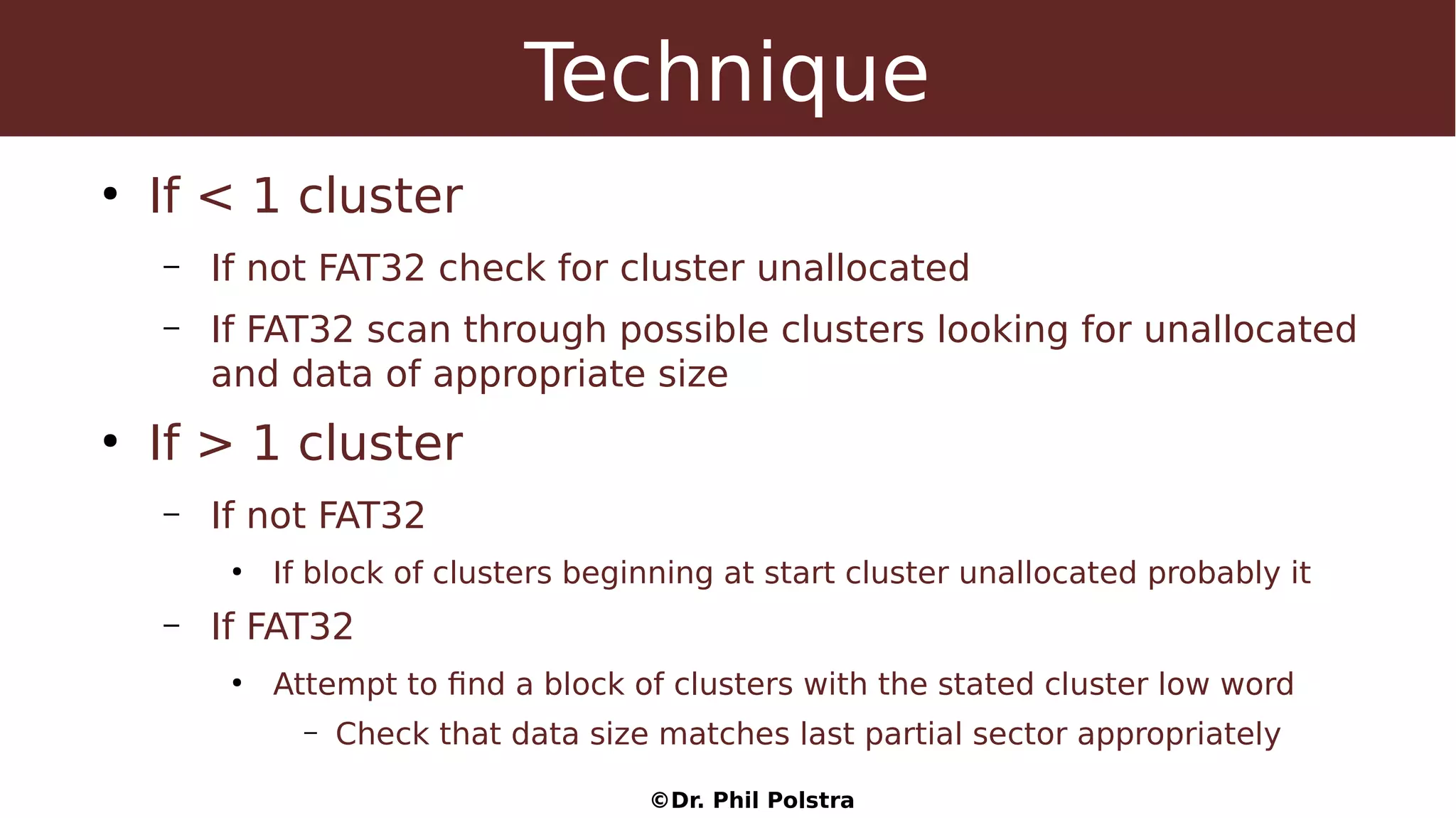
Technique
●
If < 1 cluster
– If not FAT32 check for cluster unallocated
– If FAT32 scan through possible clusters looking for unallocated
and data of appropriate size
●
If > 1 cluster
– If not FAT32
●
If block of clusters beginning at start cluster unallocated probably it
– If FAT32
●
Attempt to find a block of clusters with the stated cluster low word
– Check that data size matches last partial sector appropriately
©Dr. Phil Polstra
Technique (continued)
●
If you have gotten this far chances of success are
low
●
If not FAT32
– Start from starting cluster and search forward for unallocated
sectors
– Unless the disk is very full if the file was recently deleted this
is probably right
●
If FAT32
– Look for possible solutions with largest contiguous set of
unallocated clusters at beginning that are not empty
©Dr. Phil Polstra
The good news
●
FAT filesystems are primarily used for removable
media and not internal hard drives
●
We will learn that NTFS undeletion is much
simpler
©Dr. Phil Polstra
File Forensics
©Dr. Phil Polstra
File Forensics
●
Examining individual files
●
Can be used to find hidden info
– Mismatched extensions
– Slack space
– Unallocated space
– Page files
©Dr. Phil Polstra
File Signatures
●
Many files have standard headers
●
Some also have standard footers
●
Helps
– Identify mismatched extensions
– Retrieve files from swap & memory
– Verify undeleted files
●
Comprehensive list
http://www.garykessler.net/library/file_sigs.html
©Dr. Phil Polstra
Slack Space
●
Leftover space in a cluster
when file size not an exact
multiple of cluster size
●
RAM Slack – partial sector
●
File Slack – whole sector
●
Total Slack = (cluster size)-
(file size)%(cluster size)
File Data
RAM Slack
File Slack
©Dr. Phil Polstra
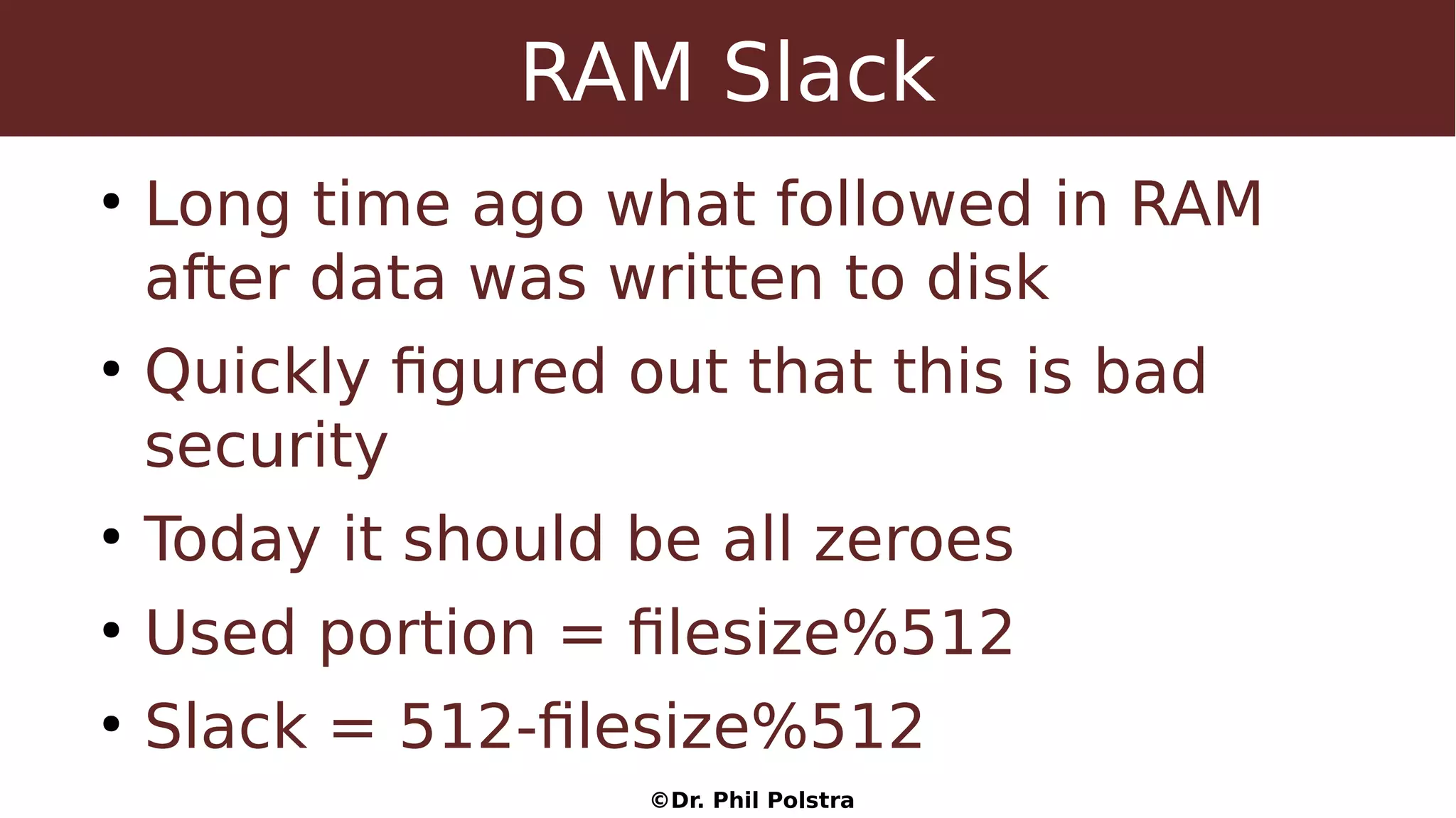
RAM Slack
●
Long time ago what followed in RAM
after data was written to disk
●
Quickly figured out that this is bad
security
●
Today it should be all zeroes
●
Used portion = filesize%512
●
Slack = 512-filesize%512
©Dr. Phil Polstra
File Slack
●
Can contain fragments of old files
●
Whole sectors of slack
●
Slack = (total slack)//512
●
Slack = ((cluster size)-(file size)%
(cluster size))//512
©Dr. Phil Polstra
File Carving
●
Using file signatures to find files in
– Swap space
– Unallocated clusters
– Unallocated disk space
●
General carving tools
– Foremost
– Scalpel
●
Specialized tools also exist
©Dr. Phil Polstra
File Lab
●
Try some of the scripts
– Extension-mismatch.sh
– Find-files.py
●
Use grep to locate files with
important info
●
Use scalpel to extract files
©Dr. Phil Polstra
NTFS Filesystem Basics
©Dr. Phil Polstra
NTFS Filesystem
●
Introduced with Windows NT
●
Based on HPFS from OS/2
●
Required to install modern versions
of Windows
●
Files are collections of attributes
●
Most items in Master File Table (MFT)
©Dr. Phil Polstra
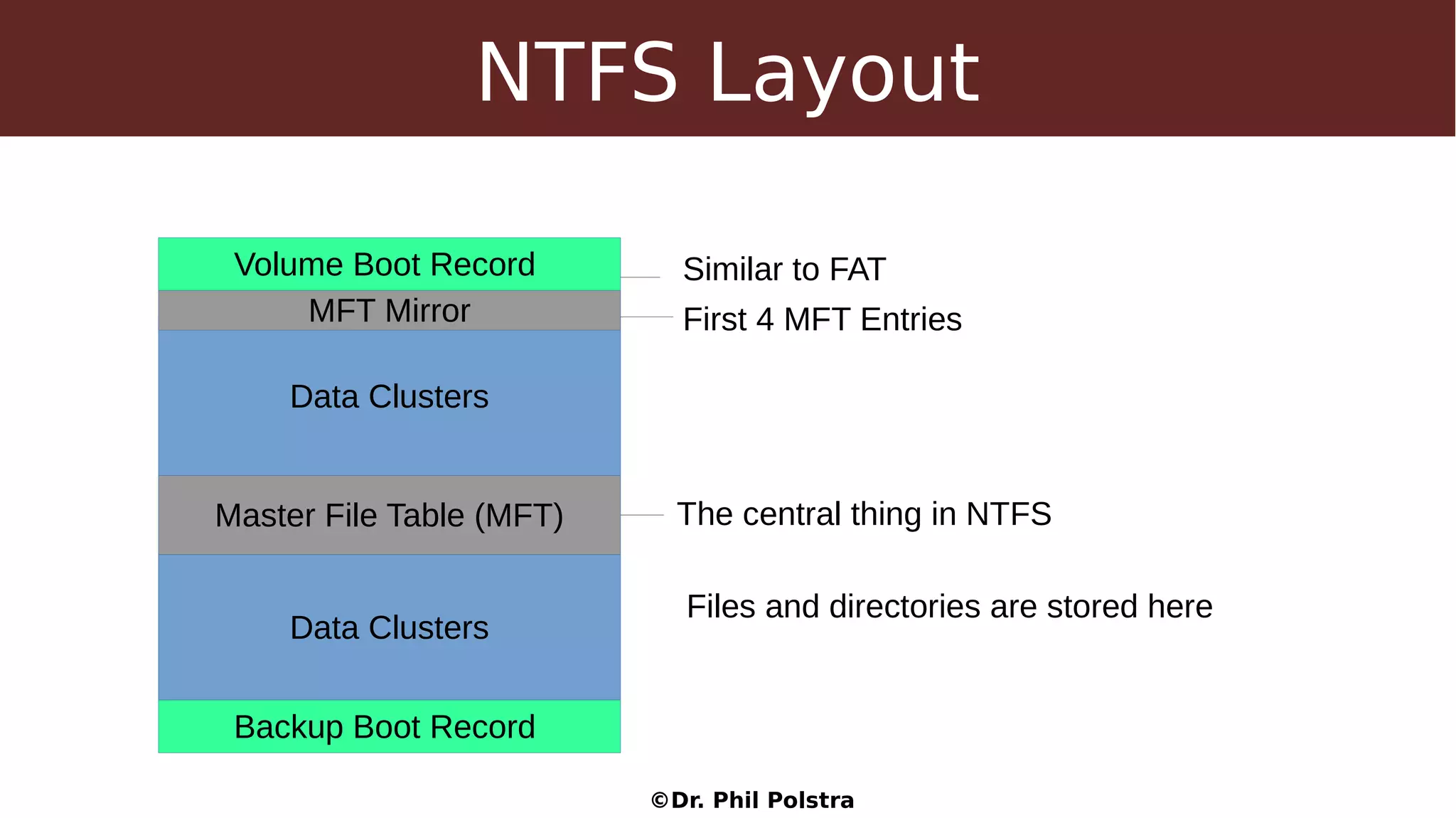
NTFS Layout
Volume Boot Record
Master File Table (MFT)
Data Clusters
Similar to FAT
The central thing in NTFS
Files and directories are stored here
Backup Boot Record
Data Clusters
MFT Mirror First 4 MFT Entries
©Dr. Phil Polstra
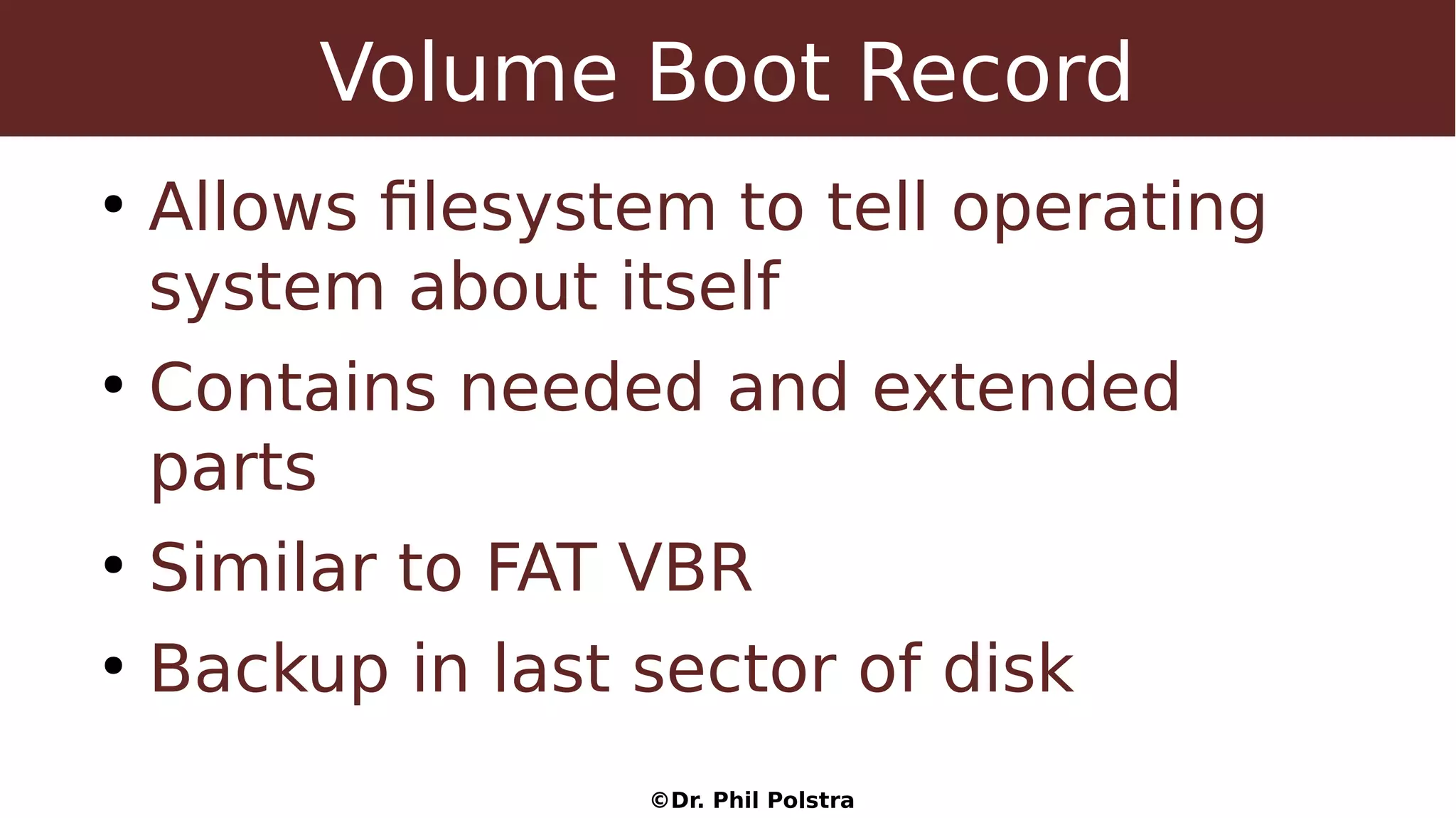
Volume Boot Record
●
Allows filesystem to tell operating
system about itself
●
Contains needed and extended
parts
●
Similar to FAT VBR
●
Backup in last sector of disk
©Dr. Phil Polstra
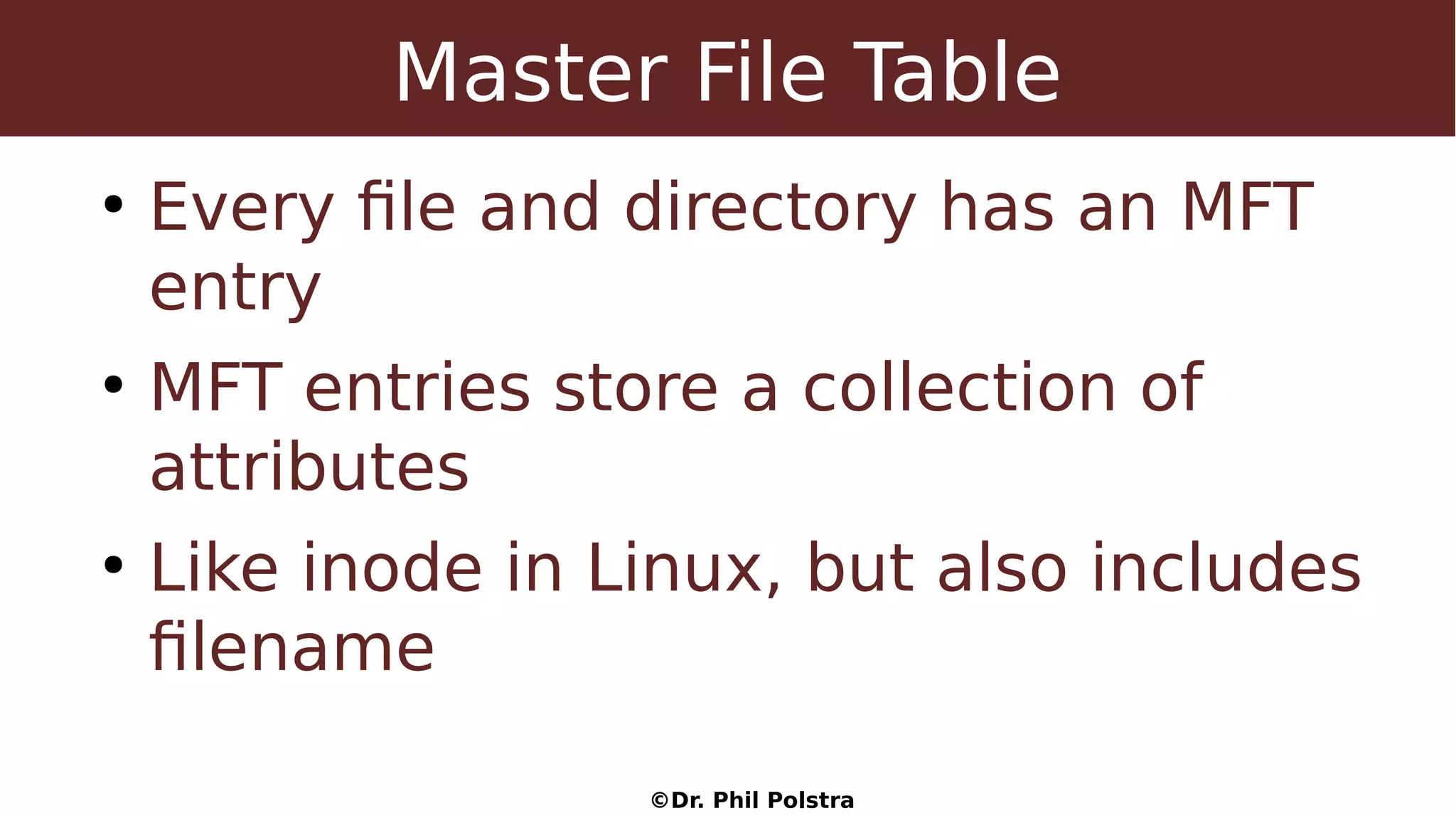
Master File Table
●
Every file and directory has an MFT
entry
●
MFT entries store a collection of
attributes
●
Like inode in Linux, but also includes
filename
©Dr. Phil Polstra
MFT Metadata Entries
Entry Filename Description
0 $MFT Self-reference for MFT
1 $MFTMirr Backup of first 4 MFT entries
2 $LogFile Journal records
3 $Volume Volume info-label, identifier, version
4 $AttrDef Attribute definitions
5 . Root directory
6 $Bitmap Allocation status of clusters
7 $Boot Boot sector and boot code
8 $BadClus Bad clusters in alternate data stream
9 $Secure Security info and ACLs
10 $Upcase Uppercase conversion table
11 $Extend Optional extensions
16-23 Used if MFT is highly fragmented
©Dr. Phil Polstra
NTFS Directories
©Dr. Phil Polstra
NTFS Directories
●
Directories are stored as an index of
filenames ($30)
●
The index is a tree with a root stored in
attribute $90
●
Attribute $90 can also store index entries
●
As directory grows index is stored in
clusters
©Dr. Phil Polstra
$90 Layout
$Index_Root ($90) Attribute
Attribute header (standard)
Index root entry (what is being indexed, size of index buffers, etc.)
Index header entry (logical/physical size of entries, resident or non-resident)
Index entry
Index entry
©Dr. Phil Polstra
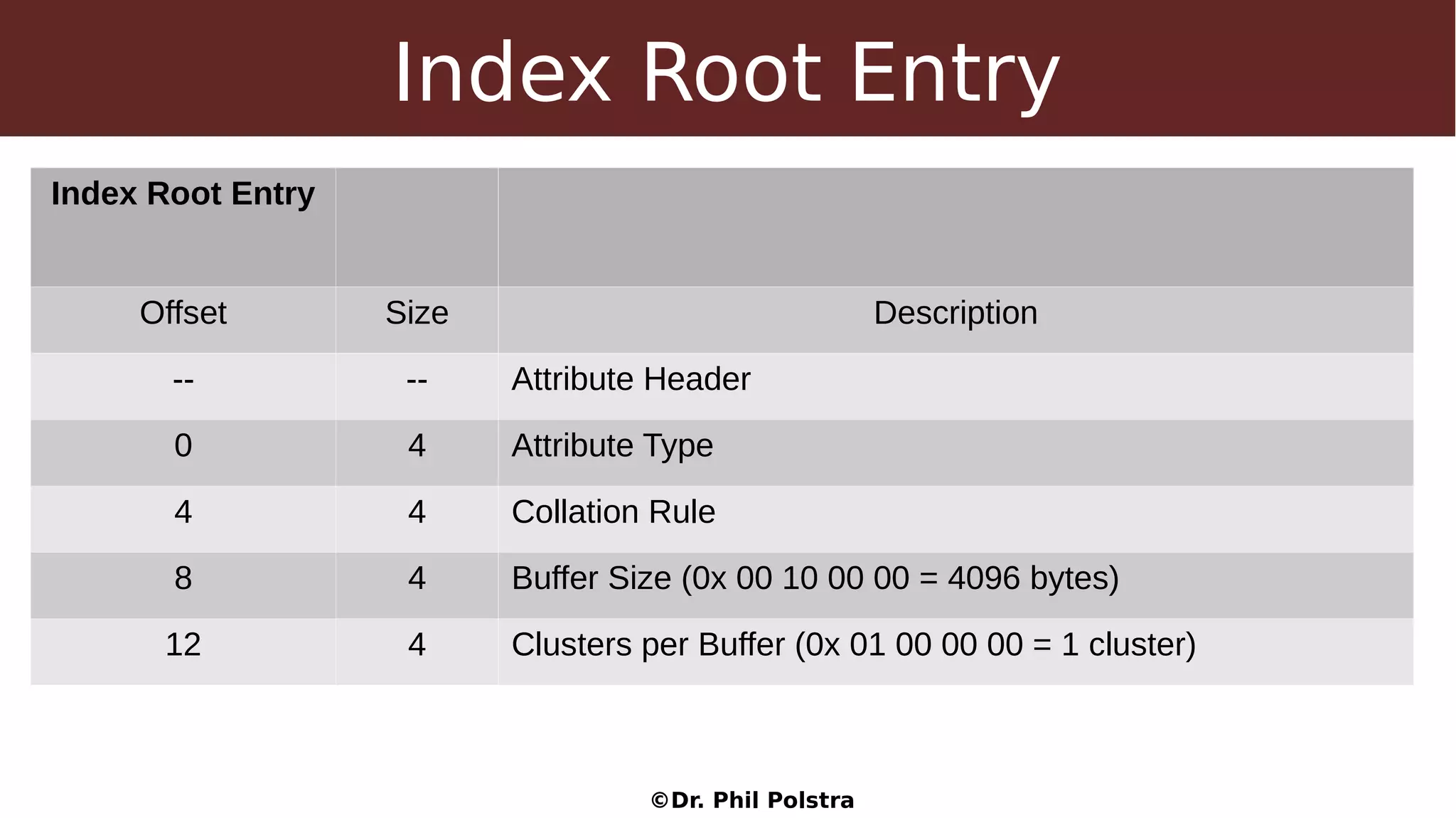
Index Root Entry
Index Root Entry
Offset Size Description
-- -- Attribute Header
0 4 Attribute Type
4 4 Collation Rule
8 4 Buffer Size (0x 00 10 00 00 = 4096 bytes)
12 4 Clusters per Buffer (0x 01 00 00 00 = 1 cluster)
©Dr. Phil Polstra
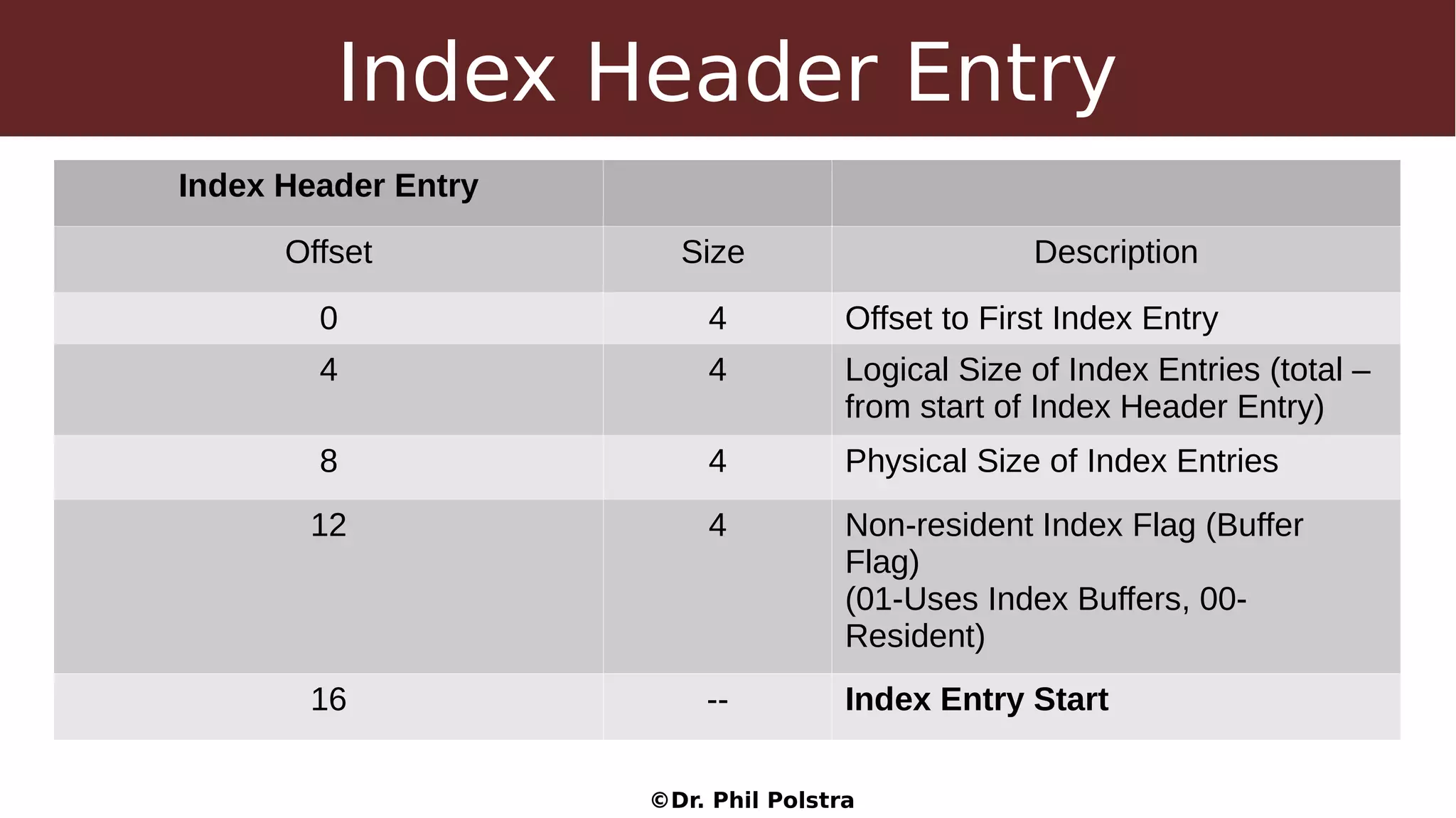
Index Header Entry
Index Header Entry
Offset Size Description
0 4 Offset to First Index Entry
4 4 Logical Size of Index Entries (total –
from start of Index Header Entry)
8 4 Physical Size of Index Entries
12 4 Non-resident Index Flag (Buffer
Flag)
(01-Uses Index Buffers, 00-
Resident)
16 -- Index Entry Start
©Dr. Phil Polstra
Index Entry
Index Entry
Offset Size Description
0 8 $MFT Record Number
8 2 Total Length of Index Entry Field (current field)
10 2 Length of Index Entry Data stream
12 1 Index Flag (00 – “resident”, 01 – “nonresident” -
Index points to buffer, 02 – Last Index Entry
16 -- Index entry data stream ($30 attribute)
* 8 Buffer VCN (non-resident only last 8 bytes)
©Dr. Phil Polstra
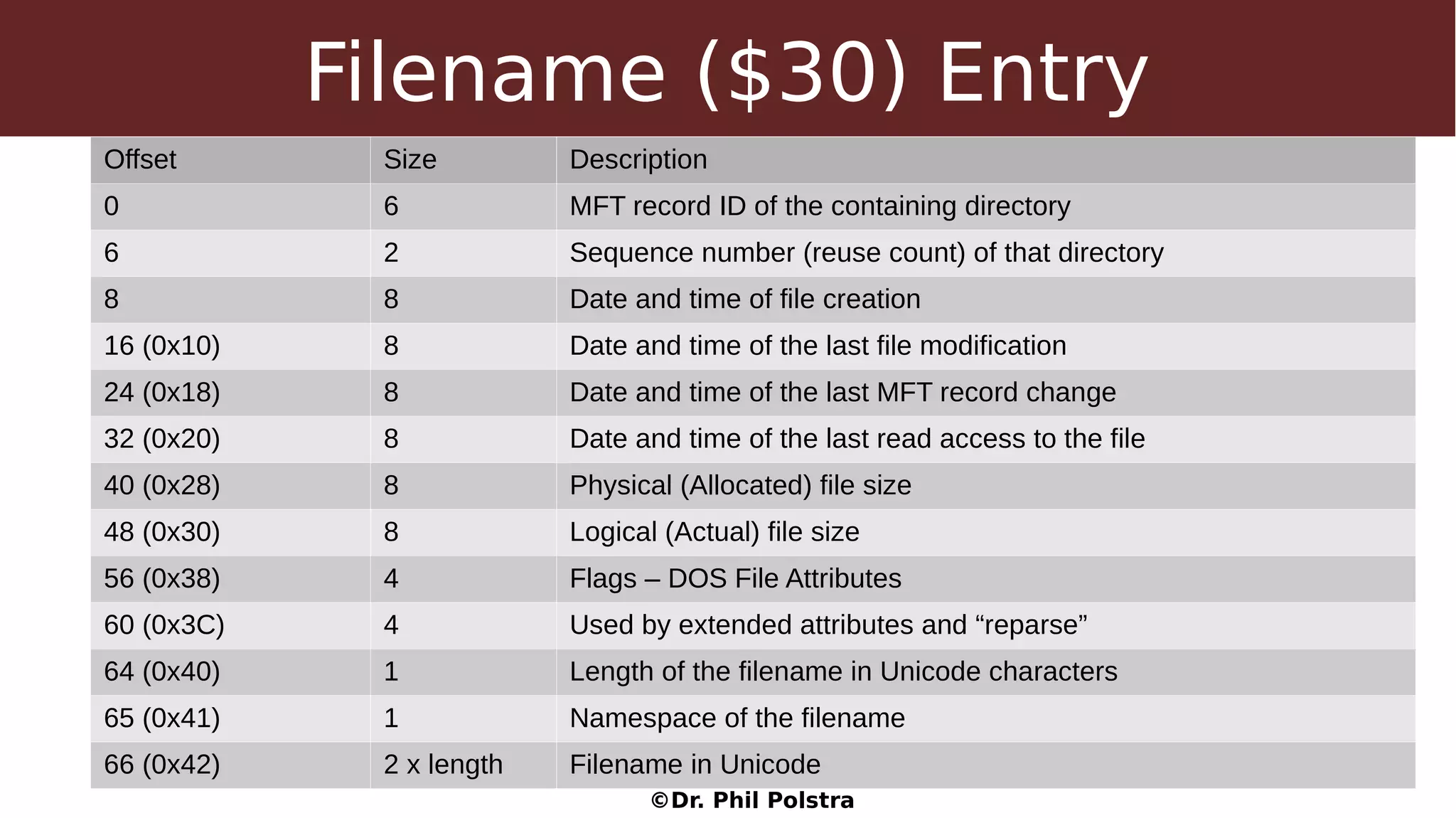
Filename ($30) Entry
Offset Size Description
0 6 MFT record ID of the containing directory
6 2 Sequence number (reuse count) of that directory
8 8 Date and time of file creation
16 (0x10) 8 Date and time of the last file modification
24 (0x18) 8 Date and time of the last MFT record change
32 (0x20) 8 Date and time of the last read access to the file
40 (0x28) 8 Physical (Allocated) file size
48 (0x30) 8 Logical (Actual) file size
56 (0x38) 4 Flags – DOS File Attributes
60 (0x3C) 4 Used by extended attributes and “reparse”
64 (0x40) 1 Length of the filename in Unicode characters
65 (0x41) 1 Namespace of the filename
66 (0x42) 2 x length Filename in Unicode
©Dr. Phil Polstra
NTFS Index Buffers
©Dr. Phil Polstra
NTFS Index Buffers
●
Once the directory grows beyond 2-
4 entries $90 can no longer hold info
●
Index buffer $A0 added to store
entries in data clusters
●
Attribute $B0 added to keep track of
index buffer usage
©Dr. Phil Polstra
Index Allocation ($A0) Header
Offset Size Description
0 4 INDX identifier
4 2 Offset to Update Sequence (Fix up code)
6 2 Size of Update Sequence and Array (in words)
8 8 Log File Sequence Number
16 8 VCN of Current INDX Buffer
24 4 Offset to start of Index Entries
28 4 Logical Size of Index Entries
32 4 Physical Size of Index Entries
36 4 Flags (0x 00 00 00 00 – Leaf Buffer,
0x 01 00 00 00 – Normal Buffer (has children)
40 2 Update Sequence Number
42 2 x
seq
len
Update Sequence Array – size depends on value in offsets 6-7
©Dr. Phil Polstra
NTFS Timestamps
©Dr. Phil Polstra
Important Disclaimer
●
Microsoft can't seem to decide how
these timestamps work and the
rules have changed with each
version of Windows and this will
likely continue in the future!
©Dr. Phil Polstra
Copying a File
$Standard_Info $Filename
Modification No change Changed
Access Changed Changed
Creation Changed Changed
Record Change Changed Changed
©Dr. Phil Polstra
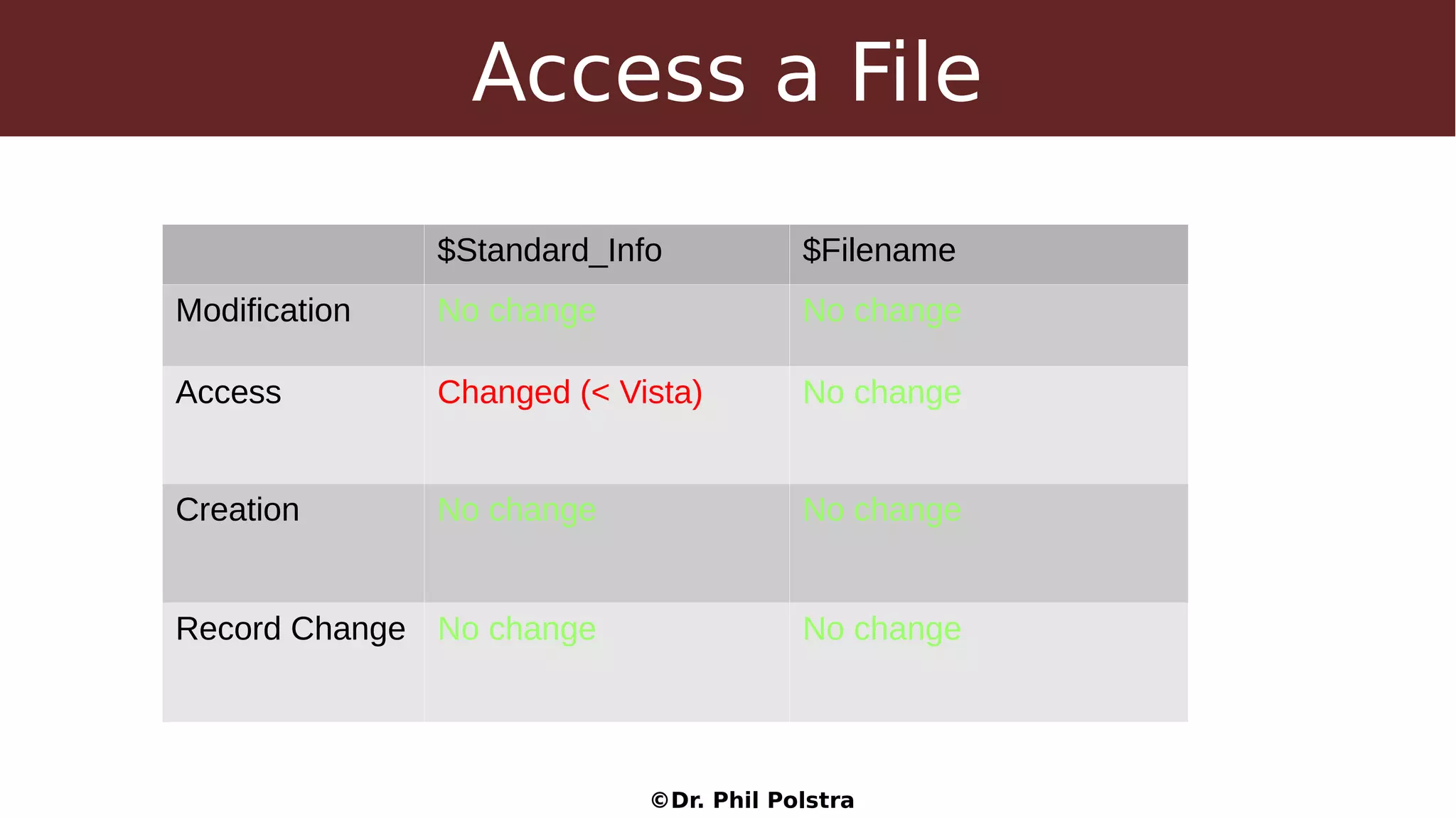
Access a File
$Standard_Info $Filename
Modification No change No change
Access Changed (< Vista) No change
Creation No change No change
Record Change No change No change
©Dr. Phil Polstra
Modify a File (contents saved)
$Standard_Info $Filename
Modification Changed No change
Access No change No change
Creation No change No change
Record Change No change No change
©Dr. Phil Polstra
Delete a File
$Standard_Info $Filename
Modification No change No change
Access No change No change
Creation No change No change
Record Change No change No change
©Dr. Phil Polstra
Rename a File
$Standard_Info $Filename
Modification No change No change
Access No change No change
Creation No change No change
Record Change Changed No change
©Dr. Phil Polstra
Move a File on Same Volume
$Standard_Info $Filename
Modification No change Changed ($SI time)
Access No change No change
Creation No change No change
Record Change Changed Changed ($SI time)
©Dr. Phil Polstra
Move a File on New Volume
$Standard_Info $Filename
Modification No change Changed
Access Changed Changed
Creation No change Changed
Record Change Changed Changed
©Dr. Phil Polstra
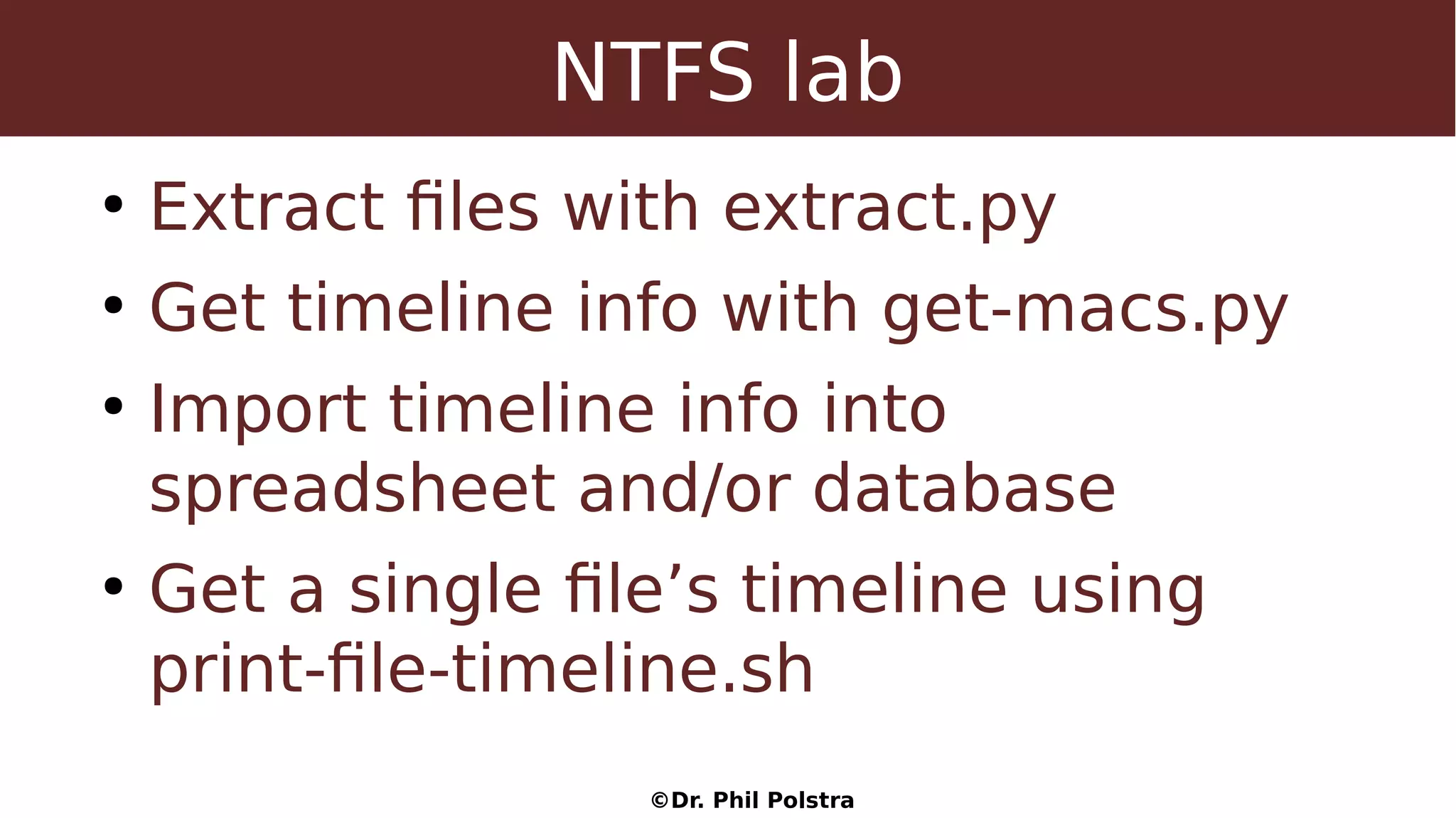
NTFS lab
●
Extract files with extract.py
●
Get timeline info with get-macs.py
●
Import timeline info into
spreadsheet and/or database
●
Get a single file’s timeline using
print-file-timeline.sh
©Dr. Phil Polstra
The Windows Registry
©Dr. Phil Polstra
What is it?
●
Central place for storing most
configuration information
●
Introduced in Windows NT
●
Replaces most (not all) .ini files
●
A tree structure
©Dr. Phil Polstra
How is it stored?
●
Stored in at least 5 hive files
●
Most are in /Windows/System32/Config
●
Each user has a hive in the user
directory
– /Documents and Settings/User or
– /Users/User
©Dr. Phil Polstra
How is it organized?
●
Branches
– HKEY_CLASSES_ROOT
– HKEY_CURRENT_USER
– HKEY_LOCAL_MACHINE
– HKEY_USERS
– HKEY_CURRENT_CONFIG
©Dr. Phil Polstra
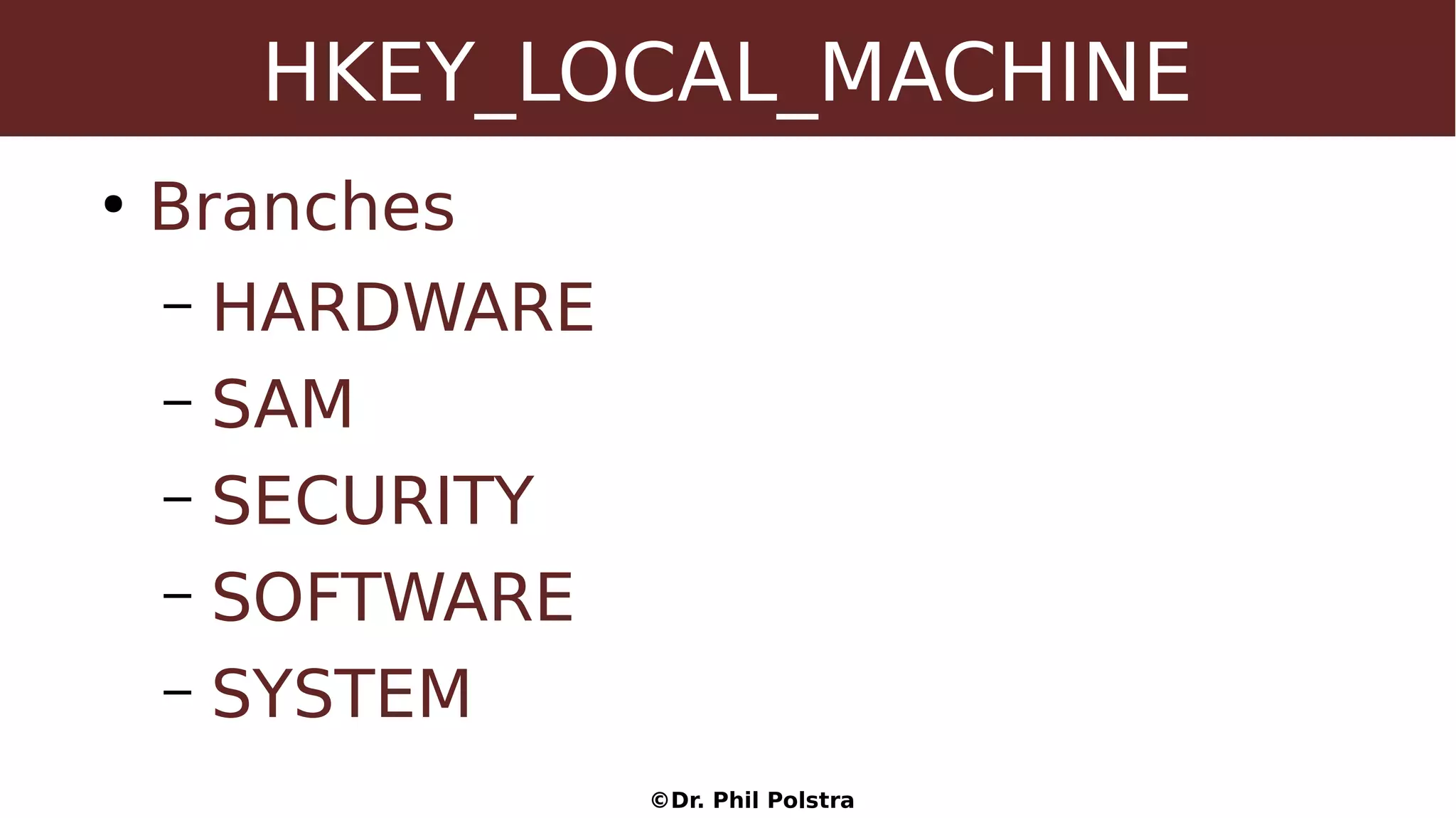
HKEY_LOCAL_MACHINE
●
Branches
– HARDWARE
– SAM
– SECURITY
– SOFTWARE
– SYSTEM
©Dr. Phil Polstra
Data Types
Constant Description
REG_BINARY Binary data in any form.
REG_SZ Null-terminated string.
REG_EXPAND_SZ Null-terminated string w/ references to env variables
REG_DWORD 32-bit number.
REG_LINK Unicode symbolic link.
REG_QWORD 64-bit number.
REG_MULTI_SZ Array of null-terminated strings
REG_DWORD_LITTLE_ENDIAN 32-bit number in little-endian format.
REG_NONE No defined value type.
REG_RESOURCE_LIST Device-driver resource list.
REG_QWORD_LITTLE_ENDIAN A 64-bit number in little-endian format.
REG_DWORD_BIG_ENDIAN 32-bit number in big-endian format.
©Dr. Phil Polstra
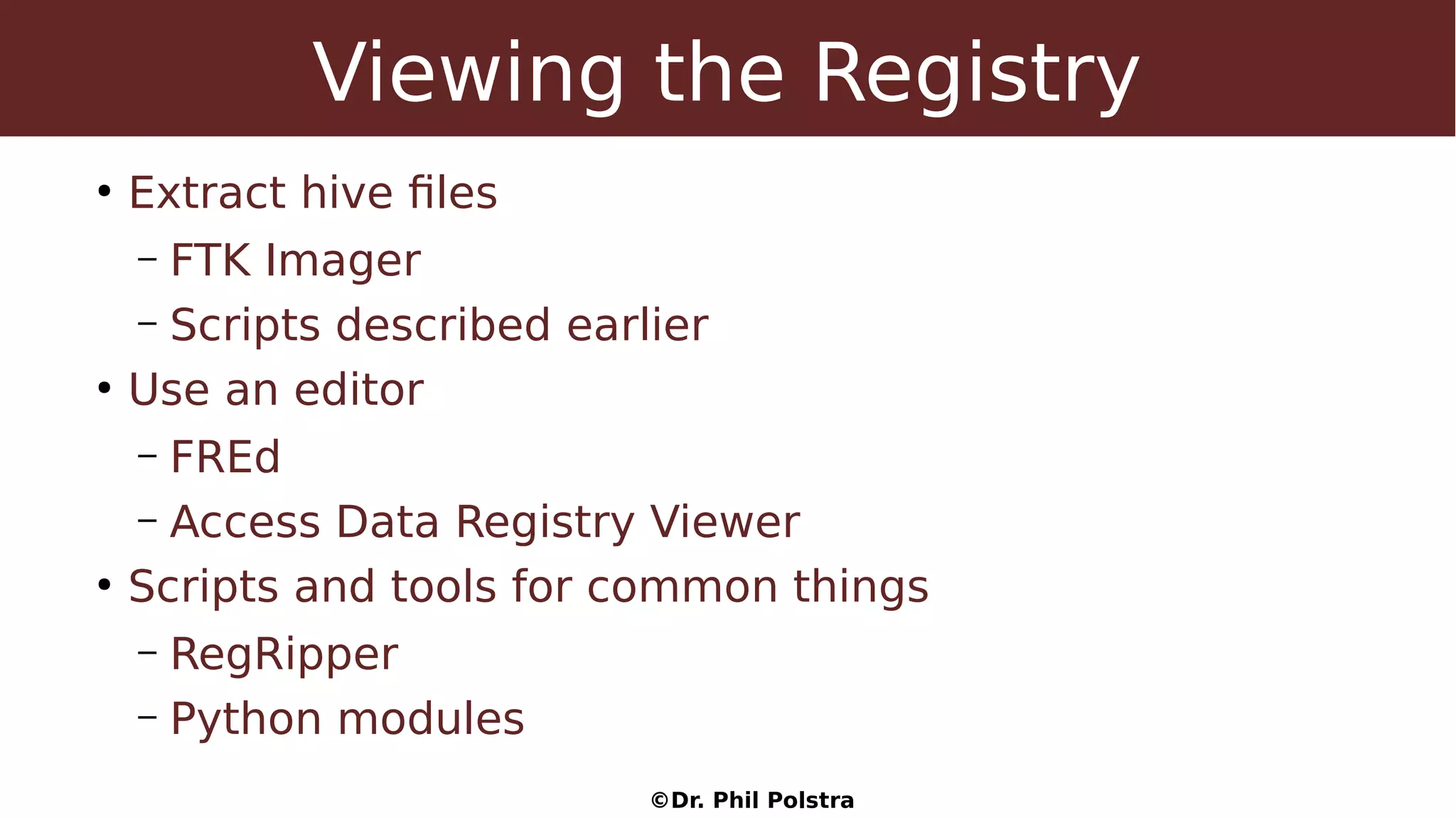
Viewing the Registry
●
Extract hive files
– FTK Imager
– Scripts described earlier
●
Use an editor
– FREd
– Access Data Registry Viewer
●
Scripts and tools for common things
– RegRipper
– Python modules
©Dr. Phil Polstra
Lab:Viewing the Registry
●
Extract hive files from win7 image
●
Examine with FrED
●
Run RegRipper on hives
©Dr. Phil Polstra
Lab:Windows Artifacts
●
Recycle bin
●
Event logs
●
Prefetch files
●
User directories
●
Browser histories
●
Print spools
©Dr. Phil Polstra
Lab:Volatility
●
Use various volatility commands
against provided memory image
©Dr. Phil Polstra
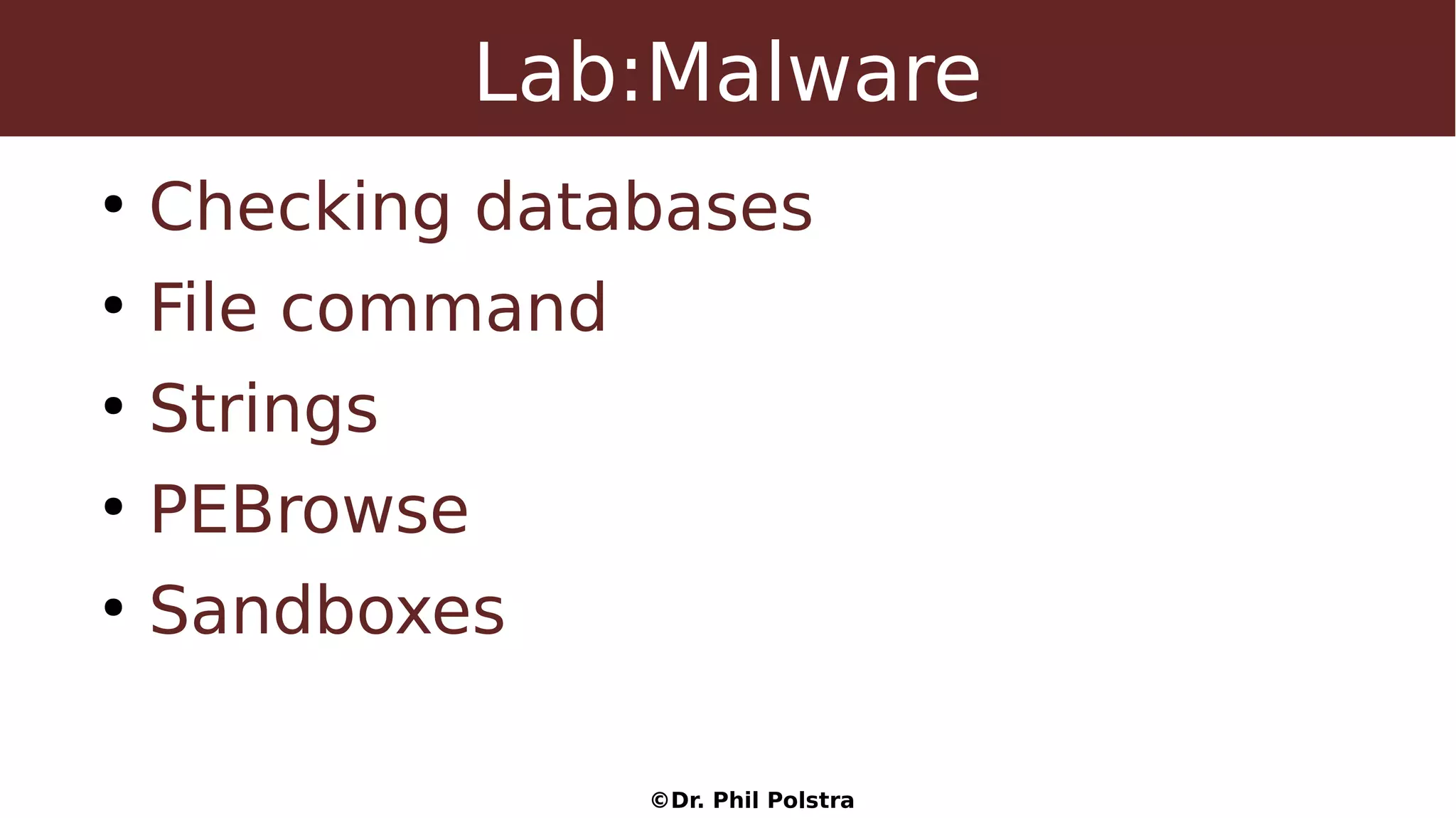
Lab:Malware
●
Checking databases
●
File command
●
Strings
●
PEBrowse
●
Sandboxes
©Dr. Phil Polstra
Finishing the Job
©Dr. Phil Polstra
Reporting
●
Not done till reports are written
●
Report should have
– Executive summary
– Main body
– Appendices
©Dr. Phil Polstra
Executive Summary
●
Less than a page
●
High-level description of what
happened
●
Major findings
●
Might use to create a presentation
©Dr. Phil Polstra
Body of report
●
Systematic
●
Includes all findings
●
Is free of technical jargon
●
If jargon is required all terms are
defined (possibly in glossary)
©Dr. Phil Polstra
Appendices
●
All the gory details
●
Can contain output from tools and
scripts
●
Can contain any custom scripts
●
Describe any non-standard
procedures
©Dr. Phil Polstra
Archiving the Case
●
Might want to burn a CD with
– Report
– Any custom scripts
– Digital copies of any notes
– Anything else you feel might be
relevant
©Dr. Phil Polstra
Archiving the Case (cont)
●
All data should be packaged together
– Backup drive with images
– CD
– Any hard copies
●
Stored in a secure and climate
controlled location

(SACON) Dr. Phil Polstra - windows & linux forensics

  • 1.
    ©Dr. Phil Polstra WindowsForensics Dr. Phil Polstra @ppolstra PhD, CISSP, CEH http://philpolstra.com
  • 2.
    ©Dr. Phil Polstra ForensicBasics: Background
  • 3.
    ©Dr. Phil Polstra Whatis Forensics? ● Merriam-Webster: Forensic (n) belonging to, used in, or suitable to courts of judicature or to public discussion and debate ● Forensic science or forensics is the scientific collection of evidence of sufficient quality that it is suitable for use in court
  • 4.
    ©Dr. Phil Polstra Kindsof Forensics ● Physical – Transfer – Fingerprints – DNA ● Digital – Network – Data storage – Small devices – Computers
  • 5.
    ©Dr. Phil Polstra GeneralPrinciples ● Maintain integrity of evidence ● Maintain chain of custody ● Document everything – Handwritten is better – Work with a partner if possible ● Follow standard practices
  • 6.
    ©Dr. Phil Polstra Phasesof Investigation ● Evidence preservation – First do no harm ● Evidence searching – More complicated as storage has increased ● Event reconstruction
  • 7.
    ©Dr. Phil Polstra IncidentResponse ● First validate that there was an incident ● Then proceed with preservation, searching, and event reconstruction ● Might need to do some preliminary investigation to determine if there was an incident ● Not done till reports are complete
  • 8.
    ©Dr. Phil Polstra HighLevel Process Call Placed Incident? Lessons Learned No Live AnalysisYes Dead Analysis? Acquire Images Yes Dead Analysis Write Reports No
  • 9.
    ©Dr. Phil Polstra ForensicBasics: First Steps
  • 10.
    ©Dr. Phil Polstra BePrepared ● Have a response kit with a complete set of forensics tools – Both 32-bit and 64-bit versions – Ideally CDROM and USB – We will build this set of tools throughout this course ● Hardware – Write blockers – Media – Forensic laptop ● Notebook, etc. for documentation
  • 11.
    ©Dr. Phil Polstra YourForensics Workstation ● At least 8GB of RAM is recommended ● Ideally with USB 3.0 port(s) ● Wired networking available ● Linux distro (64-bit) – Specialized distros such as SIFT or – Ubuntu or – Your favorite distro
  • 12.
    ©Dr. Phil Polstra InstallingSIFT (or at least tools) ● To install all of it on top of Ubuntu 14.04: wget --quiet -O - https://raw.github.com/sans- dfir/sift-bootstrap/master/bootstrap.sh | sudo bash -s -- -i -s -y ● To install just the tools on top of Ubuntu 14.04: wget --quiet -O - https://raw.github.com/sans- dfir/sift-bootstrap/master/bootstrap.sh | sudo bash -s -- -i
  • 13.
    ©Dr. Phil Polstra InstallingTools ● If you are running a Debian/Ubuntu distro run the install-dfir.sh script provided ● Alternatively, the virtual machine image can be used
  • 14.
  • 15.
    ©Dr. Phil Polstra HighLevel Process Call Placed Incident? Lessons Learned No Live AnalysisYes Dead Analysis? Acquire Images Yes Dead Analysis Write Reports No
  • 16.
    ©Dr. Phil Polstra Hasthere been an incident? ● Open a case file ● Talk to the users – Why did they call you? – Why do they think there is a problem? – What is known about the potential victim system: ● Normal use ● Origins ● Recent repairs?
  • 17.
    ©Dr. Phil Polstra Documentation ● Writenotes in your notebook – What users said – What you know about the subject system ● Consider taking photos of system and screen if appropriate ● You are now ready to consider actually touching the system
  • 18.
    ©Dr. Phil Polstra Mountthe known good binaries ● More complicated than Linux equivalent ● Check path to point to your programs first ● Cannot completely replace Windows binaries ● Advanced malware can hide its presence ● USB 3.0 Flash drive recommended – For practice you might want USB 2.0 for use in VirtualBox
  • 19.
    ©Dr. Phil Polstra Minimizedisturbance to system ● Don't install anything on subject system ● Don't create new files on the system ● Minimize memory footprint ● Possible solutions – Netcat (best) – Store to USB drive
  • 20.
    ©Dr. Phil Polstra UsingNetcat to Transport Data ● Listeners are created on forensic workstation – Command output – Receive suspicious files ● Standard commands are ran on subject and results sent to workstation ● Suspicious files are also sent ● Automated with shell/batch scripts
  • 21.
  • 22.
    ©Dr. Phil Polstra Datato Collect ● Date and Time – Clock may be skewed – Might be in different timezone ● Network interfaces – Funny networks – Promiscuous mode? ● Network connections
  • 23.
    ©Dr. Phil Polstra Datato Collect (cont.) ● Open ports ● Programs associated with ports ● Currently logged on users ● Running processes ● Running services ● Open files ● Routing tables ● Mounted filesystems ● Scheduled jobs ● Process memory dumps ● Clipboard contents ● Driver information ● Shares ● Command history
  • 24.
    ©Dr. Phil Polstra CollectingData ● Run initial scan on Win7 subject ● Examine log on workstation ● What do you see?
  • 25.
    ©Dr. Phil Polstra FinalSteps Before Shutdown ● Get file metadata ● Import to spreadsheet or database ● Check file hashes of suspicious files ● Dump RAM – FTK Imager is easiest way
  • 26.
    ©Dr. Phil Polstra MakingFilesystem Images
  • 27.
    ©Dr. Phil Polstra ImageFile Formats ● Raw ● Proprietary with embedded metadata ● Proprietary with metadata in separate file ● Raw with hashes stored in a separate file
  • 28.
    ©Dr. Phil Polstra Creatingan Image ● Raw: dd if=<subject device> of=<image file> bs=512 ● Raw with hashes along the way: dcfldd if=<subject device> of=<image file> bs=512 hash=<algorithm> hash window=<chunk size> hashlog=<hash file> ● Dcfldd will create image from running systems!
  • 29.
    ©Dr. Phil Polstra WriteBlocking ● Hardware write blockers – Commercial blockers for SATA only $350+ – USB write blocker described in USB class ● Cheap at about $25 ● Slow due to limits of microcontroller that is full-speed (12 Mbps) only ● Software write blocking – Use udev rules as described in USB forensics course – Boot live forensics Linux on subject computer – Boot live forensics Linux on forensics workstation
  • 30.
    ©Dr. Phil Polstra Makingthe Image ● This takes too long to do in this class ● Several images are provided for this class and general study
  • 31.
    ©Dr. Phil Polstra MountingImages: MBR Basics
  • 32.
    ©Dr. Phil Polstra HighLevel Process Call Placed Incident? Lessons Learned No Live AnalysisYes Dead Analysis? Acquire Images Yes Dead Analysis Write Reports No
  • 33.
    ©Dr. Phil Polstra MasterBoot Record ● Ancient standard (from the 80s) ● Allows up to four partition ● At most one partition can be active (bootable) ● Some partitions may be extended partitions – Can contain multiple partitions inside them – Partitions are stored in a linked list ● Being replaced with GUID partition tables
  • 34.
    ©Dr. Phil Polstra MasterBoot Record Format Offset Length Item 0 (0x00) 446 (0x1BE) Boot code 446 (0x1BE) 16 (0x10) First partition 462 (0x1CE) 16 (0x10) Second partition 478 (0x1DE) 16 (0x10) Third partition 494 (0x1EE) 16 (0x10) Fourth partition 510 (0x1FE) 2 (0x2) Signature 0x55 0xAA
  • 35.
    ©Dr. Phil Polstra PartitionRecord Format Offset Length Item 0 (0x00 1 (0x01) Active flag (0x80 = bootable) 1 (0x01) 1 (0x01) Start head 2 (0x02) 1 (0x01) Start sector (bits 0-5); upper bits of cylinder (6-7) 3 (0x03) 1 (0x01) Start cylinder lowest 8 bits 4 (0x04) 1 (0x01) Partition type code (0x83 = Linux) 5 (0x05) 1 (0x01) End head 6 (0x06) 1 (0x01) End sector (bits 0-5); upper bits of cylinder (6-7) 7 (0x07) 1 (0x01) End cylinder lowest 8 bits 8 (0x08) 4 (0x04) Sectors preceding partition (little endian) 12 (0x0C) 4 (0x04) Sectors in partition
  • 36.
    ©Dr. Phil Polstra Mountingan Image with a MBR ● Fdisk <image> to get start sector ● Mount with sudo mount -o ro,noatime,loop,offset=$(( sect * 512 )) <image> <mount point> ● Use Python script included in class materials
  • 37.
    ©Dr. Phil Polstra MountingImages: Extended Partitions
  • 38.
    ©Dr. Phil Polstra ExtendedPartitions ● Used with MBR-based drives with more than 4 partitions ● A primary extended partition stores logical partitions inside of itself ● Each logical partition is proceeded by an “MBR sector” – Offsets are relative to extended partition – Interpreted as a linked list – Normally only first two entries are used
  • 39.
    ©Dr. Phil Polstra ExtendedPartition MBR Format Offset Length Item 0 (0x00) 446 (0x1BE) Boot code (unused) 446 (0x1BE) 16 (0x10) First partition 462 (0x1CE) 16 (0x10) Second partition (if any) 478 (0x1DE) 16 (0x10) Third partition (unused) 494 (0x1EE) 16 (0x10) Fourth partition (unused) 510 (0x1FE) 2 (0x2) Signature 0x55 0xAA
  • 40.
    ©Dr. Phil Polstra PartitionRecord Format Offset Length Item 0 (0x00 1 (0x01) Active flag (0x80 = bootable) 1 (0x01) 1 (0x01) Start head 2 (0x02) 1 (0x01) Start sector (bits 0-5); upper bits of cylinder (6-7) 3 (0x03) 1 (0x01) Start cylinder lowest 8 bits 4 (0x04) 1 (0x01) Partition type code (0x83 = Linux) 5 (0x05) 1 (0x01) End head 6 (0x06) 1 (0x01) End sector (bits 0-5); upper bits of cylinder (6-7) 7 (0x07) 1 (0x01) End cylinder lowest 8 bits 8 (0x08) 4 (0x04) Sectors preceding partition (little endian) 12 (0x0C) 4 (0x04) Sectors in partition
  • 41.
    ©Dr. Phil Polstra MountingImages: GUID Partitions
  • 42.
    ©Dr. Phil Polstra HighLevel Process Call Placed Incident? Lessons Learned No Live AnalysisYes Dead Analysis? Acquire Images Yes Dead Analysis Write Reports No
  • 43.
    ©Dr. Phil Polstra GUIDPartitions ● Part of the UEFI system to replace BIOS boot ● Allows up to 128 partitions ● Simple ● The new standard ● All current 64-bit systems ship with this
  • 44.
    ©Dr. Phil Polstra GUIDPartition Tables
  • 45.
    ©Dr. Phil Polstra PartitionRecord Format Offset Length Item 0 (0x00 16 (0x10) Partition type GUID 16 (0x10) 16 (0x10) Unique partition GUID 32 (0x20) 8 (0x08) First LBA 40 (0x28) 8 (0x08) Last LBA 48 (0x30) 8 (0x08) Attributes 56 (0x38) 72 (0x48) Partition name
  • 46.
    ©Dr. Phil Polstra PartitionAttributes Bit Content Description 0 System partition Must preserve partition as is 1 EFI Firmware Operating system should ignore this partition 2 Legacy BIOS boot Equivalent to 0x80 in MBR 3-47 Reserved Should be zeros 48-63 Type specific Varies by partition type (60=RO, 62=Hidden, 63=No automount for Windows)
  • 47.
  • 48.
    ©Dr. Phil Polstra FATFilesystem Basics
  • 49.
    ©Dr. Phil Polstra FATFilesystem ● Been around since DOS ● Three flavors: FAT12, FAT16, & FAT32 ● Contains File Allocation Tables ● De facto standard ● Modern versions of Windows won't install on it
  • 50.
    ©Dr. Phil Polstra FATLayout Volume Boot Record FAT 1 FAT 2 Root Directory (FAT12/16) Data Clusters 1 sector FAT12/16, 32 sectors (usually) FAT32 Primary & backup FAT. Size = (total clusters) /(FAT Entry size)/512 FAT32 moved this to data clusters (usually 2) Files and directories are stored here. Numbering starts at cluster 2.
  • 51.
    ©Dr. Phil Polstra VolumeBoot Record ● Allows filesystem to tell operating system about itself ● Contains needed and extended parts ● One sector for FAT12/16 ● Normally 32 sectors for FAT32
  • 52.
    ©Dr. Phil Polstra FileAllocation Table ● Gives status for each cluster – Available – Used and file continues to another cluster – Used and last cluster in a file ● First two entries are special ● Used to create a cluster chain ● Two FAT are normally updated together
  • 53.
    ©Dr. Phil Polstra DirectoryEntries ● Contain metadata – MAC times – File size ● Contains the starting cluster for a file ● Relate file names to cluster chains
  • 54.
    ©Dr. Phil Polstra DataClusters ● Where all the files live ● All directories (with the possible exception of root directory) live here too ● The only part of the disk that isn't overhead ● Collection of sectors
  • 55.
    ©Dr. Phil Polstra TheVolume Boot Record
  • 56.
    ©Dr. Phil Polstra VolumeBoot Record ● Used to describe the filesystem ● First 28 bytes same for all versions of FAT ● One sector for FAT12/16 ● Multiple sectors (32?) for FAT32 – Backup boot sector – More boot code – Extra information
  • 57.
    ©Dr. Phil Polstra FAT12/16/32First Parts Offset Length Item 0 (0x00) 3 (0x3) Jump to bootstrap 3 (0x03) 8 (0x08) OEM name (who made this filesystem?) 11(0x0B) 2 (0x02) Bytes/sector (probably 512) 13 (0x0D) 1 (0x01) Sectors/cluster (usually power of 2) 14 (0x0E) 2 (0x02) Reserved sectors before filesystem (1 or 32) 16(0x10) 1 (0x01) Copies of FAT (probably 2)
  • 58.
    ©Dr. Phil Polstra FAT12/16/32Second Parts Offset Length Item 17 (0x11) 2 (0x2) Root directory entries (0 for FAT32) 19 (0x13) 2 (0x02) Filesystem sectors if under 32MB (64k sectors) 21(0x15) 1 (0x01) Media descriptor (F0=floppy, F8=everything else) 22 (0x16) 2 (0x02) Sectors/FAT (will show 0 for FAT32) 24 (0x18) 2 (0x02) Sectors/track 26 (0x1A) 2 (0x02) Number of heads
  • 59.
    ©Dr. Phil Polstra FAT12/16Third Parts Offset Length Item 28 (0x1C) 4 (0x4) Hidden sectors (preceding this partition) 32 (0x20) 4 (0x04) Filesystem sectors if over 32MB (64k sectors) 36 (0x24) 1 (0x01) Logical drive number (0x80, 0x81...) 38 (0x26) 24 (0x18) Extended boot signature if 1st byte 0x29 62 (0x48) 448 (0x1C0) Bootstrap code (16-bit assembly) 510 (0x1FE) 2 (0x02) Signature (0x55 0xAA)
  • 60.
    ©Dr. Phil Polstra FAT12/16Extended Signatures Offset Length Item 38 (0x26) 1 (0x1) 0x29 indicates an extended signature follows 39 (0x27) 4 (0x04) Partition serial number 43 (0x2B) 11 (0x0B) Volume label or “NO NAME” 54 (0x36) 8 (0x08) Human readable filesystem type
  • 61.
    ©Dr. Phil Polstra FAT32Third Parts Offset Length Item 28 (0x1C) 4 (0x4) Hidden sectors (preceding this partition) 32 (0x20) 4 (0x04) Filesystem sectors if over 32MB (64k sectors) 36 (0x24) 4 (0x04) Sectors/FAT 40 (0x28) 2 (0x02) Mirror Flag (b7=1 single FAT then b0-3 tell which) 42 (0x2A) 2 Filesystem version 44 (0x2C) 4 (0x04) First cluster of root directory (probably 2)
  • 62.
    ©Dr. Phil Polstra FAT32Fourth Parts Offset Length Item 48 (0x30) 2 (0x2) FSINFO sector # in reserved area (probably 1) 50 (0x32) 2 (0x02) Backup boot sector # in reserved are (usually 6) 64 (0x40) 1 (0x01) Logical Drive (0x80, 0x81...) 66 (0x42) 24 (0x18) Extended boot signature (same as FAT12/16) 90 (0x5A) 420 (0x1A4) Bootstrap code 510 (0x1FE) 2 (0x02) Signature (0x55 0xAA)
  • 63.
    ©Dr. Phil Polstra FAT32FSINFO Block Offset Length Item 0 (0x00) 4 (0x4) Signature RRaA 484 (0x1E4) 4 (0x04) Start marker rrAa 488 (0x1E8) 4 (0x04) Free clusters (0xFFFFFFFF = unknown) 492 (0x1EC) 4 (0x04) Last allocated cluster (0xFFFFFFFF = unknown) 508 (0x1FC) 4 (0x04) Signature (0x00 0x00 0x55 0xAA)
  • 64.
    ©Dr. Phil Polstra FATDirectory Entries
  • 65.
    ©Dr. Phil Polstra DirectoryEntries ● Contain – Filename (8.3) – MAC timestamps – File size – First cluster ● 32 bytes long ● First two entries for subdirectories: . & .. ● Kludge for long filename support
  • 66.
    ©Dr. Phil Polstra DirectoryEntries Offset Length Item 0 (0x00) 11 (0x0B) File name 11 (0x0B) 1 (0x01) Attributes: B0-5: RO, hidden, system, volume label, subdirectory, archive B6-7: unused 14 (0x0E) 4 (0x04) Creation Time & Date 18 (0x12) 2 (0x02) Last Access Date (no time) 20 (0x14) 2 (0x02) Starting cluster high word (FAT32) 22 (0x16) 4 (0x04) Modified Time & Date 26 (0x1A) 2 (0x02) Starting cluster low word 28 (0x1C) 4 (0x04) File size in bytes (0 for directories)
  • 67.
    ©Dr. Phil Polstra DirectoryTimes and Dates Bits Length (bits) Item B11-B15 5 Hours B5-B10 6 Minutes B0-B4 5 Double seconds B9-B15 7 Years since 1980 B5-B8 4 Month B0-B4 5 Day TimeDate
  • 68.
    ©Dr. Phil Polstra LongFilename Entries ● Added in Windows 95 ● Long entries also 32 bytes ● Long entries contain no metadata only name in Unicode ● Long filenames grow upward from single short entry
  • 69.
    ©Dr. Phil Polstra LongFilename Entries Offset Length Item 0 (0x00) 1 (0x1) Sequence number B0-B4; B6(0x40)=final part 1 (0x01) 10 (0x0A) Part of filename in Unicode 11 (0x0B) 2 (0x02) Always 0x0F 0x00 13 (0x0D) 1 (0x01) Checksum for short filename 14 (0x0E) 12 (0x0C) Part of filename in Unicode 26 (0x1A) 2 (0x02) Always 0x00 0x00 28 (0x1C) 4 (0x04) Part of filename in Unicode
  • 70.
    ©Dr. Phil Polstra DeletedFiles ● First byte in directory entry/entries changed to 0xE5 ● File clusters marked as available in FAT ● In some versions of Windows FAT32 cluster high word zeroed
  • 71.
  • 72.
    ©Dr. Phil Polstra Whathappens on deletion ● First byte in directory entry/entries changed to 0xE5 ● Clusters are marked available (zeros) in FATs ● For FAT32 high word of starting cluster may be zeroed
  • 73.
    ©Dr. Phil Polstra Theeasy scenario ● File uses only one cluster ● Not FAT32 ● Guaranteed recovery if cluster is not reused ● Even if FAT32 might still be recoverable
  • 74.
    ©Dr. Phil Polstra Themedium difficulty scenario ● File is contiguous (not fragmented) ● Not FAT32 ● Recovery is likely if clusters have not been reused ● FAT32 recovery far from guaranteed
  • 75.
    ©Dr. Phil Polstra Thescenario you don't want ● File is fragmented ● If you are extra unlucky also FAT32 ● Must rely on best guess of cluster allocation ● If it is even possible, manual intervention may be required
  • 76.
    ©Dr. Phil Polstra Technique ● If< 1 cluster – If not FAT32 check for cluster unallocated – If FAT32 scan through possible clusters looking for unallocated and data of appropriate size ● If > 1 cluster – If not FAT32 ● If block of clusters beginning at start cluster unallocated probably it – If FAT32 ● Attempt to find a block of clusters with the stated cluster low word – Check that data size matches last partial sector appropriately
  • 77.
    ©Dr. Phil Polstra Technique(continued) ● If you have gotten this far chances of success are low ● If not FAT32 – Start from starting cluster and search forward for unallocated sectors – Unless the disk is very full if the file was recently deleted this is probably right ● If FAT32 – Look for possible solutions with largest contiguous set of unallocated clusters at beginning that are not empty
  • 78.
    ©Dr. Phil Polstra Thegood news ● FAT filesystems are primarily used for removable media and not internal hard drives ● We will learn that NTFS undeletion is much simpler
  • 79.
  • 80.
    ©Dr. Phil Polstra FileForensics ● Examining individual files ● Can be used to find hidden info – Mismatched extensions – Slack space – Unallocated space – Page files
  • 81.
    ©Dr. Phil Polstra FileSignatures ● Many files have standard headers ● Some also have standard footers ● Helps – Identify mismatched extensions – Retrieve files from swap & memory – Verify undeleted files ● Comprehensive list http://www.garykessler.net/library/file_sigs.html
  • 82.
    ©Dr. Phil Polstra SlackSpace ● Leftover space in a cluster when file size not an exact multiple of cluster size ● RAM Slack – partial sector ● File Slack – whole sector ● Total Slack = (cluster size)- (file size)%(cluster size) File Data RAM Slack File Slack
  • 83.
    ©Dr. Phil Polstra RAMSlack ● Long time ago what followed in RAM after data was written to disk ● Quickly figured out that this is bad security ● Today it should be all zeroes ● Used portion = filesize%512 ● Slack = 512-filesize%512
  • 84.
    ©Dr. Phil Polstra FileSlack ● Can contain fragments of old files ● Whole sectors of slack ● Slack = (total slack)//512 ● Slack = ((cluster size)-(file size)% (cluster size))//512
  • 85.
    ©Dr. Phil Polstra FileCarving ● Using file signatures to find files in – Swap space – Unallocated clusters – Unallocated disk space ● General carving tools – Foremost – Scalpel ● Specialized tools also exist
  • 86.
    ©Dr. Phil Polstra FileLab ● Try some of the scripts – Extension-mismatch.sh – Find-files.py ● Use grep to locate files with important info ● Use scalpel to extract files
  • 87.
    ©Dr. Phil Polstra NTFSFilesystem Basics
  • 88.
    ©Dr. Phil Polstra NTFSFilesystem ● Introduced with Windows NT ● Based on HPFS from OS/2 ● Required to install modern versions of Windows ● Files are collections of attributes ● Most items in Master File Table (MFT)
  • 89.
    ©Dr. Phil Polstra NTFSLayout Volume Boot Record Master File Table (MFT) Data Clusters Similar to FAT The central thing in NTFS Files and directories are stored here Backup Boot Record Data Clusters MFT Mirror First 4 MFT Entries
  • 90.
    ©Dr. Phil Polstra VolumeBoot Record ● Allows filesystem to tell operating system about itself ● Contains needed and extended parts ● Similar to FAT VBR ● Backup in last sector of disk
  • 91.
    ©Dr. Phil Polstra MasterFile Table ● Every file and directory has an MFT entry ● MFT entries store a collection of attributes ● Like inode in Linux, but also includes filename
  • 92.
    ©Dr. Phil Polstra MFTMetadata Entries Entry Filename Description 0 $MFT Self-reference for MFT 1 $MFTMirr Backup of first 4 MFT entries 2 $LogFile Journal records 3 $Volume Volume info-label, identifier, version 4 $AttrDef Attribute definitions 5 . Root directory 6 $Bitmap Allocation status of clusters 7 $Boot Boot sector and boot code 8 $BadClus Bad clusters in alternate data stream 9 $Secure Security info and ACLs 10 $Upcase Uppercase conversion table 11 $Extend Optional extensions 16-23 Used if MFT is highly fragmented
  • 93.
  • 94.
    ©Dr. Phil Polstra NTFSDirectories ● Directories are stored as an index of filenames ($30) ● The index is a tree with a root stored in attribute $90 ● Attribute $90 can also store index entries ● As directory grows index is stored in clusters
  • 95.
    ©Dr. Phil Polstra $90Layout $Index_Root ($90) Attribute Attribute header (standard) Index root entry (what is being indexed, size of index buffers, etc.) Index header entry (logical/physical size of entries, resident or non-resident) Index entry Index entry
  • 96.
    ©Dr. Phil Polstra IndexRoot Entry Index Root Entry Offset Size Description -- -- Attribute Header 0 4 Attribute Type 4 4 Collation Rule 8 4 Buffer Size (0x 00 10 00 00 = 4096 bytes) 12 4 Clusters per Buffer (0x 01 00 00 00 = 1 cluster)
  • 97.
    ©Dr. Phil Polstra IndexHeader Entry Index Header Entry Offset Size Description 0 4 Offset to First Index Entry 4 4 Logical Size of Index Entries (total – from start of Index Header Entry) 8 4 Physical Size of Index Entries 12 4 Non-resident Index Flag (Buffer Flag) (01-Uses Index Buffers, 00- Resident) 16 -- Index Entry Start
  • 98.
    ©Dr. Phil Polstra IndexEntry Index Entry Offset Size Description 0 8 $MFT Record Number 8 2 Total Length of Index Entry Field (current field) 10 2 Length of Index Entry Data stream 12 1 Index Flag (00 – “resident”, 01 – “nonresident” - Index points to buffer, 02 – Last Index Entry 16 -- Index entry data stream ($30 attribute) * 8 Buffer VCN (non-resident only last 8 bytes)
  • 99.
    ©Dr. Phil Polstra Filename($30) Entry Offset Size Description 0 6 MFT record ID of the containing directory 6 2 Sequence number (reuse count) of that directory 8 8 Date and time of file creation 16 (0x10) 8 Date and time of the last file modification 24 (0x18) 8 Date and time of the last MFT record change 32 (0x20) 8 Date and time of the last read access to the file 40 (0x28) 8 Physical (Allocated) file size 48 (0x30) 8 Logical (Actual) file size 56 (0x38) 4 Flags – DOS File Attributes 60 (0x3C) 4 Used by extended attributes and “reparse” 64 (0x40) 1 Length of the filename in Unicode characters 65 (0x41) 1 Namespace of the filename 66 (0x42) 2 x length Filename in Unicode
  • 100.
  • 101.
    ©Dr. Phil Polstra NTFSIndex Buffers ● Once the directory grows beyond 2- 4 entries $90 can no longer hold info ● Index buffer $A0 added to store entries in data clusters ● Attribute $B0 added to keep track of index buffer usage
  • 102.
    ©Dr. Phil Polstra IndexAllocation ($A0) Header Offset Size Description 0 4 INDX identifier 4 2 Offset to Update Sequence (Fix up code) 6 2 Size of Update Sequence and Array (in words) 8 8 Log File Sequence Number 16 8 VCN of Current INDX Buffer 24 4 Offset to start of Index Entries 28 4 Logical Size of Index Entries 32 4 Physical Size of Index Entries 36 4 Flags (0x 00 00 00 00 – Leaf Buffer, 0x 01 00 00 00 – Normal Buffer (has children) 40 2 Update Sequence Number 42 2 x seq len Update Sequence Array – size depends on value in offsets 6-7
  • 103.
  • 104.
    ©Dr. Phil Polstra ImportantDisclaimer ● Microsoft can't seem to decide how these timestamps work and the rules have changed with each version of Windows and this will likely continue in the future!
  • 105.
    ©Dr. Phil Polstra Copyinga File $Standard_Info $Filename Modification No change Changed Access Changed Changed Creation Changed Changed Record Change Changed Changed
  • 106.
    ©Dr. Phil Polstra Accessa File $Standard_Info $Filename Modification No change No change Access Changed (< Vista) No change Creation No change No change Record Change No change No change
  • 107.
    ©Dr. Phil Polstra Modifya File (contents saved) $Standard_Info $Filename Modification Changed No change Access No change No change Creation No change No change Record Change No change No change
  • 108.
    ©Dr. Phil Polstra Deletea File $Standard_Info $Filename Modification No change No change Access No change No change Creation No change No change Record Change No change No change
  • 109.
    ©Dr. Phil Polstra Renamea File $Standard_Info $Filename Modification No change No change Access No change No change Creation No change No change Record Change Changed No change
  • 110.
    ©Dr. Phil Polstra Movea File on Same Volume $Standard_Info $Filename Modification No change Changed ($SI time) Access No change No change Creation No change No change Record Change Changed Changed ($SI time)
  • 111.
    ©Dr. Phil Polstra Movea File on New Volume $Standard_Info $Filename Modification No change Changed Access Changed Changed Creation No change Changed Record Change Changed Changed
  • 112.
    ©Dr. Phil Polstra NTFSlab ● Extract files with extract.py ● Get timeline info with get-macs.py ● Import timeline info into spreadsheet and/or database ● Get a single file’s timeline using print-file-timeline.sh
  • 113.
    ©Dr. Phil Polstra TheWindows Registry
  • 114.
    ©Dr. Phil Polstra Whatis it? ● Central place for storing most configuration information ● Introduced in Windows NT ● Replaces most (not all) .ini files ● A tree structure
  • 115.
    ©Dr. Phil Polstra Howis it stored? ● Stored in at least 5 hive files ● Most are in /Windows/System32/Config ● Each user has a hive in the user directory – /Documents and Settings/User or – /Users/User
  • 116.
    ©Dr. Phil Polstra Howis it organized? ● Branches – HKEY_CLASSES_ROOT – HKEY_CURRENT_USER – HKEY_LOCAL_MACHINE – HKEY_USERS – HKEY_CURRENT_CONFIG
  • 117.
    ©Dr. Phil Polstra HKEY_LOCAL_MACHINE ● Branches –HARDWARE – SAM – SECURITY – SOFTWARE – SYSTEM
  • 118.
    ©Dr. Phil Polstra DataTypes Constant Description REG_BINARY Binary data in any form. REG_SZ Null-terminated string. REG_EXPAND_SZ Null-terminated string w/ references to env variables REG_DWORD 32-bit number. REG_LINK Unicode symbolic link. REG_QWORD 64-bit number. REG_MULTI_SZ Array of null-terminated strings REG_DWORD_LITTLE_ENDIAN 32-bit number in little-endian format. REG_NONE No defined value type. REG_RESOURCE_LIST Device-driver resource list. REG_QWORD_LITTLE_ENDIAN A 64-bit number in little-endian format. REG_DWORD_BIG_ENDIAN 32-bit number in big-endian format.
  • 119.
    ©Dr. Phil Polstra Viewingthe Registry ● Extract hive files – FTK Imager – Scripts described earlier ● Use an editor – FREd – Access Data Registry Viewer ● Scripts and tools for common things – RegRipper – Python modules
  • 120.
    ©Dr. Phil Polstra Lab:Viewingthe Registry ● Extract hive files from win7 image ● Examine with FrED ● Run RegRipper on hives
  • 121.
    ©Dr. Phil Polstra Lab:WindowsArtifacts ● Recycle bin ● Event logs ● Prefetch files ● User directories ● Browser histories ● Print spools
  • 122.
    ©Dr. Phil Polstra Lab:Volatility ● Usevarious volatility commands against provided memory image
  • 123.
    ©Dr. Phil Polstra Lab:Malware ● Checkingdatabases ● File command ● Strings ● PEBrowse ● Sandboxes
  • 124.
  • 125.
    ©Dr. Phil Polstra Reporting ● Notdone till reports are written ● Report should have – Executive summary – Main body – Appendices
  • 126.
    ©Dr. Phil Polstra ExecutiveSummary ● Less than a page ● High-level description of what happened ● Major findings ● Might use to create a presentation
  • 127.
    ©Dr. Phil Polstra Bodyof report ● Systematic ● Includes all findings ● Is free of technical jargon ● If jargon is required all terms are defined (possibly in glossary)
  • 128.
    ©Dr. Phil Polstra Appendices ● Allthe gory details ● Can contain output from tools and scripts ● Can contain any custom scripts ● Describe any non-standard procedures
  • 129.
    ©Dr. Phil Polstra Archivingthe Case ● Might want to burn a CD with – Report – Any custom scripts – Digital copies of any notes – Anything else you feel might be relevant
  • 130.
    ©Dr. Phil Polstra Archivingthe Case (cont) ● All data should be packaged together – Backup drive with images – CD – Any hard copies ● Stored in a secure and climate controlled location