Express Scribe
Transcription Software
Express Scribe
Express Scribe is professional audio playback
control software designed to assist the
transcription of audio recordings.
It is installed on the typist's computer and can
be controlled using the keyboard (hot-keys) or
foot pedals.
Express Scribe can be used to play and
transcribe recordings and videos in a variety of
formats, and includes its own Dock feature to
transfer recordings directly from portable
recorders.
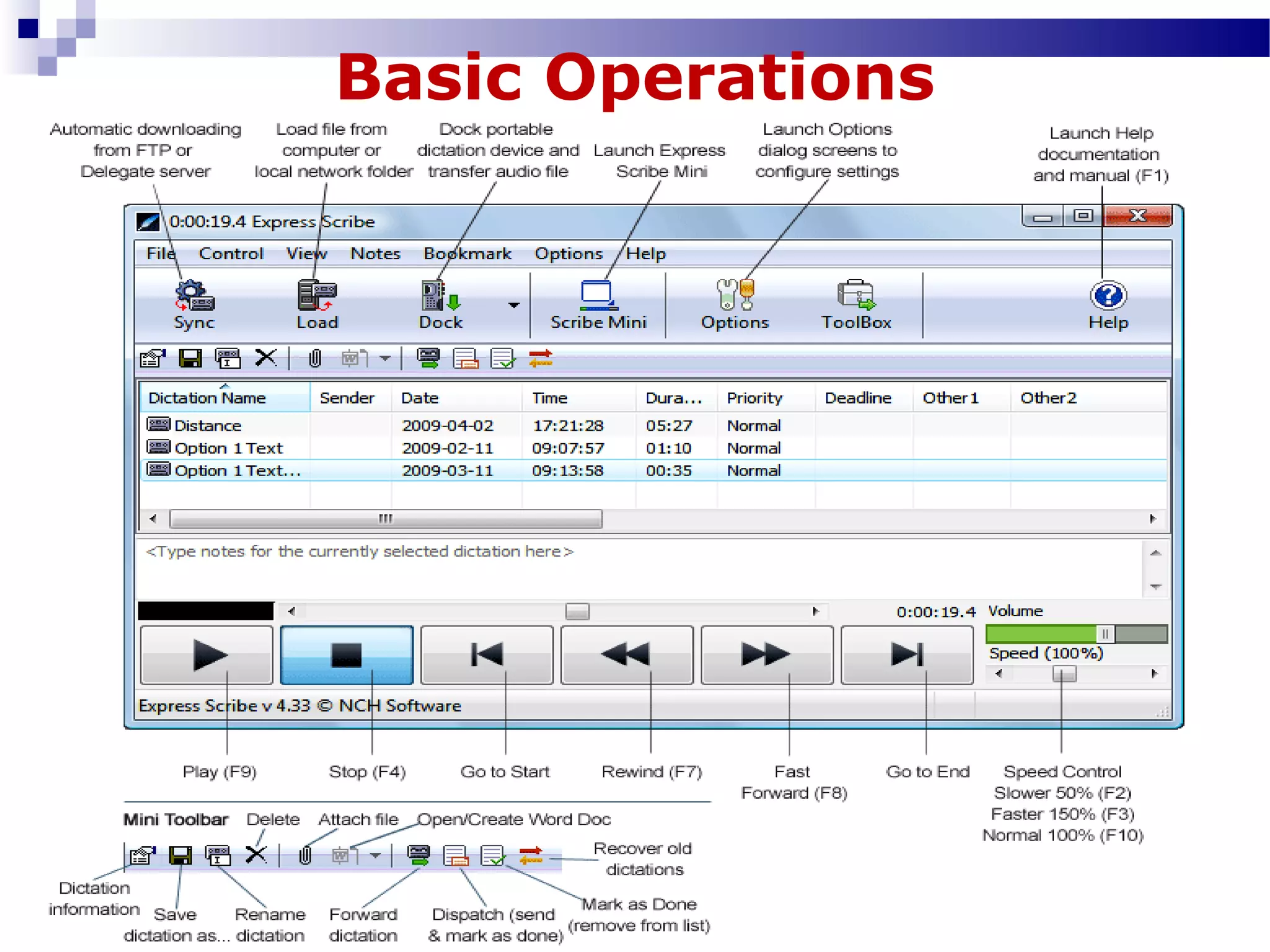
Basic Operations
There are three options to load audio files into your
Express Scribe program.
 Automatic/Sync: You  can  set  Express  Scribe  to  check  an  FTP  server, 
local  network  or  computer  folder  and  Express  Delegate  server  for  new 
dictations  at  timed  intervals.  The  program  will  automatically  load  new 
dictations  found  in  the  specified  path.  Set  up  automatic  loading  from 
the Incoming tab in the Options dialog.
 Manual Load: Load  from  a  local  computer  folder,  network  or  CD  by 
clicking  on  the Load button  on  the  main  interface.  You  will  be  able  to 
browse your computer and network connections for your audio file.
 Dock: Transfer  audio  from  a  portable  device  directly  to  Express  Scibe. 
There are two options, an Audio Cable Method which allows you to record 
audio from an analog source such as a cassette tape player, or Audio File 
Transfer for devices that can be connected by USB to your computer.
Basic Operations
Loading Files
Basic Operations
Playing a Recording
To play a recording, do one of the following:
 Press the F9 key to start playing the file, and press the F4 key when you 
want to stop.
 Click the Play button at the base of your screen to start playing the file, 
and click the stop button (A black square) when you want to stop.
 Press the middle pedal of your Foot Pedal control to start playing the 
audio file. Release or quick tap to stop the audio. 
Basic Operations
Typing the Recording
 Select  the  recording  you  wish  to  type  out,  and  press  the  play 
button. If the typing pad is not visible then select the "View" menu 
at the top of your screen, and left click "Show Typing Pad". Click 
the left mouse button in the typing pad to begin.
 You  can  also  type  using  any  Windows  word  processor  including 
Microsoft  Word,  Corel  Wordperfect,  Lotus  Wordpro  and  others 
while Express Scribe runs in the background.
 If you use a word processor, you should use system-wide hot keys 
so  that  Express  Scribe  can  be  controlled  while  it  is  in  the 
background. Alternatively, you can use a footpedal control.
Basic Operations
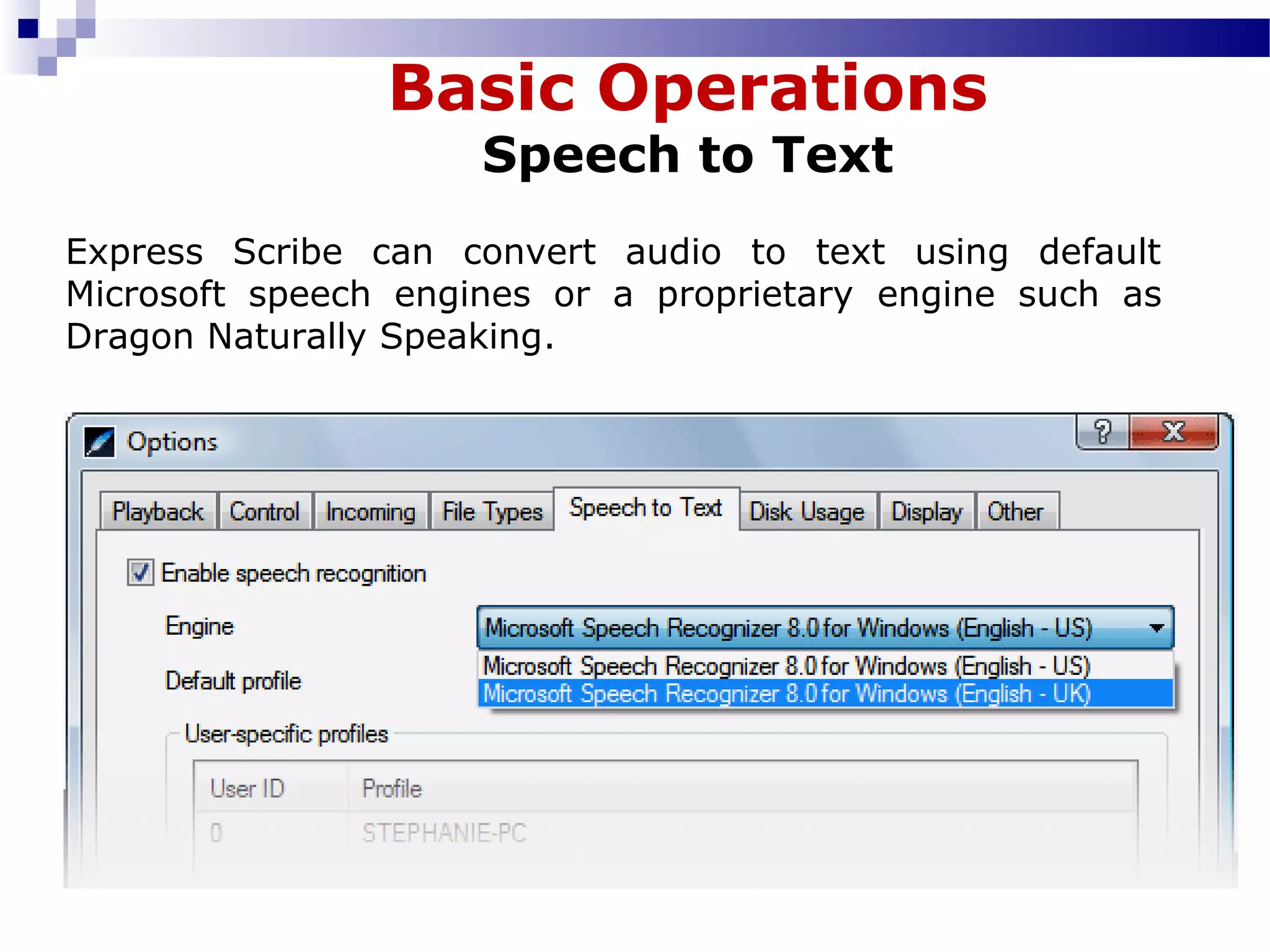
Speech to Text
Express Scribe can convert audio to text using default
Microsoft speech engines or a proprietary engine such as
Dragon Naturally Speaking.
Basic Operations
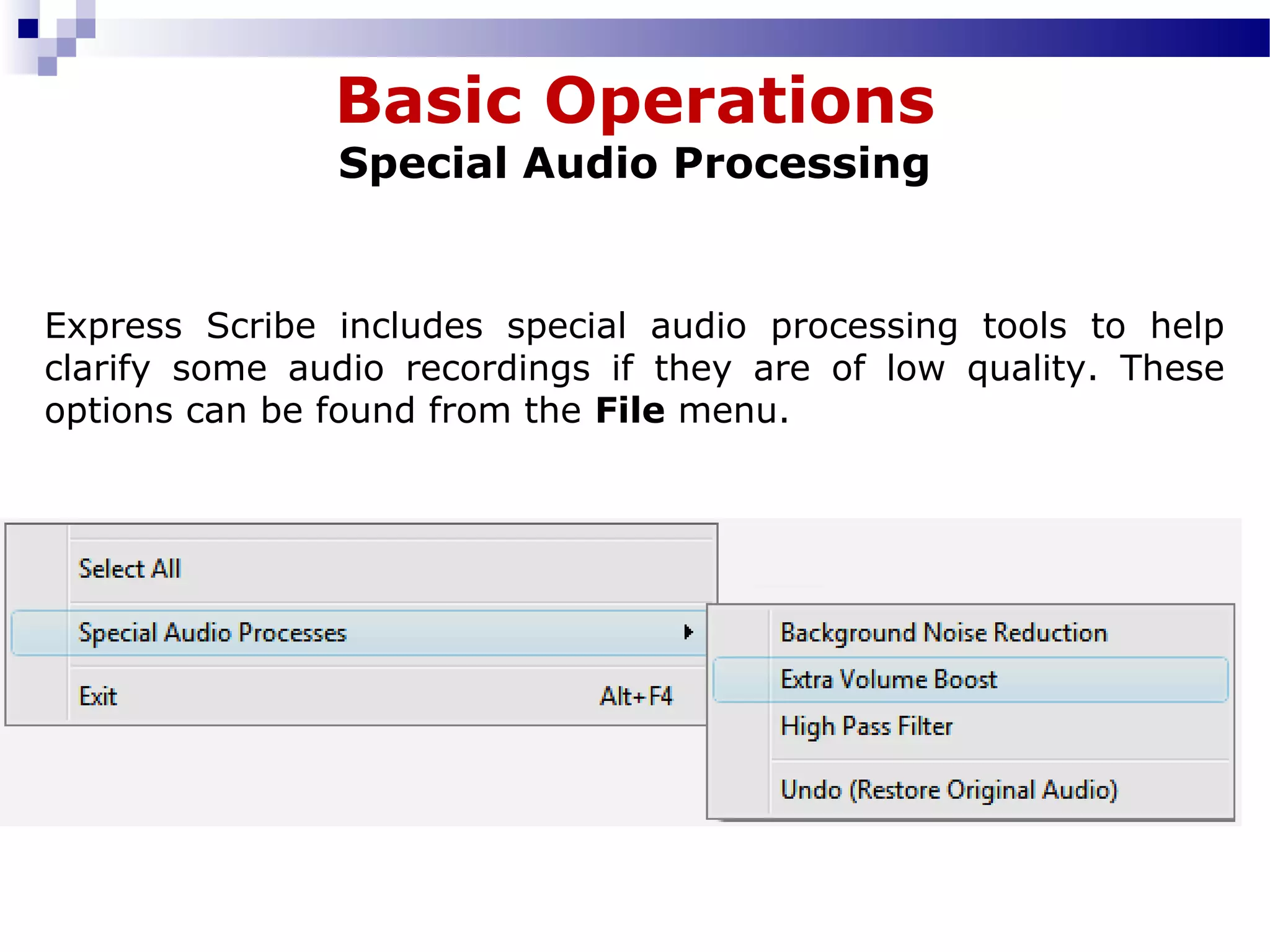
Special Audio Processing
Express Scribe includes special audio processing tools to help
clarify some audio recordings if they are of low quality. These
options can be found from the File menu.
Thank You
Thank You

Express Scribe Presentation

  • 1.
  • 2.
    Express Scribe Express Scribeis professional audio playback control software designed to assist the transcription of audio recordings. It is installed on the typist's computer and can be controlled using the keyboard (hot-keys) or foot pedals. Express Scribe can be used to play and transcribe recordings and videos in a variety of formats, and includes its own Dock feature to transfer recordings directly from portable recorders.
  • 3.
  • 4.
    There are threeoptions to load audio files into your Express Scribe program.  Automatic/Sync: You  can  set  Express  Scribe  to  check  an  FTP  server,  local  network  or  computer  folder  and  Express  Delegate  server  for  new  dictations  at  timed  intervals.  The  program  will  automatically  load  new  dictations  found  in  the  specified  path.  Set  up  automatic  loading  from  the Incoming tab in the Options dialog.  Manual Load: Load  from  a  local  computer  folder,  network  or  CD  by  clicking  on  the Load button  on  the  main  interface.  You  will  be  able  to  browse your computer and network connections for your audio file.  Dock: Transfer  audio  from  a  portable  device  directly  to  Express  Scibe.  There are two options, an Audio Cable Method which allows you to record  audio from an analog source such as a cassette tape player, or Audio File  Transfer for devices that can be connected by USB to your computer. Basic Operations Loading Files
  • 5.
    Basic Operations Playing aRecording To play a recording, do one of the following:  Press the F9 key to start playing the file, and press the F4 key when you  want to stop.  Click the Play button at the base of your screen to start playing the file,  and click the stop button (A black square) when you want to stop.  Press the middle pedal of your Foot Pedal control to start playing the  audio file. Release or quick tap to stop the audio. 
  • 6.
    Basic Operations Typing theRecording  Select  the  recording  you  wish  to  type  out,  and  press  the  play  button. If the typing pad is not visible then select the "View" menu  at the top of your screen, and left click "Show Typing Pad". Click  the left mouse button in the typing pad to begin.  You  can  also  type  using  any  Windows  word  processor  including  Microsoft  Word,  Corel  Wordperfect,  Lotus  Wordpro  and  others  while Express Scribe runs in the background.  If you use a word processor, you should use system-wide hot keys  so  that  Express  Scribe  can  be  controlled  while  it  is  in  the  background. Alternatively, you can use a footpedal control.
  • 7.
    Basic Operations Speech toText Express Scribe can convert audio to text using default Microsoft speech engines or a proprietary engine such as Dragon Naturally Speaking.
  • 8.
    Basic Operations Special AudioProcessing Express Scribe includes special audio processing tools to help clarify some audio recordings if they are of low quality. These options can be found from the File menu.
  • 9.
  • 10.

Editor's Notes

  • #3 ²ñï³ë³ÑÙ³ÝáõÙ. سïÇÝÛ³Ý ê»ñ·»Û гÛÏÇ Øáõñ³¹Û³Ý èáõ¹áÉý Øáõñ³¹Ç