
Recovering unallocated space of a
USB flash drive.
?? Question ??
Today when I made Linux
(Ubuntu) bootable pen drive
and install Linux (successfully) in
my system. When I attached pen
drive then i found there where
only 3MB space. I was amazed
8GB pen drive show me 4MB
space only!!!!!!!!
How to see UNALLOCATED space!!!!!!
•Go to start
•Then type :- This pc
•Open This pc.
•Now follow the following
steps.
(for
WINDOWS
10)
For windows 7 or other windows system open My Computer
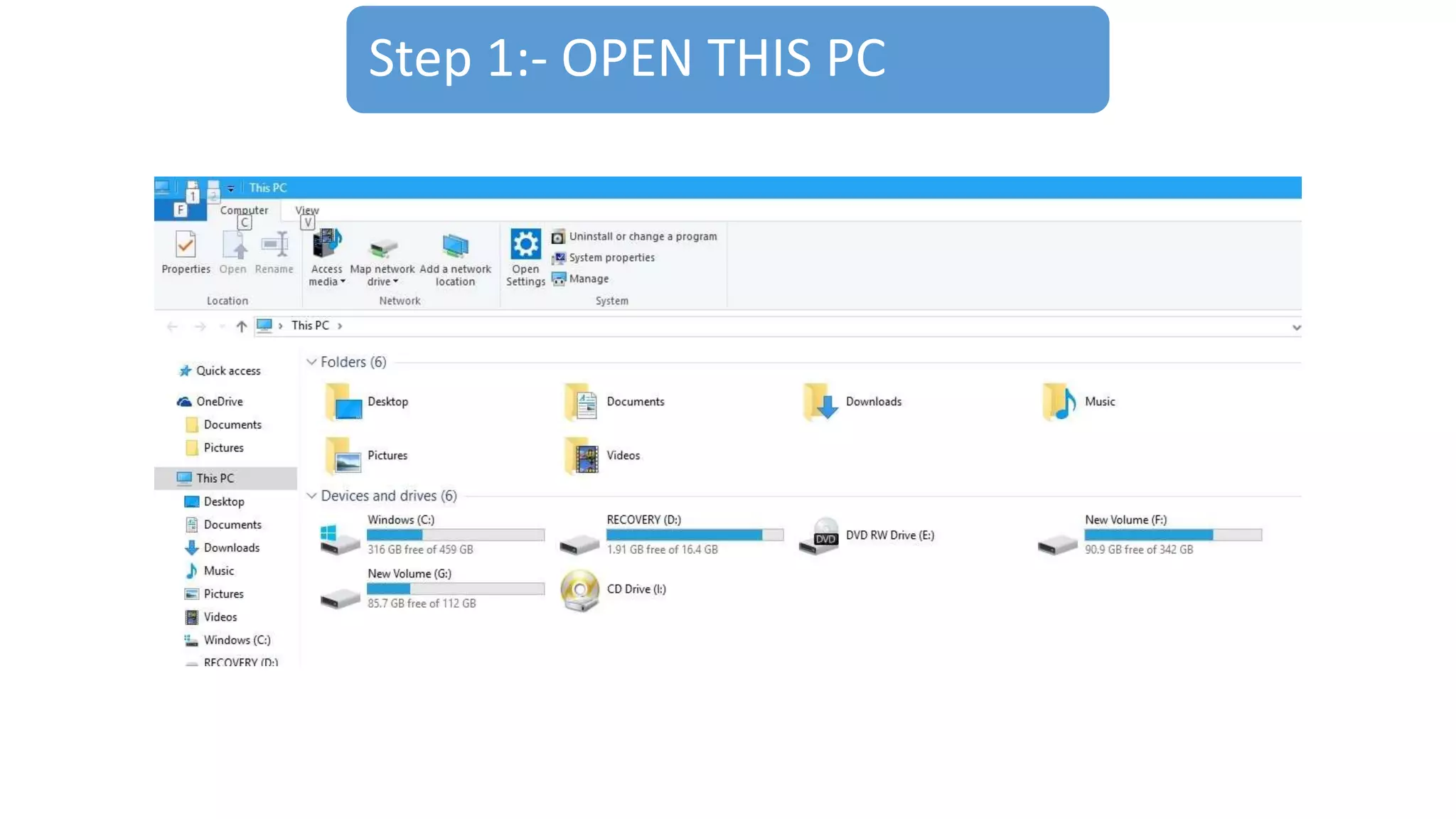
Step 1:- OPEN THIS PC
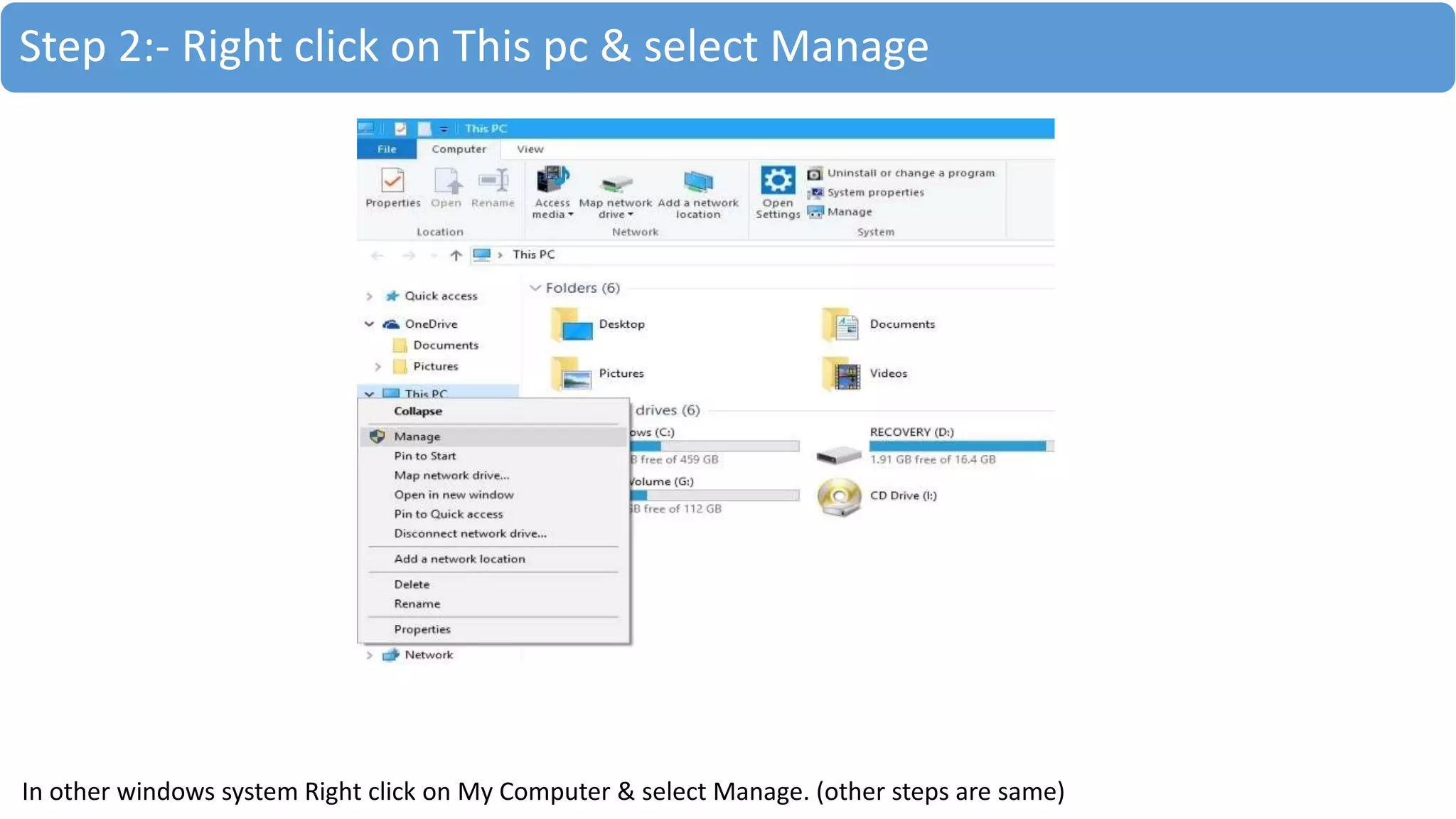
Step 2:- Right click on This pc & select Manage
In other windows system Right click on My Computer & select Manage. (other steps are same)
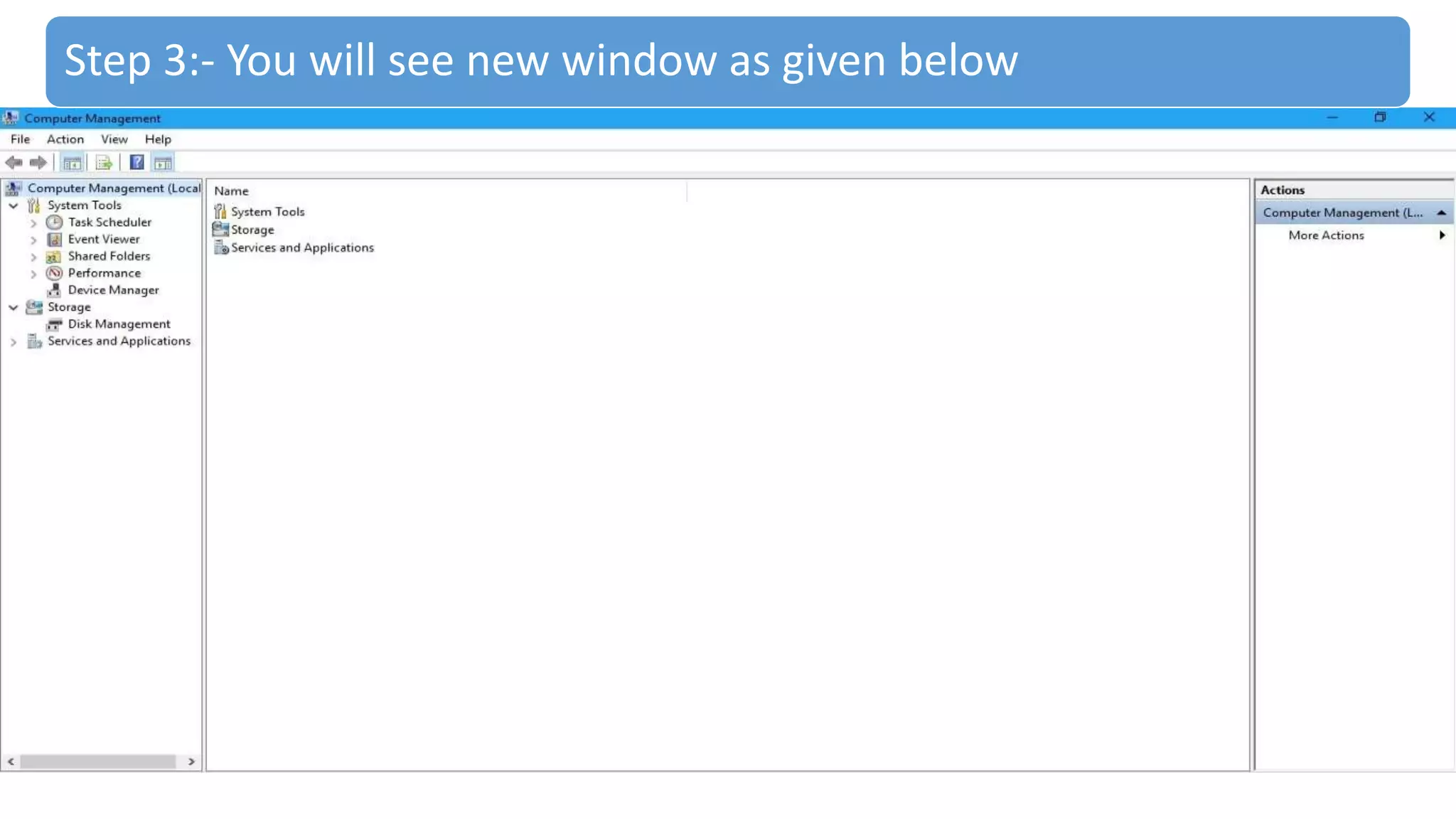
Step 3:- You will see new window as given below
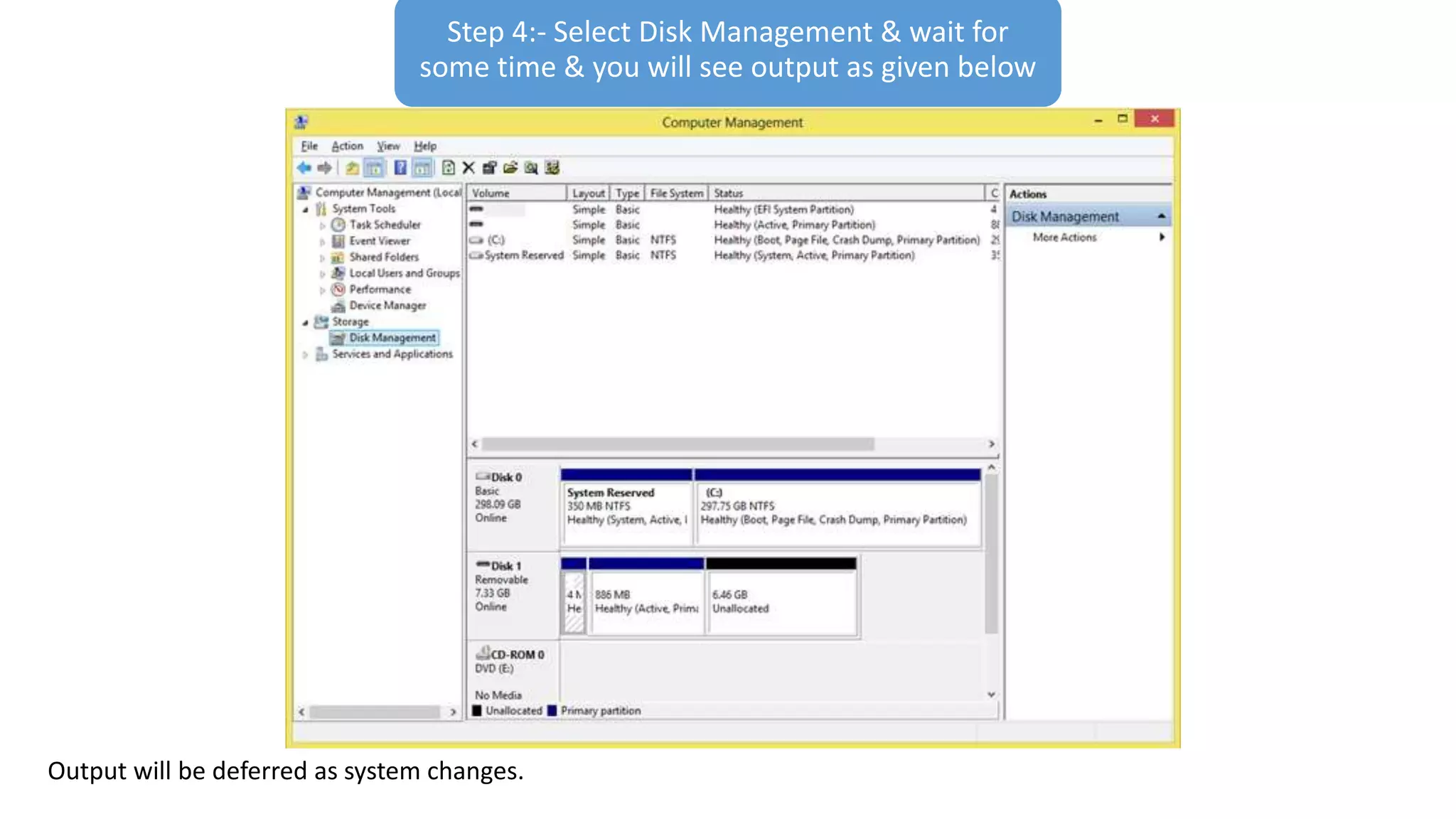
Step 4:- Select Disk Management & wait for
some time & you will see output as given below
Output will be deferred as system changes.
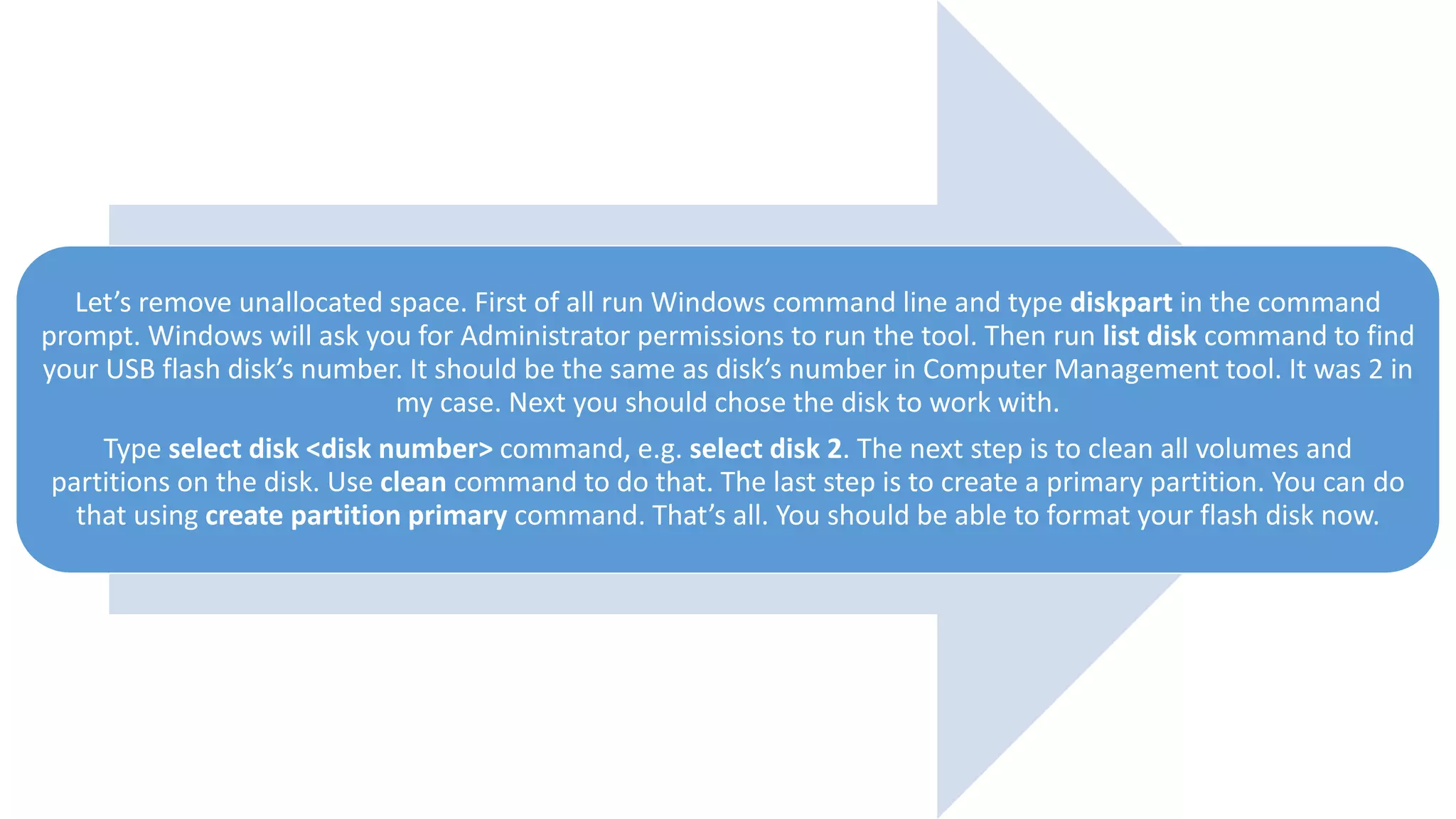
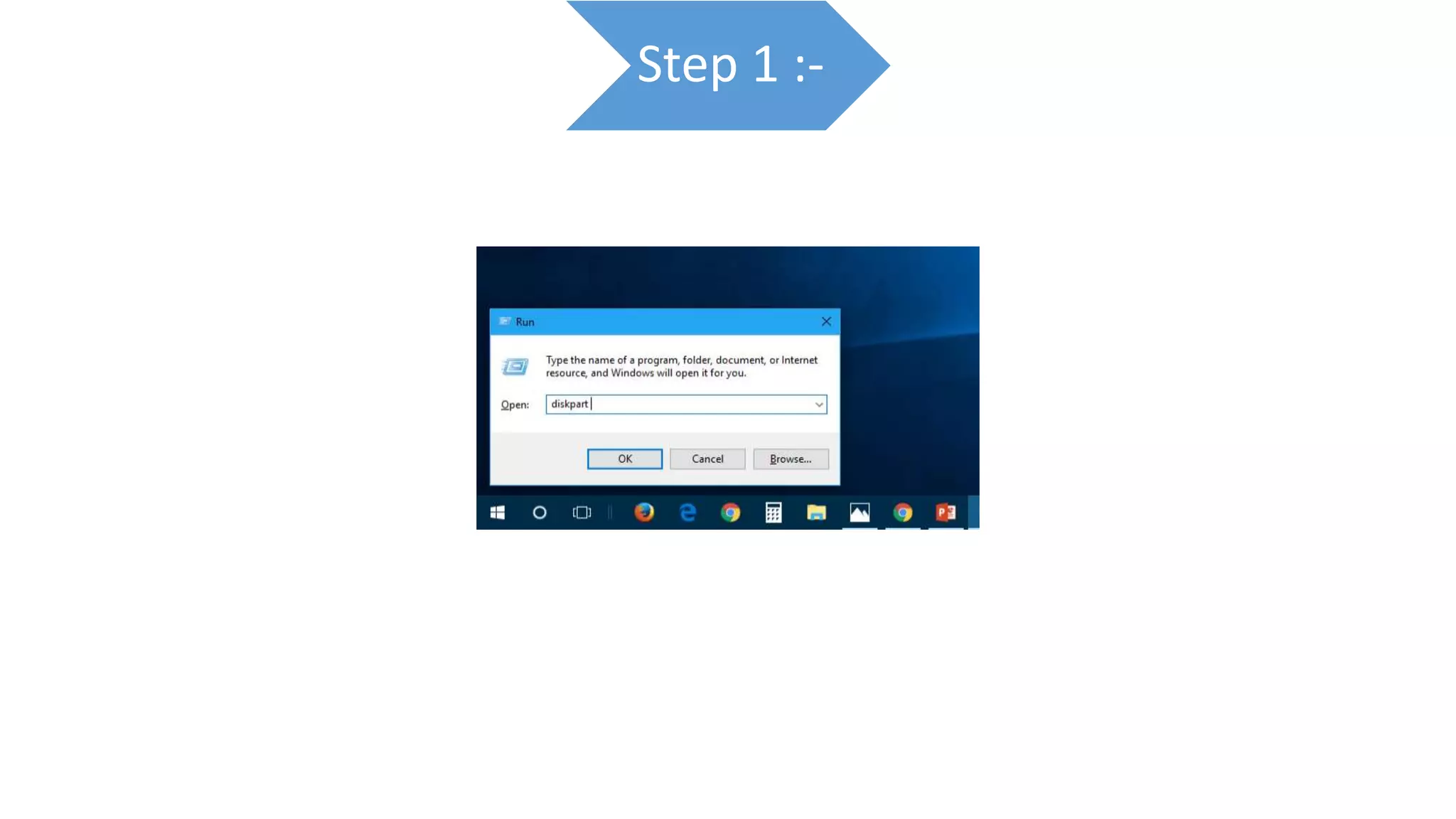
Let’s remove unallocated space. First of all run Windows command line and type diskpart in the command
prompt. Windows will ask you for Administrator permissions to run the tool. Then run list disk command to find
your USB flash disk’s number. It should be the same as disk’s number in Computer Management tool. It was 2 in
my case. Next you should chose the disk to work with.
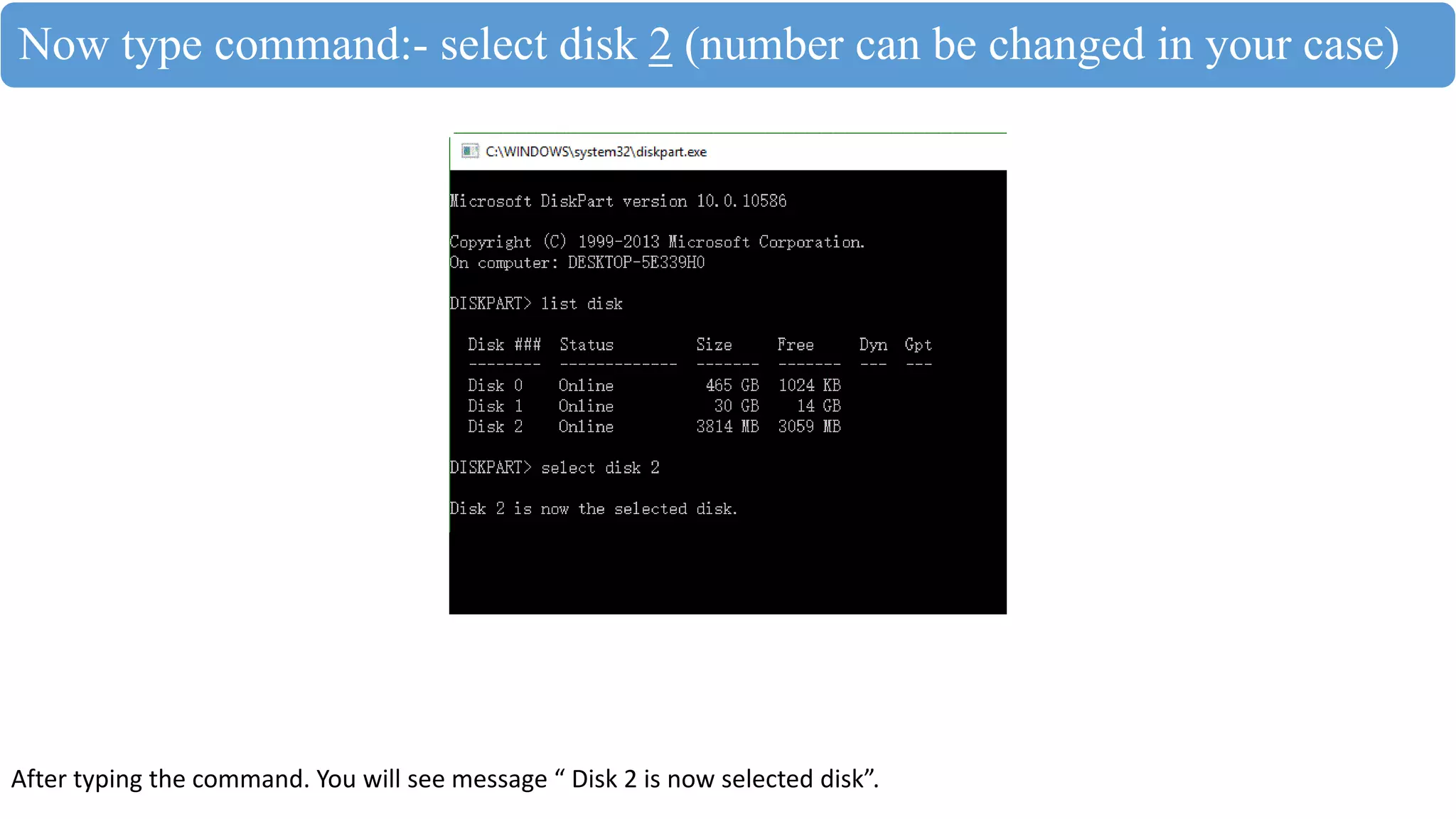
Type select disk <disk number> command, e.g. select disk 2. The next step is to clean all volumes and
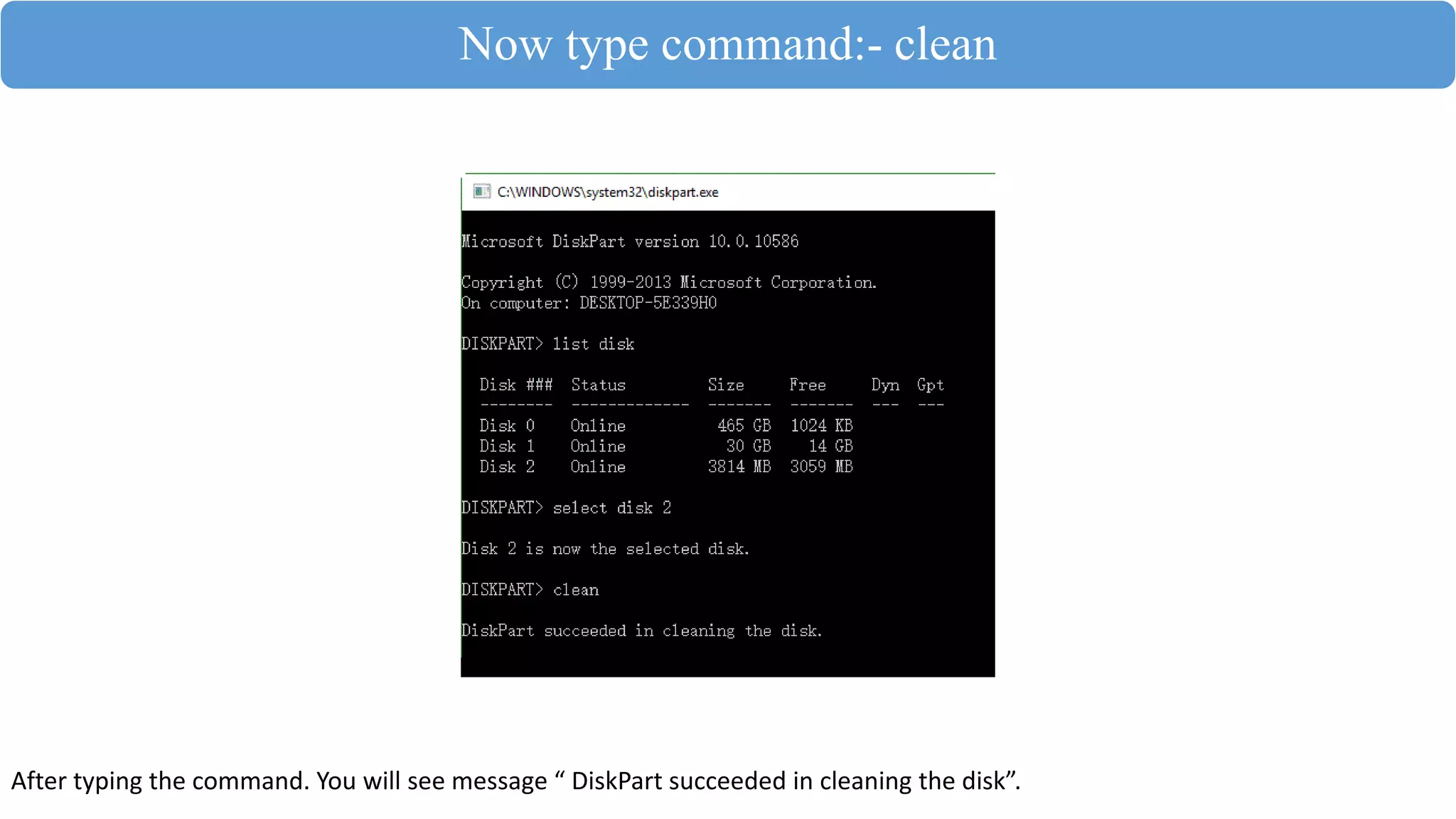
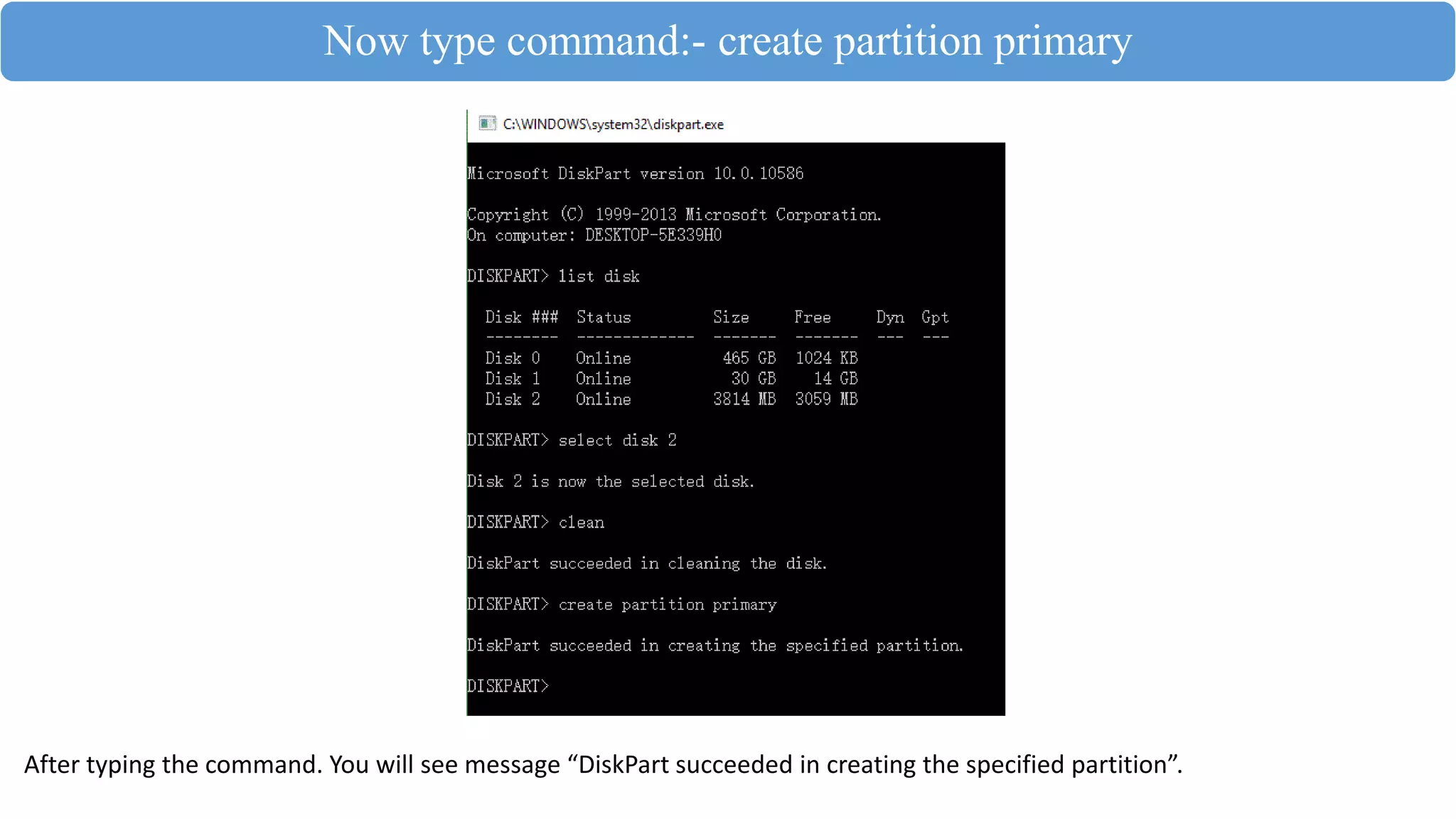
partitions on the disk. Use clean command to do that. The last step is to create a primary partition. You can do
that using create partition primary command. That’s all. You should be able to format your flash disk now.
Step 1 :-
Windows will ask you
for Administrator
permissions to run
the tool
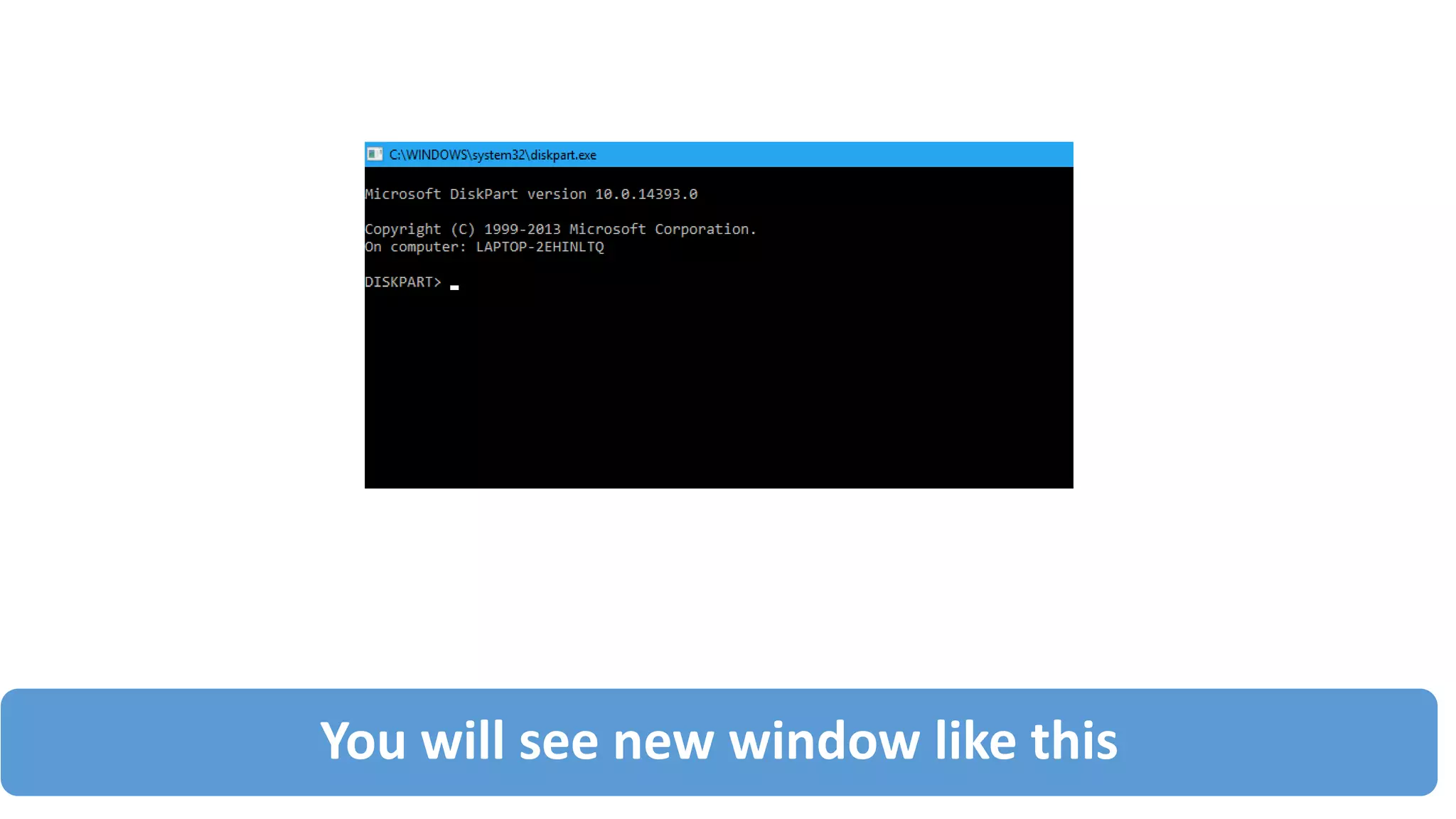
You will see new window like this
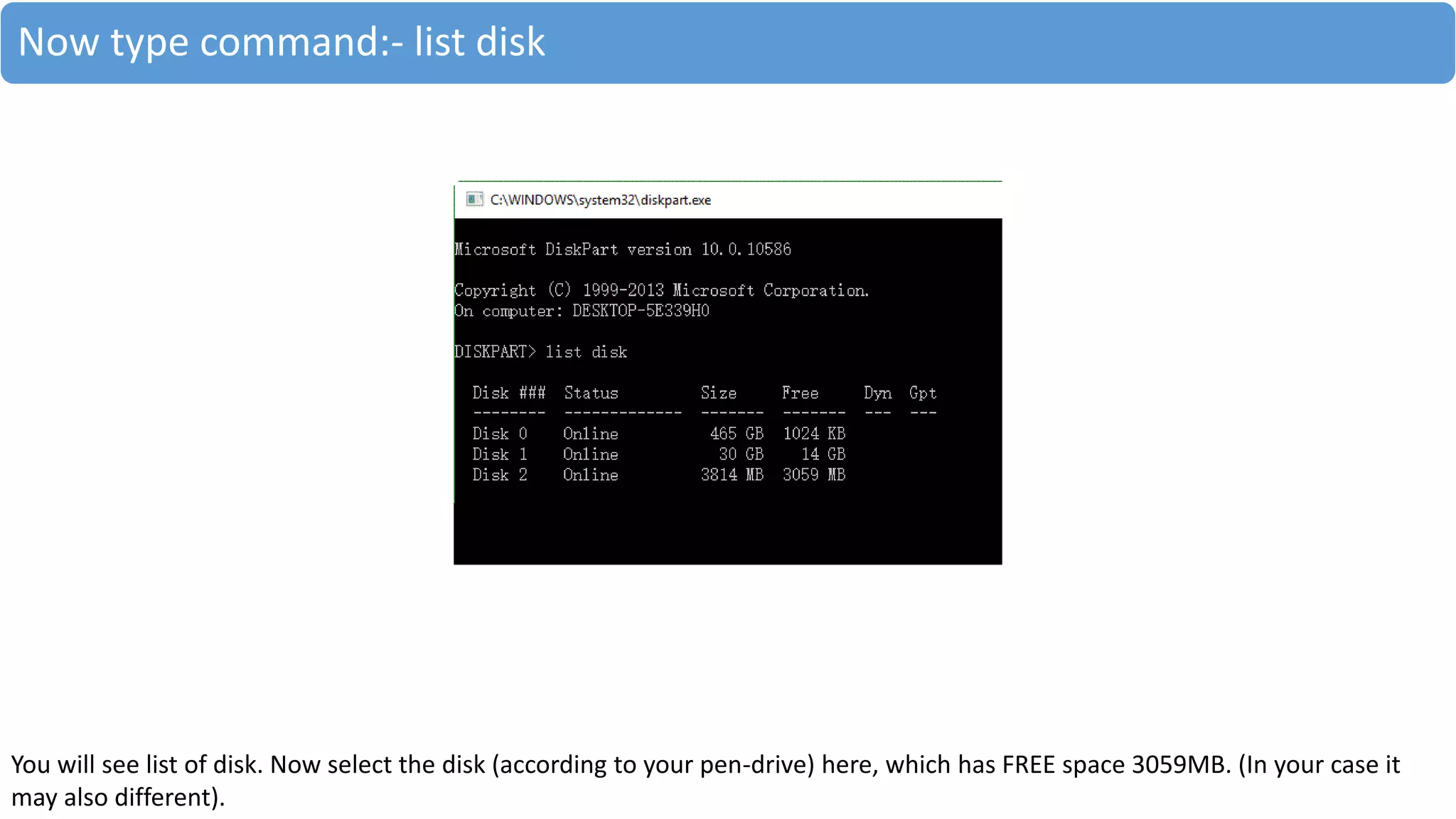
Now type command:- list disk
You will see list of disk. Now select the disk (according to your pen-drive) here, which has FREE space 3059MB. (In your case it
may also different).
Now type command:- select disk 2 (number can be changed in your case)
After typing the command. You will see message “ Disk 2 is now selected disk”.
Now type command:- clean
After typing the command. You will see message “ DiskPart succeeded in cleaning the disk”.
Now type command:- create partition primary
After typing the command. You will see message “DiskPart succeeded in creating the specified partition”.
Now go to This pc & check
the space of pen drive .
In other system (other then Windows 10 ) go to My computer and check the size of pen-drive.
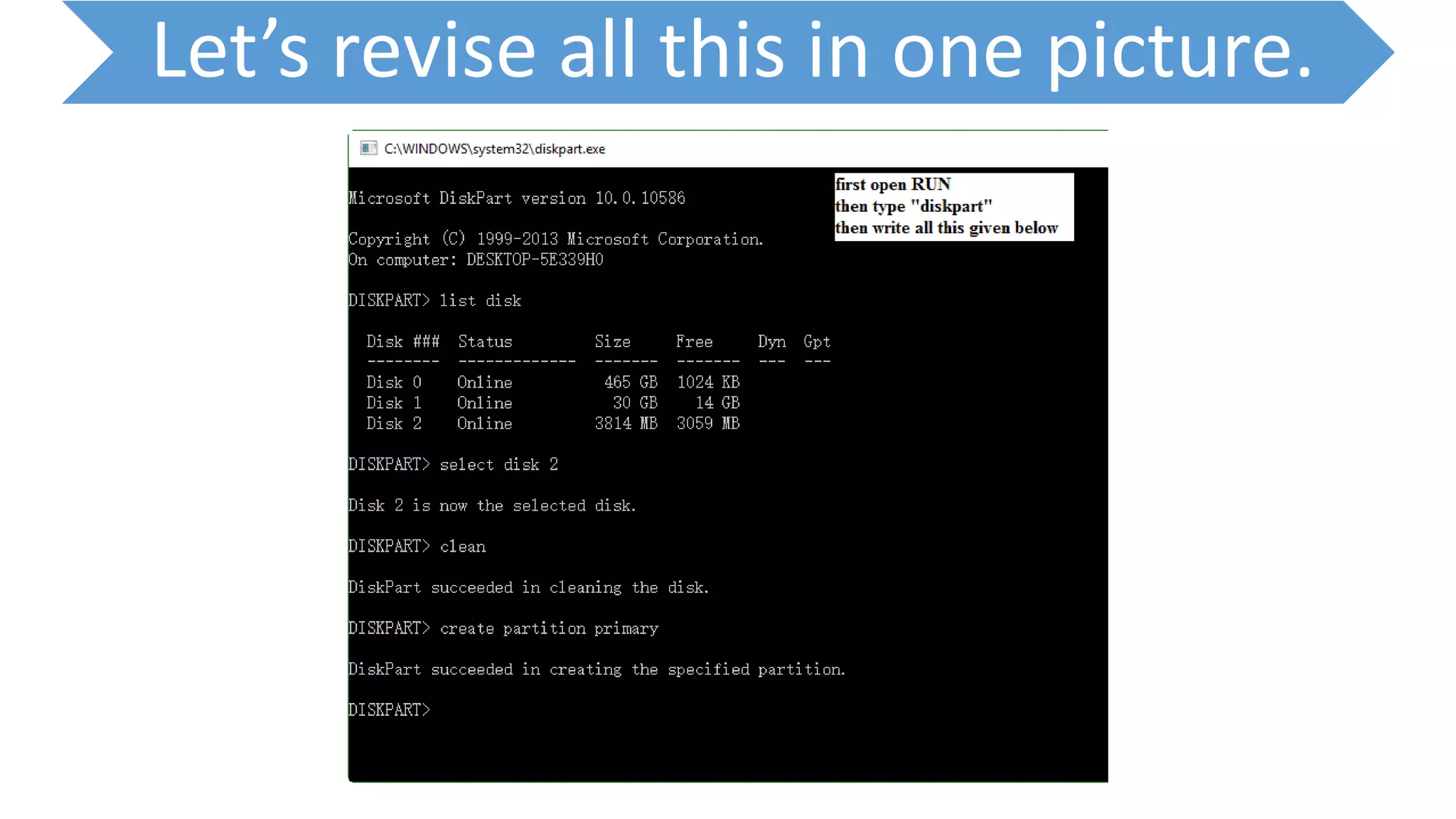
Let’s revise all this in one picture.
Recovering unallocated space of a usb flash drive

Recovering unallocated space of a usb flash drive

  • 1.
    Recovering unallocated spaceof a USB flash drive.
  • 2.
    ?? Question ?? Todaywhen I made Linux (Ubuntu) bootable pen drive and install Linux (successfully) in my system. When I attached pen drive then i found there where only 3MB space. I was amazed 8GB pen drive show me 4MB space only!!!!!!!!
  • 3.
    How to seeUNALLOCATED space!!!!!! •Go to start •Then type :- This pc •Open This pc. •Now follow the following steps. (for WINDOWS 10) For windows 7 or other windows system open My Computer
  • 4.
  • 5.
    Step 2:- Rightclick on This pc & select Manage In other windows system Right click on My Computer & select Manage. (other steps are same)
  • 6.
    Step 3:- Youwill see new window as given below
  • 7.
    Step 4:- SelectDisk Management & wait for some time & you will see output as given below Output will be deferred as system changes.
  • 8.
    Let’s remove unallocatedspace. First of all run Windows command line and type diskpart in the command prompt. Windows will ask you for Administrator permissions to run the tool. Then run list disk command to find your USB flash disk’s number. It should be the same as disk’s number in Computer Management tool. It was 2 in my case. Next you should chose the disk to work with. Type select disk <disk number> command, e.g. select disk 2. The next step is to clean all volumes and partitions on the disk. Use clean command to do that. The last step is to create a primary partition. You can do that using create partition primary command. That’s all. You should be able to format your flash disk now.
  • 9.
  • 10.
    Windows will askyou for Administrator permissions to run the tool
  • 11.
    You will seenew window like this
  • 12.
    Now type command:-list disk You will see list of disk. Now select the disk (according to your pen-drive) here, which has FREE space 3059MB. (In your case it may also different).
  • 13.
    Now type command:-select disk 2 (number can be changed in your case) After typing the command. You will see message “ Disk 2 is now selected disk”.
  • 14.
    Now type command:-clean After typing the command. You will see message “ DiskPart succeeded in cleaning the disk”.
  • 15.
    Now type command:-create partition primary After typing the command. You will see message “DiskPart succeeded in creating the specified partition”.
  • 16.
    Now go toThis pc & check the space of pen drive . In other system (other then Windows 10 ) go to My computer and check the size of pen-drive.
  • 17.
    Let’s revise allthis in one picture.