RAMRAM
RAM on the MotherboardRAM on the Motherboard
 Loses all data when PC is turned offLoses all data when PC is turned off
(except data stored on CMOS chip)(except data stored on CMOS chip)
 Two categoriesTwo categories
– Static RAM (SRAM)Static RAM (SRAM)
 FastFast
 Used as a memory cacheUsed as a memory cache
– Dynamic RAM (DRAM)Dynamic RAM (DRAM)
 Slower; requires constant refreshingSlower; requires constant refreshing
DRAMDRAM
SRAMSRAM
Memory TechnologiesMemory Technologies
How SRAM Is Used inHow SRAM Is Used in
Different MemoryDifferent Memory
CachesCaches
How Memory CachingHow Memory Caching
WorksWorks
Dynamic RAMDynamic RAM
TechnologiesTechnologies
 Stored on DIMM, RIMM, or SIMMStored on DIMM, RIMM, or SIMM
modules (plug directly intomodules (plug directly into
motherboard)motherboard)
 Differences among these modules:Differences among these modules:
– Width of data path that each typeWidth of data path that each type
accommodatesaccommodates
– The way data moves from system bus toThe way data moves from system bus to
module
Examples of MemoryExamples of Memory
ModulesModules
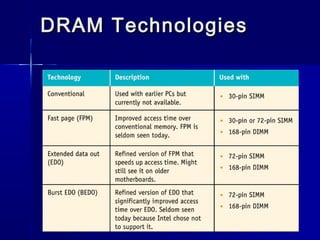
DRAM TechnologiesDRAM Technologies
((continuedcontinued ))
DRAMDRAM
 SIMM technologiesSIMM technologies
– Can use either EDO or FPM technologyCan use either EDO or FPM technology
 DIMM technologiesDIMM technologies
– Can use either BEDO (burst EDO) orCan use either BEDO (burst EDO) or
synchronous RAM (SDRAM)synchronous RAM (SDRAM)
 RIMM technologiesRIMM technologies
– Each socket must be filled to maintainEach socket must be filled to maintain
continuitycontinuity
Identifying the DIMMIdentifying the DIMM
ModuleModule
RIMM TechnologiesRIMM Technologies
Error Checking andError Checking and
ParityParity
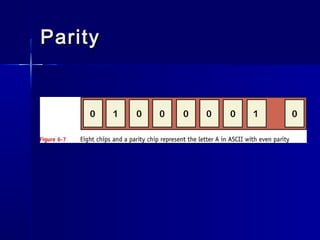
 ParityParity
– Error-checking procedure in which every byteError-checking procedure in which every byte
has an even number of ones or an oddhas an even number of ones or an odd
number of onesnumber of ones
– Older method of testing integrity of bitsOlder method of testing integrity of bits
 Stored in RAM or secondary mediumStored in RAM or secondary medium
 Sent over a communications deviceSent over a communications device
 Error-correcting code (ECC)Error-correcting code (ECC)
– Current method of error checking that canCurrent method of error checking that can
detect and correct an error in a single bitdetect and correct an error in a single bit
ParityParity
Other Memory FeaturesOther Memory Features
 CAS (column access strobe) latencyCAS (column access strobe) latency
 RAS (row access strobe) latencyRAS (row access strobe) latency
 Both CAS and RAS refer to theBoth CAS and RAS refer to the
number of clock cycles it takes to writenumber of clock cycles it takes to write
or read a column or row of dataor read a column or row of data
Memory Speeds: FactorsMemory Speeds: Factors
to Considerto Consider
 Speed of memory in ns, MHz, or PC ratingSpeed of memory in ns, MHz, or PC rating
 How much memory is installedHow much memory is installed
 Memory technology usedMemory technology used
 CL (CAS Latency) ratingCL (CAS Latency) rating
 ECC/parity or non-ECC/nonparityECC/parity or non-ECC/nonparity
CL- the number of clock cycles between the time a read command is
sent and the data is available
Factors That ContributeFactors That Contribute
to Memory Speedto Memory Speed
Upgrading MemoryUpgrading Memory
 What to look for when buying memoryWhat to look for when buying memory
chips and moduleschips and modules
 How much and what kind of memoryHow much and what kind of memory
to buyto buy
 Reading ads about memory modulesReading ads about memory modules
 Installing memoryInstalling memory
What to Look for WhenWhat to Look for When
Buying Memory ChipsBuying Memory Chips
and Modulesand Modules
 Use type, size, density, and fastestUse type, size, density, and fastest
speed supported by the motherboardspeed supported by the motherboard
 Match tin leads to tin connectors andMatch tin leads to tin connectors and
gold leads to gold connectorsgold leads to gold connectors
 Beware of remanufactured and re-Beware of remanufactured and re-
marked memory chipsmarked memory chips
How Much and WhatHow Much and What
Kind of Memory to BuyKind of Memory to Buy
 Determine how much memory youDetermine how much memory you
have and needhave and need
 Identify the number, type, and size ofIdentify the number, type, and size of
memory modules supported by yourmemory modules supported by your
motherboardmotherboard
 Determine how much memory can youDetermine how much memory can you
affordafford
Using MotherboardUsing Motherboard
Documentation to SelectDocumentation to Select
MemoryMemory
Using MotherboardUsing Motherboard
Documentation to SelectDocumentation to Select
Memory (Memory (continuedcontinued ))
RDRAM MemoryRDRAM Memory
ConfigurationConfiguration
Installing MemoryInstalling Memory
 Protect chips against static electricityProtect chips against static electricity
 Usually modules pop into place easilyUsually modules pop into place easily
and are secured by spring catches onand are secured by spring catches on
both endsboth ends
Installing a SIMMInstalling a SIMM
ModuleModule
Installing a DIMMInstalling a DIMM
ModuleModule
Installing a DIMMInstalling a DIMM
Module (Module (continuedcontinued ))
Installing a RIMMInstalling a RIMM
ModuleModule
Types of RAM
 SDRAM
– Systems use some form of synchronous
DRAM (SDRAM)
 Still DRAM, but it is synchronous
– SDRAM DIMMs came in a wide variety of
pin sizes
 Desktops were the 168-pin variety.
 Laptop DIMMs came in 68-pin, 144-pin
RDRAM
 Replace SDRAM with a very fast, new
type of RAM developed byRambus,
Inc. called Rambus DRAM, or simply
RDRAM
 Came in two sizes:
– A 184-pin for desktops
– A 160-pin SO-RIMM for laptops
DDR SDRAM
 Double Data Rate SDRAM (DDR
SDRAM)
 DDR SDRAM for desktops comes in 184-
pin DIMMs
 DDR SDRAM for laptopscomes in either
200-pin SO-DIMMs or 172-pin micro-
DIMMs
DDR2
 Run at a blistering PC4800.
 4.8 gigabytes per second (GBps) of
data throughput
 DDR2 uses a 240-pin DIMM that’s not
compatible with DDR
Latency
 A delay in RAM’s response time is
called its LatencyLatency
 RAM with a lower latency such as CL2
is faster than RAM with a higher
latency such as CL3 because it
responds more quickly

RAM

  • 1.
  • 2.
    RAM on theMotherboardRAM on the Motherboard  Loses all data when PC is turned offLoses all data when PC is turned off (except data stored on CMOS chip)(except data stored on CMOS chip)  Two categoriesTwo categories – Static RAM (SRAM)Static RAM (SRAM)  FastFast  Used as a memory cacheUsed as a memory cache – Dynamic RAM (DRAM)Dynamic RAM (DRAM)  Slower; requires constant refreshingSlower; requires constant refreshing
  • 3.
  • 4.
  • 5.
  • 6.
    How SRAM IsUsed inHow SRAM Is Used in Different MemoryDifferent Memory CachesCaches
  • 7.
    How Memory CachingHowMemory Caching WorksWorks
  • 8.
    Dynamic RAMDynamic RAM TechnologiesTechnologies Stored on DIMM, RIMM, or SIMMStored on DIMM, RIMM, or SIMM modules (plug directly intomodules (plug directly into motherboard)motherboard)  Differences among these modules:Differences among these modules: – Width of data path that each typeWidth of data path that each type accommodatesaccommodates – The way data moves from system bus toThe way data moves from system bus to module
  • 9.
    Examples of MemoryExamplesof Memory ModulesModules
  • 10.
  • 11.
  • 12.
    DRAMDRAM  SIMM technologiesSIMMtechnologies – Can use either EDO or FPM technologyCan use either EDO or FPM technology  DIMM technologiesDIMM technologies – Can use either BEDO (burst EDO) orCan use either BEDO (burst EDO) or synchronous RAM (SDRAM)synchronous RAM (SDRAM)  RIMM technologiesRIMM technologies – Each socket must be filled to maintainEach socket must be filled to maintain continuitycontinuity
  • 13.
    Identifying the DIMMIdentifyingthe DIMM ModuleModule
  • 14.
  • 15.
    Error Checking andErrorChecking and ParityParity  ParityParity – Error-checking procedure in which every byteError-checking procedure in which every byte has an even number of ones or an oddhas an even number of ones or an odd number of onesnumber of ones – Older method of testing integrity of bitsOlder method of testing integrity of bits  Stored in RAM or secondary mediumStored in RAM or secondary medium  Sent over a communications deviceSent over a communications device  Error-correcting code (ECC)Error-correcting code (ECC) – Current method of error checking that canCurrent method of error checking that can detect and correct an error in a single bitdetect and correct an error in a single bit
  • 16.
  • 17.
    Other Memory FeaturesOtherMemory Features  CAS (column access strobe) latencyCAS (column access strobe) latency  RAS (row access strobe) latencyRAS (row access strobe) latency  Both CAS and RAS refer to theBoth CAS and RAS refer to the number of clock cycles it takes to writenumber of clock cycles it takes to write or read a column or row of dataor read a column or row of data
  • 18.
    Memory Speeds: FactorsMemorySpeeds: Factors to Considerto Consider  Speed of memory in ns, MHz, or PC ratingSpeed of memory in ns, MHz, or PC rating  How much memory is installedHow much memory is installed  Memory technology usedMemory technology used  CL (CAS Latency) ratingCL (CAS Latency) rating  ECC/parity or non-ECC/nonparityECC/parity or non-ECC/nonparity CL- the number of clock cycles between the time a read command is sent and the data is available
  • 19.
    Factors That ContributeFactorsThat Contribute to Memory Speedto Memory Speed
  • 20.
    Upgrading MemoryUpgrading Memory What to look for when buying memoryWhat to look for when buying memory chips and moduleschips and modules  How much and what kind of memoryHow much and what kind of memory to buyto buy  Reading ads about memory modulesReading ads about memory modules  Installing memoryInstalling memory
  • 21.
    What to Lookfor WhenWhat to Look for When Buying Memory ChipsBuying Memory Chips and Modulesand Modules  Use type, size, density, and fastestUse type, size, density, and fastest speed supported by the motherboardspeed supported by the motherboard  Match tin leads to tin connectors andMatch tin leads to tin connectors and gold leads to gold connectorsgold leads to gold connectors  Beware of remanufactured and re-Beware of remanufactured and re- marked memory chipsmarked memory chips
  • 22.
    How Much andWhatHow Much and What Kind of Memory to BuyKind of Memory to Buy  Determine how much memory youDetermine how much memory you have and needhave and need  Identify the number, type, and size ofIdentify the number, type, and size of memory modules supported by yourmemory modules supported by your motherboardmotherboard  Determine how much memory can youDetermine how much memory can you affordafford
  • 23.
    Using MotherboardUsing Motherboard Documentationto SelectDocumentation to Select MemoryMemory
  • 24.
    Using MotherboardUsing Motherboard Documentationto SelectDocumentation to Select Memory (Memory (continuedcontinued ))
  • 25.
  • 26.
    Installing MemoryInstalling Memory Protect chips against static electricityProtect chips against static electricity  Usually modules pop into place easilyUsually modules pop into place easily and are secured by spring catches onand are secured by spring catches on both endsboth ends
  • 27.
    Installing a SIMMInstallinga SIMM ModuleModule
  • 28.
    Installing a DIMMInstallinga DIMM ModuleModule
  • 29.
    Installing a DIMMInstallinga DIMM Module (Module (continuedcontinued ))
  • 30.
    Installing a RIMMInstallinga RIMM ModuleModule
  • 31.
    Types of RAM SDRAM – Systems use some form of synchronous DRAM (SDRAM)  Still DRAM, but it is synchronous – SDRAM DIMMs came in a wide variety of pin sizes  Desktops were the 168-pin variety.  Laptop DIMMs came in 68-pin, 144-pin
  • 32.
    RDRAM  Replace SDRAMwith a very fast, new type of RAM developed byRambus, Inc. called Rambus DRAM, or simply RDRAM  Came in two sizes: – A 184-pin for desktops – A 160-pin SO-RIMM for laptops
  • 33.
    DDR SDRAM  DoubleData Rate SDRAM (DDR SDRAM)  DDR SDRAM for desktops comes in 184- pin DIMMs  DDR SDRAM for laptopscomes in either 200-pin SO-DIMMs or 172-pin micro- DIMMs
  • 34.
    DDR2  Run ata blistering PC4800.  4.8 gigabytes per second (GBps) of data throughput  DDR2 uses a 240-pin DIMM that’s not compatible with DDR
  • 35.
    Latency  A delayin RAM’s response time is called its LatencyLatency  RAM with a lower latency such as CL2 is faster than RAM with a higher latency such as CL3 because it responds more quickly