Mrs Neal                                                                     May 2004

                    ADVANCED ACCESS SKILLS

Introduction

This guide will help you to develop your MS Access skill to an advanced level. You are
required to demonstrate your abilities within the implementation section of your
project. You are expected to implement your solution unaided, to a high quality with
no defects.

Scenario

A local Beauty Spa currently records all appointments manually. The Spa has six
Beauty consultants all are able to provide treatments on offer. The computerised
system must prevent double-bookings, be easy to use and re-useable.

Tables

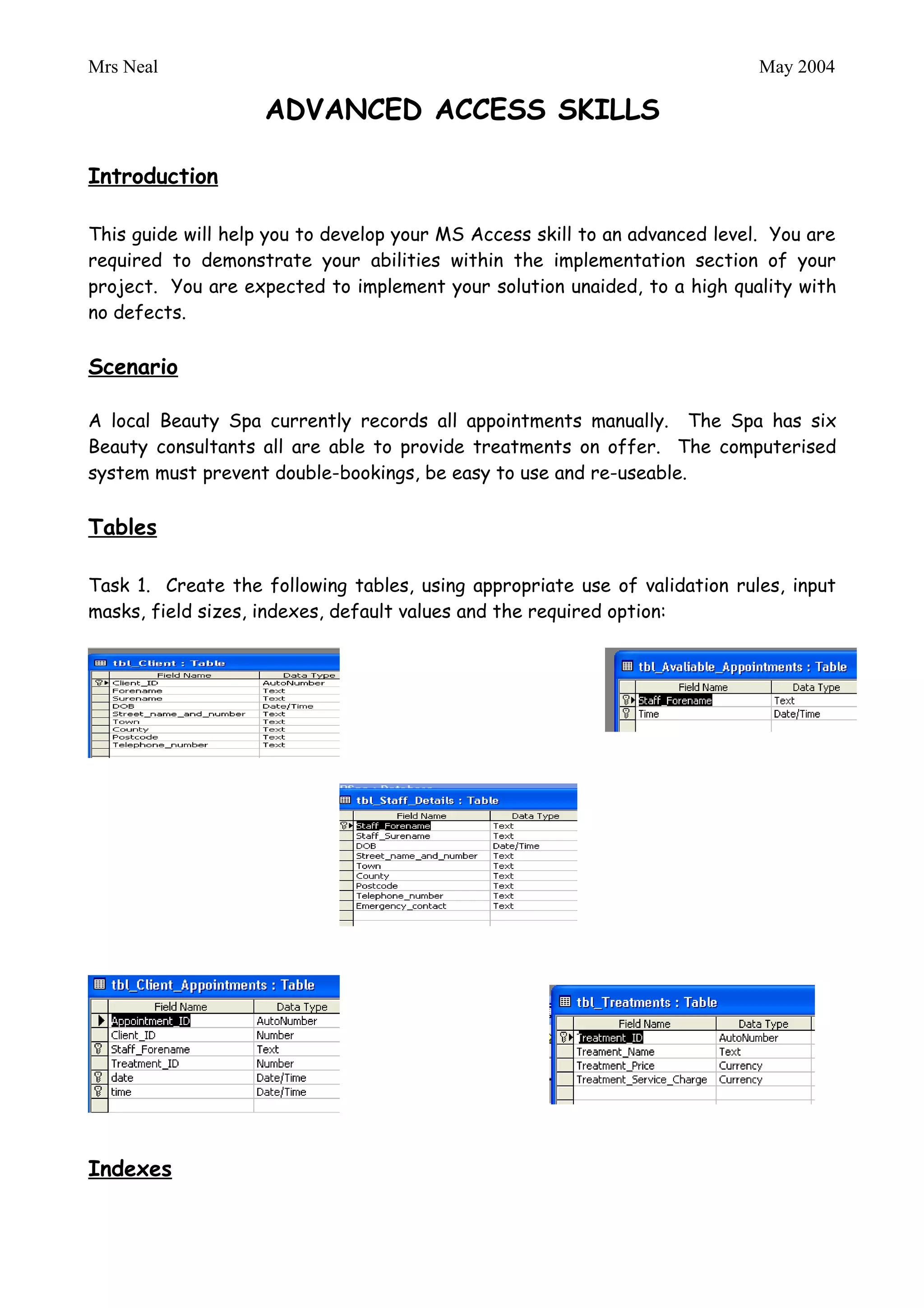
Task 1. Create the following tables, using appropriate use of validation rules, input
masks, field sizes, indexes, default values and the required option:
Mrs Neal                                                                  May 2004

Indexes

No                       Don’t index the field
Yes (DuplicatesOK)       Most of the time you want to allow duplicate
                         records.
Yes (No Duplicates)      Key fields should be set to No Duplicates
                         because a key field must be unique. You don’t
                         want two customers with the same customer
                         number.


Validation

At A Level standard you should be creating validation rules and validation text
(message that is displayed to user if data is incorrect) along side input masks to
ensure the integrity of data entered into your database. Below are some examples of
how validation can be used. You can mix and match the operators as appropriate:

  Field               Validation Rule                      Definition
  Type
Number       >10                                Must be greater than 10
Number       <> 12                              Cannot be 12
Number       >=5                                Greater then or equal t5
Number       > 20 And < 200                     Must be between 20 and 200
                                                (non inclusive)
Number       >= 20 And <=200                    Must be between 20 and 200
                                                (inclusive)
Number       <= 30 Or >=100                     Must be lower than 30 or
                                                greater than 100 (inclusive)
Date         >= Date ()                         Must be today’s date or later
Date         >= Date () or Is Null              Must be today’s date, later or
                                                blank
Date         < Date ()                          Must be earlier than today’s
                                                date
Date         >= #1/1/96# And <#1/1/97#          Must be a date in 1996
Text         Like "A????"                       Entry must contain 5 characters
                                                and start with the letter A
Mrs Neal                                                                   May 2004


Input Masks

At A Level standard you should be creating inputs marks yourself and not using the
wizard. Few projects are more gratifying than making things yourself. All input
masks must be shown on your table designs. Below are the codes most commonly
used:

   Required Action           Required Code            Optional Code
Numbers 0-9 only                     0                        9
Letters A to Z only                  L                        ?
Letters or numbers                   A                        a
Any character or space               &                        C


Relationships

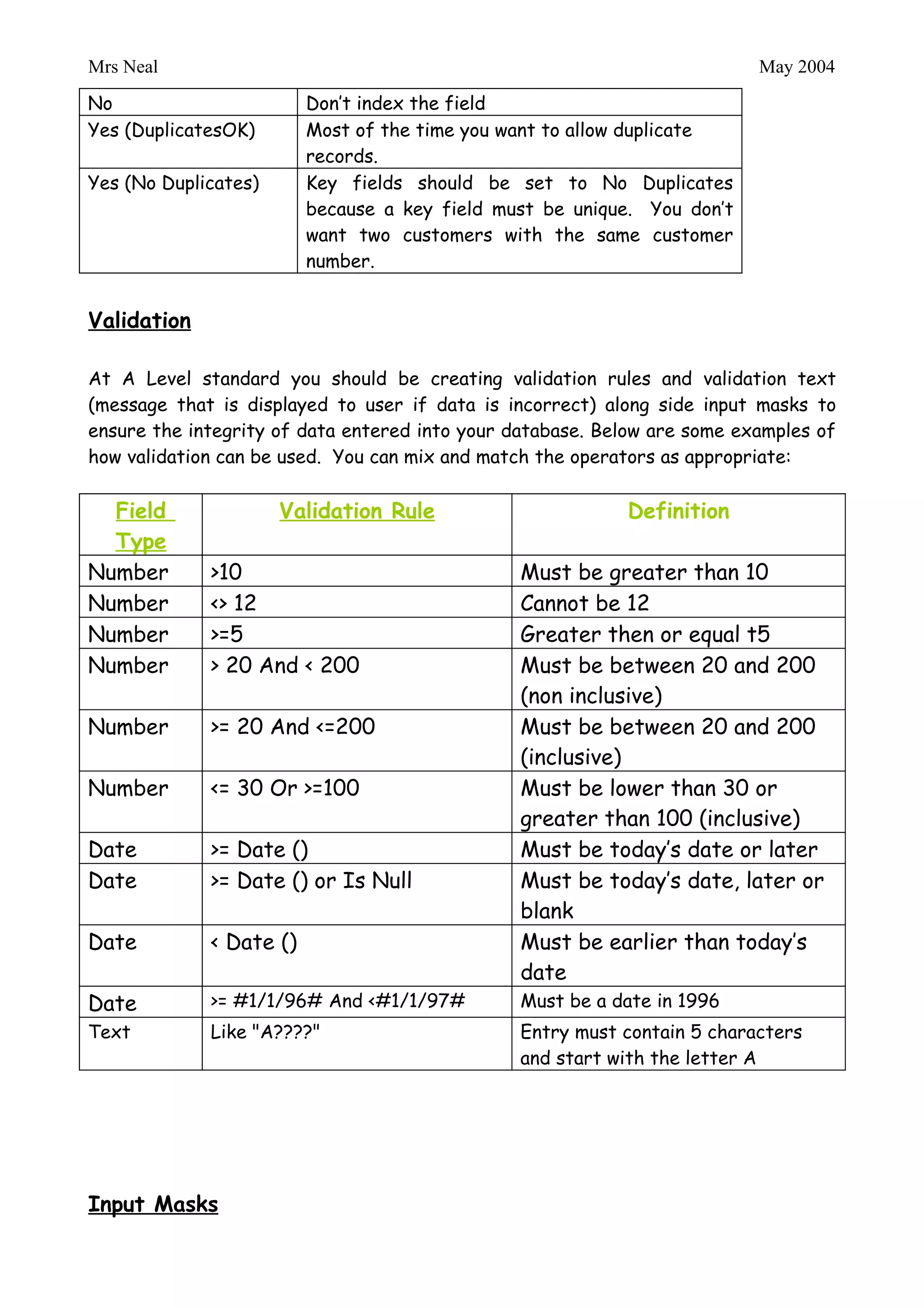
Task 2. Create the following relationships, click the Relationships
icon:


                                                        Linking
                                                        tbl_Avaliable_Appointments
                                                        to tbl_Client_Appointments
Mrs Neal                                                       May 2004


Data Entry

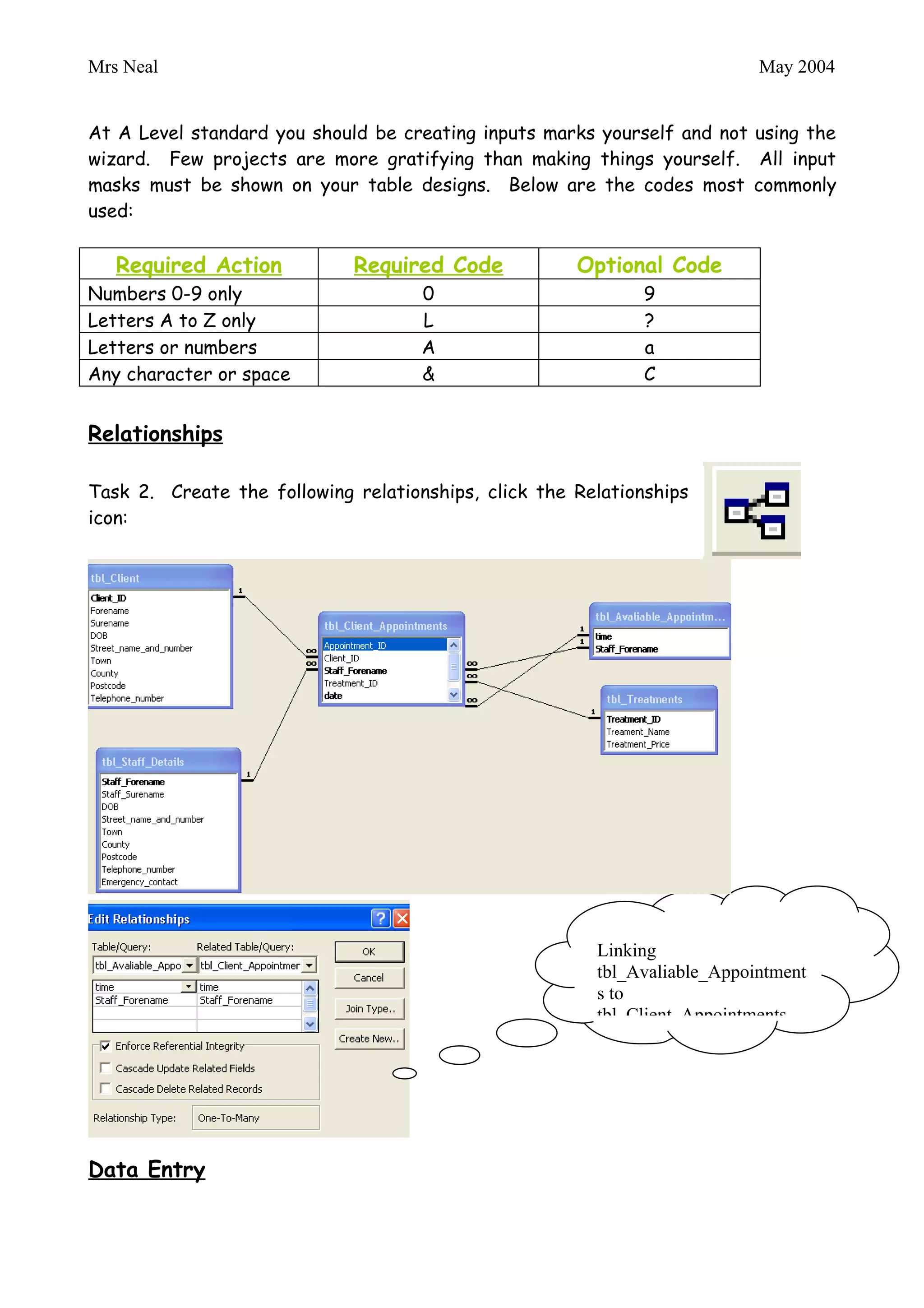
Task 3. Enter the following records into appropriate tables:
Mrs Neal                                                                May 2004

Queries

The main functionality of this system is to allow appointment booking and prevent
double bookings. The first set of queries are use to prevent double bookings of
appointments – solution given by http://www.advanced-ict.info/

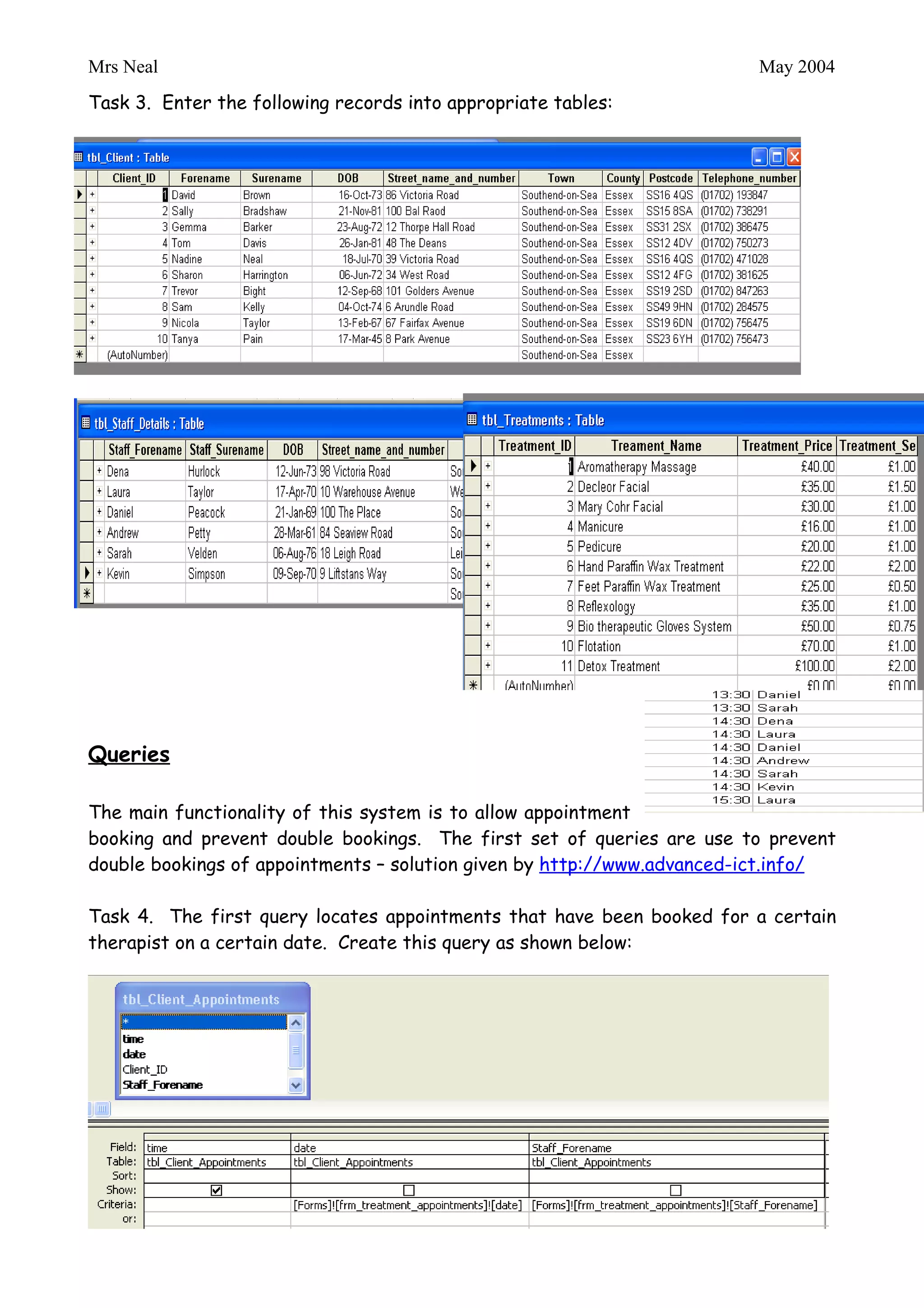
Task 4. The first query locates appointments that have been booked for a certain
therapist on a certain date. Create this query as shown below:


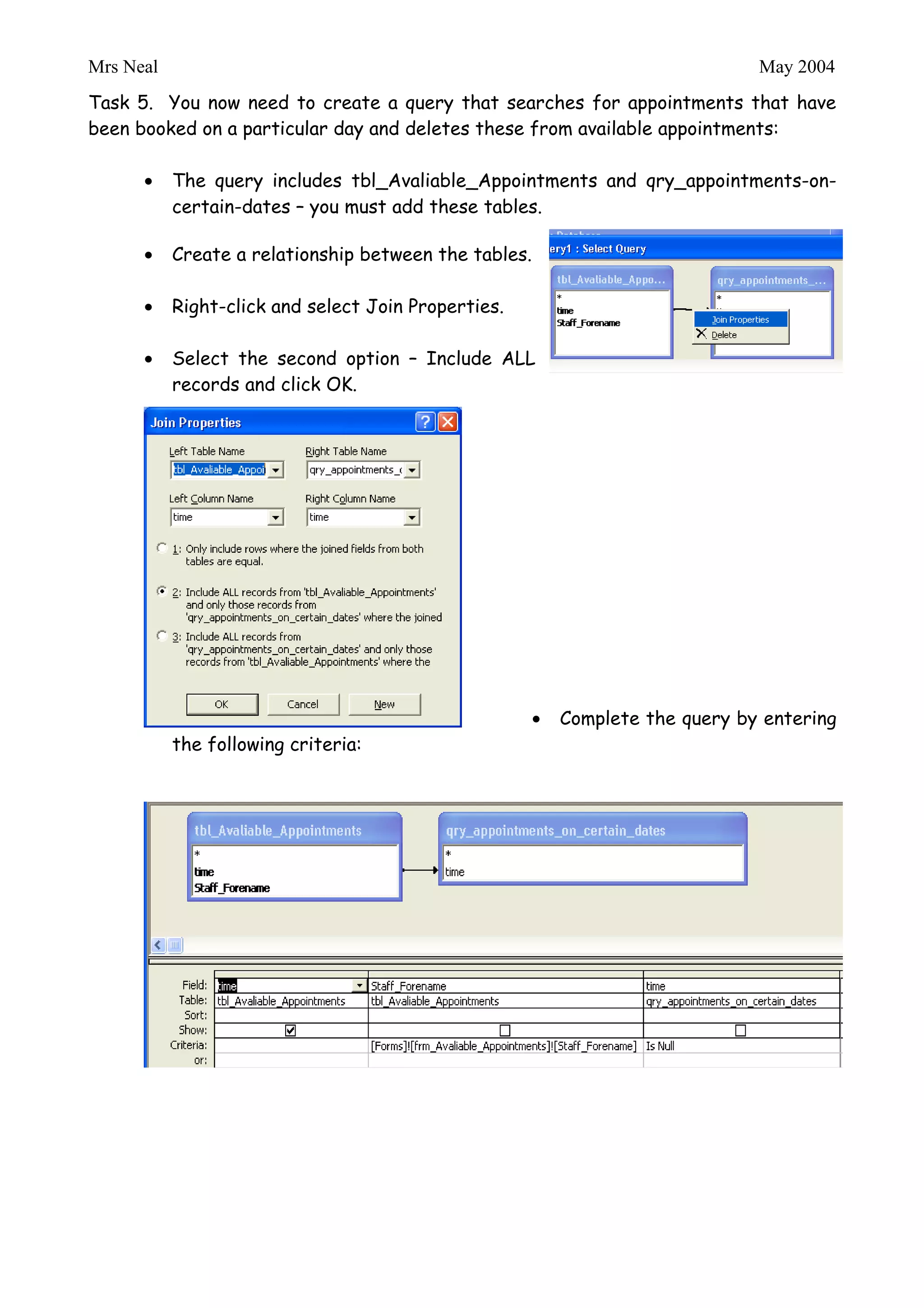
Task 5. You now need to create a query that searches for appointments that have
been booked on a particular day and deletes these from available appointments:

           The query includes tbl_Avaliable_Appointments and qry_appointments-on-
           certain-dates – you must add these tables.

           Create a relationship between the tables.

           Right-click and select Join Properties.

           Select the second option – Include ALL
           records and click OK.
Mrs Neal                                                                      May 2004


           Complete the query by entering the following criteria:


   Task 6. Your system is required to be reusable – within this task you will learn
   how to archive data that is no longer needed. Archiving reduces information load
   within the main table. You will need to create two advanced queries to perform
   this operation.

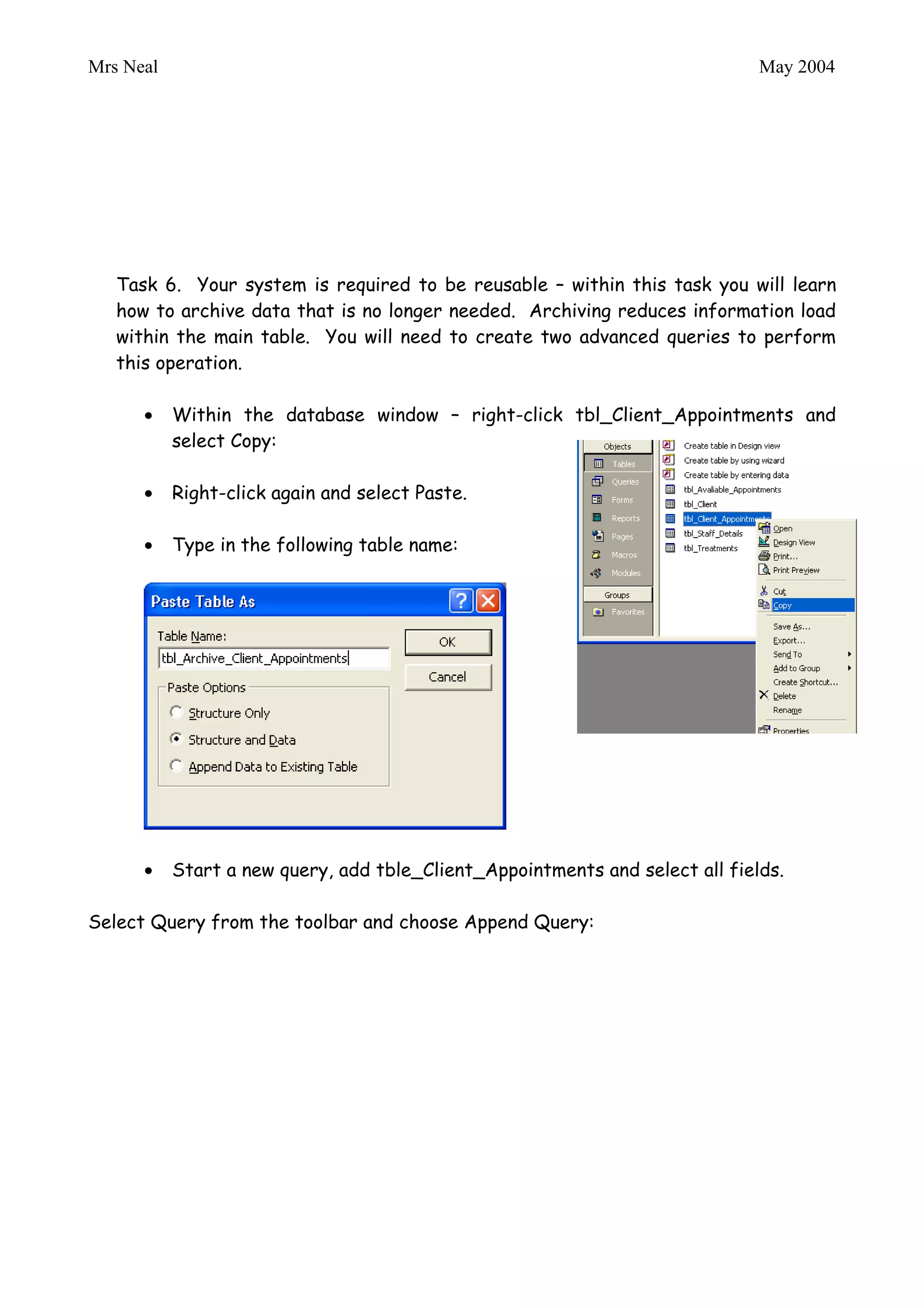
           Within the database window – right-click tbl_Client_Appointments and
           select Copy:

           Right-click again and select Paste.

           Type in the following table name:


           Start a new query, add tble_Client_Appointments and select all fields.

Select Query from the toolbar and choose Append Query:

Doublebookings1

  • 1.
    Mrs Neal May 2004 ADVANCED ACCESS SKILLS Introduction This guide will help you to develop your MS Access skill to an advanced level. You are required to demonstrate your abilities within the implementation section of your project. You are expected to implement your solution unaided, to a high quality with no defects. Scenario A local Beauty Spa currently records all appointments manually. The Spa has six Beauty consultants all are able to provide treatments on offer. The computerised system must prevent double-bookings, be easy to use and re-useable. Tables Task 1. Create the following tables, using appropriate use of validation rules, input masks, field sizes, indexes, default values and the required option:
  • 2.
    Mrs Neal May 2004 Indexes No Don’t index the field Yes (DuplicatesOK) Most of the time you want to allow duplicate records. Yes (No Duplicates) Key fields should be set to No Duplicates because a key field must be unique. You don’t want two customers with the same customer number. Validation At A Level standard you should be creating validation rules and validation text (message that is displayed to user if data is incorrect) along side input masks to ensure the integrity of data entered into your database. Below are some examples of how validation can be used. You can mix and match the operators as appropriate: Field Validation Rule Definition Type Number >10 Must be greater than 10 Number <> 12 Cannot be 12 Number >=5 Greater then or equal t5 Number > 20 And < 200 Must be between 20 and 200 (non inclusive) Number >= 20 And <=200 Must be between 20 and 200 (inclusive) Number <= 30 Or >=100 Must be lower than 30 or greater than 100 (inclusive) Date >= Date () Must be today’s date or later Date >= Date () or Is Null Must be today’s date, later or blank Date < Date () Must be earlier than today’s date Date >= #1/1/96# And <#1/1/97# Must be a date in 1996 Text Like "A????" Entry must contain 5 characters and start with the letter A
  • 3.
    Mrs Neal May 2004 Input Masks At A Level standard you should be creating inputs marks yourself and not using the wizard. Few projects are more gratifying than making things yourself. All input masks must be shown on your table designs. Below are the codes most commonly used: Required Action Required Code Optional Code Numbers 0-9 only 0 9 Letters A to Z only L ? Letters or numbers A a Any character or space & C Relationships Task 2. Create the following relationships, click the Relationships icon: Linking tbl_Avaliable_Appointments to tbl_Client_Appointments
  • 4.
    Mrs Neal May 2004 Data Entry Task 3. Enter the following records into appropriate tables:
  • 5.
    Mrs Neal May 2004 Queries The main functionality of this system is to allow appointment booking and prevent double bookings. The first set of queries are use to prevent double bookings of appointments – solution given by http://www.advanced-ict.info/ Task 4. The first query locates appointments that have been booked for a certain therapist on a certain date. Create this query as shown below: Task 5. You now need to create a query that searches for appointments that have been booked on a particular day and deletes these from available appointments: The query includes tbl_Avaliable_Appointments and qry_appointments-on- certain-dates – you must add these tables. Create a relationship between the tables. Right-click and select Join Properties. Select the second option – Include ALL records and click OK.
  • 6.
    Mrs Neal May 2004 Complete the query by entering the following criteria: Task 6. Your system is required to be reusable – within this task you will learn how to archive data that is no longer needed. Archiving reduces information load within the main table. You will need to create two advanced queries to perform this operation. Within the database window – right-click tbl_Client_Appointments and select Copy: Right-click again and select Paste. Type in the following table name: Start a new query, add tble_Client_Appointments and select all fields. Select Query from the toolbar and choose Append Query: