PYTHON
PROGRAMMING(2180711)
Advance Topics II
Security
Graphics and GUI Programming
TOPICS COVERED
Security
Encryption and Decryption
Hash Function
Classical Ciphers
Graphics and GUI Programming
Drawing using Turtle
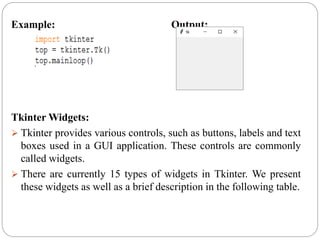
Tkinter and Python
Encryption and Decryption
Encryption Algorithm:
 It is a mathematical process that produces a cipher text for any given
plaintext and encryption key. It is a cryptographic algorithm that takes
plaintext and an encryption key as input and produces a cipher text.
Decryption Algorithm:
 It is a mathematical process, that produces a unique plaintext for any
given cipher text and decryption key. It is a cryptographic algorithm
that takes a cipher text and a decryption key as input, and outputs a
plaintext. The decryption algorithm essentially reverses the encryption
algorithm and is thus closely related to it.
Hash Function
 A Hash Function takes a string and produces a fixed-length
string based on the input. The output string is called the hash
value.
 Hash Functions can be used to calculate the checksum of some
data. It can be used in digital signatures and authentication.
Hashlib-secure hashes & Message Digest:
 Hashlib module has the implementation of different secure hash
and message digest algorithms. Different kind of hash
algorithms like SHA1, SHA224, SHA256, SHA384, and
SHA512 as well as RSA’s MD5 algorithm.
 The terms “secure hash” and “message digest” are
interchangeable. Older algorithms were called message digests.
The modern term is secure hash.
Hash Algorithm
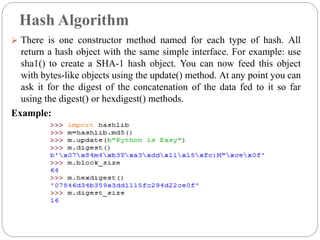
 There is one constructor method named for each type of hash. All
return a hash object with the same simple interface. For example: use
sha1() to create a SHA-1 hash object. You can now feed this object
with bytes-like objects using the update() method. At any point you can
ask it for the digest of the concatenation of the data fed to it so far
using the digest() or hexdigest() methods.
Example:
hashlib.new(name[, data]):
 Is a generic constructor that takes the string name of the desired
algorithm as its first parameter.
 The Use of new() Method
Example:
Classical Cipher:
 Encryption Algorithm take some text as input & produce Cipher text
using a variable key.
Types of Cipher:
 There are two types of ciphers: one is block cipher and other is stream
Cipher. Block ciphers work on blocks of a fixed size (8 or 16 bytes).
Stream ciphers work byte-by-byte or character by character.
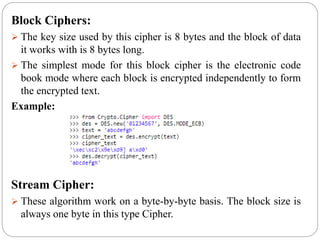
Block Ciphers:
 The key size used by this cipher is 8 bytes and the block of data
it works with is 8 bytes long.
 The simplest mode for this block cipher is the electronic code
book mode where each block is encrypted independently to form
the encrypted text.
Example:
Stream Cipher:
 These algorithm work on a byte-by-byte basis. The block size is
always one byte in this type Cipher.
Caesar Chiper:
 Caesar Cipher is the simplest algorithm among all the algorithm.
It take one plaintext letter and shift that latter ascending to the
given key in ascending order in our alphabetic.
Example:
 If key is 3 then latter 'a' of plaintext will be shifted 3 letter back
in alphabetic. The Cipher text will be 'd' for plaintext latter 'a'.
 The formula for plaintext to cipher text for encryption
Ciphertext=Plaintext + Key
 The formula for Ciphertext to Plaintext for encryption
Plaintext=Ciphertext – key
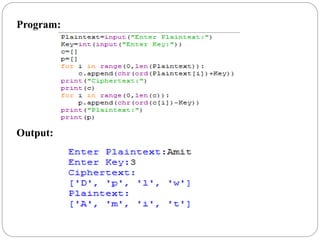
Program:
Output:
Mono-alphabetic Cipher:
 In Mono-alphabetic Cipher, we can make key static Every latter
will be mapped by its plaintext latter in the key.we will just find
the cipher text latter from the given plaintext latter in key array.
 Suppose key link,
a=q,b=w,c=e,d=r,e=t,f=y,g=u,h=i,i=o,j=p,k=a,l=s,m=d,n=f,o=g,
p=h,q=j,r=k,s=l,t=z,u=x,v=c,w=v,x=b,y=n,z=m
 Here the plaintext latter 'a' will be converted into Ciphertext with
the latter 'q' as shown in the key, and 'p‘ that will be replace with
'h' as shown in key.
Program:
Output:
Drawing using Turtle
Turtle:
“Turtle” is a Python feature like a drawing board,
which lets us command a turtle to draw all over it.
“Turtle Graphics ” is like a canvas holding a pen. These
pen can be either up and down. If the pen is up then it
will not touch the canvas if the pen is down then it will
touch the canvas.
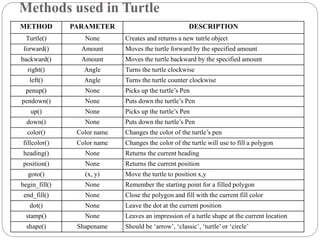
Methods used in Turtle
METHOD PARAMETER DESCRIPTION
Turtle() None Creates and returns a new tutrle object
forward() Amount Moves the turtle forward by the specified amount
backward() Amount Moves the turtle backward by the specified amount
right() Angle Turns the turtle clockwise
left() Angle Turns the turtle counter clockwise
penup() None Picks up the turtle’s Pen
pendown() None Puts down the turtle’s Pen
up() None Picks up the turtle’s Pen
down() None Puts down the turtle’s Pen
color() Color name Changes the color of the turtle’s pen
fillcolor() Color name Changes the color of the turtle will use to fill a polygon
heading() None Returns the current heading
position() None Returns the current position
goto() (x, y) Move the turtle to position x,y
begin_fill() None Remember the starting point for a filled polygon
end_fill() None Close the polygon and fill with the current fill color
dot() None Leave the dot at the current position
stamp() None Leaves an impression of a turtle shape at the current location
shape() Shapename Should be ‘arrow’, ‘classic’, ‘turtle’ or ‘circle’
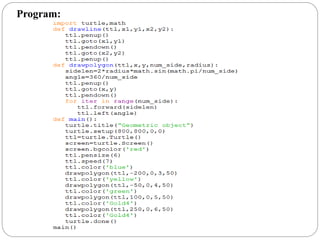
Program:
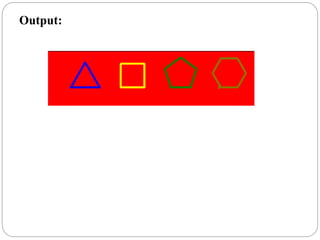
Output:
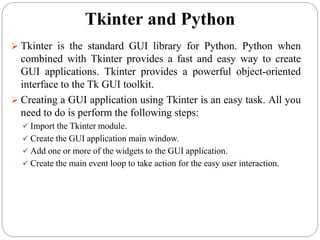
Tkinter and Python
 Tkinter is the standard GUI library for Python. Python when
combined with Tkinter provides a fast and easy way to create
GUI applications. Tkinter provides a powerful object-oriented
interface to the Tk GUI toolkit.
 Creating a GUI application using Tkinter is an easy task. All you
need to do is perform the following steps:
 Import the Tkinter module.
 Create the GUI application main window.
 Add one or more of the widgets to the GUI application.
 Create the main event loop to take action for the easy user interaction.
Example: Output:
Tkinter Widgets:
 Tkinter provides various controls, such as buttons, labels and text
boxes used in a GUI application. These controls are commonly
called widgets.
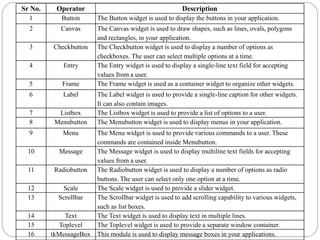
 There are currently 15 types of widgets in Tkinter. We present
these widgets as well as a brief description in the following table.
Sr No. Operator Description
1 Button The Button widget is used to display the buttons in your application.
2 Canvas The Canvas widget is used to draw shapes, such as lines, ovals, polygons
and rectangles, in your application.
3 Checkbutton The Checkbutton widget is used to display a number of options as
checkboxes. The user can select multiple options at a time.
4 Entry The Entry widget is used to display a single-line text field for accepting
values from a user.
5 Frame The Frame widget is used as a container widget to organize other widgets.
6 Label The Label widget is used to provide a single-line caption for other widgets.
It can also contain images.
7 Listbox The Listbox widget is used to provide a list of options to a user.
8 Menubutton The Menubutton widget is used to display menus in your application.
9 Menu The Menu widget is used to provide various commands to a user. These
commands are contained inside Menubutton.
10 Message The Message widget is used to display multiline text fields for accepting
values from a user.
11 Radiobutton The Radiobutton widget is used to display a number of options as radio
buttons. The user can select only one option at a time.
12 Scale The Scale widget is used to provide a slider widget.
13 Scrollbar The Scrollbar widget is used to add scrolling capability to various widgets,
such as list boxes.
14 Text The Text widget is used to display text in multiple lines.
15 Toplevel The Toplevel widget is used to provide a separate window container.
16 tkMessageBox This module is used to display message boxes in your applications.
Geometry Management
 All Tkinter widgets have access to the specific geometry
management methods, which have the purpose of
organizing widgets throughout the parent widget area.
 Tkinter exposes the following geometry manager classes:
pack, grid, and place.
The pack() Method − This geometry manager organizes
widgets in blocks before placing them in the parent widget.
The grid() Method − This geometry manager organizes
widgets in a table-like structure in the parent widget.
The place() Method − This geometry manager organizes
widgets by placing them in a specific position in the parent
widget.
Program:
Output:
Thank You

Python ppt

  • 1.
  • 2.
    TOPICS COVERED Security Encryption andDecryption Hash Function Classical Ciphers Graphics and GUI Programming Drawing using Turtle Tkinter and Python
  • 3.
    Encryption and Decryption EncryptionAlgorithm:  It is a mathematical process that produces a cipher text for any given plaintext and encryption key. It is a cryptographic algorithm that takes plaintext and an encryption key as input and produces a cipher text. Decryption Algorithm:  It is a mathematical process, that produces a unique plaintext for any given cipher text and decryption key. It is a cryptographic algorithm that takes a cipher text and a decryption key as input, and outputs a plaintext. The decryption algorithm essentially reverses the encryption algorithm and is thus closely related to it.
  • 4.
    Hash Function  AHash Function takes a string and produces a fixed-length string based on the input. The output string is called the hash value.  Hash Functions can be used to calculate the checksum of some data. It can be used in digital signatures and authentication. Hashlib-secure hashes & Message Digest:  Hashlib module has the implementation of different secure hash and message digest algorithms. Different kind of hash algorithms like SHA1, SHA224, SHA256, SHA384, and SHA512 as well as RSA’s MD5 algorithm.  The terms “secure hash” and “message digest” are interchangeable. Older algorithms were called message digests. The modern term is secure hash.
  • 5.
    Hash Algorithm  Thereis one constructor method named for each type of hash. All return a hash object with the same simple interface. For example: use sha1() to create a SHA-1 hash object. You can now feed this object with bytes-like objects using the update() method. At any point you can ask it for the digest of the concatenation of the data fed to it so far using the digest() or hexdigest() methods. Example:
  • 6.
    hashlib.new(name[, data]):  Isa generic constructor that takes the string name of the desired algorithm as its first parameter.  The Use of new() Method Example: Classical Cipher:  Encryption Algorithm take some text as input & produce Cipher text using a variable key. Types of Cipher:  There are two types of ciphers: one is block cipher and other is stream Cipher. Block ciphers work on blocks of a fixed size (8 or 16 bytes). Stream ciphers work byte-by-byte or character by character.
  • 7.
    Block Ciphers:  Thekey size used by this cipher is 8 bytes and the block of data it works with is 8 bytes long.  The simplest mode for this block cipher is the electronic code book mode where each block is encrypted independently to form the encrypted text. Example: Stream Cipher:  These algorithm work on a byte-by-byte basis. The block size is always one byte in this type Cipher.
  • 8.
    Caesar Chiper:  CaesarCipher is the simplest algorithm among all the algorithm. It take one plaintext letter and shift that latter ascending to the given key in ascending order in our alphabetic. Example:  If key is 3 then latter 'a' of plaintext will be shifted 3 letter back in alphabetic. The Cipher text will be 'd' for plaintext latter 'a'.  The formula for plaintext to cipher text for encryption Ciphertext=Plaintext + Key  The formula for Ciphertext to Plaintext for encryption Plaintext=Ciphertext – key
  • 9.
  • 10.
    Mono-alphabetic Cipher:  InMono-alphabetic Cipher, we can make key static Every latter will be mapped by its plaintext latter in the key.we will just find the cipher text latter from the given plaintext latter in key array.  Suppose key link, a=q,b=w,c=e,d=r,e=t,f=y,g=u,h=i,i=o,j=p,k=a,l=s,m=d,n=f,o=g, p=h,q=j,r=k,s=l,t=z,u=x,v=c,w=v,x=b,y=n,z=m  Here the plaintext latter 'a' will be converted into Ciphertext with the latter 'q' as shown in the key, and 'p‘ that will be replace with 'h' as shown in key.
  • 11.
  • 12.
    Drawing using Turtle Turtle: “Turtle”is a Python feature like a drawing board, which lets us command a turtle to draw all over it. “Turtle Graphics ” is like a canvas holding a pen. These pen can be either up and down. If the pen is up then it will not touch the canvas if the pen is down then it will touch the canvas.
  • 13.
    Methods used inTurtle METHOD PARAMETER DESCRIPTION Turtle() None Creates and returns a new tutrle object forward() Amount Moves the turtle forward by the specified amount backward() Amount Moves the turtle backward by the specified amount right() Angle Turns the turtle clockwise left() Angle Turns the turtle counter clockwise penup() None Picks up the turtle’s Pen pendown() None Puts down the turtle’s Pen up() None Picks up the turtle’s Pen down() None Puts down the turtle’s Pen color() Color name Changes the color of the turtle’s pen fillcolor() Color name Changes the color of the turtle will use to fill a polygon heading() None Returns the current heading position() None Returns the current position goto() (x, y) Move the turtle to position x,y begin_fill() None Remember the starting point for a filled polygon end_fill() None Close the polygon and fill with the current fill color dot() None Leave the dot at the current position stamp() None Leaves an impression of a turtle shape at the current location shape() Shapename Should be ‘arrow’, ‘classic’, ‘turtle’ or ‘circle’
  • 14.
  • 15.
  • 16.
    Tkinter and Python Tkinter is the standard GUI library for Python. Python when combined with Tkinter provides a fast and easy way to create GUI applications. Tkinter provides a powerful object-oriented interface to the Tk GUI toolkit.  Creating a GUI application using Tkinter is an easy task. All you need to do is perform the following steps:  Import the Tkinter module.  Create the GUI application main window.  Add one or more of the widgets to the GUI application.  Create the main event loop to take action for the easy user interaction.
  • 17.
    Example: Output: Tkinter Widgets: Tkinter provides various controls, such as buttons, labels and text boxes used in a GUI application. These controls are commonly called widgets.  There are currently 15 types of widgets in Tkinter. We present these widgets as well as a brief description in the following table.
  • 18.
    Sr No. OperatorDescription 1 Button The Button widget is used to display the buttons in your application. 2 Canvas The Canvas widget is used to draw shapes, such as lines, ovals, polygons and rectangles, in your application. 3 Checkbutton The Checkbutton widget is used to display a number of options as checkboxes. The user can select multiple options at a time. 4 Entry The Entry widget is used to display a single-line text field for accepting values from a user. 5 Frame The Frame widget is used as a container widget to organize other widgets. 6 Label The Label widget is used to provide a single-line caption for other widgets. It can also contain images. 7 Listbox The Listbox widget is used to provide a list of options to a user. 8 Menubutton The Menubutton widget is used to display menus in your application. 9 Menu The Menu widget is used to provide various commands to a user. These commands are contained inside Menubutton. 10 Message The Message widget is used to display multiline text fields for accepting values from a user. 11 Radiobutton The Radiobutton widget is used to display a number of options as radio buttons. The user can select only one option at a time. 12 Scale The Scale widget is used to provide a slider widget. 13 Scrollbar The Scrollbar widget is used to add scrolling capability to various widgets, such as list boxes. 14 Text The Text widget is used to display text in multiple lines. 15 Toplevel The Toplevel widget is used to provide a separate window container. 16 tkMessageBox This module is used to display message boxes in your applications.
  • 19.
    Geometry Management  AllTkinter widgets have access to the specific geometry management methods, which have the purpose of organizing widgets throughout the parent widget area.  Tkinter exposes the following geometry manager classes: pack, grid, and place. The pack() Method − This geometry manager organizes widgets in blocks before placing them in the parent widget. The grid() Method − This geometry manager organizes widgets in a table-like structure in the parent widget. The place() Method − This geometry manager organizes widgets by placing them in a specific position in the parent widget.
  • 20.
  • 21.