Chapter – ()
GUI
Maulik Borsaniya
Gardividyapith
What is GUI & TKinter
• Python offers multiple options for developing GUI (Graphical
User Interface). Out of all the GUI methods.
• tkinter is most commonly used method. It is a standard
Python interface to the Tk GUI toolkit shipped with Python.
• Python with tkinter outputs the fastest and easiest way to
create the GUI applications. Creating a GUI using tkinter is an
easy task.
To create a tkinter:
• Importing the module – tkinter
• Create the main window (container)
• Add any number of widgets to the main window
• Apply the event Trigger on the widgets.
• Importing tkinter is same as importing any other
module in the python code. Note that the name
of the module in Python 2.x is ‘Tkinter’ and in
Python 3.x is ‘tkinter’.
• import tkinter
• There are two main methods used you the user
need to remember while creating the Python
application with GUI.
• To create a main window, tkinter offers a method
• Tk(screenName=None, baseName=None, className=’Tk’, useTk=1)’.
• To change the name of the window, you can change
the class Name to the desired one. The basic code
used to create the main window of the application is:
• m=tkinter.Tk() where m is the name of the main
window object
• mainloop(): There is a method known by the name
mainloop() is used when you are ready for the
application to run. mainloop() is an infinite loop used
to run the application, wait for an event to occur and
process the event till the window is not closed.
• m.mainloop()
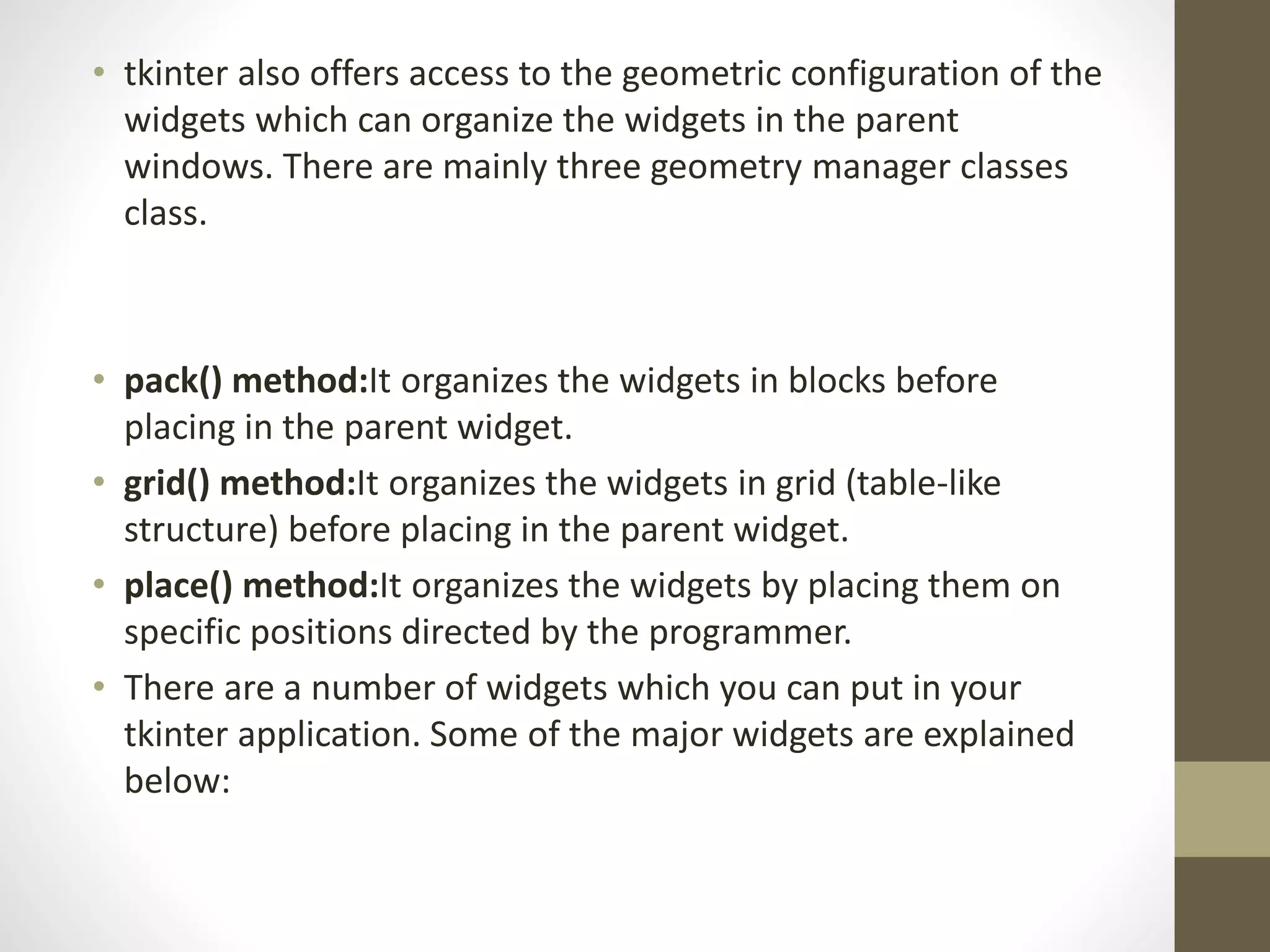
• tkinter also offers access to the geometric configuration of the
widgets which can organize the widgets in the parent
windows. There are mainly three geometry manager classes
class.
• pack() method:It organizes the widgets in blocks before
placing in the parent widget.
• grid() method:It organizes the widgets in grid (table-like
structure) before placing in the parent widget.
• place() method:It organizes the widgets by placing them on
specific positions directed by the programmer.
• There are a number of widgets which you can put in your
tkinter application. Some of the major widgets are explained
below:
Button
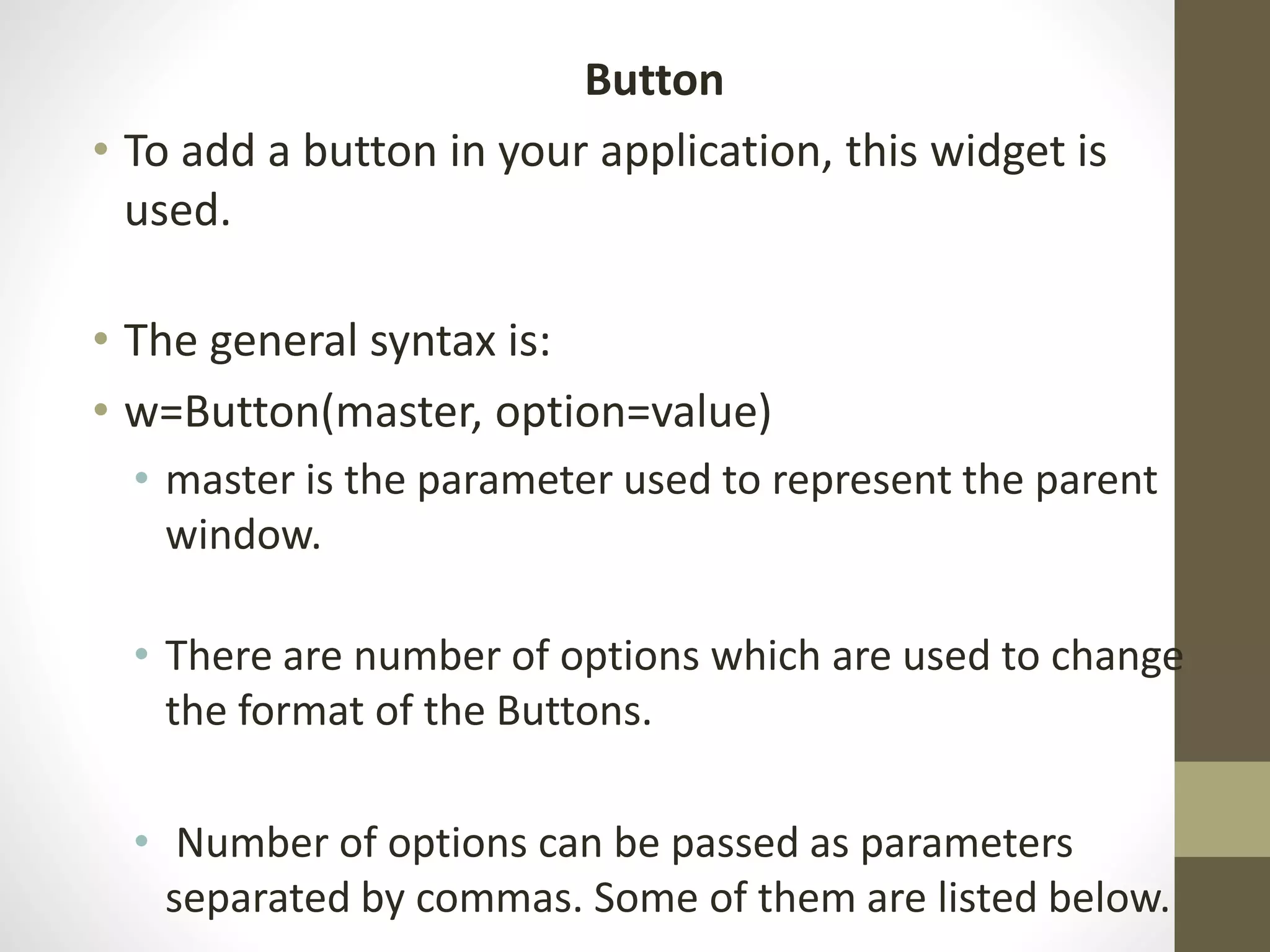
• To add a button in your application, this widget is
used.
• The general syntax is:
• w=Button(master, option=value)
• master is the parameter used to represent the parent
window.
• There are number of options which are used to change
the format of the Buttons.
• Number of options can be passed as parameters
separated by commas. Some of them are listed below.
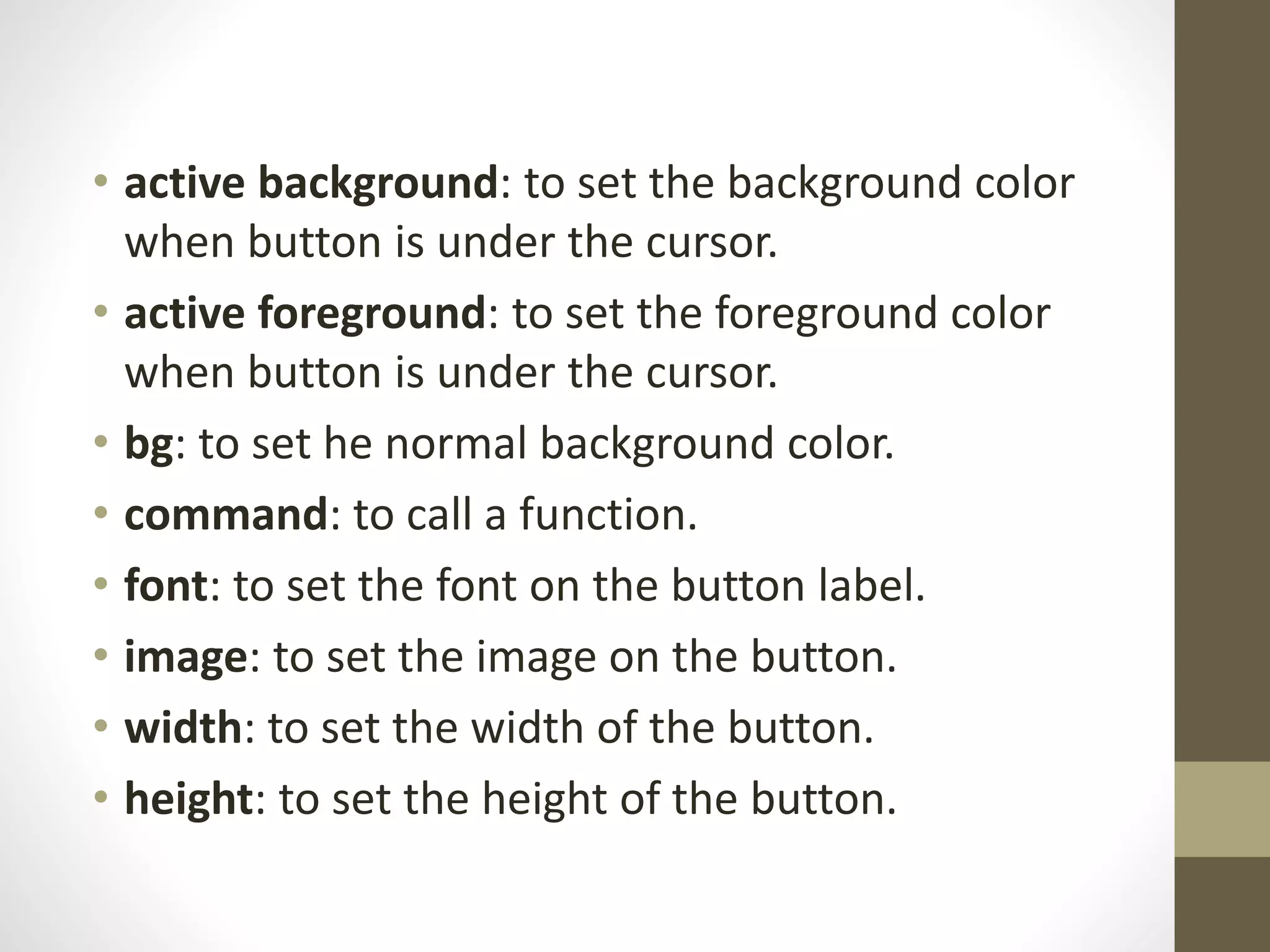
• active background: to set the background color
when button is under the cursor.
• active foreground: to set the foreground color
when button is under the cursor.
• bg: to set he normal background color.
• command: to call a function.
• font: to set the font on the button label.
• image: to set the image on the button.
• width: to set the width of the button.
• height: to set the height of the button.
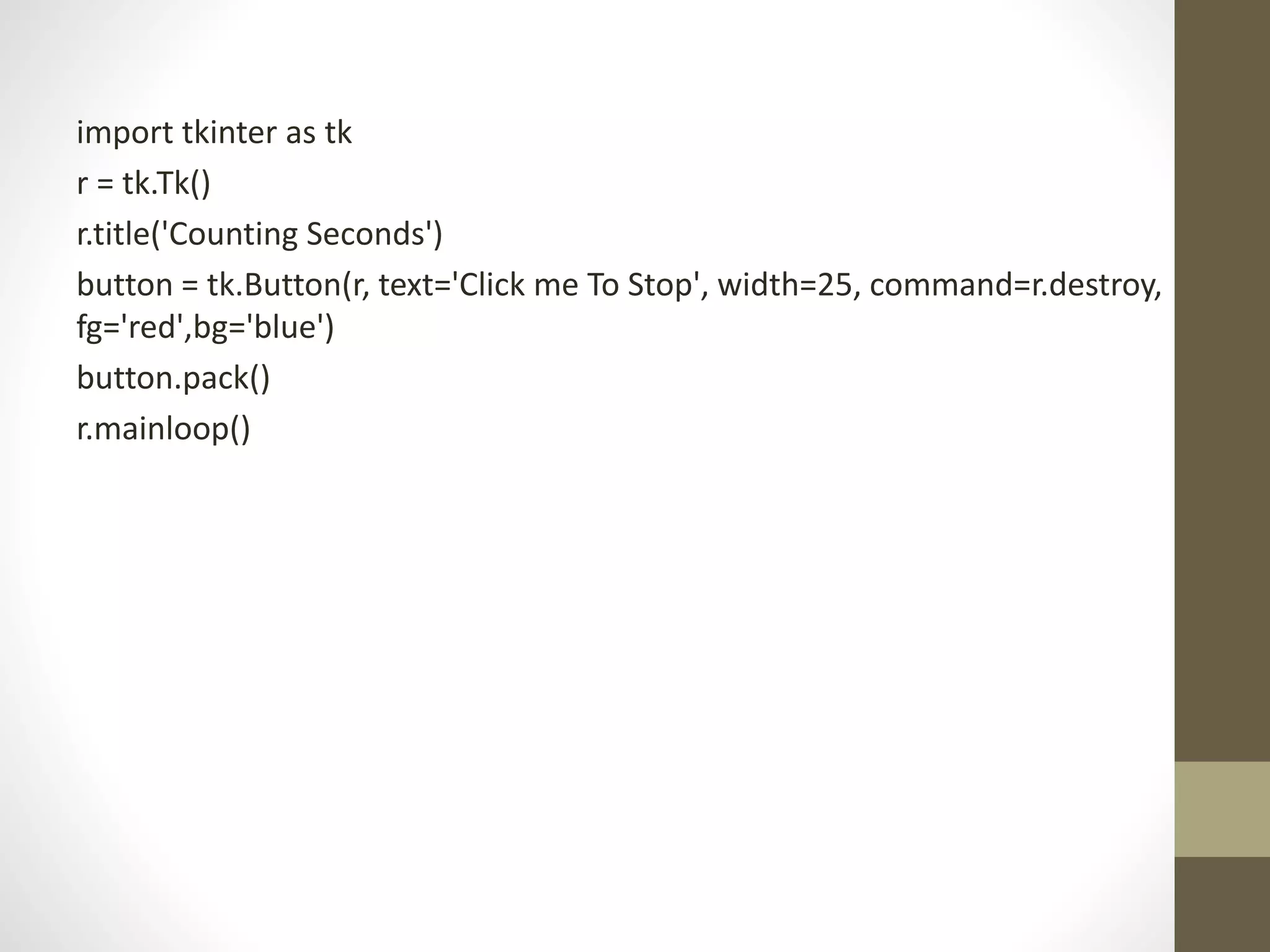
import tkinter as tk
r = tk.Tk()
r.title('Counting Seconds')
button = tk.Button(r, text='Click me To Stop', width=25, command=r.destroy,
fg='red',bg='blue')
button.pack()
r.mainloop()
Canvas
• It is used to draw pictures and other complex layout like
graphics, text and widgets.
• The general syntax is:
• w = Canvas(master, option=value) master is the parameter
used to represent the parent window. There are number of
options which are used to change the format of the widget.
Number of options can be passed as parameters separated by
commas. Some of them are listed below.
• bd: to set the border width in pixels.
• bg: to set the normal background color.
• cursor: to set the cursor used in the canvas.
• highlight color: to set the color shown in the focus highlight.
• width: to set the width of the widget.
• height: to set the height of the widget.
Canvas
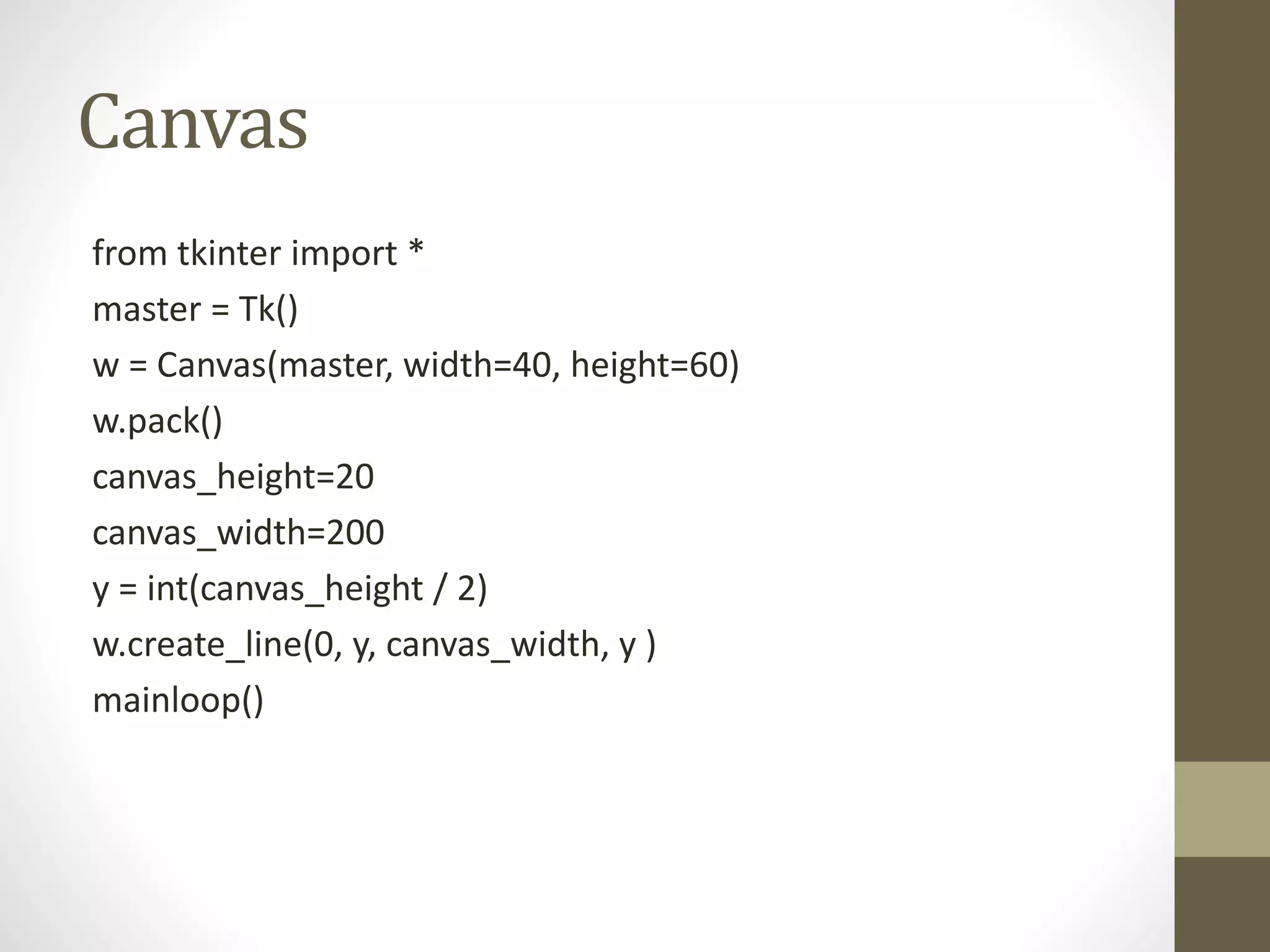
from tkinter import *
master = Tk()
w = Canvas(master, width=40, height=60)
w.pack()
canvas_height=20
canvas_width=200
y = int(canvas_height / 2)
w.create_line(0, y, canvas_width, y )
mainloop()
CheckButton
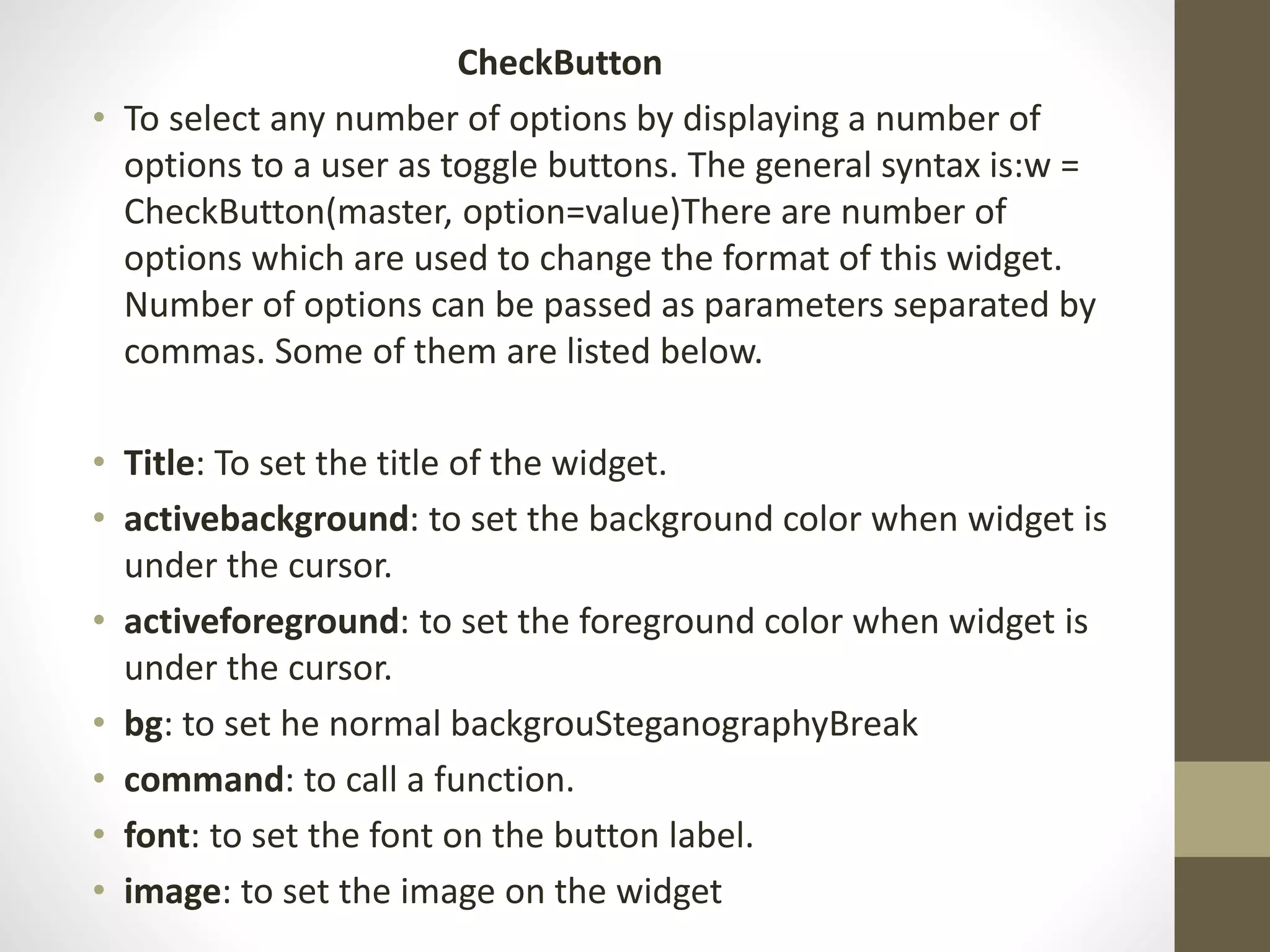
• To select any number of options by displaying a number of
options to a user as toggle buttons. The general syntax is:w =
CheckButton(master, option=value)There are number of
options which are used to change the format of this widget.
Number of options can be passed as parameters separated by
commas. Some of them are listed below.
• Title: To set the title of the widget.
• activebackground: to set the background color when widget is
under the cursor.
• activeforeground: to set the foreground color when widget is
under the cursor.
• bg: to set he normal backgrouSteganographyBreak
• command: to call a function.
• font: to set the font on the button label.
• image: to set the image on the widget
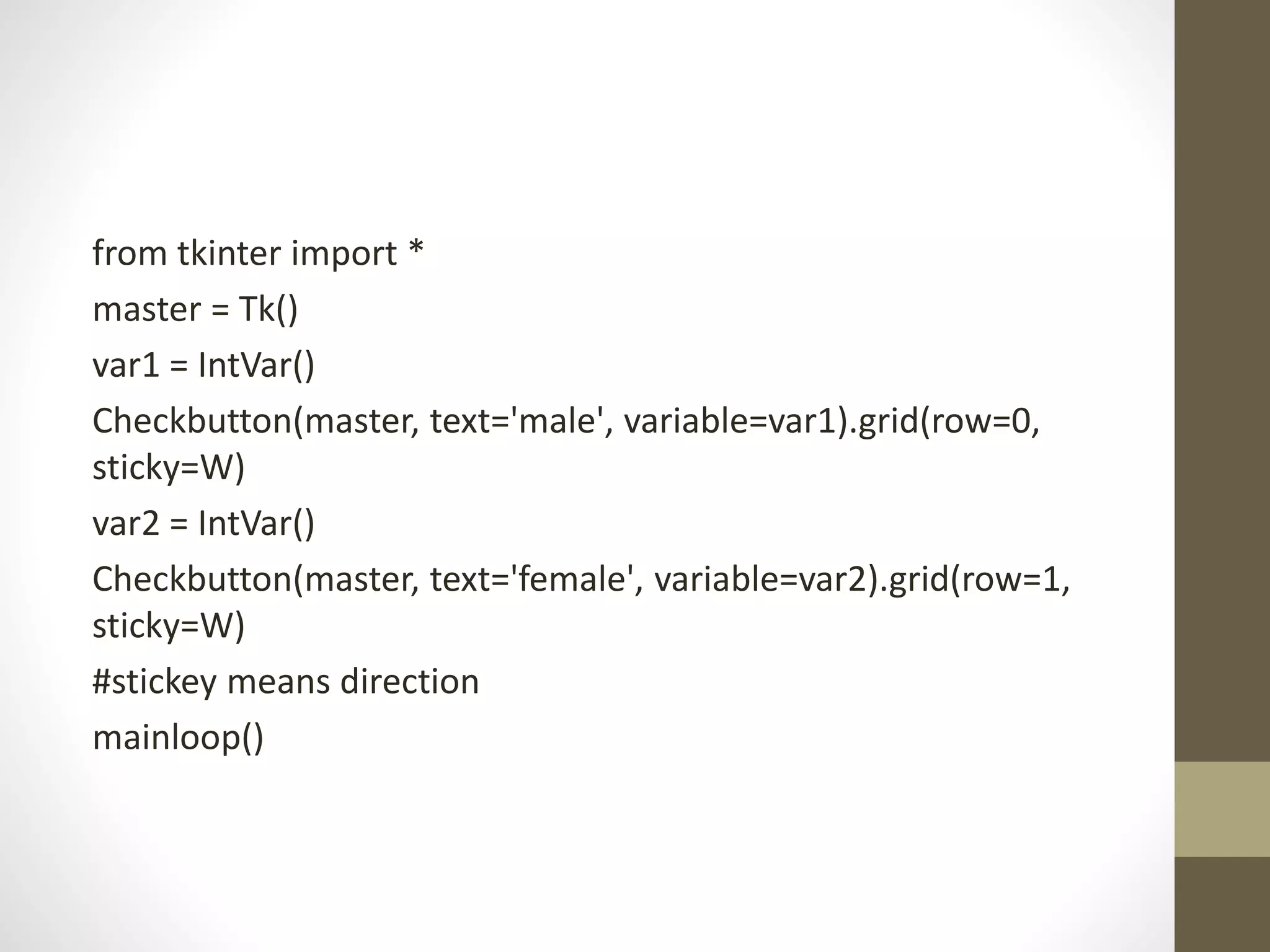
from tkinter import *
master = Tk()
var1 = IntVar()
Checkbutton(master, text='male', variable=var1).grid(row=0,
sticky=W)
var2 = IntVar()
Checkbutton(master, text='female', variable=var2).grid(row=1,
sticky=W)
#stickey means direction
mainloop()
Entry
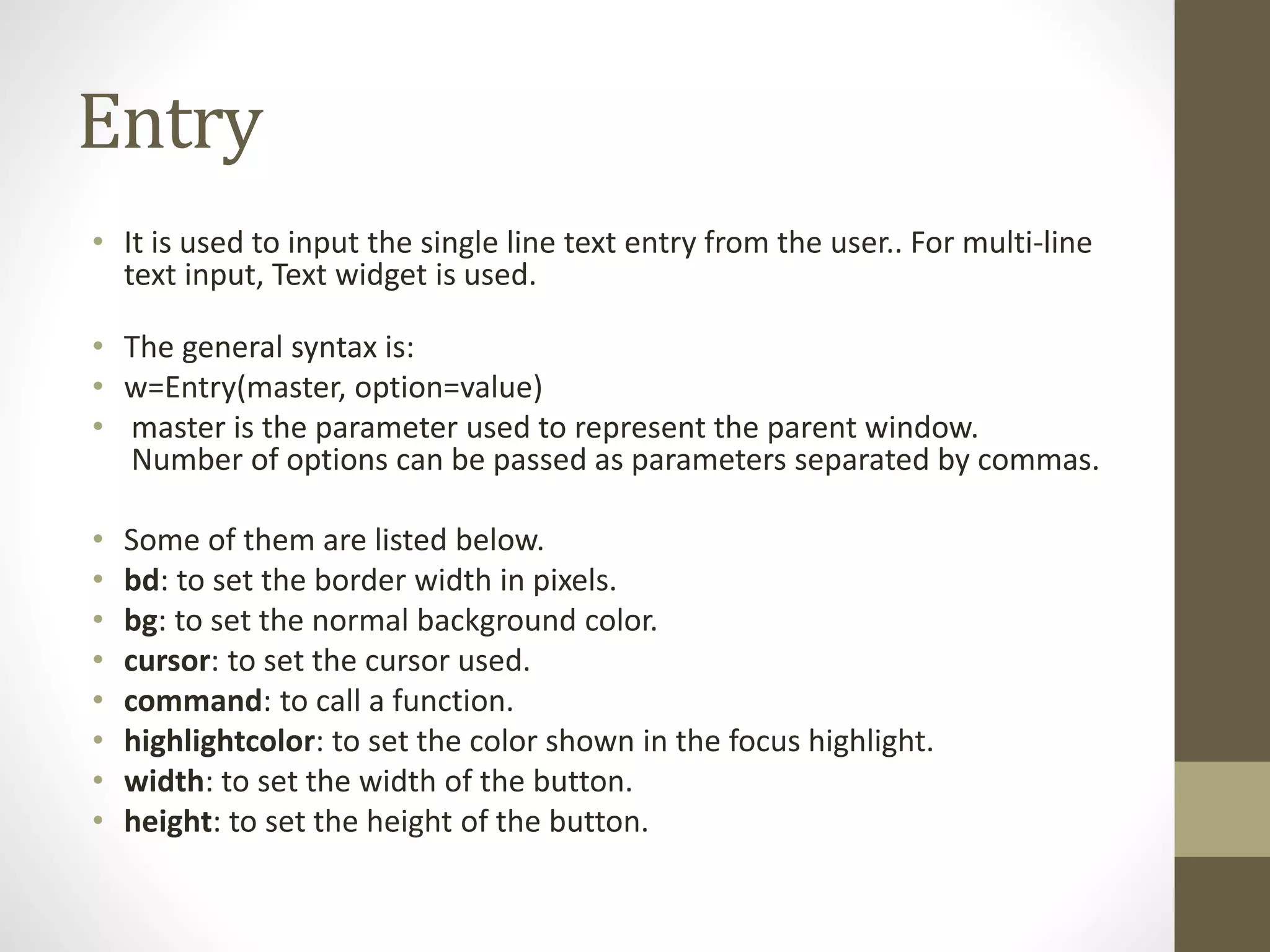
• It is used to input the single line text entry from the user.. For multi-line
text input, Text widget is used.
• The general syntax is:
• w=Entry(master, option=value)
• master is the parameter used to represent the parent window.
Number of options can be passed as parameters separated by commas.
• Some of them are listed below.
• bd: to set the border width in pixels.
• bg: to set the normal background color.
• cursor: to set the cursor used.
• command: to call a function.
• highlightcolor: to set the color shown in the focus highlight.
• width: to set the width of the button.
• height: to set the height of the button.
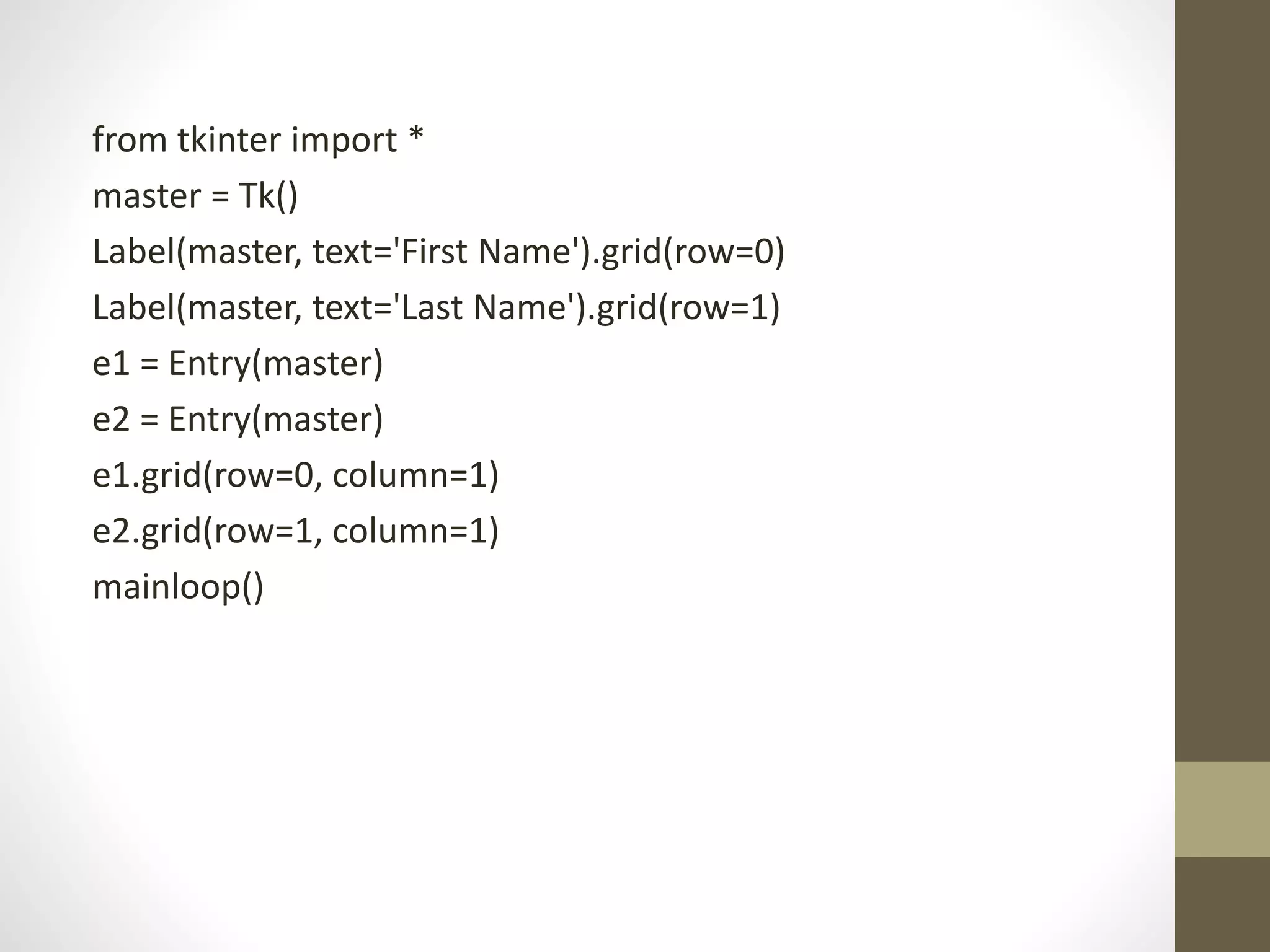
from tkinter import *
master = Tk()
Label(master, text='First Name').grid(row=0)
Label(master, text='Last Name').grid(row=1)
e1 = Entry(master)
e2 = Entry(master)
e1.grid(row=0, column=1)
e2.grid(row=1, column=1)
mainloop()
Label
• It refers to the display box where you can put any text or image
which can be updated any time as per the code.
The general syntax is:
• w=Label(master, option=value) master is the parameter used to
represent the parent window.
• There are number of options which are used to change the format
of the widget. Number of options can be passed as parameters
separated by commas. Some of them are listed below.
• bg: to set he normal background color.
• bg to set he normal background color.
• command: to call a function.
• font: to set the font on the button label.
• image: to set the image on the button.
• width: to set the width of the button.
• height” to set the height of the button.
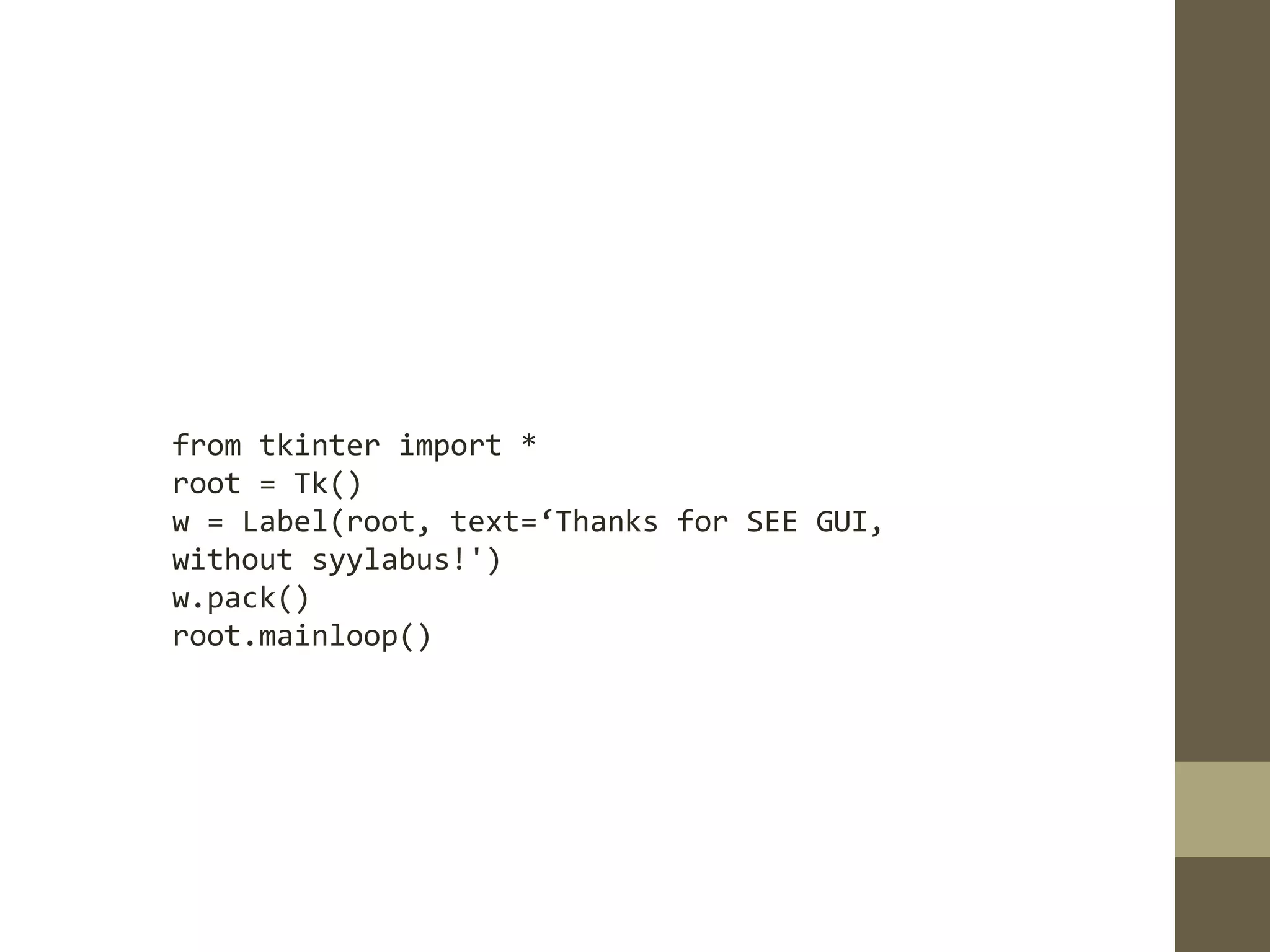
from tkinter import *
root = Tk()
w = Label(root, text=‘Thanks for SEE GUI,
without syylabus!')
w.pack()
root.mainloop()
Menu
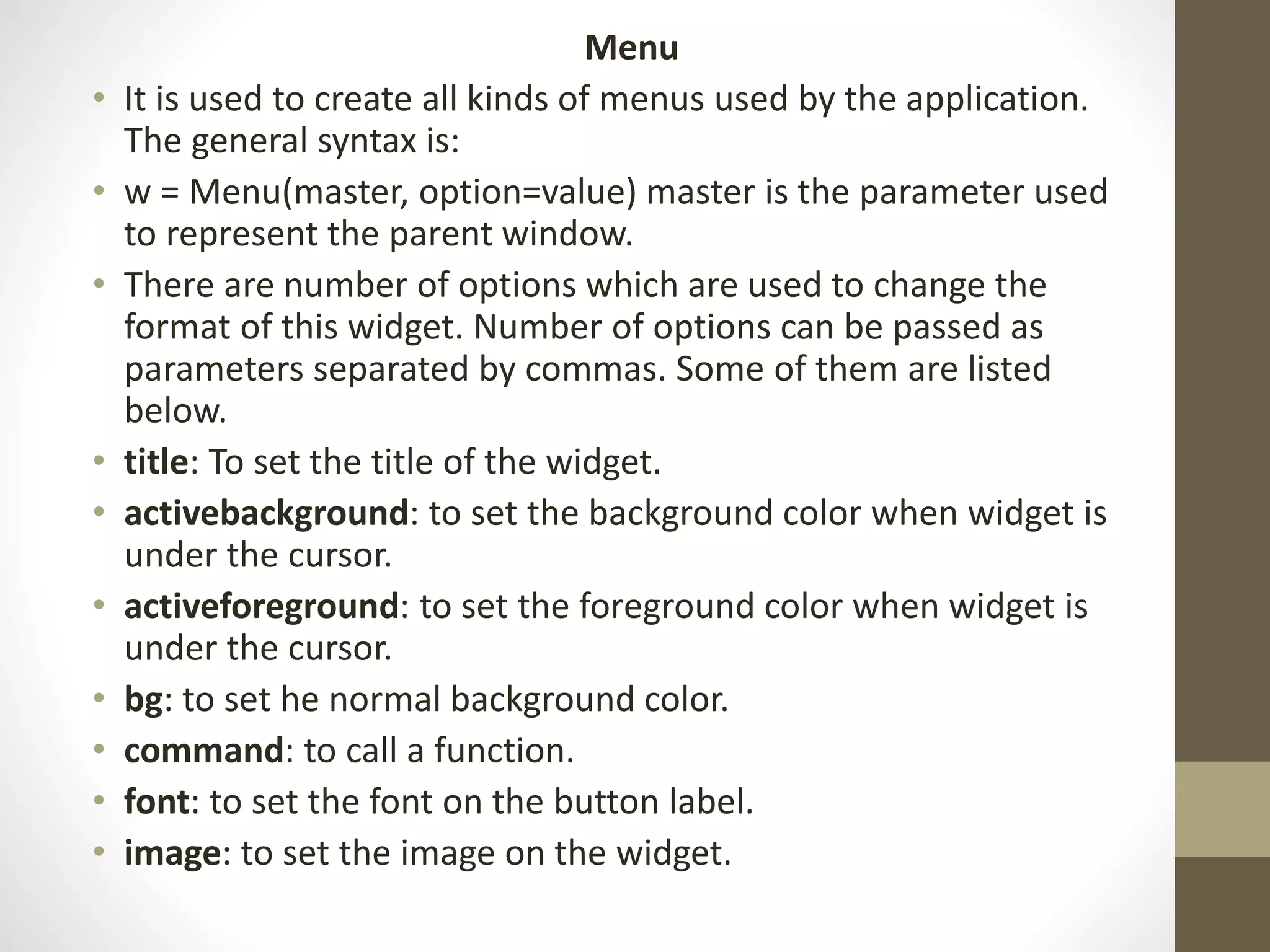
• It is used to create all kinds of menus used by the application.
The general syntax is:
• w = Menu(master, option=value) master is the parameter used
to represent the parent window.
• There are number of options which are used to change the
format of this widget. Number of options can be passed as
parameters separated by commas. Some of them are listed
below.
• title: To set the title of the widget.
• activebackground: to set the background color when widget is
under the cursor.
• activeforeground: to set the foreground color when widget is
under the cursor.
• bg: to set he normal background color.
• command: to call a function.
• font: to set the font on the button label.
• image: to set the image on the widget.
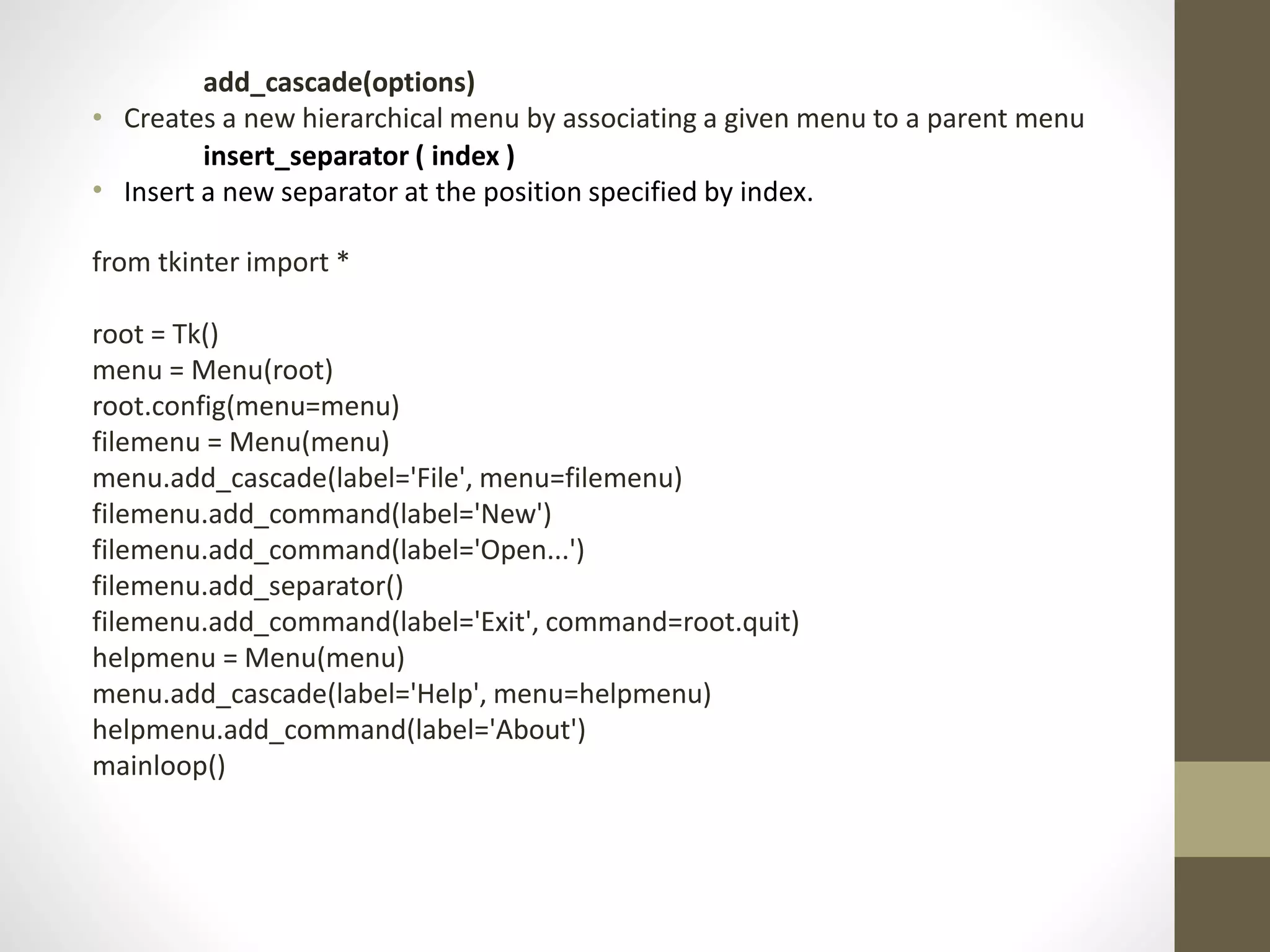
add_cascade(options)
• Creates a new hierarchical menu by associating a given menu to a parent menu
insert_separator ( index )
• Insert a new separator at the position specified by index.
from tkinter import *
root = Tk()
menu = Menu(root)
root.config(menu=menu)
filemenu = Menu(menu)
menu.add_cascade(label='File', menu=filemenu)
filemenu.add_command(label='New')
filemenu.add_command(label='Open...')
filemenu.add_separator()
filemenu.add_command(label='Exit', command=root.quit)
helpmenu = Menu(menu)
menu.add_cascade(label='Help', menu=helpmenu)
helpmenu.add_command(label='About')
mainloop()
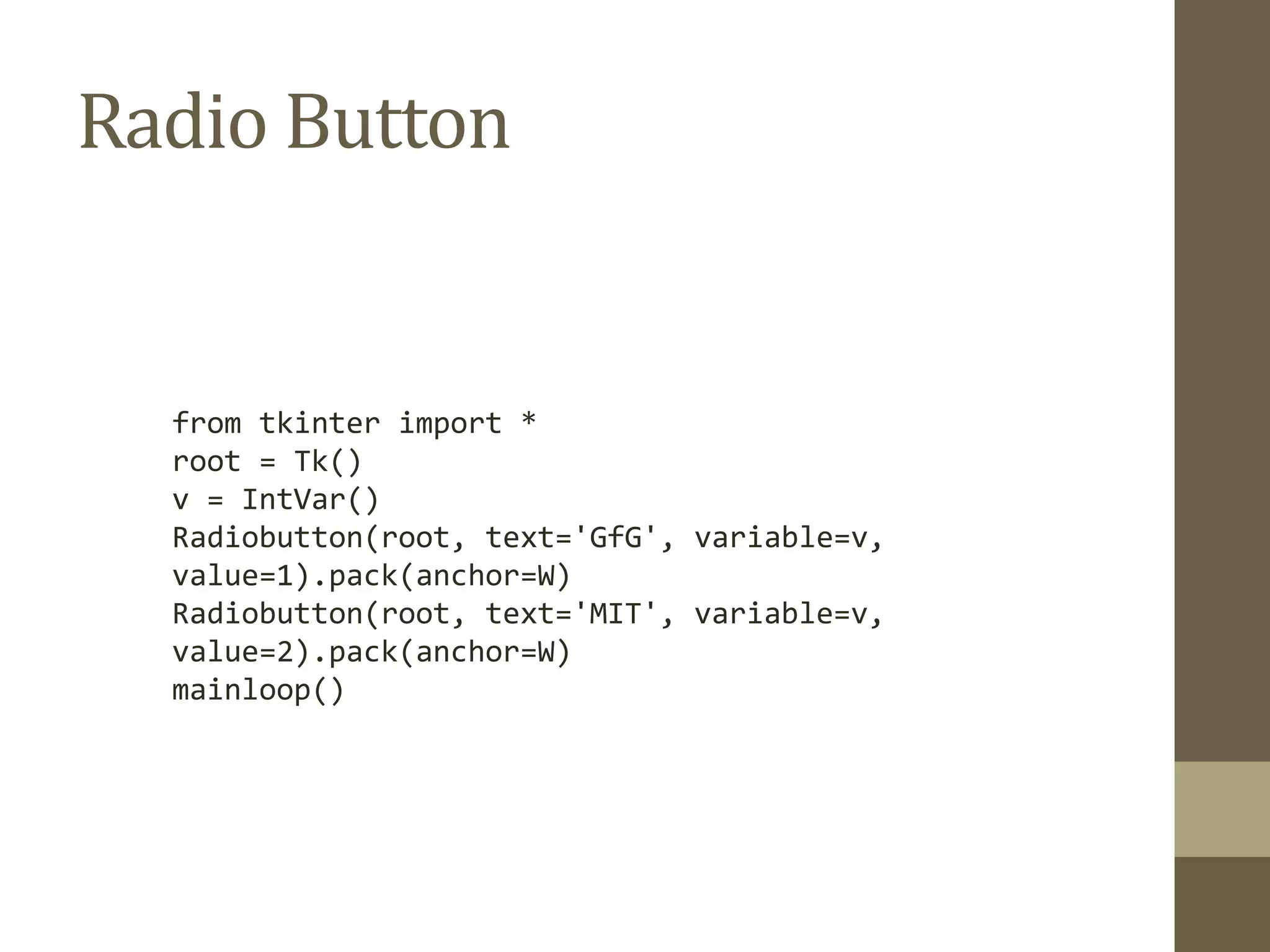
Radio Button
from tkinter import *
root = Tk()
v = IntVar()
Radiobutton(root, text='GfG', variable=v,
value=1).pack(anchor=W)
Radiobutton(root, text='MIT', variable=v,
value=2).pack(anchor=W)
mainloop()
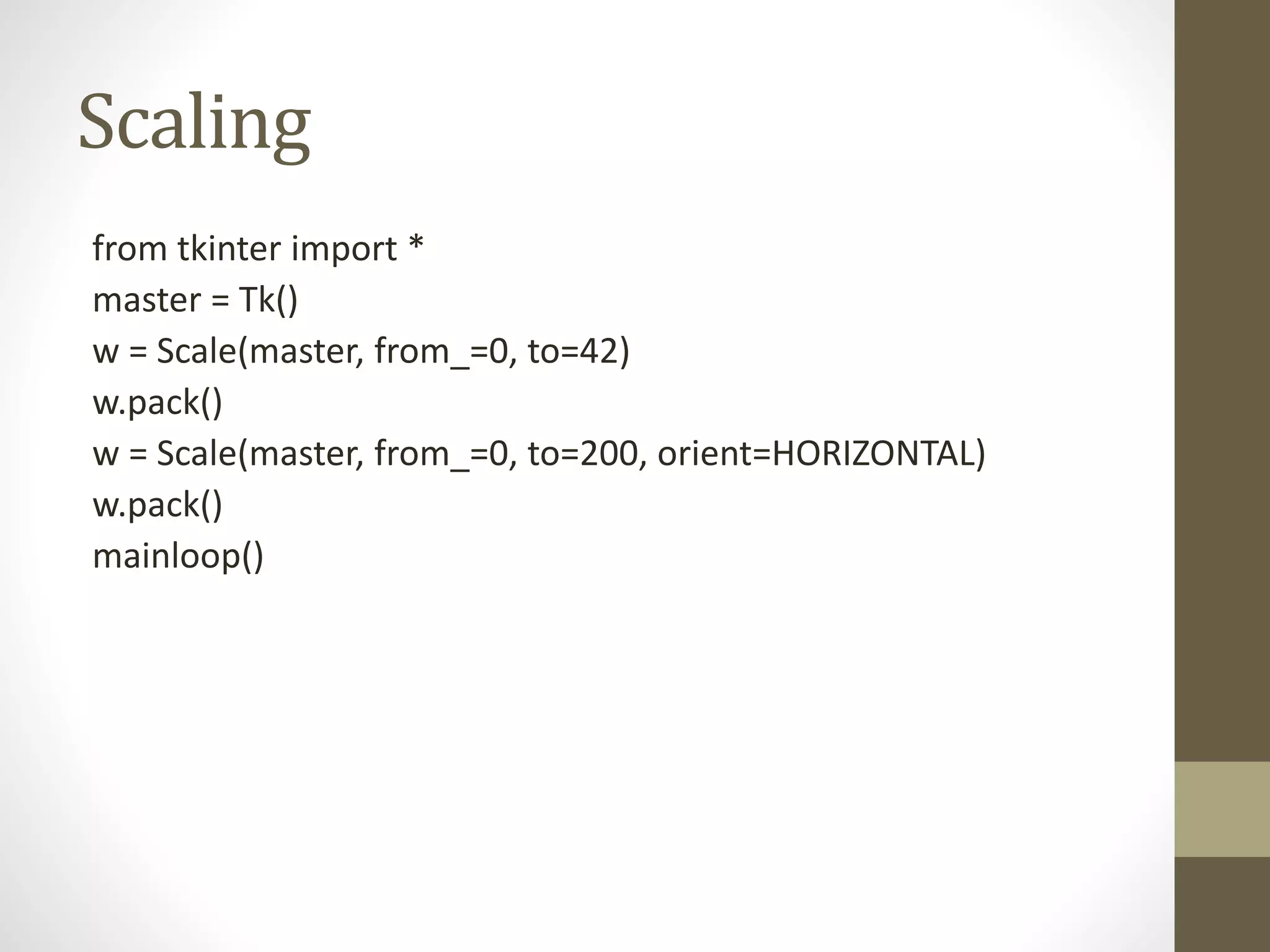
Scaling
from tkinter import *
master = Tk()
w = Scale(master, from_=0, to=42)
w.pack()
w = Scale(master, from_=0, to=200, orient=HORIZONTAL)
w.pack()
mainloop()
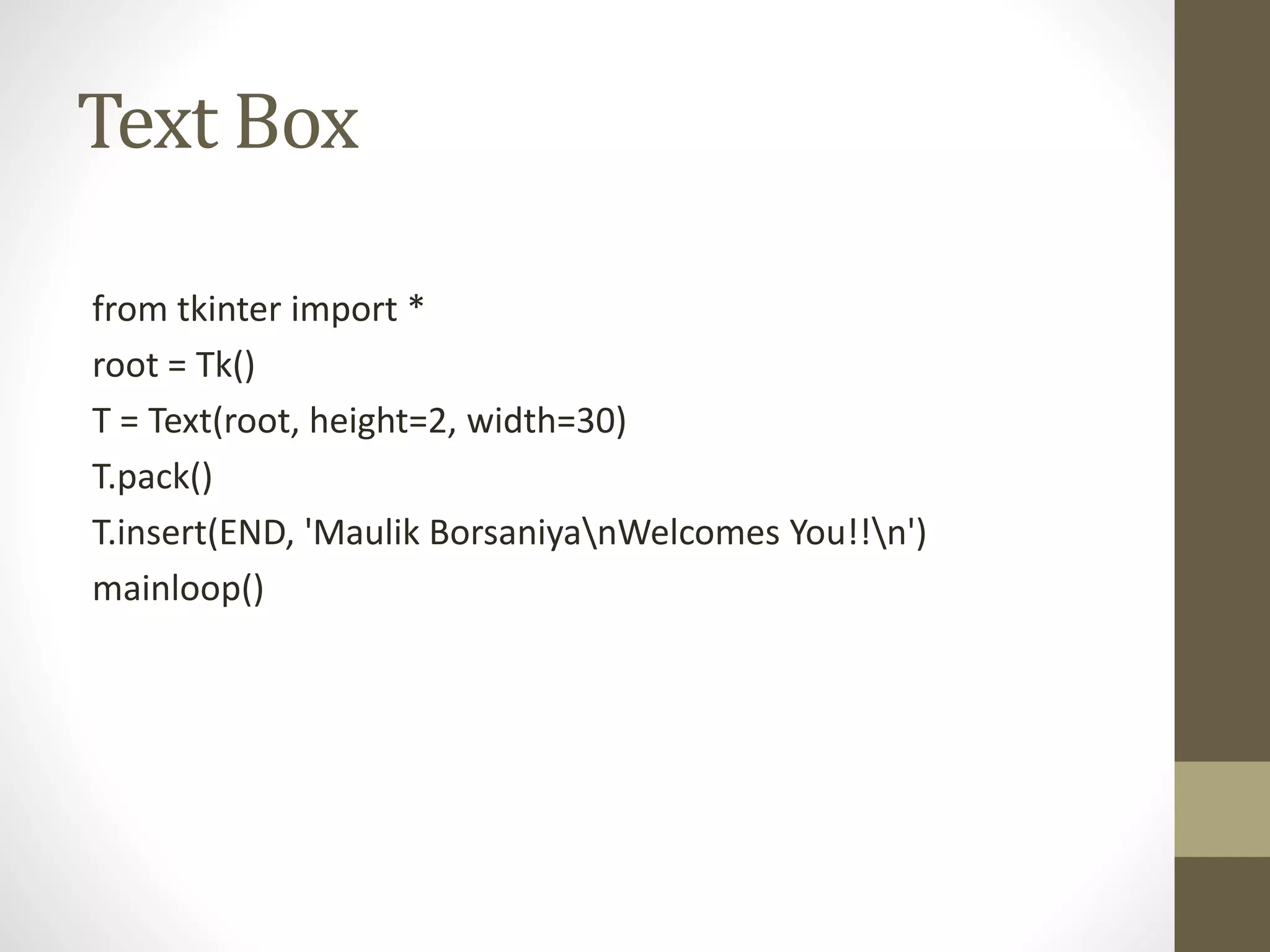
Text Box
from tkinter import *
root = Tk()
T = Text(root, height=2, width=30)
T.pack()
T.insert(END, 'Maulik BorsaniyanWelcomes You!!n')
mainloop()
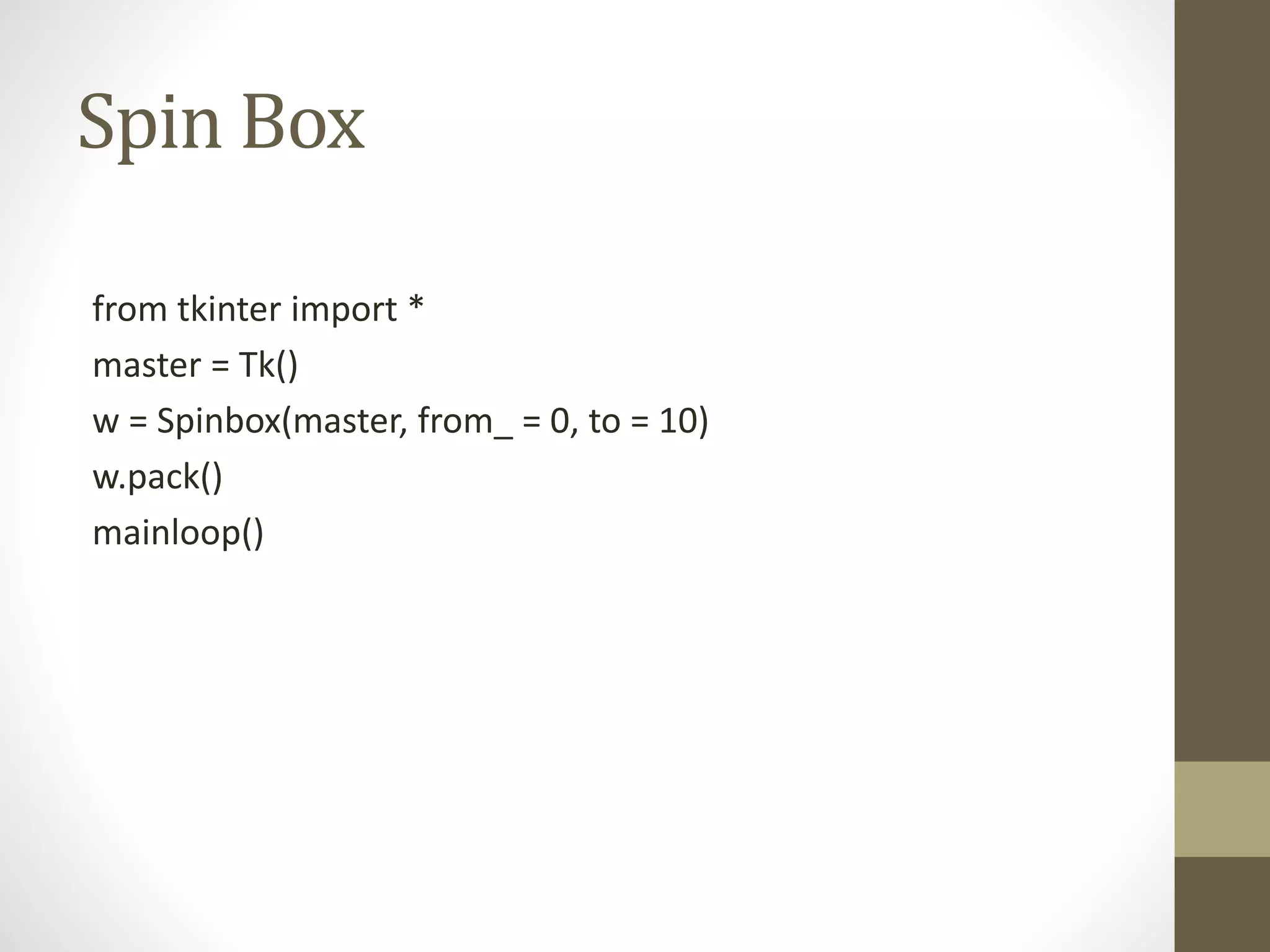
Spin Box
from tkinter import *
master = Tk()
w = Spinbox(master, from_ = 0, to = 10)
w.pack()
mainloop()
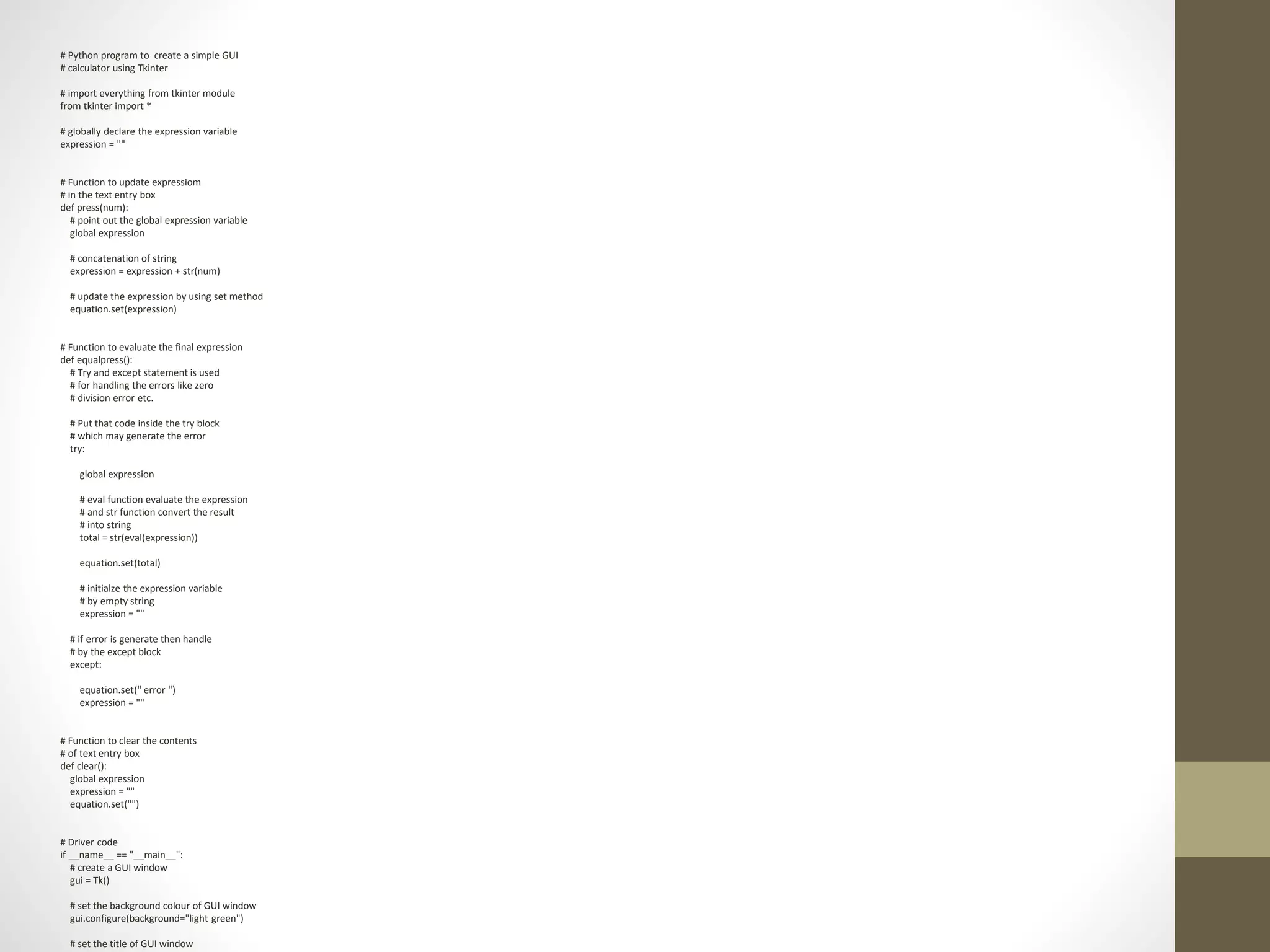
# Python program to create a simple GUI
# calculator using Tkinter
# import everything from tkinter module
from tkinter import *
# globally declare the expression variable
expression = ""
# Function to update expressiom
# in the text entry box
def press(num):
# point out the global expression variable
global expression
# concatenation of string
expression = expression + str(num)
# update the expression by using set method
equation.set(expression)
# Function to evaluate the final expression
def equalpress():
# Try and except statement is used
# for handling the errors like zero
# division error etc.
# Put that code inside the try block
# which may generate the error
try:
global expression
# eval function evaluate the expression
# and str function convert the result
# into string
total = str(eval(expression))
equation.set(total)
# initialze the expression variable
# by empty string
expression = ""
# if error is generate then handle
# by the except block
except:
equation.set(" error ")
expression = ""
# Function to clear the contents
# of text entry box
def clear():
global expression
expression = ""
equation.set("")
# Driver code
if __name__ == "__main__":
# create a GUI window
gui = Tk()
# set the background colour of GUI window
gui.configure(background="light green")
# set the title of GUI window

PYTHON - EXTRA Chapter GUI - MAULIK BORSANIYA

  • 1.
    Chapter – () GUI MaulikBorsaniya Gardividyapith
  • 2.
    What is GUI& TKinter • Python offers multiple options for developing GUI (Graphical User Interface). Out of all the GUI methods. • tkinter is most commonly used method. It is a standard Python interface to the Tk GUI toolkit shipped with Python. • Python with tkinter outputs the fastest and easiest way to create the GUI applications. Creating a GUI using tkinter is an easy task. To create a tkinter: • Importing the module – tkinter • Create the main window (container) • Add any number of widgets to the main window • Apply the event Trigger on the widgets.
  • 3.
    • Importing tkinteris same as importing any other module in the python code. Note that the name of the module in Python 2.x is ‘Tkinter’ and in Python 3.x is ‘tkinter’. • import tkinter • There are two main methods used you the user need to remember while creating the Python application with GUI.
  • 4.
    • To createa main window, tkinter offers a method • Tk(screenName=None, baseName=None, className=’Tk’, useTk=1)’. • To change the name of the window, you can change the class Name to the desired one. The basic code used to create the main window of the application is: • m=tkinter.Tk() where m is the name of the main window object • mainloop(): There is a method known by the name mainloop() is used when you are ready for the application to run. mainloop() is an infinite loop used to run the application, wait for an event to occur and process the event till the window is not closed. • m.mainloop()
  • 5.
    • tkinter alsooffers access to the geometric configuration of the widgets which can organize the widgets in the parent windows. There are mainly three geometry manager classes class. • pack() method:It organizes the widgets in blocks before placing in the parent widget. • grid() method:It organizes the widgets in grid (table-like structure) before placing in the parent widget. • place() method:It organizes the widgets by placing them on specific positions directed by the programmer. • There are a number of widgets which you can put in your tkinter application. Some of the major widgets are explained below:
  • 6.
    Button • To adda button in your application, this widget is used. • The general syntax is: • w=Button(master, option=value) • master is the parameter used to represent the parent window. • There are number of options which are used to change the format of the Buttons. • Number of options can be passed as parameters separated by commas. Some of them are listed below.
  • 7.
    • active background:to set the background color when button is under the cursor. • active foreground: to set the foreground color when button is under the cursor. • bg: to set he normal background color. • command: to call a function. • font: to set the font on the button label. • image: to set the image on the button. • width: to set the width of the button. • height: to set the height of the button.
  • 8.
    import tkinter astk r = tk.Tk() r.title('Counting Seconds') button = tk.Button(r, text='Click me To Stop', width=25, command=r.destroy, fg='red',bg='blue') button.pack() r.mainloop()
  • 9.
    Canvas • It isused to draw pictures and other complex layout like graphics, text and widgets. • The general syntax is: • w = Canvas(master, option=value) master is the parameter used to represent the parent window. There are number of options which are used to change the format of the widget. Number of options can be passed as parameters separated by commas. Some of them are listed below. • bd: to set the border width in pixels. • bg: to set the normal background color. • cursor: to set the cursor used in the canvas. • highlight color: to set the color shown in the focus highlight. • width: to set the width of the widget. • height: to set the height of the widget.
  • 10.
    Canvas from tkinter import* master = Tk() w = Canvas(master, width=40, height=60) w.pack() canvas_height=20 canvas_width=200 y = int(canvas_height / 2) w.create_line(0, y, canvas_width, y ) mainloop()
  • 11.
    CheckButton • To selectany number of options by displaying a number of options to a user as toggle buttons. The general syntax is:w = CheckButton(master, option=value)There are number of options which are used to change the format of this widget. Number of options can be passed as parameters separated by commas. Some of them are listed below. • Title: To set the title of the widget. • activebackground: to set the background color when widget is under the cursor. • activeforeground: to set the foreground color when widget is under the cursor. • bg: to set he normal backgrouSteganographyBreak • command: to call a function. • font: to set the font on the button label. • image: to set the image on the widget
  • 12.
    from tkinter import* master = Tk() var1 = IntVar() Checkbutton(master, text='male', variable=var1).grid(row=0, sticky=W) var2 = IntVar() Checkbutton(master, text='female', variable=var2).grid(row=1, sticky=W) #stickey means direction mainloop()
  • 13.
    Entry • It isused to input the single line text entry from the user.. For multi-line text input, Text widget is used. • The general syntax is: • w=Entry(master, option=value) • master is the parameter used to represent the parent window. Number of options can be passed as parameters separated by commas. • Some of them are listed below. • bd: to set the border width in pixels. • bg: to set the normal background color. • cursor: to set the cursor used. • command: to call a function. • highlightcolor: to set the color shown in the focus highlight. • width: to set the width of the button. • height: to set the height of the button.
  • 14.
    from tkinter import* master = Tk() Label(master, text='First Name').grid(row=0) Label(master, text='Last Name').grid(row=1) e1 = Entry(master) e2 = Entry(master) e1.grid(row=0, column=1) e2.grid(row=1, column=1) mainloop()
  • 15.
    Label • It refersto the display box where you can put any text or image which can be updated any time as per the code. The general syntax is: • w=Label(master, option=value) master is the parameter used to represent the parent window. • There are number of options which are used to change the format of the widget. Number of options can be passed as parameters separated by commas. Some of them are listed below. • bg: to set he normal background color. • bg to set he normal background color. • command: to call a function. • font: to set the font on the button label. • image: to set the image on the button. • width: to set the width of the button. • height” to set the height of the button.
  • 16.
    from tkinter import* root = Tk() w = Label(root, text=‘Thanks for SEE GUI, without syylabus!') w.pack() root.mainloop()
  • 17.
    Menu • It isused to create all kinds of menus used by the application. The general syntax is: • w = Menu(master, option=value) master is the parameter used to represent the parent window. • There are number of options which are used to change the format of this widget. Number of options can be passed as parameters separated by commas. Some of them are listed below. • title: To set the title of the widget. • activebackground: to set the background color when widget is under the cursor. • activeforeground: to set the foreground color when widget is under the cursor. • bg: to set he normal background color. • command: to call a function. • font: to set the font on the button label. • image: to set the image on the widget.
  • 18.
    add_cascade(options) • Creates anew hierarchical menu by associating a given menu to a parent menu insert_separator ( index ) • Insert a new separator at the position specified by index. from tkinter import * root = Tk() menu = Menu(root) root.config(menu=menu) filemenu = Menu(menu) menu.add_cascade(label='File', menu=filemenu) filemenu.add_command(label='New') filemenu.add_command(label='Open...') filemenu.add_separator() filemenu.add_command(label='Exit', command=root.quit) helpmenu = Menu(menu) menu.add_cascade(label='Help', menu=helpmenu) helpmenu.add_command(label='About') mainloop()
  • 19.
    Radio Button from tkinterimport * root = Tk() v = IntVar() Radiobutton(root, text='GfG', variable=v, value=1).pack(anchor=W) Radiobutton(root, text='MIT', variable=v, value=2).pack(anchor=W) mainloop()
  • 20.
    Scaling from tkinter import* master = Tk() w = Scale(master, from_=0, to=42) w.pack() w = Scale(master, from_=0, to=200, orient=HORIZONTAL) w.pack() mainloop()
  • 21.
    Text Box from tkinterimport * root = Tk() T = Text(root, height=2, width=30) T.pack() T.insert(END, 'Maulik BorsaniyanWelcomes You!!n') mainloop()
  • 22.
    Spin Box from tkinterimport * master = Tk() w = Spinbox(master, from_ = 0, to = 10) w.pack() mainloop()
  • 23.
    # Python programto create a simple GUI # calculator using Tkinter # import everything from tkinter module from tkinter import * # globally declare the expression variable expression = "" # Function to update expressiom # in the text entry box def press(num): # point out the global expression variable global expression # concatenation of string expression = expression + str(num) # update the expression by using set method equation.set(expression) # Function to evaluate the final expression def equalpress(): # Try and except statement is used # for handling the errors like zero # division error etc. # Put that code inside the try block # which may generate the error try: global expression # eval function evaluate the expression # and str function convert the result # into string total = str(eval(expression)) equation.set(total) # initialze the expression variable # by empty string expression = "" # if error is generate then handle # by the except block except: equation.set(" error ") expression = "" # Function to clear the contents # of text entry box def clear(): global expression expression = "" equation.set("") # Driver code if __name__ == "__main__": # create a GUI window gui = Tk() # set the background colour of GUI window gui.configure(background="light green") # set the title of GUI window