Guided Discovery of
interfacing CSV files with
Python
Pandas DataFrame and CSV files: Interfacing
This Photo by Unknown Author is licensed under CC BY-SA
• Pandas DataFrame is a two dimensional
structures with row and columns.
• Due to its inherent tabular structure, we
can query and run calculations on pandas
dataframes across an entire row, an entire
column, or a specific cell or series of cells
based on either location and attribute
values.
• CSV files are a very common file format
used to collect and organize scientific
data.
• CSV files use commas (or some other
delimiter like tab spaces or semi-colons)
to indicate separate values.
• CSV files also support labeled names for
the columns, referred to as headers. This
means that CSV files can easily support
multiple columns of related data.
This Photo by Unknown Author
is licensed under CC BY-SA
CSV files: Comma Separated Files
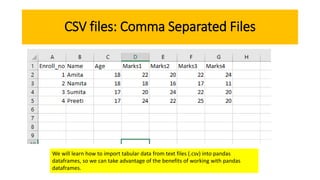
We will learn how to import tabular data from text files (.csv) into pandas
dataframes, so we can take advantage of the benefits of working with pandas
dataframes.
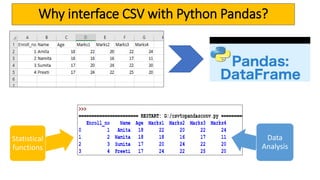
Statistical
functions
Data
Analysis
Why interface CSV with Python Pandas?
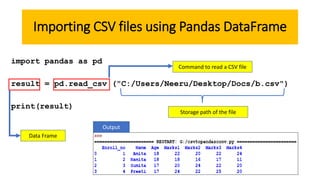
Importing CSV files using Pandas DataFrame
import pandas as pd
result = pd.read_csv ("C:/Users/Neeru/Desktop/Docs/b.csv")
print(result)
Command to read a CSV file
Storage path of the file
Data Frame
Output
read_csv : Syntax
DataFrame = pd.read_csv (“filepath”, sep=“ “, header=0)
• name of the comma separated data file along with its path.
• sep specifies whether the values are separated by comma, semicolon, tab, or any
other character. The default value for sep is a space.
• header specifies the number of the row whose values are to be used as the
column names. It also marks the start of the data to be fetched. By default,
header=0.
1 2 3
1
2
3
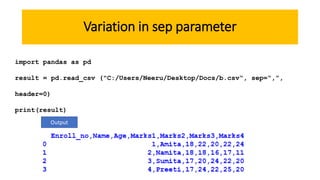
Variation in sep parameter
import pandas as pd
result = pd.read_csv ("C:/Users/Neeru/Desktop/Docs/b.csv“, sep=“,”,
header=0)
print(result)
Output
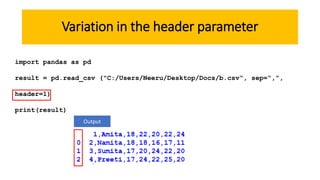
Variation in the header parameter
import pandas as pd
result = pd.read_csv ("C:/Users/Neeru/Desktop/Docs/b.csv“, sep=“,”,
header=1)
print(result)
Output
Using the Name parameter
We can specify our own column names using the parameter names while creating
the DataFrame using the read_csv() function.
import pandas as pd
result=pd.read_csv ("C:/Users/Neeru/Desktop/Docs/b.csv", header=0,
names=["Roll_no","Studname", "Math","English","Science", "Arts"])
print(result)
Note: We need to specify the
Header=0 parameter here otherwise,
there will be a double heading.
Output
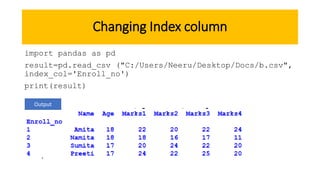
Changing Index column
import pandas as pd
result=pd.read_csv ("C:/Users/Neeru/Desktop/Docs/b.csv",
index_col='Enroll_no')
print(result)
Output
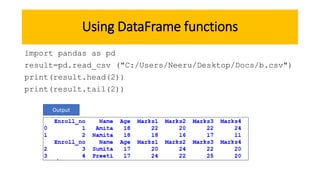
Using DataFrame functions
import pandas as pd
result=pd.read_csv ("C:/Users/Neeru/Desktop/Docs/b.csv")
print(result.head(2))
print(result.tail(2))
Output
Applying Pandas Aggregate Functions
import pandas as pd
result=pd.read_csv ("C:/Users/Neeru/Desktop/Docs/b.csv")
print(result.sum())
print(result.sum(axis=1))
print(result['Marks1'].sum())
print(result[‘Marks1’])
print(result.mean())
print(result.loc[2])
print(result.loc[1:4])
Applying Pandas Aggregate Functions
Adding a new column
import pandas as pd
result=pd.read_csv ("C:/Users/Neeru/Desktop/Docs/b.csv")
result["Marks6"]=[22,11,13,15]
print(result)
Output
Adding a new row
import pandas as pd
result=pd.read_csv ("C:/Users/Neeru/Desktop/Docs/b.csv")
result.loc[4]=[22,24,25,20.20]
print(result)
Output
Exporting DataFrames to CSV
import pandas as pd
marksUT= {'Name':['Raman','Zuhaire','Mishti','Drovya'],
'UT':[1,2,3,4],
'Maths':[22,21,14,20],
'Science':[25,22,21,18],
'S.St':[18,17,15,22],
'Hindi':[20,22,15,17],
'Eng':[24,23,13,20]
}
pd1=pd.DataFrame(marksUT)
pd1.to_csv(path_or_buf='C:/Users/Neeru/Desktop/Docs/dd.csv’,
sep=',')
DataFrame
Creation
File PathCommand to write to a CSV file
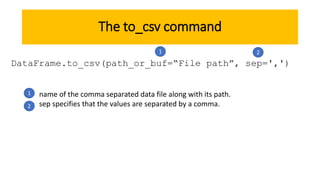
The to_csv command
DataFrame.to_csv(path_or_buf=“File path”, sep=',')
• name of the comma separated data file along with its path.
• sep specifies that the values are separated by a comma.2
21
1
Attendance link
docs.google.com/forms/d/e/1FAIpQLSdTbUb1khFFMxh6di8G8mpbrfrh98ppn0poOdQDypmchq741Q/
viewform?vc=0&c=0&w=1

Python and CSV Connectivity

  • 1.
    Guided Discovery of interfacingCSV files with Python
  • 2.
    Pandas DataFrame andCSV files: Interfacing This Photo by Unknown Author is licensed under CC BY-SA • Pandas DataFrame is a two dimensional structures with row and columns. • Due to its inherent tabular structure, we can query and run calculations on pandas dataframes across an entire row, an entire column, or a specific cell or series of cells based on either location and attribute values. • CSV files are a very common file format used to collect and organize scientific data. • CSV files use commas (or some other delimiter like tab spaces or semi-colons) to indicate separate values. • CSV files also support labeled names for the columns, referred to as headers. This means that CSV files can easily support multiple columns of related data. This Photo by Unknown Author is licensed under CC BY-SA
  • 3.
    CSV files: CommaSeparated Files We will learn how to import tabular data from text files (.csv) into pandas dataframes, so we can take advantage of the benefits of working with pandas dataframes.
  • 4.
  • 5.
    Importing CSV filesusing Pandas DataFrame import pandas as pd result = pd.read_csv ("C:/Users/Neeru/Desktop/Docs/b.csv") print(result) Command to read a CSV file Storage path of the file Data Frame Output
  • 6.
    read_csv : Syntax DataFrame= pd.read_csv (“filepath”, sep=“ “, header=0) • name of the comma separated data file along with its path. • sep specifies whether the values are separated by comma, semicolon, tab, or any other character. The default value for sep is a space. • header specifies the number of the row whose values are to be used as the column names. It also marks the start of the data to be fetched. By default, header=0. 1 2 3 1 2 3
  • 7.
    Variation in sepparameter import pandas as pd result = pd.read_csv ("C:/Users/Neeru/Desktop/Docs/b.csv“, sep=“,”, header=0) print(result) Output
  • 8.
    Variation in theheader parameter import pandas as pd result = pd.read_csv ("C:/Users/Neeru/Desktop/Docs/b.csv“, sep=“,”, header=1) print(result) Output
  • 9.
    Using the Nameparameter We can specify our own column names using the parameter names while creating the DataFrame using the read_csv() function. import pandas as pd result=pd.read_csv ("C:/Users/Neeru/Desktop/Docs/b.csv", header=0, names=["Roll_no","Studname", "Math","English","Science", "Arts"]) print(result) Note: We need to specify the Header=0 parameter here otherwise, there will be a double heading. Output
  • 10.
    Changing Index column importpandas as pd result=pd.read_csv ("C:/Users/Neeru/Desktop/Docs/b.csv", index_col='Enroll_no') print(result) Output
  • 11.
    Using DataFrame functions importpandas as pd result=pd.read_csv ("C:/Users/Neeru/Desktop/Docs/b.csv") print(result.head(2)) print(result.tail(2)) Output
  • 12.
    Applying Pandas AggregateFunctions import pandas as pd result=pd.read_csv ("C:/Users/Neeru/Desktop/Docs/b.csv") print(result.sum()) print(result.sum(axis=1)) print(result['Marks1'].sum()) print(result[‘Marks1’])
  • 13.
  • 14.
    Adding a newcolumn import pandas as pd result=pd.read_csv ("C:/Users/Neeru/Desktop/Docs/b.csv") result["Marks6"]=[22,11,13,15] print(result) Output
  • 15.
    Adding a newrow import pandas as pd result=pd.read_csv ("C:/Users/Neeru/Desktop/Docs/b.csv") result.loc[4]=[22,24,25,20.20] print(result) Output
  • 16.
    Exporting DataFrames toCSV import pandas as pd marksUT= {'Name':['Raman','Zuhaire','Mishti','Drovya'], 'UT':[1,2,3,4], 'Maths':[22,21,14,20], 'Science':[25,22,21,18], 'S.St':[18,17,15,22], 'Hindi':[20,22,15,17], 'Eng':[24,23,13,20] } pd1=pd.DataFrame(marksUT) pd1.to_csv(path_or_buf='C:/Users/Neeru/Desktop/Docs/dd.csv’, sep=',') DataFrame Creation File PathCommand to write to a CSV file
  • 17.
    The to_csv command DataFrame.to_csv(path_or_buf=“Filepath”, sep=',') • name of the comma separated data file along with its path. • sep specifies that the values are separated by a comma.2 21 1
  • 18.